1. Create a New Order
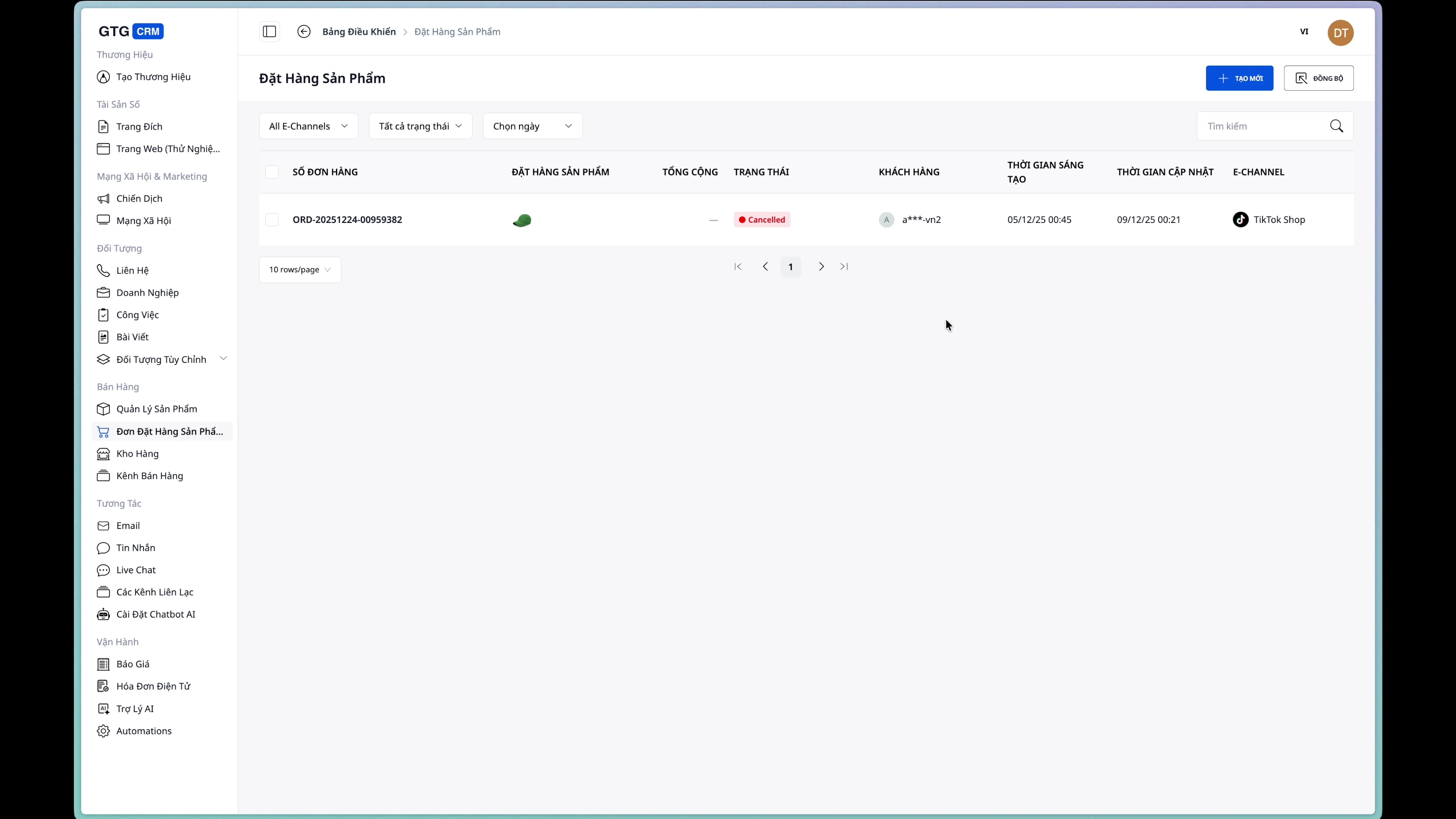
Step 1: Access the Order Creation Page
From the sidebar menu, select Product Order → Create Order.
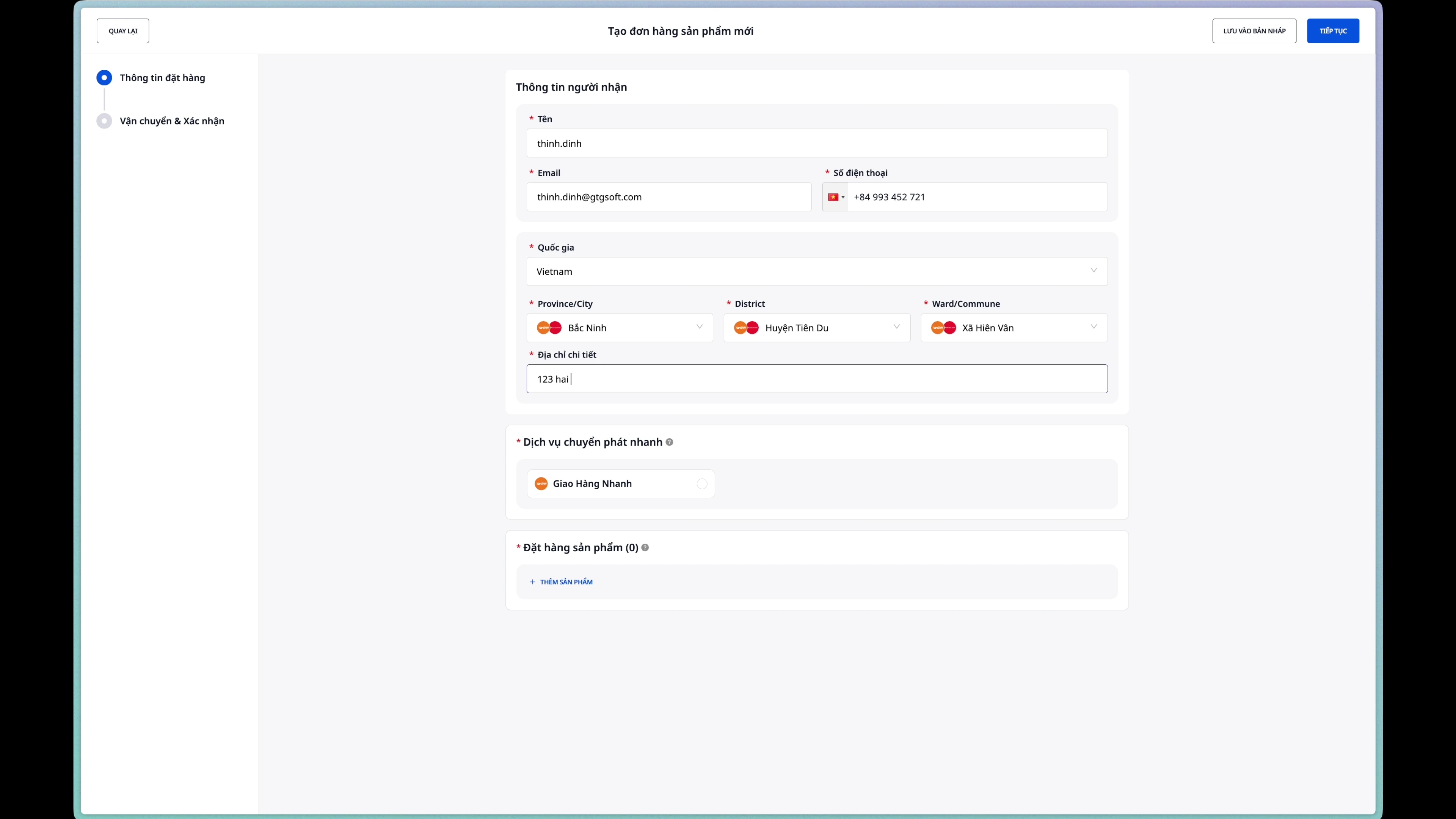
Step 2: Enter Recipient Information
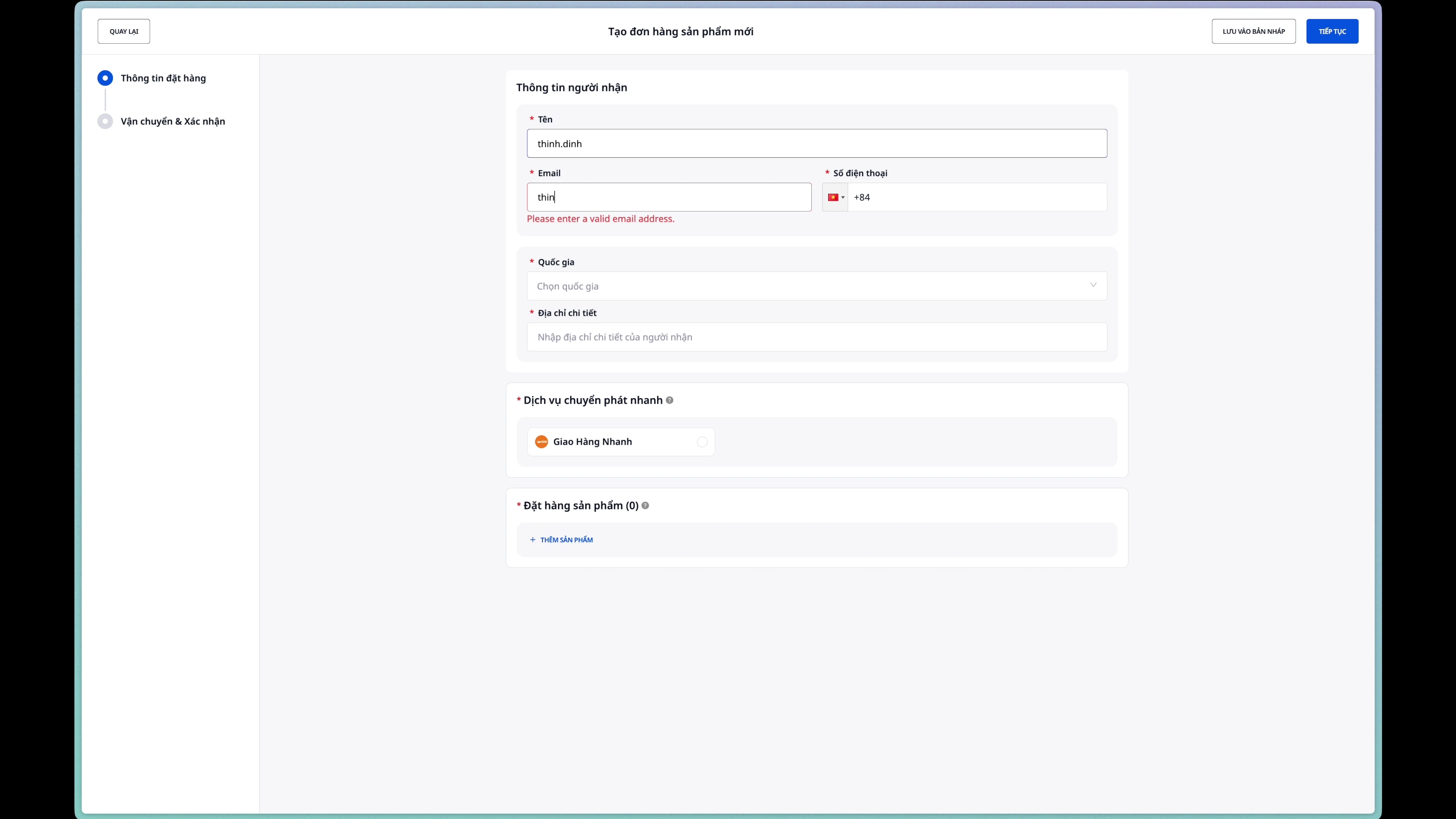
Fill in the recipient's details:
- Recipient Name: Full name
- Email: Email address
- Phone Number: Contact phone number
Step 3: Enter Shipping Address
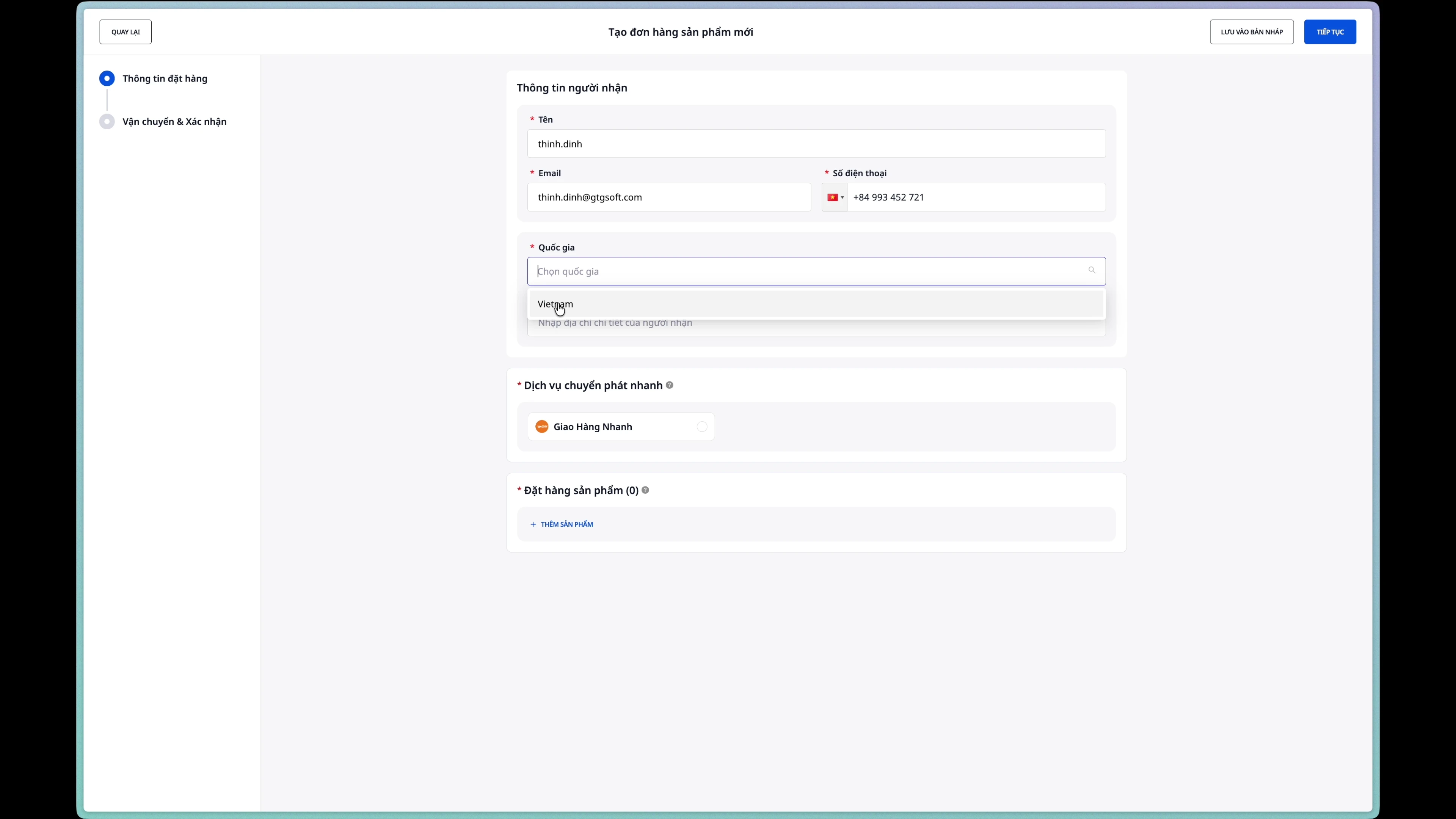
Fields to fill:
- Province/City: Select from the dropdown list
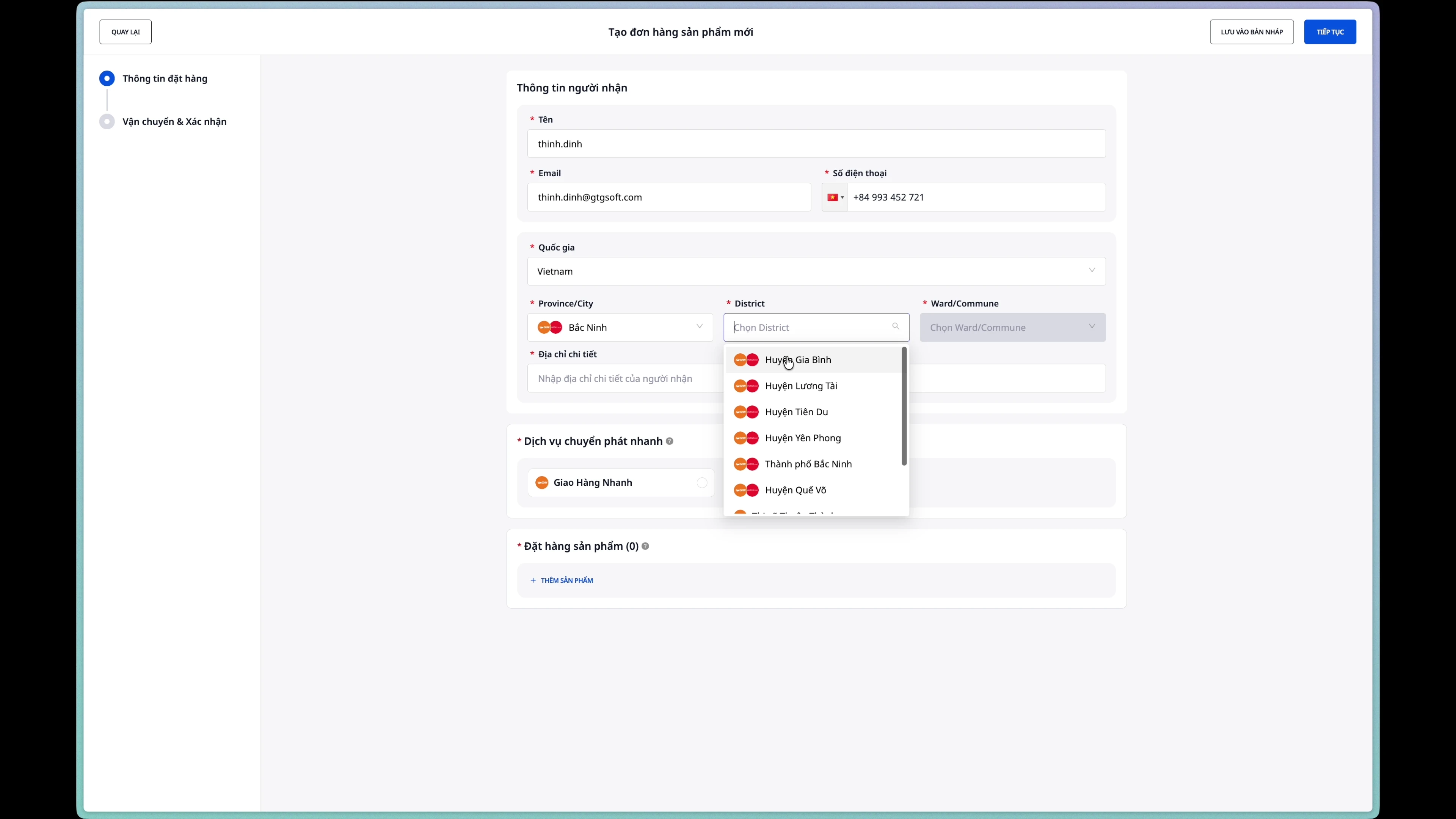
- District/Ward: Select after choosing Province/City
- Commune/Town: Select after choosing District/Ward
- House Number and Street Name: Enter the detailed address
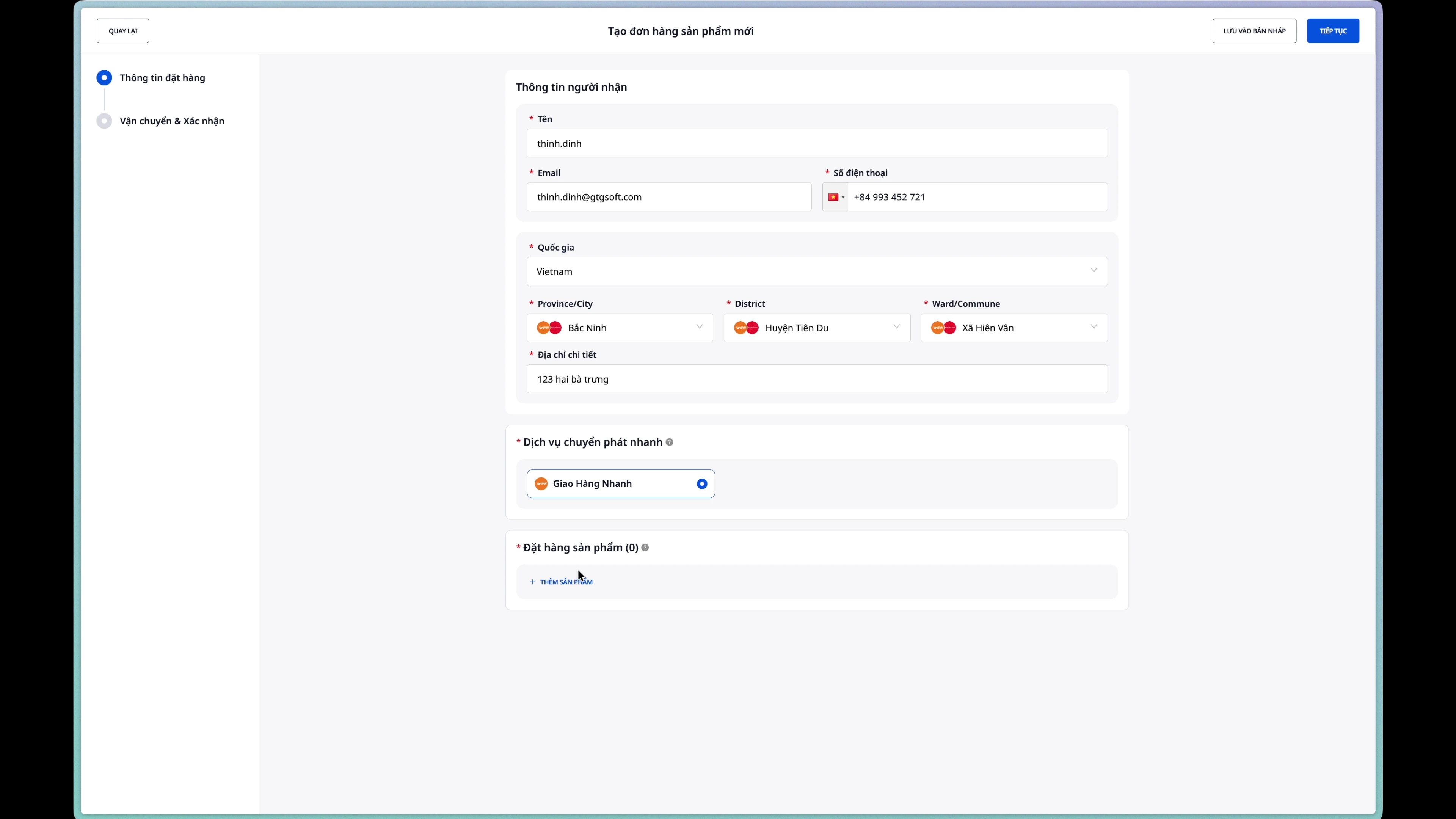
Step 4: Select Shipping Carrier
Choose a shipping carrier from the list of integrated partners.
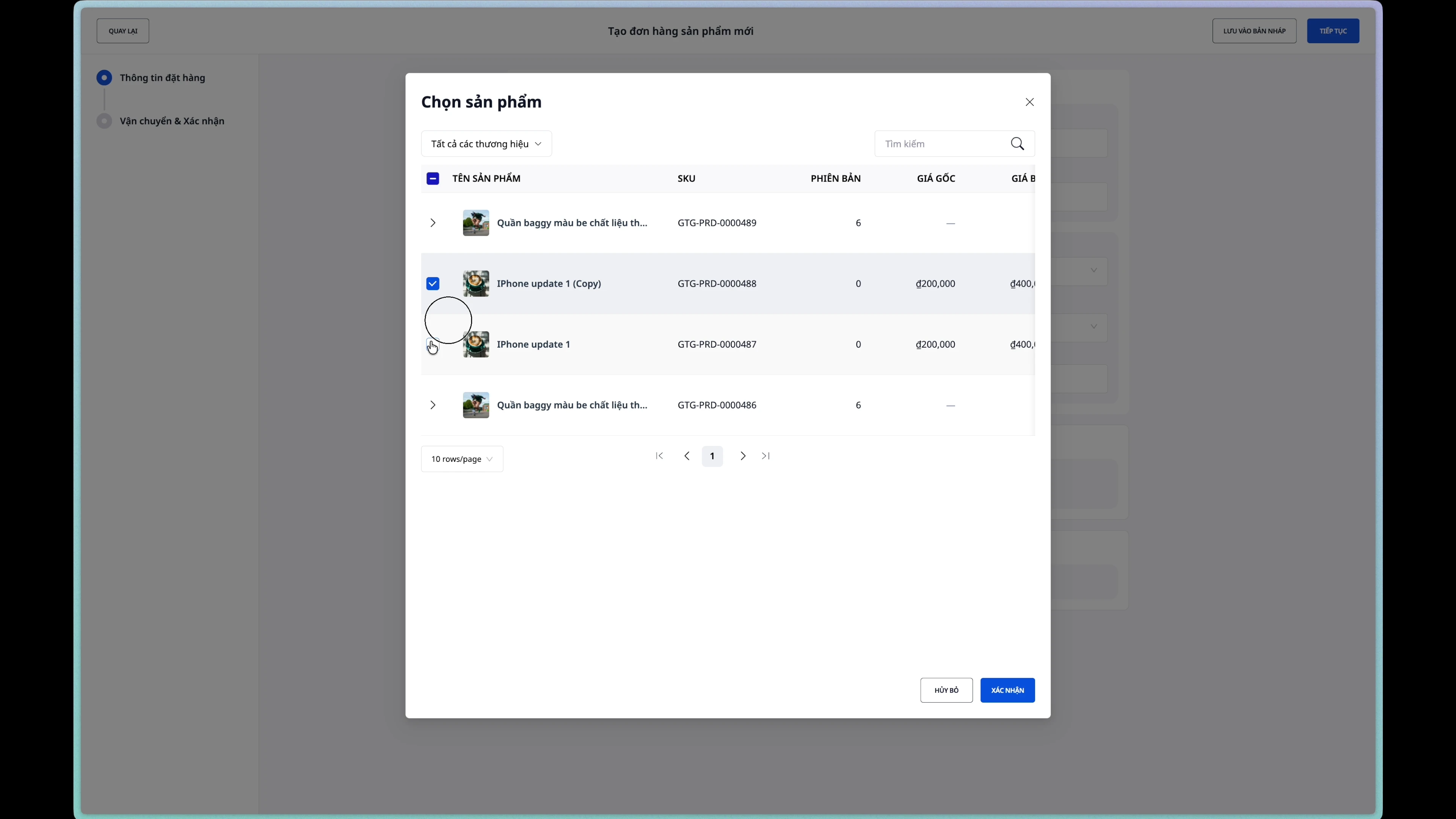
Step 5: Add Products to Order
- Click the "Add Product" button
- Search for and select products from the list
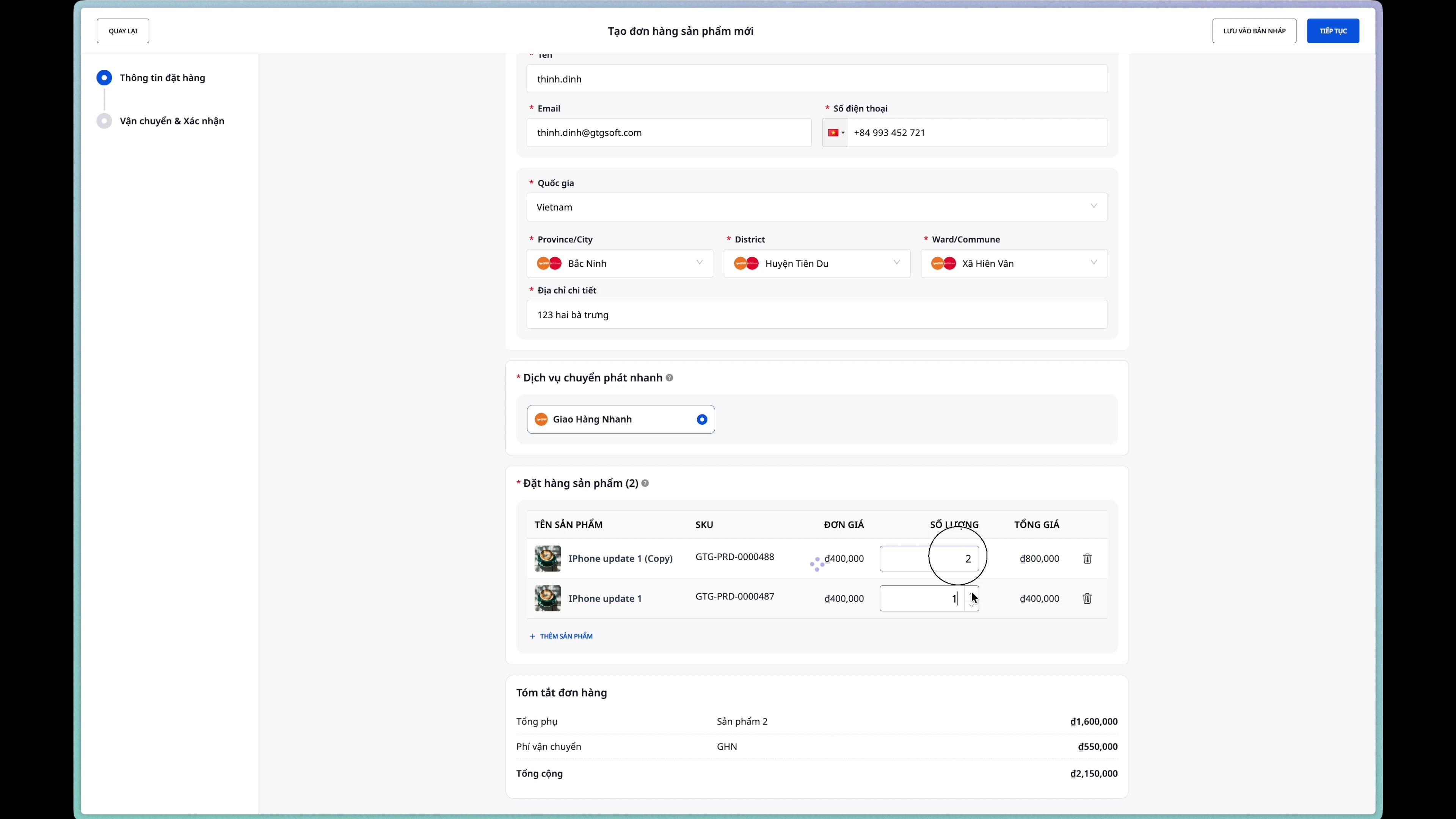
- Adjust the quantity using the plus (+) or minus (-) buttons
Step 6: Create the Order
After reviewing the information, click the "Create Order" button.
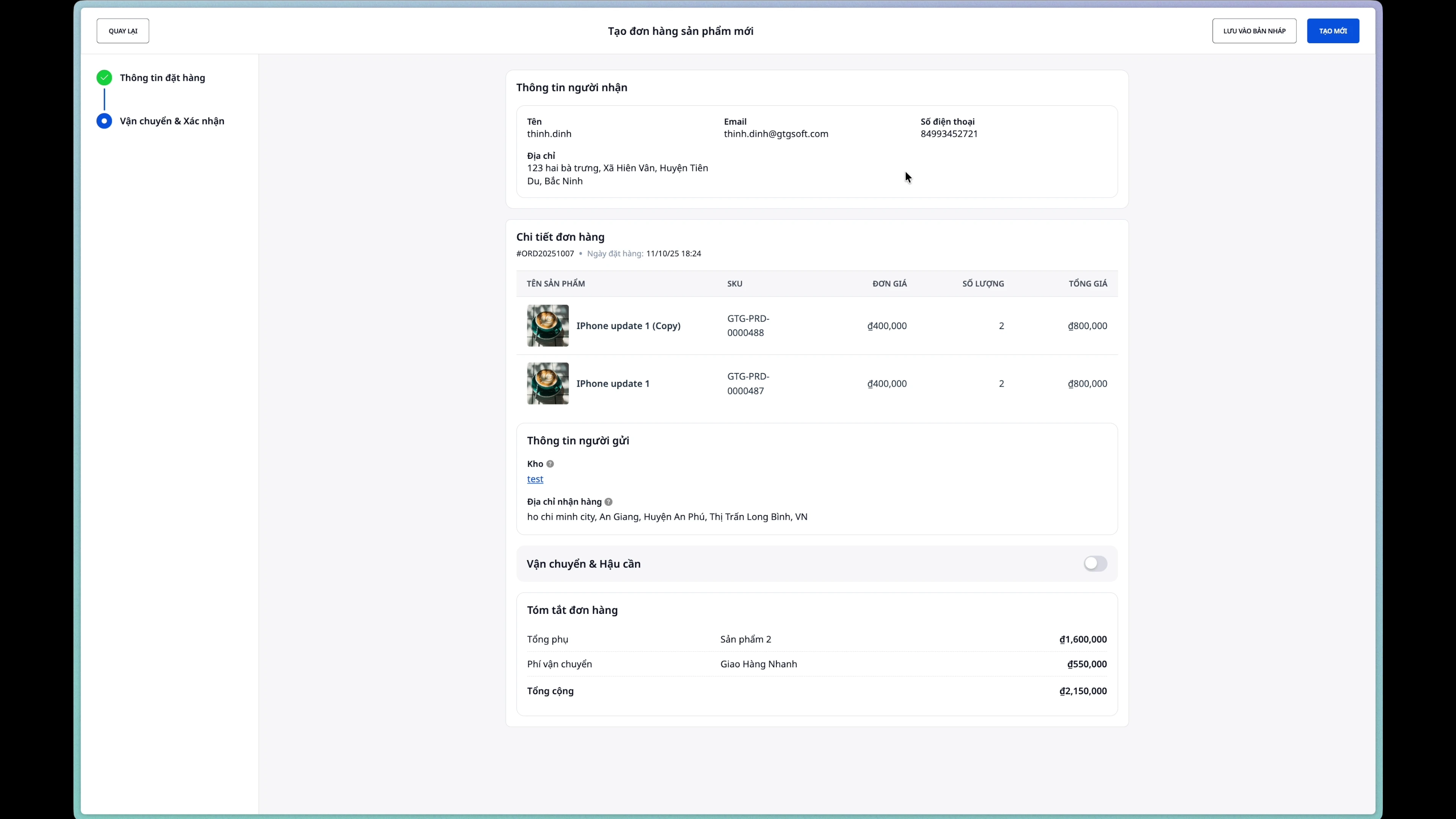
Successfully created orders will have the status New.
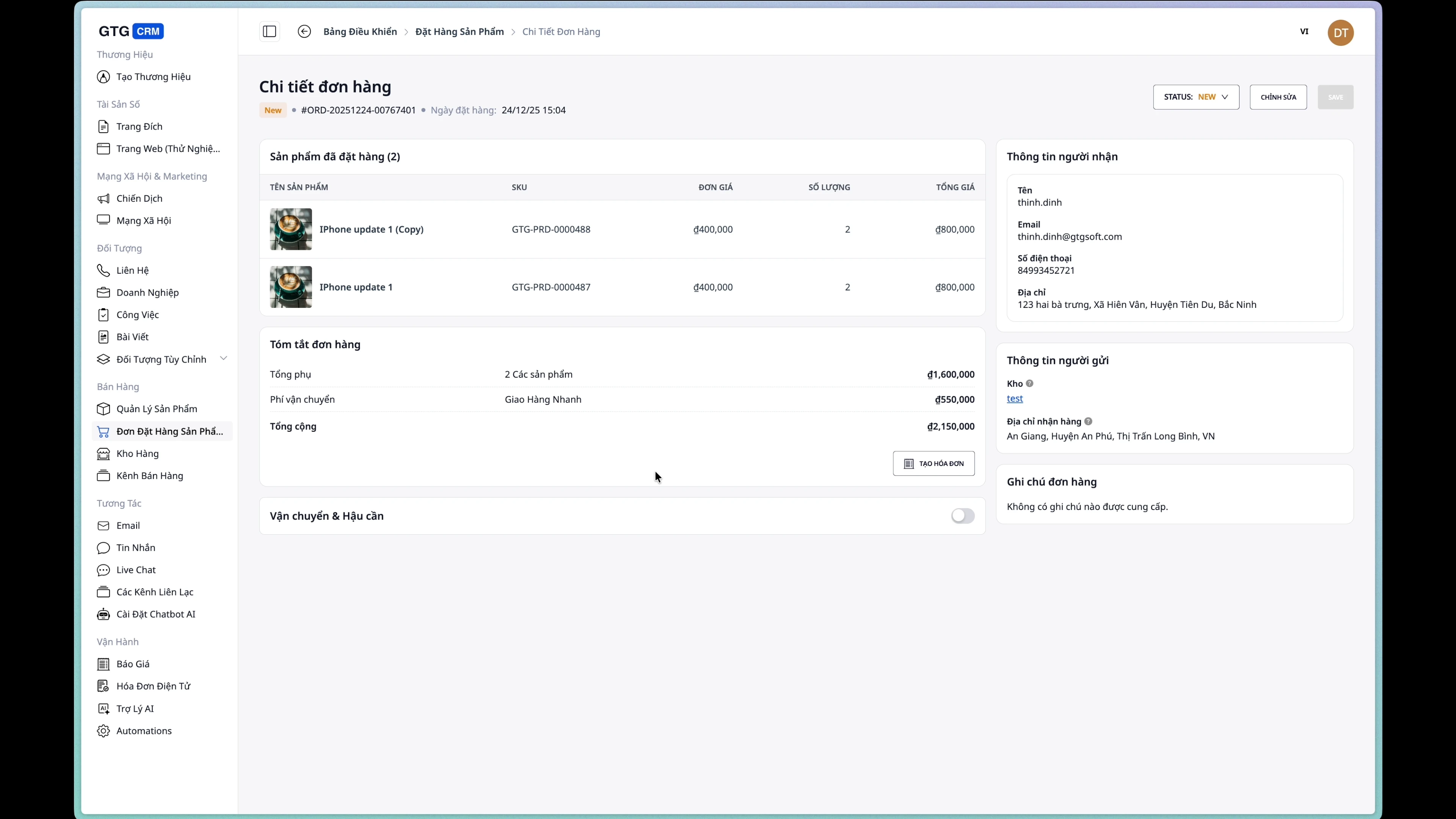
2. Edit Order
Note: Orders can only be edited when they are in the New status.
Step 1: Open the Edit Page
From the order detail page, click the "Edit" button.
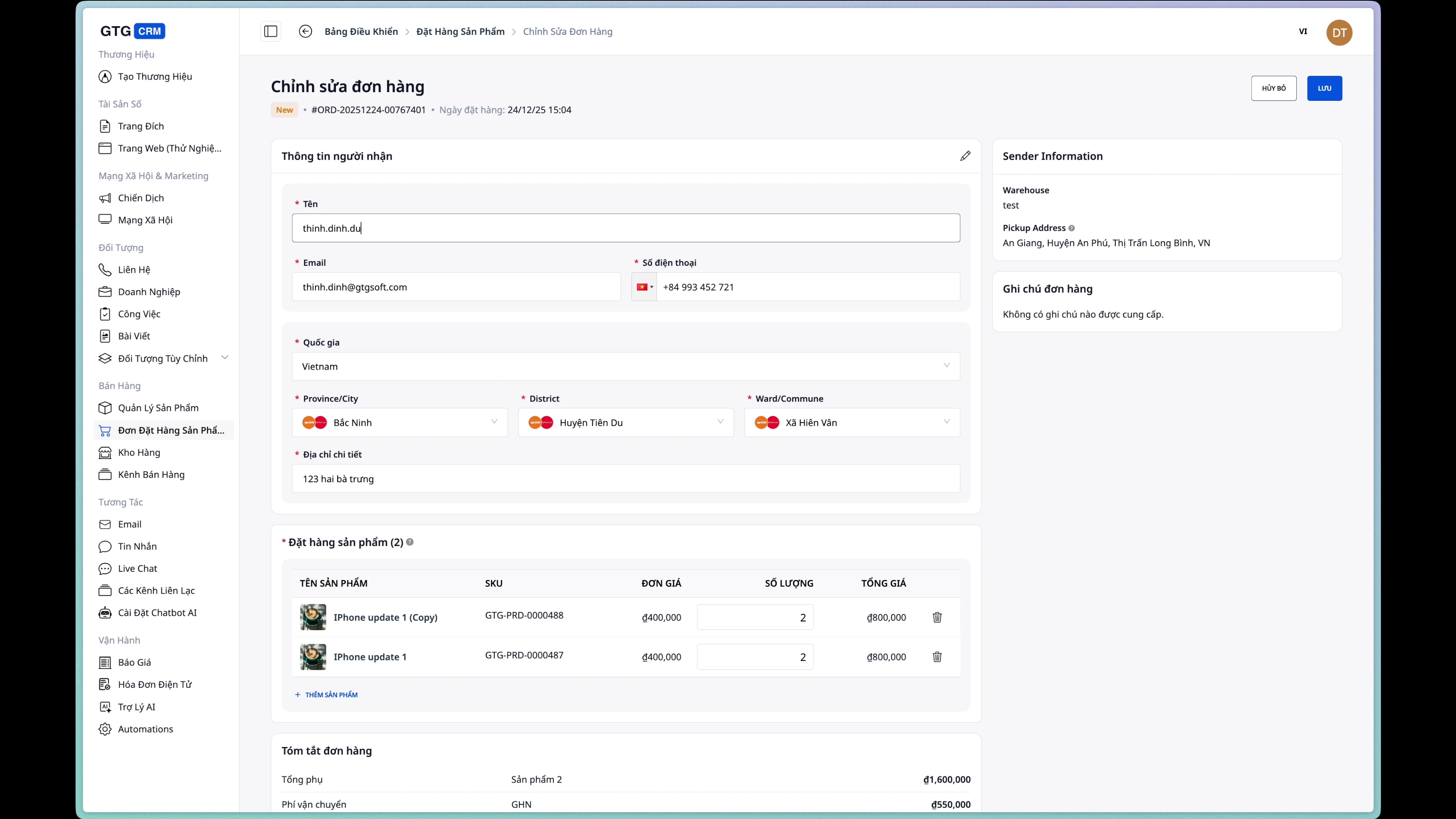
Step 2: Edit Buyer Information
You can change:
- Recipient Name
- Phone Number
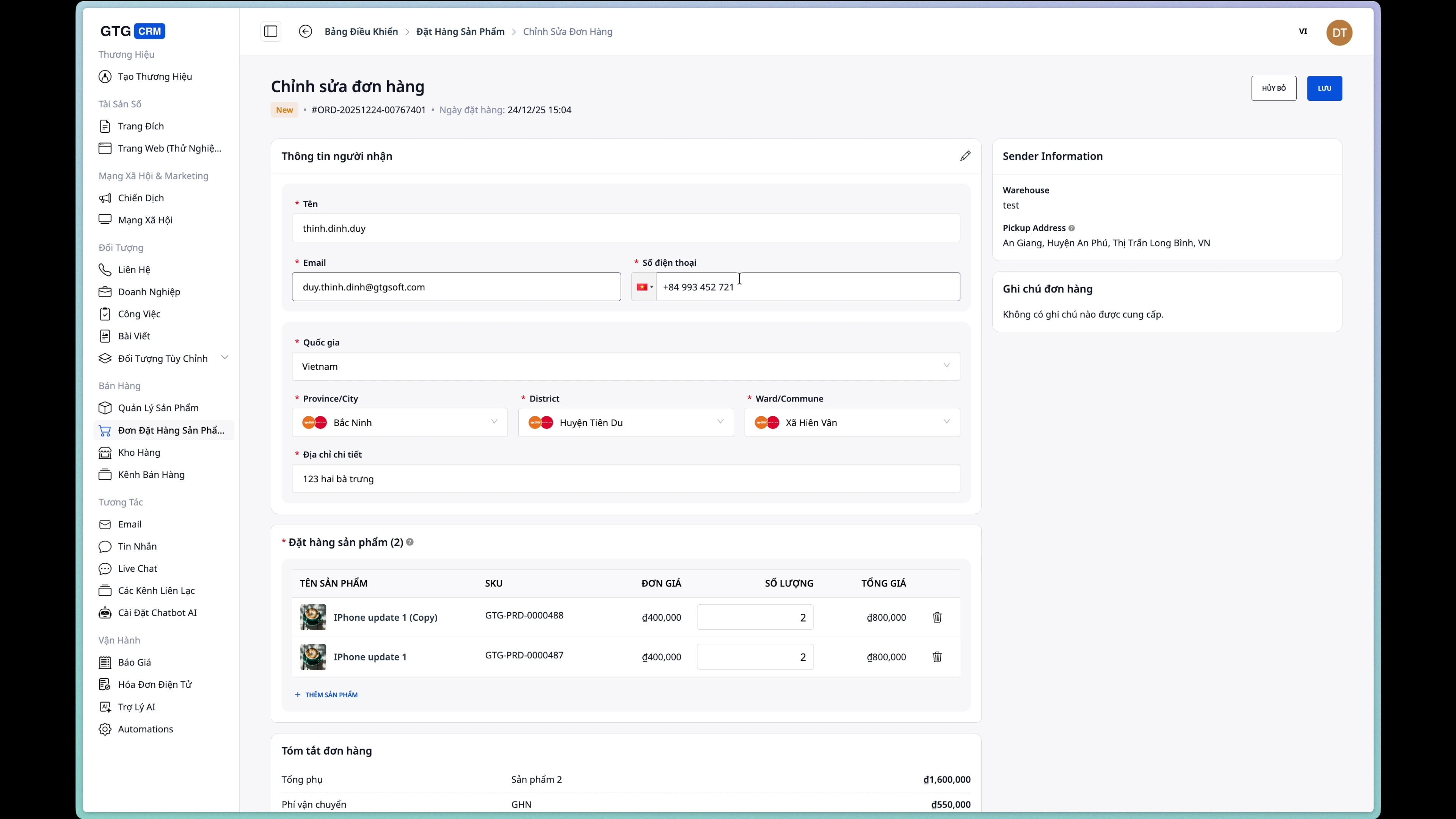
Step 3: Change Shipping Address
Update the shipping address if needed.
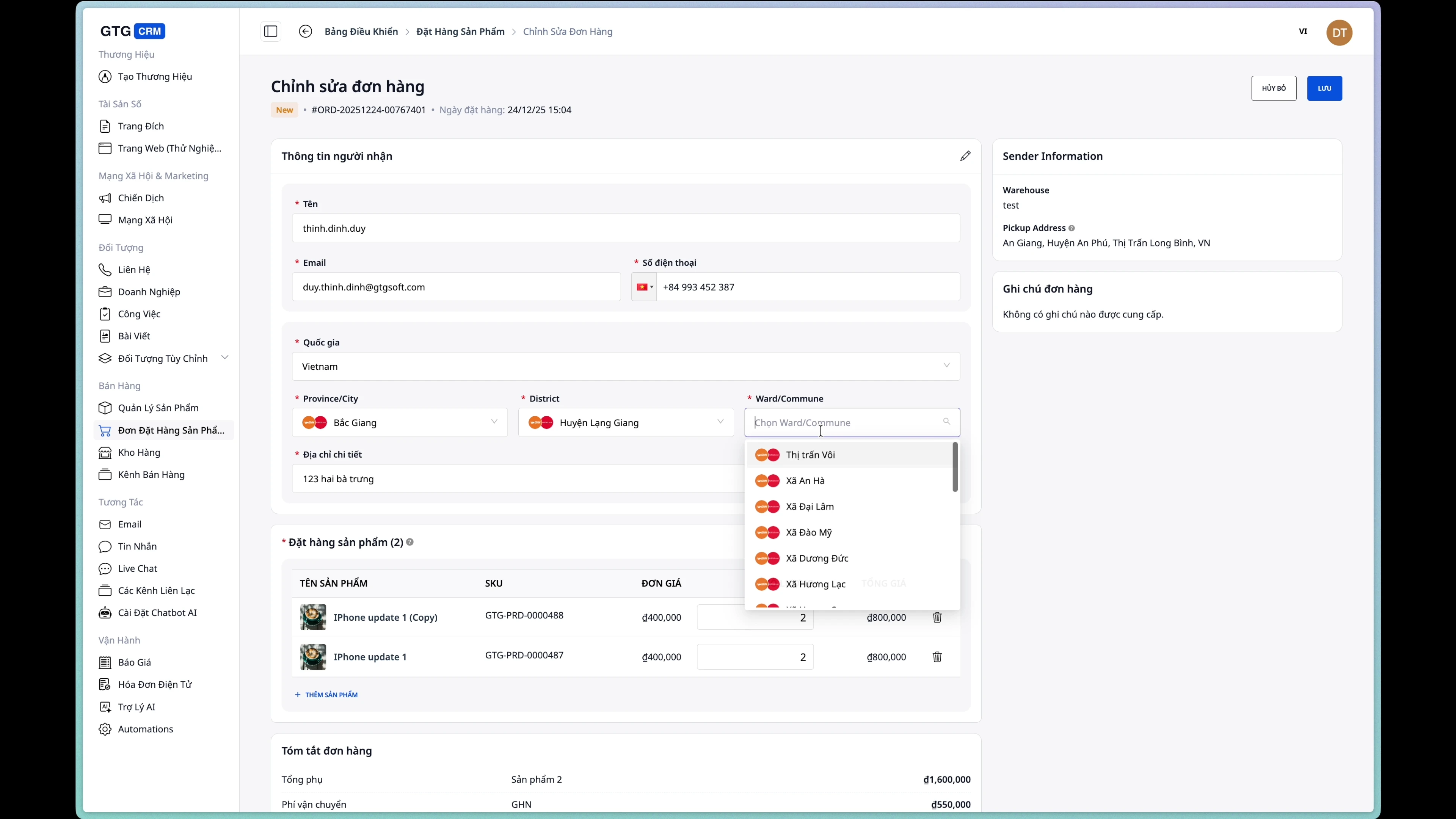
Step 4: Add/Remove Products
Add new products:
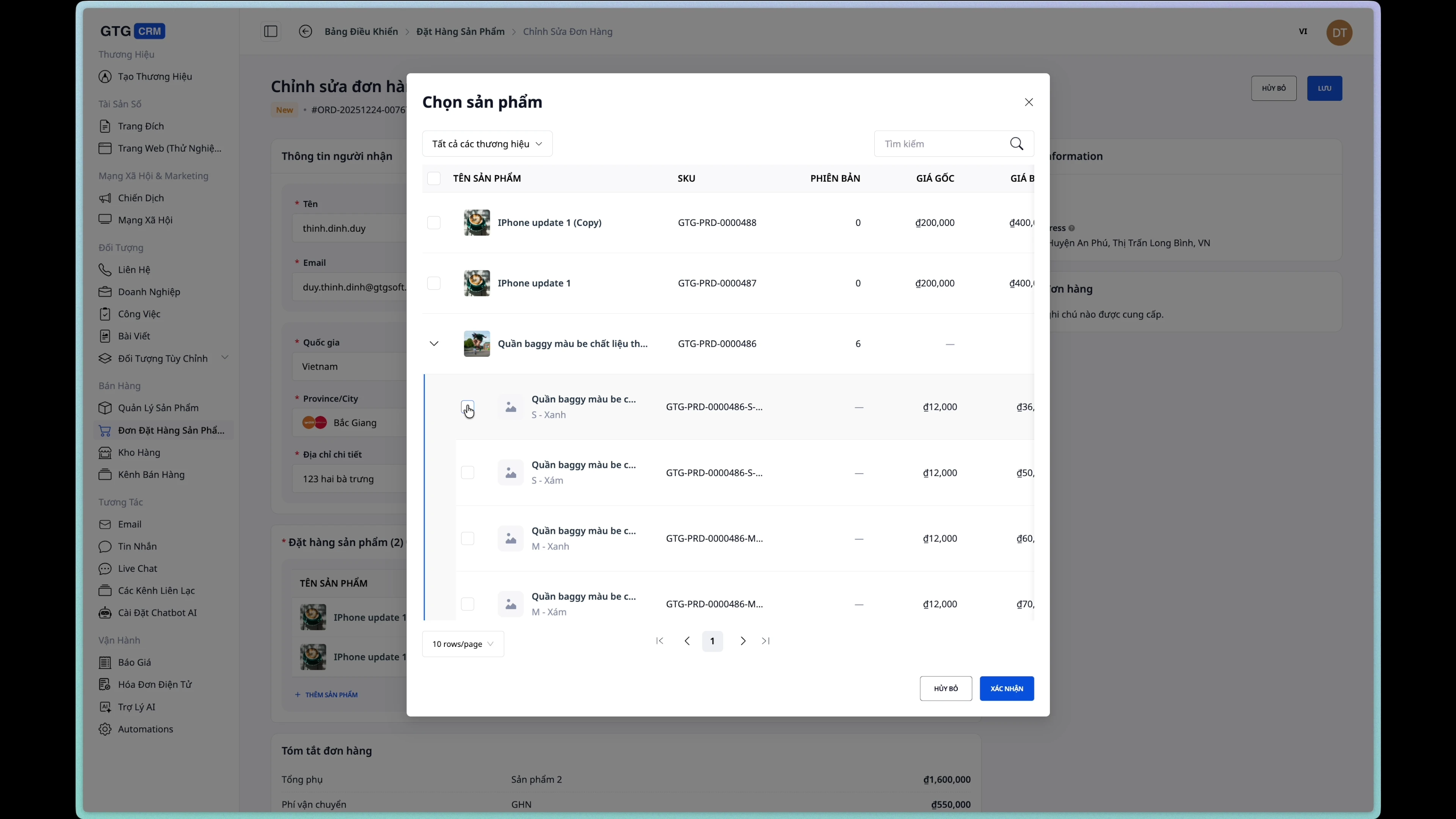
Edit quantity:
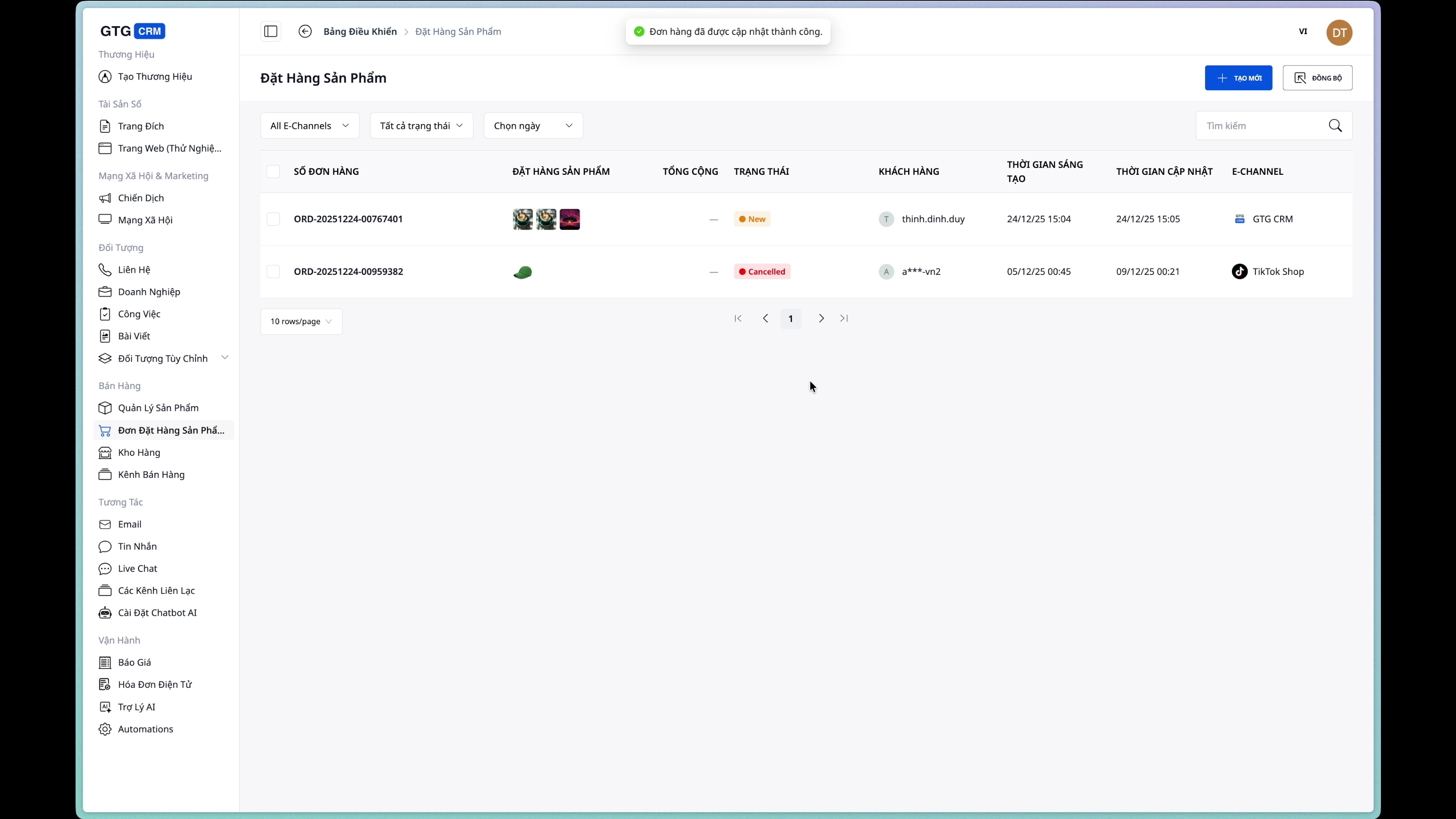
Step 5: Save Changes
Click the "Save" button to update the order.
3. Manage Order Status
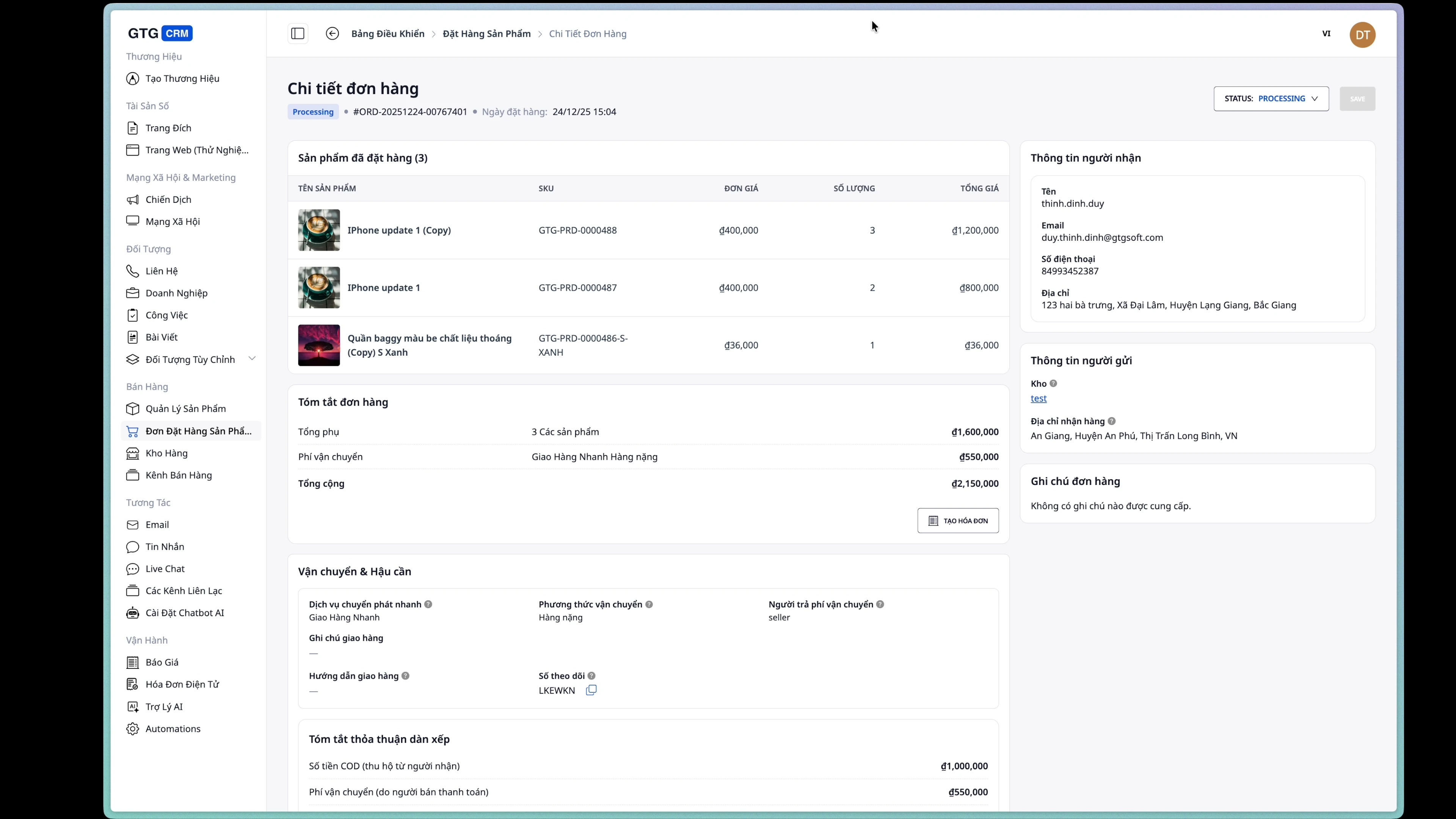
View Order Details
The order detail page displays complete information:
- Recipient Information
- Shipping Address
- Product List
- Order Status
- Shipping Information (if any)
- Invoice Information (if any)
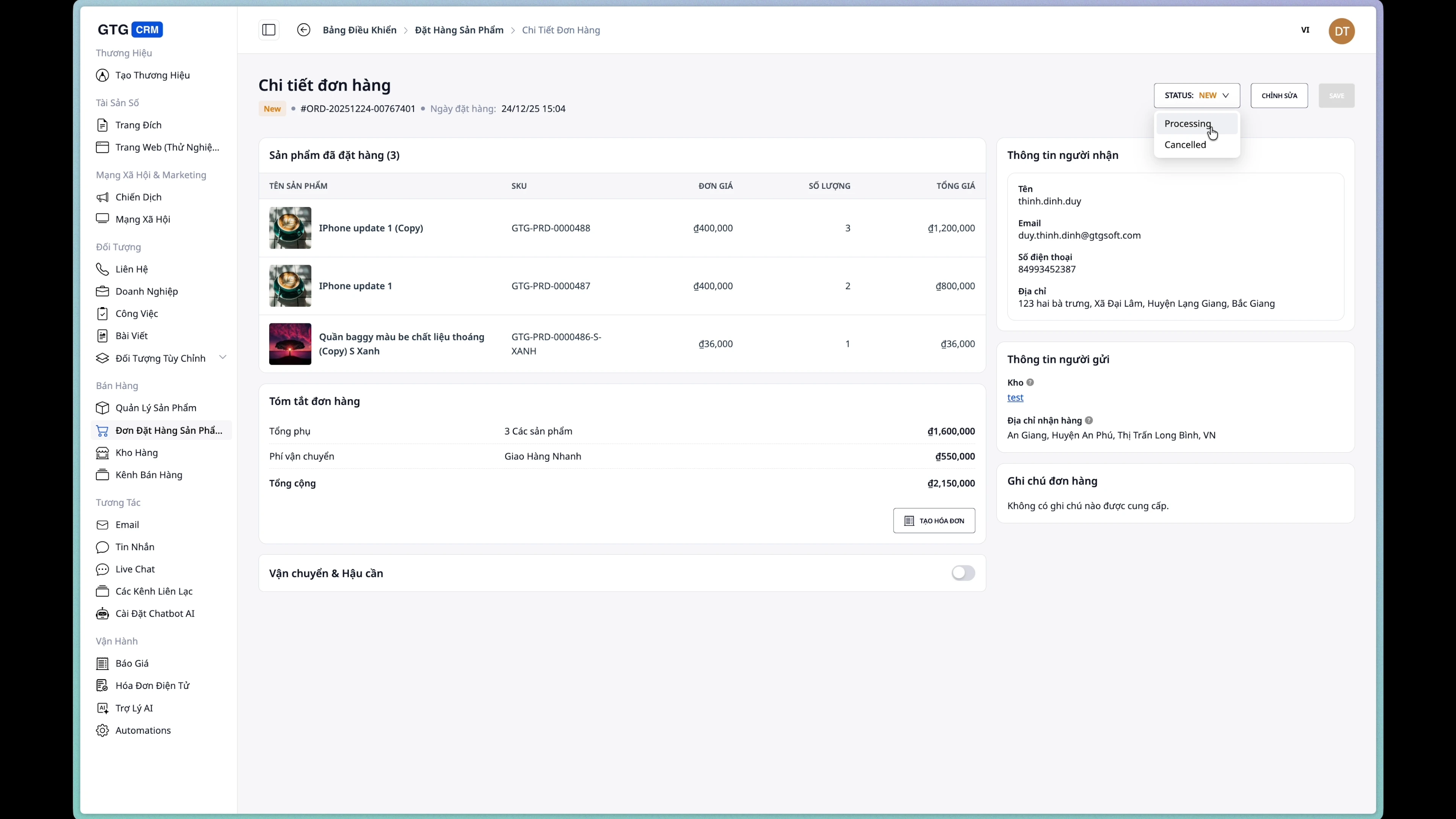
Change Order Status
Click on the status dropdown to change:
- New → New Order
- Processing → Processing
- Completed → Completed
- Cancelled → Cancelled
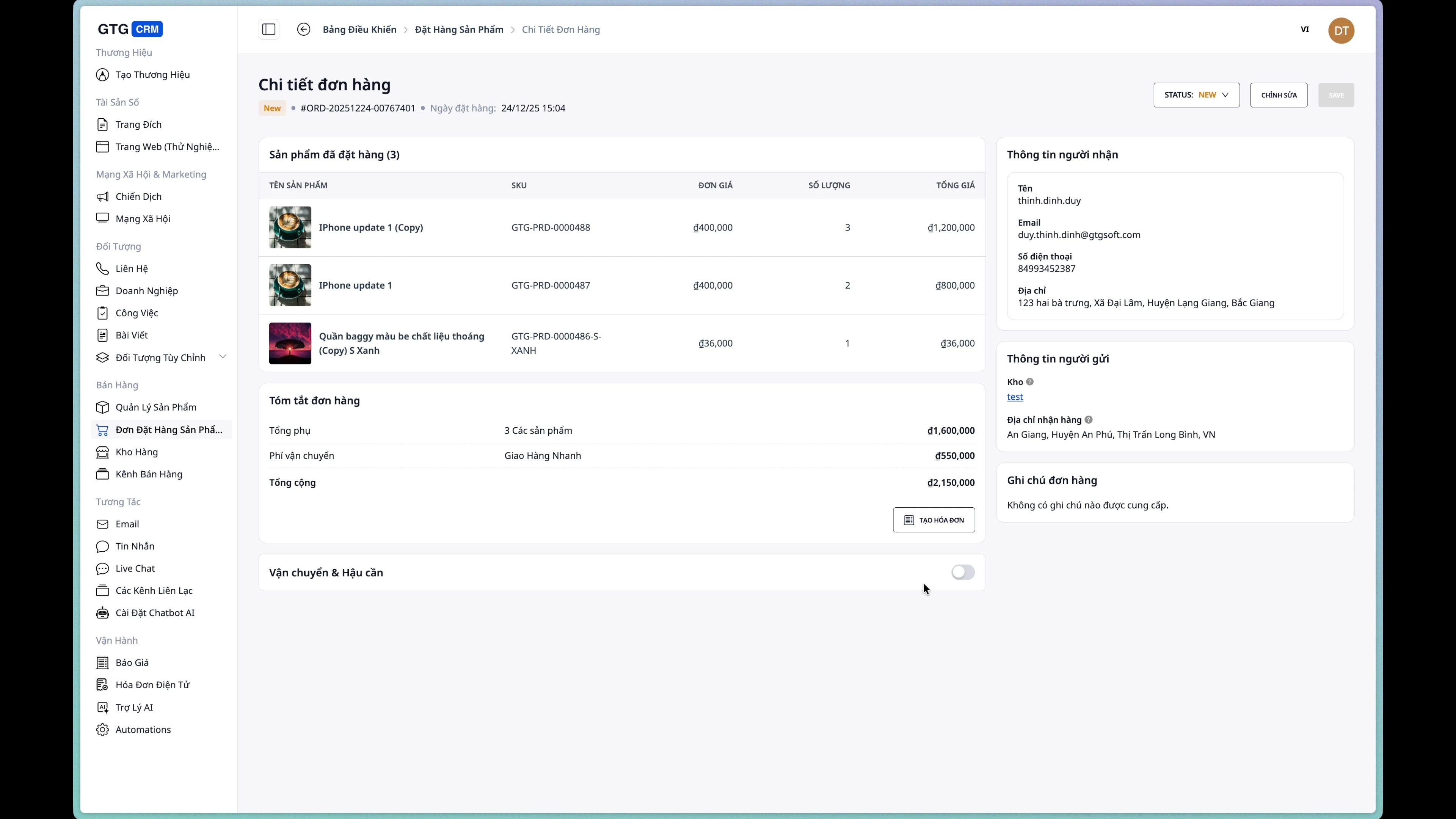
4. Create Shipping Order
Condition: The order does not have a shipping order yet
Step 1: Open the Shipping Order Form
From the order detail page, click the "Create Shipping Order" button.
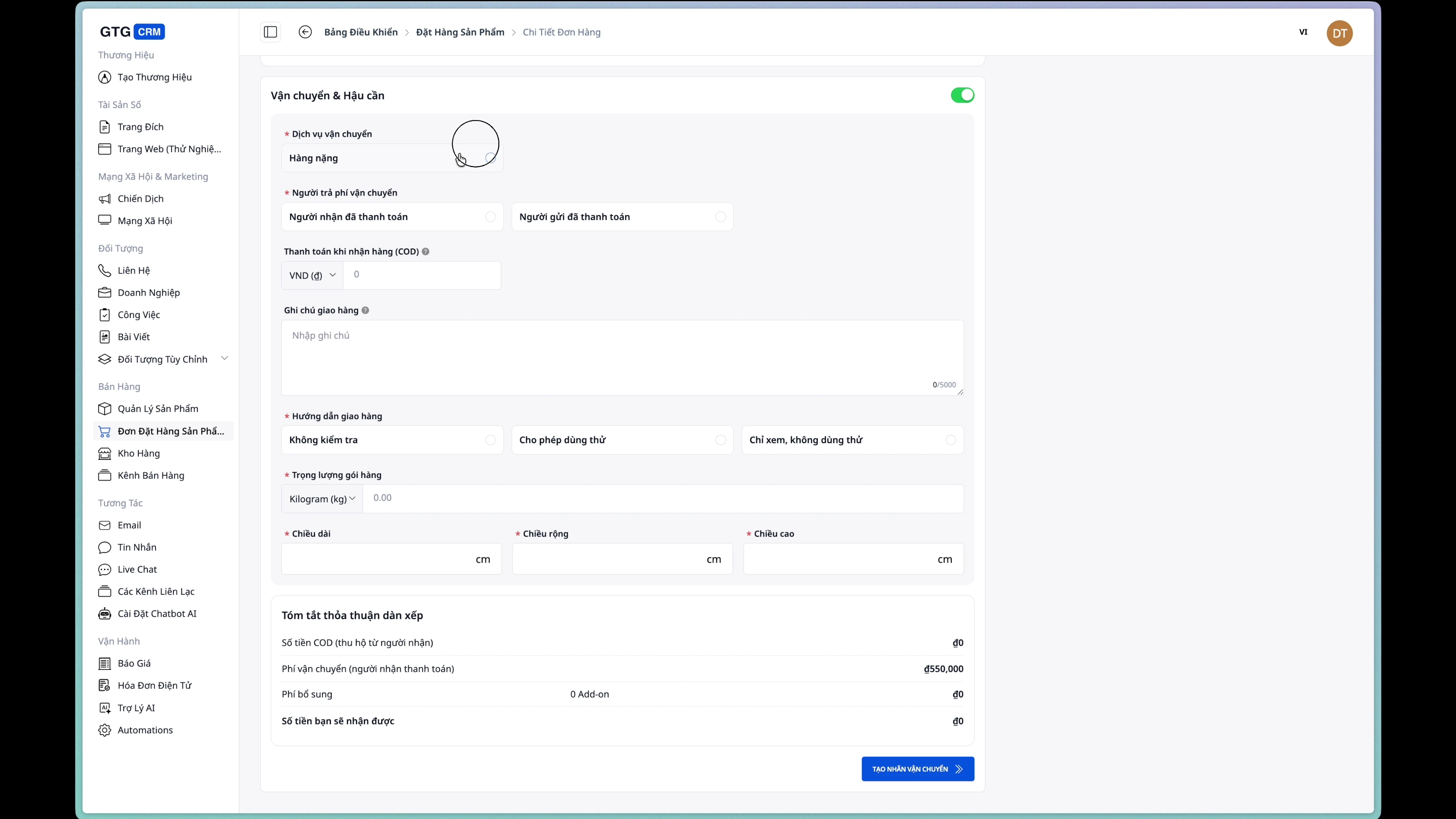
Step 2: Select Shipping Service
Choose a service from the list provided by the shipping carrier.
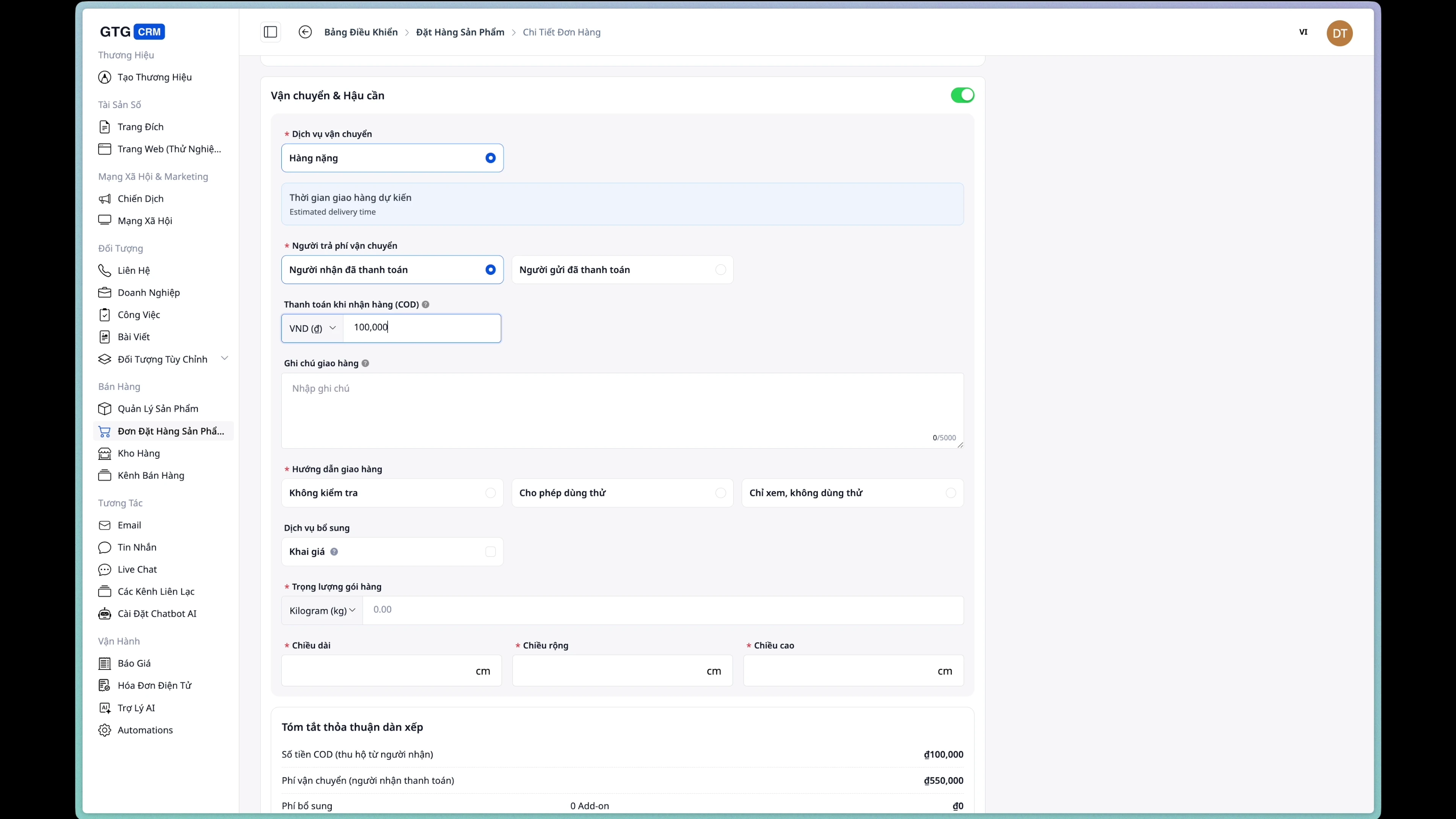
Step 3: Enter Cash on Delivery (COD) Amount
If the order is paid on delivery, enter the amount to be collected.
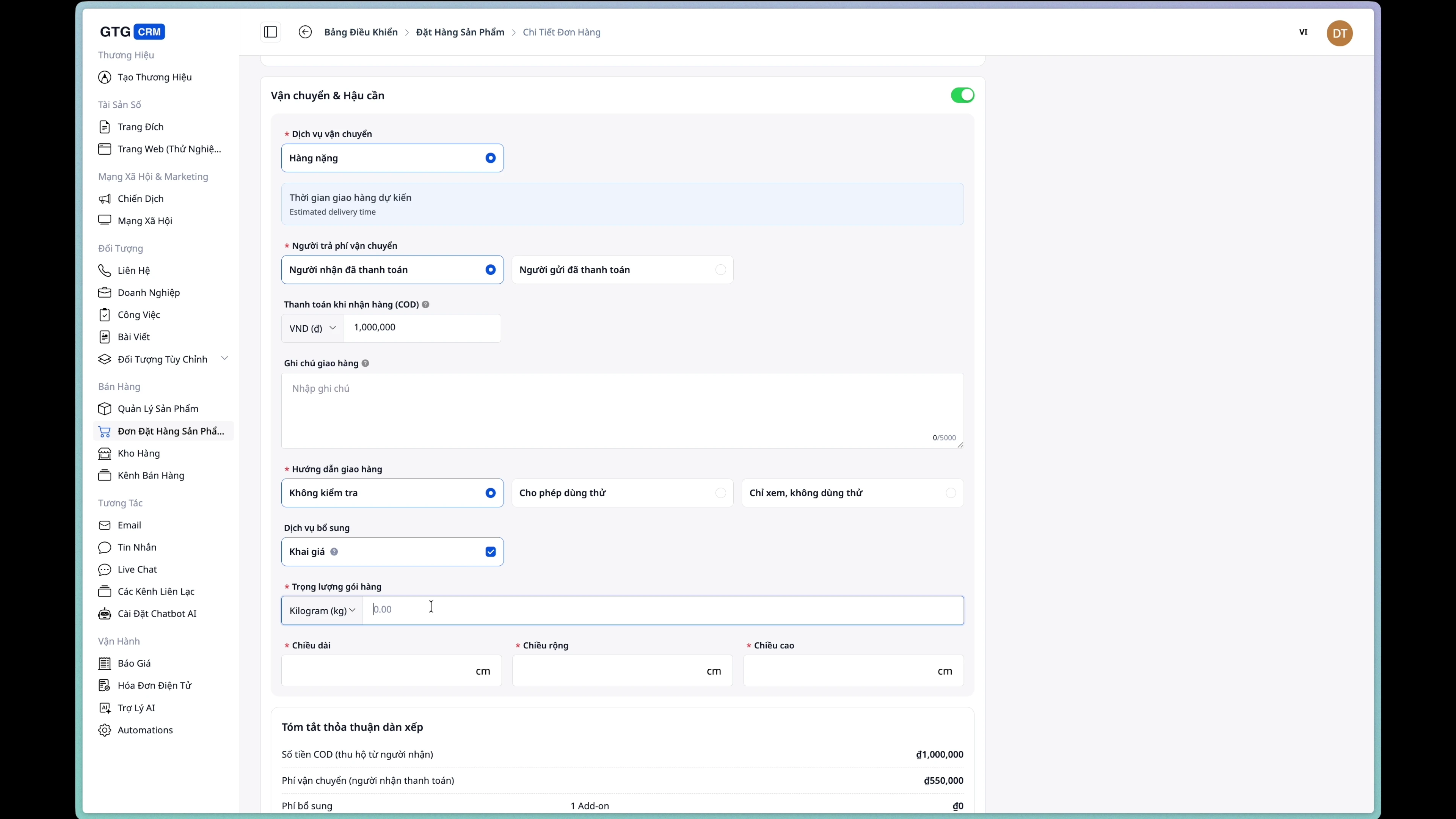
Step 4: Enter Package Information
Fill in the information about:
- Weight: Package weight (grams/kg)
- Dimensions: Length x Width x Height (cm)
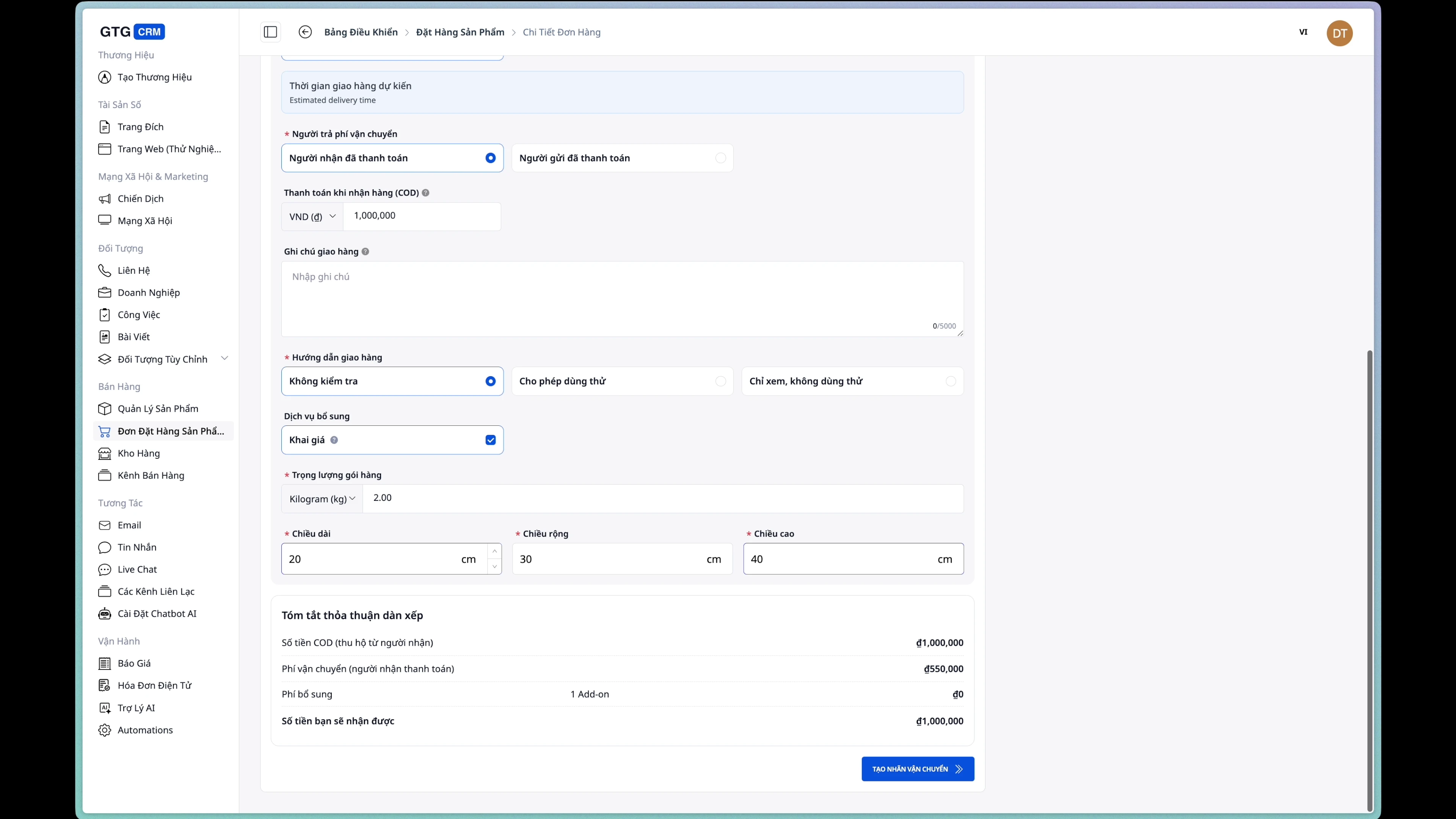
Step 5: Select Shipping Fee Payer
- Buyer: Customer pays shipping fee
- Seller: Shop/business pays shipping fee
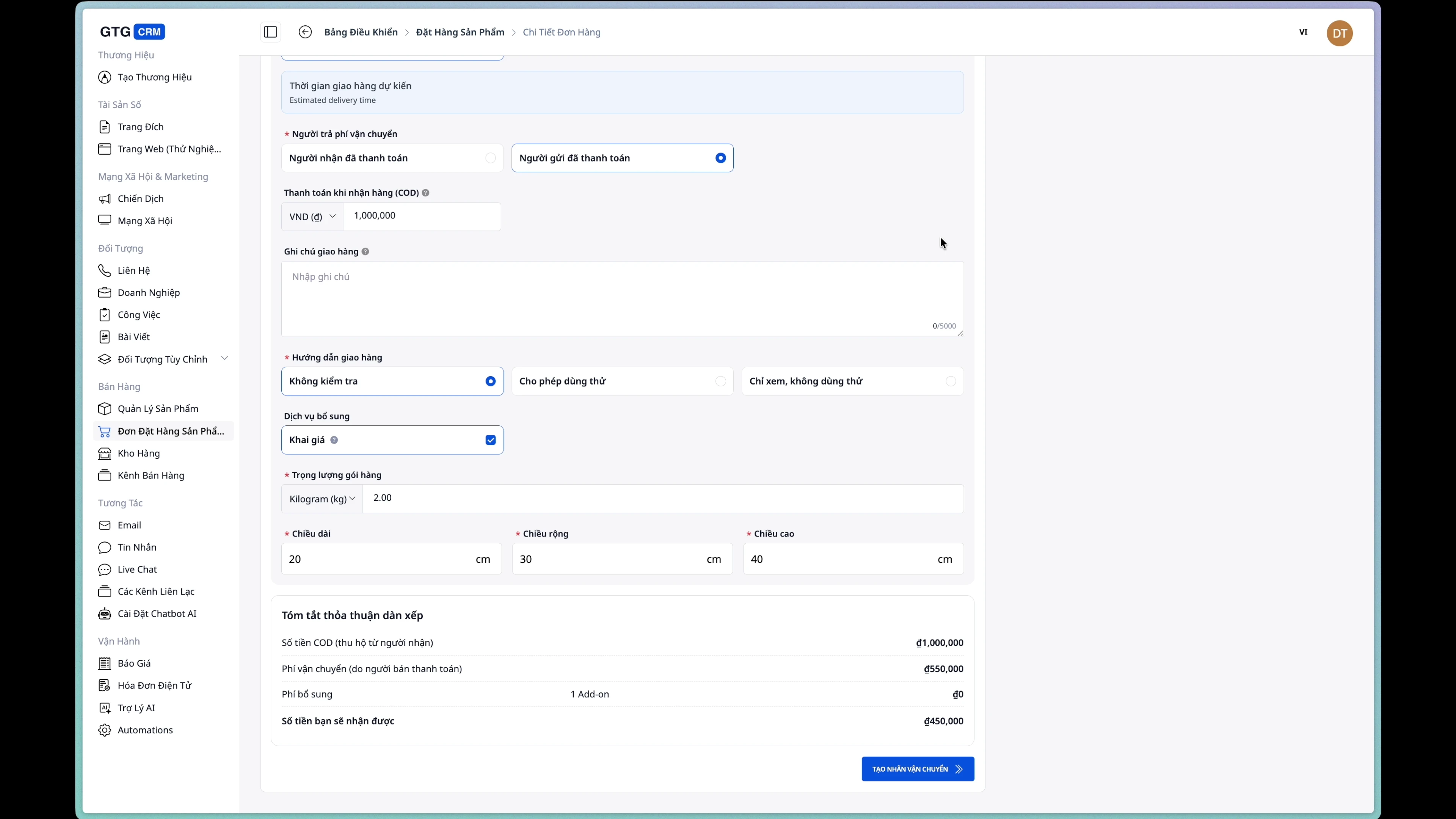
Step 6: Confirm Shipping Order Creation
Click the "Create Shipping Order" button and confirm.
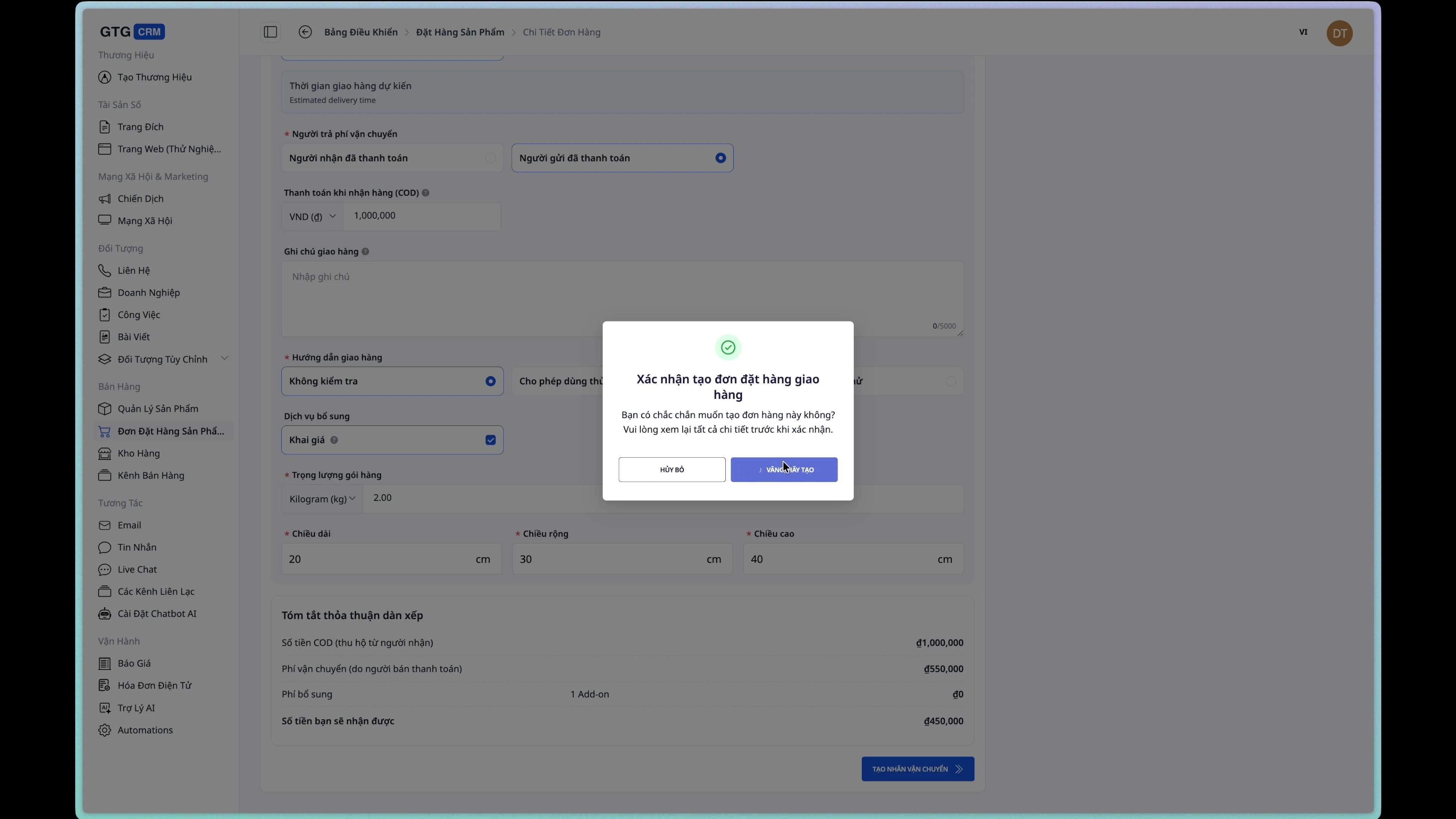
After successful creation, the order status will change to Processing.
5. Issue Electronic Invoice
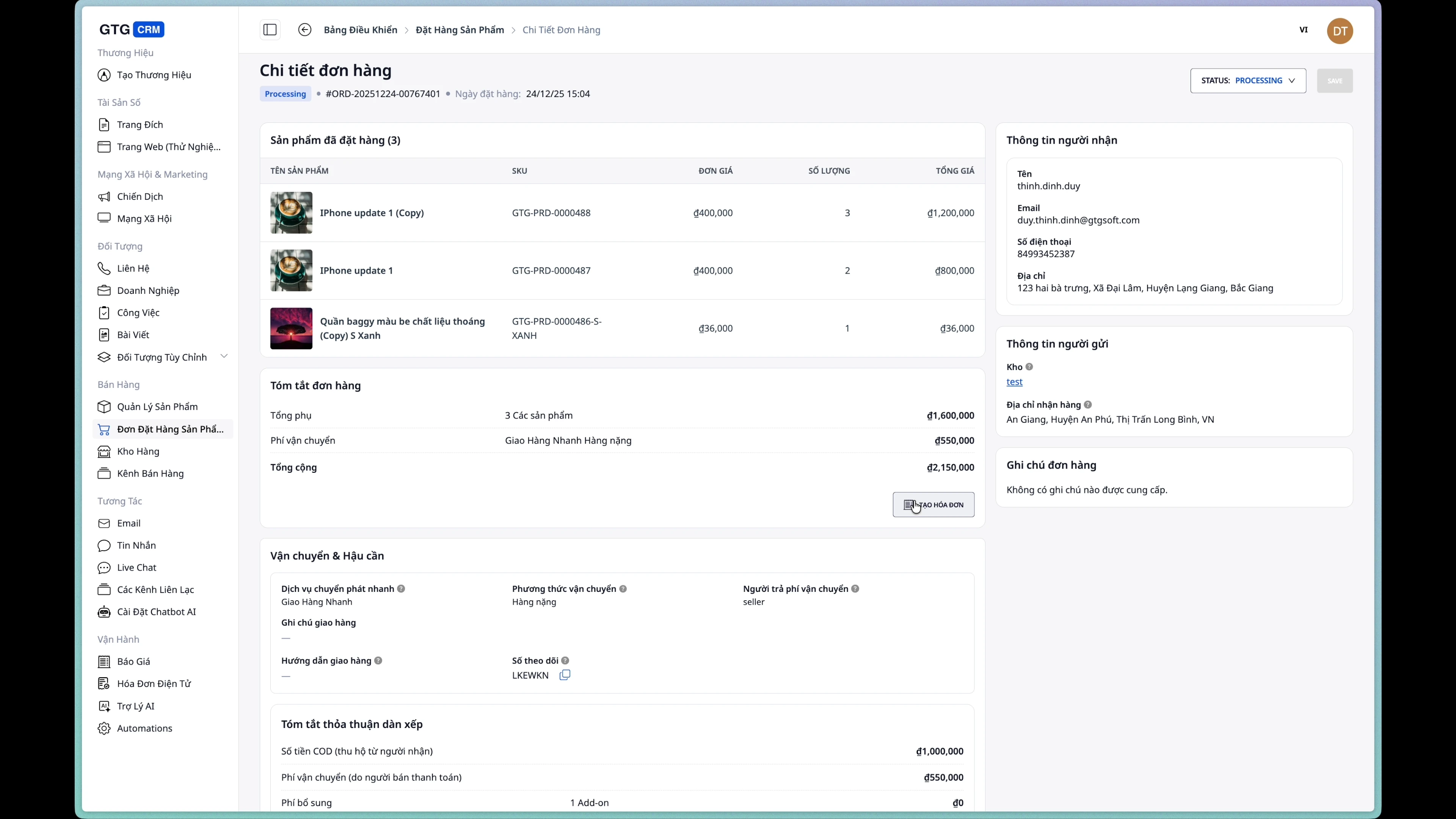
Step 1: Open the Invoice Creation Form
From the order detail page, click the "Create Invoice" button.
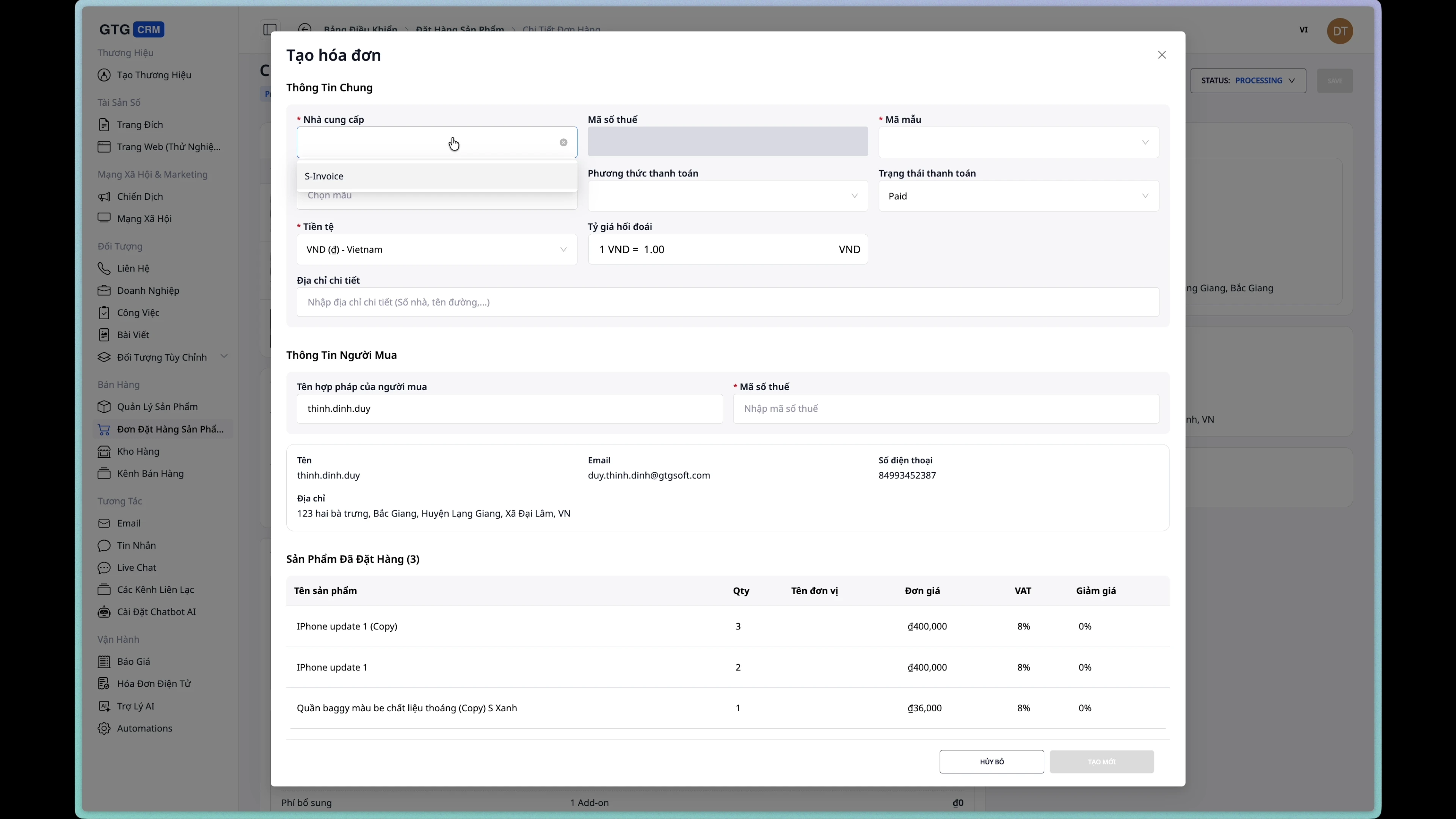
Step 2: Select Invoice Provider
Choose an integrated e-invoice service provider.
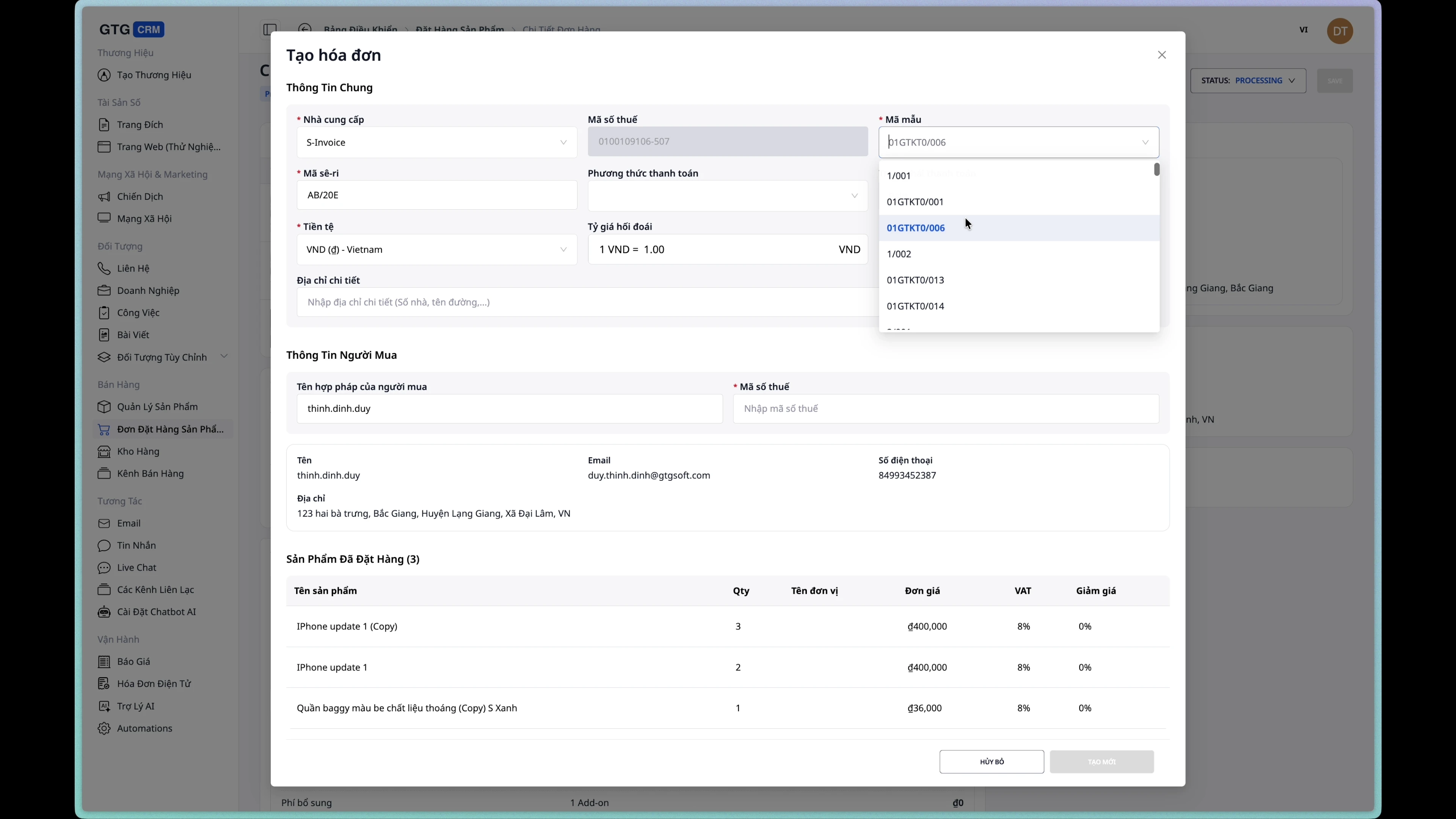
Step 3: Select Invoice Template
Choose a suitable invoice template from the list.
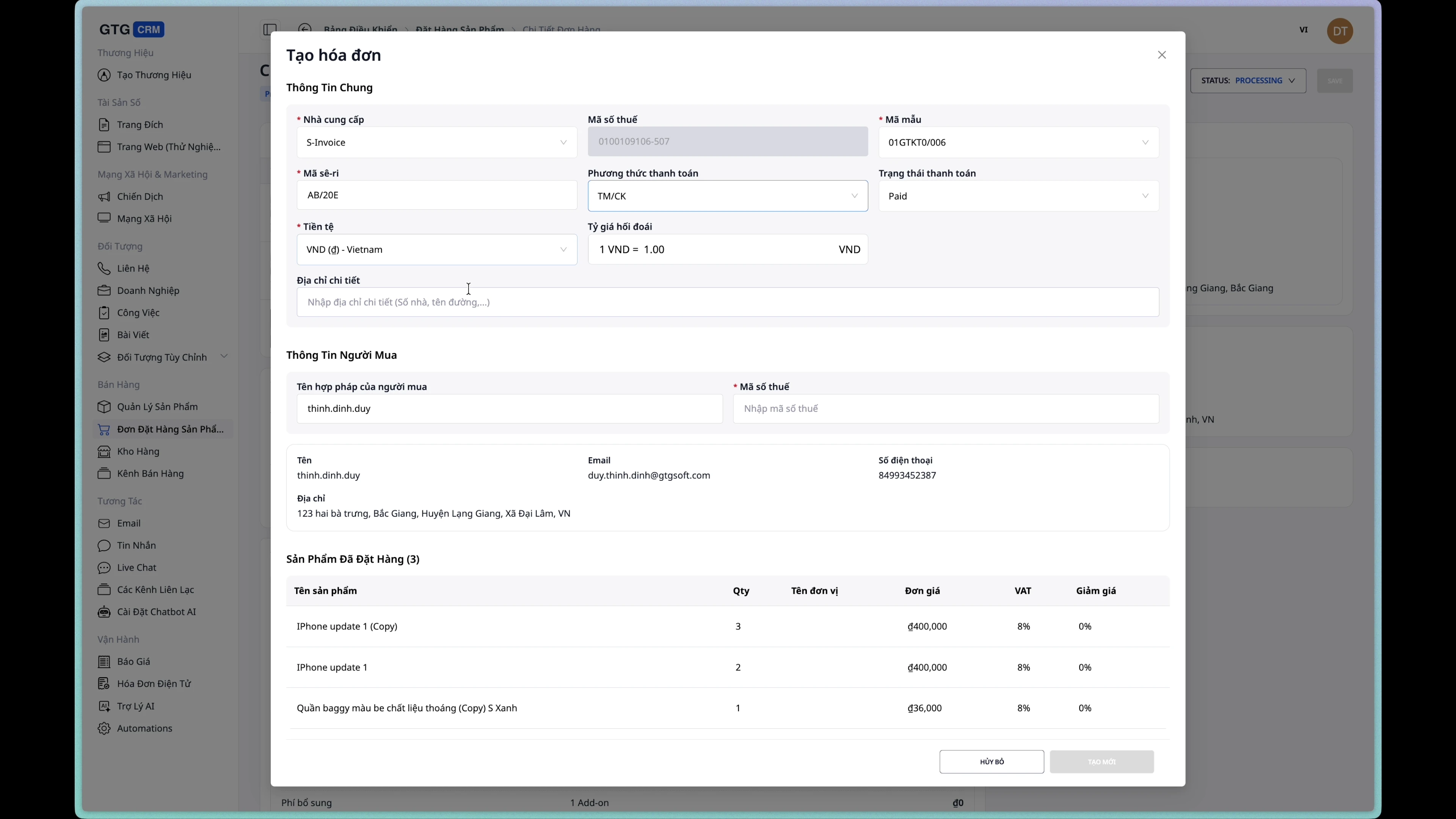
Step 4: Select Payment Method
Choose the payment method for the invoice:
- Cash
- Bank Transfer
- Credit Card
- COD
Step 5: Review Information
The buyer's information will be automatically retrieved from the order. Review and add if necessary.
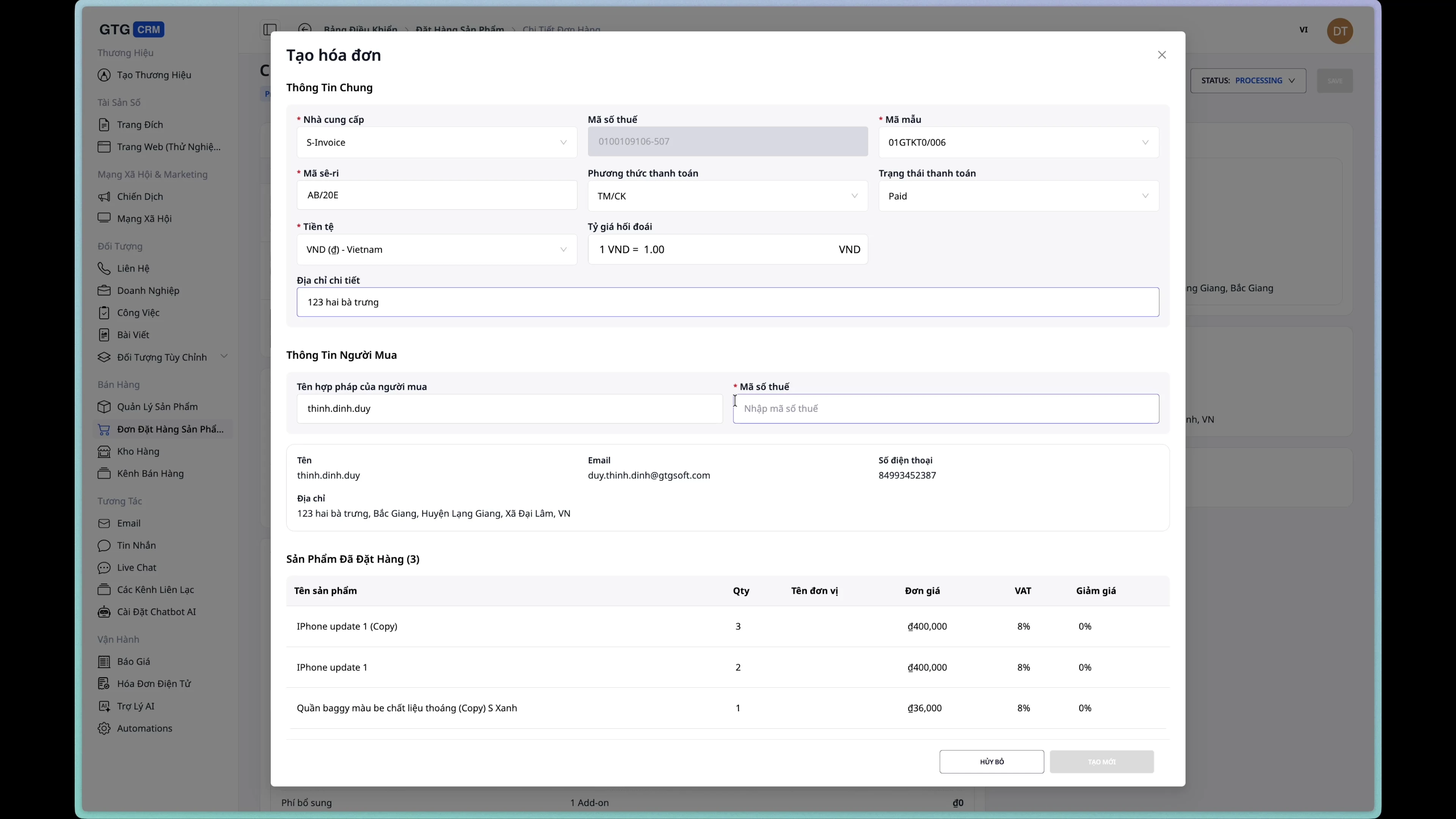
Step 6: Create Invoice
Click the "Create Invoice" button to complete.
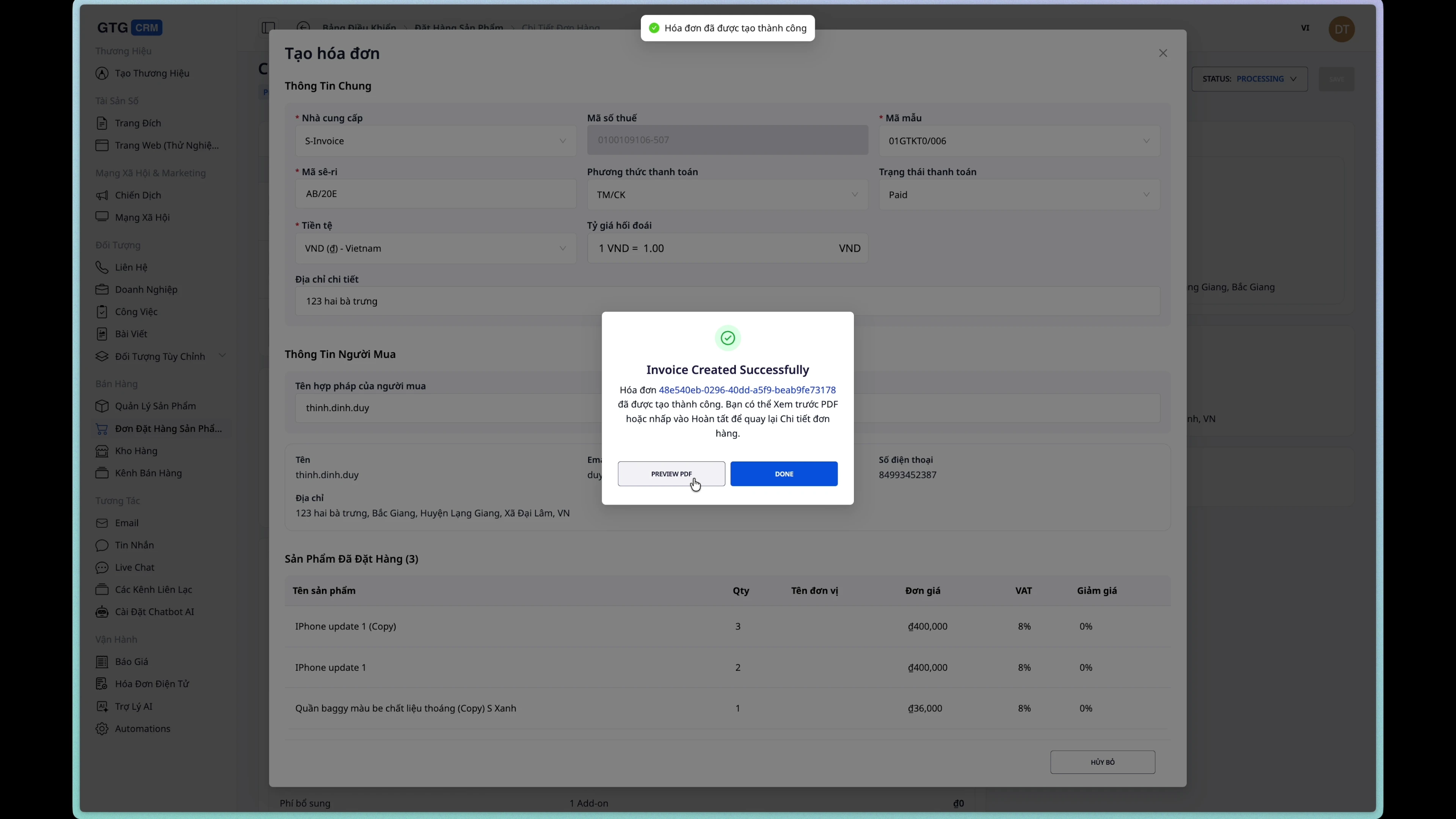
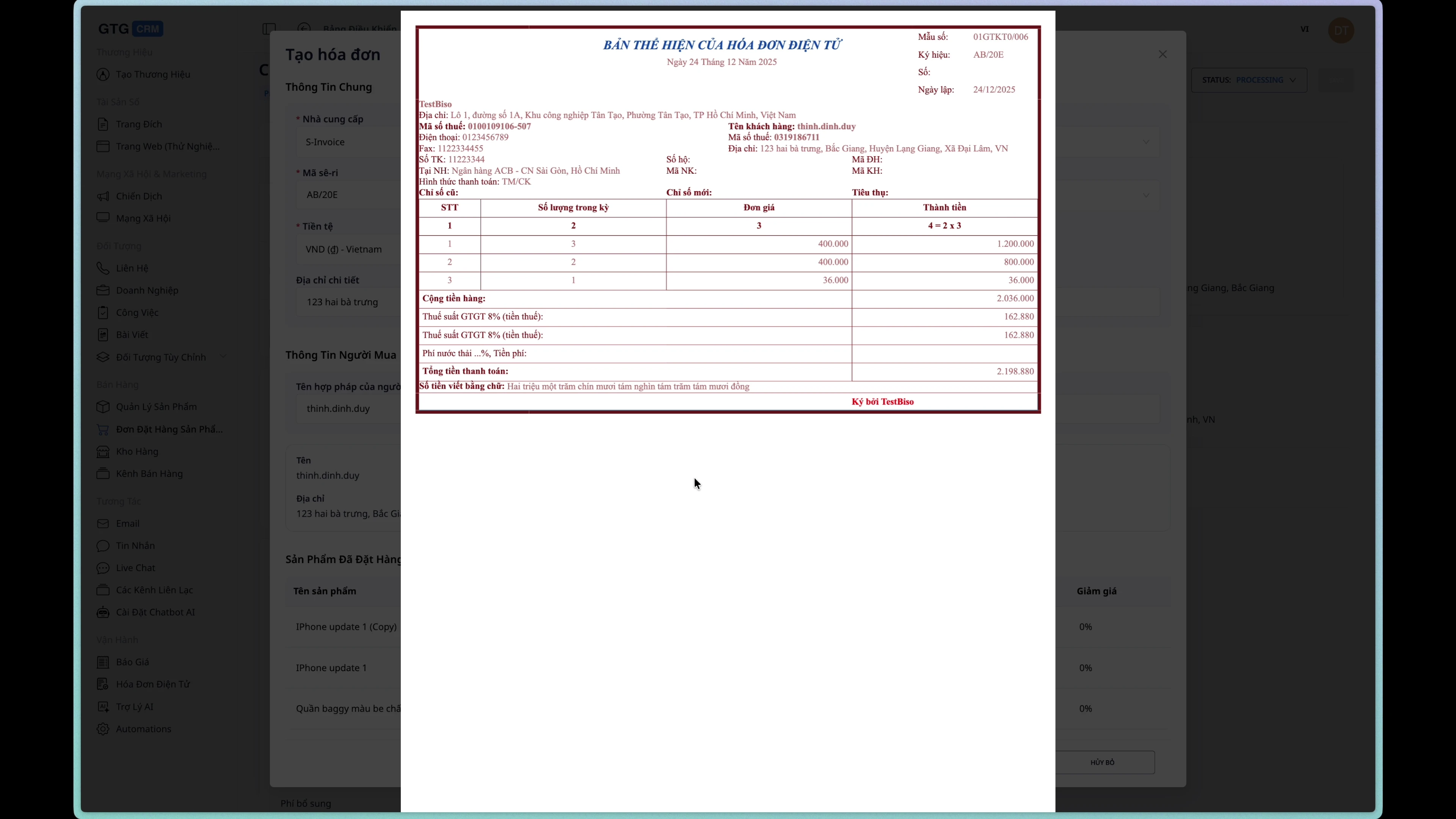
Step 7: View Invoice Draft
After successful creation, you can view the invoice draft.
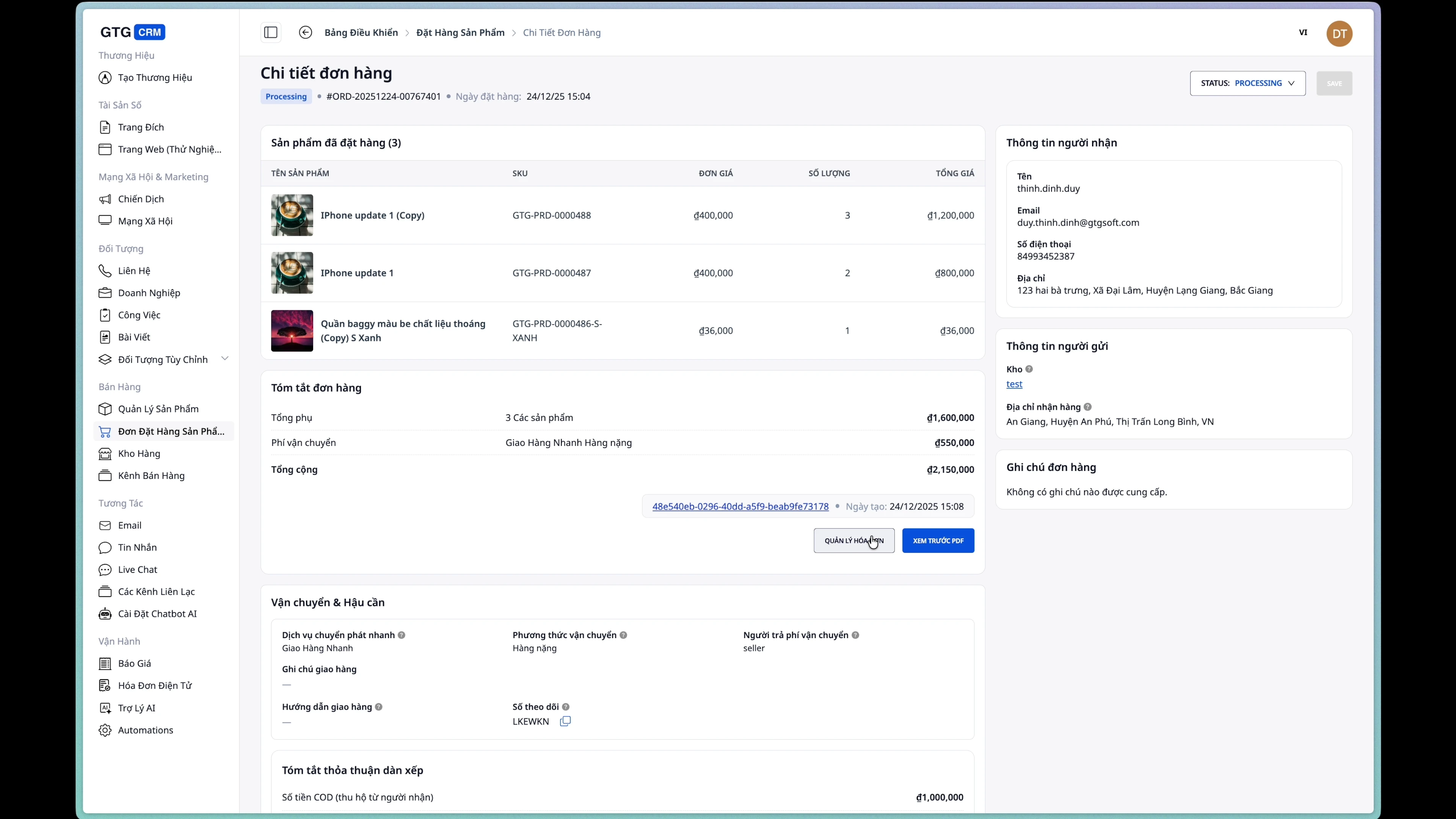
Step 8: View Invoice Information on Order
Invoice information will be displayed on the order detail page.
Frequently Asked Questions
Q: Why can't I edit the order?
A: Orders can only be edited when they are in the New status. After creating a shipping order, the order status changes to Processing and cannot be edited.
Q: How do I cancel an order?
A: Go to the order detail page and change the status to Cancelled.
Q: Can I create an invoice before creating a shipping order?
A: Yes, you can create an invoice at any time after the order is created.
Q: How is the shipping fee calculated?
A: The shipping fee is calculated automatically based on the service, weight, dimensions, and delivery address.
Usage Tips
1. Carefully check information before creating an order
Ensure the phone number and address are accurate to avoid delivery failure.
2. Update weight/dimensions accurately
Incorrect information may lead to incorrect shipping fee calculations.
3. Use COD appropriately
Only enable Cash on Delivery (COD) when the customer chooses to pay upon receipt.
4. Issue invoices promptly
It is recommended to issue invoices immediately after the order is confirmed to ensure accounting processes.
Need assistance? Contact the GTG CRM team via email at support@gtgcrm.com