Feature Introduction
Every day your team repeats a series of manual tasks: sending welcome emails to new clients, assigning follow-up tasks, reminding the team when deals are stalled, and updating order statuses. The more manual steps there are, the easier it is to forget, be late, and for everyone to do things differently.
That ends today.
Automation lets you build automated processes directly within your system using the familiar Trigger → Condition → Action model, completely code-free . This upgrade adds a library of over 120 actions across various business processes, AI-powered step suggestions when you're unsure what to choose, a visual history to see where the process is progressing, and keeps all scenarios neatly organized in a two-tiered Automation Library .
The Problems Businesses Are Facing
Doing things manually, step by step, repeatedly — Time-consuming, easy to forget steps, slow customer response.
Each person handles it differently — resulting in inconsistent processes and difficulty in quality control.
Not knowing which step a process has reached or where it stopped — A process that fails for unknown reasons, difficult to fix.
The configuration panel is completely blank, making it difficult to get started — New users are hesitant to use it, and the process never seems to be completed.
Automation brings all processes together in one place, giving you clear visibility of each run and automating across multiple business processes.
Highlights
1. Trigger → Condition → Action model, no coding required.
Automation operates in three easily understandable blocks:
- Trigger : an event that starts a process — for example, creating a new contact, updating a task.
- Condition : the condition that must be met before proceeding — for example, state = "To Do".
- Action : an automated operation that is performed — for example, sending an email, creating/assigning a task.
Additionally, there are Wait/Delay (waiting for a period of time: minutes/hours/days) and Human (inserting a step that requires human intervention before proceeding).
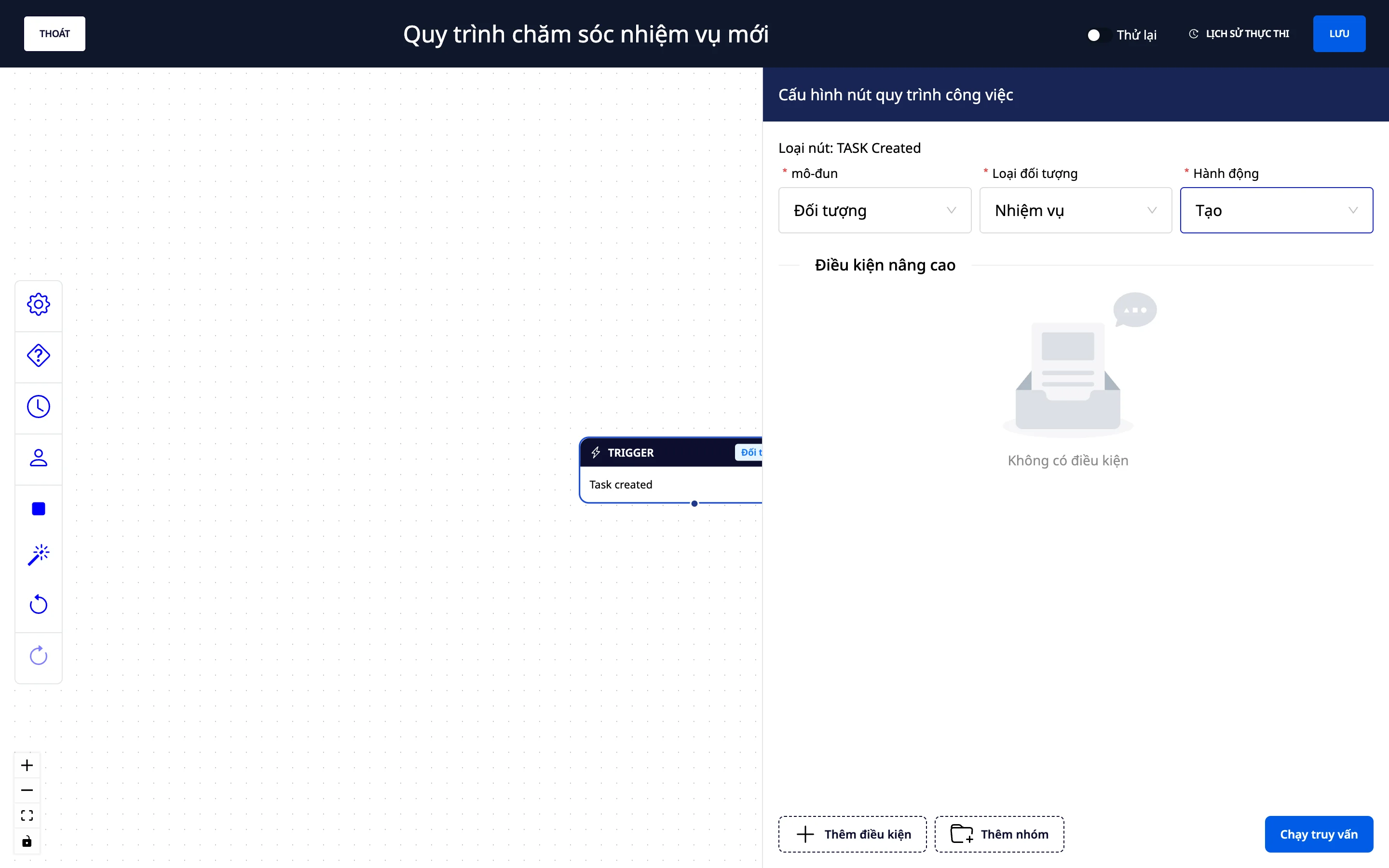
2. Intuitive Workflow Builder — drag and drop, view the whole picture.
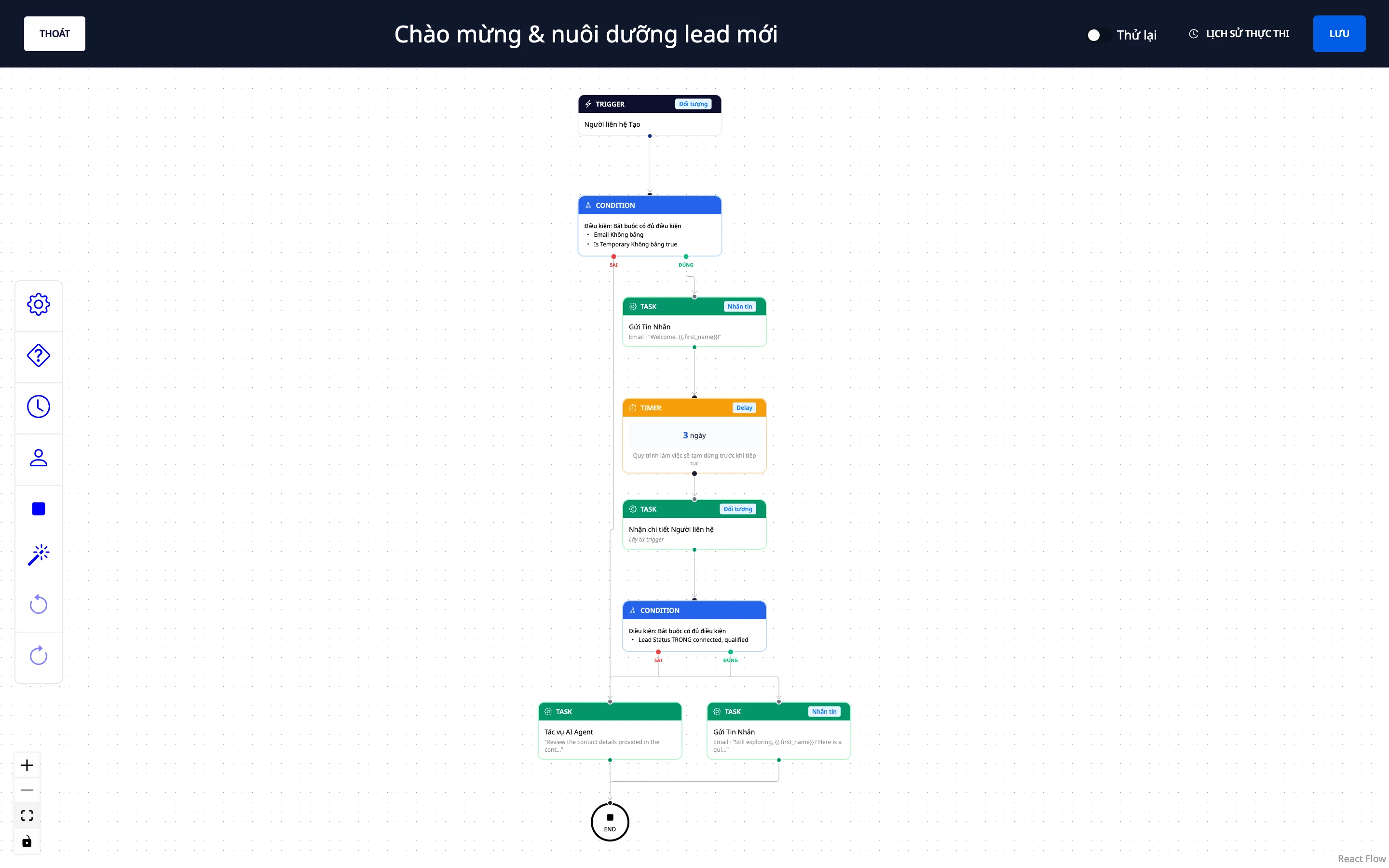
- Drag and drop easy steps to connect them into a diagram.
- View the entire process as a visual diagram and arrange the layout yourself.
- Ready-made templates : Get started quickly with popular process templates.
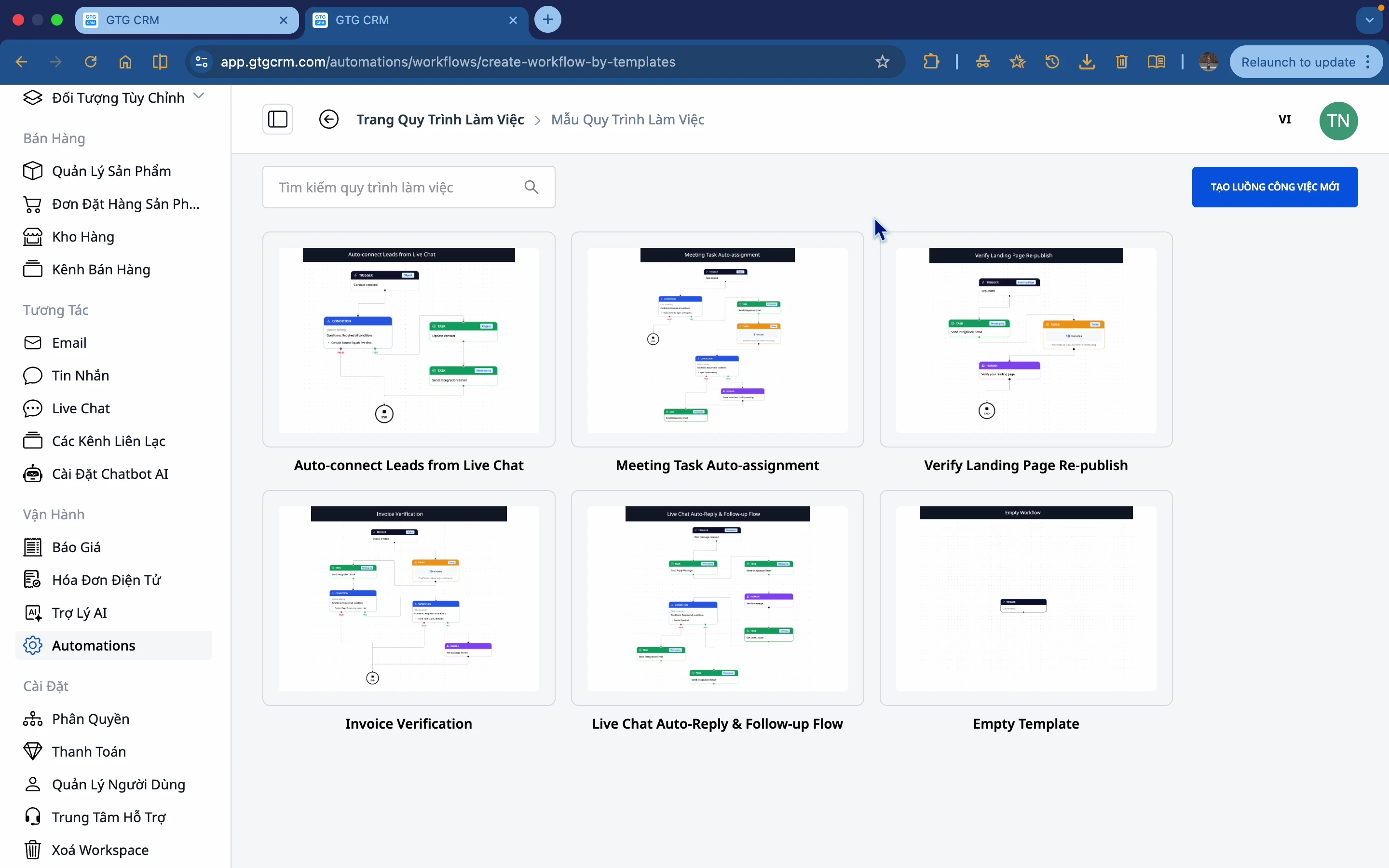
3. A database of over 120 actions — spanning across various business processes.
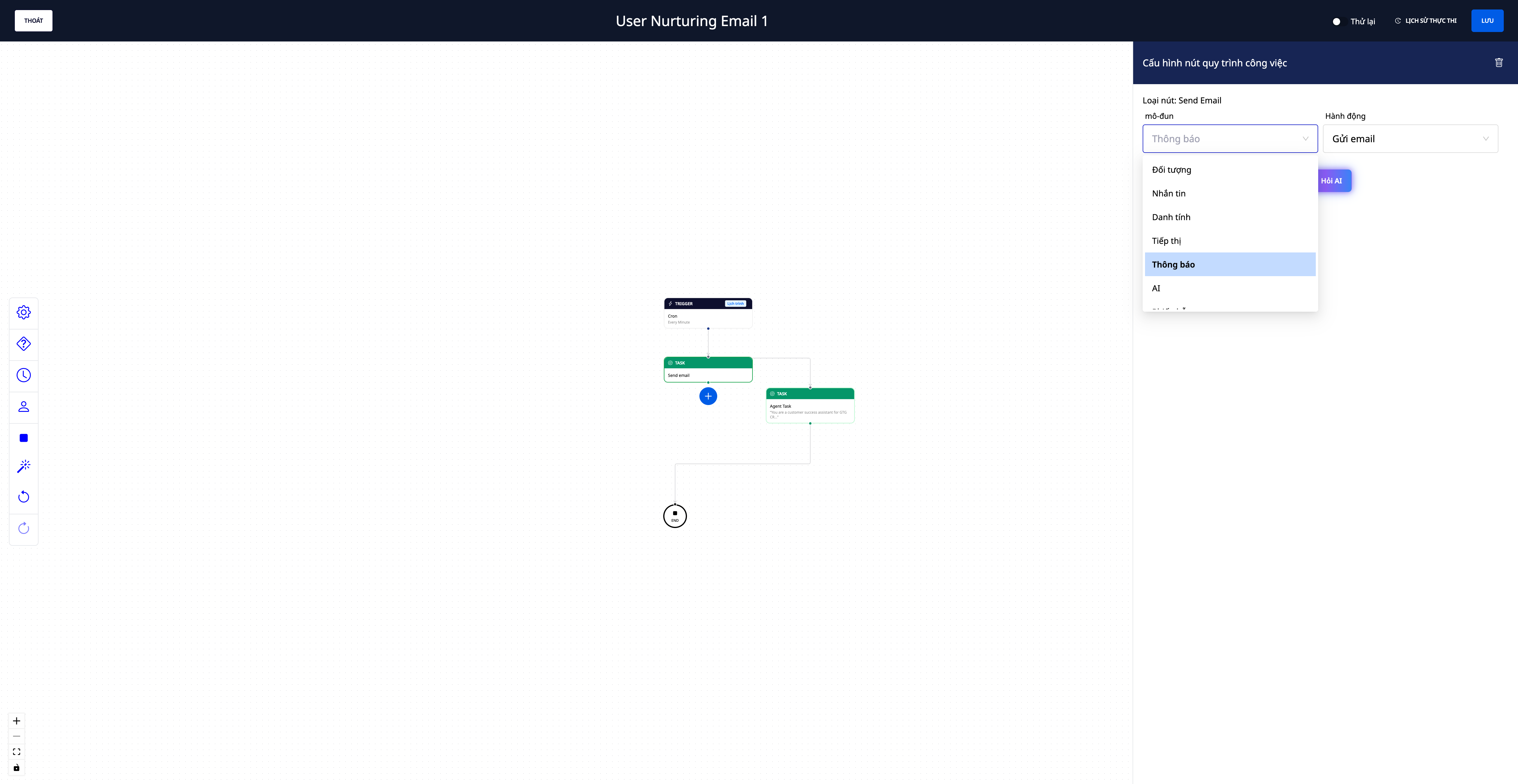
- Over 120 automated actions to integrate into your workflow, spanning: CRM (contacts, companies, deals), sales & orders , inventory (inbound/outbound/transfers), accounting & invoicing , messaging & email , notifications & webhooks , support (tickets) , tasks , and more.
- One process, multiple operations : for example, "New contact → send welcome email → create deal → assign follow-up tasks" runs seamlessly through multiple parts of the system.
- There's also an AI step : using an AI assistant to handle a part of the process (e.g., content creation) when needed.
4. AI-powered step suggestions — no more "difficult-to-use whiteboards"
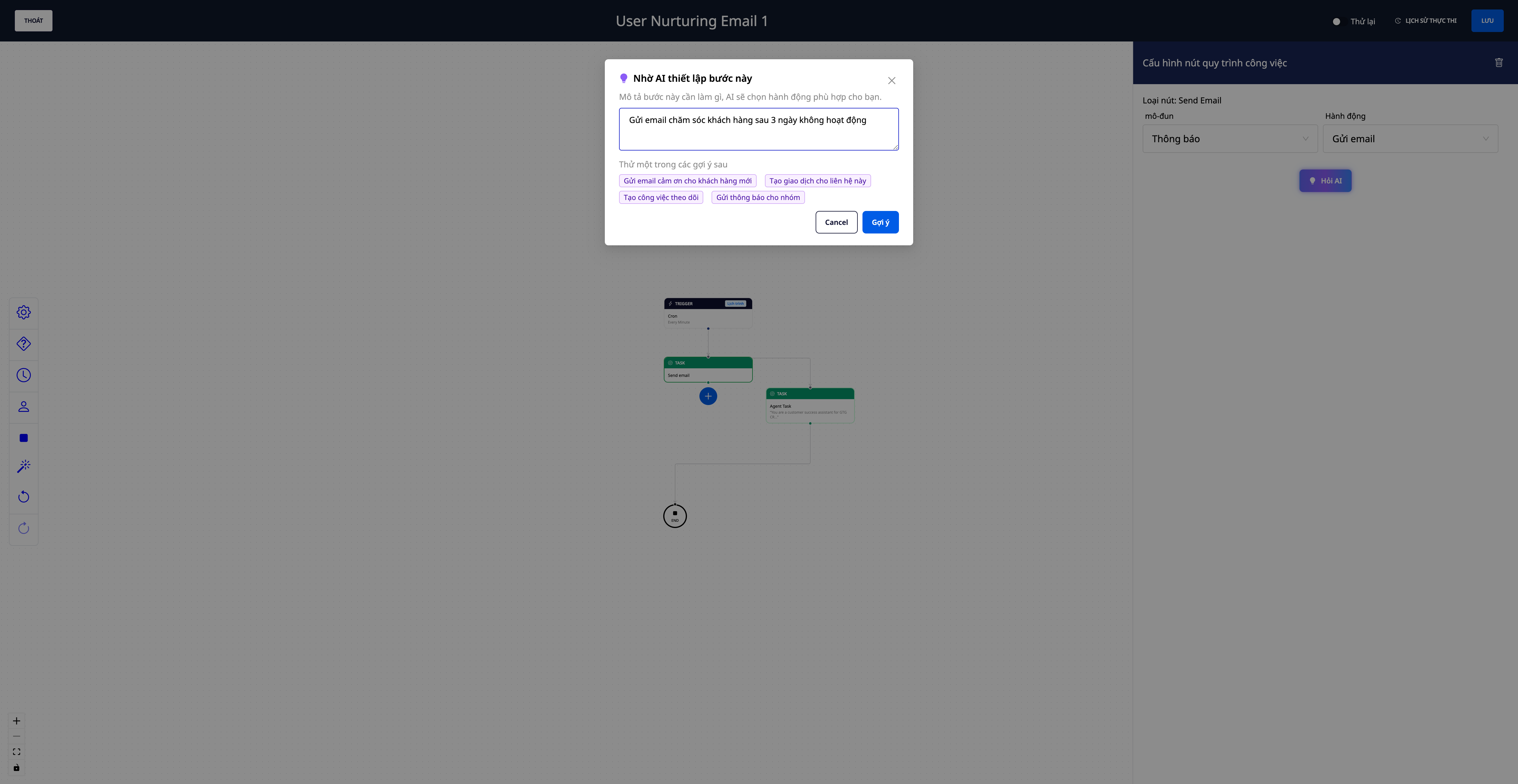
- Type what you want verbally : for example, "send thank-you email to new customers" — the AI will automatically select the appropriate action and pre-configure the steps; you just need to fill in the details.
- Safety : AI only suggests actions that the system can actually perform; it doesn't "invent" steps.
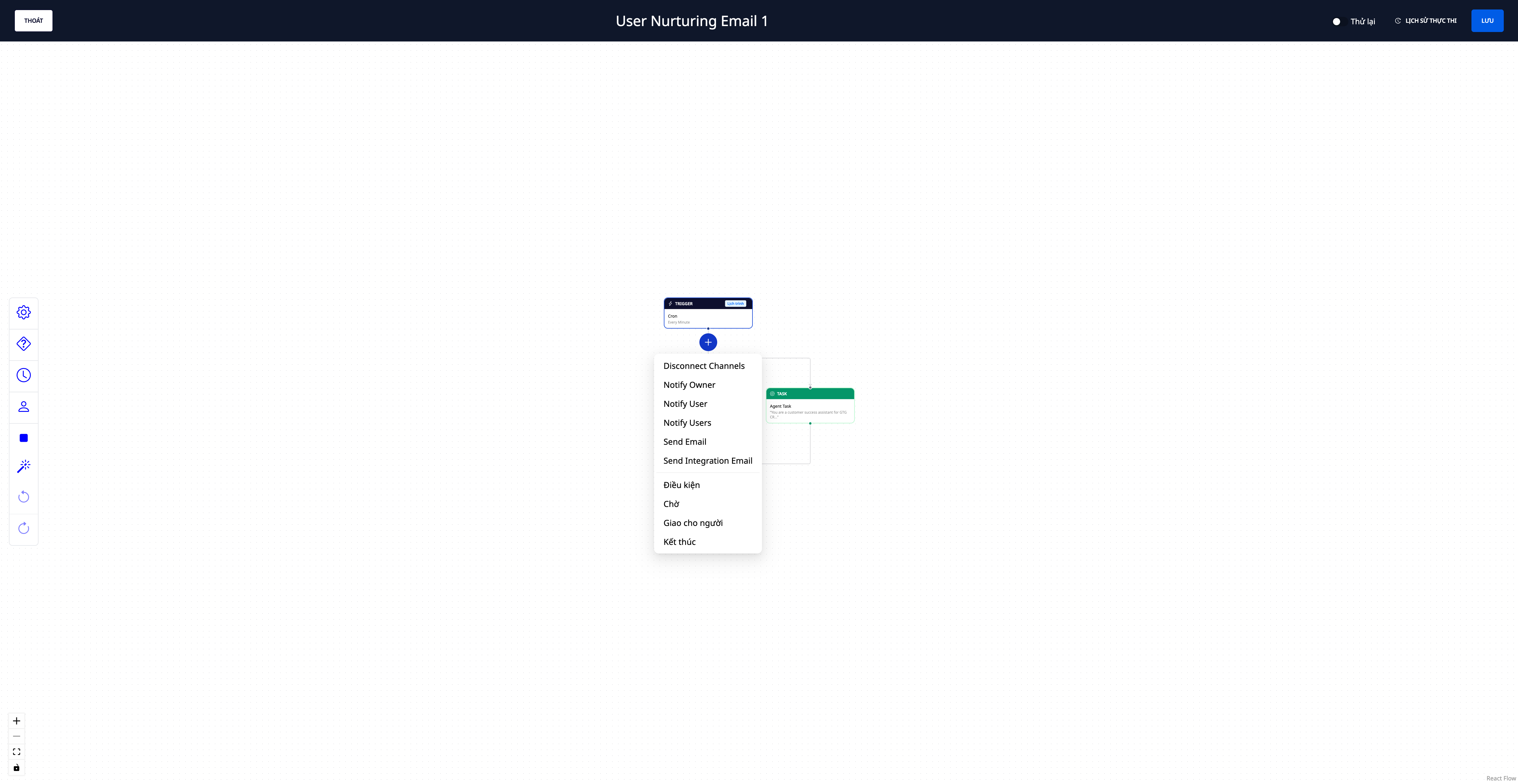
- Contextual next step suggestions : Click "+ add step" below a step, and the system will suggest the appropriate actions for that object (for example, after "Contact created" → Send email · Create deal · Update contact · Create task). Select one to immediately access the pre-configured step.
5. Visual run history — see exactly where the process has progressed.
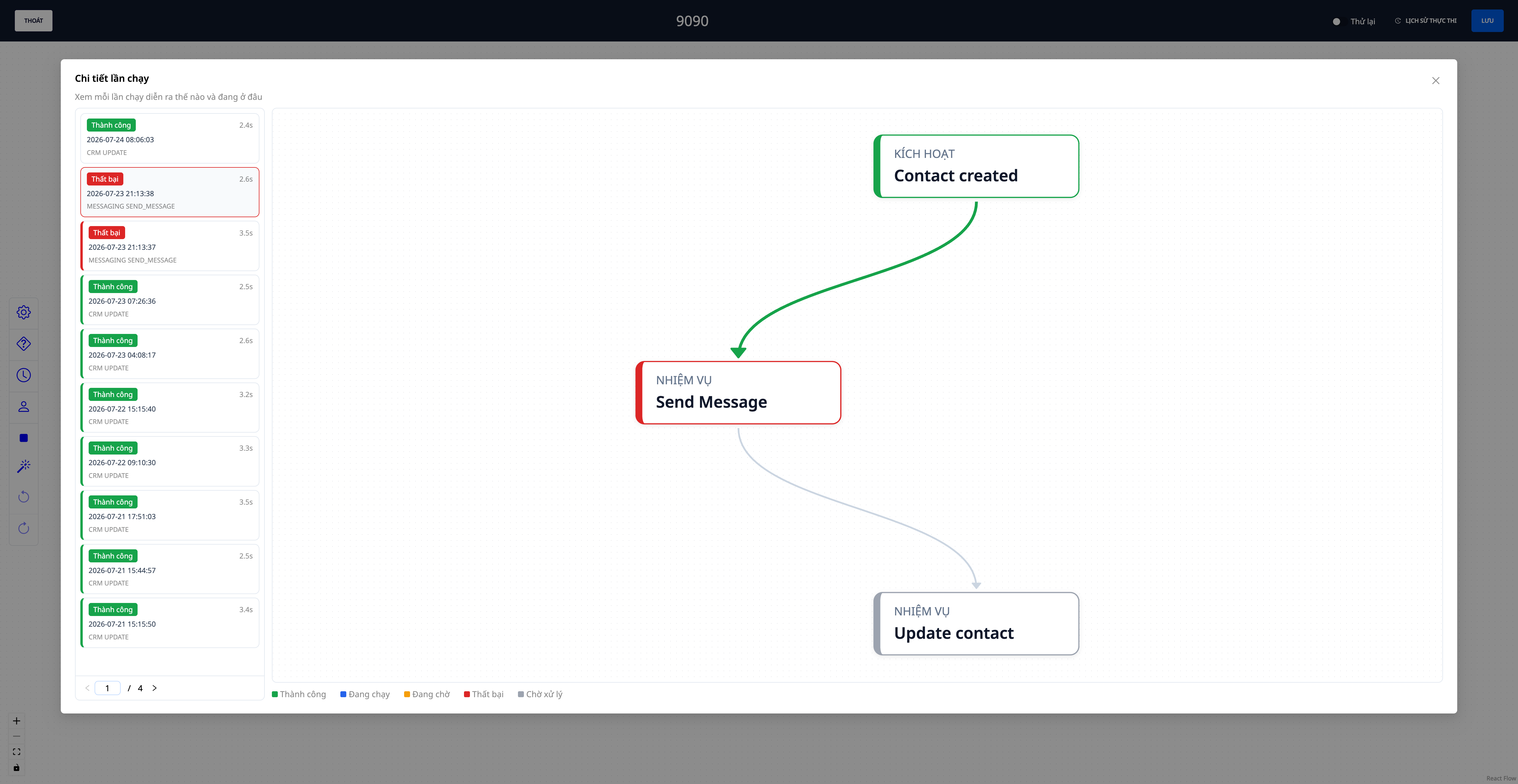
- List of runs with their status (running · waiting · successful · failed).
- See the process flow diagram itself : each step is colored according to its status (green = completed, blue = running, amber = waiting, red = error), and the current/paused step is highlighted.
- Click on a step to see the business data it processed (who the email was sent to, whether the condition was true/false, who it's waiting for to process it, etc.) — you'll immediately know why it stopped and where it stopped.
6. Runs smoothly across multiple business processes.
- No interruptions : Automated steps are granted sufficient permissions to complete all accompanying internal operations — for example, sending a message to a new customer while simultaneously updating their profile — so the cross-business process runs smoothly instead of stopping midway.
7. Automated Warehouse — a two-tiered catalog, easy to find and easy to enable.
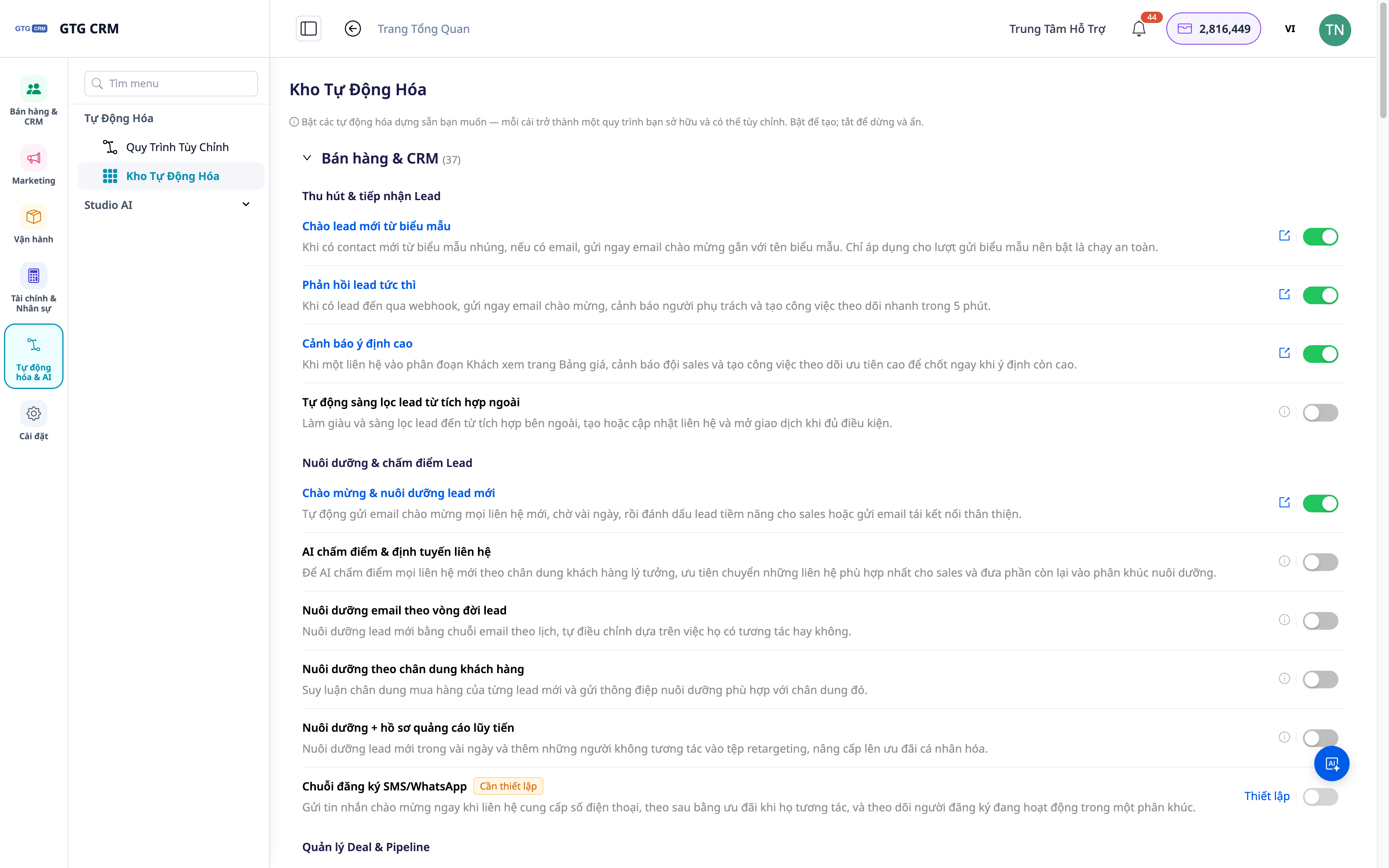
- Grouping functions into clusters (CRM/customer, accounting, HR, task assignment, etc.) and then down to individual playbooks — accounting and HR are now in one place, making them quicker to find and access.
- Pre-made Contact/Company scripts : welcome, customer service, follow-up reminder.
- Scenario for Finding Potential Partners & Clients : Immediately attach the outreach string to the contacts/companies you just imported from the AI search engine.
- Neatly toggled on/off : unused scripts are hidden; they run immediately upon activation.
Benefits for Businesses
Trigger–Condition–Action requires no coding — Build your own workflow without a programmer.
Over 120 multi-business actions — A one-touch process encompassing CRM, sales, inventory, accounting, messaging, support, and more.
AI-powered step suggestions + next step suggestions — Beginners can build workflows quickly, avoiding "blank slates".
Visual run history — Instantly see where the run went, where it stopped, and why.
Running multiple business processes smoothly — The process doesn't stop midway due to internal operational issues.
Two-tiered Automation Warehouse — Quickly find and activate pre-made scripts
Who is it suitable for?
- SMB business owners want to standardize processes without hiring additional operators.
- The sales and marketing team needs to automate customer greetings, follow-ups, deal reminders, and customer nurturing.
- The operations and accounting teams want to automate task assignment, notifications, and iterative steps between business processes.
How do I get started?
Go to Automations in the left sidebar, click Create Now , choose a template or build from scratch; try the "Ask AI" button on a step to have the AI pre-fill the action, then open Run History to see where the process is. See the step-by-step automation creation guide to follow. Want to automate specific tasks? See Task Management 2.0 .
Try it for free — no credit card required.