Manage user permissions, protect data, and operate securely with the flexible authorization system in GTG CRM.
What is Authorization?
Authorization in GTG CRM is a feature that helps businesses clearly define:
- What each user can view
- What data they can edit
- What actions they are allowed to perform within the system
By setting up predefined roles with specific permissions, businesses ensure that each person only performs their designated tasks.
Why Does Your Business Need Authorization?
When a business starts having multiple users on the same system, without clear authorization:
❌ Risks of NOT Having Authorization
| Problem | Consequences |
|---|---|
| 🔓 Unrestricted data access | Customer information and revenue exposed |
| 🔄 Overlapping tasks | Multiple people working on the same task |
| ⚠️ Uncontrolled errors | Accidental deletion or modification of important data |
| 📊 Sensitive information leakage | Employees seeing salaries, expenses, and strategies |
✅ Benefits of HAVING Authorization
| Benefit | Description |
|---|---|
| 🔒 Secure Operations | Each person only sees/performs their assigned tasks |
| ✅ Prevent Errors | No one accidentally deletes/modifies critical data |
| 📈 Scalable Growth | Adding new employees just requires assigning a role |
| 📋 Easy Management | Clearly know who does what, with defined responsibilities |
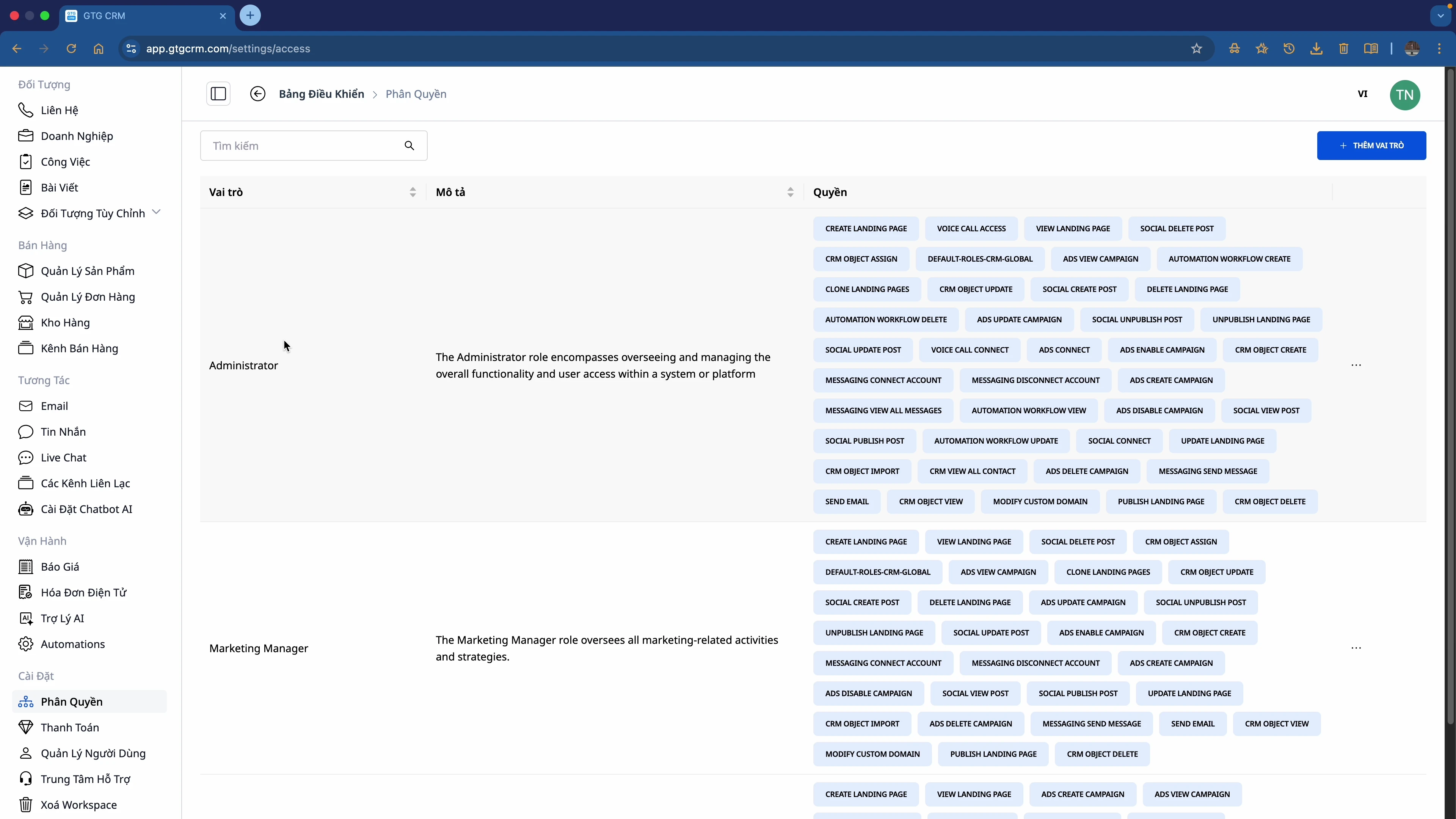
Default Roles in GTG CRM
GTG CRM provides 3 default roles:
1. 👑 Administrator
- The highest level of permissions within the system
- Can perform all actions on the platform
- Manages users, permissions, and system settings
2. 📊 Marketing Manager
- Manages marketing campaigns
- Views reports and statistics
- Manages the marketing team
3. 📝 Marketing Staff
- Performs daily marketing tasks
- Has more limited permissions than a Manager
Detailed Authorization Features
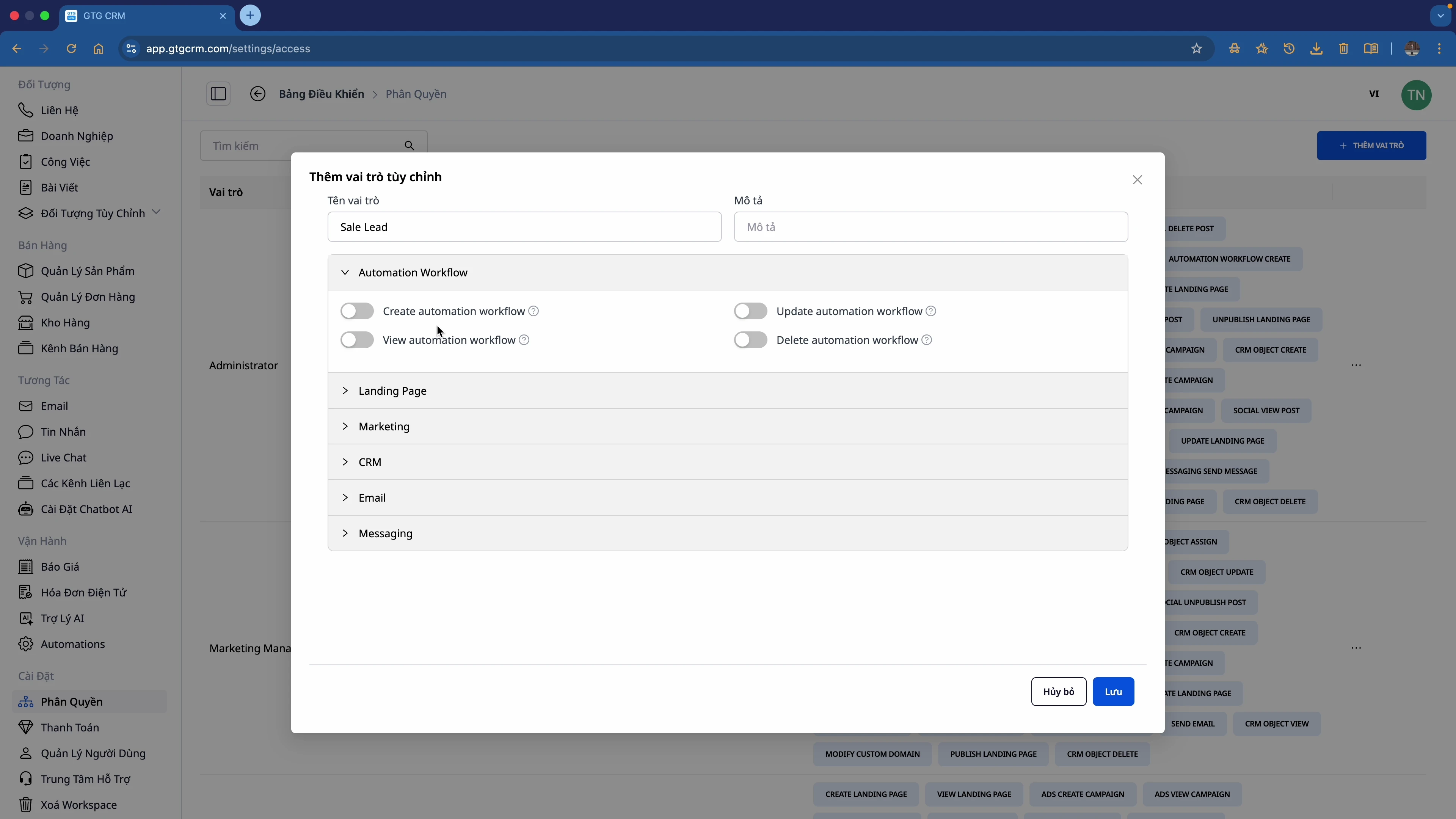
🎛️ Custom Permissions per Module
You can customize permissions for each module:
| Module | Permissions That Can Be Granted |
|---|---|
| Automation Workflow | Create, View, Update, Delete |
| Landing Page | Create, Update, Publish, Unpublish, Delete |
| Marketing | View Social Posts, Manage Campaigns |
| CRM | View All Contacts, Import, Export, Edit |
| Create, Send, View Reports | |
| Messaging | View, Reply, Manage Channels |
🔀 Toggle On/Off
Each permission can be toggled on/off using a switch:
- ✅ On: Allows the action to be performed
- ❌ Off: Does not allow the action
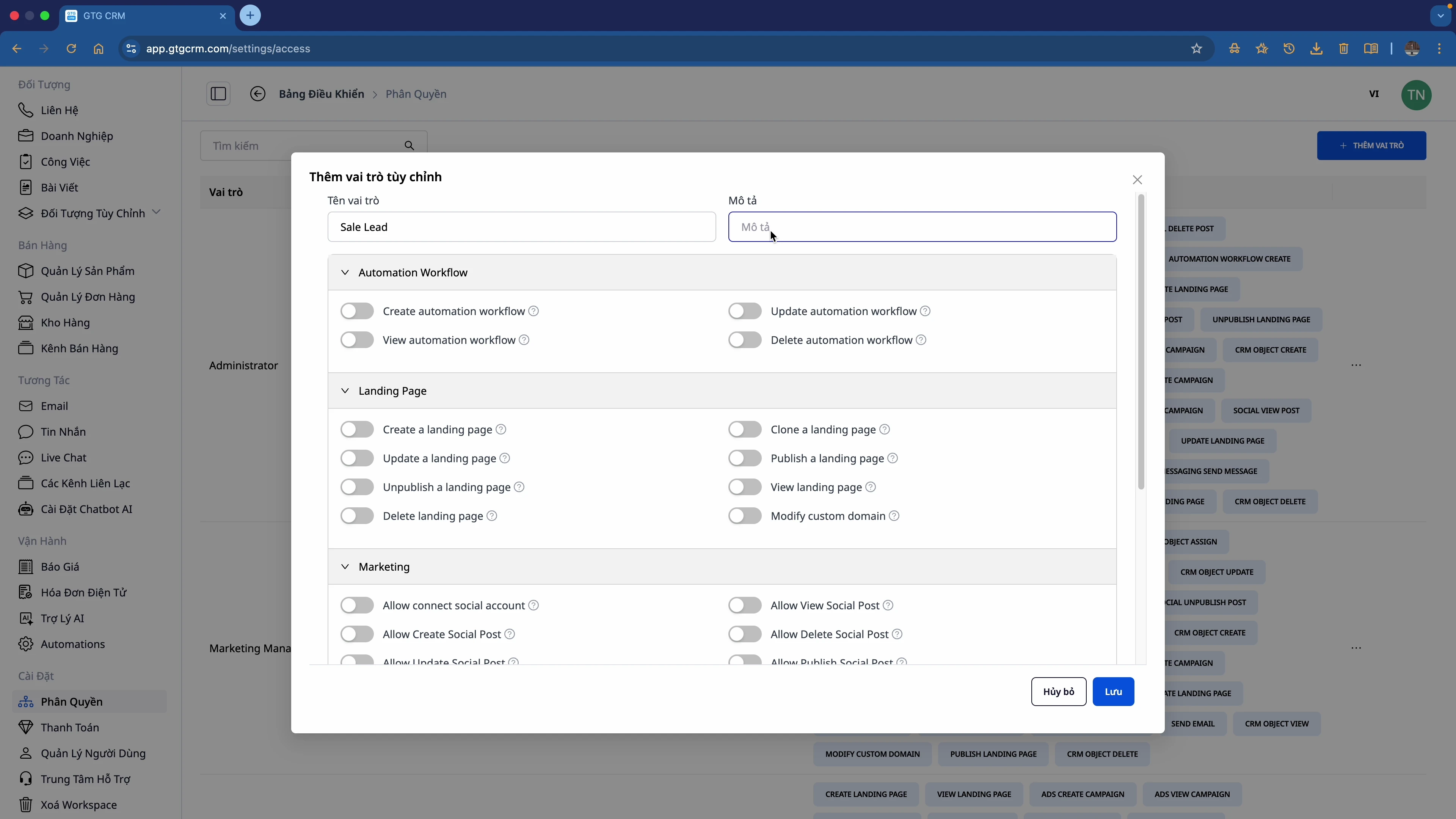
Authorization Process
┌─────────────┐    ┌─────────────┐    ┌─────────────┐
│  Create New │ ─► │  Customize  │ ─► │  Assign Role│
│  Role       │    │  Permissions│    │  to User    │
└─────────────┘    └─────────────┘    └─────────────┘
      │                  │                  │
      ▼                  ▼                  ▼
   Set name,          Toggle each         Select user,
   description        permission          select role
Example: Creating a "Sales" Role
Granted Permissions:
- ✅ CRM: Full permissions (View, Import, Export, Edit)
- ✅ Messaging: Full permissions
- ✅ Email: Full permissions
- ✅ Automation: Create, View, Update (no Delete)
- ✅ Landing Page: Create, Update, Publish, View (no Unpublish, Delete)
- ⚠️ Marketing: View Social Posts only
Permissions NOT Granted:
- ❌ Delete Automation Workflow
- ❌ Unpublish/Delete Landing Page
- ❌ Manage Marketing Campaigns
Target Users
| Role | Authorization Needs |
|---|---|
| 👔 CEO/Owner | Full Administrator access |
| 📊 Manager | View reports + Manage team |
| 💼 Sales | CRM + Messaging + Email |
| 📢 Marketing | Campaigns + Landing Page + Ads |
| 🎧 Support | Messaging + Tickets |
| 📦 Warehouse | Product Hub + Orders |
Summary
With the Authorization feature in GTG CRM:
✅ Scale your team while maintaining control
✅ Protect your business's critical data
✅ Avoid errors due to uncontrolled access
✅ Operate professionally like a large enterprise
Get Started Now
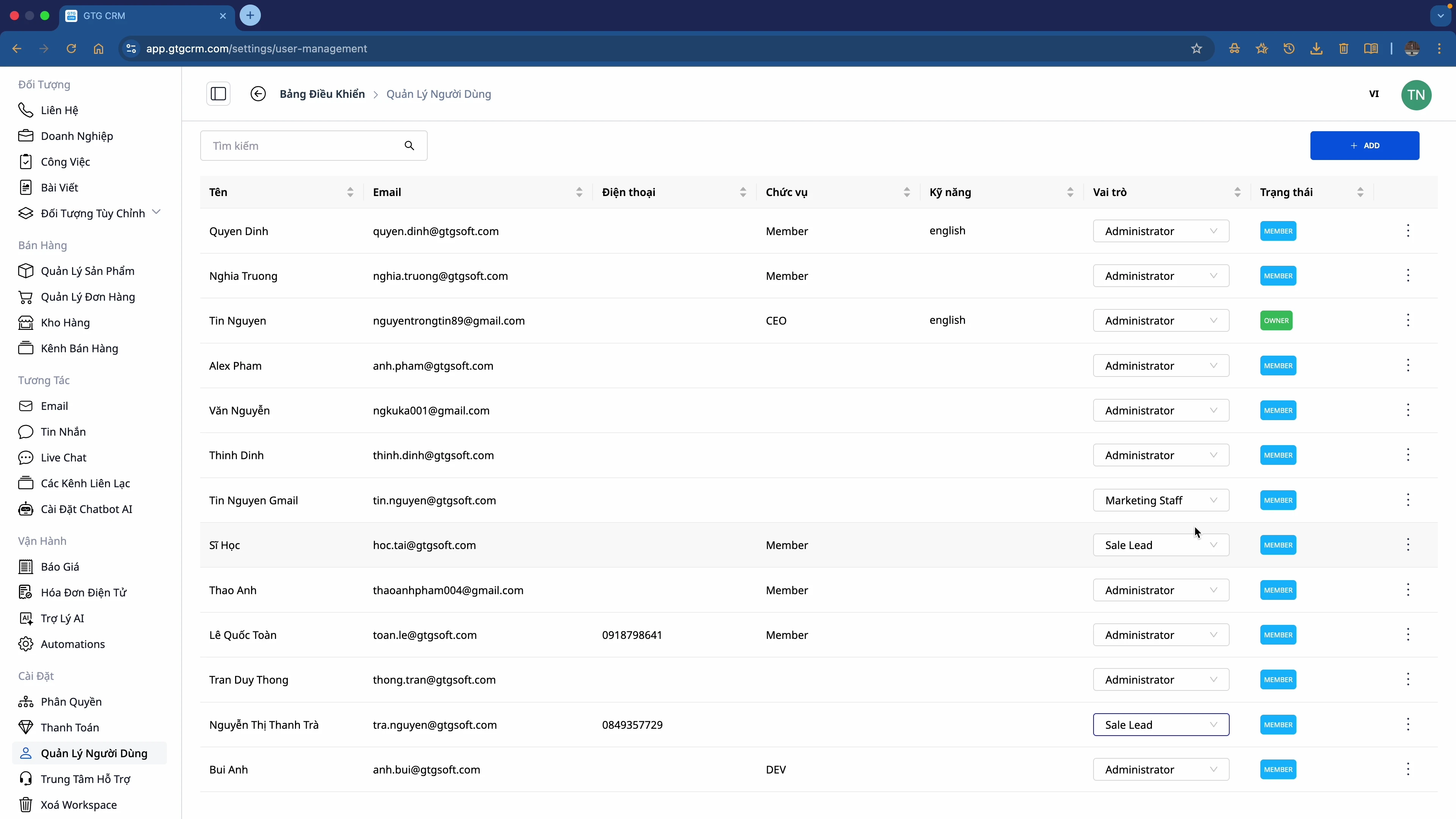
- Go to Settings → Authorization
- Create roles that fit your organization
- Assign roles to each team member
- Expand your team with peace of mind!
💡 Tip: Start with the default roles, then customize them to your business's actual needs.
Ready to try this feature for your business for free?
Try for Free