
This guide walks you through the entire accounting lifecycle in GTG CRM according to the latest standards: from setting up the chart of accounts in accordance with Circular 99/2025/TT-BTC (effective from January 1, 2026), operating daily automated journal entries, managing input invoices from the tax authorities, recording fixed assets and depreciation, to exporting XML for eTax submission and exporting financial reports to PDF/Excel. Each section below is an independent workflow — you can read directly to the necessary part.
Requirements: A logged-in GTG CRM account; the user must have access to the Accounting module (see the Permissions section at the end of this article). Accounting must be enabled in Workspace Settings.
Part 1: Initial Setup
The setup only needs to be done once. Once completed, all accounting entries will run automatically according to this configuration.
Step 1: Open Accounting & Select Standard
Go to Settings → Accounting Settings .
Turn on the Accounting switch (accounting_enabled) , then select Accounting Standards (accounting_standard) :
| Standard | Applicable to | Note |
|---|---|---|
| TT99/2025 | Businesses | Replacing Circular 200 from January 1, 2026 — mandatory for fiscal year 2026 |
| Circular 133/2016 | Household businesses, SMEs | Still in effect; voluntary conversion to Circular 99 is possible. |
| TT200/2014 | Previous year's accounting | For FY2025 closing or archiving purposes only; not for 2026. |
Save. The accounting standards and system are locked after the first entry — choose correctly from the start.
Step 2: Build the Chart of Accounts
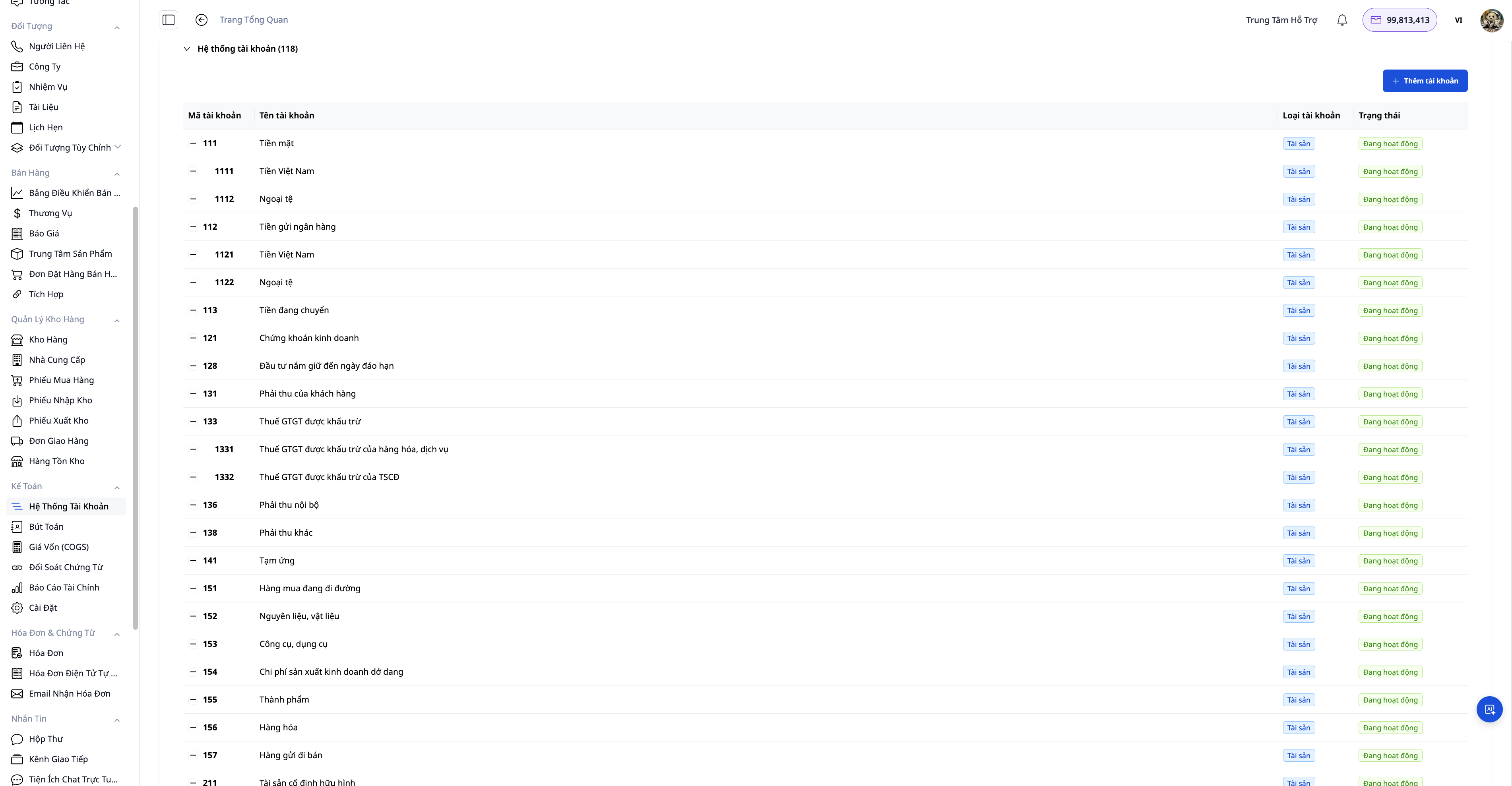
There are three ways to set up an account system:
| Way | When to use |
|---|---|
| Apply the CoA Template by Country | Fastest way — choose Vietnam (Circular 99/2025) or one of 11 countries; the system will pre-set all accounts and default accounting rules. |
| AI-assisted setup (Generate Accounting Setup) | The AI suggests suitable account types based on type and country, explaining each option. |
| Import CSV (Import Chart of Accounts) | You already have your own set of accounts from the old software; import them to reuse. |
After applying the template, you can add sub-accounts or modify the names according to internal needs — Circular 99/2025 allows businesses to create sub-accounts themselves. Use Reset to rebuild from scratch if necessary (resets can only be made before any journal entries are made).
Step 3: Check the Posting Rules
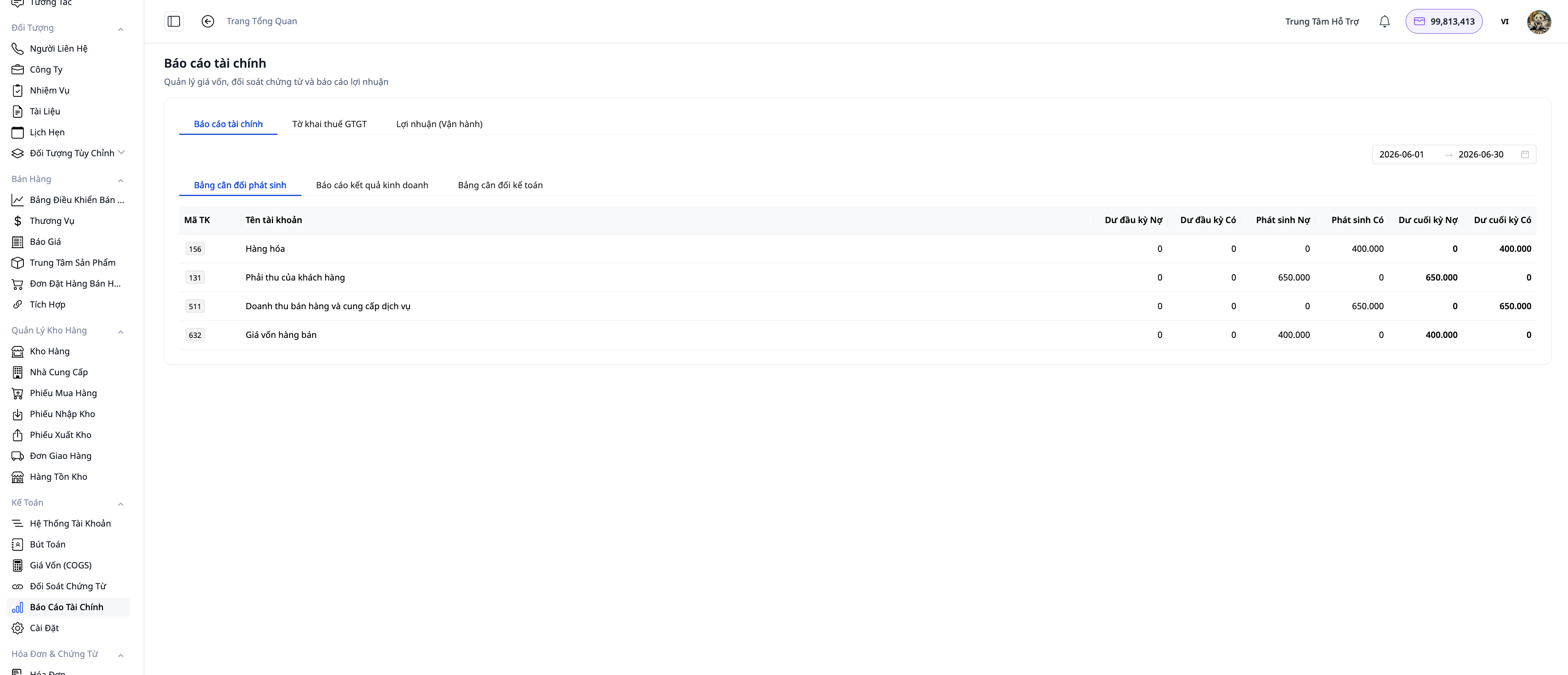
Accounting rules define which events generate which journal entries (for example: sales revenue → Debit Account 131 / Credit Account 511; cost of goods sold → Debit Account 632 / Credit Account 156).
After applying the country-specific template, the common rules have been pre-filled. You can:
- Turn each rule on or off using the Active switch without losing the accounting configuration.
- Modify the debit/credit accounts on each rule if the business has its own set of accounts.
Step 4: Configure Revenue Recording
In Accounting Settings , select Revenue Recognition Point :
- INVOICE (default): Recorded when issuing invoices. Suitable for most retail and service businesses.
- DELIVERY : Recorded upon delivery/warehouse dispatch. Used when the contract stipulates the transfer of control at the time of actual delivery.
The system automatically matches revenue with cost of goods sold (COGS) for the same period.
Part 2: Daily Operations
Step 5: Automatically Generated Journal Entries — Orders, Invoices, Refunds
Once set up, you no longer need to keep a logbook for routine operations:
- When an order is completed , the system generates revenue and cost of goods sold entries.
- Issuing electronic invoices → corresponding accounting entries at the selected recording time.
- Canceling an electronic invoice (via S-Invoice/Viettel or MISA) → the system automatically generates a reversing entry, ensuring the ledger and invoice always match.
- Refunds, deposit refunds, returns → correct transaction type entries, reverse cost of goods sold in parts (if returning 3/10 of the products, only reverse the cost of goods sold for those 3 products).
Go to Accounting → Journal Entries to view, filter, and reconcile all journal entries by date, period, or account number.
Step 6: Input Invoices — Connecting GDT & Triage Accounting

GTG CRM connects directly to the General Department of Taxation's electronic invoicing system (GDT), automatically pulling all of a business's input invoices — a single connection covering all suppliers.
Step 6.1 — Connect your GDT account
Go to Settings → Tax Authority Connection .
- Enter your Tax Identification Number (TIN) and account password on the hoadondientu.gdt.gov.vn portal.
- Select the time period you want to pull history for (Backfill history).
- Press Test & Connect — the system will authenticate and connect within a few seconds. The status will show "Connected" when successful.
Security note : It is recommended to create a sub-account with only "Invoice lookup" permissions instead of using the main account.
Step 6.2 — Synchronize input invoices
Click Sync now or let the system sync automatically according to the schedule. After syncing, go to ERP → Invoice Management → Incoming to view all incoming invoices.
Each invoice clearly shows the source and status of the document:
| Status | Meaning | Act |
|---|---|---|
| Tax Authority / XML+PDF | The invoice with the tax code — GDT has provided sufficient data and original files. | Accounting triage ready |
| Tax Authority / Needs Document | Invoices without codes (telecom, bank) — GDT provides data but does not have the original file. | Download the file from the provider and then upload it. |
| Email / Needs Document | Discovered via email notification, no attachments found. | Upload the file or use the download link from the provider. |
Step 6.3 — Upload the file for the codeless invoice.
Find the item with the status "Needs Document" (usually a telecommunications, electricity, or bank bill). Click Download↗ (from provider) to open the provider's portal with the lookup code, download the file, and then click Upload to attach it to the bill.
Step 6.4 — Accounting Triage
Once the invoice has all the necessary data and documentation, open the invoice and perform the triage:
- Verify the amount, input VAT, and supplier.
- Record the transaction in the accounting ledger (input VAT → Account 133; expenses → corresponding account according to expense type).
- Input invoices are linked to customers/suppliers in the CRM, and accounts payable are clearly itemized for each partner.
Step 7: Fixed Assets & Depreciation

The Fixed Assets module manages the entire asset lifecycle and automatically generates depreciation entries in the general ledger.
Step 7.1 — Add a new asset
Go to Accounting → Fixed Assets → + New .
- Select a Category — for example, "Machinery and Equipment", "Transportation Vehicles", "Intangible Assets". The system will automatically fill in: default accounting accounts (Original Cost, Depreciation, Depreciation Expenses), suggested useful life, and depreciation method.
- Enter Asset Name , Cost , Estimated Salvage Value , and Date of Operation .
- Choose your depreciation method : Straight-line, Declining-balance, or Units-of-production.
- Click Save — the asset is created with DRAFT status and the estimated monthly depreciation amount is displayed.
Step 7.2 — Activate the asset & view the depreciation schedule
Open the newly created asset → click Activate . The status will change to ACTIVE and the system will immediately generate a complete depreciation schedule (number of items = number of periods according to useful life), each period in the PROJECTED state.
Step 7.3 — Depreciation Accounting
Click Run depreciation to manually record the transaction, or enable automation to have the system run automatically at the beginning of each month (see Step 11).
When running, the system accounts for all due periods (including any previously unaccounted periods since activation). Each period is flipped to POSTED and generates a balancing entry:
- Debit account 6274 (Depreciation expense of tangible fixed assets) — or the corresponding account according to the type of asset.
- There is account 2141 (Depreciation of tangible fixed assets).
Running the same cycle again will return the old entry — no duplicate entries will be created.
Step 7.4 — Import existing assets
If the business already has a property register, go to Fixed Assets → Import :
- Upload CSV/Excel files : the file can have any column structure — AI will automatically recognize and suggest column mappings (e.g., "Original Price" column → Cost field, "Purchase Date" column → Acquisition date). Review and adjust the mappings before confirming.
- From the purchase invoice : select an existing input invoice in the system — the asset details will automatically fill in the name, original cost, purchase date, and supplier.
- AI reads documents : attach a PDF contract or invoice file (text format, not scanned) — AI extracts and pre-fills the fields.
Step 7.5 — Asset Liquidation
Open asset → Dispose → Sale (or Write-off), enter the actual salvage value and liquidation date. Preview liquidation profit/loss before confirming. After confirmation, the system will:
- Change the status to DISPOSED , close the depreciation schedule.
- Create liquidation journal entries: write off original cost (Credit account 2112), write off accumulated depreciation (Debit account 2141), record liquidation income/expense (Account 711 or Account 811).
Part 3: Reporting & File Export
Step 8: View Realtime Financial Reports
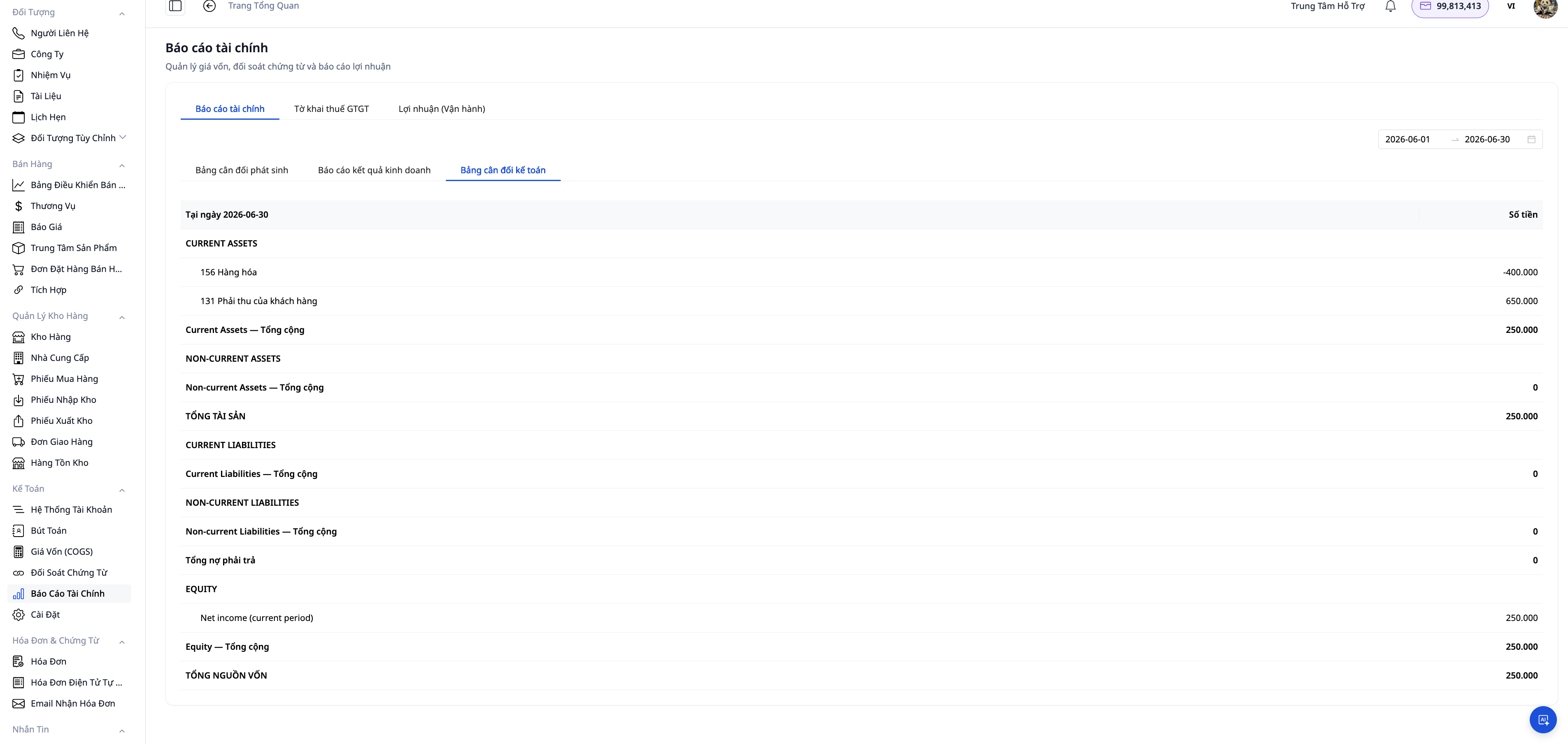
Go to Accounting → Reports , select the period and view it now:
- Income Statement (B02-DN) — revenue, cost of goods sold, gross profit, net profit by period.
- The Statement of Financial Position (B01-DN) — Assets = Liabilities + Equity. This is the official form name according to Circular 99/2025, replacing the old name "Balance Sheet".
- Trial Balance — the ending account balance, checking the balance of debits and credits before closing the books.
- The VAT return form — a summary of output and input VAT — is ready for the filing period.
All reports are calculated from actual entries in the ledger — no need to consolidate from Excel or wait for the accountant to finalize at the end of the month.
Step 9: Export Report to PDF & Excel
On any report, click Export ▾ and select the format:
- PDF : Creates printable documents with company titles, signatures, and stamps. Used for sending to banks (loan applications require signed financial statements), auditors, boards of directors, or investors.
- Excel (XLSX) : A clearly structured spreadsheet file — accountants can pivot, aggregate, and compare data across periods. Data and currency formatting adhere to the Vietnamese locale.
All existing reports (B01-DN, B02-DN, Trial Balance, VAT, Profit and Loss Report, AR/AP aging, Cash Position) support both formats.
Step 10: Export XML for Submission to the Tax Authority (Financial Statements, VAT, CIT, PIT)

GTG CRM creates pre-generated XML files according to the XSD of HTKK/eTax — you can download and upload them directly to the electronic tax portal without having to re-enter the numbers.
XML export support report:
| Report | Form code | Filing period |
|---|---|---|
| VAT Tax Return Form | 01/GTGT | Quarterly |
| Annual financial statements | B01-DN + B02-DN + B03-DN + B09-DN | Fiscal year |
| Corporate Income Tax Return | 03/TNDN | Fiscal year |
| Personal Income Tax Final Settlement Declaration Form | 05/QTT-TNCN | Fiscal year |
Steps to follow:
- Go to Accounting → Reports → Tax Reports .
- Select the report type and reporting period.
- Check the data on the screen — the indicators are automatically mapped from the ledger according to the TT99/2025 standard.
- Click Export XML → download the
.xmlfile. - Log in to thuedientu.gdt.gov.vn (eTax) or open HTKK desktop , and import the downloaded XML file.
- Perform a final check on the tax authority's software before submitting.
The XML file complies with the current XSD version of the General Department of Taxation and is compatible with iTaxViewer for checking the structure before submission.
Part 4: Accounting Automation
Step 11: Enable Automation

Go to Accounting → Settings → Accounting Automations , and enable the processes as needed:
| Automatic | Effects |
|---|---|
| Auto-invoice from orders | Automatically generate and issue electronic invoices upon order completion. |
| Generate revenue journal entries | Revenue entry when an invoice is issued. |
| Generate cost of goods sold (COGS) journal entries. | COGS entry when goods are dispatched from inventory. |
| Processing refunds/returns | Automatic cost reversal and reversal entries |
For fixed assets, go to Accounting → Fixed Assets → Automations (button on the toolbar) :
| Automatic | Effects |
|---|---|
| Post-monthly depreciation | On the 1st of each month, automatically calculate the depreciation for the previous month for all ACTIVE assets. |
| Record asset disposal to ledger | Automatically generate liquidation entries when an asset is disposed of. |
| Record asset revaluation to ledger | Automatically generate revaluation entries when an asset is revalued (opt-in). |
The debit/credit entries for each automation are adjusted directly on the "Create Journal Entry" node in the workflow — no programming required, a single place to configure.
Accounting Delegation
Access to the Accounting module is controlled by specific permissions. Contact the workspace owner or administrator to obtain them.
| Rights | Function |
|---|---|
ACCOUNTING_VIEW_COA | View account system |
ACCOUNTING_MANAGE_COA | Add/edit account |
ACCOUNTING_VIEW_JOURNAL | View the journal entries |
ACCOUNTING_CREATE_JOURNAL | Create manual journal entries |
ACCOUNTING_VIEW_REPORT | View financial reports and export files. |
ACCOUNTING_MANAGE_SETTINGS | Accounting settings configuration |
ACCOUNTING_MANAGE_PERIOD | Opening/closing accounting periods |
ACCOUNTING_MANAGE_ASSET | Fixed asset management |
ACCOUNTING_POST_DEPRECIATION | Depreciation accounting |
Workspace owners and administrators are granted full permissions by default.
Documents belonging to GTG CRM

