What you can do after this guide
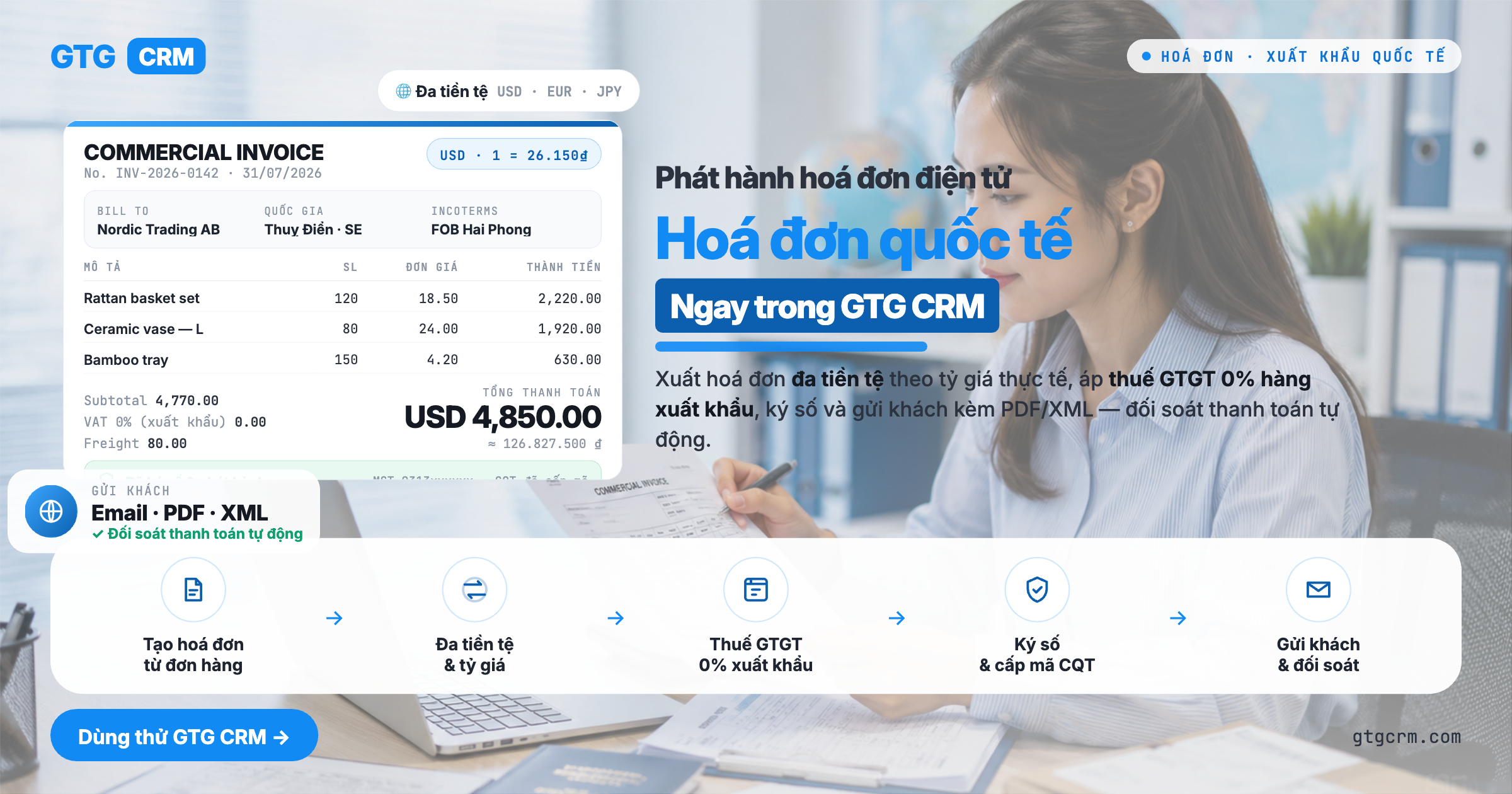
Choose an invoicing market (apply account system + tax + currency) → check the invoicing network in the Connection section → (when needed) connect your own account or token → create a valid international invoice for the buyer's country → issue and send via the appropriate network/gateway → track transmission status and download the PDF invoice template. All in one system, no need for country-specific invoicing software.
Preparation
1. Log in to GTG CRM with Invoice Management (ERP) permissions. — To create and issue invoices.
2. Have Chart of Accounts Management permissions. — To apply the account system by country in Step 1.
3. Have your business's tax identity in the invoicing market (tax ID / UEN / NIP…). — A valid invoice requires the seller's correct tax identity.
4. (For markets with government portals, e.g., Poland) Have a KSeF authorization token obtained from the government portal. — To submit invoices via the KSeF portal.
5. The invoicing market is ready. — Some markets are still in development — you can save drafts, and official submission will be enabled later.
Step 1 — Select Market & Apply Account System
Go to Accounting → Setup.
In the country selection section, choose the country where you will issue the invoice — e.g., Singapore (or Poland, Japan, Malaysia…).
Click Apply to create the account system, set accounting standards, currency, and tax profile for that country.
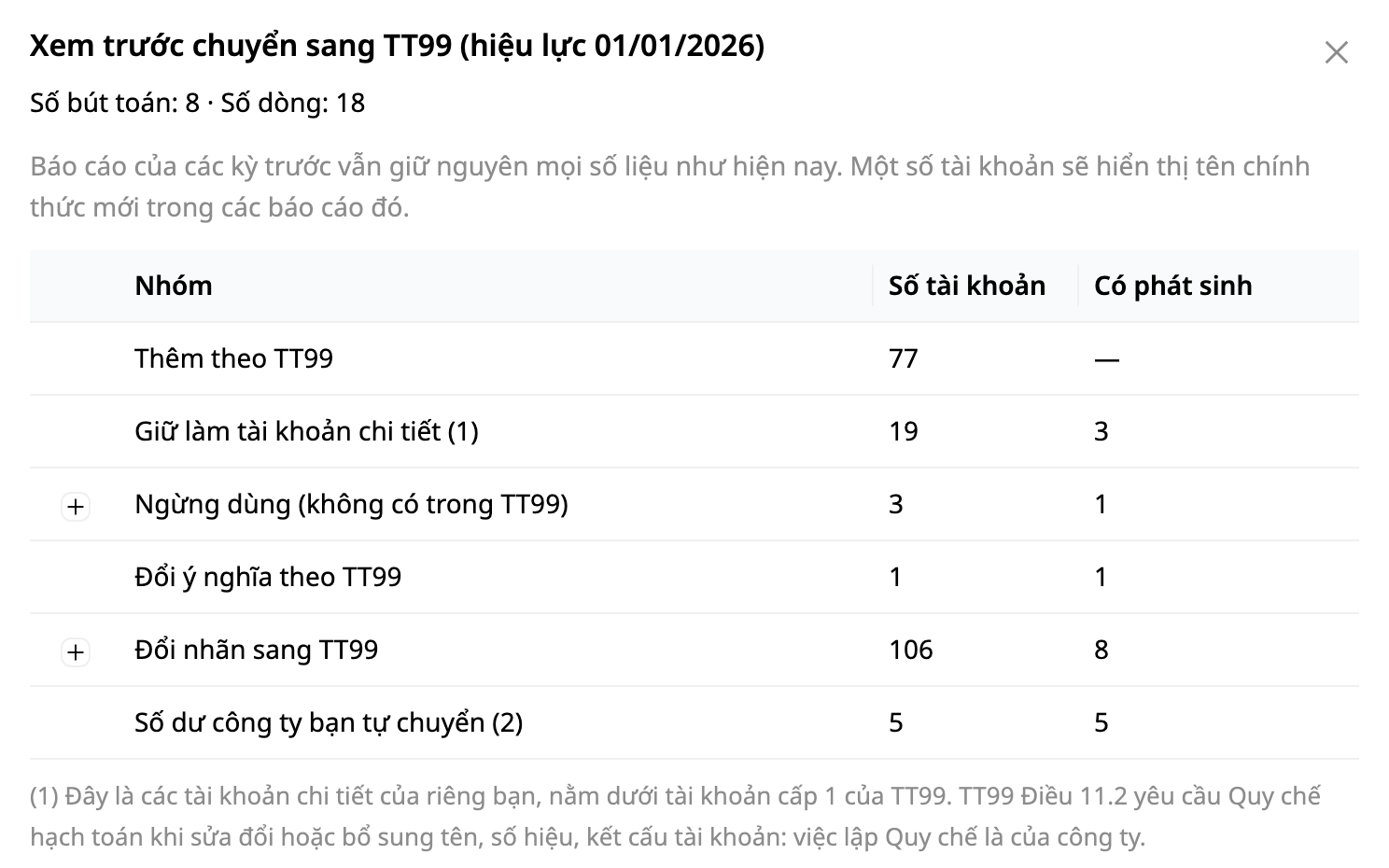
✅ Expected Result: the workspace displays the correct accounting standards and currency of your chosen country (e.g., Singapore: SFRS standards, SGD currency, 9% GST tax). A new account system appears in the account list.
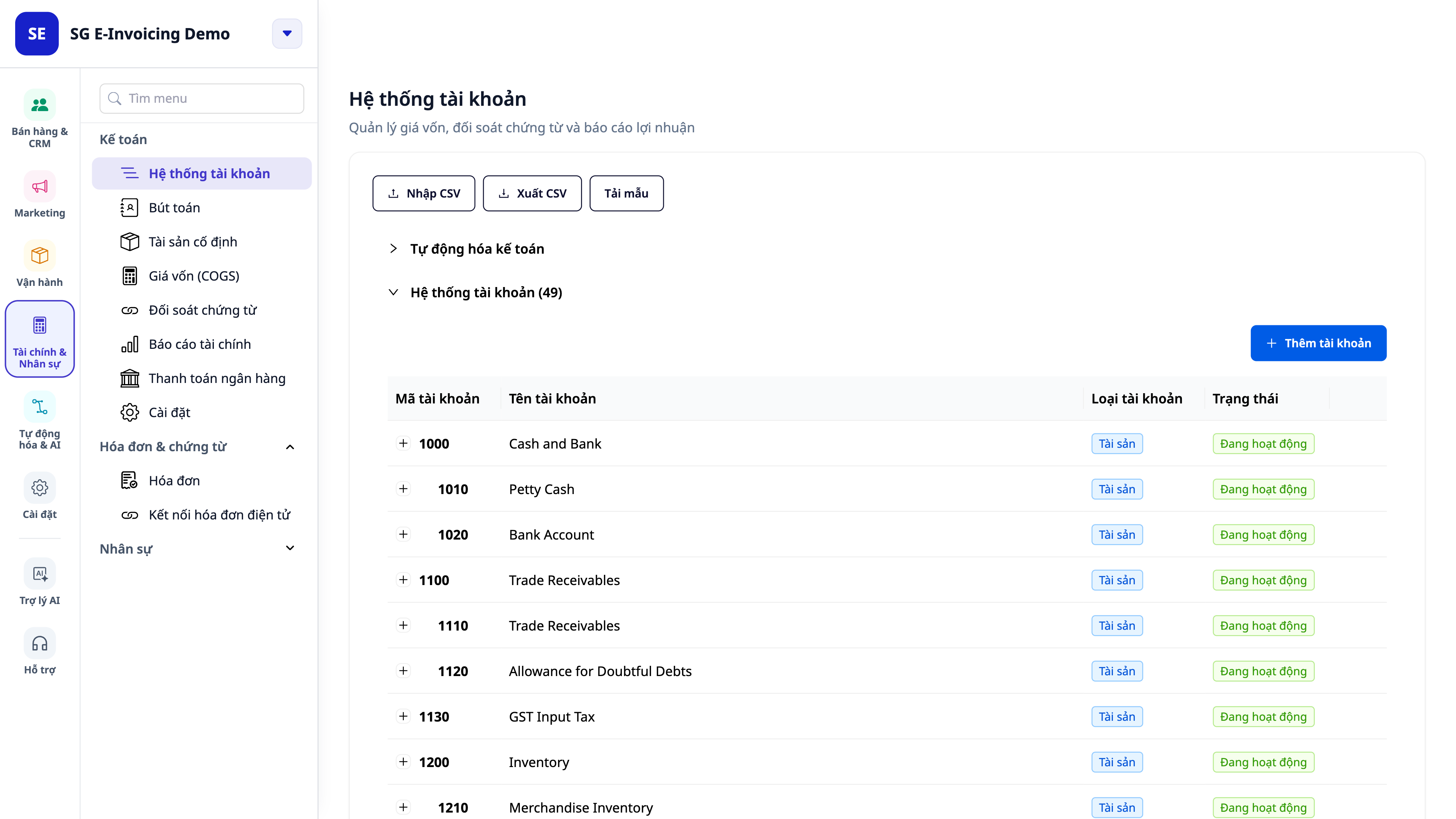
💡 Tip: each workspace uses one country/accounting standard. To change countries, you must Reset first. After posting entries, the account system will be locked to protect the books.
Step 2 — Check Invoicing Connection
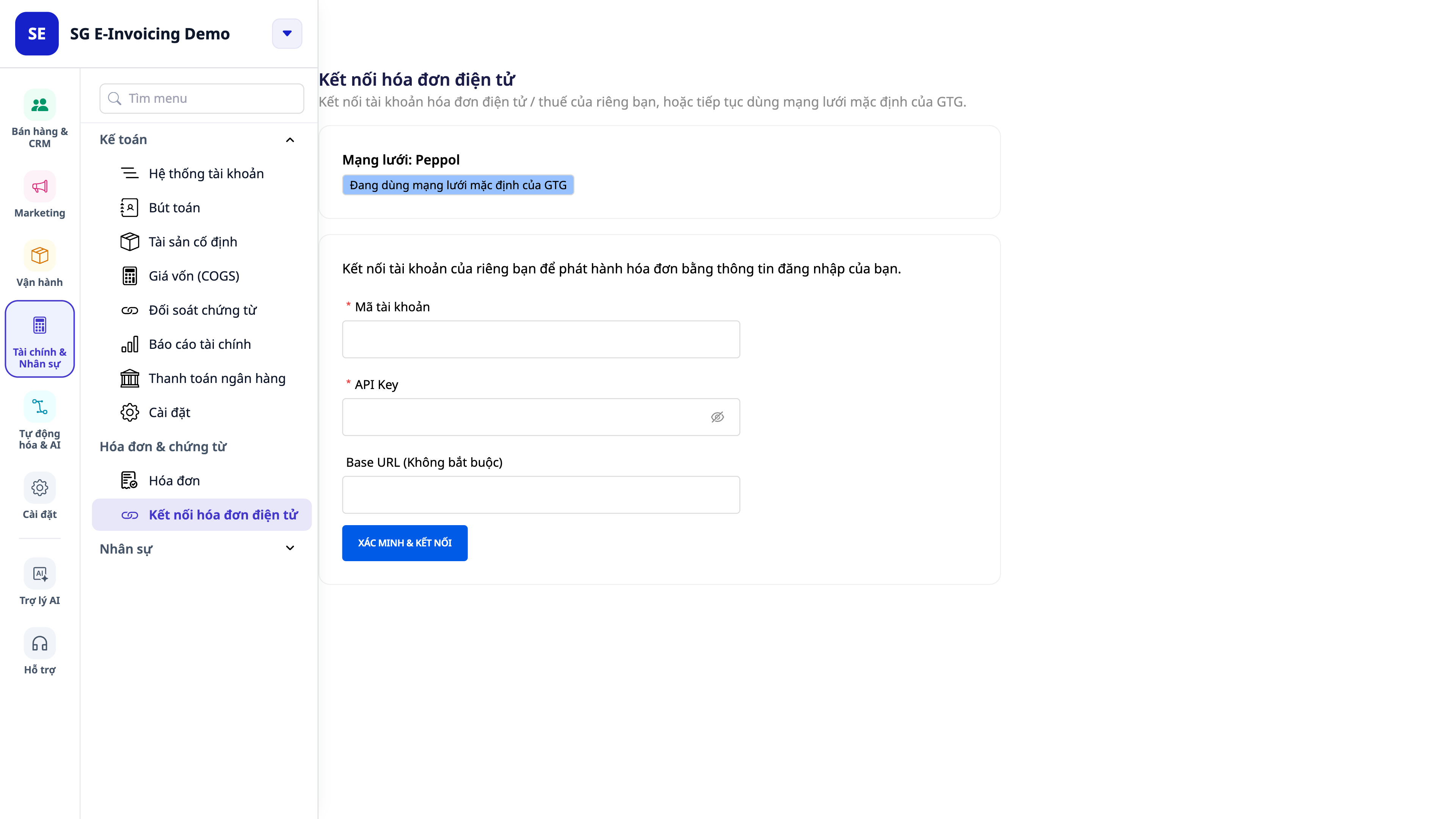
Go to Settings → Invoicing → E-invoice Connection.
Check the Network and Status sections: - For Peppol markets currently active on GTG's default network (Singapore, Japan, Malaysia, Netherlands, Sweden, and Denmark: the status is usually "Using GTG's default network" — you can issue invoices immediately without setting up an account. Australia and the remaining 11 EU countries (including France, Italy, Spain) are NOT currently active on the default network — your invoices will be saved as drafts until the connection is ready (see "Market Roadmap" below). - For markets with government portals (e.g., Poland — KSeF): the page displays fields to enter (NIP tax ID + KSeF token) — the KSeF connection is NOT currently active on GTG CRM; these fields are displayed for when the connection becomes active, Polish invoices will currently be saved as drafts.
✅ Expected Result: you clearly see whether your invoice will go through GTG's default network or requires a separate account/token connection; and the "Connect your own" button is ready if you want to be self-managed.
Step 3 — Connect Your Account or Token (when needed)
Skip this step if you are using GTG's default network for Peppol markets. Perform this step when you want to issue invoices under your own account (BYO), or when the market requires a connection (e.g., Poland — KSeF).
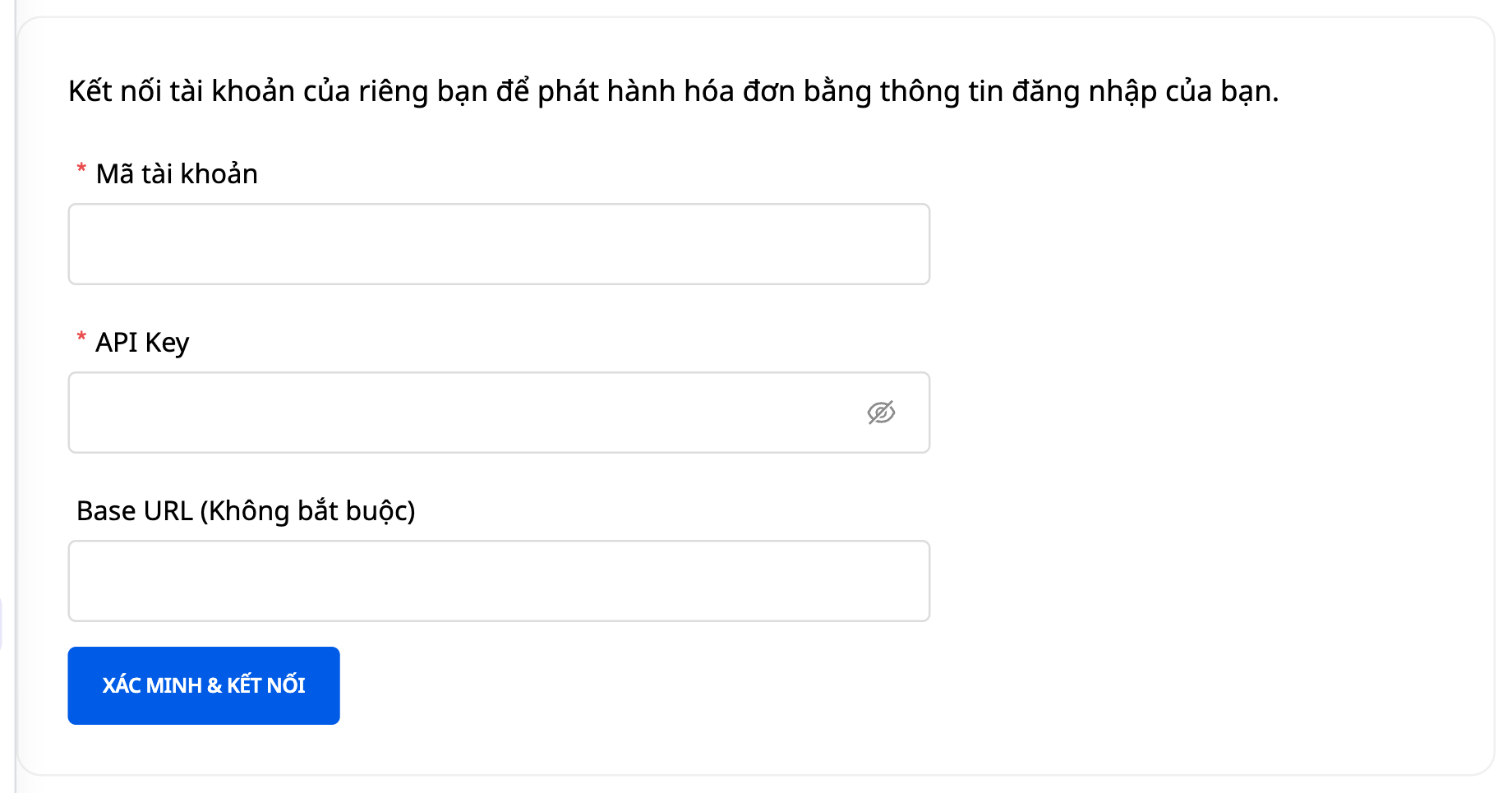
On the E-invoice Connection page, click Connect your own.
Enter information by market: - Peppol (BYO): Account ID + API Key (and Base URL if applicable). - Poland (KSeF): Tax Identification Number (NIP) + KSeF Token (paste the token obtained from the government portal) — this connection is NOT yet active; pasting the token here will not yet allow issuance to KSeF.
Click Verify & Connect.
✅ Expected Result: the system validates the key/token upon connection. If correct, the status changes to "Connected — your own", displaying a masked identity (e.g., acct •••1580) and the connection date, along with a Disconnect button. If the key is incorrect, the page will immediately show an error and will not save.
ℹ️ Keys/tokens are stored encrypted and will never be shown again. You can Disconnect at any time to revert to the GTG default network.
Step 4 — Create International Invoice
Go to ERP → Invoices → New Outgoing Invoice.
For the Peppol market, the form will display a blue banner "E-invoice ready via GTG (Peppol) network — no separate account needed" (without supplier/template number/serial number fields like Vietnamese invoices).
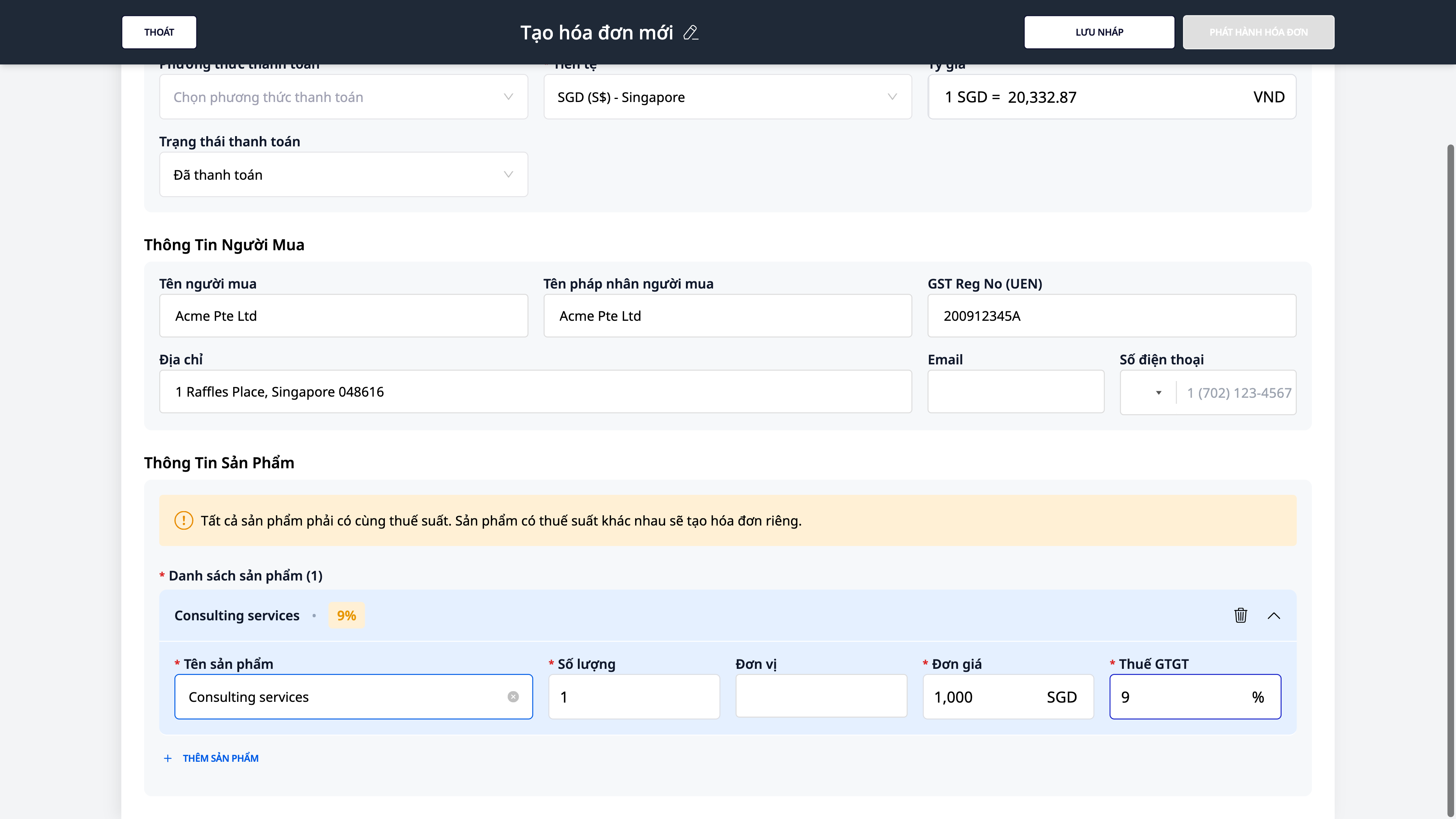
Enter the buyer's information, noting that the tax identification number field label automatically changes according to the country — for example, in Singapore it's "GST Reg No (UEN)". Enter a valid ID (e.g., 200912345A).
Select/leave the currency according to the market (e.g., SGD); check the displayed exchange rate.
Add line items, for example: Consulting services · Quantity 1 · Unit Price 1,000 · Tax 9%.
Click Save as Draft.
✅ Expected Result: the draft invoice is created, showing the correct tax and total amount (e.g., GST S$90.00, total S$1,090.00). If you enter an incorrectly formatted tax ID (e.g., 12345), the field will immediately turn red: "The GST Reg No (UEN) is not valid" and will not allow saving.
Step 5 — Issue Invoice
Open the draft invoice you just created.
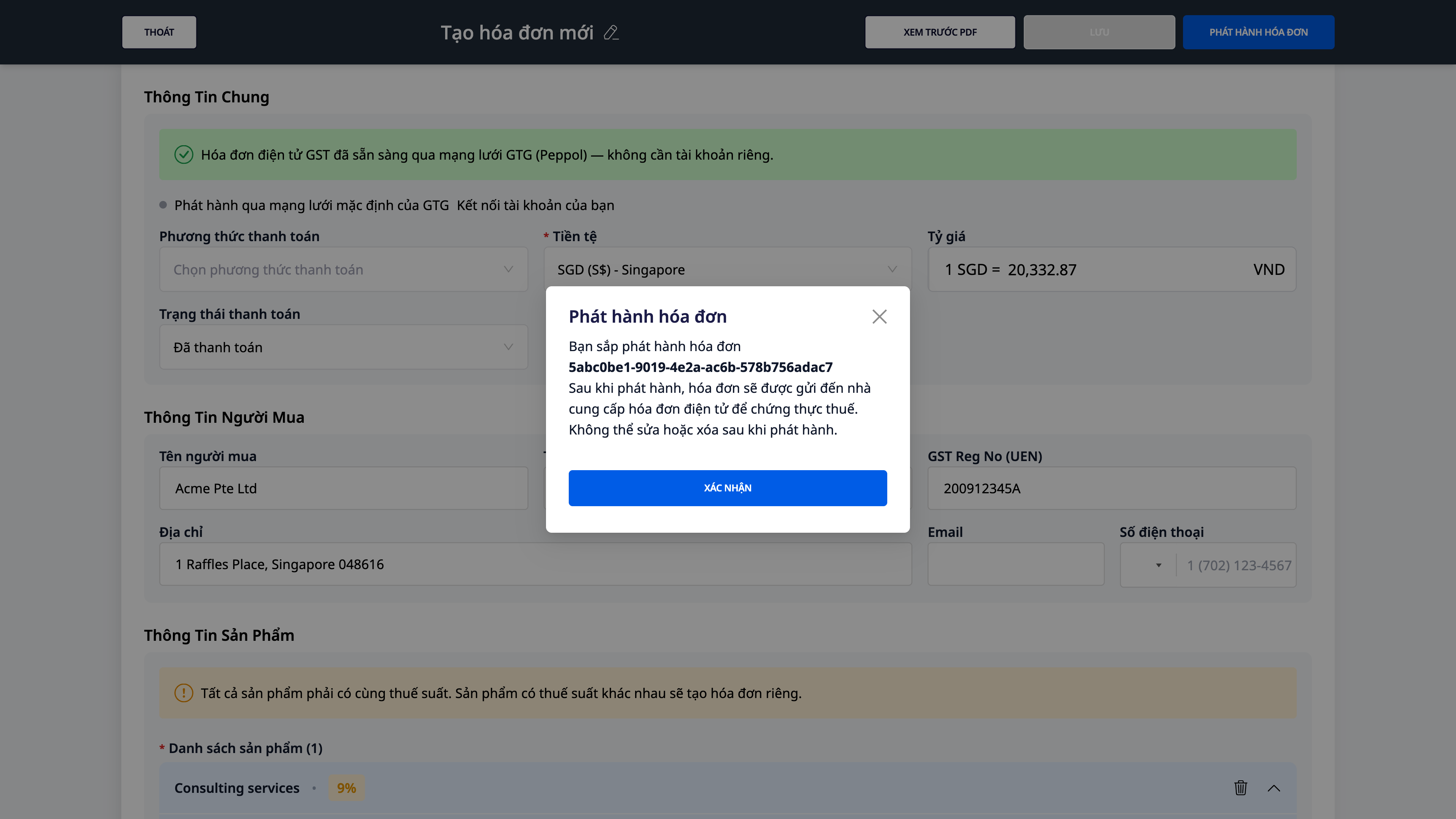
Click Issue Invoice.
In the confirmation dialog, recheck the information and then click Confirm.
✅ Expected Result: a message "Invoice issued successfully" appears, and the screen returns to the E-Invoice Management list. The invoice is sent via the appropriate network/portal and a transaction ID is received.
ℹ️ The KSeF (Poland) connection is currently not active on GTG CRM, so this step does not apply to Poland — Polish invoices will be saved as drafts until the connection is ready.
Step 6 — Track Transmission Status & Download PDF
In the E-Invoice Management list, open the invoice that was just issued.
View the invoice's Activity log — the stages of *sent → delivered/accepted → (if applicable) rejected with reason* on the network.
Click Download PDF to get the invoice document.
✅ Expected Result: the activity log displays the invoice's transmission status (e.g., *sent via Peppol*, then *delivered/accepted*). The downloaded PDF has the correct document title, tax label, and currency for the market.
ℹ️ Some markets currently in implementation may not have official sending enabled or may not have full transmission statuses yet — in such cases, you can still create and save invoices as drafts; statuses will be fully displayed when the market is ready.
Quick Reference for Expected Results
Select country in Accounting → Settings — Apply the accounting standards, currency, and taxes of that country (e.g., Singapore: SFRS, SGD, GST 9%)
Open the Issue Connection page — See the issue network + status ("Using GTG's default network" or field requires input)
Authenticate & Connect Account/Token — "Connected — your account", shows masked identity + Disconnect button
Enter invalid tax ID format — Field shows red "The … is not valid", prevents saving
Save draft invoice — Draft invoice with correct tax and total amount for the market
Issue invoice — "Invoice issued successfully" + redirects to Electronic Invoice Management list
Open issued invoice — Activity log records transmission status; Download PDF button is active
Notes
Permissions: requires Invoice Management (ERP) permission to issue and Account System Management permission to apply account systems by country.
One workspace = one country/accounting standard. To change country, you must Reset first; once entries are made, the account system is locked.
GTG's default network vs. your account: For active Peppol markets (Singapore, Japan, Malaysia, Netherlands, Sweden, and Denmark), you can issue immediately using the default network; connecting your own account (BYO) is optional. For government portals like KSeF, a token must be pasted before issuing — KSeF connection is NOT yet active on GTG CRM.
Market roadmap: capabilities are rolled out per market. Markets under development still allow creation/draft saving; official sending will be enabled when ready.
To issue invoices within Vietnam, refer to the article "Guide to Issuing Electronic Invoices with GTG CRM — From A to Z" — this article is only for international / cross-border invoices.