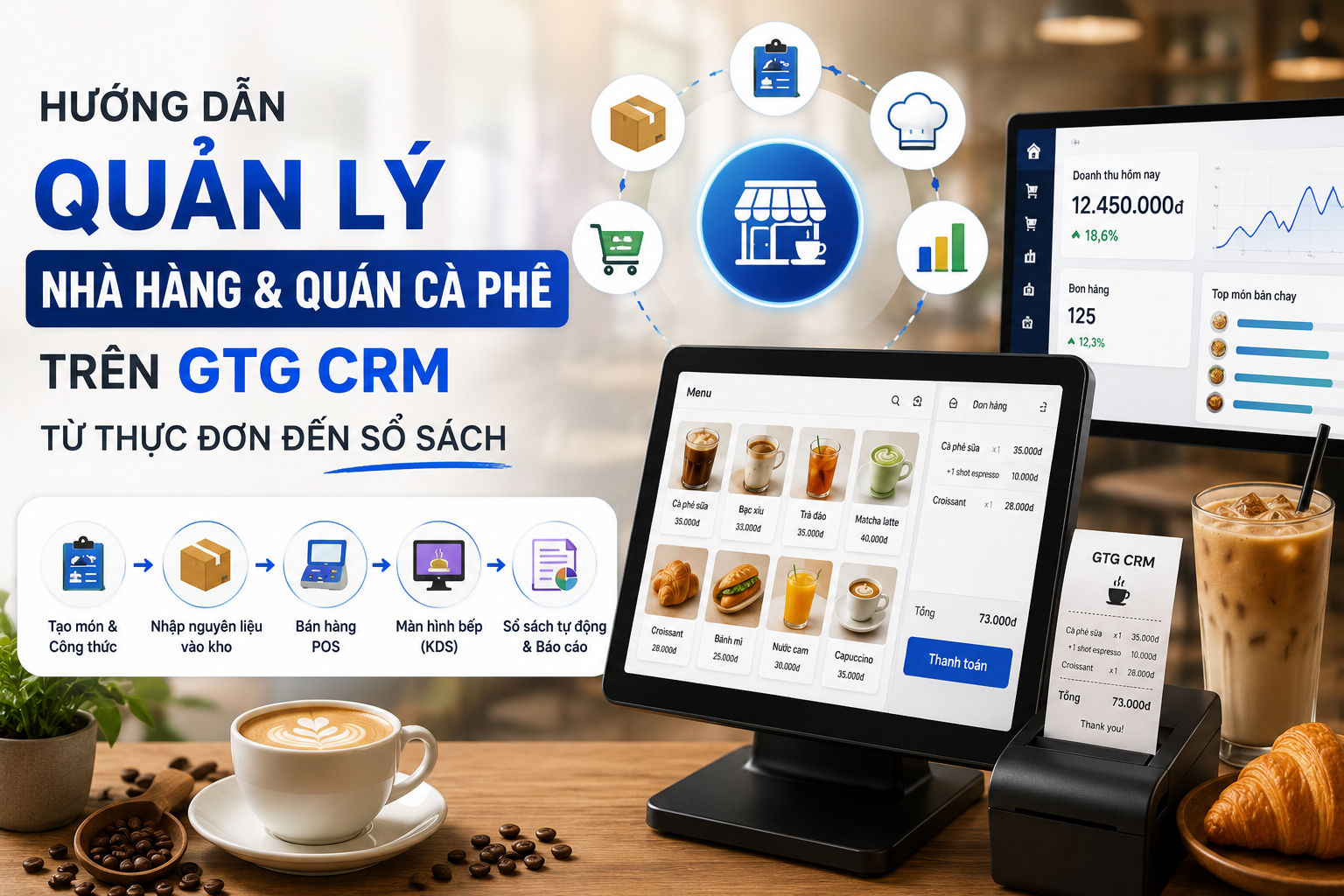
Step-by-Step Guide to Managing Restaurants & Coffee Shops on GTG CRM - From Menu to Accounting
This article walks you through setting up a complete shop on GTG CRM and running a real sales shift, from creating products and linking recipes to importing ingredients, selling at the counter/table service, and watching the books update automatically. Follow the steps in order; each step includes an expected result so you can verify it yourself.
One-time setup (Admin does this once per workspace)
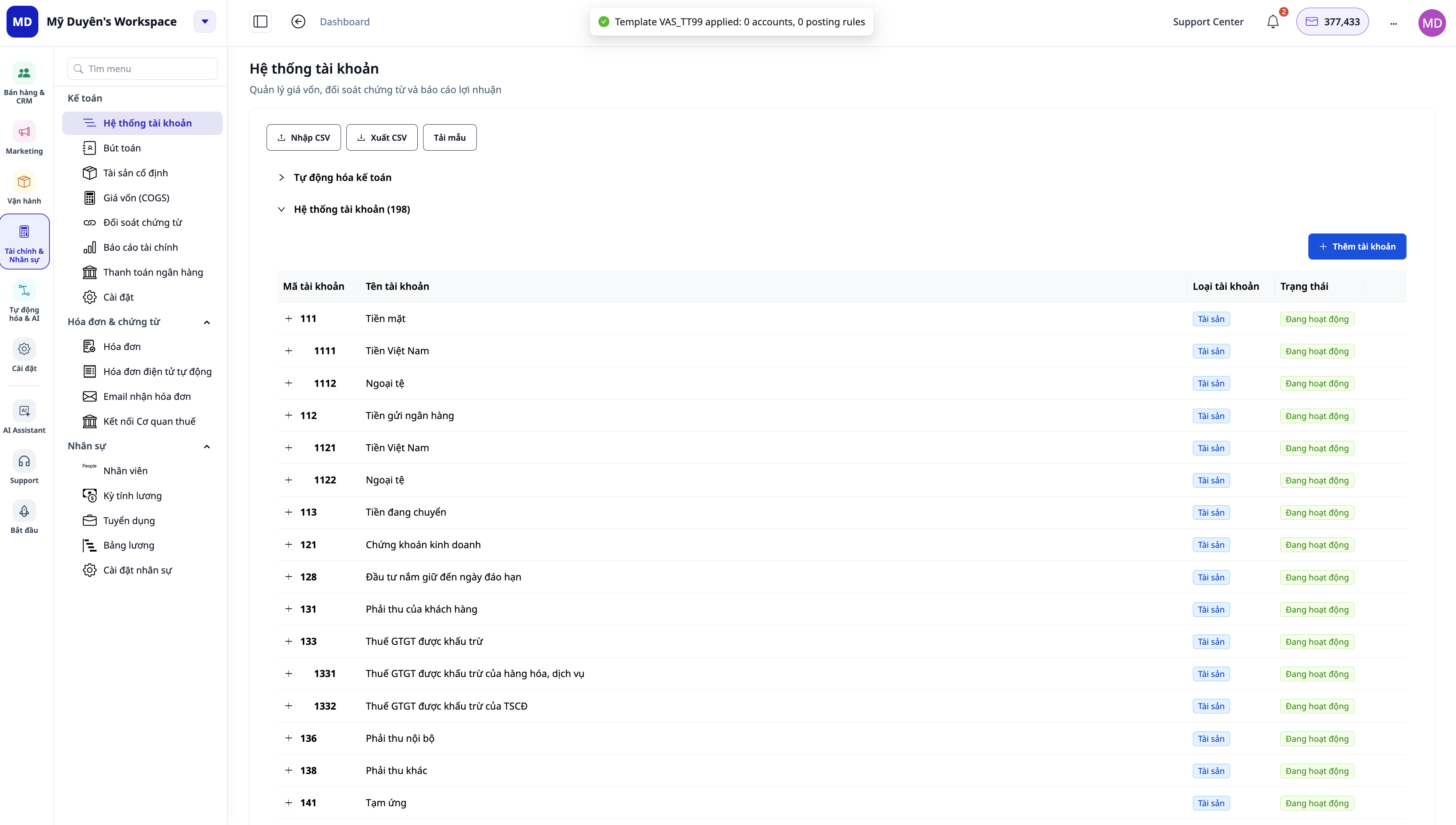
1. Enable accounting
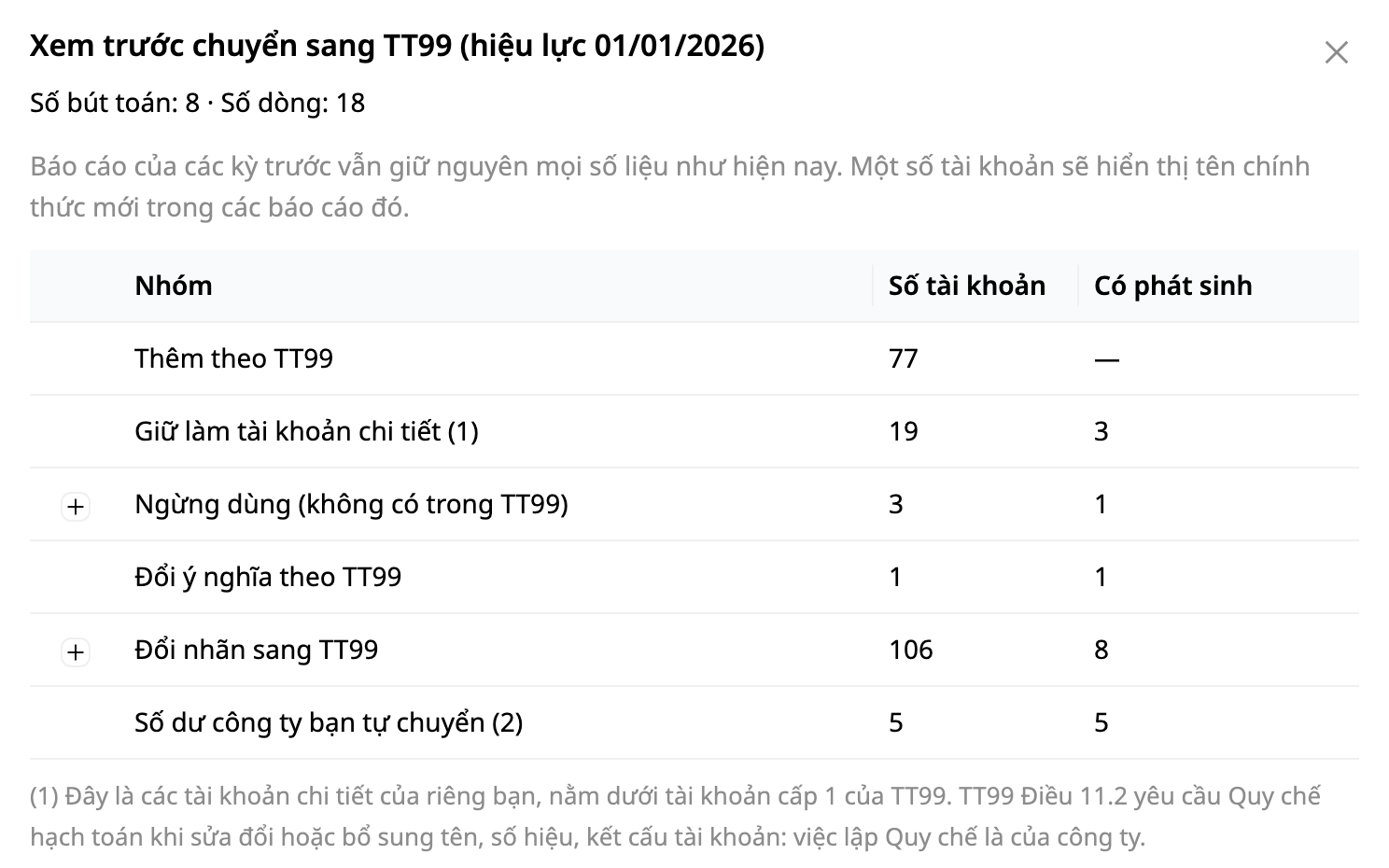
Finance & HR → Accounting → Chart of Accounts → Load Template → choose Vietnam (VAS TT99/2025).
✅ You’ll see "Template applied: 176 accounts…" and the 3 sales automations will be enabled (record revenue, record cost of goods sold, record cash receipt).
2. Create a warehouse
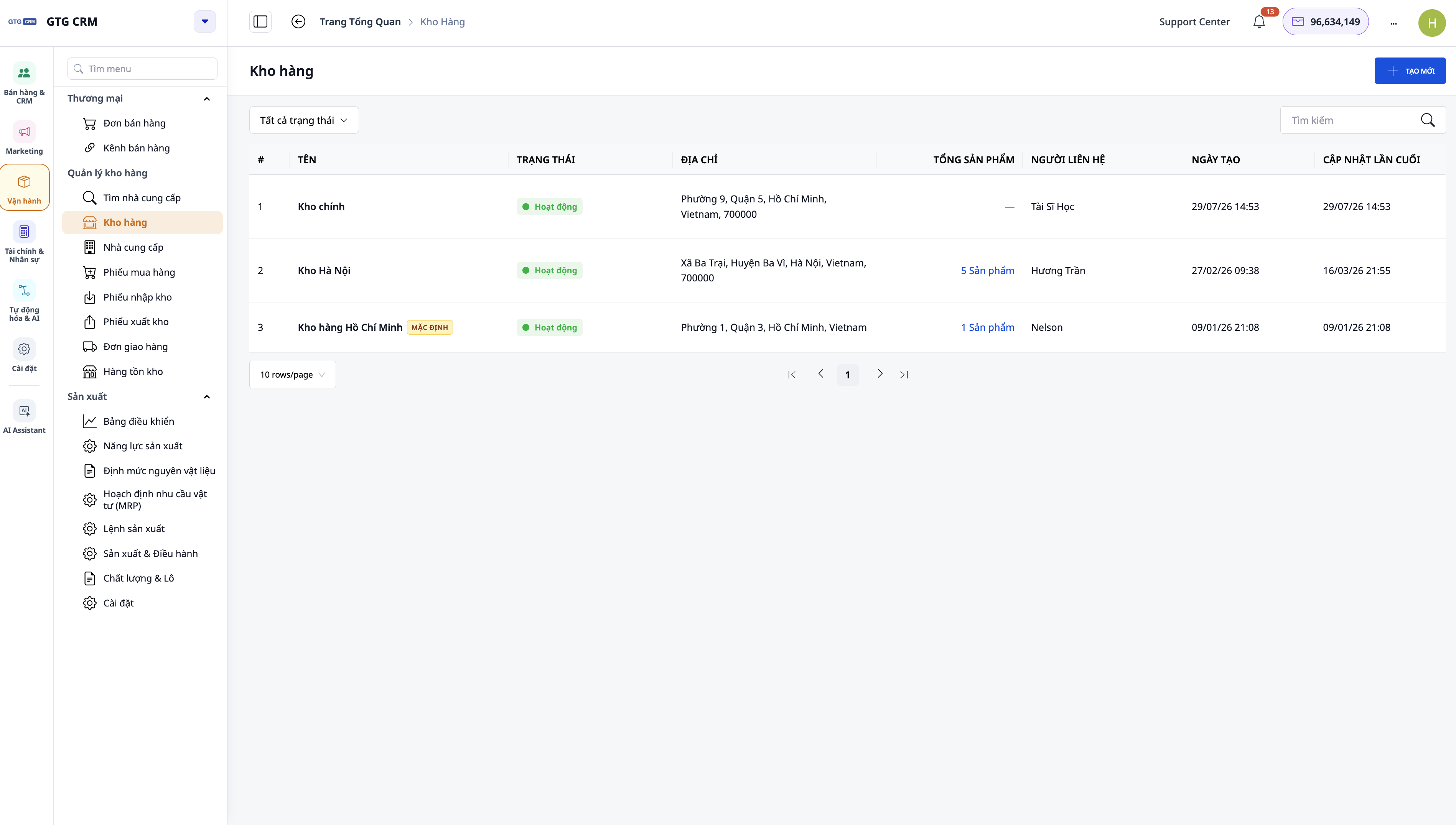
Operations → Warehouse Management → Warehouses → + CREATE → enter the name "Main Warehouse", contact person, address → CREATE.
✅ The main warehouse appears in the warehouse list.
3. Point POS to the warehouse
Sales & CRM → Catalog → F&B Menu → "Set up F&B" tab → Outlet (POS store) → choose Main Warehouse → Set as store.
✅ "Store set" appears (green check mark).
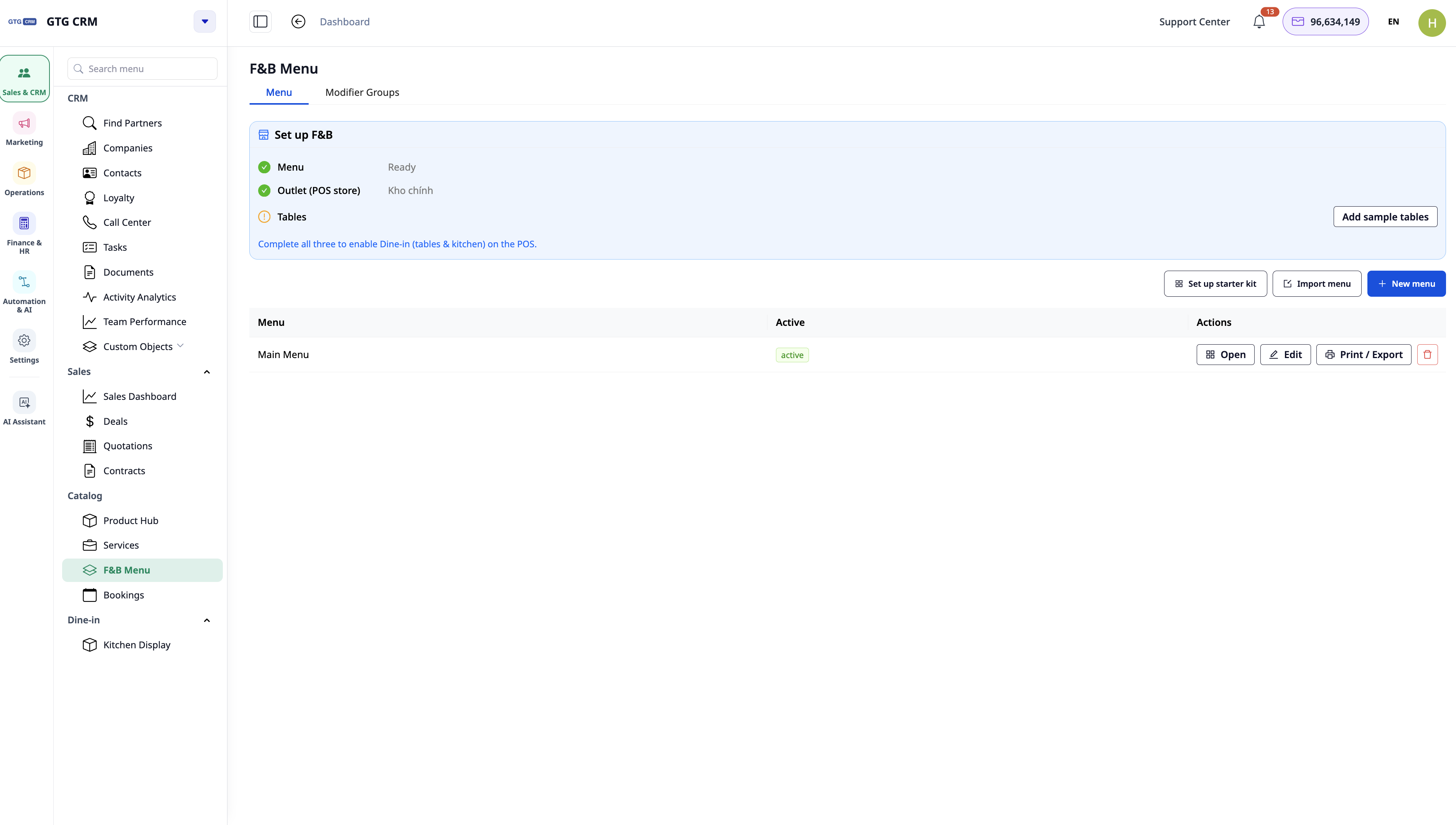
4. Add tables (if serving at tables)
F&B Menu → Add sample tables.
✅ Tables T1–T5 appear.
Part A: Create a made-to-order item + recipe (example: milk coffee)
5. Create a sellable product
Catalog → Product Hub → CREATE: Name "Milk Coffee", For sale ON, For production ON, VAT "8", Sale price "35000", Product type "Finished good", Stock unit "Piece (pcs)" → CREATE.
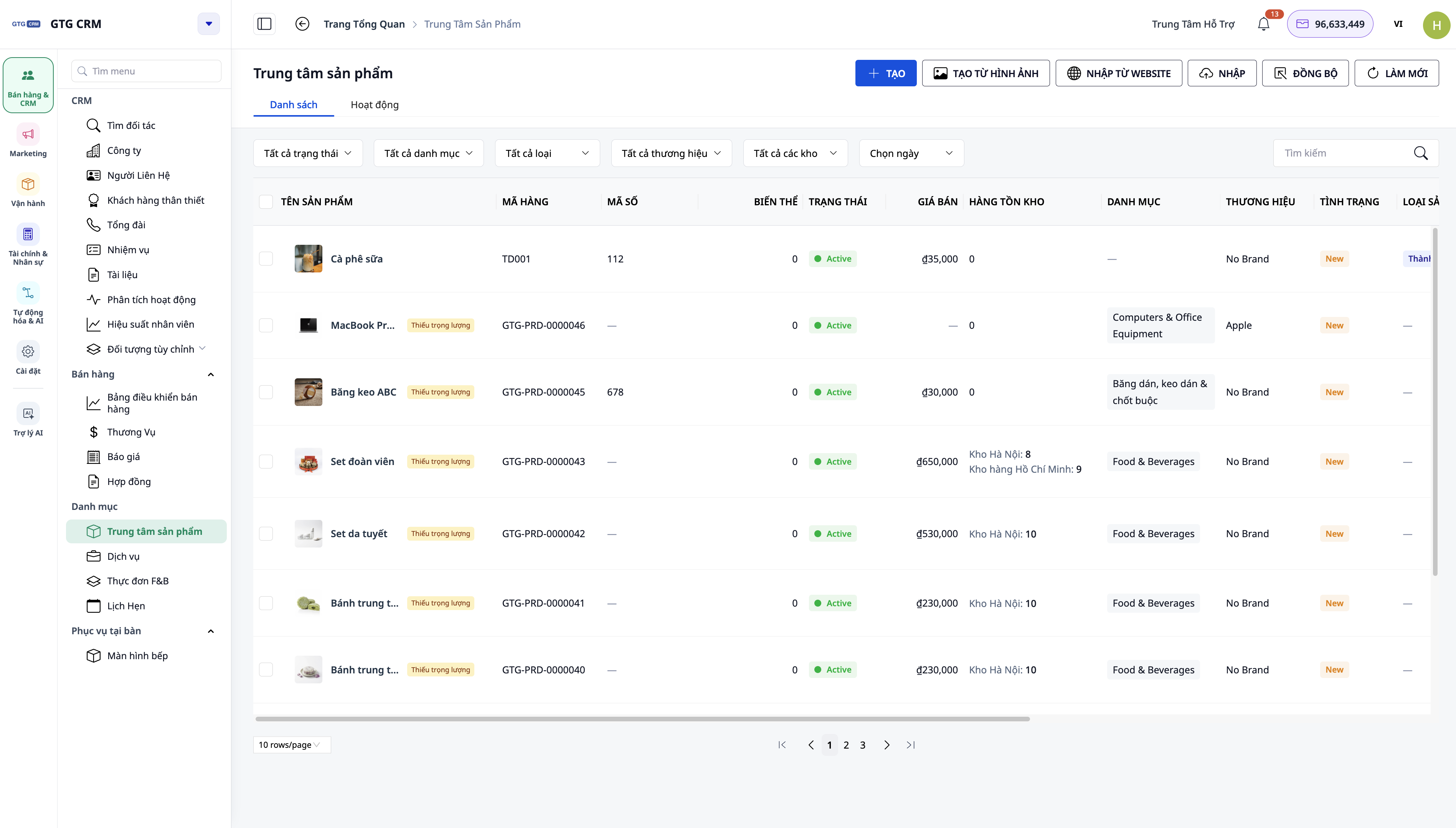
✅ "Milk Coffee" is a Finished good, priced at ₫35,000.
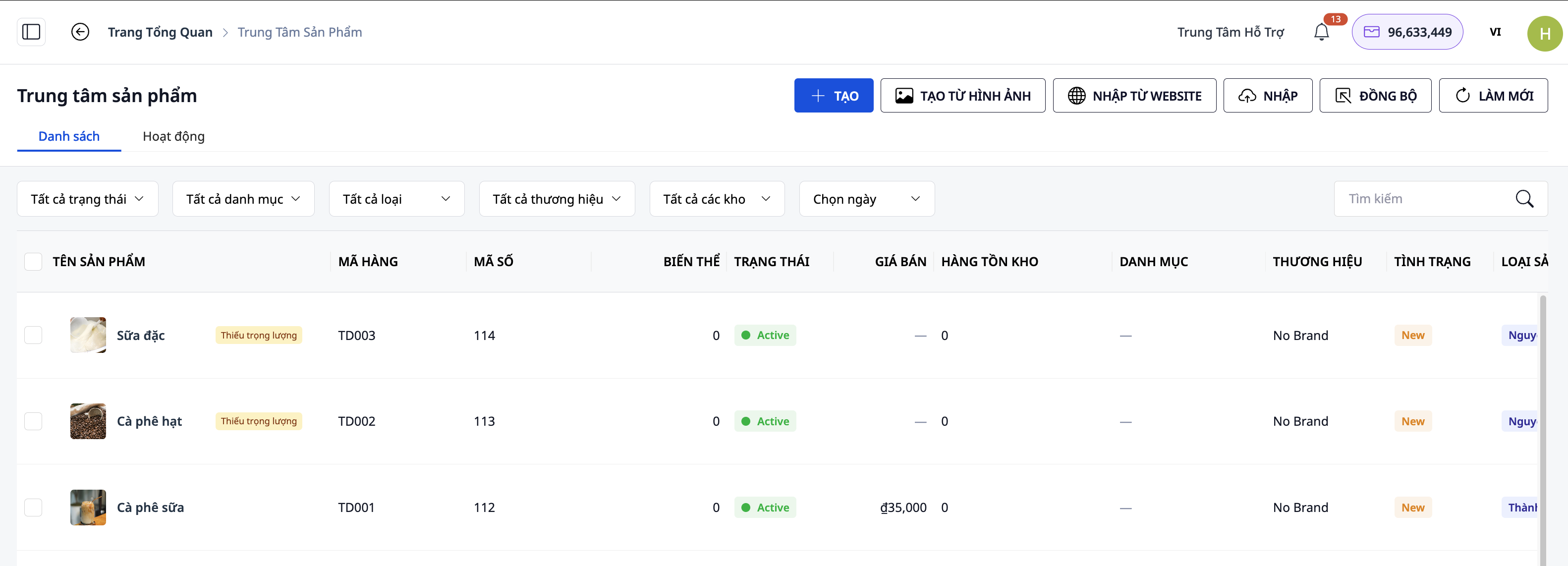
6. Create ingredients
Product Hub → CREATE (for each ingredient): "Coffee beans" (Raw material, unit "Gram"), "Condensed milk" (Raw material, unit "Millilitre"), set For sale OFF, For production ON.
✅ Both ingredients are Active, with 0 stock.
7. Set up unit conversions
Open each ingredient → Manufacturing → Unit conversions: "Coffee beans" 1 "Kilogram" = 1000 "Gram"; "Condensed milk" 1 "Box" = 1000 "Millilitre".
✅ Buying 1 kg adds 1000 g to stock; 1 box adds 1000 ml.
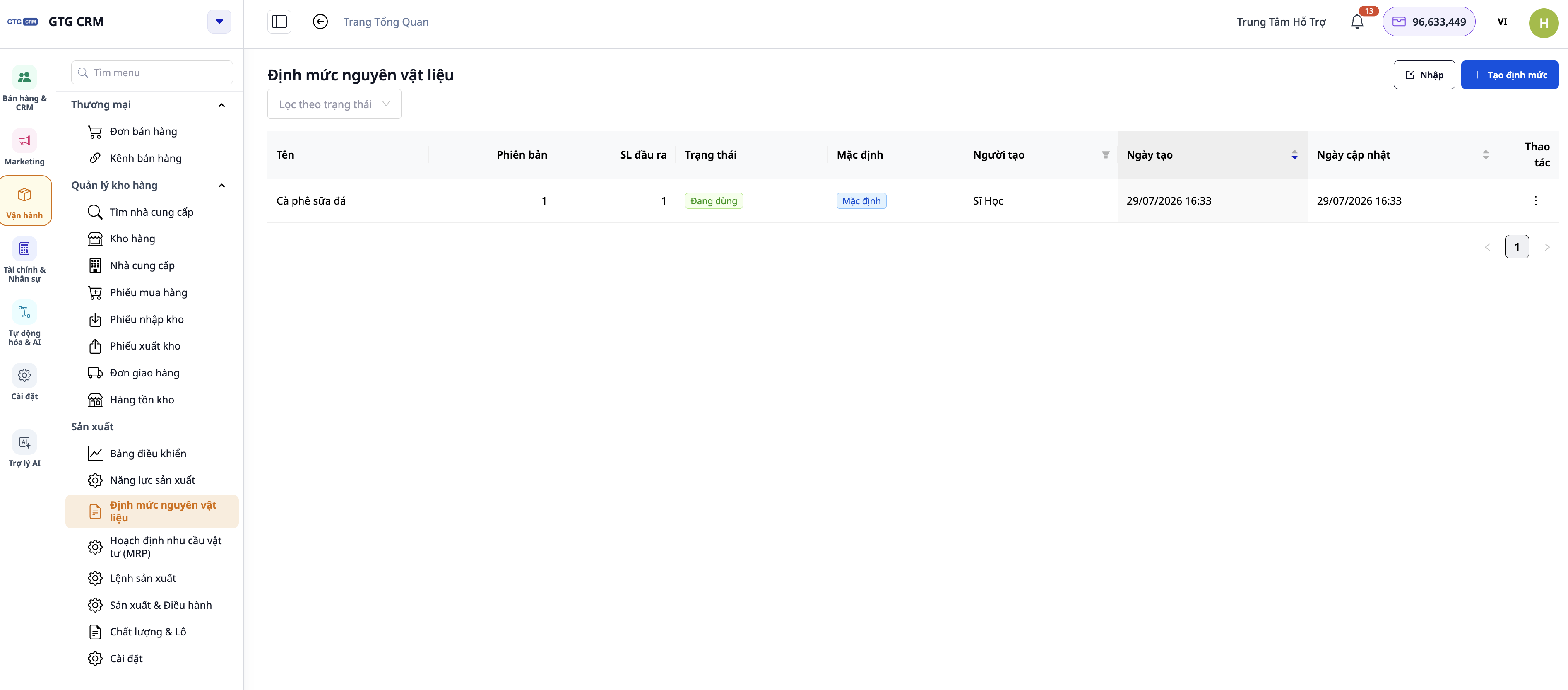
8. Create the recipe
Operations → Manufacturing → Bills of Materials → Create BOM for "Milk Coffee" → add 2 components (coffee beans + condensed milk, measured per cup) → Create.
✅ The recipe is linked to "Milk Coffee".
Part B: Receive ingredients into stock
9. Purchase goods
Operations → Warehouse Management → Purchase Orders → create a PO for `Coffee beans` + `Condensed milk` with purchase prices → send.
✅ The PO is in pending receipt status.
10. Receive goods (stock-in)
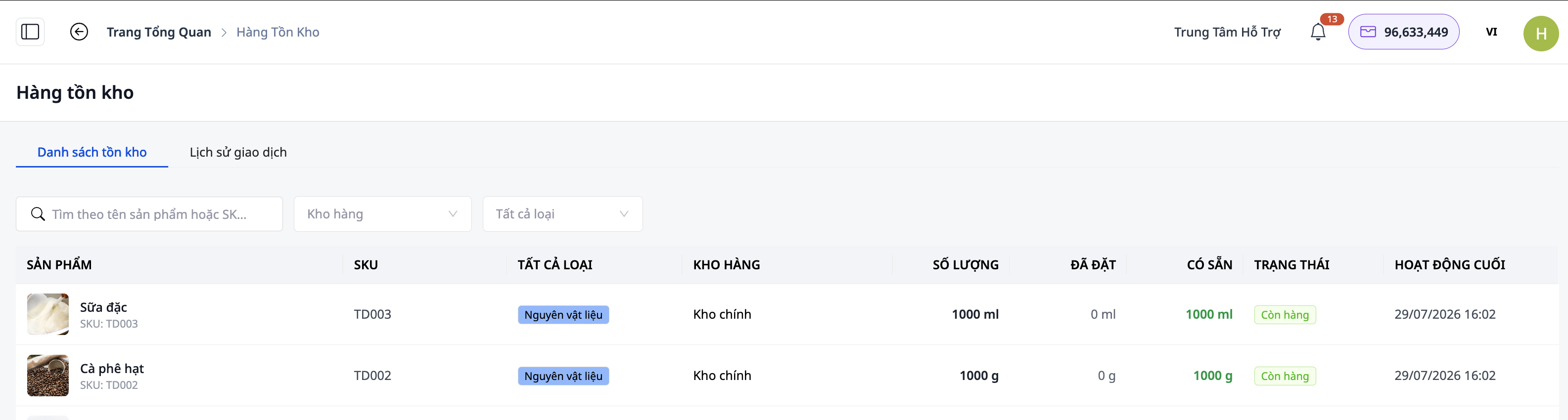
Receive against the PO → inventory increases, and cost price = actual purchase price.
✅ Stock for "Coffee beans"/"Condensed milk" is > 0.
Part C: Sell one drink at the counter
11. Open POS
("pos.dev"/ sales app) → log in with a Cashier account.
12. Sell
Select "Cà phê sữa" → (optional) choose sugar level → Collect payment (Cash) → print the receipt.
✅ Receipt printed; transaction recorded.
13. Inventory check & ledger
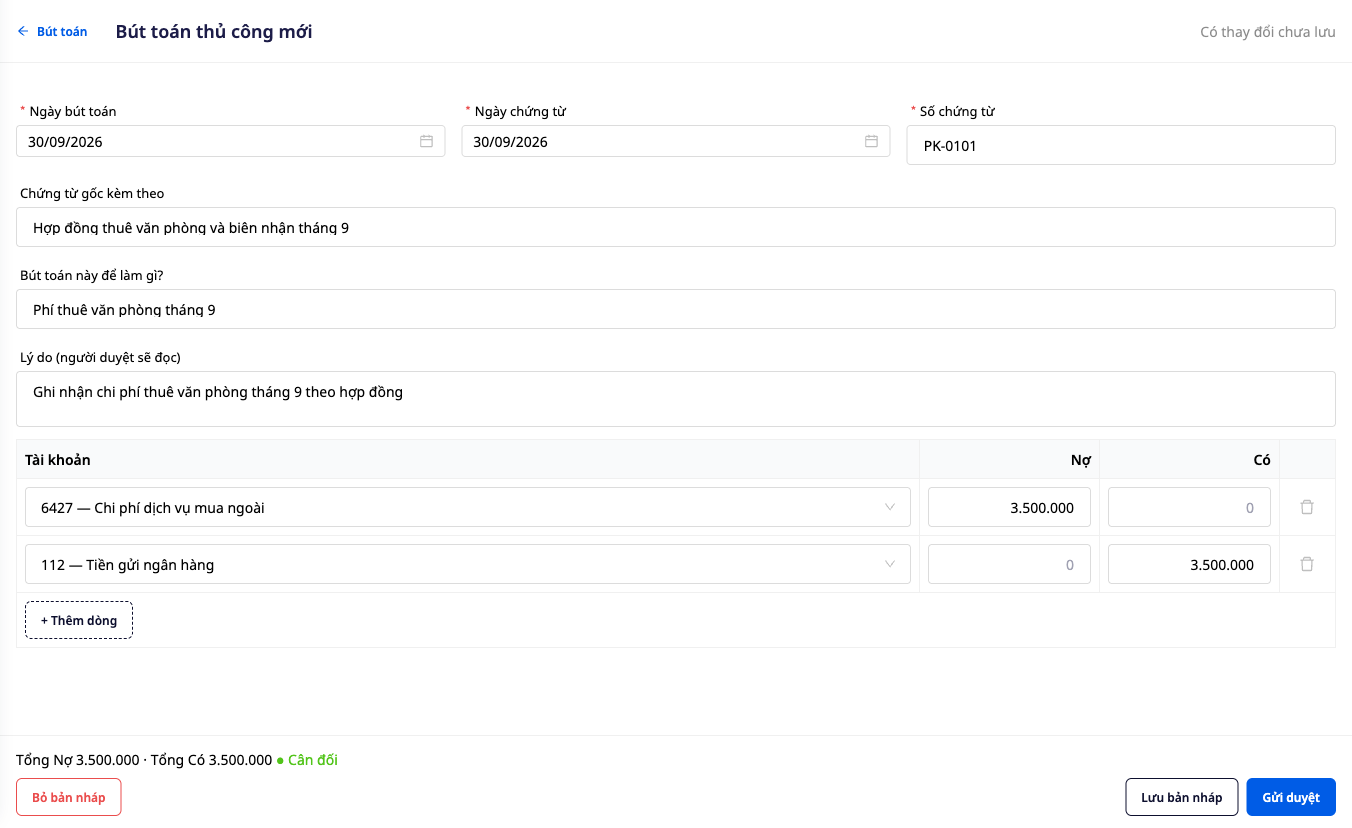
Return to the portal: inventory of `Cà phê hạt`/`Sữa đặc` decreases by the recipe quantities exactly (backflush); Accounting → Journal → there are 3 journal entries (cash receipt, revenue, cost of goods sold).
✅ Inventory decreases correctly; 3 journal entries balance.
Part D: Table service + kitchen screen (dine-in)
14. Open a table tab
On the POS, select table `T1` → add items → Fire (send to kitchen).
✅ Tab `T1` is open, items sent.
15. Kitchen processing (KDS)
Log in with the Kitchen account → kitchen screen → move the ticket New → In Progress → Ready.
✅ Ticket status changes according to the action.
16. Collect payment & close table
The cashier collects payment for tab `T1` → close the table.
✅ Table `T1` becomes empty again; the ledger is recorded as in Part C.
Part E: Optional chargeable add-ons & returns (advanced)
17. Chargeable add-on
(Manager) F&B Menu → options group → add the add-on "+1 shot espresso" and link ingredients → save. When selling the add-on: charge extra + deduct the correct ingredients.
✅ The add-on adds money and deducts inventory.
18. Return / refund
(Manager) select the transaction → Return: resellable goods → restocked into inventory; prepared items → refund, record wastage.
✅ The ledger is adjusted correctly according to the return type.
> Ready to open your store? Start for free, no card required.
> 👉 Sign up: https://gtgcrm.com/vi/signup
See the feature overview: Restaurant & cafe management.