
What you can do after this guide
Open Revenue Automations → turn on a scenario → open "View workflow" to edit content/audience → (optional) connect a sending channel → perform the trigger action in the CRM screen for the scenario to run → view run logs → turn off/on again.
Preparation
# | Condition | Why it's needed |
|---|---|---|
1 | Log in to a workspace where you have write permissions. | To enable scenarios and create trigger data. |
2 | (Optional) A connected sending channel (Messaging → Channels) + parameters (email account, segment ID). | To ensure the email/SMS/ad sending step runs completely. Without it, the scenario will still run, but the sending step will report an expected error. |
Step 1 — Open Revenue Automations
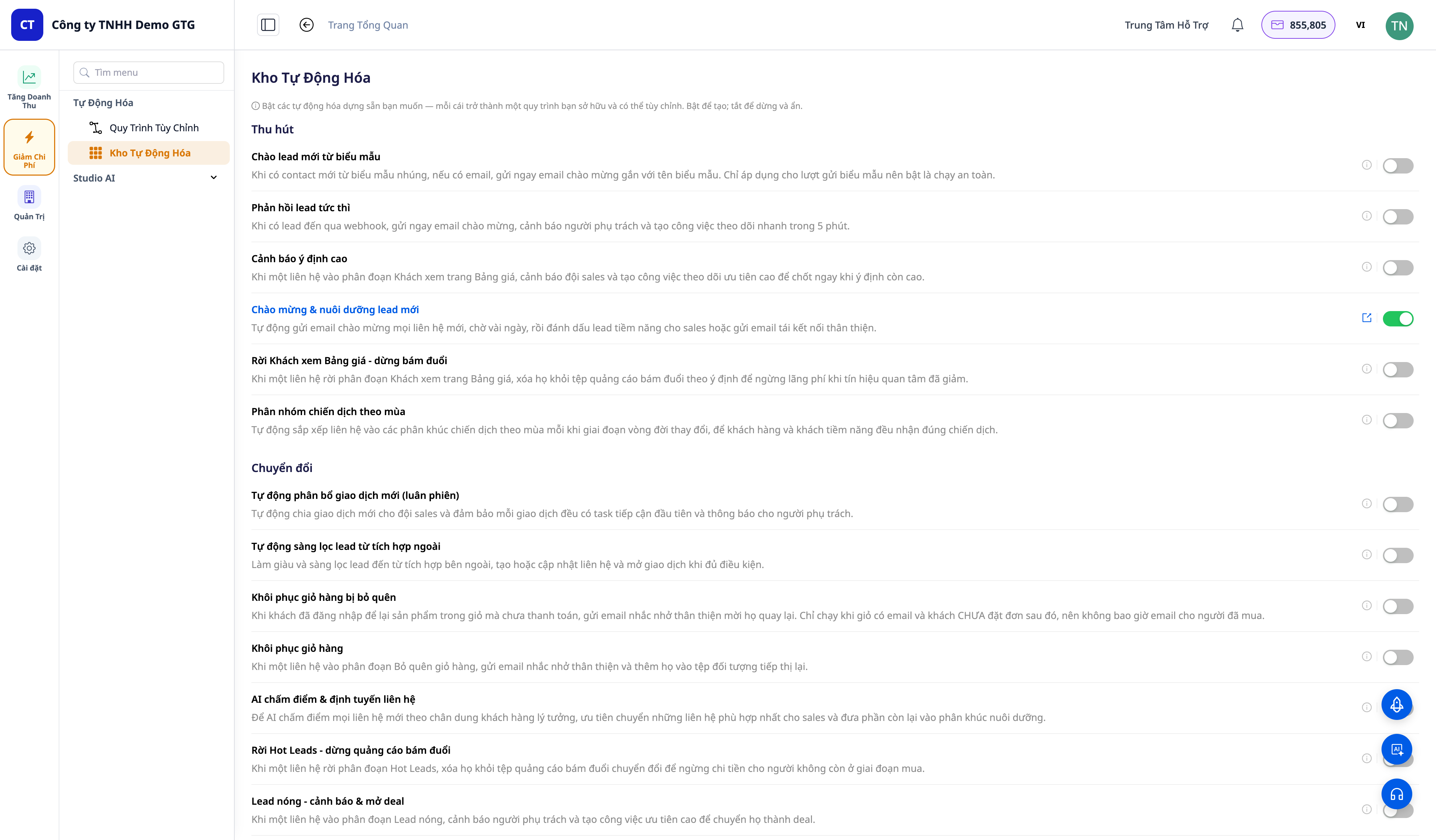
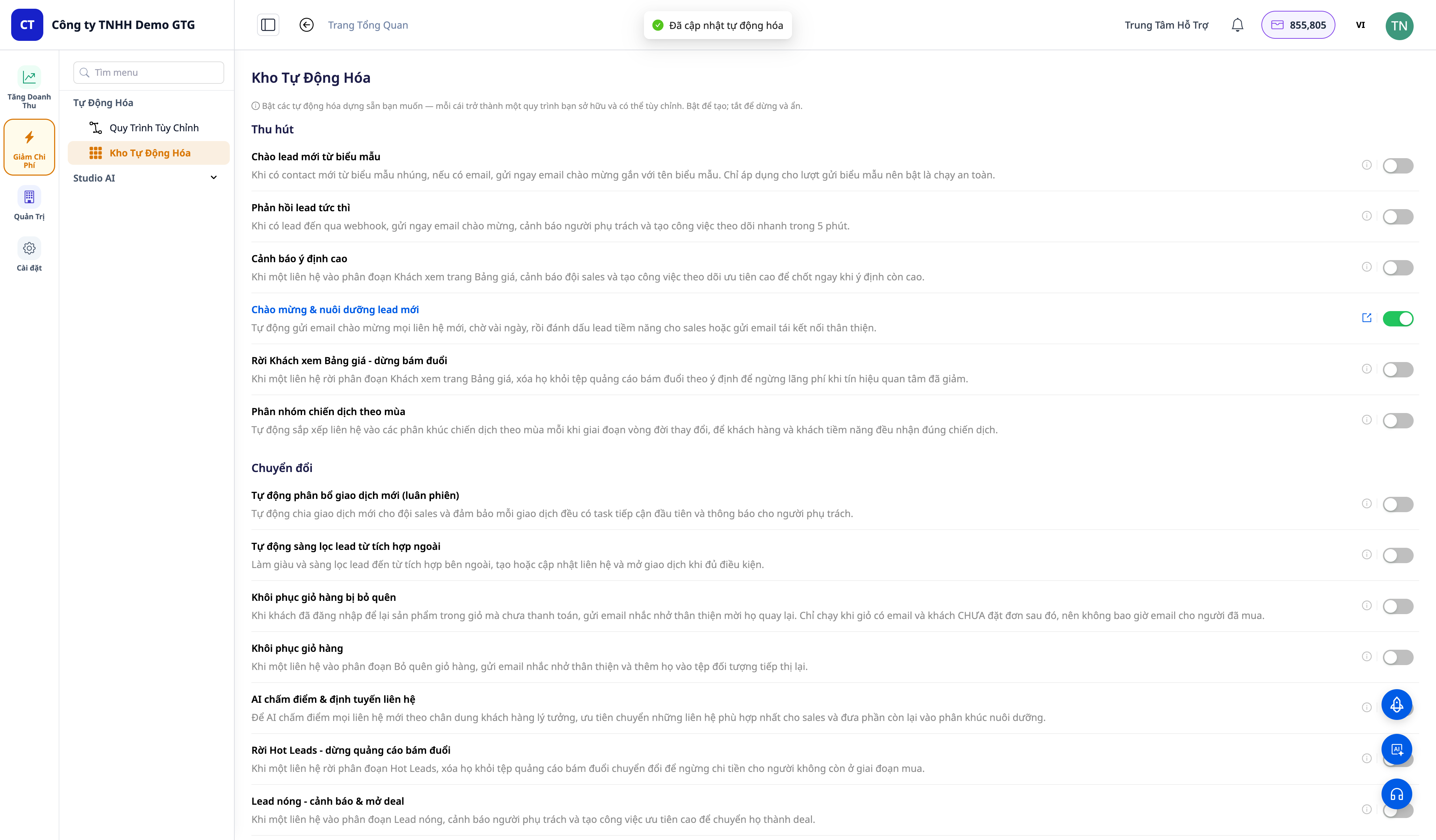
On the left-hand navigation bar, open Increase Revenue → Automation → Automation Catalog.
✅ Expected result: A list of scenarios grouped by funnel stage (Acquire · Convert · Close · Retain · Expand · Win-back). Each row: an understandable name + description + on/off switch — over 30 scenarios, grouped by funnel.
Step 2 — Enable a scenario
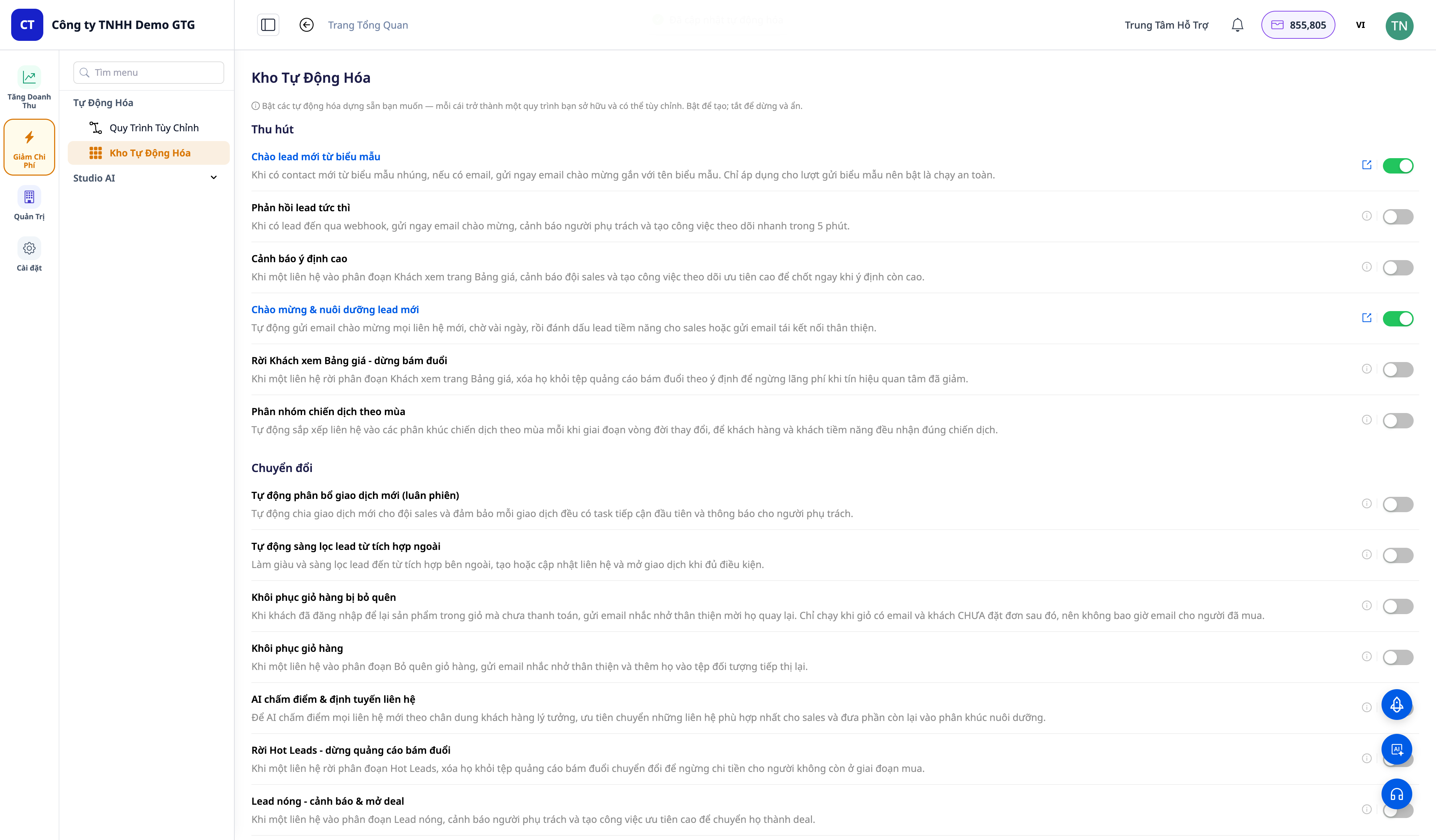
Toggle on a scenario (e.g., "Deal won → customer onboarding" or "Cart abandonment recovery").
✅ Expected result: The switch turns on; a success toast message appears; a "View workflow" (↗) link appears on that row. The scenario is now an Active workflow that you own (found in Automation → Workflows).
Step 3 — Open "View workflow" and edit content
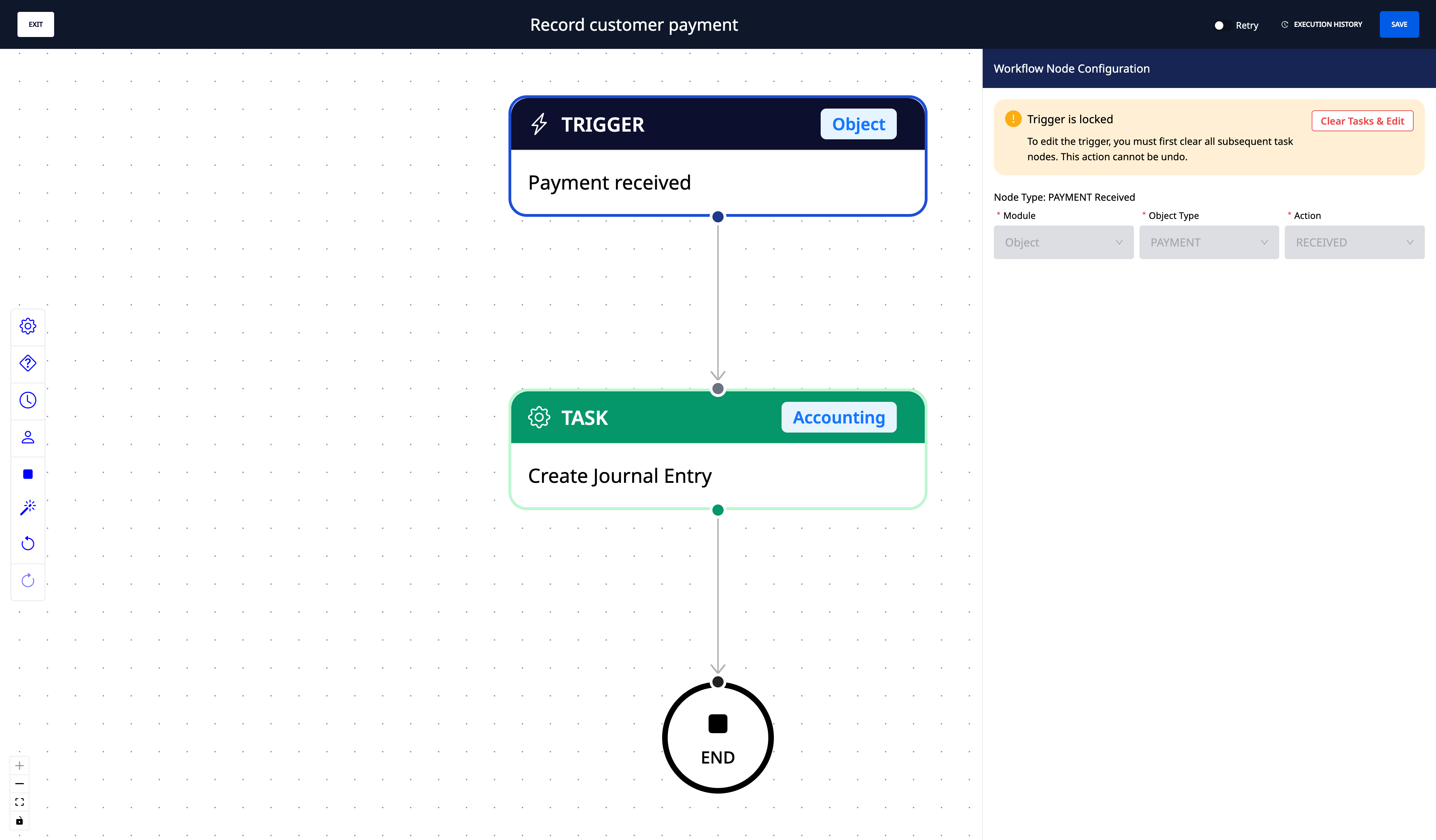
Click "View workflow" on the row of the scenario you just enabled.
In the editor, view the diagram (Trigger → steps → End). Edit the email content, delay, audience segment ID, threshold in the node parameters → Save.
✅ Expected result: The correct workflow editor for the scenario opens; the parameters can be edited and saved.
Step 4 — (Optional) Connect a sending channel
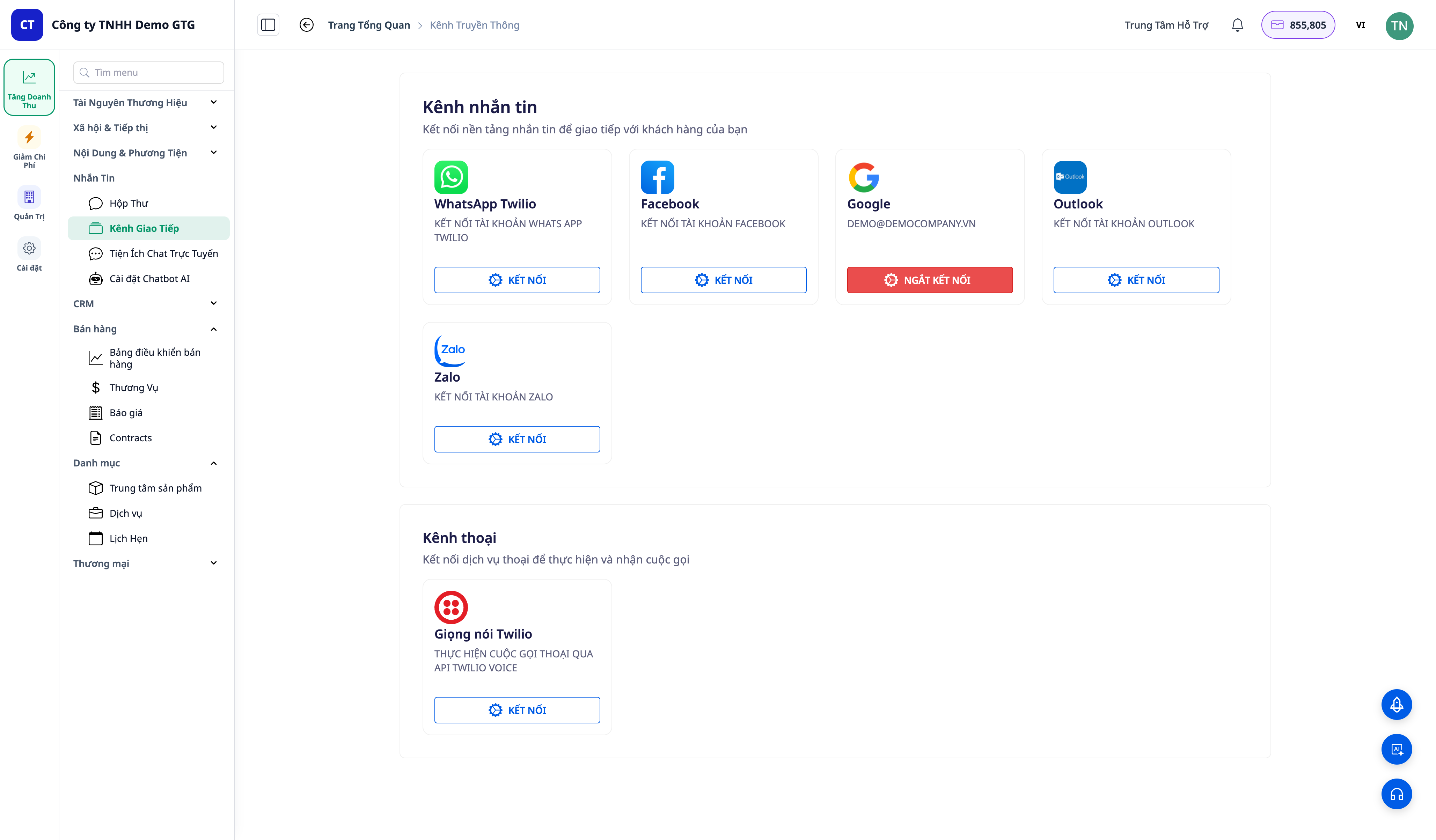
Open Messaging → Channels and connect an email/SMS account; return to the editor and fill in the remaining parameters (email account, segment/audience ID).
✅ Expected result: After connecting and filling in parameters, the Send Message / Add to Ad Audience step will run completely (instead of reporting an expected error when configuration is missing).
Step 5 — Trigger the action in the corresponding CRM screen
Navigate to the CRM screen that matches the scenario and perform the trigger action. For example:
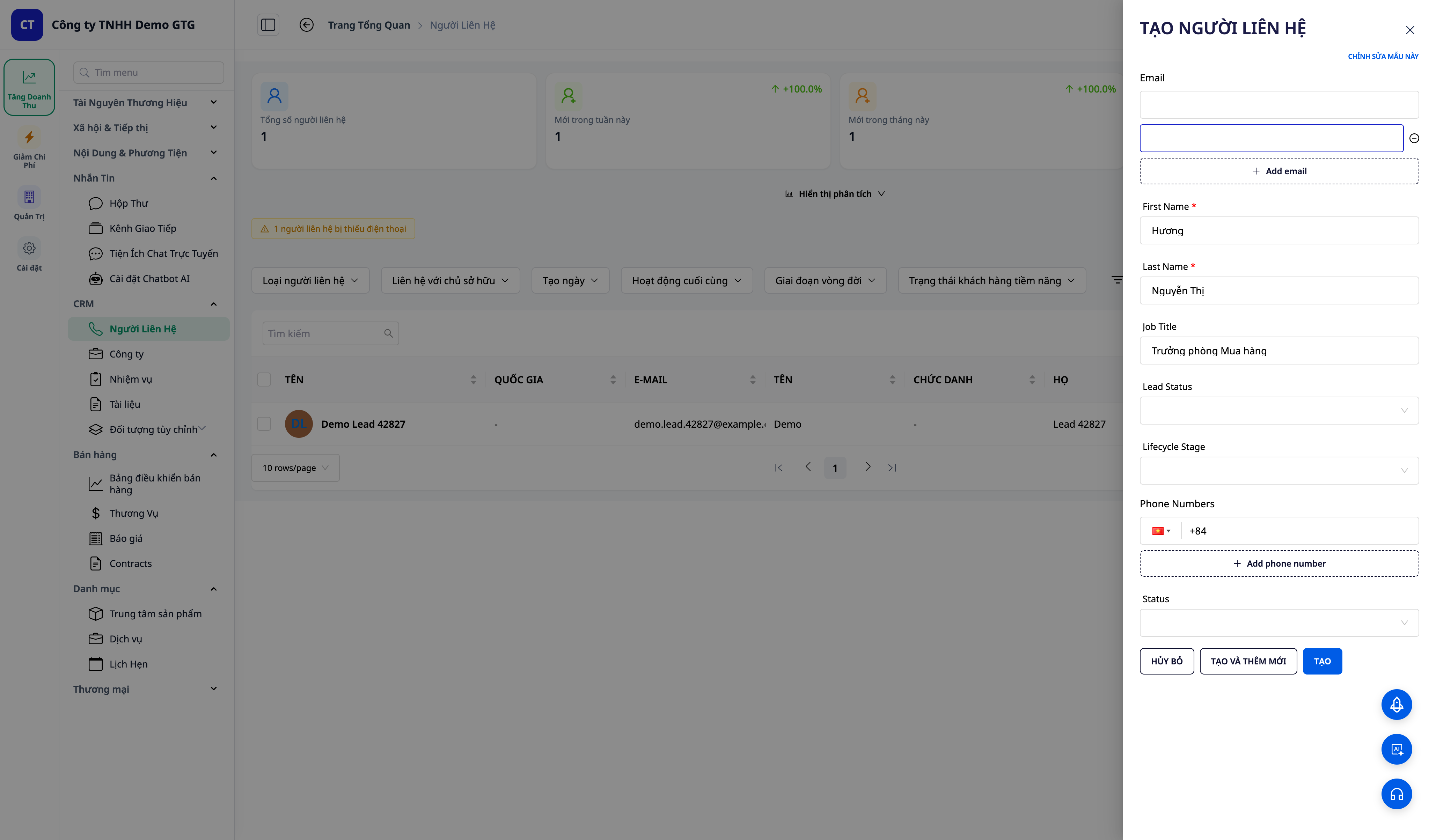
Welcome & nurture new leads: CRM → Contacts → create a new contact (with name + email).
Deal won → onboarding: CRM → Deals → move a deal to Won.
Order delivered → review & NPS: CRM → Products & Orders → mark order as Delivered.
Schedule appointment: confirm & remind: CRM → Appointments → Confirm an appointment.
✅ Expected result: The scenario workflow fires immediately when the event occurs.
Step 6 — View execution logs
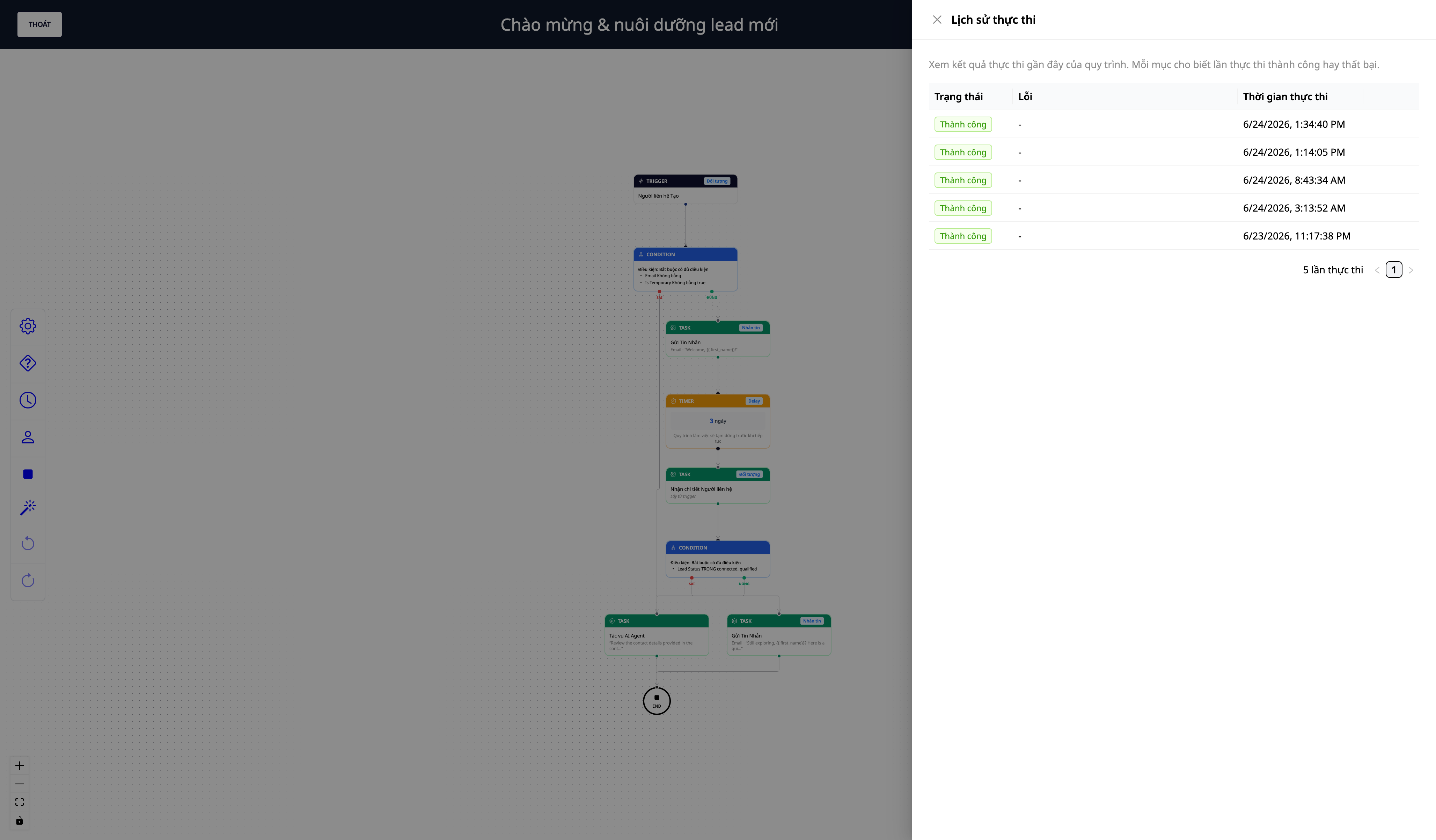
Open Automations → Workflows → open that workflow → execution logs.
✅ Expected result: See the latest run: each step executed in order; the send step succeeded if the channel was connected (or shows "configuration needed" if not — as expected).
Step 7 — Turn off and on again (retain configuration)
Go back to the Revenue Automations screen, toggle the scenario off.
Toggle it back on.
✅ Expected result: When turned off: the switch is off, the "View workflow" link disappears, and in Workflows it is hidden (disabled but retained, not deleted). When turned back on: it becomes active immediately, no need to rebuild — your configuration is preserved.
Expected Results Quick Reference Table
Action | What you will see |
|---|---|
Open screen (Step 1) | List of scenarios grouped by funnel + toggle switch per row |
Turn on (Step 2) | Toast notification + "View workflow" link; it's an active workflow you own |
View workflow (Step 3) | Opens editor; edit content/delay/audience + Save |
Connect channel (Step 4) | Send step runs completely after filling in parameters |
Trigger action (Step 5) | Workflow fires when event occurs in CRM screen |
Execution log (Step 6) | See run + status of each step |
Toggle off/on (Step 7) | Off = hidden + retained; On again = runs immediately, no rebuild needed |
Notes
Send step configuration: If the channel is not connected or parameters (email account, segment ID) are not filled in, the scenario will still fire and run completely. The send step will be skipped instead of reporting an error, as these are parameters the customer needs to fill in themselves, not product errors. If the reason is the email inbox is not connected, you will receive a warning in the application (bell icon 🔔) reminding you to connect an inbox at Settings → Company Settings — a maximum of once per month for each workspace to avoid bothering you when it's not being processed. Sending messages consumes credits — the workspace needs sufficient credits for the send step to run completely.
External lead webhook: The "self-confirm external lead" scenario requires configuring the webhook event name in the trigger (Settings → Integrations).
Some scenarios require appropriate real data (e.g., round-robin needs personnel to assign) — see the description for each scenario.

