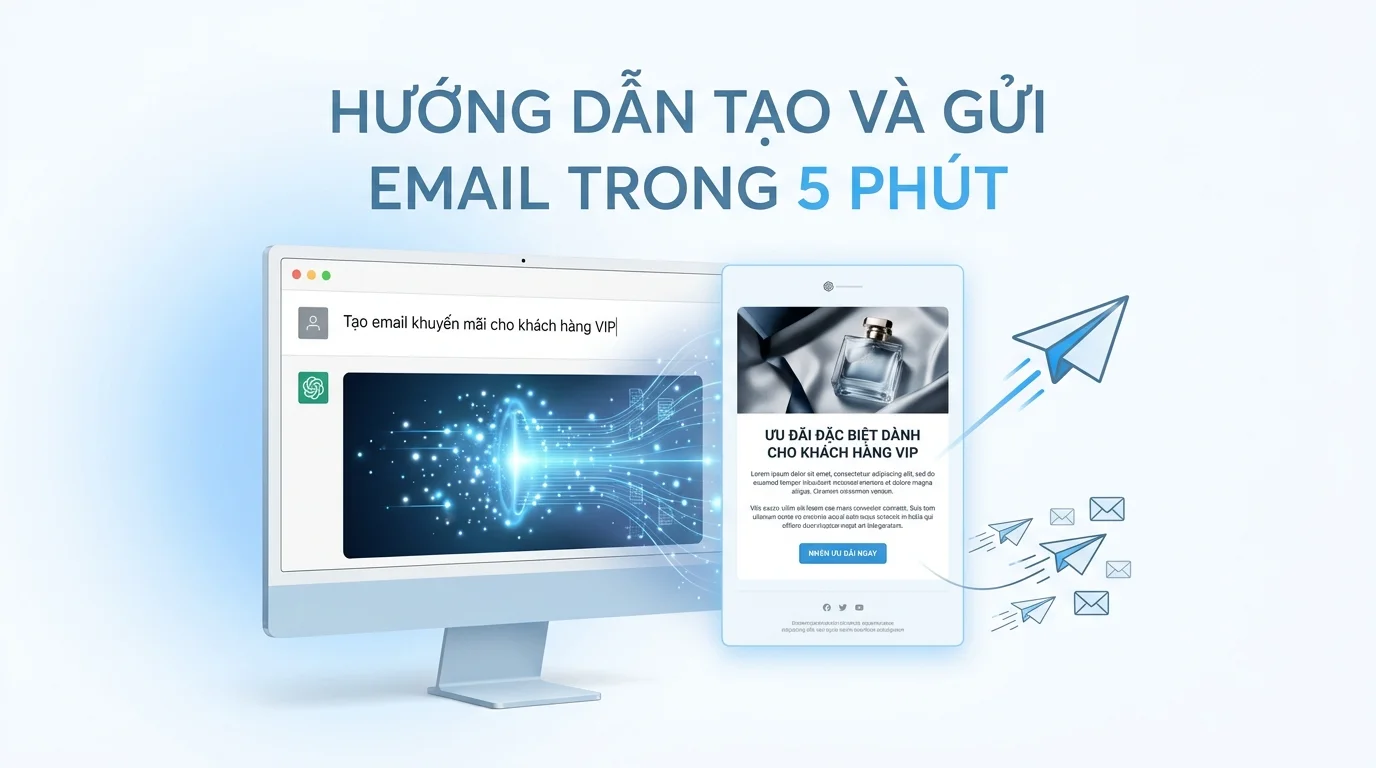
AI Email Campaign is a feature that allows you to create and deploy complete email marketing campaigns simply by chatting with the AI Biz Assistant. Instead of navigating through multiple screens to design templates, configure campaigns, and select recipient lists, the entire process is now done within a single chat window, saving significant time and simplifying email marketing tasks.
This feature is especially useful when you need to send urgent emails for promotional events, or when a small business owner wants to manage email marketing themselves without needing in-depth knowledge of the tools. AI will handle all the technical work, from template design to recipient list filtering, while you only need to describe your requirements in natural language.
Detailed Steps
Step 1: Open AI Biz Assistant
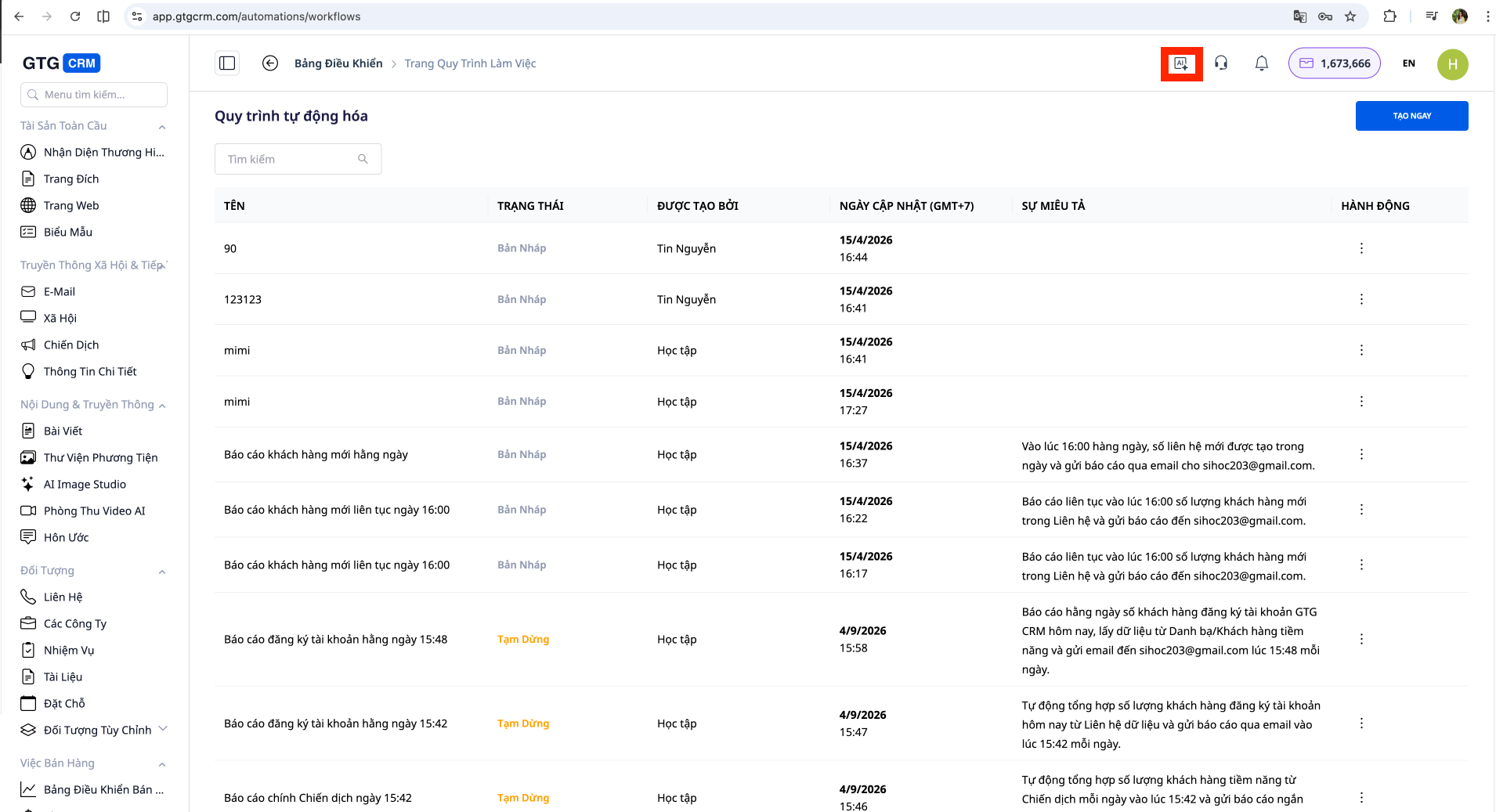
Access the AI Biz Assistant feature in GTG CRM. You can find the AI chat icon in the corner of the screen or in the system's main menu. Click on it to open the chat window.
Step 2: Describe the Email Campaign You Want to Create
In the chat window, type a description of the email campaign you want to create. Clearly describe the purpose, main content, desired design style, and color scheme.
Here are some examples of descriptive sentences you can use:
- "Create a promotional email for VIP customers to introduce our summer promotion, with a modern design and bright orange-yellow color scheme."
- "Write a welcome email for new subscribers, in a professional style, using a blue color scheme, and including a clear call-to-action button."
- "Create email notifications about new product updates, with a simple, easy-to-read design and prominent product images."
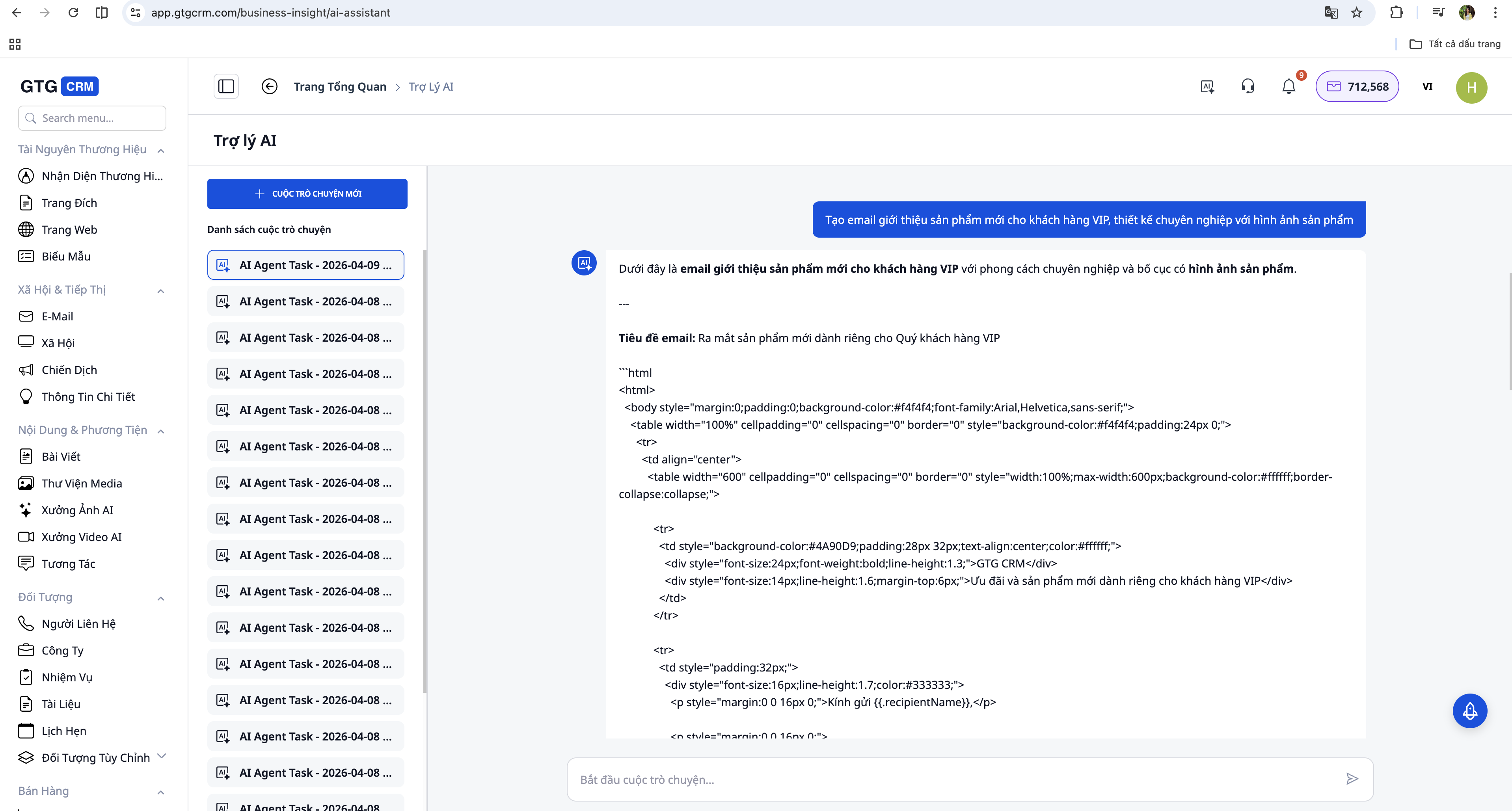
You don't need to know technical terms or HTML structure. AI will automatically understand your requirements and transform them into a professional email design.
Step 3: View Email Template Preview
After receiving your request, the AI will process it in seconds and generate a complete email template. The result will be displayed immediately in the chat window as a preview, allowing you to preview the design and content.
AI performs three tasks simultaneously:
- Create an email template with a layout and design that matches your description.
- Write the email content based on the purpose and message you want to convey.
- Suggesting engaging email subject lines to increase email open rates.
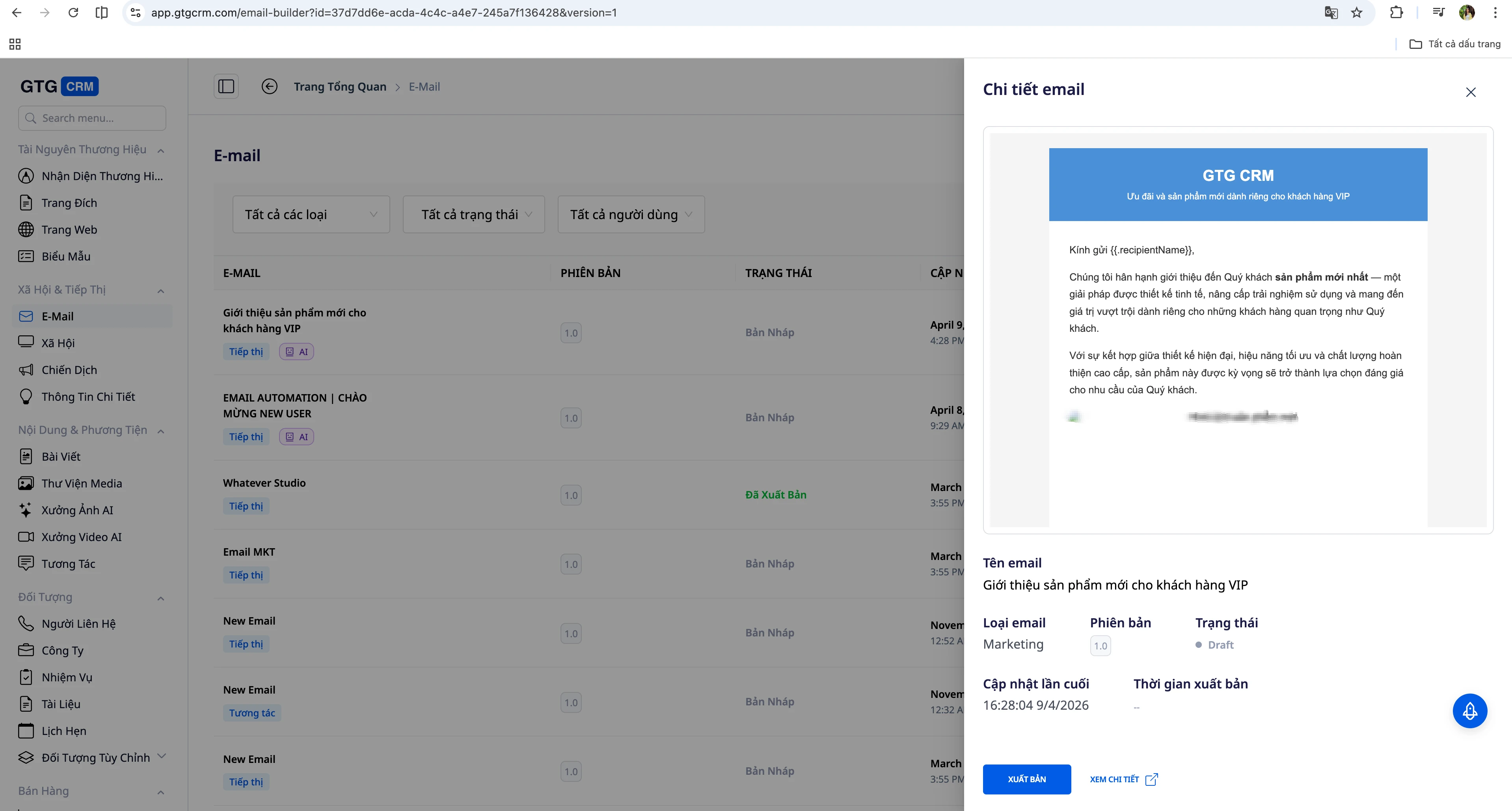
If you're happy with the result, you can proceed to the next step. If you want to make more detailed edits to the layout, colors, fonts, or design elements, AI provides an "Open in Email Builder" button to open the template in the full-featured editor.
Step 4: Confirm Template and Name the Campaign
Once you're satisfied with the template, confirm with the AI in the chat window. You can type "OK, this template is fine," "Continue," or any other confirmation message.
The AI will prompt you to name this email campaign. Choose a name that is memorable and reflects the campaign's purpose, for example:
- "Summer Promotion 2026"
- "Welcome new customers - April"
- "Q2 Product Update Announcement"
Step 5: Select the Email Recipients
The next crucial step is defining the recipient list. You describe to the AI who you want to send the email to using natural language.
Examples of ways to describe objects:
- "Sent to all VIP-tagged customers who haven't made a purchase in the last 30 days"
- "Send to your list of registered contacts"
- "Send this to customers who have purchased product X in the last 3 months"
- "Send to all contacts in the Leads team"
- "Send to the email list imported from the Excel file last week"
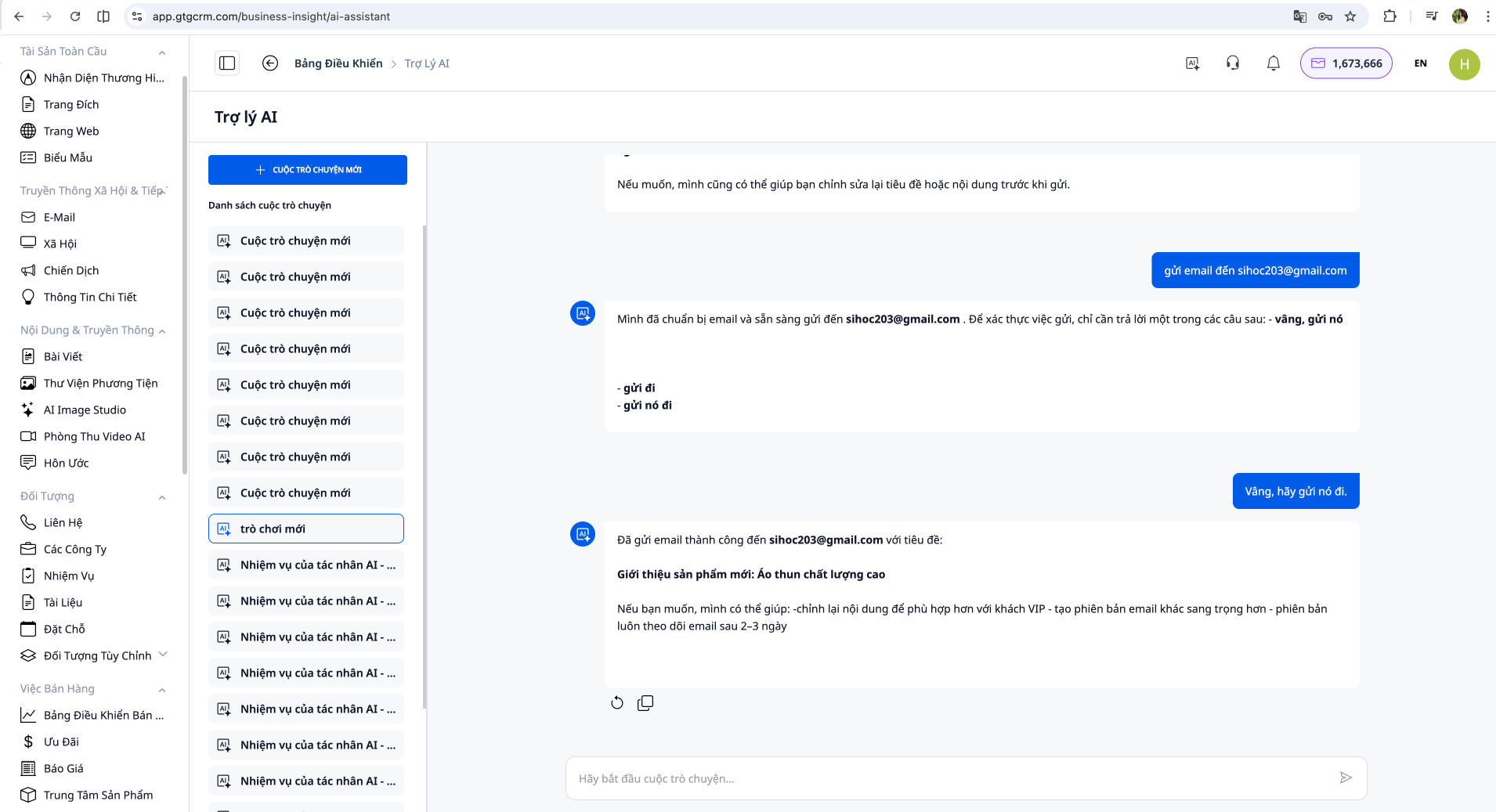
The AI will automatically query the contact database in GTG CRM based on the criteria you describe, and display the number of recipients who will receive the email. For example: "Found 1,247 contacts matching your criteria".
Step 6: Review Information and Confirm Submission
The AI will compile all the information about your email campaign for you to review:
- Campaign name
- Email subject
- Template selected
- Number of recipients
- Object filtering conditions
Please double-check this information before confirming. If anything needs changing, you can ask the AI to adjust it directly in the chat window.
Once all the information is correct, type "Confirm submission" or "Submit now" to have the AI begin deploying the campaign.
Step 7: Track the Email Sending Process
After you confirm, the system will transfer the entire email sending task to a dedicated email engine for bulk processing. The AI will notify you:
- The campaign was successfully created.
- The number of emails that have been queued for sending.
- Estimated completion time (if applicable)
You can track email delivery progress and metrics such as email open rates and click-through rates in GTG CRM's campaign reports.
Other Support Features
Edit Email Content Directly in Chat
If, after viewing the preview, you want to change some text without opening Email Builder, you can ask the AI to edit it directly. For example:
- "Replace the introduction with a shorter one."
- "More information about our return policy is at the end of this email."
- "Change the call-to-action button color to red"
The AI will update the template as requested and display a new preview for you to review.
Save the Template for Reuse
After creating a beautiful and effective email template, you can ask the AI to save it to a library for use in future campaigns. Simply type "Save this template as..." and the AI will save it to the system.
Create Recurring Campaigns
If you want to send recurring emails with the same template, you can ask AI to set up an automatic sending schedule. For example: "Send this email every Monday to new customers from the previous week."
Pre-Shipping Inspection
To ensure emails display correctly across different devices and email applications, you can ask the AI to send a test email to your address before sending it in bulk. Type "Send this test email to [your email address]" and double-check before deploying the campaign.
Benefits of Using AI Email Campaigns
Significant Time Savings
Traditional email marketing processes can take anywhere from 30 minutes to several hours per campaign. With AI Email Campaigns, the entire process from template creation to email sending can be completed in just 5 minutes. You don't need to switch between multiple screens or open various tools.
No Design Skills Required
You don't need to know HTML, CSS, or have email design experience. AI automatically generates professional templates based on your description, with a responsive layout that displays well on all devices.
Precisely Filter Objects Without Understanding SQL
Instead of writing complex queries or using filter tools with many confusing conditions, you simply describe your target audience in everyday language. The AI automatically converts this into precise filter conditions in the database.
Suitable for Small Businesses and Non-Professionals
Small business owners often lack dedicated marketing staff and the time to learn complex tools. AI Email Campaigns allow them to effectively manage email marketing themselves without requiring specialized knowledge.
Rapid Deployment for Emergency Operations
When you have flash sales promotions or important announcements that need to be sent immediately, you can create and send emails in minutes instead of waiting for staff to design or prepare them in advance.
Important Notes When Using
Check the content carefully before sending.
Although AI automatically generates content based on your description, always proofread the entire email to ensure the information is accurate, there are no spelling errors, and the tone is consistent with your brand.
Verify Recipient List
Before confirming the send, check the quantity and filtering criteria for the email recipients. Make sure you're not sending to the wrong customer group or sending duplicates.
Comply with Email Marketing Regulations
Make sure all recipients have agreed to receive marketing emails from you. Always include an unsubscribe option in emails to comply with data protection and anti-spam regulations.
Track Results After Sending
After the campaign is launched, monitor metrics such as email open rates, click-through rates, and conversion rates in the GTG CRM reporting section. This data will help you improve subsequent campaigns.
Avoid Sending Emails Too Frequently
While creating and sending emails is easy, consider how often you should send emails to your customers. Sending too many emails can overwhelm customers and cause them to unsubscribe.