AI Video Studio is a powerful tool that helps you create professional product advertisement videos completely automatically. With AI assistance, you can create virtual characters, write scripts, and generate scenes in just a few minutes without needing video editing skills.
This tool is especially useful for fashion shops and online businesses looking to quickly and affordably create video content for TikTok, Reels, or short ads.
Key Features
- Create AI Characters — Create or upload character images to be the actors in your video
- Create Products — Add products with images and detailed descriptions
- Choose Style — Customize video style (optional)
- Auto-Generate Scripts — AI writes scripts based on product information
- Auto-Generate Scenes — AI automatically creates scenes based on the script
- Adjust Duration — Supports 15s (TikTok/Reels), 30s (short ads), 45s+
- Merge Videos — Combine multiple scenes into a complete video
- Edit Videos — Editor with video, voiceover, music, and text tracks
Detailed User Guide
Part 1: Creating AI Videos
Step 1: Create a Character
Access the AI Video Studio feature and start with the "Create Character" section.
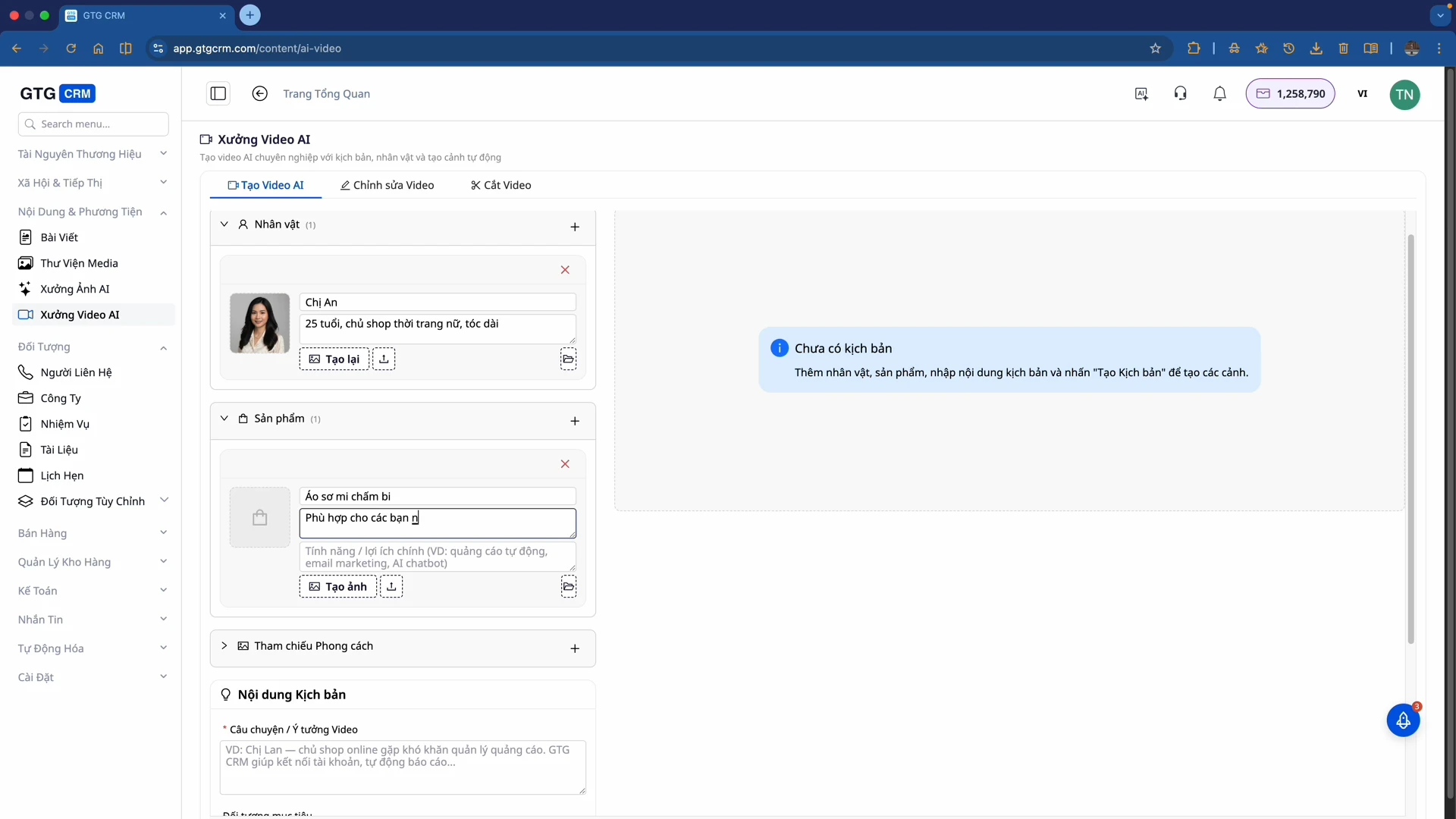
- Name the Character: e.g., "An"
- Describe the Character: Enter details like "Around 25 years old, owner of a women's fashion shop, long hair"
- Upload Character Image: If you have an image, upload it from your computer. If not, select "Create Image" for the AI to generate a character based on the description.
Step 2: Add Products
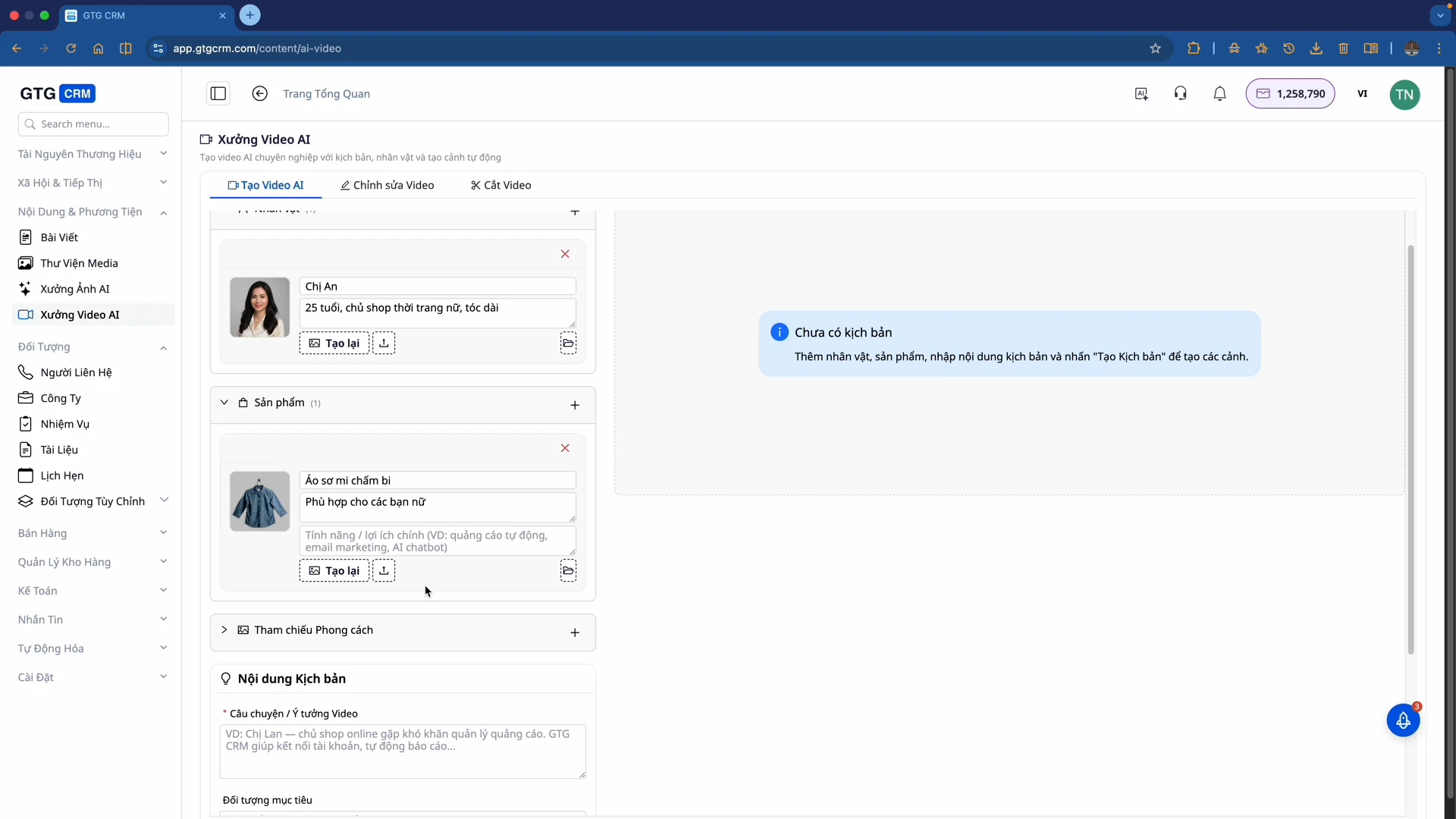
- Product Name: e.g., "Polka dot shirt"
- Product Description: "Suitable for ladies"
- Product Image: Upload from your computer or generate an image using AI
Step 3: Choose Style (Optional)
You can choose a style for the video or skip this step if it's not necessary.
Step 4: Generate Script
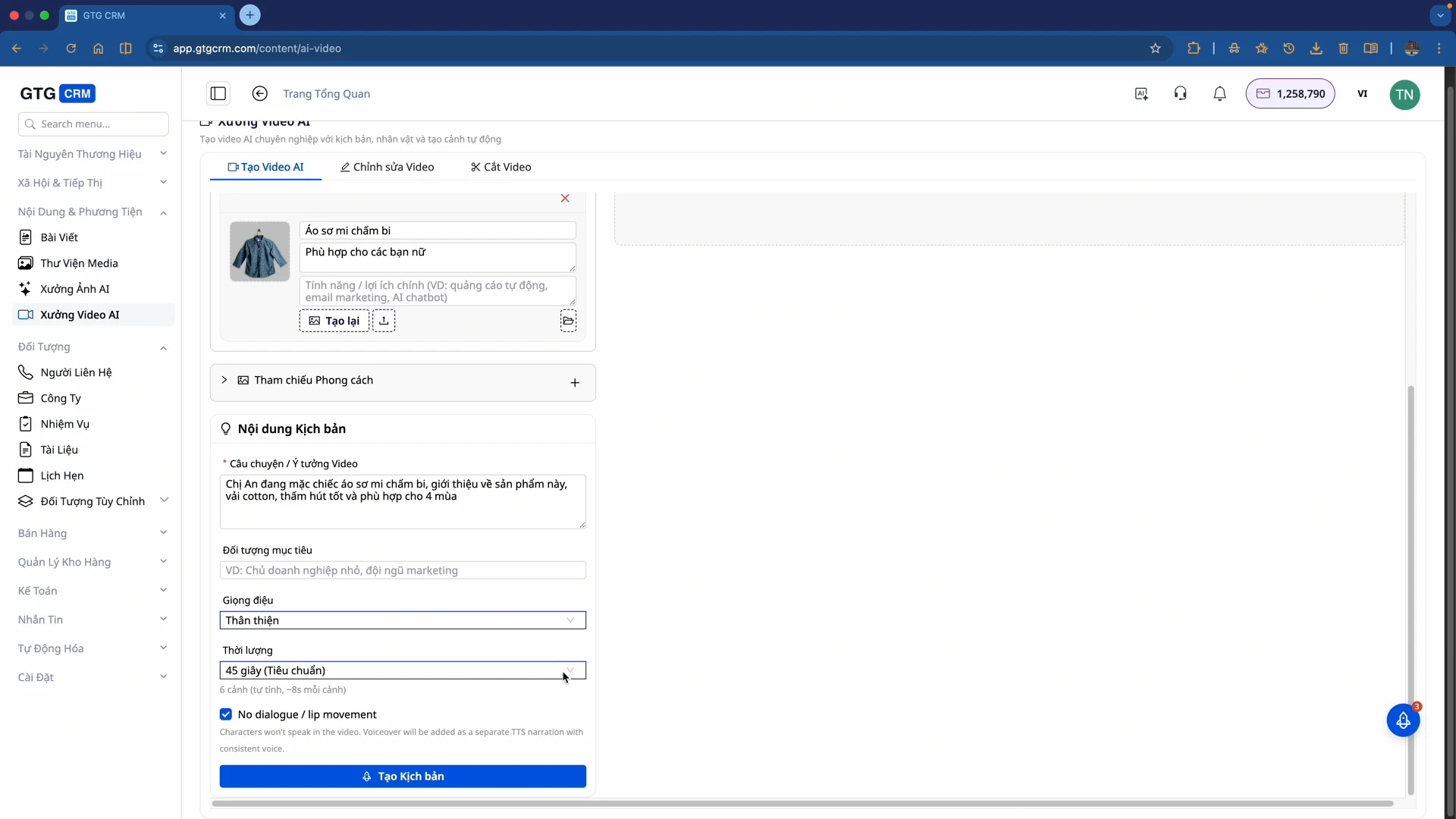
- Enter Idea: Describe the video content you want, e.g., "An is wearing the polka dot shirt, introducing this product, cotton fabric, good absorbency, suitable for all 4 seasons"
- Select Duration: 15 seconds (TikTok/Reels), 30 seconds (short ads), 45 seconds+ (detailed video)
- Click "Generate Script"
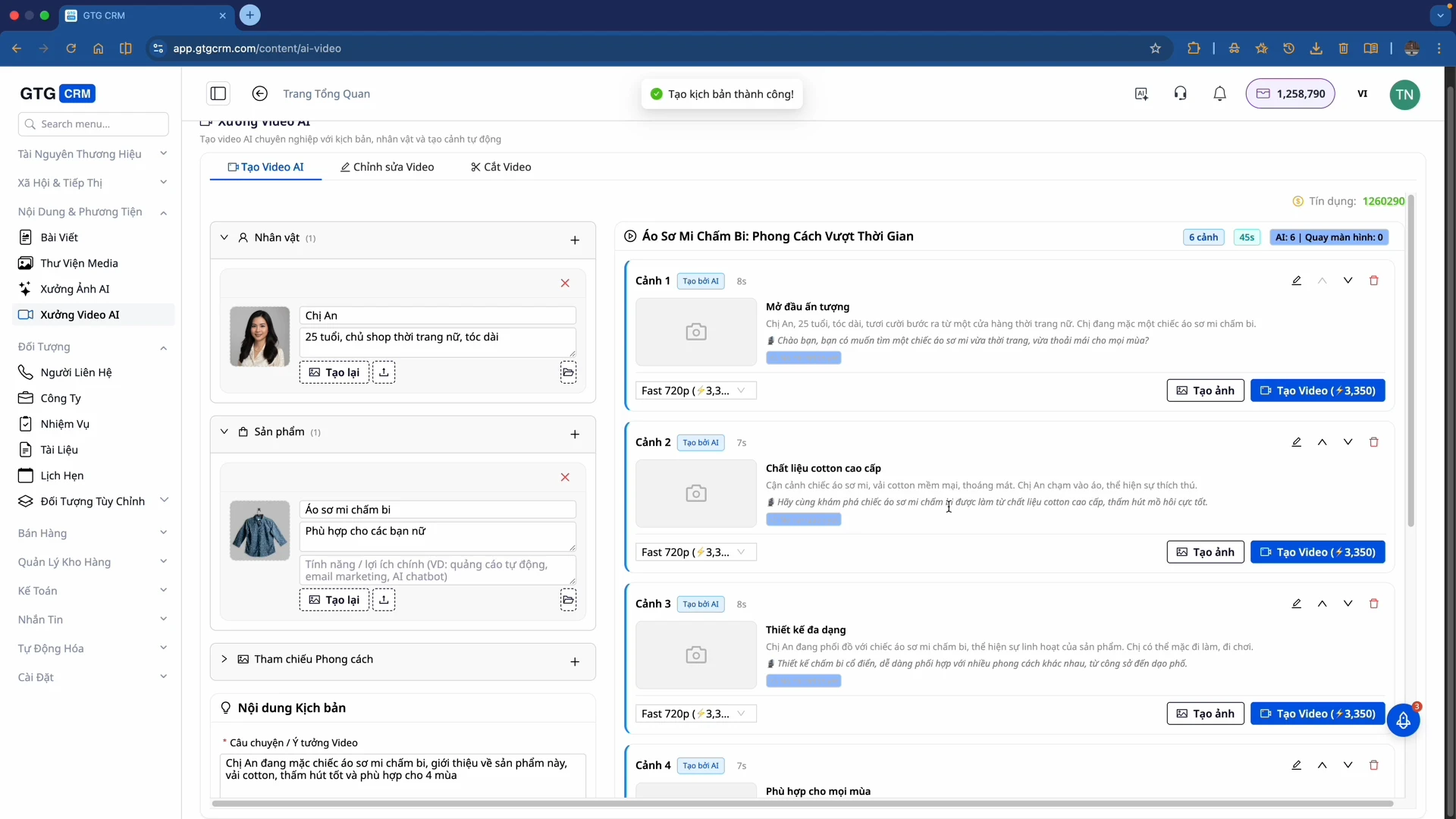
The AI will generate a script with multiple scenes (usually 6). Each scene includes Audio (dialogue) and Scene Description (details of camera angles and actions).
Step 5: Select and Generate Scenes
- Review Script: Go through the scenes suggested by the AI
- Select Scenes to Generate: Tick the scenes you like
- Click "Generate Video" for the selected scenes
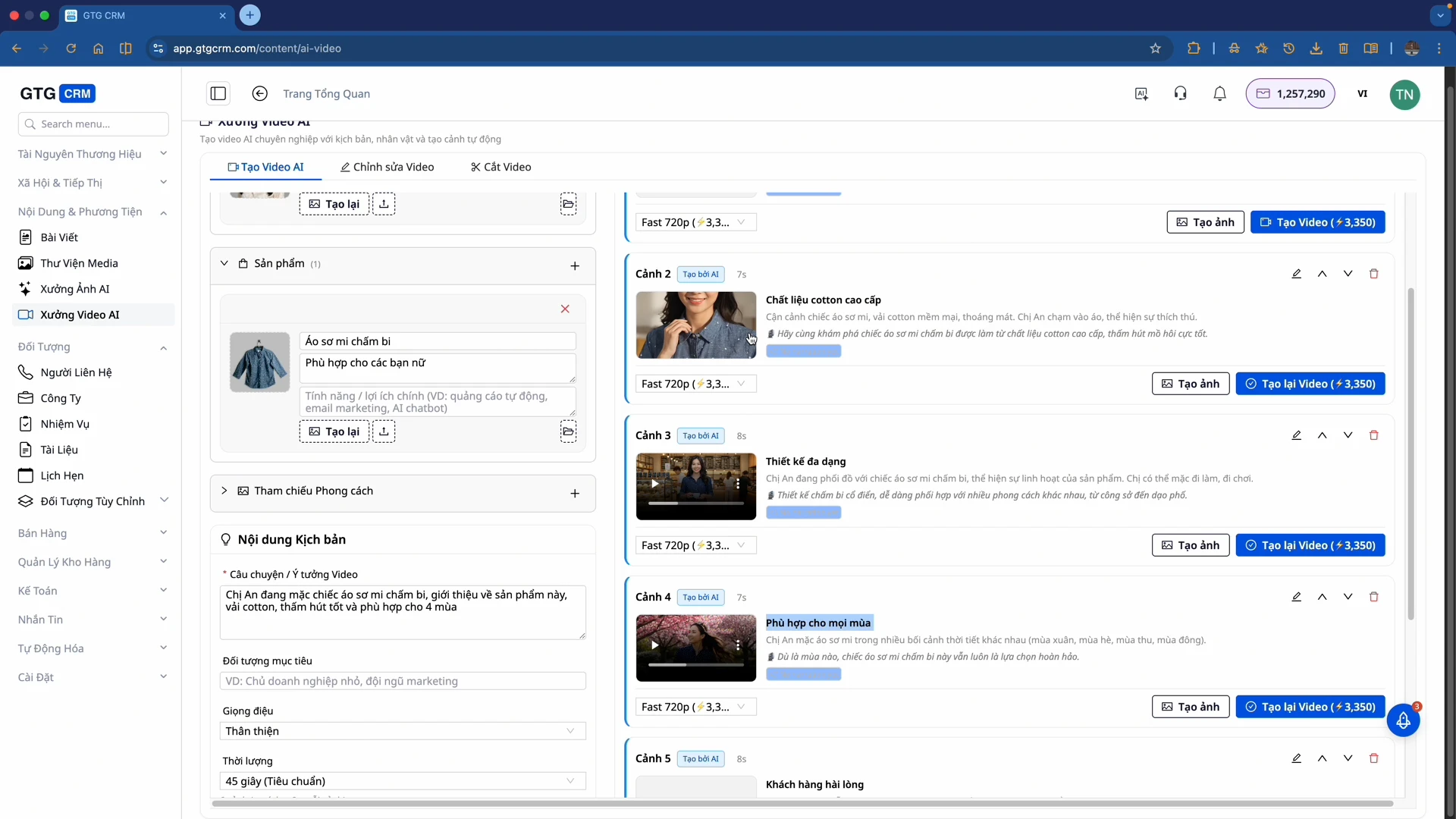
The AI will start processing and generating videos for each scene. This process may take a few minutes.
Step 6: Preview and Merge Video
- Watch Each Scene: Review the generated scenes
- Check Quality: AI maintains the character's face and product design
- Merge Video: Scroll to the bottom of the screen and click "Merge Video"
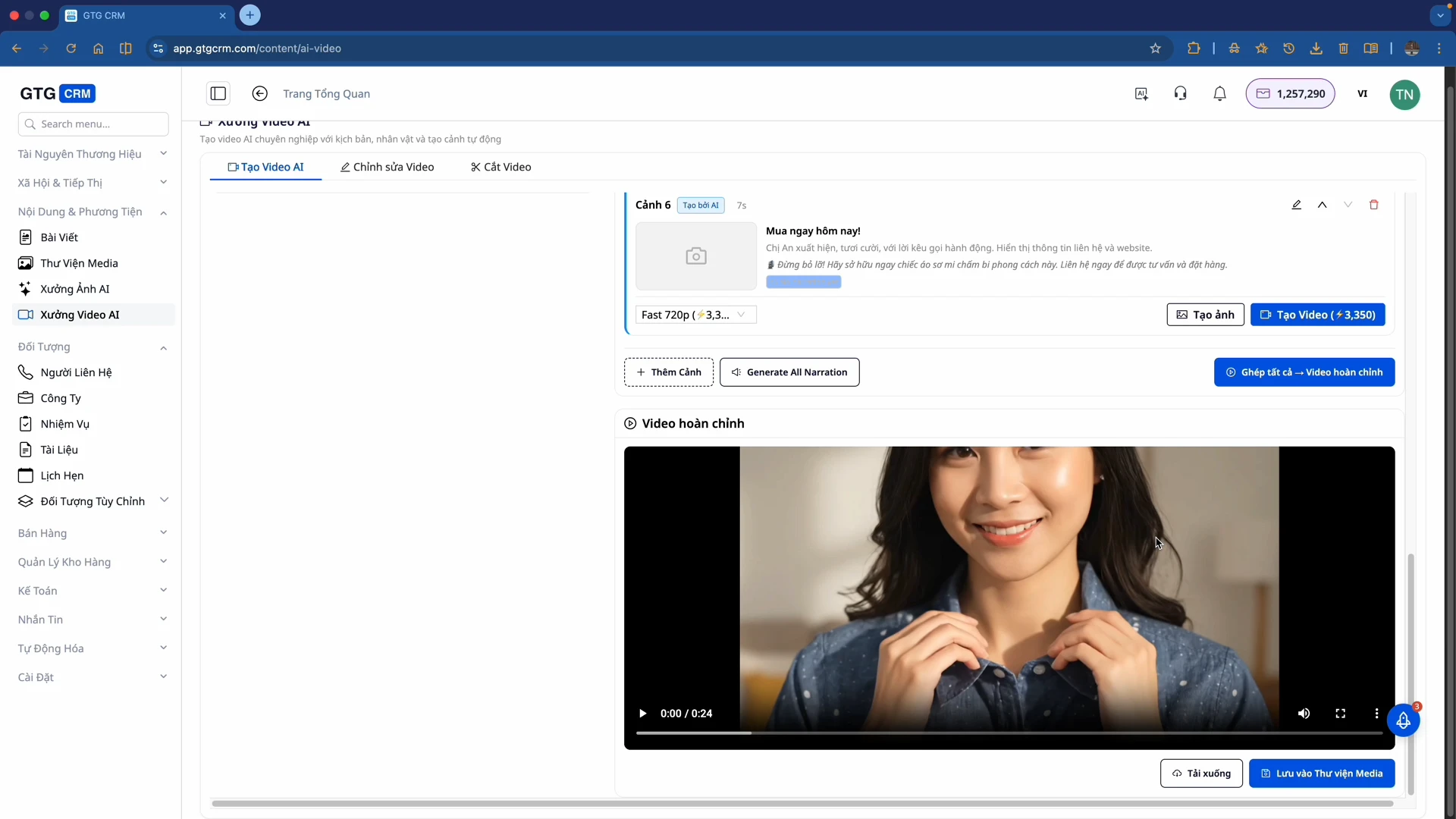
Save to your Media library or download to your computer.
Part 2: Video Editing
AI Video Studio also provides basic editing tools to refine your videos.
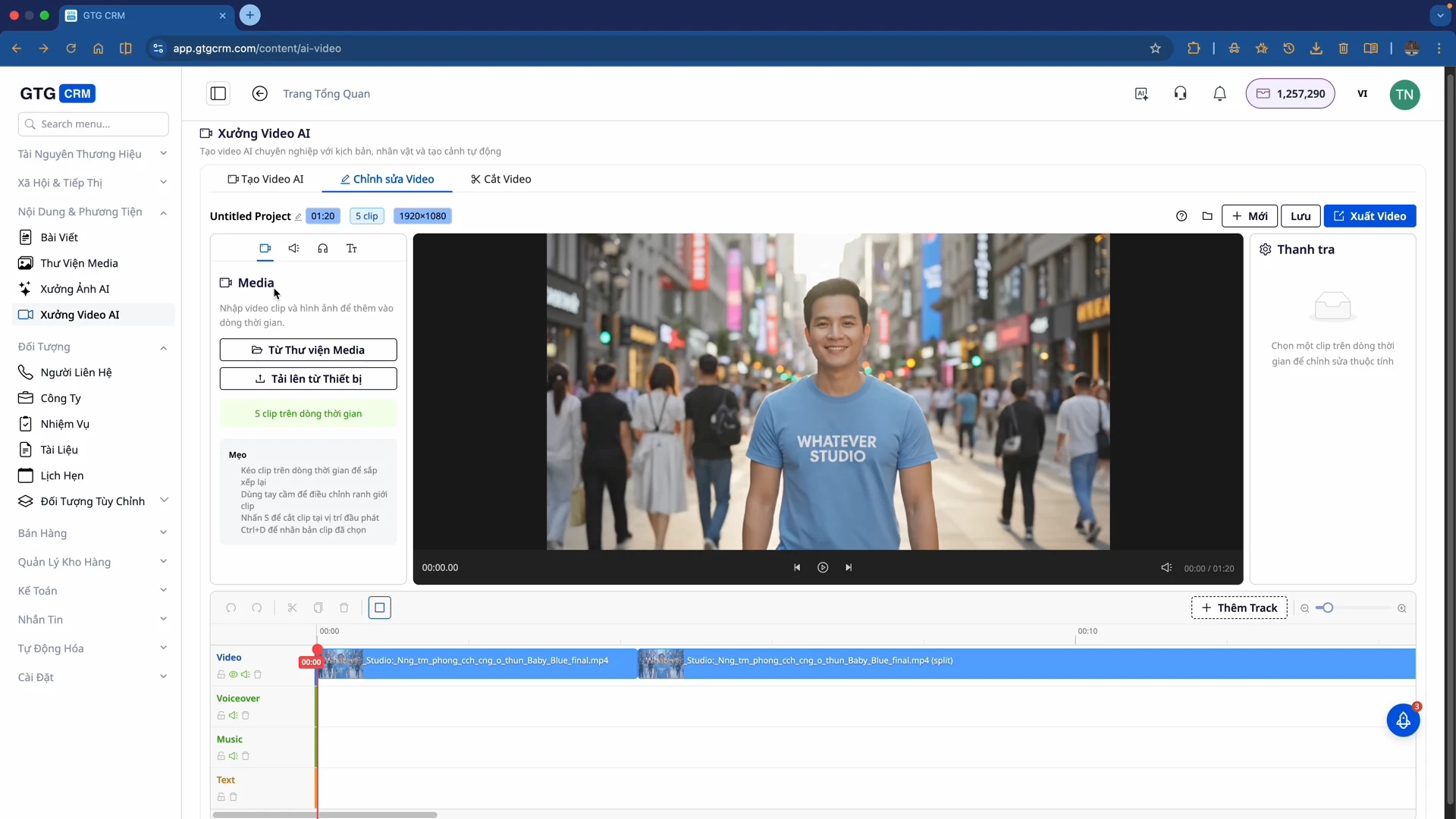
Step 1: Upload Video to Editor
- From Media Library: Select existing videos in GTG CRM
- From Device: Upload directly
Step 2: Familiarize Yourself with Tracks
The editor has 4 main track types:
- Video Track — Main video
- Voiceover Track — Narration
- Music Track — Background music
- Text Track — Text, captions
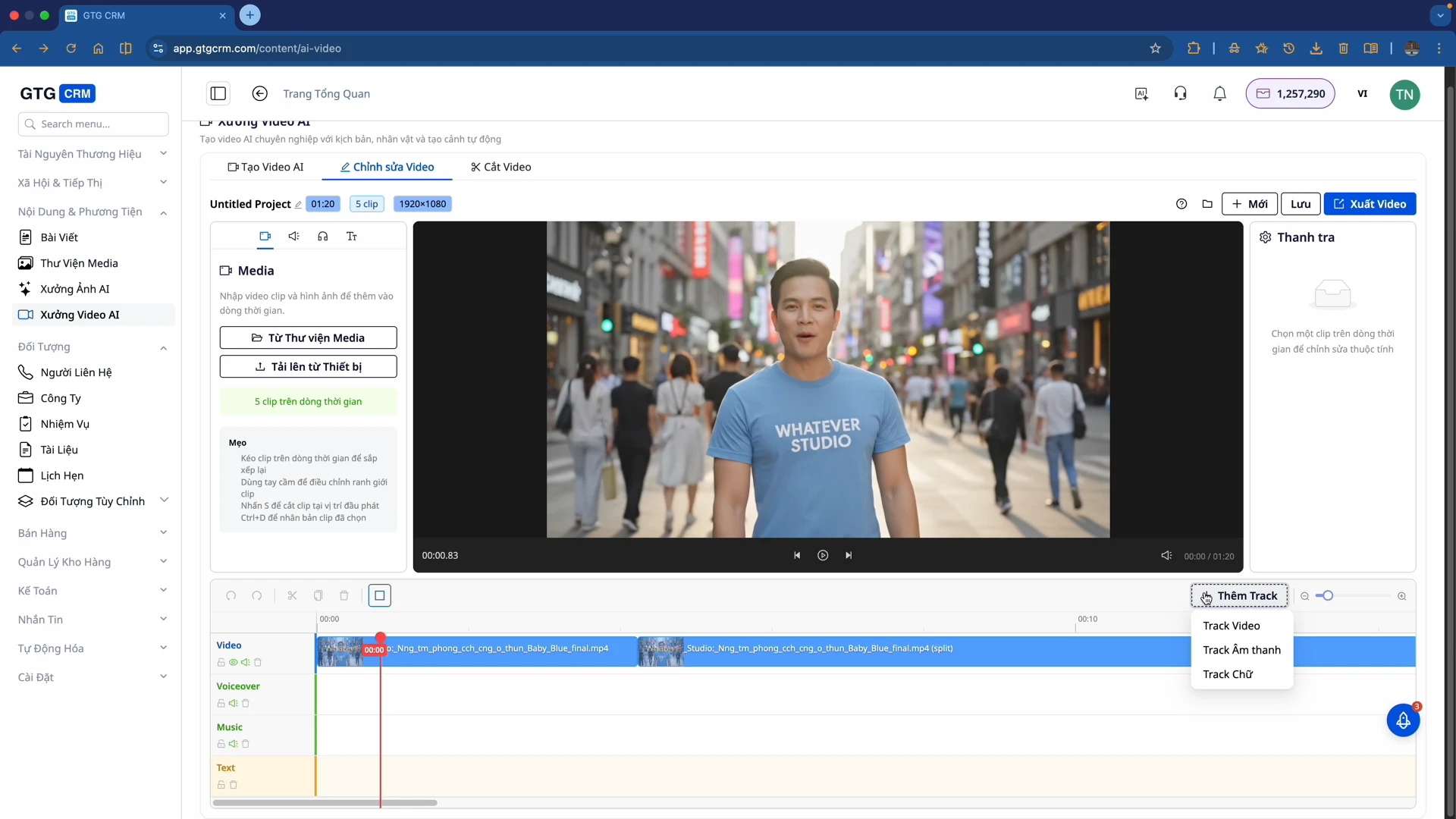
Step 3: Add Tracks — Click the "Add Track" button if you want to add a second, third... text track.
Step 4: Add Text and Voiceover
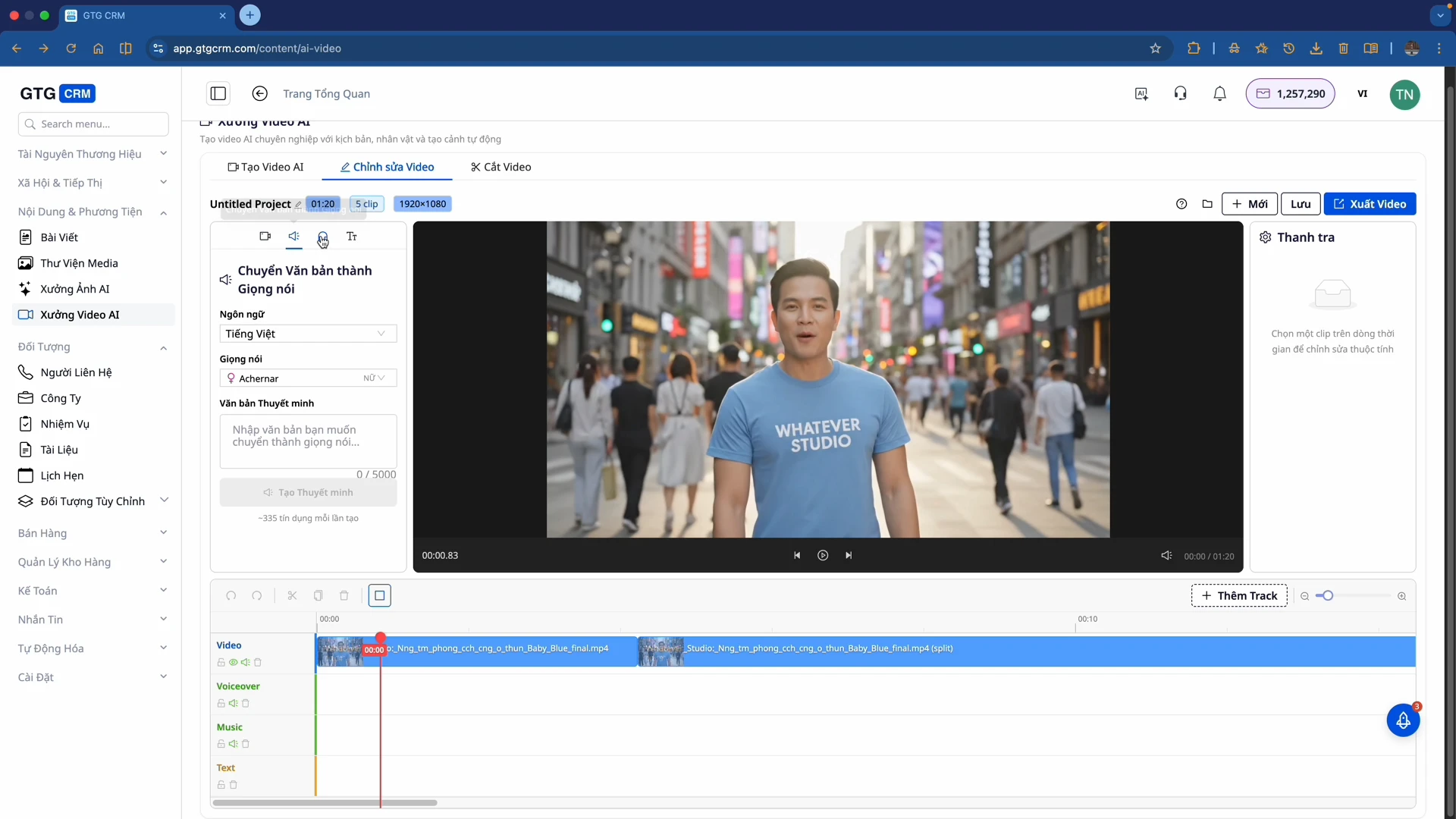
- Select "Text to Speech"
- Choose language
- Choose voice
- Write dialogue: Enter the text you want to be read aloud
- The AI will automatically generate the voice and place it on the timeline
Benefits of Using
- Save Time — Create professional videos in minutes instead of hours of shooting and editing
- Save Costs — No need to hire actors, videographers, or editors
- High Quality — AI maintains character's face and product design
- Optimized for Social Media — Supports formats suitable for TikTok, Reels, Facebook
- Flexible — Easily create multiple video versions for the same product
Important Notes
- The more detailed your character and product descriptions, the more accurate the AI-generated video will be
- Choose the duration based on your intended use (15s for viral content, 45s+ for detailed introductions)
- Always review the AI-generated script before creating the video
- You don't have to generate all scenes; just select the best ones
- Create multiple versions and test which one is most effective