
What will you be able to do after following this guide?
Enable the Payroll feature and select a national dataset → view and adjust legal figures (rates, thresholds, tax brackets) to suit your situation → add employees → create employment contracts using AI → run the monthly payroll → review and finalize salaries → view automatic payroll entries to the ledger → send payslips to employees. The entire HR and payroll process is in the same system as sales and accounting.
Not familiar with the features yet? Check out the Human Resources Management & Payroll section first.
Prepare in advance
1. Log in to GTG CRM and be granted HR Manager/Payroll Manager privileges. — Enabling payroll, adjusting data sets, and finalizing payroll are actions performed by the HR manager.
2. The Chart of Accounts system is already in place in accounting. — This allows payroll expense entries to be recorded in the general ledger.
3. Know the country applicable to your business. — To select the correct payroll dataset (default is Vietnam).
Step 1 — Enable Payroll Calculation and select a country dataset.
- Open Human Resources → Settings .
- Turn on Payroll .
- Select the country dataset — default is Vietnam (Social Insurance/Health Insurance/Unemployment Insurance + progressive personal income tax). If your business is located in another country, select that country.
✅ Expected result : Salary calculation is enabled; the Settings section displays the selected country dataset along with a list of legal items.
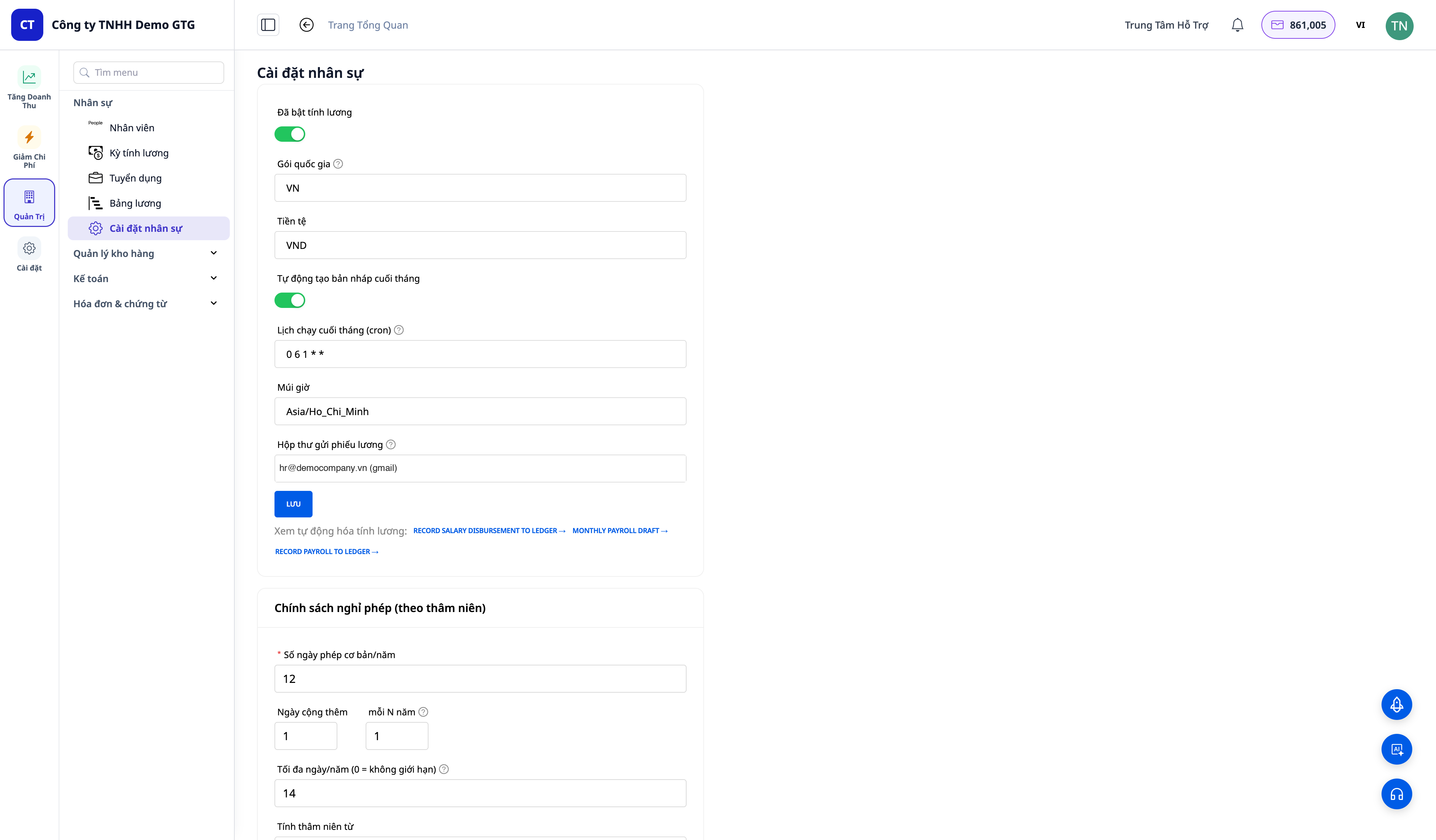
Step 2 — View and adjust the payroll dataset (optional but recommended)
- In Payroll Settings , open the list of legal items (social insurance rate, threshold, personal income tax bracket, ceiling...).
- Each item displays the default GTG number along with the source of reference and the year of validity .
- Click Edit an item, enter your actual value, and then Save .
- Want to revert to the GTG number? Click Reset to default .
✅ Expected result : The value you adjusted is saved and will be used for the next payroll period; the Reset default button returns the item to the GTG number. All changes are recorded in the Payroll Settings activity log (who made the change, from which value to which value).
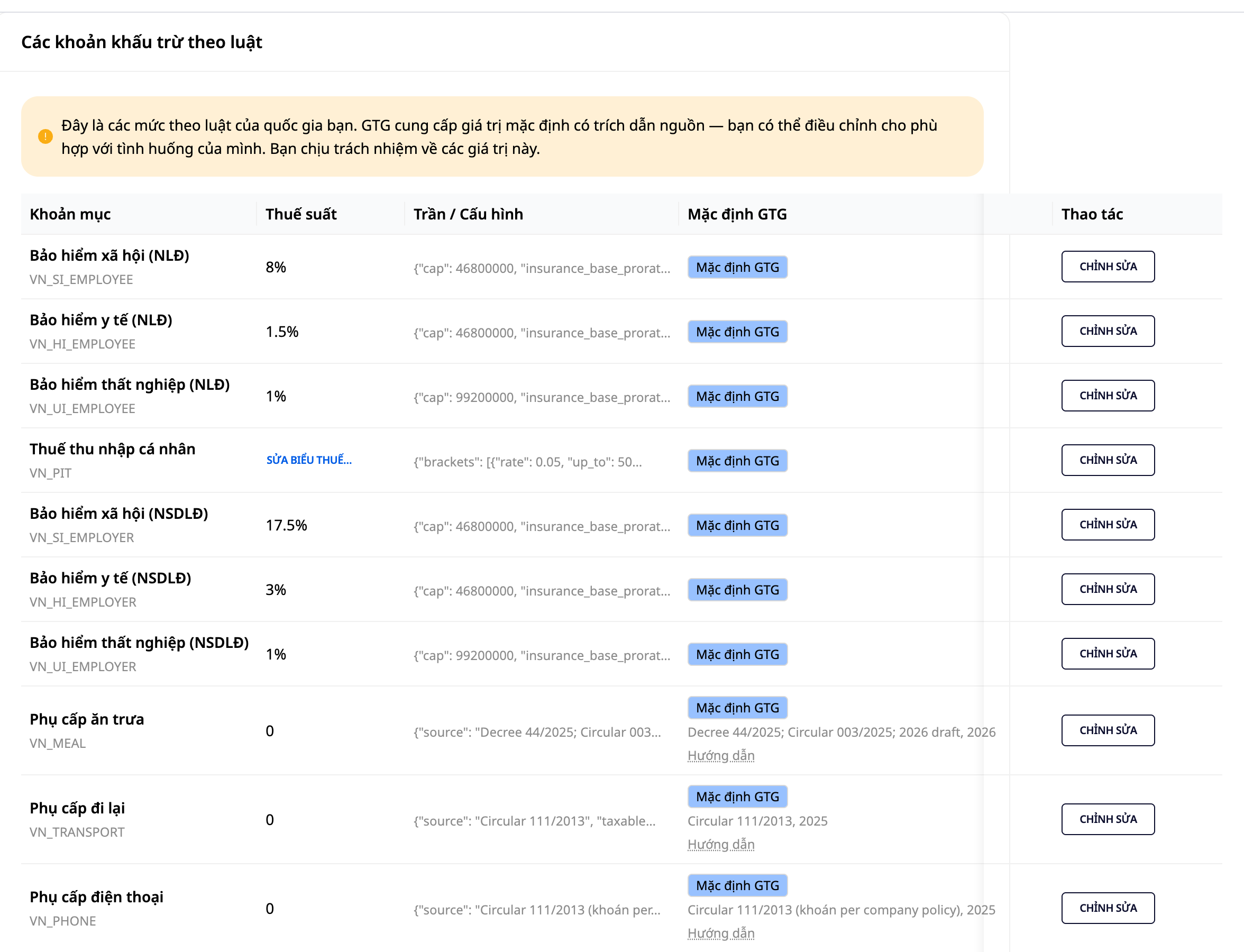
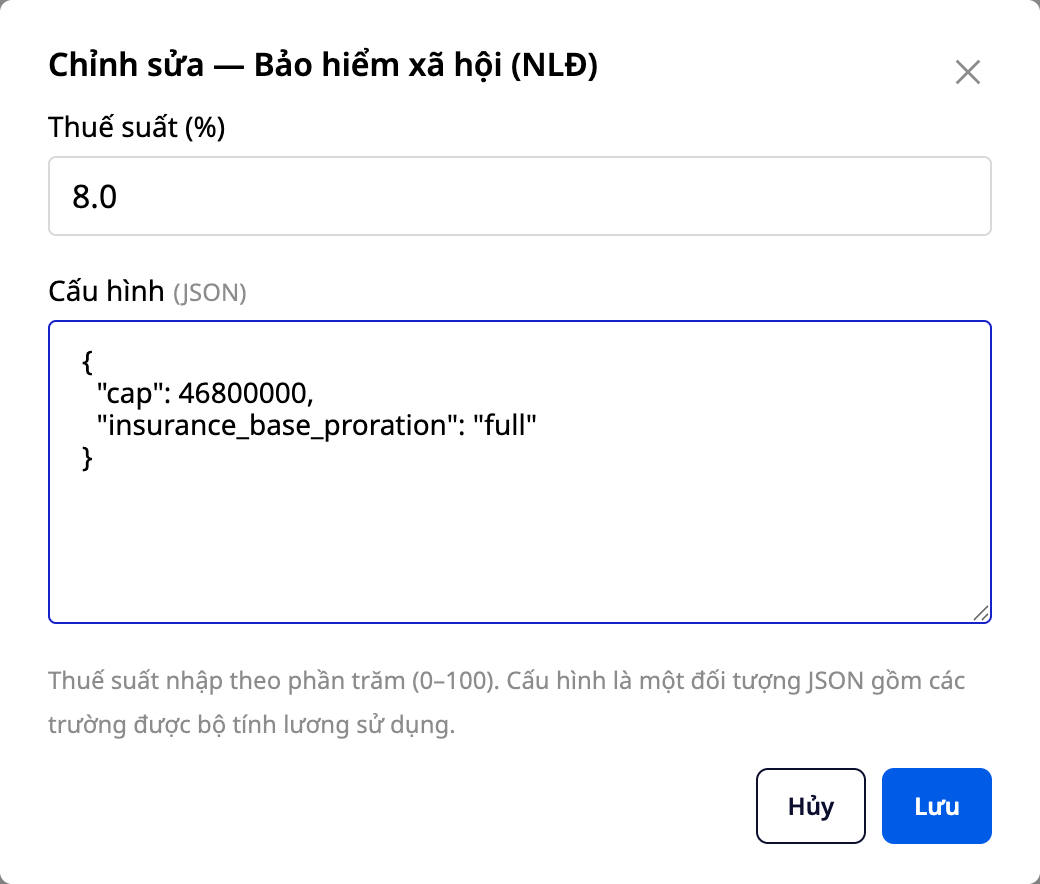
💡 Tip : If you're unsure, just keep GTG's default — that's the number with the source cited. You (or your accountant) can adjust it at any time as the law changes or the situation shifts.
Step 3 — Add employees
- Go to Human Resources → Employees , then click Add Employee.
- Fill in your basic information (full name, title, department, ID card/passport number, etc.).
✅ Expected outcome : The employee appears on the list with a complete profile.
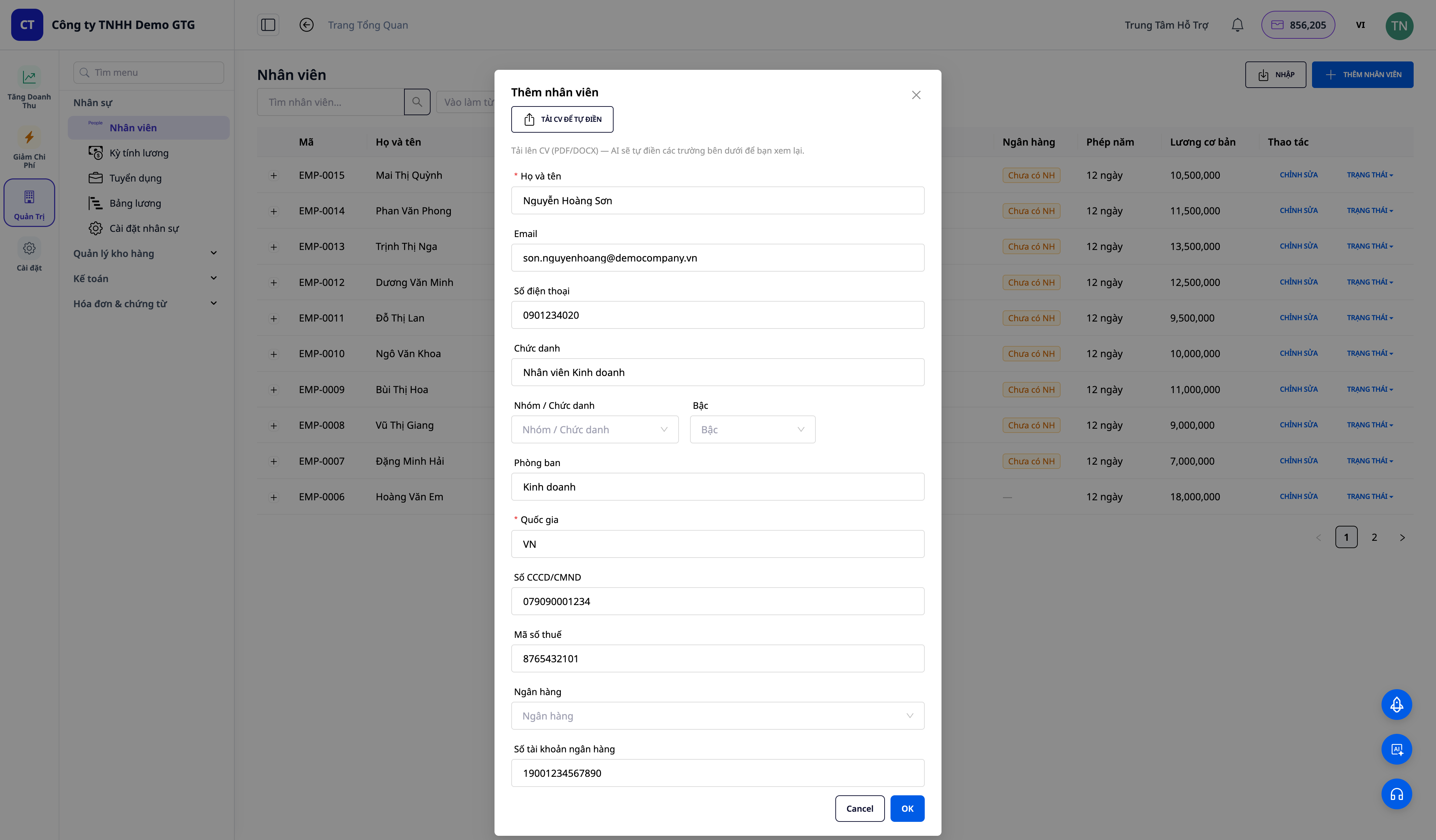
💡 Already have a list of employees in Excel? Use bulk import with CSV to bring the whole team in minutes.
Step 4 — Create employment contract & draft it using AI
- Open employee profile → create employment contract (contract type, duration, base salary, allowances).
- Click "Generate with AI" to generate a standard employment contract document (with company branding automatically inserted) — or upload a signed version.
✅ Expected outcome : A written employment contract (DOCX/PDF) attached to the employee.
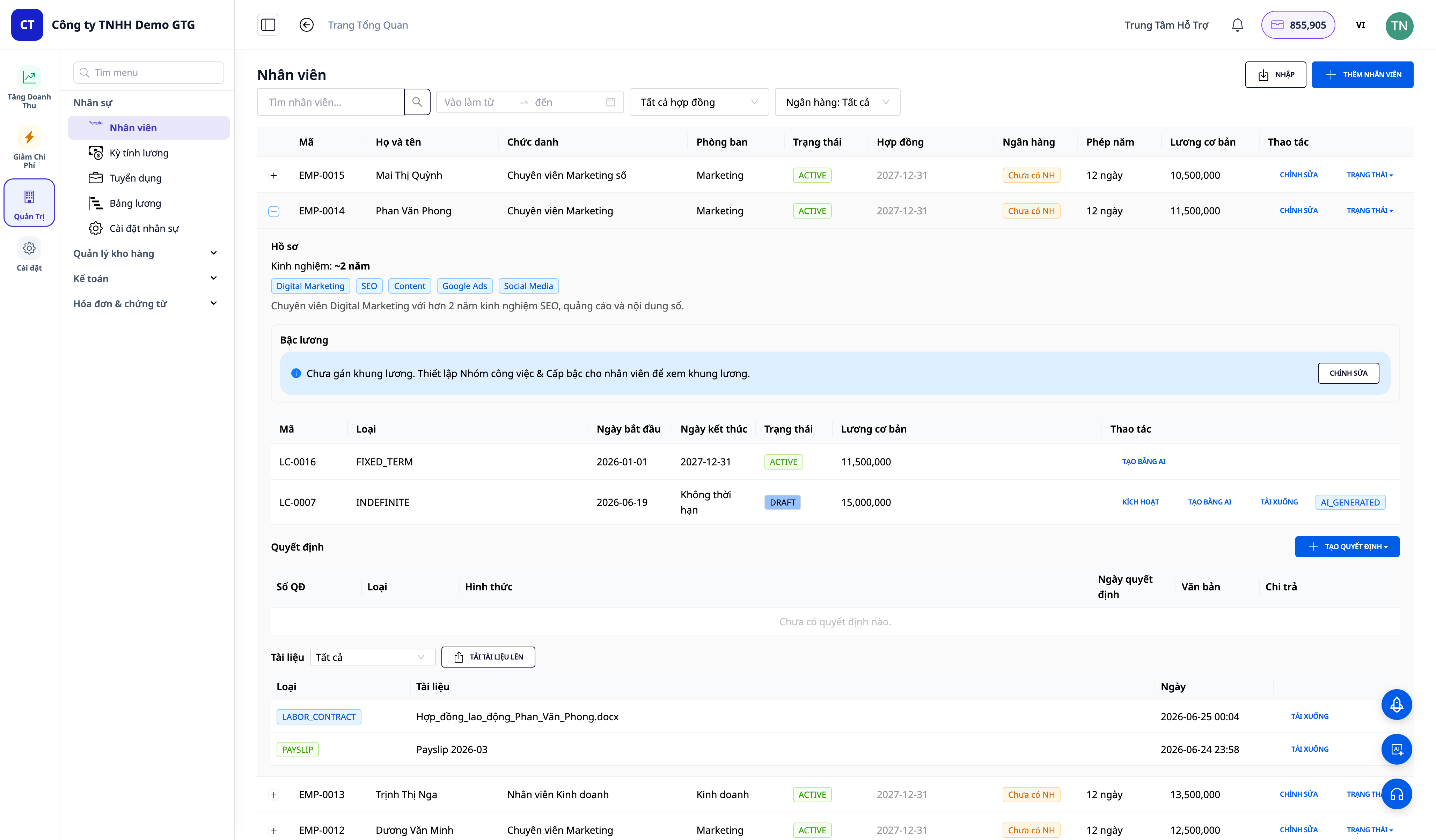
Step 5 — Activate the contract
- On the contract, click Activate .
✅ Expected outcome : The contract is in effect; each employee has only one valid contract at a time.
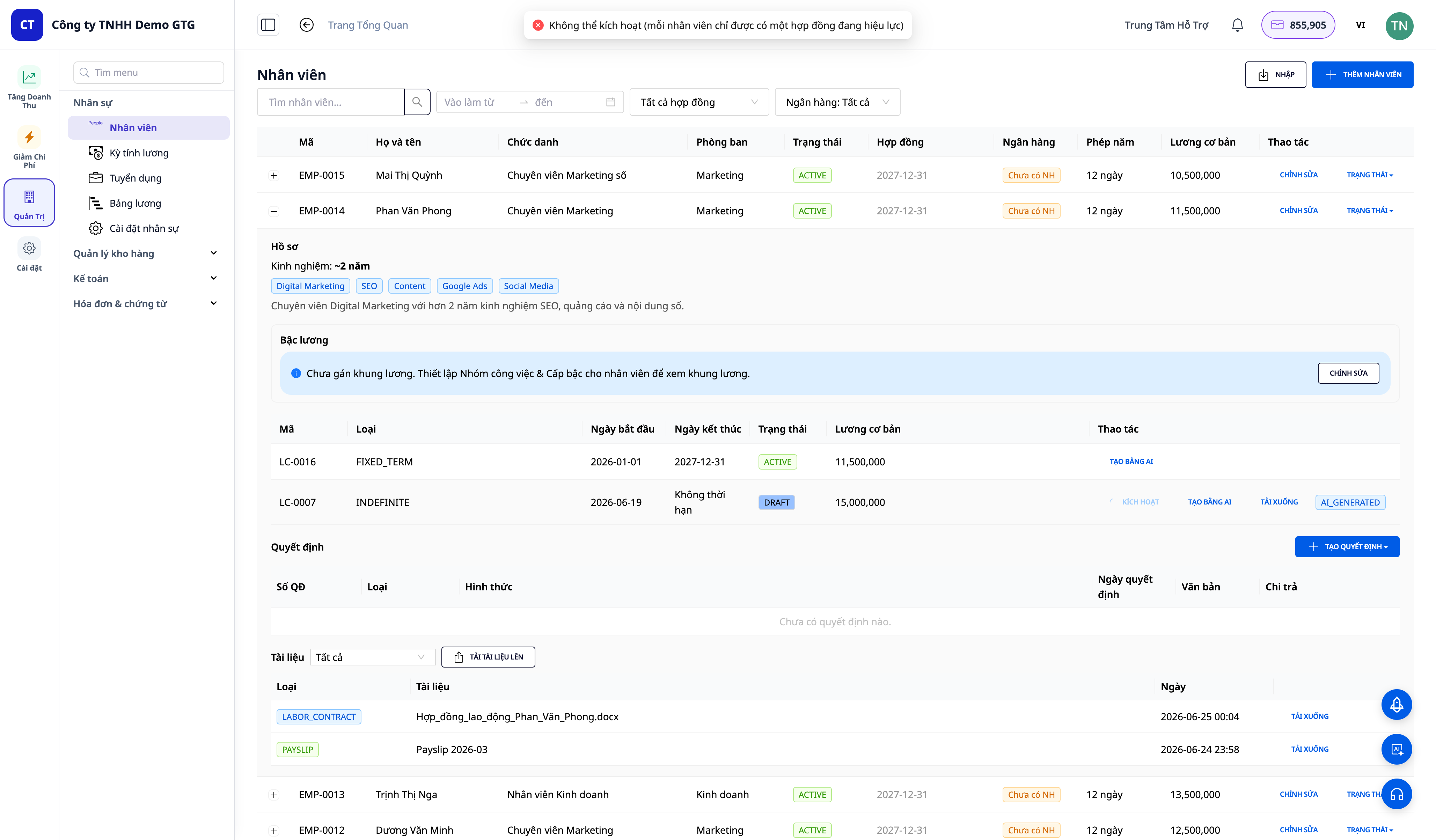
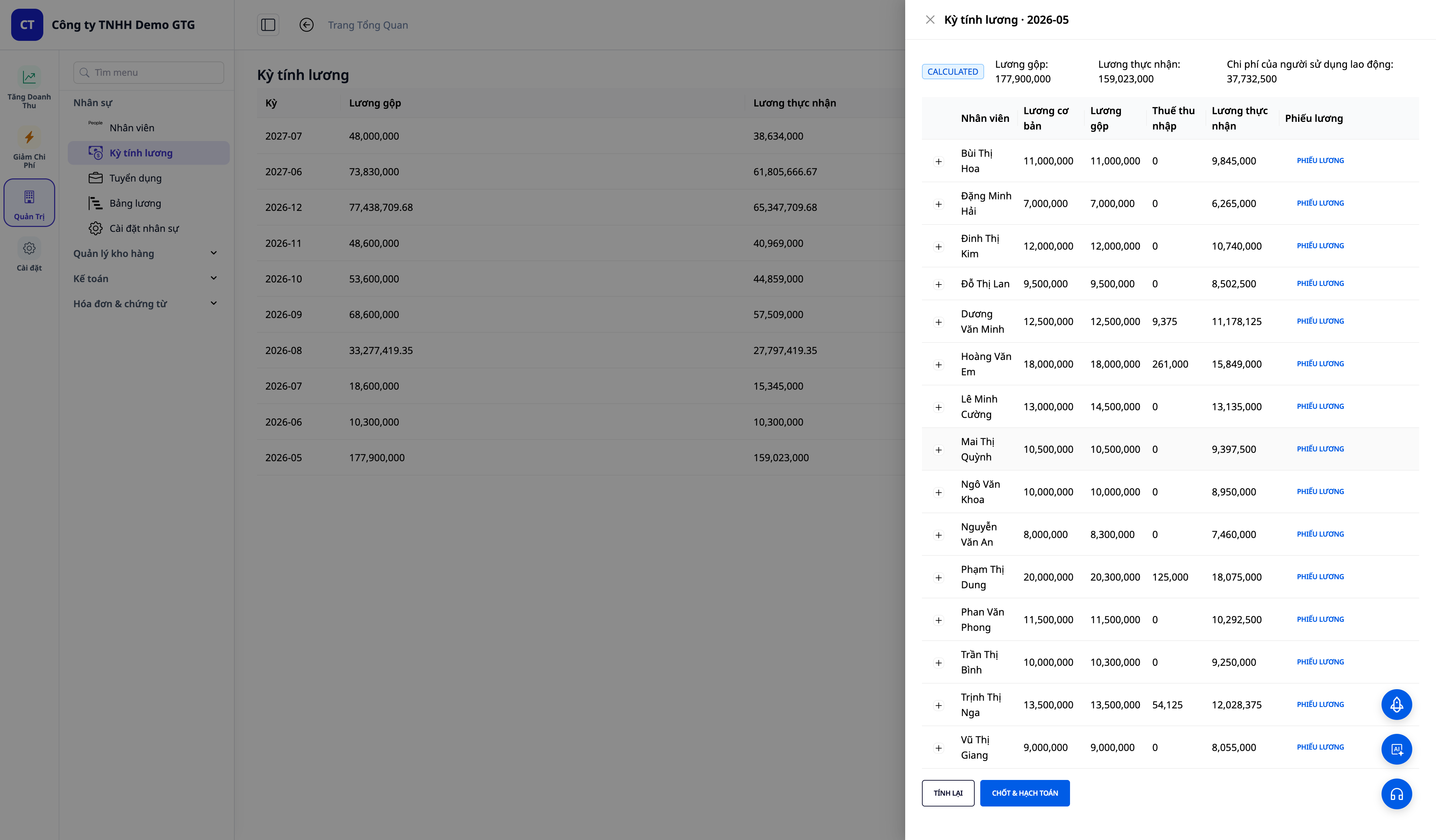
Step 6 — Create the monthly payroll
- Go to Human Resources → Payroll , and create a payroll period for the month.
- The system calculates Gross Salary → Social Insurance/Health Insurance/Unemployment Insurance → Personal Income Tax → Net Salary for each employee, based on the dataset (adjusted in Step 2).
✅ Expected result : The payroll table displays all columns for gross salary, deductions, taxes, and net salary for each employee.
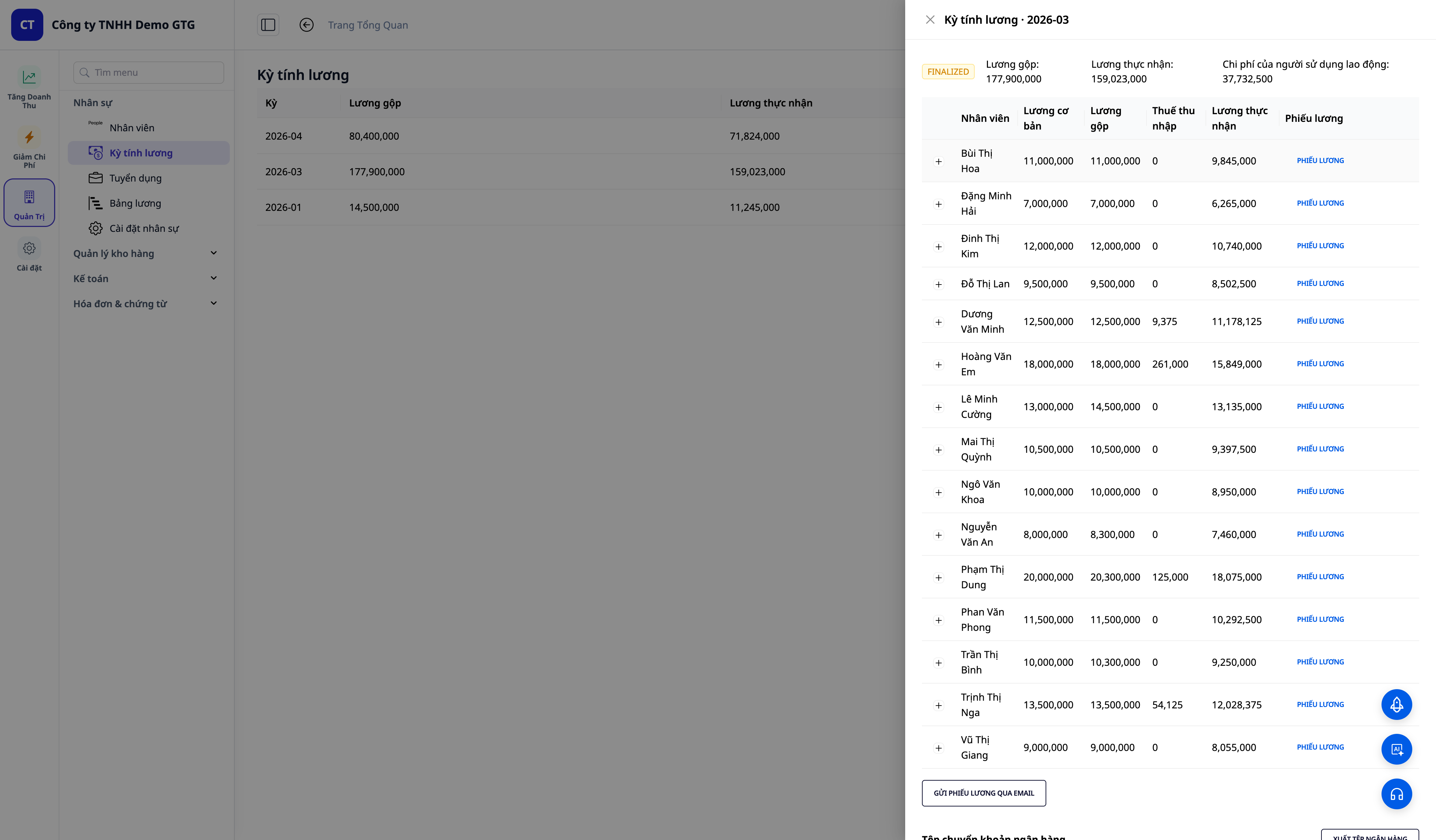
Step 7 — Review and Finalize Salary
- Review the figures; add off-cycle/bonus payments if necessary.
- Click Finalize .
✅ Expected outcome : The payroll sheet is closed; the system automatically generates the payroll expense journal entry.
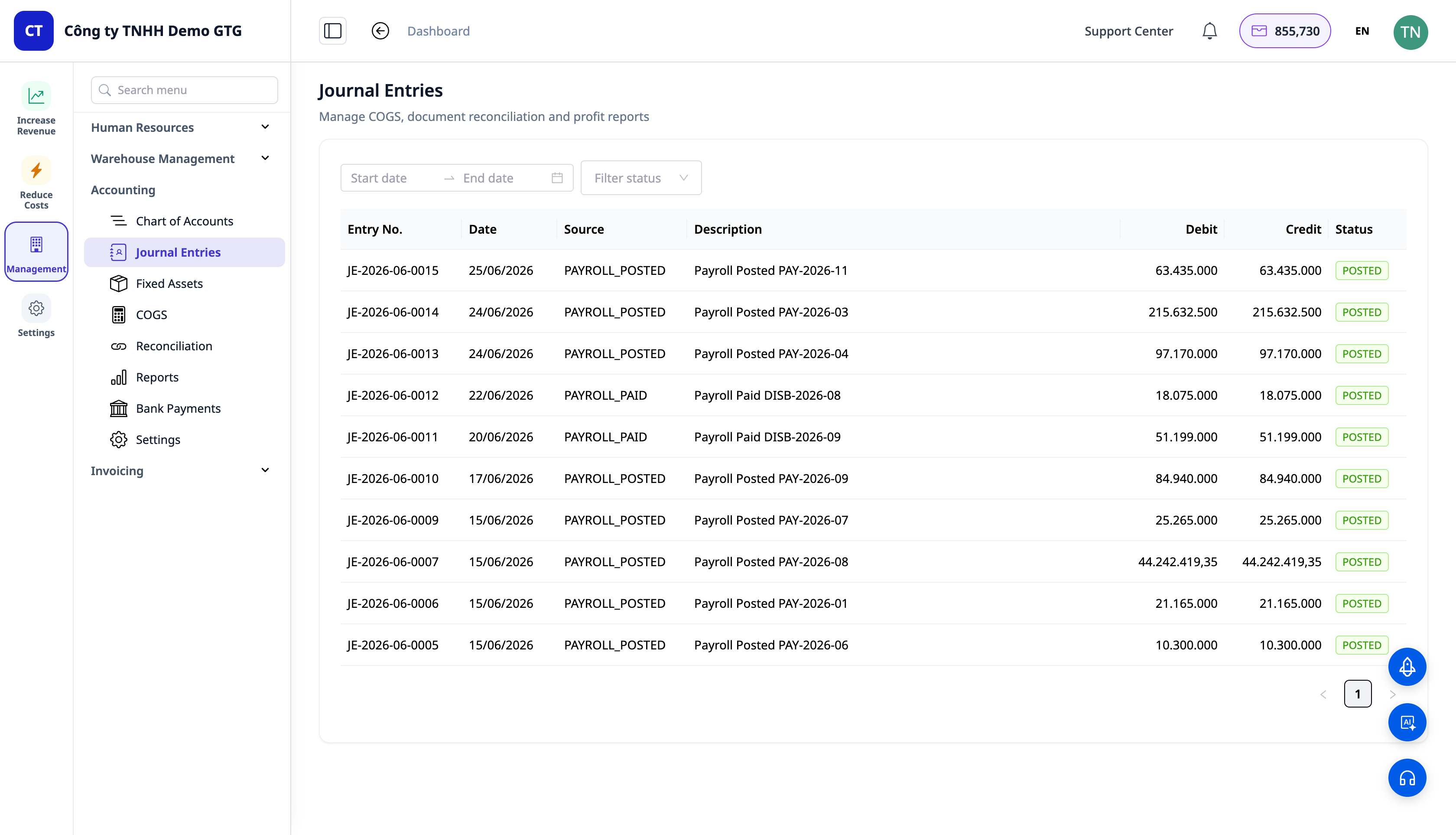
Step 8 — View automatic payroll entries in the ledger
- Open Accounting → General Ledger / Journal Entry .
✅ Expected outcome : There will be a journal entry to balance salary expenses (Debit salary expenses / Credit payable to employees 334 + deductions); personal income tax will be accounted for separately when incurred.
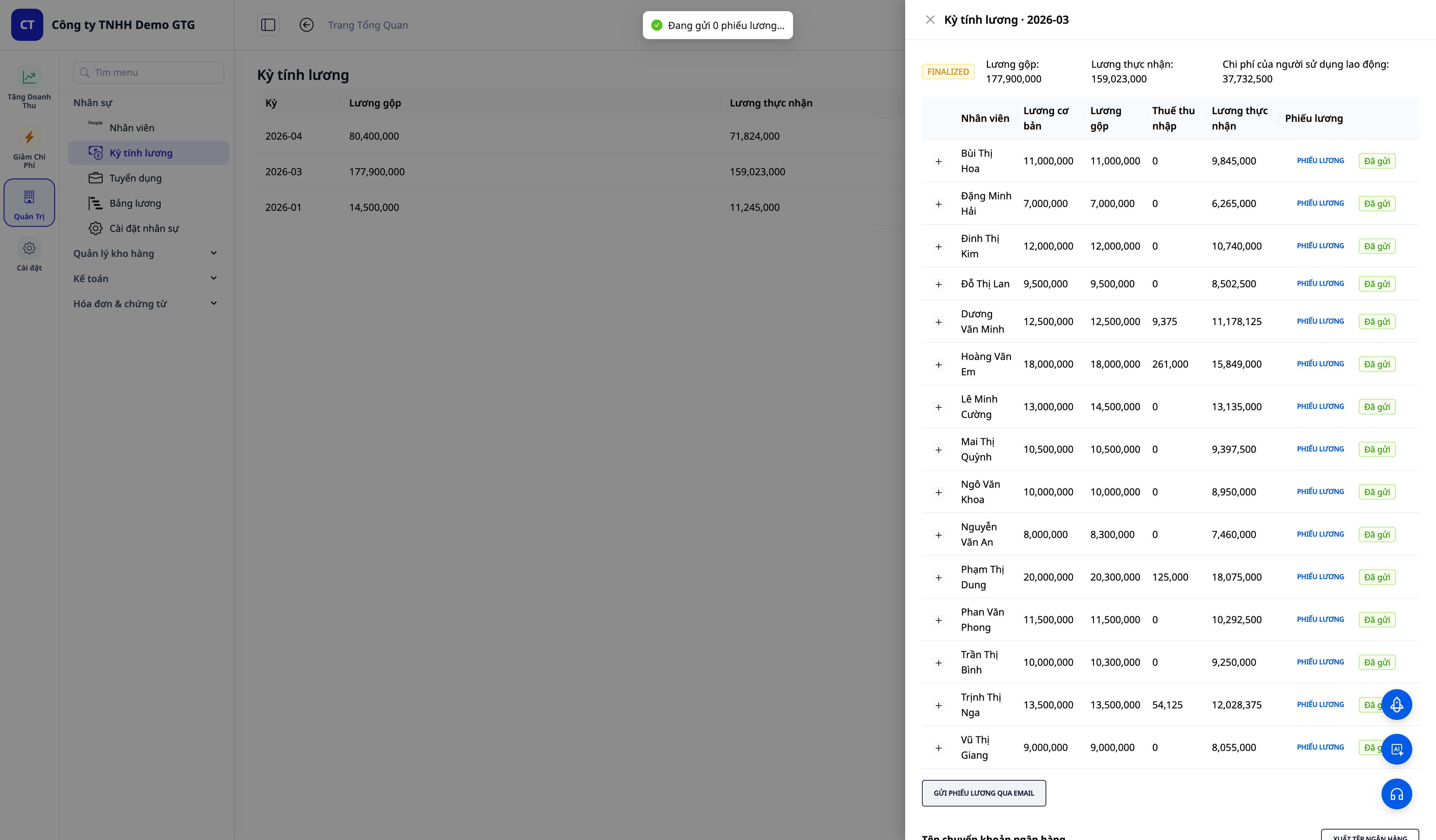
Step 9 — Send payslips to employees
- Based on the finalized payroll, send payslips to employees.
✅ Expected outcome : Employees receive payslip emails directly from your company's email address .
Quick lookup table for expected results
Select a country dataset — A list of laws for that country will appear.
Edit a rate and save — the next paycheck will use your number; the change is logged.
Click Reset to Defaults — The item will revert to the GTG number (with source citation).
Create a monthly payroll sheet — Columns for gross salary, deductions, taxes, and net salary for each person.
Payroll closing — Automatically generate payroll expense entries in the ledger.
Note
- You control the numbers : The default GTG is quoted; the final value used for salary calculation is up to you. Check when the law changes or when the business situation differs.
- Salary data is sensitive : only authorized personnel can see salary/bank/tax information; the system logs who has viewed it.
- Country : Default is Vietnam; GTG has pre-built datasets for many other countries — just select the correct country and it will work.

