Facebook Ads on GTG CRM
Feature Introduction
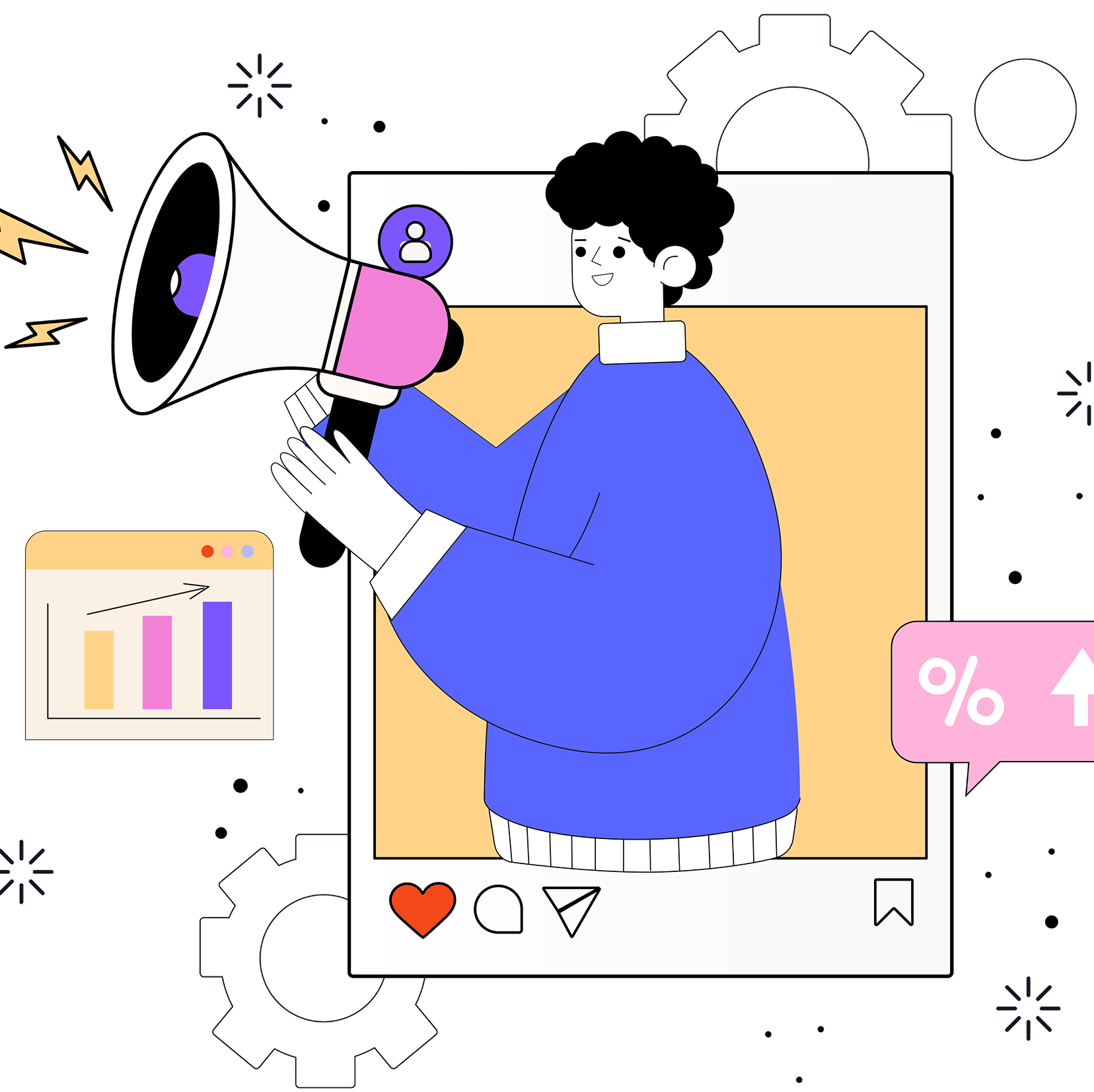
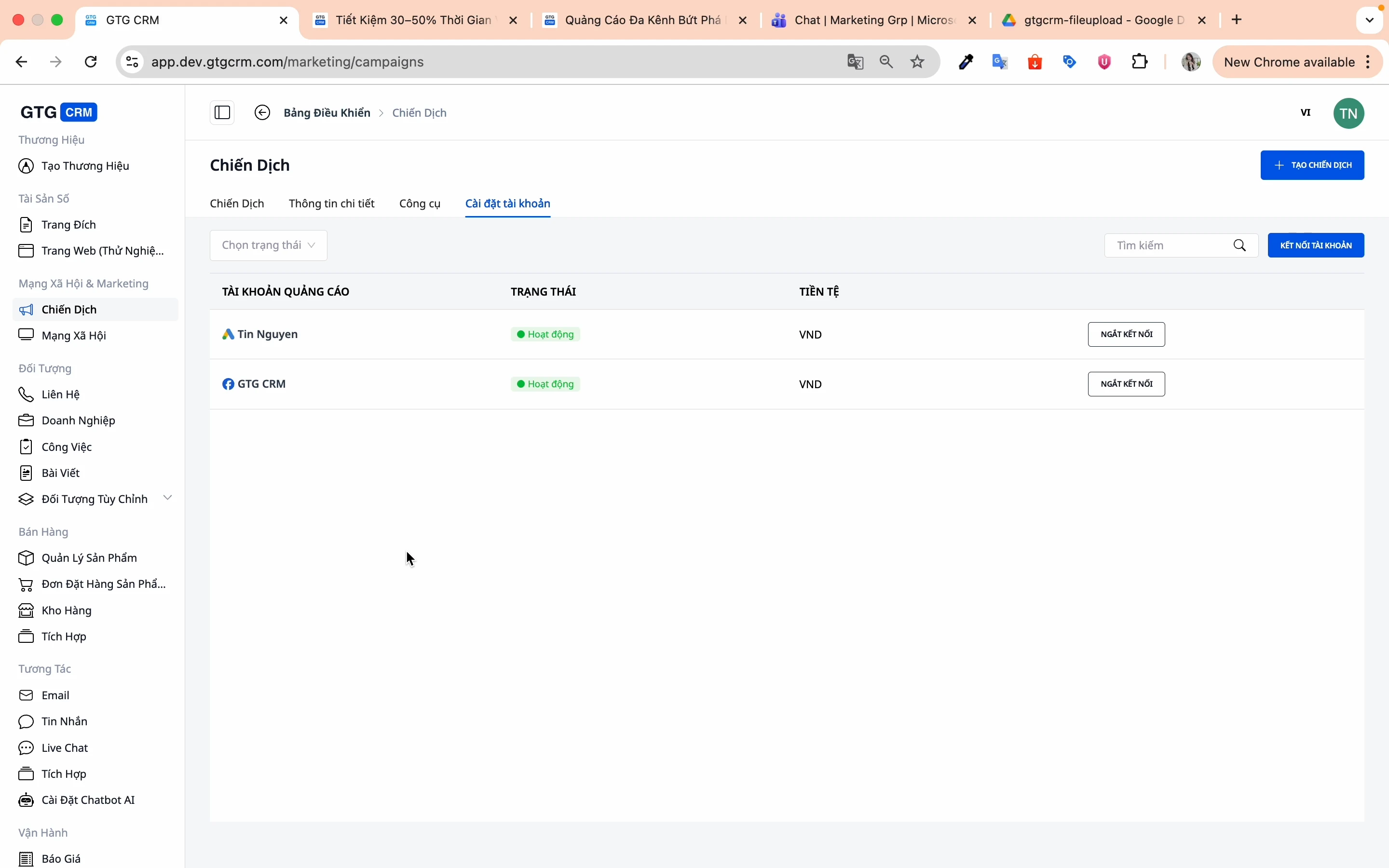
Facebook Ads allow businesses to create and manage Facebook ad campaigns directly within GTG CRM without switching between multiple tools.
Why Use Facebook Ads on GTG CRM?
Centralized Management
Manage Facebook ads within the same GTG CRM platform
Track campaign performance easily
Save time on operations
Smart AI Assistance
Audience AI: Automatically finds suitable audiences
Targeting suggestions: Interests, behaviors, demographics
Campaign optimization: AI learns and improves performance
Diverse Campaign Objectives
ObjectiveDescriptionSuitable forEngagementIncrease interactionsBrand awarenessTrafficIncrease website visitsWebsites, BlogsLeadsGenerate leadsB2B, ServicesSalesIncrease salesE-commerce 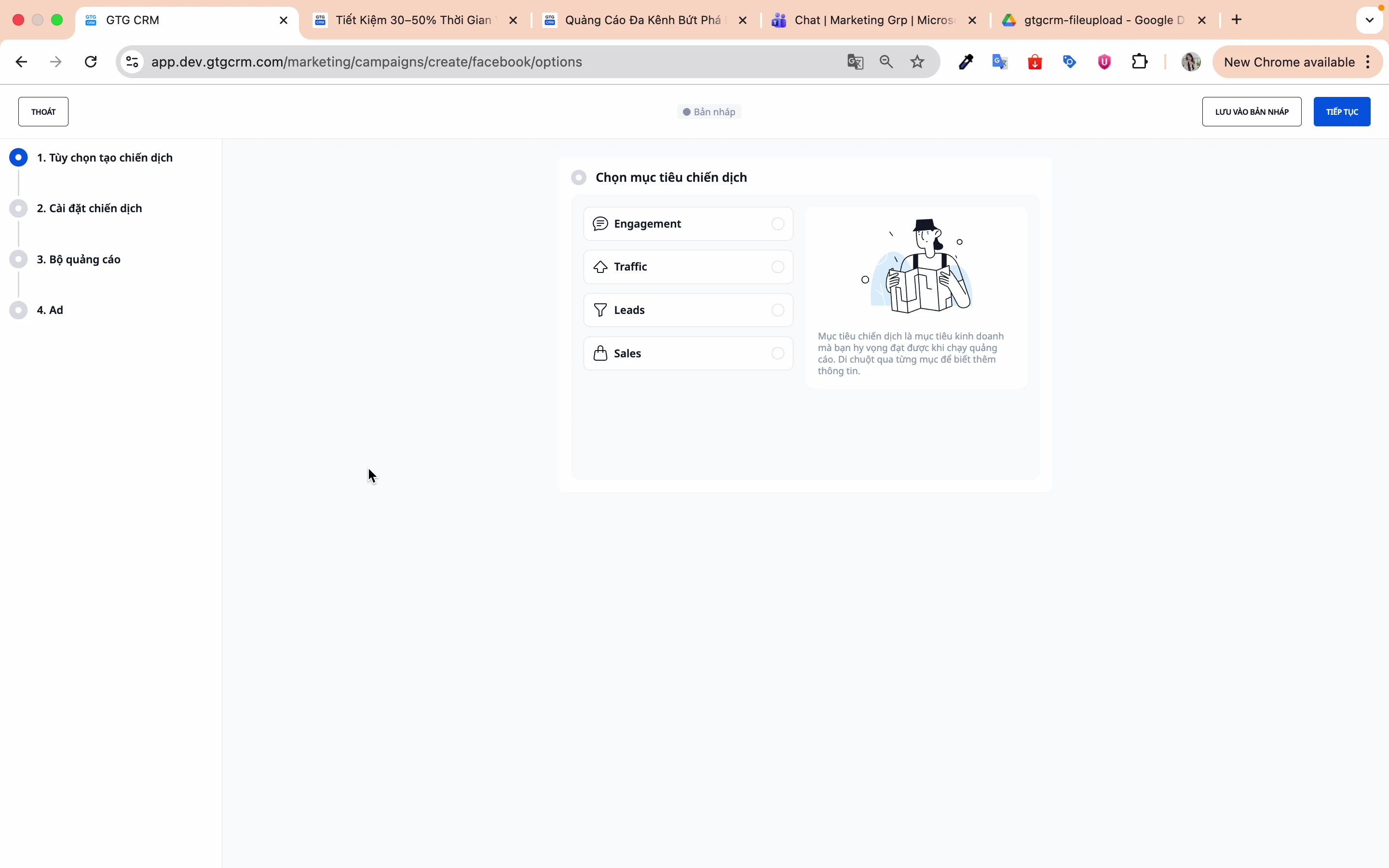
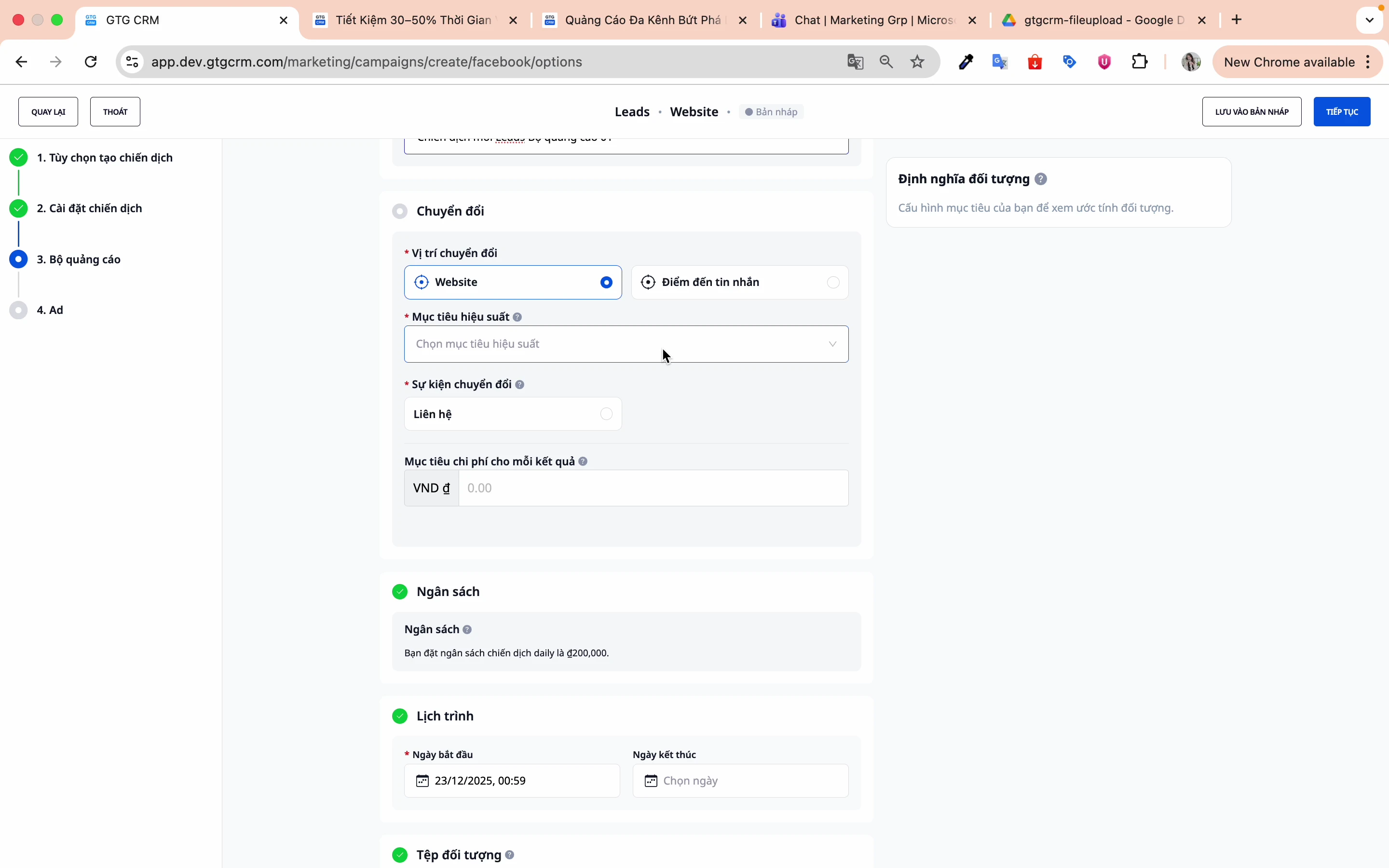
Conversion Locations
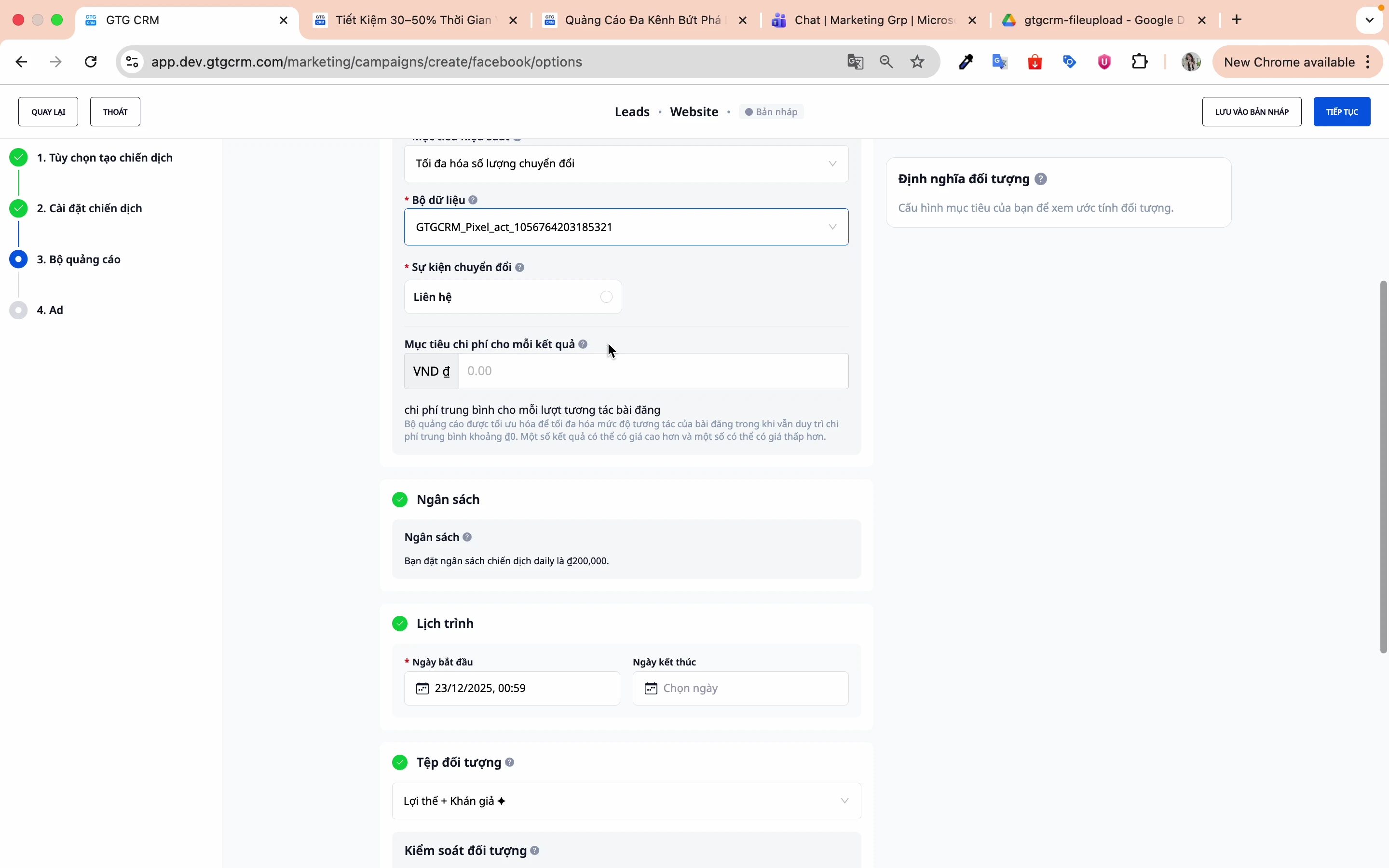
Website Conversion (Pixel)
Messenger Conversion
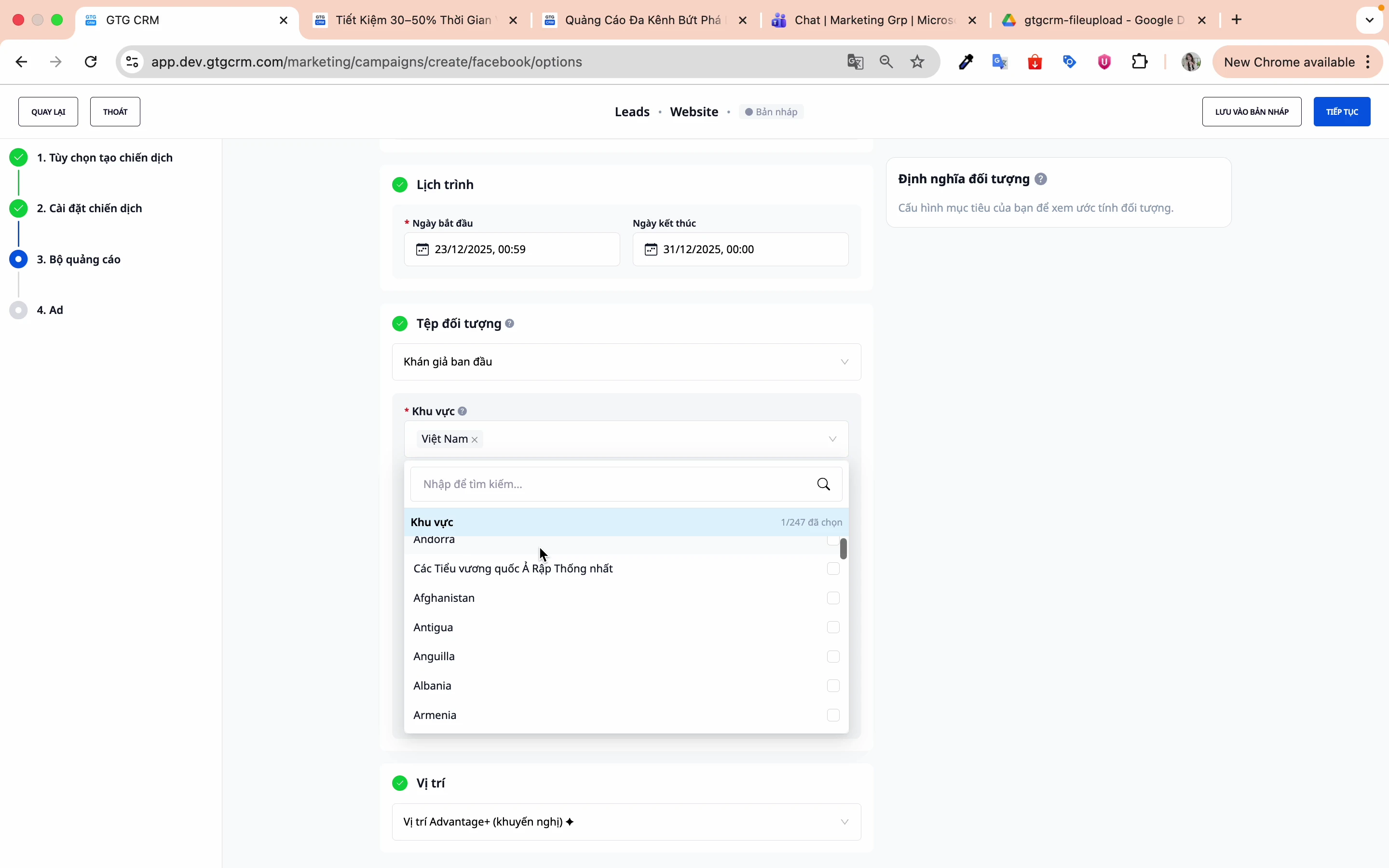
Advanced Targeting
Location: country, province/city
Demographics: age, gender, language
Detailed interests & behaviors
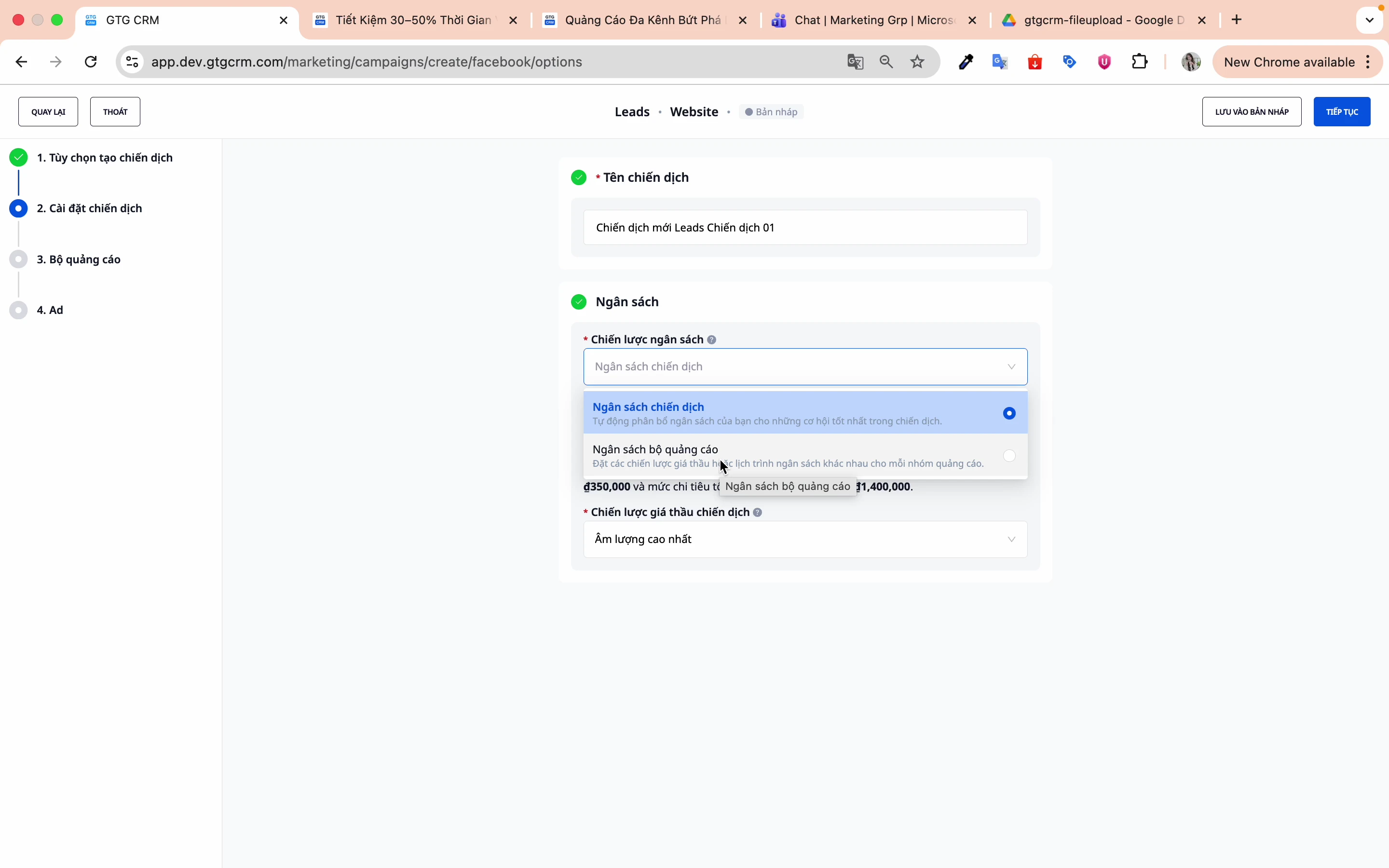
Budget & Bidding
Daily / lifetime budget
CBO or by ad set
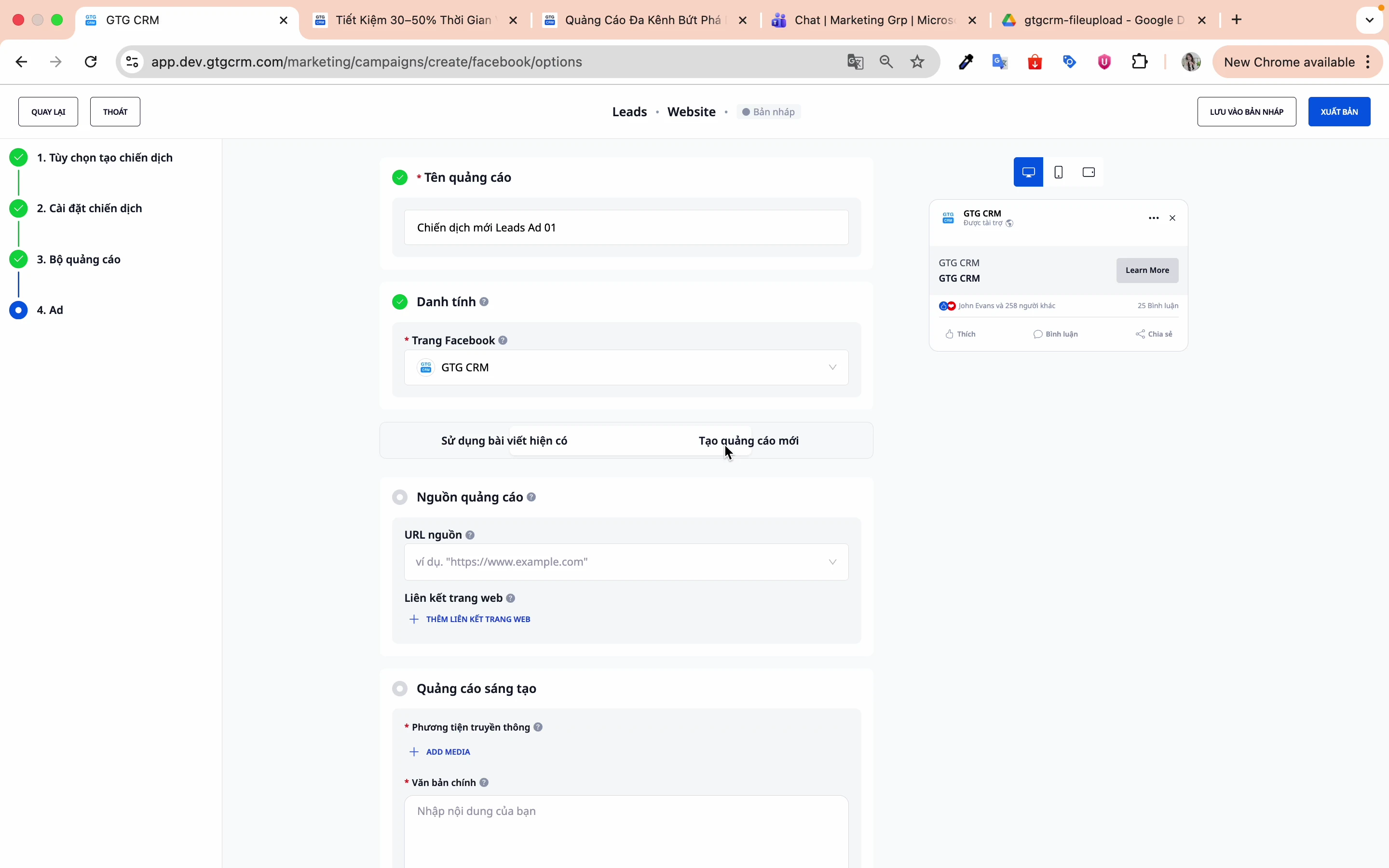
Creating Ads
Use existing Fanpage posts
Create entirely new ads
Facebook Pixel Integration
Track conversions
Custom Audience & Retargeting
Measure ROI
Facebook Form Submitters Go Straight to CRM So You Can Call Sooner
When running Instant Form ads, leads stay on Facebook, so you have to go to the Form Library, download the file, paste it into your CRM, and only then can you start calling. This approach is easy to miss leads and slow.
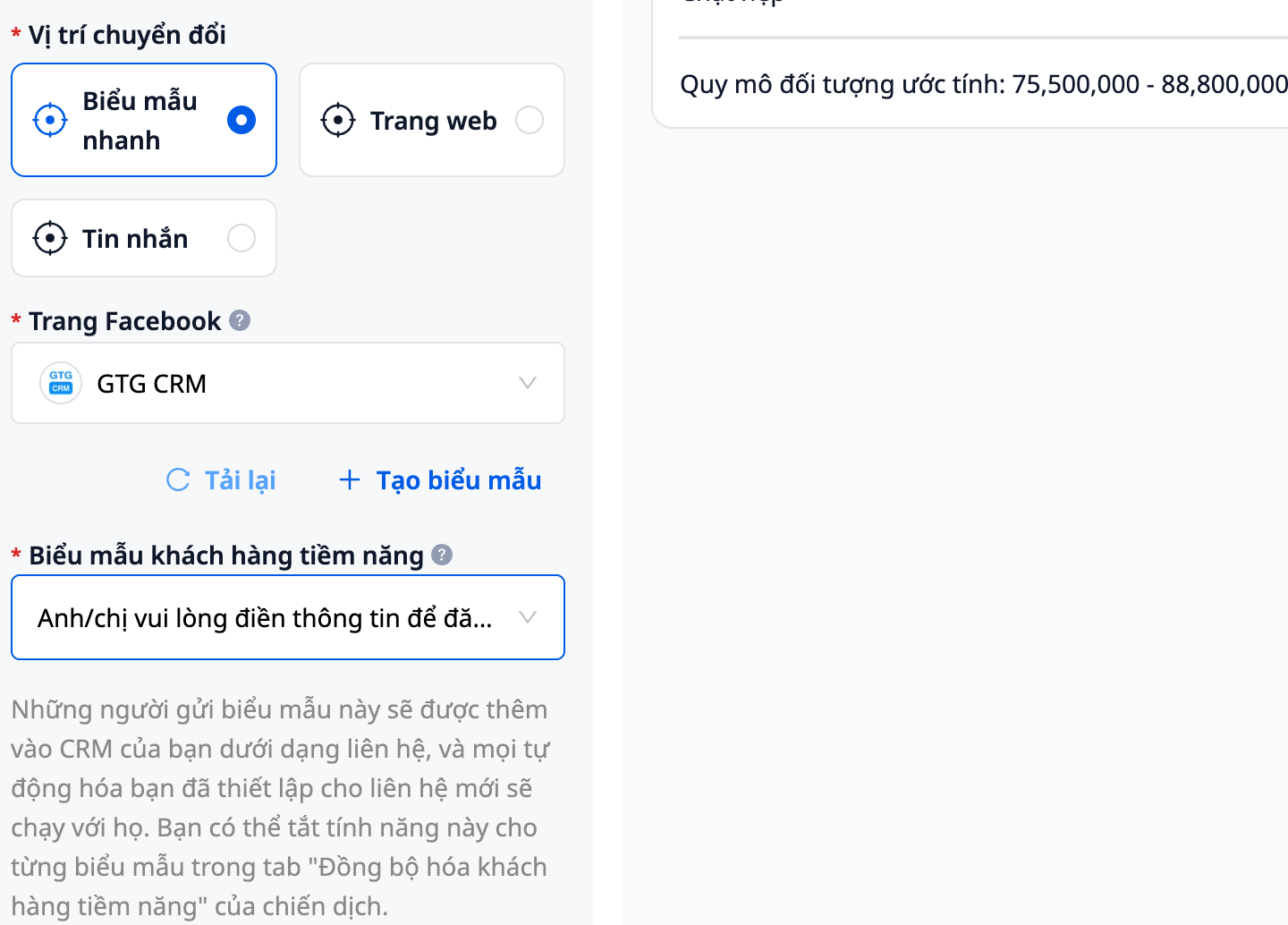
With GTG CRM, you select a form when creating an ad and click Publish. From then on, each person who fills out the form is added to CRM as a contact (if they already exist in CRM, their information is merged into that contact), with name, email, valid phone number, company, and job title ready to go (depending on which fields your form asks for), along with the source Facebook Lead Form. You no longer need to download files or copy-paste manually, and you can call sooner.
Things to Know Before Publishing
Right below the form selector, the ad builder shows a line of text that states this, so you know in advance what will happen. Automations you've already set up for new leads also run on contacts created from a form. If you have an automation that emails every new contact, the person who fills out the form will receive that email too, so check before you publish.
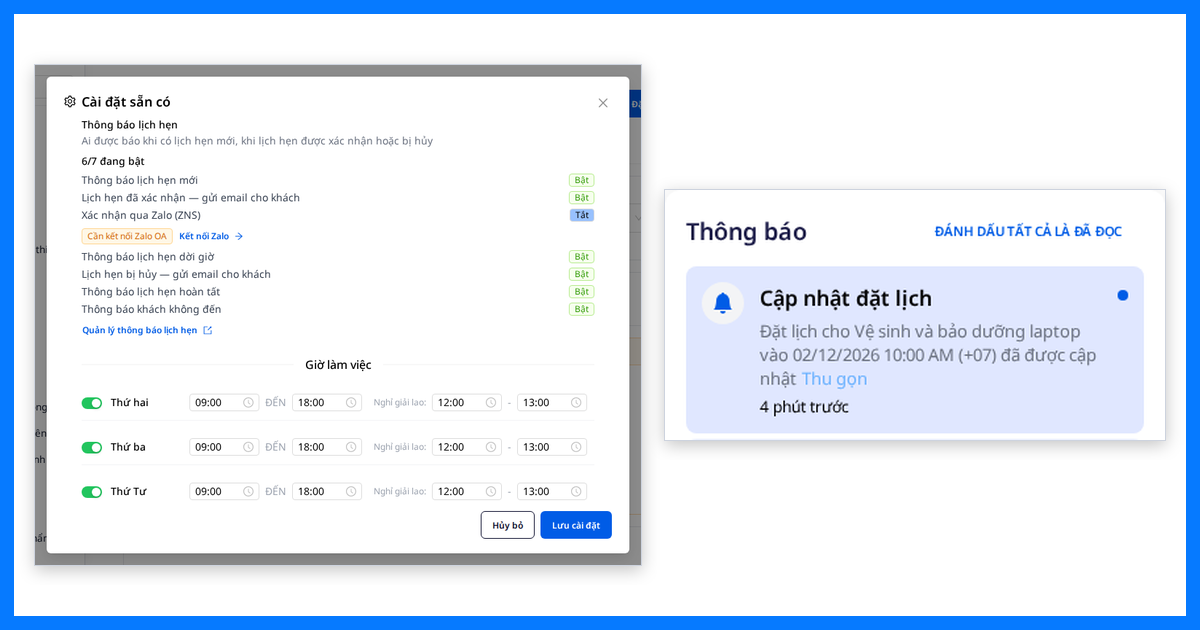
When someone fills out a form, the workspace owner gets an in-app notification (and a push notification if the app is installed on their phone). GTG CRM does not send an email for this notification. If you want your sales team to act right away, build an automation for new contacts, like the automatic appointment booking example below.
Want a form that doesn't send people to the CRM? Open the campaign's Lead Sync tab, click the first button in the Actions column on the form's row (the button with the gear icon), turn off the Automatically sync new leads toggle, and click Save. This requires permission to create and update campaigns, so it's usually done by the workspace owner or an administrator, on a desktop computer. A form that's turned off stays off when you publish another ad that reuses that form. The steps are covered in the Facebook Ads user guide.
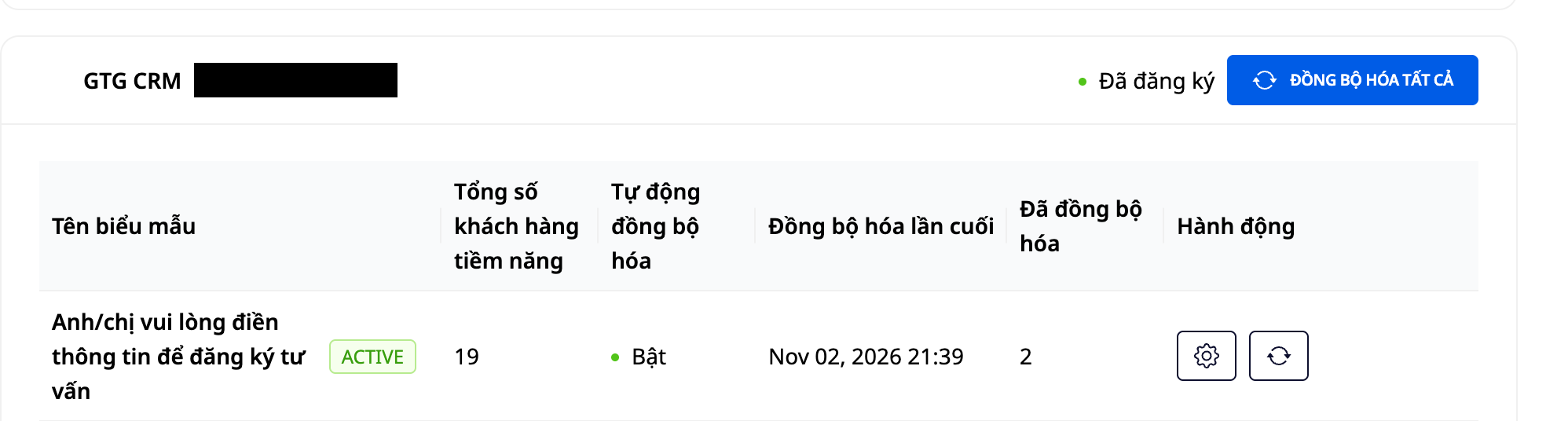
There are three more things to know. Ads that were published earlier usually don't turn this on automatically. Turn on each form's toggle by following the steps above and click Save. If the Page card shows a Subscribe button, click it. If your Page uses Messenger through another tool, GTG CRM does not receive instant notifications from Facebook for that Page, so GTG CRM checks periodically instead, and leads may arrive up to about 6 hours late. And if Facebook doesn't allow the Page connection, the ad is still published, and GTG CRM sends a notification with the action you need to take.
Want to see your first lead from your form appear in the CRM? Connect your Facebook Ads account, create a campaign with the Leads objective, choose the Instant Form conversion location, select your form, and click Publish.
Know exactly which campaign a lead came from, without digging
Every person who fills out a Facebook or LinkedIn lead form is now linked directly to their contact record: which campaign and which ad creative brought them in. You don't need to reopen the ads manager to look it up. The information appears right on the contact's detail page.
Automatically move hot leads from ads straight into appointments
For a campaign you know brings high-quality leads (for example, an invitation to register for a demo or webinar), you can build an automation: whenever someone from that campaign fills out the form, the system automatically books an appointment for them, with no manual scheduling by staff.
Get Started Now
Log in to GTG CRM
Connect your Facebook Ads account
Create a campaign and run ads
GTG CRM – A comprehensive CRM & Marketing platform for Vietnamese businesses 🇻🇳
Ready to try this feature free for your business?