

Table of Contents
How to Use Google Ads on GTG CRM
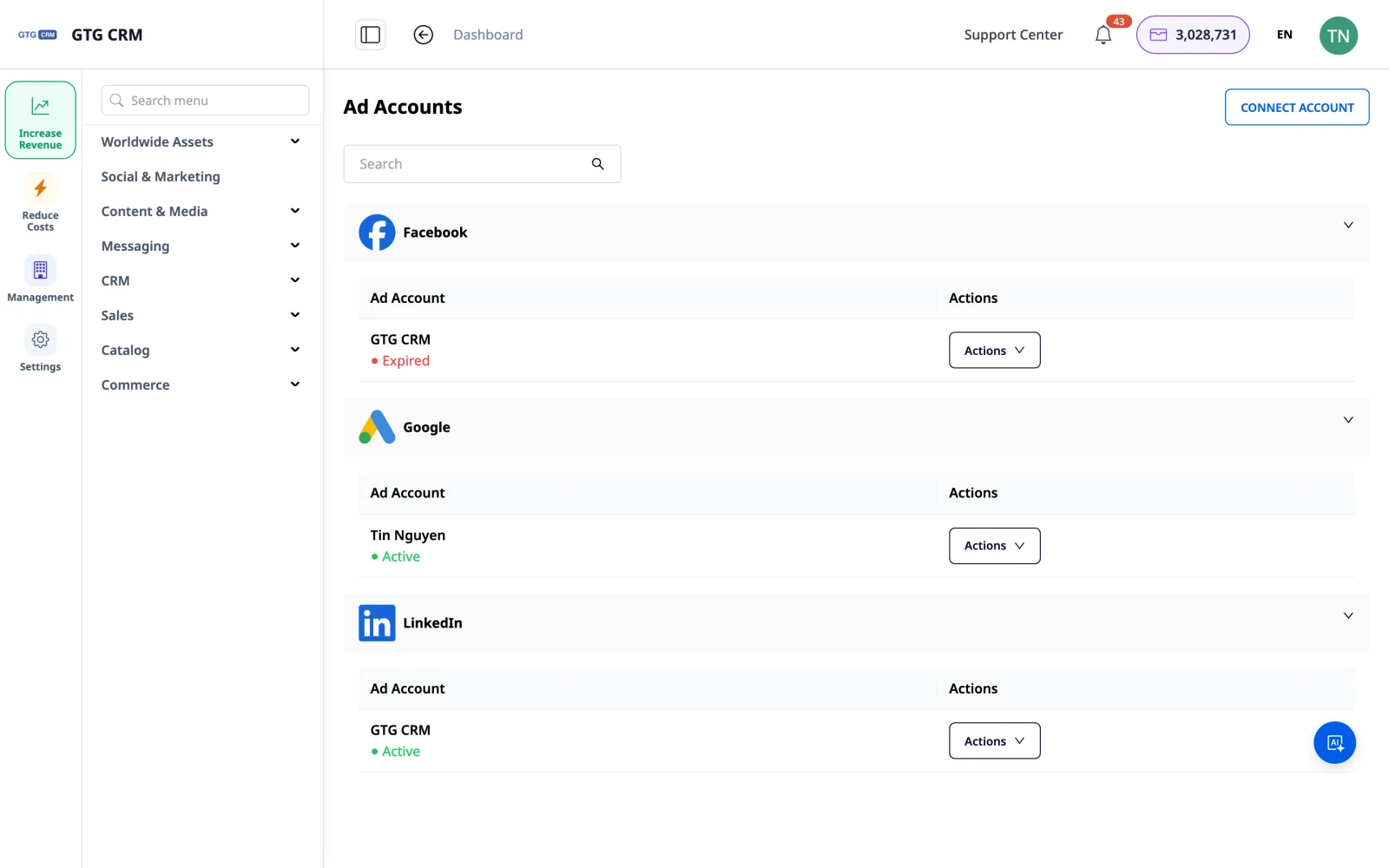
1. Connect your Google Ads account.
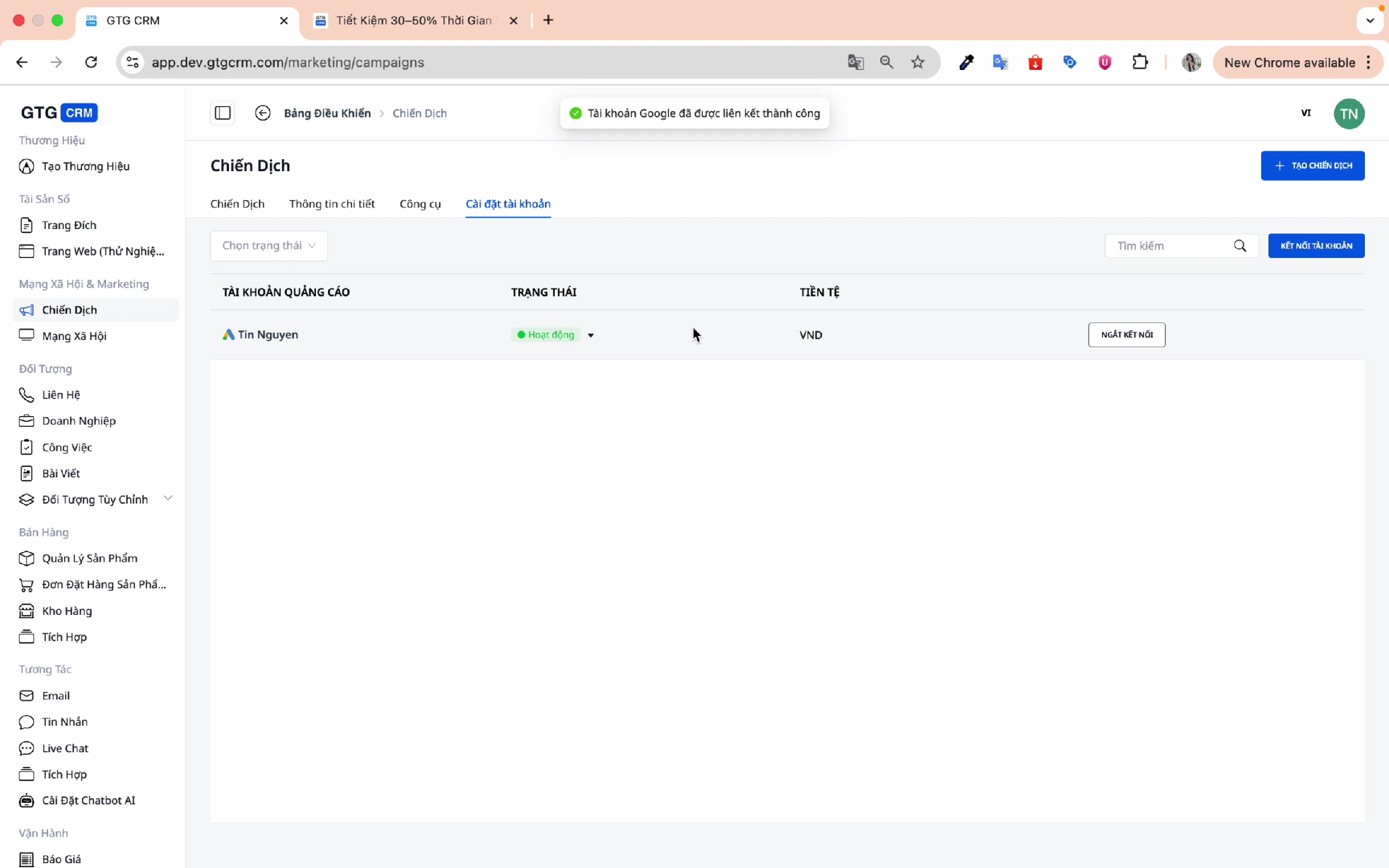
Step 1: Access the Campaigns menu.
On the GTG CRM home screen, click Campaigns in the menu bar.
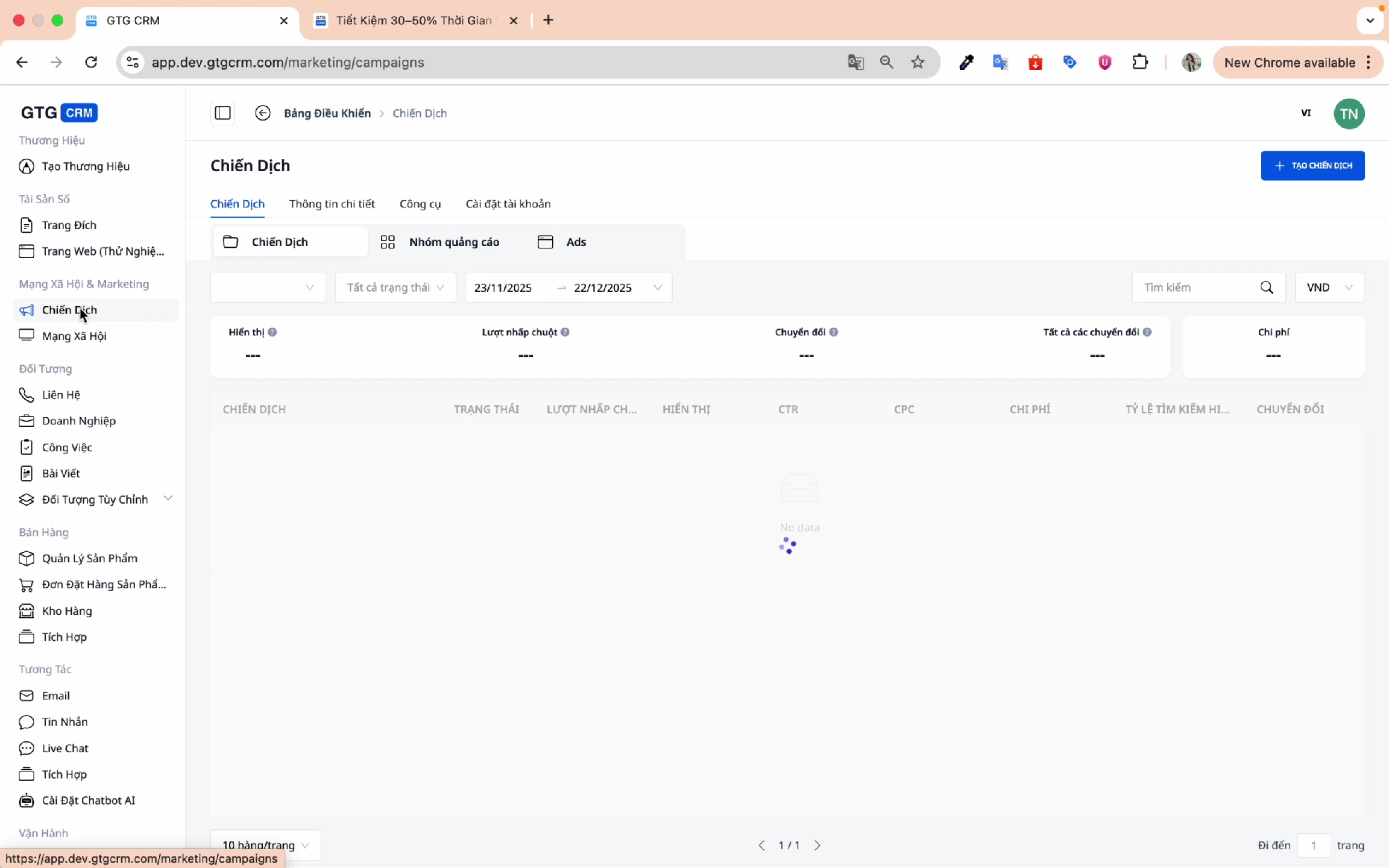
Step 2: Go to account settings
Click on Account Settings to connect your advertising account.
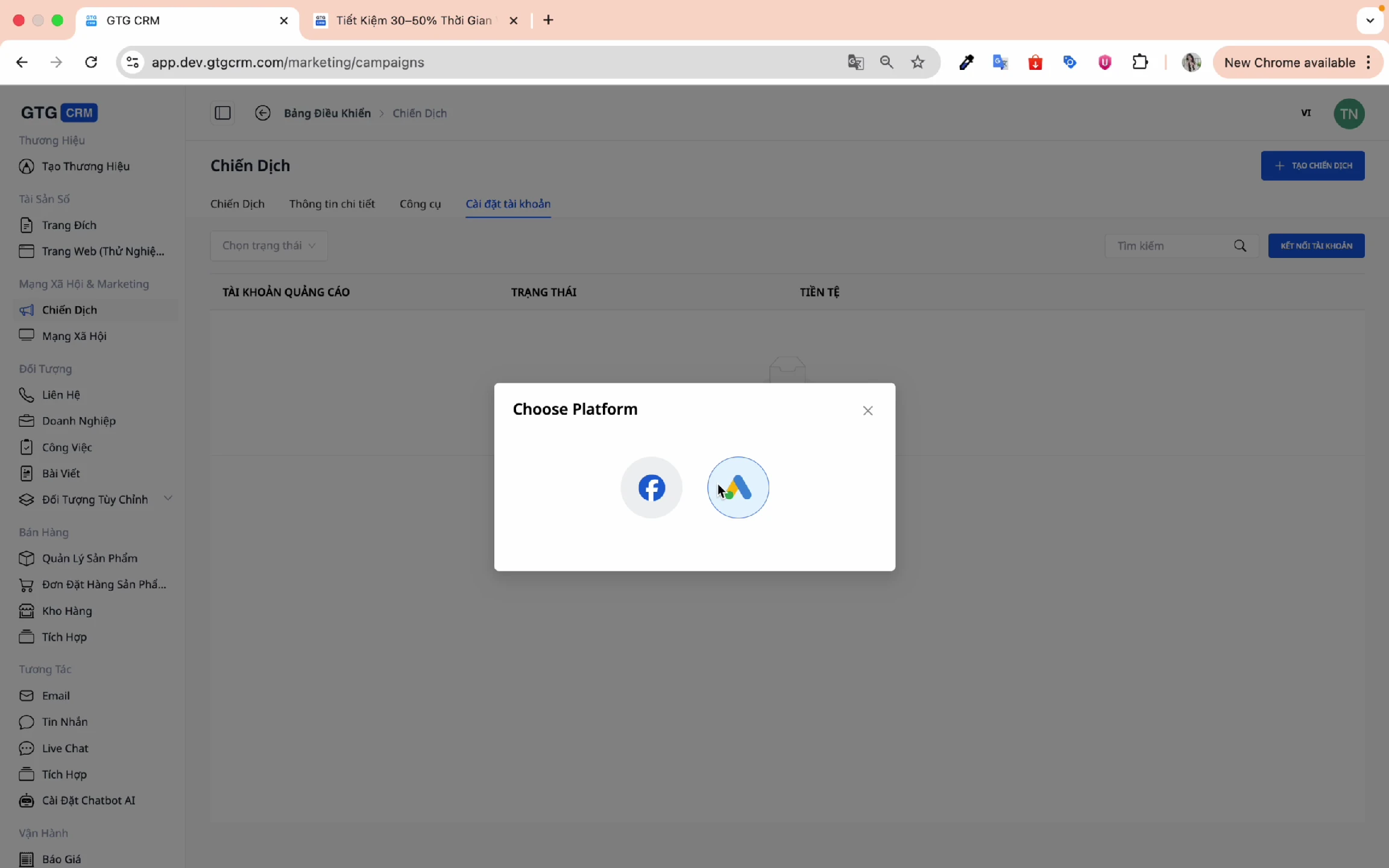
Step 3: Choose the Google platform
GTG CRM supports two main platforms:
- Facebook Ads
- Google Ads ← Select this option
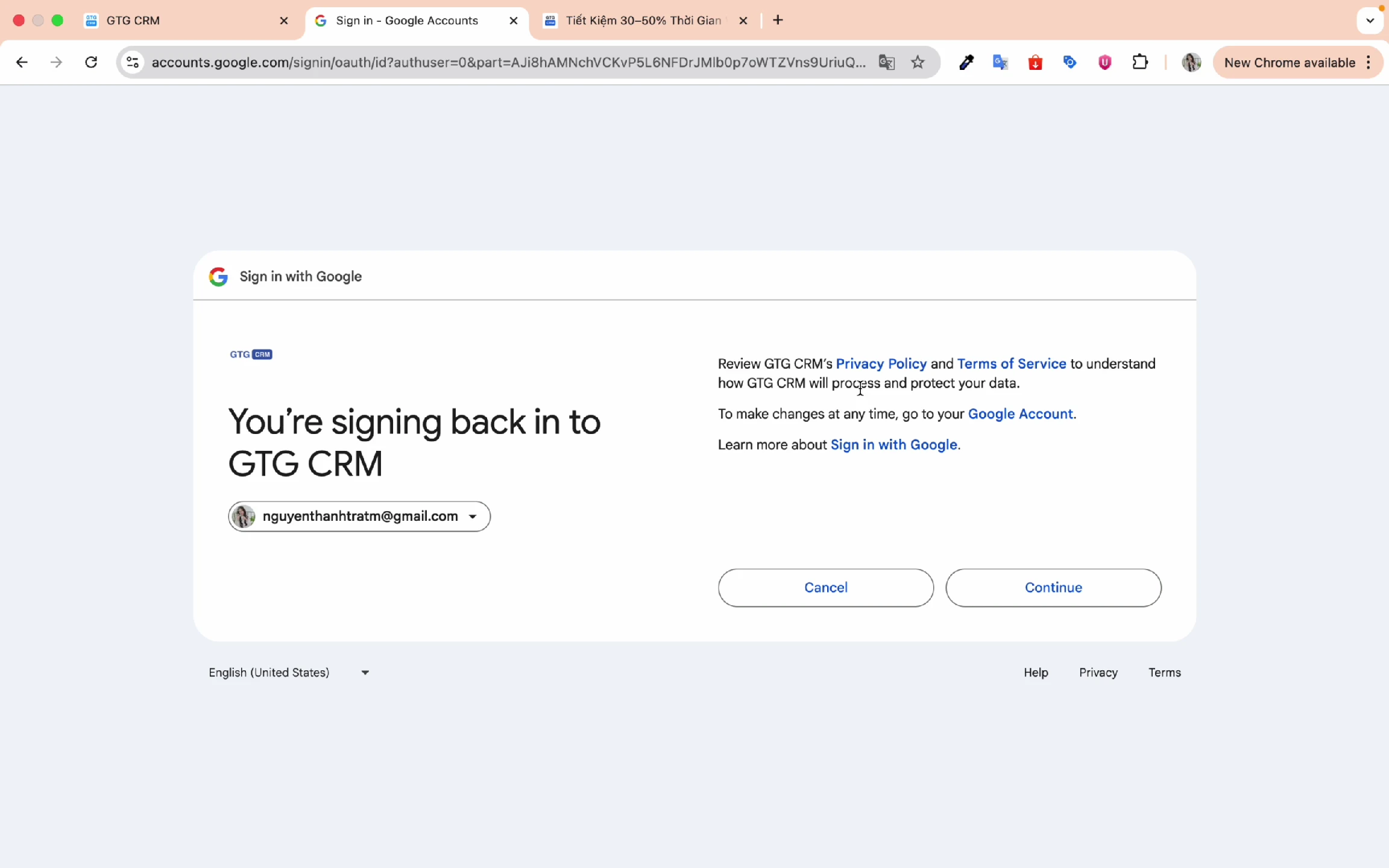
Step 4: Log in to your Google account
- Choose your Google Ads advertising account.
- Click Login
- Select the specific account you want to connect.
- Click Connect account
Step 5: Confirm successful connection
Once you see the successful connection notification, you're ready to create your campaign.
2. Create a New Campaign
Step 1: Click "Create campaign"
From the Campaigns screen, tap the Create campaign button.
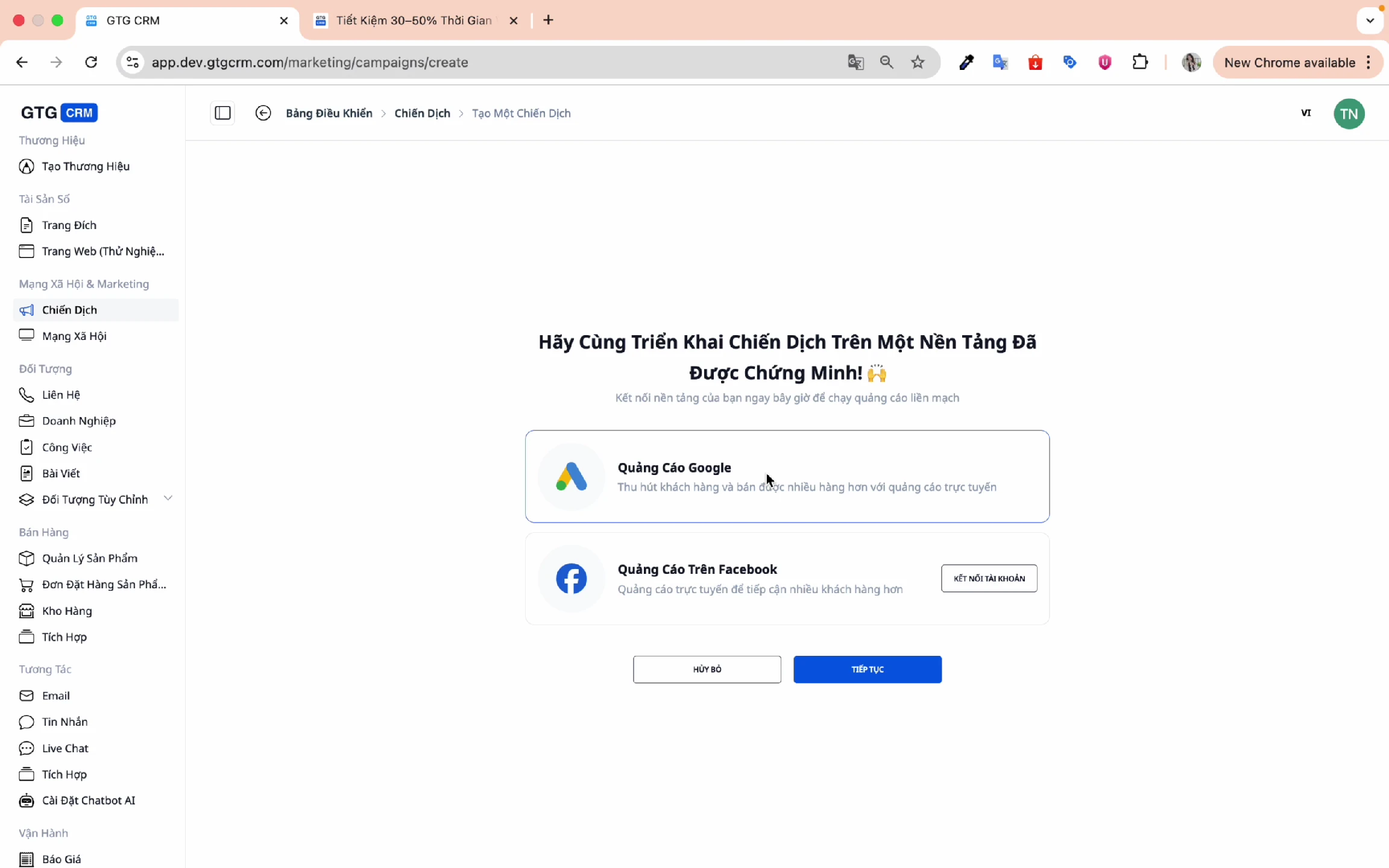
Step 2: Choose an advertising platform
Select Google Ads and click Continue .
3. Setting Campaign Goals
Step 1: Choose your campaign goal.
GTG CRM offers three main objectives:
| Target | When to use |
|---|---|
| Sales | Want to increase direct sales? |
| Leads | We want to collect information from potential customers. |
| Web Traffic | Want to increase website traffic? |
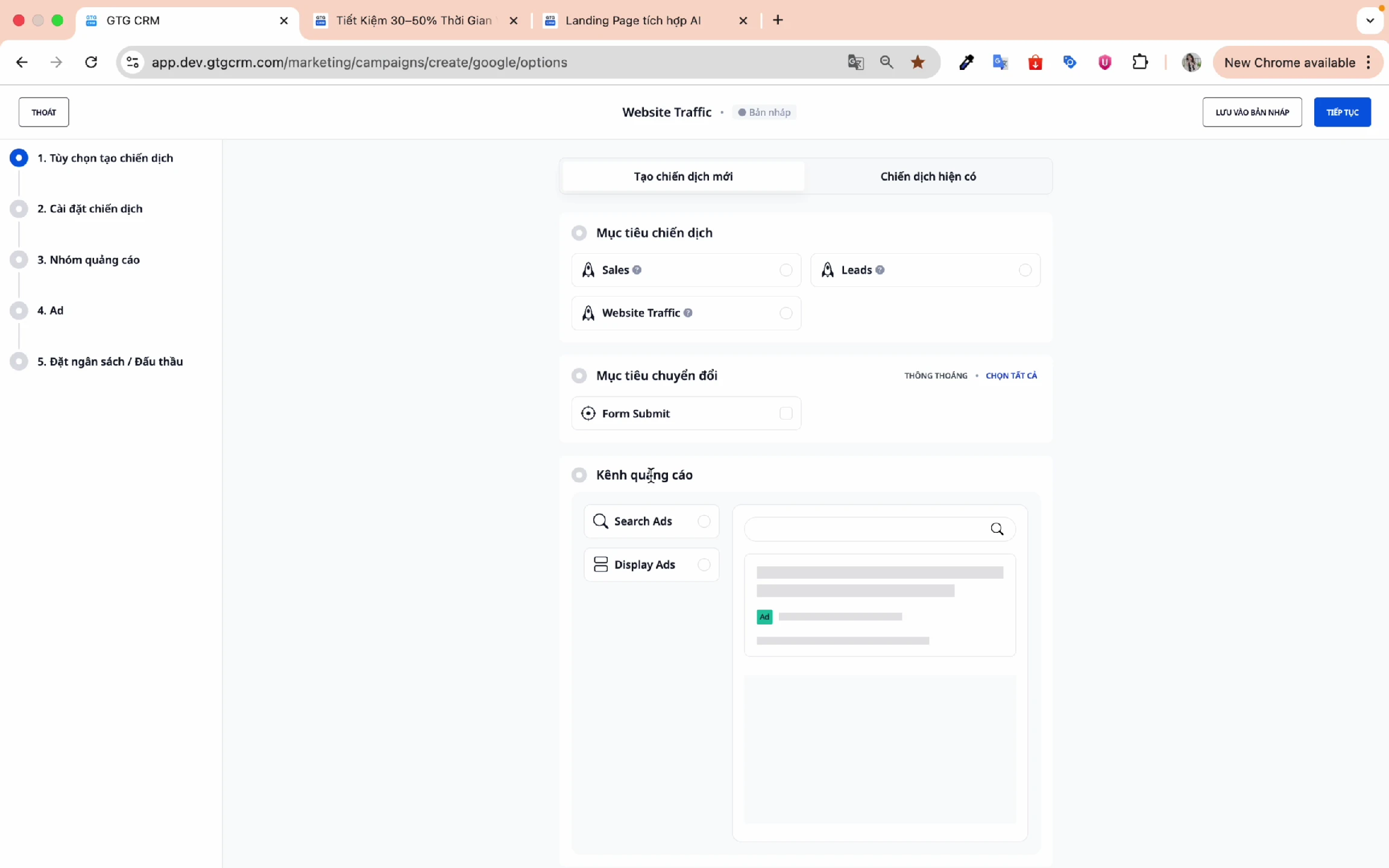
Step 2: Choose your conversion goal.
Example: Form Submit - when a customer fills out and submits the form, it is recorded as a conversion.
Step 3: Choose an advertising channel
- Search Ad : Ads displayed in Google search results
- Display Ads : Ads displayed on Google's partner network.
Step 4: Select the target device
Select the devices you want to target:
- ☑️ Mobile
- ☑️ Desktop
- ☑️ Tablet
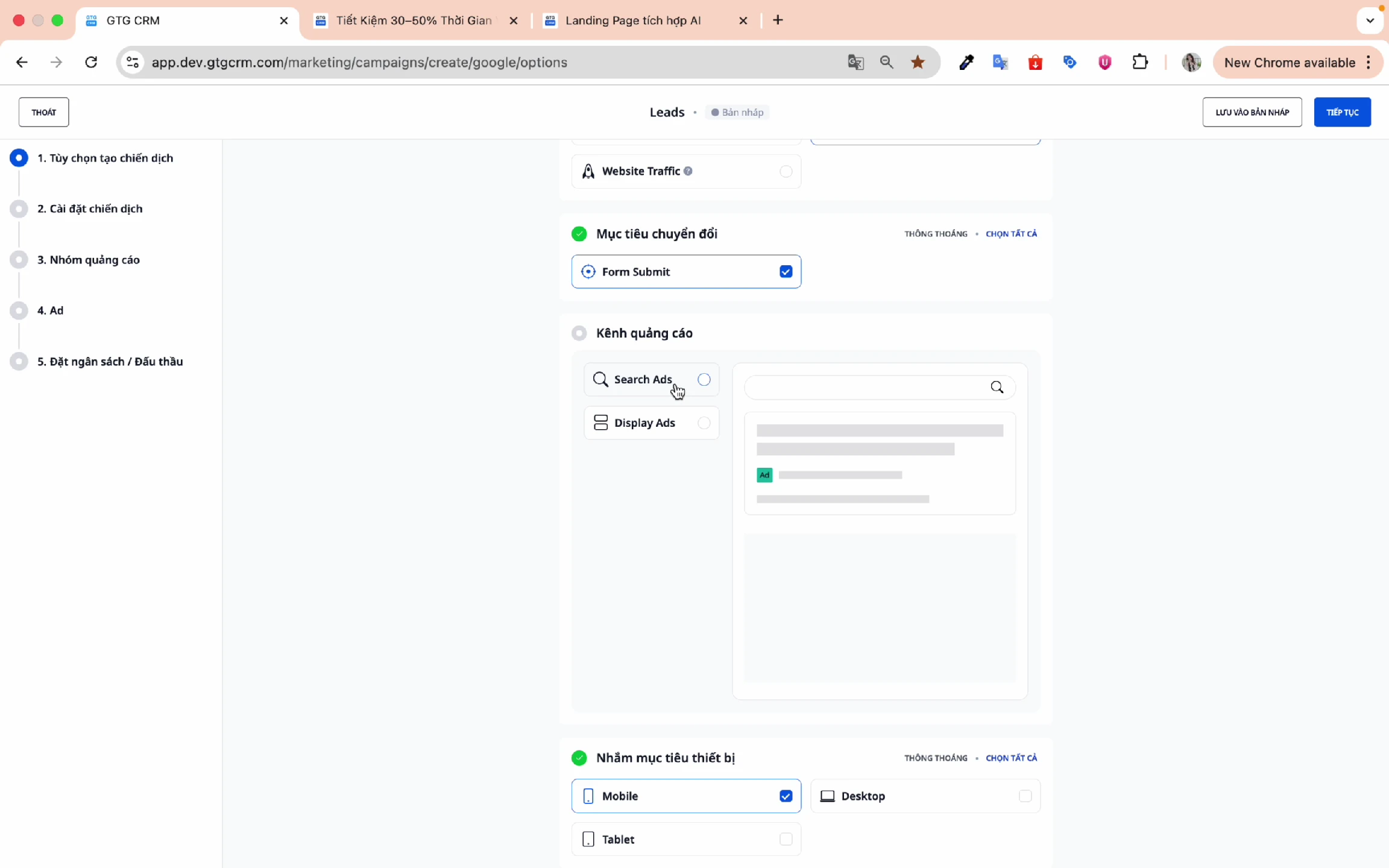
Click Continue to proceed to the next step.
4. Setting Targets
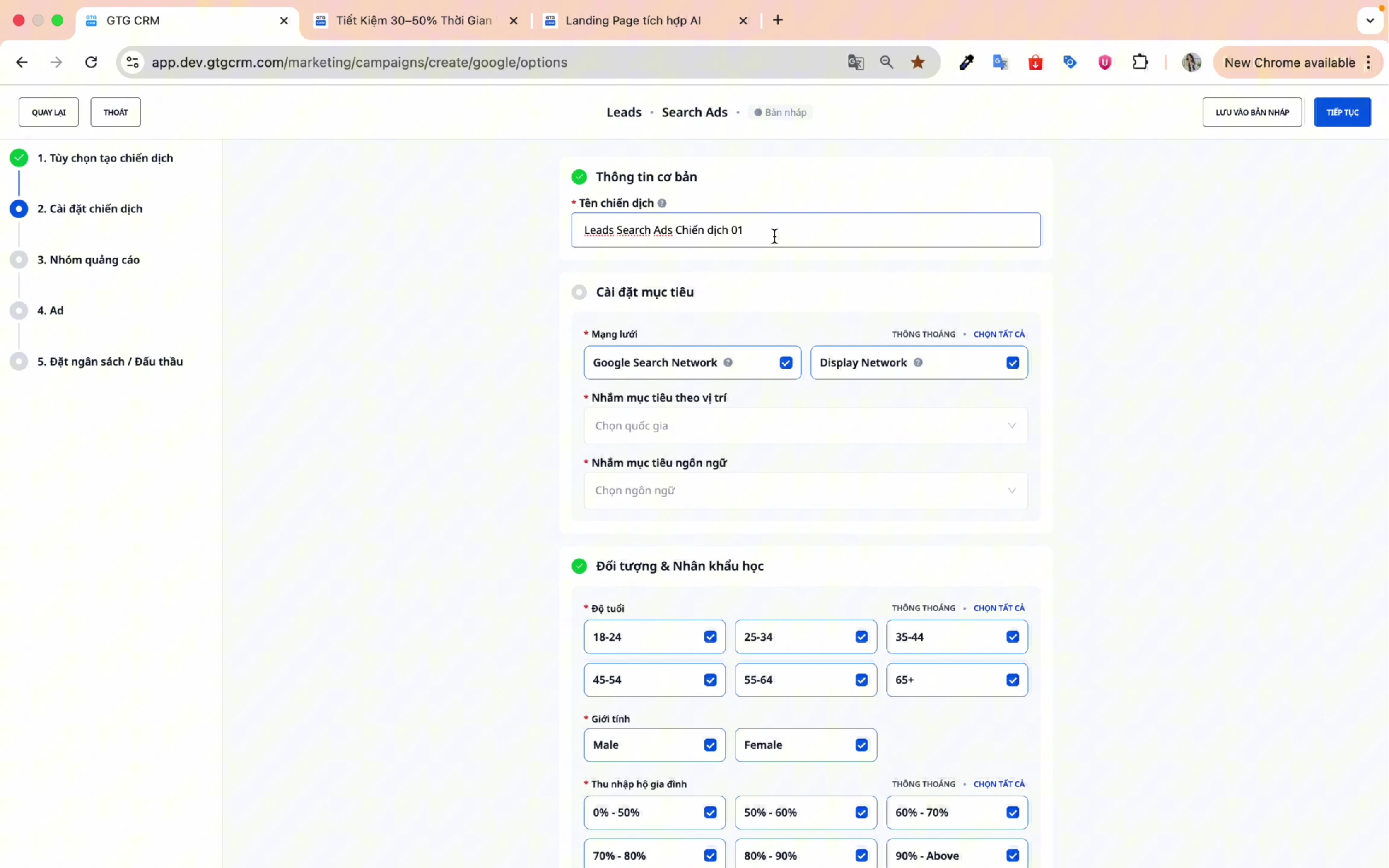
Step 1: Name your campaign
Choose names that are easy to remember and easy to look up later.
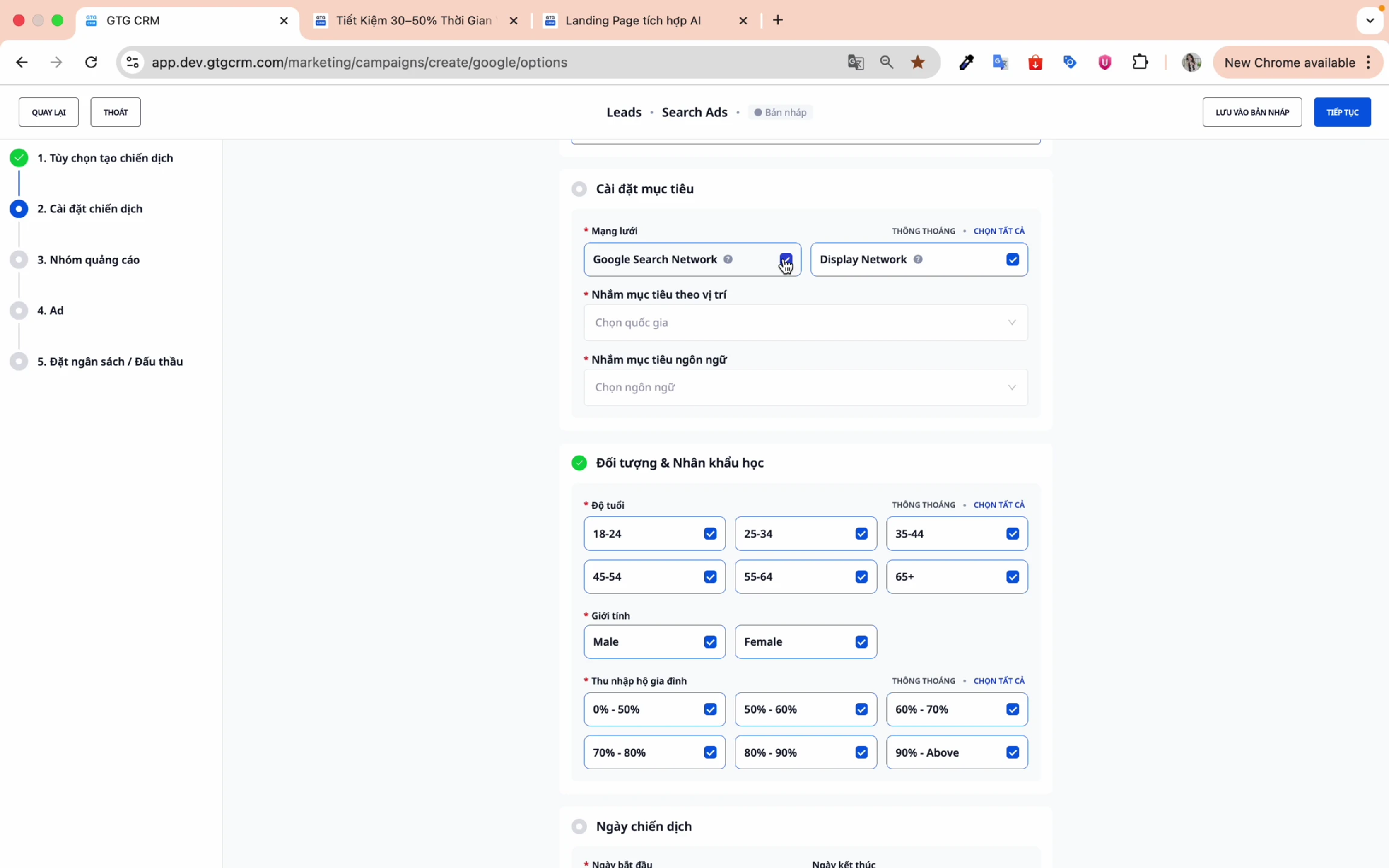
Step 2: Set up the network
Choose an advertising network:
- Google Search Network : Ads displayed on Google search
- Google Display Network : Ads displayed on partner sites
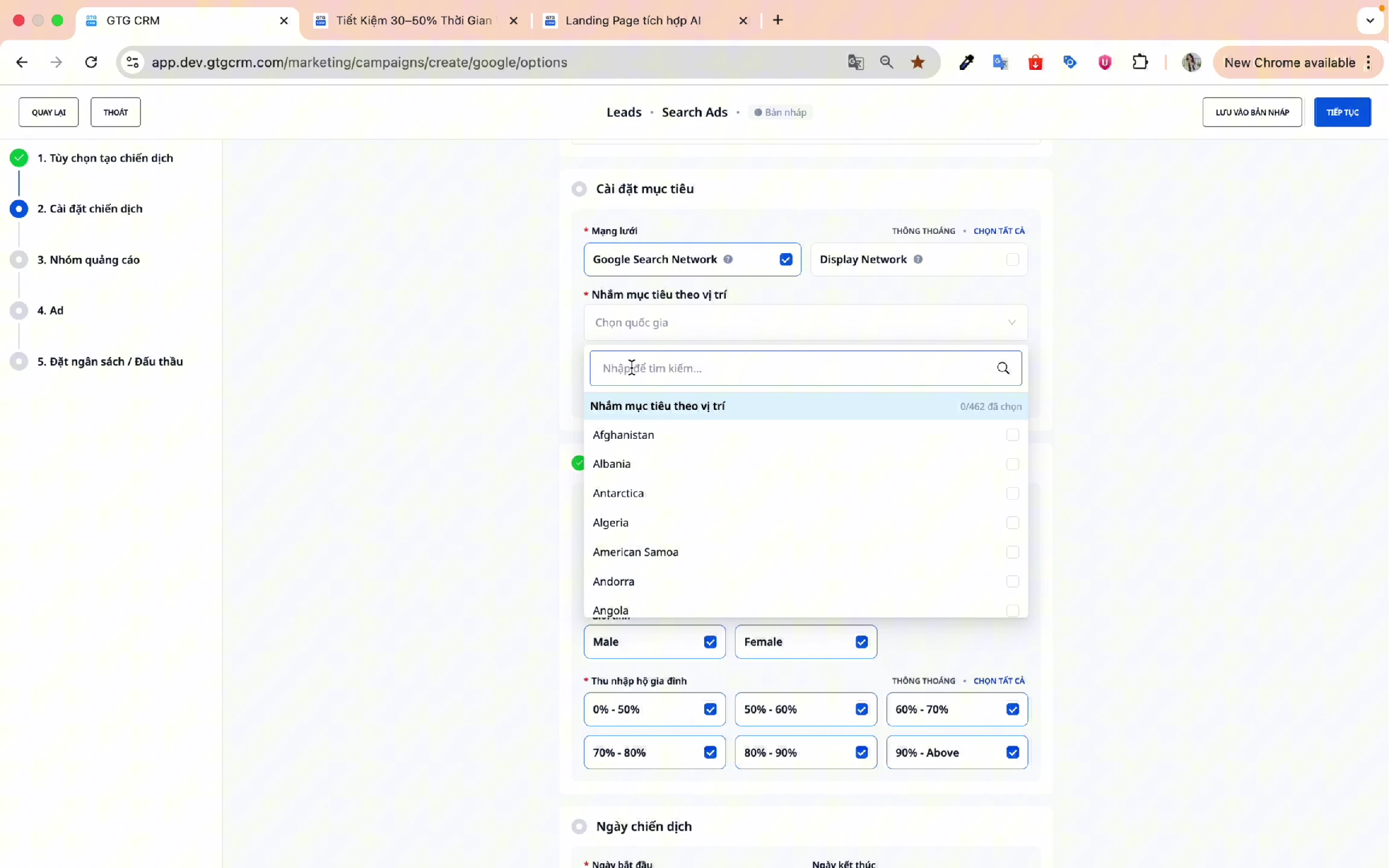
Step 3: Target by location
Choose the geographic area you want to target:
- By country
- By province/city
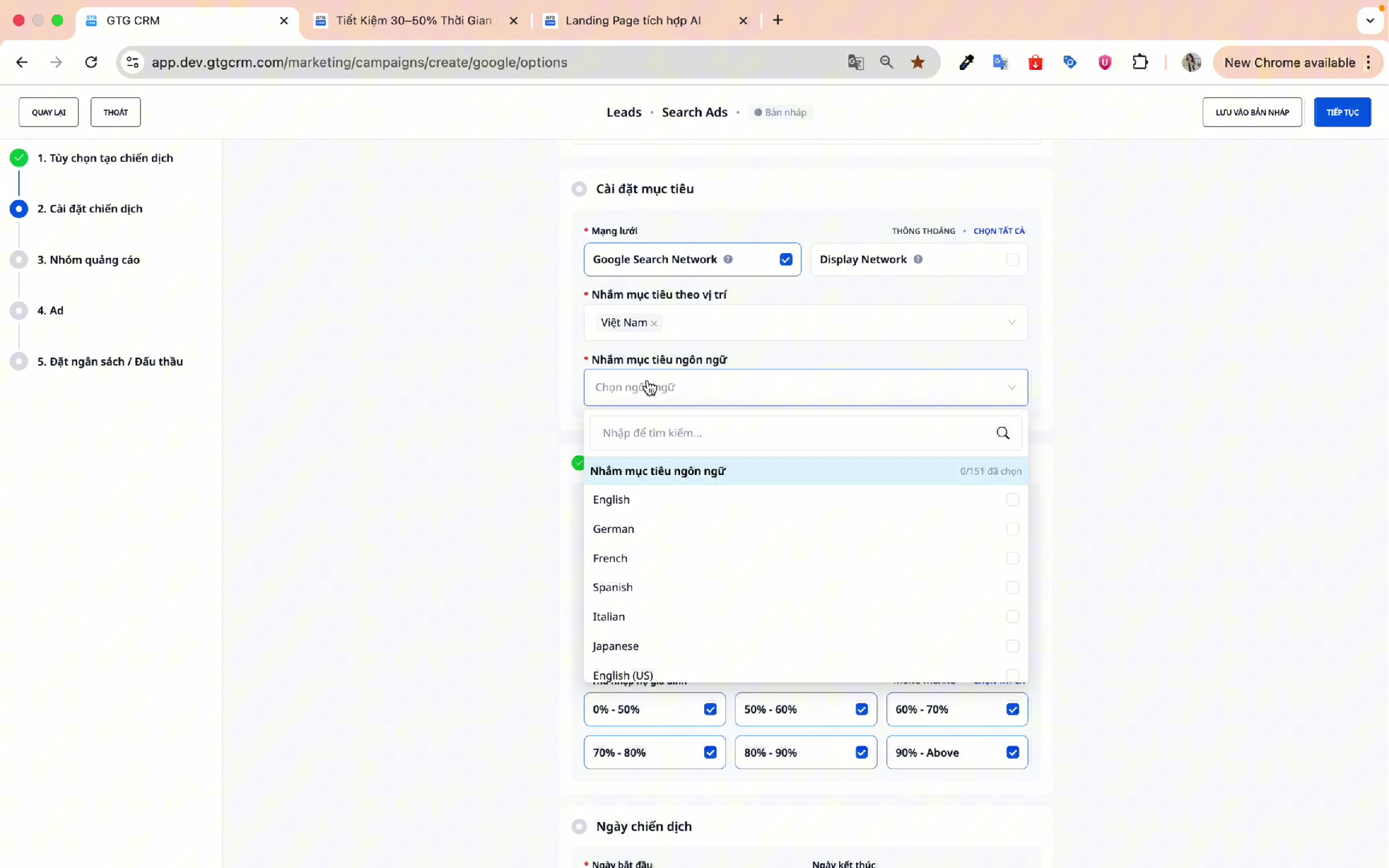
Step 4: Target by language
Choose the language that your target customers use.
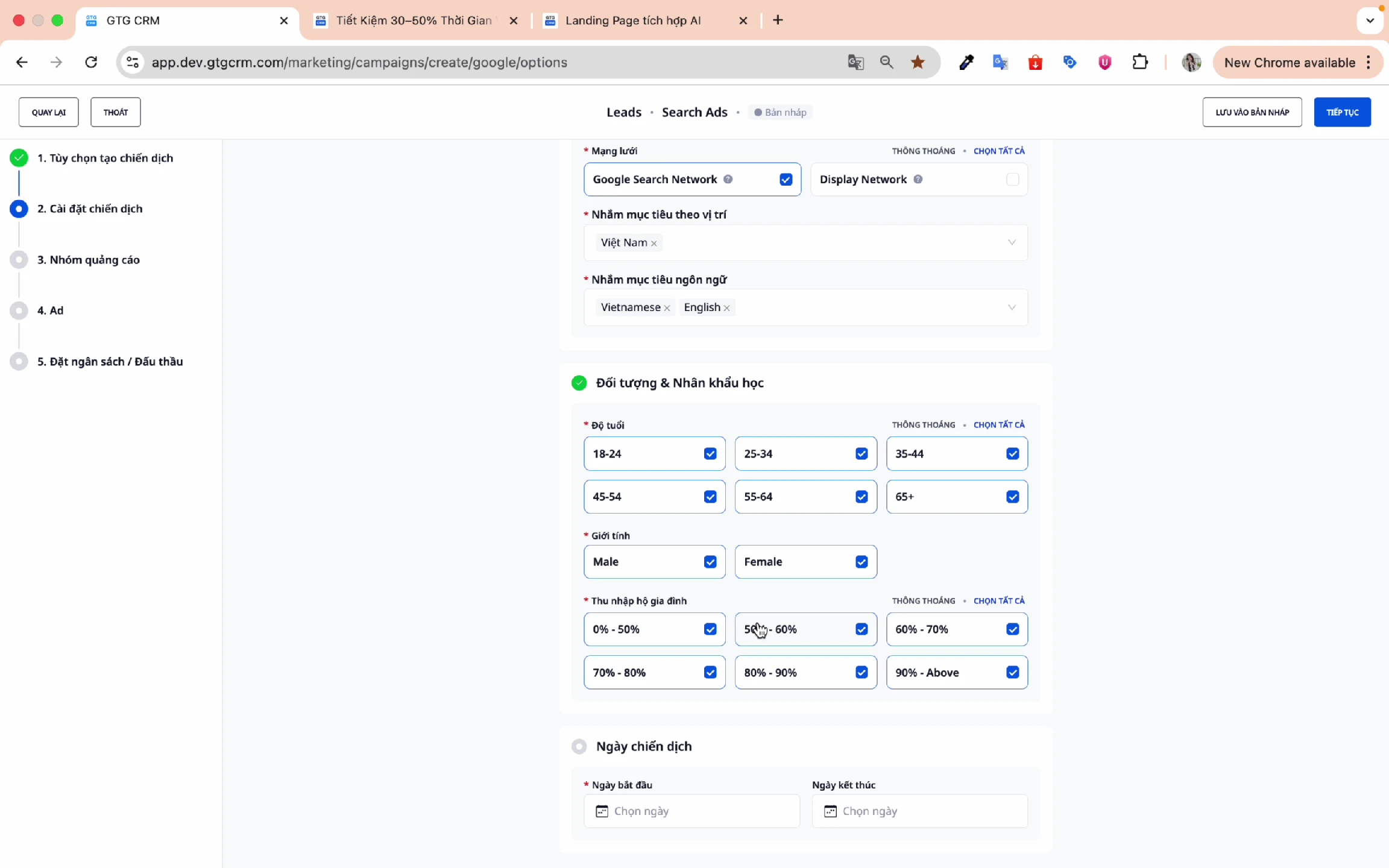
Step 5: Set up demographics
Customize the object as follows:
Age:
- ☑️ 18-24
- ☑️ 25-34
- ☑️ 35-44
- ☑️ 45-54
- ☑️ 55-64
- ☑️ 65+ You can deselect if it's not suitable
Sex:
- ☑️ Male
- ☑️ Female
Household income:
- Choose income levels that are appropriate for the product/service.
Step 6: Set the campaign date.
- Start date : Select the start date for your ads.
- End date : Select the campaign end date.
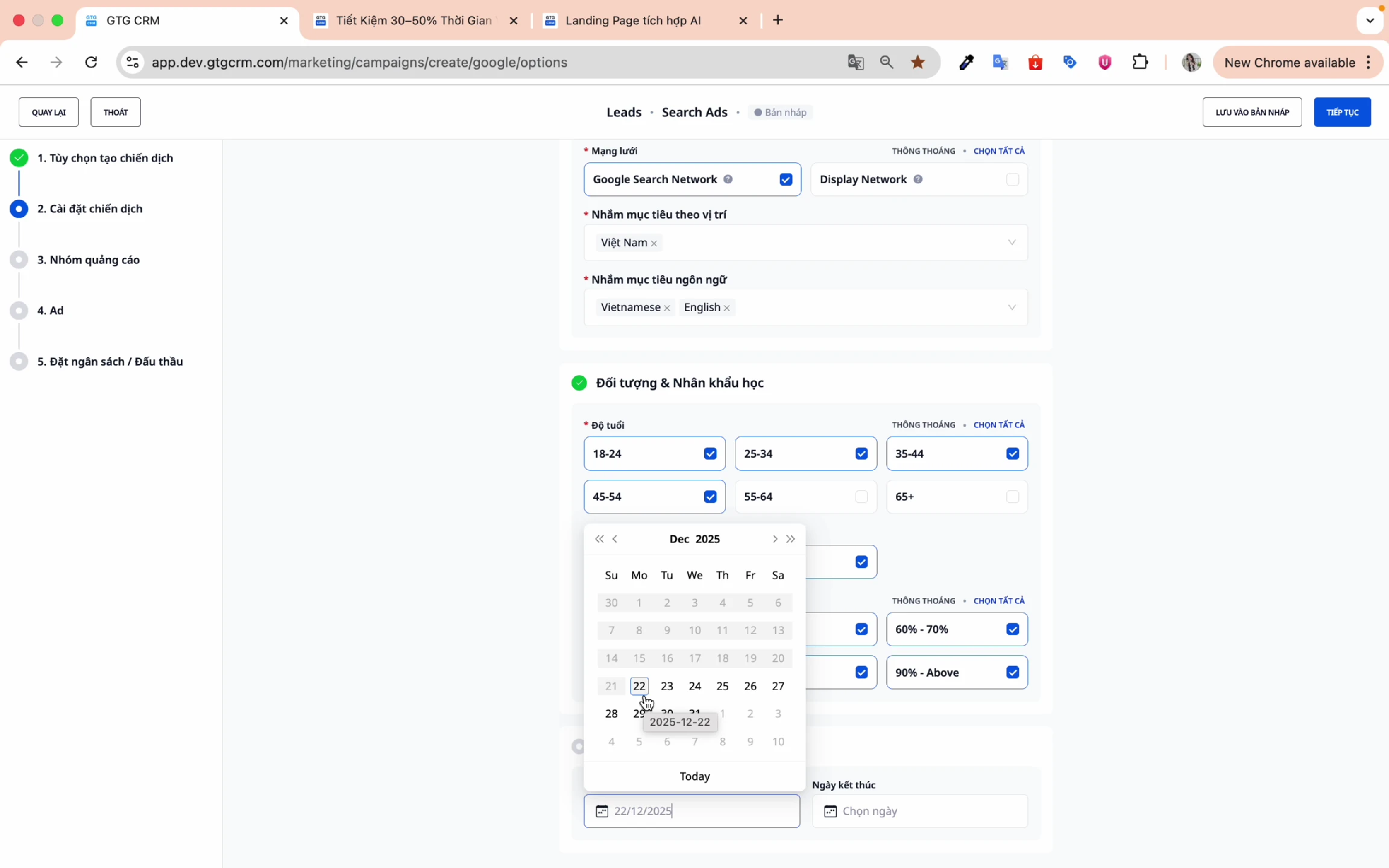
Press Next to continue.
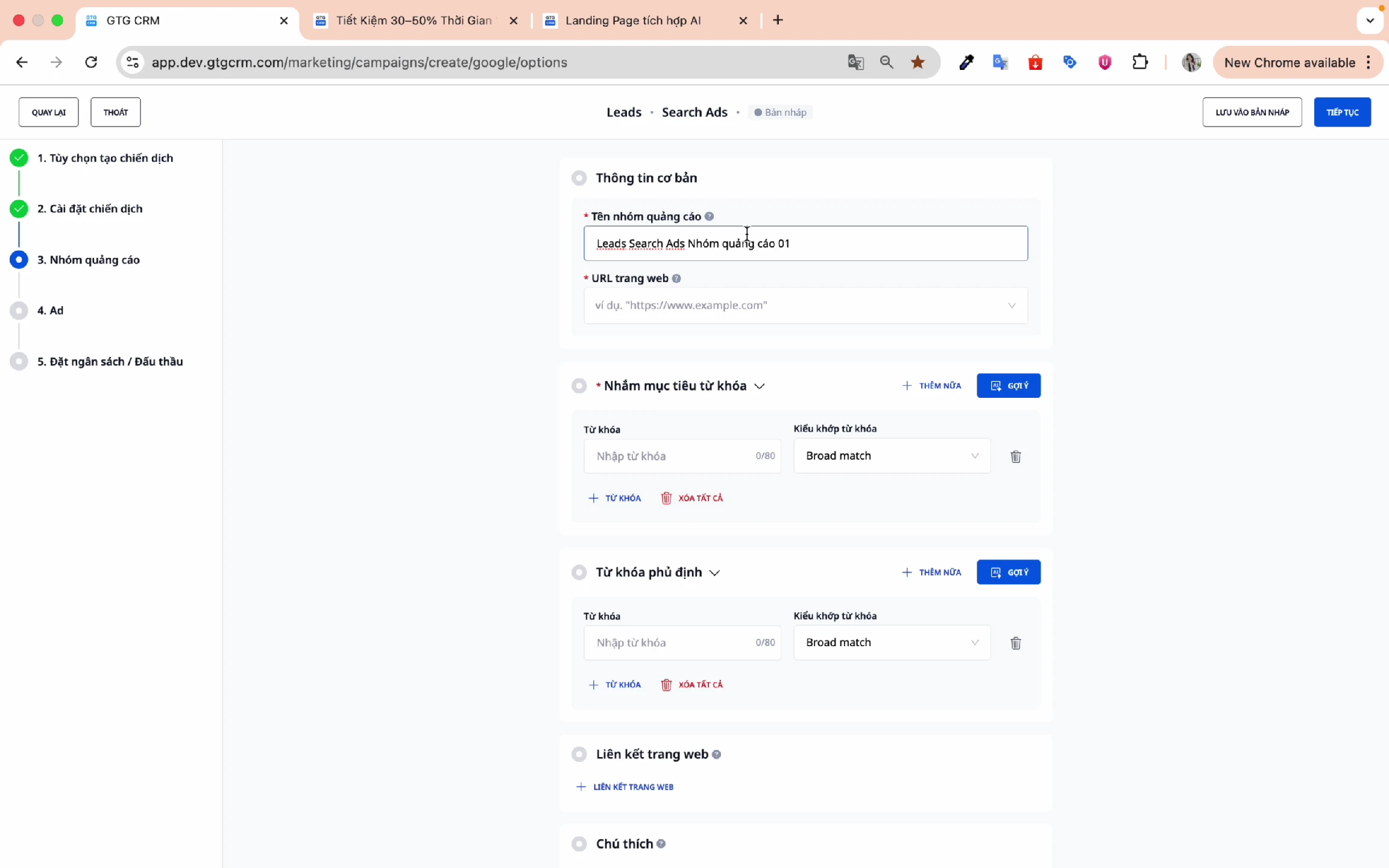
5. Create an Ad Group
Step 1: Name the ad group
Use a different name than the campaign name for easier identification and retrieval.
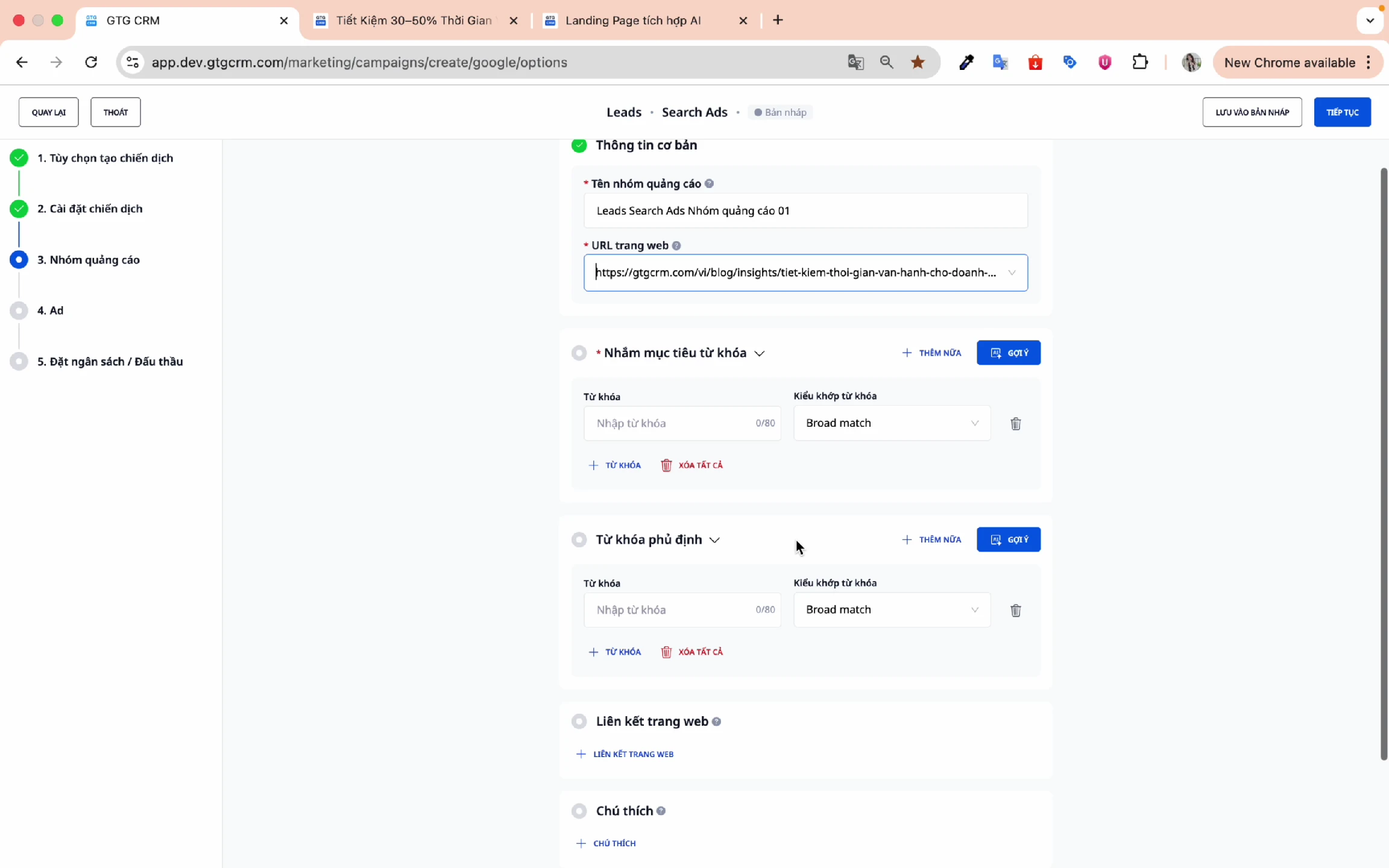
Step 2: Enter the landing page URL
Enter the landing page URL - this page is important because:
- AI will analyze the content to suggest keywords.
- AI will generate advertising content based on this page.
6. Setting Keywords
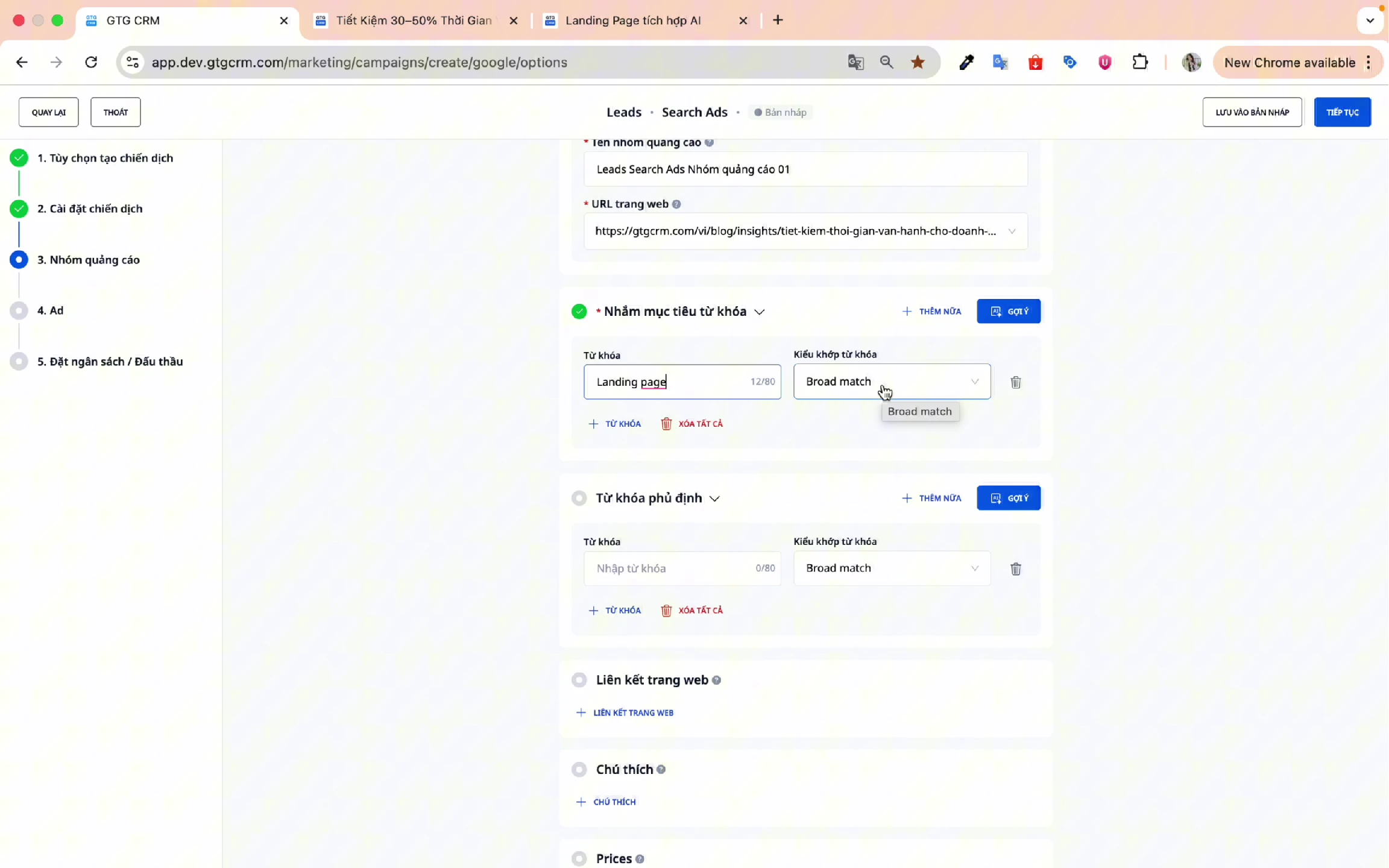
Method 1: Manually enter keywords
- Enter each keyword in the Keyword box.
- Choose the keyword matching type:
- Broad Match : Wide Joint
- Phrase Match : Matching phrases
- Exact Match : Precise Match
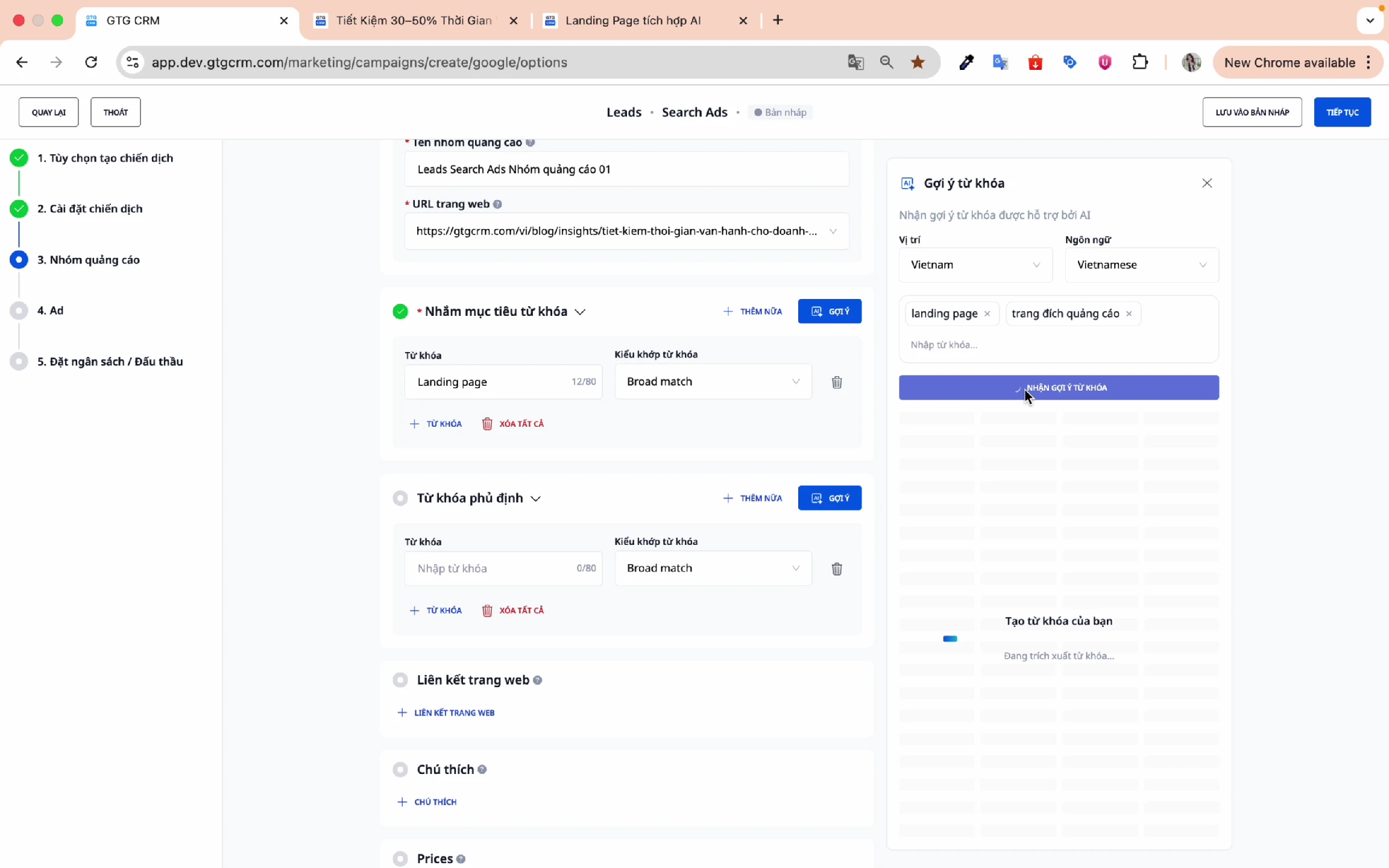
Method 2: Use AI keyword suggestions (Recommended)
- Enter landing page URL
- Add initial keyword suggestions (e.g., "Landing page", "Department page", "Advertisement")
- Click Get keyword suggestions
- Wait about 10-15 seconds
- Select the appropriate keywords and click Insert.
Add negative keywords.
Negative keywords help exclude irrelevant searches:
- Enter the keywords you want to exclude.
- For example: If it's not accounting software, add "accounting" to the negative keyword.
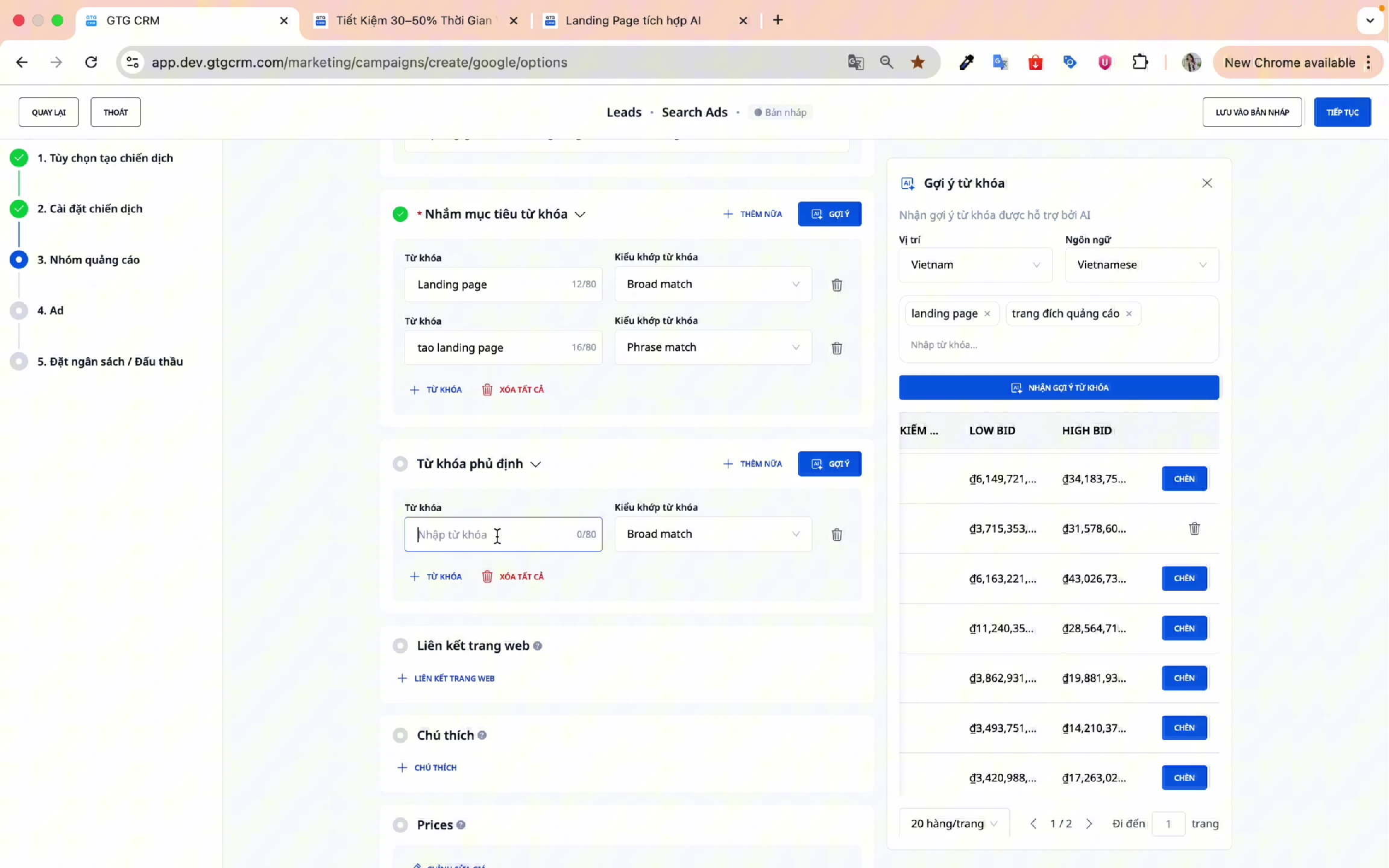
⚠️ Note : The keyword field cannot be left blank, otherwise the ad will not be created.
Add sitelinks
Sitelinks are secondary links that appear below advertisements:
- Click Add website link
- Fill in the information:
- Text : Content displayed to customers
- Link : URL when clicked
- Description : A short description for the path
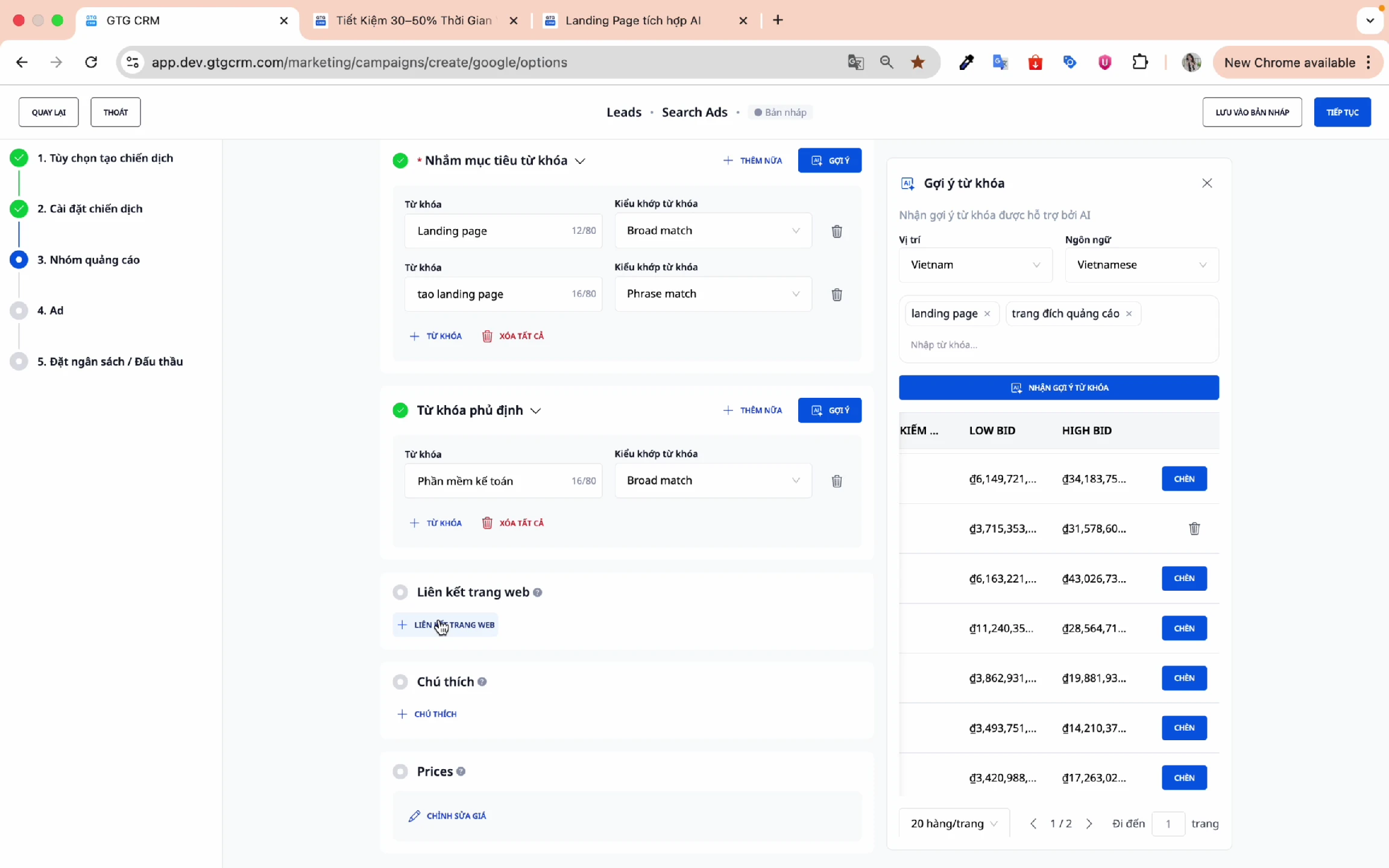
⚠️ Note : All fields must be filled in.
Click Continue to proceed to the ad creation step.
7. Create Advertising Content
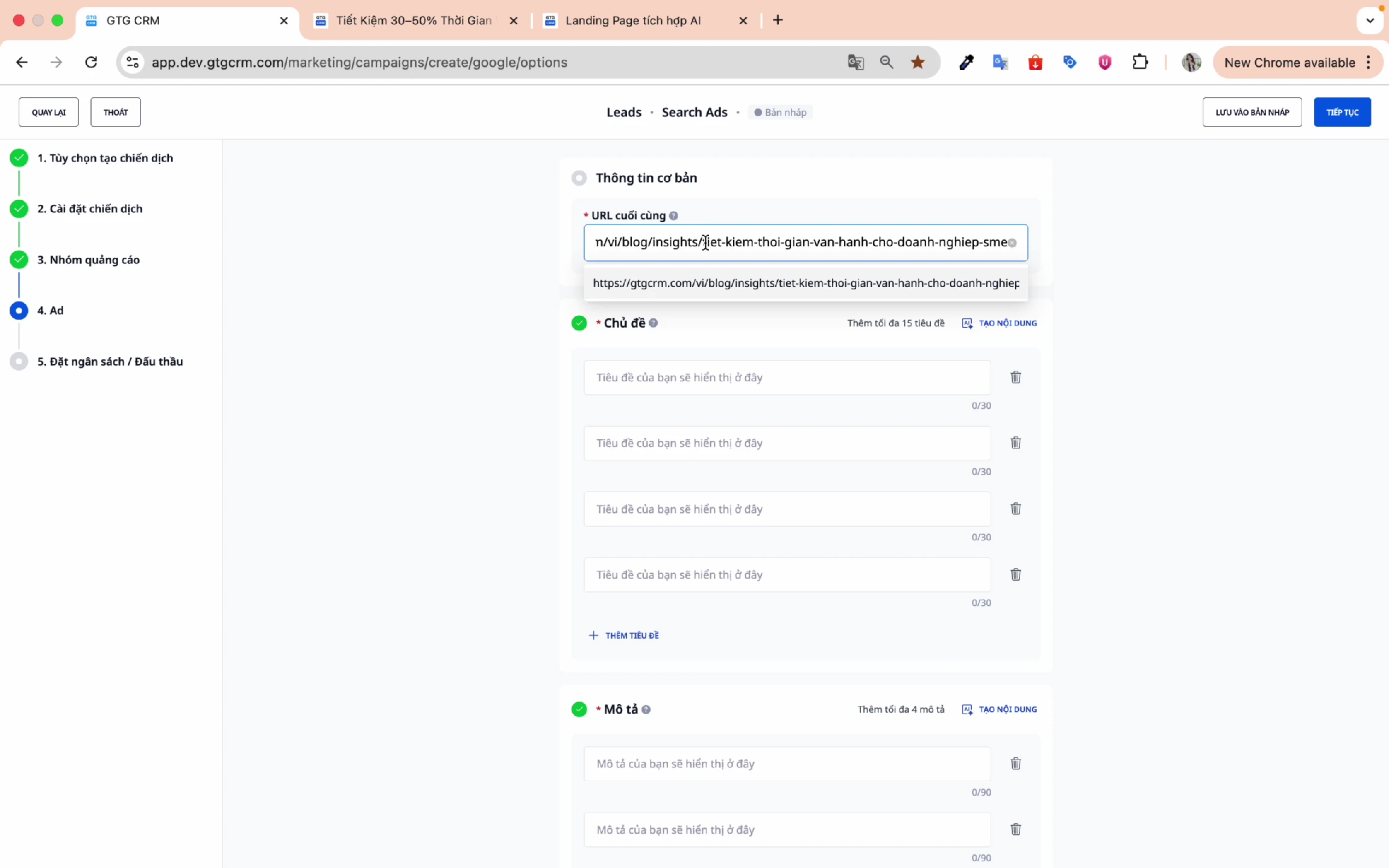
Step 1: Enter the final URL
Enter the URL of the landing page you want customers to visit when they click on your ad.
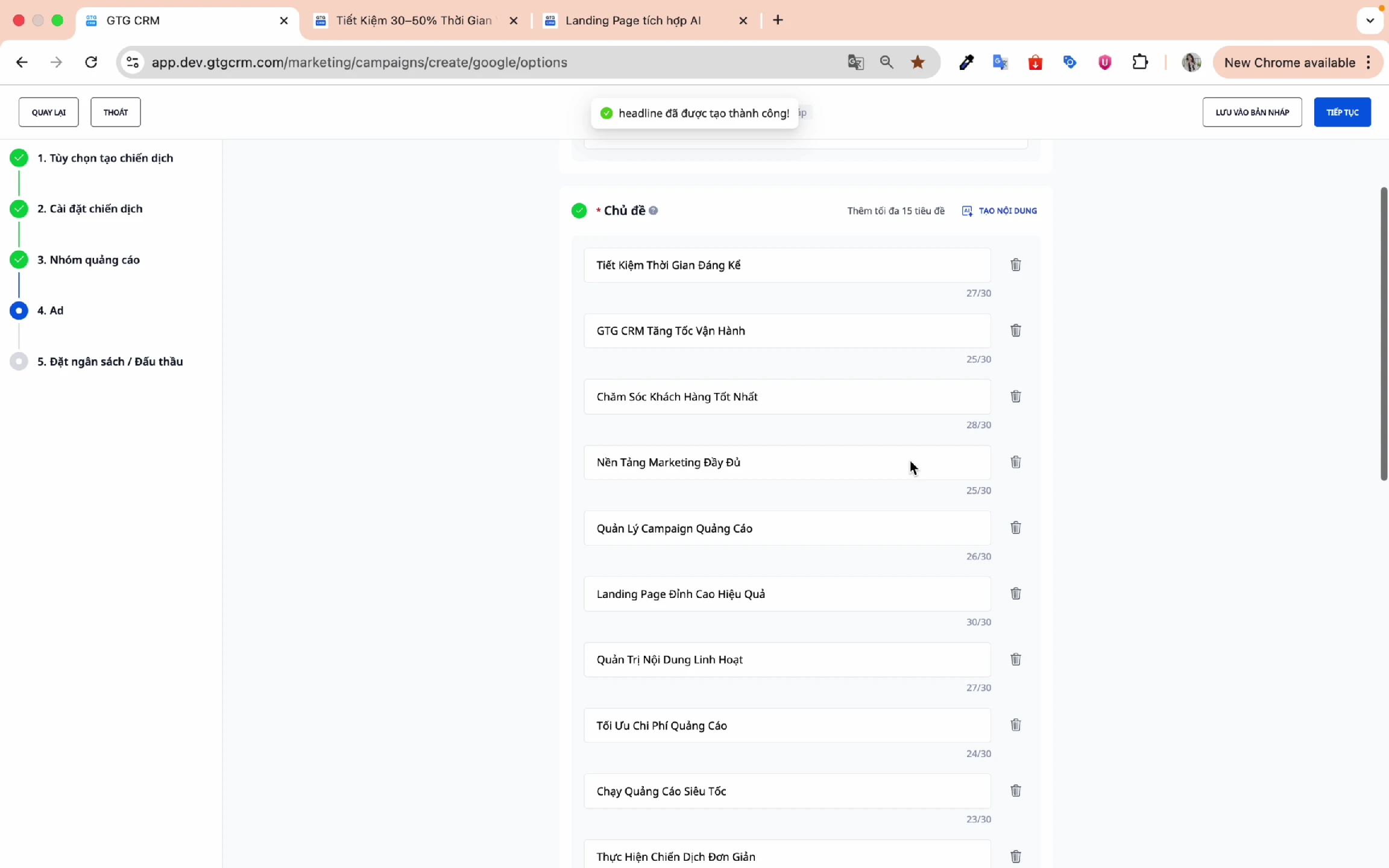
Step 2: Create Headlines
Method 1: Manual input
- Enter each heading into the boxes.
- Each title can be up to 30 characters long.
Method 2: AI-generated content (Recommended)
- Press AI to create content.
- AI will analyze the landing page and generate a suitable headline.
- Review and edit if necessary.
Step 3: Create Descriptions
Method 1: Manual input
- Enter description
- Each description can be up to 90 characters.
Method 2: AI-generated content (Recommended)
- Press AI to create content.
- AI will generate a description that matches the requested number of characters.
- Review and edit if necessary.
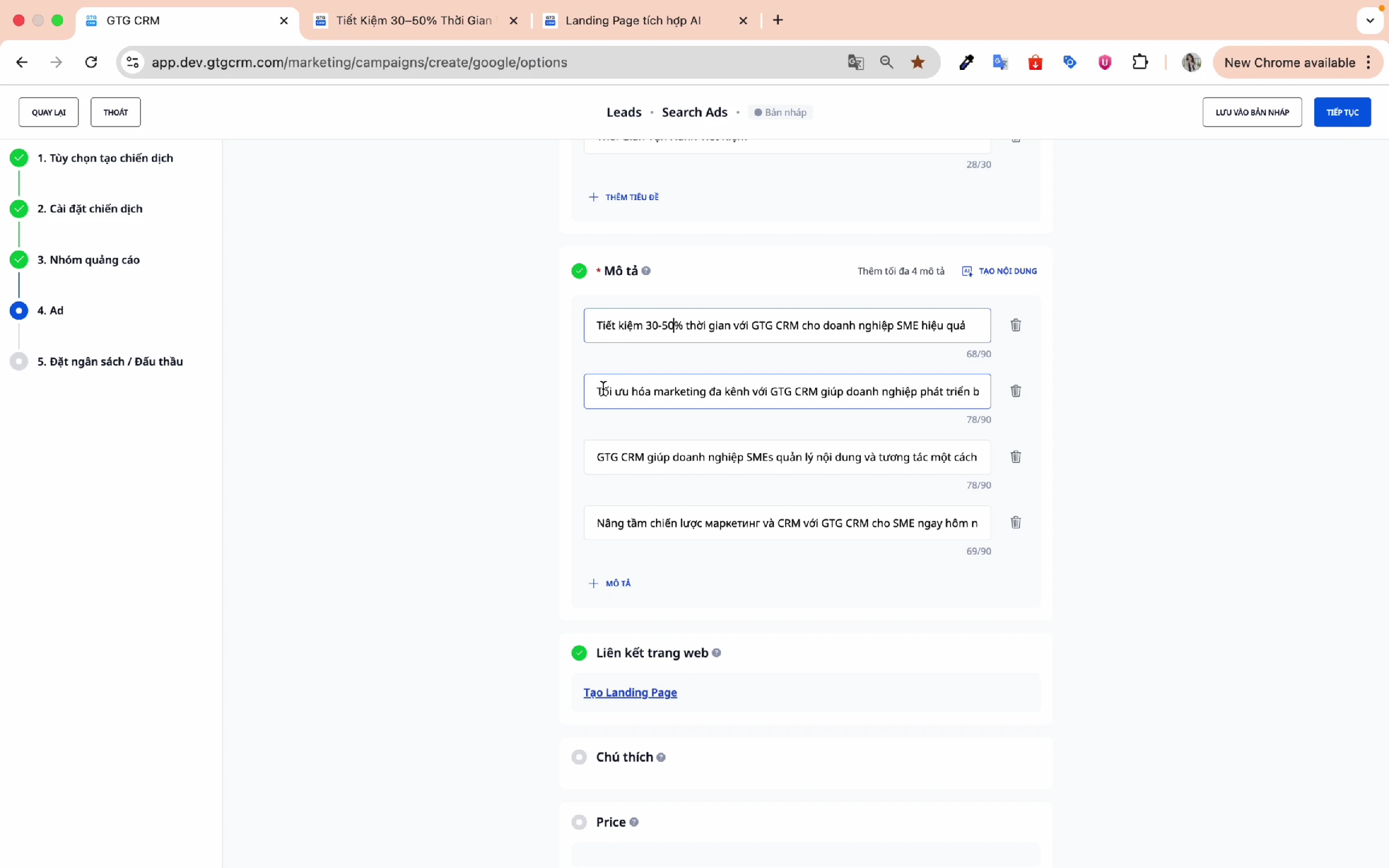
💡 Tip : GTG CRM's AI is very accurate, creating content based on the landing page and the information you provide. Usually, minimal editing is needed.
Click Continue to set your budget.
8. Setting a Budget
Step 1: Choose your budget type
- Daily budget : Easy to control daily spending (Recommended)
- Overall campaign budget : Flexible allocation over time.
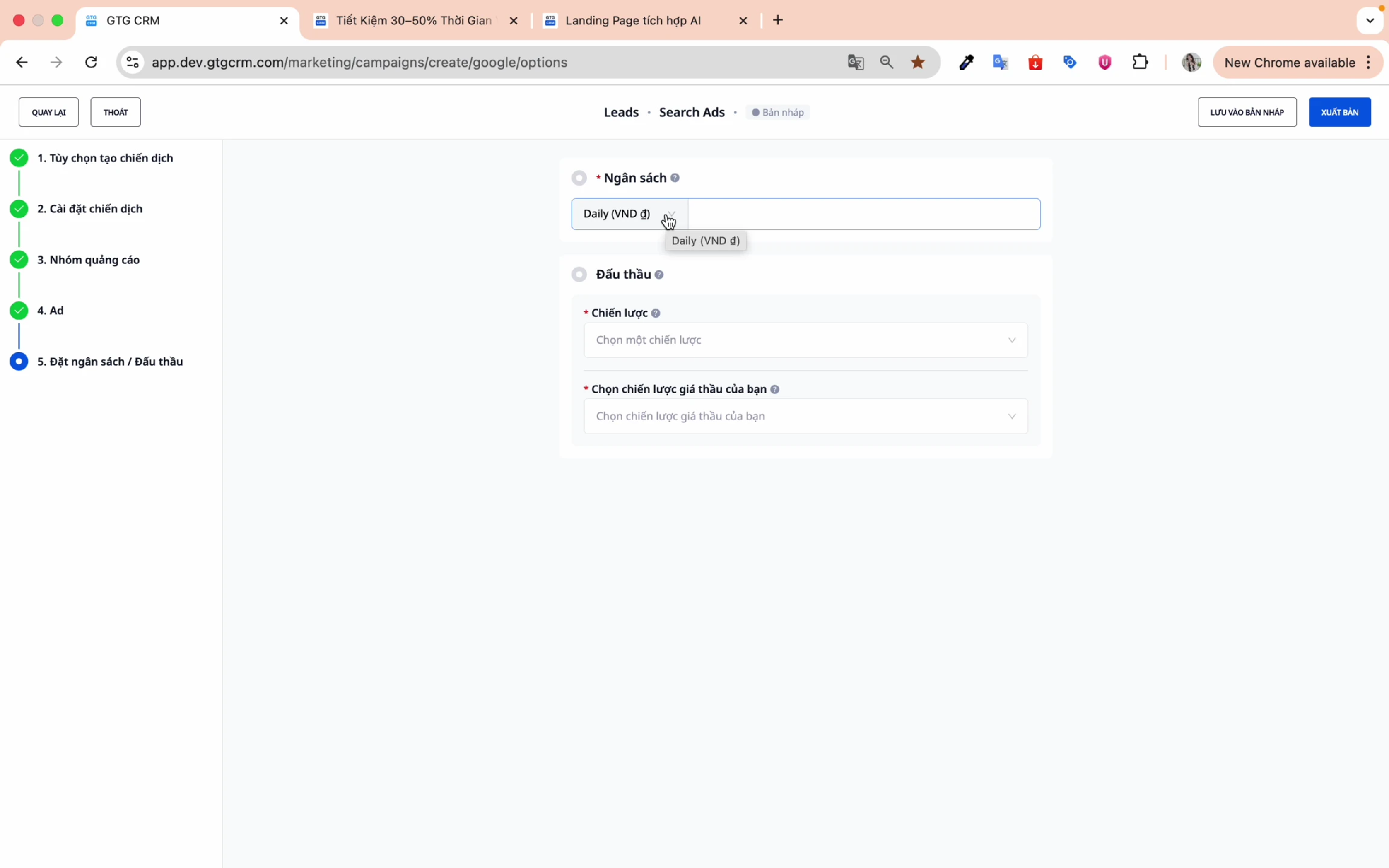
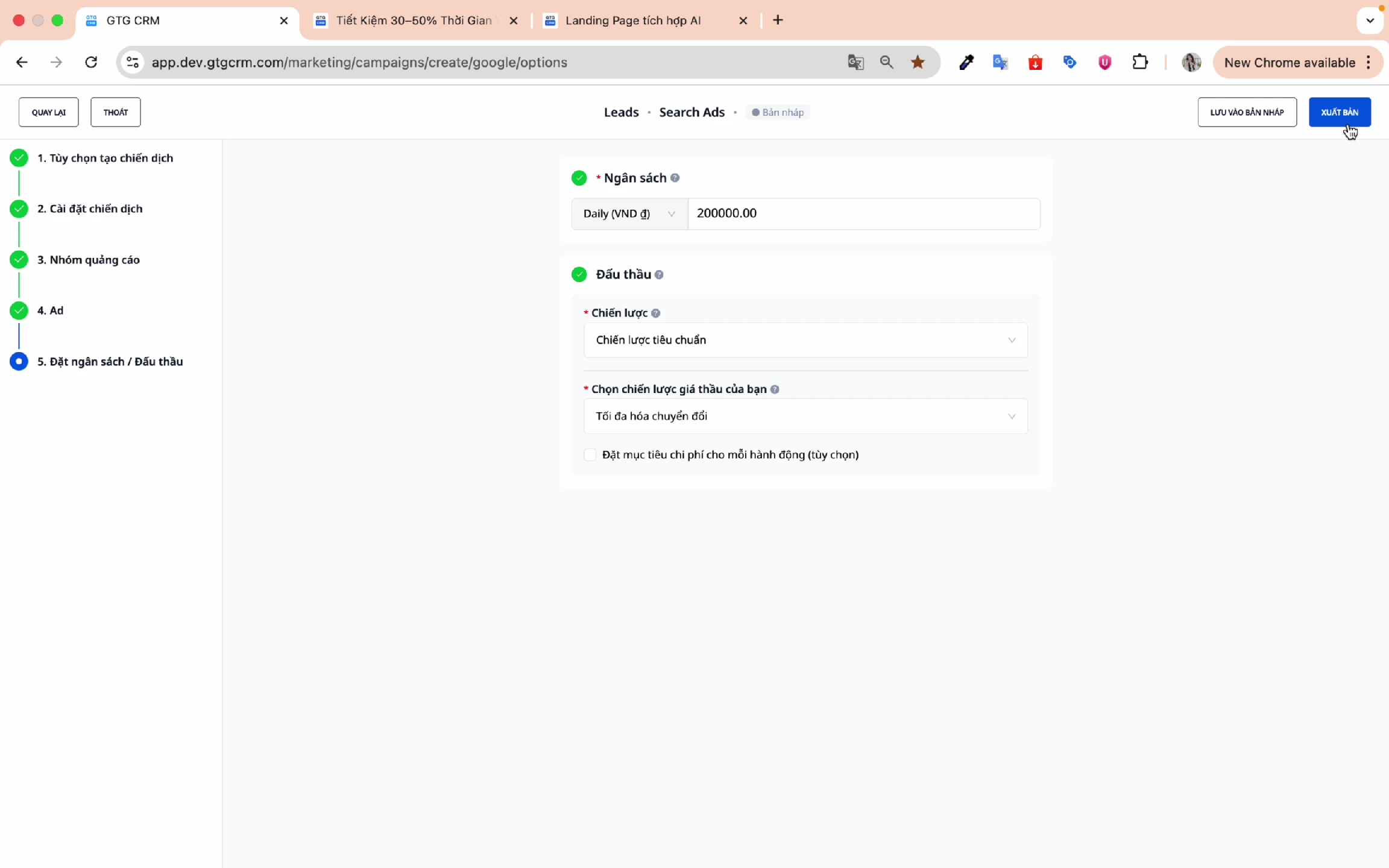
Step 2: Enter the budget amount
Example: 200,000 VND/day
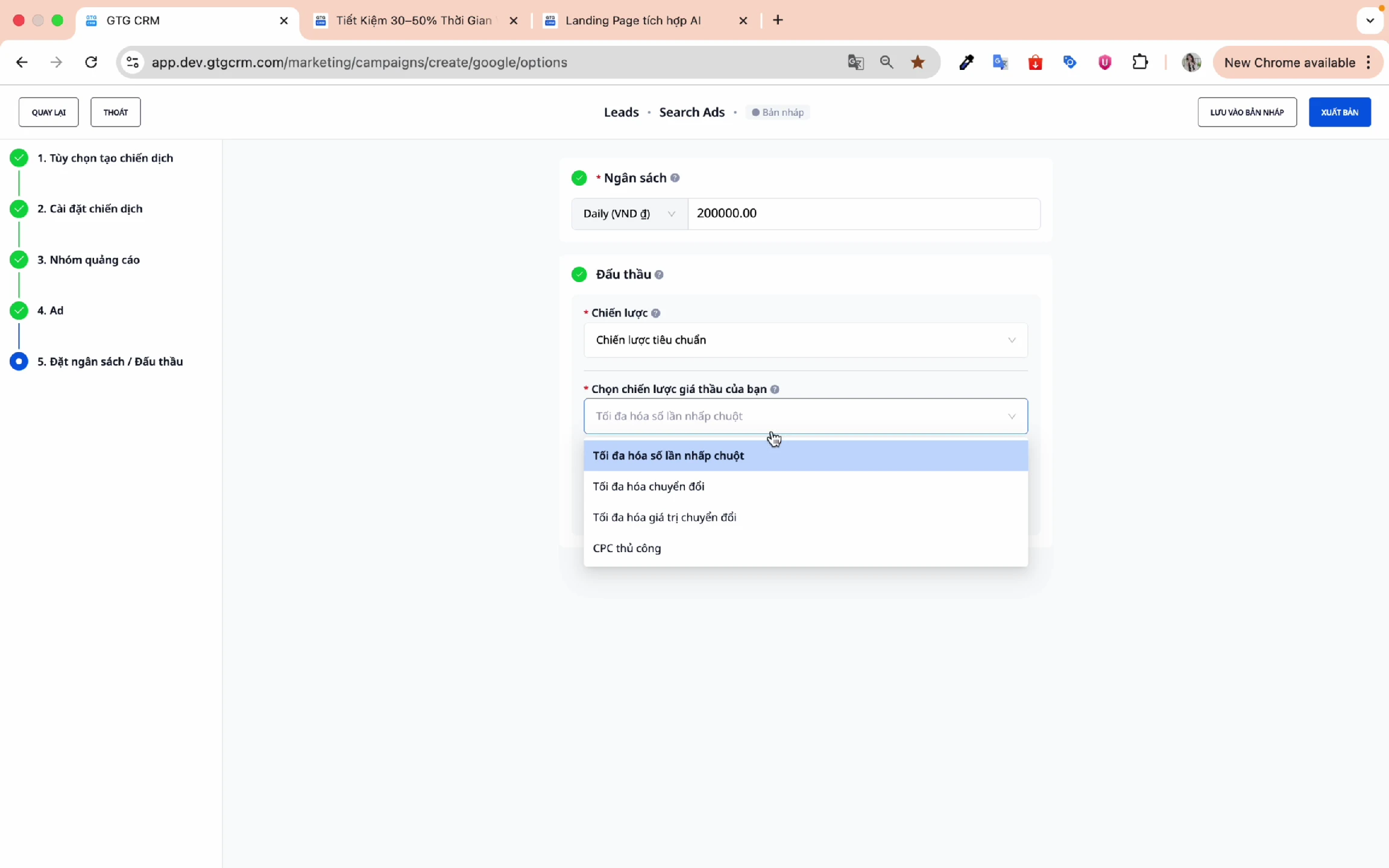
Step 3: Choose a bidding strategy
Standard strategy:
| Strategy | Describe | Suitable for |
|---|---|---|
| Maximize clicks | Maximize clicks within your budget. | Increase traffic |
| Maximize conversions | Maximum number of conversions | Gather leads |
| Maximize conversion value | Maximize conversion value | Optimizing ROI |
| CPC handcrafted | Control the price per click. | Cost control |
Step 4: Set a cost target (Optional)
- With the new campaign: This step can be skipped.
- After running for a while: Go back and set specific cost targets.
9. Publishing the Campaign
Step 1: Review the information
Double-check all settings before publishing.
Step 2: Click "Publish"
Click the Publish button to create the campaign.
Step 3: Confirmation successful
When you see the success message, the campaign has been created.
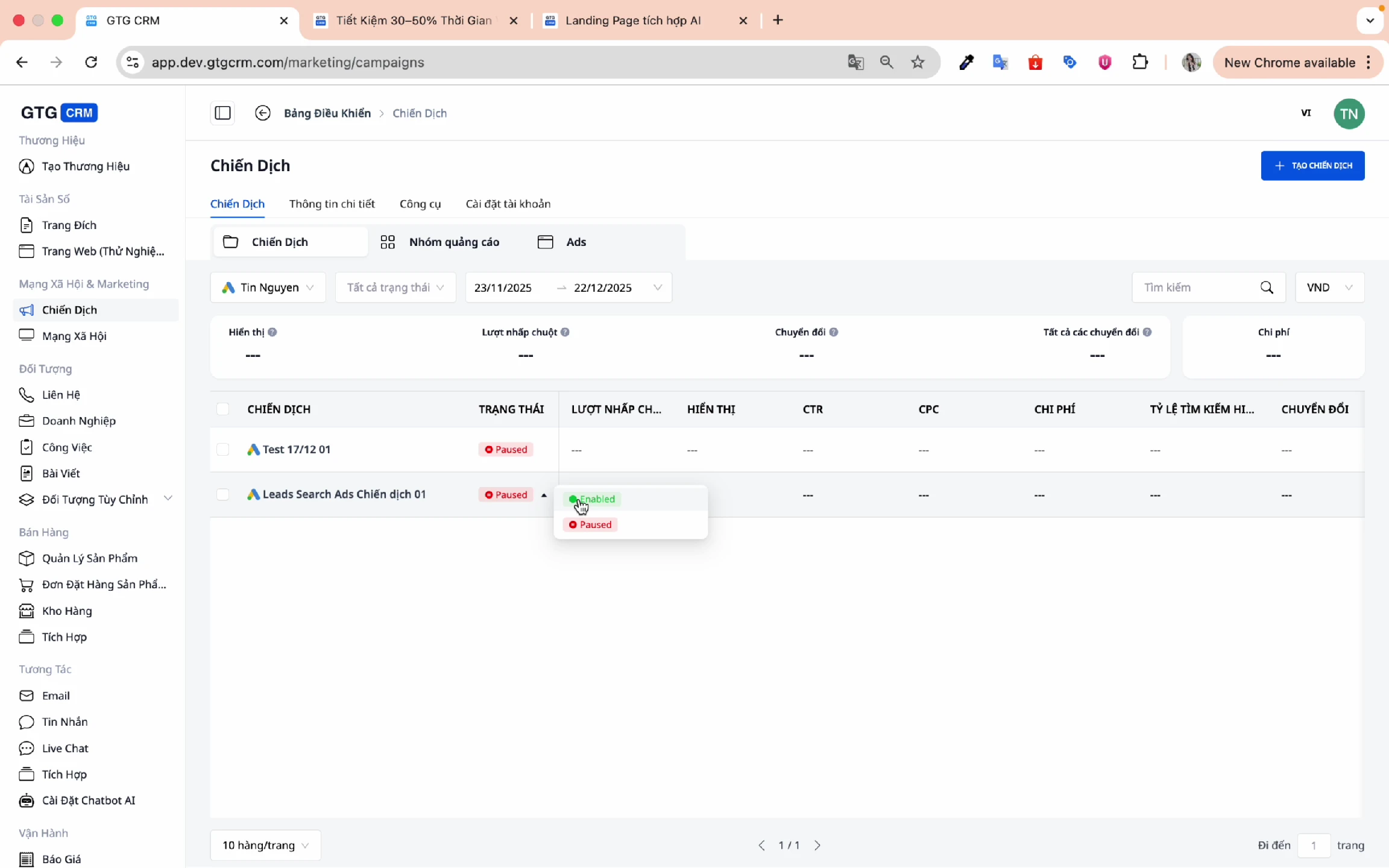
Step 4: Enable the campaign
Click Enable to activate the campaign and start running ads.
10. Add Ads to Existing Campaigns
In addition to creating new campaigns, you can add ads to existing campaigns.
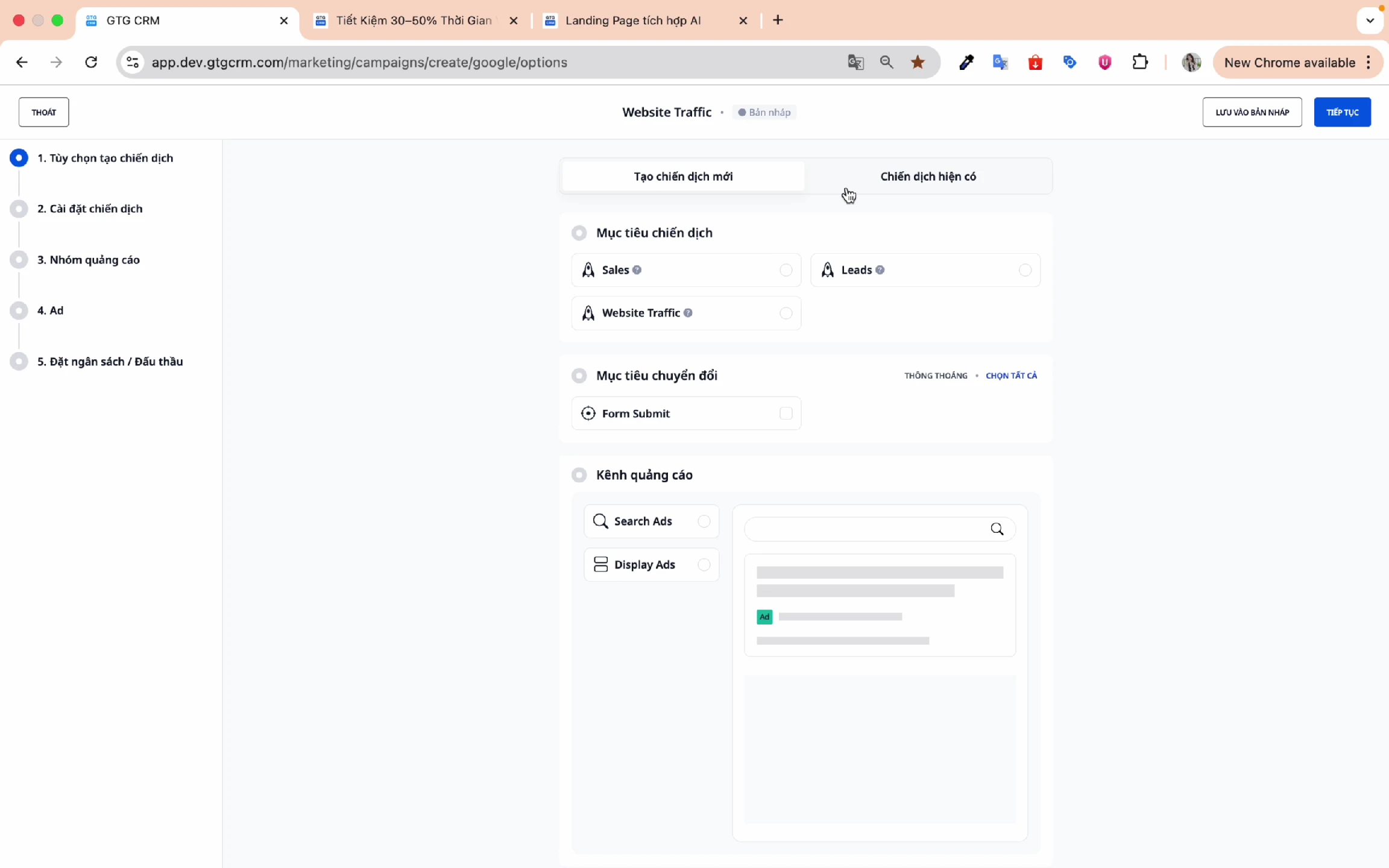
Step 1: Select "Existing Campaigns"
On the campaign creation screen, select the Existing Campaigns tab.
Step 2: Choose a campaign
Select the campaign you want to add ads to.
Step 3: Review the settings
GTG CRM will display the previously set settings:
- Campaign objectives
- Targeting
- Budget
- You can make changes if needed, otherwise press Continue.
Step 4: Select ad group
- Existing ad group : Select an existing group
- Create a new ad group : Create a new group
⚠️ Note : Do not use the same ad group name as an existing group.
Step 5: Set up keywords and content
Similar to creating a new campaign:
- Add keywords (manually or with AI suggestions)
- Create ad content (title, description)
Step 6: Publish
Click Publish to add the ad to the campaign.
Tips for Effective Use
Regarding keywords
- Use AI suggestions to save time.
- Add negative keywords to avoid wasting budget.
- Start with Broad Match, then narrow it down based on the data.
Regarding content
- Let the AI generate the content first, then make minor edits if needed.
- Ensure your landing page has good content so that AI can analyze it accurately.
- Create multiple ad variations for A/B testing.
Regarding the budget
- Start with a small budget, and gradually increase it as you see results.
- For the new campaign, select "Maximize conversions" without setting a CPA target.
- After 2-4 weeks, review the data and set an appropriate CPA target.
Regarding monitoring
- Perform periodic performance checks in GTG CRM.
- Comparison between ad groups
- Turn off ineffective ads.
Frequently Asked Questions
Q: How many keywords do I need for an ad group? A: We recommend 10-20 closely related keywords per ad group.
Q: How long does it take for AI to suggest keywords? A: It usually takes about 10-15 seconds.
Q: Can I edit the campaign after creating it? A: Yes, you can edit all settings after creating the campaign.
Q: What is the minimum budget? A: There is no mandatory minimum budget, but a minimum of 100,000-200,000 VND/day is recommended to ensure sufficient data collection.
Support
If you need further assistance, please contact:
- 📧 Email: support@gtgcrm.com
- 📞 Hotline: 0908235566
GTG CRM - Manage your Google Ads simply and effectively! 🚀
Maybe You Should Read These

Google Ads
LinkedIn Ads — Run Ads & Automatically Sync Leads to CRM
Find Suppliers with AI — Verbal Descriptions, Get Real Shortlists, Save to CRM & Send RFQs in Minutes
Build Landing Pages
AI Email Campaign
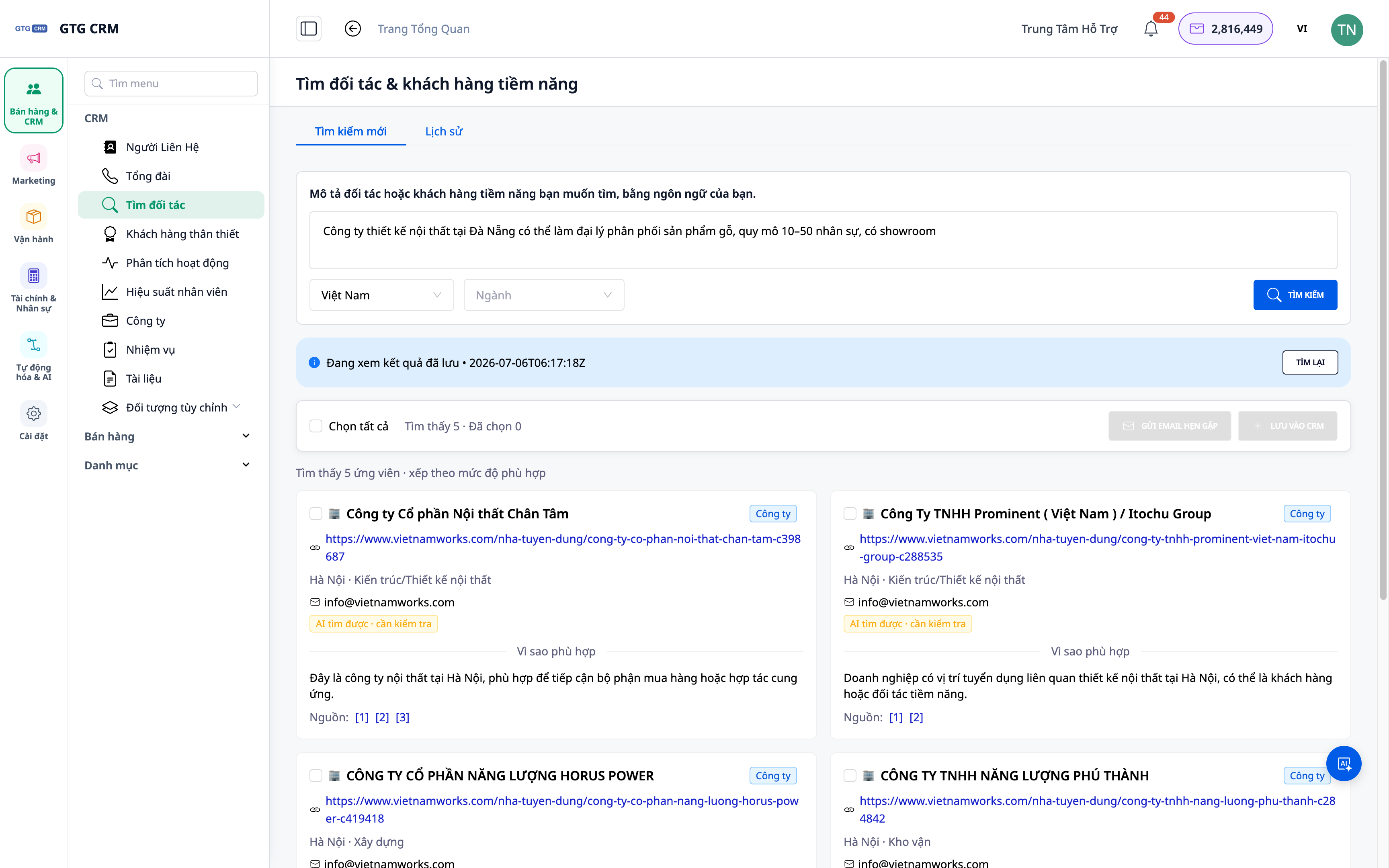
Find Potential Partners & Clients Using AI — Verbal Descriptions, Real Lists, Direct CRM Import
Facebook Ads
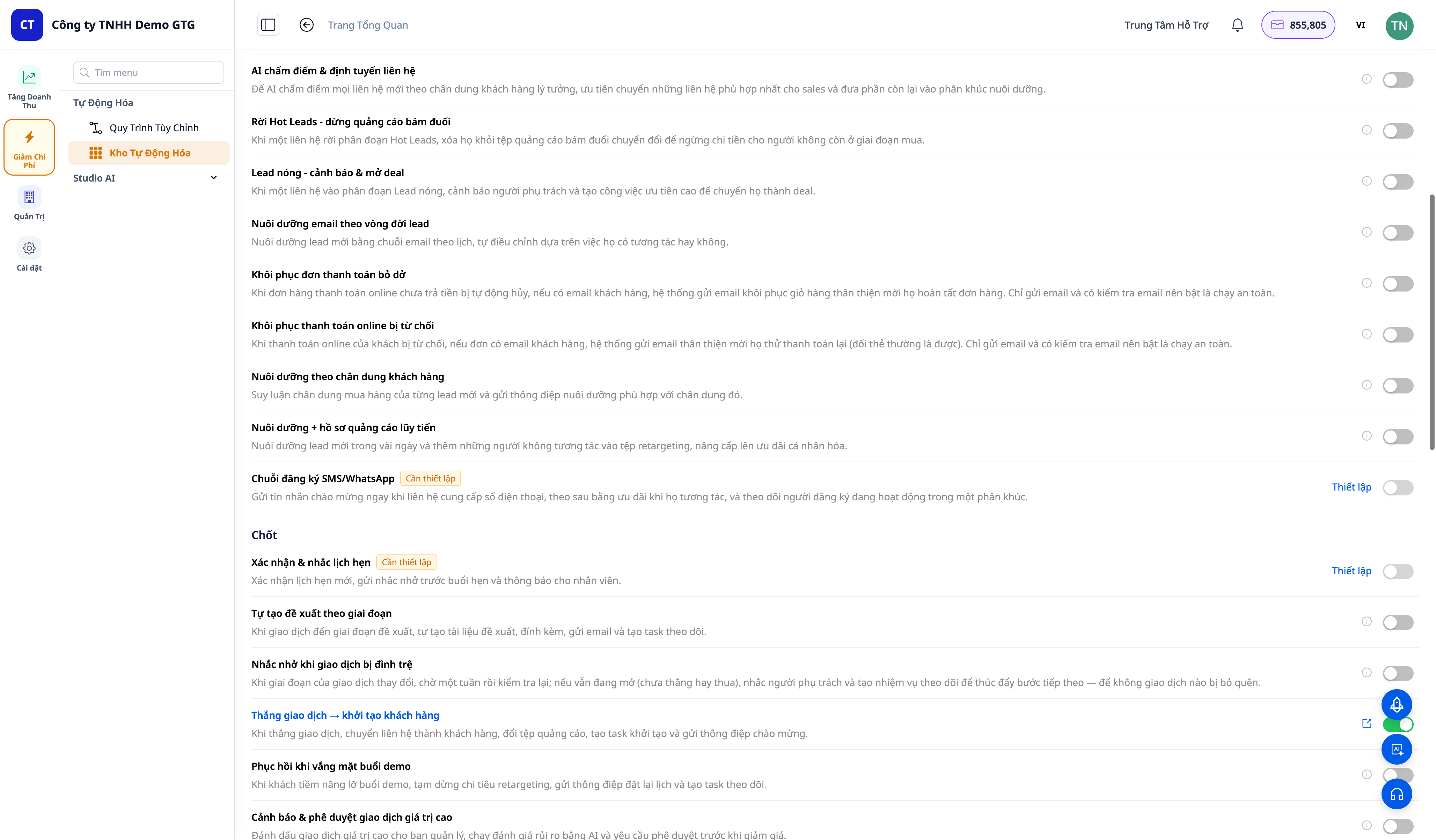
30+ One-Tap Revenue Growth Playbooks — Cart Recovery, Failed Payment Rescue, Win-Back, Lead Nurturing, Post-Purchase Service
AI Chatbot

Website in GTG CRM

AI Website Section Generator