Introduction
Running Google Ads campaigns is now easier than ever as you can create and manage them directly on the GTG CRM platform. No need to switch between multiple tabs, no need to worry about complex setups – everything is seamlessly and intuitively integrated.
With the built-in Google Ads feature in GTG CRM, you can create Search Ads and Display Ads campaigns in just a few minutes, with a user-friendly Vietnamese interface and detailed step-by-step guidance. The system also supports automatic synchronization of existing campaigns, helping you manage all your marketing activities from a single, centralized location.
Key Features
- Easy Google Ads Account Connection - Link your ad account with just a few clicks
- Create New Campaigns from Scratch - Build campaigns from the ground up with a step-by-step wizard
- Sync Existing Campaigns - Automatically import running campaigns into GTG CRM for centralized management
- Supports Diverse Objectives - Sales, Leads, Web Traffic with various conversion options
- Precise Targeting - Set detailed location, language, demographic, and time targeting
- Flexible Budget Management - Control daily and campaign budgets
- Vietnamese Interface - All operations are in Vietnamese, easy to understand and user-friendly
Detailed User Guide
Step 1: Connect Google Ads Account
Before creating ads, you need to connect your Google Ads account to GTG CRM:
- On the main screen, click the Campaigns menu
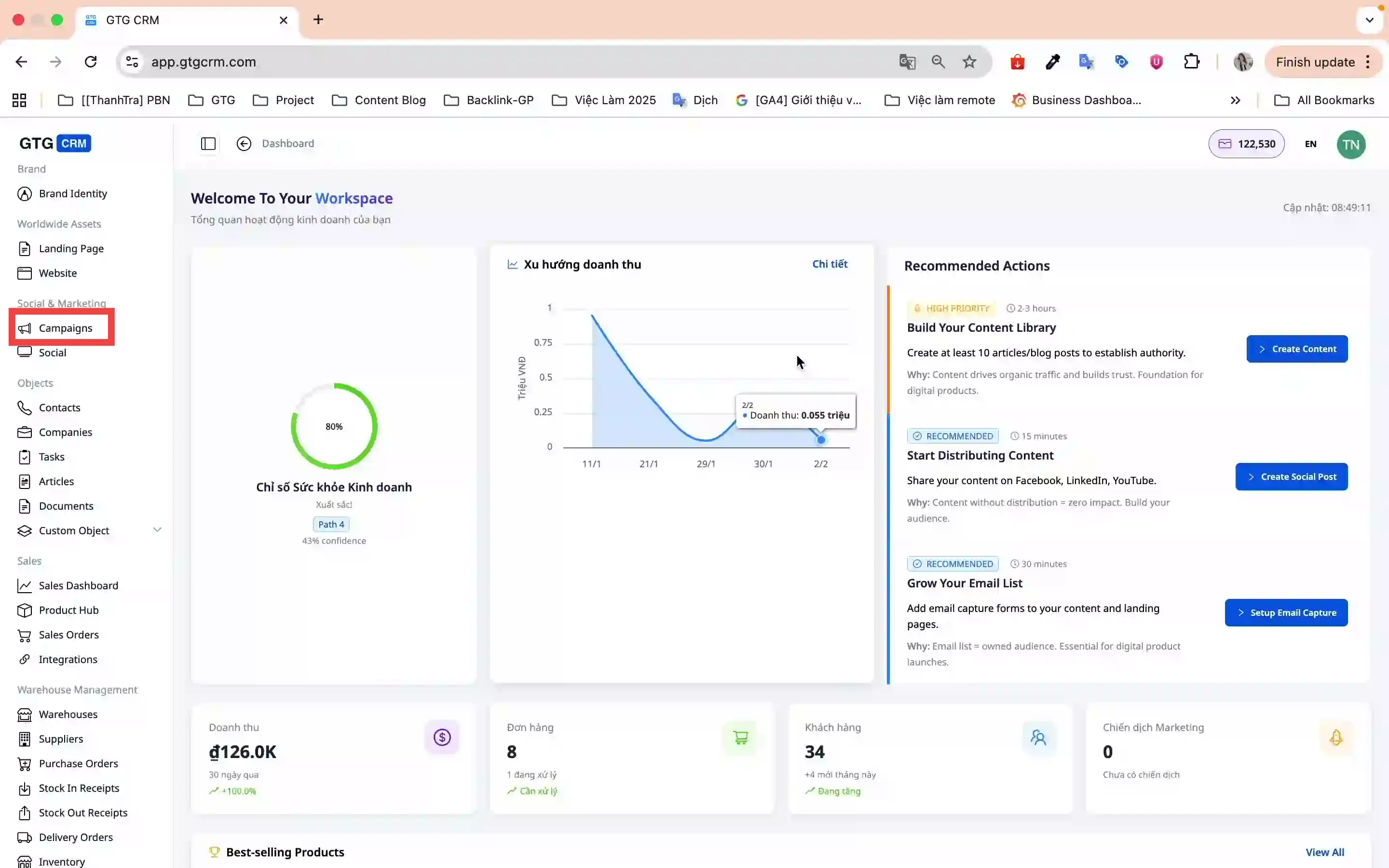
- Go to Account Settings → Connect Account
- Select the Google platform (GTG CRM supports both Facebook and Google)
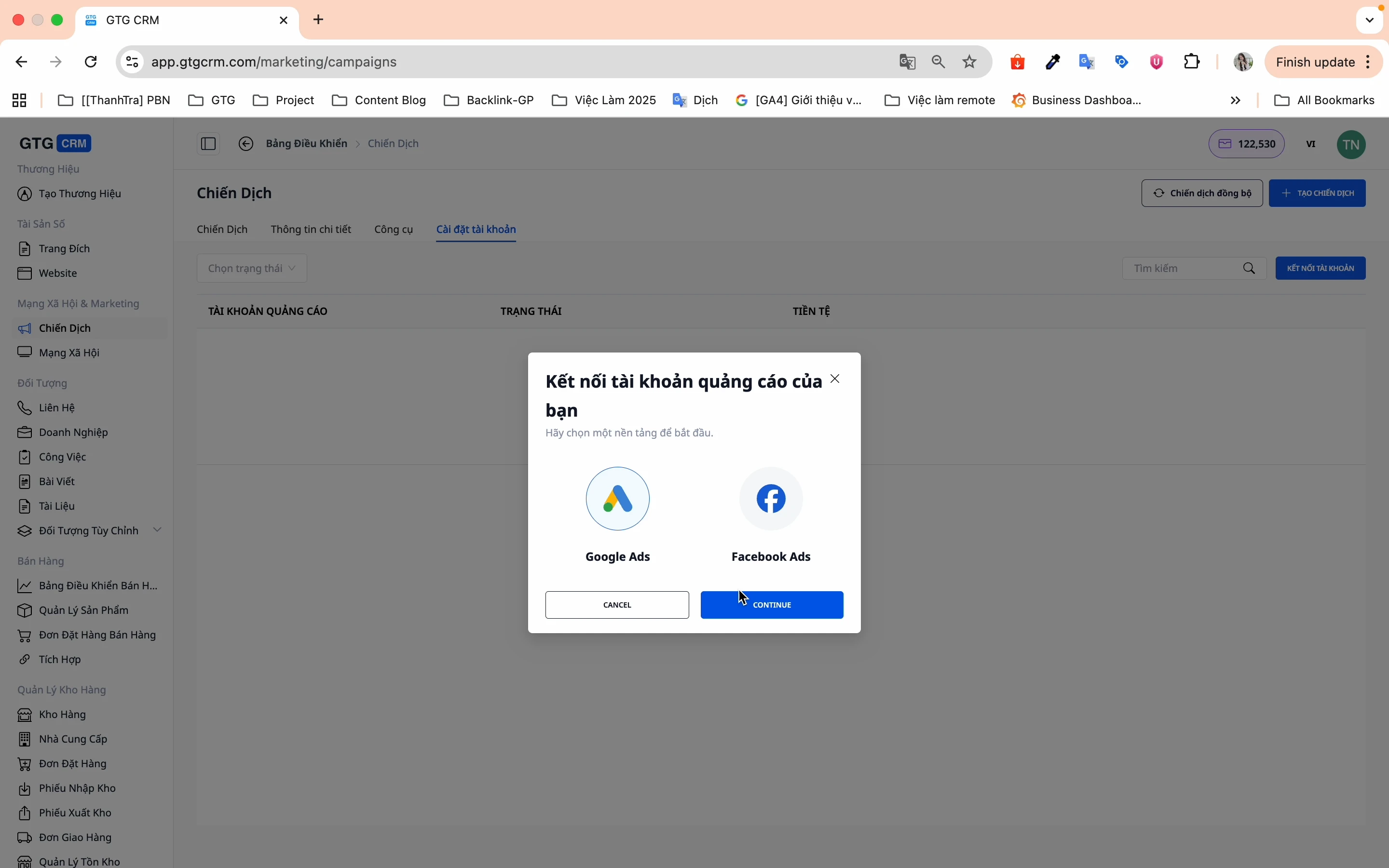
- Click Login and select your Google Ads account
- Click Connect Account to complete
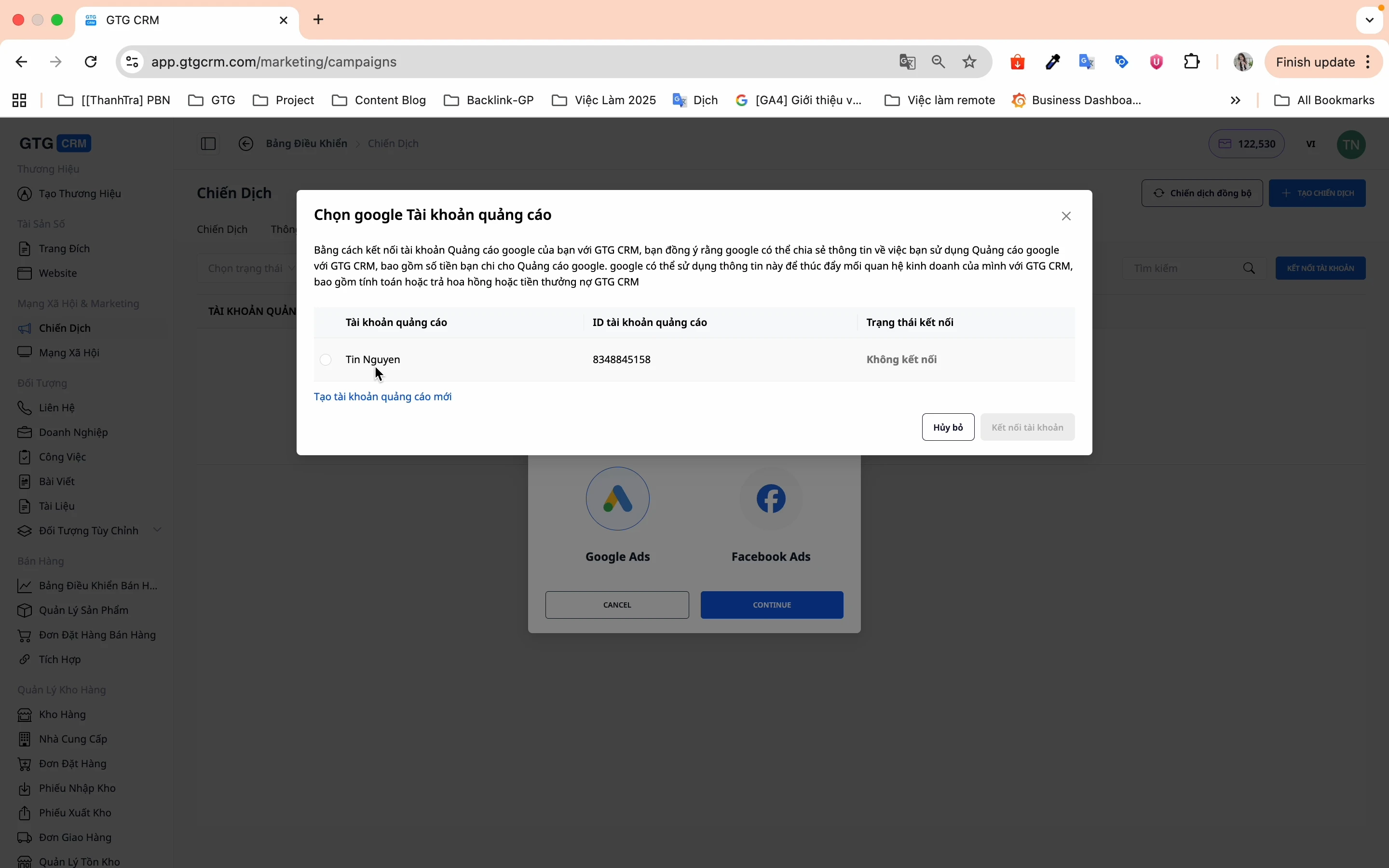
✅ Account connected successfully! You can start creating campaigns now.
Step 2: Sync Existing Campaigns
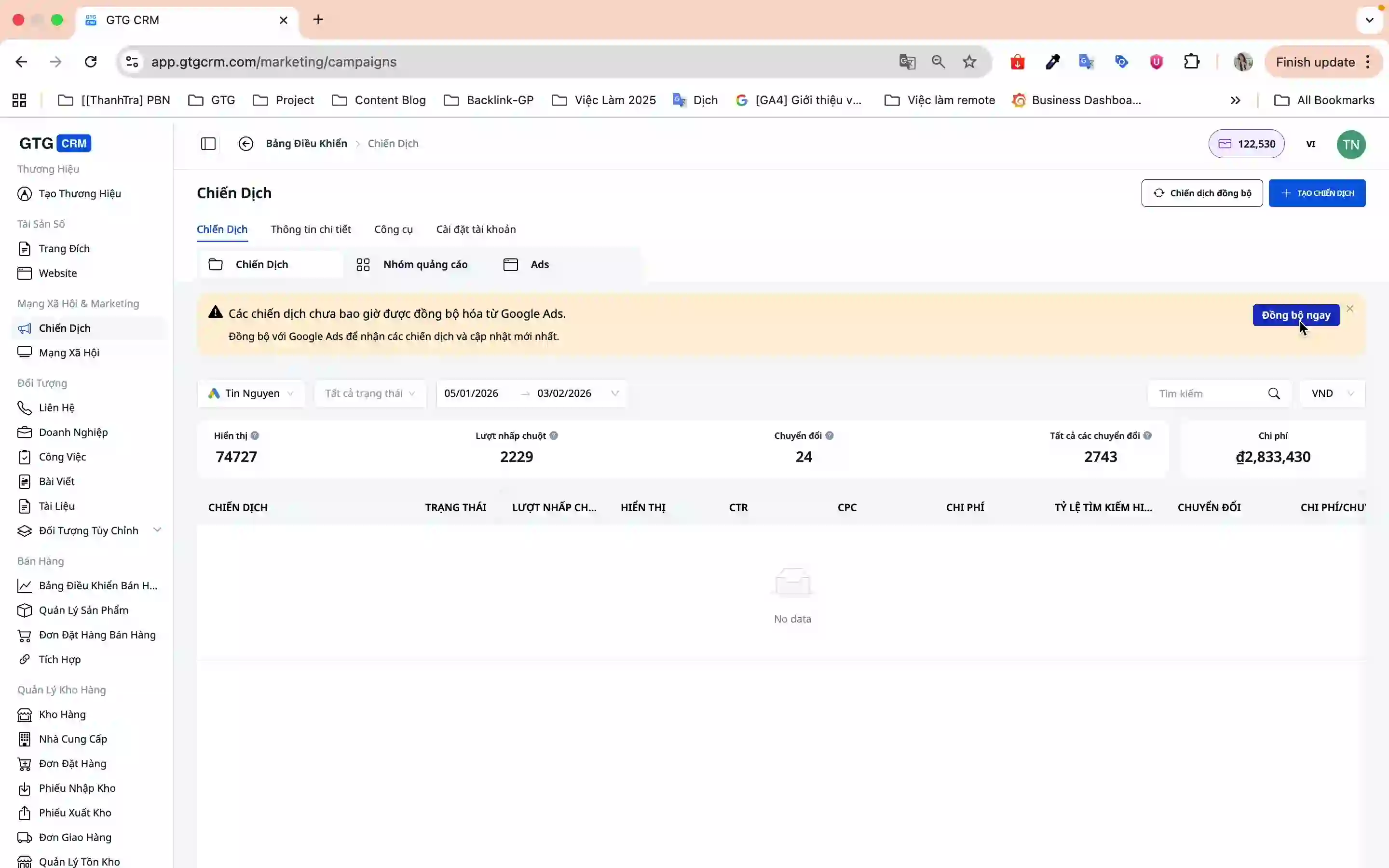
If you are already running ads on Google Ads, sync them to GTG CRM for easier management:
- On the Campaigns screen, click Sync Now
- The system will automatically sync all campaigns from Google Ads to GTG CRM
Step 3: Create a New Campaign
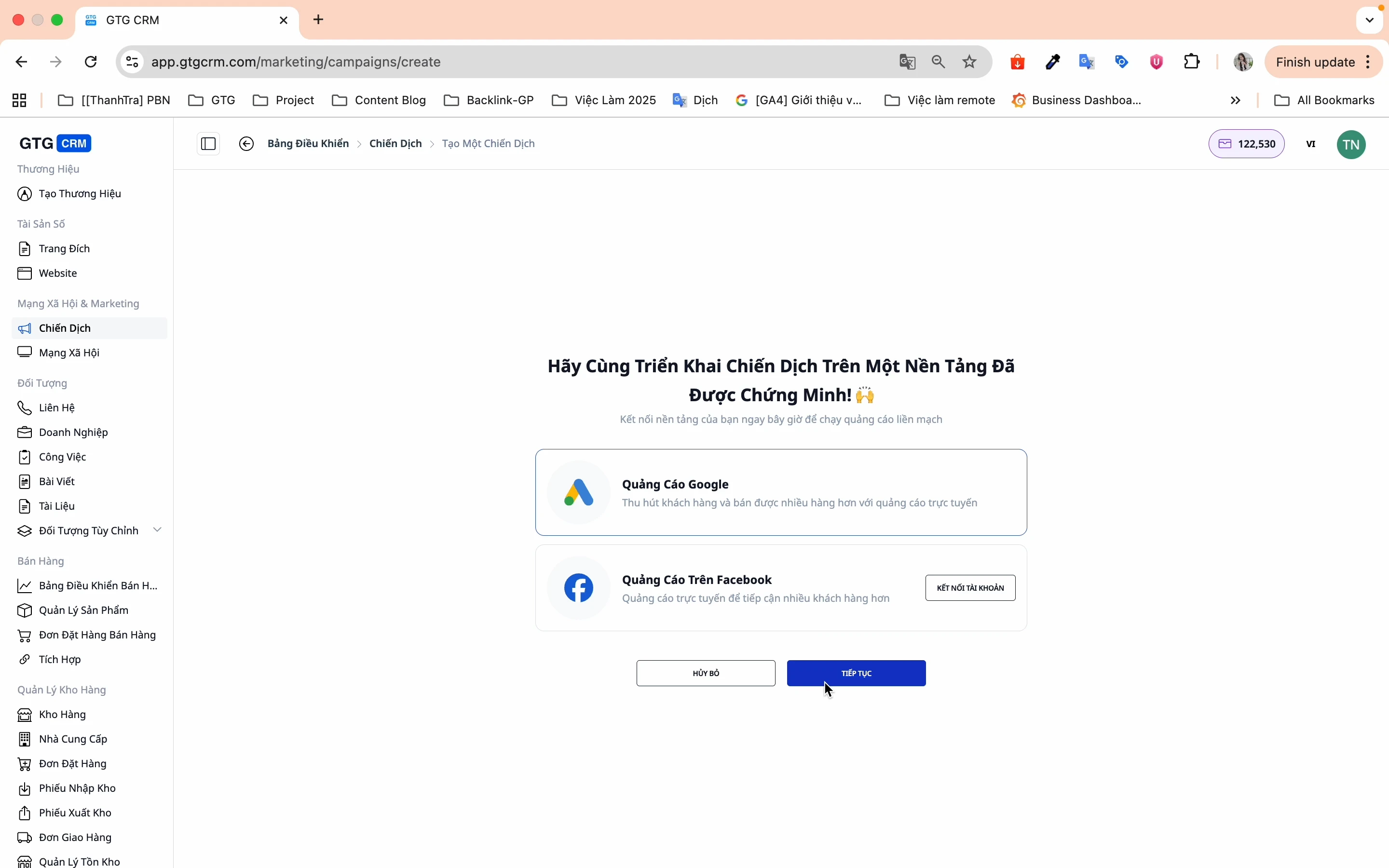
3.1. Campaign Initialization
- Click Create Campaign
- Select Google Ads → Continue
3.2. Campaign Options (Step 1/5)
You will see an overview screen with 5 campaign creation steps:
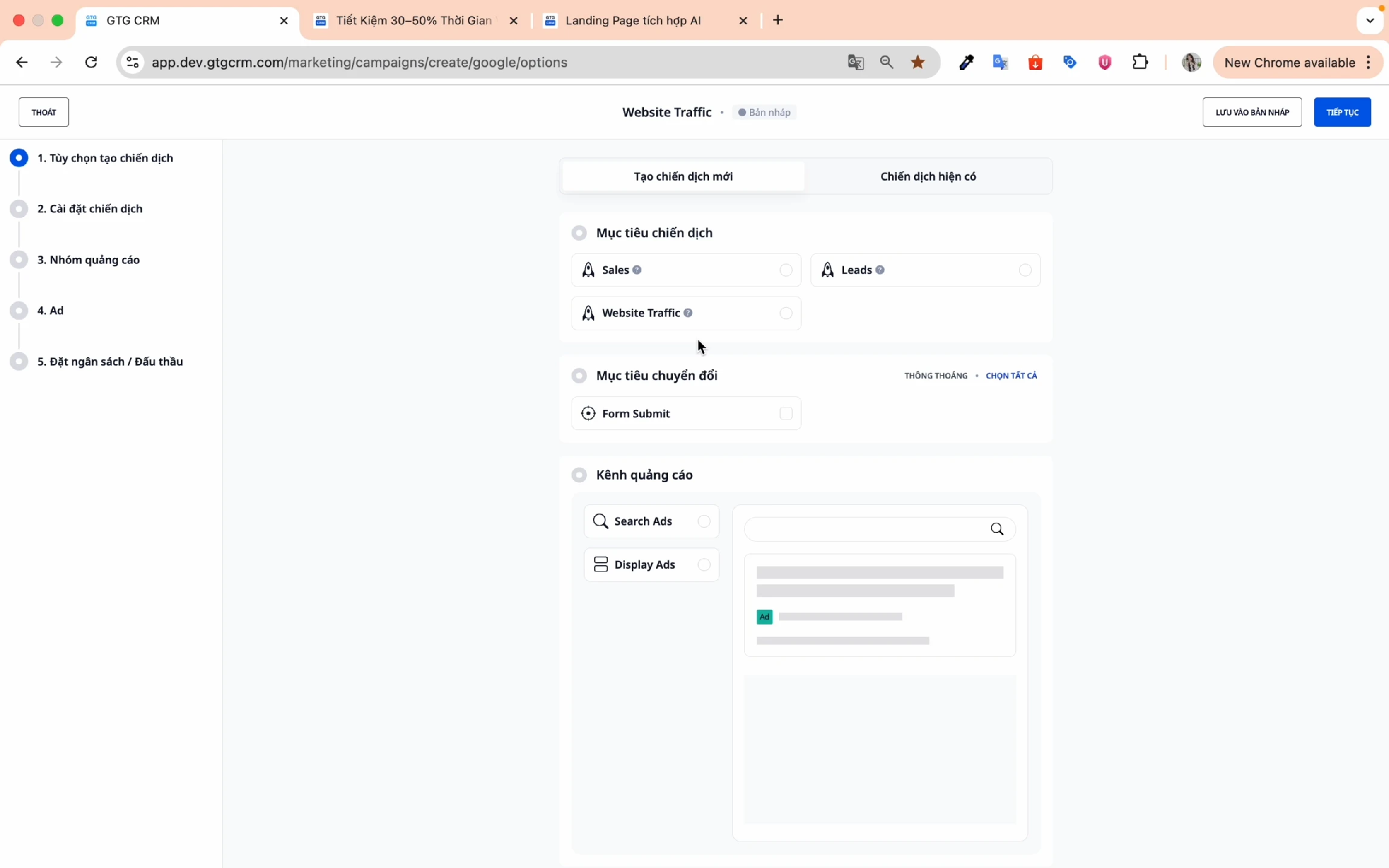
Select Campaign Objective:
- Sales - Optimize for direct sales
- Leads - Collect potential customer information
- Web Traffic - Increase website visits
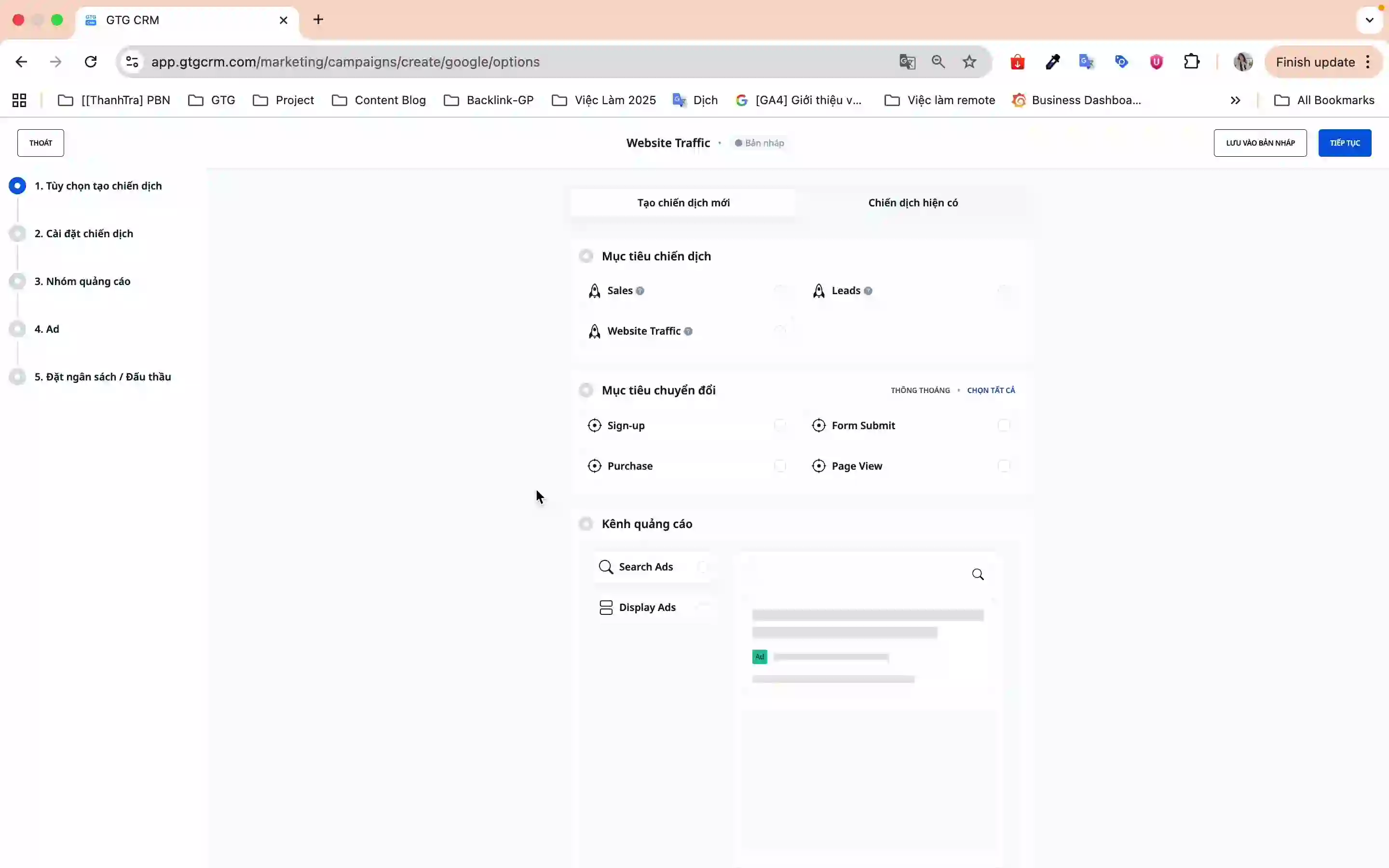
Conversion Objective:
- Choose the type of conversion you want to track (e.g., Form Submit, Purchase, Sign Up)
- Example: When a customer fills out a form and clicks Submit → record 1 conversion
Ad Channel:
- Search Ad - Display on Google search results
- Display Ad - Display on partner website network
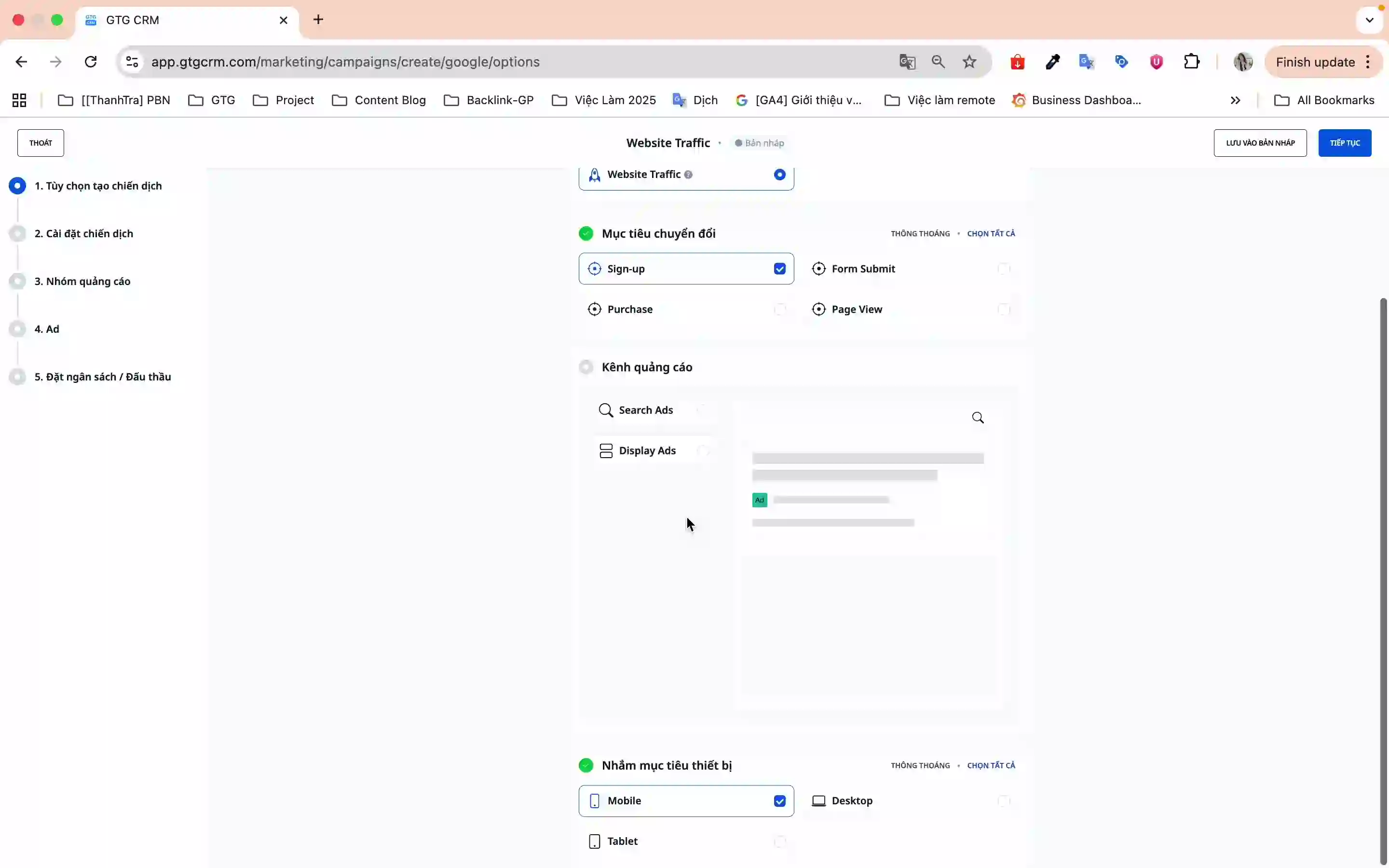
Device Targeting:
- Mobile, Desktop, Tablet (it's recommended to select all three for maximum coverage)
Click Continue to proceed to the next step.
3.3. Campaign Settings (Step 2/5)
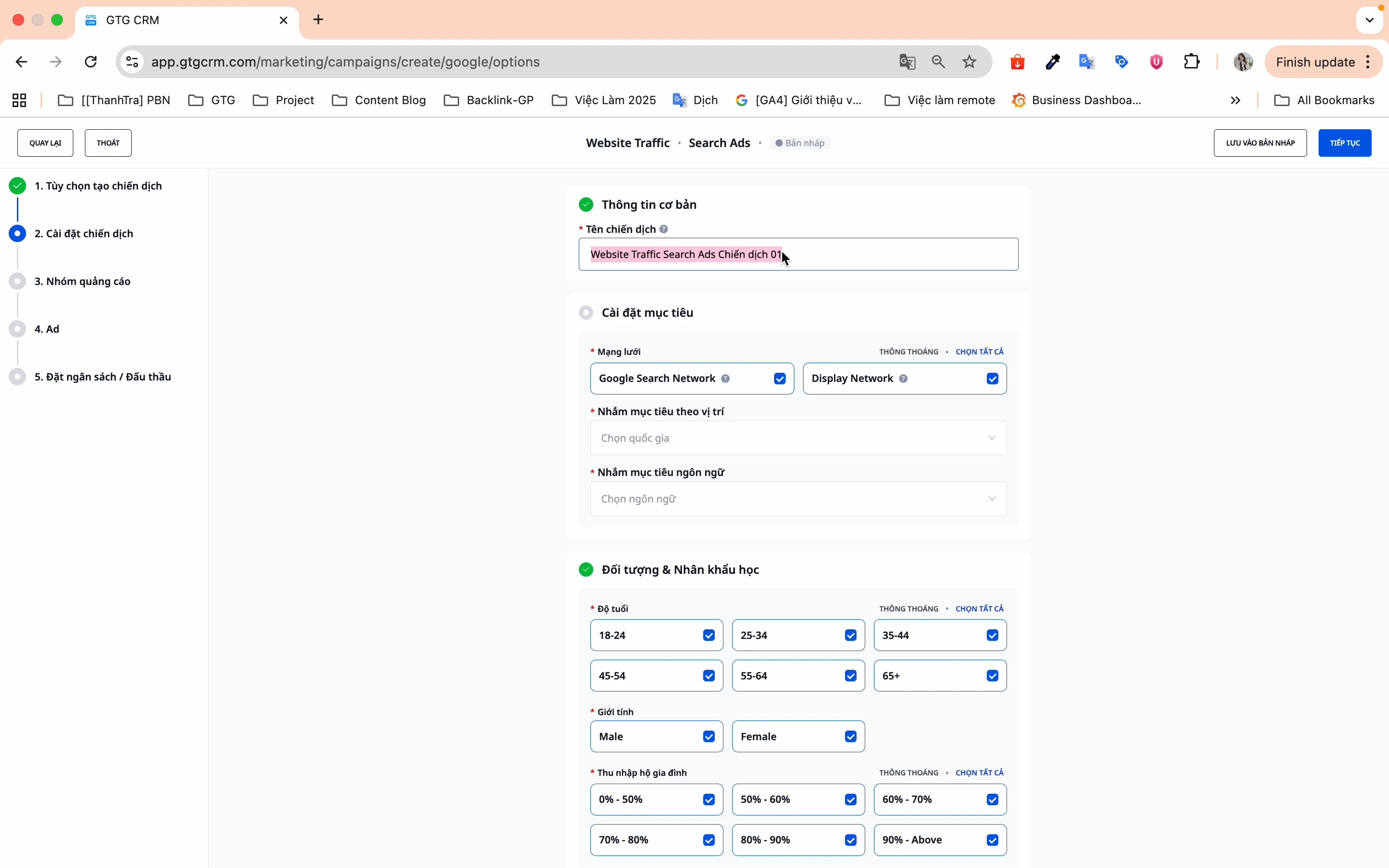
Campaign Name:
- Choose a memorable name, not a duplicate of an old campaign
- Example: "GTG CRM Features 2026"
Goal Settings:
- Networks:
- Google Search Network - Displays when users search
- Google Display Network - Displays on partner websites
- Location Targeting:
- Select the countries and provinces you want to target
- You can select multiple locations simultaneously
- Language Targeting:
- Choose the language your target audience uses
- Example: Vietnamese for the Vietnamese market
Audience and Demographics:
- Age - GTG CRM defaults to all, you can deselect unsuitable groups
- Gender - Male, Female, or All
- Household Income - Segment by income level
Campaign Schedule:
- Select start and end dates
- Or use available preset time frames
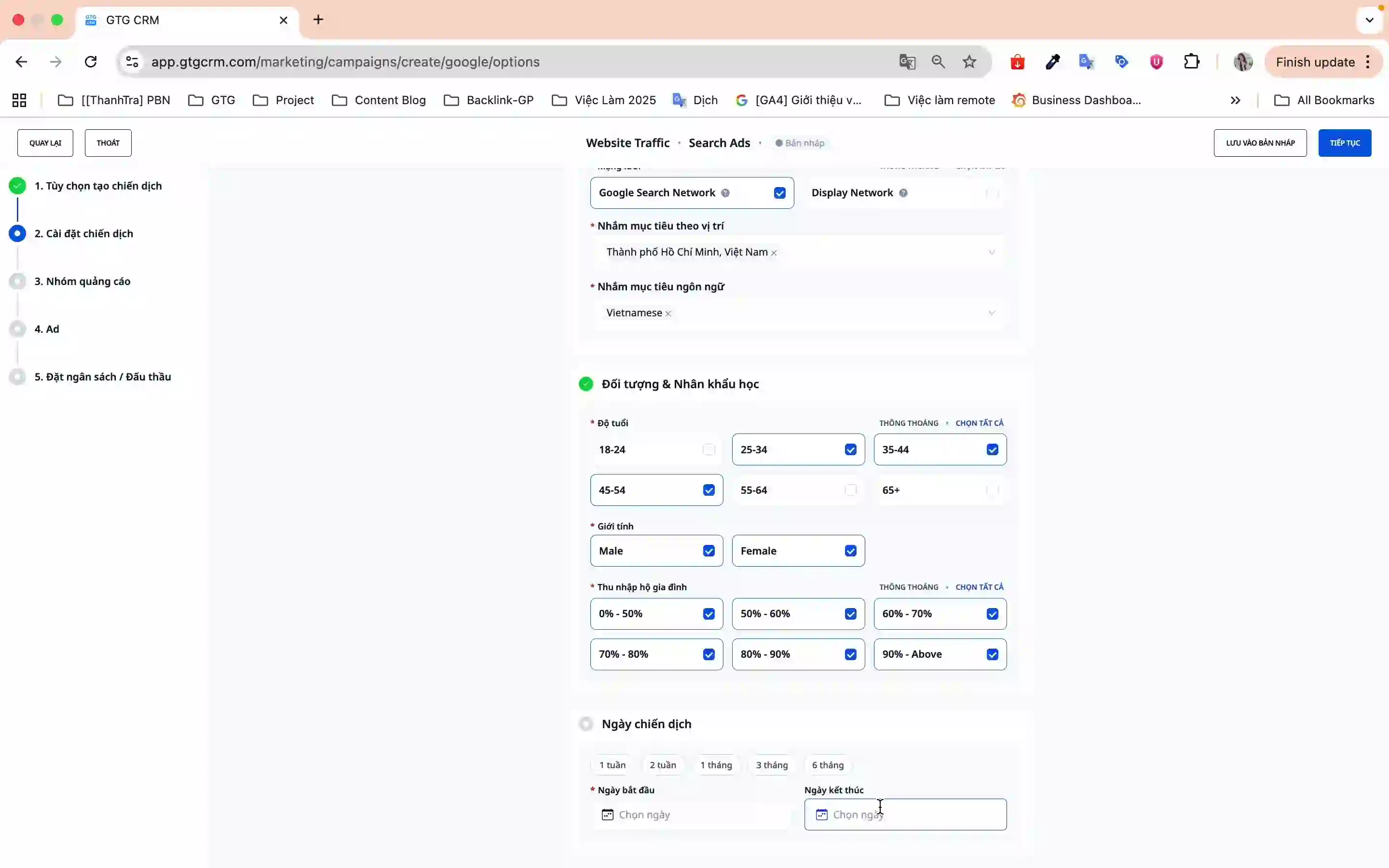
Click Continue to proceed to the next step.
3.4. Ad Group (Step 3/5)
In this step, you will set up:
- Ad group name
- Target keywords
- Bidding strategy
- Daily budget
3.5. Ad Content (Step 4/5)
Create engaging content for your ads:
- Ad headlines (up to 3 headlines)
- Ad descriptions (up to 2 descriptions)
- Display URL and final URL
3.6. Review and Publish (Step 5/5)
- Review all campaign information
- Click Publish to make the campaign active
- The campaign will be sent to Google Ads and start running
Benefits of Using This Feature
- Time-Saving - No need to switch between platforms, everything is centralized in GTG CRM
- Easy Management - Track both Facebook Ads and Google Ads in one place
- User-Friendly Interface - Step-by-step wizard in Vietnamese, suitable for beginners
- Automatic Sync - Campaigns are updated in real-time with Google Ads
- Flexible and Powerful - Full targeting features like on the original Google Ads
Important Notes
- Account Connection - Ensure you have a Google Ads account before using the feature
- Budget - Carefully check your budget and payment methods on your Google Ads account
- Keywords - Choose keywords relevant to your product/service to optimize ad performance
- Conversions - Set up conversion goals before creating campaigns for accurate tracking
- Periodic Sync - It's recommended to sync campaigns regularly to update with the latest data
With the integrated Google Ads feature, GTG CRM helps you run ads more effectively, save more time, and manage them more easily. Start today to bring your products to millions of potential customers on Google!
Ready to try this feature for your business for free?
Try for Free