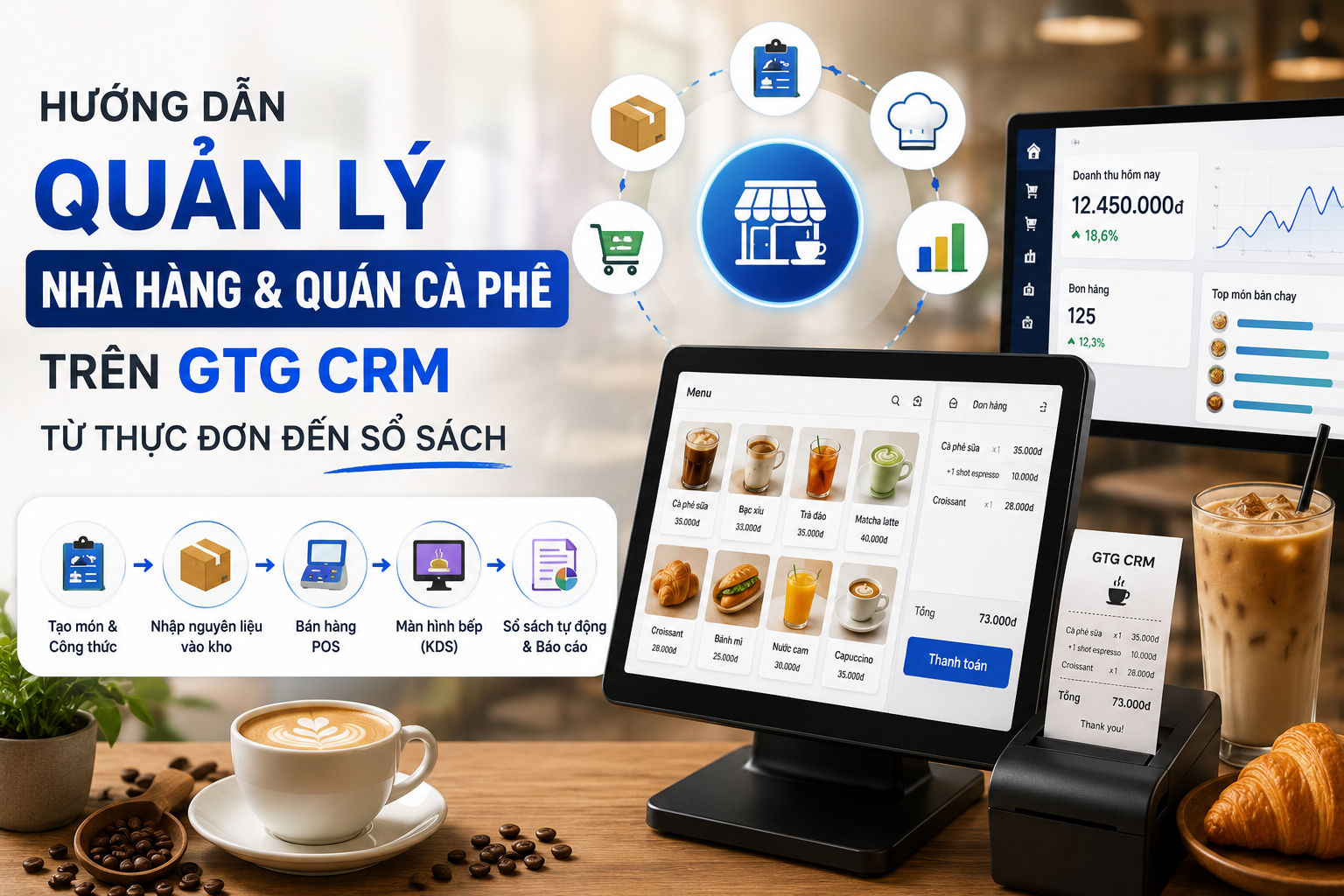
Effective sales go beyond simply having a good product and potential customers. For retailers, online shop owners, and small businesses today, managing the entire process from sourcing goods, managing inventory, creating orders, to issuing invoices is a major challenge. This is especially true when you operate across multiple channels such as Shopee, TikTok Shop, Lazada, Facebook, or your own website, making inventory control and order processing even more complex.
GTG CRM is designed to comprehensively address these issues. The system offers three main sets of features: Sales, Inventory Management, and Accounting, helping you optimize your entire business process. From creating inventory, managing products, generating professional sales images, automatically receiving orders from multiple channels, processing orders, to generating invoices, everything is integrated into a single platform. This not only saves you time but also minimizes errors.
This article will guide you step-by-step to get started selling on GTG CRM, from initial setup to effectively managing orders.
Step 1: Create a Warehouse
Before you start selling, you need a place to store your products. In GTG CRM, the warehouse is not only where you manage inventory but also where shippers will pick up orders for delivery to customers. A shop can have multiple warehouses depending on the scale of your business.
To create a new warehouse, access the Warehouse Management menu in the left-hand menu bar, then click the Create New button.
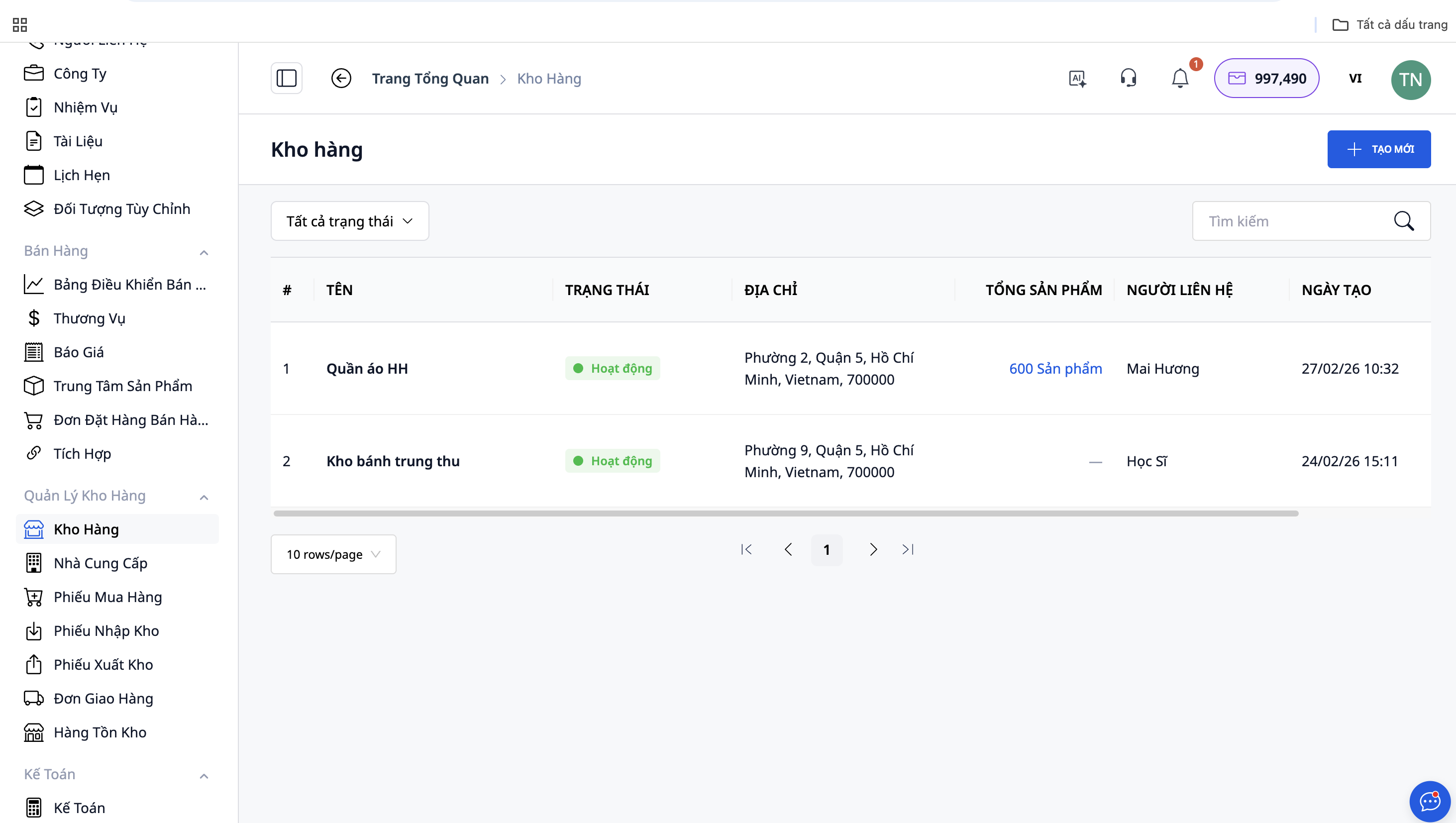
You need to fill in the following information:
- Warehouse Name: Choose a name that is easy to remember and accurately reflects the type of products or location. For example: "Clothing Warehouse", "Accessories Warehouse", or "Hanoi Branch Warehouse".
- Warehouse code: The system can automatically generate a code, or you can set your own for easier management.
- Status: Select "Active" so the repository is ready for immediate use.
- Contact Person Name: Enter the name of the warehouse employee or person in charge of this warehouse.
- Phone number: This is required so the shipper can contact you when they come to pick up the goods.
- Email: Not required, but recommended for receiving notifications.
- Warehouse address: This is extremely important information. You need to enter the exact address, city, district/county, and postal code because this is where the shipper will pick up the goods.
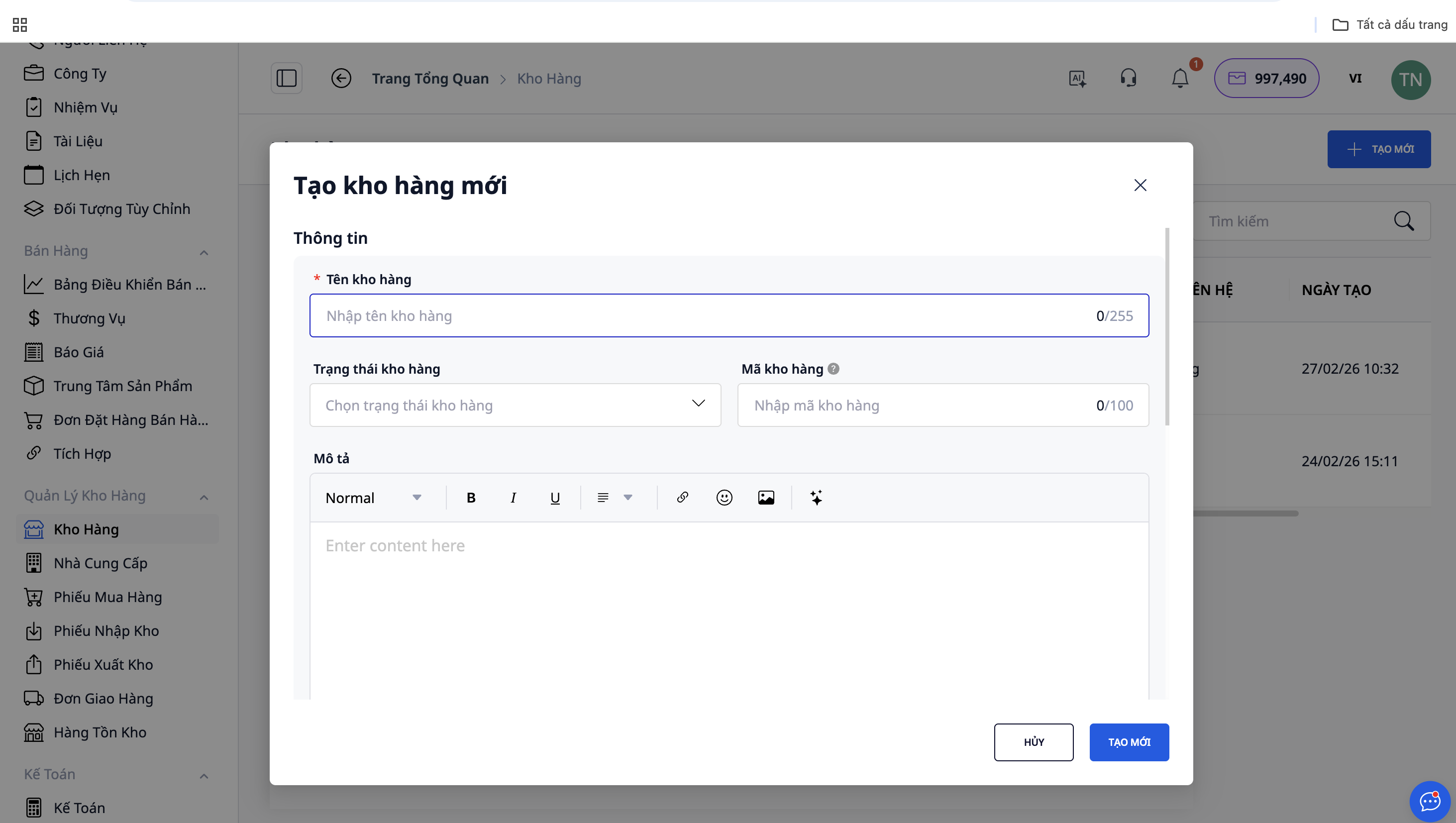
After filling in all the information, click Save . You now have your first warehouse in the system. You can create more warehouses if you operate in multiple locations or categorize products into separate warehouses.
See also: Easier inventory management with features from GTG CRM
Step 2: Create the Product
Once you have a warehouse, the next step is to add products to the system. Access the Product Center from the left-hand menu, then click Create New .
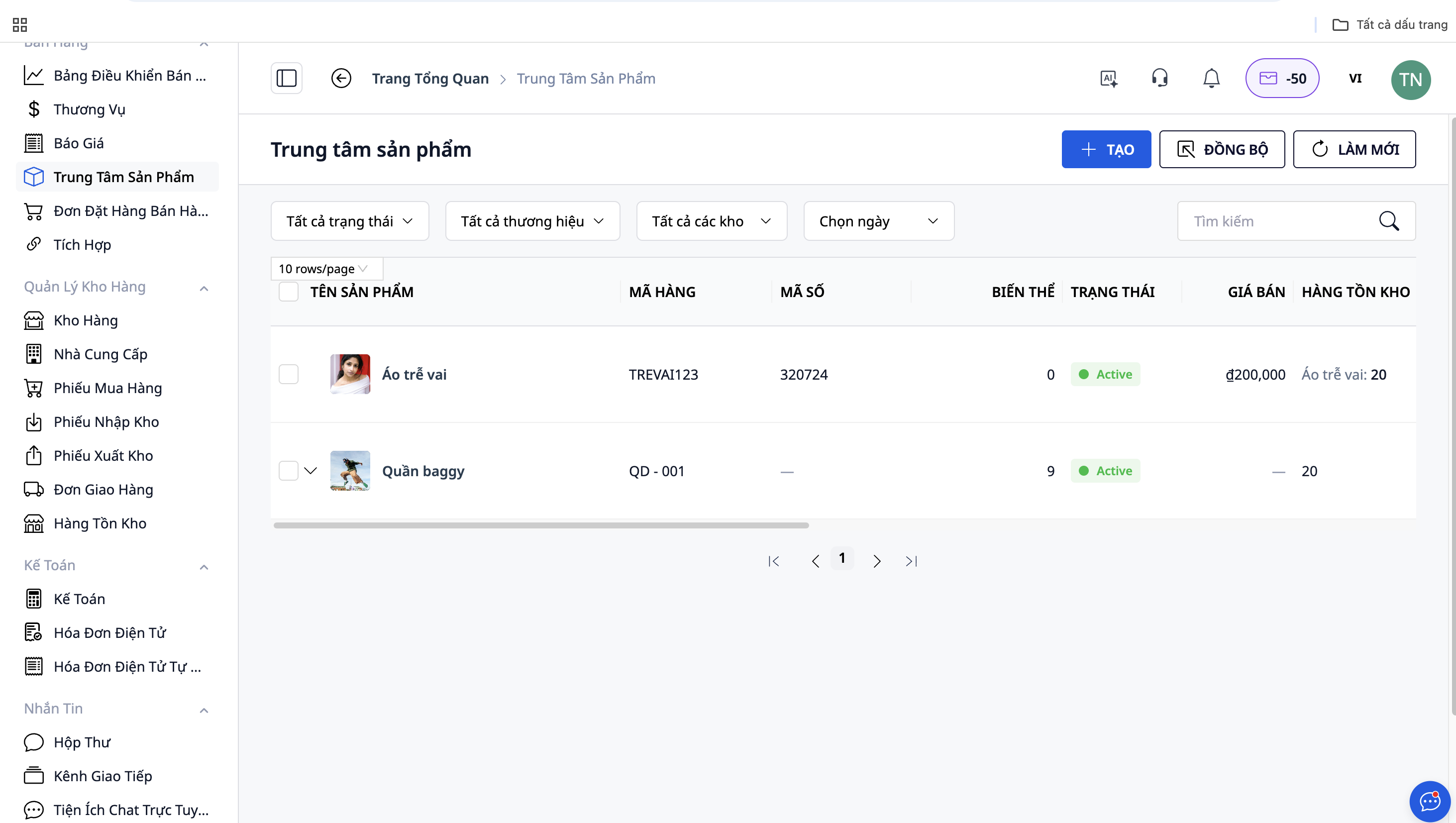
When creating a product, you need to keep the following information in mind:
- Product names: Use clear, easy-to-understand names. For example: "Mickey Pants", "Men's Crew Neck T-Shirt", "Floral Maxi Dress".
- SKU (Stock Keeping Unit): This is a unique and extremely important identifier for a product. The SKU helps the system identify the same product across different sales channels. If you sell the same product on Shopee, TikTok Shop, Lazada, Facebook, and your website, ensure the SKU is the same across all channels so the system can automatically synchronize inventory.
- Product type: Select the appropriate product type from the available list.
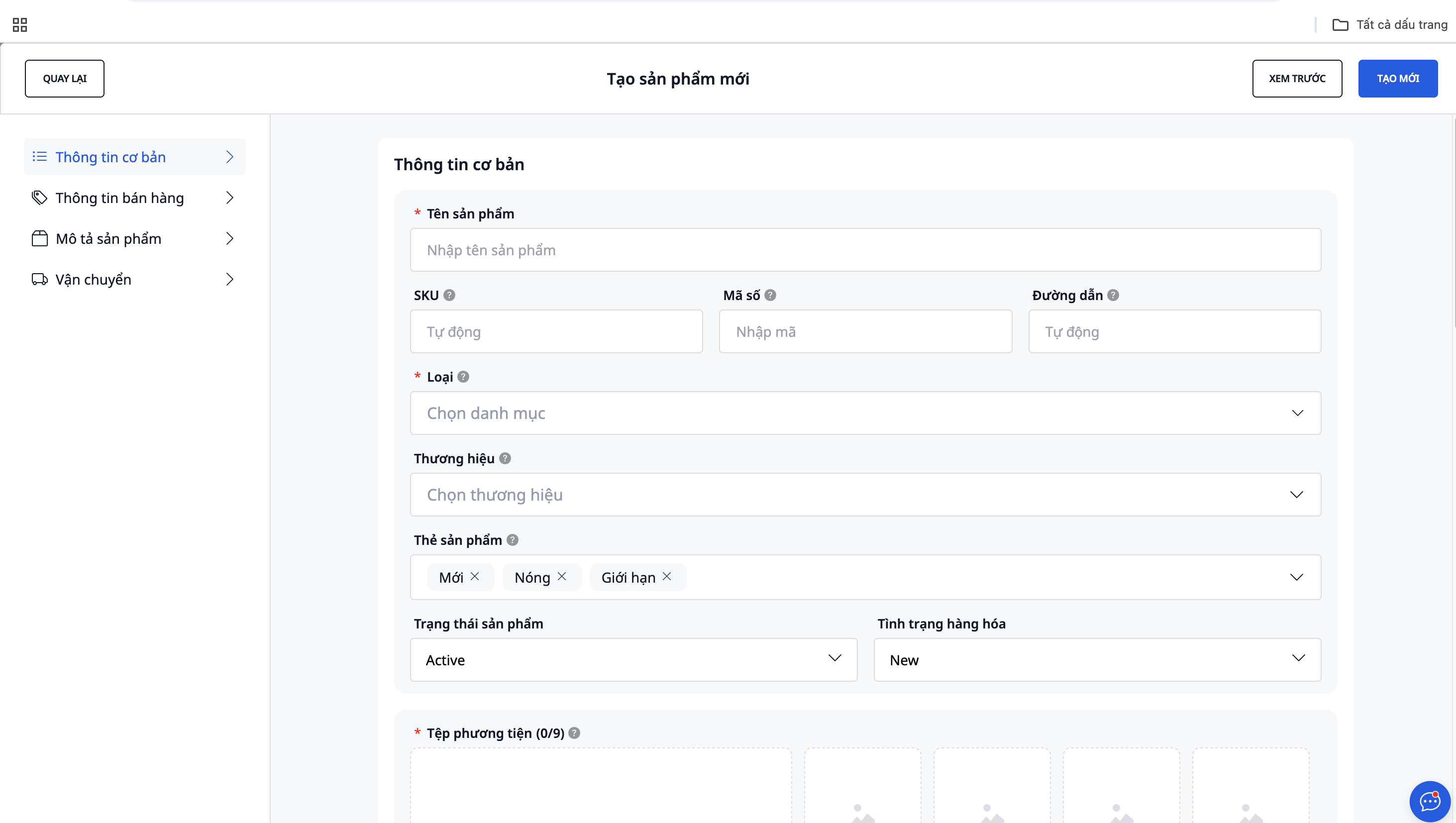
After filling in all the information about the product description, price, images, and inventory details, click Save to complete the process.
Step 3: Create Professional Sales Images
One of GTG CRM's standout features is its ability to create professional sales images based on pre-made templates. Instead of hiring a designer or editing each image individually, you can use this tool to create a series of attractive sales images in just minutes.
Steps to follow:
- Access the product page where you want to create sales images.
- Choose either the "Create Sales Images" or "Marketing" feature.
- Choose a sample image (template) that matches the product style.
- Upload product images - the system will automatically integrate them into the template.
- Customize information: product name, price, promotion, slogan.
- Preview and download the finished image.
Step 4: Inventory Management and Supplier Control
To have goods in stock, you need to order them from suppliers. Create supplier information in the system for professional inventory management.
- Access the Suppliers section in the Inventory Management menu.
- Click Create New and fill in the supplier information: name, phone number, address, email, and payment terms.
- Create a Warehouse Receipt with the following information: receiving warehouse, supplier, product, quantity, and purchase price.
- Confirm the warehouse receipt - the quantity will be automatically updated in the warehouse.
Step 5: Connect Sales Channels
One of GTG CRM's strengths is its ability to automatically receive orders from multiple sales channels.
Supported channels:
- Personal website: Directly integrated for automated order processing.
- Facebook: Automatically create orders from Messenger or comments.
- Shopee: Synchronize orders in both directions.
- TikTok Shop: Centralized order receiving and processing.
- Lazada: Automatic order synchronization
How to connect:
- Go to Settings → Sales Channels
- Select the channel you want to connect to.
- Authorize GTG CRM
- Wait for confirmation of successful connection.
See also: Multi-channel order management with GTG CRM features
Step 6: Create an Order
Create orders manually
When customers place orders via phone or other unintegrated channels:
- Go to Sales → Create a new order
- Fill in customer information, select products, shipping warehouse, and shipping method.
- Click Save - the order will be in "On Hold" status.
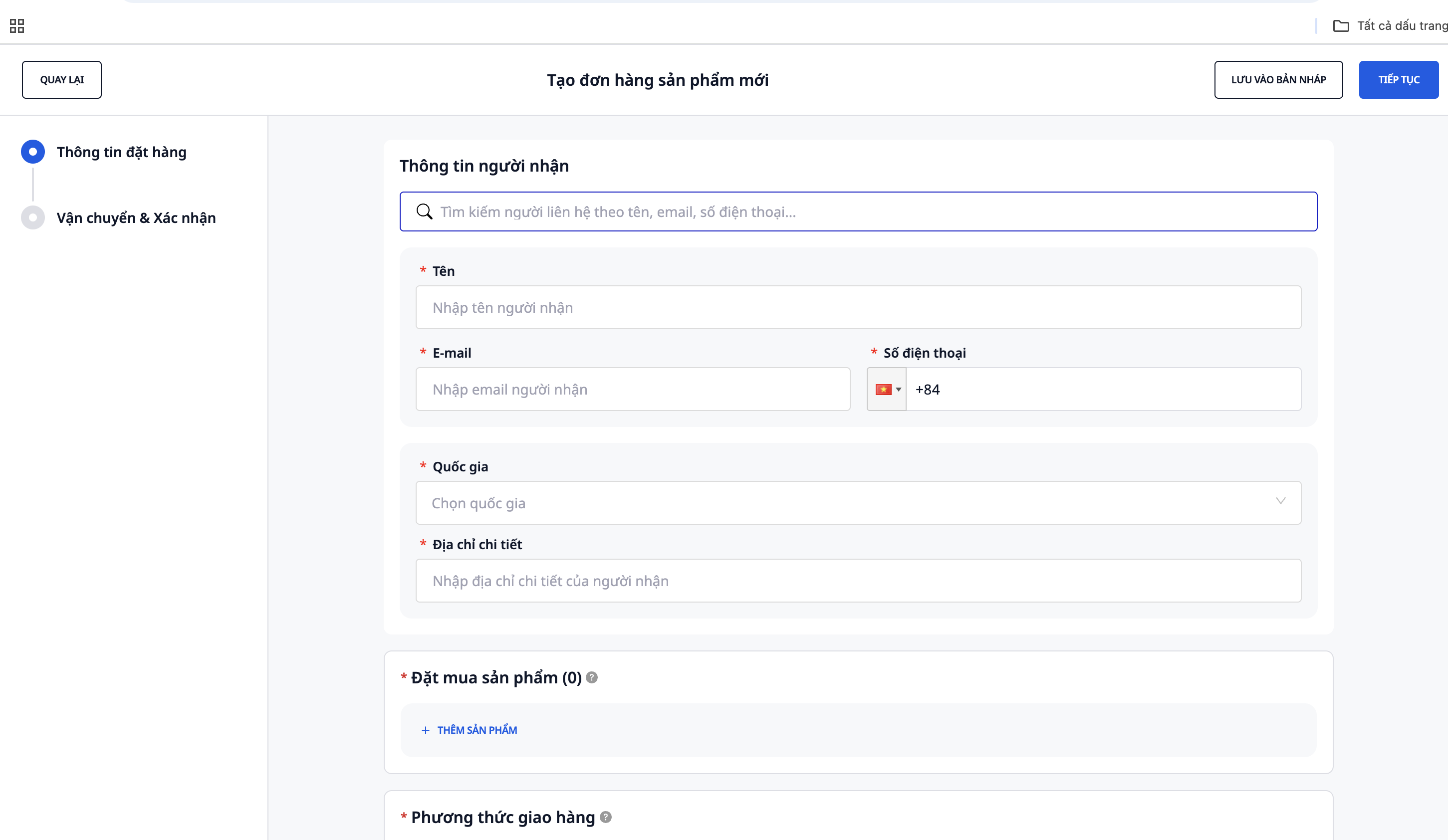
Receive orders automatically
Once the sales channels are connected, orders automatically appear in the system with clear origins: Shopee, TikTok Shop, Lazada, Facebook, and Website.
Note:
- Sellers must proactively change orders to the "pending" status to synchronize with GTG CRM.
- Link warehouses and products across platforms and GTG CRM to ensure accurate inventory tracking.
Step 7: Order Processing and Shipping
After confirming the order with the customer, you need to change the order status so that the system automatically generates a delivery note.
- Go to Sales Order , confirm the order → the system automatically generates a Delivery Note.
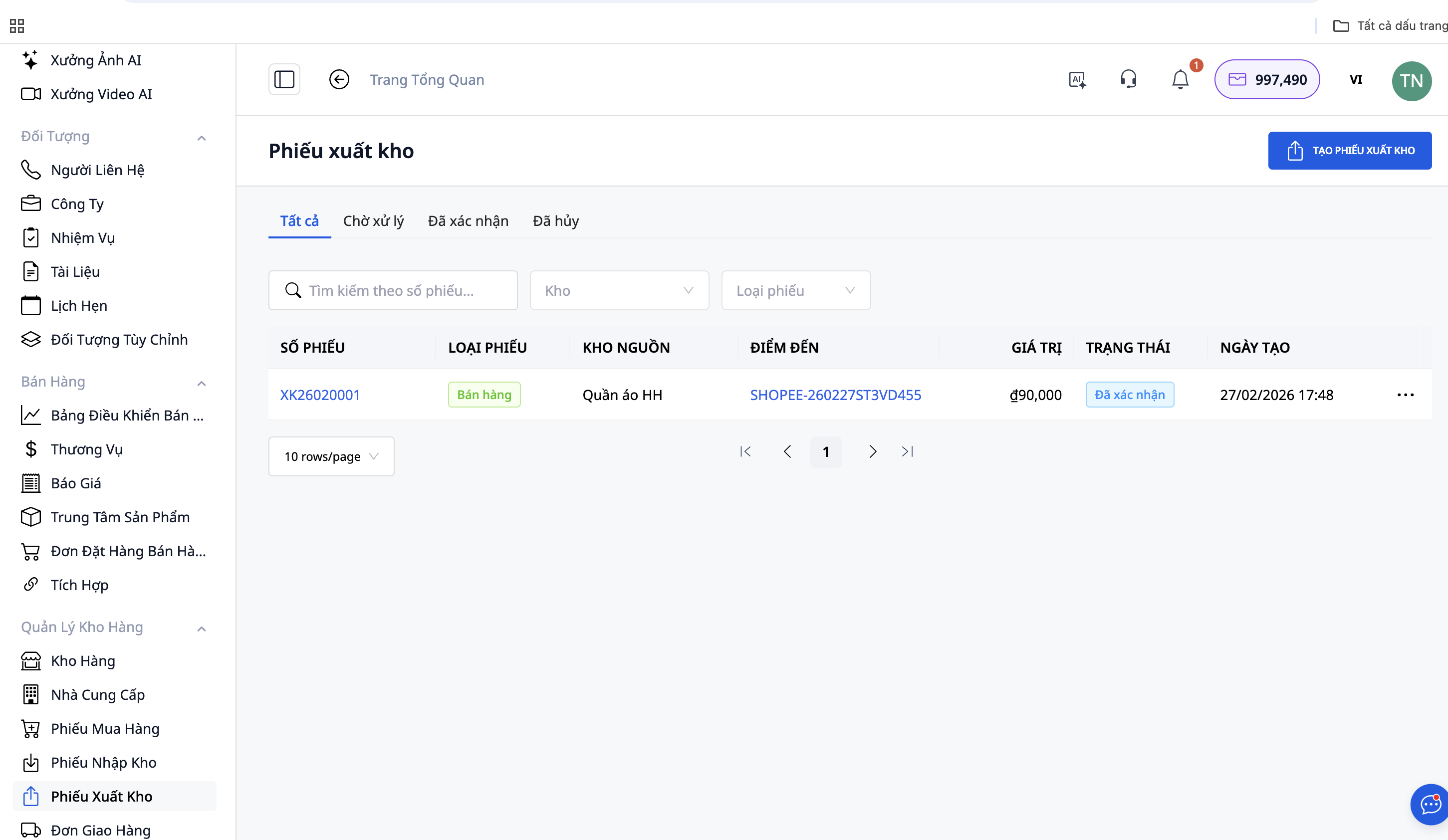
- Verify the information on the delivery note: warehouse of origin, product, quantity, and delivery address.
- Prepare goods according to the warehouse release form.
- Press Confirm delivery when the shipper comes to pick up the goods.
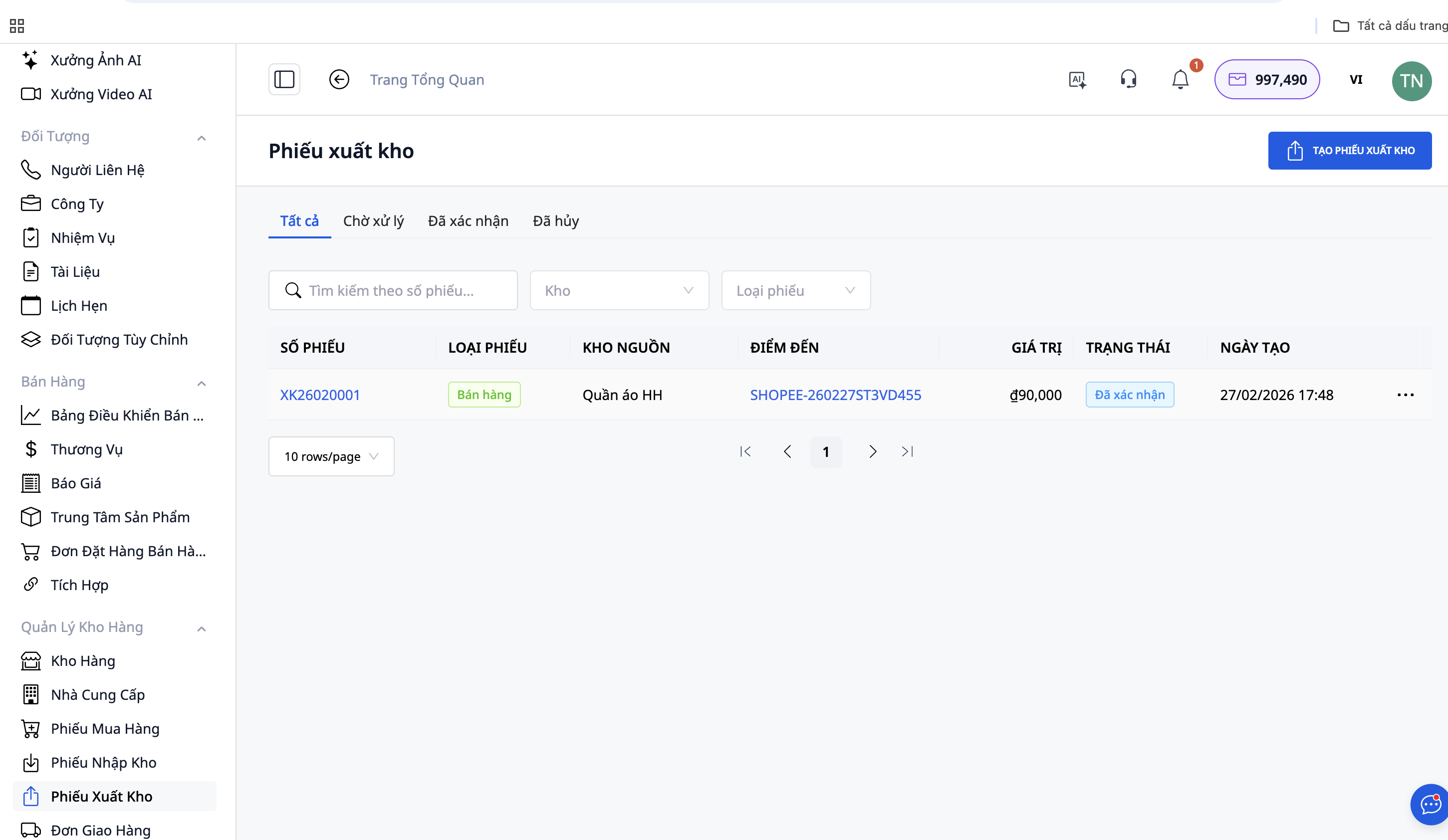
- After confirmation, the warehouse automatically deducts the sold product.
- When the customer receives the order, change the order status to "Completed".
Step 8: Issue the Invoice
GTG CRM supports the issuance of electronic invoices to comply with legal regulations on tax declaration:
- Access the Electronic Invoices section.
- Select completed orders to generate an invoice.
- The system can automatically generate invoices, or you can create them manually.
- Verify information and release.
Note: For platforms that have authorized you to issue invoices, you do not need to take this additional step.
See also: GTG CRM helps manage and automatically generate invoices.
Benefits of Using GTG CRM
- Centralized management: Inventory, products, orders, and invoices on a single platform.
- Automatic order processing: Synchronize from Shopee, TikTok Shop, Lazada, Facebook, and website.
- Create professional sales images: Based on pre-made templates, no designer needed.
- Process automation: From creating delivery notes to updating inventory.
- Effective inventory control: Instant updates upon goods receiving/shipping.
- Minimize errors: Eliminate manual data entry mistakes.
- Multi-channel sales support: Centralized management of all orders.
Important Note
- SKUs must be consistent: Ensure the same SKUs are used across all channels for accurate inventory synchronization.
- The warehouse address must be accurate: Shippers rely on this address to pick up goods.
- Connect all channels: Make the most of automated order processing.
- Automated order verification: It's still advisable to check the information before processing.
Summary
GTG CRM is a comprehensive solution for retailers, online shop owners, and small businesses who want to professionally manage the entire process from inventory to order fulfillment. With powerful automation features, you can focus on sales and business growth instead of wasting time on complex administrative tasks.