Εισαγωγή Δυνατοτήτων
Το GTG CRM ήταν πάντα ισχυρό για την πώληση προϊόντων: κατηγορίες εμπορευμάτων, αποθέματα, παραγγελίες, τιμολόγια. Αλλά αν πουλάτε υπηρεσίες — πρακτορείο, συμβουλευτική, spa/κλινική, ελεύθερος επαγγελματίας, πάροχος B2B — τότε στο παρελθόν έπρεπε να κάνετε "παράκαμψη": δημιουργώντας μια υπηρεσία ως ψεύτικο προϊόν χωρίς απόθεμα, και χωρίς πραγματική σύμβαση (μόνο προσφορά, χωρίς υπογραφή, χωρίς συμβαλλόμενα μέρη, χωρίς πρόγραμμα πληρωμών).
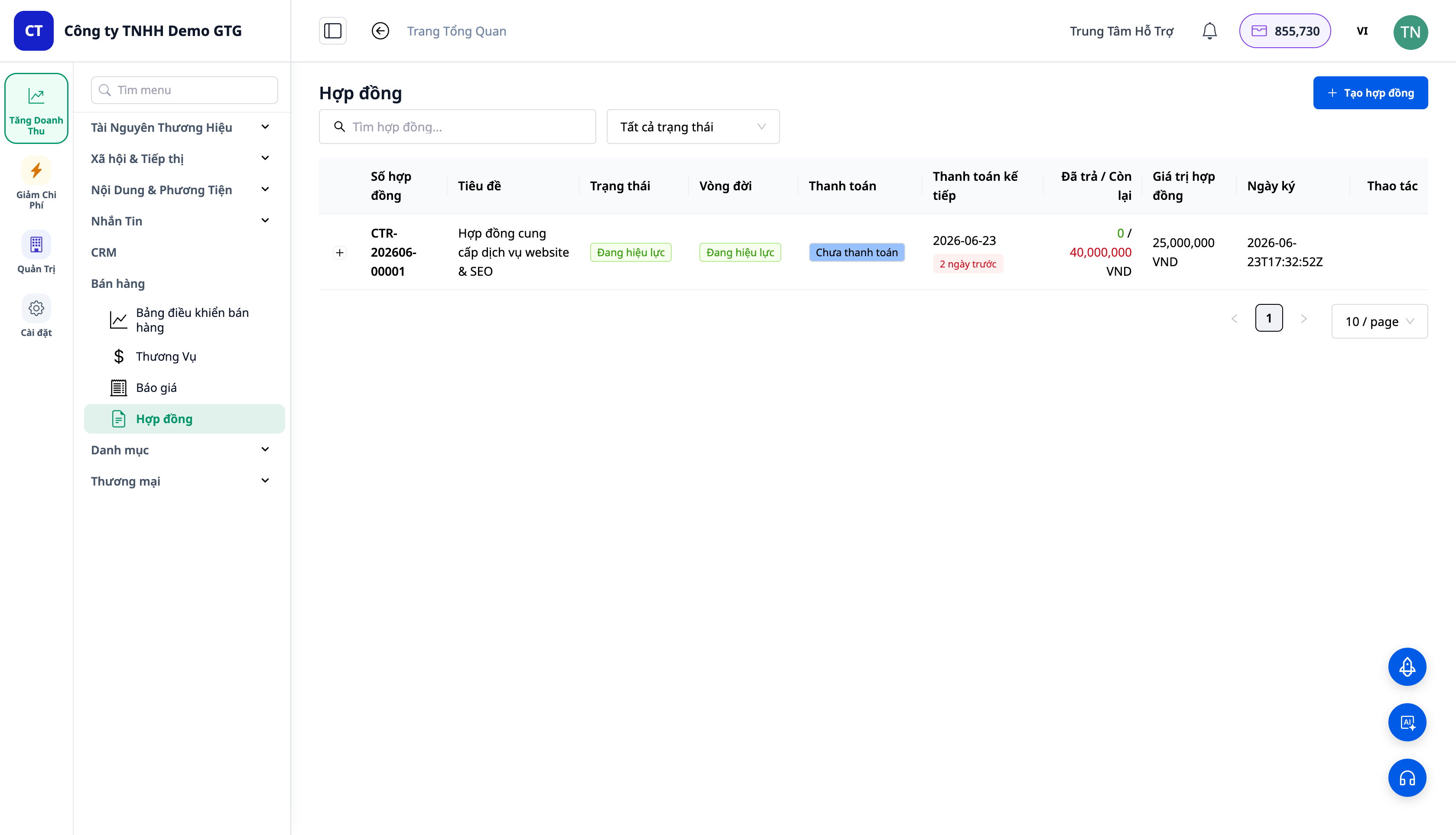
Από σήμερα, το GTG CRM υποστηρίζει την πώληση υπηρεσιών ως πολίτης πρώτης κατηγορίας: μια Κατηγορία (Catalog) που περιέχει τόσο προϊόντα όσο και υπηρεσίες, μικτές προσφορές (μια προσφορά με προϊόντα και υπηρεσίες), και πραγματικές Συμβάσεις (Contract) — με Συμβαλλόμενο Μέρος, σημεία παραλαβής, δίγλωσση, αποστολή & υπογραφή, και στη συνέχεια έκδοση τιμολογίων ανά δόση → αυτόματη καταχώριση στο λογιστικό βιβλίο.
Προβλήματα που Αντιμετωπίζουν οι Επιχειρήσεις
| Παλιός τρόπος | Συνέπεια |
|---|---|
| Οι υπηρεσίες πρέπει να δημιουργηθούν ως "ψεύτικο προϊόν χωρίς απόθεμα" | Σύγχυση καταλόγου, λανθασμένη λογική αποθήκης |
| Μια προσφορά για προϊόντα, μια ξεχωριστή σύμβαση για υπηρεσίες | Δύο έγγραφα, δύο φορές σύνταξη |
| Έλλειψη σύμβασης με Συμβαλλόμενο Μέρος / σημεία παραλαβής | Δυσκολία δέσμευσης, δυσκολία παραλαβής ανά φάση |
| Σύμβαση Word + παρακολούθηση πληρωμών στο Excel | Ξεχνιούνται δόσεις πληρωμής, άγνοια υπολοίπου οφειλής |
| Μετά την υπογραφή, χειροκίνητη καταγραφή εσόδων | Ξεχνιούνται οι εκδόσεις τιμολογίων, ξεχνιούνται οι λογιστικές καταχωρίσεις |
Το GTG CRM συνδέει μια ενιαία ροή: υπηρεσίες → μικτή προσφορά → σύμβαση → αποστολή & υπογραφή → τιμολόγια ανά δόση → καταχώριση εσόδων & είσπραξη χρημάτων — χωρίς παρακάμψεις, χωρίς διπλή εισαγωγή δεδομένων.
Βασικά Χαρακτηριστικά
1. Μια Κατηγορία (Catalog) για Προϊόντα και Υπηρεσίες
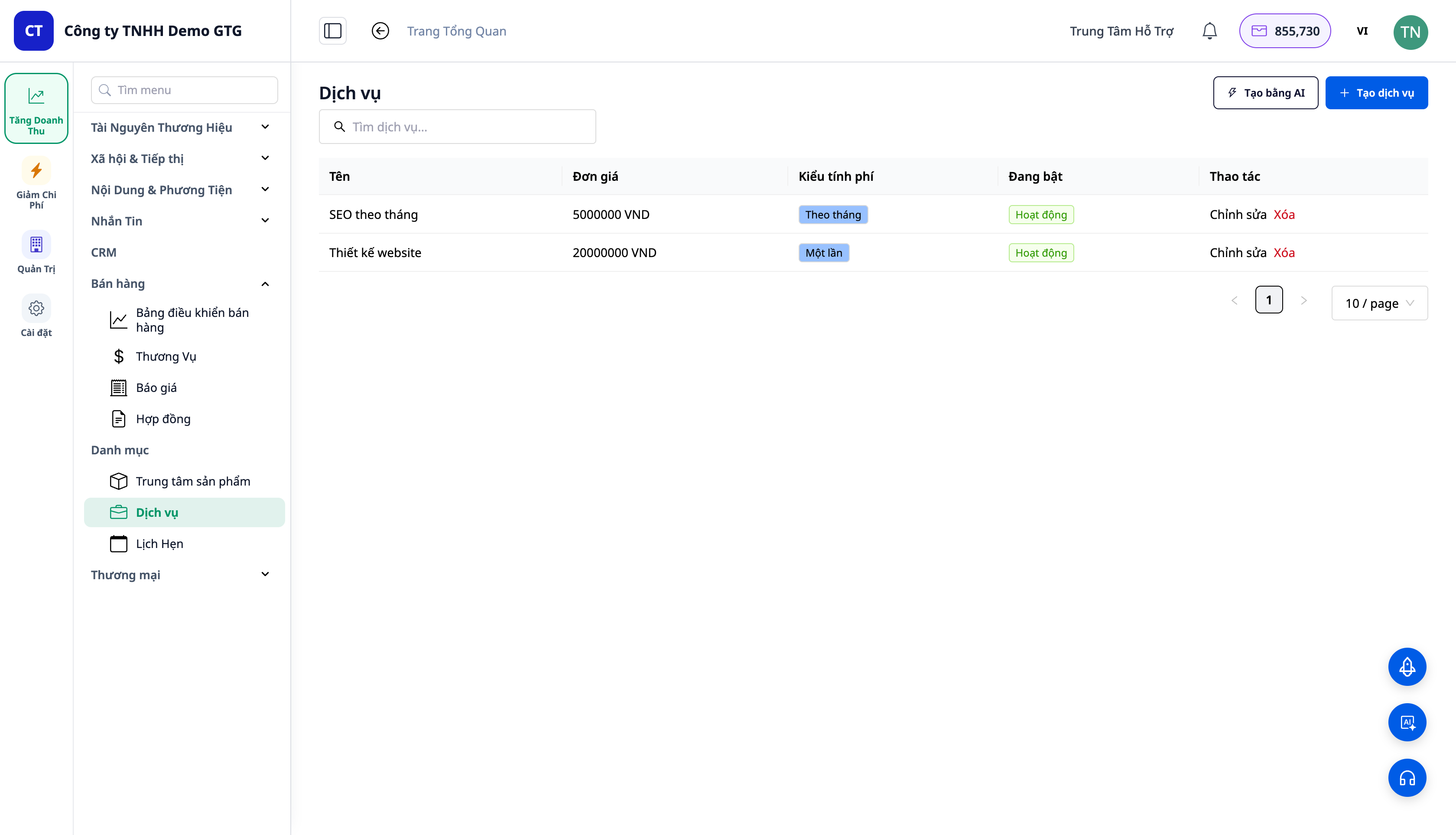
- Στο μενού CRM → Catalog: Προϊόντα, Υπηρεσίες, Ραντεβού — ο τόπος που ορίζεται "τι πουλάτε", ομαδοποιημένο κάτω από έναν ενιαίο τίτλο.
- Υπηρεσίες με τιμή και κύκλο χρέωσης: εφάπαξ (one-time) ή επαναλαμβανόμενες (recurring — μηνιαίως...). Τα προϊόντα μπορούν επίσης να είναι επαναλαμβανόμενες συνδρομές.
- Αυτή η ενιαία λίστα είναι αυτή που χρησιμοποιεί ο επιλογέας γραμμών προσφορών/συμβάσεων — επιλέγοντας τόσο προϊόντα όσο και υπηρεσίες σε ένα μέρος.
2. Μικτές Προσφορές — Μια Προσφορά, Προϊόντα και Υπηρεσίες
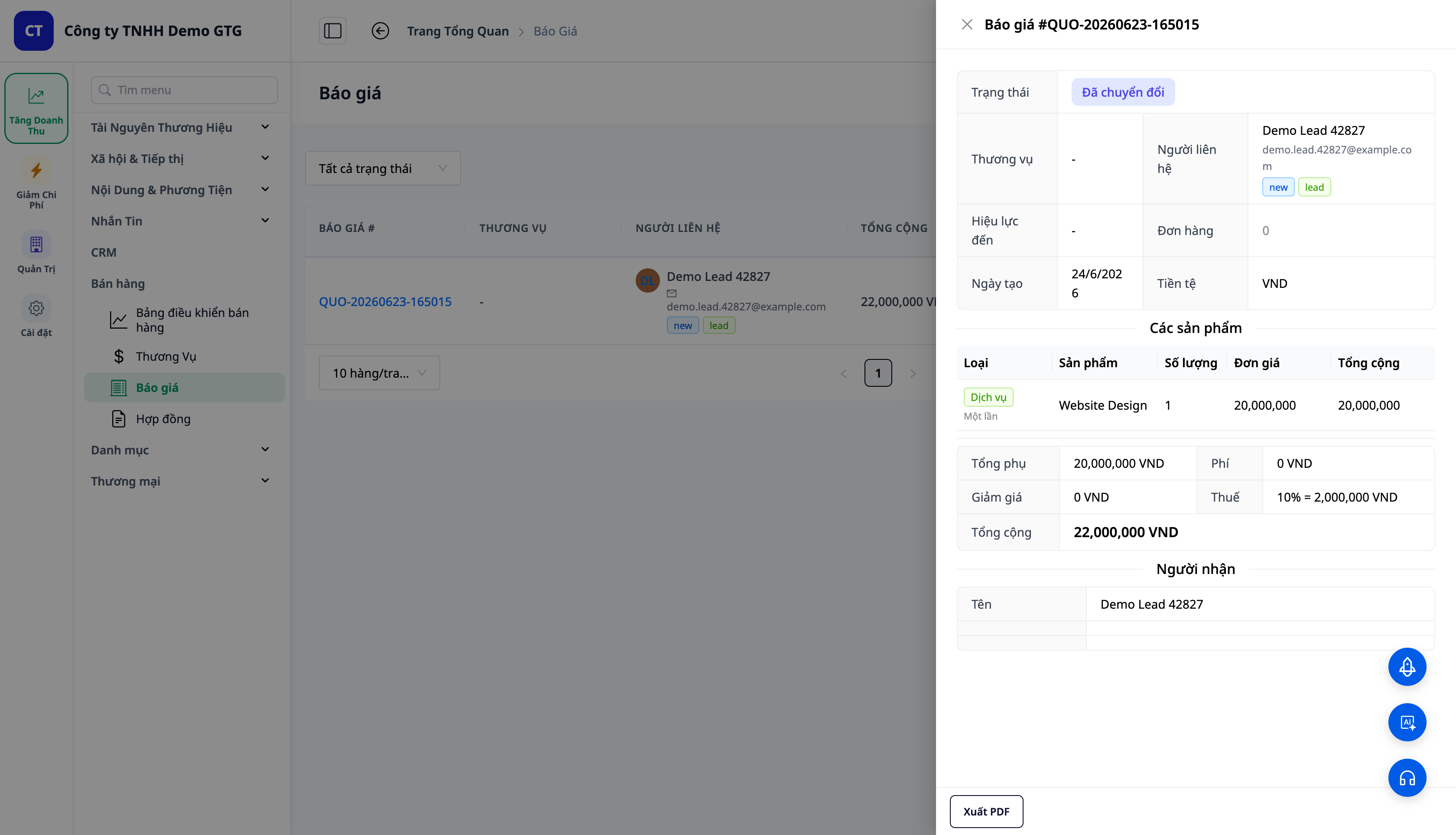
- Προσθέστε γραμμές τύπου Υπηρεσία (π.χ. "Σχεδιασμός ιστοσελίδας", "SEO μηνιαίως") και γραμμές τύπου Προϊόν (π.χ. "Άδεια φιλοξενίας" × 3) στην ίδια προσφορά.
- Κάθε γραμμή έχει ετικέτα Τύπος (Υπηρεσία = πράσινο, Προϊόν = μπλε); η γραμμή υπηρεσίας εμφανίζει τον κύκλο χρέωσης.
- Προσφορά DRAFT → SENT → ACCEPTED; όταν είναι Αποδεκτή, εμφανίζεται το κουμπί Convert to Contract (μετατροπή σε σύμβαση).
3. Πραγματικές Συμβάσεις — Συμβαλλόμενο Μέρος, Παραλαβή, Δίγλωσση
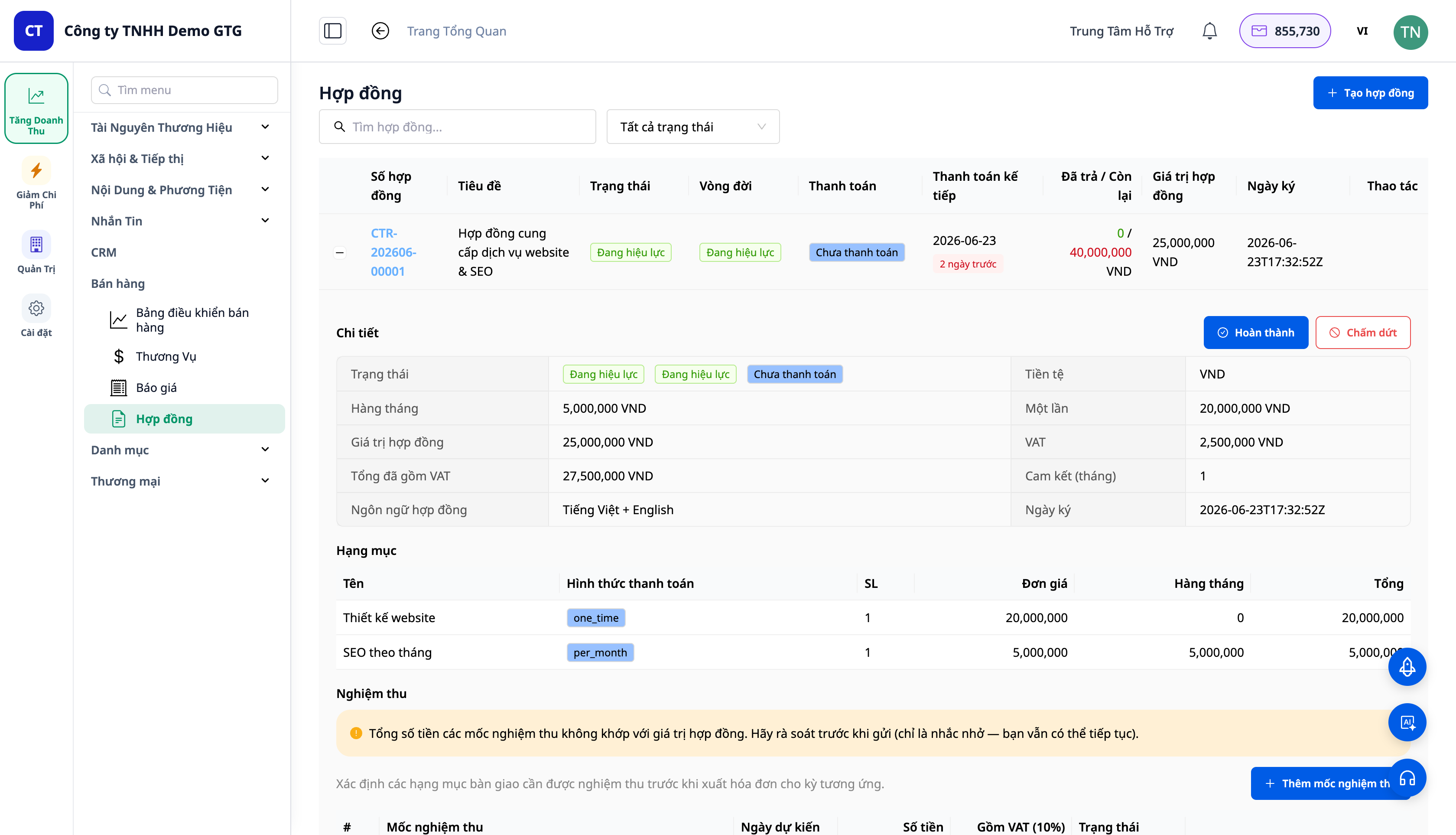
- Μετατροπή σε Σύμβαση διατηρεί τον τύπο/κύκλο ανά γραμμή. Το σύνολο χωρίζεται σε συνολικό εφάπαξ και μηνιαίο σύνολο + ΦΠΑ.
- Το Μέρος Β (Party B) μπορεί να είναι ιδιώτης ή εταιρεία. οι πληροφορίες (νομική επωνυμία, ΑΦΜ, διεύθυνση, εκπρόσωπος) μπορούν να συμπληρωθούν αυτόματα όταν υπάρχουν εταιρικά δεδομένα — χάρη στη λειτουργία εμπλουτισμού εταιρικών πληροφοριών.
- Σημείο Παραλαβής (Παραλαβή) ορίζεται κατά τη δημιουργία της σύμβασης, καθοδηγώντας το πρόγραμμα πληρωμών.
- Δίγλωσσες συμβάσεις (έως 2 γλώσσες) + email ανά γλώσσα, επώνυμα.
- Οι συμβάσεις μπορούν επίσης να διατηρούν άμεσες γραμμές προϊόντων (χωρίς προσφορές) — μια σύμβαση που περιέχει τόσο προϊόντα όσο και υπηρεσίες.
4. Αποστολή → Υπογραφή → Έκδοση Τιμολογίων Τμηματικά
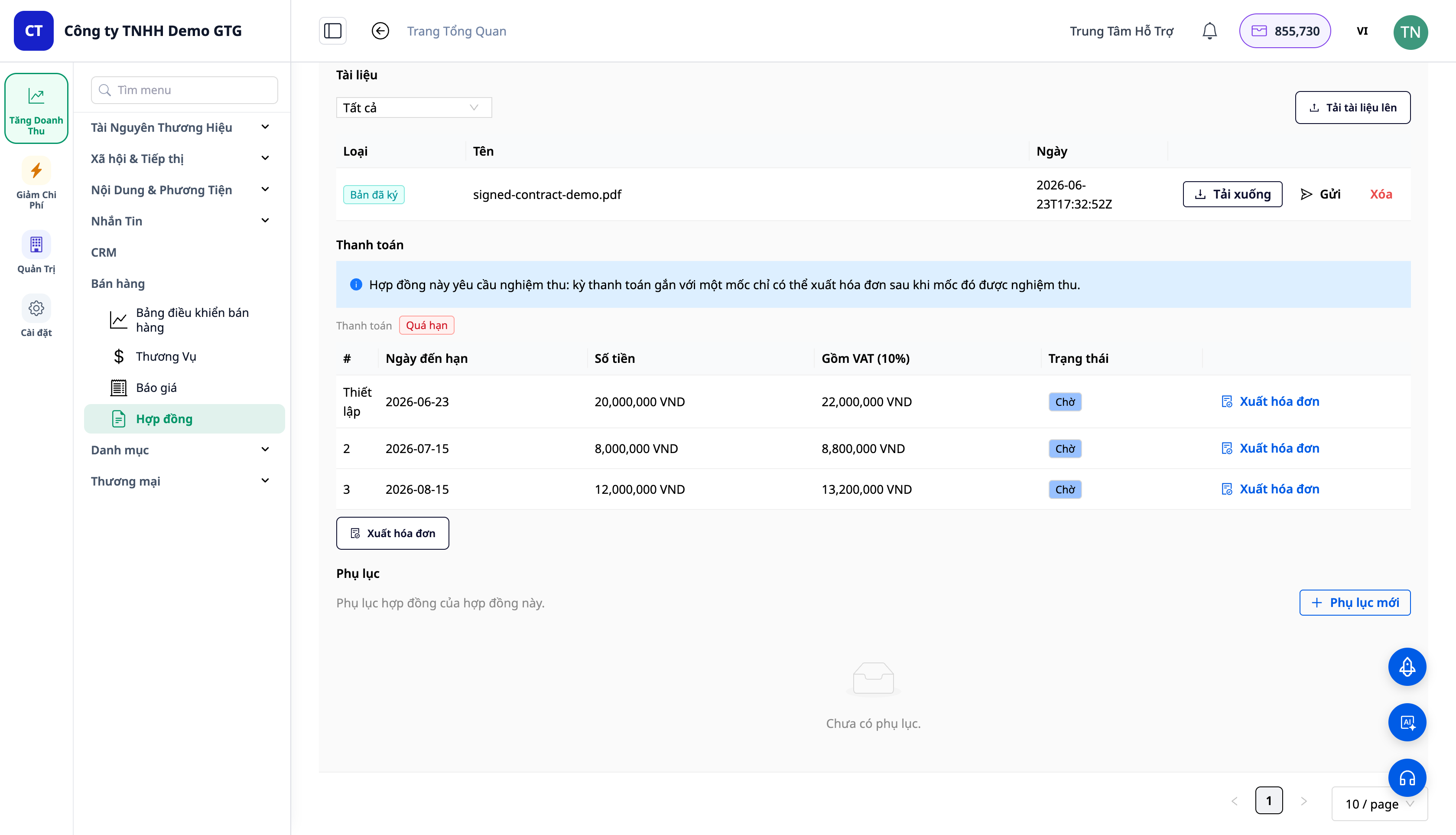
Ρεαλιστική, νομικά ορθή διαδικασία υπογραφής:
- Αποστολή στον πελάτη: το σύστημα αποδίδει τη σύμβαση σε μορφή Word (.docx) (μπορεί να επεξεργαστεί/διαπραγματευτεί) και την στέλνει μέσω email στον πελάτη. Κατάσταση DRAFT → SENT.
- Ο πελάτης υπογράφει εκτός συστήματος (έγχαρτο/ψηφιακό αντίγραφο) και την στέλνει πίσω.
- Ανέβασμα υπογεγραμμένου αντιγράφου: επισυνάψτε το υπογεγραμμένο αρχείο (αποθηκευμένο στο σύστημα) → καταγράψτε τον υπογράφοντα, την ώρα υπογραφής. SENT → SIGNED → ACTIVE.
- Έκδοση τιμολογίων τμηματικά: για κάθε δόση πληρωμής, δείτε την προεπισκόπηση τιμολογίου → επιβεβαιώστε → εκδώστε τιμολόγιο μέσω της υπάρχουσας ροής ERP/τιμολόγησης.
ℹ️ Σημείωση: Η έκδοση τιμολογίων απαιτεί ο χώρος εργασίας να έχει συνδεθεί με ηλεκτρονικό τιμολογιό/πάροχο φόρων. Όλη η ροή δημιουργίας υπηρεσιών, προσφορών, συμβάσεων, αποστολής & λήψης υπογεγραμμένων αντιγράφων εξακολουθεί να λειτουργεί κανονικά· μόνο το βήμα έκδοσης τιμολογίων απαιτεί αυτή τη σύνδεση.
5. Τιμολόγια → Αυτόματη Εγγραφή στα Λογιστικά
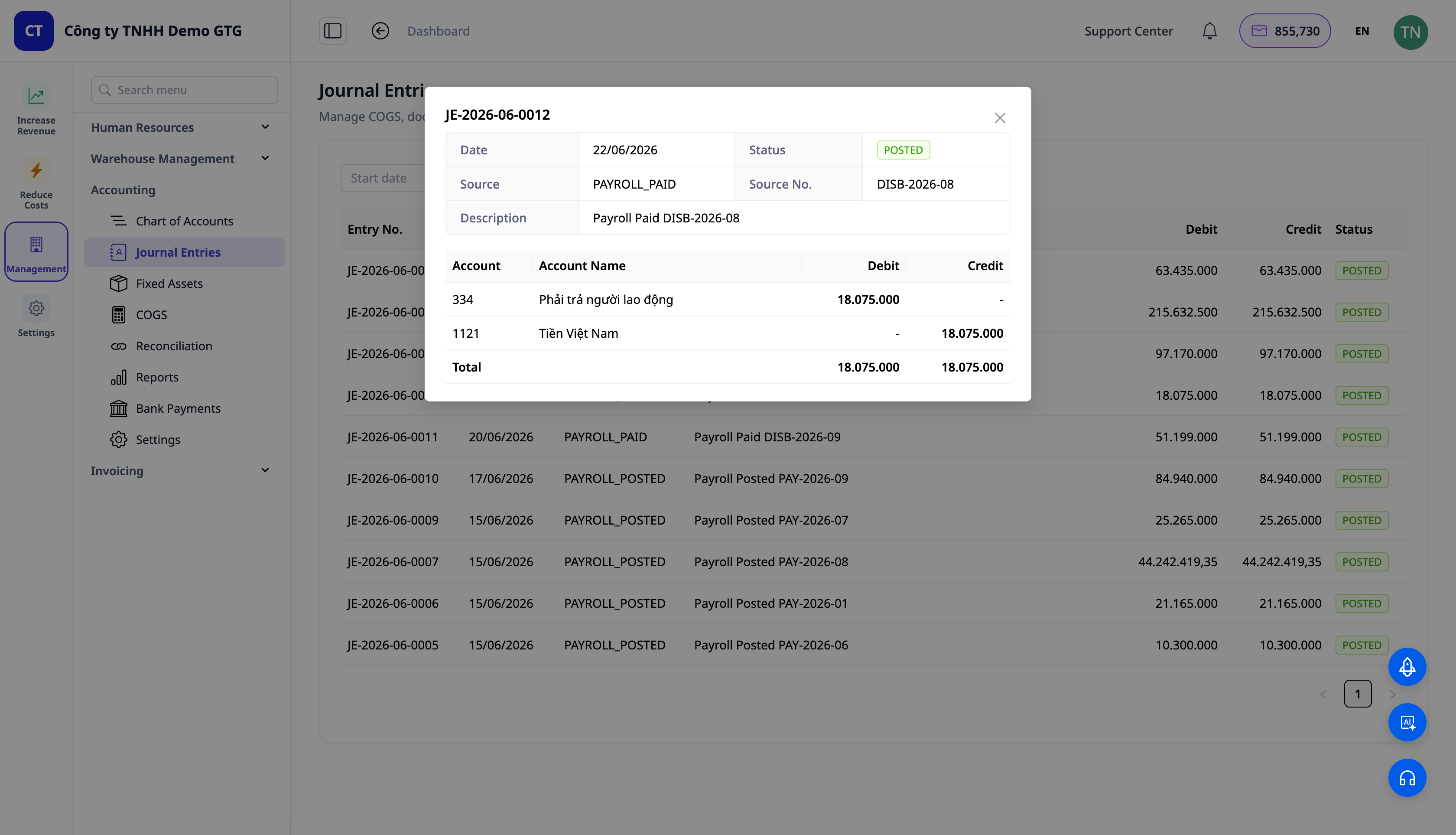
- Υπογεγραμμένη σύμβαση = δέσμευση, όχι ακόμη οικονομική συναλλαγή — οπότε δεν δημιουργούνται εγγραφές κατά την υπογραφή.
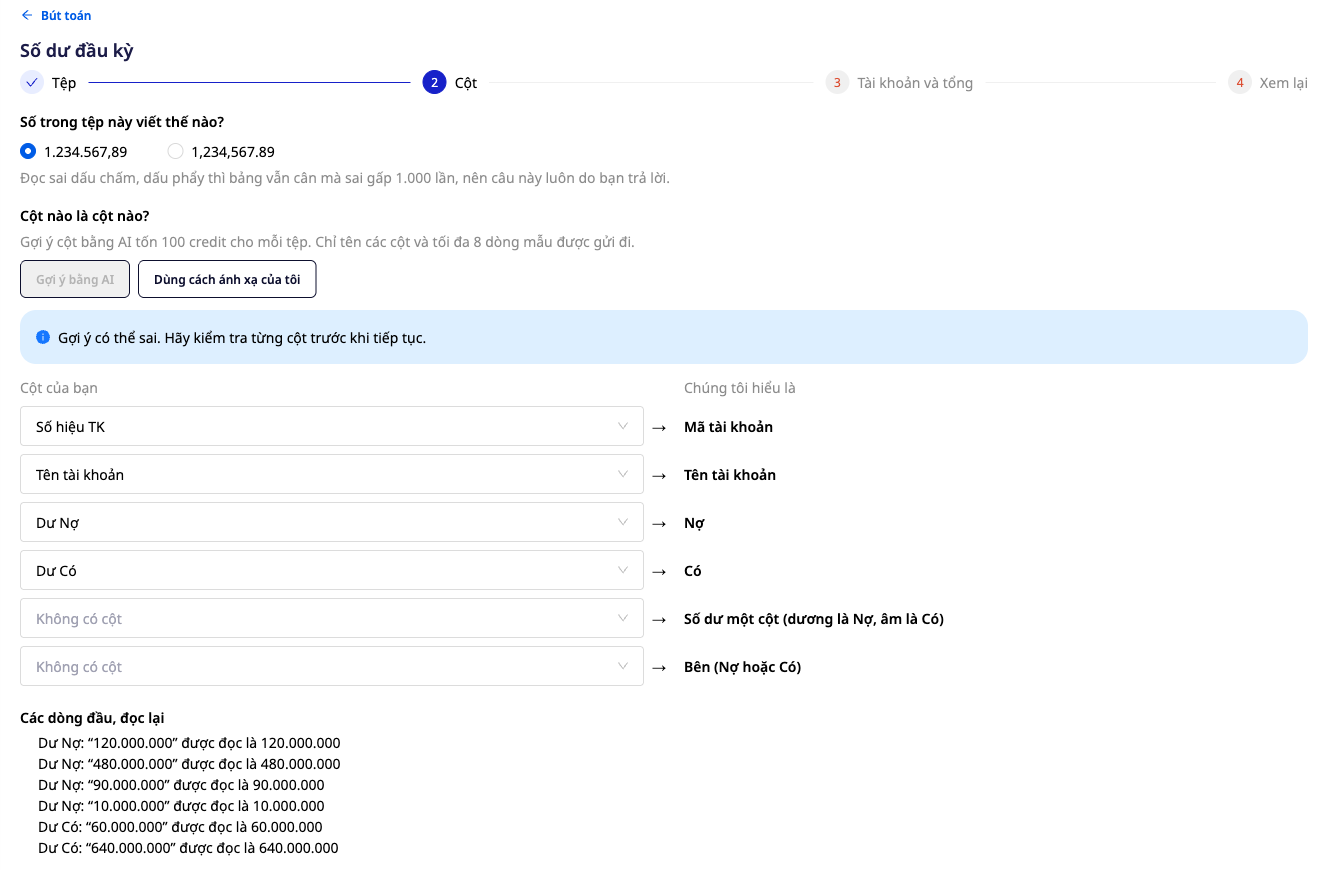
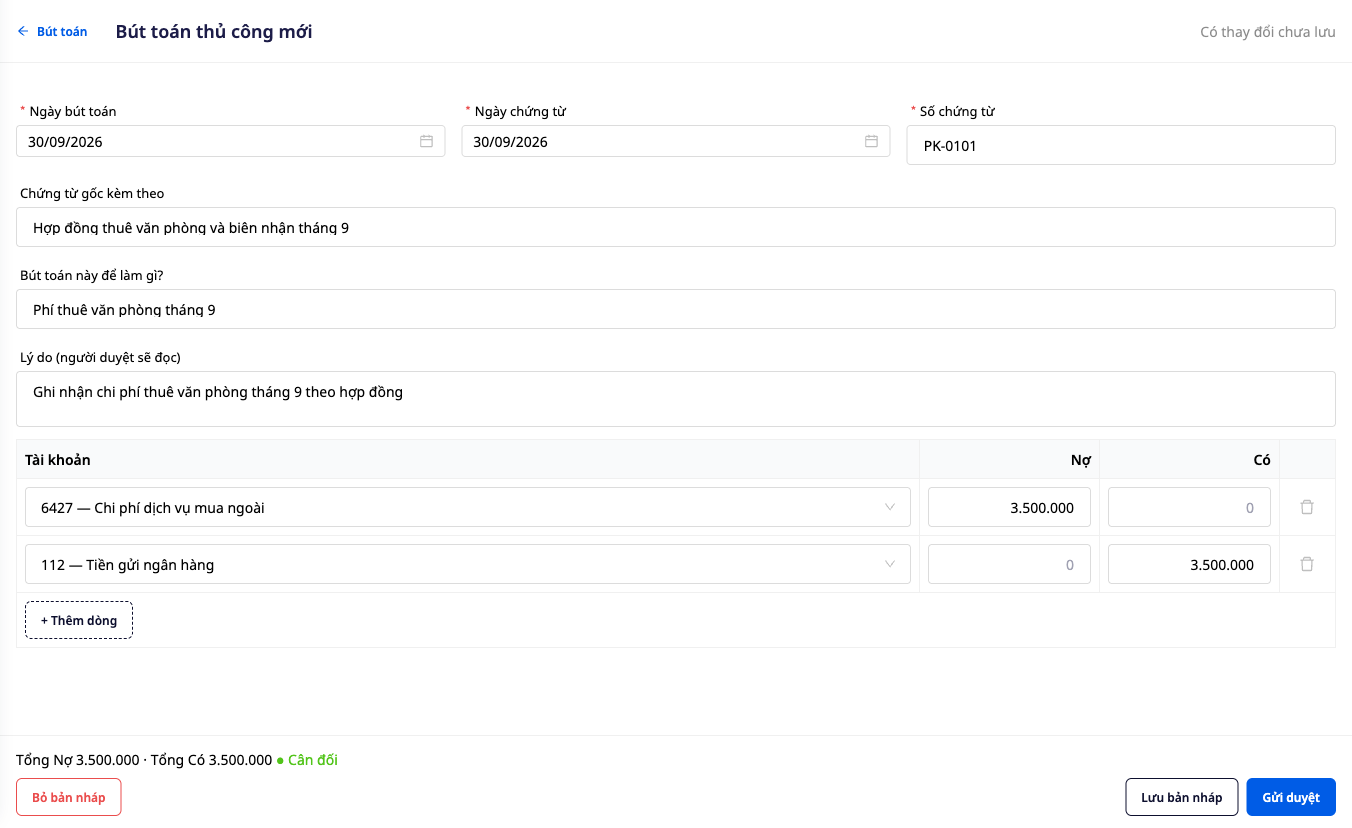
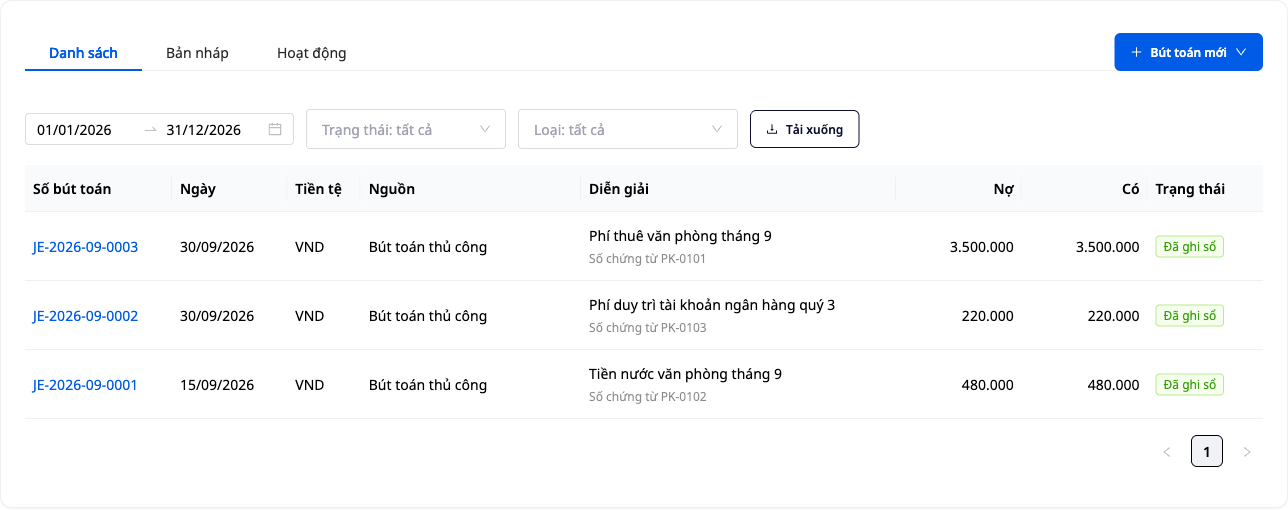
- Κατά την έκδοση τιμολογίου γίνεται η εγγραφή: Χρεωστικοί Λογαριασμοί Εισπρακτέοι (131) / Πιστωτικοί Λογαριασμοί Εσόδων (511) / Πιστωτικοί Λογαριασμοί ΦΠΑ (3331) — μέσω της υπάρχουσας αυτόματης μηχανής λογιστικής τιμολογίων.
- Κατά τη λήψη πληρωμής: Χρεωστικοί Λογαριασμοί Ταμειακών Διαθεσίμων (111/112) / Πιστωτικοί Λογαριασμοί Εισπρακτέοι (131).
Όλα επαναχρησιμοποιούν την υπάρχουσα αυτόματη μηχανή λογιστικής — δεν υπάρχουν "custom" κωδικοί GL, η ροή εργασίας είναι δική σας και μπορείτε να την επεξεργαστείτε.
Οφέλη για την Επιχείρηση
| Λειτουργία | Πραγματικό όφελος για εσάς |
|---|---|
| Ένας Κατάλογος (προϊόντα + υπηρεσίες) | Τέλος στα "ψεύτικα προϊόντα", καθαρή και σωστή κατάταξη |
| Μικτές προσφορές | Ένα έγγραφο αντί για δύο· λιγότερη σύνταξη |
| Συμβάσεις με Μέρος Β + παραλαβή | Σαφείς δεσμεύσεις, παραλαβή ανά στάδιο |
| Τμηματικά τιμολόγια ανά ημερολόγιο | Δεν ξεχνάτε να εισπράττετε, γνωρίζετε πάντα πόσα χρωστάτε |
| Τιμολόγια → αυτόματες εγγραφές | Έσοδα καταχωρημένα σωστά, χωρίς χειροκίνητη εισαγωγή |
| Αυτόματη συμπλήρωση εταιρικών πληροφοριών | Μέρος Β & ΑΦΜ συμπληρωμένα για συμβάσεις/τιμολόγια |
Σε Ποιους Απευθύνεται;
- Εταιρείες μάρκετινγκ / διαφήμισης (ICP3) που πωλούν μηνιαία πακέτα υπηρεσιών.
- Σύμβουλοι, ελεύθεροι επαγγελματίες, πάροχοι B2B που χρειάζονται συμβάσεις και τμηματικά τιμολόγια.
- Spa, κλινικές, εκπαιδευτικά κέντρα που πωλούν υπηρεσίες μαζί με προϊόντα.
- Επιχειρήσεις που πωλούν τόσο προϊόντα όσο και υπηρεσίες και θέλουν μία ενιαία προσφορά / μία ενιαία σύμβαση.
Πώς να Ξεκινήσετε;
Στο CRM → Κατάλογος → Υπηρεσίες, δημιουργήστε την πρώτη σας υπηρεσία, στη συνέχεια δημιουργήστε μια μικτή προσφορά και μετατρέψτε την σε σύμβαση. Δείτε αναλυτικές οδηγίες στο άρθρο "Οδηγός χρήσης Πωλήσεις Υπηρεσιών & Συμβάσεις".
Δωρεάν δοκιμή — δεν απαιτείται πιστωτική κάρτα.