Feature Introduction
A task is rarely just a single "to do" line. "Prepare for product launch" is actually ten smaller tasks; "Close the deal with client A" includes calling, sending quotes, and scheduling the signing. With a flat to-do list, you either cram everything into one line and forget where you left off, or create dozens of disjointed tasks with no clear purpose. Communication is scattered across chats and emails, and when your boss asks "who's handling the most work?", you're just guessing.
That ends today.
Task Management 2.0 brings everything together in one place : each task can be divided into two-level subtasks with automatically accumulating progress, includes checklists , comments and reminders (@mention) for teammates directly within the task , can be linked to Deals, Products, Orders, Invoices , and has an Analytics tab showing each person's workload. The list is redesigned, color-coded according to status and deadline so you can easily see which tasks are about to be overdue.
The Problems Businesses Are Facing
A flat to-do list that can't be broken down — Large tasks are listed as one vague line, making it easy to forget details.
Not knowing how much of a major task is completed — Progress reports are based on intuition, the boss doesn't have a grasp of the reality.
No tasks are nearing or past their deadlines — Remembering deadlines from memory makes it easy to miss tasks without realizing it.
Work-related communication is scattered across chat/email — Information gets lost, and those involved aren't notified.
It's unclear who's taking on too much work — Uneven allocation, people are overloaded, and management doesn't notice.
Task Management 2.0 transforms tasks into a structured task tree, with color-coded deadline alerts, a communication space, and transparent metrics—all tightly coupled to your business data.
Highlights
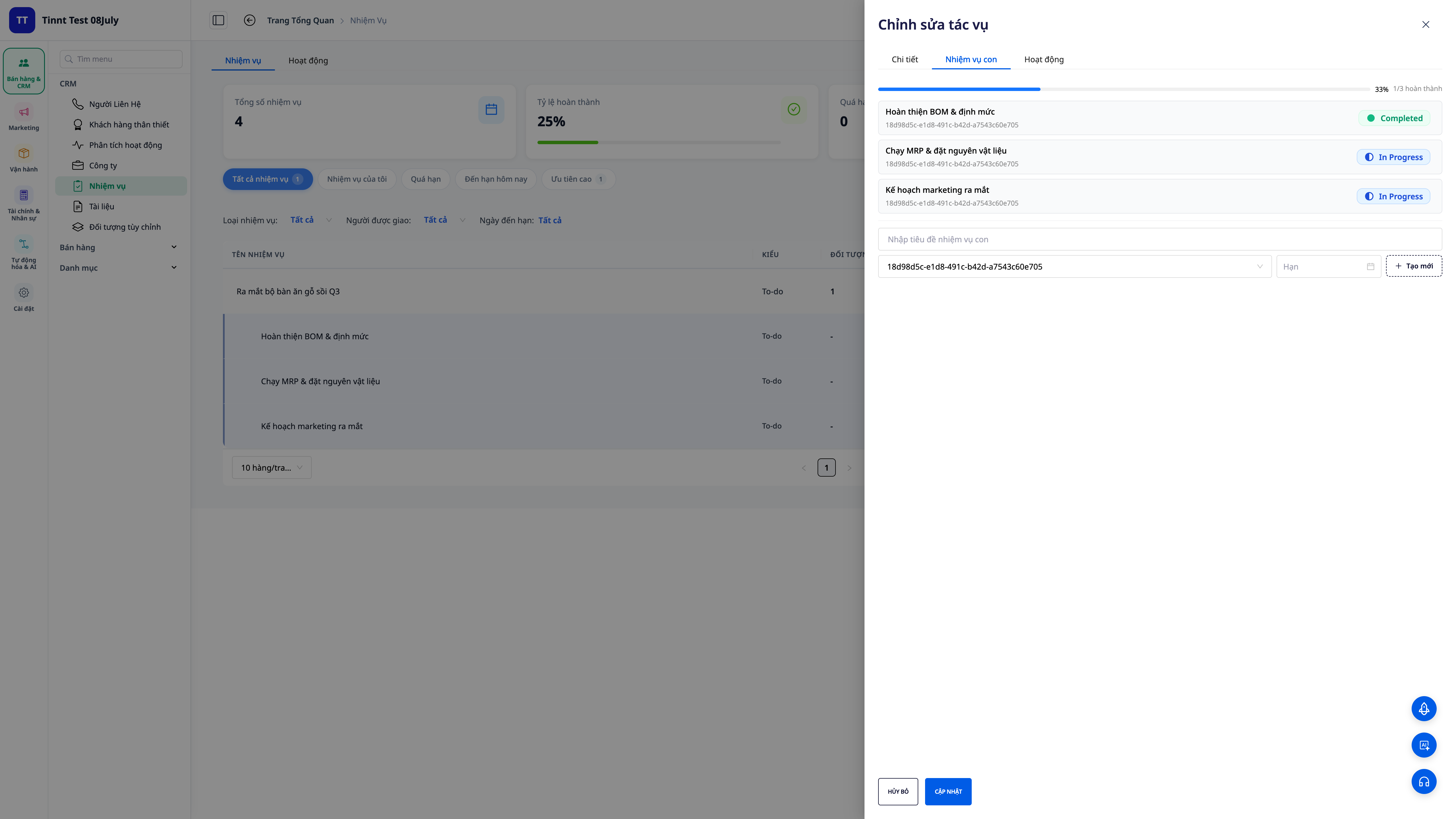
1. Sub-tasks at two levels + progress automatically accumulates.
- Break down tasks : separate a large task into smaller subtasks (up to two levels), each with its own person in charge, deadline, and status.
- Automatic progress tracking : once sub-tasks are completed, the progress of the parent task is automatically added up — no need to manually update the percentage.
- You can tell how much is left just by looking : the progress bar immediately shows how far the major project has progressed.
2. Checklist when creating a task.
- Start with a clear beginning : add a checklist of steps right when creating the task, so you don't have to go back and add them later.
- No steps missed : everything that needs to be done is neatly organized in one place, contributing to the progress.
3. Completed due to system standardization.
- Reliable completion time : the status and completion time are recorded by the server, not taken from the personal computer's clock — consistent data for comparison and reporting.
4. Link to Deals, Products, Orders, Invoices + Activity 360
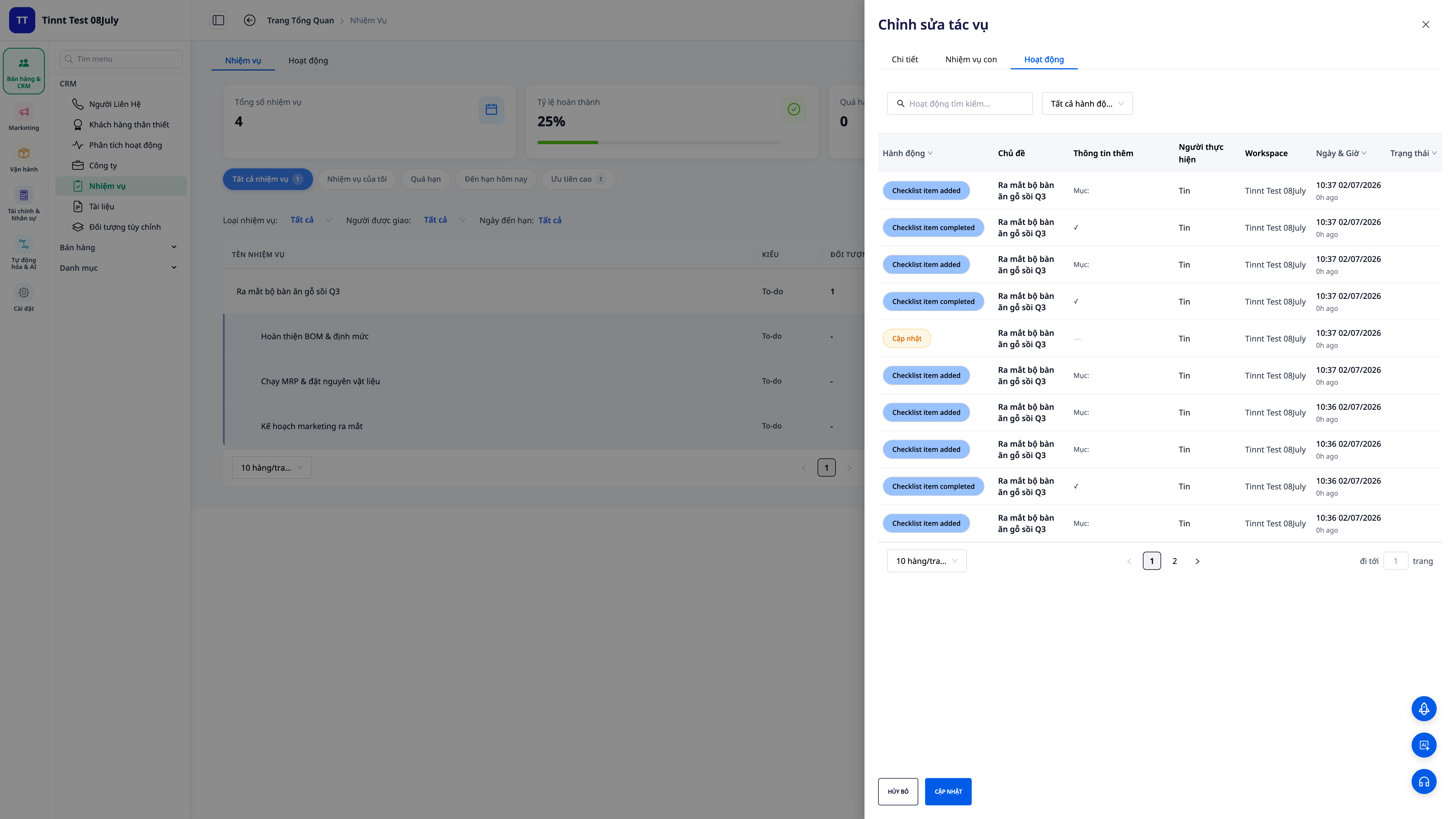
- Relevant object linking : associate the task with a Deal, Product, Order, or Invoice to understand which opportunity/order it serves.
- Activity 360 : an easy-to-read timeline showing everything that happens around a job — who does what, and when.
- Easy to track : from a deal or order, you can immediately see the related tasks and their status.
5. Redesigned list — color-coded by status & deadline + "Today" table
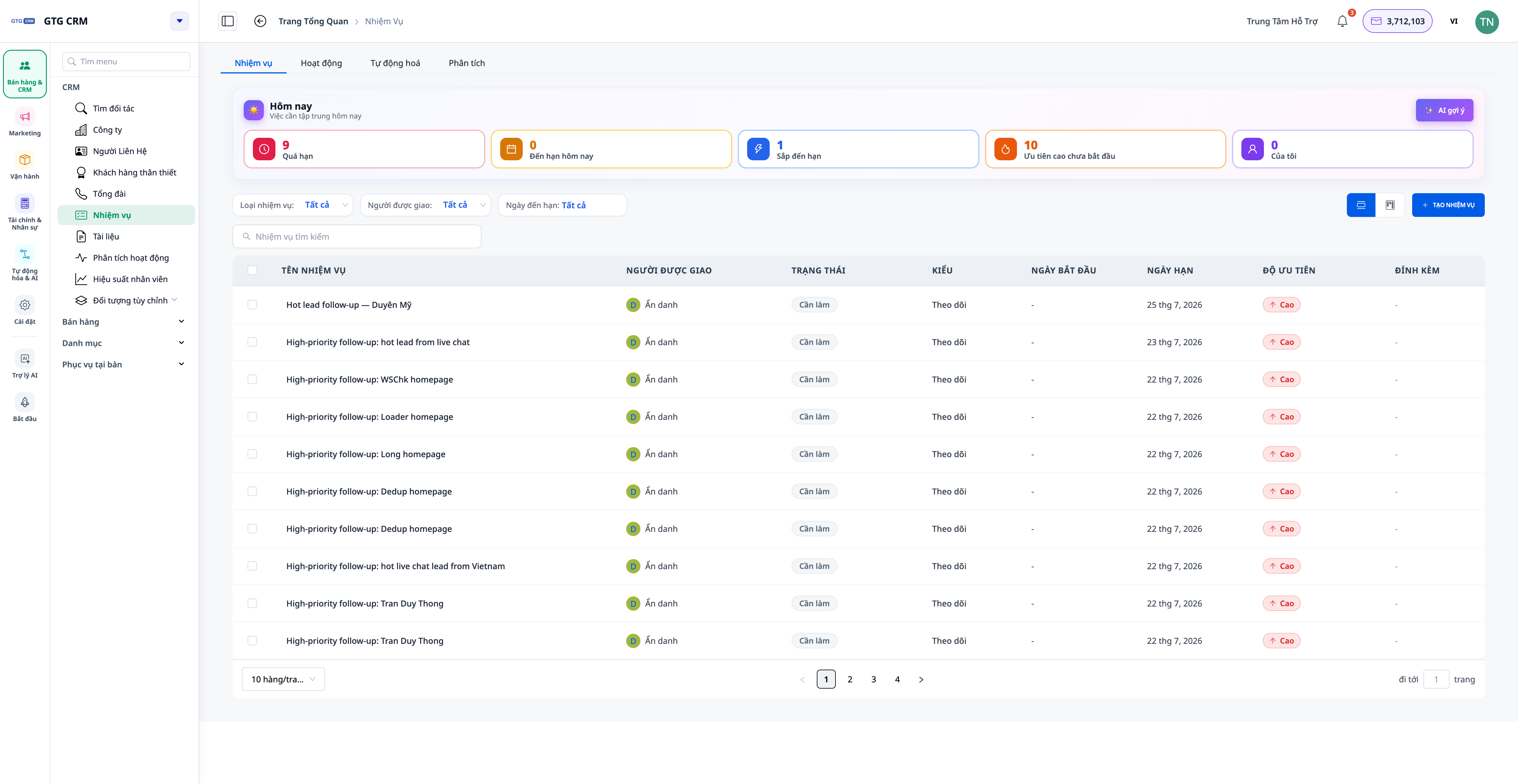
- The colors indicate the status : To Do, In Progress, Completed, Cancelled - each status has a subtle, easy-to-read tone.
- Deadline warnings are displayed directly on the line : upcoming deadlines are highlighted in amber, overdue deadlines are highlighted in red — looking at the list lets you know which one needs to be addressed first.
- The "Today" table at the top of the page includes pre-filtered options such as "Overdue · Due Today · Soon Due · High Priority · My Tasks", clicking on it will take you directly to the filtered list.
💡 Need a prioritized plan for the day? Click "AI Suggestions" to have the assistant arrange the order of tasks for you (feature uses credits).
6. Comment on work-related matters + mention (@mention) teammates.
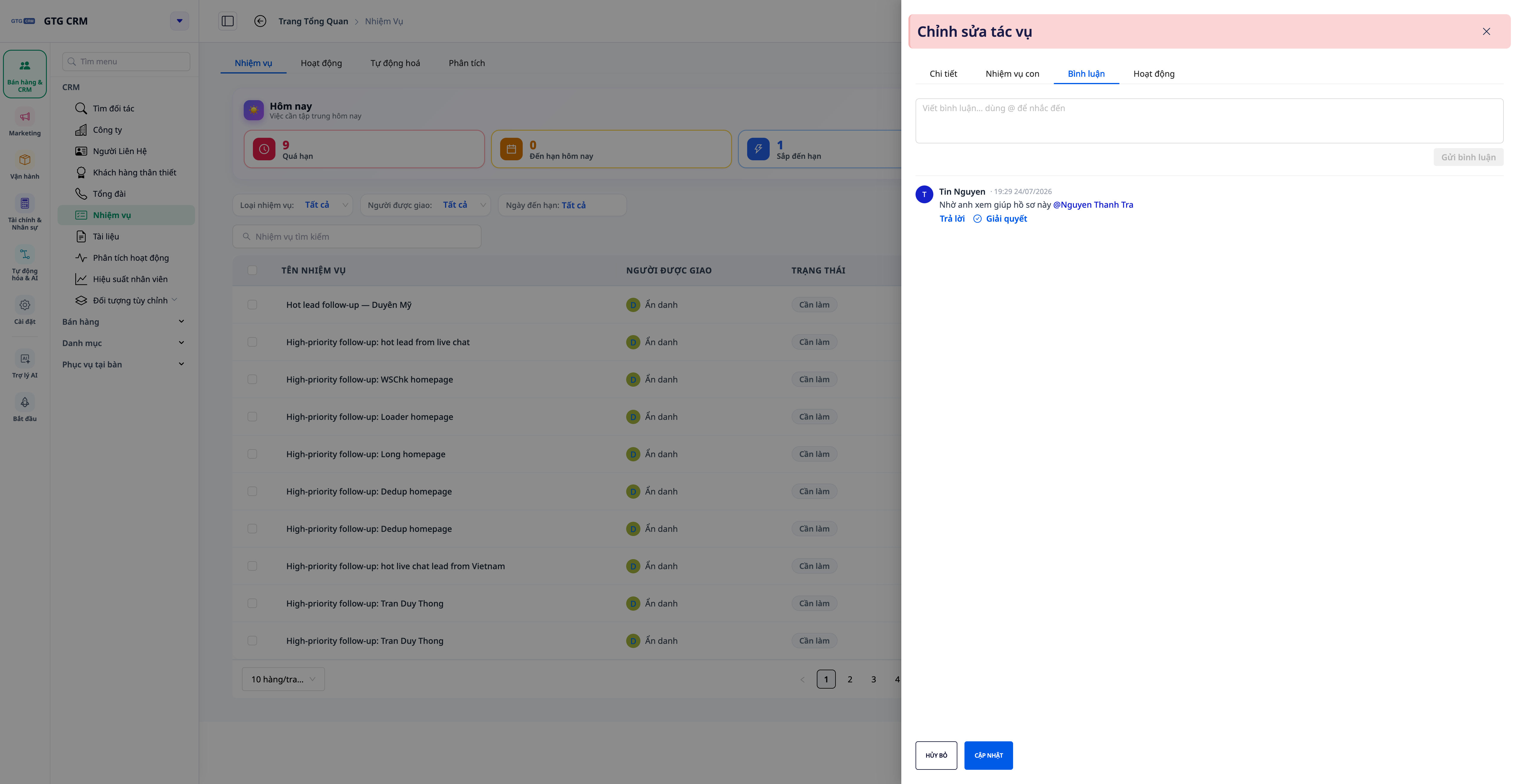
- Communication should be focused directly on the task at hand : all discussions should take place alongside the work itself, not stray into chat/email.
- Mention a teammate's name (@mention) : type
@and select a teammate; the name being mentioned will be displayed in bright blue , and that person will immediately receive a notification in the app . - Add email addresses when needed : enable the option to send reminders via email to include even those who are offline.
7. Job breakdown table — workload by person
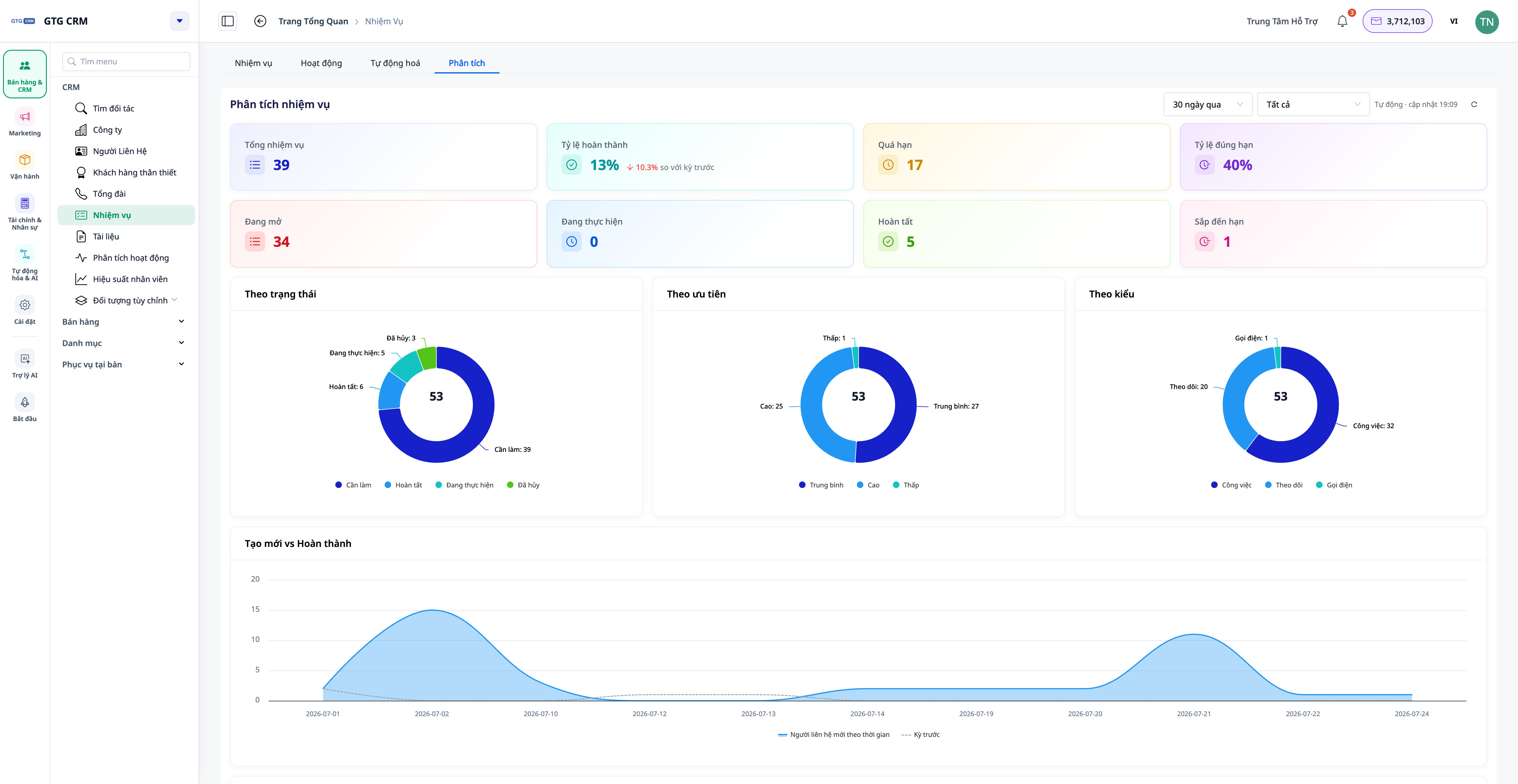
- Instant overview : total tasks, in progress, completed, overdue, completion rate, and on-time rate — with comparisons to the previous period.
- Workload by person : the chart shows who is overloaded with work and who has free time — reallocate tasks accordingly.
- Click on a person : see in detail what that person is doing on various tasks.
8. Reviewers & Reporters — now supports multiple reviewers, with Start Time & Related People
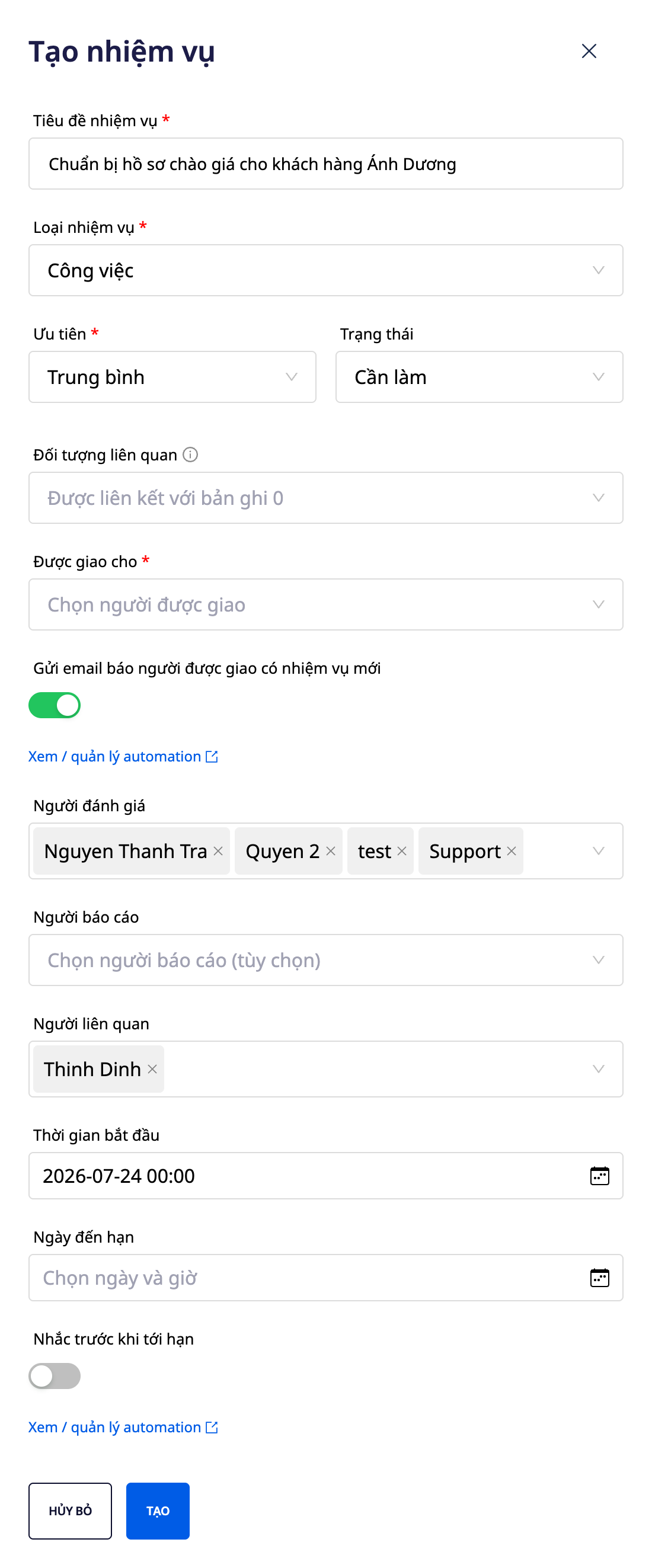
- Multiple Reviewers : Assign one or more reviewers to a task that requires multiple approval steps.
- Reporter : the person who creates/monitors the task to track the final outcome.
- Start Time & Stakeholders : Set a starting point and add a list of stakeholders so they can track progress.
9. Attach from Library & insert internal links
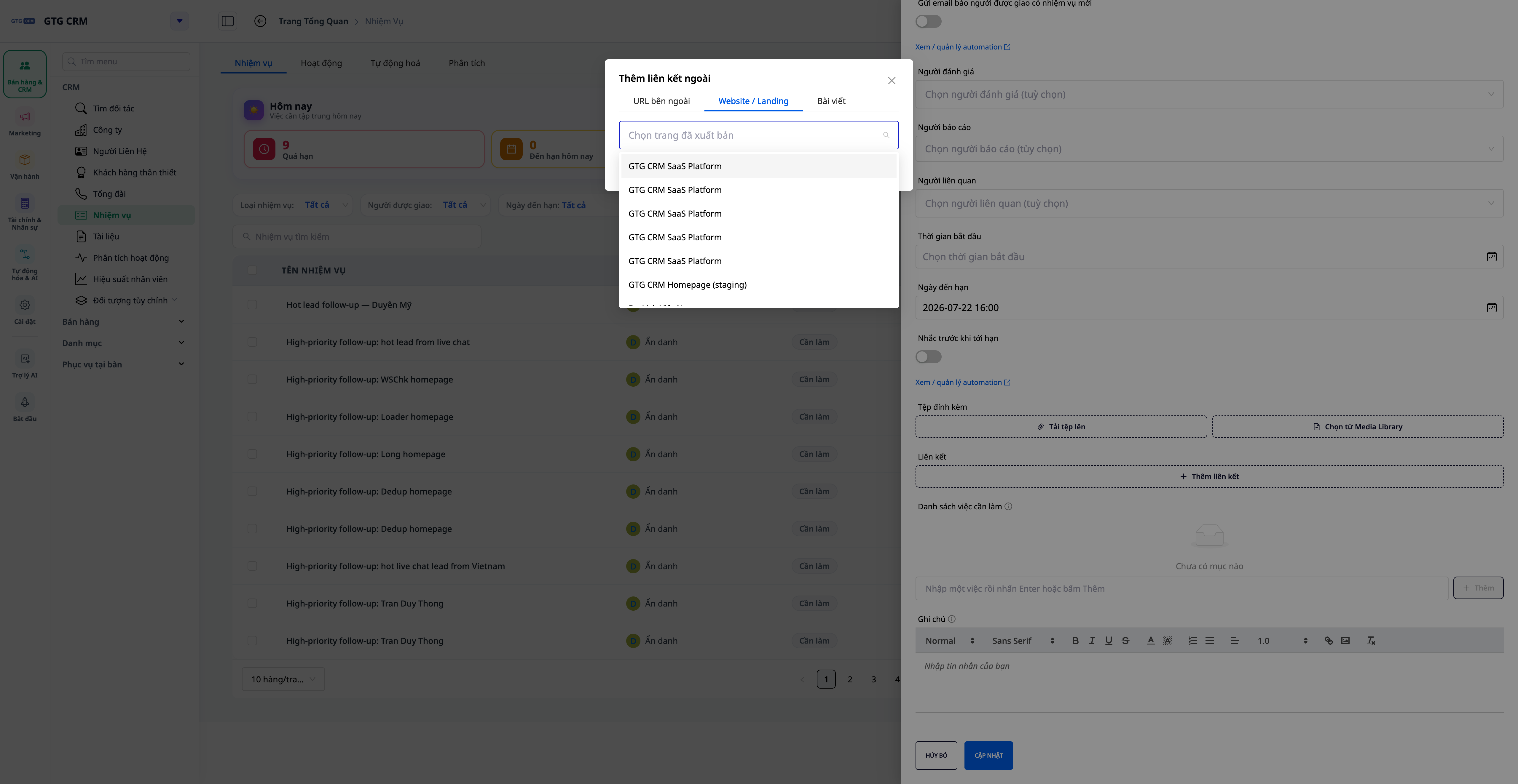
- Attach from Media Library : select existing files/images from the entire workspace, no need to re-upload from your computer.
- Insert internal links : quickly attach links to your website, landing page, or workspace post—no need to manually paste URLs.
10. Automate tasks — assign tasks, change status, complete, send email reminders.
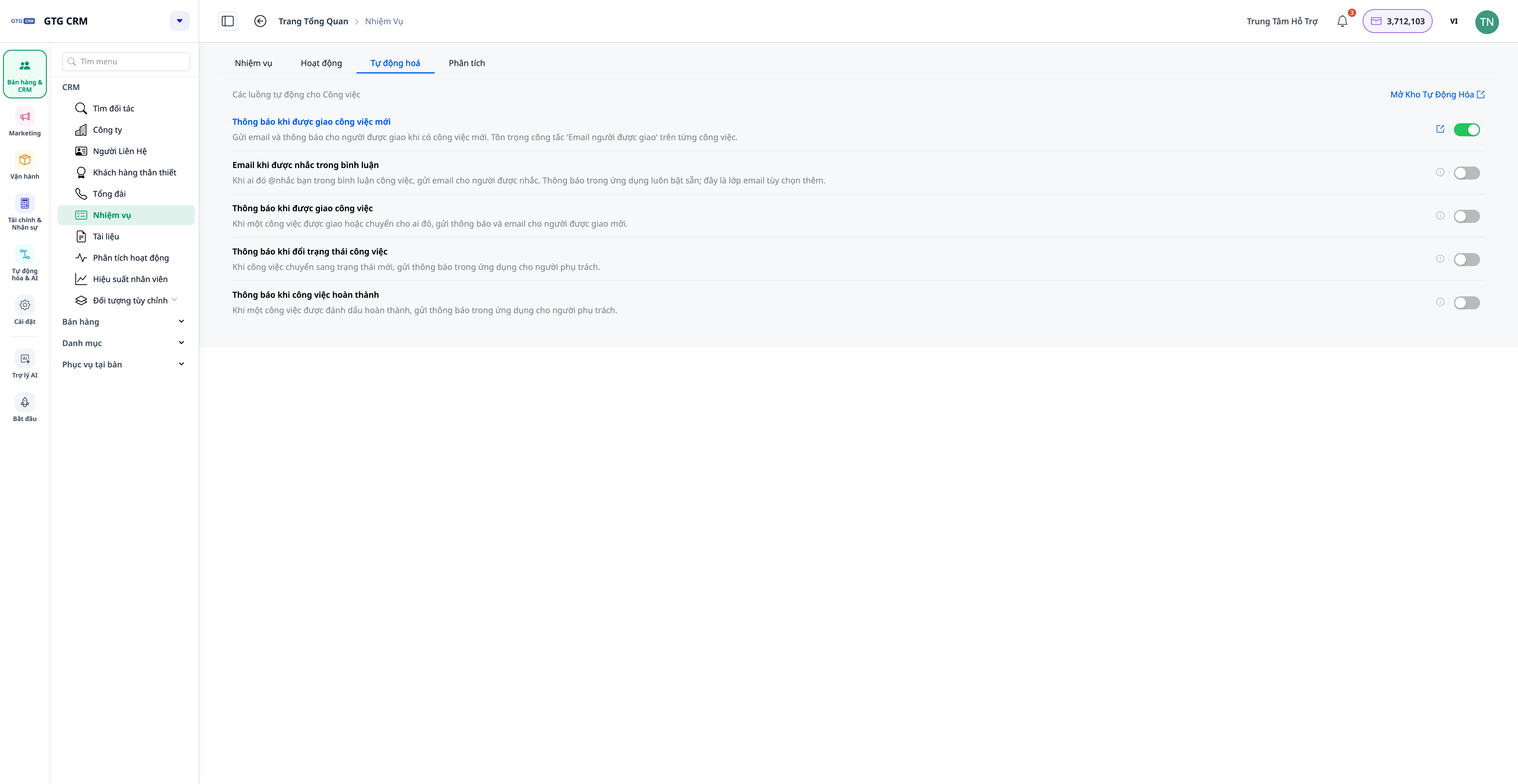
- Self-assignment : a process of automatically creating/assigning tasks to the right people when an event occurs (deal transition, new order, etc.).
- Status Change/Completion Notification : Automatically notifies relevant parties when a status change or completion occurs.
- Email on mentions : Enable this so that people mentioned in the @mention receive additional emails — toggle it on/off in the Task's Automation tab.
- These scenarios are located in the Automation Repository (see the Automation article).
Benefits for Businesses
Sub-tasks + automatic progress tracking — Major tasks are clearly divided, progress is transparent, no manual updates needed.
Color-coded to-do lists + "Today" board — Instantly see upcoming/overdue tasks, start your workday on track.
Comment + mention (@mention) — Keep the exchange concise, inform the right person — no misinformation
Individual performance analysis — Identify who is overloaded and redistribute resources promptly.
Multiple Reviewers/Reporters — Clear responsibilities, multiple approval steps when needed.
Attached from the Library + internal link — Reuse workspace resources, do not leave the system.
Attach Deals/Products/Orders/Invoices + Activity 360 — All tasks are linked to business data, making them easily traceable.
Automate tasks — No more dropped jobs, reduce manual reminders.
Who is it suitable for?
- The sales team manages many tasks around each deal (calls, quotes, signing appointments).
- The operations/project team needs to break down large tasks into smaller ones, communicate immediately during the task, and track progress closely.
- Managers need to see the workload for each person and report accurate progress instead of asking each person individually.
How do I get started?
Go to CRM → Tasks , create a task, add checklists and subtasks, link it to the relevant Deal/Order, then try commenting mentioning a teammate and open the Analytics tab. See the Task Management 2.0 step-by-step guide to follow, and refer to Automation for more information on how to run tasks automatically.
Try it for free — no credit card required.