You have a sitemap, it has been submitted to Google, and your website is starting to be indexed. But one day, you discover that your admin page, internal payment page, or staging site is also appearing on Google. Customers type your company name and see your unfinished test page.
Or the opposite: you post a new blog, wait two weeks, and it's still not on Google. You ask your technical team, and they say: "The robots.txt file is blocking Google from crawling your entire website."
Both situations involve a small file that few web managers pay attention to: robots.txt.
This article will explain what robots.txt is, how it works, when you need to edit it, and common mistakes businesses should avoid – all in simple language with practical examples.
What is robots.txt? Explained for Web Managers
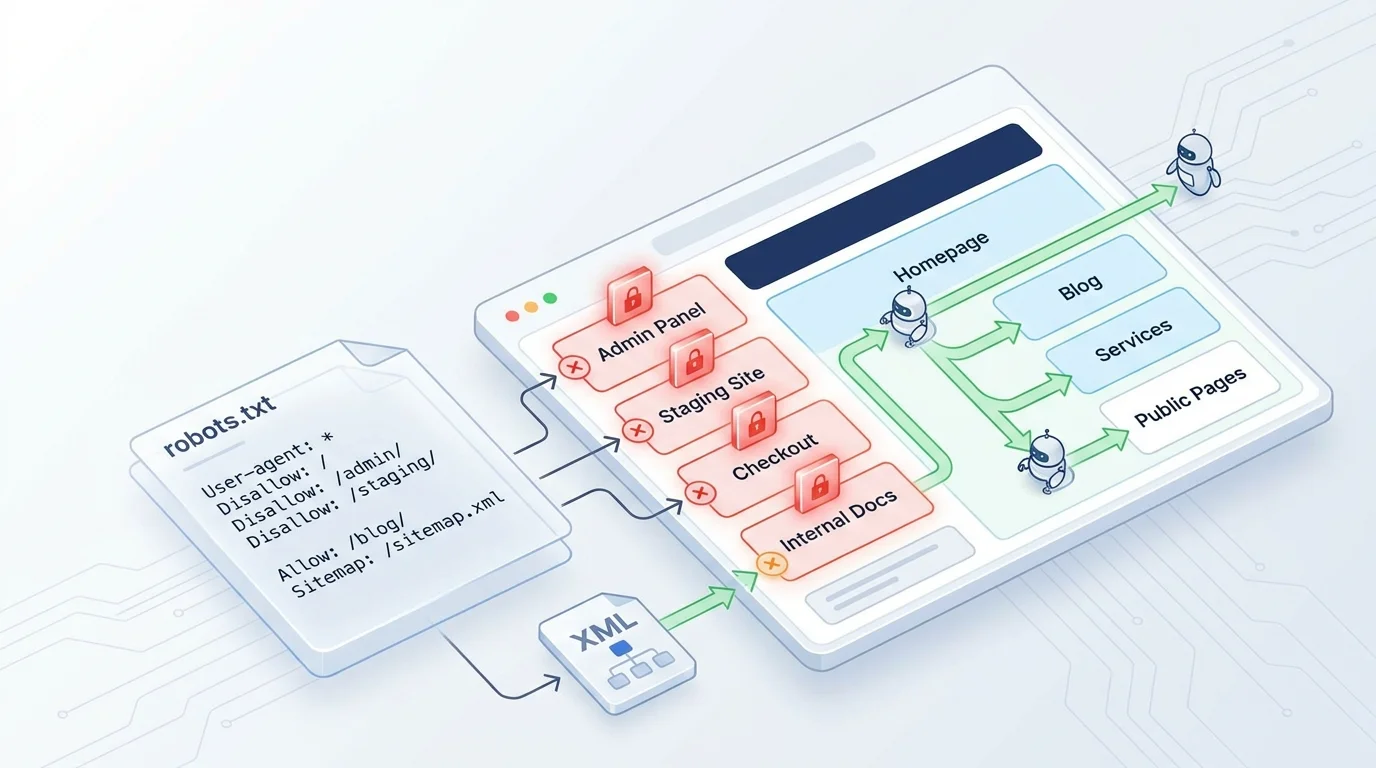
If a sitemap is the building's blueprint – telling Google what rooms exist, then robots.txt is the "Restricted Area" sign – telling Google which rooms not to enter.
Technically speaking: robots.txt is a small text file located in the root directory of your website (e.g., https://example.com/robots.txt). This file contains rules that tell search engine bots – like Googlebot – what:
- Pages are allowed to be crawled
- Pages are not allowed to be crawled
- Where the sitemap is located
You can view the robots.txt of any website by typing: domain.com/robots.txt in your browser.
💡 Important: robots.txt is just a polite request, not an absolute prohibition. Reputable bots like Googlebot will comply, but malicious bots (spam, scrapers) may ignore it. If you need true security, use passwords or a firewall – don't rely on robots.txt.
What does a robots.txt file look like?
You don't need to write this file from scratch. But to understand it when you see it, here's a simple robots.txt file:
User-agent: *
Disallow: /admin/
Disallow: /thanh-toan/
Disallow: /staging/
Allow: /

Sitemap: https://example.com/sitemap.xml
Explanation of each line:
| Line | Meaning |
|---|---|
User-agent: * | Applies to all bots (Google, Bing, etc.) |
Disallow: /admin/ | Do not let bots enter the /admin/ directory |
Disallow: /thanh-toan/ | Do not let bots enter the payment page |
Disallow: /staging/ | Do not let bots enter the staging version |
Allow: / | Allow bots to crawl the rest of the site |
Sitemap: https://... | Tell bots where the sitemap is located |
Here is a more complex example – suitable for a business website with a blog, service pages, and an administration area:
# Allow all bots to crawl public content
User-agent: *
Disallow: /admin/
Disallow: /wp-admin/
Disallow: /cart/
Disallow: /checkout/
Disallow: /my-account/
Disallow: /search?
Disallow: /*?ref=
Disallow: /*?utm_

# Allow Googlebot to crawl CSS and JS (needed to render the page)
User-agent: Googlebot
Allow: /wp-content/uploads/
Allow: /wp-includes/

Sitemap: https://example.com/sitemap.xml
📝 Note for devs: The `` character in the path is a wildcard — `/?utm_` means blocking any URL containing the `?utm_` parameter. The `$` character at the end of the path is used for exact URL matching. For example: `Disallow: /*.pdf$` will block all PDF files.
How robots.txt works in the SEO process?
To understand the role of robots.txt, let's revisit the process of Google listing your website in search results:
Crawl → Index → Rankrobots.txt operates in the first step – Crawl.
Before Googlebot starts crawling any page on your website, it checks robots.txt first. If a URL is listed in Disallow, Googlebot will skip that page – it won't crawl or read its content.
Googlebot wants to crawl https://example.com/admin/settings
→ Checks robots.txt
→ Sees Disallow: /admin/
→ Skips, does not crawl

Googlebot wants to crawl https://example.com/dich-vu/
→ Checks robots.txt
→ Not blocked
→ Crawls normally → Indexes → May appear in search results
Robots.txt and sitemap: a complementary pair
| File | Role |
|---|---|
| Sitemap | "Here is a list of pages I want Google to know about" |
| Robots.txt | "Here are the pages I do not want Google to crawl" |
These two files are not contradictory – they work together. The sitemap provides directions, robots.txt sets up barriers. When combined correctly, you control what Google sees and ignores on your website.
What is robots.txt used for? 4 Common Scenarios
1. Hiding admin and internal pages from Google
Admin pages, backend CMS pages, staging sites, test pages – none of these should appear on Google. robots.txt helps you tell Google: "Don't go here."
Disallow: /admin/
Disallow: /wp-admin/
Disallow: /staging/
2. Avoiding wasted "crawl budget"
Google doesn't crawl infinitely. Each website has a "crawl budget" – the number of pages Googlebot will scan during each visit. If your website has many unimportant pages (internal search pages, filter pages, pagination pages), Googlebot might spend its time crawling these instead of your important service pages or blog posts.
Disallow: /search?
Disallow: /tag/
Disallow: /page/
💡 Crawl budget is primarily important for large websites (thousands of pages). Small business websites usually don't need to worry too much, but keeping robots.txt clean is still a good habit.
3. Blocking duplicate content
If your website has multiple URLs leading to the same content (e.g., URLs with tracking parameters ?utm_source=facebook, or a print version ?print=true), you can block these duplicate URLs:
Disallow: /*?utm_
Disallow: /*?ref=
Disallow: /*?print=
4. Pointing to the sitemap
robots.txt is the first place Googlebot checks when it visits a website. Placing your sitemap's path here helps Google find it faster – even if you haven't submitted it via Search Console.
Sitemap: https://example.com/sitemap.xmlWhen should businesses care about robots.txt?
You don't always need to edit robots.txt. But there are times when checking this file is mandatory:
When the website is newly launched (go-live)
This is the most critical time. Many websites are completely blocked from crawling because developers forget to remove the Disallow: / line – a rule they put in place during staging to prevent Google from indexing the unfinished version.
Check when go-live:
| Category | How to check |
|---|---|
| Robots.txt file exists | Open https://your-domain.com/robots.txt in your browser |
| Does not block the entire website | Ensure there is NO Disallow: / line |
| Sitemap declared | Ensure there IS a Sitemap: https://your-domain.com/sitemap.xml line |
| Important pages not blocked | Check that service, blog, and contact pages are not listed under Disallow |
✅ When the website is not indexed by Google after weeks
If you have a sitemap, have submitted it via Search Console, but Google still isn't indexing it – robots.txt is the first suspect to investigate.
When adding areas to hide (member pages, internal pages)
If your website adds account management pages, member areas, or internal pages – update robots.txt to block these areas.
When changing website platform or redesigning
Each platform (WordPress, Webflow, custom code) creates different URL structures. When migrating, the old robots.txt might mistakenly block new pages or miss pages that should be blocked.
When Search Console reports "Blocked by robots.txt" errors
Google Search Console has an Indexing report that shows which pages are blocked by robots.txt. If important pages are blocked – it's time to edit the file immediately.
5 Common robots.txt Errors and How to Fix Them
Error 1: Blocking the entire website – the most serious error
Symptom: No pages are indexed by Google. Search Console reports numerous pages as "Blocked by robots.txt".
Cause: The robots.txt file contains:
User-agent:
Disallow: /
These two lines mean: "Prohibit all bots from accessing any page." This often happens when developers set this rule during staging and forget to remove it upon going live.
Fix: Change to:
User-agent: *
Disallow:

Sitemap: https://your-domain.com/sitemap.xml
Disallow: (with nothing after the colon) = allow crawling of everything.
⚠️ This is the #1 error we see on new business websites. After fixing it, Google may take several days to weeks to recrawl. Resubmit your sitemap via Search Console to speed up the process.
Error 2: Blocking CSS and JavaScript
Symptom: The website displays normally in the browser, but when using the "URL Inspection" tool in Search Console, Google sees the page with broken layouts or empty content.
Cause: robots.txt blocks directories containing CSS and JS:
Disallow: /wp-content/
Disallow: /wp-includes/
Google needs to read CSS and JS to understand how the page looks (this is called "rendering"). If blocked, Google cannot render the page → it doesn't understand the content → impacting ranking.
Fix:
User-agent: *
Disallow: /wp-admin/
Allow: /wp-admin/admin-ajax.php
Allow: /wp-content/
Allow: /wp-includes/
📝 Note for devs: Since 2014, Google has explicitly recommended: do not block CSS, JS, and images in robots.txt. Googlebot needs these resources to render pages correctly. Use the URL Inspection tool in Search Console to check how Google renders your pages.
Error 3: Mistakenly blocking important pages
Symptom: Service pages, product pages, or blog posts are not appearing on Google – even though the sitemap lists them.
Cause: The rule in robots.txt is too broad. For example:
Disallow: /dich-vuThis line blocks not only /dich-vu/ but also /dich-vu-thiet-ke-web/, /dich-vu-seo/, and any URL starting with /dich-vu.
Fix: Add a trailing slash / to the path to block the directory precisely:
Disallow: /dich-vu-noi-bo/
Or use Allow to protect necessary pages:
Disallow: /dich-vu-noi-bo/
Allow: /dich-vu/
Allow: /dich-vu-thiet-ke-web/
📝 Note for devs: The order of `Allow` and `Disallow` matters. Googlebot uses the most specific path rule. If paths are of equal length, `Allow` is prioritized over `Disallow`. Always test using the Robots Testing Tool in Search Console before deploying.
Error 4: No robots.txt file
Symptom: Typing your-domain.com/robots.txt → returns a 404 error.
Cause: The website was built manually, and the developer didn't create this file. Or the file was accidentally deleted during deployment.
Impact: Not as severe as Error 1 – if there's no robots.txt, Google defaults to crawling everything. But this means:
- Google will crawl admin pages, test pages, and internal pages
- You have no way to point to your sitemap via robots.txt
- Missing basic control
Fix: Create a robots.txt file in the root directory. Minimum content:
User-agent: *
Disallow: /admin/
Disallow: /search?

Sitemap: https://your-domain.com/sitemap.xml
Error 5: Using robots.txt to hide pages from Google (misunderstanding the purpose)
Symptom: You block a page with Disallow, but the page still appears on Google – albeit without content snippets.
Cause: robots.txt blocks crawling, not indexing. If the page was indexed previously, or has backlinks from other websites pointing to it, Google might keep the URL in search results – it just won't display the content.
Correct Fix:
| Goal | What to use |
|---|---|
| Do not want Google to crawl | Disallow in robots.txt |
| Do not want Google to index | |
| Do not want either | Use noindex in HTML (and do not block in robots.txt) |
⚠️ This is the most commonly misunderstood point: If you both block crawling (robots.txt) and set `noindex` (HTML), Google will not see the noindex tag because it cannot crawl the page – and the page might still be indexed. Solution: use `noindex` in the HTML and remove the `Disallow` rule for that page in robots.txt.
Sample robots.txt for Business Websites
Here is a sample robots.txt file suitable for most SMB business websites:
# =============================================
# Robots.txt for Business Websites
# Updated: 2026-04-20
# =============================================

# Applies to all bots
User-agent: *

# Block admin and internal areas
Disallow: /admin/
Disallow: /wp-admin/
Disallow: /dashboard/
Disallow: /staging/

# Block internal search pages (to avoid wasting crawl budget)
Disallow: /search?
Disallow: /*?s=

# Block URLs with tracking parameters (to avoid duplicate content)
Disallow: /*?utm_
Disallow: /*?ref=
Disallow: /*?fbclid=

# Block cart/checkout/account pages (if applicable)
Disallow: /cart/
Disallow: /checkout/
Disallow: /my-account/

# Allow CSS, JS, and images (Google needs them to render the page)
Allow: /wp-content/uploads/
Allow: /wp-content/themes/
Allow: /wp-includes/

# Point to the sitemap
Sitemap: https://your-domain.com/sitemap.xml
📝 Note for devs: The robots.txt file must be in the root domain — `https://example.com/robots.txt`. Not in `/blog/robots.txt` or other subdirectories. Each subdomain needs its own robots.txt (e.g., `blog.example.com/robots.txt` is separate from `example.com/robots.txt`).
How to check your website's robots.txt
Method 1: Check directly in the browser
Type https://your-domain-name.com/robots.txt into the address bar. You will see the file's content in text format. If you see a 404 error – your website does not have a robots.txt file yet.
Method 2: Use Google Search Console
- Log in to Google Search Console
- Go to Settings → Crawling → robots.txt
- View the robots.txt file Google is reading
- Check if a specific URL is blocked
Method 3: Check the Indexing report
In Search Console → Pages (or Indexing) → Find the section "Blocked by robots.txt". If any important pages are on this list, you need to fix robots.txt immediately.
💡 It's recommended to check robots.txt at least quarterly or whenever your website undergoes significant changes (adding pages, changing structure, migrating platforms).
Summary Table: What robots.txt should and should not block
| ✅ SHOULD block | ❌ SHOULD NOT block |
|---|---|
Admin pages (/admin/, /wp-admin/) | Homepage, service pages, contact pages |
| Staging / test pages | Blog posts, articles |
Internal search pages (/search?) | CSS and JavaScript files |
URLs with tracking parameters (?utm_, ?fbclid=) | Images (Google Images also drive traffic) |
| Cart, checkout, personal account pages | Sitemap |
| Duplicate content pages (filters, sorting, pagination) | FAQ pages, case studies |
Frequently Asked Questions about robots.txt
How are robots.txt and sitemaps different?
A sitemap says: "Here are the pages I want Google to know about." robots.txt says: "Here are the pages I do not want Google to crawl." The two files are complementary – the sitemap shows the way in, robots.txt sets up barriers.
If I don't have robots.txt, can Google still crawl my website?
Yes. Without robots.txt, Google defaults to crawling all pages – including those you don't want. That's why this file is necessary.
I use WordPress, where is robots.txt located?
WordPress creates a virtual robots.txt. If you use an SEO plugin like Yoast or Rank Math, you can edit robots.txt directly within the plugin without needing server access.
Does robots.txt affect website speed?
No. This file is only a few KB in size. It does not impact page loading speed.
I blocked a page with robots.txt, but it still shows up on Google?
Because robots.txt only blocks crawling, not indexing. If you want a page to completely disappear from Google, use the tag in the HTML – and do not block that page in robots.txt (so Google can read the noindex tag).
After editing robots.txt, how long does it take for Google to update?
Google usually rechecks robots.txt within 24-48 hours. You can go to Search Console → Settings → Crawling to request Google to check again sooner.
Conclusion
robots.txt is a small file – often just a few lines – but it directly affects whether Google sees your website or not.
Key takeaways:
- robots.txt is the "Restricted Area" sign: tells Google which pages not to crawl
- Check immediately when the website goes live: blocking the entire website is the most common and serious error
- Do not use robots.txt to hide pages from Google: it blocks crawling, not indexing
- Always allow CSS and JS: Google needs to render pages to understand their content
- Combine with sitemap and Search Console: to gain complete control over how Google crawls and indexes your website
Check your website's foundation
robots.txt is just one of many technical factors affecting SEO. If you're wondering: "Is my website set up correctly?" – the answer lies in the foundation you're using.
GTG CRM helps you get a website with a proper robots.txt, automatic sitemaps, and a technical structure ready for Google – you don't have to worry about editing individual files or lines of code.
Turn what you've just read into real results — apply it now with GTG CRM, for free.
Apply Now