1. Brändi identiteedi juurde pääsemine
1. samm: GTG CRM-i sisse logimine
Logige sisse oma GTG CRM kontole.
2. samm: Brändi identiteedi menüü avamine
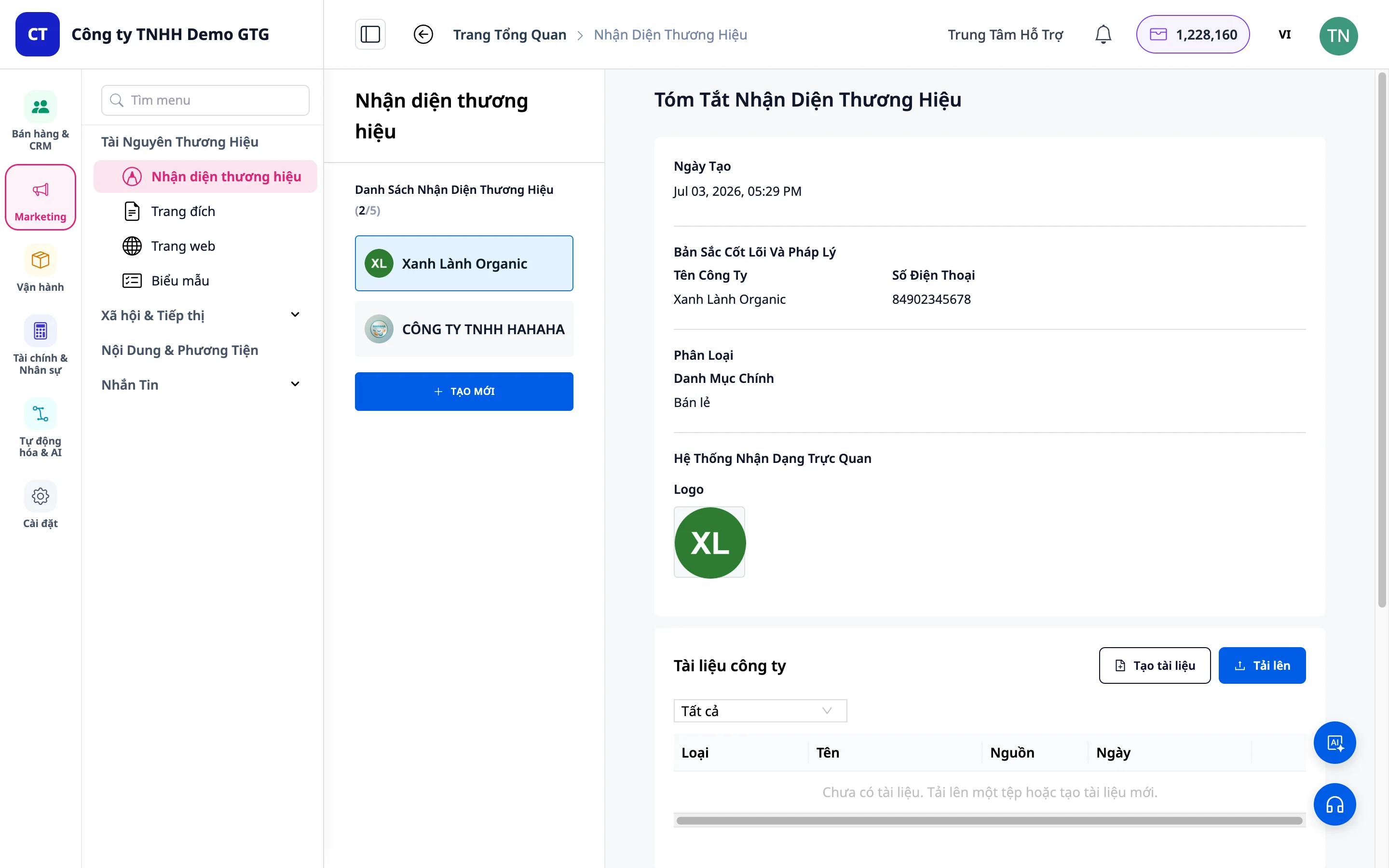
Vaadake vasakpoolset tööriistariba, leidke menüüpunkt "Loo brändi identiteet" ja klõpsake sellel.
2. Brändide loendi vaatamine
- Näete loodud brändide loendit
- Klõpsake brändil, et vaadata üksikasjalikku teavet
- Klõpsake "Loo uus", et alustada uue brändi loomist
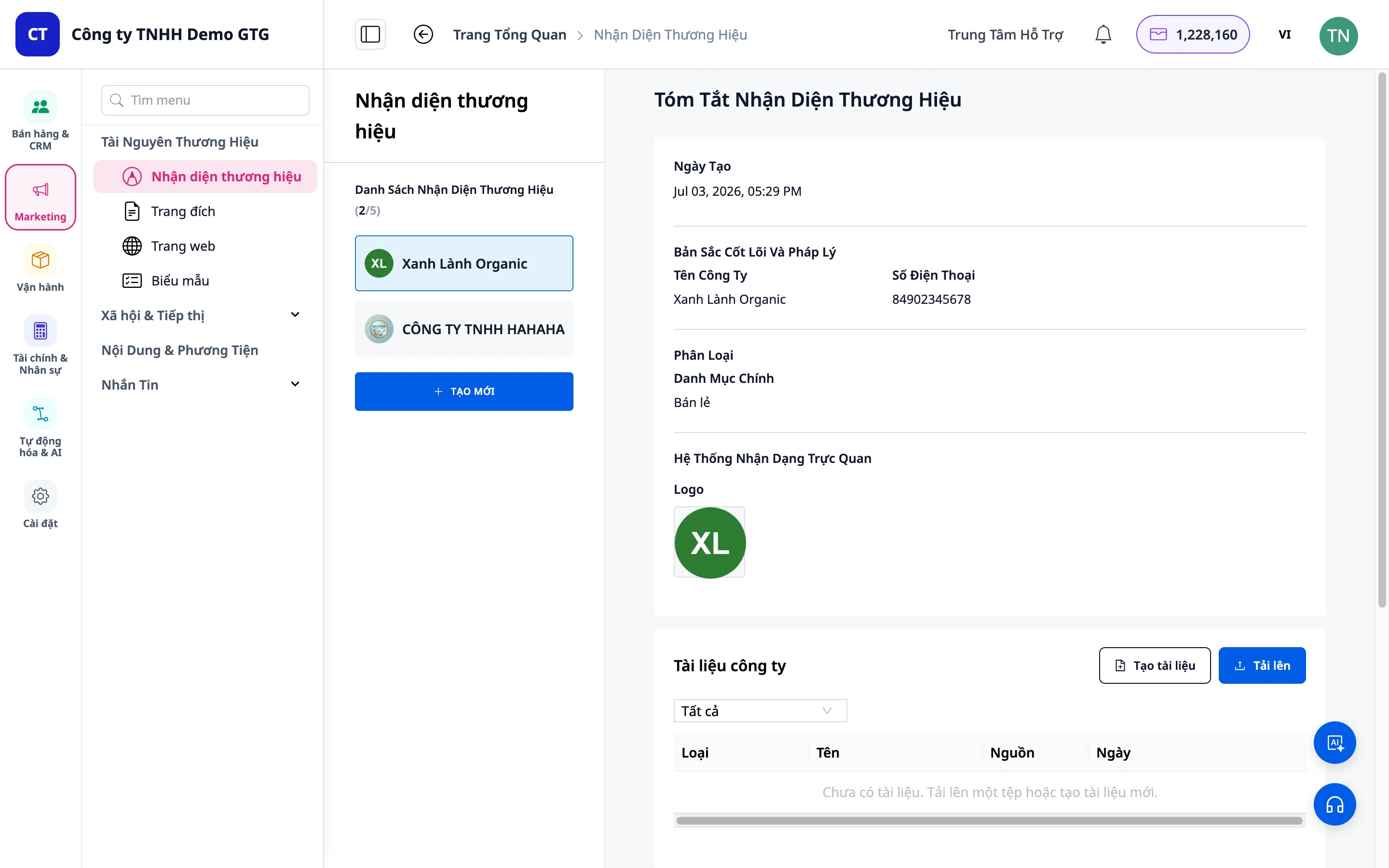
3. 1. samm: Põhiteave
Kohustuslik teave (punase tähega *)
- Ettevõtte nimi: Sisestage oma brändi nimi
- Näide: "WHATEVER STUDIO"
- Telefoninumber: Sisestage peamine kontakttelefon
Valikuline teave
- E-post: Võib jätta tühjaks, kui see pole vajalik
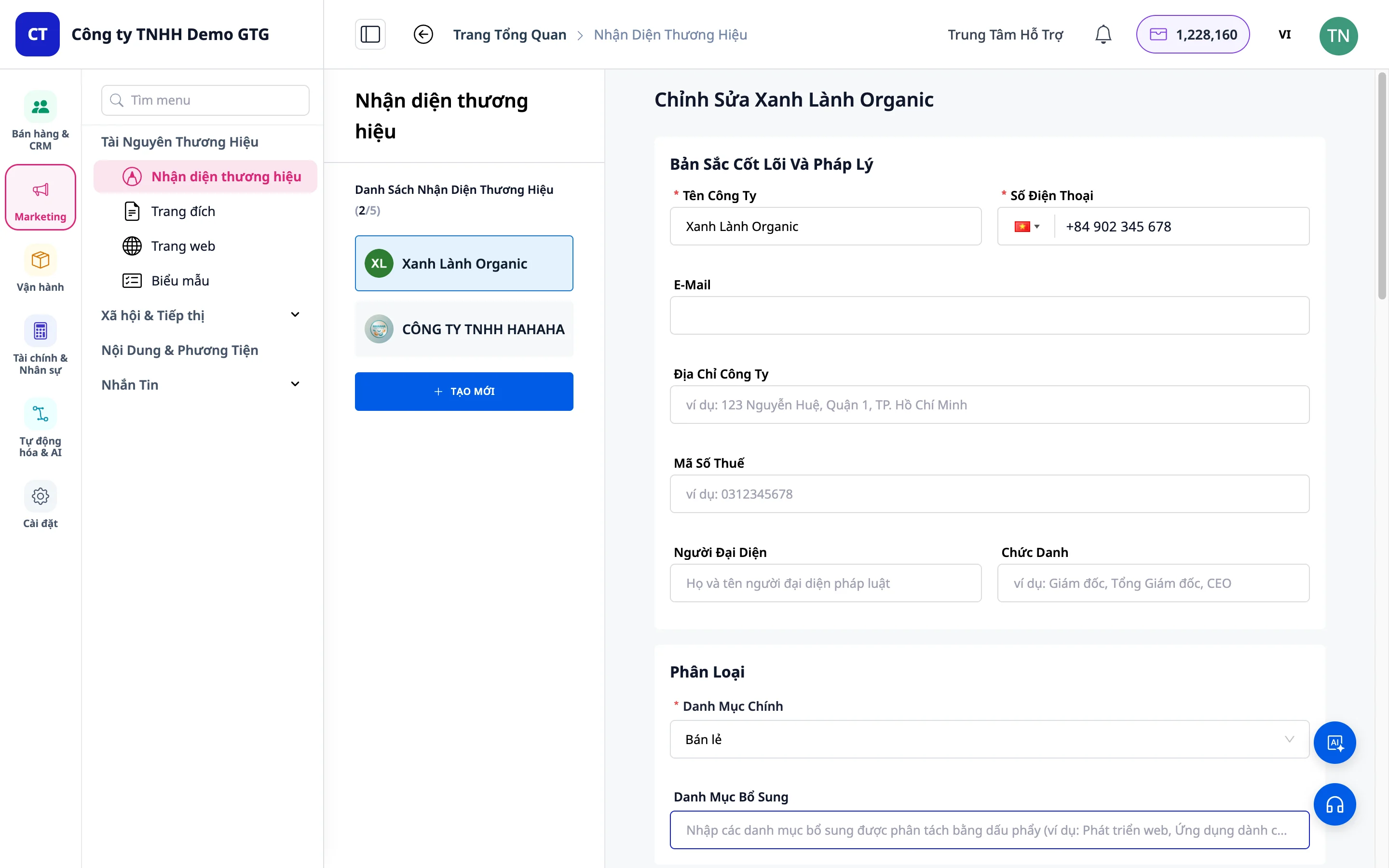
4. 2. samm: Tööstusharu kategooria
- Valige oma ettevõttele sobiv tööstusharu
- Näide: Mood, F&B, Tehnoloogia jne.
Märkus: Tööstusharu aitab AI-l luua sobivama nägemuse, missiooni ja värvid teie valdkonnale.
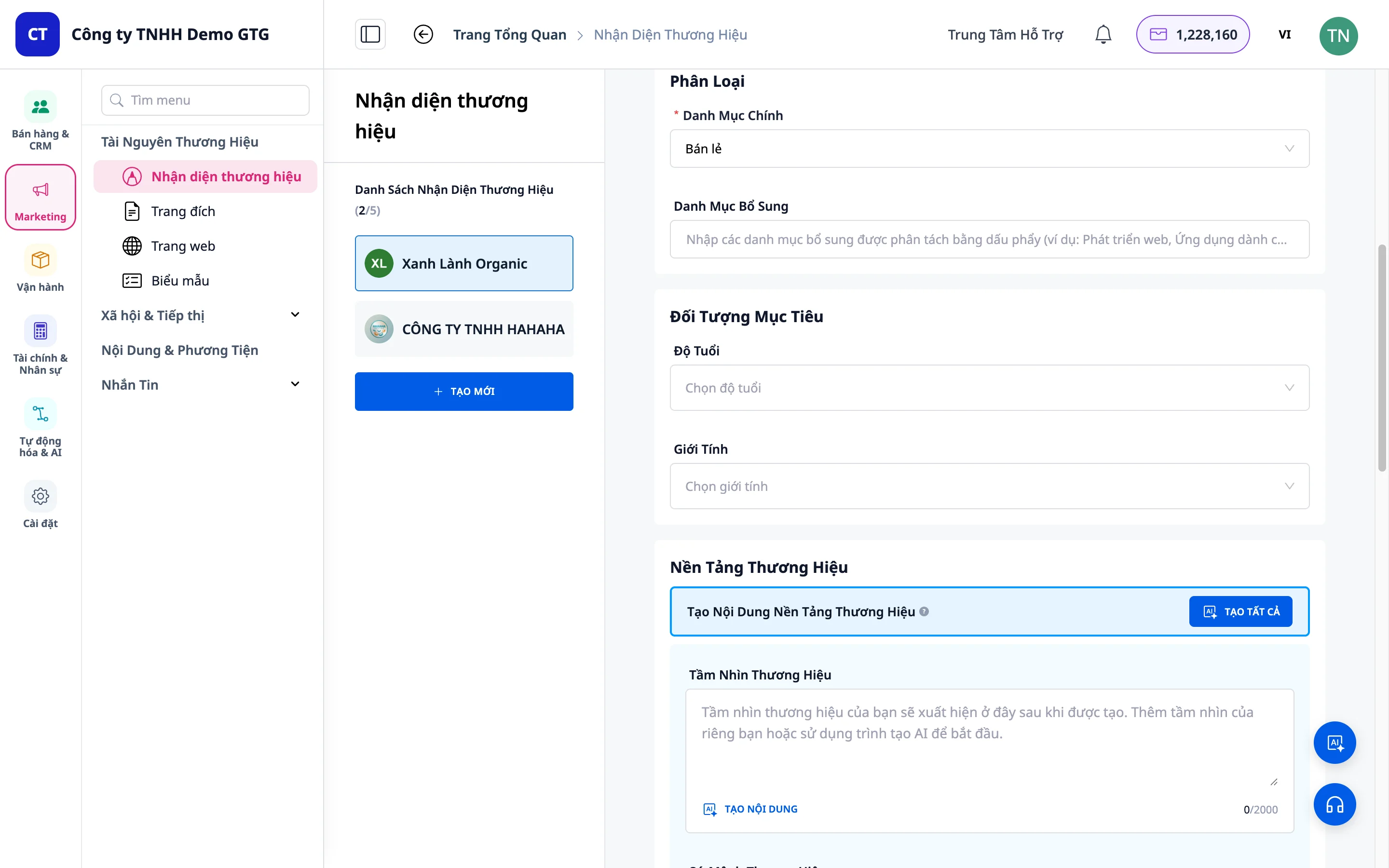
5. 3. samm: Sihtrühm
Vanus
- Sisestage sihtturu klientide vanusevahemik
- Näide: "18-34 aastat"
Sugu
- Valige: Mees, Naine või Kõik
- Saate valida mitu valikut
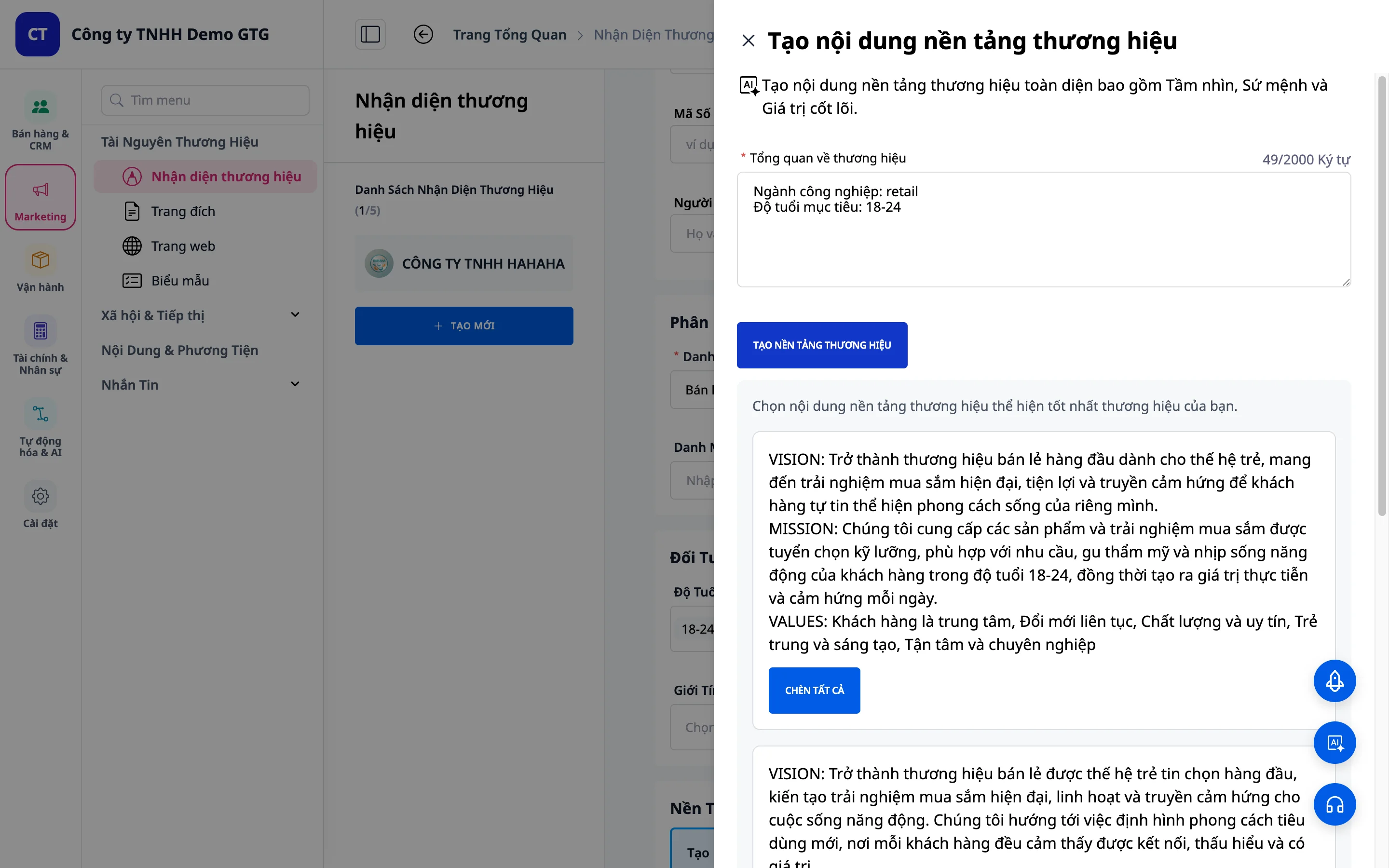
6. 4. samm: Brändiplatvorm
See on brändi identiteedi kõige olulisem osa.
1. juhtum: sisu on juba olemas
- Kui teil on juba olemas nägemus, missioon, põhiväärtused → sisestage need vastavatesse väljadele
2. juhtum: kasutage AI-d (soovitatav)
- Klõpsake AI assistendil
- Süsteem kuvab sisestatud teabe
- Valige keel: Sisestage "Kirjuta eesti keeles", kui soovite sisu eesti keeles
- Klõpsake "Loo brändiplatvorm"
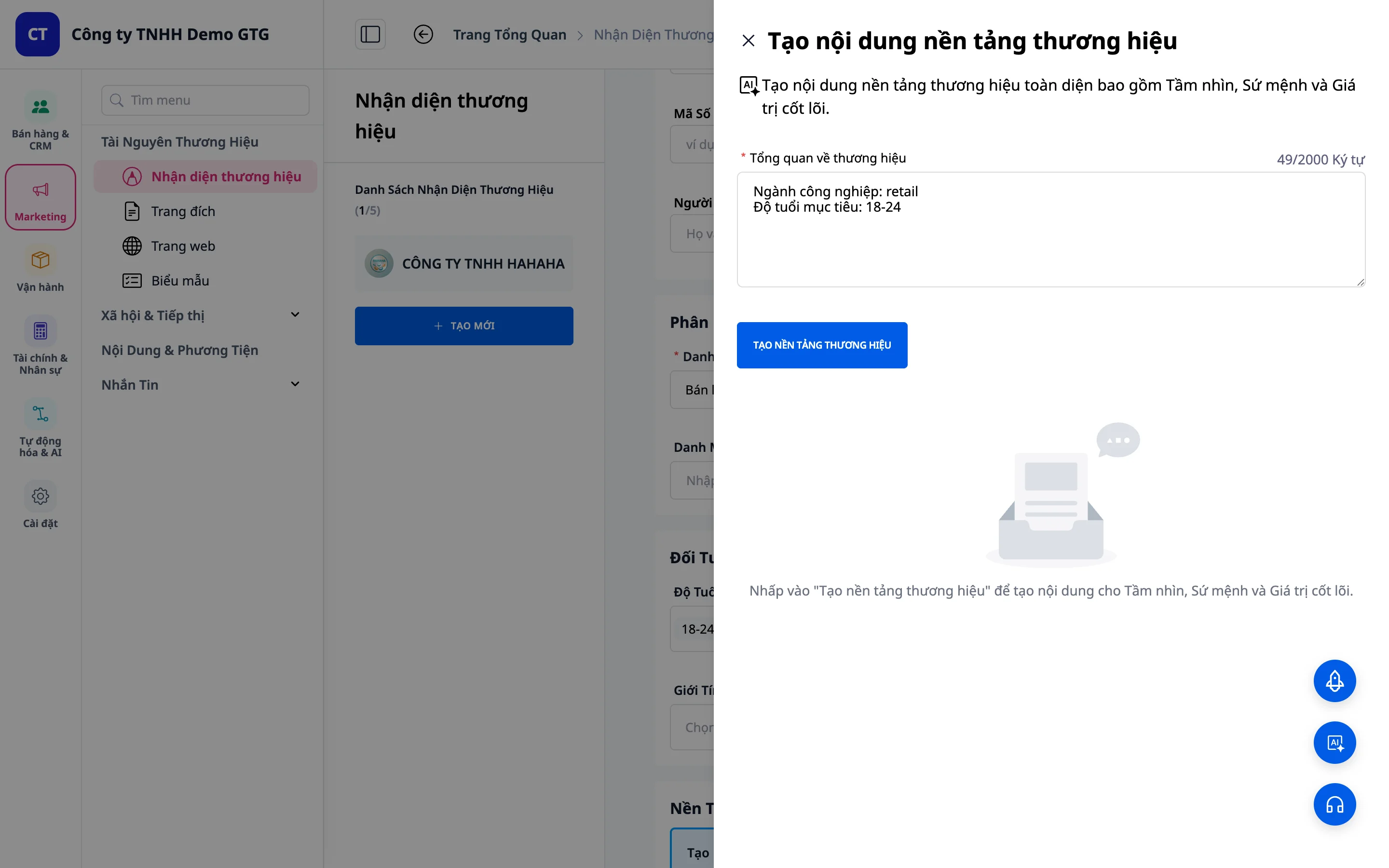
- AI loob 3 erinevat valikut
- Valige kõige sobivam valik
- Klõpsake "Vali", et rakendada
7. 5. samm: Visuaalne identiteedisüsteem
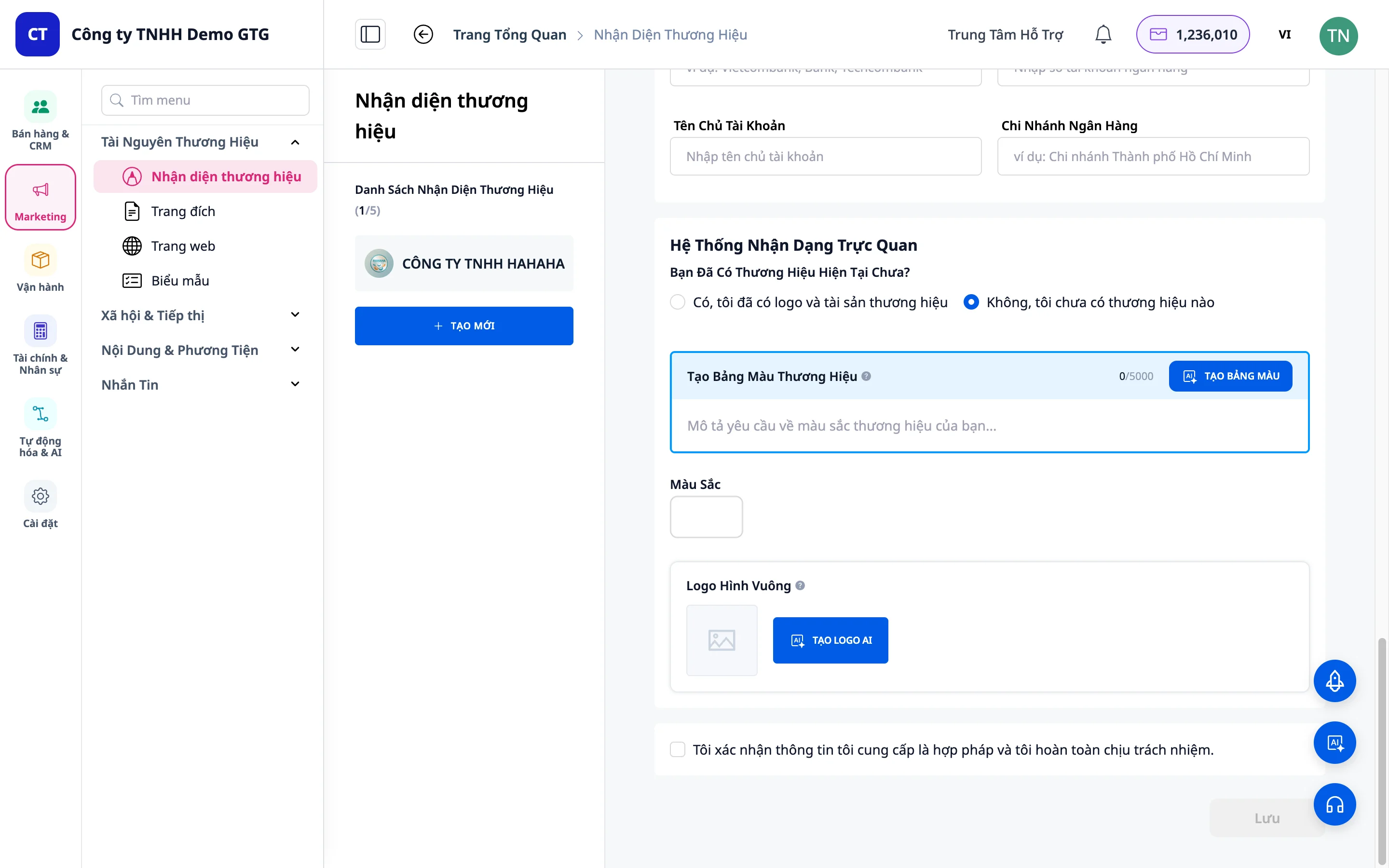
1. juhtum: Logo ja värvid on juba olemas
- Valige värv: - Klõpsake värvivalijal - Või sisestage värvikood otse
- Laadige logo üles: - Klõpsake "Laadi logo üles" - Valige arvutist fail
2. juhtum: Puudub (kasutage AI-d)
Värvikomplekti loomine
- Klõpsake "Ei, mul pole veel ühtegi brändi"
- Klõpsake "Loo värvikomplekt"
- Kirjeldage soovitud värve (nt "Sinised ja valged toonid")
- Klõpsake "Loo tulemus"
- AI loob mitu valikut → valige oma lemmikvärvikomplekt
Logo loomine
- Klõpsake "AI logogeneraator"
- AI loob automaatselt logo brändiinfot arvestades
- Kui pole rahul: klõpsake "Loo rohkem", et saada rohkem valikuid
- Valige meeldivaim logo → klõpsake "Lisa brändi logole"
Näpunäide: Üles laaditud logo ilmub automaatselt kõigile PPTX slaididele AI Video Studio kasutamisel (alates 5/2026).
8. Samm 6: Lõpetamine ja salvestamine
- Kontrollige kogu teavet uuesti
- Klõpsake "Kinnita"
- Klõpsake "Salvesta", et brändi identiteet salvestada
9. Samm 7: Juriidiline teave ja pangateave
Pärast brändi identiteedi salvestamist saate lisada juriidilise teabe, et süsteem saaks seda ametlikes dokumentides automaatselt kasutada.
Kuidas kasutada
- Klõpsake loodud brändil (või brändil, mida soovite värskendada)
- Klõpsake "Värskenda"
- Kerige alla jaotisesse "Juriidiline teave"
Väljad, mida täita
Ettevõtte juriidiline teave
| Väli | Kirjeldus | Kohustuslik |
|---|---|---|
| Ettevõtte aadress | Äriregistri aadress | Soovitatav |
| Maksukohustuslase kood (MST) | 10–13-kohaline maksukohustuslase kood | Soovitatav |
| Esindaja nimi | Täielik ees- ja perekonnanimi | Soovitatav |
| Ametinimetus | Nt: "Juhatuse liige", "tegevjuht", "peadirektor" | Soovitatav |
Pangateave
| Väli | Kirjeldus |
|---|---|
| Panga nimi | Nt: Vietcombank, Techcombank |
| Konto number | Pangaülekande konto number |
| Konto omanik | Kontoomaniku nimi (tavaliselt ettevõtte nimi) |
| Filiaal | Panga filiaal |
Näidisandmete täitmine
Aadress: 123 Nguyễn Huệ, Bến Nghé linnaosa, 1. ringkond, Hồ Chí Minh City Maksukohustuslase kood: 0123456789 Esindaja: Nguyễn Văn An Ametinimetus: Tegevjuht
Automaatne rakendamine
Pärast täitmist kasutab süsteem neid andmeid automaatselt järgmiste toimingute puhul:
| Toiming | Kasutatav teave |
|---|---|
| PPTX loomine AI Video Studio kaudu | Logo + ettevõtte nimi kõigil slaididel |
| Pakkumise PPTX loomine | Ettevõtte nimi + aadress + maksukohustuslase kood |
| Lepingu DOCX loomine | Ettevõtte nimi + maksukohustuslase kood + esindaja + ametinimetus |
| Hinnapakkumise PDF loomine | Logo + maksukohustuslase kood + pangateave |
| AI Biz Assistant loob dokumente | Kogu juriidiline teave täielikult |
Oluline: Juriidilist teavet täidetakse üks kord ja seda kasutatakse igavesti, seega pole vaja seda iga dokumendi jaoks uuesti sisestada.
4. Juriidilise teabe salvestamine
Pärast täitmist klõpsake rakendamiseks "Salvesta".
10. Brändi haldamine pärast loomist
Brändi üksikasjade vaatamine
- Klõpsake loendis brändil
- Vaadake kõiki loodud andmeid
Brändi määramine vaikesuvandiks
- Liigutage liugurit, et "Määrata vaikesuvandiks"
- Vaikebrändi kasutatakse muude funktsioonide jaoks (AI Video Studio, sihtleht jne)
Brändi muutmine
- Klõpsake "Värskenda"
- Muutke mis tahes andmeid (sh juriidilist teavet esindaja vahetamisel)
- Klõpsake muudatuste rakendamiseks "Salvesta"
Brändi kustutamine
- Klõpsake nuppu "Kustuta", kui seda enam vaja ei ole
- Ettevaatust: Seda toimingut ei saa tagasi võtta
11. Näpunäiteid tõhusaks kasutamiseks
Parima brändi identiteedi saavutamiseks
- Üksikasjalik sisendteave: Mida rohkem teavet, seda täpsemalt AI sisu loob
- Kirjeldage sihtrühm täpselt: Aitab AI-l sobivat tooni ja stiili mõista
- Proovige mitut varianti: Ärge valige esimest varianti, võrrelge valikuid
- Hiljem kohandamine: AI loodud sisu saab paremini sobivaks muutmiseks redigeerida
Juriidilise teabe kohta
- Täitke kohe pärast brändi loomist: Eriti kui koostate sageli PPTX/DOCX dokumente partneritele
- Värskendage esindaja muutmisel: Vältige partneritele saadetud dokumentides allakirjutaja vale nime esinemist
- Kontrollige KMKR numbrit: Lepingul vale KMKR numbri esinemine võib põhjustada juriidilisi probleeme
Visuaalse disaini kohta
- Värvid: Valige 2-3 peamist värvi, et vältida silmade väsimust
- Lihtne logo: Mida lihtsam logo, seda lihtsam seda meelde jätta ja seda paremini see PPTX slaididel kuvatakse
- Testi erinevatel taustadel: Veenduge, et logo kuvatakse hästi nii heledal kui ka tumedal taustal
Levinud probleemide lahendamine
| Probleem | Lahendus |
|---|---|
| Logo ei sobi | Klõpsake nuppu "Loo veel" või kirjeldage täpsemalt |
| Värvid ei sobi | Proovige kirjeldada teist värvi või kasutage käsitsi värvivalijat |
| AI sisu ei sobi | Redigeerige otse pärast AI loomist |
| Logo ei kuvata PPTX-is | Kontrollige, kas bränd on vaikimisi seatud |
| KMKR number kuvatakse dokumendil valesti | Minge Brändi värskendamine → parandage KMKR number → Salvesta |
Kokkuvõte
Koos Brändi Identiteediga GTG CRM-is:
- Looge täielik brändi identiteet 3 minutiga
- AI loob automaatselt visiooni, missiooni, logo, värvipaleti
- Juriidiline teave salvestatakse üks kord – täidetakse automaatselt kõikidesse dokumentidesse
- Järjepidevus alates PPTX pitch deckist kuni juriidiliste lepinguteni
- Lihtne värskendada, kui esindaja või aadress muutub