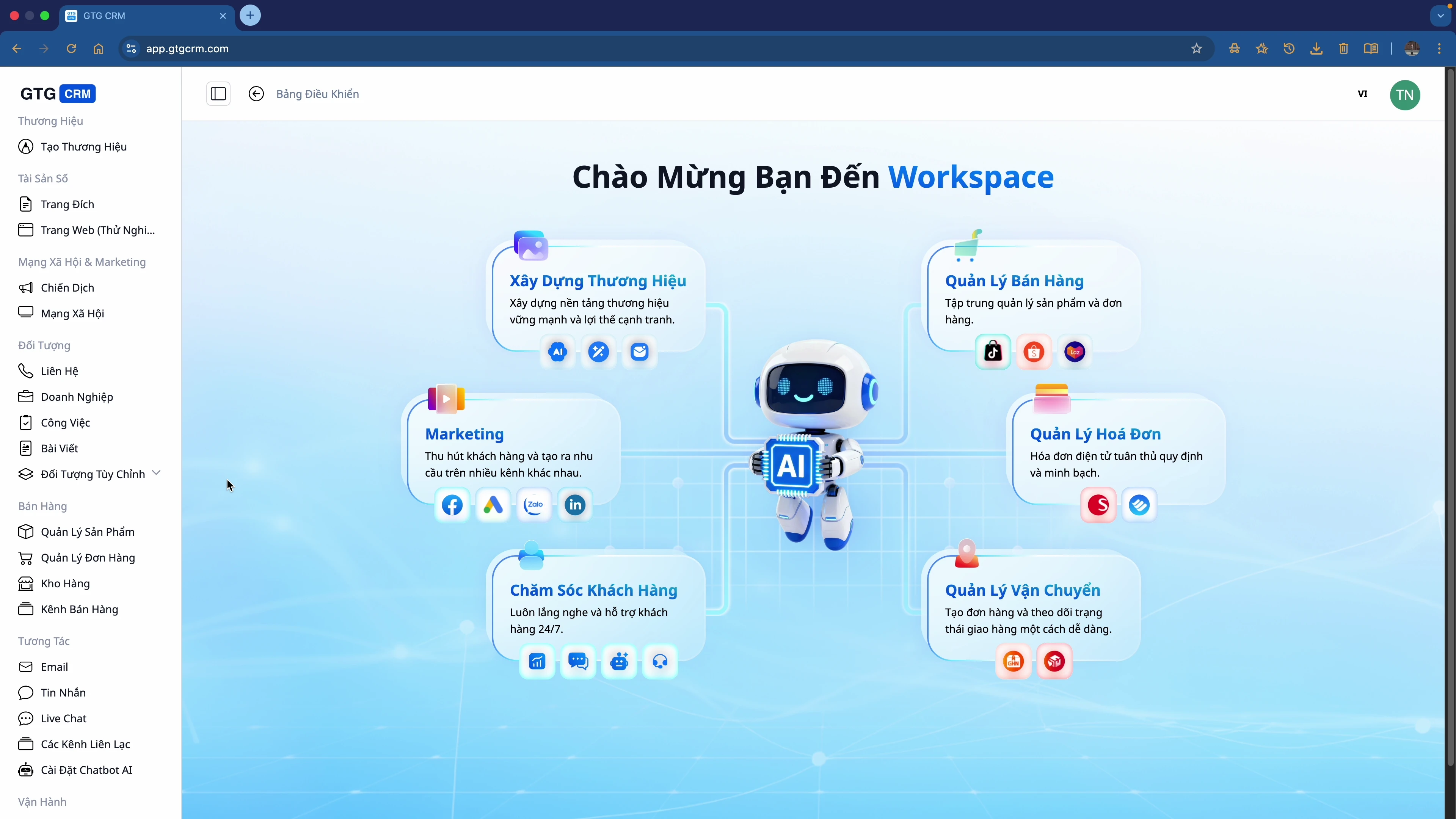
Stýrið notendaréttindum, verjið gögn og starfrækið á öruggan hátt með sveigjanlegu heimildarkerfi í GTG CRM.
Hvað eru heimildir?
Heimildir í GTG CRM er eiginleiki sem hjálpar fyrirtækjum að skilgreina skýrt:
- Hvað hver notandi má sjá
- Hvers konar gögnum má breyta
- Hvaða aðgerðir má framkvæma í kerfinu
Með því að setja upp hlutverk (role) með tilteknum heimildum, tryggir fyrirtækið að hver og einn sinni aðeins sínum verkþætti.
Af hverju þarf fyrirtæki heimildir?
Þegar fyrirtæki byrjar að hafa margir notendur í sama kerfi, án skýrra heimilda:
❌ Hætta án heimilda
| Vandamál | Afleiðing |
|---|---|
| 🔓 Gögn eru aðgengileg að vild | Upplýsingar um viðskiptavini og tekjur leka út |
| 🔄 Vinna skarast | Margir vinna sama verkefni |
| ⚠️ Óeftirlitshæfar villur | Villulega eytt eða breytt mikilvægum gögnum |
| 📊 Mikilvægum upplýsingum lekið | Starfsmenn sjá laun, kostnað, stefnur |
✅ Kostir með heimildum
| Ávinningur | Lýsing |
|---|---|
| 🔒 Örugg rekstur | Hver og einn sér/gerir aðeins sitt verk |
| ✅ Forðast villur | Enginn eyðir/breytir villulega mikilvægum gögnum |
| 📈 Auðvelt að stækka | Nýir starfsmenn þurfa bara að fá úthlutað hlutverki |
| 📋 Auðvelt í stjórn | Þekkir skýrt hver gerir hvað, skýr ábyrgð |
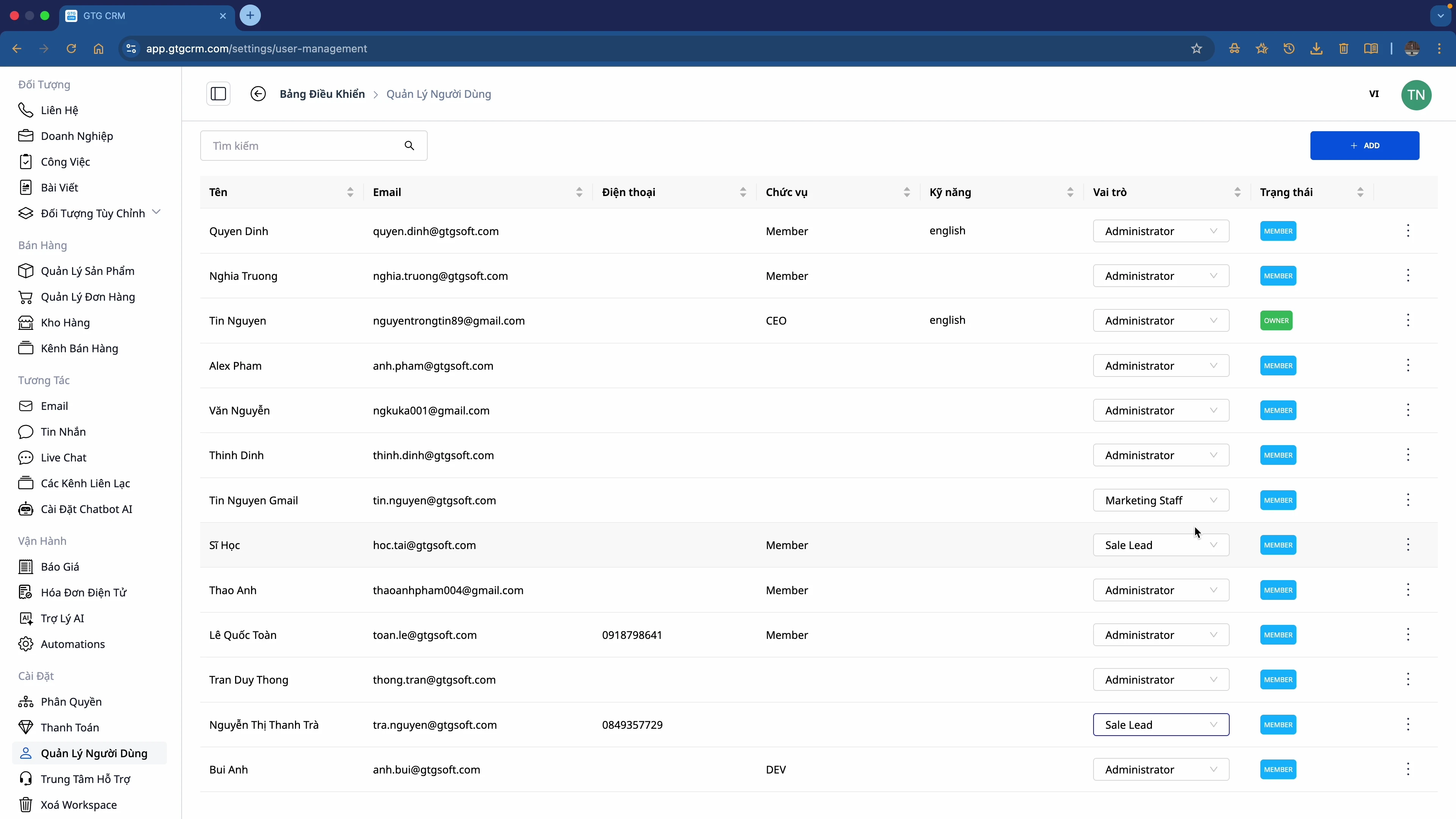
Sjálfgefin hlutverki í GTG CRM
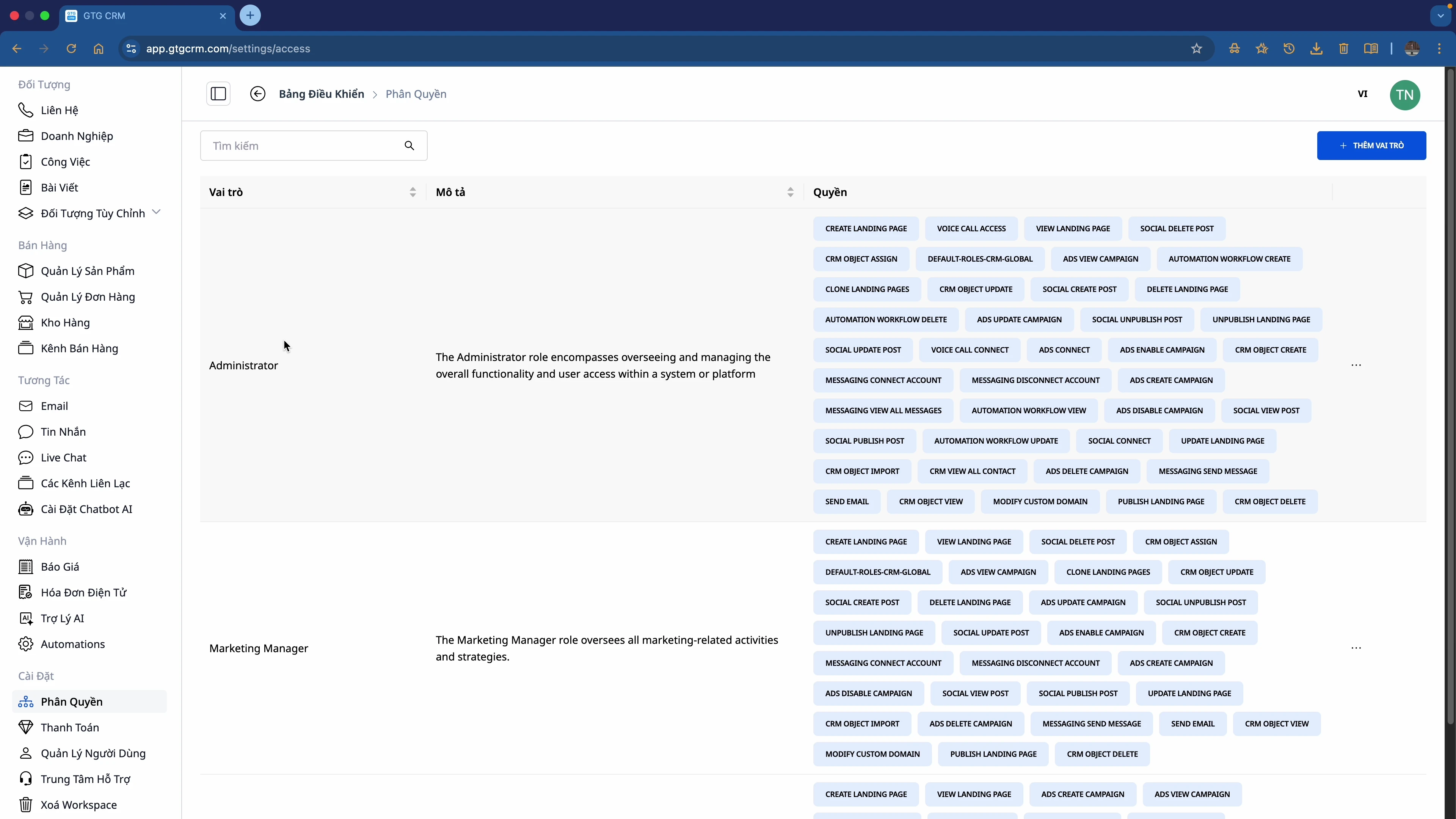
GTG CRM býður upp á 3 sjálfgefin hlutverki:
1. 👑 Administrator
- Hæstu heimildirnar í kerfinu
- Getur framkvæmt allar aðgerðir á kerfinu
- Stýrir notendum, heimildum, kerfisstillingum
2. 📊 Marketing Manager
- Stýrir markaðsherferðum
- Skoðar skýrslur, tölfræði
- Stýrir markaðsteymi
3. 📝 Marketing Staff
- Framkvæmir dagleg verkefni í markaðssetningu
- Takmarkaðri heimildir en Manager
Nánari heimildareiginleikar
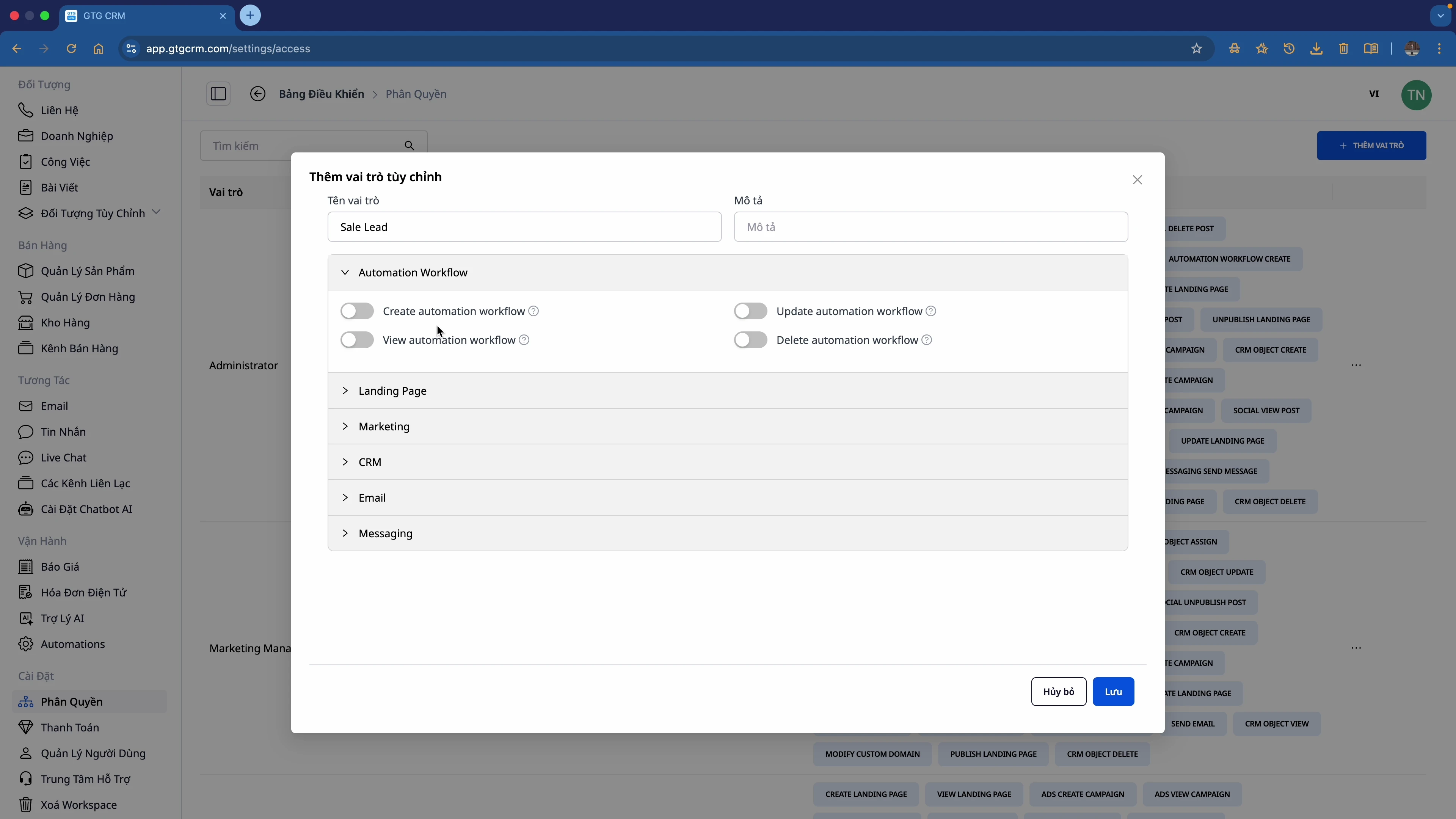
🎛️ Sérsniðnar heimildir eftir einingu
Þú getur sérsniðið heimildir fyrir hverja einingu:
| Eining | Heimildir sem hægt er að veita |
|---|---|
| Sjálfvirkni vinnuflæði | Búa til, Skoða, Uppfæra, Eyða |
| Lending Page | Búa til, Uppfæra, Birta, Afbirta, Eyða |
| Markaðssetning | Skoða samfélagsfærslur, Stjórna herferðum |
| CRM | Skoða alla tengiliði, Flytja inn, Flytja út, Breyta |
| Tölvupóstur | Búa til, Sendi, Skoða skýrslur |
| Skilaboð | Skoða, Svara, Stjórna rásum |
🔀 Kveikja/Slökkva
Hægt er að kveikja/slökkva á hverri heimild með rofa:
- ✅ Á: Leyfir framkvæmd aðgerðar
- ❌ Af: Leyfir ekki
Ferli heimildar
┌─────────────┐    ┌─────────────┐    ┌─────────────┐
│  Búa til hlut-│ ─► │  Sérsniðnar │ ─► │  Virkja hlut-│
│  verk nýtt   │    │  heimildir  │    │  verk fyrir  │
└─────────────┘    └─────────────┘    │  notanda    │
      │                  │                  └─────────────┘
      ▼                  ▼                  │
   Nefna,            Kveikja/slökkva       Velja notanda,
   lýsa              á hverja heimild       velja hlutverk
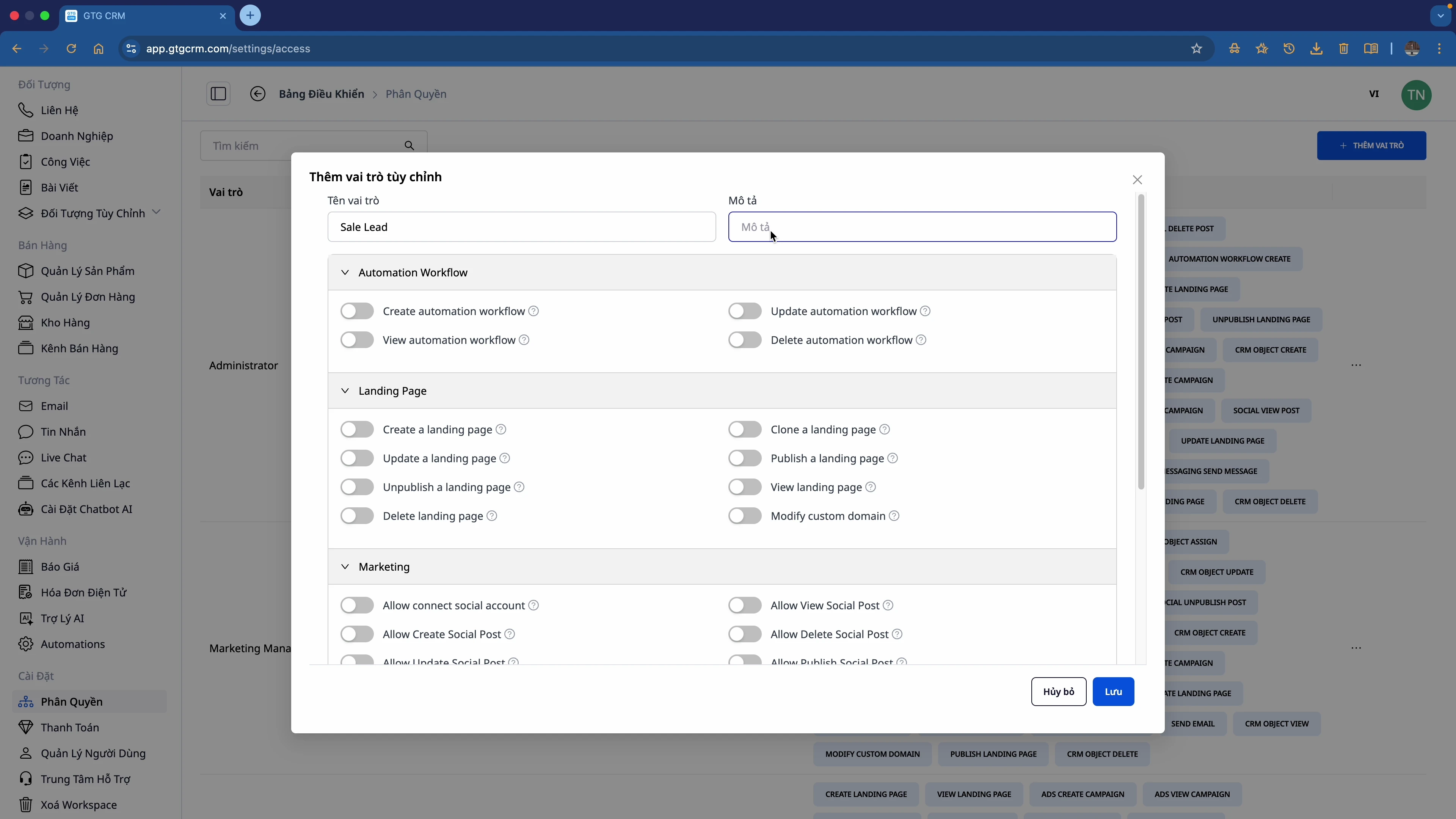
Dæmi: Búa til hlutverk "Sölufulltrúi"
Heimildir veittar:
- ✅ CRM: Allar heimildir (Skoða, Flytja inn, Flytja út, Breyta)
- ✅ Skilaboð: Allar heimildir
- ✅ Tölvupóstur: Allar heimildir
- ✅ Sjálfvirkni: Búa til, Skoða, Uppfæra (ekki eyða)
- ✅ Lending Page: Búa til, Uppfæra, Birta, Skoða (ekki afbirta, eyða)
- ⚠️ Markaðssetning: Aðeins skoða samfélagsfærslur
Heimildir EKKI veittar:
- ❌ Eyða sjálfvirkni vinnuflæði
- ❌ Afbirta/eyða lending page
- ❌ Stjórna markaðsherferðum
Notendur
| Hlutverk | Þörf fyrir heimild |
|---|---|
| 👔 Framkvæmdastjóri/eigandi | Fullur stjórnandi aðgangur |
| 📊 Forstjóri | Skoða skýrslur + Stjórna teymi |
| 💼 Sölufulltrúi | CRM + Skilaboð + Tölvupóstur |
| 📢 Markaðssetning | Herferðir + Lending Page + Auglýsingar |
| 🎧 Stuðningur | Skilaboð + Miðar |
| 📦 Vörugeymsla | Vöruhús + Pantanir |
Samantekt
Með eiginleika heimildar í GTG CRM:
✅ Stækkaðu liðið á sama tíma og þú heldur stjórn
✅ Verndaðu mikilvægar gagnafyrirtækisins
✅ Forðastu mistök vegna ótakmarkaðs aðgangs
✅ Starfaðu faglega eins og stórt fyrirtæki
Byrjaðu núna
- Farðu í Stillingar → Heimildir
- Búðu til viðeigandi hlutverk fyrir stofnun þína
- Virkjaðu hlutverk fyrir hvern meðlim
- Láttu þig hlakka til að stækka liðið þitt!
💡 Ábending: Byrjaðu með sjálfgefna hlutverkin og sérsniðið síðan að raunverulegum þörfum fyrirtækisins.
Tilbúinn til að prófa þessa aðgerð ókeypis fyrir fyrirtækið þitt?
Prófaðu ókeypis