Upravljanje odnosov s strankami (CRM) v GTG CRM pomaga podjetjem shranjevati, upravljati in slediti vsem informacijam o strankah iz različnih kanalov, vse centralno na eni platformi. Zdaj lahko celo analizirate stike s strankami in podjetjem neposredno v CRM-ju, si ogledate celotno zgodovino interakcij na časovnici in določite prave naslednje korake – ni treba izvažati v Excel.
Zakaj potrebujemo CRM?
Trenutno stanje podjetij
V poslovanju so podatki o strankah pogosto razpršeni:
- Facebook : Stranke pošiljajo sporočila prek Messengerja
- Zalo : Stranke lahko klepetajo prek uradnega računa Zalo.
- E-pošta : Stranke pošiljajo e-poštna sporočila z povpraševanjem po informacijah.
- Ciljna stran : Stranke izpolnijo registracijski obrazec.
Težave pri uporabi Excela
Ročno vnašanje podatkov o strankah v Excel – zamudno in nagnjeno k napakam.
Vsak zaposleni ima svojo datoteko – podatki niso sinhronizirani, zaradi česar je težko razdeliti naloge.
Štetje podatkov z uporabo formul v preglednici – brez celotne slike, zastareli podatki.
Ni zgodovine interakcij – zamujene stranke, podvojena storitev
GTG CRM združuje vse v en sam vir podatkov : stranke samodejno prihajajo iz vseh kanalov, vsaka interakcija se beleži, analitika pa vedno temelji na vseh podatkih iz resničnega sveta.
Vir podatkov o strankah
CRM samodejno zbira podatke o strankah iz:
- Družbeni mediji — Facebook Messenger (stranke sporočajo prek strani za oboževalce)
- E-pošta – Gmail (stranke pošiljajo e-pošto v poslovni poštni nabiralnik)
- Ciljna stran in klepet v živo — obrazec za registracijo, pustite svoje podatke prek klepeta v živo
- Ročni uvoz – ustvarite neposredne stike ali uvozite CSV v velikem obsegu
Poudarki
1. Centralizirano upravljanje seznama stikov
Oglejte si in upravljajte vse stranke v eni tabeli: Ime, e-pošta, telefonska številka, država, status (novo, v teku, pretvorjeno…), vir stranke, odgovorna oseba.
- Prilagodite prikaz stolpcev : dodajte/odstranite stolpce (Kupljeni izdelki, Opombe itd.), preuredite vrstni red.
- Napredni filtri : filtrirajte po datumu, stanju, naslovu/izdelku/viru in kombinaciji več pogojev.
- Dodeljevanje odgovornosti : dodeljevanje strank posameznim članom osebja, menjava vlog po potrebi in spremljanje delovne obremenitve.
- Samodejna klasifikacija podjetij : stiki z e-poštnimi naslovi domen podjetja so ločeni na seznam »Podjetje«.
2. Zavihek »Analitika stikov in podjetij« – natančne meritve za vse podatke
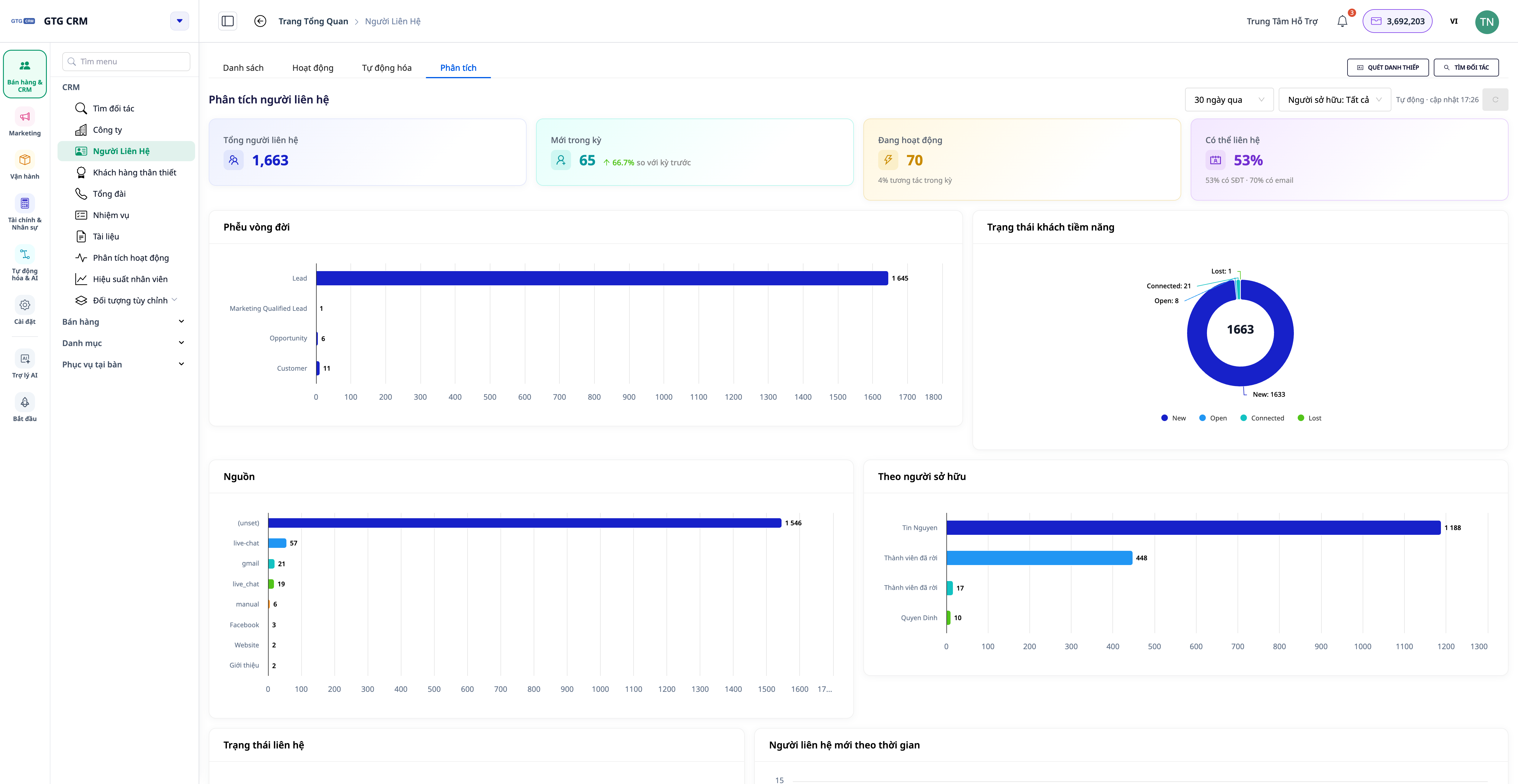
V meniju Stiki in podjetja je zdaj zavihek Analitika – vgrajena nadzorna plošča, ki izračuna podatke za celoten seznam stikov (brez omejitve predlog) in se posodablja v realnem času.
- Kartica KPI : Skupno število stikov · Novi stiki v obdobju (s trendom ▲/▼ v primerjavi s prejšnjim obdobjem) · Aktivni stiki · Stopnja dosegljivosti (e-pošta/telefonska številka).
- Lijak življenjskega cikla : prikazuje, na kateri stopnji so stranke prevzete ali odstranjene – od potencialne do dejanske stranke.
- Razporeditev po viru, statusu in odgovorni osebi : ugotovite, kateri kanali privabljajo stranke in kdo jih ima največ.
- Zdravje podatkov : odstotek stikov z e-poštnim naslovom/telefonsko številko/odgovorno osebo/podjetjem.
- Za podjetja : razporeditev po panogah, velikosti, povezanih podjetjih in povzetek prodajnega procesa po podjetjih.
💡 Nadzorna plošča se samodejno osveži – v zgornjem desnem kotu se prikaže »Samodejna posodobitev · HH:MM«, zato vam strani ni treba ponovno naložiti, da si ogledate nove številke.
3. Predlaganje ukrepov – pretvorba podatkov v naloge
Zavihek Analitika ne prikazuje le grafikonov, temveč tudi nakazuje naslednje korake . Vsak predlog vključuje količino in gumb, ki vodi neposredno na predhodno filtriran seznam te specifične skupine strank.
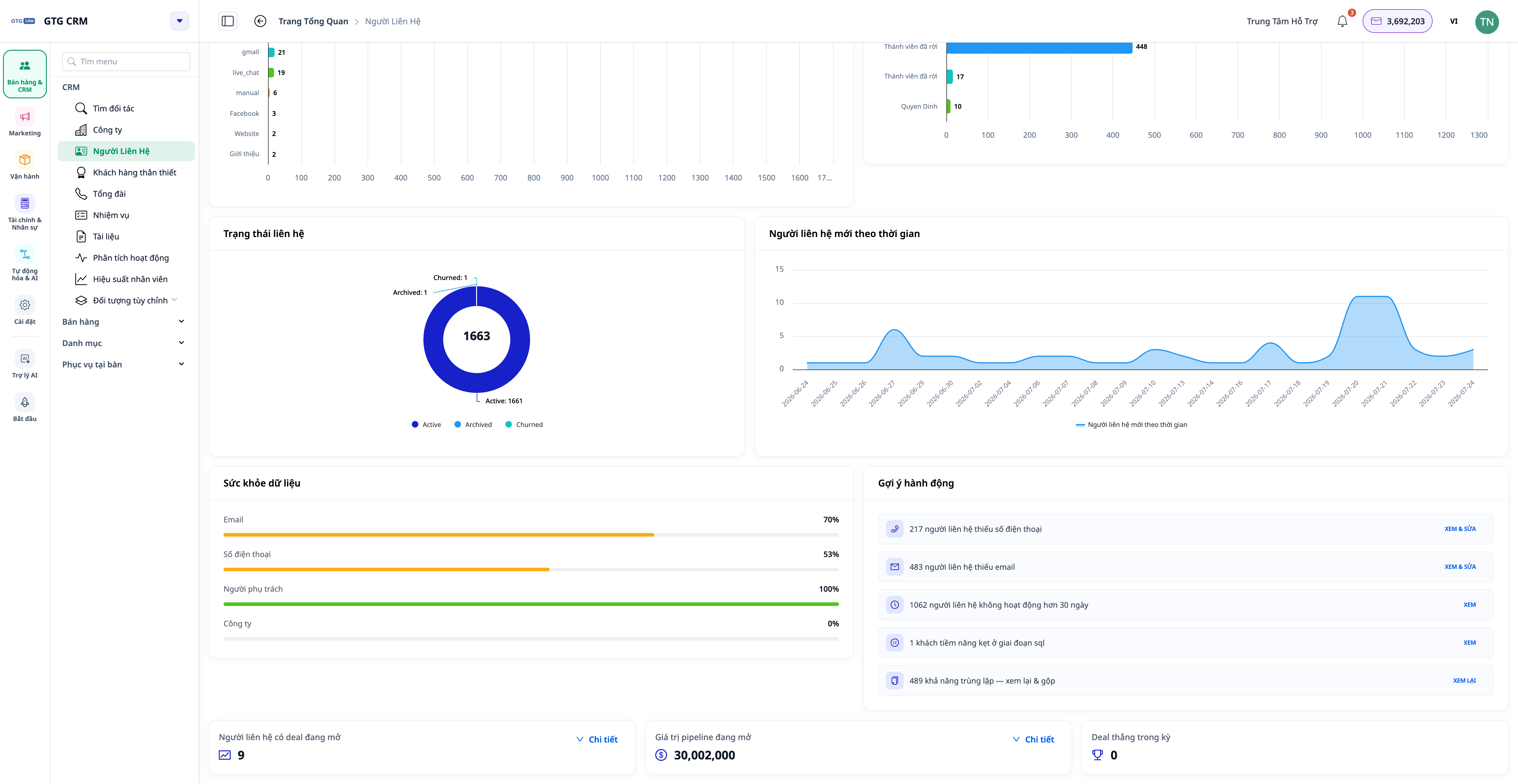
- »Manjka telefonska številka/e-poštni naslov stika« → odprite pravilno skupino za dodajanje ali uvoz.
- "Neaktivno > 30 dni" → skupina potrebuje ponovno oskrbo.
- "Nihče še ni odgovoren" → takoj dodeli.
- "Obtičali smo v določeni fazi življenjskega cikla" → ekipa potrebuje spodbudo.
4. 360° časovnica aktivnosti
Vsak stik in podjetje ima zavihek Dejavnost , ki prikazuje vse pomembne dogodke na lahko berljivi časovnici : klice, e-pošto, posle, naročila ... skupaj z imenom osebe, ki je izvedla dejanje (namesto zmedenih identifikatorjev) in jasnim opisom dejanja v vašem jeziku.
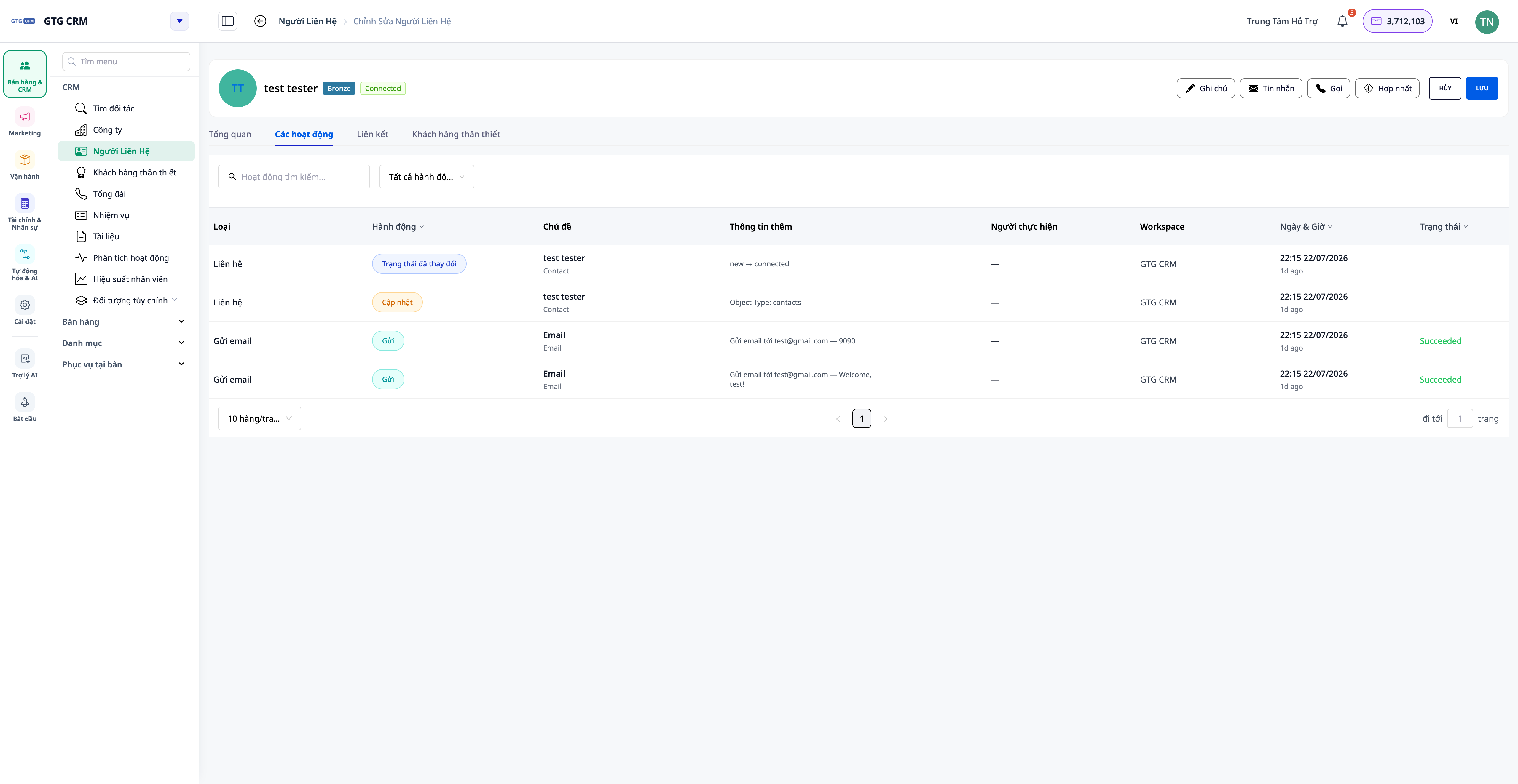
- Za podjetja : časovnica vključuje tudi pomikajoč se povzetek dejavnosti stikov, poslov in naročil, ki pripadajo temu podjetju.
- Na ravni seznama : odprite zavihek Dejavnosti , da si ogledate celoten vir vseh stikov/podjetij, filtrirajte po osebi/vrsti dejanja/datumu.
5. Priložite datoteke in povezave k nalogi.
Vsaki nalogi v CRM-ju je mogoče priložiti datoteke iz programa Asset Manager (PDF, DOCX, XLSX, slike, videoposnetke itd.) in zunanje povezave (Google Preglednice, Drive, Figma itd.). Ko odprete nalogo, se vam bodo prikazali vsi potrebni dokumenti – ni vam treba iskati drugje.
Prednosti za podjetja
Avtomatizirano večkanalno pridobivanje strank – brez zamujenih stikov, brez ročnega vnosa.
Zavihek: Analiza podatkov iz vseh virov – Sprejemanje odločitev na podlagi pravih podatkov, ne na podlagi okrnjenega vzorca.
Predlogi za dejanja s predhodno filtriranimi seznami – Vedite, kaj storiti naprej, prihranite čas.
360° časovnica aktivnosti – v nekaj sekundah si oglejte celotno zgodovino gostov.
Napredni filtri + prilagodljivi stolpci – Izjemno hitro poiščite pravo skupino strank
Dodelite odgovornosti – Natančno vedite, kdo skrbi za katero stranko, da se izognete podvajanju.
Za koga je primerno?
- Prodajna ekipa upravlja potencialne stranke, sledi lijaku življenjskega cikla strank in takoj obravnava »vroče« skupine strank.
- Trženjska ekipa – segmentiranje strank po viru, merjenje, kateri kanali so učinkoviti.
- Skrb za stranke – oglejte si celotno zgodovino interakcij na eni časovnici.
- Vodje in lastniki podjetij – spremljajte stanje podatkov in delovno obremenitev celotne ekipe ter posodabljajte meritve.
Kako naj začnem?
V GTG CRM se podatki o strankah samodejno prenesejo v meni Stiki (ali Podjetja ), ko v razdelku Nastavitve povežete kanale (Facebook, Zalo, E-pošta). Za ogled nadzorne plošče izberite zavihek Analitika , odprite stik/podjetje in izberite zavihek Dejavnost za ogled 360° časovnice.
Podrobna navodila po korakih si oglejte v članku »Vodnik za uporabo CRM na GTG CRM« .
Preizkusite brezplačno – kreditna kartica ni potrebna.