What you'll be able to do after this guide
Your GTG CRM account belongs to you personally, not to any workspace. The Personal information screen is where you keep your name, profile photo, phone number, company name, and website. The page shows exactly what you saved last time, displays text in the language you chose for GTG CRM, and if you leave a field empty and click Save, that information is removed from your account.
This guide covers everything from opening the page to saving your changes: open the screen → set a profile photo → edit and save information → delete a saved item → know what to do when the page doesn't load your saved information.
Good to know
- You can only edit your own information. Your email address is the one you sign in with, so this field is always greyed out and can't be changed here.
- You have one profile photo for your entire account. It appears in the top-right corner, in member lists, and on the payment screens of every workspace you belong to. You can replace a set photo with another image, but there is no option to delete it.
Before you begin
| # | Requirement | Why it's needed |
|---|---|---|
| 1 | You're signed in to GTG CRM. No other permissions are needed. | Anyone who is signed in can open their own account page. |
| 2 | To set a photo: an image file smaller than 1 MB. | Files larger than 1 MB or files that aren't images will be rejected (step 2). |
Step 1: Open the Personal information screen
- Click your name or photo in the top-right corner, then select Account.
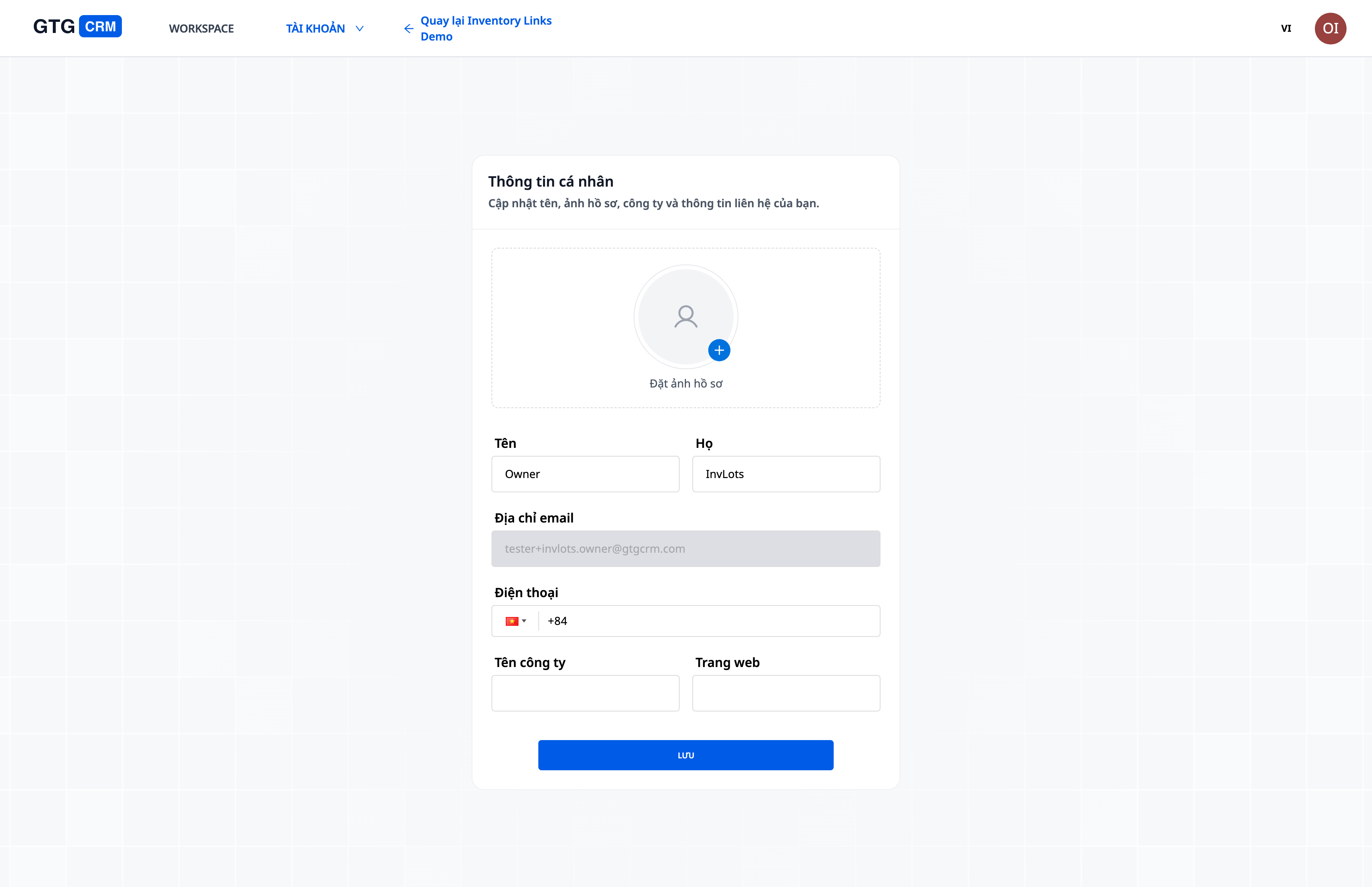
- The Personal information page opens. The top bar has three items: WORKSPACE, ACCOUNT, and a button to return to the workspace you were just in. The ACCOUNT menu also includes Password and Security.
- Read from top to bottom: a line that reads Update your name, profile photo, company, and contact information., a round avatar with the text Set profile photo, then the fields First name, Last name, Email address, Phone, Company name, Website, and the Save button.
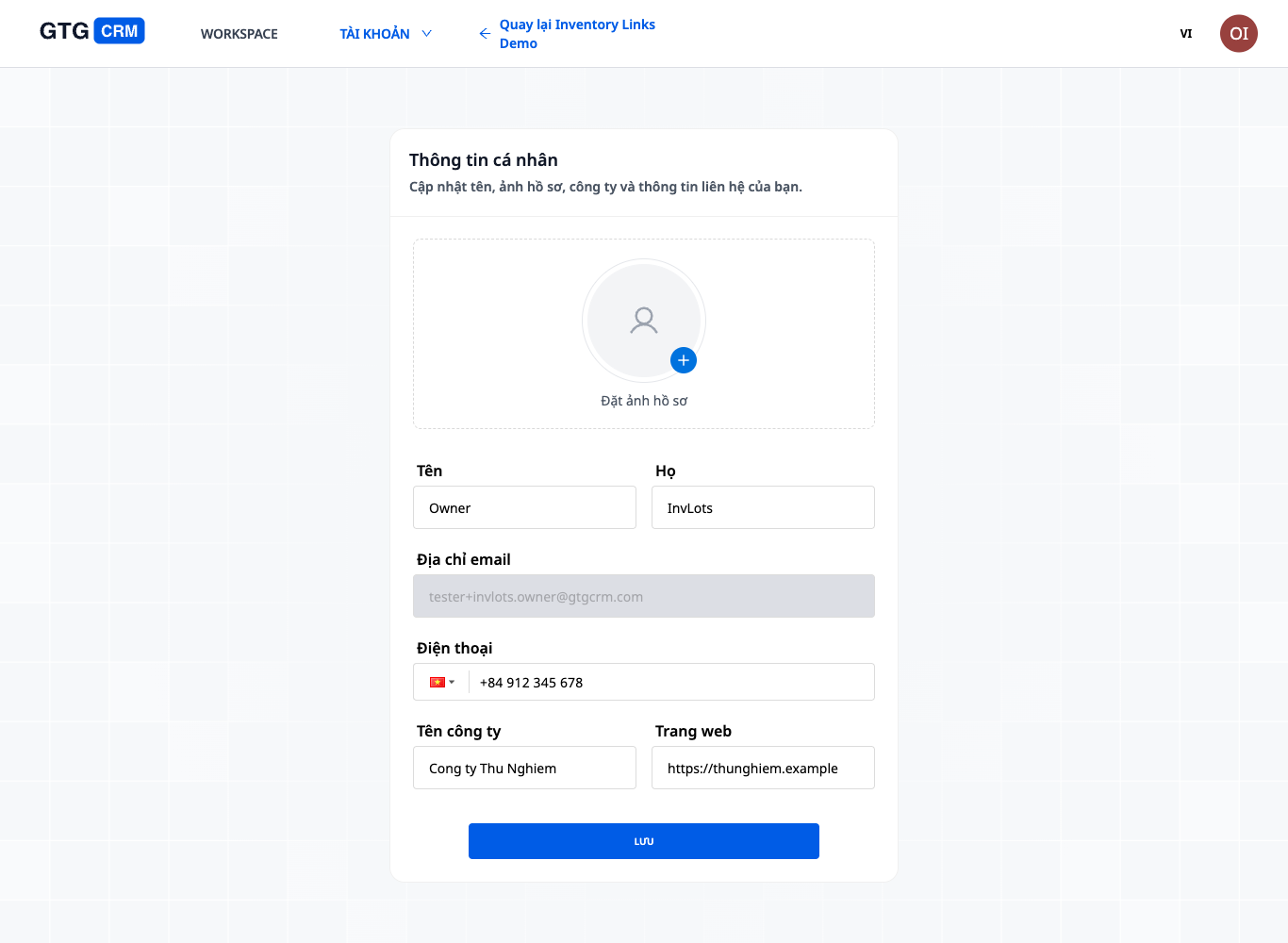
✅ Expected result: all text on the page is in the language you're using for GTG CRM (change the language in the top bar, and the page will update). The Phone, Company name, and Website fields show what you saved last time and are no longer empty if you've saved them. The image below shows the page for an account that has all three pieces of information saved.
Step 2: Set or change your profile photo
- Click the round avatar (the text Set profile photo) and choose an image file from your computer.
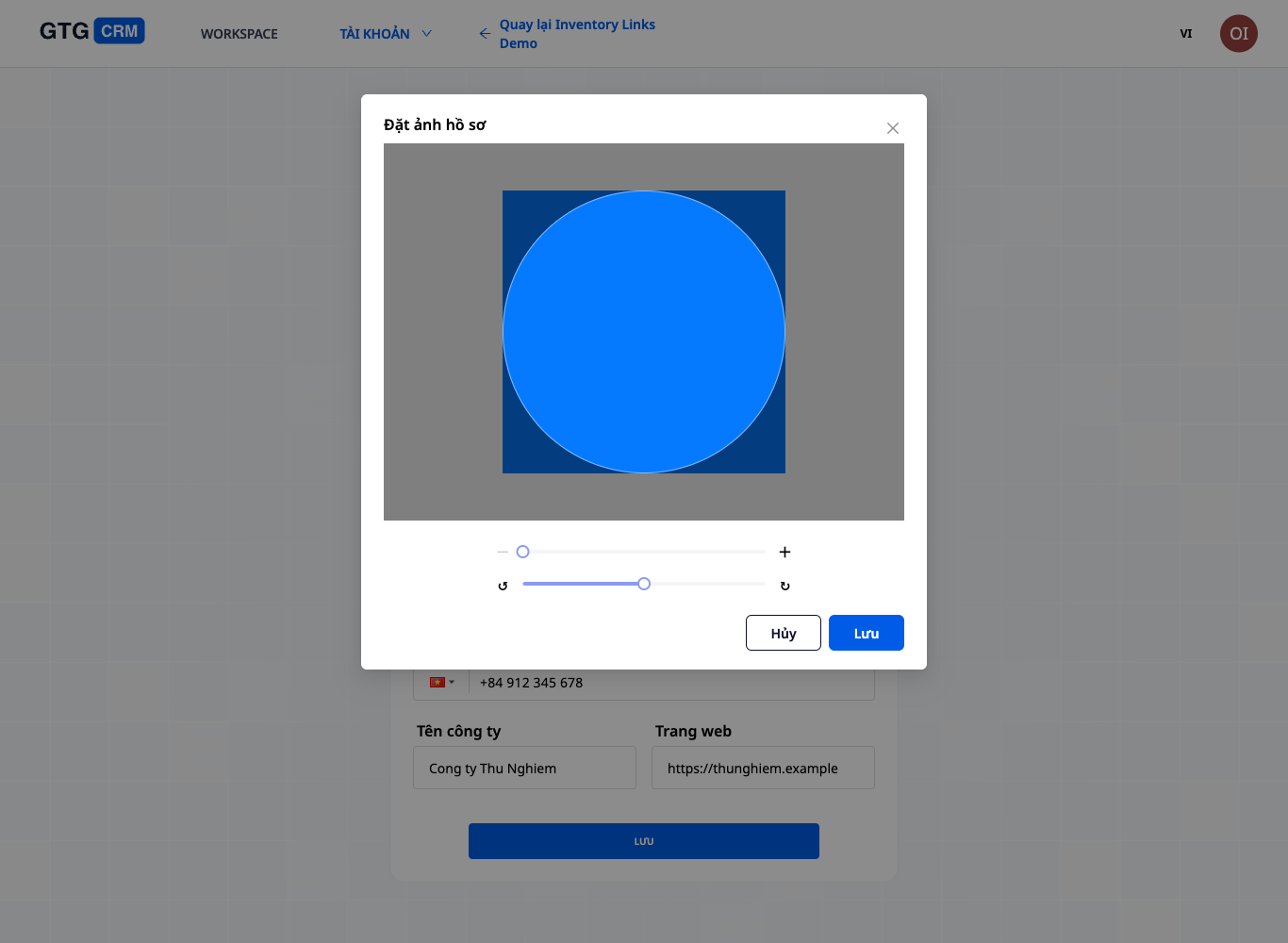
- The Set profile photo window opens with your selected image inside the circular frame. Drag the top slider to zoom in or out, and drag the bottom slider to rotate.
- Click Save to set the photo, or Cancel to stop: your current photo stays the same.
✅ Expected result: the window title and both buttons are in your language, with no English text left. If you choose a file larger than 1 MB, you'll see Maximum file size is 1MB!. If you choose a file that isn't an image, you'll see Invalid file format. In both cases, nothing is saved.
Step 3: Edit your information and save
- Edit First name and Last name as needed. Both fields are required: if you leave one empty, you will see Vui lòng nhập tên của bạn! or Vui lòng nhập họ của bạn! under that field, and the Save button will be disabled.
- In the Phone field, click the flag to choose your country (there is a Search box and country names in your language), then type your phone number after the country code. When you use the Tab key to move into the field, the country code remains there, and you just type your number.
- Fill in Company name and Website if you wish. All three of these fields are optional.
- Click Save.
✅ Expected result: the message Cập nhật thông tin cá nhân thành công! appears. When you reopen the page (or log in later), the fields still show what you saved. If the Phone field contains only the country code and no number, no phone number is saved, even if you only changed the flag.
Step 4: Delete information you no longer want to keep
- Select all the text in the field you want to clear (for example, Company name) and delete it. For Phone, delete all the digits and leave only the country code.
- Click Save, then reopen the page.
✅ Expected result: the field you cleared is still empty after you reopen the page, and the fields you did not touch keep their saved values. An empty field never deletes other information.
Step 5: When the page cannot load your saved information
If GTG CRM cannot load your saved phone number, company name, and website, a line appears at the top of the card saying: Không tải được số điện thoại, tên công ty và trang web đã lưu của bạn. Ô nào để trống sẽ giữ nguyên thông tin đã lưu. with a Retry button. Click Retry; this line stays visible until the information loads or you leave the page. In the meantime, you can still edit and save your First name or Last name without losing your saved information, because empty fields keep their saved values.
Quick reference for expected results
| Action | What you will see |
|---|---|
| Open Account from your name or photo | The Personal information page, with all fields, in your language |
| Reopen after saving phone, company, and website | The three fields show the saved values |
| Choose an image larger than 1 MB or a non-image file | Kích thước tệp tối đa là 1MB! or Định dạng tệp không hợp lệ, nothing is saved |
| Click Cancel in the Set profile photo window | The current photo stays the same |
| Clear a field and click Save | That field is empty after reopening, and the other fields stay the same |
| Saved information cannot be loaded | A message appears with a Retry button, and empty fields do not delete anything |
Notes
- To change your password, go to Password under the ACCOUNT menu. That page states the password rules before you save.
- Your display name, job title, and phone number in each workspace may differ, because they are set by the workspace owner or by you within that workspace. This page shows your account information.
- The profile photo has no delete button. To change it, set a different photo in step 2.