Feature Overview
The ceramic vase batch you ordered from the workshop is still three weeks away. In the meantime, customers visit your website to buy, and the product page just says "sold out." They may go to another shop. Or you take orders over messages, write them in a notebook, collect deposits by bank transfer, or enter a random stock number so the website will accept orders. When the stock finally arrives, the notebook says one thing, the inventory says another, and you're not sure how many more to order or who ordered first.
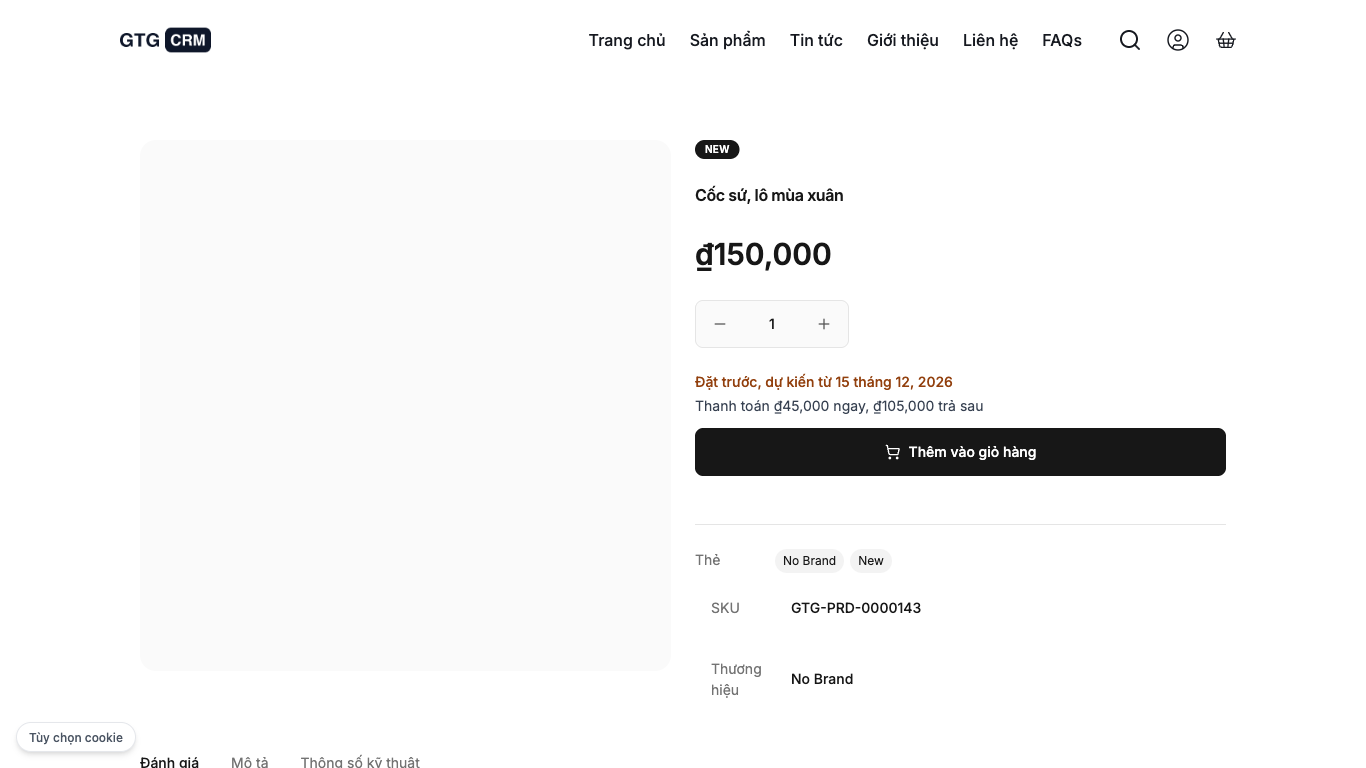
With Pre-orders on your website, your product page shows Pre-order, expected from {date} instead of "sold out." Customers read your shop's terms, pay (in full or with a deposit) directly on the website, and you can see each order waiting for stock in its own place, separate from your inventory. Stock is still three weeks away? The product page keeps accepting paid orders, and your inventory continues to show the exact quantity you actually have. To make this work, you need to do four things:
- Turn it on for each product, with a maximum quantity and expected date that you set yourself.
- Let customers see the expected date and your shop's terms before they pay.
- Know how many more you need to buy from your supplier, without touching your actual inventory count.
- Decide all refunds and deposits yourself: the system reminds you of tasks, but it does not refund or hold money automatically.
Problems Businesses Face
| Old approach | Consequence |
|---|---|
| Leaving the website showing "sold out" until stock arrives | Customers who want to buy today may go to another shop, and the order is lost before the stock arrives |
| Taking orders over messages and writing in a notebook | Hard to say for certain who ordered, who has paid, and who ordered first |
| Entering a "fake" stock number so the website accepts orders | Items are sold before they physically exist, and inventory reports are no longer accurate |
| Agreeing on arrival dates, deposits, and refunds through messages | Each side remembers things differently, and the shop has no copy of the terms the customer read |
| Guessing how many more to order from the supplier | Order too few and customers wait longer; order too many and stock sits in the warehouse |
GTG CRM brings pre-orders, amounts received, quantities still to be purchased, and refund decisions into the same place as your products and sales orders.
Key Highlights
1. You turn it on for each product and set the rules yourself
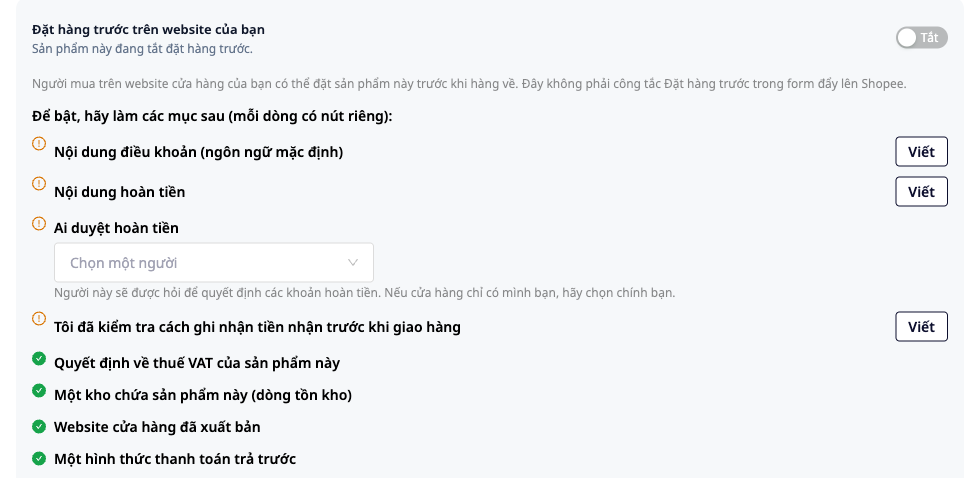
Go to Sales & CRM ▸ Catalog ▸ Product Center, open the product you want to edit, and select the Sales information tab, then the Pre-order on your website card. The toggle is set to Off by default and cannot be turned on right away. The card lists what is still missing, with a separate button for each line: terms content, refund content, refund approver (if you are the only person in the shop, select yourself), one inventory location holding the product (zero stock is fine), website published, one prepayment method, and the two fields Quantity you receive and Expected from (each with its own save button). Shops in Vietnam must also write the terms in Vietnamese before the toggle can be turned on. Within the card is a reminder list of typical sales terms (delivery time, payment and refund methods, returns and refunds with deadlines and who bears the fees, quantity limits, complaint process, validity of promotions). The list is only a reminder: no words need to be added to your content, and no item is required to enable the feature. You also write a sentence confirming that you have checked how prepayments are recorded before delivery, and you choose the VAT option for the product yourself. No content is pre-filled, and GTG CRM does not suggest defaults. The system only records that you have made your decisions, along with your name and the time.
Once the toggle is on, you set the number of hours to hold unpaid orders (up to 72 hours; when the time runs out, the order is automatically canceled, including bank transfer orders you have not yet confirmed), the maximum quantity per order, and the format: Full payment now or Deposit now, balance later. For deposits, you choose a fixed amount or a percentage of the price (optionally with a minimum amount), enter the deadline for paying the remaining balance yourself, from 1 to 7 days (there is no preset number of days; until you enter one, the toggle cannot be turned on), and write in your own words what happens to the first payment if the order is canceled. A line right below the input field calculates the figures in advance. For example, for a product priced at 5,000,000 ₫ with a 15% deposit and a 500,000 ₫ minimum, the customer pays 750,000 ₫ now and 4,250,000 ₫ later (excluding shipping fees; at checkout, the buyer sees the actual balance).
- Benefits: you open pre-orders only for the products you choose, under your shop's own rules. You keep the orders without having to accept a default rule from the software.
Step-by-step instructions with screenshots are in the article User Guide: Pre-Orders on Your Website with GTG CRM.
2. Buyers see the expected date and terms before paying
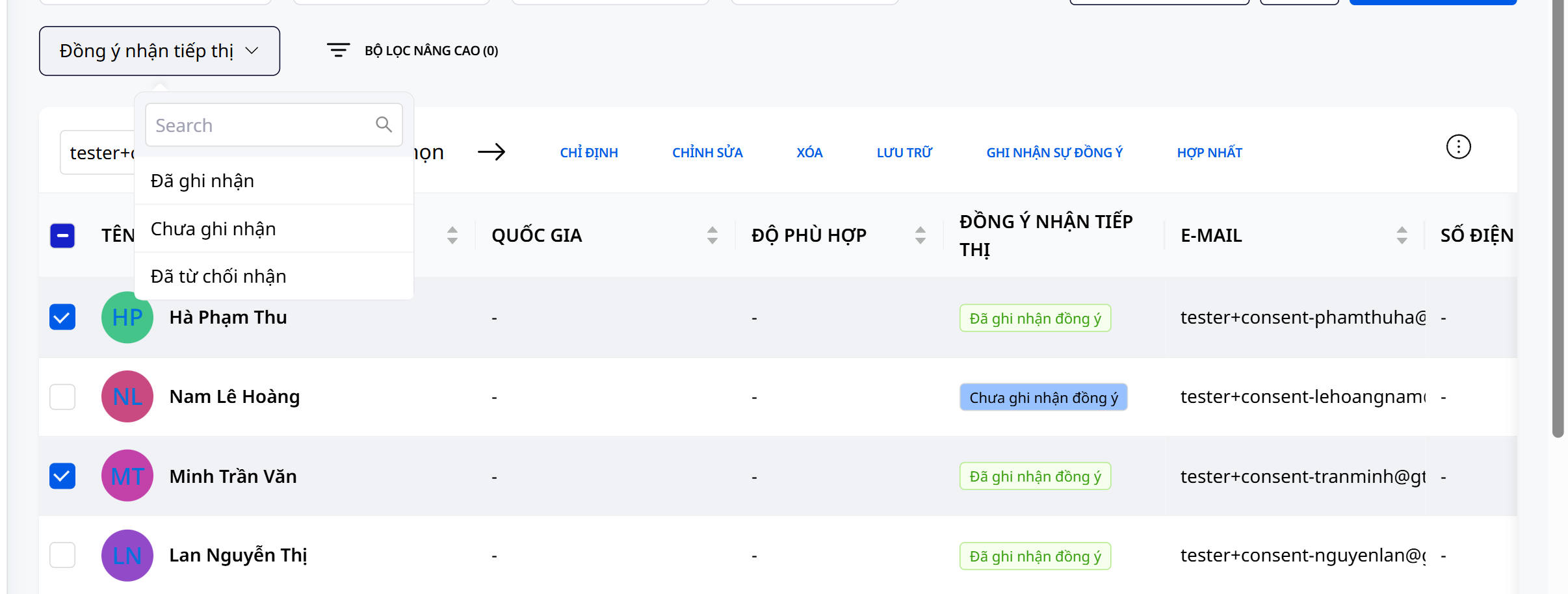
On your shop's website, buyers do not need a GTG CRM account. They see the price and Pre-order, expected from {ngày}, then add the item to their cart. At checkout, there is a Pre-order terms block: your shop's terms open directly on the page, and a checkbox I have read the shop's terms must be ticked before the place order button can be clicked. The block also shows the amount paid now, the amount paid later, and your refund policy. For deposit orders, the amount paid later is the actual balance of the order: after the buyer chooses a delivery method, this figure already includes the shipping fee. The system records the version of the terms the buyer accepted when placing the order. Payment is by online payment or bank transfer; cash on delivery is not available for pre-orders. The buyer's order page shows Awaiting stock, expected from {ngày} and the amount already paid; deposit orders also show Balance remaining to pay.
The cart can hold both in-stock and pre-order items, and it still counts as one order, delivered together when the pre-order items arrive. The buyer can remove the pre-order line to receive the rest sooner. When the quantity you opened runs out, or when you turn it off, the product page and listings return to showing a normal out-of-stock product, without displaying the limit number. Customers who already had the product in their cart will be told at checkout that the product is sold out for pre-order, along with the store's contact details.
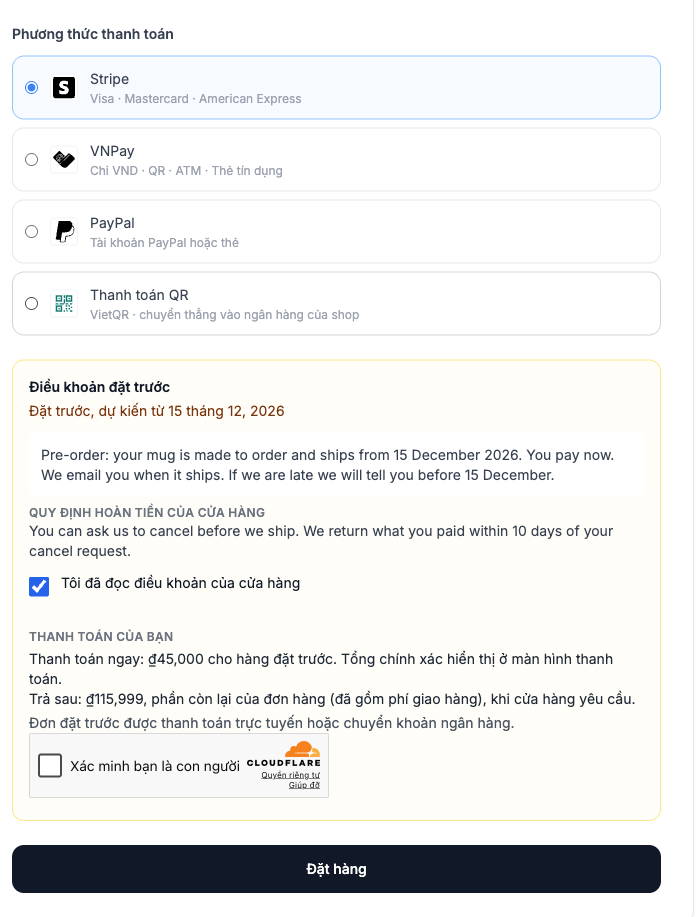
- Benefits: customers know what they are buying, when the goods will arrive, and what the store's policy is before transferring money. The order is secured, and customers must tick the box confirming they have read the terms before they can place a pre-order.
3. Inventory stays accurate, and you know how much you still need to buy
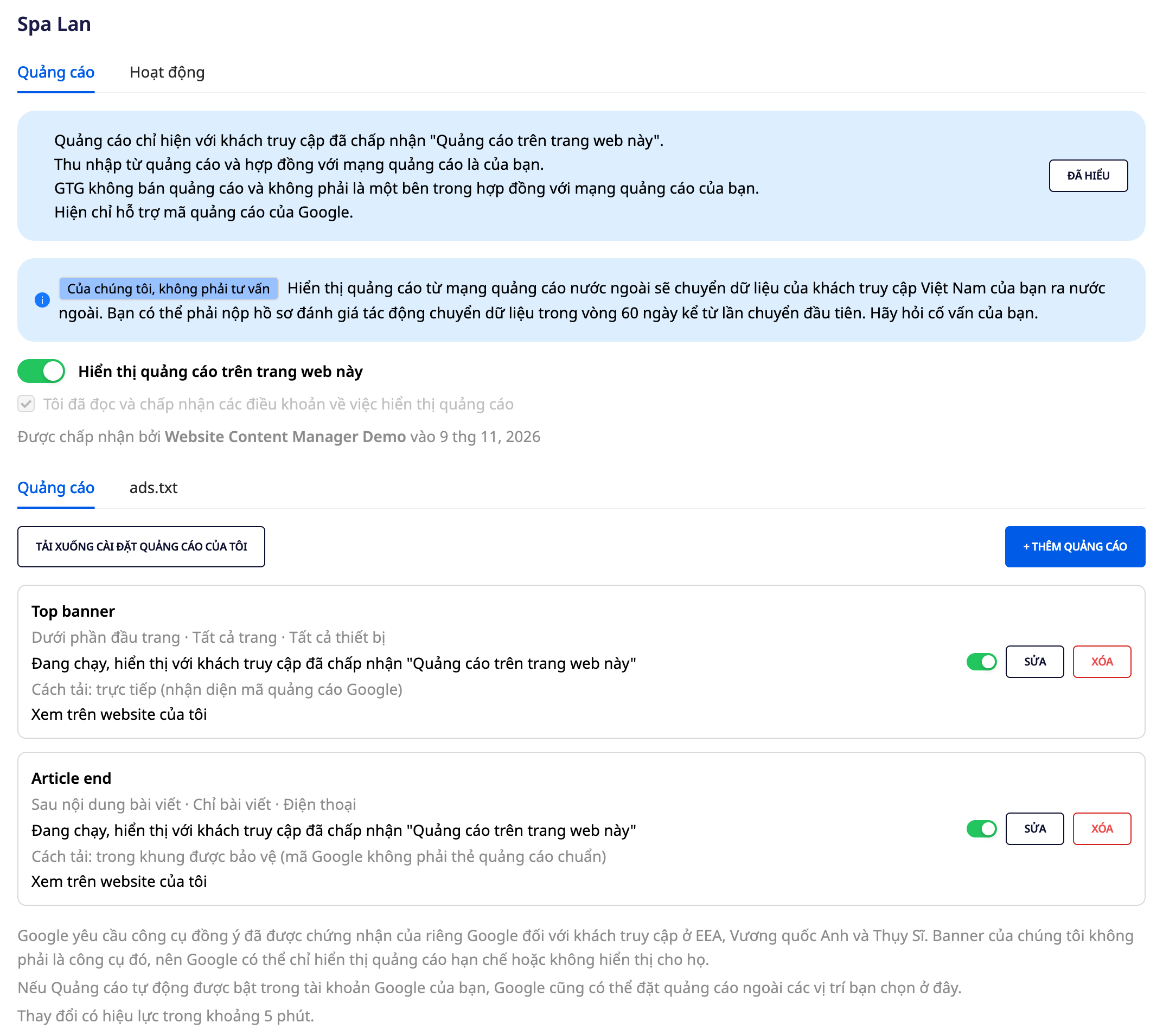
Pre-orders are not stock in the warehouse: the on-hand quantity, reserved quantity and available-to-sell quantity do not change. Orders are located at Operations ▸ Commerce ▸ Sales Orders, in the last tab Pre-order. For each product and variant, you see Pending, Paid (deposits count as paid), Unpaid, Still to buy (the number of units from paid orders, including deposits, minus the quantity already in the warehouse that the orders will draw from; unpaid orders are not counted) and In stock, along with a Download .xlsx button. In the order list, these orders carry the status Pre-order.
When a customer transfers money to the store's bank account, the system does not automatically see the payment. Once you have seen the money in the bank account, click Confirm bank transfer received, then enter the amount and the date the money arrived. Only users with permission to record payments can do this, and the order history records who confirmed it, how much, and on what date. Orders paid through a payment gateway that supports confirmation are confirmed automatically.
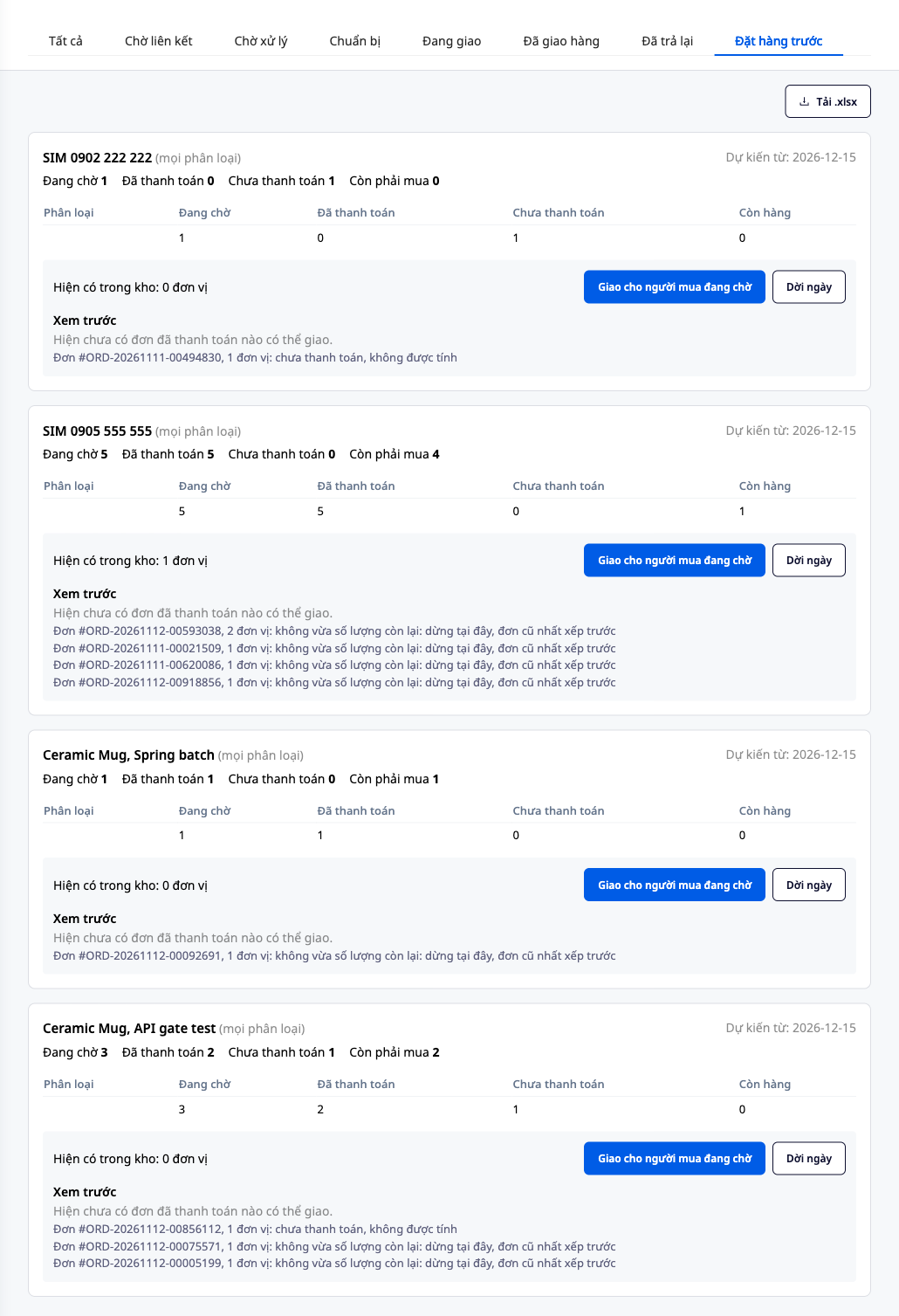
- Benefits: you no longer have to enter virtual inventory or go through ledgers to count orders, and you know how many more to order for paid orders. You sell ahead while the warehouse stays accurate.
4. Goods arrive, delivered in order of payment
When the warehouse receives stock, a notice shows how many paid units are waiting for this batch, with an Open Pre-orders link. The Preview section lists each upcoming change line by line in advance, without changing anything yet. After reading it, click Hand to waiting buyers and confirm. Stock must be entered into the same warehouse the order will be picked up from. By default, the oldest paid order is handed over first, unpaid orders are never counted, and if an order is larger than the remaining stock, the handover stops at that order so no one is skipped by mistake. The results then show each order: Delivered, Skipped: unpaid, or Stopped: exceeds remaining quantity. Orders not yet reached show Still waiting, and the results end with the line Waiting: N units. Still to buy: M units. Clicking again right after changes nothing. Delivered orders then move on like any other website order: you ship them out and hand them to the carrier. Deposit orders may also receive an email asking for the remaining payment within the deadline you set (up to 7 days). If stock arrives late, use Reschedule. Buyers are told the new date only after you approve the message in Tasks, and this goes through an automation template that is off by default. While the template is off, the system does not notify buyers, and you notify them yourself. The new-date email also tells the buyer how to request cancellation if the new date no longer suits them (a cancel button if you allow self-cancellation, or contact the shop), and reminds them that the shop decides on refunds and nothing is refunded automatically.
Pre-orders still waiting for stock do not generate referral commission (see the article Customer Referral Program).
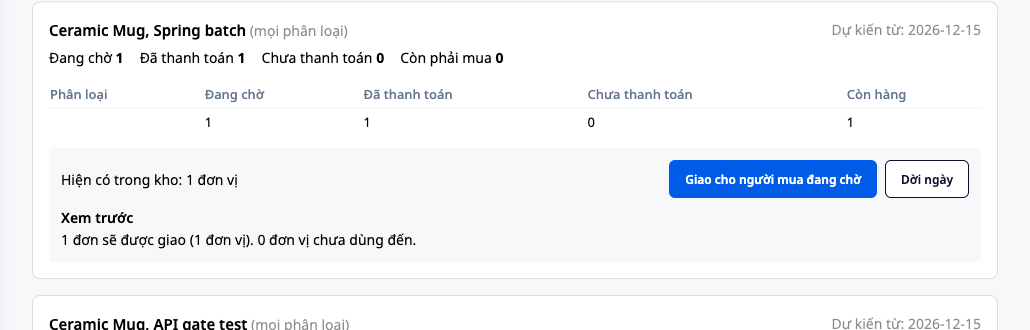
- Benefit: you see the handover results in advance, the order is fair, and you don't have to count yourself how many people this batch can cover.
5. Refunds and deposits are your decision
When an order is cancelled, the goods return to stock for other buyers. If the customer has paid, the system creates a refund task for the approver you chose. The email to the buyer and the task title call the amount received the first payment, whether it was a full payment or a deposit, because whether it is refunded is your decision. When you open the task, the top section shows A paid pre-order was cancelled, along with the buyer, the amount paid, and your own refund policy. You return the money through your own channel, click Refund on the order to record it in the ledger, then return to the task and select I have refunded to record the decision. Selecting the option without clicking Refund leaves the ledger unchanged. GTG CRM does not transfer money on your behalf. For deposit orders where the buyer does not pay the remaining balance on time, the order is cancelled, the goods return to stock, and you receive a task to choose I have refunded or I am not refunding (my decision). Neither option is preselected. The task displays word for word the terms the buyer accepted when placing the order. GTG CRM does not decide whether to keep the money and does not check whether doing so complies with regulations. You determine this under your own terms and current rules, and you should consult your advisor.
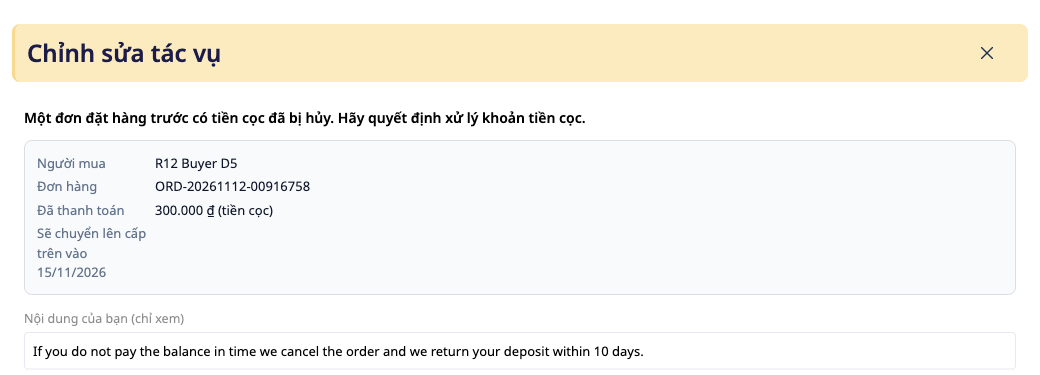
- Benefit: no amount is silently refunded or retained, and every decision is recorded in the history with the name of the person who made it.
Current Scope
- Only applies to your own shop's website. Pre-orders on Shopee or TikTok are controlled by those platforms' own switches and are not part of this feature.
- Pre-orders accept only online payment or bank transfer, with no cash on delivery, and bank transfers are always confirmed manually by you.
- Turn it on or off for each product, with a maximum quantity that you set. There is no unlimited quantity.
- The expected date is your estimate and you can change it. It is not a delivery commitment from the system.
- By default, buyers cancel by contacting the shop. You can let them cancel themselves until the order is delivered at the Hand to buyer waiting step. From that point, the order is no longer a pre-order and the cancel link no longer works.
- No refunds or deposit holds happen automatically. GTG CRM does not decide terms, refunds, deposits, or how prepaid money is recorded. Those decisions are yours.
Business Benefits
| Feature | Practical benefit for you |
|---|---|
| Per-product switch, with a to-do list | Terms, refunds, and VAT are your choices, with no silent defaults |
| Product page shows "Pre-order, expected from {date}" | Fewer lost orders just because the page says "out of stock" |
| Pre-order terms at checkout | Customers must tick that they have read the terms before ordering, and the system records the version they accepted |
| Pre-orders are separated from inventory | Inventory reports stay accurate even after orders are received |
| "Still to purchase" number and .xlsx file | Know how much more to order for paid orders |
| Preview, then fulfill in the order paid | Clear sequence, so no one is missed by mistake |
| Refund and deposit handling tasks | Every payment has a decision-maker and a record |
Who Is It For?
- Shop owners who source from suppliers or make-to-order (pottery, imported goods, books, equipment, etc.) and have a website in GTG CRM.
- E-commerce managers who want product pages to keep taking orders when stock is not yet available, without throwing off inventory.
- Purchasing staff who need to know how much to order for the next batch.
- Refund approvers and accountants who want every refund or deposit hold to have a decision-maker and a record.
How Do You Get Started?
Start with one product. You need a published website and a product with an inventory line in stock (a quantity of 0 is fine). Open the product under Sales & CRM ▸ Catalog ▸ Product Center, then the Sales Information tab. The pre-order card automatically lists each remaining task, with one button per line.
Free trial — no credit card required.