Feature Introduction
You sell both online and in-store, but the checkout counter lives in a world of its own: an old cash register or a handwritten notebook, tallying everything only at the end of the day, inventory in the software on one side — on the shelf on another. Customers walk in, buy, and leave, and no one knows who they are, so they never make it into your customer database. Discounts, holding orders for returning customers, or processing returns all have to be handled differently each time, and the records become a mess.
That ends today.
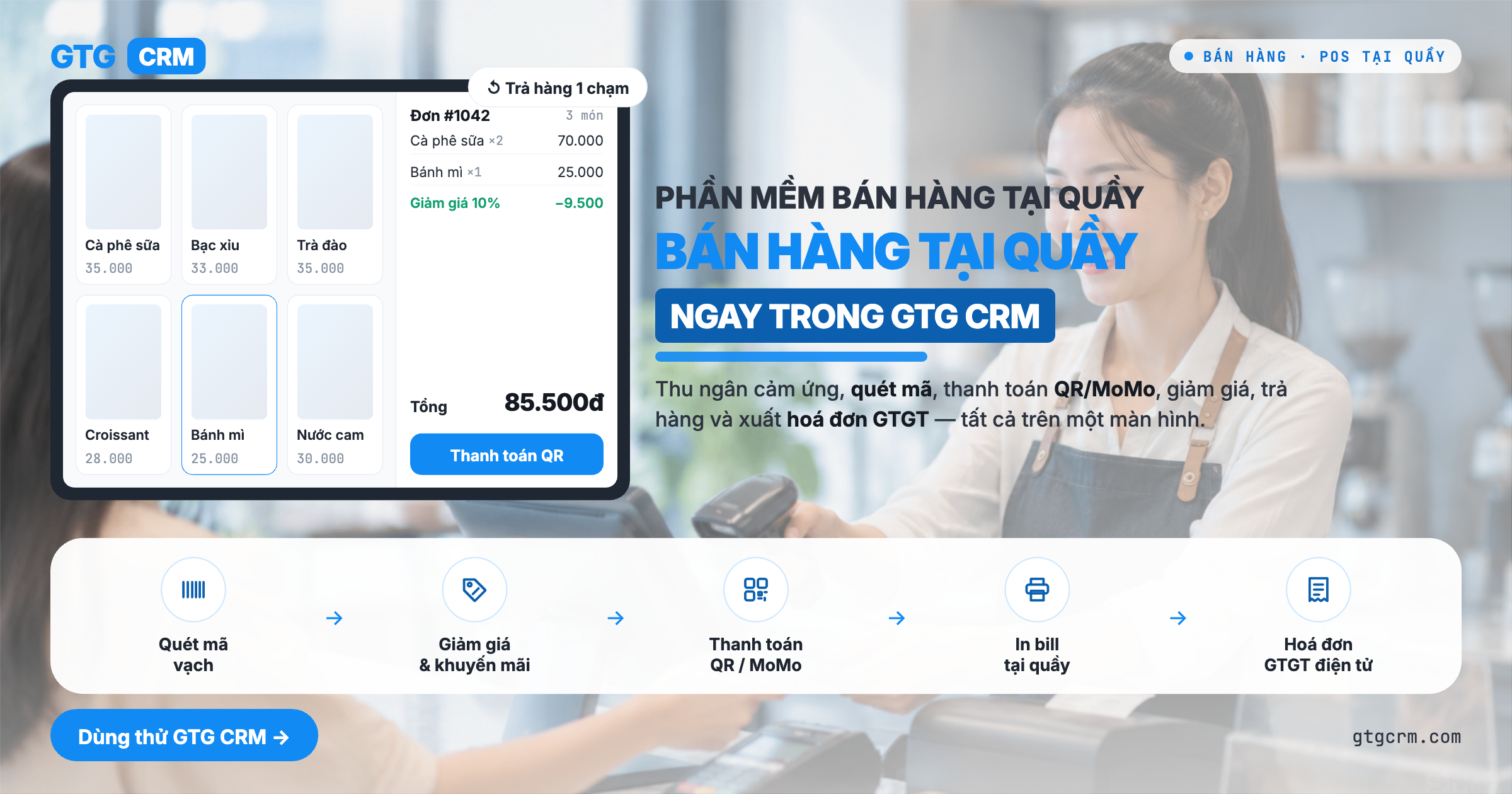
GTG CRM now includes a point-of-sale (POS) sales screen — a dedicated cashier screen that runs in the browser at pos.gtgcrm.com (open it on a computer or tablet at the counter, and sign in with your GTG CRM account). Scan a barcode → add to cart → collect cash or let the customer scan a bank QR / MoMo wallet → click confirm and inventory is deducted immediately. Every counter sale updates the same inventory and the same customer directory as your online store — no more two inventory counts, no more “anonymous” customers. In-store and online sales are finally one and the same.
The Problems Businesses Face
Cash register / notebook disconnected from the management software — End-of-day tallying only, inventory mismatches the real stock, easy to lose goods
In-store customers are not recorded in the CRM — You don’t know who your regular customers are, so you can’t follow up
QR/wallet payments require opening a separate banking app and manual reconciliation — Confusion over whether payment has been received, long waits, lost customers
Discounts, order holds, and returns are handled differently every time — Revenue and inventory data become inaccurate, making reconciliation difficult
Online and in-store sales live in two different systems — Duplicate data entry, inventory doesn’t match across systems
GTG CRM brings everything into one checkout counter: scan → sell → collect payment → deduct inventory → record the customer → issue receipt/invoice — all in one flow, and everything goes straight into the same system you already use to manage inventory, customers, and accounting.
Key Highlights
1. Touch-friendly cashier screen — fast selling, even without a scanner
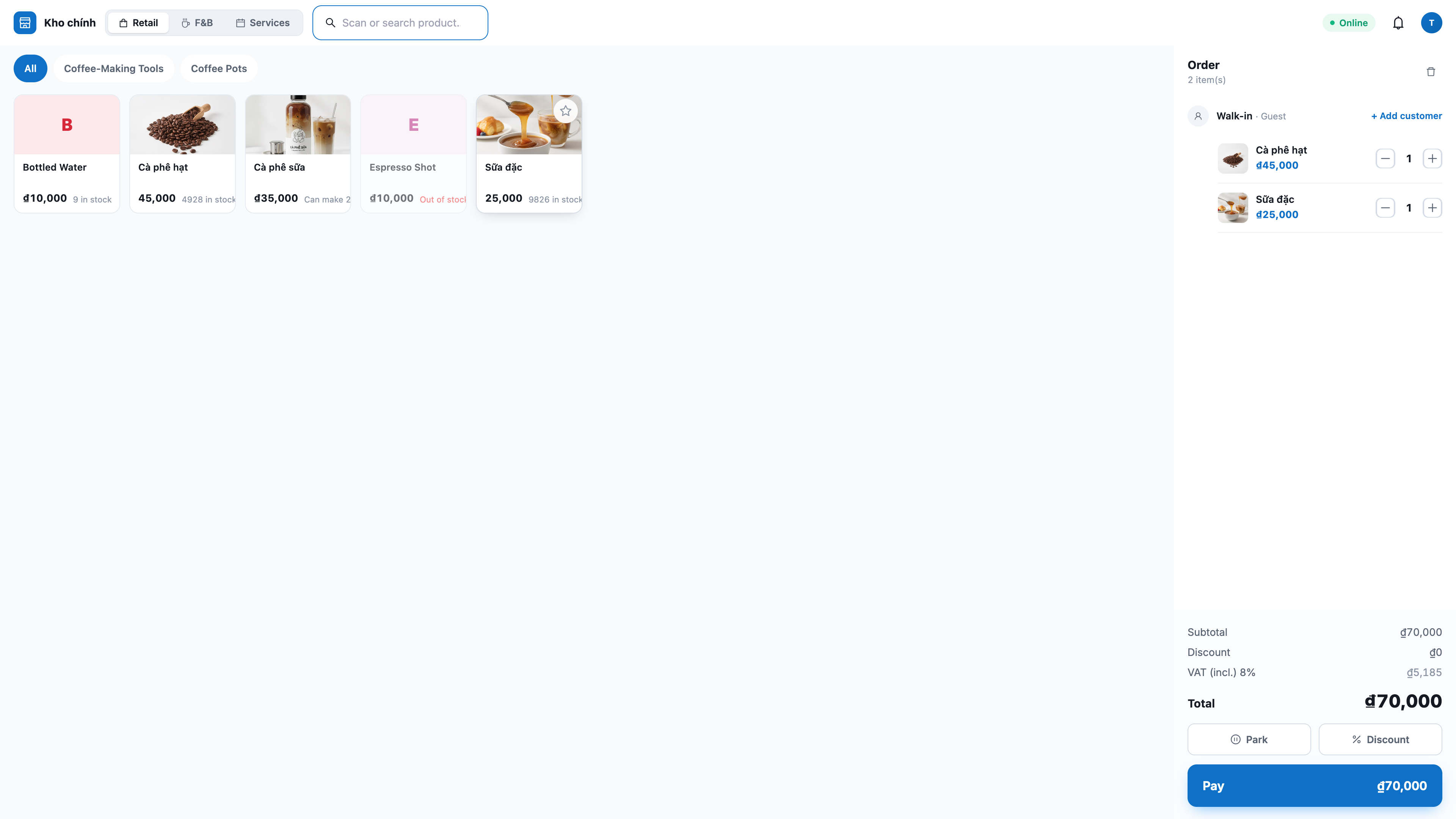
All products shown upfront: open the POS and you immediately see the product grid, with more loading as you scroll — tap to add to cart, no typing required. There is a category tab for quick filtering and a search box by name/code.
Instant barcode scanning: plug in a USB scanner (it works like a keyboard, no setup needed) and scan — products go straight into the cart.
Built for fingers: large, easy-to-tap buttons; tap the quantity to enter it directly (no need to press plus repeatedly); quick cash denomination buttons (10K–500K) for lightning-fast change calculation.
2. Accept cash, bank QR, and MoMo wallet payments — right at the counter
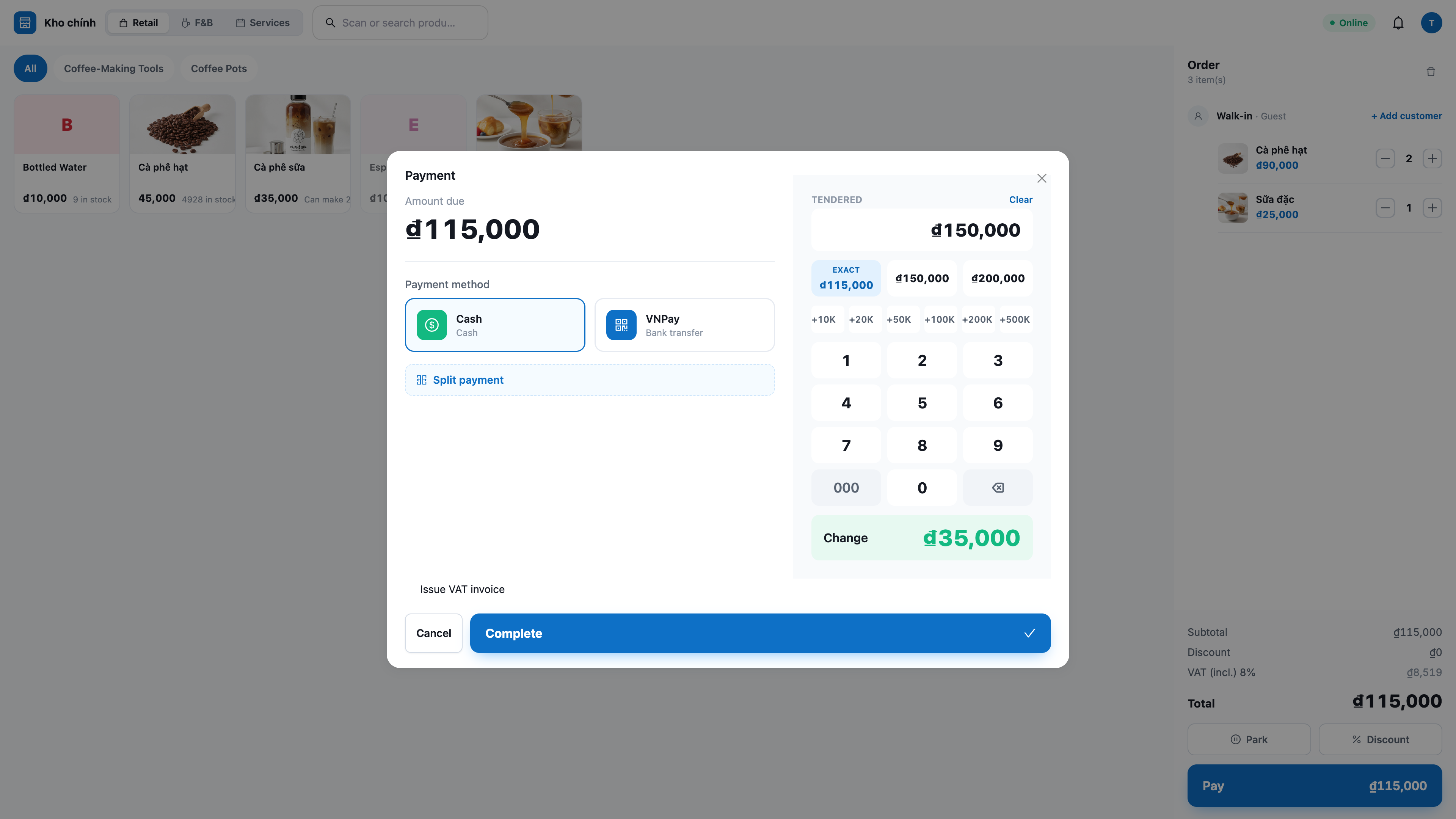
Cash: enter the amount the customer gives you, and the screen shows the change immediately; confirm and you’re done.
QR / MoMo wallet: the customer scans the QR code displayed on the secondary screen to pay. The QR code is the provider’s original code — for MoMo, the customer scans it using the MoMo app (not the phone camera); for VNPay, it is the VNPay QR page. When the money comes in, the system automatically completes the order and deducts inventory.
Only show the methods you’ve enabled: the POS only displays the payment gateways you have connected and configured (using the same settings as your online store) — nothing unfinished appears, preventing errors mid-transaction.
3. Customer-facing display — customers can see the cart and QR code
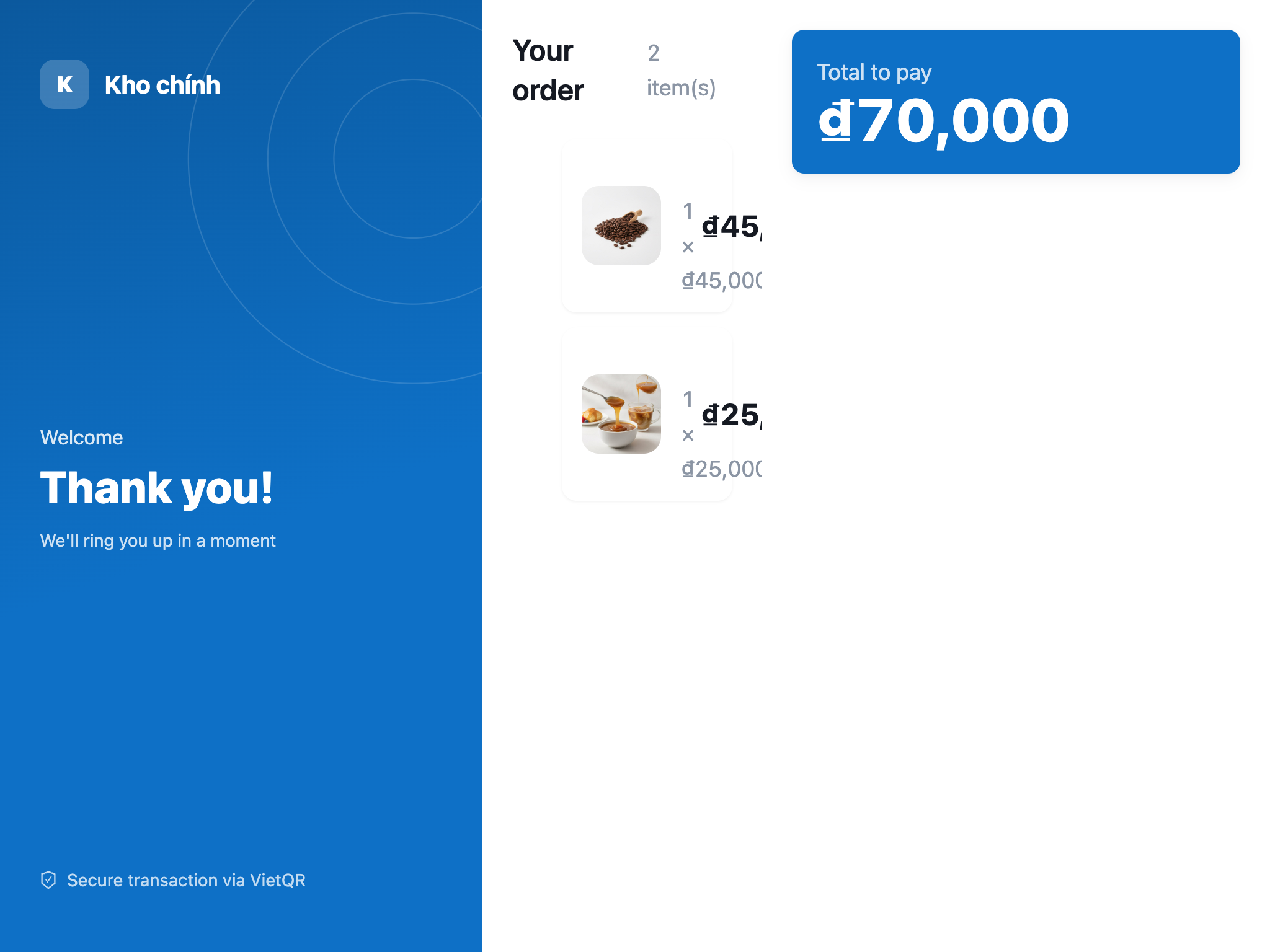
Two screens, one machine: open a full-screen secondary display on the customer-facing monitor, mirroring the cart and total in real time.
Dedicated tablet: pair with a code/QR — the tablet by the counter shows the exact cart over the network.
Fits any screen size: automatically adapts to the display size; includes a mode for very small screens (shows only a large total + the most recently added item, and a full-screen QR at checkout) so customers always can read the most important number.
Carry your brand: the checkout counter and customer display use the workspace Brand Identity — accent color, logo, and store name that match your brand.
4. Discounts and parking orders to serve the next customer
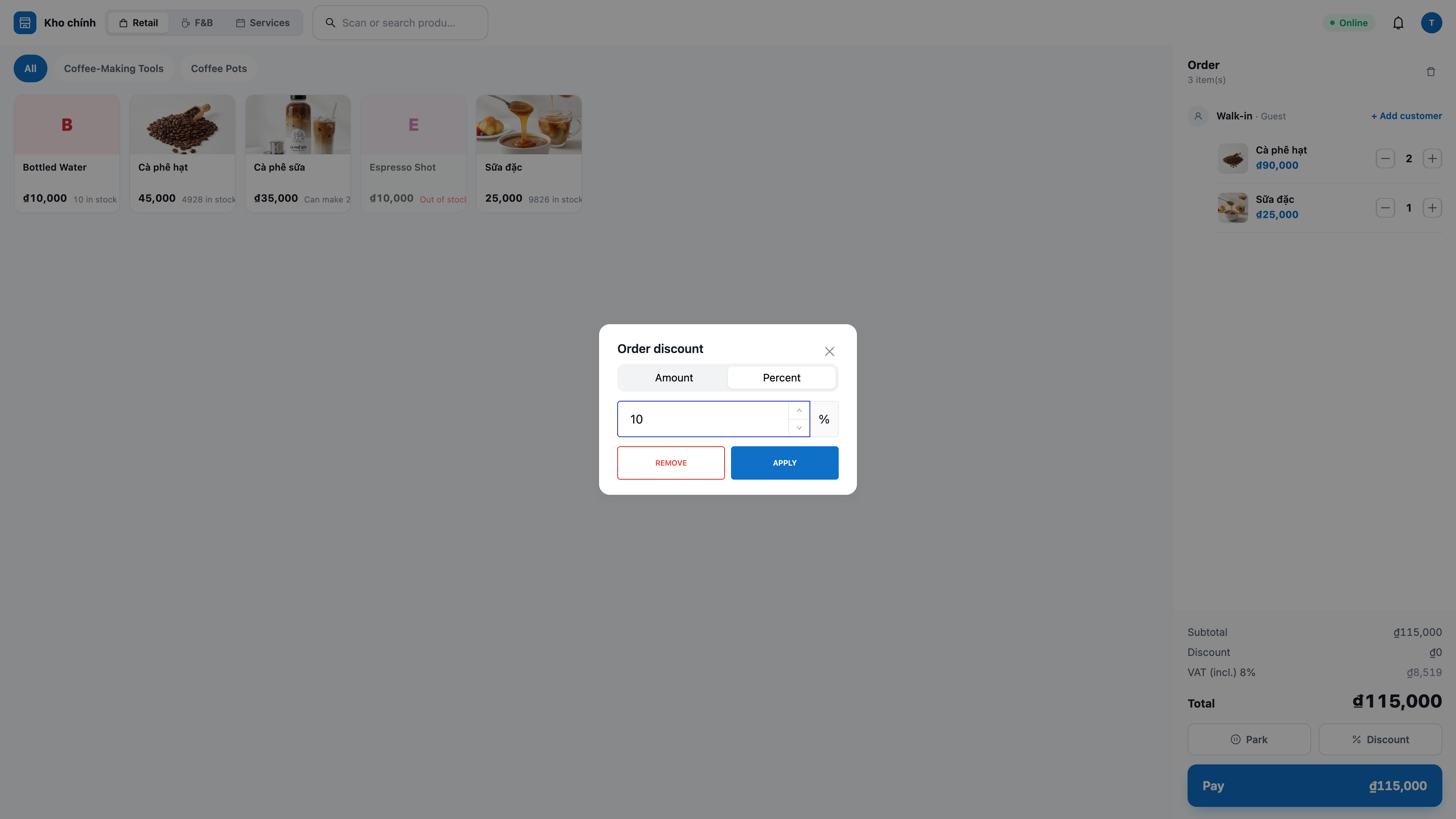
Discount by line item or entire order: by amount or percentage. The final amount is recalculated by the server — cashiers can’t “make up” prices on their own, so revenue always matches the books.
Park / Recall: customer forgot their wallet? Tap Park to set the cart aside, help the next person, then Recall to bring back the exact same cart (including discounts and assigned customer). Parked orders stay saved even after refreshing the page.
5. Returns and refunds — accurate inventory, accurate accounting
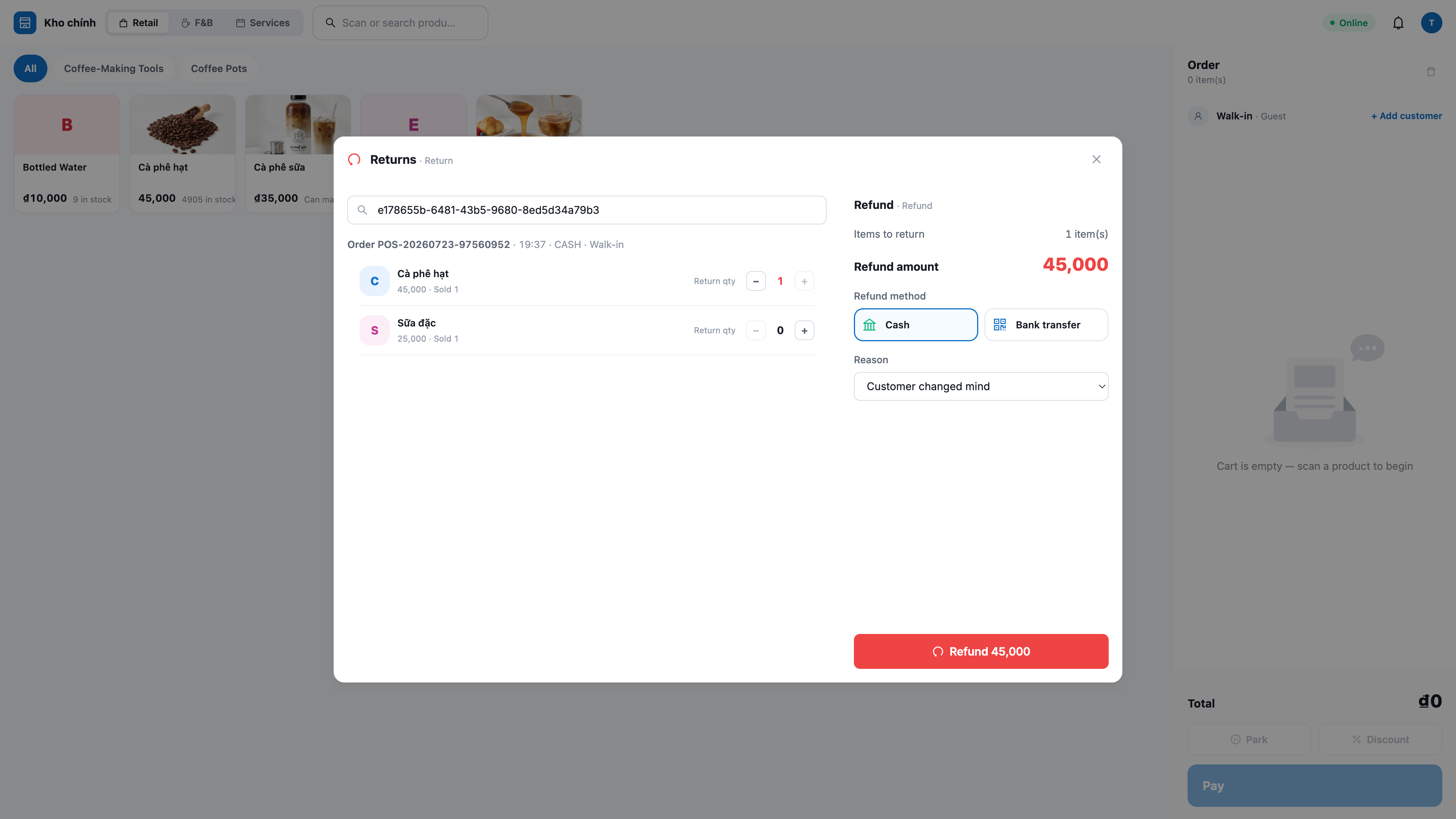
Partial or full returns: open Returns, select the sold order, choose the line item and quantity to return, and enter a reason — the system refunds, adds returned items back into inventory (so they can be reused), and records reversing entries (reversed revenue + cost of goods sold) so the books stay accurate.
Cannot return more than was sold: the system blocks returns if the quantity exceeds what was purchased — no over-refunding.
Separate permissions: the returns function is only shown to users granted return permissions (a reversal transaction, requiring higher authorization than a regular cashier).
6. Transparent VAT at the counter — and customers can get e-invoices themselves
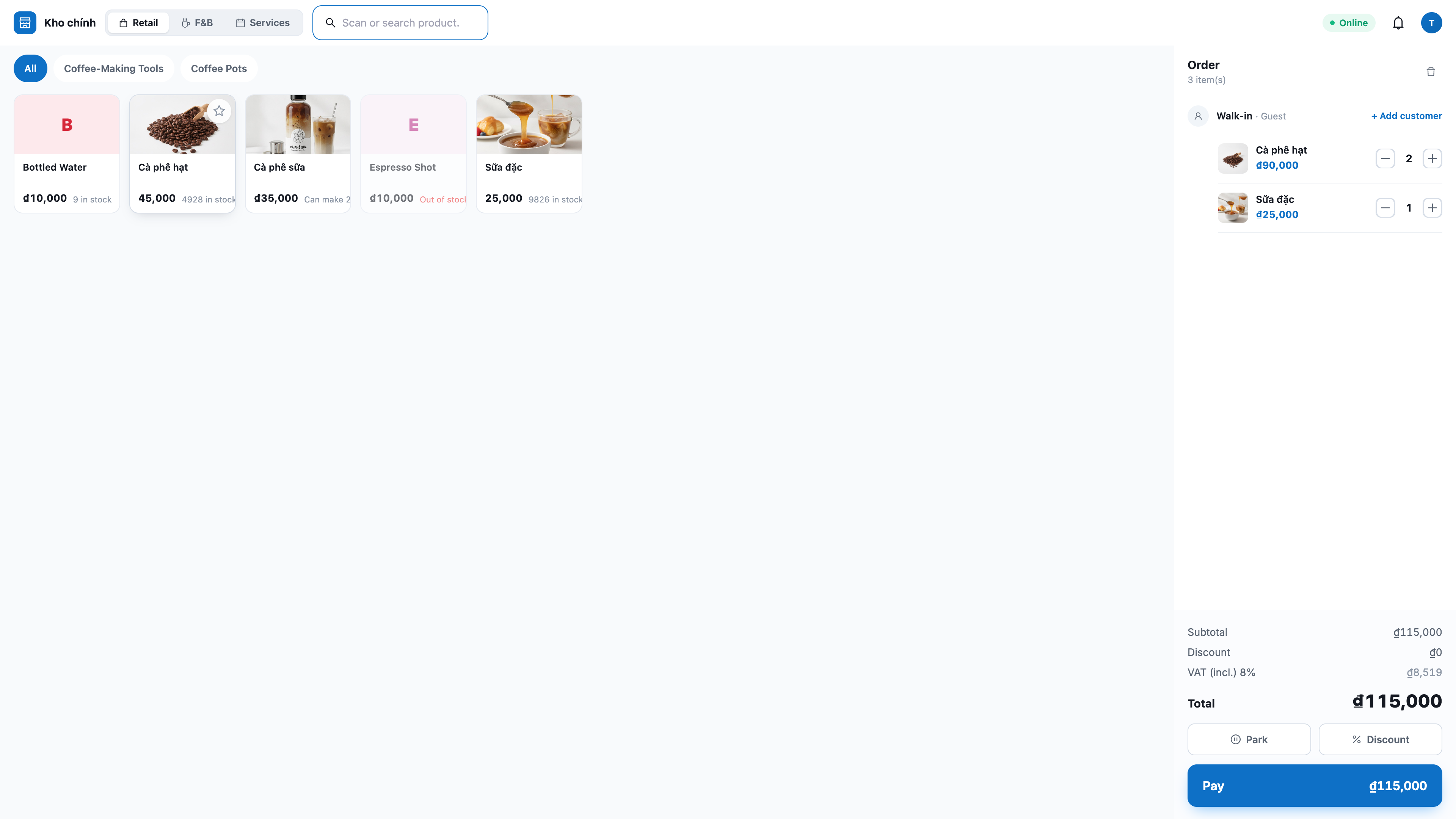
Show VAT clearly in the price: the cart and receipt clearly separate the VAT already included in the price, by each product tax rate (for example 8%, 10%) — the total doesn’t change, and both you and the customer can see it clearly.
Enable/disable based on your household business: if the store does not yet report VAT, turn off tax display in Settings — the POS will not show or record tax.
Customers can get e-invoices themselves: the receipt includes a QR code; customers scan it with their phone to open a page where they enter name (company, household business, or full name), tax ID, and address, then the e-invoice is issued through the invoice provider you connected, if the store has enabled automatic invoice issuance. Household businesses and individuals usually use a 12-digit personal ID as the tax ID. The customer enters the information themselves, so the cashier doesn’t need to type it in.
7. Print thermal receipts and open the cash drawer
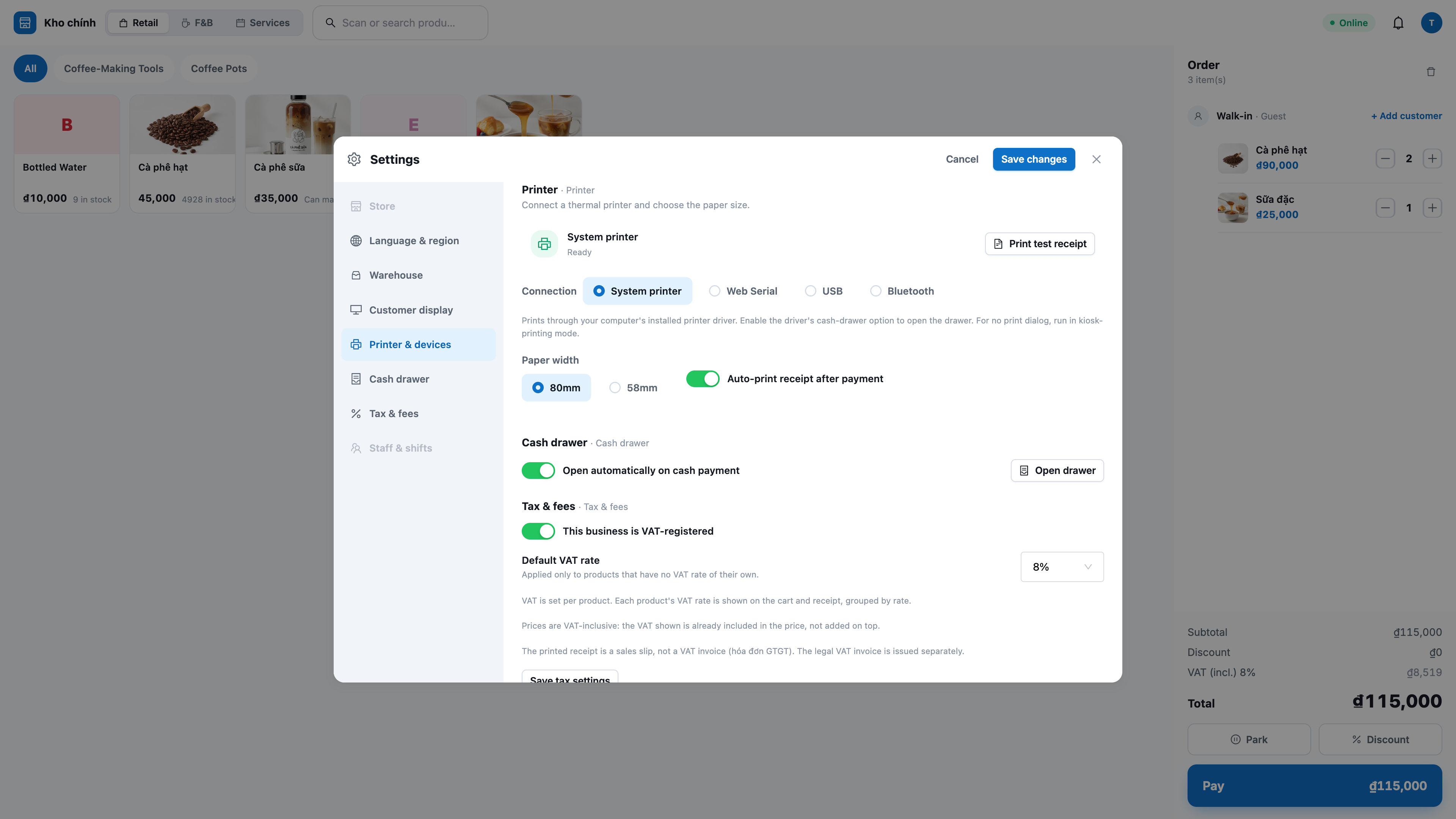
Automatic printing on every sale: connect a thermal printer (58mm/80mm) once for each checkout; the receipt prints as soon as the sale is completed, in clear Vietnamese (accents and characters).
Open the cash drawer on cash orders (when the option is enabled), and reprint receipts for any recent order from Recent sales (Đơn gần đây) — reprints are marked RE-PRINT.
Printing errors don’t block sales: if the printer has a problem, the order still goes through — you only get a small notification with a retry button.
8. Counter alerts (bell 🔔) — never miss incoming money or stockouts
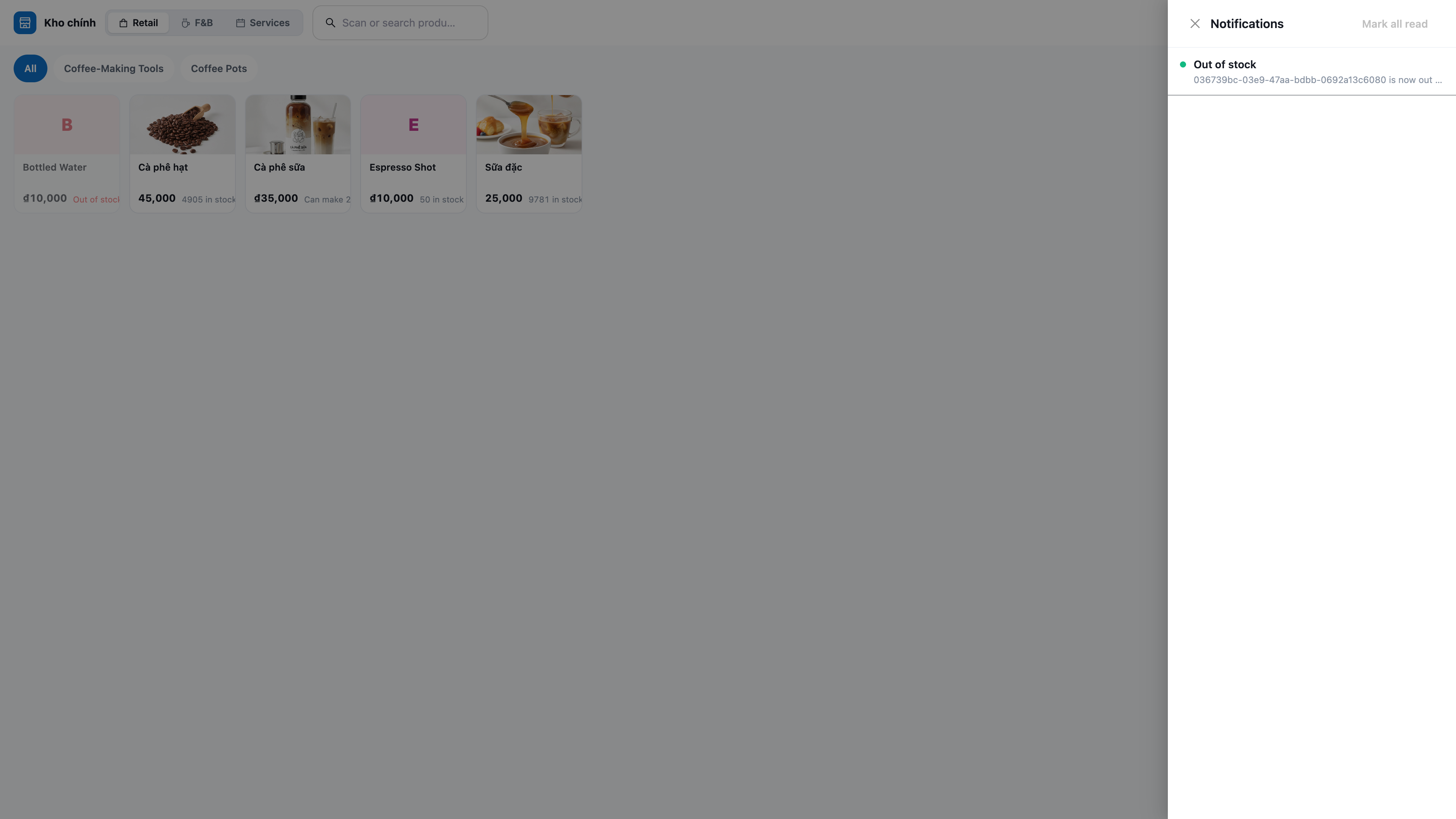
QR payment received: when a customer successfully pays by QR, a “payment received” notification appears on the bell — the cashier doesn’t have to stare at the waiting screen.
Out-of-stock alert: when a sale completely runs out a product, the bell sounds “out of stock: ” so you can restock in time.
Browser push notifications: if allowed, these alerts also appear as pop-ups even when the POS tab is in the background.
9. Receive stock and do inventory checks right in the store
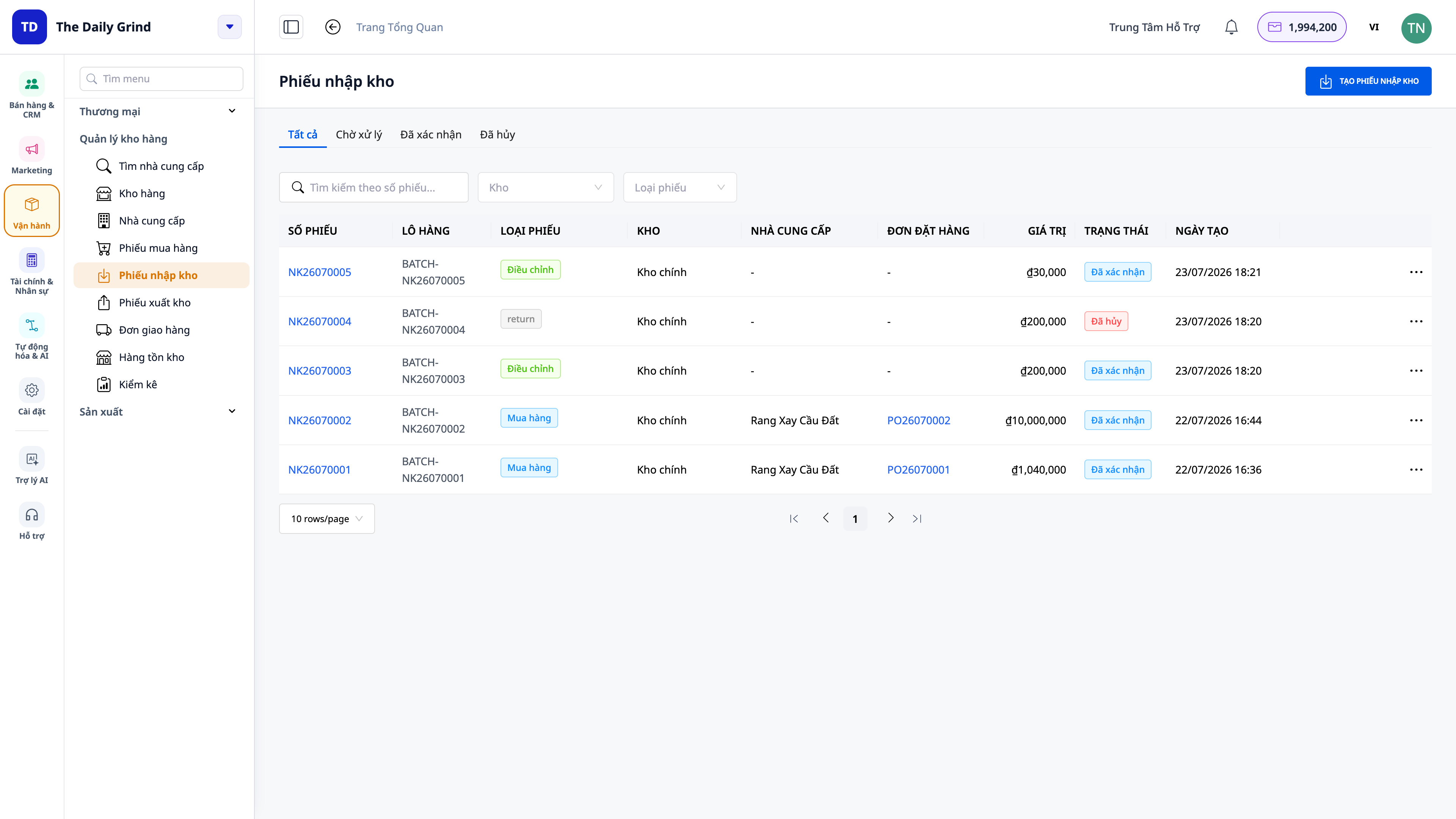
Receiving stock (goods receipt): when the supplier delivers goods, staff enter them directly into the store’s warehouse — inventory and books update immediately, without having to open another app. You can record purchases on credit, pay immediately, or enter opening stock when first going live on the system.
Inventory check (physical stock count): count the items on the shelves, and the system compares them with the book stock and automatically records the discrepancy (over/short) in accounting — no more “unexplained shrinkage.”
Everything uses the same warehouse as in-store and online sales, so the numbers always match.
10. Link customers to CRM and view 360° — in-store sales still have data
Link customers by phone number: enter a phone number to link the order with the CRM contact; otherwise, the order is a walk-in customer.
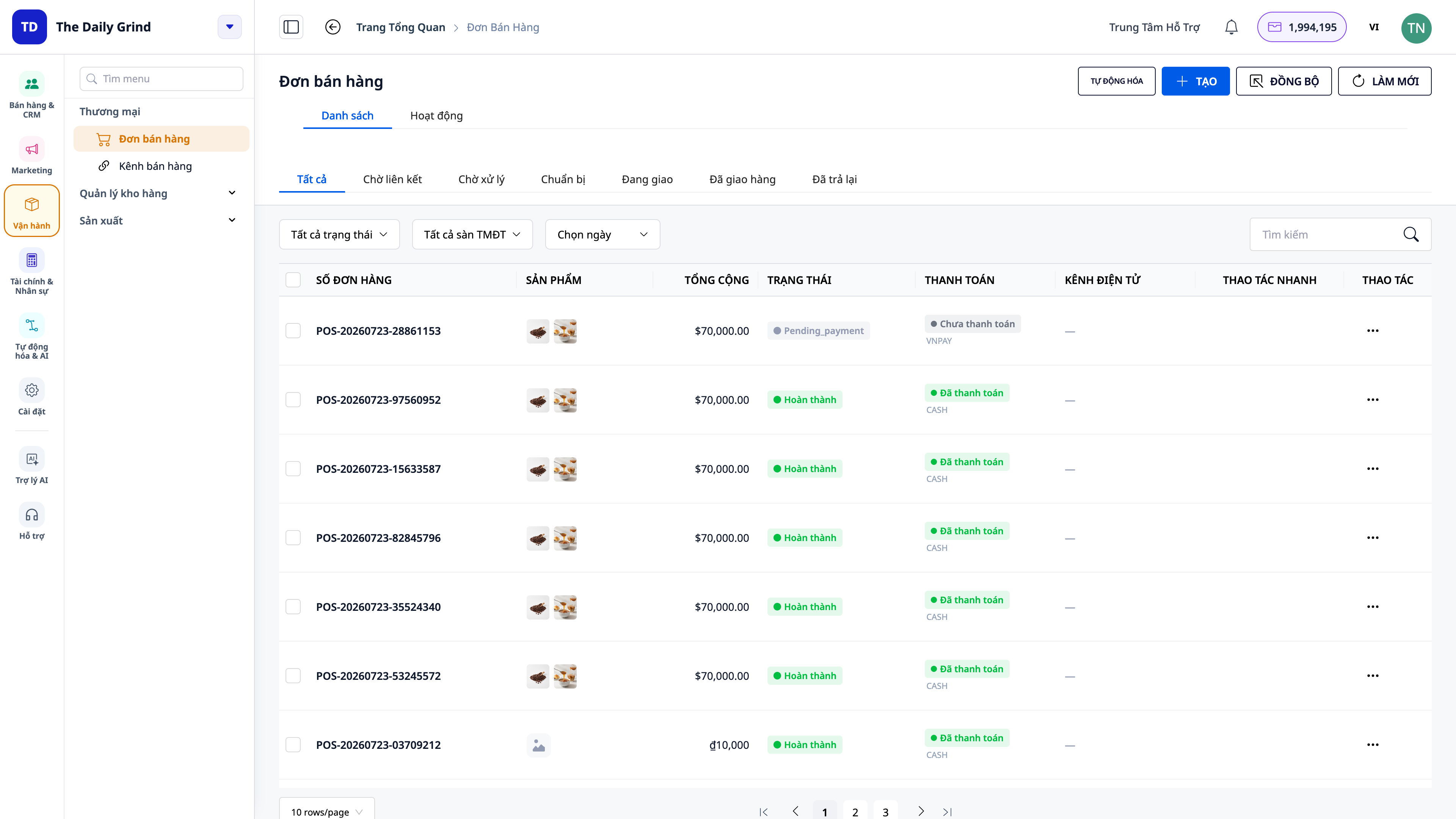
POS orders go into the same place as online orders: all in-store orders appear in CRM → Orders (Đơn hàng) with the source POS, alongside online orders.
360° activity stream: orders linked to a customer appear on that contact’s Activity stream; all in-store orders appear in the Activities feed in the Orders menu — know who sold what, when, and to whom.
Benefits for the Business
Stock is deducted immediately when you sell, using the same warehouse as online — Inventory is always accurate, with no end-of-day discrepancies
Accept cash + QR/MoMo at the counter — Get paid quickly, reconcile automatically, and never confuse “paid or not”
Discounts are recalculated by the server — Cashiers can’t make up prices; revenue always matches the books
Hold orders / call back later — The counter doesn’t get clogged when one customer hesitates; serve the next customer right away
Returns match the books — Refunds + goods returned to stock + automatic reversal entries, with closing done correctly
Show VAT + customers can collect their own invoices — Transparent tax handling; less work at the counter for invoice details
Print receipts + bell alerts — Smooth sales, so you never miss money received or out-of-stock items
Receive stock + inventory counts in-store — Receive/count right at the counter, with differences posted automatically to accounting
Link customers + 360° — In-store customers also become data for nurturing and repeat sales
Who Is It For?
Retail stores: grocery shops, mini supermarkets, fashion, cosmetics, phones/electronics, accessories, pharmacies, stationery, household goods.
Shop owners selling both online and at the counter who want one inventory and one customer list for both channels.
Multi-store chains: each counter runs on the correct warehouse for that store, with centralized management on the same system.
Cashiers and store managers who need a fast, touch-friendly sales screen that’s easy to use from day one.
How Do You Get Started?
Open pos.gtgcrm.com on the counter computer and log in with a GTG CRM account (you need the Create POS sale (Bán hàng tại quầy) permission granted by the workspace administrator). The first time, go to Settings and select the store's warehouse so the POS deducts inventory from the correct warehouse. Want to accept QR code/wallet payments? Enable and configure MoMo/VNPay in the online store payment settings — the POS uses the same setup. See the step-by-step POS Counter Sales guide to run a full sales shift from start to finish.
Free trial — no credit card required.