Sissejuhatus
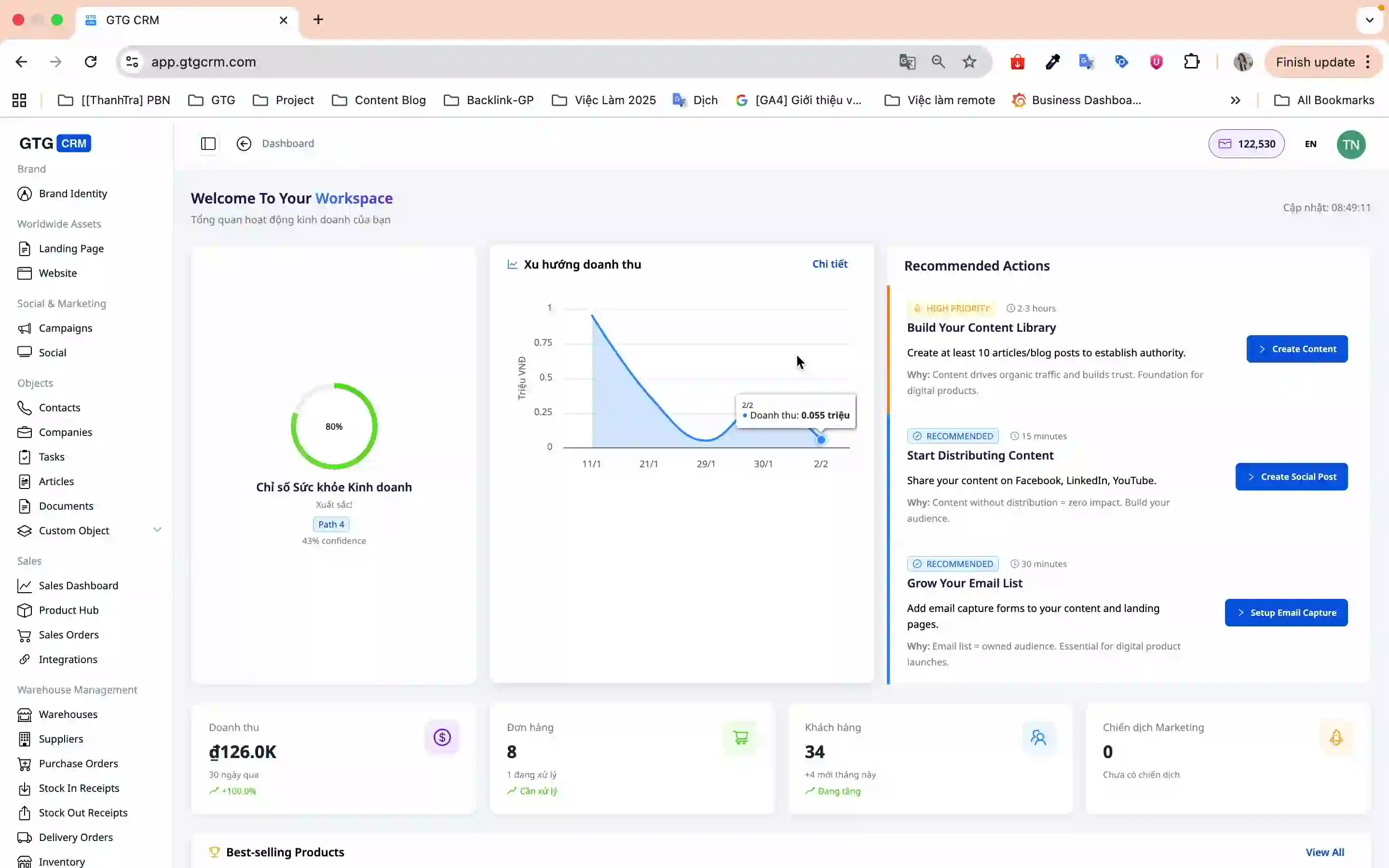
Google Ads reklaamide haldamine on nüüd lihtsam kui kunagi varem, kuna saate reklaamikampaaniaid luua ja hallata otse GTG CRM-i platvormil. Pole vaja mitme vahekaardi vahel vahetada, pole vaja muretseda keeruliste seadistuste pärast – kõik on sujuvalt ja intuitiivselt integreeritud.
GTG CRM-i sisseehitatud Google Ads funktsiooniga saate luua otsingureklaamide ja displeireklaamide kampaaniaid vaid mõne minutiga, kasutades kasutajasõbralikku Vietnami liidest ja üksikasjalikke samm-sammulisi juhiseid. Süsteem toetab ka olemasolevate kampaaniate automaatset sünkroonimist, aidates teil kõiki turundustegevusi ühes kohas hallata.
Põhiomadused
- Lihtne Google Ads konto ühendamine – Lingi oma reklaamikonto vaid mõne klõpsuga
- Täiesti uue kampaania loomine – Looge kampaania algusest peale samm-sammult juhendajaga
- Olemasolevate kampaaniate sünkroonimine – Sünkroonige automaatselt jooksvaid kampaaniaid GTG CRM-i keskendatud haldamiseks
- Mitmekesiste eesmärkide tugi – Müük, potentsiaalsed kliendid, veebiliiklus koos paljude konversioonivalikutega
- Täpne sihtimine – Seadistage üksikasjalik asukoht, keel, demograafia ja aeg
- Paindlik eelarve haldamine – Kontrollige igapäevaseid ja kampaania eelarveid
- Vietnami liides – Kõik toimingud on Vietnami keeles, arusaadavad ja sõbralikud
Üksikasjalik kasutusjuhend
1. samm: Google Ads konto ühendamine
Enne reklaamide loomist peate oma Google Ads konto GTG CRM-iga ühendama:
- Peamenüüs klõpsake menüül Kampaaniaid (Campaigns)
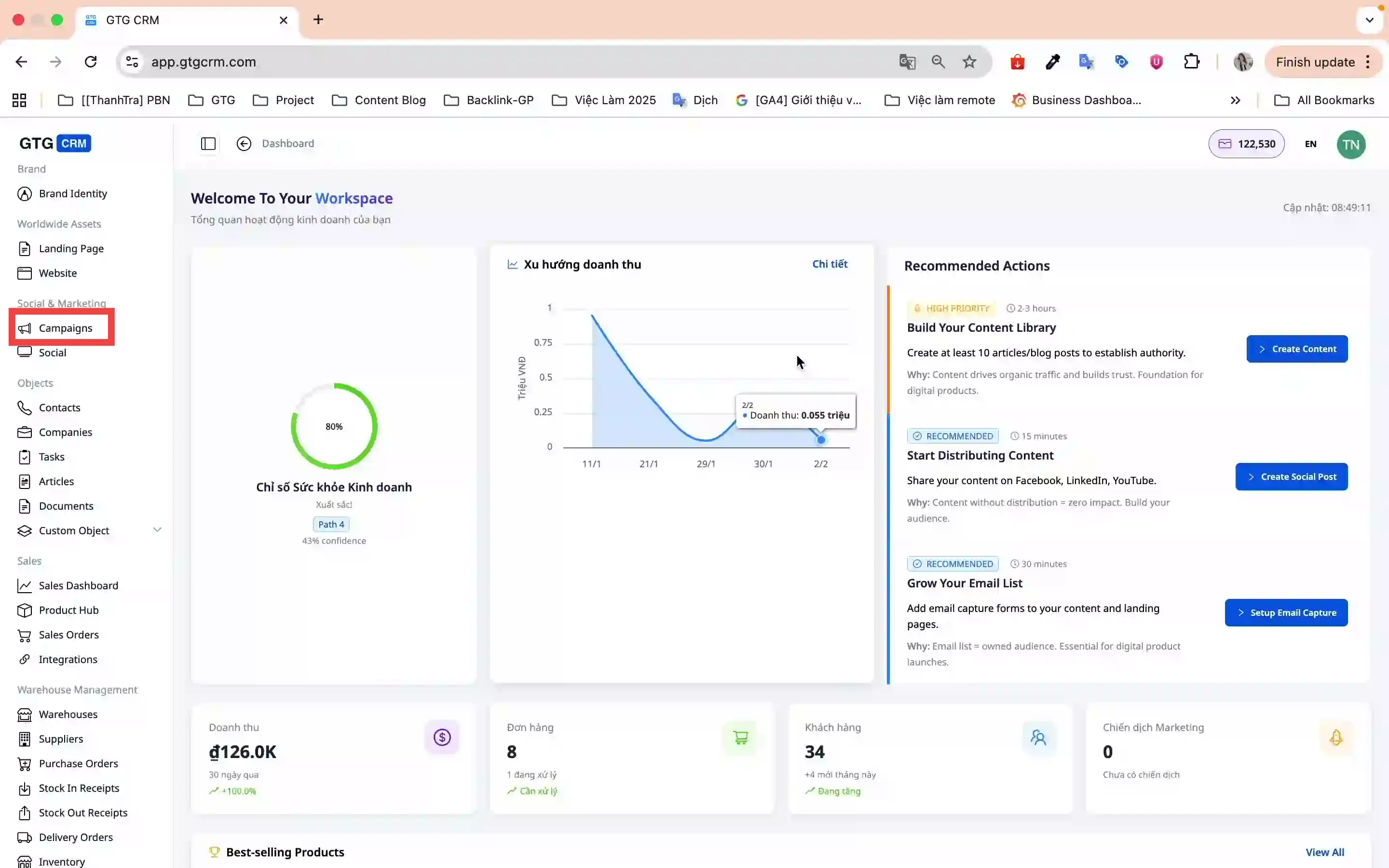
- Minge Konto seaded → Ühenda konto
- Valige platvorm Google (GTG CRM toetab nii Facebooki kui ka Google'it)
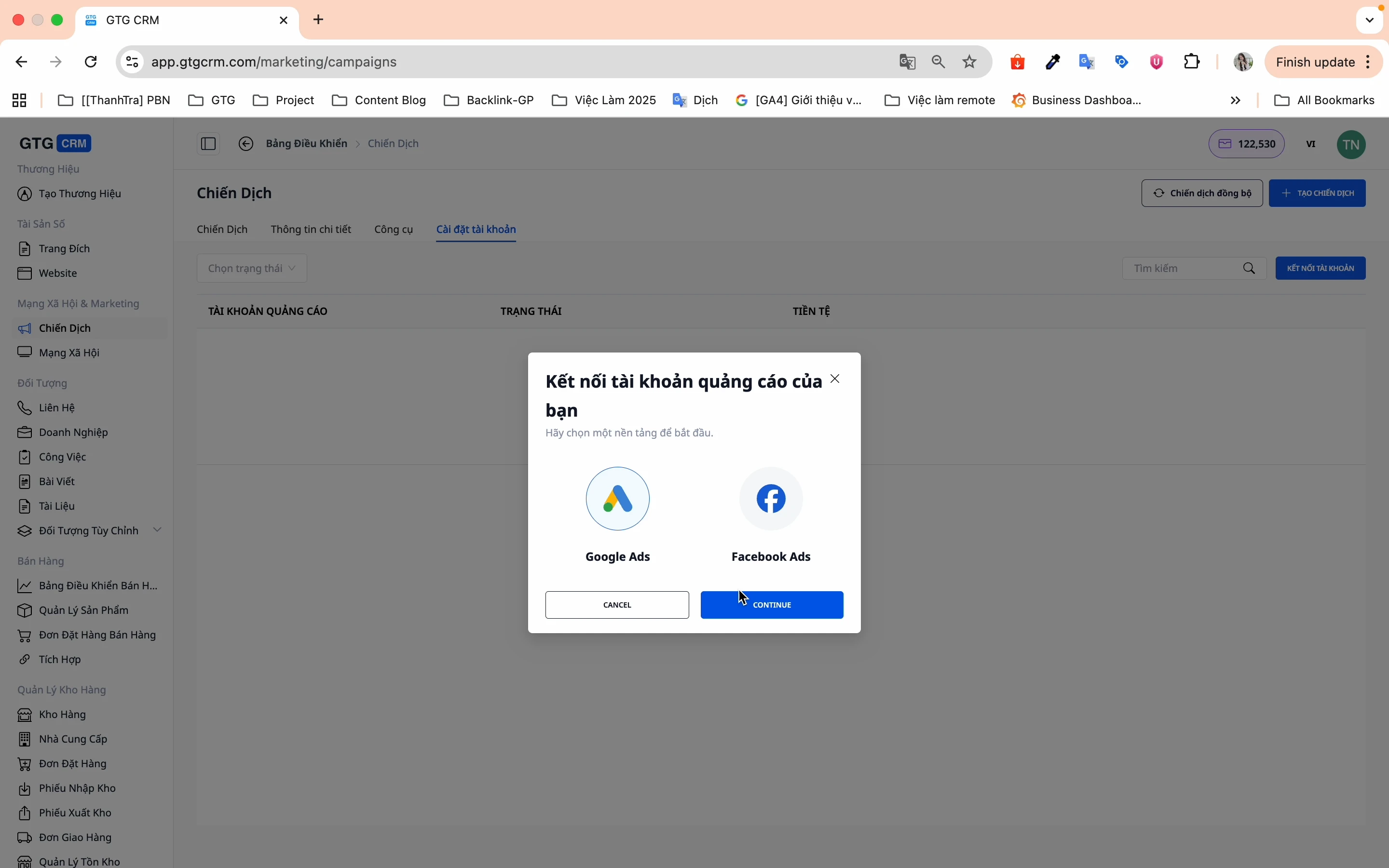
- Klõpsake Logi sisse ja valige oma Google Ads konto
- Klõpsake Ühenda konto, et lõpetada
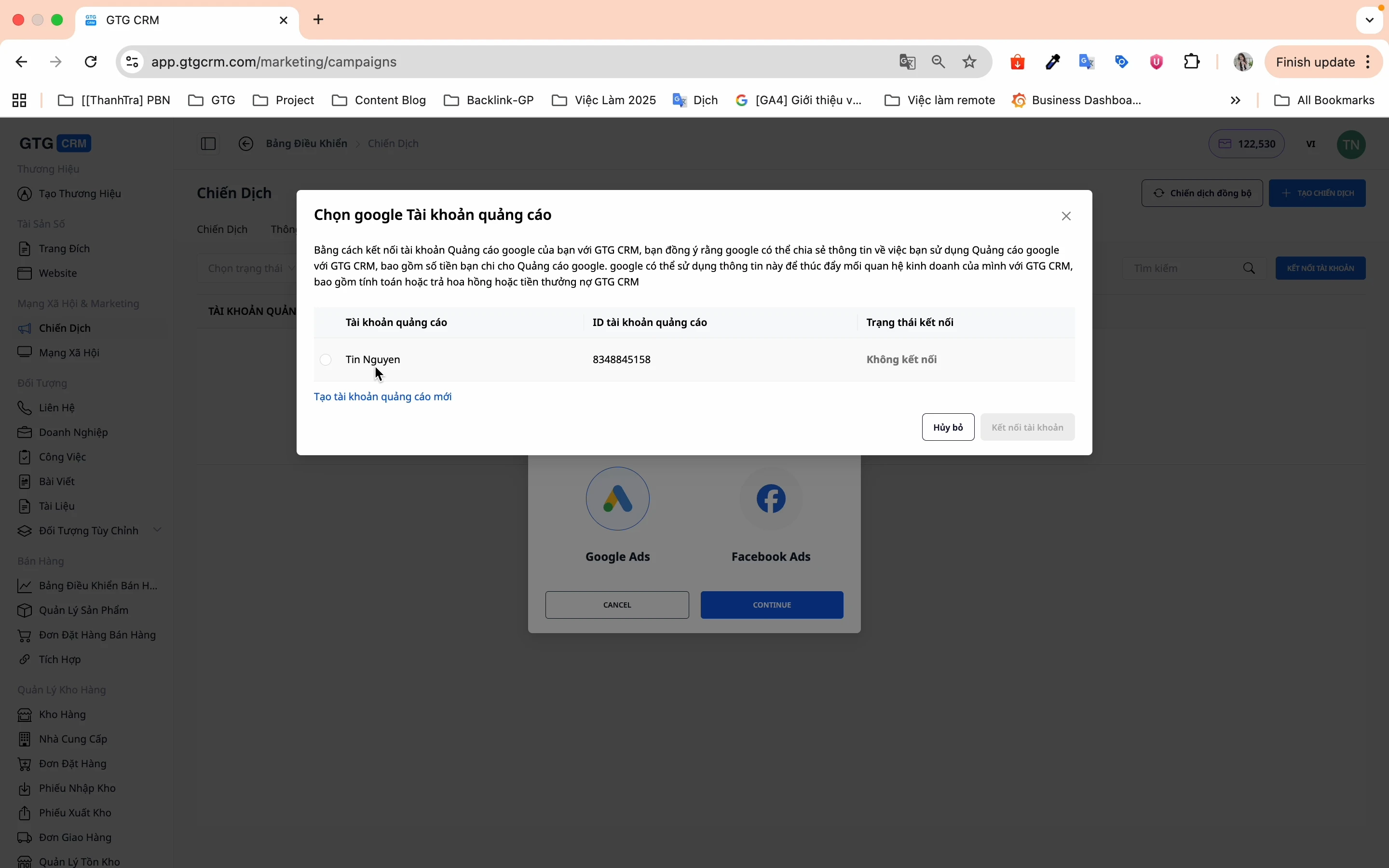
✅ Konto on edukalt ühendatud! Saate kohe kampaania loomist alustada.
2. samm: Olemasolevate kampaaniate sünkroonimine
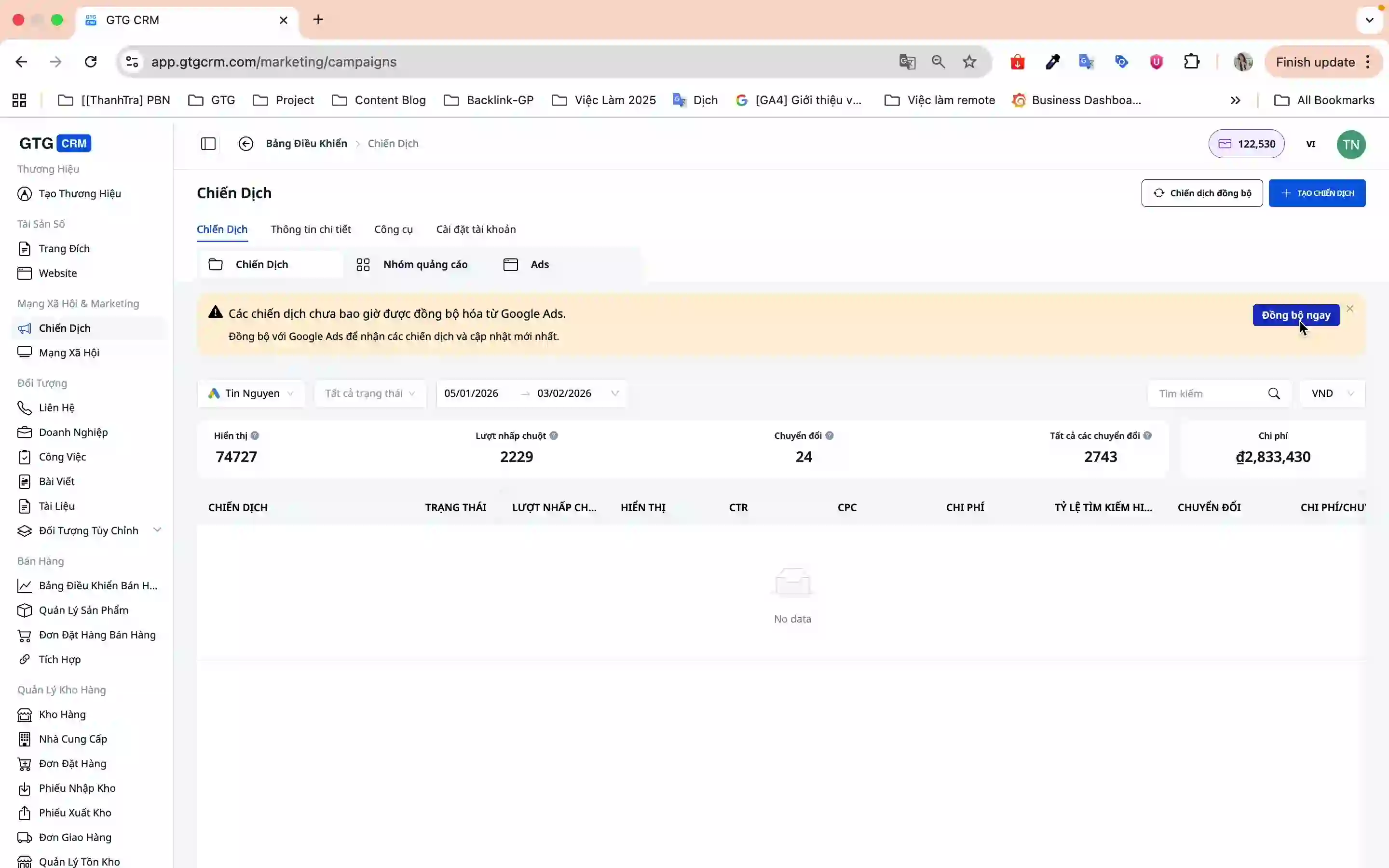
Kui teil on Google Adsis jooksvaid reklaame, sünkroonige need GTG CRM-iga, et neid lihtsamini hallata:
- Klõpsake lehel Kampaaniaid nuppu Sünkroniseeri kohe
- Süsteem sünkroonib automaatselt kõik kampaaniaid Google Adsist GTG CRM-i
3. samm: Uue kampaania loomine
3.1. Kampaania algatamine
- Klõpsake Loo kampaania
- Valige Google Ads → Jätka
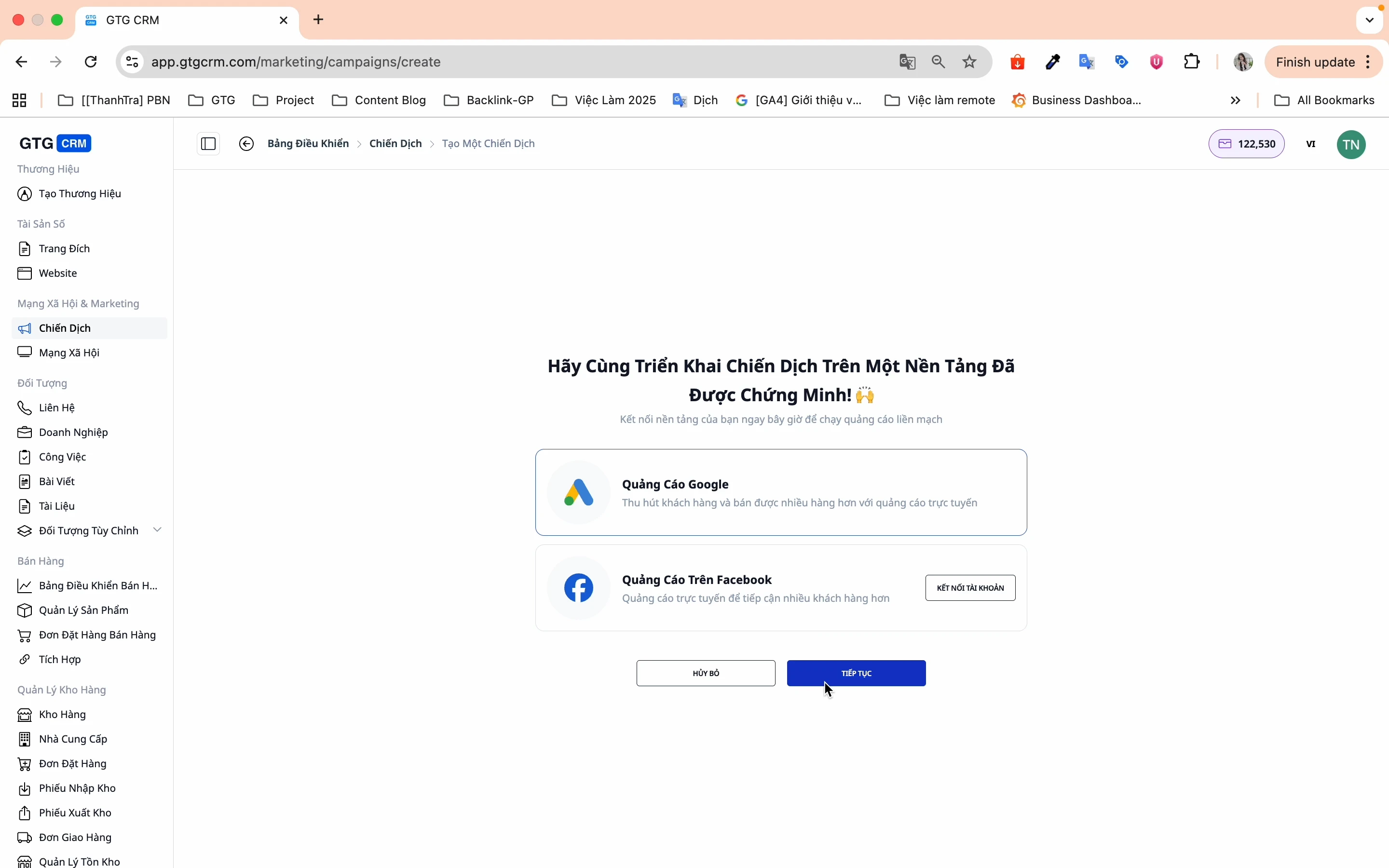
3.2. Kampaania valikud (1. samm 5-st)
Näete ülevaateekraani, kus on 5 sammu kampaania loomiseks:
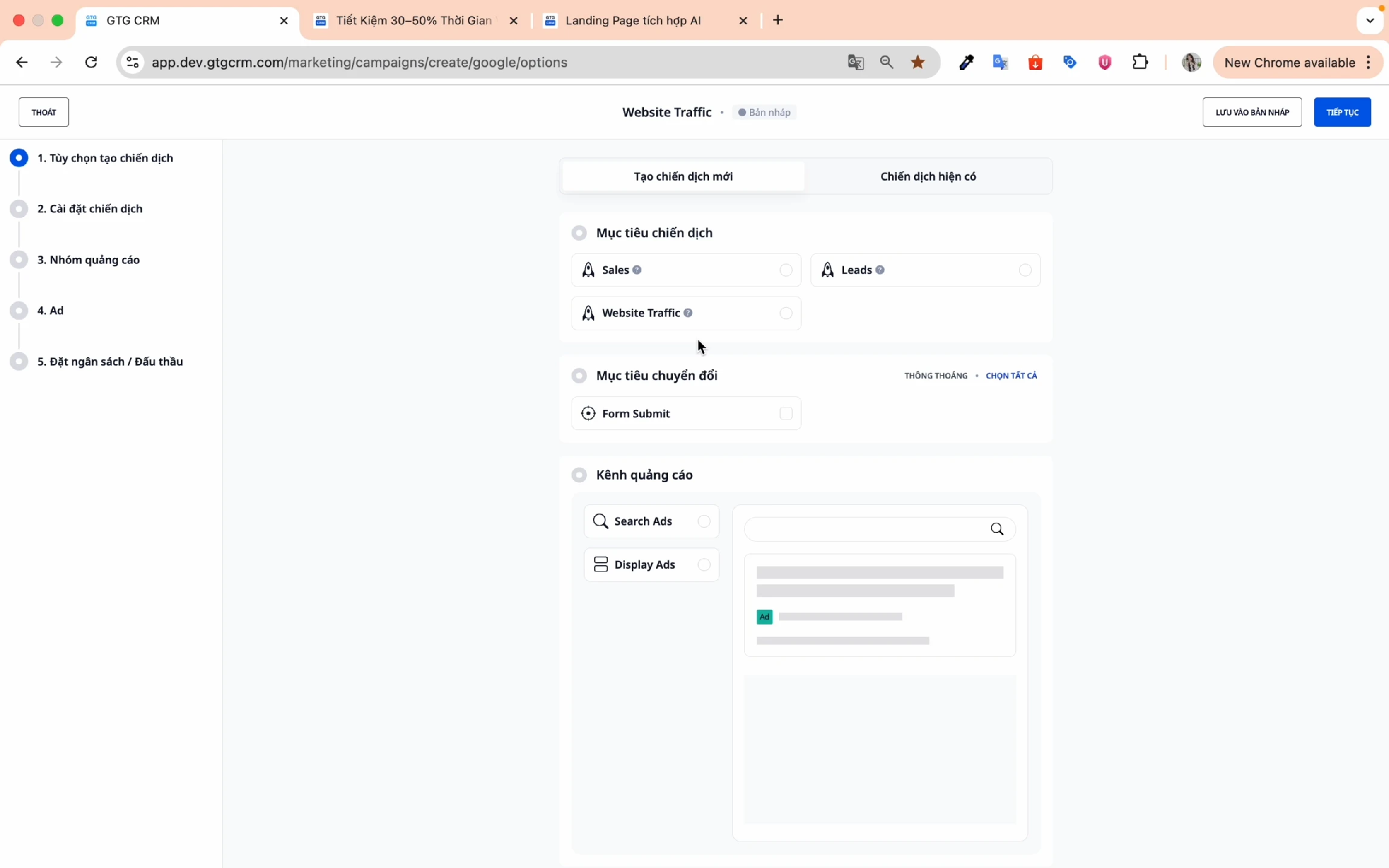
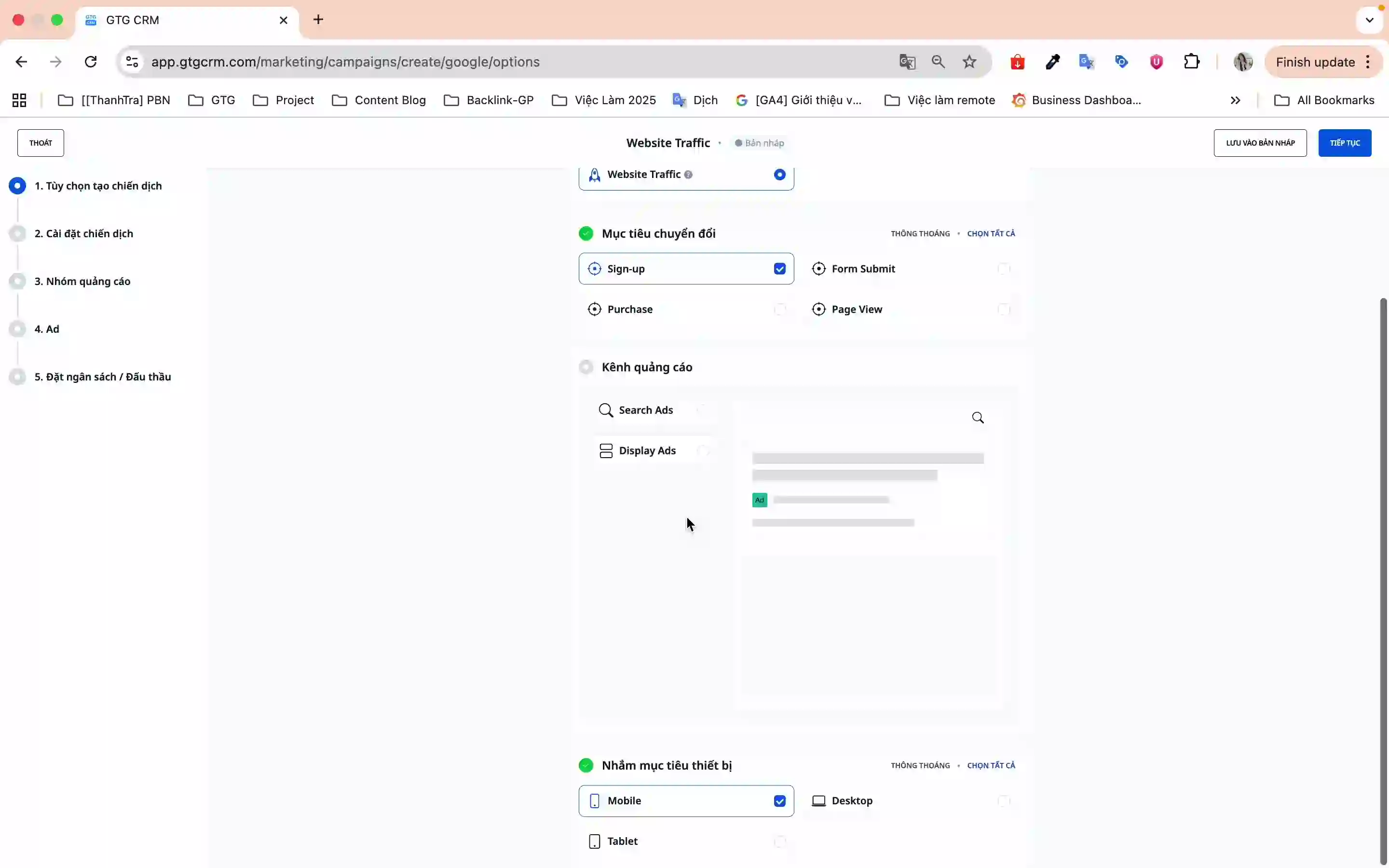
Valige kampaania eesmärk:
- Müük - Optimeeritud otsemüügiks
- Päringud - Potentsiaalsete klientide teabe kogumine
- Veebiliiklus - Veebisaidi liikluse suurendamine
Konversioonieesmärgid:
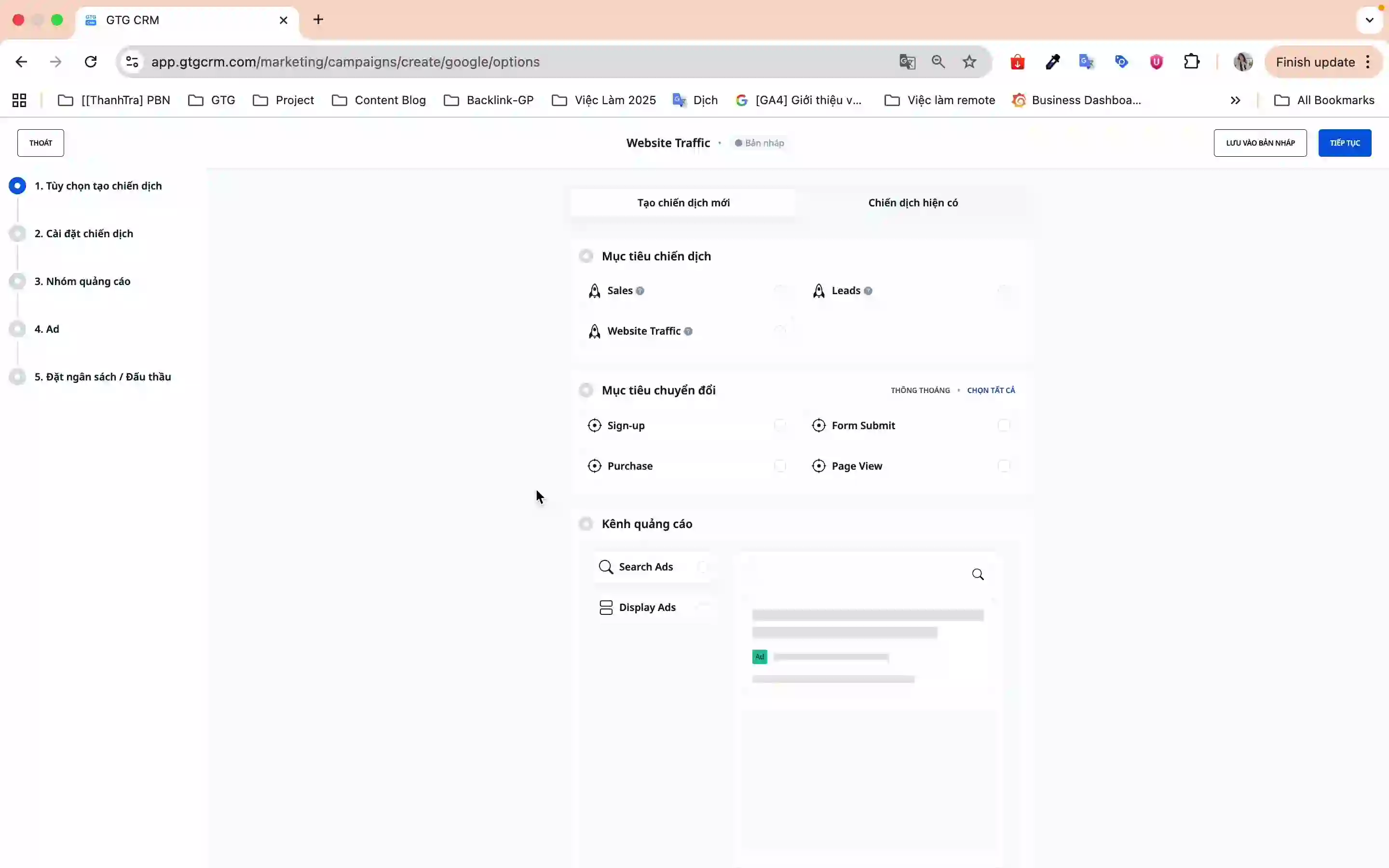
- Valige konversiooni tüüp, mida soovite jälgida (nt Vormi esitamine, Ost, Registreerumine)
- Tüüpiline: Kui klient täidab vormi ja vajutab Esita → registreeritakse 1 konversioon
Reklaamikanalid:
- Otsingureklaam - Kuvatakse Google'i otsingutulemustes
- Displeireklaam - Kuvatakse partnerveebisaitide võrgustikus
Seadmete sihtimine:
- Mobiil, Lauaarvuti, Tahvelarvuti (parima katvuse saavutamiseks tuleks valida kõik kolm)
Vajutage Jätka järgmisesse etappi liikumiseks.
3.3. Kampaania seadistamine (Etapp 2/5)
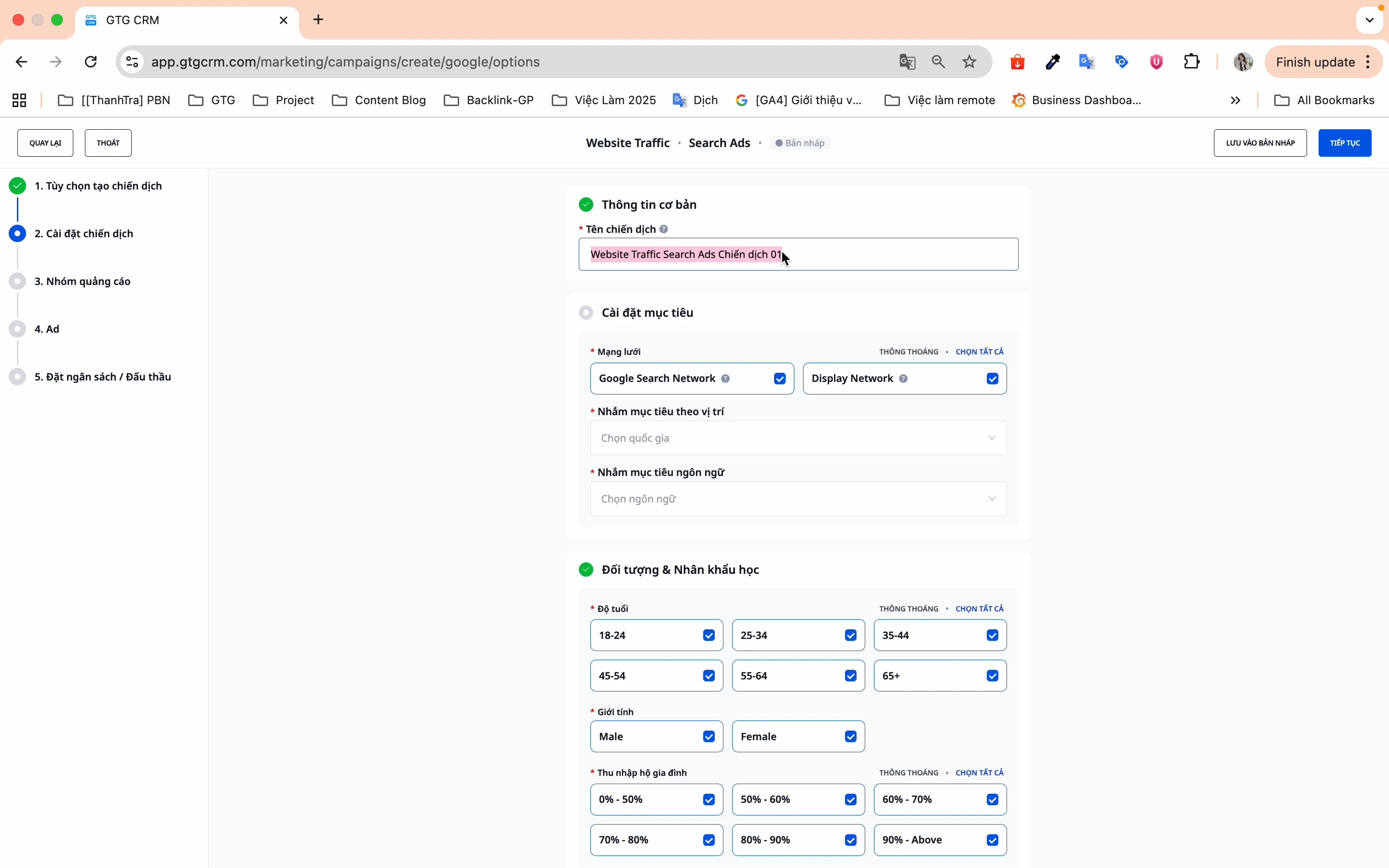
Kampaania nimi:
- Määrake nimi, mida on lihtne meeles pidada ja mis ei kordu vanade kampaaniatega
- Näide: "GTG CRM Features 2026"
Eesmärkide seadistamine:
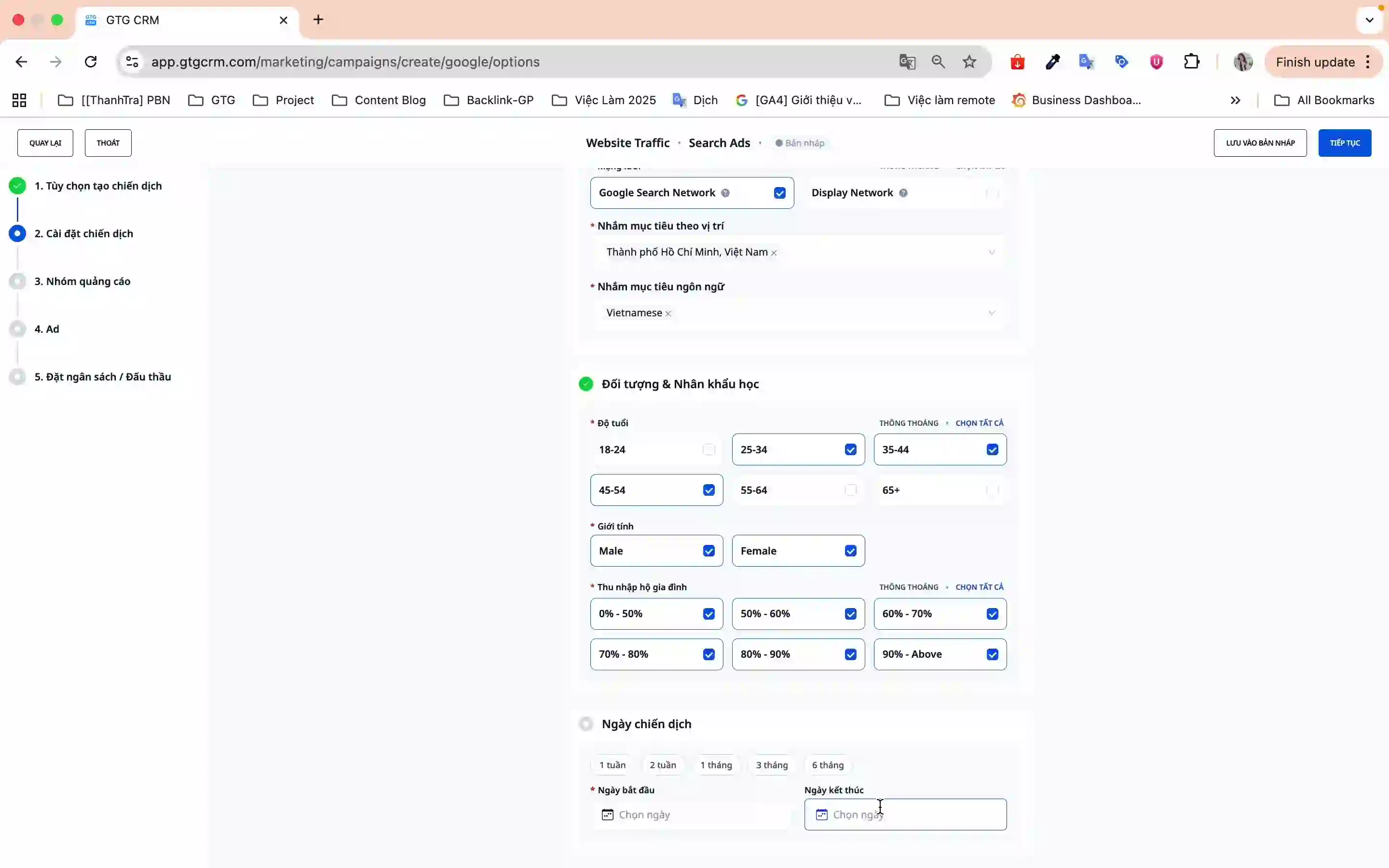
- Võrgustikud:
- Google Search Network - kuvatakse, kui kasutajad otsivad
- Google Display Network - kuvatakse partnerveebisaitidel
- Asukoha sihtimine:
- Valige riik, provints või linn, kuhu soovite sihtida
- Saate valida mitu asukohta korraga
- Keele sihtimine:
- Valige keel, mida teie sihtrühm kasutab
- Näide: Vietnami keel Vietnami turu jaoks
Vaatajaskond ja demograafia:
- Vanus - GTG CRM valib vaikimisi kõik, saate eemaldada sobimatud rühmad
- Sugu - Mees, naine või kõik
- Majapidamise sissetulek - Jaotus sissetuleku taseme järgi
Kampaania ajakava:
- Valige algus- ja lõppkuupäev
- Või kasutage valmis ajakava malle
Vajutage Jätka järgmisesse etappi liikumiseks.
3.4. Reklaamirühmad (Etapp 3/5)
Selles etapis saate seadistada:
- Reklaamirühma nimi
- Sihtmärksõnad
- Pakkumisstrateegia
- Päevane eelarve
3.5. Reklaami sisu (Etapp 4/5)
Looge reklaami jaoks köitev sisu:
- Reklaami pealkiri (kuni 3 pealkirja)
- Reklaami kirjeldus (kuni 2 kirjeldust)
- Kuvamis-URL ja siht-URL
3.6. Läbivaatus ja avaldamine (Etapp 5/5)
- Kontrollige kõiki kampaania üksikasju
- Vajutage Avalda, et kampaania aktiveerida
- Kampaania saadetakse Google Adsile ja hakkab tööle
Selle funktsiooni kasutamise eelised
- Säästke aega - Pole vaja mitme platvormi vahel vahetada, kõik on koondatud GTG CRM-i
- Lihtne hallata - Jälgige nii Facebook Ads kui ka Google Ads samaaegselt ühes kohas
- Sõbralik liides - Samm-sammult juhendamise viisard vietnami keeles, sobib algajatele
- Automaatne sünkroonimine - Kampaaniaid värskendatakse reaalajas Google Adsiga
- Paindlik ja võimas - Täielikud sihtimisvõimalused nagu originaalsetes Google Adsis
Olulised märkused
- Ühendage konto - Enne funktsiooni kasutamist veenduge, et teil on Google Ads konto
- Eelarve - Kontrollige hoolikalt Google Ads konto eelarvet ja makseviisi
- Märksõnad - Valige toote/teenusega sobivad märksõnad, et reklaami tõhusust optimeerida
- Konversioonid - Seadistage konversioonieesmärgid enne kampaania loomist täpseks jälgimiseks
- Regulaarne sünkroonimine - Kampaaniaid tuleks regulaarselt sünkroonida, et värskeimad andmed oleksid saadaval
Sisseehitatud Google Ads funktsiooniga aitab GTG CRM teil tõhusamalt reklaame teha, säästa aega ja hallata kergemini. Alustage juba täna, et tuua oma tooted miljonite potentsiaalsete klientideni Google'is!
Kas olete valmis seda funktsiooni oma ettevõtte jaoks tasuta proovima?
Proovi tasuta