What you'll be able to do after this guide
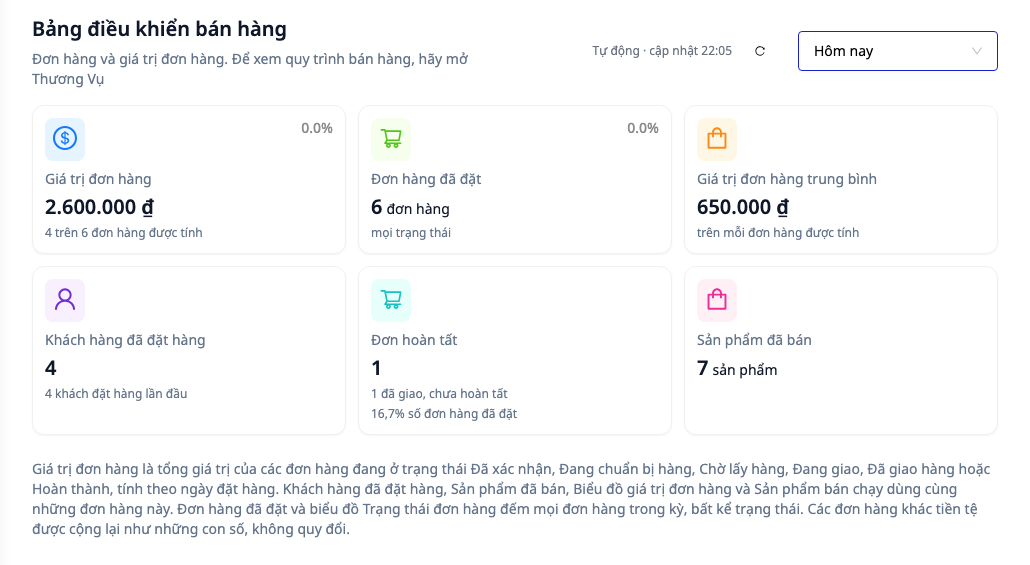
On the weekend you open the Sales dashboard and see Orders placed: 6, but Order value only says 4 of 6 orders counted. These two numbers don't contradict each other. This guide explains why: what each card on the page counts, which orders are added to the value, which orders are only counted, and how to check the numbers yourself against your sales order list in a few minutes.
Steps: open the page and choose a period → read the six cards → know which orders are counted → reconcile the numbers with the order list → understand why Delivered is not the same as Completed → read the chart and the two tables below.
Good to know first
- The card previously named Total revenue is now named Order value. This is the total value of your orders, not an accounting or tax figure. Accounting figures come from your ledgers under Accounting.
- Point-of-sale (POS) orders and table orders are now included in order value. Previously these orders were counted as 0, so if you sell at the counter, the number may be higher than before.
Before you start
| # | Requirement | Why it's needed |
|---|---|---|
| 1 | Your workspace already has orders in the period you want to view (website orders, manually created orders, counter sales, table sales, or marketplace orders). | If the workspace has no orders at all, the page shows a preview with sample numbers, not your actual numbers. If the workspace has orders but the period you chose has none (for example, no orders sold yet today), the cards show 0. |
| 2 | Permission to view the Sales orders list, if you want to do step 4. | The order list is where you check each number. |
Step 1: Open the page and choose a period
- Go to Sales & CRM → Sales → Sales dashboard.
- In the upper-right corner, open the period selector and choose one of four periods: Today, Yesterday, Last 7 days, or Last 30 days. The page opens on Last 30 days by default.
- Read the line below the heading: Orders and order value. To see the sales pipeline, open Deals. This page covers orders; opportunities and sales stages are in Deals (the link is right in that line).
✅ Expected result: the six cards show numbers for the period you selected. While the page is loading, you see a loading placeholder, not zeros. If the main data fails to load, you see the Couldn't load data block with a Retry button.
Step 2: Read the six cards
| Card | What it counts |
|---|---|
| Order value | The total value of the counted orders (step 3). The sub-line reads N of M orders counted |
| Orders placed | All orders in the period, regardless of status, including Draft and Cancelled. Sub-line: all statuses |
| Average order value | Order value divided by the number of counted orders (sub-line: per counted order) |
| Customers who ordered | The number of customers with counted orders in the period. The sub-line shows how many customers placed their first order |
| Completed orders | The number of orders with the Completed status, and their share of orders placed |
| Products sold | The total quantity of products in the counted orders. Three identical shirts in one order count as 3, not 1 |
✅ Expected result: below the six cards, a line of text is visible by default (no hover needed) that lists the counted statuses and states that orders in other currencies are added up as raw numbers, without conversion.
Step 3: Know which orders count toward Order value
An order is added to Order value when it is in one of six statuses: Confirmed, Preparing, Awaiting pickup, Out for delivery, Delivered, or Completed. Orders are assigned to a period by their order date.
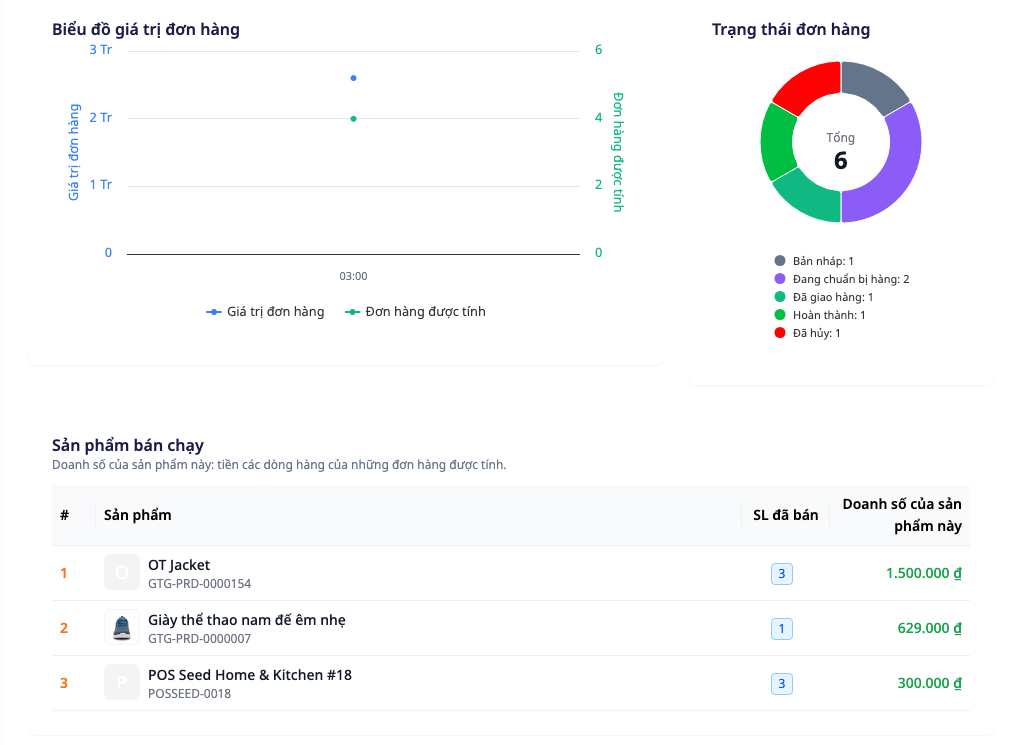
- Orders in other statuses, such as Draft or Cancelled, are not added to the value but still appear in Orders placed. This is why 4 of 6 is not a contradiction: 6 is the number of orders placed, and 4 is the number of orders in the counted statuses.
- The Customers who ordered card, the Products sold card, the Order value chart, and the Best-selling products table all use this same set of counted orders.
- In-store and table orders are counted the same way as online orders.
✅ Expected result: the text below the six cards lists exactly the six statuses above.
Step 4: Check the numbers against the order list
- Go to Operations → Commerce → Sales orders.
- Keep the All tab and the other filters set to All…. In the Select date field, choose the same period as the dashboard.
- Add up the amounts of the orders with counted statuses from step 3 (exclude Draft, Cancelled, and any status outside the six above).
✅ Expected result: your total matches the number on the Order value card, and your order count matches N in the N of M orders counted line. The number of orders in the list (including Draft and Cancelled) equals M.
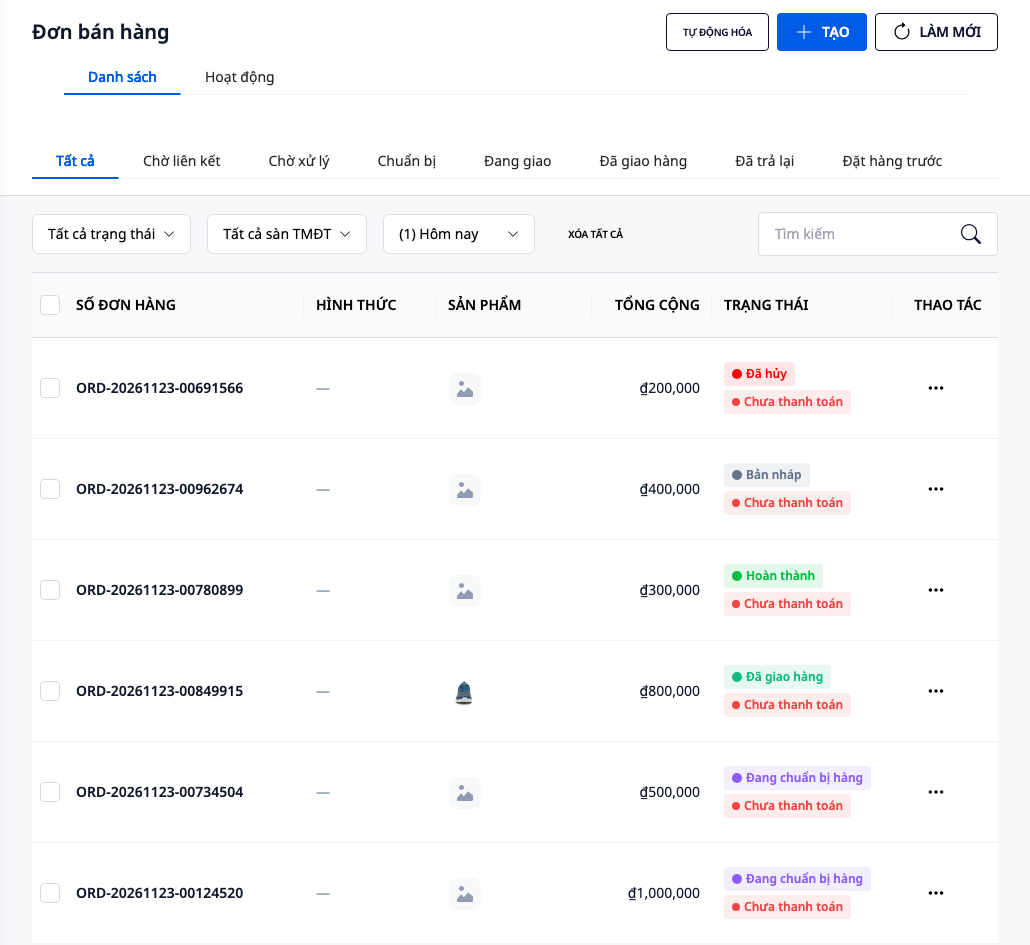
Note on Today and Yesterday: on the dashboard, Today and Yesterday are calculated by UTC date (a new day starts at 7:00 AM Vietnam time), while the Select date field in the order list uses your local date. An order placed between 12:00 AM and 7:00 AM Vietnam time may fall on one day in the dashboard and on another day in the list. To reduce these mismatches, use the Last 7 days or Last 30 days range (the first and last days may still differ), or exclude orders placed between 12:00 AM and 7:00 AM Vietnam time when you add them up.
Step 5: Understand why Delivered is not the same as Completed
Delivered means the goods have reached the customer, but the order is not yet closed. An order created in GTG CRM only becomes Completed when someone clicks Completed in the order details. Counter sales are completed immediately, and orders from e-commerce marketplaces follow the marketplace's status. As a result, the Completed orders card may show 0 even when there are Delivered orders.
- Look at the Completed orders card. If there are delivered orders that are not yet completed, the card includes an extra line: N delivered, not yet completed.
- To close a delivered order, open it under Operations → Commerce → Sales orders and click Completed.
✅ Expected result: N delivered, not yet completed is the number of delivered orders waiting to be closed (for orders created in GTG CRM, this means waiting for you to click Completed). Both the Delivered and Completed statuses are already included in Order value, so clicking Completed does not change the value.
Step 6: Read the chart and the two tables below
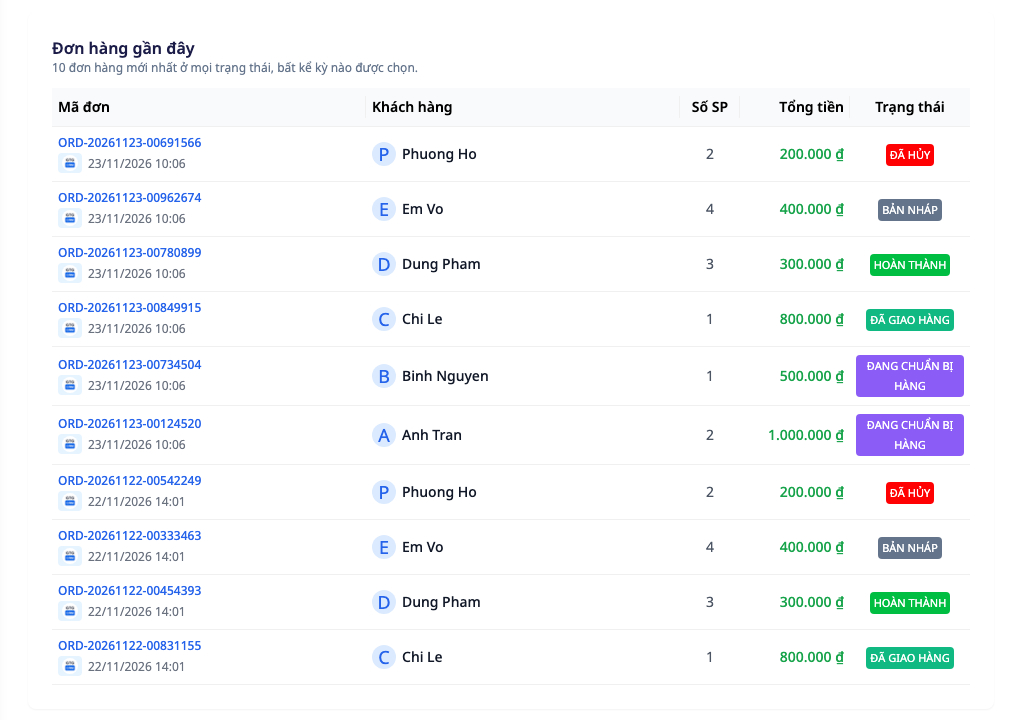
- Order value chart: the value over time within the selected period, along with the number of Orders counted. For Today and Yesterday, the horizontal axis is split by UTC hour (7 hours behind Vietnam time), so the times may differ from those in the Recent orders table.
- Order status: the number of orders in each status. Status names match those in the Sales orders list. The Other statuses slice groups orders whose statuses don't have their own slice, so all the slices always add up to the total Orders placed shown in the center of the donut chart.
- Best-selling products: one row per product, with variants of the same product combined. The Sales of this product column is the revenue from line items in the counted orders, so the ten rows combined do not necessarily equal the Order value card.
- Recent orders: the 10 most recent orders in all statuses, regardless of the selected period (the note under the table title says so). Each row shows the number of products by quantity, the same way the Products sold card does.
✅ Expected result: the status names in the chart and in the Recent orders table match the wording in the Sales orders list.
Quick reference table of expected results
| What you see | What it means |
|---|---|
| 4 of 6 orders counted | 6 orders were placed in the period, and 4 of them are in the six statuses that count toward the value |
| all statuses under Orders placed | This card counts both Draft and Cancelled orders |
| N delivered, not yet completed | N orders have been delivered and are waiting to be closed (for orders created in GTG CRM: waiting for you to click Complete) |
| Products sold is greater than the number of line items | The card counts quantities, not line items |
| The Couldn't load data block and the Retry button | The main data failed to load. The page does not show 0 in place of the error |
Notes
- Orders in different currencies are added together as plain numbers, without conversion. Since your workspace may sell in multiple currencies, read this value alongside the order list.
- On the Home page, the sales figure tile also reads Order value with the Last 30 days line, and the chart named Order value trend. They use the same calculation (the same value as the dashboard when you select Last 30 days; the Home page shows a condensed version).
- On mobile, the cards are stacked more compactly, tables turn into cards, and text wraps fully.
Next step: see Sales Guide on GTG CRM from A-Z for the full process from orders to invoices.