The product is out of stock, but you know a shipment will arrive in a few weeks and someone has already asked to buy it. This guide walks through the entire cycle on your own website: turning on pre-orders for a product, taking orders and deposits while the goods haven't arrived, confirming bank transfers, delivering to waiting customers when stock arrives, and handling cases where someone cancels or doesn't pay the remainder. Throughout the process, the inventory numbers in the system stay accurate.
For shop owners or sales managers who already have a website published in GTG CRM. Three people are involved: you (the person who sets things up and delivers the goods), the refund approver chosen by name (if you're the only one running the shop, choose yourself), and the customer, who only uses your shop's website and doesn't need an account in GTG CRM. This feature is for your shop's website, not for Shopee or TikTok's pre-order buttons.
What you'll be able to do after this guide
Turn on pre-orders for a product → the customer places and pays for the order on the website → you confirm that the bank transfer has reached your account → when the goods arrive, you review them and deliver to waiting customers in order → when someone cancels or doesn't pay the remainder, you decide whether to refund or keep the deposit according to your own policy.
Before you start
| # | Requirement | Why it's needed |
|---|---|---|
| 1 | The shop website has been published | Customers place pre-orders on your website. If it isn't published, the toggle can't be turned on, and the card will show a Publish website button |
| 2 | One prepayment method (online payment or bank transfer) | Pre-orders only accept upfront payment through these two methods. Cash on delivery is not available |
| 3 | One inventory line for the product in one warehouse, quantity 0 is fine | The customer's shipping fee is calculated from this warehouse |
| 4 | The terms and refund wording written by you (shops in Vietnam: the terms must be in Vietnamese) | The system doesn't provide any pre-filled text. Customers read and agree to this exact wording when placing the order. For shops in Vietnam, the toggle can't be turned on until Vietnamese terms are in place |
| 5 | The name of the refund approver | When a paid order is cancelled, the refund is handled by this person |
| 6 | Permission to edit products for setup; permission to record order payments to confirm bank transfers | A user who can only view products can read the card but cannot change anything |
Step 1 — Turn on pre-orders for a product
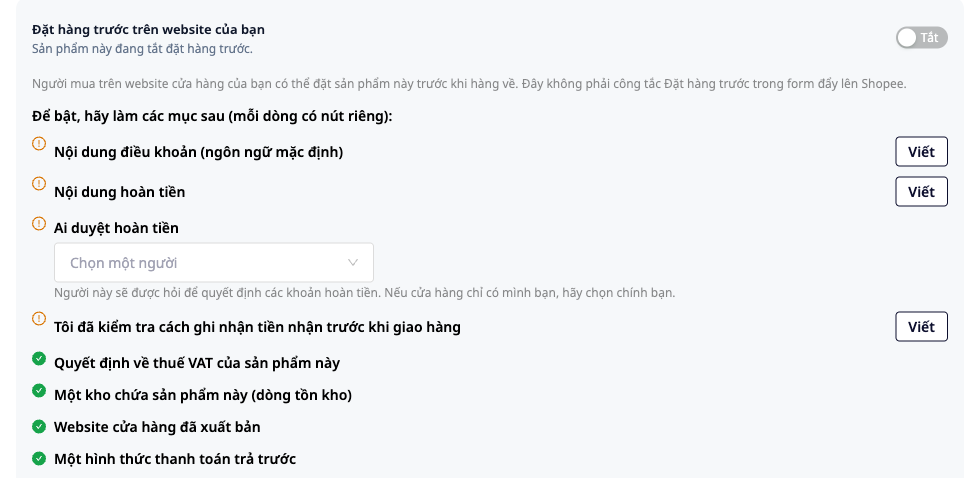
Pre-orders are turned on per product, and are Off by default. The toggle can only be turned on after you've answered all the required fields, because money received before delivery brings with it decisions that only the shop owner can make.
- Open Sales & CRM ▸ Catalog ▸ Product Hub, open the product you want to sell in advance to edit it, then select the Sales information tab.
- Find the Pre-order on your website card. Below the line "To turn it on, complete the following items (each line has its own button)" is a list of items still missing. Work through each line in order using that line's button. Item names may differ slightly, so follow the lines the card shows. The card currently asks for: Terms content (default language). For shops in Vietnam, add a "Terms in …" line with the language name (Vietnamese), since the terms must be in Vietnamese before the feature can be turned on; Refund content (required for both full payment and deposit); Who approves refunds; I have checked how prepayments are recorded before shipping (a sentence you write yourself, saved with your name and the time); VAT decision for this product (you choose this in the product's VAT field); One warehouse holds this product (inventory line); Store website published; One prepayment method; and two fields, Quantity you accept and Expected from (each field has its own save button, see the next step).
The card also has a block called Sales terms that your market typically includes: a reminder list covering delivery time, payment and refund methods, returns and refunds with deadlines and who pays the fees, quantity limits, how to file complaints, and when promotions take effect. This is only a reminder for you to check against your own terms. No text is added to your content, and no item is required to turn the feature on.
✅ Expected result: each completed line disappears from the list. Once no lines remain, the toggle can be turned on.
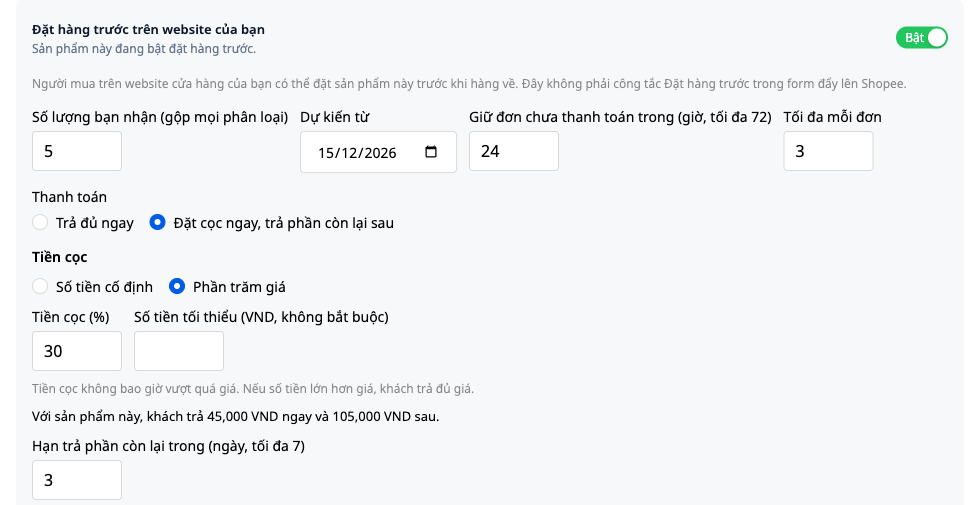
- Set Quantity you accept (all variants combined) (the total number of units you are willing to accept; do not accept more than this number) and Expected from (the expected arrival date of the stock, for example 15/12/2026), saving each field separately. These two fields are on the to-do list, so the toggle cannot be turned on while they are missing. Switch the toggle to On, then set: Hold unpaid orders for (hours, max 72) (if an order is not paid within this time, it is cancelled automatically and the quantity is released for other buyers; the system rejects values above 72); Maximum per order; and Buyers may cancel, choosing either Only when contacting the shop (default) or Until the goods are delivered to them.
- In Payment, choose Pay in full now or Pay deposit now, pay the rest later.
✅ Expected result: the card shows the toggle set to On along with the settings you just entered. Each change is recorded in the product's activity log, together with the name of the person who made it.
If you choose a deposit, set a rule for the product:
- Choose Fixed amount, or Percentage of price with a Minimum amount (optional).
- Set Remaining balance due within (days, max 7): enter any number from 1 to 7 days yourself. No default number is provided.
- Write What happens to the first payment if the order is cancelled in your own words. There is no default text. This is what buyers see before they place an order.
For the deposit option, the settings need all three of these items (the deposit rule, the number of days to pay the balance, and the content about the first payment) before you can turn it on or save. The line directly below the input box calculates automatically: "For this product, the customer pays … now and … later." For example, if a product costs 1,500,000 ₫ and the fixed deposit is 300,000 ₫, the customer pays 300,000 ₫ now and 1,200,000 ₫ later. For a product priced at 2,000,000 ₫ with a 15% deposit and a 500,000 ₫ minimum: 15% comes to only 300,000 ₫, so the customer pays 500,000 ₫ now (raised to the minimum) and 1,500,000 ₫ later. The deposit never exceeds the price: if the fixed amount is greater than the price, the buyer pays the full price right away. The balance the buyer sees at checkout is the actual balance for the order. After they choose a delivery method, that balance includes the shipping fee, so it may be higher than the amount this line calculates.
✅ Expected result: the auto-calculated line matches the amount you expect. If it doesn't match, fix the rule before opening sales.
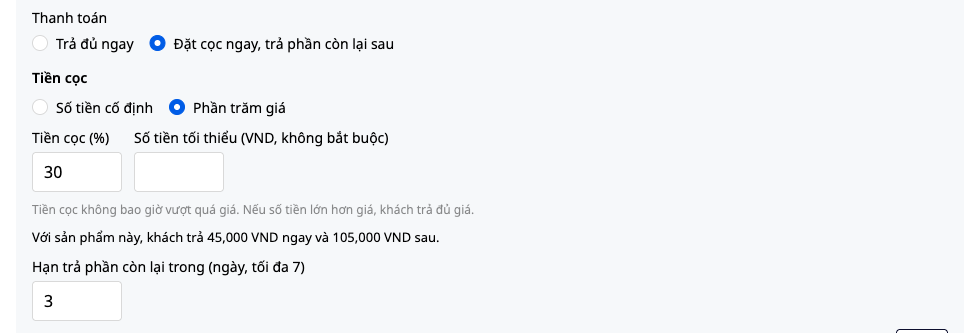
💡 Tip: the deposit rules and the refund policy are the two things buyers read most carefully. Write them in language you're willing to state directly to customers in a message, then place a test order yourself to see how they read it.
Step 2 — View the pre-order as a customer on the website
Before you notify customers, stand on the buyer's side once to see what they see.
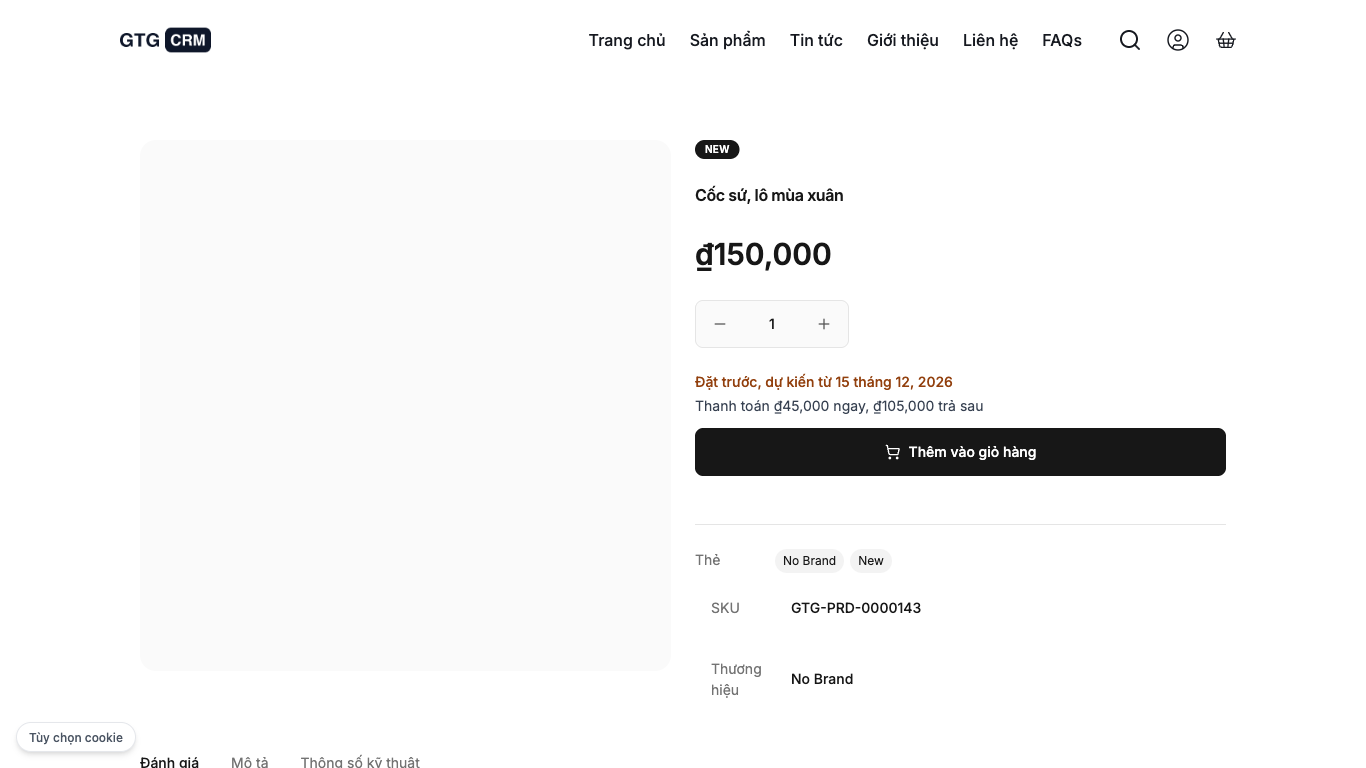
- Open the product page on your shop's website (use a private/incognito window). The page shows Pre-order, expected from with the date and price, along with an add-to-cart button. The page does not show "out of stock" and never reveals the maximum number of orders you will accept. When the pre-order quota is full, or you turn pre-orders off, the product page and listings revert to a normal out-of-stock product. Buyers who already have the product in their cart will be notified at checkout that the pre-order slots for this product are sold out, along with the shop's contact details.
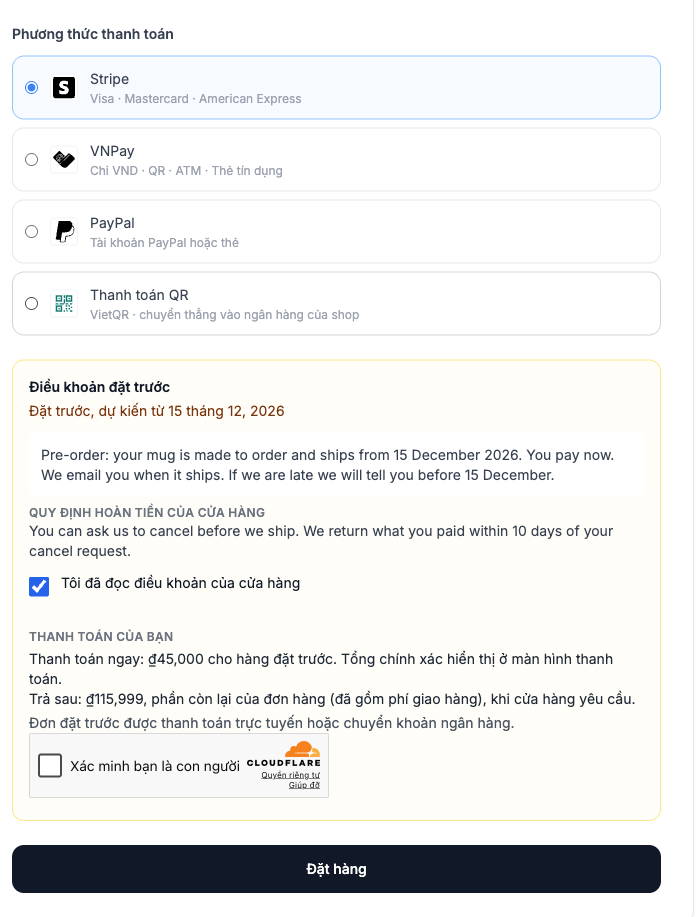
- Add the item to the cart and proceed to checkout. The Pre-order terms block contains: a Read the shop's terms button (the terms open in place), a checkbox I have read the shop's terms (the order button cannot be clicked until it is ticked), the Your payment section (how much is paid now and how much later), and the Shop refund policy (the exact wording you wrote in Step 1). Only online payment or bank transfer is accepted; cash on delivery is not available. The system records the version of the terms the buyer accepted when placing the order.
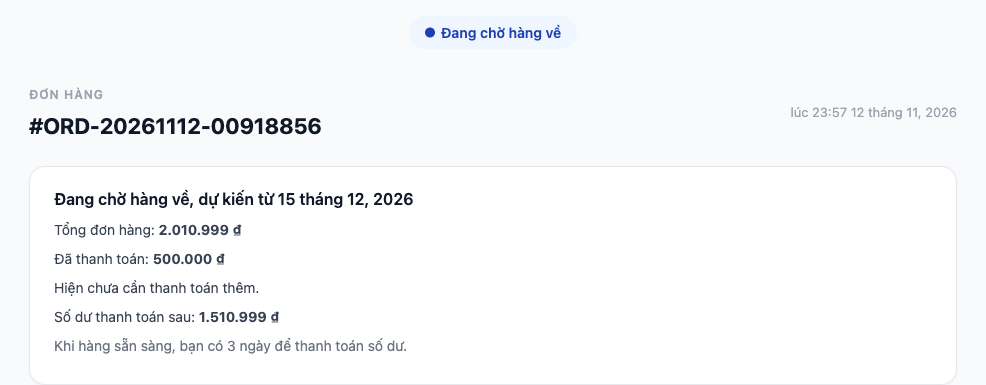
- After placing the order, the buyer sees the order page with Waiting for stock, expected from plus the date and Paid; for deposit orders, there is also Remaining balance. Amount due only appears after you ship the order (Step 4). If you allow cancellation only by contacting the shop, the page shows To cancel your order, please contact the shop.
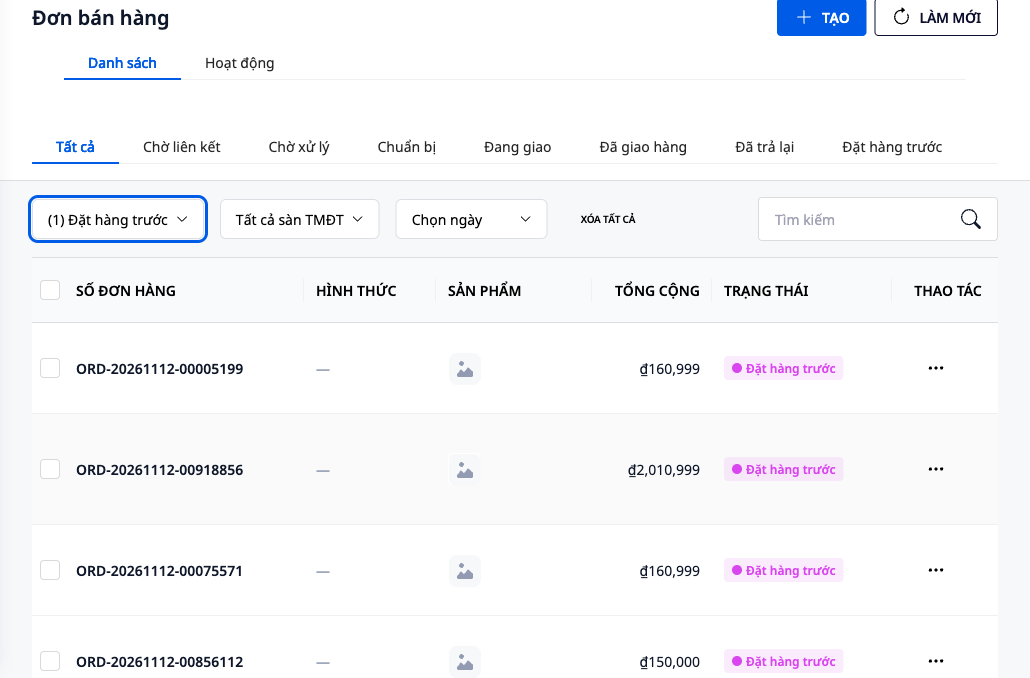
- On your side, open Operations ▸ Commerce ▸ Sales orders. New orders have the status Pre-order (hover over it to see "Waiting for stock to arrive. Will be shipped when you fulfill it for the waiting buyer.").
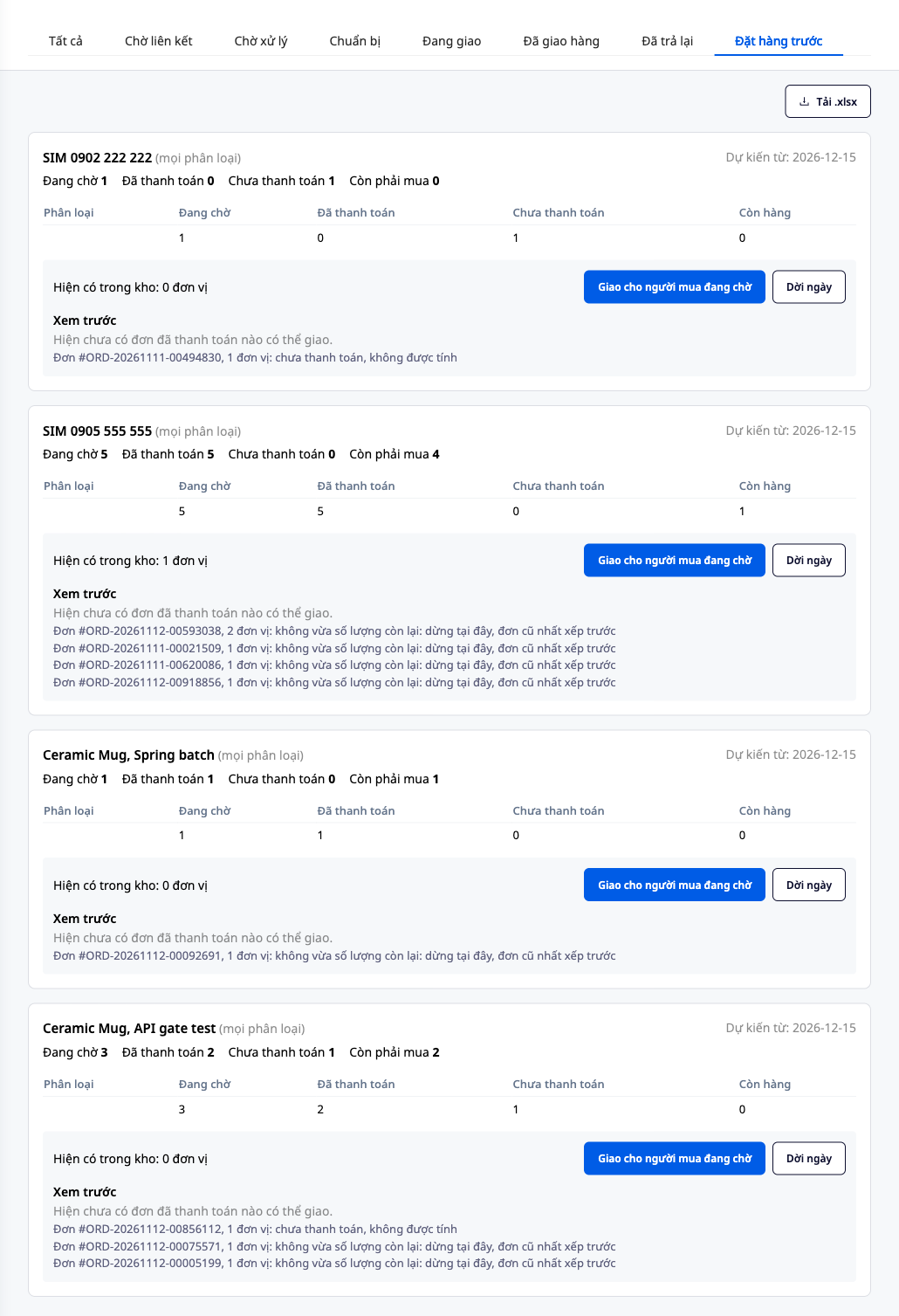
- Open the last tab, Pre-order. For each product and variant, you see Waiting, Paid (deposits also count as paid), Unpaid, Still to buy, and In stock. Still to buy is the number of units you still need to order from your supplier. Click Download .xlsx if you want to take this table along when placing your order.
✅ Expected result: your test order appears under Pre-order, and the product's inventory numbers stay the same: on hand, reserved, and available for sale are unchanged, because pre-orders are recorded separately and are not stock in the warehouse. An unpaid order is automatically canceled when its hold time runs out, and the quantity is released for other buyers. This also applies to bank transfer orders: confirm the money has arrived (Step 3) before the hold time runs out. If a cart contains both in-stock and pre-order items, it remains a single order, with a note that the in-stock items will ship together with the pre-order items, and the buyer can remove the pre-order line to receive the rest right away.
Step 3 — Confirm bank transfers
When a buyer pays by bank transfer, the money goes into the shop's bank account, which the system cannot see. That is why you confirm the money has arrived. Orders paid through a payment gateway that supports confirmation are confirmed automatically, so there is nothing to click.
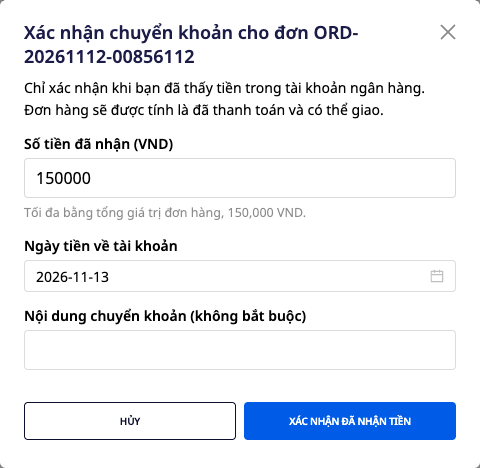
- On the Pre-order tab, find the unpaid line for the buyer (for example, a buyer with 2 units totaling 300,000 ₫) and click Confirm bank transfer received.
- Open your banking app and continue only once you have seen the money in your account. The dialog box reminds you of this.
- Fill in Amount received (defaults to the amount due now and cannot exceed the order total), Date funds arrived in account (defaults to today and cannot be a future date), and Transfer note (optional).
- Click Confirm payment received.
✅ Expected result: the order is marked as paid (or the deposit is marked as received) and is ready to be shipped in order. If you had already recorded this payment manually, the system takes that payment into account instead of counting it twice. The order's activity list shows who confirmed it, how much was received, and on what date.
Step 4 — When stock arrives: preview and ship to waiting buyers
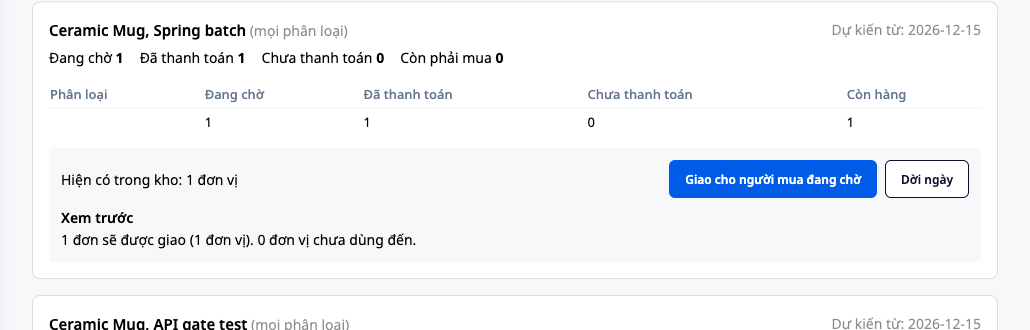
- After the stock arrives, the system shows how many paid units are waiting for this batch, with an Open Pre-orders link. Click it, or reopen the Pre-orders tab yourself.
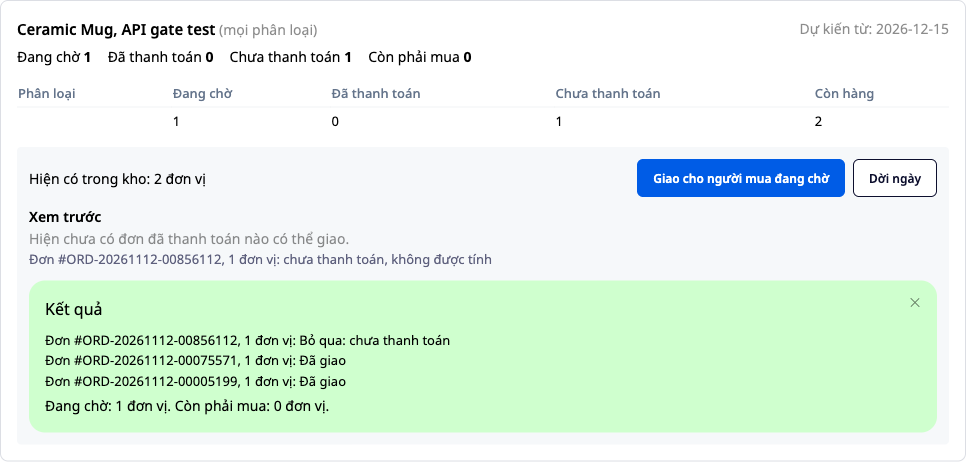
- The Preview section of the product appears when the stock arrives. It lists what will happen, but nothing is changed yet. The order is oldest paid order first. Unpaid orders are never included. If an order is larger than the remaining stock, the release stops at that order so no one is skipped by mistake. Unused stock remains available.
- If it looks right, click Release to waiting buyers, reread the question "Release {n} units to {m} waiting orders?", then click Yes, release.
✅ Expected result: the result is shown for each order: Released, Skipped: unpaid or Stopped: exceeds remaining quantity, along with the number of units still Waiting. Orders with no pickup warehouse show Skipped: no warehouse (in the preview: "no warehouse selected, will be skipped"), so receive the stock into the same warehouse the orders are picked up from. Clicking again right after doesn't change anything. Released orders leave Pre-orders, the reserved quantity becomes actual stock, and the orders proceed like any website order: you ship from the warehouse and hand them to the carrier.
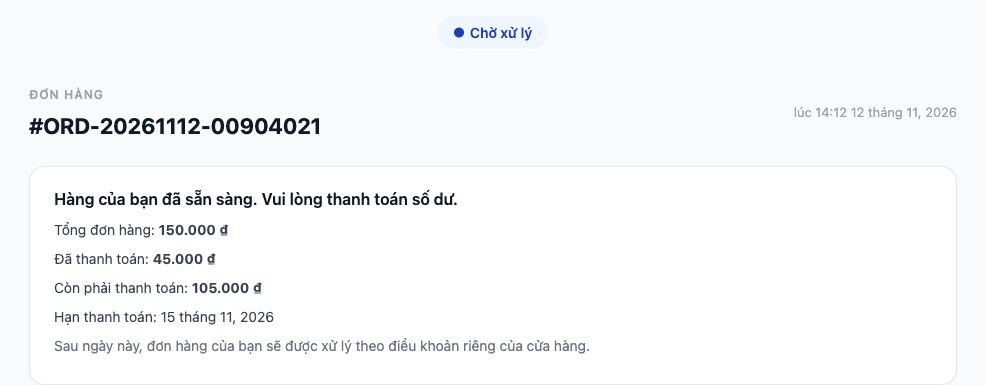
For deposit orders: after release, the buyer receives an email saying the remaining balance is due, and the order page shows Pay the remaining balance. The payment deadline is the number of days you set in Step 1 (maximum 7 days).
If the stock hasn't arrived in time: click Reschedule, the button that opens the product card at the Expected from field. Enter the new date and save it there to change the date for those waiting. Buyers are only told the new date after you approve the message in Tasks, and this goes through an automation template that is turned off by default (see the Note section). While the template is off, the system doesn't notify anyone, and you tell the buyers yourself. The new-date email also tells buyers how to request cancellation if the new date no longer works for them (via the cancel button if you allowed self-cancellation in Step 1, otherwise by contacting the shop). It also reminds them that the shop decides on refunds according to the terms they accepted, and that no amount is refunded automatically.
Step 5: When the buyer cancels or doesn't pay the remaining balance
The system does not refund money automatically, and it does not automatically keep deposits. It creates a task for the person you selected, and that person records their decision. The email to the buyer and the task title refer to the amount received as the first payment, whether it was full payment or a deposit.
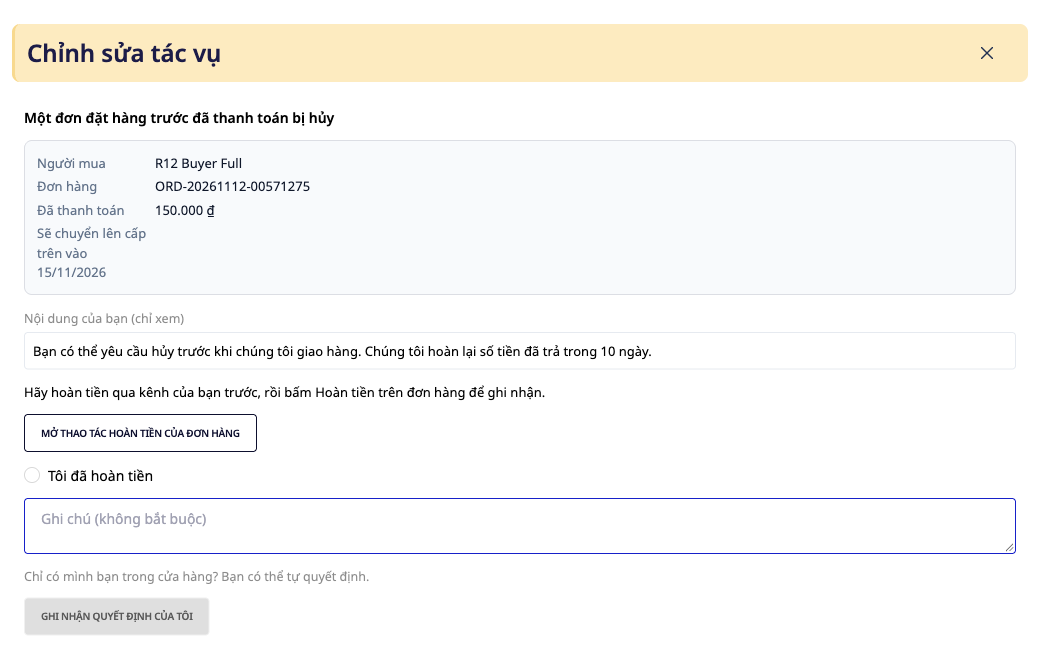
5a. Paid order canceled. By default, the buyer contacts the shop, and then you click Cancel on the order page. One click cancels the order, with no confirmation prompt. The quantity is returned. If the buyer has paid, the person approving refunds sees a task in Tasks named "Pre-order {số đơn}: refund the buyer". Opening it shows a block titled A paid pre-order was canceled with the buyer, the order, the amount paid, and your refund note (read-only).
- Click Open the order's Refund action.
- Refund the buyer through your own channel first (bank transfer back, or another method), then click Refund on the order to record it in the books. Refund in GTG CRM only records the refund in your records; it does not send the money for you.
- Go back to the task, tick I have refunded, and click Record my decision.
✅ Expected result: your decision is recorded. If no one acts, the task is escalated (pushed up) on the day noted directly on the task. This task runs even if you have never opened the Automation section.
5b. Buyer cancels themselves. This only applies if you chose Until the goods are handed over to them in Step 1, and only until you click Hand over to waiting buyer in Step 4 for that order. Their order page has a Cancel my pre-order section, with your refund details shown right above the button. The link can be used only once. After cancelling, they see "Your pre-order has been cancelled. The shop has been asked to refund the amount you paid." and the refund task above is created for you; continue as in 5a.
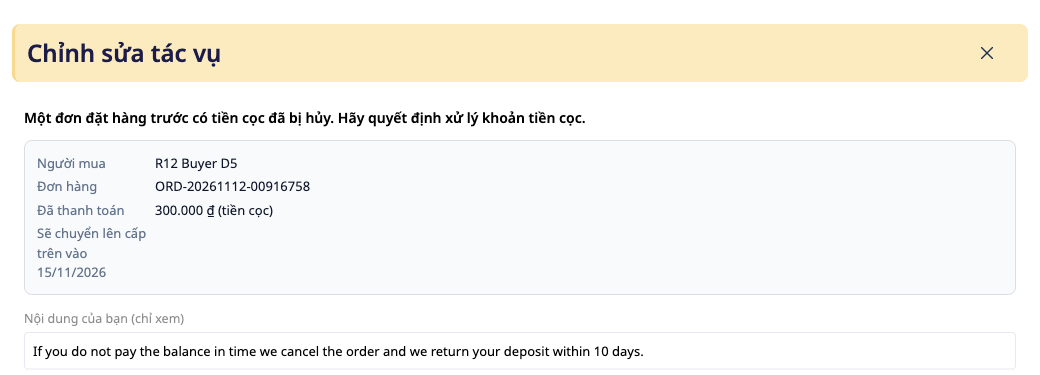
5c. Deposit order with the balance not paid. If the deadline you set passes and the remaining balance has not been paid, the order is automatically cancelled and the quantity returns to stock. The refund approver receives the task A pre-order with a deposit has been cancelled. Decide how to handle the deposit. (if no one handles it, the task is escalated to the shop owner), with two options: I have refunded or I am not refunding (my decision). Neither option is pre-selected. In the Tasks list, this task is named "Pre-order {order number}: decision on the first payment". The task shows the exact terms this buyer accepted when ordering. Choose one and record it.
✅ Expected result: the decision is recorded as made by the person who recorded it, along with the time. Check it against the terms you wrote in Step 1. GTG CRM cannot tell you whether keeping the deposit is lawful: ask your adviser about the current rules in your country.
Quick reference for expected results
| Thao tác | Kết quả bạn sẽ thấy |
|---|---|
| Mở thẻ khi chưa làm đủ các mục | Danh sách "Để bật, hãy làm các mục sau", công tắc chưa bật được |
| Làm xong mọi mục rồi gạt sang Bật | Hiện các thông số: số lượng nhận, ngày dự kiến, giờ giữ đơn, tối đa mỗi đơn, thanh toán, quyền hủy |
| Nhập giờ giữ đơn lớn hơn 72 | Hệ thống từ chối |
| Chọn đặt cọc, giá 1.500.000 ₫, cọc cố định 300.000 ₫ | "Với sản phẩm này, khách trả 300.000 ₫ ngay và 1.200.000 ₫ sau." |
| Xem trang sản phẩm trên website | "Đặt trước, dự kiến từ …", không có chữ hết hàng, không có số tối đa |
| Số lượng nhận đã đầy, hoặc tắt đặt hàng trước | Trang như một sản phẩm hết hàng bình thường |
| Người mua chưa tích ô điều khoản | Nút đặt hàng chưa bấm được |
| Người mua đặt xong | Đơn ở trạng thái Đặt hàng trước, số tồn kho không đổi |
| Bấm Xác nhận đã nhận tiền | Đơn tính là đã thanh toán (hoặc đã nhận cọc); nhật ký ghi người, số tiền, ngày |
| Mở tab Đặt hàng trước khi hàng về | Phần Xem trước liệt kê điều sẽ xảy ra, chưa đổi gì |
| Bấm Có, giao | Đã giao, Bỏ qua: chưa thanh toán hoặc Dừng: vượt quá số lượng còn lại, kèm Vẫn đang chờ; bấm lại thì không đổi gì |
| Bấm Dời ngày | Ngày dự kiến đổi; người mua chỉ được báo sau khi bạn duyệt tin nhắn trong Nhiệm vụ (mẫu tự động hóa mặc định tắt) |
| Hủy một đơn đã trả tiền | Nhiệm vụ "Một đơn đặt hàng trước đã thanh toán bị hủy" cho người duyệt hoàn tiền |
| Đơn cọc quá hạn trả phần còn lại | Đơn tự hủy, nhiệm vụ quyết định tiền cọc xuất hiện |
Lưu ý
- Quyền hạn, nói bằng lời thường: đổi thẻ đặt hàng trước cần quyền sửa sản phẩm; chỉ đọc thẻ cần quyền xem sản phẩm. Nút xác nhận chuyển khoản chỉ hiện với người có quyền ghi nhận thanh toán đơn hàng; người duyệt hoàn tiền cũng cần quyền này để ghi nhận quyết định. Giao hàng và dời ngày cần quyền sửa đơn hàng. Một quy trình tự động, một tích hợp hay trợ lý AI không xác nhận được chuyển khoản: tiền đã về hay chưa là điều một người phải nói.
- Không có gì tự hoàn hay tự giữ. Hoàn tiền và giữ cọc đều là quyết định của bạn, ghi lại như quyết định của bạn. Hoàn tiền trong GTG CRM ghi sổ, không chuyển tiền.
- Không thu tiền khi giao hàng. Đặt hàng trước chỉ nhận thanh toán trực tuyến hoặc chuyển khoản.
- Điều khoản, nội dung hoàn tiền, quy tắc cọc, thuế VAT và cách ghi nhận khoản tiền nhận trước đều do bạn quyết. Hệ thống không điền sẵn, không gợi ý mặc định và không nói điều gì là hợp lệ. Cách hạch toán và nghĩa vụ thuế của khoản tiền nhận trước khác nhau theo từng shop và từng quốc gia; hãy xác nhận với người làm kế toán của bạn.
- Ngày dự kiến là ước tính của bạn, không phải lời hứa của hệ thống. Bạn có thể dời, và người mua chỉ nhận thông báo sau khi bạn duyệt.
- Có ba mẫu tự động hóa tùy chọn (duyệt khi hàng về, nhiệm vụ hoàn tiền, thông báo đổi ngày), mặc định đều tắt; tab Đặt hàng trước có liên kết tới chúng. Nhiệm vụ hoàn tiền và quyết định tiền cọc ở Bước 5 vẫn chạy khi tắt hết.
- Hoa hồng giới thiệu: đơn đặt hàng trước còn đang chờ hàng về thì không phát sinh hoa hồng giới thiệu. Xem thêm Chương trình giới thiệu khách hàng.
- Đặt hàng trước chỉ cho website do bạn xuất bản. Shopee và TikTok có công tắc đặt trước riêng của họ, đó là việc khác.