What you'll be able to do after this guide
Want to know which connections are linked and which ones need attention, without opening each screen to check? Your business connects many things to GTG CRM: social media, advertising, email sending domains, shipping carriers, banks. At the bottom of the Company settings page is the Other connections block: each row is one connection type, and the row name opens its screen directly. After this guide, you can open one page and immediately see which types are connected, and for Social, Advertising, Email domains, and Bank payments, which types need attention, instead of opening each screen one by one to check.
On that page, the Needs attention tag appears right away on any row with a connection that needs reconnecting, has expired, or has an error. However, this only applies to those four types, because they are the four types where GTG can read the expiry date or errors (in some markets, the Invoice receiving email, Tax Authority Connection, and E-invoice connection rows can also report this). Click the row name to go to the exact screen where you can see which account it is and take action. The other rows only show whether they are connected or not, and the Payment Methods row has no tag (see the Common points of confusion section at the end of this guide for details).
Step 1: Open the Other connections block
First, you need to be able to open Company settings: this section only appears in the menu for the workspace owner or for people granted the Connect messaging accounts permission; if you don't see it, ask the workspace owner.
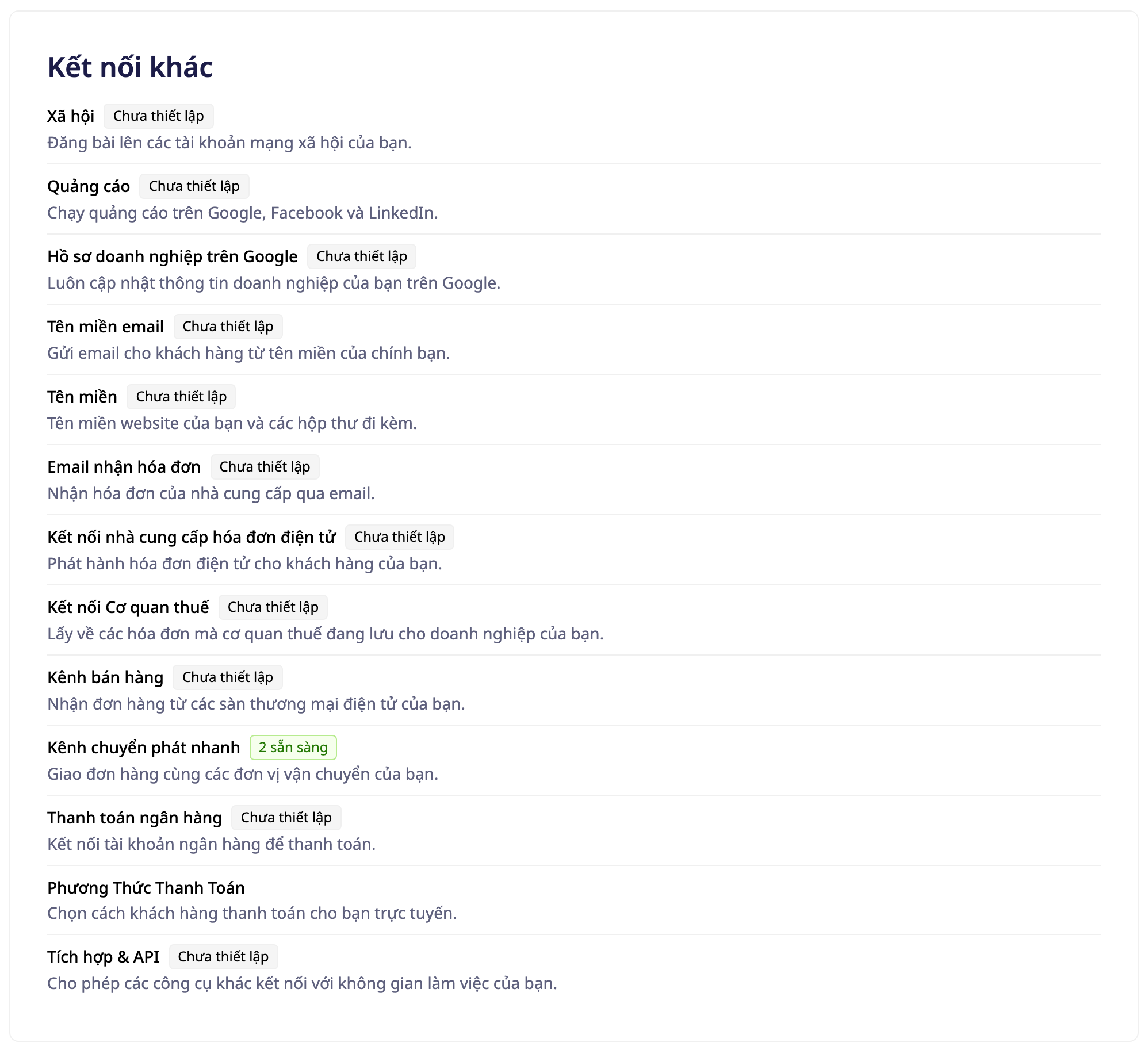
Go to Settings → Company settingsOther connections block.
Step 2: Read each row
Each row includes the connection type name, one explanatory sentence, and, on most rows, a status tag. The row name is a link that opens the management screen for that connection directly, for example Social, Advertising, Email domains, Domain, Sales channels, Bank payments, Integrations & API. The block is simply a list of links: you connect accounts on the screen that the row opens, not directly here.
Status tags come in five types:
| Tag | Meaning |
|---|---|
| 3 ready | This connection type has at least one connection linked. The number before ready is how many connections are linked (each linked account, page, domain, mailbox, marketplace, provider, shipping carrier, or app counts as one; with one connection it shows 1 ready). Where GTG can read an expiry date or error, no account has been found to be expired or in error. |
| 1 of 2 ready | Some connections are not ready yet, for example a website domain that is pending activation, suspended, or expired, an email domain whose verification is not finished, or a connection that is turned off or disconnected. The first number is how many are ready, the second is the total. When only one connection has been linked and it is not ready, the tag reads 0 of 1 ready. |
| Needs attention | Some connections have expired, are in error, or need action from you (for example, a social media or ads account that needs to be reconnected, an email domain whose verification failed, or a tax authority connection that needs its password re-entered or your permission). A connection that is still pending is not "Needs attention"; its tag reads something like 1 of 2 ready. |
| Not set up | No account has been linked for this connection type yet. |
| Unable to check | GTG cannot read that connection at the moment. The link still works: open that screen to see the actual status. This tag does not mean the connection has been lost. |
On the Express delivery channel row: Not yet connected to Viettel Post, Giao Hàng Nhanh, or Grab Express? Follow the Guide to Connecting Delivery Channels with GTG CRM.
Step 3: Handle rows that need attention
When you see the Needs attention tag, click the row name to open the management screen for that connection, read the status line there, and follow it (for example, reconnect an expired account, or check the DNS records for an email domain). Return to Company settings, and the tag will reload the status each time you open the page.
A few common points of confusion
- The "x of y ready" badge only shows that a connection has been made, not that it is still working well. Only these rows show Needs attention: Social (needs to reconnect), Ads (access has expired), Email domain (verification or DKIM has failed), and Bank payments (needs to reconnect or has an error). Two rows that appear only in some markets can also show it: Invoice receiving email and Tax authority connection. The E-invoice connection row (in markets where businesses enter their own e-invoice account details) can also show it. The E-invoice provider connection row (the list of e-invoice providers in Vietnam) never shows it.
- The other rows only show whether they are connected, not whether they are still working well, so they never show Needs attention. This includes Domain (an active, paused, or expired domain only changes the badge to read something like 1 of 2 ready), Google Business Profile, Sales channels, Shipping carriers, and Integrations & API (in this row, "ready" means there is an app running). Open their screens when you have doubts. For Shipping carriers, Self-delivery (once you have enabled it) and GreenSM Express (once you have clicked Connect; no account needed) also count as a connection, so the badge may already read ready even if you haven't connected Viettel Post, Giao Hàng Nhanh, or Grab Express.
- The Payment Methods row has no badge. Its page already shows which payment methods are turned on, and a badge here might say something different from that page, so open the page to check.
- Some rows don't show a badge because checking them requires a permission you don't have. No badge does not mean Not set up. A row that is loading shows a small placeholder.
- You only see the rows you have permission to open. The workspace owner sees every row that applies to the business's market. E-invoice, Invoice receiving email, and Tax authority connection only appear in markets (countries) that support those features. If no permission applies to any of the rows, the whole section won't appear.
Next step: open Settings → Company settings, scroll down to the Other connections section, check the badge on each row, and stop at any row that reads Needs attention. This step is for viewing only: opening the section, reading a badge, or clicking a row changes nothing. You only make a change when you do something on the screen that the row opens.