GTG CRM tilbyder en funktion til integration af artikler, der giver dig mulighed for at udgive indhold fra systemet på din virksomheds egen hjemmeside. I stedet for manuelt at kopiere hver artikel kan du bruge API'en til automatisk at synkronisere alt marketingindhold, brugervejledninger eller produktintroduktioner til din hjemmeside.
Denne funktion er især nyttig, hvis du ønsker at opretholde konsistens mellem indholdsstyringssystemet i GTG CRM og din eksterne hjemmeside. Alle opdateringer og redigeringer fra GTG CRM kan afspejles øjeblikkeligt på hjemmesiden uden behov for komplekse tekniske indgreb.
Denne artikel vil guide dig trin for trin til, hvordan du integrerer GTG CRM-artikler med WordPress, en af de mest populære hjemmesideplatforme i dag.
Hovedfunktioner
- Integrer indhold fra GTG CRM på eksterne hjemmesider via API
- Understøtter visning af en liste over artikler og detaljerede sider for hver artikel
- Automatisk synkronisering af indhold uden manuel kopiering
- Kompatibel med populære platforme som WordPress, React, Next.js
- Administrer adgangsrettigheder via sikker API Key
- Automatisk visningsinterface, der følger din hjemmesides design
Brugsvejledning
Trin 1: Forbered indhold i GTG CRM
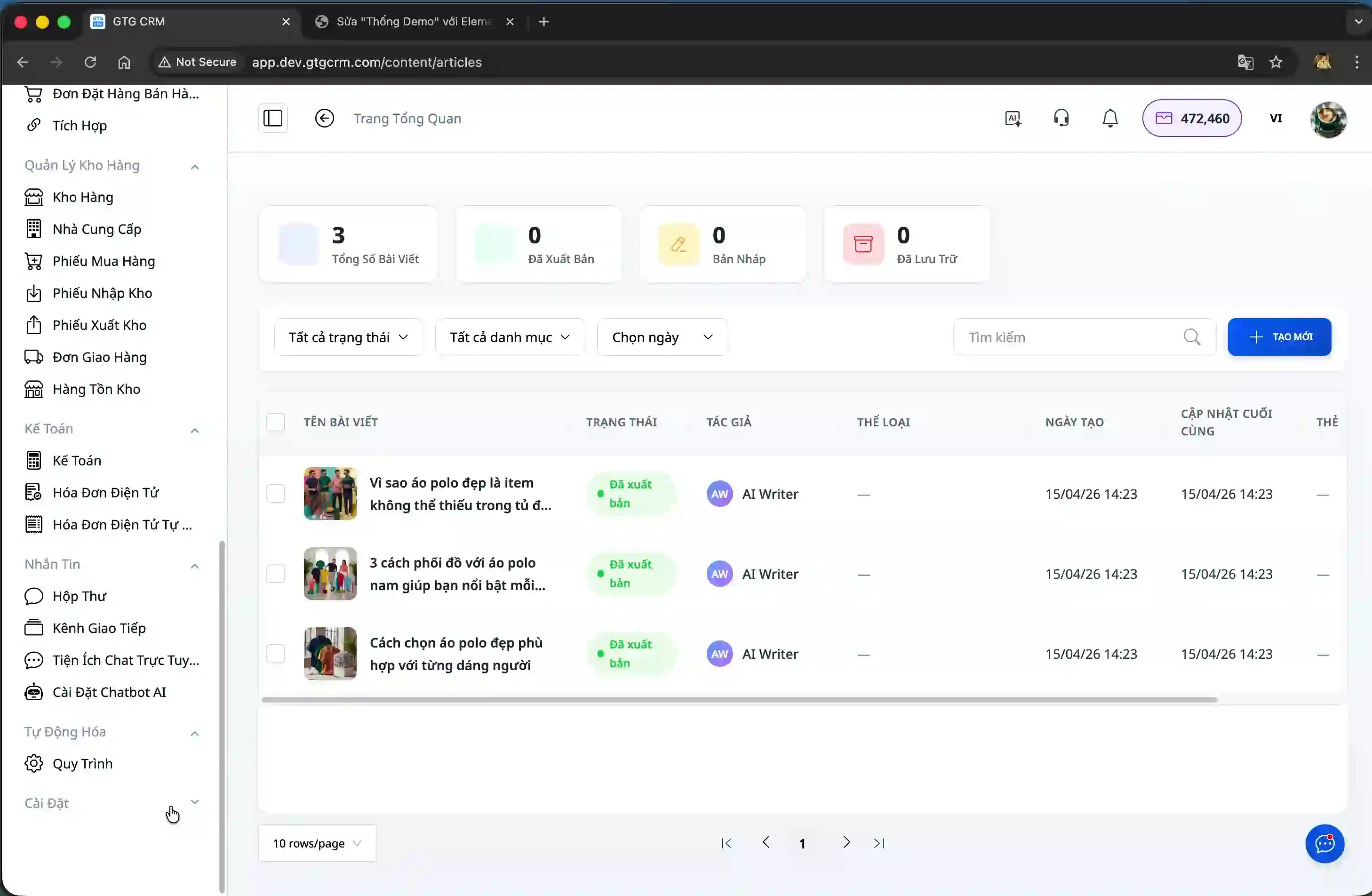
Først skal du have dine artikler klar i GTG CRM. Du kan oprette nye ved at klikke på knappen "Opret ny" under sektionen til administration af artikler. Sørg for, at artiklerne er fuldt udskrevne, før du fortsætter med integrationen.
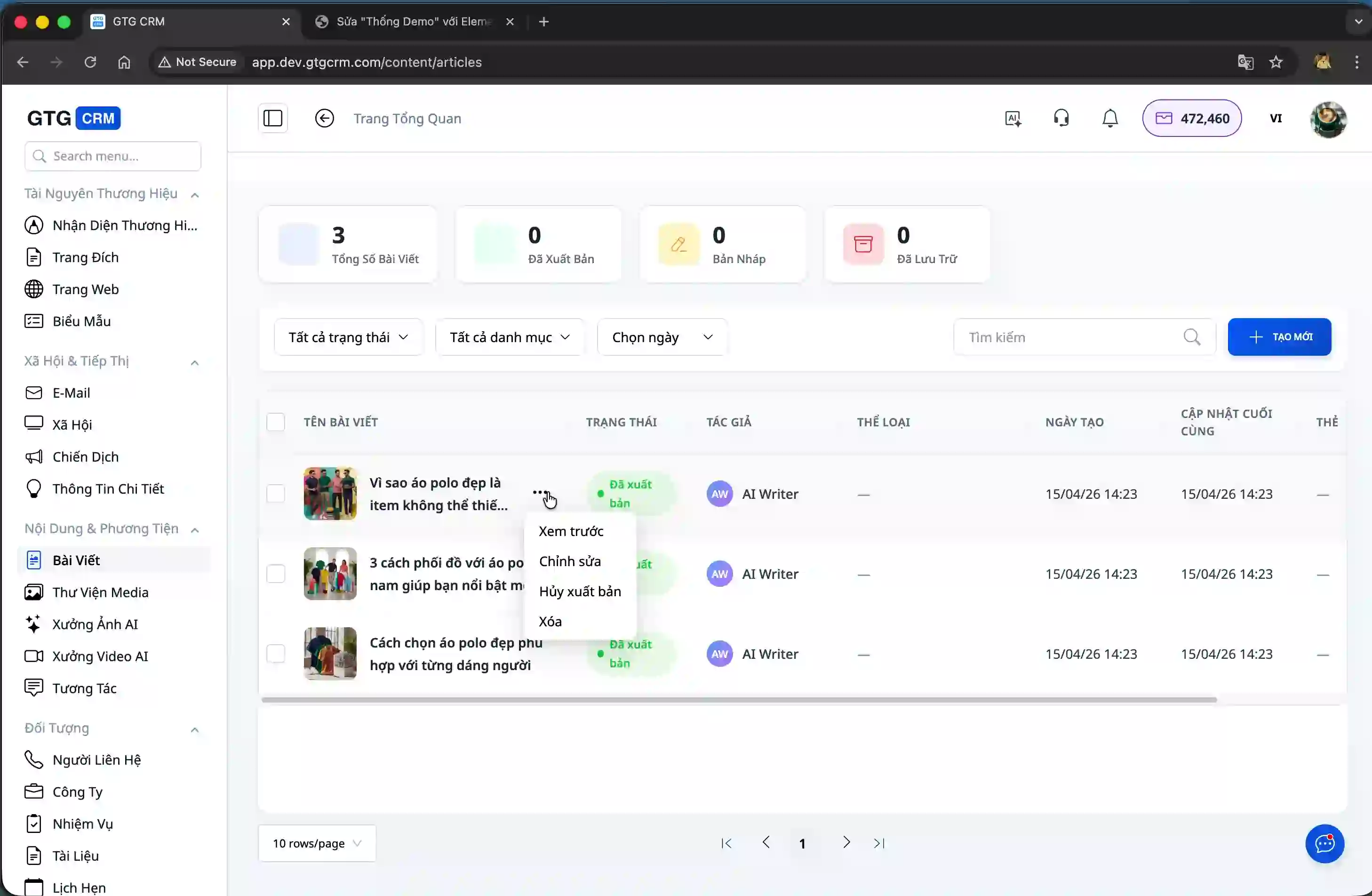
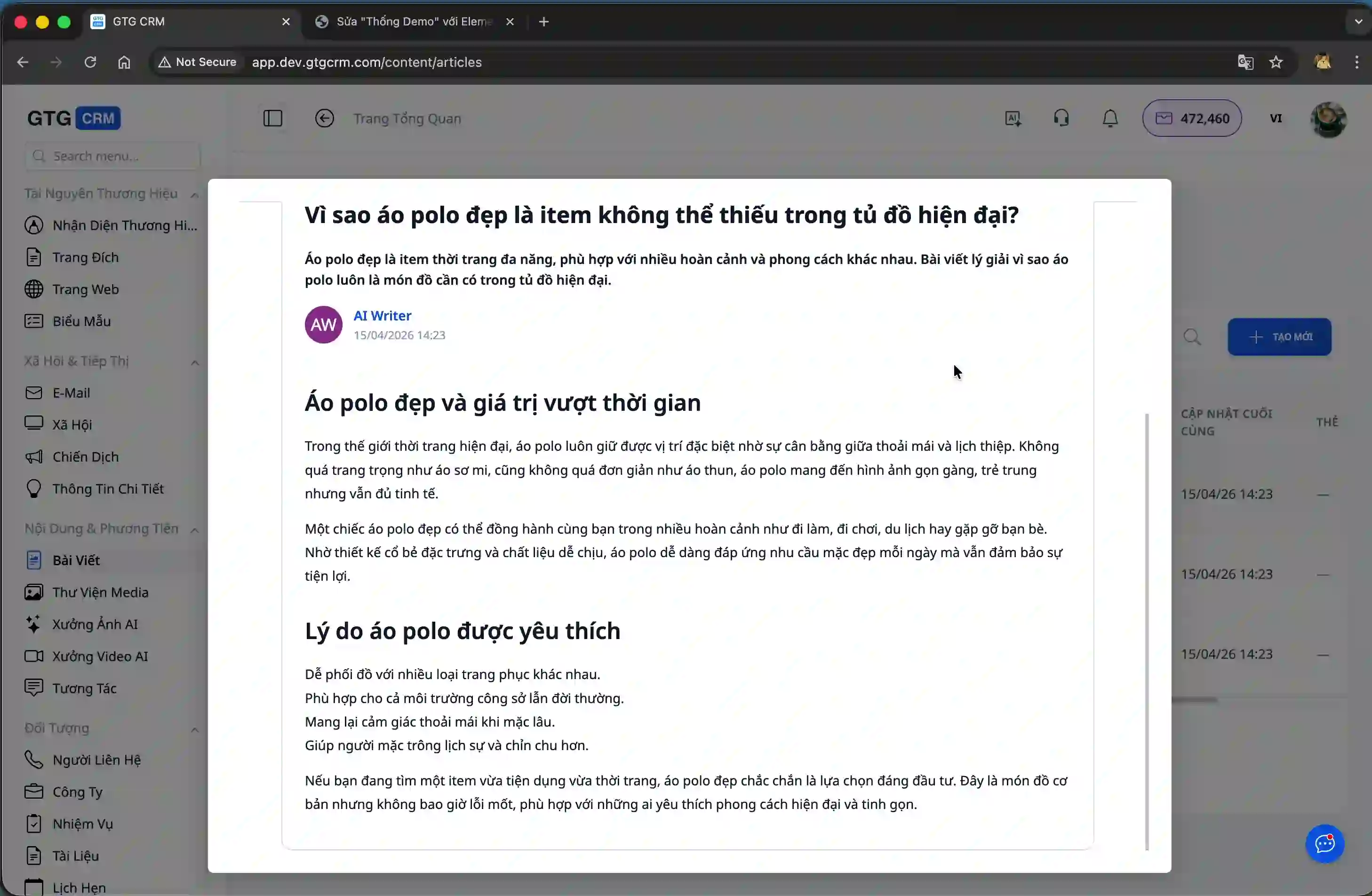
Du kan se en forhåndsvisning af hver artikel for at kontrollere indholdet, før du udgiver det på hjemmesiden.
Trin 2: Få adgang til integrationsfunktionen
Fra venstre menu i GTG CRM skal du rulle ned til bunden og klikke på "Indstillinger".
På siden Indstillinger skal du vælge "Integration" for at få adgang til værktøjerne til integration med eksterne hjemmesider.
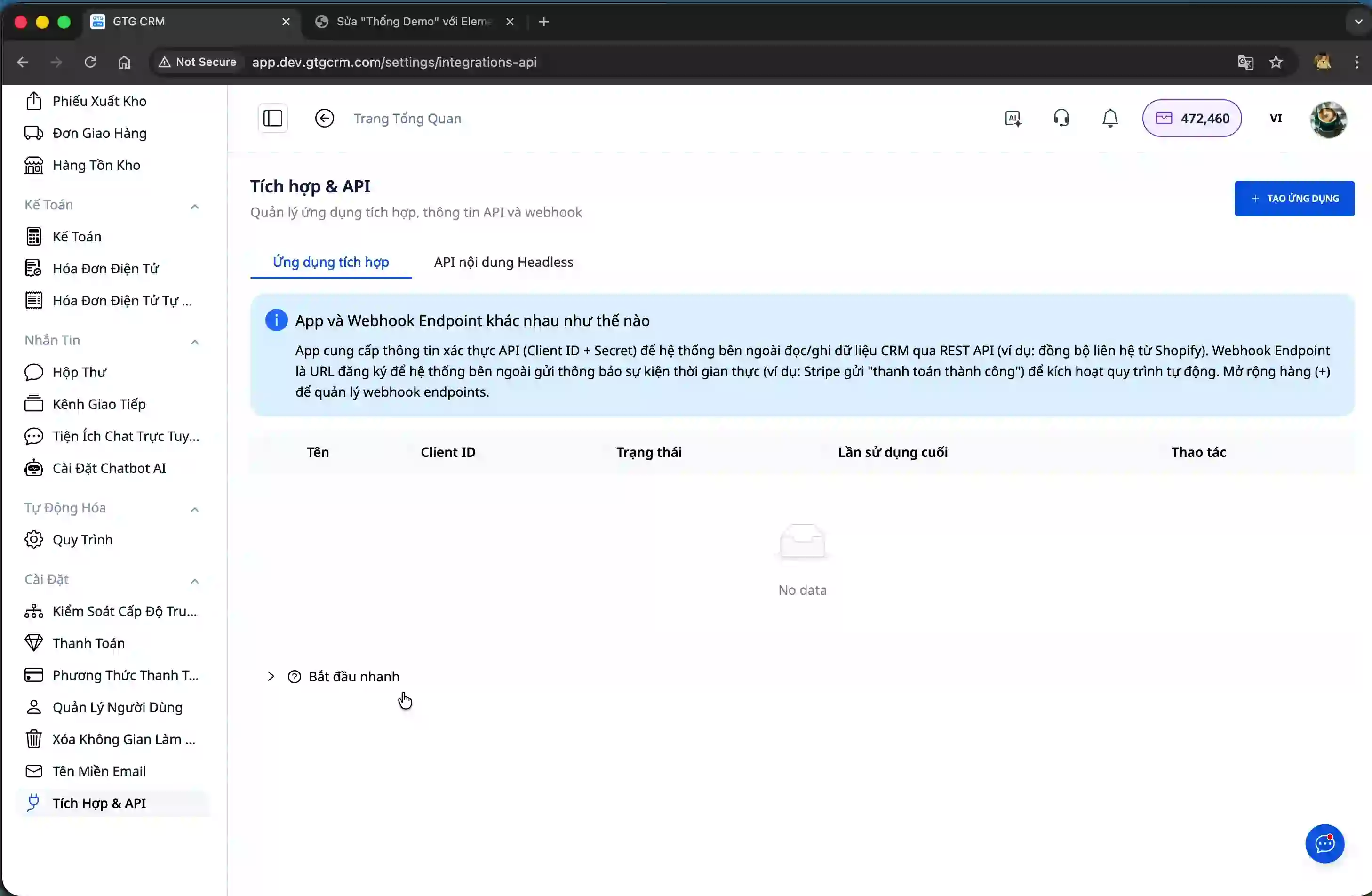
Her leverer systemet en Headless CMS API, der giver dig mulighed for at hente indhold fra GTG CRM til visning på enhver hjemmeside. Du vil finde detaljerede instruktioner til WordPress, React og Next.js.
Trin 3: Integrer artikel liste med WordPress
Under WordPress-vejledningen giver systemet et HTML-kodeuddrag, som du kan indsætte på din hjemmeside. Kopier hele dette kodeuddrag.
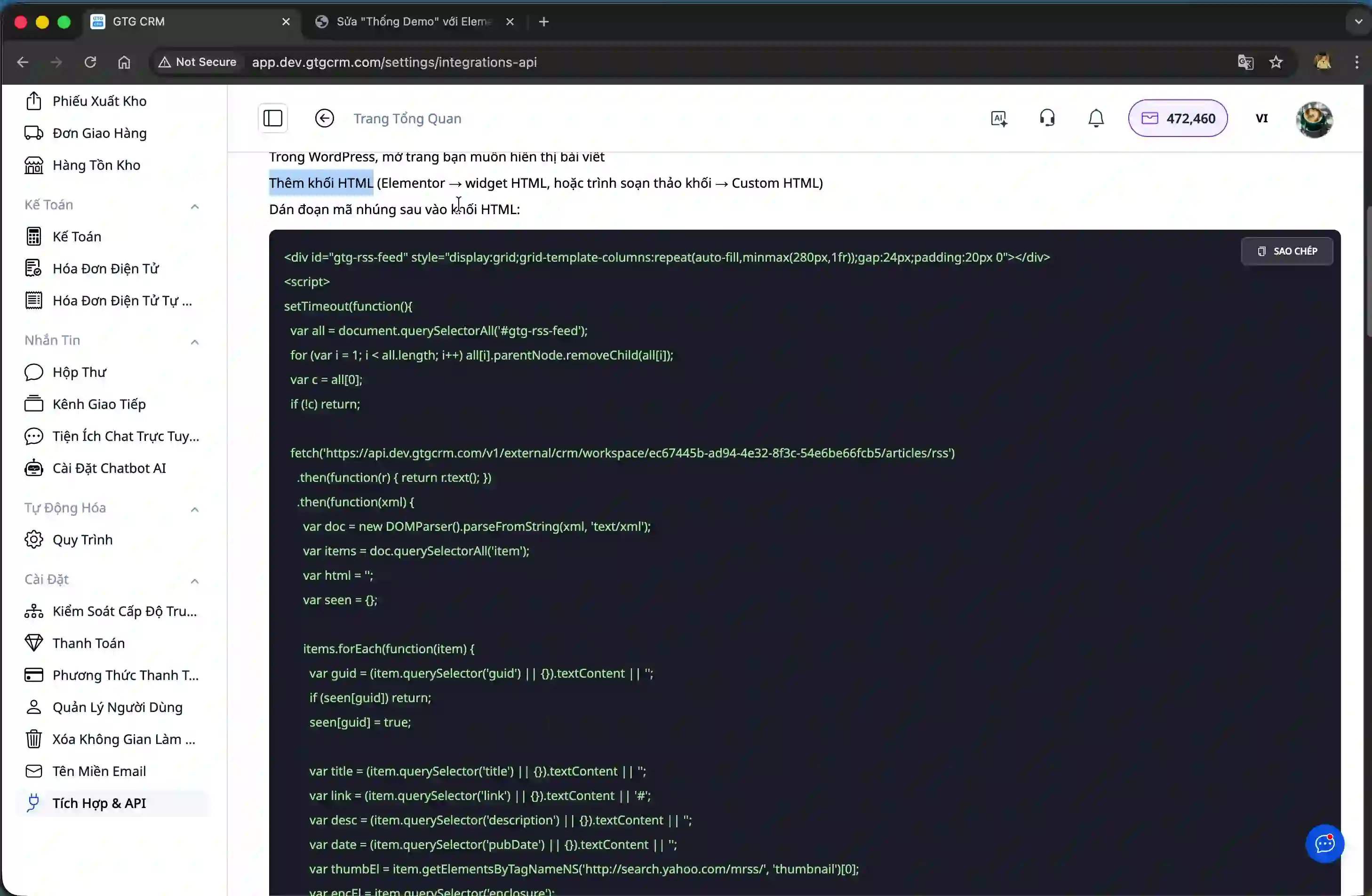
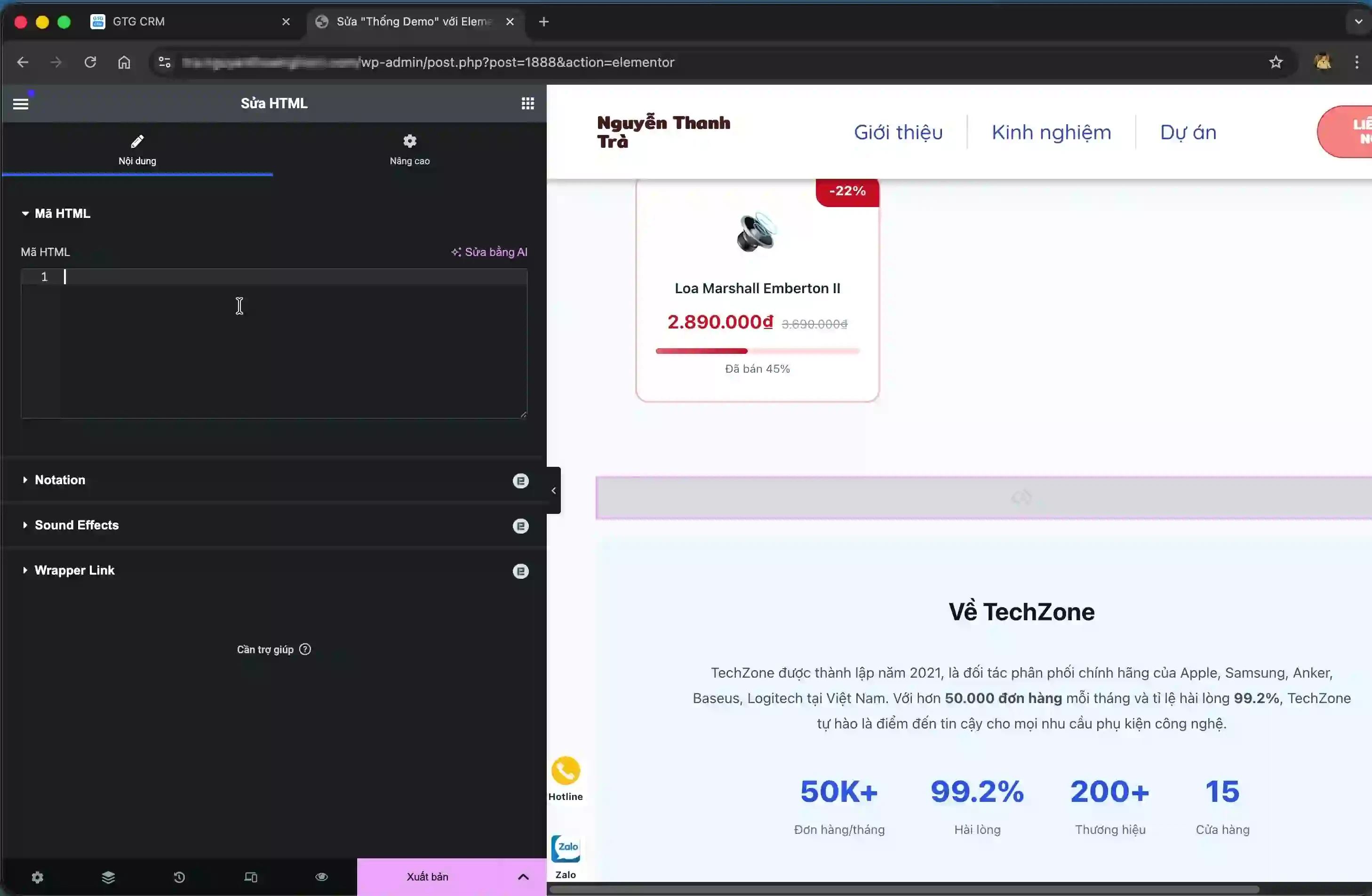
Åbn den side på WordPress, hvor du vil vise listen over artikler. I redigeringsprogrammet skal du tilføje en ny blok og vælge typen "Brugerdefineret HTML".
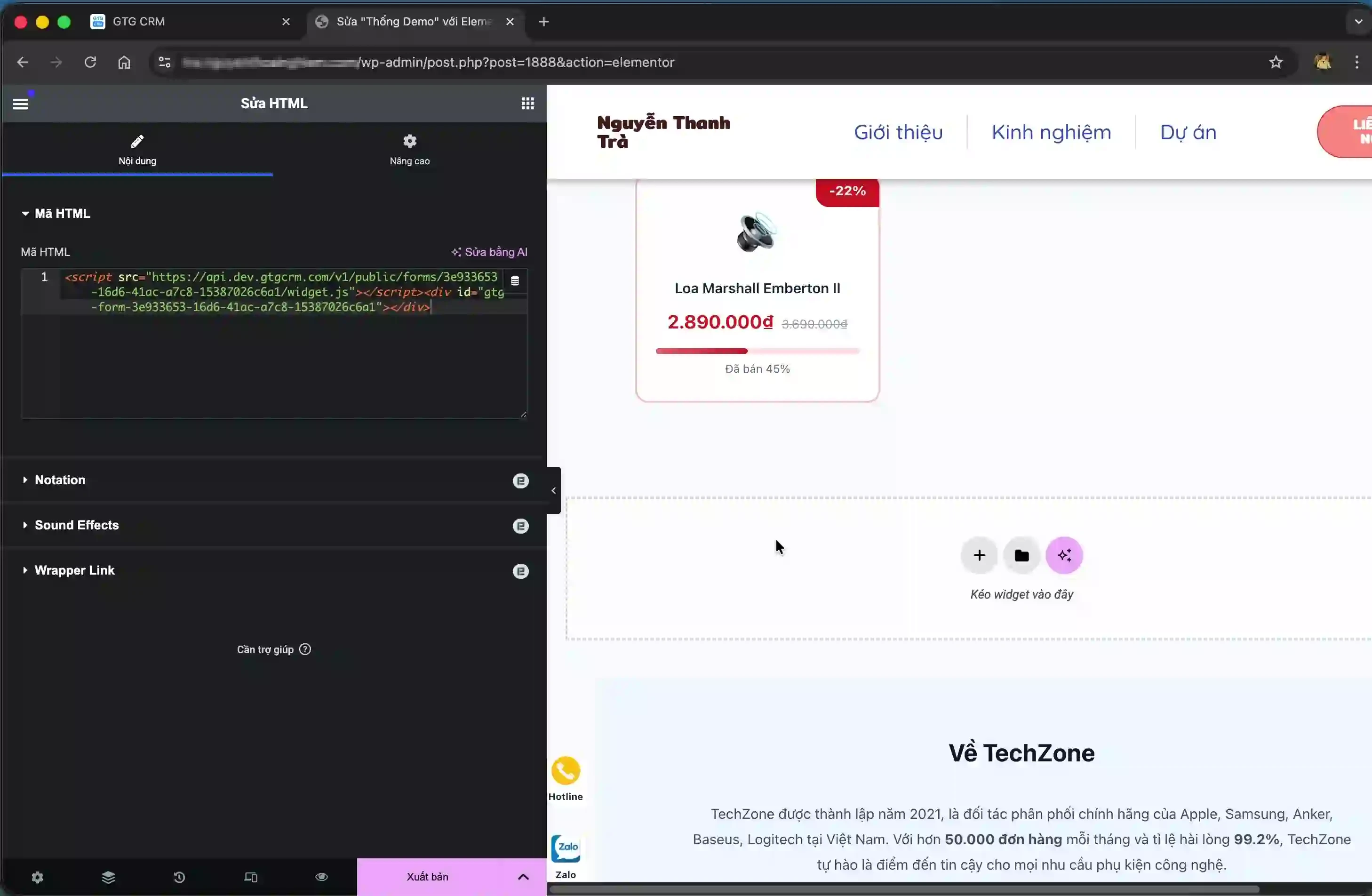
Indsæt det kopierede kodeuddrag i denne HTML-blok, og gem derefter siden.
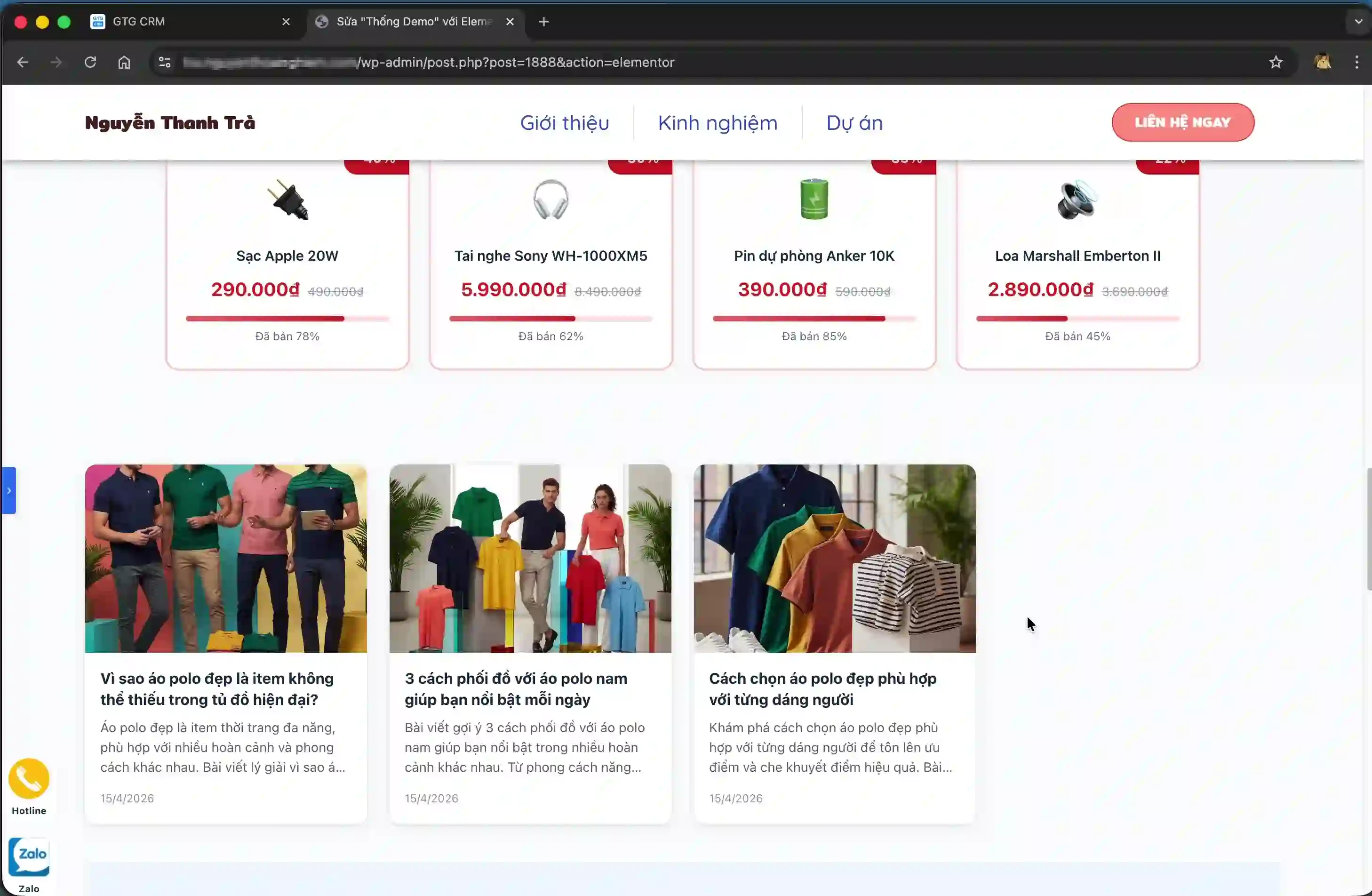
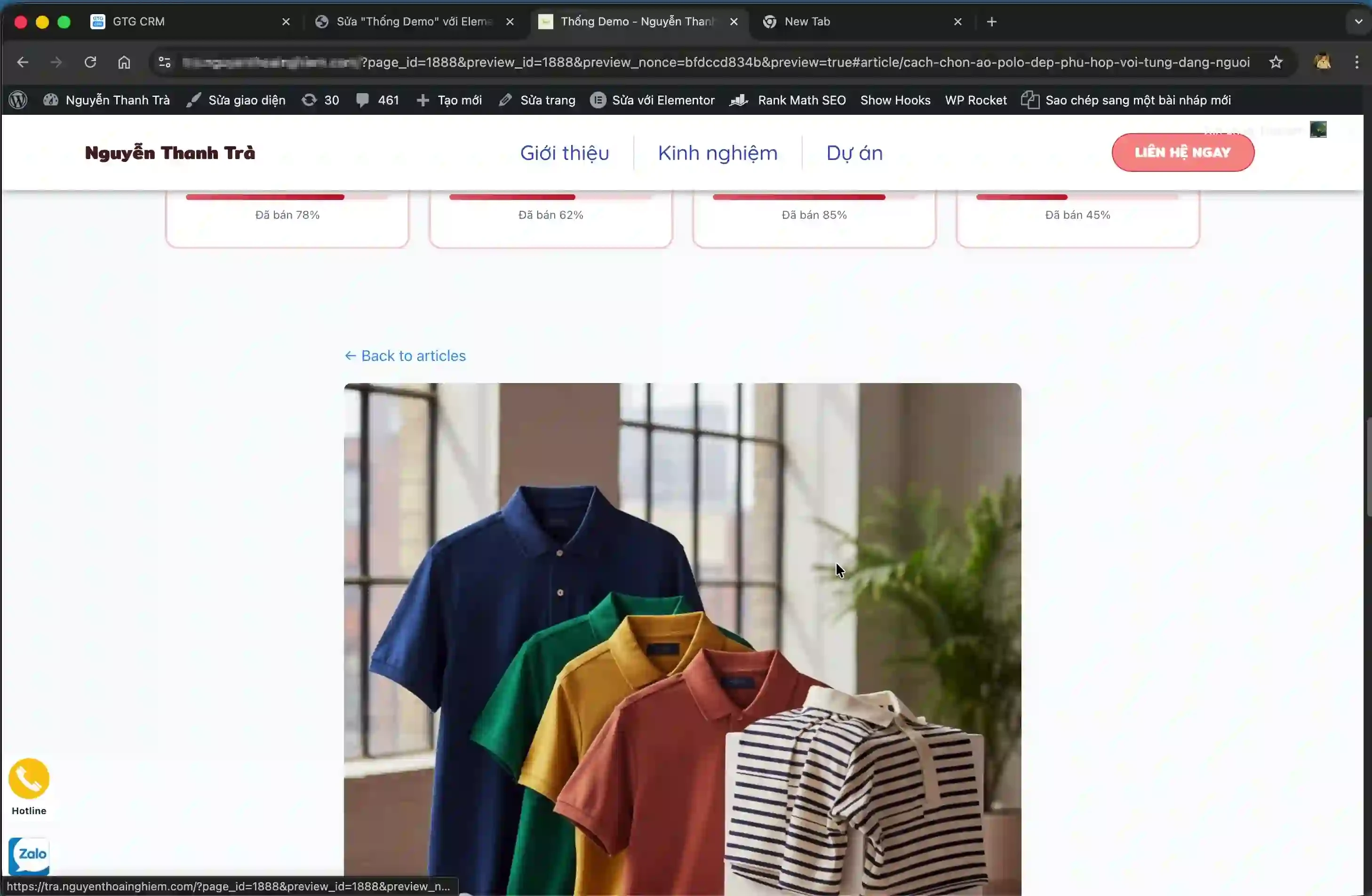
Når du ser siden på hjemmesiden, vil listen over artikler fra GTG CRM blive vist med et automatisk integreret design.
Trin 4: Opret API Key for at se artikel detaljer
For at brugerne kan klikke og se detaljer for hver artikel, skal du oprette en API Key. Gå tilbage til siden Integration i GTG CRM og klik på knappen "Opret API Key".
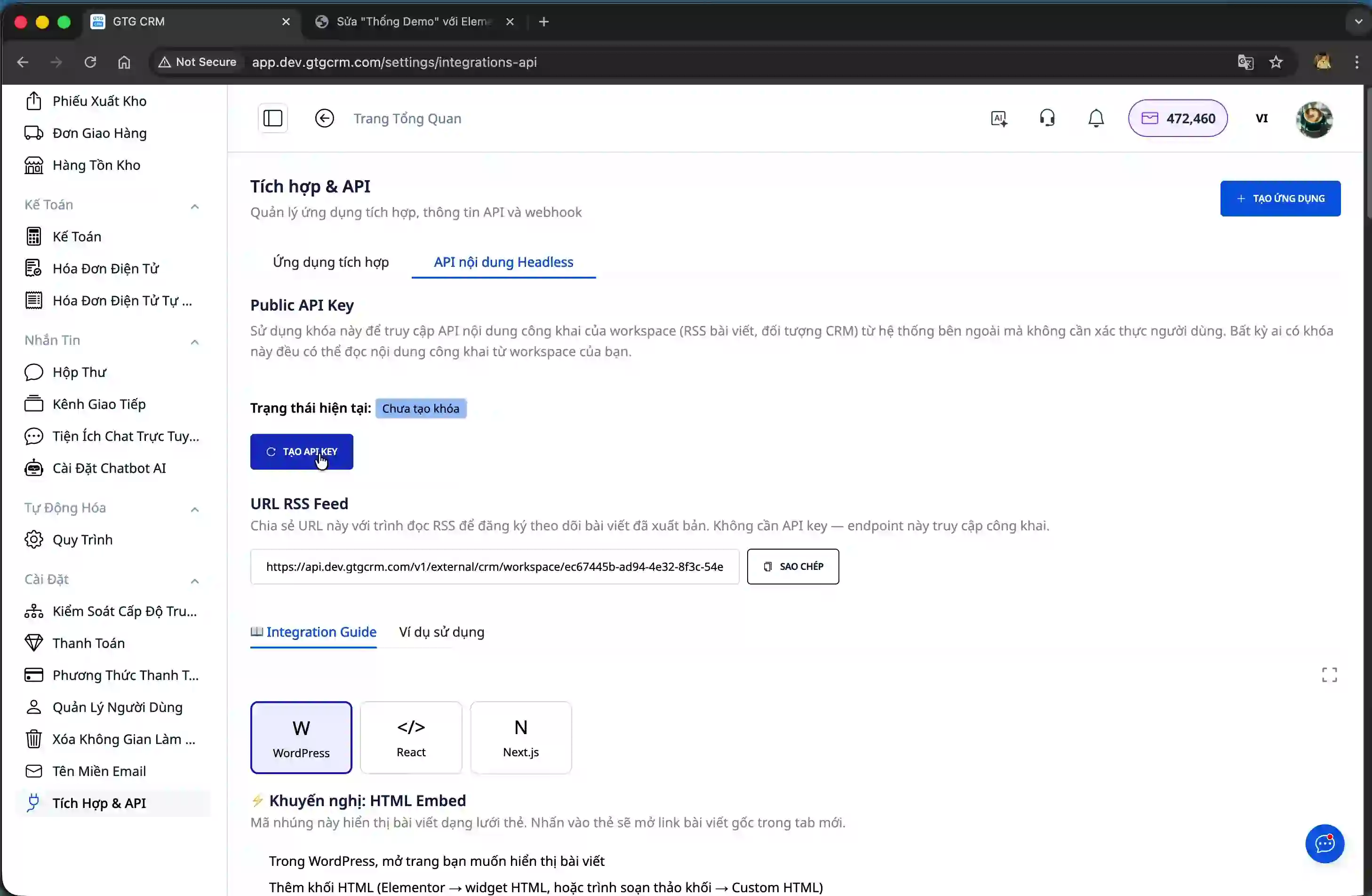
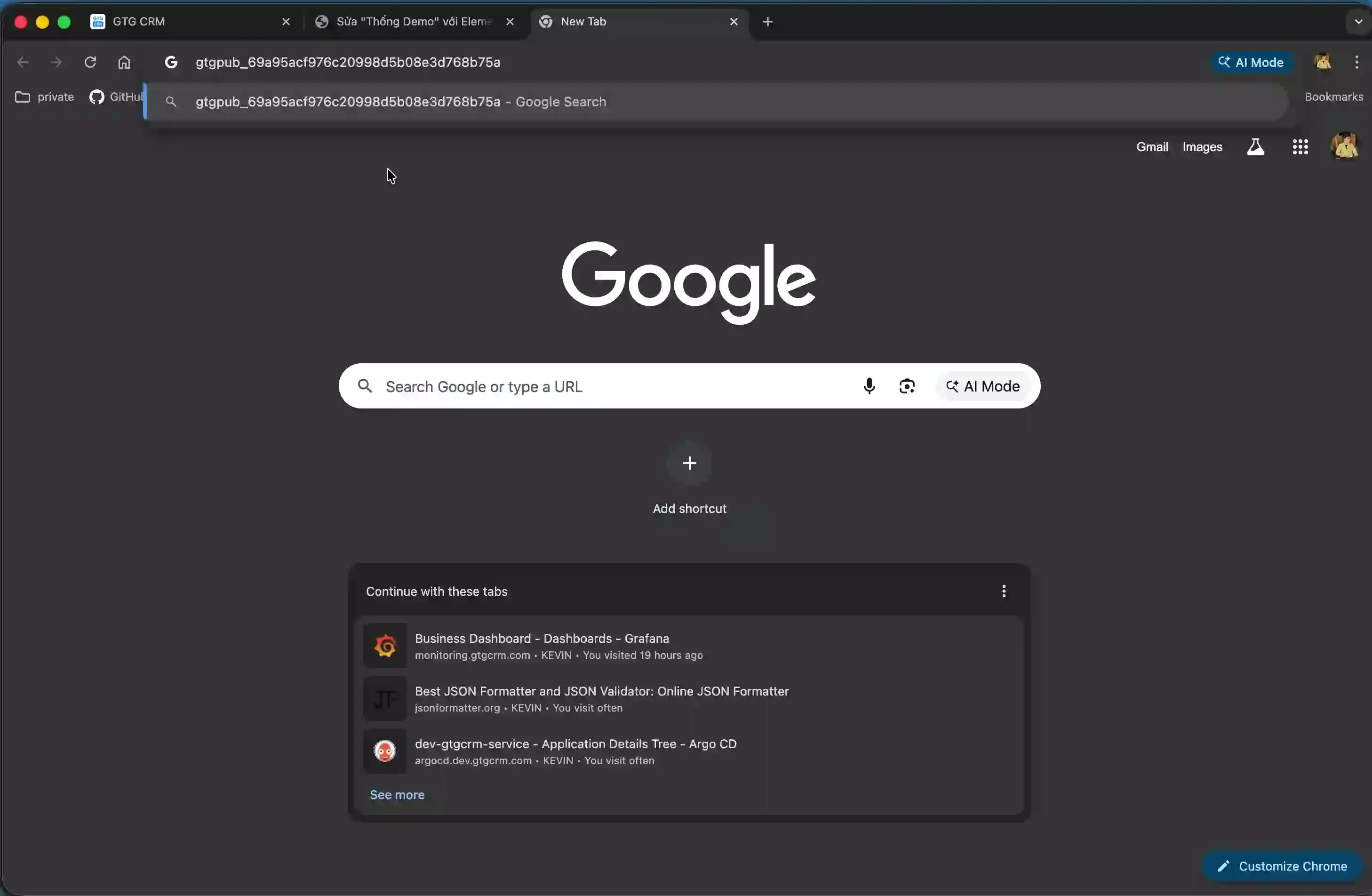
Systemet vil generere en unik API-nøgle. Kopier denne API-nøgle og gem den sikkert, da du skal bruge den i næste trin.
Trin 5: Integrer detaljeside for artikler
Rul ned til den anden vejledning om "Artikelliste + Artikeldetaljer". Kopier den tilsvarende HTML-kode.
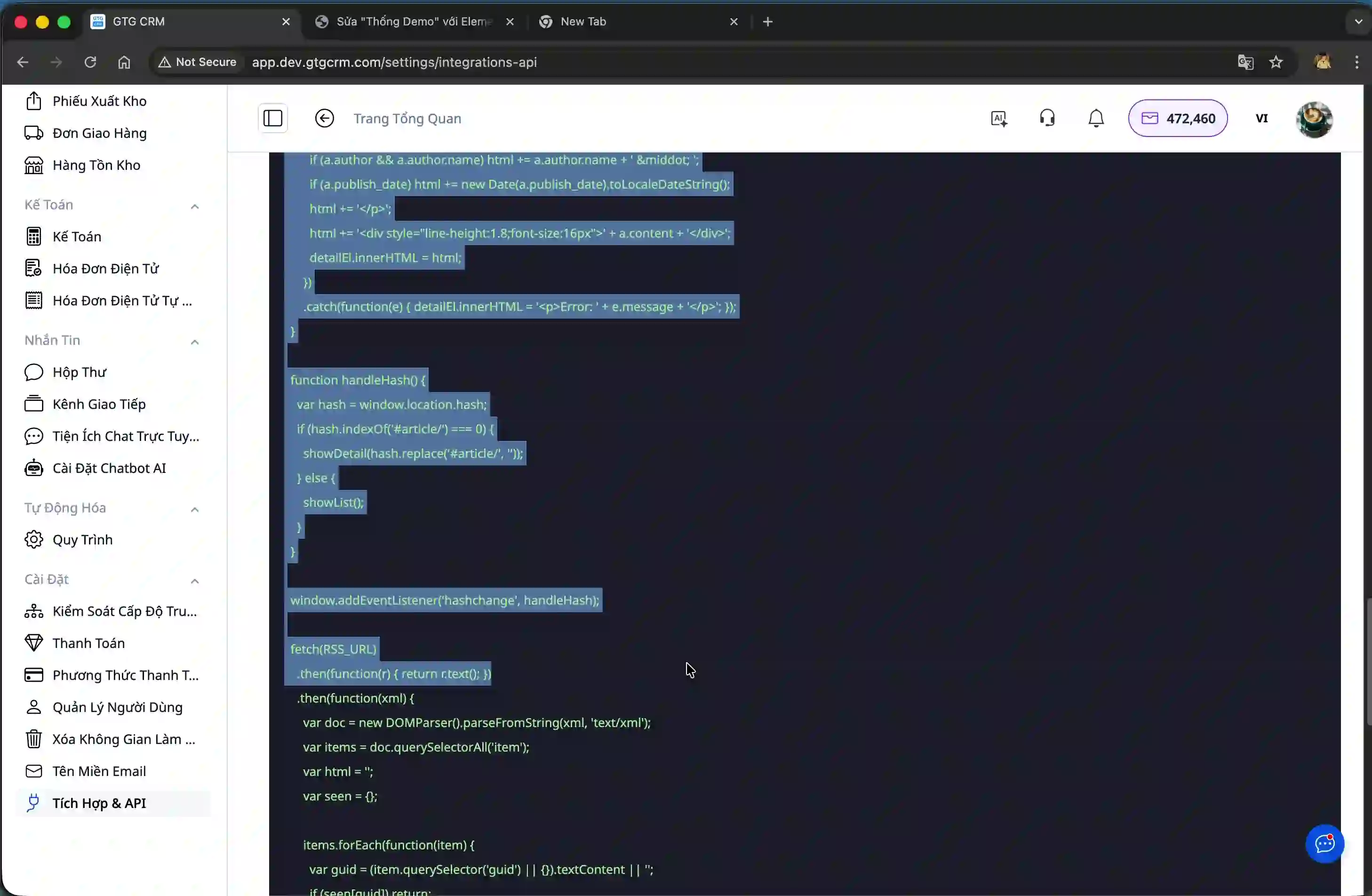
Ligesom i trin 3 skal du tilføje en ny Custom HTML-blok i WordPress og indsætte koden deri.
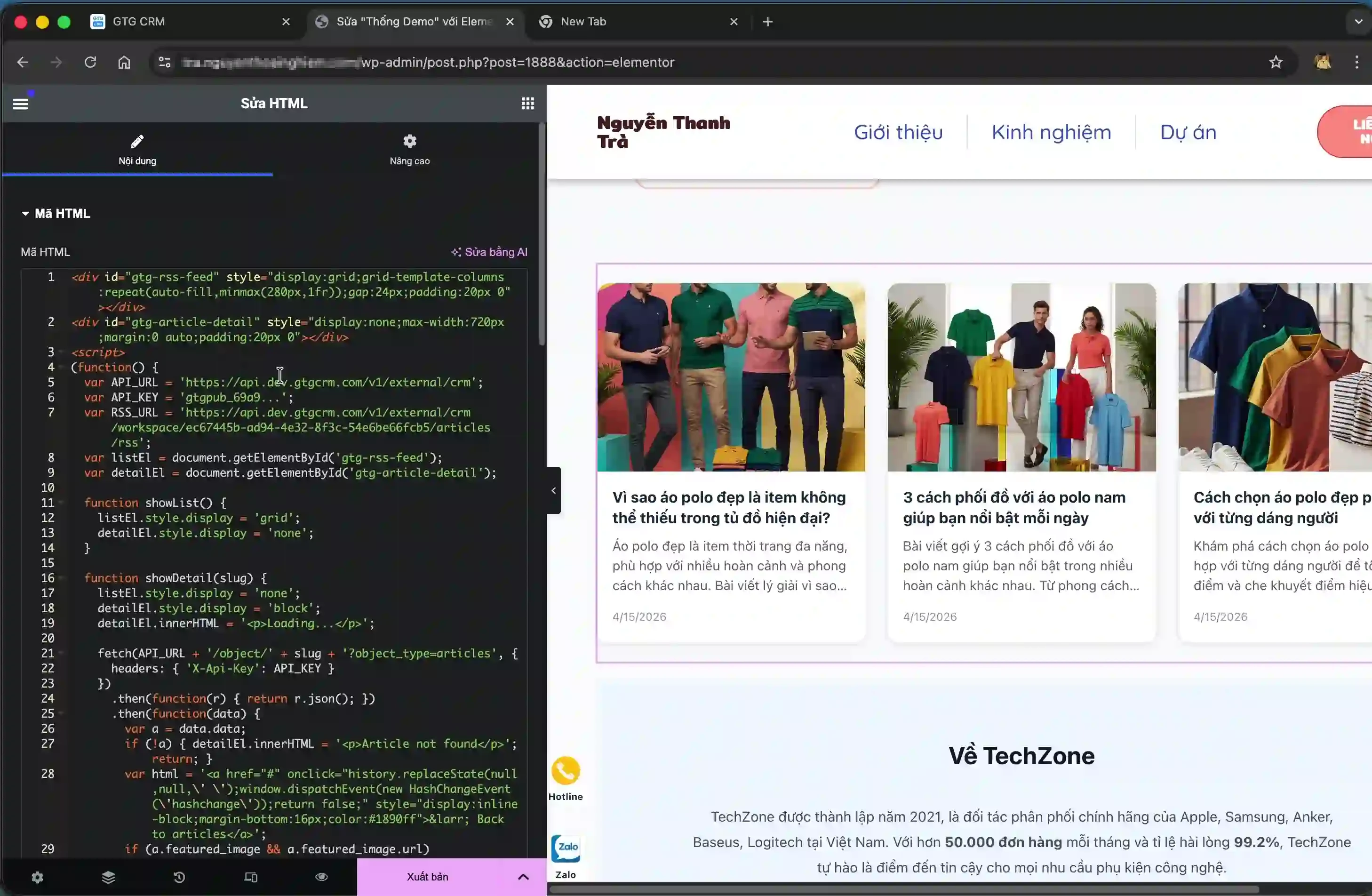
Vigtigt punkt: I denne kode skal du erstatte delen mellem de to citationstegn med den API-nøgle, du oprettede i trin 4. Find placeringen med formatet 'YOUR_API_KEY' og erstat den med din faktiske API-nøgle.
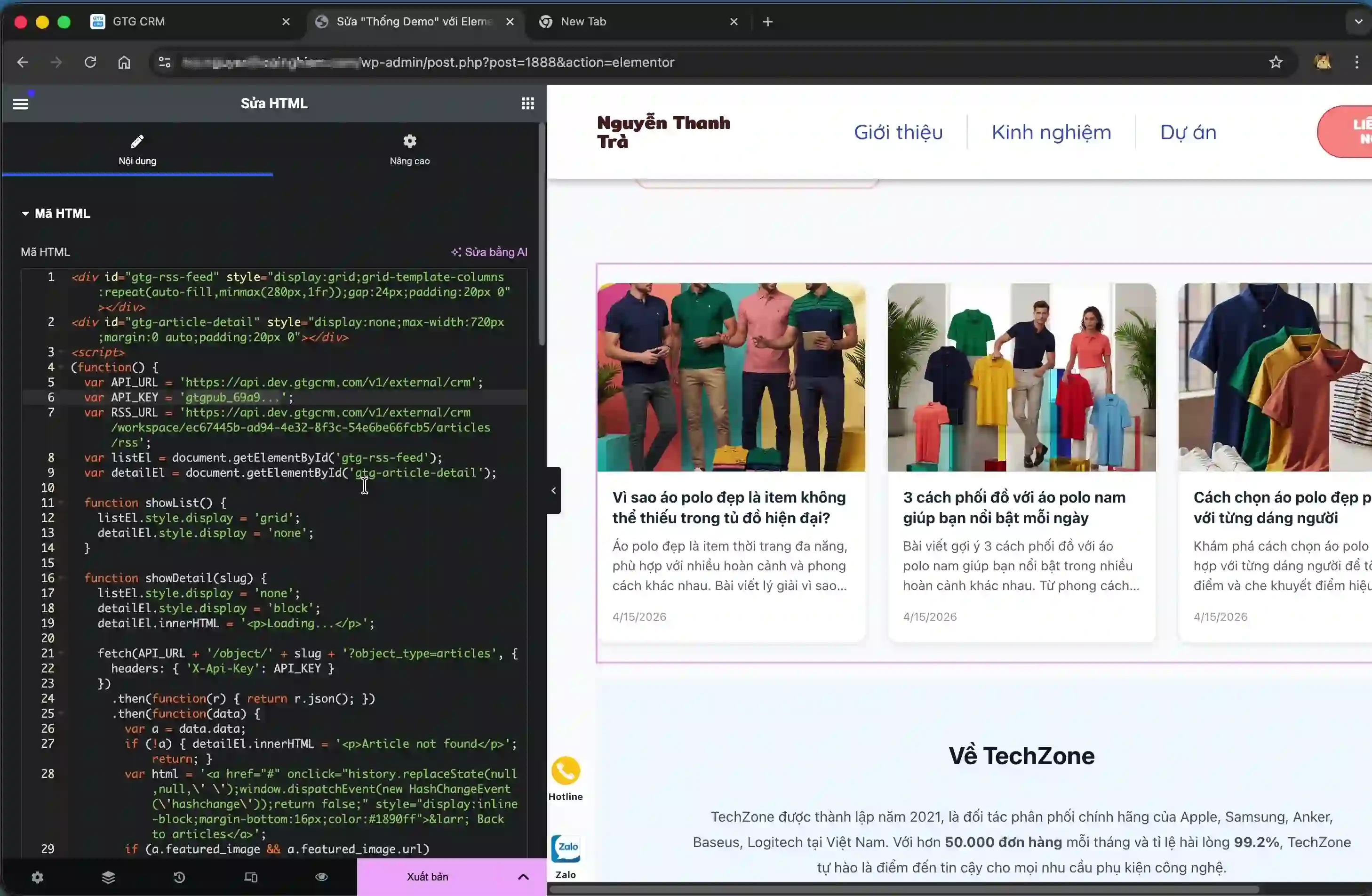
Efter at have erstattet API-nøglen, gem siden i WordPress. Nu, når brugere klikker på en hvilken som helst artikel på listen, vil de blive sendt til detaljesiden med fuldt indhold.
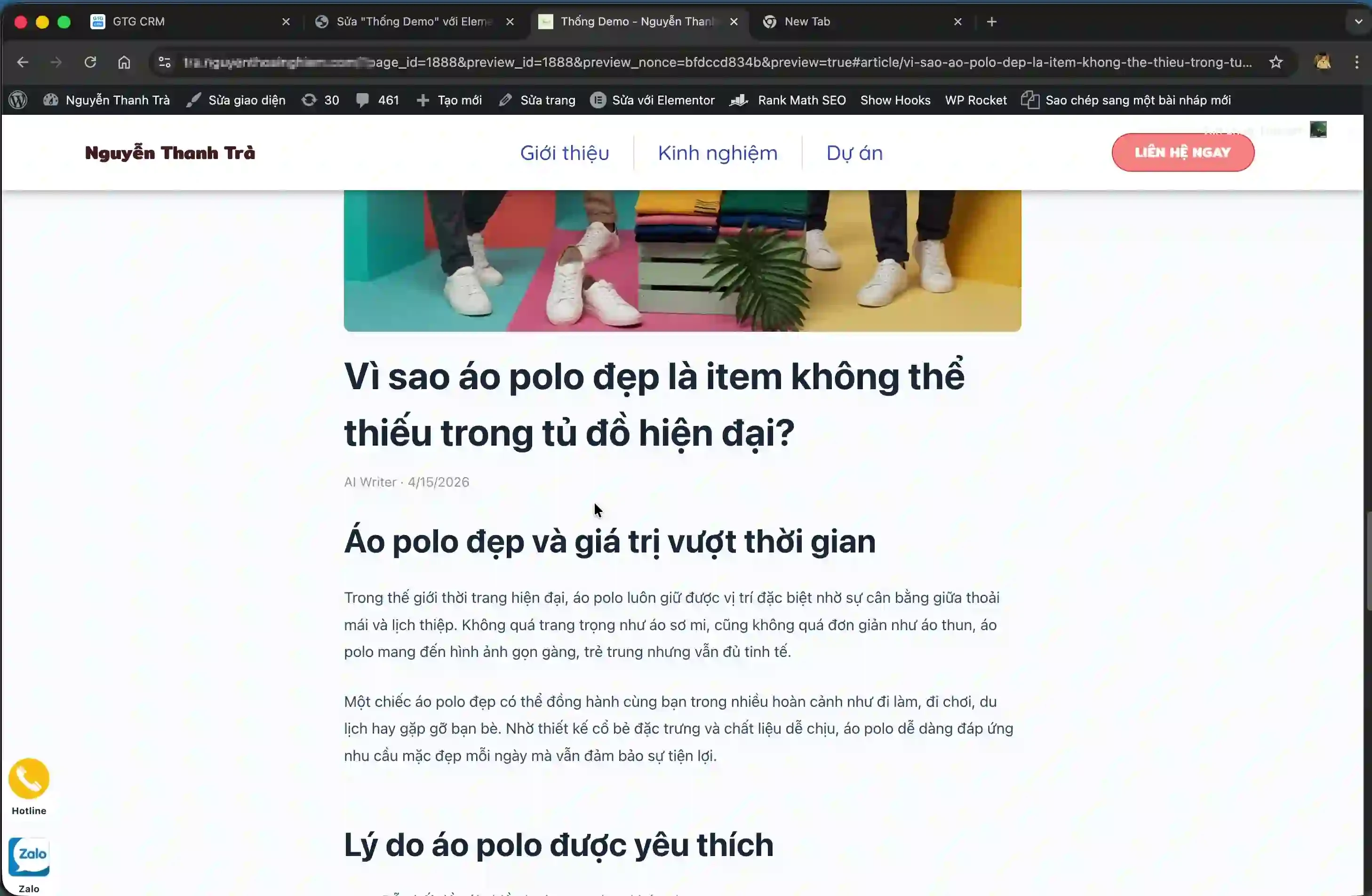
Brugere kan nemt vende tilbage til listen og se andre artikler.
Fordele ved funktionen
- Spar tid ved at synkronisere indhold automatisk i stedet for manuel kopiering
- Sikre konsistens mellem indhold i CRM-systemet og eksterne websteder
- Opdater nemt indhold fra en enkelt kilde uden at skulle redigere på flere platforme
- Øg marketing- og kundesupporteffektiviteten gennem hurtig informationsdeling
- Fleksibel integration med mange forskellige websiteplatforme
Vigtige bemærkninger
Når du bruger artikelintegrationsfunktionen, skal du være opmærksom på følgende punkter for at sikre stabil drift:
- API-nøglen er en vigtig sikkerhedsoplysning, del den ikke offentligt eller eksponér den i let tilgængelig kildekode
- Hvis API-nøglen ikke erstattes korrekt i koden for artikeldetaljer, vil detaljevisningsfunktionen fejle
- Sørg for at indsætte koden i den korrekte Custom HTML-blok i WordPress, ikke i en almindelig tekstblok
- Hvis du ændrer artikelindholdet i GTG CRM, vil webstedet automatisk blive opdateret uden yderligere handling
- I WordPress' redigeringstilstand vises artikler muligvis ikke fuldt ud. Brug funktionen "Forhåndsvisning af ændringer" for at kontrollere det faktiske layout