In retail and e-commerce businesses, fast and efficient delivery is a key factor in creating customer satisfaction. However, managing multiple shipping partners, comparing shipping rates, and tracking orders often takes a lot of time. GTG CRM understands this and has integrated with Vietnam's leading express delivery channels, helping you manage the entire delivery process within a single system.
With the shipping channel connection feature, you can easily link your Viettel Post and Giao Hàng Nhanh accounts in just a few minutes, and activate Grab Express - the on-demand inner-city express delivery service - with just one click, no API key required. After connecting, all operations from creating orders, comparing shipping rates, printing shipping labels to tracking delivery status are performed directly on GTG CRM, saving you time and optimizing shipping costs. Buyers can also track their orders directly after the driver picks up the package.
Key Features
GTG CRM's shipping channel connection system supports a full range of features:
- Integration with Vietnam's largest shipping partners: Viettel Post, Giao Hàng Nhanh, and Grab Express, meeting all delivery needs from inner-city to inter-provincial.
- Grab Express - On-demand inner-city express delivery: activate with a single click, no API key required; the system dispatches vehicles based on full address (GPS positioning), automatically checks service areas and assigns drivers as soon as you click "Ready to Deliver," supporting both Cash on Delivery (COD) and prepaid payments.
- Connect once through your account with each shipping partner, then use it continuously without needing to log in again.
- Buyers track orders in real-time: after the driver picks up the package, customers can view real-time delivery status, estimated time of arrival (ETA), and event timeline directly on the order page, with a "Track on Grab" button (driver map) or a carrier lookup link; the system automatically sends an "Order is out for delivery" email with a tracking link.
- Compare shipping rates among partners when creating an order, helping you choose the most cost-effective delivery method.
- Centrally manage all delivery orders from various shipping channels in a single list, making lookup and tracking easy.
- Supports self-shipping with three methods directly on the sales page: courier, store delivery, and in-store pickup.
- Uses the default warehouse as the shipping origin (default-origin) and automatically geocodes the warehouse address (auto-geocoding), with a preview for the admin – accurately calculating distance and delivery area.
- Negotiable shipping quotes for orders in areas requiring freight negotiation, with an email sending a pay-link for the customer to pay this freight portion.
- Automatic COD reconciliation when marked "Delivered," ensuring cash on delivery records always match.
- Securely stores login information, protecting your shipping account data with the highest standards.
How to Connect Shipping Channels
Step 1: Access Delivery Order Management
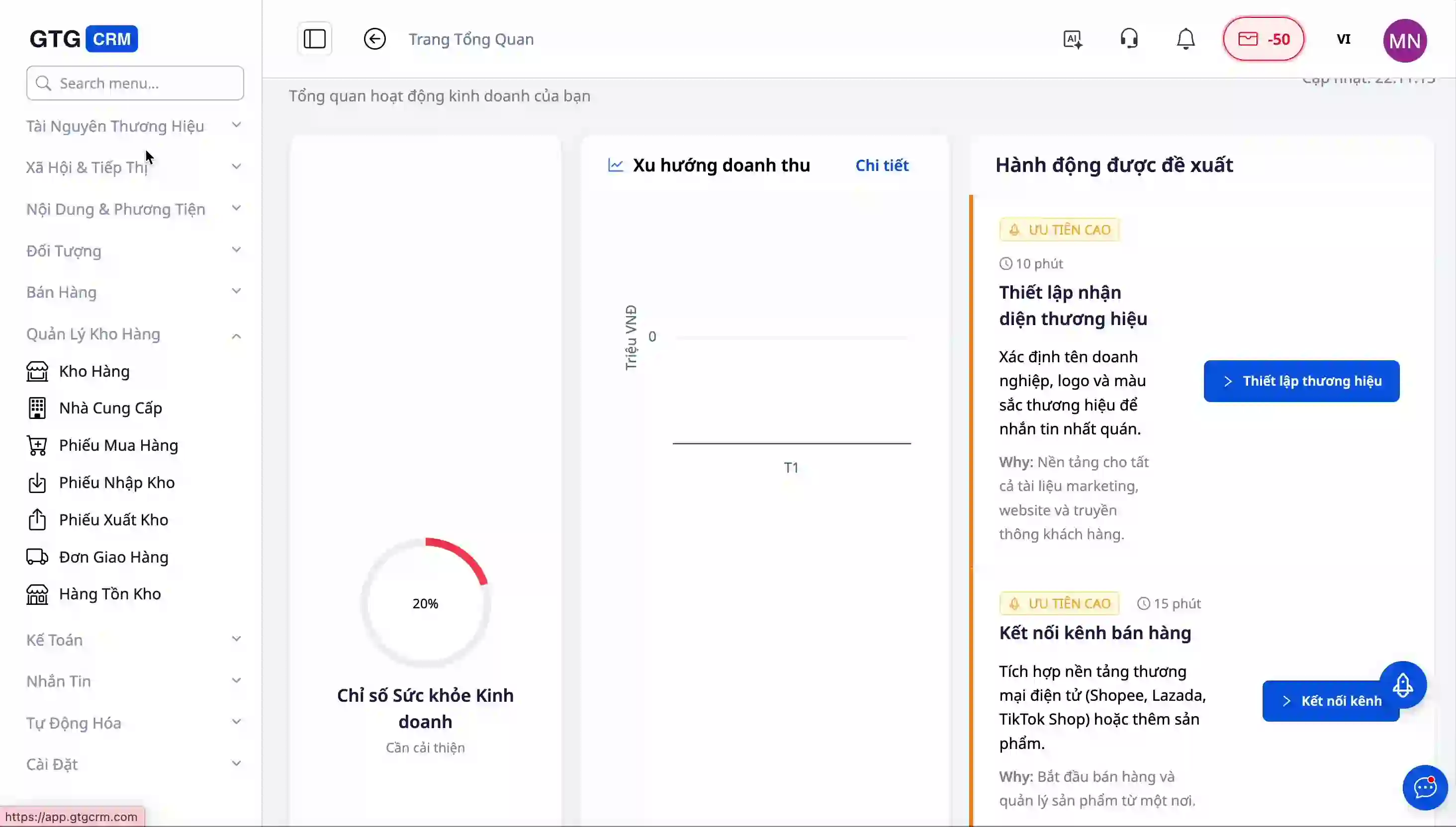
From the GTG CRM homepage, navigate to the left-hand menu. You will find the "Warehouse Management" feature with several sub-items.
Click on "Delivery Orders" to open the shipping management interface. Here, if you have any orders currently in the delivery process, the system will display a complete list of those orders along with their current status.
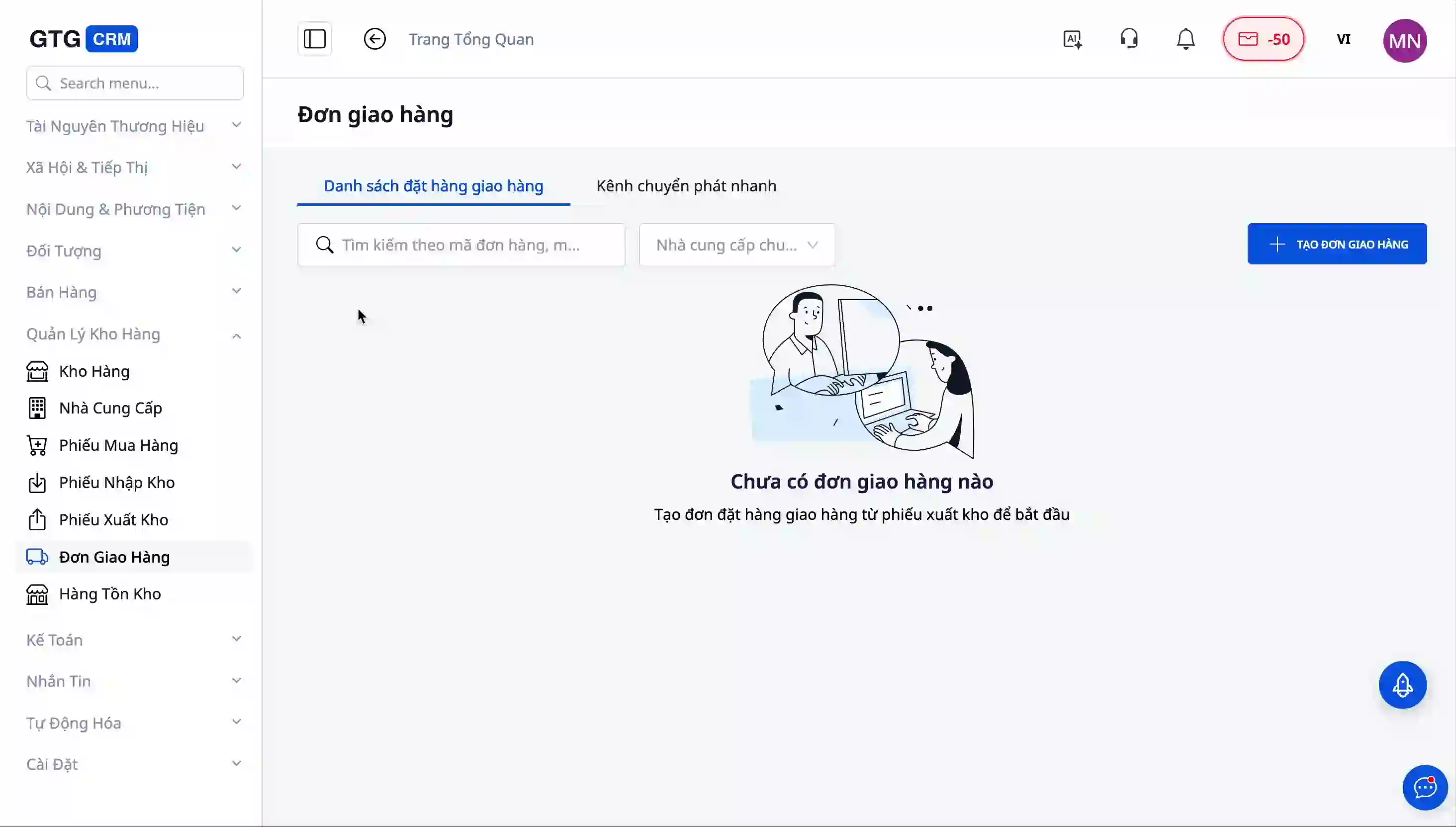
Step 2: Open the Express Delivery Channel Tab
At the beginning of the single delivery interface, you will see navigation tabs. Click the "Shipping Carrier" tab to view the list of shipping partners that GTG CRM supports integration with.
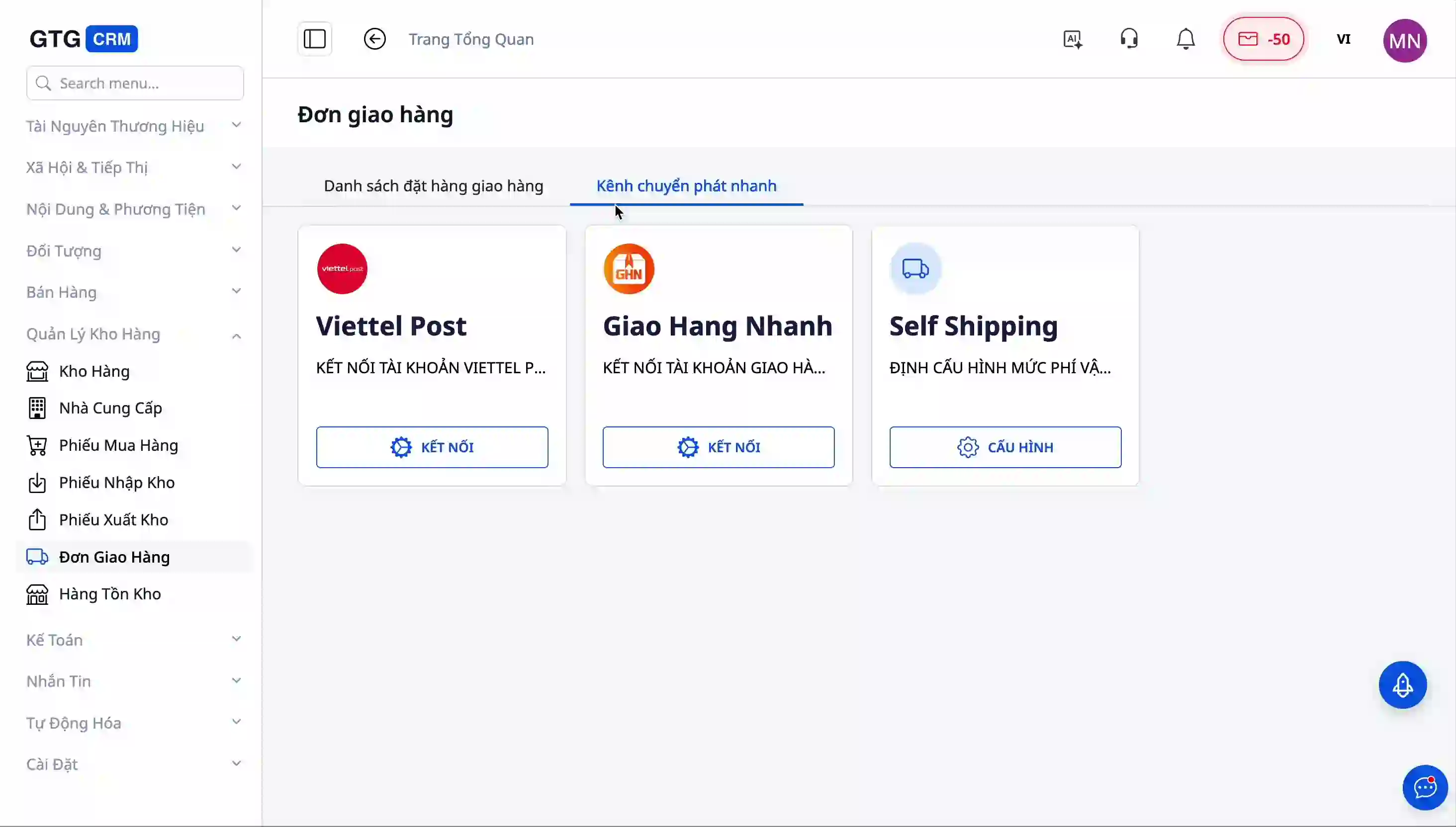
Here, you will find four main options:
Viettel Post - the national postal shipping partner with a nationwide network, particularly strong in remote provinces and rural areas.
Giao Hàng Nhanh - a partner specializing in fast intra-city and inter-provincial deliveries, with high processing speed and competitive prices.
Grab Express - an on-demand intra-city express delivery service, dispatching a driver immediately after you click "Ready to Ship". Unlike Viettel Post and Giao Hàng Nhanh (which require account login), Grab Express is enabled with a single click, no API key needed. See details in the "Enable Grab Express" section below.
Sales Shipping (Self-delivery) - the option to self-ship when you want your staff to deliver orders directly to customers. This feature now offers full support: three checkout methods (COURIER/STORE_DELIVERY/PICKUP), using the default warehouse as the pickup point, negotiated shipping quotes with email pay-links, and self-reconciliation of COD after delivery. See details in the "Setup Self-shipping" section below.
Step 3: Connect with Viettel Post
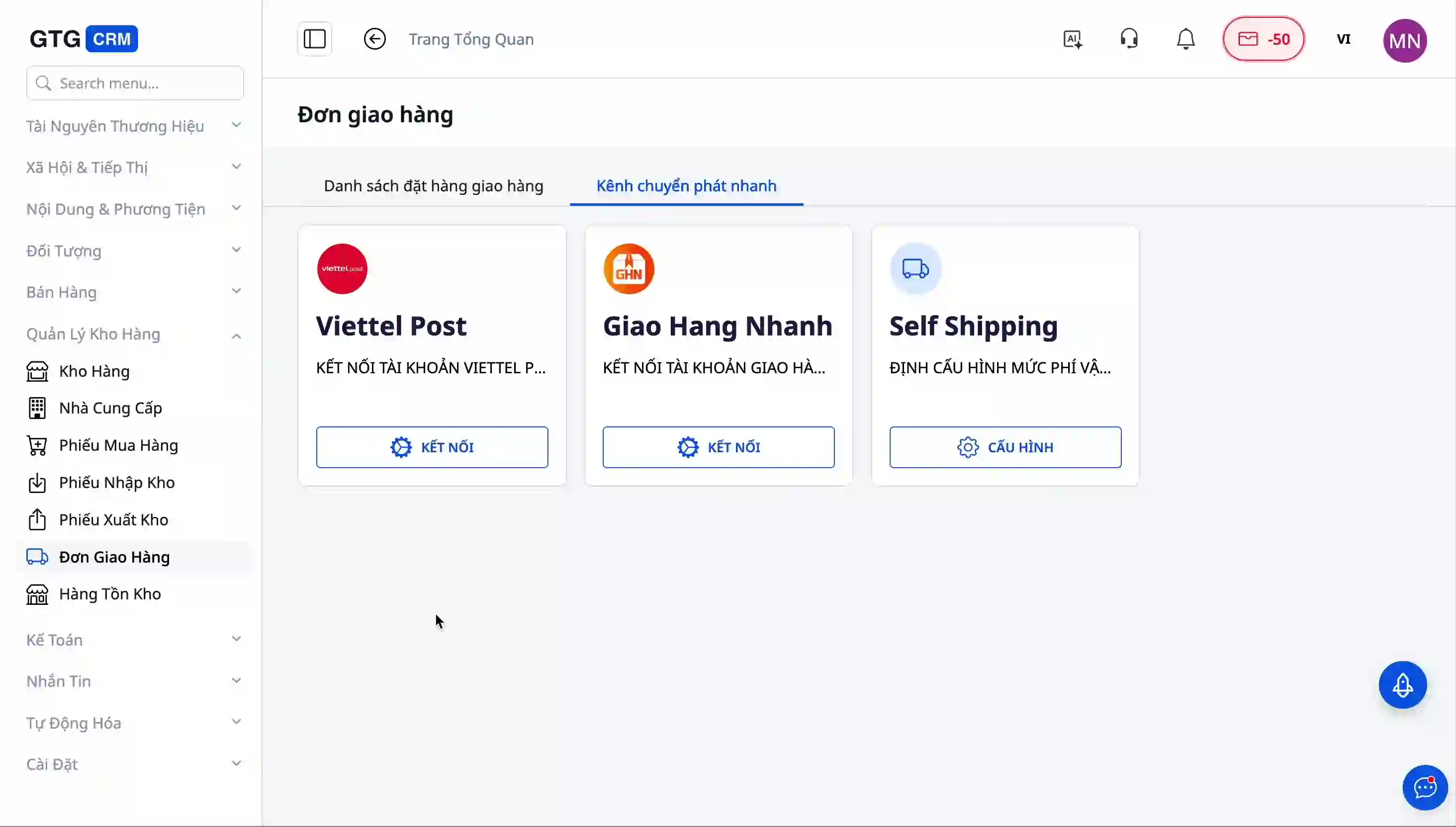
If you are using Viettel Post's delivery service, click the "Connect" button next to the Viettel Post logo.
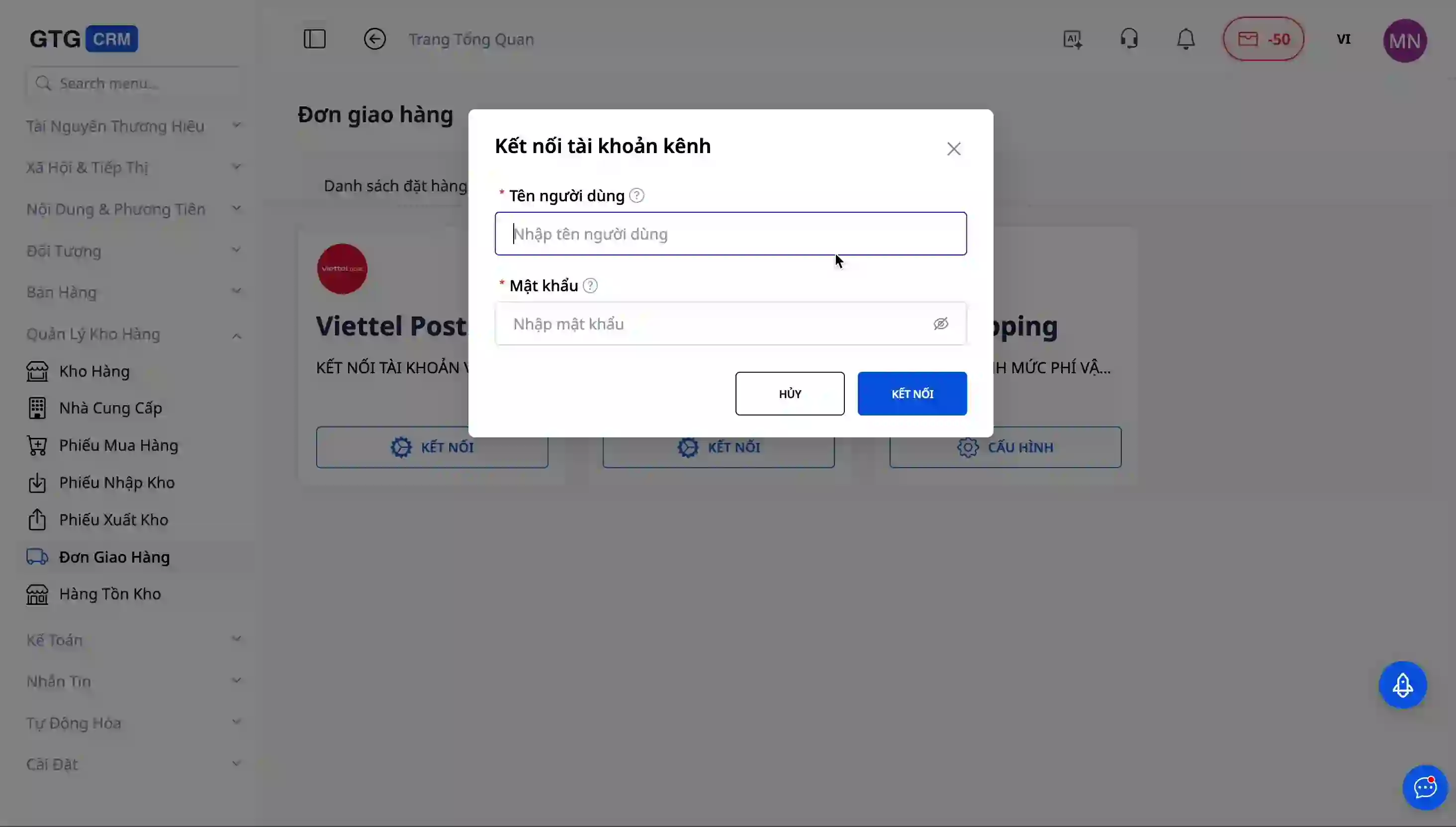
A popup window will appear, asking you to enter your Viettel Post account information. You need to fill in all the following details:
The username or phone number you registered with Viettel Post.
The password for your Viettel Post account.
Any other authentication information if the system requires it, depending on your Viettel Post account's security configuration.
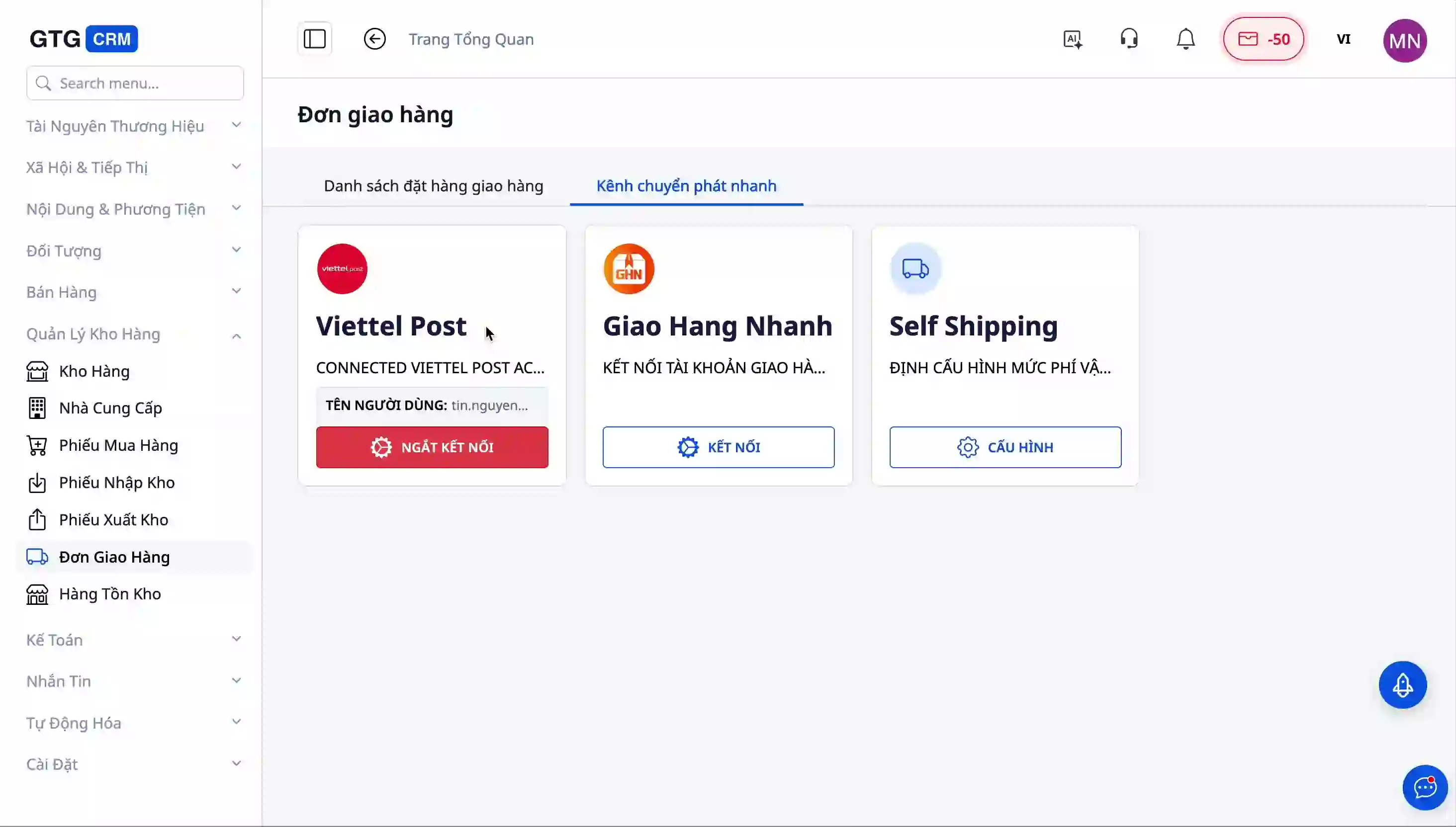
After filling in the information, click the "Confirm" or "Connect" button. The system will proceed to authenticate the information with Viettel Post's server. This process usually takes only a few seconds.
Step 4: Connect with Giao Hàng Nhanh
Next, to connect with Giao Hàng Nhanh, you perform a similar action. Click the "Connect" button next to the Giao Hàng Nhanh logo.
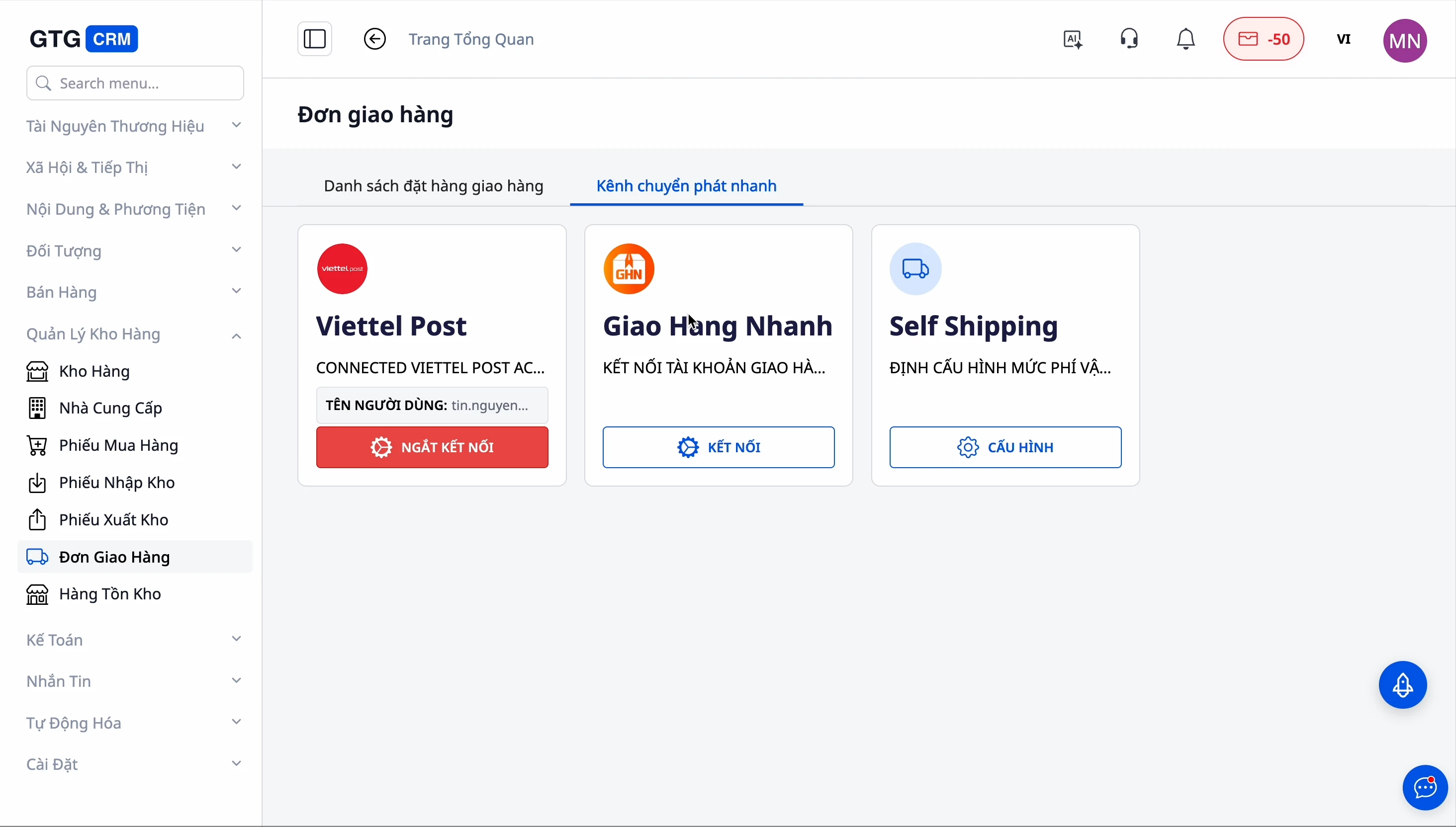
The Giao Hàng Nhanh login information form will appear. Note that each shipping partner may require different authentication details:
For Giao Hàng Nhanh, you may need to enter an API token or an authentication code instead of a regular username and password.
Some partners require you to obtain an API code from their management page before connecting.
Please have these details ready before proceeding with the connection.
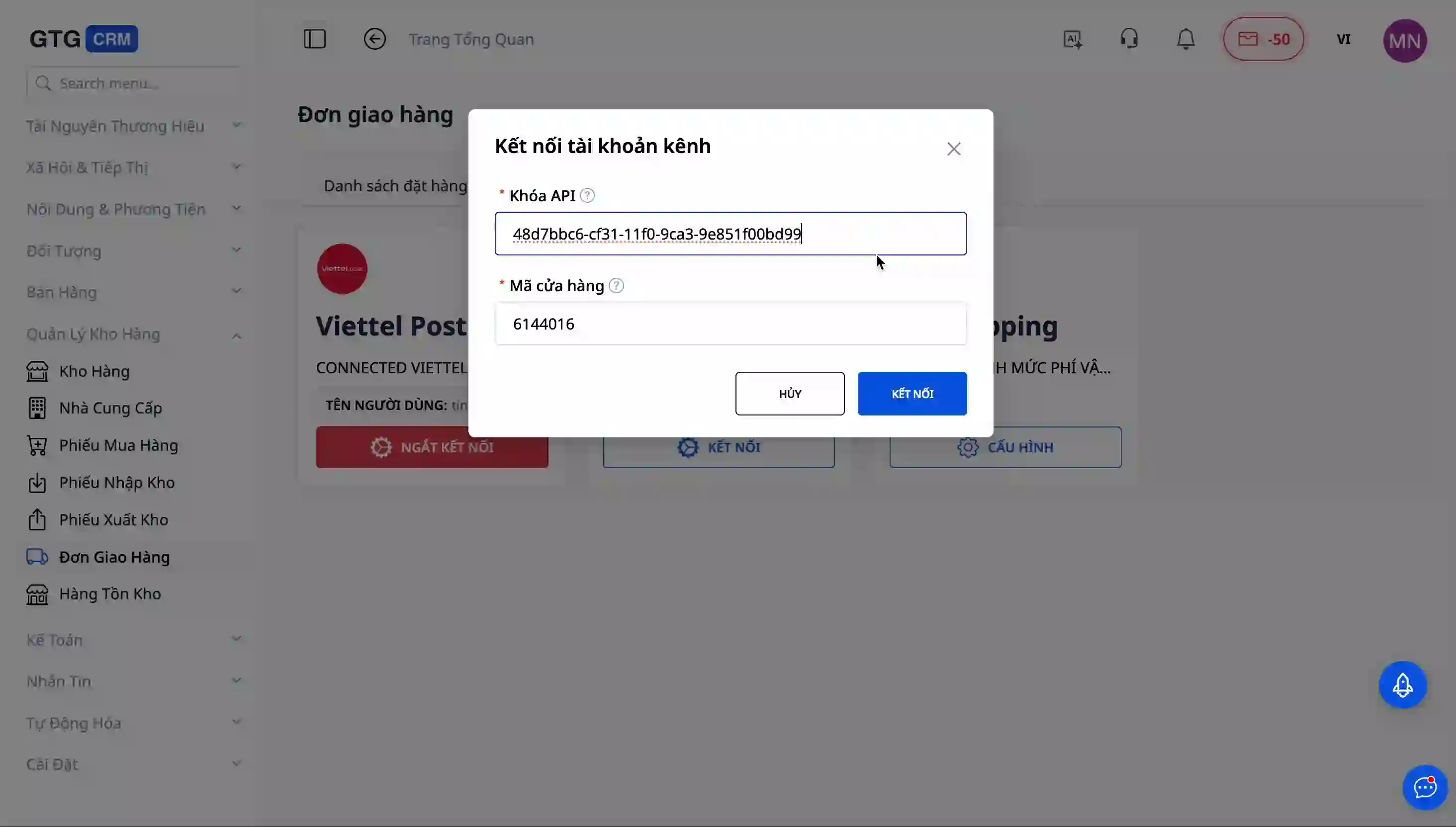
Fill in the required information and click "Confirm". The system will check and establish the connection with Giao Hàng Nhanh.
Step 5: Enable Grab Express (intra-city express delivery)
Grab Express is an on-demand intra-city express delivery service – a driver is dispatched to pick up orders as soon as you are ready, suitable for F&B, fresh flowers, cosmetics, or any intra-city orders needing same-day delivery. Unlike Viettel Post and Giao Hàng Nhanh, you do not need to register for an API key or enter account details – GTG CRM is already connected to Grab, you just need to enable it.
On the Shipping Channels tab, find the Grab Express card and click the "Enable" button. Immediately, Grab Express becomes a delivery option for customers during checkout on your storefront.
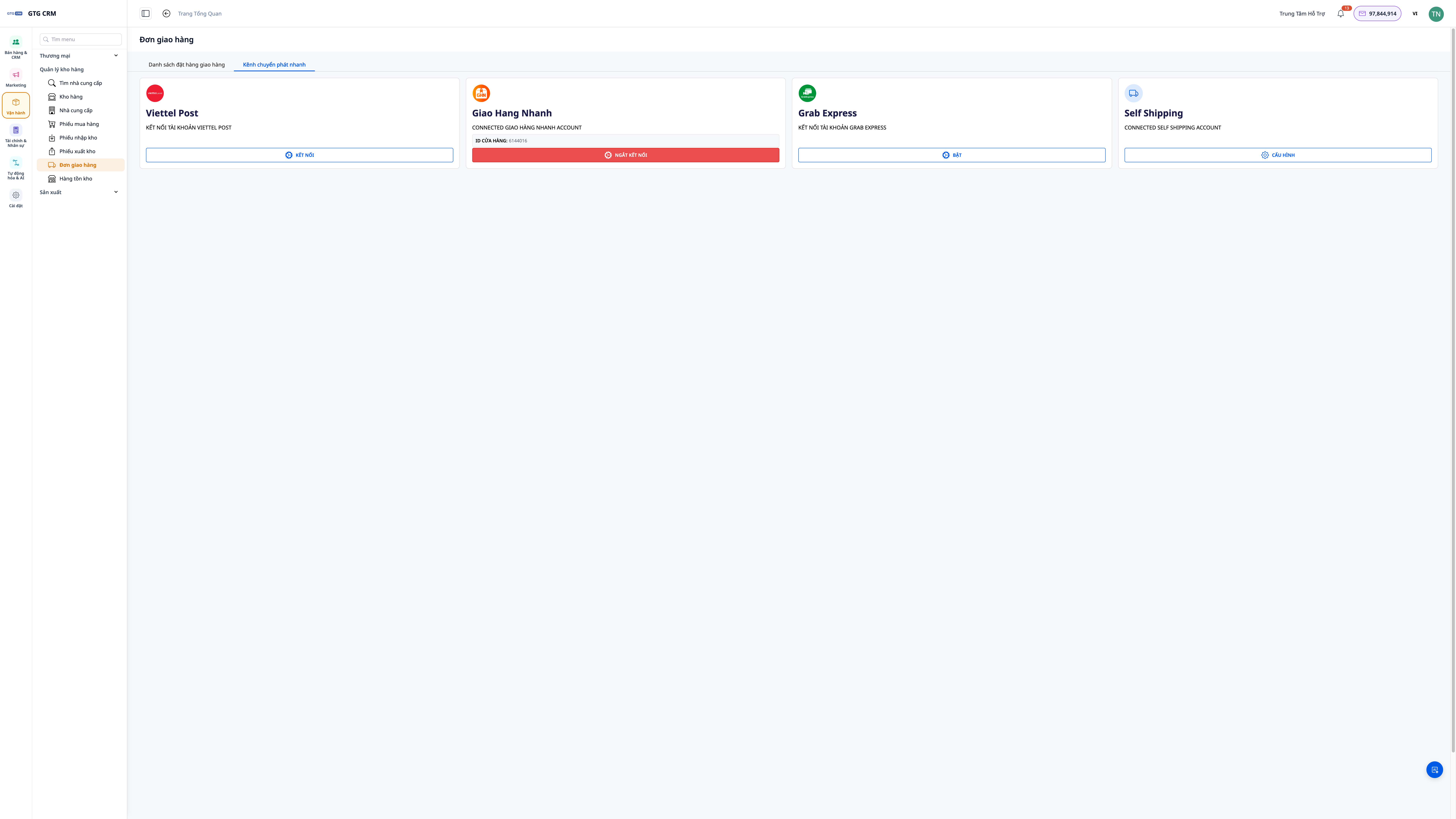
A few points to know about how Grab Express works:
Dispatch by full address and self-check service area. Grab locates pickup and drop-off points using GPS coordinates from the full address (not by province/district/ward codes like postal services). The system automatically checks the distance and only displays Grab Express when the order is within the deliverable radius (for express inner-city delivery); for orders too far away, customers won't see the Grab option and will choose another carrier - this prevents "phantom" quotes for distances a motorcycle cannot cover.
Dispatch a driver immediately when you click "Ready to ship". Since Grab dispatches a driver to pick up the goods instantly, Grab orders do not book a vehicle when the customer places the order. Instead, it waits until you confirm the package is ready and click "Ready to ship". Only then will Grab find and dispatch a driver, avoiding drivers arriving when the package isn't ready. Before clicking 'Ready to ship', you must confirm the order's delivery order. If the delivery order is still pending, GTG CRM will not call a driver and will notify you which order needs confirmation first; once confirmed, click 'Ready to ship' again. Grab Express supports both cash on delivery (COD) and prepayment, just like other carriers.
Unified status, real-time updates. Grab orders go through the same unified statuses as GHN/Viettel Post: finding driver → picked up → delivering → successfully delivered, updated automatically through Grab's tracking connection.
Step 6: Complete and check connection
After successfully connecting both channels, you will see the "Connected" status displayed next to each shipping partner. A green icon or a checkmark will confirm that the connection is working properly.
From this point onwards, every time you create a new shipping order from GTG CRM, the system will automatically fetch shipping fees from Viettel Post, Giao Hang Nhanh, and Grab Express (when the order is within Grab's service area) for you to compare and choose. You will no longer need to log in to these accounts again.
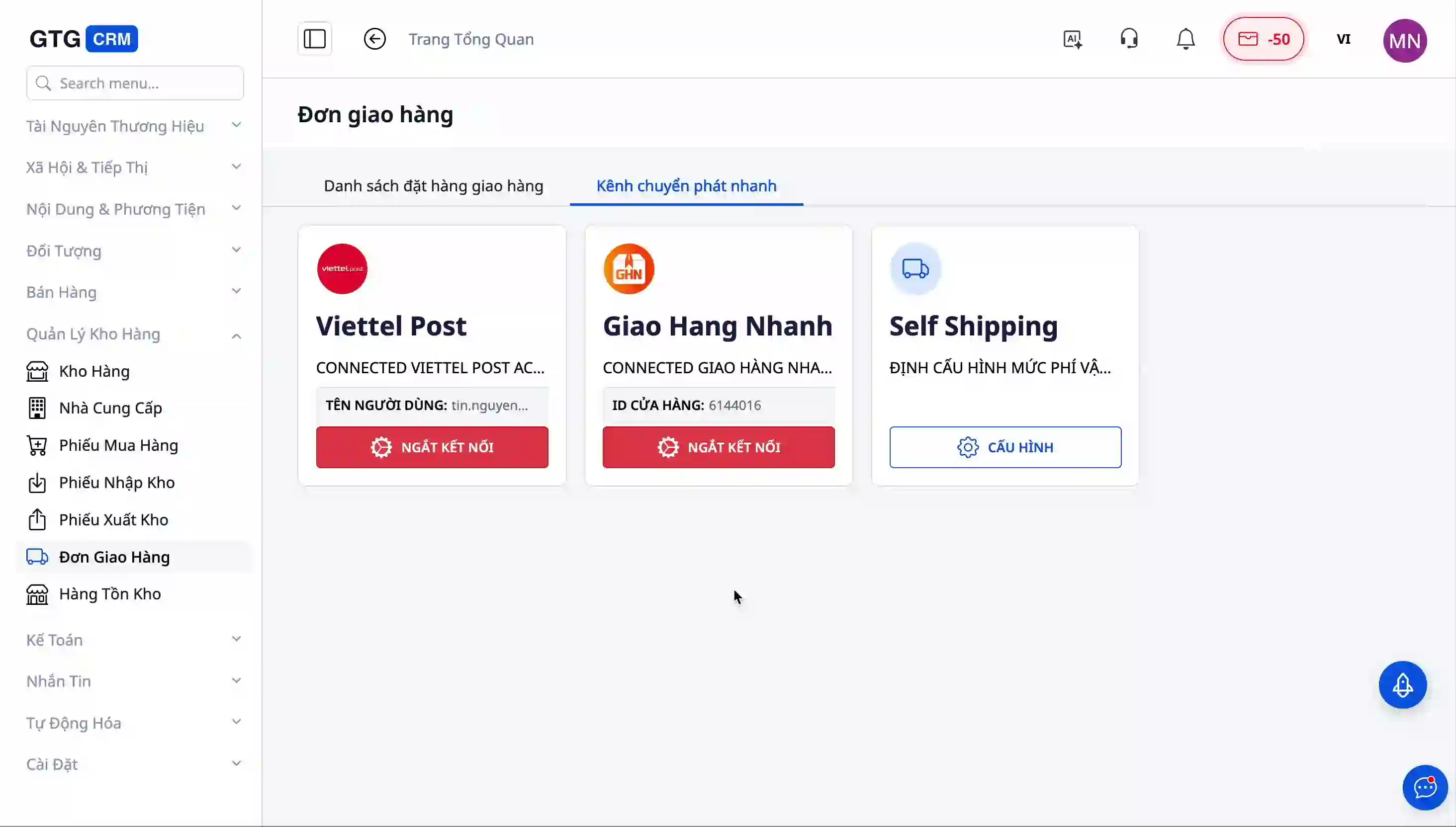
Please remember to note down or save the account information you used for the connection. This will be helpful if you need to log in directly to the shipping partner's website to check details or perform other advanced operations.
Self-shipping Setup
If you have your own delivery fleet or serve within a local radius — F&B, flower shops, in-house stores — Self-shipping allows you to proactively sell and deliver using your own resources, while all orders, shipping fees, and delivery statuses are managed centrally on GTG CRM.
For the self-delivery method to appear on the storefront for customers to choose, you need to ensure both conditions are met: the Self Shipping configuration must be enabled with at least one shipping rate, and the default warehouse must have an address with successfully geolocated coordinates. If either is missing, the self-delivery option will not appear at the customer's checkout step.
Step 1: Enable Self Shipping and configure shipping rates
From the left-hand menu, go to Warehouse Management → Shipping Orders, then select the Shipping Channels tab. Here you will find three options: Viettel Post, Giao Hang Nhanh, and the Self Shipping card on the right with a CONFIGURE button.
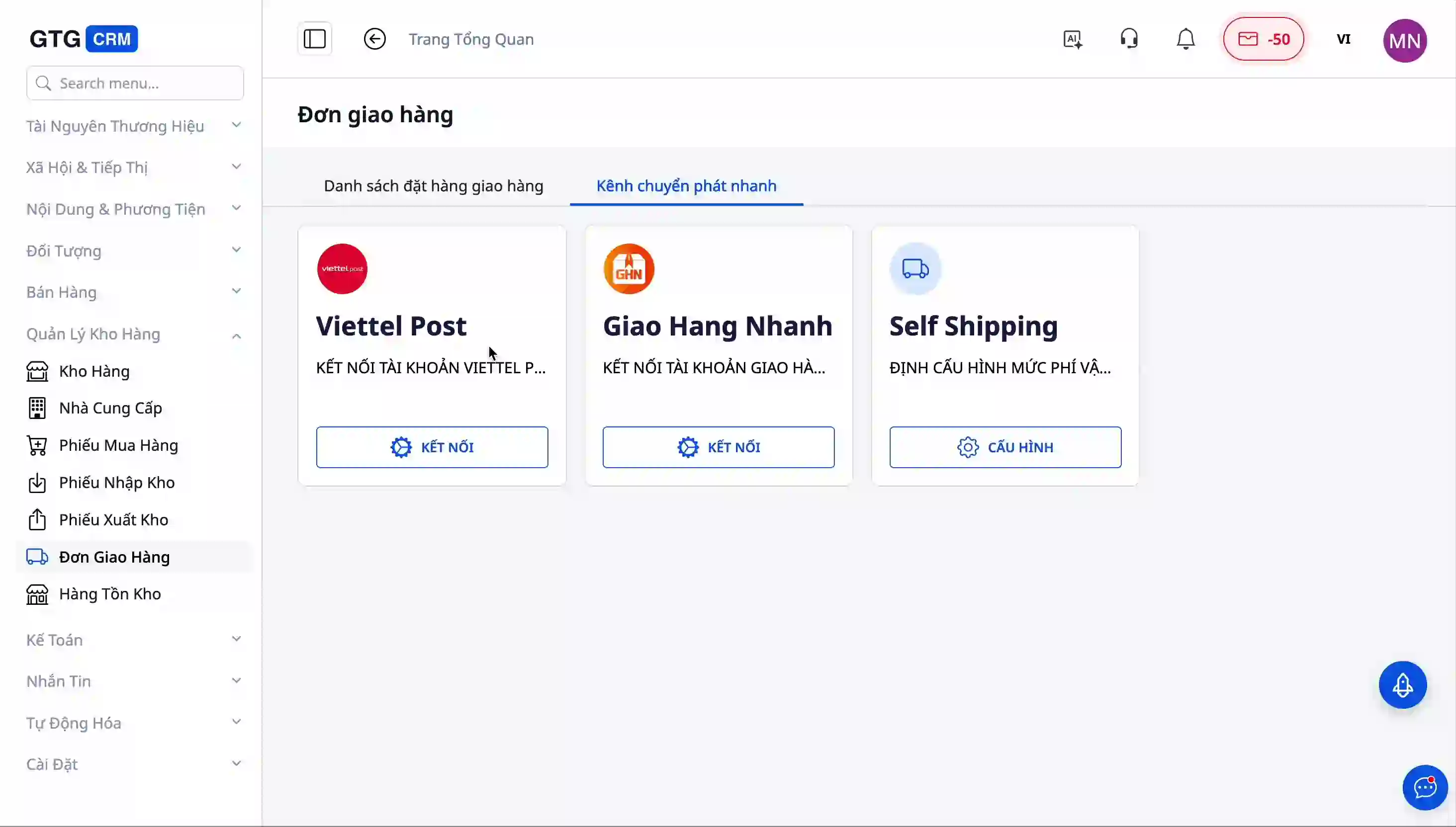
Click CONFIGURE to open the self-delivery settings panel. Turn the Self Shipping toggle ON, then add shipping rate lines using the add new button.
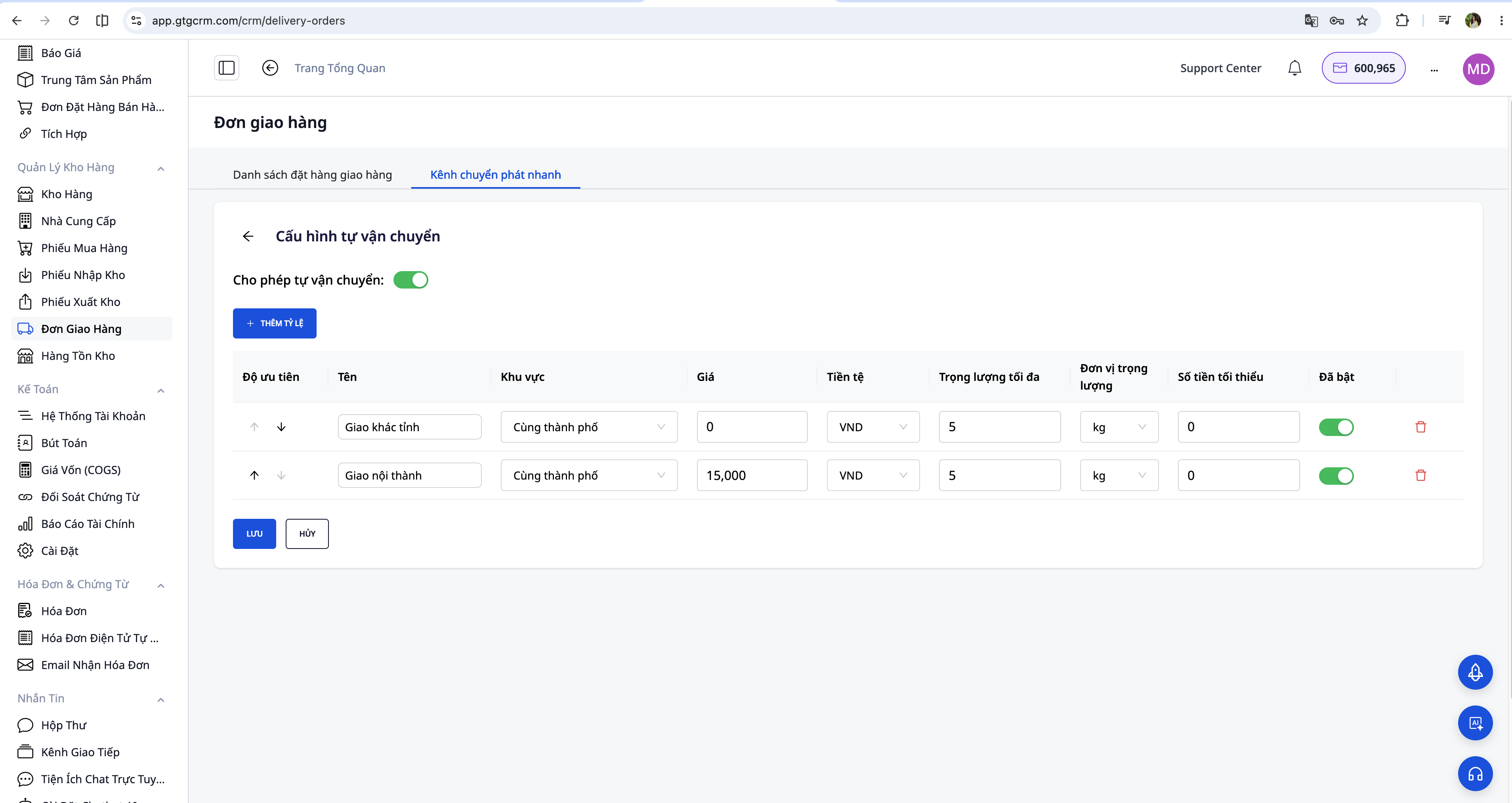
Each rate line is a shipping fee calculation rule based on delivery area and cart conditions. When a customer places an order, the system calculates the distance from the warehouse to the customer's address, matches it against each line in order of priority, and applies the first line that meets all conditions. The table below describes the meaning of each field:
Field Description
Name The display name for customers at the checkout step, e.g., "Local Delivery" or "2-Hour Express Delivery"
Area Same City (≤ 15km from warehouse), Intra City (≤ 50km), Negotiable (> 50km or undefined), Free Ship
Price Shipping fee; automatically set to 0 if FREESHIP or NEGOTIABLE is selected
Currency VND or USD
Max Weight Cart exceeding this threshold will skip this rate line
Min Value Cart below this value will skip this rate line — used to create price tiers or free shipping
Toggle Temporarily disable a rate without deleting it
The priority order between rate lines is adjusted using the up and down arrows directly within the table. A common use case is creating price tiers: place the "Same City 5,000đ (minimum value 500,000đ)" line above the "Same City 15,000đ (minimum value 0đ)" line. Local customers who buy more pay a lower fee, while those who buy less pay the standard rate. Similarly, a FREESHIP line with a minimum value will override all other shipping rates — regardless of area — when the cart reaches that threshold.
Step 2: Set up a default warehouse as the shipping origin
The system needs to know your warehouse location to calculate the distance to each customer's address and determine the delivery area. Therefore, before Self Shipping can be displayed on the storefront, you must designate a warehouse as the default shipping origin.
Go to Warehouse Management → Warehouses, click on the warehouse line you want to use to open the edit form.
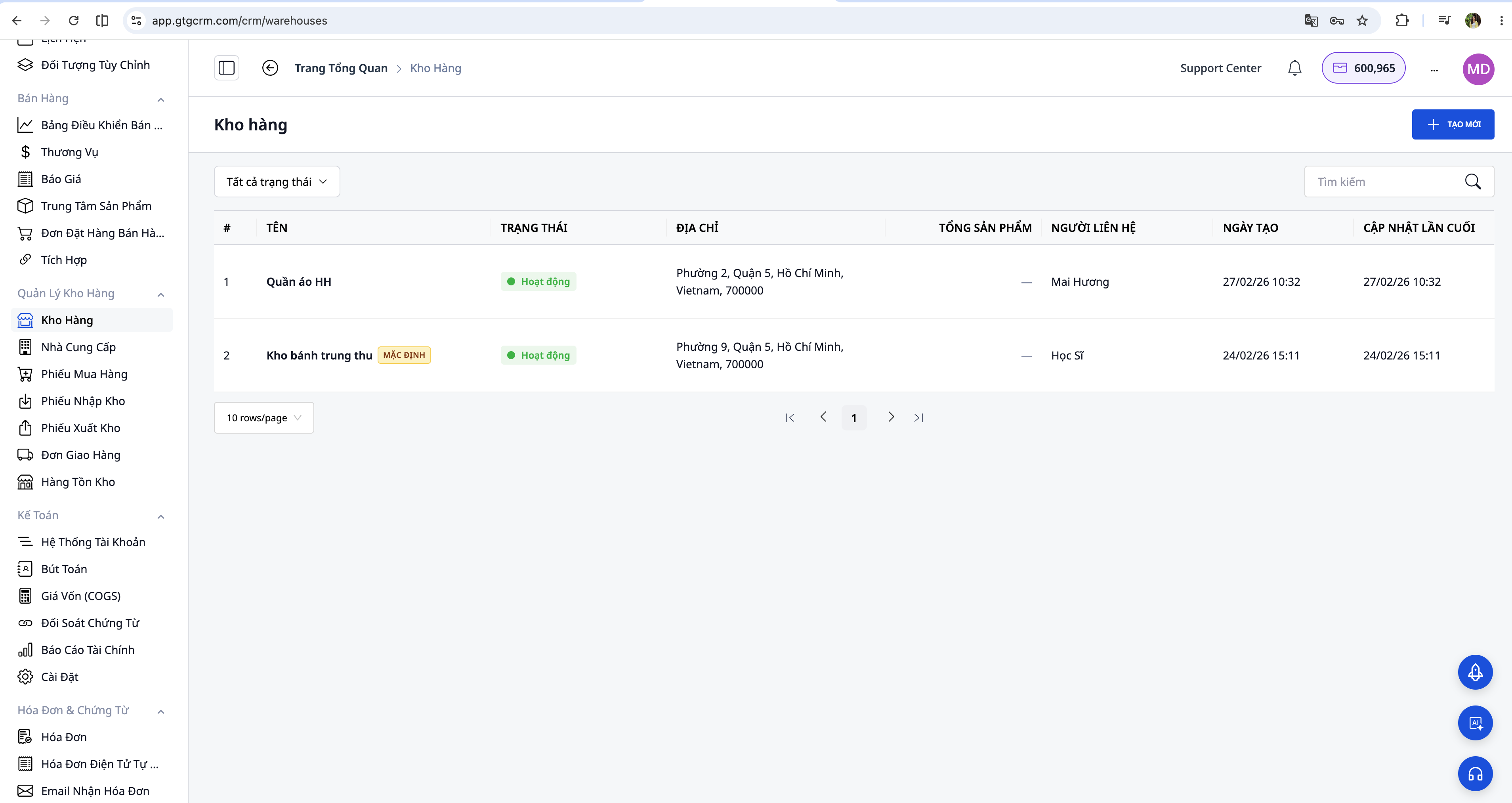
In the edit form, find the toggle "Set as default warehouse (Shop Delivery)" and turn it on. Next, enter the warehouse address completely and accurately, then click Save. Immediately after saving, the system will send the address to OpenStreetMap to automatically geocode the coordinates. After a few seconds, the form will display the line "Geocoded at: [time]" along with the latitude/longitude coordinates – this confirms successful geocoding, and you can officially save.
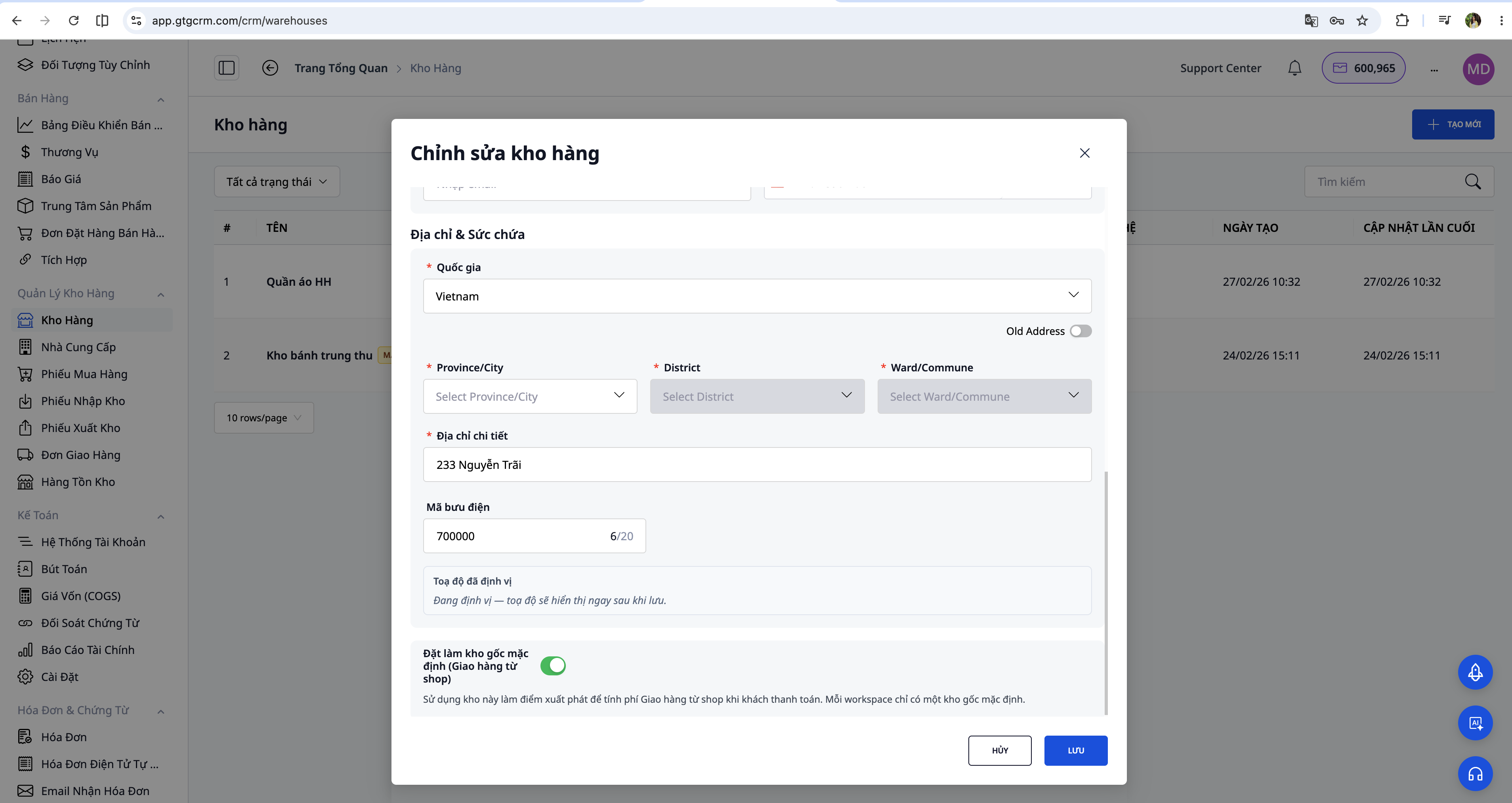
Each workspace can only have one default warehouse at a time. When you set another warehouse as default, the old one is automatically unselected without manual deactivation. If the entered address cannot be geocoded, Self Shipping will not appear for customers until you correct the address.
Step 3: Handle orders for areas requiring shipping quote
When a customer places an order from an address outside a 50km radius from the warehouse, or if the system cannot determine the delivery area, the customer will see a "Contact shop" message at the shipping method selection step. The order will be created with the status Waiting for shipping quote and the payment will not be collected yet – the system is waiting for the admin to confirm the appropriate shipping rate.
To handle this, go to Warehouse Management → Deliveries, find the order with the yellow label "Waiting for shipping quote" and open it.
Press the Confirm Quote button. A small form will appear for you to fill in the negotiated shipping fee, notes on the expected delivery time (e.g., "Deliver within 3–5 days"), and a tracking number if needed (e.g., an Ahamove shared link). After clicking Confirm, the system saves the shipping fee to the order and sends an email to the customer within about 10 seconds. The email includes a payment link (pay-link) for the customer to return to the storefront and complete the shipping fee payment. Once the customer pays, the order status changes to Confirmed and it is ready for delivery.
The email is sent in the language of the order, Vietnamese or English, depending on the language setting when the customer placed the order. If the customer does not provide an email address, the email sending step is skipped without affecting the workflow. In case you accidentally click Confirm Quote twice on the same confirmed order, the system recognizes and ignores the second click — no duplicate emails are sent, and no extra data is recorded.
Step 4: Mark as Delivered and Auto-Reconcile COD
When the order has been actually delivered, open the order details and click Mark as Delivered. The order status updates to "Successfully Delivered".
For COD (Cash on Delivery) orders, as soon as you click this button, the system automatically records the payment status as collected and timestamps the cash collection. The COD ledger is reconciled instantly, eliminating the need for manual recording or further comparison. If adjustments are needed later, you can still edit the payment status directly from the order details page. Clicking Mark as Delivered a second time on a previously recorded order is invalid — the system does not overwrite.
💡 Tip: Declare the weight & dimensions for products (in Products/Inventory) for accurate shipping fee calculation; if not declared, the system uses a safe default.
Buyers Track Orders Live
A major plus for customer experience: after the driver picks up the package, buyers can track their orders live directly on the order page of the storefront (/account/orders/... or the customer lookup page for guests), applicable to all carriers - Grab Express, Giao Hàng Nhanh, Viettel Post, and even self-delivery orders.
On the order page, customers see:
Real-time delivery status localized (searching for driver, picked up, en route, delivered, etc.) instead of just a tracking number.
Estimated Time of Arrival (ETA) and an event timeline for the order, updated according to actual progress.
A "Track on Grab" button that opens Grab's real-time driver map page; for GHN/Viettel Post, it's the carrier's public tracking link. The button only appears when the carrier provides a tracking link (usually after the driver has picked up the package).
Additionally, as soon as the order departs (driver has picked up the package), GTG CRM automatically sends an "Order is on its way" email to the customer, with the tracking link as the main call-to-action button. This email is sent only once per order, in the order's language (Vietnamese or English). If the customer does not provide an email address, the email sending step is skipped without affecting the order.
Thanks to this, customers are proactively informed about "where their order is and when it will arrive," significantly reducing the number of calls/messages asking about delivery status to the shop.
Benefits of Using GTG CRM for Delivery Management
Significant time savings by eliminating the need to switch between multiple websites of different shipping providers. All operations are centralized in a single place.
Optimize shipping costs by automatically comparing prices among partners. You can always choose the most cost-effective delivery method for each specific order.
Unified management of the entire process from orders, inventory to delivery within the same system, helping to minimize errors and increase operational efficiency.
Track delivery status in real-time directly on GTG CRM without needing to access individual shipping partner websites.
Easily scale your omnichannel business thanks to the system's built-in support for major shipping partners, suitable for both retailers and sellers across multiple e-commerce platforms.
Important Notes
Before connecting, ensure you have an active account with Viettel Post or Giao Hàng Nhanh. If not, you need to register directly with them first. For Grab Express, no account or API key is required – simply click "Enable" to start using it.
The login information you provide to GTG CRM is encrypted and secured to high standards. However, please ensure you do not share this information with others.
Some shipping partners may require two-factor authentication or special API permissions. Follow their instructions to obtain the correct credentials.
If you change your password on the shipping partner's website, remember to update your connection information on GTG CRM to avoid service interruptions.