What you can do after this guide
You need to tell the software how your business files taxes and issues invoices, or you were directed to the Automation tab on the Invoices page, or the Business ownership structure card, to answer a tax question and can't find them there anymore? The answers about how to file taxes, how to issue invoices, and corporate income tax now live in a single card, Tax setup, at the top of Accounting → Settings. The old tab is now called Automatic invoicing.
This guide is for business owners, or accountants assigned the task by the owner. It walks you through from opening the card to re-checking your answers in another place: open the card → answer and save → answer two questions about corporate income tax → re-check in the Automatic invoicing tab → view the card with read-only access. Each answer records who answered and when, so the business owner and accountant can see everything in one place without guessing who answered which question.
Good to know first
- These are your own answers about your business or household business. GTG CRM uses them to issue invoices and reports, and does not make decisions for you.
- Answering here does not file, register, or change anything with the tax authority.
- This is not tax advice: please confirm your answers with your accountant.
- GTG CRM does not pre-select any answer for you. Any answer saved earlier appears exactly as it was saved.
Before you start
| # | Requirement | Why it's needed |
|---|---|---|
| 1 | You are the workspace owner, or your account has the Manage accounting settings permission. | Only people with this permission can answer these questions. Others can open the card to view it, but cannot edit it (Step 5). |
| 2 | You are signed in with a personal user account. | An automation, an integration, or an AI assistant cannot answer these questions on your behalf. |
| 3 | You know the correct answers for your business; if you're not sure, ask your accountant first. | GTG CRM does not choose for you and does not say which tax answer is correct. For the refund account only, the software lists a few accounts as a starting point (Step 2). |
Step 1: Open the Tax setup card
- In the left menu, go to Finance & HR → Accounting → Settings.
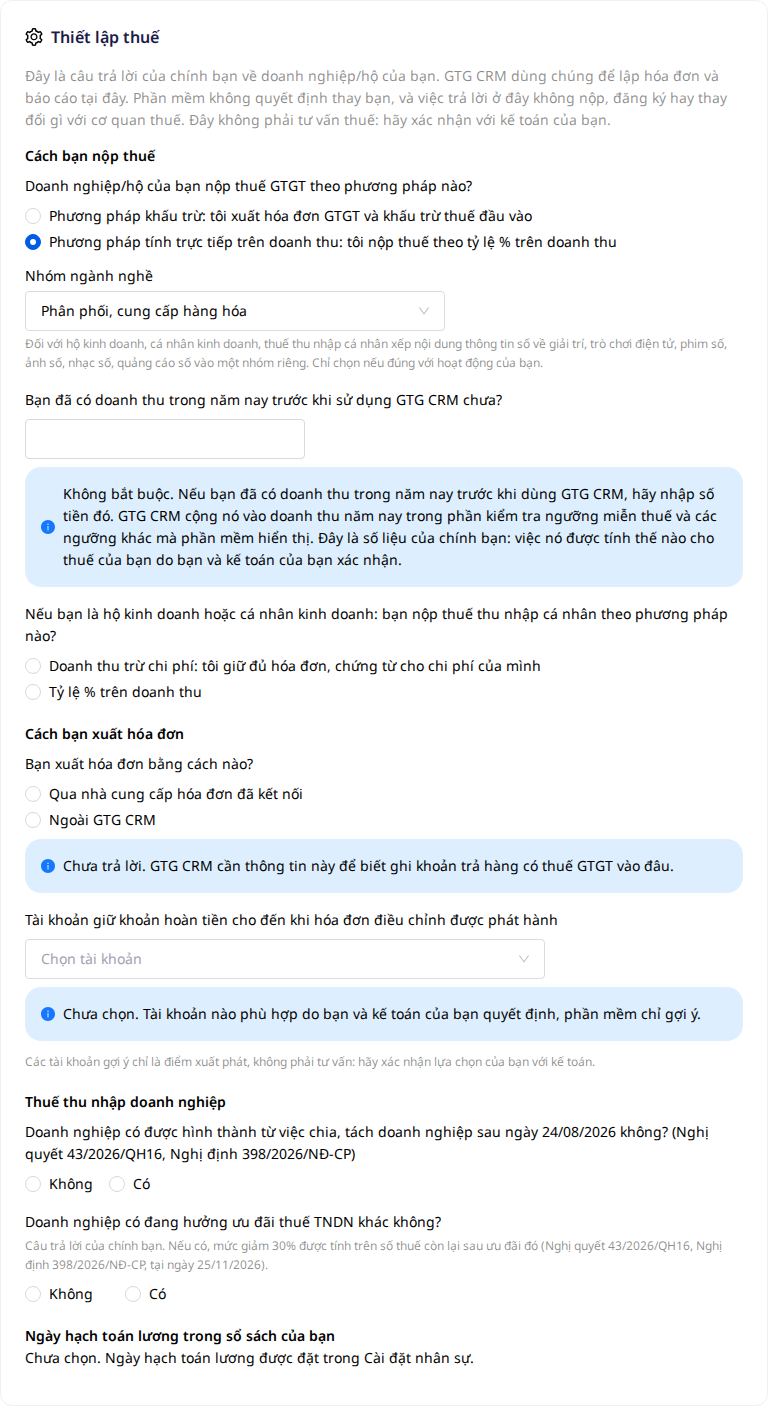
- The first card on the page is Tax setup. Read the introduction line at the top of the card.
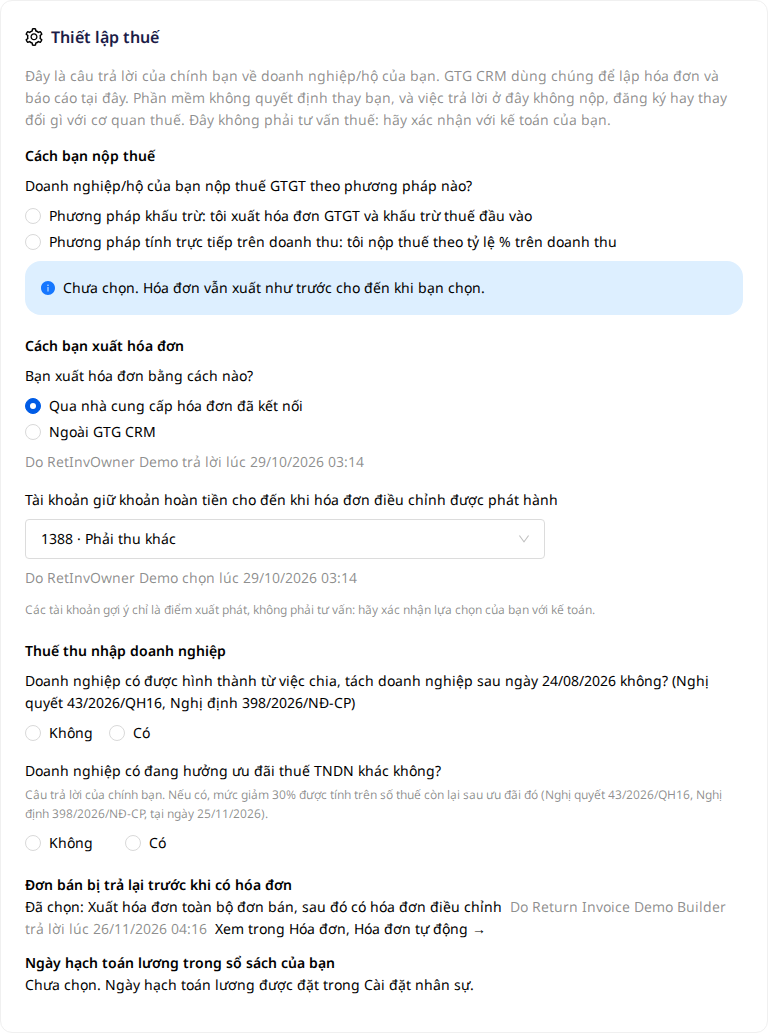
✅ Expected result: the card has three sections: How you file taxes, How you issue invoices, and Corporate income tax. Any question you haven't answered yet has no option selected; the VAT method, invoice issuing method, and refund account show Not selected or Not answered yet. In the screenshot, the VAT filing method has been answered as direct calculation on revenue (so an extra Business line group field appears), while the invoice issuing method, the account holding the refund, and the two corporate income tax questions are not yet answered. The Save tax answers button only appears after you select an answer.
Step 2: Answer how you file taxes and how you issue invoices, then save
- In How you file tax, answer the question Which method does your business/household use to pay VAT?: Deduction method (you issue VAT invoices and deduct input tax) or Direct method on revenue (you pay tax at a percentage of revenue).
- If you choose the direct method on revenue, also select your Industry group from the list. For household businesses and individual businesses, personal income tax places digital information content such as entertainment, video games, digital films, digital images, digital music, and digital advertising in a separate group. The small text below the Industry group field says to select only if it matches your activities. This branch also includes the revenue field before using GTG CRM (see Note), the personal income tax method question for household and individual businesses (Revenue minus expenses or Percentage of revenue), and, for some industry groups, the Special case (if any) field. These three items are optional: if you're not sure, leave them blank and ask your accountant. However, GTG CRM needs the Industry group before the next invoice is created, and a reminder card will prompt you if it's still missing.
- In How you issue invoices, select Through a connected invoice provider or Outside GTG CRM.
- In Account holding refunds until the adjustment invoice is issued, select an account from the list. Which account is right is up to you and your accountant to decide. The software only suggests options, and the suggested accounts are just starting points.
- Click Save tax answers.
✅ Expected result: the screen shows Your answers have been saved in GTG CRM. Nothing has been sent to the tax authority. If this save only covers the invoicing method, the screen shows a brief Saved message. Below How you issue invoices, there is a line Answered by (name) at (date and time), and below the refund account field, there is a line Selected by (name) at (date and time). For the VAT method and the two corporate income tax questions, who answered and when is shown in the History of changes to these settings card at the bottom of the page. If the VAT method has not been selected yet, the card shows Not selected. Invoices will continue to be issued as before until you select one. At the bottom of the card is a read-only line, Payroll posting date in your books (set in HR settings). When the question about sales returns before invoicing is presented to your workspace (after you have answered how to issue invoices and selected the refund holding account), or once it has been answered, the card displays an additional read-only line, Sales returns before invoicing. That choice is located in the Automatic invoices tab (see Step 4).
Step 3: Answer two questions about corporate income tax
- Scroll to the Corporate income tax section.
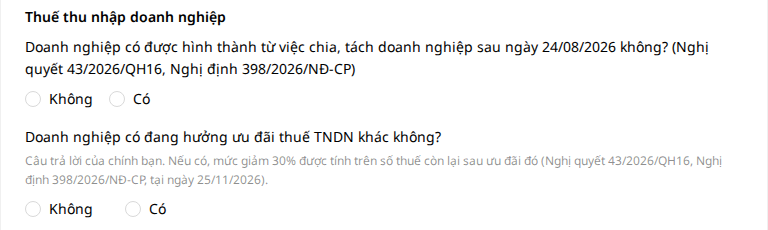
- Read each question. The first sentence names the regulations directly in the question (Resolution 43/2026/QH16, Decree 398/2026/NĐ-CP). The second sentence states those regulations in the small text below it. Choose No or Yes based on your company's actual situation: whether the company was formed through a division or spin-off after the date stated in the question, and whether the company is currently enjoying any other CIT incentive. These are your answers: GTG CRM does not answer for you. If you are unsure, check with your accountant before saving. If you choose Yes on the first question, two fields for the total revenue of the companies formed through the division or spin-off appear. An empty field means you have not entered anything, not zero.
- Click Save tax answers.
✅ Expected result: each question has two options, No and Yes, with neither pre-selected. The second question has the small text below it: Your own answer. If yes, the 30% reduction is calculated on the tax remaining after that incentive (Resolution 43/2026/QH16, Decree 398/2026/NĐ-CP, as of ...). After saving, the screen shows the same message as in Step 2: the answers are recorded only in GTG CRM, and nothing is sent to the tax authority. The History of changes to these settings card at the bottom of the page logs one line per answer: who answered, which question, and when, without any amounts.
Step 4: Review your answers on the Automatic Invoices tab
- Go to Finance & HR → Invoices & documents → Invoices.
- Open the Automatic Invoices tab.
✅ Expected result: the first line of the tab shows your saved answers, for example Tax settings answers: VAT method not yet answered · invoices issued through the provider., with a View in Tax settings → link if your account can open the Accounting settings page. If you cannot open it, you will see the same line without the link. The tab keeps the automatically issued entries, such as the Automatically issue adjustment invoices after goods returns toggle. Questions about how to pay tax, how to issue invoices, and corporate income tax no longer appear on this tab. The question about sales returned before an invoice was issued still appears here when it is raised for your workspace.

Step 5: View the card when you have read-only access
- Sign in with an account that does not have the Manage accounting settings permission, for example an accountant account that can only view ledgers.
- Go to Accounting → Settings and read the Tax settings card.
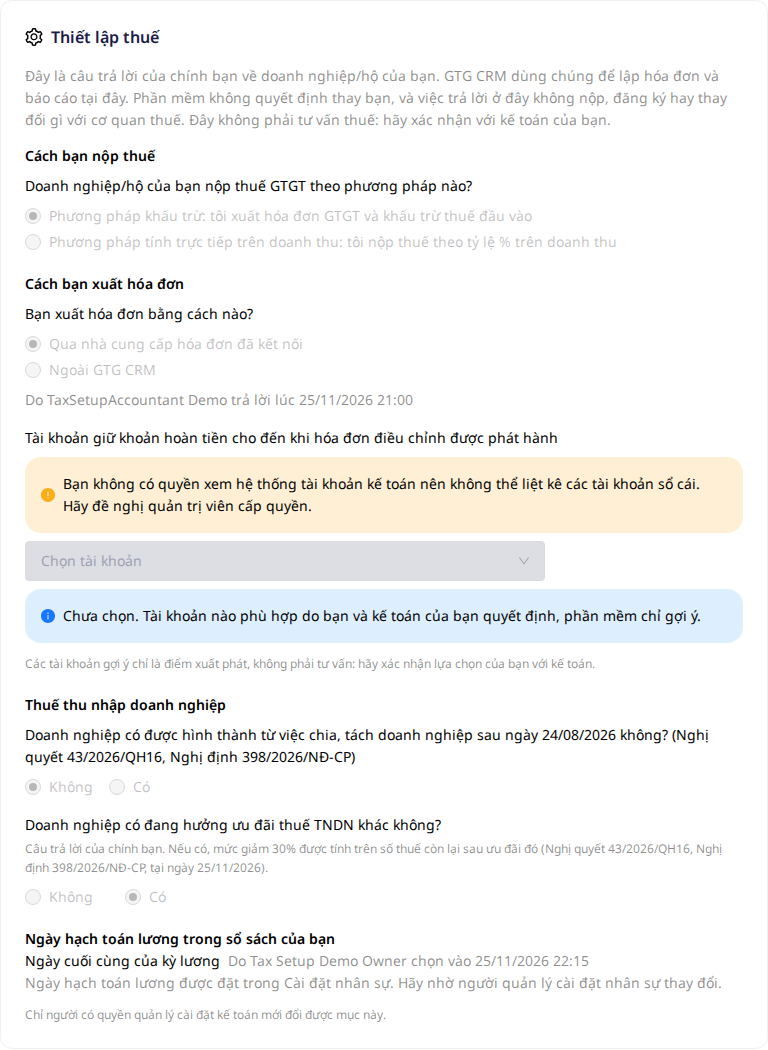
✅ Expected result: the card shows the saved answers, but the options are greyed out and there is no Save tax answers button. If the account cannot view the chart of accounts, the refund account field shows a warning: You do not have permission to view the chart of accounts, so ledger accounts cannot be listed. Ask an administrator to grant access. The payroll posting date line shows who selected it and when, with a request to ask the person who manages HR settings to change it.
Quick reference for expected results
| Action | Result you'll see |
|---|---|
| Open Accounting → Settings | The Tax setup tab at the top of the page; questions you haven't answered have no option selected |
| Choose an answer | The Save tax answers button appears |
| Click Save tax answers | Your answers have been saved in GTG CRM. Nothing has been sent to the tax authority. (for the invoicing method section, it shows Saved), and under How you issue invoices a line reads Answered by (name) at (date and time) |
| Open the Automatic invoices tab on the Invoices page | The first line repeats your answers, with a link to Tax setup if you have access to that page |
| Open the tab without the Manage accounting settings permission | You can read the answers, the options are greyed out, and there is no save button |
| An automation, integration, or AI assistant tries to answer | It is rejected, and nothing changes |
| Open the tab in a workspace outside Vietnam | No items need to be set up here for your country. No save button |
Notes
- GTG CRM does not select any answers on your behalf. Until you answer the VAT method question, invoices will continue to be issued as before.
- Only a logged-in user can answer. An automation, integration, or AI assistant is rejected and nothing changes, even if it has the necessary permissions.
- When you choose the Direct method on revenue, the tab shows an extra field asking for this year's revenue before you use GTG CRM. This field is optional. An empty field means you haven't entered anything, not that you entered 0. This is your own figure: how it's applied to your tax is confirmed by you and your accountant. The history only records that you entered or changed the amount, not the figure itself.
- The page's general Save settings button does not affect your tax answers. The Tax setup tab has its own save button.
- Read-only fields cannot be changed in this tab. The payroll posting date is set under Human Resources → HR settings, in the tab Payroll posting date in your books; the option for sales returns before an invoice is issued is found in the Automatic invoices tab.
- Questions are currently available only for workspaces in Vietnam. If you open the tab in a workspace from another country, you will see a message saying there are no items to set up.
Next step: see which tax forms appear based on your answers, and how to prepare each one, in the Accounting and E-Invoicing Guide.