Ledger recorded since the beginning of the year according to TT200, is it necessary to switch to TT99?
You open the Chart of Accounts and still see TT200. Since the beginning of the year, invoices, cost of goods sold, and other transactions have been recorded in that system, reports for past months have been printed. Circular 99/2025/TT-BTC applies to fiscal years beginning on or after 01/01/2026 and replaces Circular 200/2014/TT-BTC (Article 31, Section 1, Official Gazette version, we read on 27/10/2026).
Three questions worth asking at this point: if we modify the chart of accounts, will the recorded entries change, will reports from past months be affected by any figures, and do we need to delete the ledger and rebuild it.
Previously in GTG CRM, a ledger recorded according to TT200 had only one way to switch to TT99: completely delete the ledger and rebuild it, losing all accounting records that the Accounting Law requires to be kept for a minimum of 10 years (Article 41, Section 5, Point b, consolidated text 41/VBHN-VPQH, we read on 27/10/2026). Now that path is closed when the ledger already contains data that must be retained, and there is another way: convert the standard without changing any entries.
What you need in a standard conversion
- Preview the changes by group, along with account numbers that have been used (except the Add group), so there are no surprises.
- Only answer questions specific to your company, that is, questions only your company can answer or where regulations are unclear, rather than letting the software choose for you.
- Entries remain unchanged and figures from past periods do not change (only the names of some accounts change according to TT99 names), so the printed figures still match the ledger.
- Have a record of who made the conversion, when, and what was changed.
Converting in GTG CRM: five steps
1. Open Accounting, Chart of Accounts, then click Preview
If the ledger is still using TT200, a warning message appears at the top of the screen: Your ledger is currently using TT200, which has been replaced for fiscal years beginning 01/01/2026. Switching to TT99 does not change any entries. Click Preview. Preview only shows you the changes without modifying anything in the ledger; you can click it as many times as you want.

2. Read six groups of changes
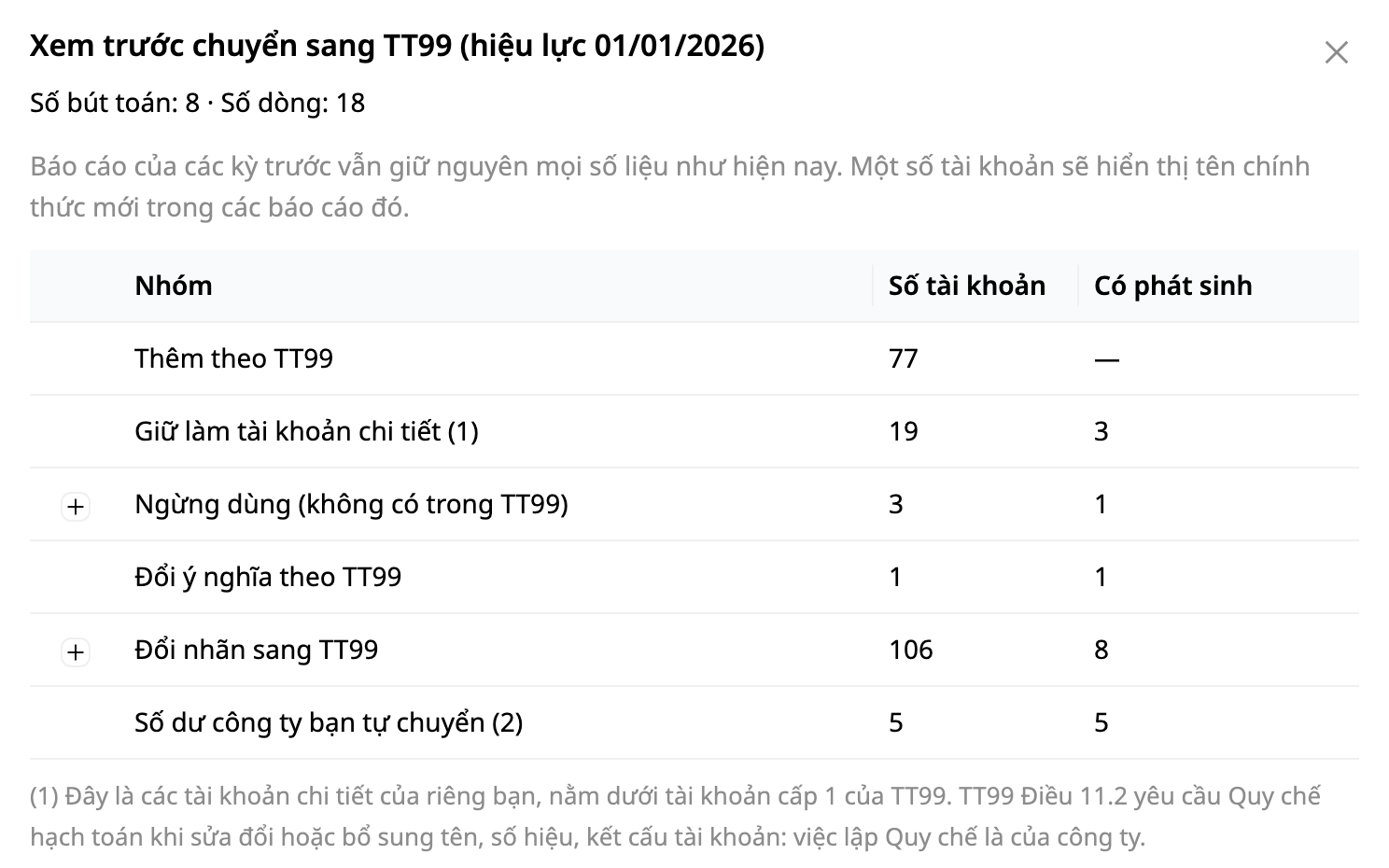
The preview divides all changes into six groups, each group showing account numbers and account numbers that have been used (except the Add group):
| Group | What it means |
|---|---|
| Add according to TT99 | TT99 accounts that your ledger doesn't have yet: the software adds them. |
| Keep as subsidiary account | Subsidiary accounts from TT200 that TT99 doesn't list (such as 1111, 1121): remain as your separate accounts, balance stays the same. |
| Discontinued (not in TT99) | Accounts not in TT99 and never used: are turned off, not deleted. If they have been used, they remain active unless you choose to turn them off (such as 631 when the balance is zero). |
| Meaning changed according to TT99 | Same number but TT99 uses it for a different purpose (such as 3387): if it has been used, keep the old name and it becomes a Review task after conversion. |
| Change label to TT99 | Accounts in use: change the standard label from TT200 to TT99, convert to a control account if TT99 considers it a control account (unless a payment purpose is currently using it, then temporarily keep it as a posting account), and change the name (if you haven't set a different name) to match TT99; amount does not change. |
| Balance that your company converts itself | Those Circular items that enterprises must convert themselves: the software only lists them, does not convert them. |
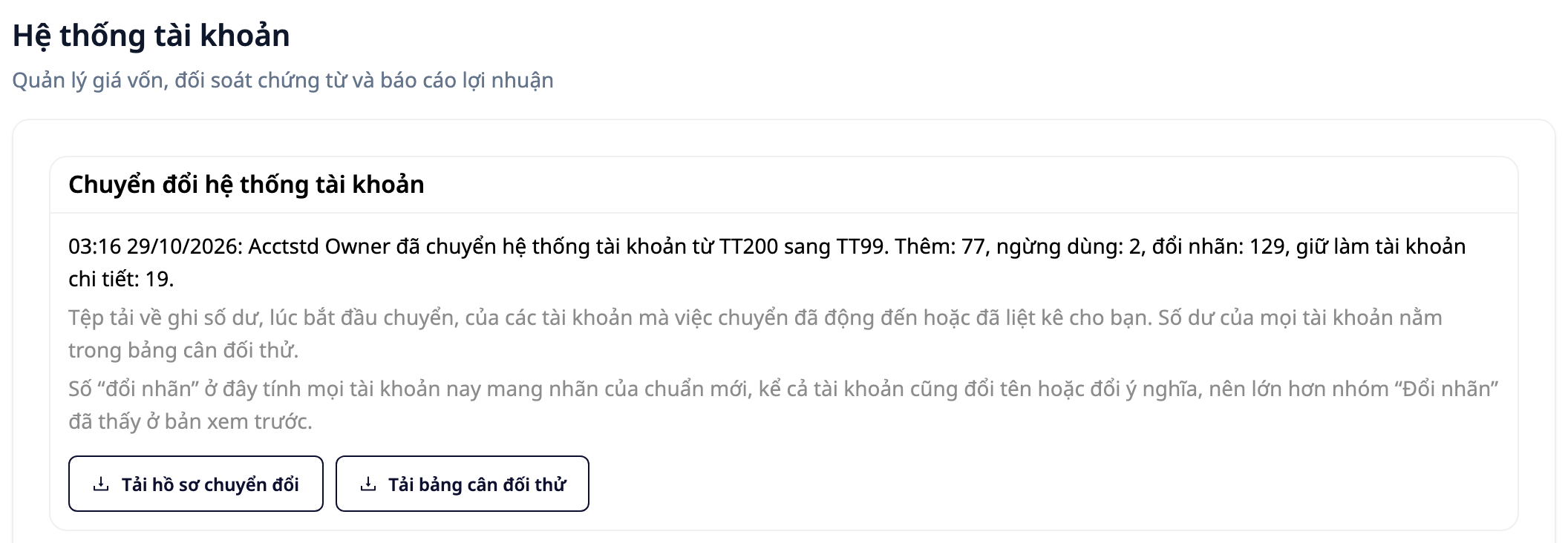
On our sample ledger used for testing (test data, 8 journal entries, 18 lines), the preview shows 77 additional accounts, keeps 19 accounts as details, renames 106 accounts. Your ledger will show different numbers. The record card after conversion counts more in the rename accounts section (129 on this sample ledger) because it counts all accounts now labeled TT99, including accounts that were also renamed or changed in meaning. The Discontinue group in the count dialog also counts account 631 when the question about 631 has not yet been answered (3 on the sample ledger); the card after conversion shows 2 because on the sample ledger 631 is kept as a separate account.
3. Answer questions that apply to your company, and only those questions
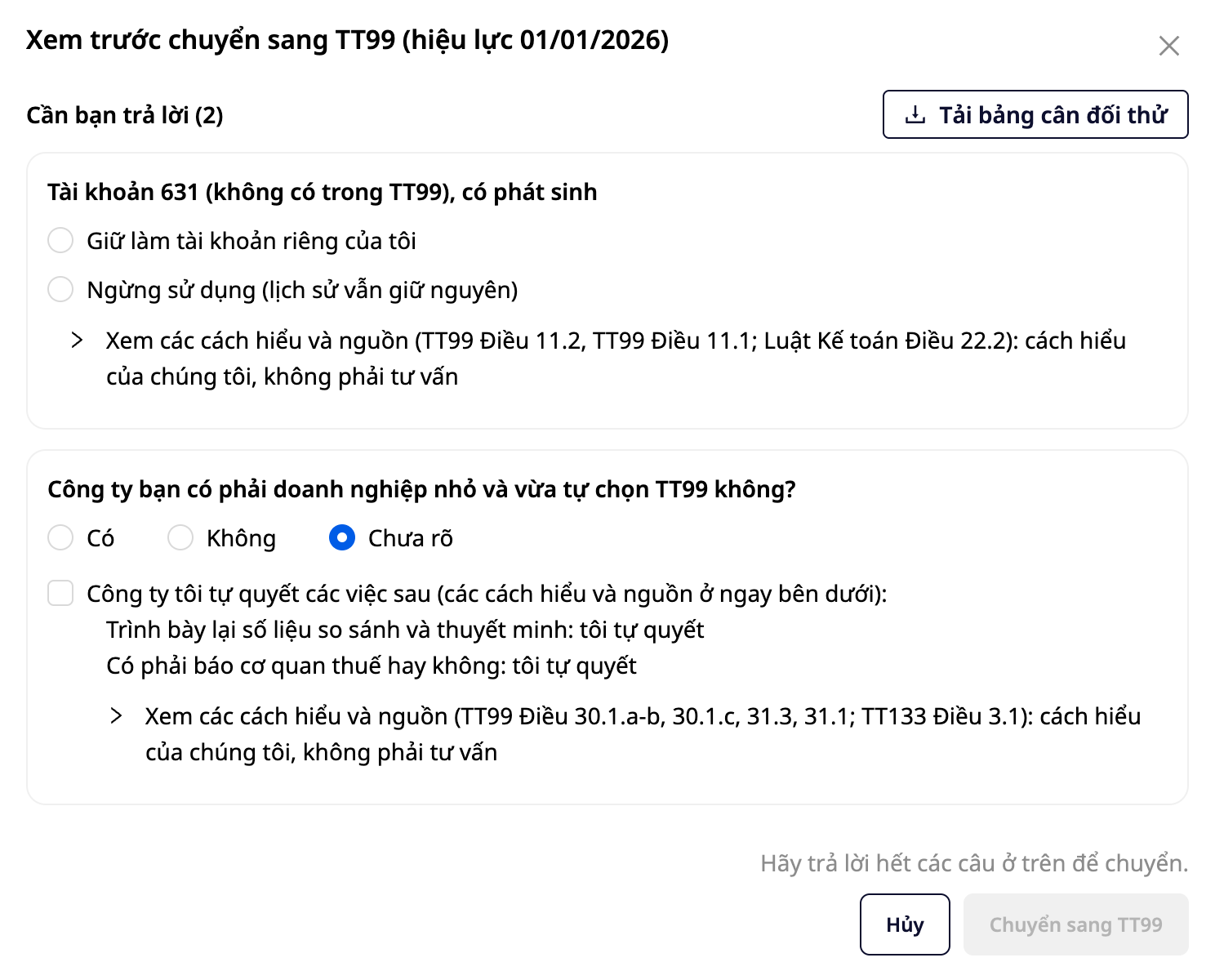
The dialog groups these questions under We need your answer, along with the number of questions (in the sample ledger: 2, checkboxes not counted).
- Account 631, if it has activity. 631 does not exist in TT99. You choose Keep as my separate account or Discontinue (history remains unchanged); the latter option only appears when account 631 balance is 0 and no setting uses it. No option is pre-selected.
- Is your company a small and medium enterprise that chose TT99 on its own? Yes, No, or Not sure. "Not sure" is an acceptable answer; the software does not guess for you.
- One checkbox, which appears when you choose Yes or Not sure, stating My company decides the following and two lines: Restate comparative figures and explanations: I decide and Whether to report to the tax authority: I decide. The interpretations and sources, with the date we read them, are located just below (click View interpretations and sources to expand). This is our interpretation, not professional advice.
Everything else the software does not ask before converting. Things you need to review will appear as a list after conversion. This list is selected from TT99 Articles 29 and 30 and TT200 Article 126.1, is not complete, and does not replace reading the Circular.
4. Click Convert to TT99
The Convert to TT99 button is grayed out, with the line Please answer all the questions above to convert., until you answer all of them. One click, and the software adds missing TT99 accounts, renames them, deactivates (does not delete) unused accounts, and records the conversion file. No journal entries and no journal entry lines are created, edited, or deleted. If at that exact moment someone else is editing the chart of accounts, nothing changes: try again in a moment.
5. Reconcile, then handle the remaining items
- Account System Conversion Tab records the date and time, person who converted, and number of changes, with a Download conversion file button: a file recording the opening balance of passive accounts transferred to or listed for you. The balance of all accounts is in the trial balance table (Excel file, same content as the Trial Balance Report, from the effective date of the conversion to the preview date, or on the tab until the conversion date), downloadable from this tab itself, and also before conversion on the Preview screen; the download button only appears if you have permission to view reports.
- Trial Balance and Accounting Balance of past months: reopen and compare with the figures you recorded before conversion. The figures are identical.
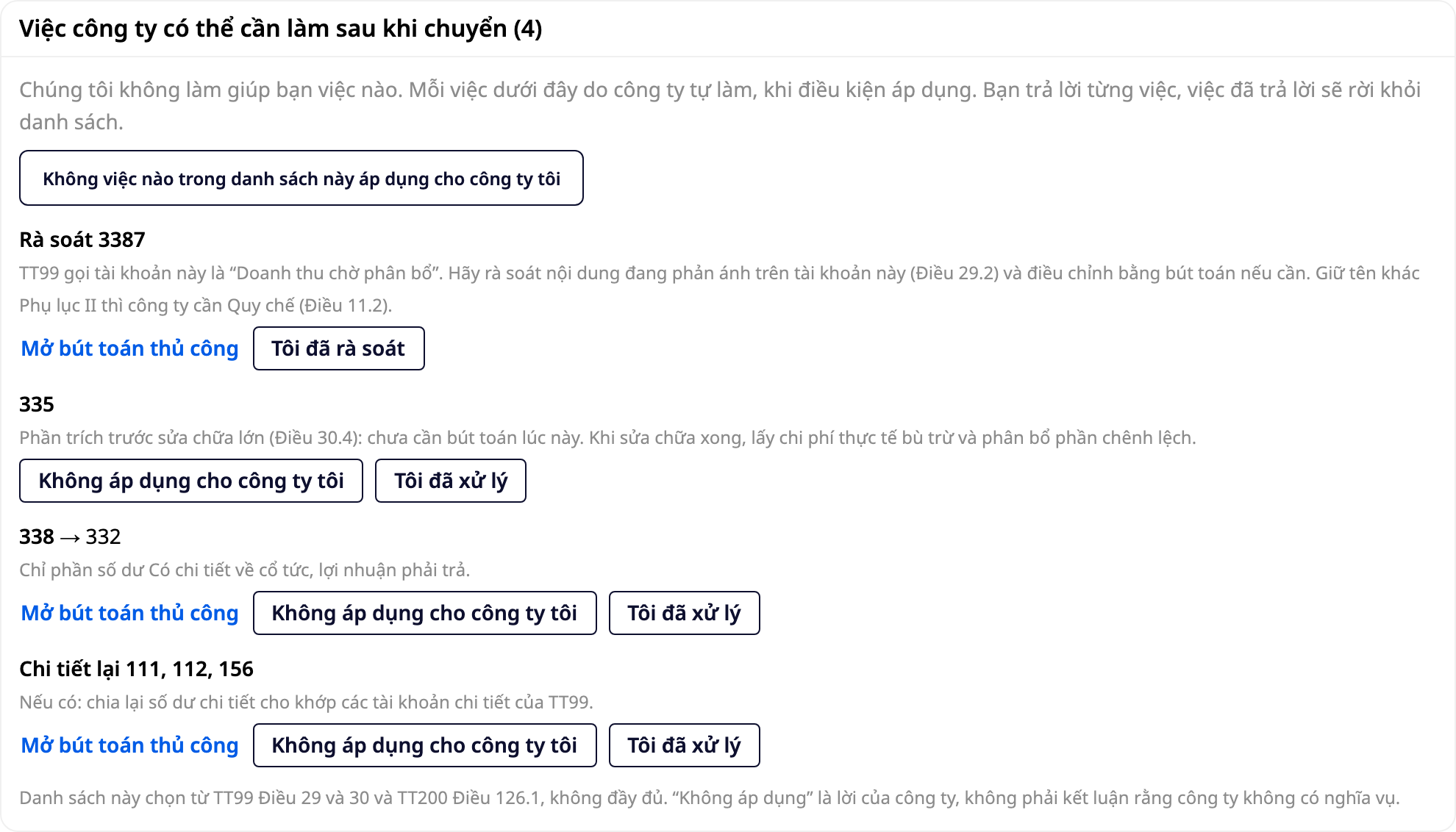
- Tasks the company may need to do after conversion tab: one task per line, with applicable conditions and, if any, where to transfer the balance. You answer each task (I have processed, Not applicable to my company, or I have reviewed), answered tasks leave the list.
- Conversion history records each conversion on one line: date and time, person who converted, from which standard to which standard, and number of accounts added, discontinued, relabeled, kept as details. Click Review to reopen the conversion file, or Download to download it.

After conversion: what stays the same, what changes
| Item | After conversion |
|---|---|
| Journal entries and entry lines | Remain unchanged. No entries are created, edited or deleted, each account keeps its balance and balance figures. |
| Reports of past periods | Trial Balance, Accounting Balance and income statement: all figures remain unchanged. Only the name of some accounts (according to TT99), if you have not set a different name yourself, appears with the new name, including in old reports (in the sample ledger: account 155 from Finished Products to Products). |
| Your accounts | No accounts are deleted. Your detail accounts (1111, 1121, 5111 in the sample ledger) remain and are enabled. Accounts from TT200 that TT99 does not have and have never been used (such as 311, 3385 in the sample ledger) are disabled, not deleted; detail accounts are kept. |
| Accounts that changed meaning, already have activity | Keep the old name and appear as a Review task (in the sample ledger: 3387, still Unrealized revenue). |
| Account system | From TT200 to TT99: add missing TT99 accounts, relabel standards of shared accounts. |
What the software does not do for you
Standard conversion has tasks that the circular assigns to the company. GTG CRM makes clear that it does not help with:
- Transfer balance. Some provisions in the Circular allow businesses to transfer themselves, for example, balances in accounts 441 and 466 to 4118 (TT99 Article 29 Section 1). The software only lists which items you have generated, along with conditions, and you create manual entries. For items that require transferring the entire balance, if you can view the report, the entry form pre-fills lines from the ledger and leaves the date blank for you to set. You verify the account, debit/credit side, amount, and date before submitting for approval.
- Accounting regulations. When a business changes the name, code, or structure of accounts, TT99 (Article 11 Section 2) requires Accounting regulations (or equivalent documentation). Creating the regulations is the company's responsibility.
- Legal conclusion. The answer you enter in the task list is the company's statement. GTG does not verify it, and "not applicable" does not constitute a conclusion that the company has no obligation.
Who can do it, and what does the AI Assistant do
Transfer is the responsibility of someone with the Convert standard chart of accounts permission. Someone who only has permission to view the chart of accounts can still see the preview, but the Transfer to TT99 button is disabled and clearly shows no permission; automation and integrated applications cannot transfer. The AI Assistant can summarize in plain language the account numbers in each group of the preview when you ask, but cannot transfer for you: transfer is a manual task, on screen.
Frequently Asked Questions
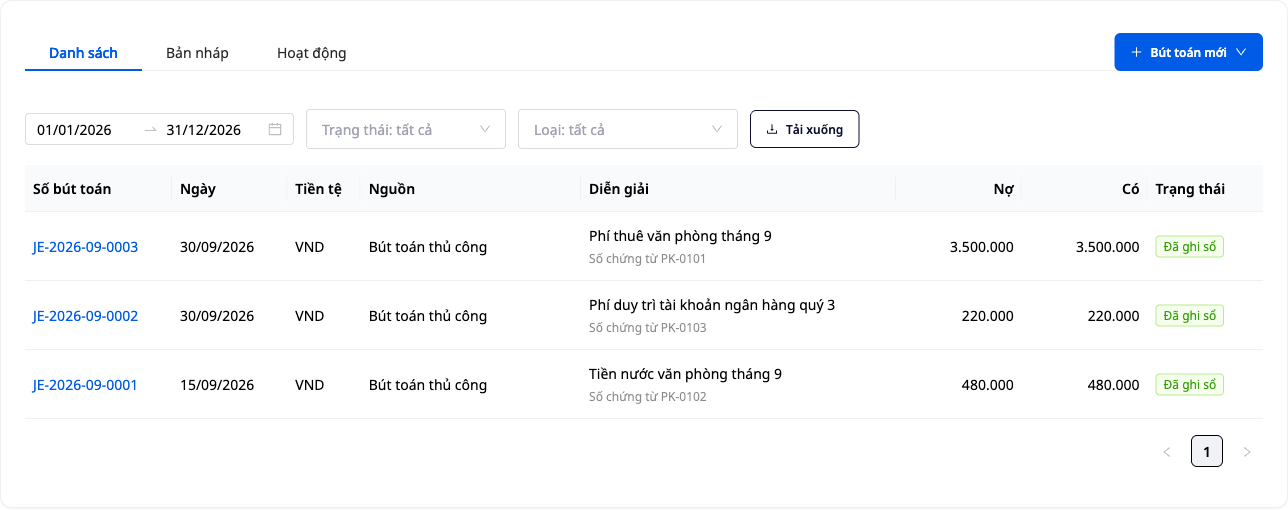
Are recorded entries modified or deleted? No. The transfer does not create, modify, or delete any entries or entry lines. In the sample ledger, before and after transfer there are still exactly 8 entries, same date, same amount, all recorded.
Is the printed quarterly report inaccurate? The generated amount and balance of each account remain the same, total assets still equal total equity. If reprinted, the name of some accounts (per TT99) may differ if you have not set different names yourself.
How many times can you transfer? For a ledger that already has entries, the transfer runs once: there is no second time and no undo button. So preview, download the trial balance sheet (same content as Generated Balance Sheet; download button only appears if you have permission to view reports) and note the numbers before clicking.
The TT200 warning frame does not appear in my ledger, or I have not used GTG CRM yet? The frame only appears with ledgers using the TT200 chart of accounts. A new company with no entries recorded selects the TT99 chart of accounts template during setup, as described in this article. The rest of accounting, from applying templates to reporting, is in the Accounting & Electronic Invoice Toolkit User Guide.
First step requires no decision: preview
You see the account numbers in each group, can open the list of accounts in groups like Discontinued and Renamed, and account numbers that have generated balances (except the Add group), then decide whether to transfer or not.
This article describes how GTG CRM works, not legal or accounting advice. Which day the company's fiscal year starts, and which standard the ledger should follow, are matters you confirm with your chief accountant or audit unit.
→ Open Accounting, Chart of Accounts, click Preview (no changes made to your ledger)