Funktsioonide tutvustus
Üks ülesanne on harva lihtsalt üks rida "teha". "Valmistu tootetutvustuseks" on tegelikult kümme väikest ülesannet; "Klient A lepingu sõlmimine" koosneb helistamisest, hinnapakkumise saatmisest ja allkirjastamise kokkuleppimisest. Tasase tööülesannete loendiga kas kuhjad kõik ühele reale ja unustad, kui kaugele oled jõudnud, või loote kümneid lahus olevaid ülesandeid, teadmata, mis kuhu kuulub. Vahetus toimub hajali vestluses ja meilis ning kui ülemus küsib "kes kannab kõige rohkem koormat?", siis vaid arvate.
See lõppeb täna.
Töökorraldus 2.0 koondab kõik ühte kohta: iga ülesande saab jagada kahetasandilisteks alatihtedeks automaatselt kuhjuva eduga, sellel võib olla kontrollnimekiri, kommentaarid ja teie meeskonnaliikmete mainimine (@mainimine otse ülesandes, selle saab siduda pakkumiste, toodete, tellimuste, arvete ja analüüsi vahekaardiga, mis näitab iga inimese töökoormust. Loend on ümber kujundatud, värvitud vastavalt olekule ja tähtaegadele, et saaksite pilguga näha, millised ülesanded on hilinemas.
Probleemid, millega Ettevõtted Kokku Puutuvad
Tasane tööülesannete loend, mida ei saa jagada — Suur ülesanne on hägune üks rida, detailide unustamine on lihtne
Ei tea, kui palju suurt ülesannet on lõpetatud — Eduraportid tunduvad, ülemus ei tea tegelikku olukorda
Ei näe, millised ülesanded on peagi tähtajani või on tähtaja ületanud — Tähtajad meelde jätmine, kerge on neid üle lasta märkamata
Tööülesannete vahetus on hajutatud vestlustes/meilides — Teave on kadunud, asjaosalisi ei teavitata
Ei tea, kes kannab palju koormat — Ebaühtlane jaotus, ülekoormatud inimesed, mida juht ei näe
Töökorraldus 2.0 muudab ülesanded struktureeritud puudeks, millel on tähtaja hoiatusvärvid, vahetusruumid ja läbipaistvad numbrid — kõik on tihedalt seotud teie äriandmetega.
Esiletõstetud punktid
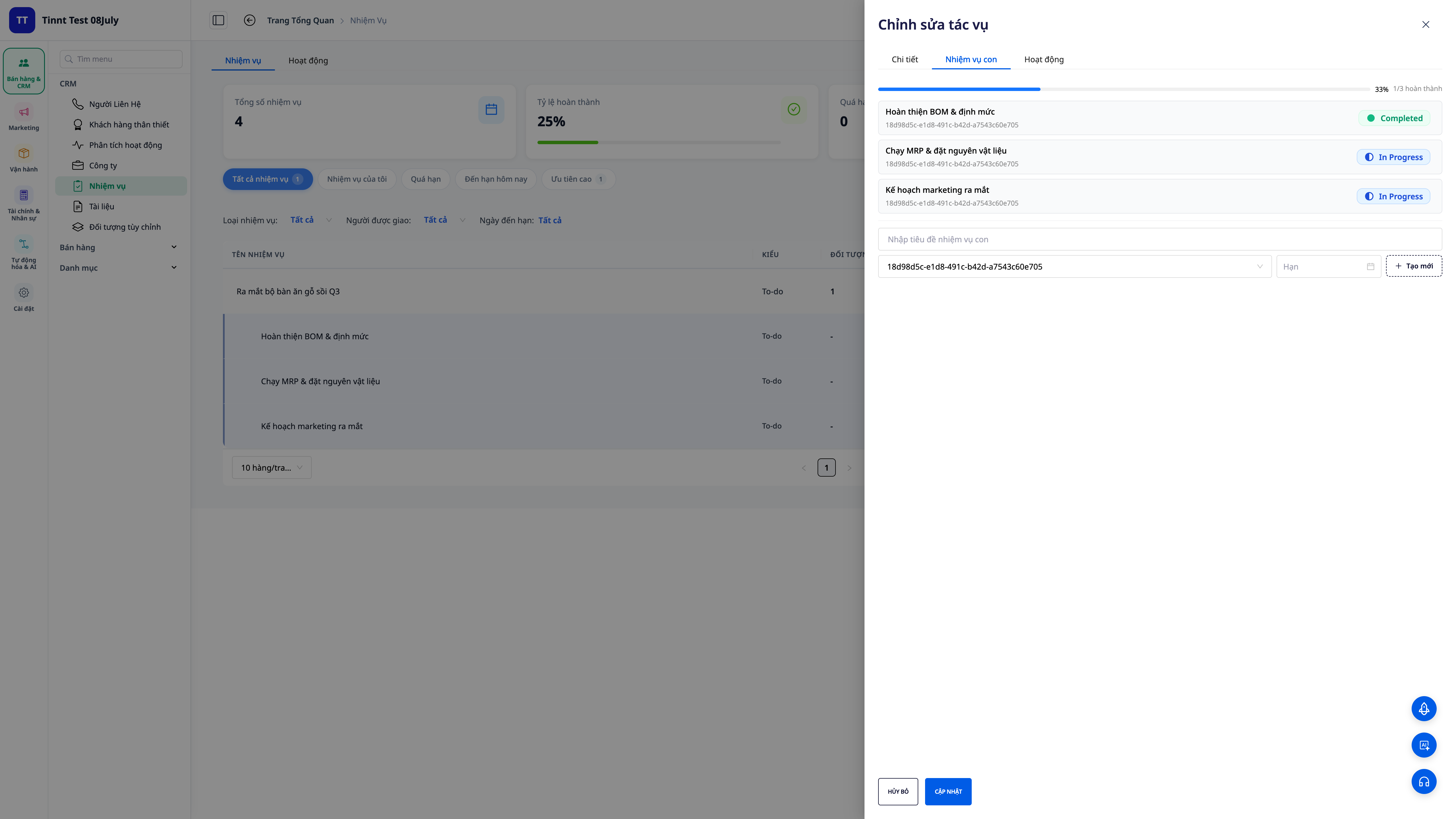
1. Kahetasandilised alatihted + automaatne edenemise kuhjumine
- Jagage ülesanded väiksemateks: jagage suur ülesanne alatihtedeks (kuni kaks taset), iga alatihtel on oma vastutaja, tähtaeg ja olek.
- Automaatne edenemise arvutamine: alatihtede lõpetamine, isaülesande edenemine kuhjub automaatselt — pole vaja protsenti käsitsi värskendada.
- Pilguheit ja teadke, kui palju on jäänud: edenemisribal on kohe näha, kui kaugele suur ülesanne on jõudnud.
2. Kontrollnimekiri ülesande loomisel
- Kaitsta pealkirju algusest peale: lisage kontrollnimekiri vajalikest sammudest ülesande loomise ajal, pole vaja tagasi minna, et neid lisada.
- Ärge jätke samme välja: kõik vajalikud tegevused asuvad ühes kohas ja aitavad kaasa edenemisele.
3. Süsteemi poolt täidetud lõpetamised on standardid
- Usaldusväärne lõpetamise aeg: olek ja lõpetamise aeg on salvestatud serverisse, mitte individuaalse arvuti kella järgi — numbrid on võrdlemisel ja aruandluses järjepidevad.
4. Seotud pakkumiste, toodete, tellimuste, arvete + 360-kraadise tegevusega
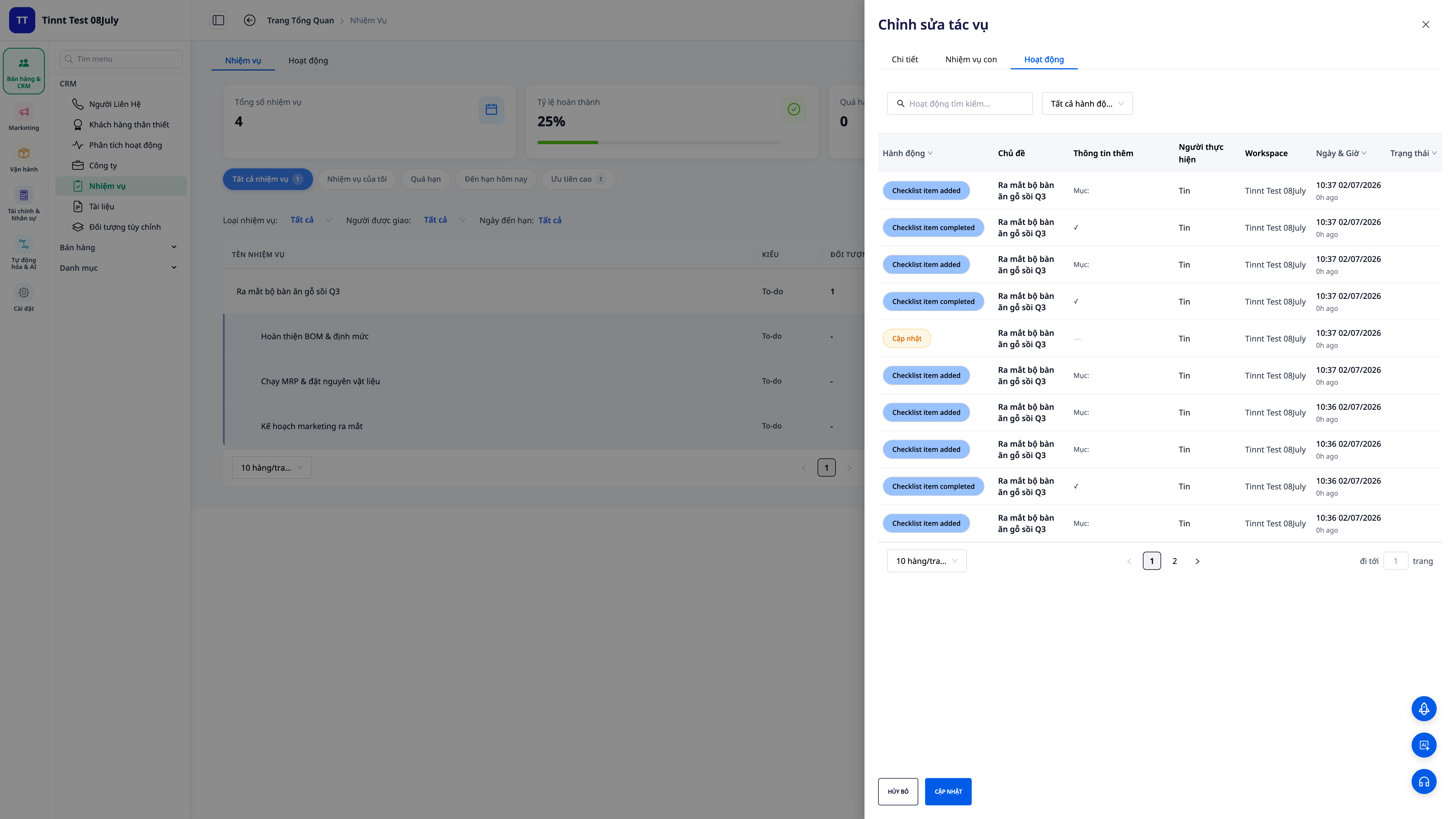
- Seostage seotud objekte: siduge ülesanne pakkumiste, toodete, tellimuste, arvete külge, et teada saada, millist võimalust/tellimust see ülesanne teenib.
- 360-kraadine tegevus: hõlpsasti loetav ajajoon, mis näitab kõiki ülesandega seotud sündmusi — kes mida ja millal tegi.
- Lihtne jälgida: pakkumise või tellimuse juurest näete kohe seotud ülesandeid ja nende olekut.
5. Ümberkujundatud loend — värvimine oleku ja tähtaja järgi + "Täna" tabel
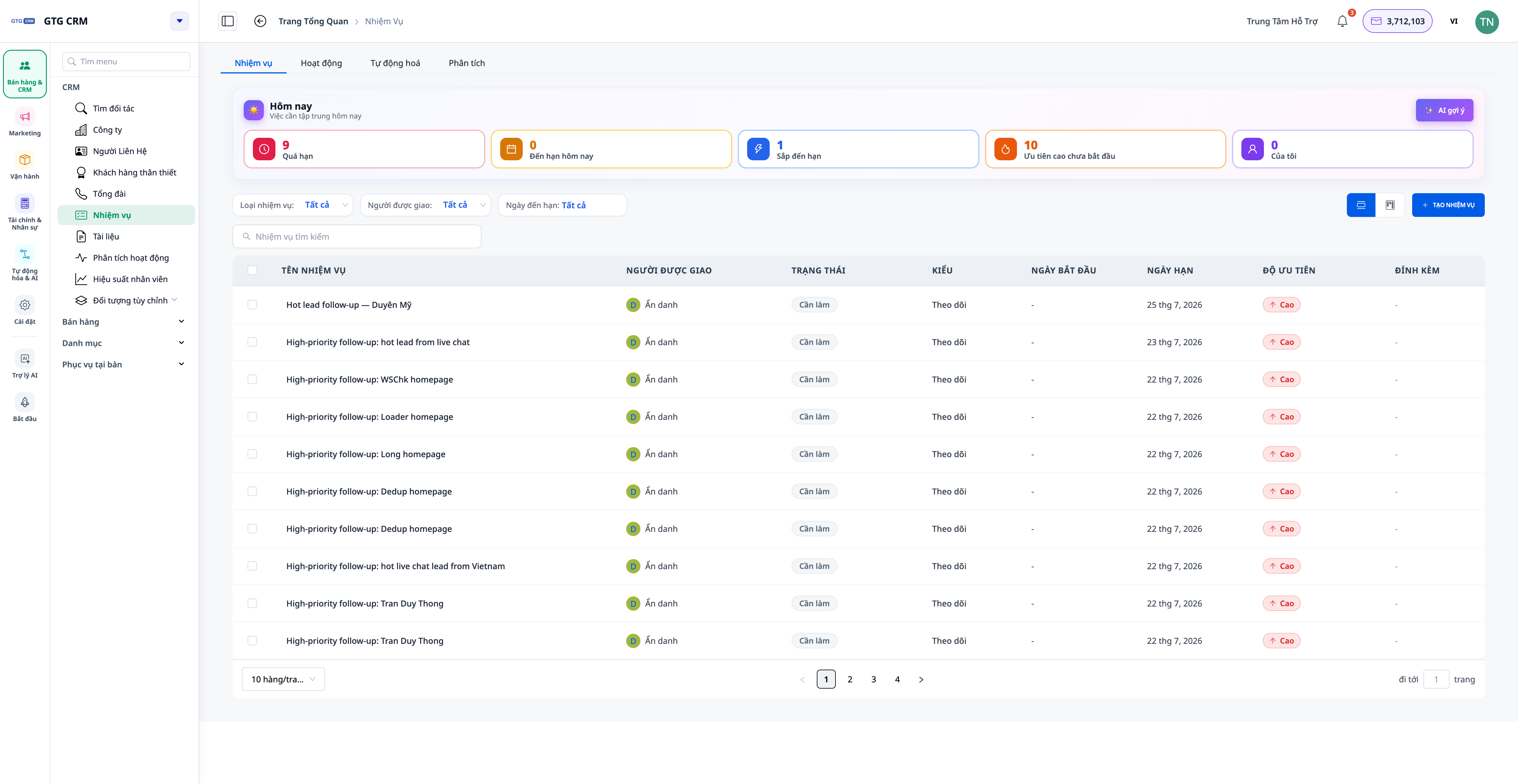
- Värvist näeb olekut: vaja teha, tegemisel, lõpetatud, tühistatud – iga oleku jaoks oma kerge ja selge toon.
- Tähtaja hoiatus otse real: läheneva tähtajaga tööd on merevaiguvärvi, ületähtaja tööd punased – vaata loendit ja tead, mida kõigepealt tegema pead.
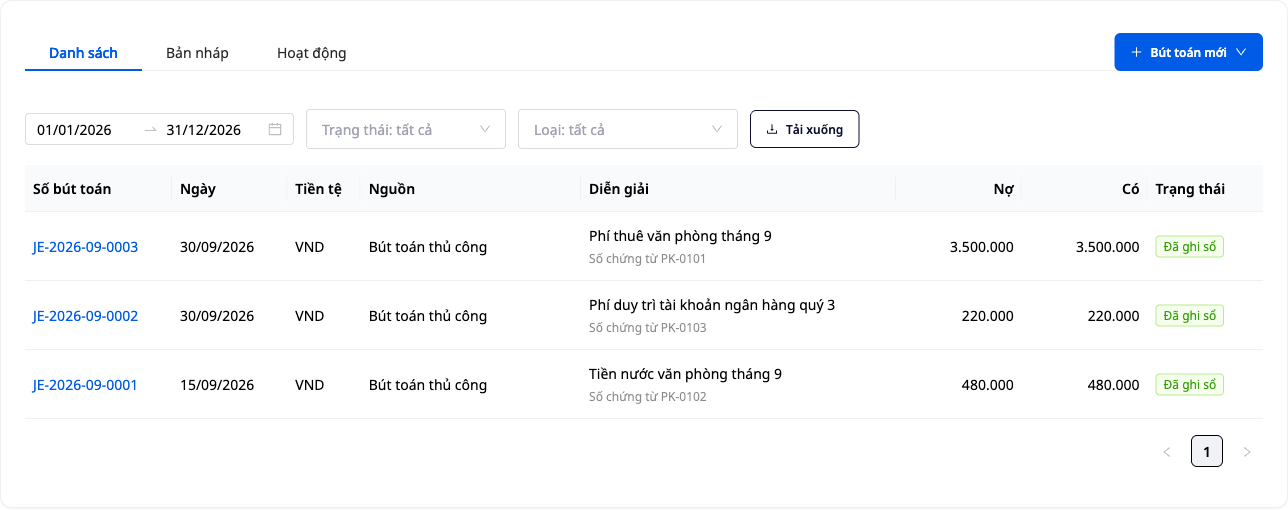
- "Täna" tabel: otse ülaosas koondab "ületähtaja · tähtajaga täna · peagi tähtajaga · kõrge prioriteediga · minu tööd", klõpsates hüppad juba filtreeritud loendi juurde.
💡 Vajad päevaplaani prioriteetide seadmiseks? Klõpsa "AI soovita", et assistent paneks tööde järjekorra sinu eest paika (teenus nõuab krediiti).
6. Kommentaarid töö juures + meeskonnaliikmete mainimine (@mainimine)
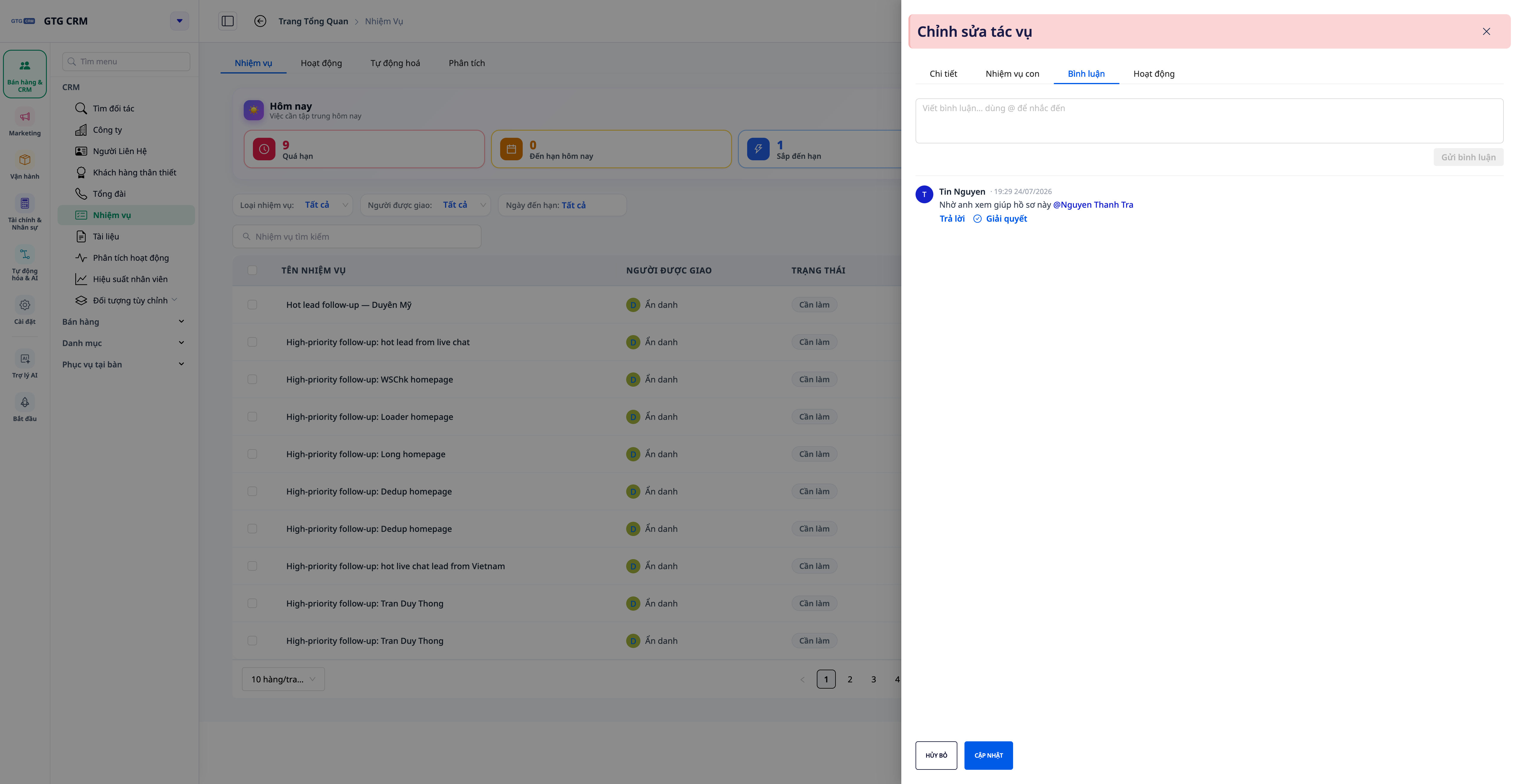
- Aruta otse töö juures: kõik vestlused jäävad töö kõrvale, mitte ei kao mujale vestlusesse/e-posti.
- Meeskonnaliikmete mainimine (@mainimine): tippige
@ja valige inimene meeskonnast; mainitud nimi kuvatakse roheliselt, et seda oleks kerge märgata, ja inimene saab kohe teate rakenduses. - Lisa e-post vajadusel: lülitage sisse valik saada e-post mainitud isikule, et ka võrguühenduseta olevad inimesed kaasata.
7. Tööanalüüsi tabel — töömaht iga inimese kohta
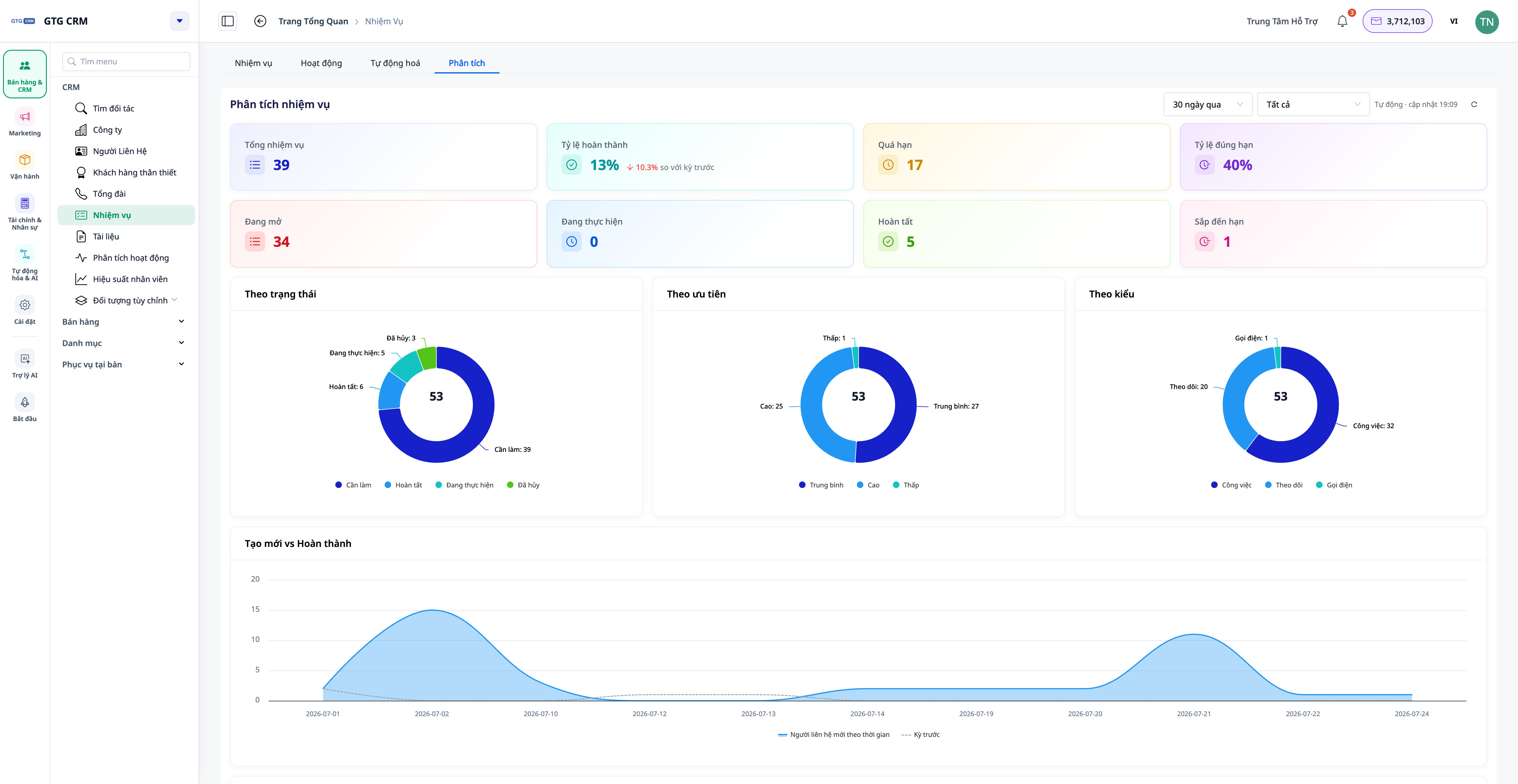
- Vahetu ülevaade: kogutöö, töös olevad, lõpetatud, tähtaja ületanud, lõpetamise määr ja tähtaegsuse määr – võrdluseks eelmise perioodiga.
- Töömaht iga inimese kohta: graafik näitab, kes teeb palju tööd, kes on vaba – jaotada ümber õigeaegselt.
- Klõpsake inimesel: vaadake üksikasjalikult, mida see inimene töödega teeb.
8. Kontrollijad & Raportöörid — toetavad nüüd mitut kontrollijat, lisaks algusaeg & seotud isikud
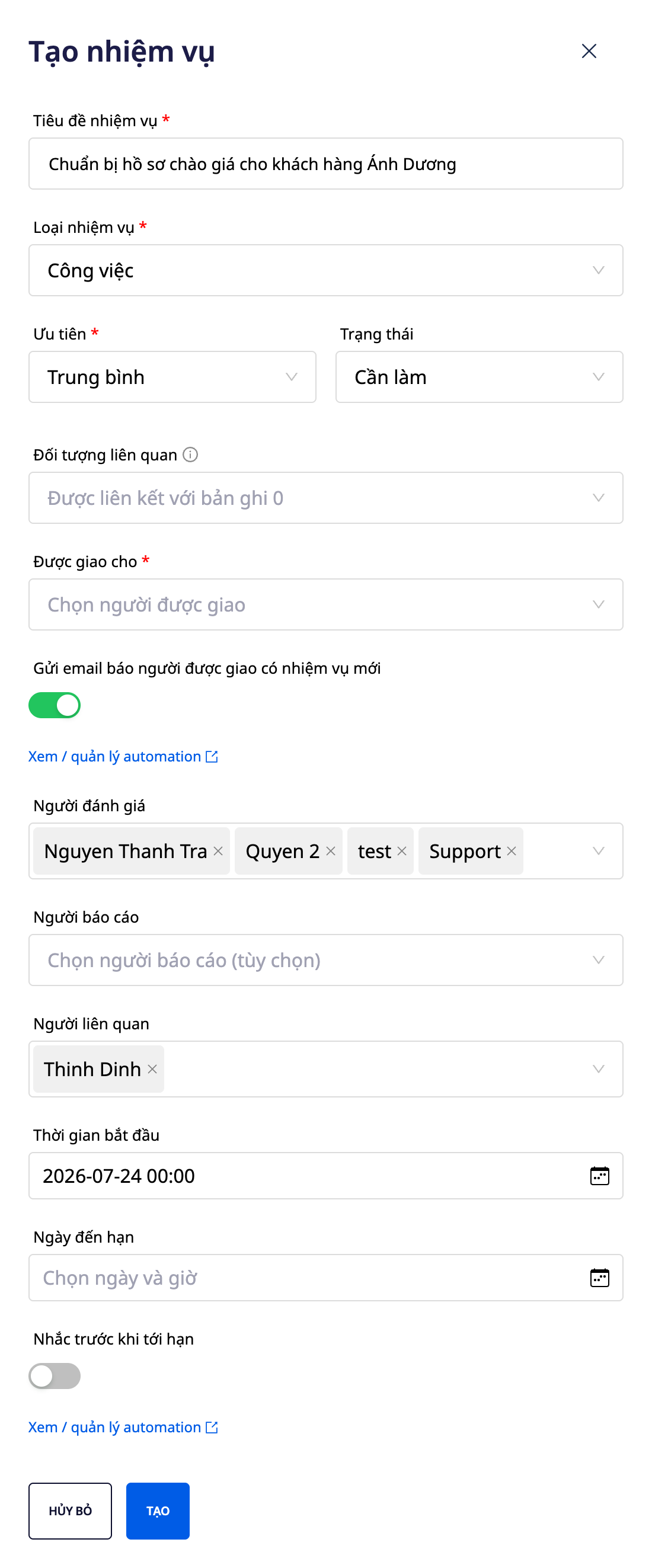
- Mitmed kontrollijad (Reviewers): määrake tööle üks või mitu kontrollijat, mis vajab mitme etapi heakskiitu.
- Raportöör (Reporter): töö looja/jälgija, et lõpptulemust teada.
- Algusaeg & Seotud isikud: määrake alguskuupäev ja lisage seotud isikute loend, et nad saaksid edenemisest teada.
9. Manused raamatukogust & sisemiste linkide sisestamine
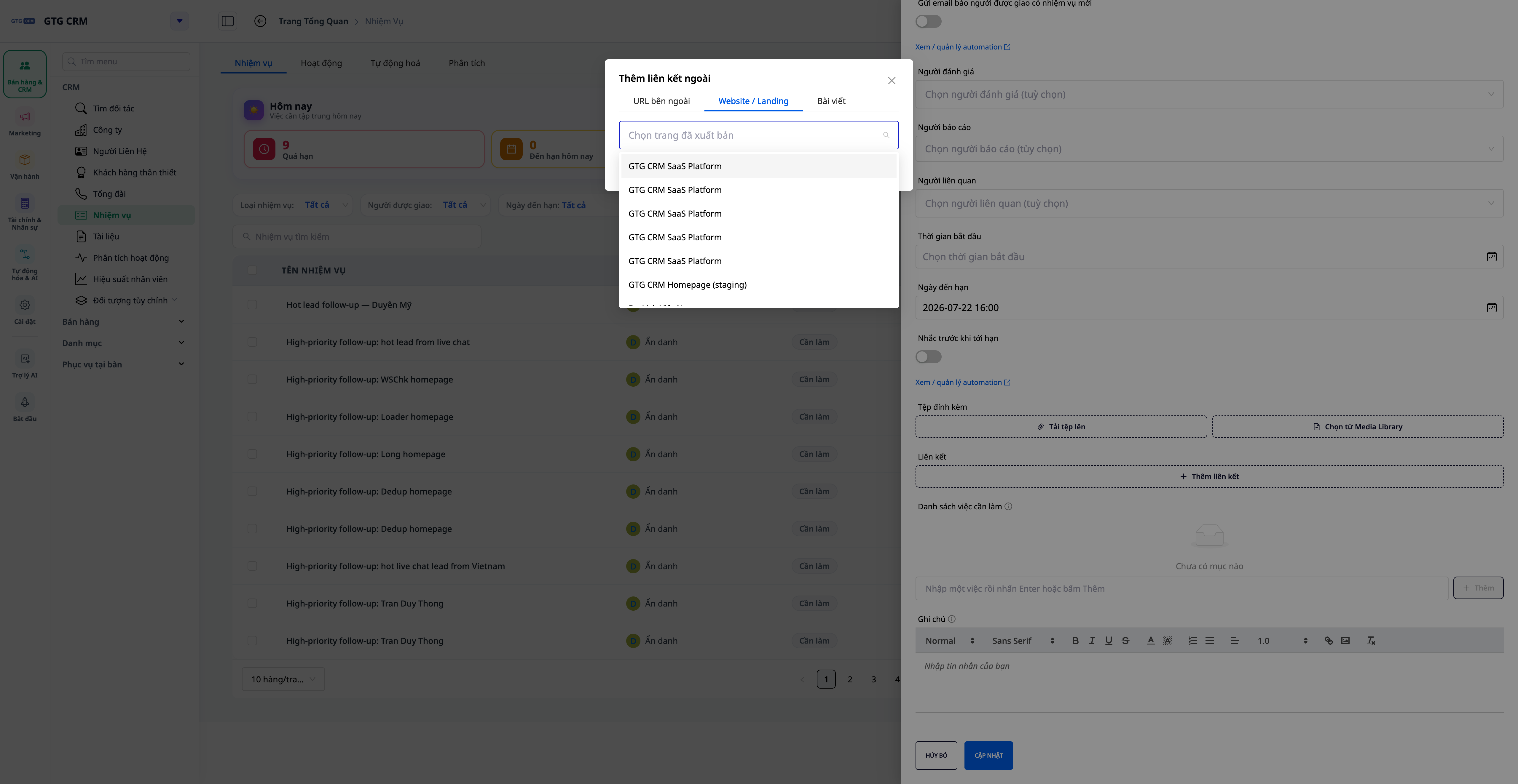
- Manused raamatukogust (Media Library): valige kogu tööruumi olemasolevad failid/pildid, pole vaja arvutist uuesti üles laadida.
- Sisemiste linkide sisestamine: sisestage kiiresti link tööruumi veebisaidile, maandumislehele või artiklile – pole vaja URL-i käsitsi kleepida.
10. Tööde automatiseerimine — tööde määramine, oleku muutmine, lõpetamine, mainimine e-posti teel
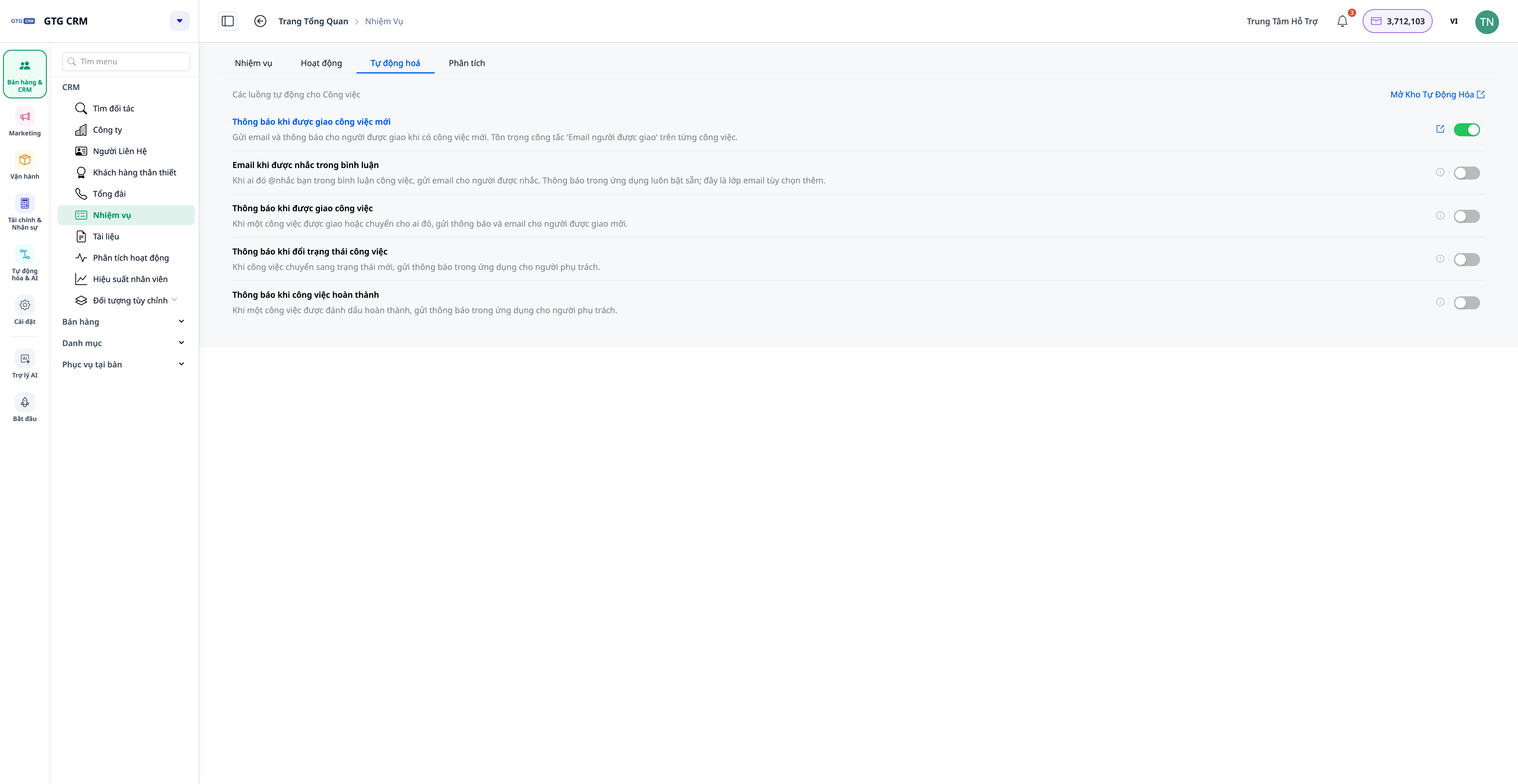
- Töölõikude automaatne määramine: protsess tööde automaatseks loomiseks/määramiseks õigele inimesele sündmuse korral (tehingu etapi muutumine, uus tellimus jne).
- Teavitused oleku muutmisel / täitmisel:automaatsed teavitused asjaomastele isikutele, kui töö muutub või täidetakse.
- E-kirjad mainimisel:lubab mainitud (@mentioned) kasutajatel saada lisaks ka e-kirju — lülita sisse/välja tööde vahekaardil Automaatika.
- Need stsenaariumid asuvad Automaatika keskuses (vt artiklit Automaatika).
Ärihüved
Alaülesanded + automaatne edenemise lisamine — Suured ülesanded on selgelt jaotatud, edenemine on läbipaistev, pole vaja käsitsi uuendada
Värviline loend + "Täna" tabel — Vahetult näed, millal on tähtaeg lähedal/ületatud, alusta tööpäeva õigete prioriteetidega
Kommentaarid + mainimised (@mention) — Lihtne suhtlus ülesande sees, õiged inimesed saavad teate — teave ei lähe kaduma
Analüüs iga inimese kohta — Näed, kes on ülekoormatud, ja jaotad töö ümber õigeaegselt
Mitme kinnitaja / aruandja — Selged vastutusalad, vajadusel mitu kinnitusastet
Manused raamatukogust + sisemised lingid — Kasuta tööruumi ressursse uuesti, ärge lahkuge süsteemist
Seostamine tehingu/toote/tellimuse/arvega + Activity 360 — Kõik tööd on seotud äriandmetega, lihtne jälgida
Tööde automatiseerimine — Tööd ei jää tähelepanuta, vähem käsitsi meeldetuletusi
Kellele sobib?
- Müügimeeskonnad juhivad palju tööd iga tehingu ümber (helistamine, pakkumise tegemine, allkirjastamise leppimine).
- Operatiiv-/projektimeeskonnad peavad suuri tööülesandeid jaotama, suhtlema otse töö sees ja jälgima reaalset edenemist.
- Juhid peavad nägema iga inimese töökoormust ja saama täpseid edenemisaruandeid, selle asemel et igaühelt eraldi küsida.
Kuidas alustada?
Minge CRM → Ülesanded (Tööd), looge ülesanne, lisage kontrollnimekiri ja alülesanded, seostage see vastava tehingu/tellimusega, seejärel proovige kommenteerida ja mainida meeskonnaliiget ning avage vahekaart Analüüs. Vaadake samm-sammult juhendit Tööde haldamine 2.0 tegemiseks ja vaadake lisateavet automaatika kohta, et tööd automaatselt sujuksid.
Tasuta prooviversioon — krediitkaarti pole vaja.