GTG CRM býður upp á öfluga gervigreindartóla sem hjálpa þér að búa til einstaka vefsíðuhluta (sections) fljótt og faglega. Ólíkt eiginleikum sem búa til alla vefsíðu, gerir þessi tól þér kleift að smíða litlar, sveigjanlegar UI-einingar og setja þær saman á núverandi síðu í samræmi við hugmyndir þínar.
Þessi eiginleiki er sérstaklega gagnlegur þegar þú ert með vefsíðu og vilt bæta við nýjum hlutum eins og borða, aðalhluta eða kalli til aðgerða án þess að þurfa að endurhanna allt. Með örfáum einföldum skrefum mun gervigreindin búa til útlit sem hentar þínum viðskiptastíl og markmiðum.
Aðalatriði
GTG CRM vefsíðuhluta-gerð gervigreindartólið býður upp á eftirfarandi eiginleika:
- Búðu til sjálfstæða útlitsblokk samkvæmt sérstökum beiðnum
- Sérsniðið hönnunarstíl frá faglegum til lúxus
- Veldu litaþema sem hentar vörumerkinu
- Bættu við útlitsblokk sem gervigreindin hefur búið til með viðbótarbeiðnum
- Settu nýja útlitsblokk inn á æskilegan stað á síðunni
- Breyttu innihaldi og tenglum eftir að útlitið hefur verið búið til
- Búðu til margar útfærslur til að velja bestu kostinn
Notkunarleiðbeiningar
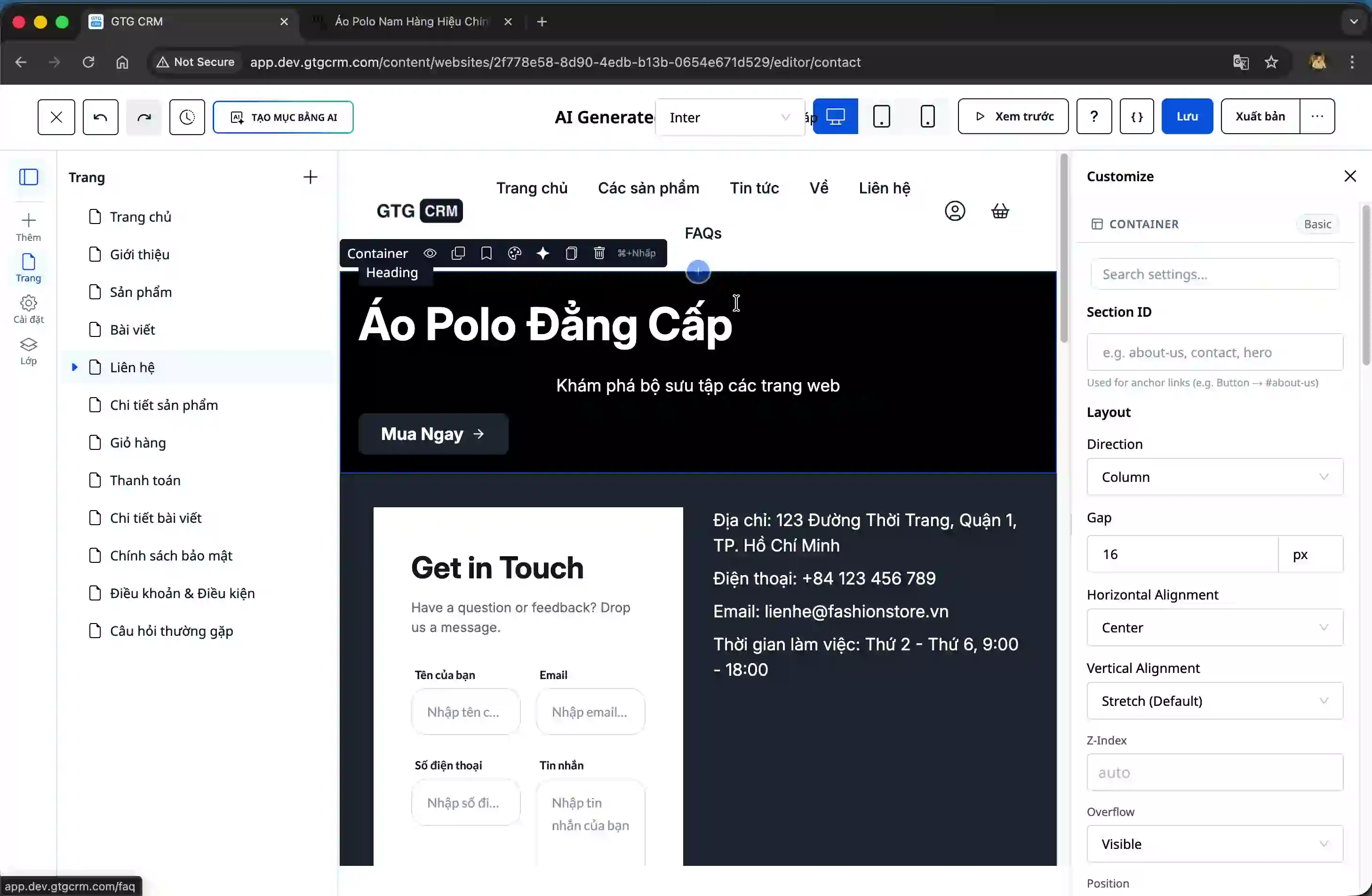
Skref 1: Opnaðu gervigreindarhluta-gerðaraðgerðina
Í vefskoðunarbúnaðinum finnurðu hnapp til að búa til gervigreindarhluta. Smelltu á þennan hnapp til að opna stillingarformið.
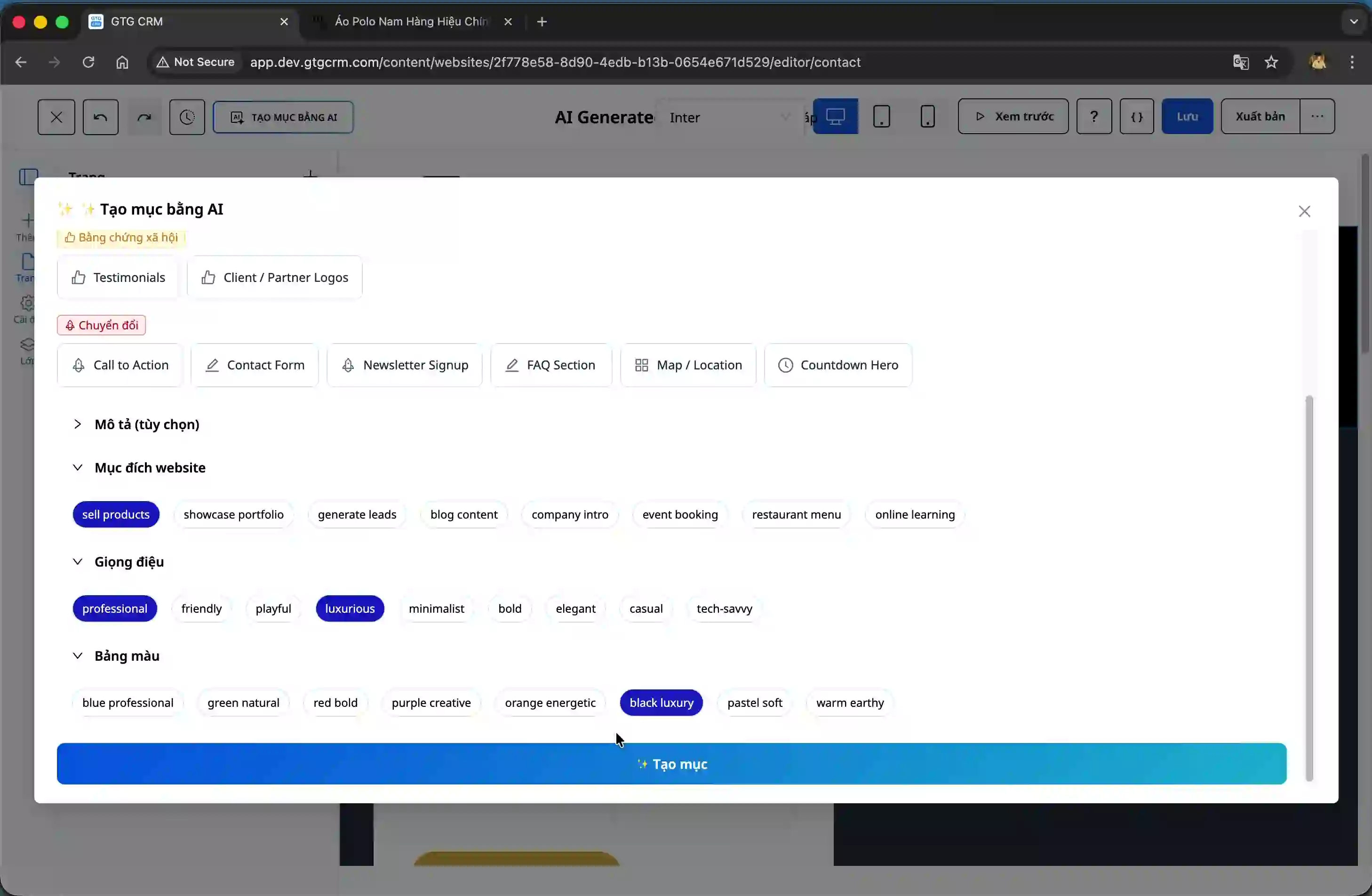
Skref 2: Veldu tegund hluta og fylltu út upplýsingar
Þegar formið opnast þarftu að velja tegund hluta sem þú vilt búa til. Kerfið býður upp á marga valkosti eins og borða, aðalhluta, kalli til aðgerða og aðrar gerðir hluta.
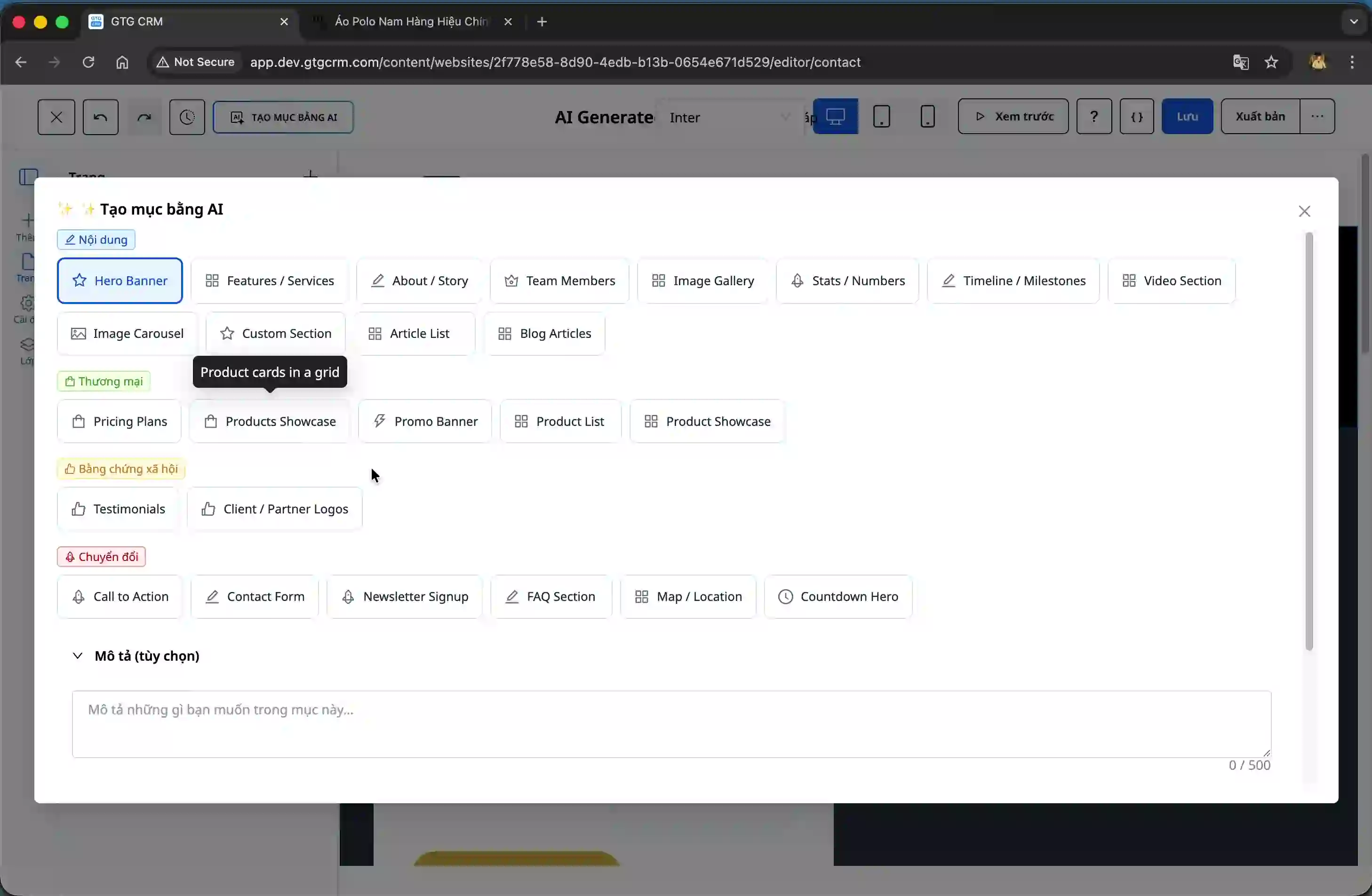
Fylltu út mikilvægar upplýsingar:
Tegund hluta: Veldu tegund sem hentar notkunarmarkmiðum þínum, til dæmis borða ef þú vilt búa til áberandi haus á síðunni.
Sérsniðin lýsing: Sláðu inn stutta lýsingu á innihaldi og framsetningu sem þú vilt.
Vefsíðumarkmið: Tilgreindu greinilega markmið eins og að selja vörur, kynna þjónustu eða safna upplýsingum um viðskiptavini.
Hönnunarstíll: Veldu stíl sem hentar vörumerkinu, hann getur verið faglegur, nútímalegur eða lúxus.
Litaþema: Veldu aðallit fyrir hlutann og tryggðu að hann passi við heildarsnið vefsíðunnar.
Skref 3: Búðu til hlutann og sjáðu niðurstöðuna
Eftir að hafa fyllt út allar upplýsingar, smelltu á hnappinn „Búa til“ svo gervigreindin geti byrjað að vinna. Kerfið mun búa til nýjan hlut byggt á þeim breytum sem þú hefur gefið upp.
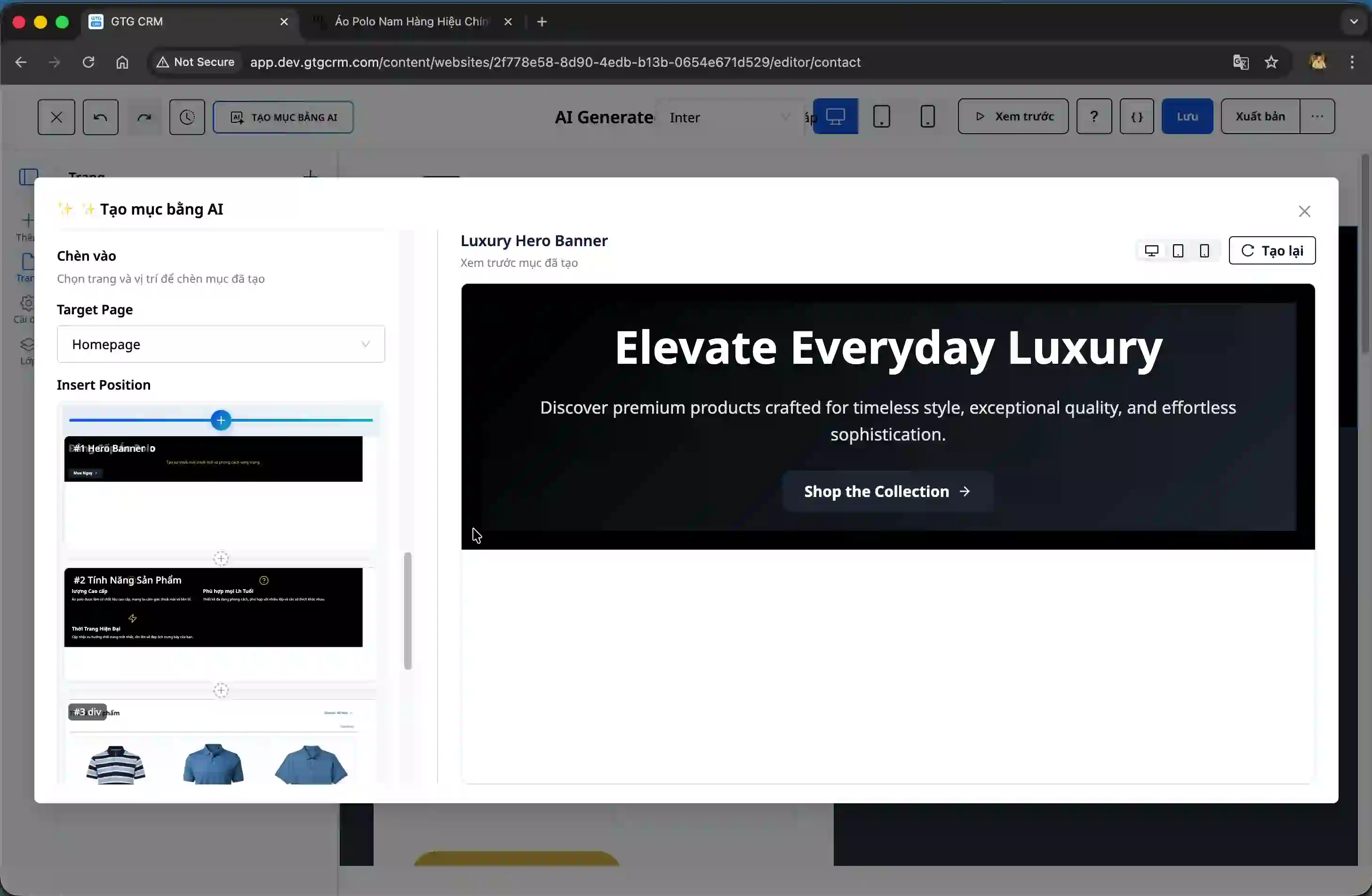
Niðurstaðan birtist strax á skjánum svo þú getir forskoðað og metið hana.
Skref 4: Veldu stað fyrir hlutann
Skoðaðu stjórnborðið vinstra megin á skjánum, þú munt sjá uppbyggingu núverandi vefsíðu. Veldu staðinn sem þú vilt setja nýja hlutann inn á.
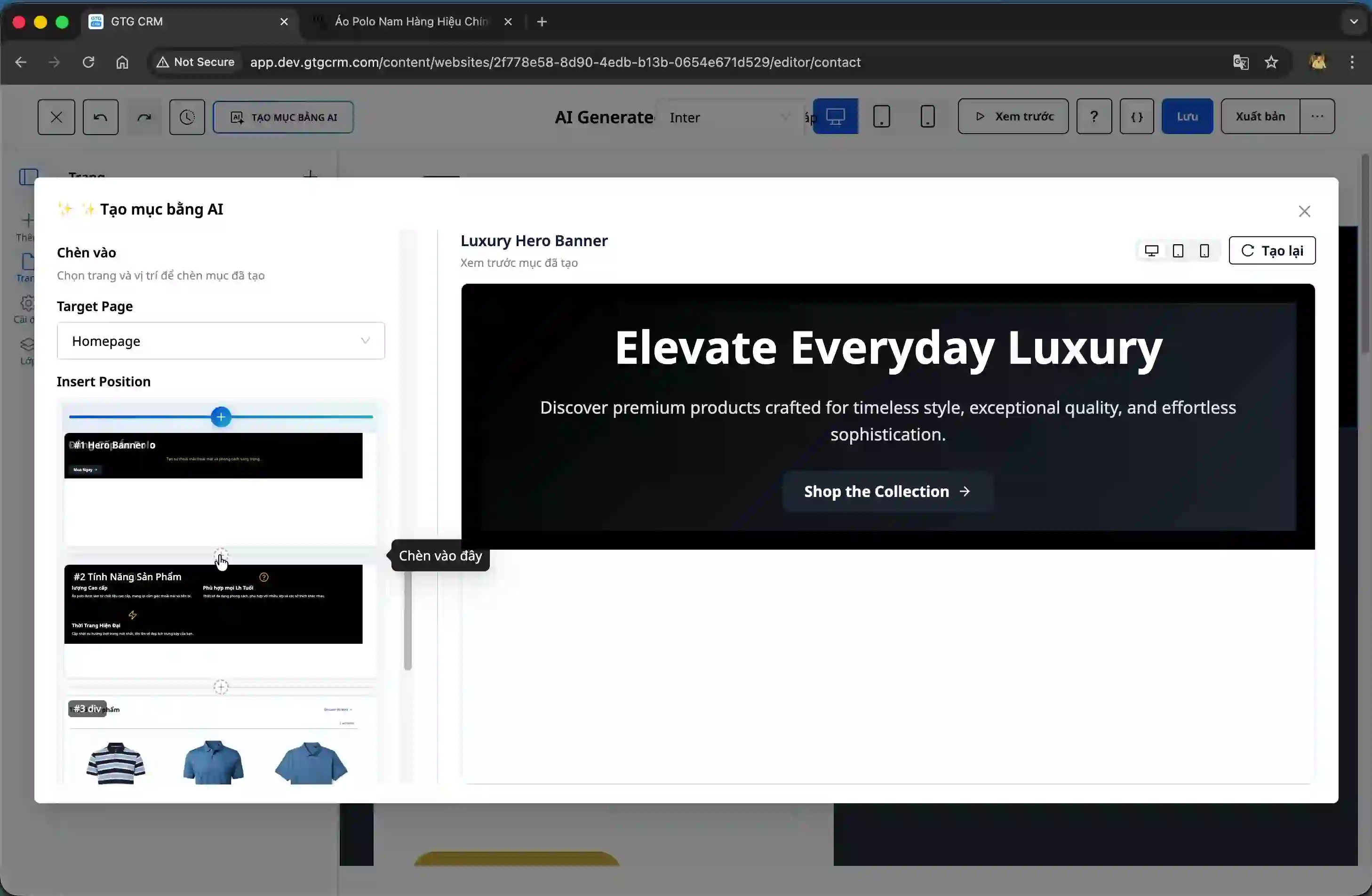
Eftir að hafa valið staðinn, skrollaðu niður til að sjá hvar nýi hlutinn mun birtast og vertu viss um að hann passi inn í heildarútlitið.
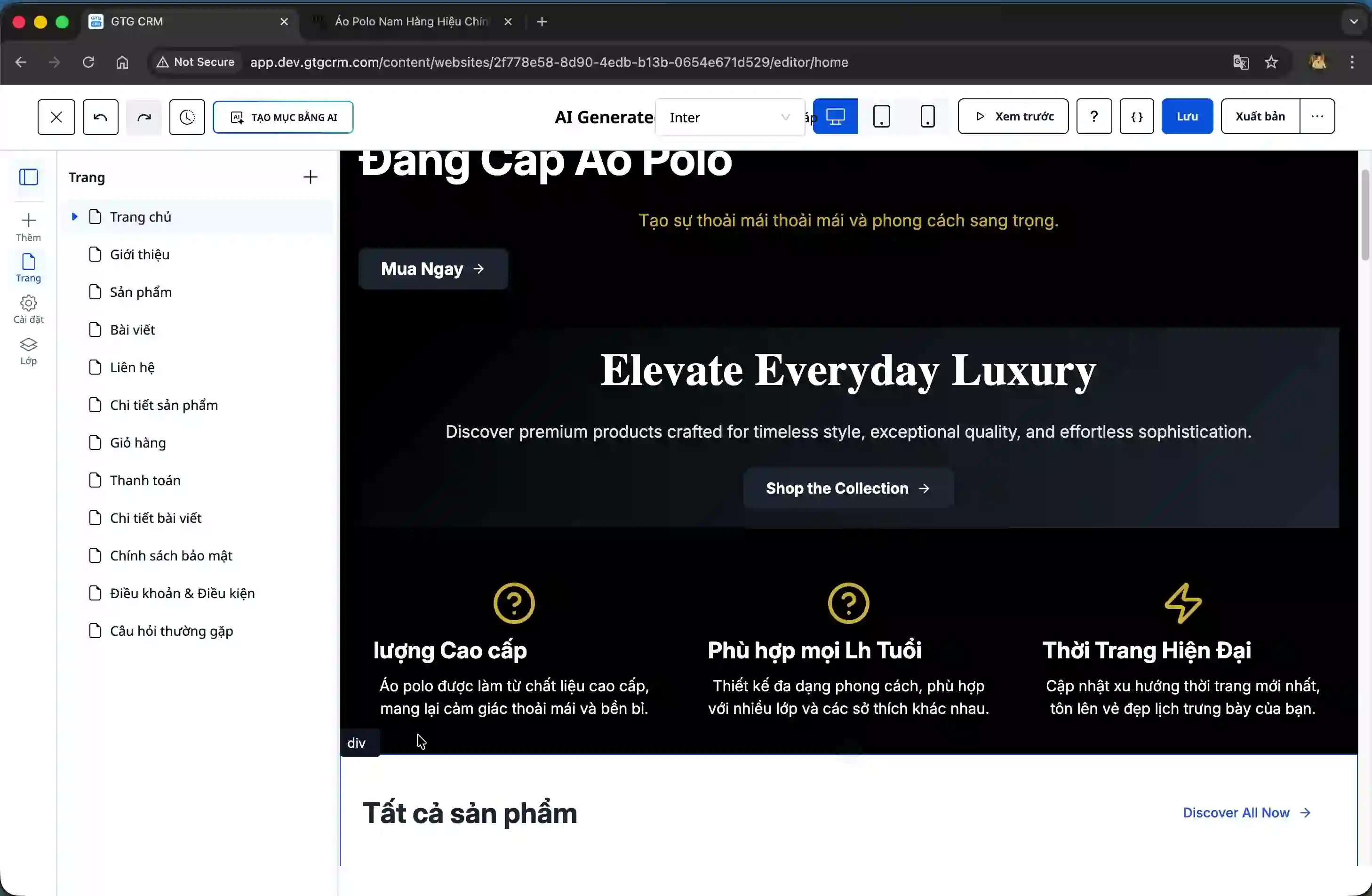
Skref 5: Bæta hluta með gervigreind (valfrjálst)
Ef þú vilt breyta hlutanum sem var nýbúinn að búa til, hægri smelltu á hann og veldu „Bæta með gervigreind“.
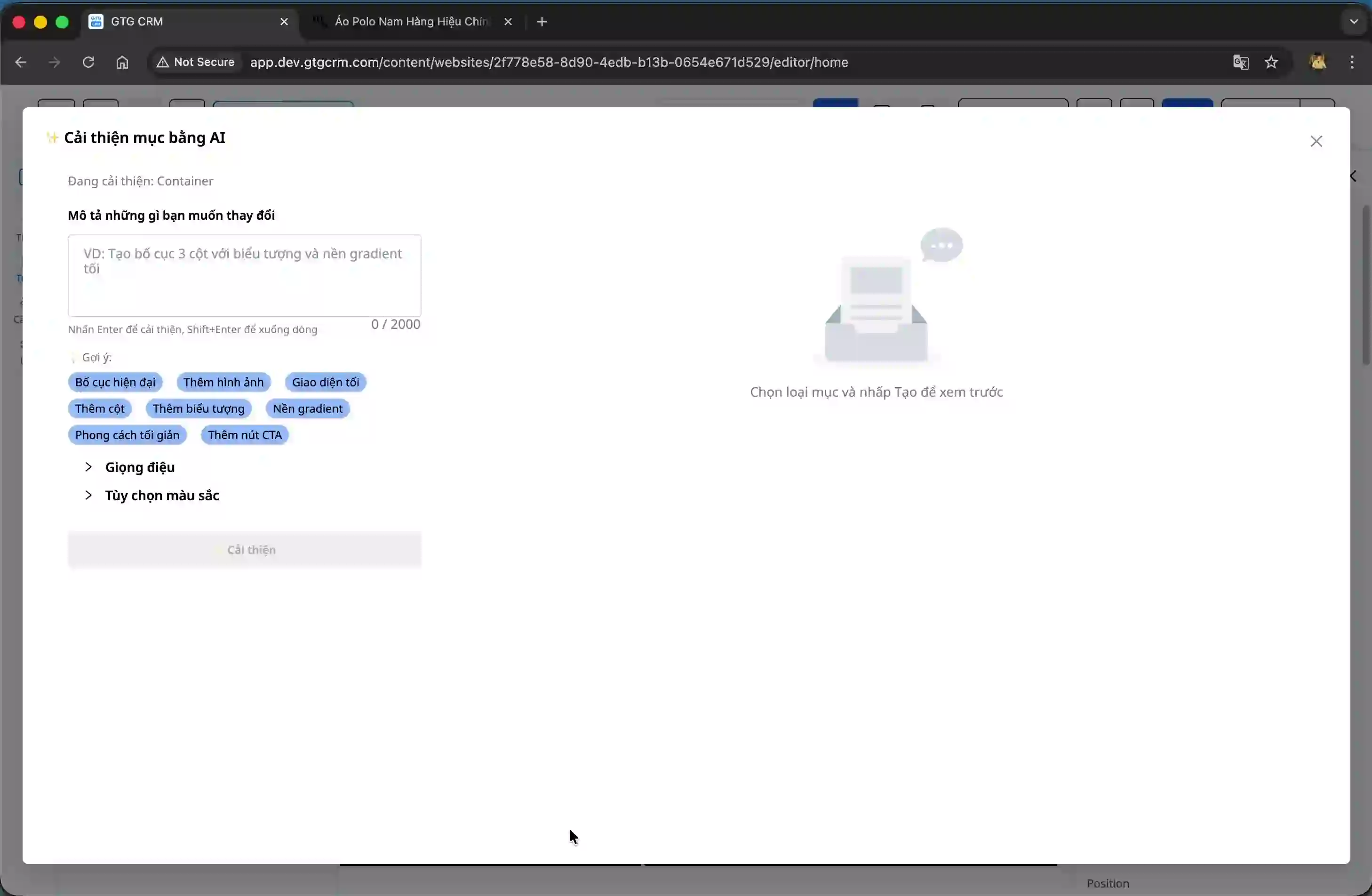
Sláðu inn sérstakar umbótabeitingar, til dæmis „bæta við hnappi“ eða aðrar breytingar. Kerfið býður upp á hnapp með tillögum svo þú getir skoðað algengar beiðnir.
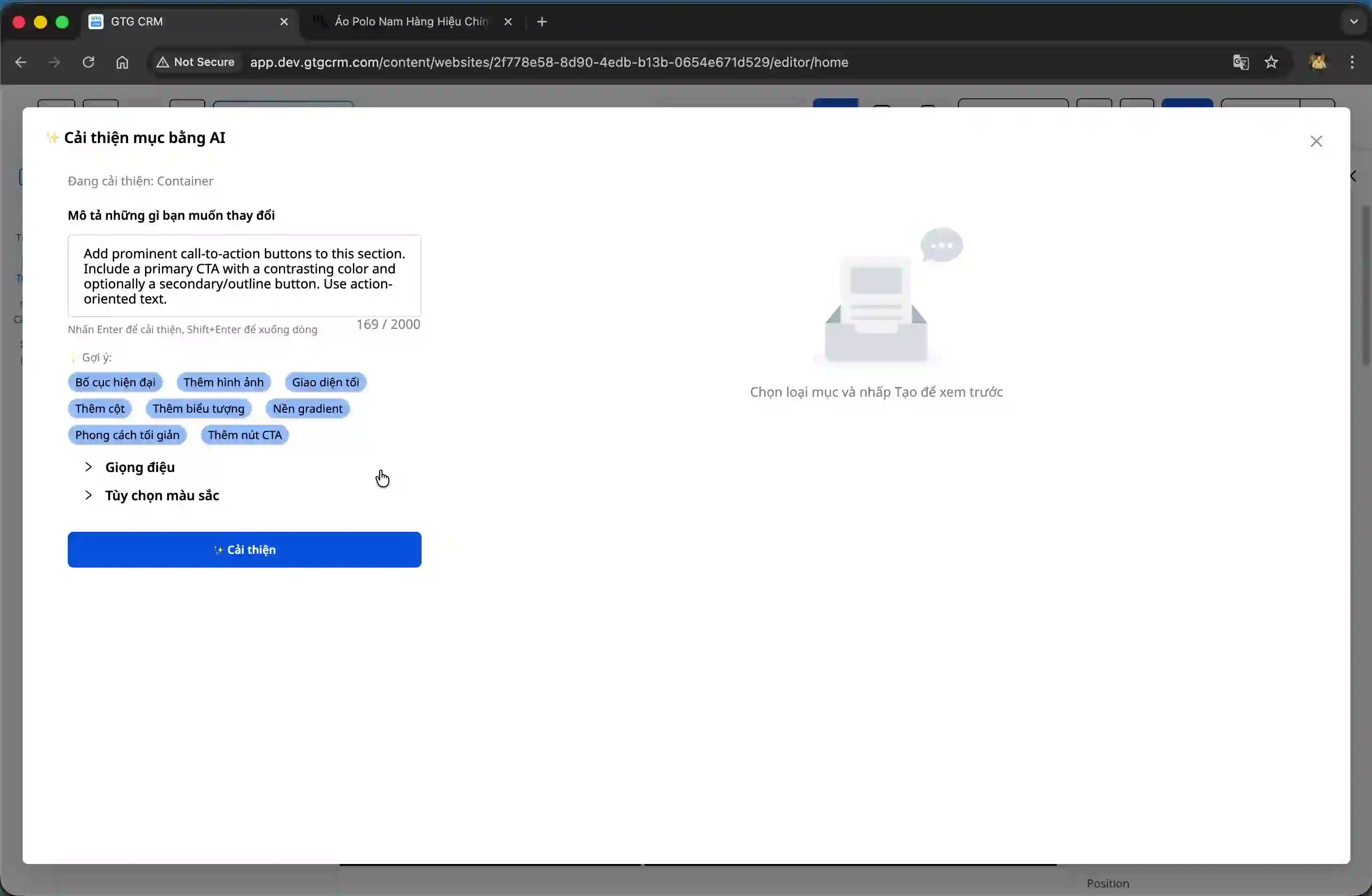
Haltu áfram að velja stíl og litapallettu ef þú vilt gera breytingar, og smelltu svo á hnappinn „Umbæta“.
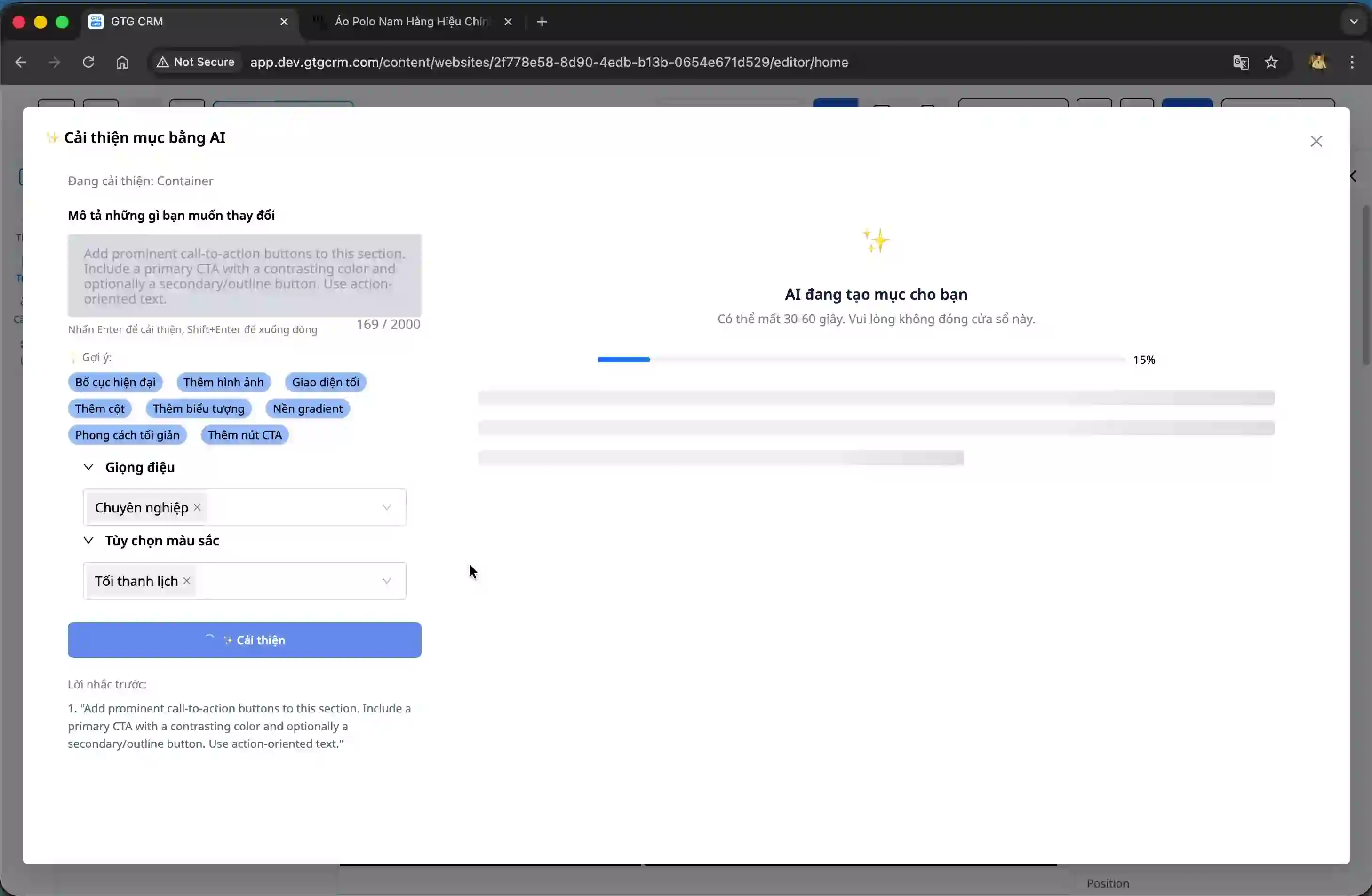
Vinnslan er mjög hröð, tekur oft aðeins um 10 sekúndur. Þegar henni er lokið mun gervigreindin sýna umbætta útgáfu.
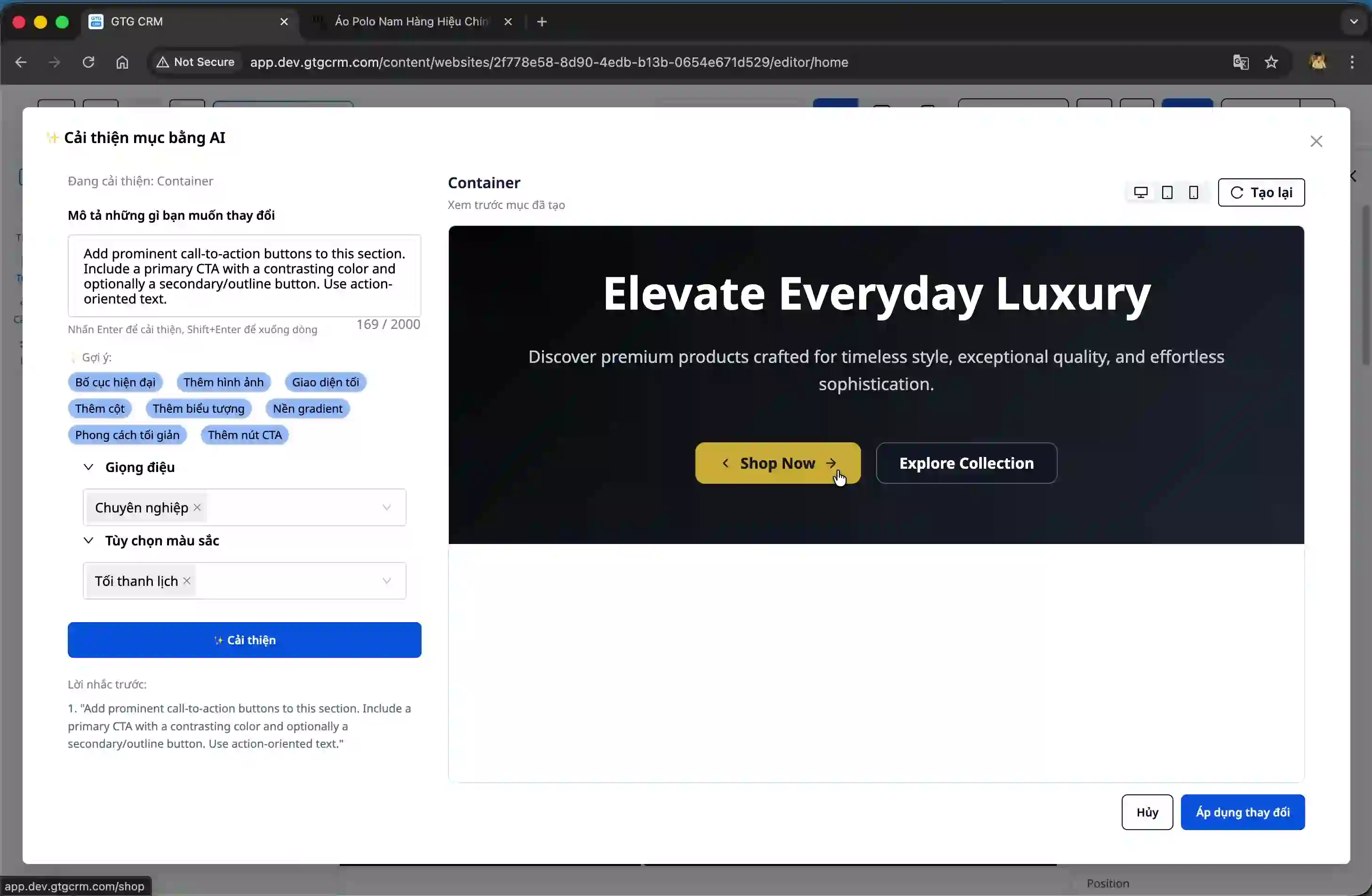
Skref 6: Nota breytingar og aðlaga
Smelltu á hnappinn „Nota breytingar“ til að uppfæra nýja viðmótið á vefsíðuna.
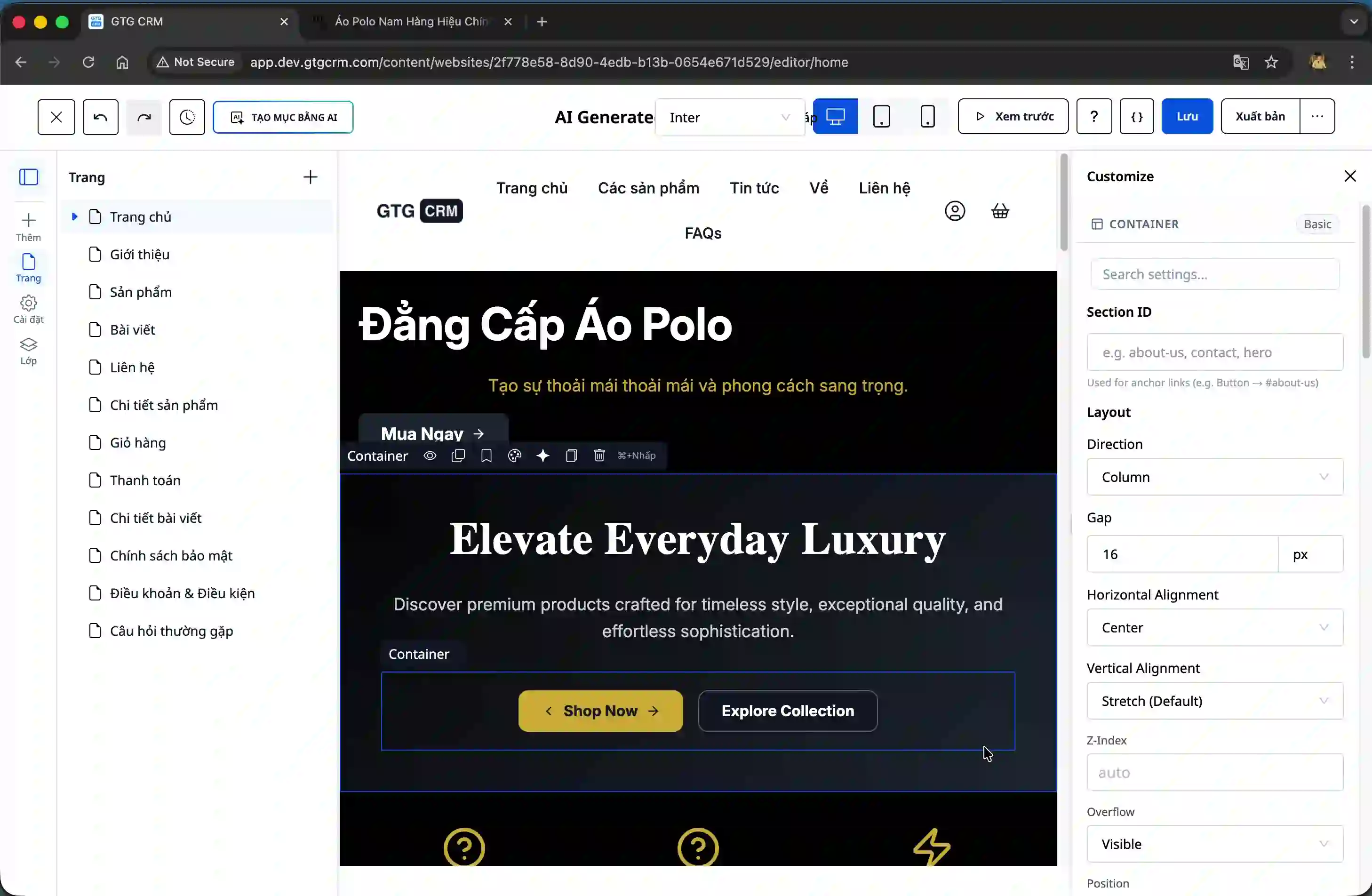
Eftir að þú hefur notað breytingarnar geturðu fínstillt smáatriði eins og að breyta hlekkjum á hnappa, breyta texta eða aðlaga aðrar stillingar til að passa við sérstakar kröfur.