Kynning á eiginleikum
Verkefni er sjaldan bara ein einföld „að gera“ lína. „Undirbúa vöruútgáfu“ er í raun tíu smærri verkefni; „Loka samningi við viðskiptavin A“ felur í sér símtöl, að senda tilboð, og skipuleggja undirritun. Með flötum verkefnalista, annaðhvort pakkarðu öllu í eina línu og gleymir hverju þú ert kominn, eða þú býrð til tugi aðskildra verkefna án þess að vita hvað tilheyrir hverju. Samskipti dreifast um spjall og tölvupóst, og þegar yfirmaðurinn spyr „hver er að vinna mest?“, þá geturðu bara giskað.
Því lýkur í dag.
Verkefnastjórnun 2.0 safnar öllu á einn stað: hvert verkefni er hægt að skipta niður í undirverkefni á tveimur stigum með sjálfvirkri samantekt á framvindu, með gátlista, athugasemdum og @nefndum af liðsfélögum strax í verkefninu, hægt að tengja við Tilboð, Vörur, Pantanir, Reikninga, og Greiningarflipi sem sýnir vinnuálag hvers og eins. Listinn hefur verið endurhannaður, litaður eftir stöðu og fresti svo þú sérð strax hvaða verkefni eru að renna út.
Vandamál sem fyrirtæki standa frammi fyrir
Flatur verkefnalisti, ekki hægt að skipta niður — Stór verkefni í óljósri línu, auðvelt að gleyma smáatriðum
Ekki vitað hversu mikið af stóru verkefni er lokið — Framvinduskýrslur byggðar á tilfinningu, yfirmaðurinn sér ekki raunveruleikann
Ekki séð hvaða verkefni eru nálægt fresti eða liðin — Mundu eftir skilafresti eftir minni, auðvelt að láta verkefni renna út án þess að vita af því
Samskipti um verkefni dreifð um spjall/tölvupóst — Upplýsingar týnast, hlutaðeigandi eru ekki upplýstir
Ekki vitað hver er með of mörg verkefni — Ójafn dreifing, fólk ofhlaðið án þess að stjórnendur sjái það
Verkefnastjórnun 2.0 breytir verkefnum í skipulögð verkefnatré, með viðvörunarlitum fyrir fresti, stað til samskipta, og gagnsæjar tölur — allt tengt við viðskiptagögn þín.
Hápunktar
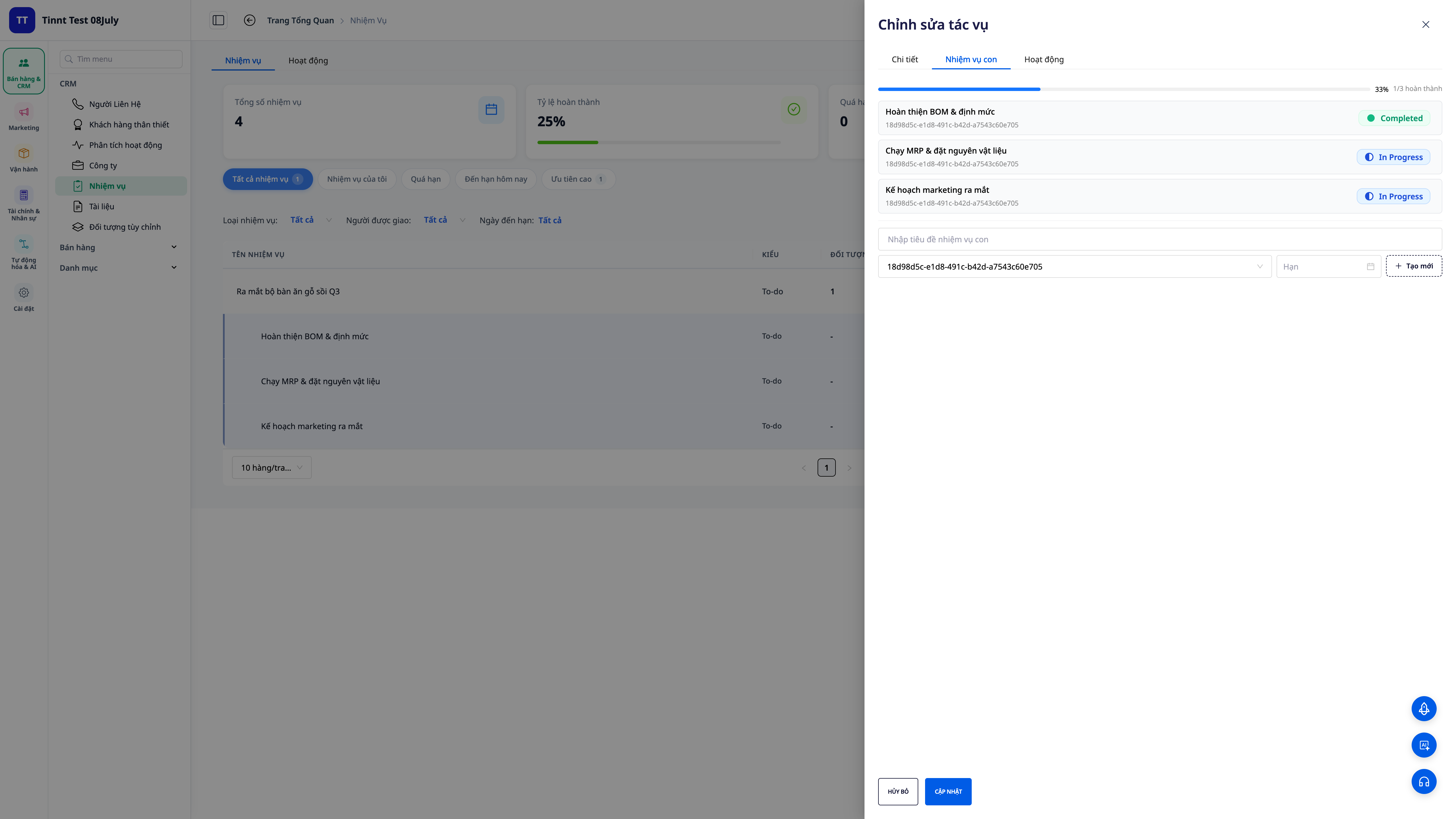
1. Undirverkefni á tveimur stigum + sjálfvirk framvinda
- Skipta verkefnum niður: skiptu stóru verkefni niður í undirverkefni (allt að tveimur stigum), hvert undirverkefni hefur sinn ábyrgðaraðila, frest og stöðu.
- Sjálfvirk framvinda: þegar undirverkefni eru kláruð, bætist framvindan við móðirverkefnið — engin handvirk % uppfærsla þörf.
- Sjáðu strax hversu mikið er eftir: framvindustikan sýnir hversu langt stóra verkefnið er komið.
2. Gátlisti strax við stofnun verkefnis
- Setja upp atriði frá byrjun: bæta við gátlista yfir skref strax þegar verkefni er stofnað, þarf ekki að fara til baka til að bæta við.
- Engin skref gleymd: öll verkefni sem þarf að gera eru á einum stað og leggjast líka við framvinduna.
3. Fullgild klárun skráð af kerfinu
- Áreiðanlegur klárunartími: staða og tími klárunar eru skráðir af miðlara, ekki samkvæmt úrri tölvunnar þinnar — samkvæmar tölur við samanburð og skýrslugerð.
4. Tengt við Tilboð, Vörur, Pantanir, Reikninga + 360 virkni
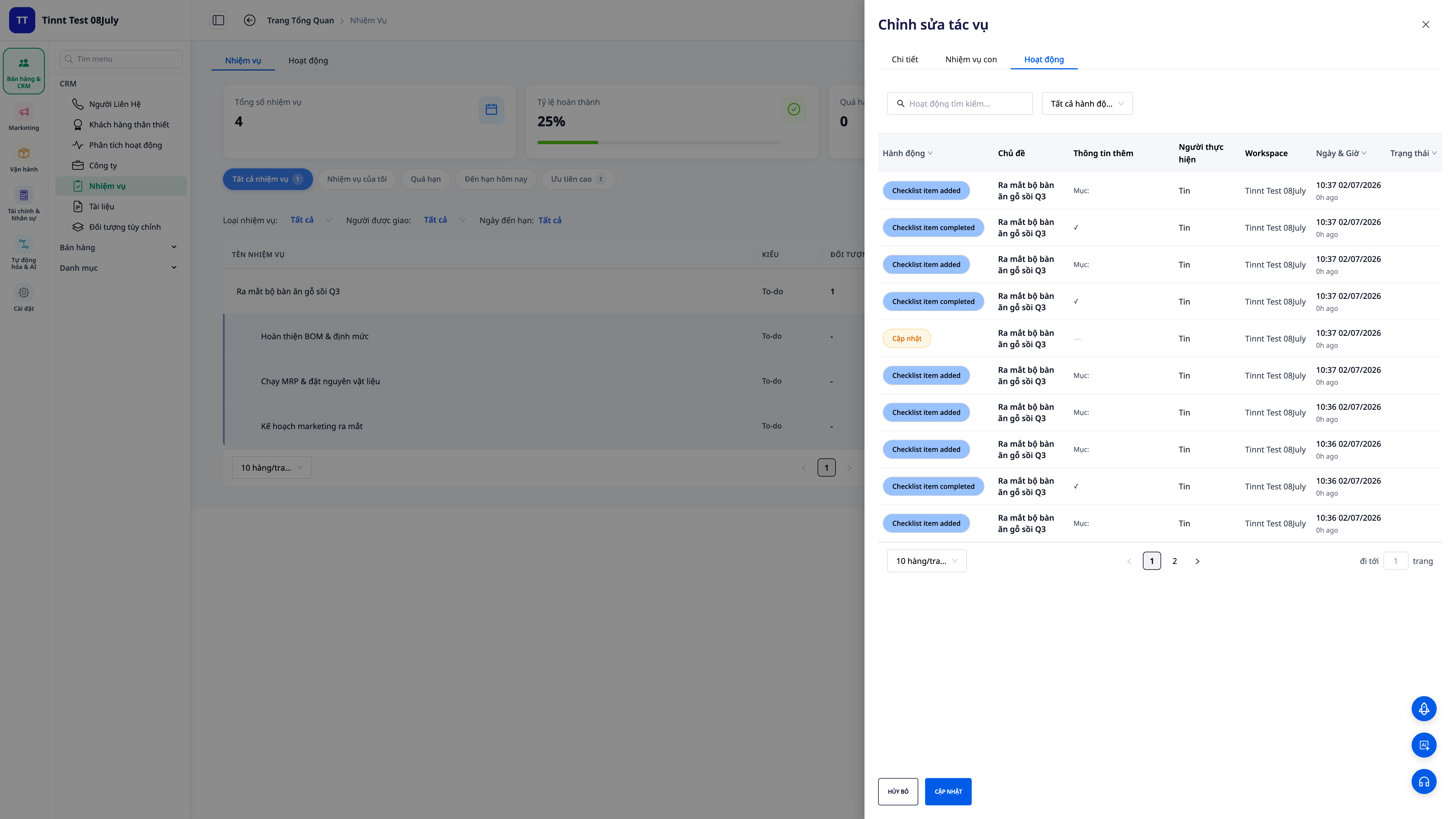
- Tengja við tengda hluti: tengdu verkefni við Tilboð, Vörur, Pantanir, Reikninga til að vita hvaða tækifæri/pöntun þetta verkefni þjónar.
- 360 virkni: auðlæsileg tímalína sem sýnir öll atvik í kringum verkefnið — hver gerði hvað, hvenær.
- Auðvelt að rekja: frá tilboði eða pöntun, sjáðu strax öll tengd verkefni og stöðu þeirra.
5. Endurhönnuð verkefnalisti — litakóði eftir stöðu & eindrægni + „Í dag“ borð
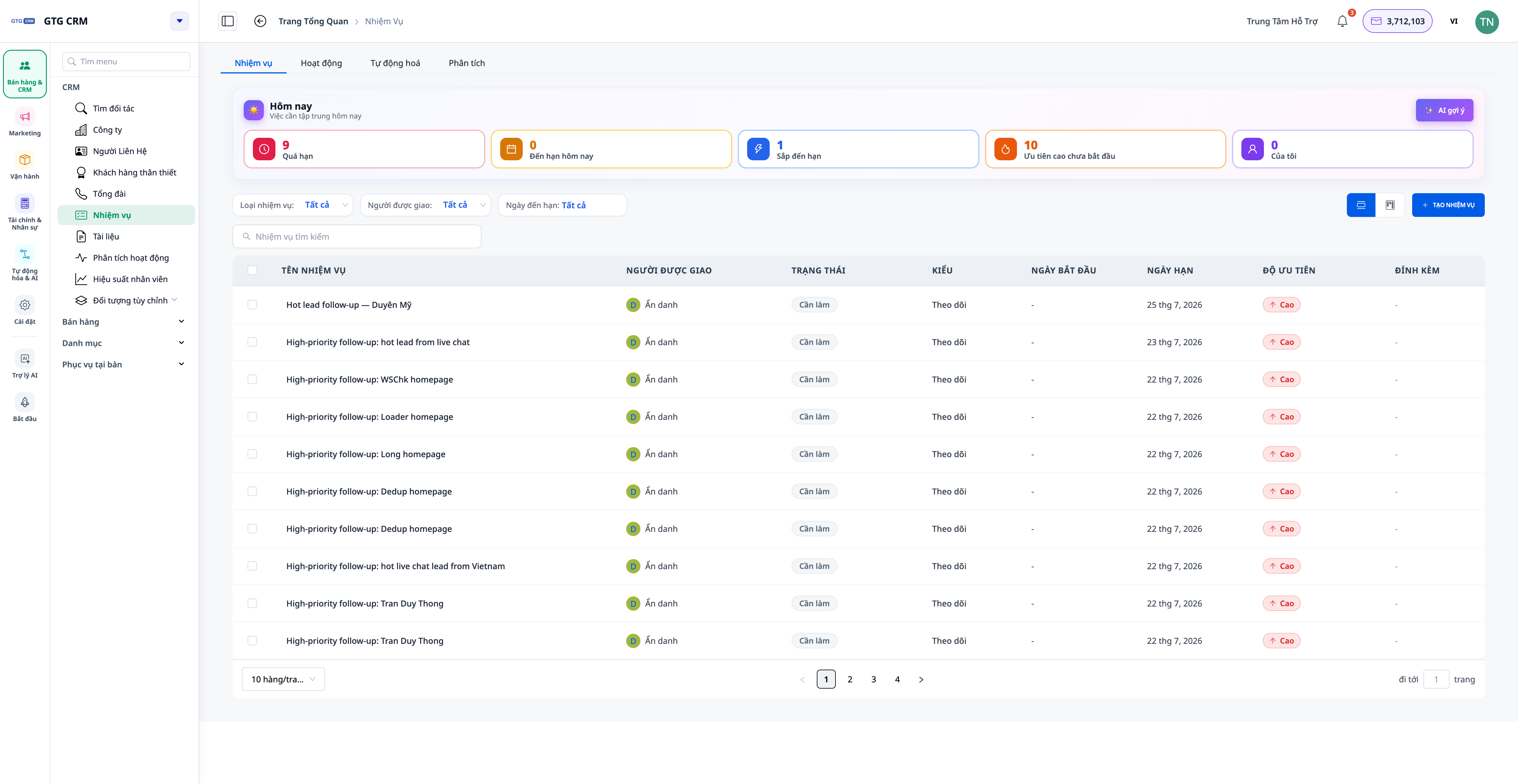
- Liturinn segir allt sem segja þarf um stöðuna: Verkefni, Í vinnslu, Ljúka, Hætt — hver staða hefur sína mýkt og auðlesanlega tóna.
- Áminning um eindrægni strax á línunni: Verkefni sem eru að renna út eru gul, verkefni sem eru liðin eru rauð — þú sérð strax hvað þarf að gera.
- „Í dag“ borð: Efst á síðunni eru strax söfnuð saman „liðin · renna út í dag · renna út bráðum · há forgangur · mín verkefni“, smelltu og hoppaðu að réttum síuðum lista.
💡 Þarftu áætlun um forgang í dag? Smelltu á „Ráðlegg“ til að láta aðstoðarmanninn raða verkefnum sem á að vinna fyrst (þessi eiginleiki notar inneign).
6. Athugasemdir í verkefnum + @nefna samstarfsfólk
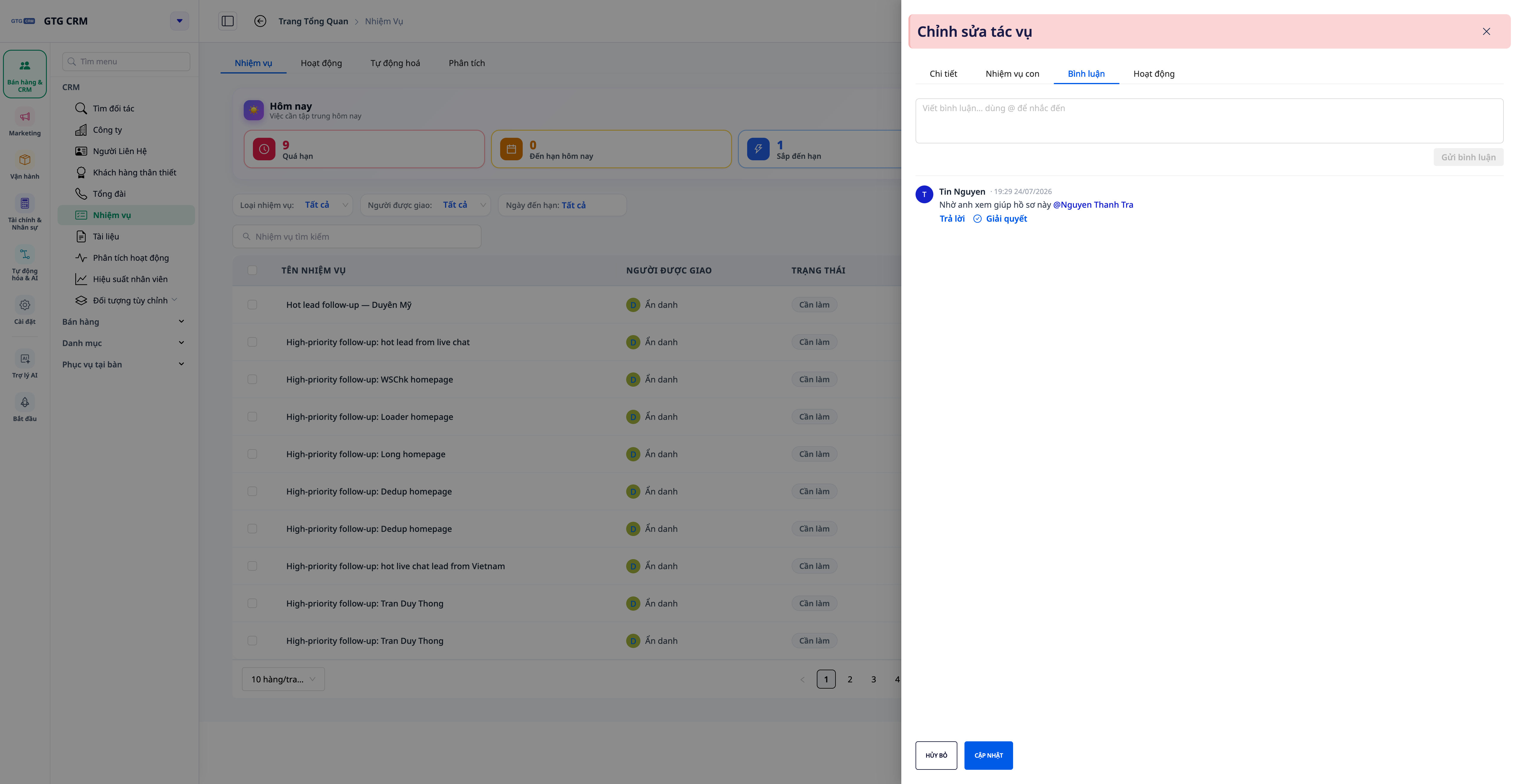
- Ræðið strax í verkefninu: Allar umræður eru við hið tiltekna verkefni, ekki ruglingslegar í spjalli/tölvupósti.
- @nefna samstarfsfólk: Sláðu inn
@og veldu viðkomandi úr hópnum; nefnt nafn sýnist grænt og auðsjáanlegt, og viðkomandi fær strax tilkynningu í forritinu. - Bæta við tölvupósti ef þarf: Virkjaðu valkostinn senda tölvupóst til þess sem nefndur er til að fá líka þá sem eru offline inn í samtalið.
7. Greining verkefna — magn eftir einstaklingi
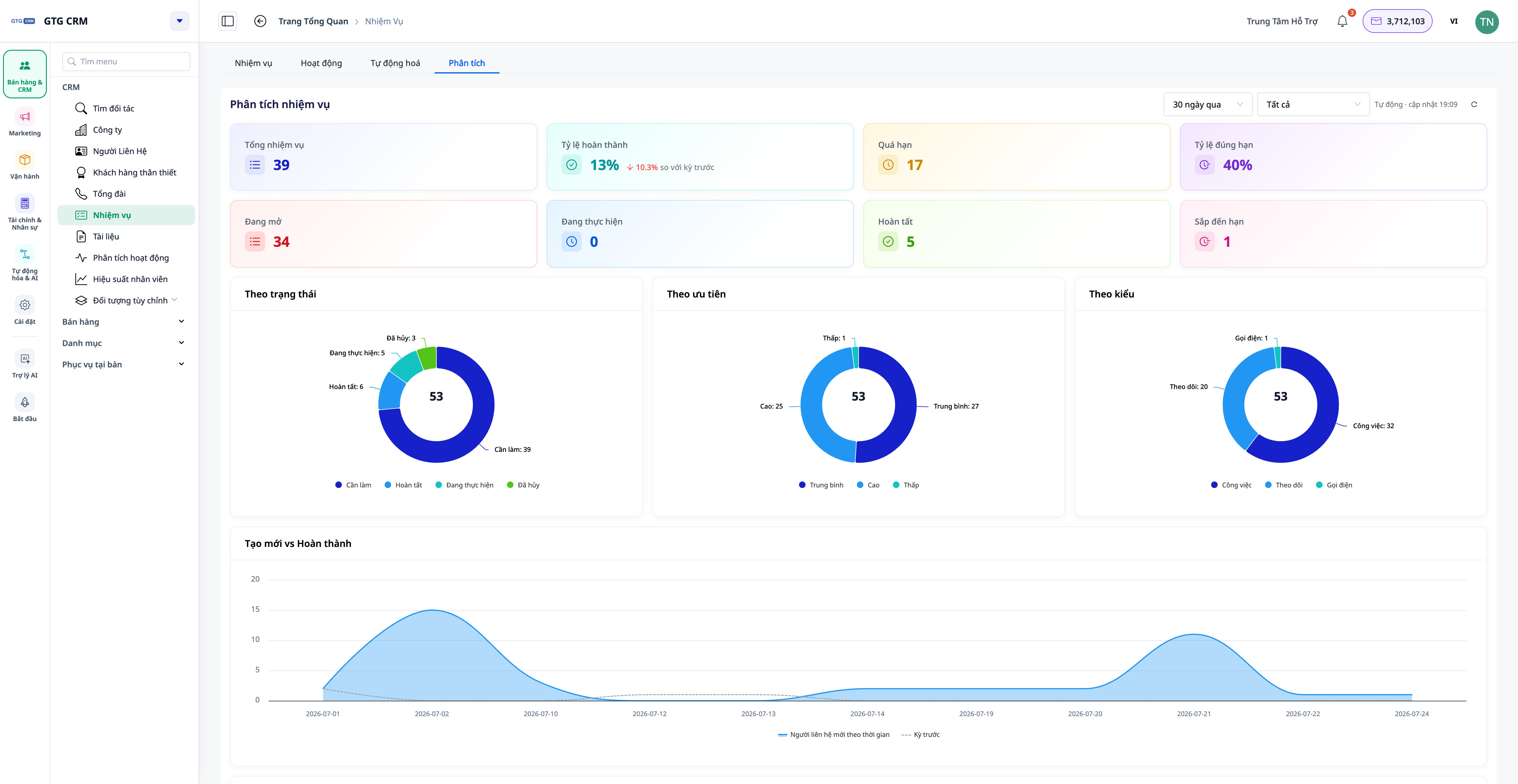
- Augnablik yfirlit: Samtals verkefni, í vinnslu, lokið, liðin, lokahlutfall og hlutfall á réttum tíma — ásamt samanburði við fyrra tímabil.
- Magn eftir einstaklingi: Myndræn framsetning sem sýnir hverjir hafa mörg verkefni, hverjir eru lausir — til að úthluta betur.
- Smelltu á einstakling: Sjáðu nánar hvað sá einstaklingur er að vinna að í verkefnum.
8. Endurskoðendur & Tilkynnendur — styðja nú marga endurskoðendur, ásamt Byrjunartíma & Tengiliðum
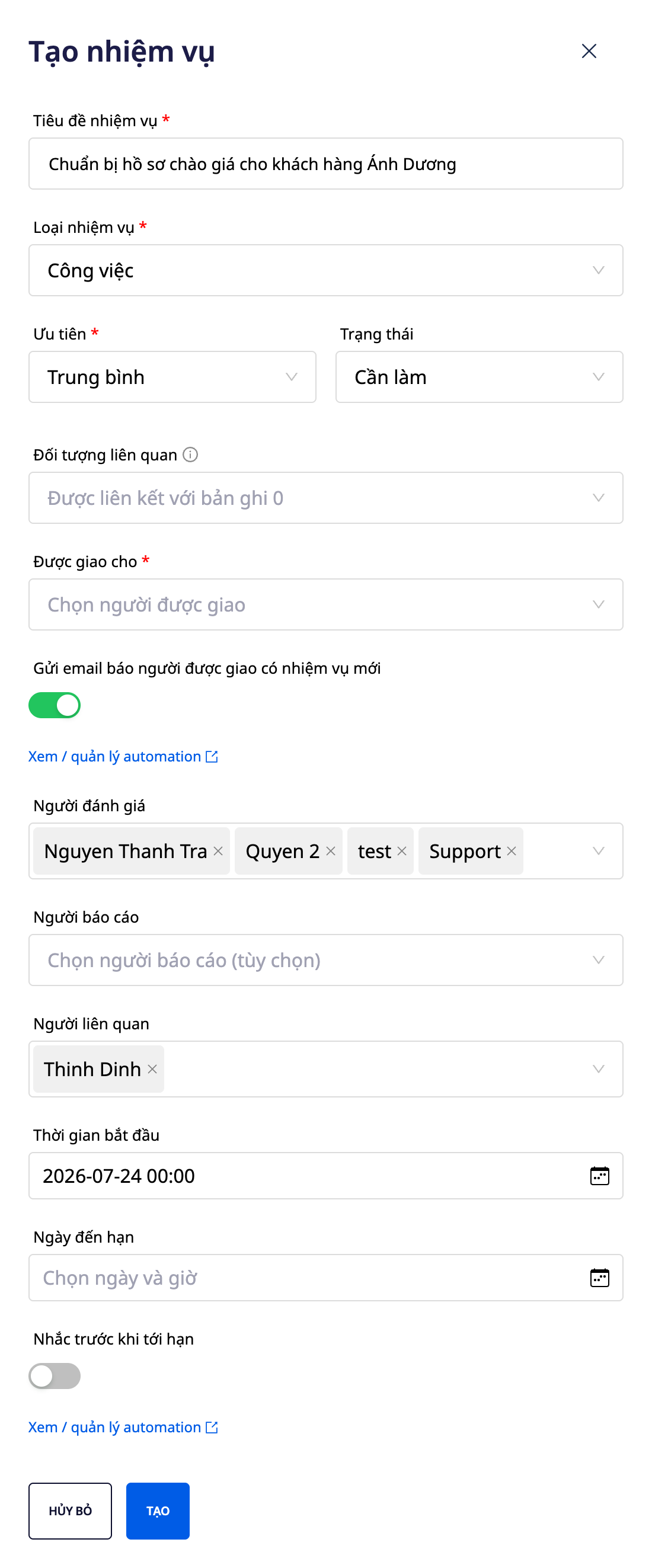
- Margir Endurskoðendur: Úthlutaðu einum eða fleiri endurskoðendum fyrir verkefni sem þarf að samþykkja í mörgum skrefum.
- Tilkynnandi: Sá sem bjó til/fylgist með verkefni til að ná lokaárangri.
- Byrjunartími & Tengiliðir: Stilltu byrjunartíma og bættu við lista yfir tengiliði svo þeir geti fylgst með framvindu.
9. Viðhengi úr Myndasafni & innri hlekkir
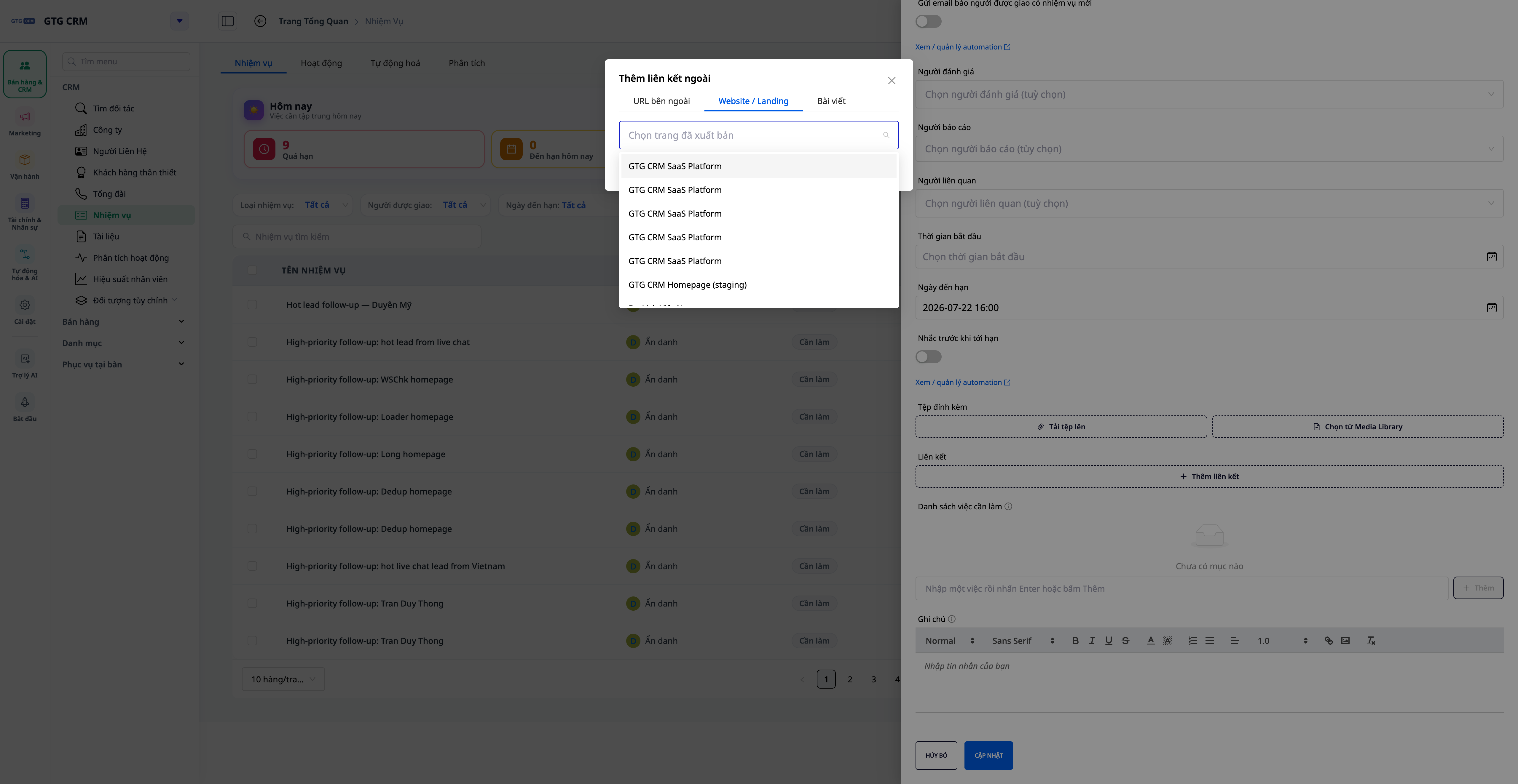
- Viðhengi úr Myndasafni: Veldu tilbúnar skrár/myndir af öllu vinnusvæðinu, engin þörf á að hlaða upp aftur frá tölvunni.
- Innri hlekkir: Festu fljótt hlekki á vefsíður, honnunarsíður eða greinar vinnusvæðis — engin þörf á að líma URL handvirkt.
10. Sjálfvirkni verkefna — úthlutun, stöðubreytingar, lokið, @nefna með tölvupósti
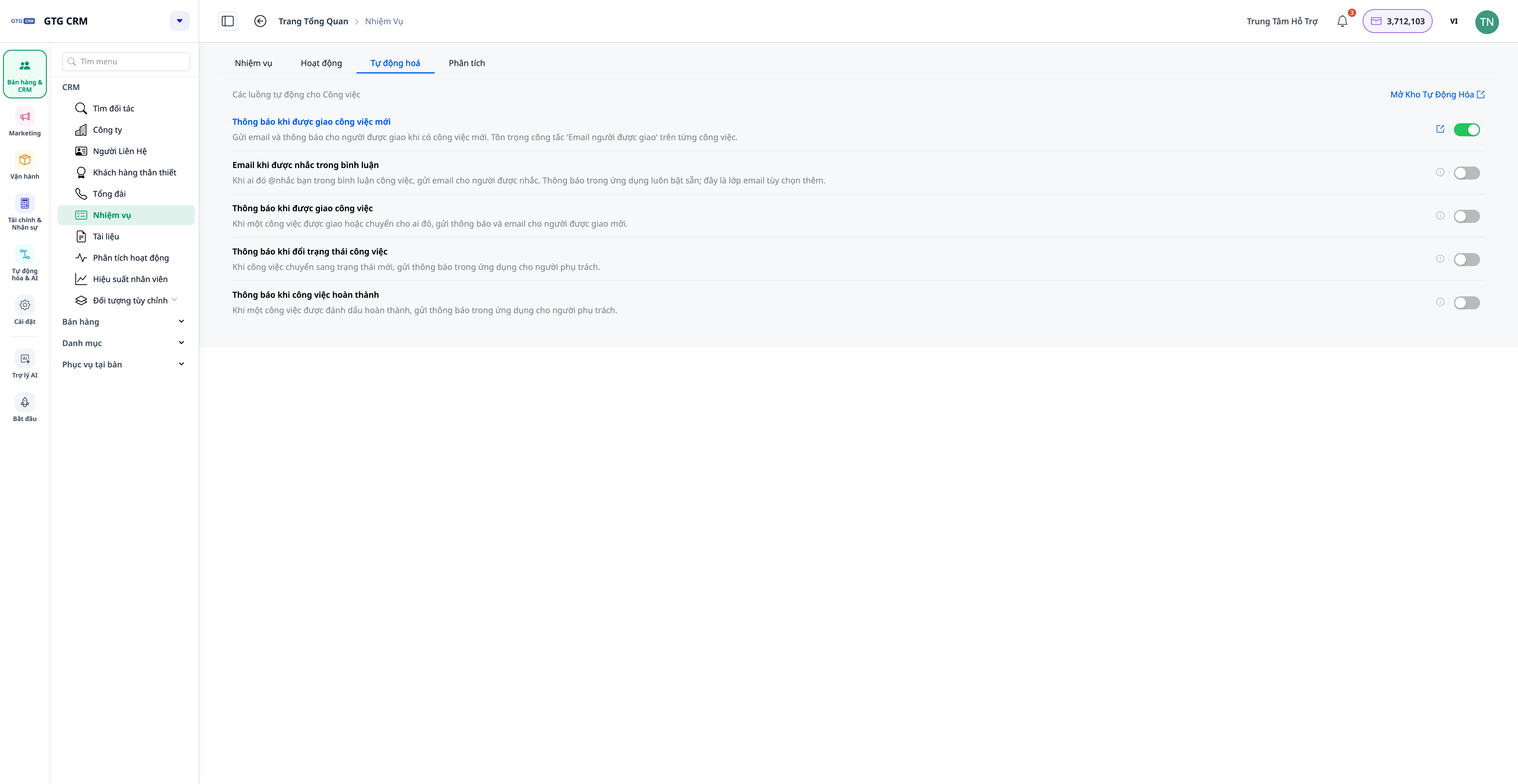
- Sjálfvirk úthlutun verkefna: Ferli til að búa til/úthluta verkefni til rétta aðilans þegar atburður á sér stað (tilboð breytir um áfanga, ný pöntun...).
- Tilkynna við stöðubreytingu / klárun: Sjálfvirk tilkynning til viðkomandi aðila þegar verkefni breytir um stöðu eða er klárað.
- Tölvupóstur við nefndarmerking: Virkjaðu til að fá viðkomandi sem er merktur með @fær einnig tölvupóst - kveiktu/slökktu fljótt í Sjálfvirkni flipanum fyrir Verkefni.
- Þessar aðstæður eru staðsettar í Sjálfvirkni Bókasafninu (sjá grein um Sjálfvirkni).
Ávinningur fyrir fyrirtæki
Undirverkefni + sjálfvirk framvinda — Stór verkefni skiptast skýrt, framvinda er gagnsæ, engin þörf á handvirkum uppfærslum
Litaðar listar + „Í dag“ tafla — Sjáðu strax verkefni sem eru að falla til eða of sein, byrjaðu vinnudaginn á rétta fókusinn
Athugasemdir + nefndarmerking (@nefndarmerking) — Samskipti innan verkefnisins, réttir aðilar fá tilkynningu - enginn misskilningur á upplýsingum
Greiningartafla eftir einstaklingi — Sjáðu hver er ofhlaðinn, dreifðu verkefnum aftur í tæka tíð
Margir samþykkjendur / tilkynnendur — Skýr ábyrgð, mörg samþykki skref þegar þess er þörf
Viðhengi úr Bókasafninu + innri tenglar — Endurnýttu auðlindir á vinnusvæðinu, án þess að yfirgefa kerfið
Tengja við Tilboð/Vörur/Pantanir/Reikninga + Virkni 360 — Öll verkefni tengd viðskiptagögnum, auðvelt að rekja
Sjálfvirk verkefni — Verkefni falla ekki niður, dregur úr handvirkum áminningum
Hverjum hentar þetta?
- Söluteymi sem sjá um mörg verkefni í kringum hvert tilboð (hringja, tilboð, samningamót).
- Rekstrar- / verkefnateymi sem þurfa að skipta stórum verkefnum niður, samskipti innan verkefnisins og fylgjast með raunverulegri framvindu.
- Stjórnendur sem þurfa að sjá vinnuálag hvers starfsmanns og fá nákvæmar framvinduskýrslur í stað þess að spyrja hvern og einn.
Hvernig á að byrja?
Farðu í CRM → Tasks (Verkefni), búðu til verkefni, bættu við gátlista og undirverkefnum, tengdu það við viðkomandi Tilboð/Pöntun, og prófaðu síðan að tjá þig og nefna samstarfsmann og opna Greining flipann. Sjáðu leiðbeiningar um Verkefnastjórnun 2.0 skref fyrir skref til að fylgja, og skoðaðu Sjálfvirkni til að fá verkefni til að keyra sjálfkrafa.
Ókeypis prufuáskrift — engin kreditkort krafist.