Requirements Before Starting
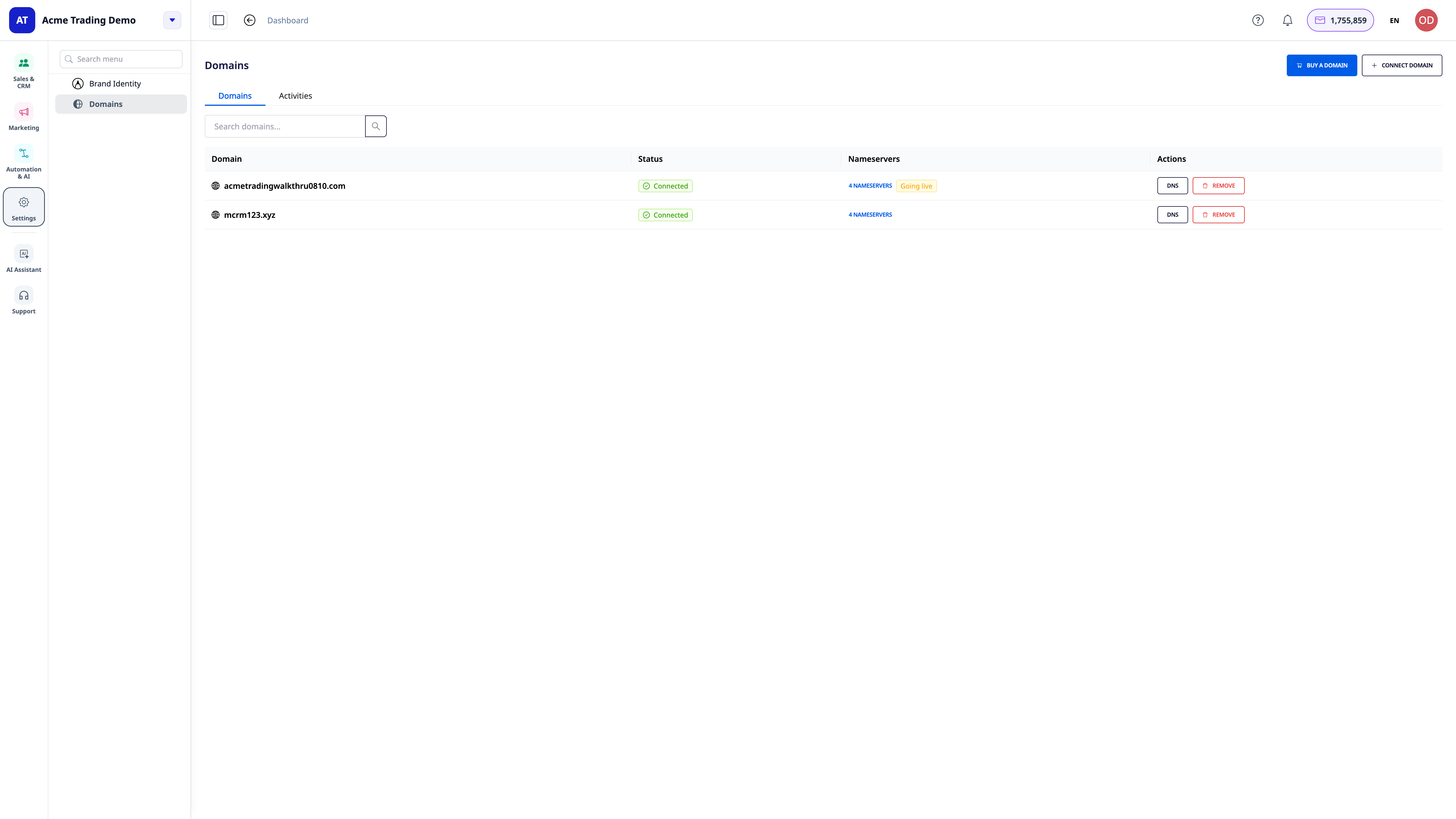
The workspace has declared brand information in Settings → Brand Identity — this is the data AI uses to infer the ideal customer profile.
To use the ad audience synchronization feature: the workspace must have connected Facebook Ads and/or Google Ads accounts.
To send automated introductory emails: a mailbox (Gmail/Outlook) must be connected in Messaging.
Step 1: Enable Lead Source Classification Script
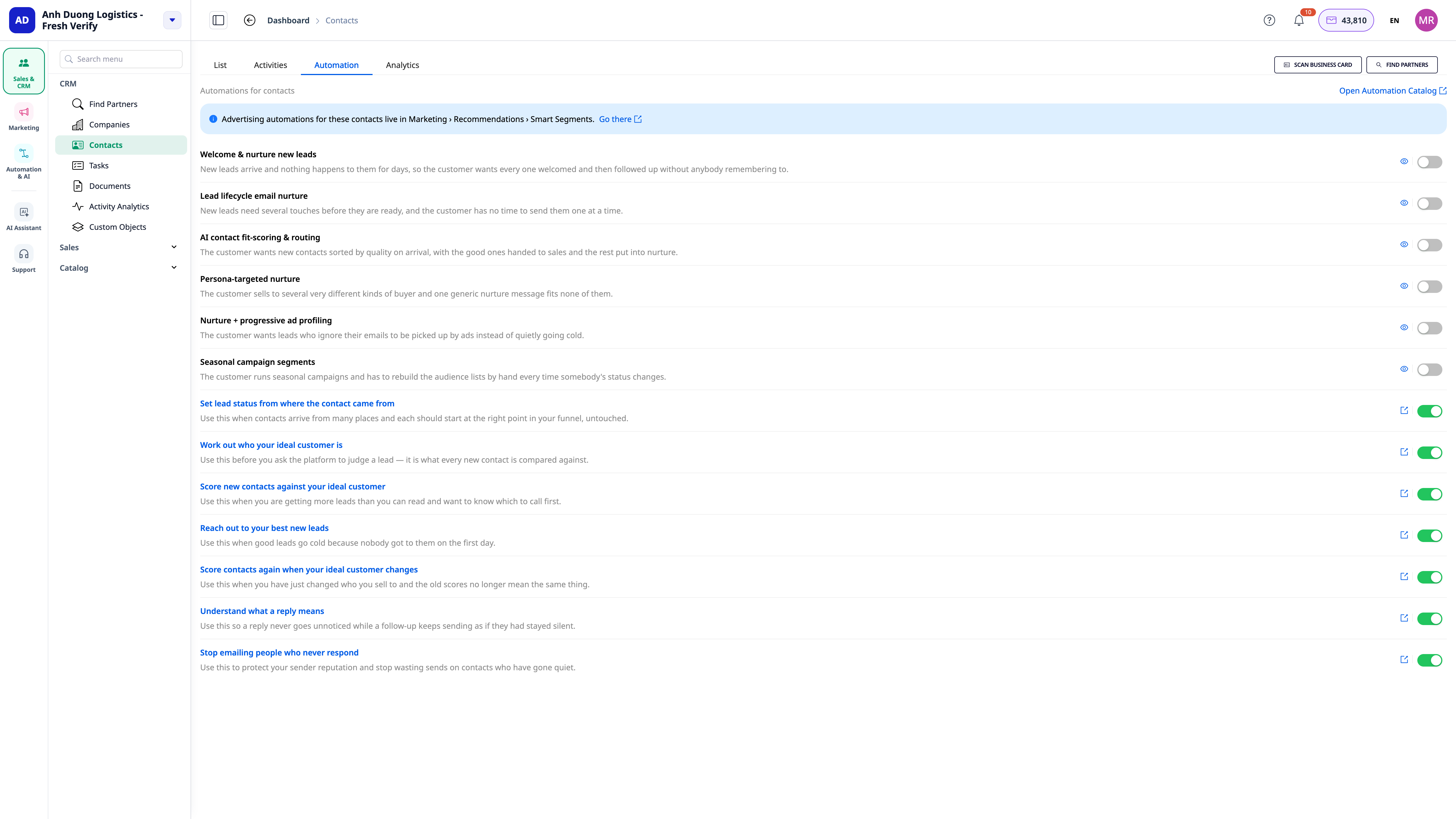
Go to CRM → Contacts
Open the Automation tab at the top of the list page
Find the script "Classify by Lead Source" and click Enable
(Optional) Open the script to adjust the source → initial status mapping to match how you classify leads.
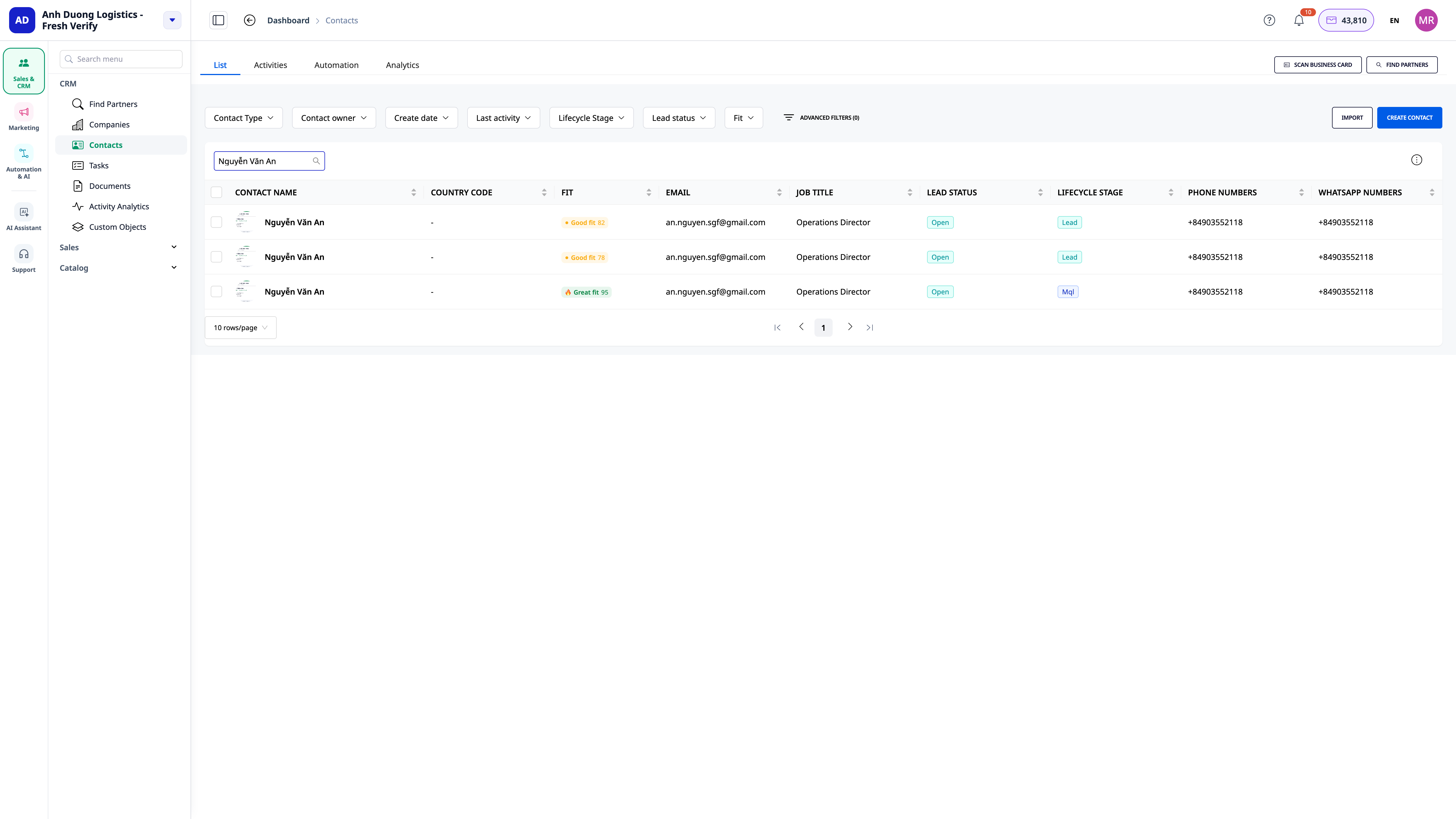 Step 2: Enable AI Script for Customer Profile Learning & Fit Scoring
Still on the Contact's Automation tab, find the script "Infer Ideal Customer Profile from Brand" and click Enable — the AI will read the declared brand information to create the ideal customer profile for the first time.
Next, enable the script "Score Contact Fit" — from now on, every new contact created will be automatically scored.
Open any contact's profile to see the fit score and fit band displayed directly on the profile.
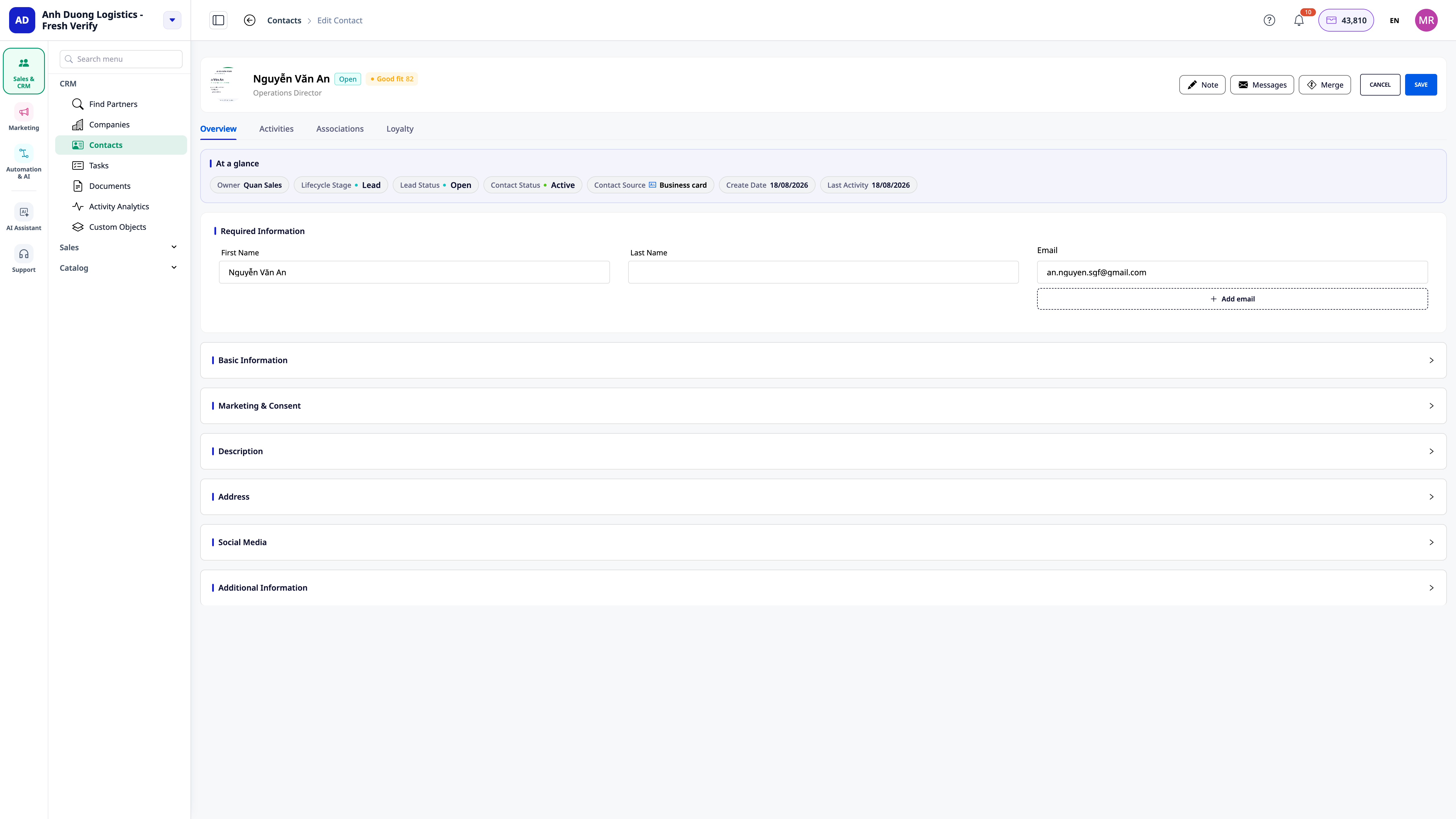 Step 3: Enable Personalized Outreach Script for High-Scoring Leads
Go to Messaging, find the button ⚡ Automation at the top of the page
Enable the script "Research & Outreach for High-Scoring Leads"
When a contact is scored as a high fit, the system will research and draft an introductory email — go to Messaging to review the drafted email before sending, or allow the system to send it automatically according to the schedule configured in the script.
💡 Preview Before Sending: each script can be tested (Test Run) with a sample contact before enabling it for real — go to the script's detail page, select Test Run to see the content drafted by AI without actually sending it.
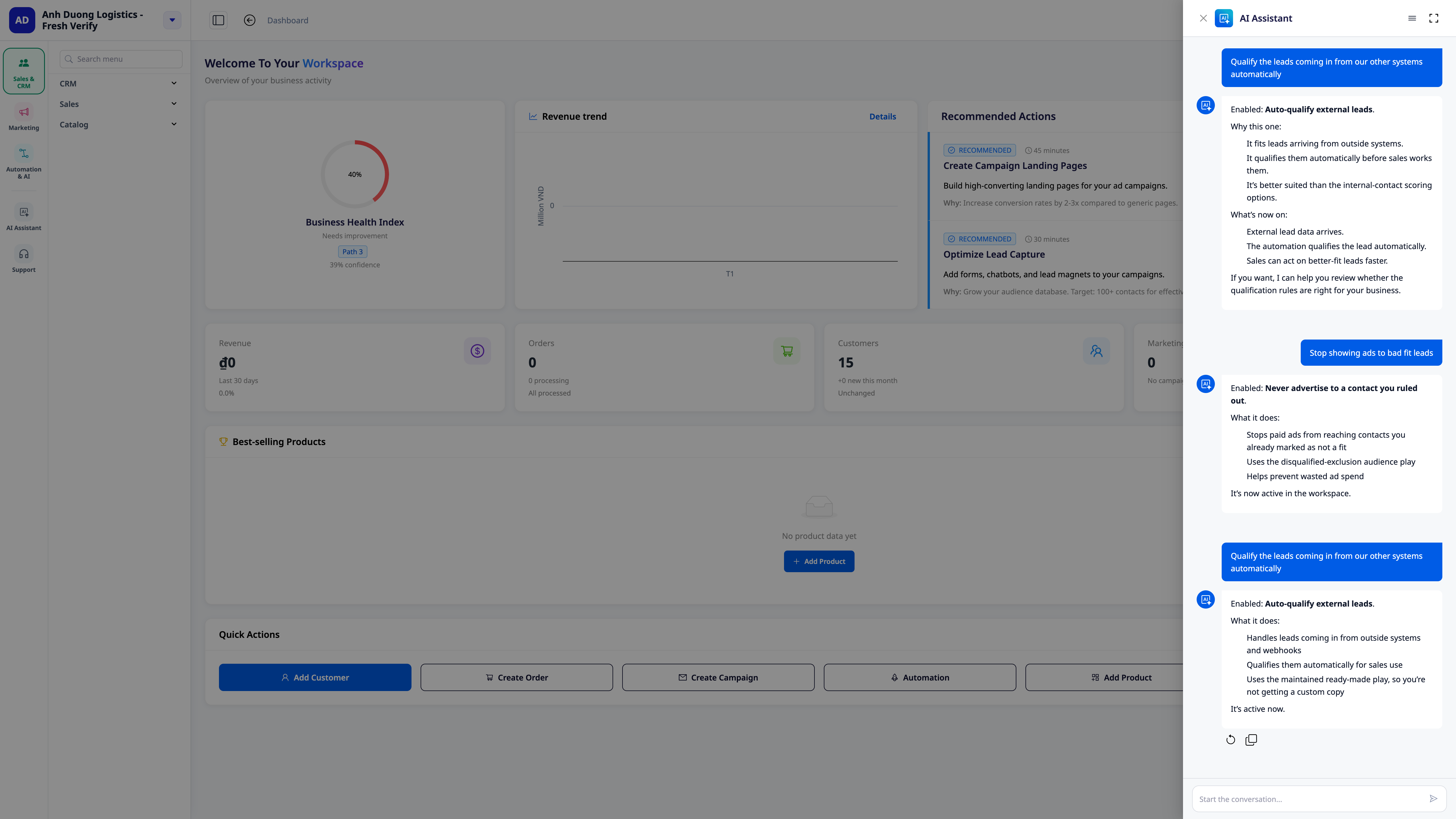 💡 Faster Alternative: you can also open the Business AI Assistant and type directly in natural language, for example, "Automatically score leads coming from multiple sources" — the AI will find the correct script, explain it, and enable it for you.
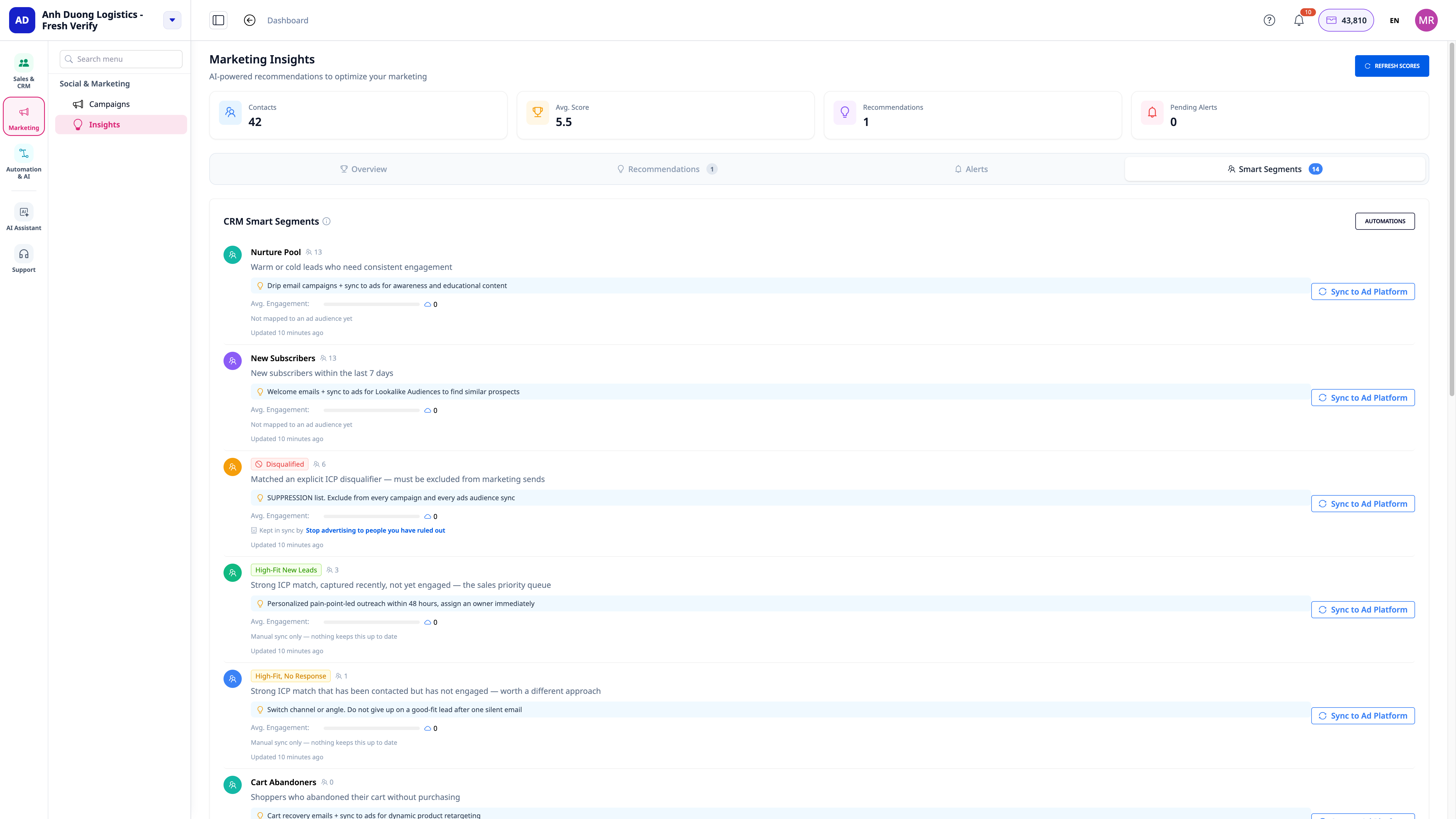 Step 4: Enable Ad Audience Synchronization by Segment
Go to Marketing → Smart Segments
Click the button ⚡ Automation at the top of the page
Enable the scripts you need one by one:
"Sync segments to ad audiences" — every time a contact enters a segment you've chosen, the corresponding Facebook/Google audience is updated
"Remove contacts excluded from audiences"
"Create lookalike audiences from good customers"
"Retarget high-scoring leads who haven't responded"
"Stop advertising to purchased customers"
For each script, open the configuration section to select the correct CRM segment and corresponding ad account.
Step 5: Rescore All Contacts When Customer Profile Changes
After refining the ideal customer profile (changing brand information, or editing directly in the scoring script)
The "Rescore when Ideal Customer Profile Changes" script automatically runs and updates the appropriate scores for all existing contacts — no further action needed
Track progress in the script's Run History
Tracking & Adjustments
Each script has its own Run History — see when the script ran, on which contacts, and what the results were
If a script fails or doesn't run as expected, you can view the details of each step and Retry directly from the run history, no need to contact support
All scripts are editable: change conditions, change email content, change scoring thresholds — just like you would edit any other automation on GTG CRM
Frequently Asked Questions
Does enabling this script incur a fee?
AI steps (inferring customer profile, scoring suitability, researching & drafting intros) incur credit fees based on actual workspace usage. Other steps (source classification, audience synchronization) do not incur additional AI fees.
Am I required to enable all 13 scripts?
No. Each script is independent, enable/disable individually according to your needs — for example, only using the suitability scoring part without needing ad audience synchronization yet.
What if I don't have a Facebook/Google advertising account?
You can still use the source classification, suitability scoring, and personalized outreach scripts normally — only the ad audience synchronization script group requires a workspace connected to the corresponding advertising account.