What you'll be able to do after this guide
Some refunds are large enough that business owners want a responsible person to review them before they are recorded. This guide walks through the Refund over threshold approval card: turning it on, setting the threshold, seeing the staff member enter a reason when they mark an order as a return, and then having the approver read the request and click Approve or Reject. One detail worth knowing: the reason the staff member typed when the returned goods came back is pre-filled into the approver's Refund reason field, so the approver doesn't need to ask again or retype it.
The short version: turn on the card → set the threshold → staff mark the order as Returned with a reason → the approver opens the request under Pending approval → Approve or Reject.
Before you start
| # | Requirement | Why it's needed |
|---|---|---|
| 1 | You can open the Automation Library and edit the workspace's workflows | To turn the card on and edit the threshold. If you can't turn it on or edit it, ask your workspace administrator. |
| 2 | At least one person has been granted the Approve payment orders permission (Settings → Access level control) | Refund requests are only sent to people with this permission. If no one has it, no one will see the requests to approve. |
| 3 | The order was sold in GTG CRM and has a payment recorded on it | When approved, GTG CRM records the refund against the order's payment. An order without a payment has nothing to refund. |
Step 1: Turn on the Refund over threshold approval card
- Open Automation & AI → Automation → Automation Library and select the Approval tab.
- Under Refund approval, find the row Refund over threshold approval. This card holds any refund that arises when an order marked Returned has a total equal to or above the threshold you set, until someone with approval rights reviews it. Orders below the threshold go through unaffected.
- Switch on the card. The card is off by default, so your workspace won't hold refunds until you turn it on yourself.
✅ Expected result: the card shows as on, and the corresponding workflow appears in your workflow list so you can edit it.
Step 2: Set the threshold
The default threshold is 10,000,000: orders with a total at or above this amount must wait for approval when marked as Returned, while smaller orders don't. The number is compared directly against the order's total (not the refund amount), with no currency conversion. If your store sells in a different currency, set the threshold again in that currency's units.
- Open the workflow you just turned on in the workflow list.
- Open the condition step (which compares the order total with the threshold) and change the number to the amount you want.
- Save the workflow.
In this same workflow you can also change who is notified when a refund is rejected, and the wording of that notification message.
Step 3: Staff mark the order as returned and enter a reason
- Open the order for the returned goods and click Return. This button only appears when the order is in Shipping status; orders in other statuses don't show it.
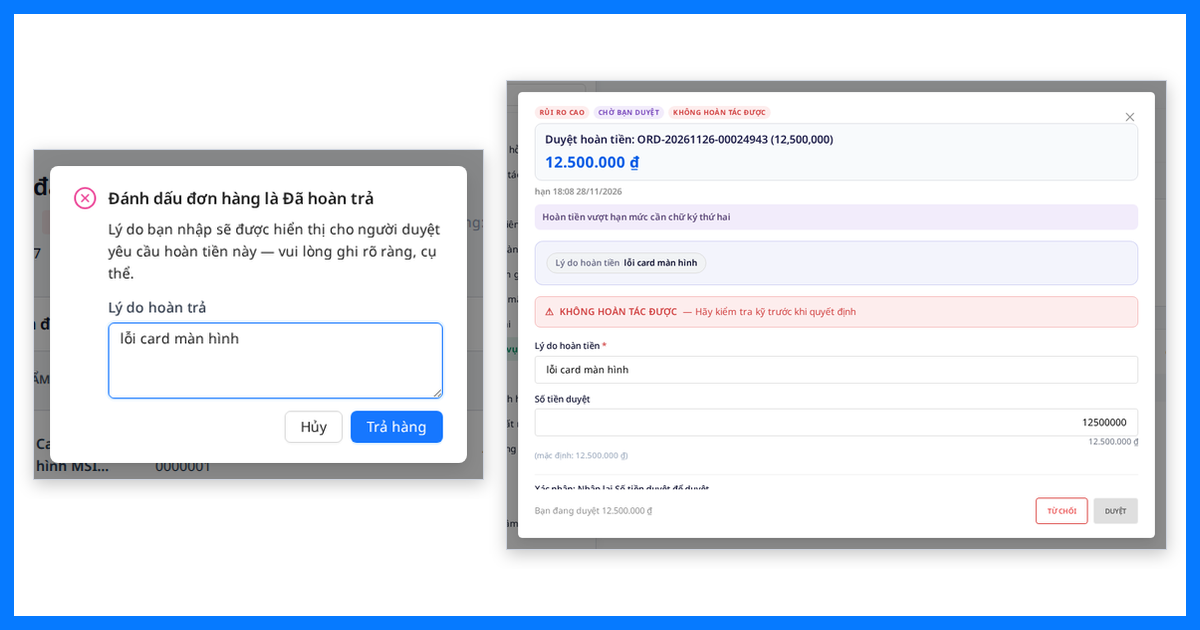
- The Mark order as Returned dialog opens, with a reminder that the reason you enter will be shown to the person approving this refund request. Enter a clear and specific reason in the Return reason field, for example screen card defect. This field is required; if left blank, the system will prompt you to fill it in.
- Click Return in the dialog. If the order total reaches the threshold, an approval request is created immediately. If it is below the threshold, no request is created and you handle the refund as usual.
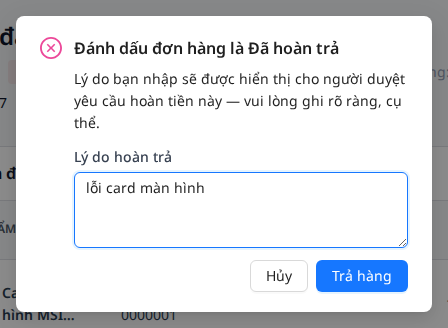
✅ Expected result: the order moves to Returned; for orders that reach the threshold, the person with the Approve payment order permission sees a new request under Tasks → Pending approval.
Only moving the order to Returned creates an approval request. Cancelling an order does not create this request.
Step 4: The approver reviews the request and decides
- Go to Tasks → Pending approval, find the row Refund approval: order number (amount), and click View & approve.
- The Refund reason field is already filled in with the reason the staff member recorded in Step 3. You can see right away why the customer returned the order, and you can edit the field if needed. The value you confirm is saved together with your approval decision.
- Check the Approved amount. A refund cannot be undone, so the dialog asks you to re-enter the exact amount under Confirm: Re-enter Approved amount to approve before you approve.
- Click Approve to allow the refund, or click Reject and enter the reason in the Your note field (required when rejecting) explaining why the refund is denied. When you click Reject, the system asks you again under Confirm irreversible action; click I understand, continue to finalize. When you click Approve, the decision is recorded immediately after you re-enter the exact amount in step 3, with no additional confirmation dialog.
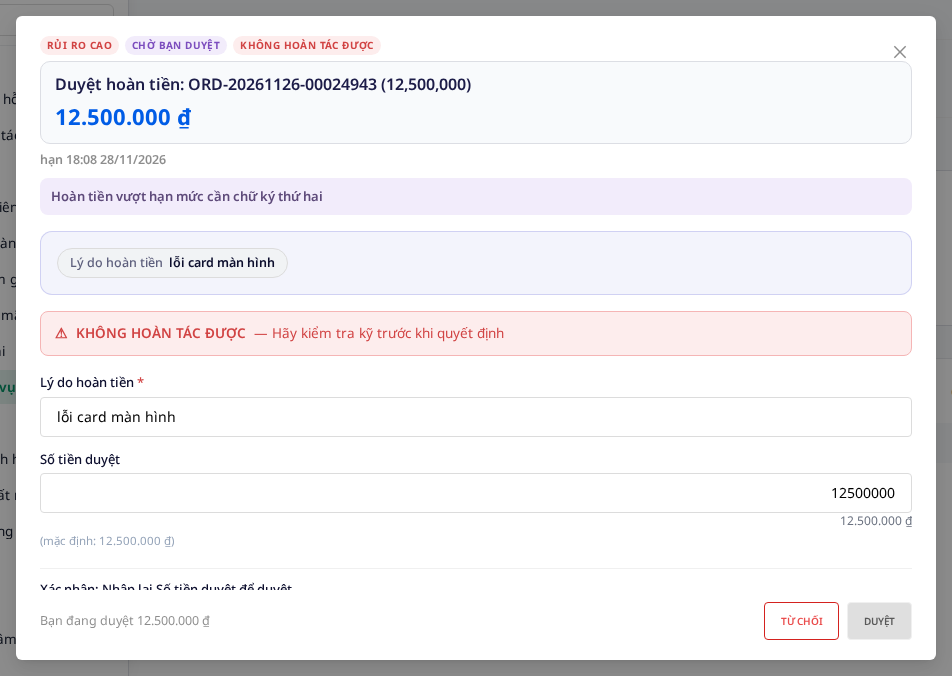
✅ Expected result: when you click Approve, GTG CRM records the refund in the order's payment ledger, along with the reason the staff member entered when the goods were returned. The reason you confirm in the field is saved with your approval decision, and the receipt shows the approver's name. When you click Reject, no refund is recorded and the workspace owner receives a notification.
Frequently asked questions
I don't see the Return button on the order?
The Return button only appears when the order is in Shipping status. Check the order's status first.
The Refund reason field is empty. What should I do?
The field is only pre-filled when the order went through the Return step with a recorded reason. If there is no reason to fill in, the field stays empty, and you enter one yourself before approving.
Does this card block every way of issuing a refund?
No. The card only holds refunds that start from marking an order as Returned. A person with permission to record refunds directly on the order can still do so, so limit refund-recording permissions to people you trust.
After approval, is the money automatically transferred back to the customer?
No. GTG CRM records the refund in the order's ledger. You still pay the customer the way you currently do, for example by bank transfer.
What happens if nobody makes a decision?
If no one makes a decision within 2 days, the request expires: no refund is recorded and the workspace owner receives a notification.
What if the order total is below the threshold?
No approval request is created, and the card does nothing with that order. You handle it the same way you did before enabling the card.
I don't see any requests under Pending approval?
Check three things: whether the card is turned on, whether the order total is within the limit, and whether your account has the Approve payment orders permission.
Next steps: set a limit that suits your business, grant the Approve payment orders permission to the right people, then test it with a real return order. To understand how an order moves from sale to delivery, see the order management guide.