What You Can Do After This Guide
Configure teams, goals (KPIs), and rating methods → open the Team Performance tab for an overview → drill down into each member (Scorecard / Activities / Tasks) → correctly interpret the "Leads Received This Period" and "Current Owned Leads" metrics. Result: You'll have a live, real-time performance dashboard to manage your team with real data.
Still unclear on the overview? Check out the Team & Member Performance Report article first.
Preparation
| # | Condition | Why It's Needed |
|---|---|---|
| 1 | Granted permissions to manage KPI settings for configuration; permissions to view KPI reports for reading. | Configuring and viewing performance are two separate permissions granted by the workspace administrator. |
| 2 | Members are already in the workspace and are actively working within the CRM (calls, emails, deals, tasks). | Metrics are derived from actual activities; without activity, there are no figures. |
Step 1 — Configure Teams, Goals, and Rating Methods
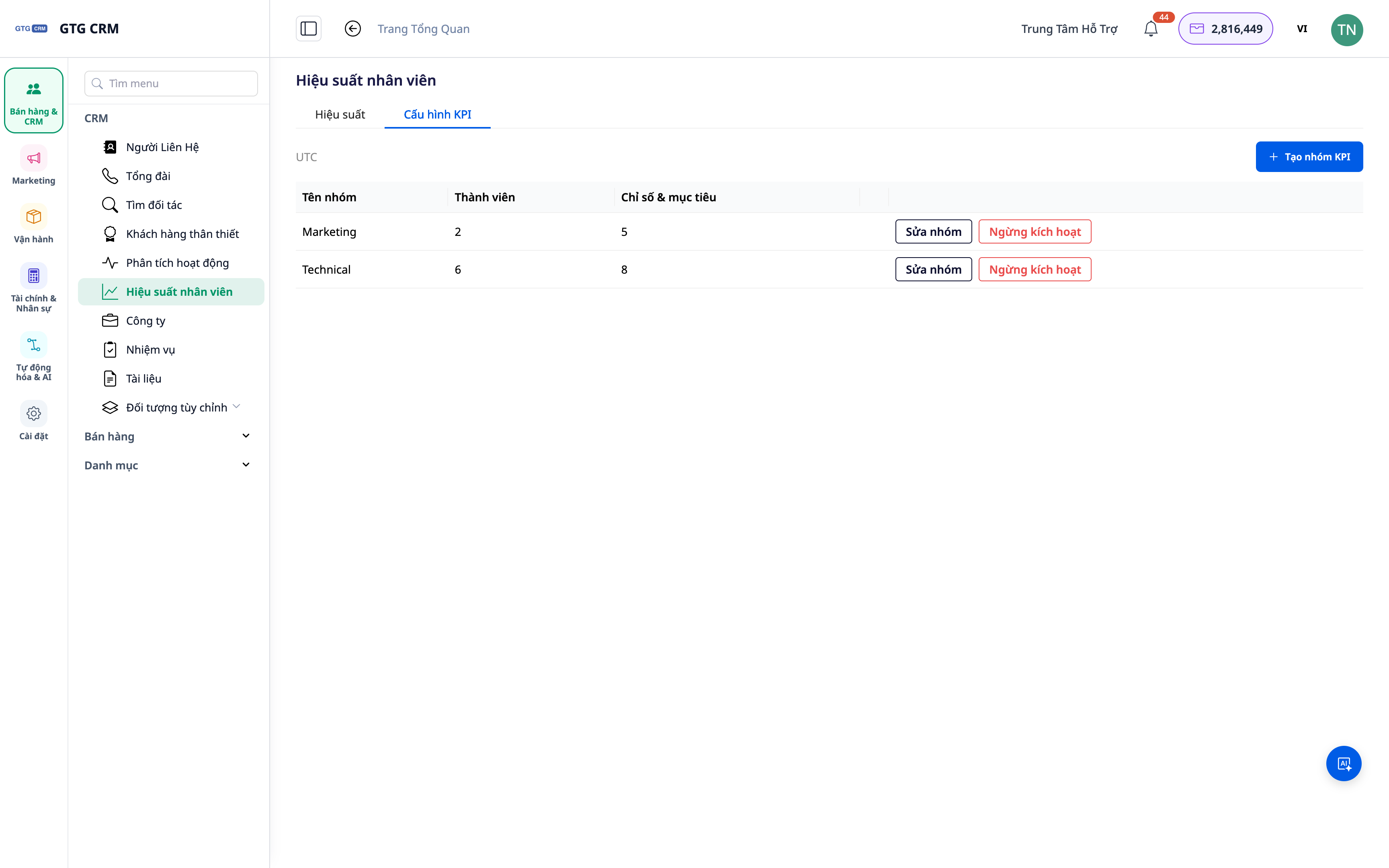
- Navigate to Settings ▸ Performance/KPI.
- Create teams (by department/group) and assign members.
- Set KPI targets for key metrics and define rating methods (e.g., thresholds for Good/Achieved/Needs Improvement).
✅ Expected Result: At least one team is created with members, KPI targets, and rating thresholds saved.
Step 2 — Open the Team Performance Tab and Select Period
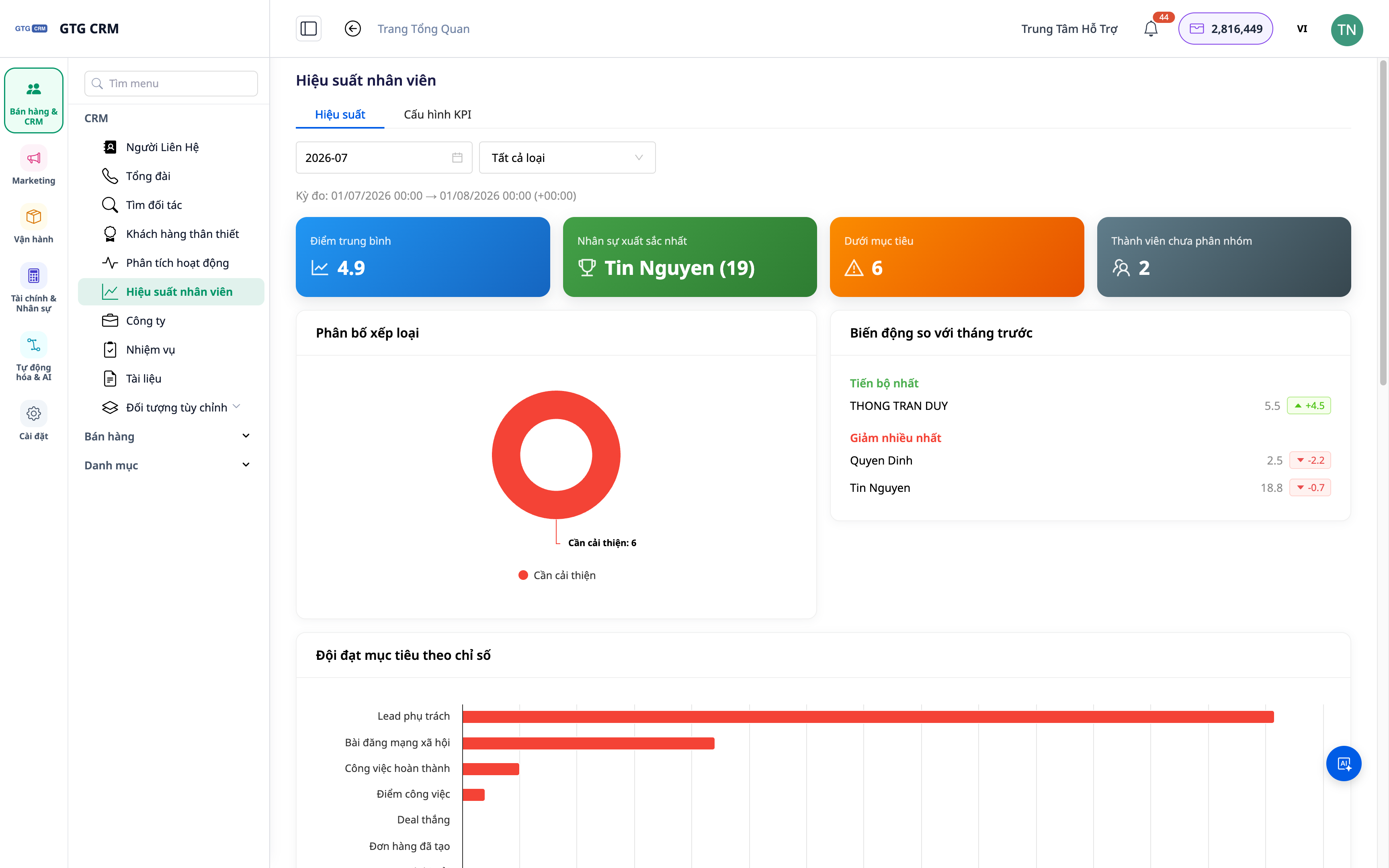
- Go to the Team Performance section.
- Choose the desired reporting period.
✅ Expected Result: An overview dashboard displays a list of members with key metrics and their achievement levels against targets for the selected period.
Step 3 — Drill Down into a Member (Scorecard / Activities / Tasks)
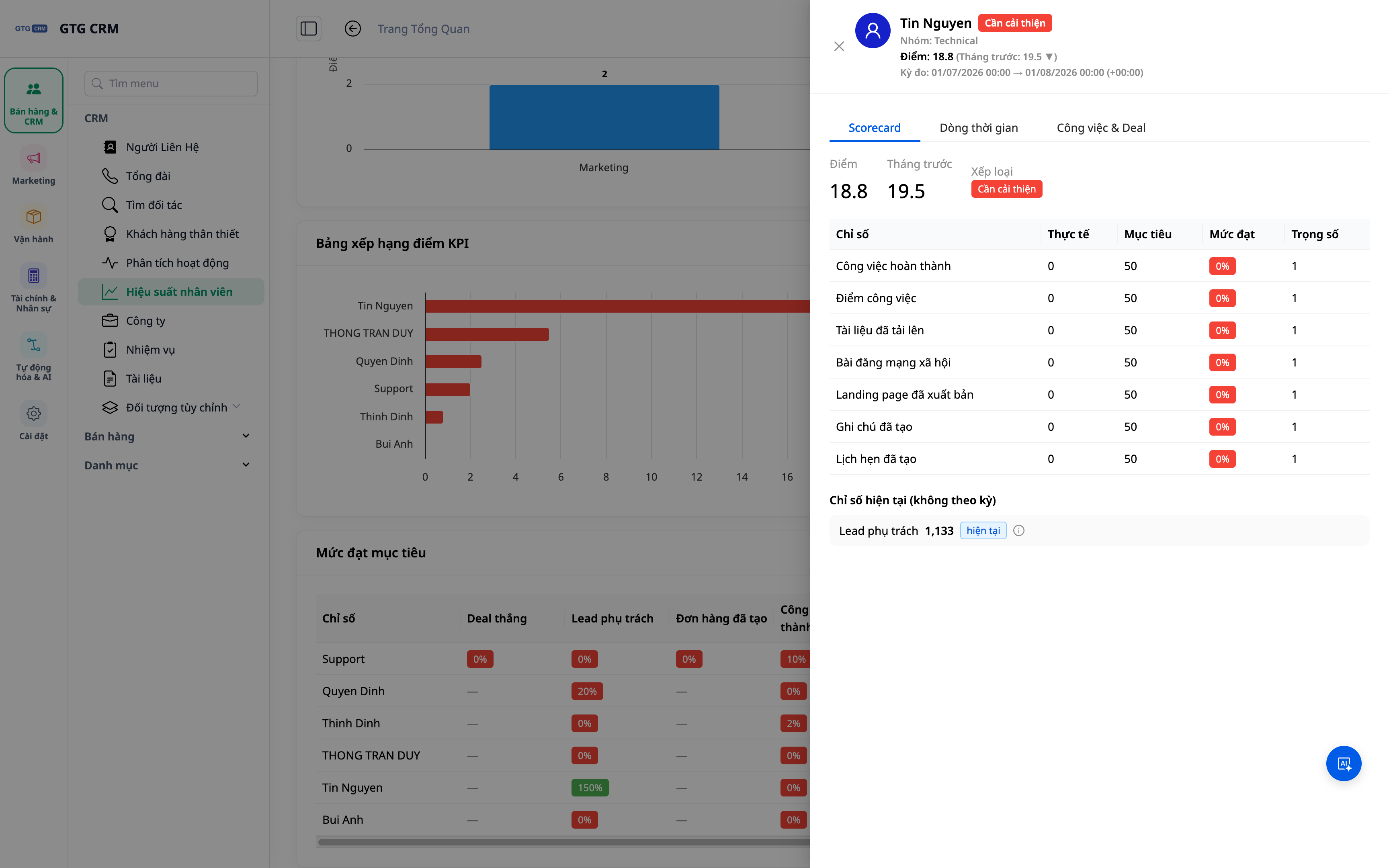
- Click on a member's name.
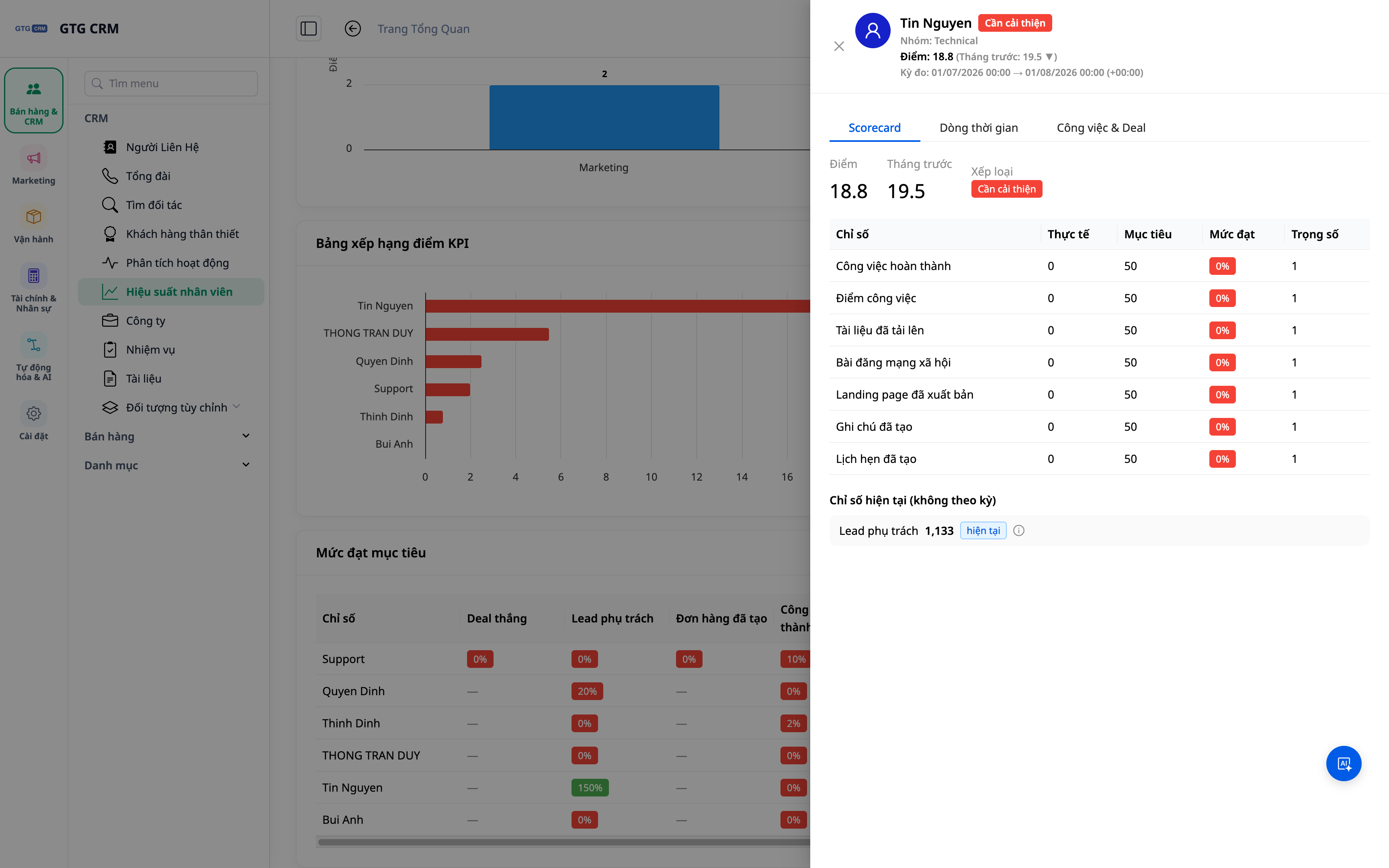
- Review the following sections sequentially: Scorecard (KPI scores), Activities (calls/emails/deals…), Tasks (volume, progress), and the "Needs Improvement" section.
✅ Expected Result: The member's detail page shows their KPI scorecard, activity log, task volume, and areas needing improvement.
Step 4 — Correctly Interpret "Leads Received This Period" vs. "Current Owned Leads"
- Within the metrics section, compare these two figures: Leads Received This Period (the number of leads assigned within the viewed timeframe) and Current Owned Leads (the number of leads the person currently holds at this exact moment).
✅ Expected Result: You can distinguish between the intake productivity within the period and the current lead backlog — avoiding inaccurate evaluations between new and long-term members.
Quick Reference for Expected Results
| Action | Result You Will See |
|---|---|
| Configure Team + Goals | A team with members, saved KPI targets, and rating thresholds |
| Open Performance Tab + Select Period | An overview dashboard of members for the period |
| Click on a Member | Scorecard, Activities, Tasks, "Needs Improvement" section |
| Compare Leads | Distinction between leads received this period and currently owned leads |
Notes
- KPI configuration and report viewing are separate permissions — new users must be granted the corresponding rights and log out and back in to receive them.
- Metrics are derived from actual CRM activities; encourage your team to log their work in the system for accurate data reflection.
- KPI targets should be reviewed periodically based on actual data to set appropriate thresholds.