
What will you be able to do after following this guide?
Create a website using AI → visually edit in the web builder → manage article categories while building the page (add/rename/delete, see live updates) → publish the entire multi-page website with just one button → check that the page is live.
Prepare in advance
1. Log in to GTG CRM with permission to create/update website content and posts — To create pages, manage categories, and publish.
2. Have sufficient credit in your account — Creating a website using AI incurs a credit fee (the system will notify you before creation).
3. (Recommendation) Once brand identity (logo, colors, fonts) has been established , the AI can create a website that truly reflects the brand from the start.
Step 1 — Create a website using AI
- From the main menu, select Website .
- Click Generate (Create with AI — recommended) or Create manually .
- Select the pages you want to include (Home, About Us, Contact, Products, Posts, etc.), choose Brand Identity (if applicable), and then enter a short description of your business and your desired style.
- Click Confirm to start the AI creation. Follow the progress live until it's complete.
✅ Expected outcome : A website created with all selected pages, relevant content, and a brand-specific interface (if a Brand Identity is present).
Step 2 — Open the web builder and visual editor.
- Click on the website you just created to open the Website Builder .
- Drag and drop components from the left sidebar (Text, Image, Button, Form, etc.) into the page builder in the middle.
- Select a block to adjust its properties in the right-hand panel; click Save when finished.
✅ Expected result : Changes are displayed directly in the page builder; content is saved.
Step 3 — NEW: Add post categories directly in the web builder
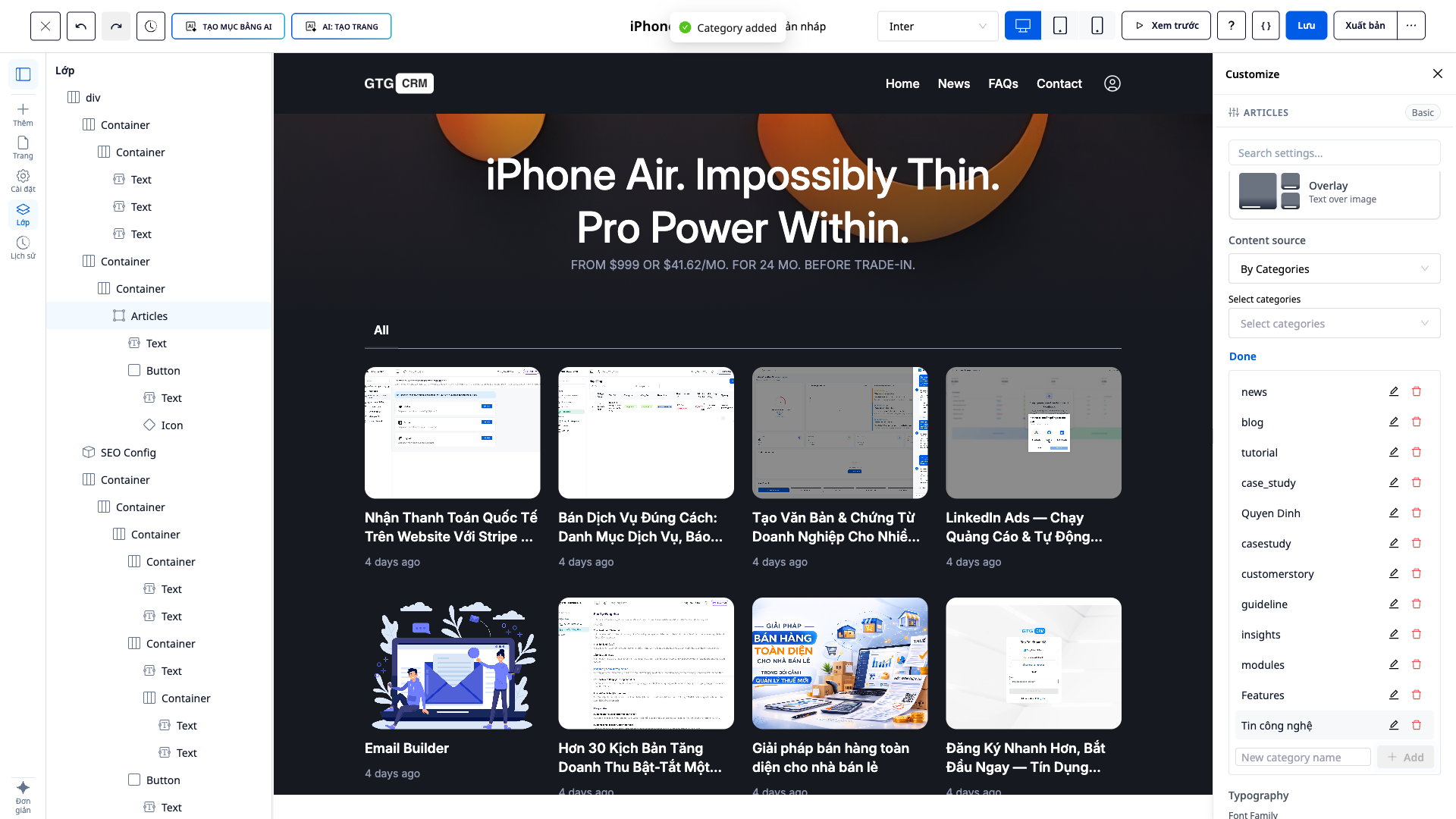
- On the page containing the blog/post block, select the post block and then open the settings panel on the right.
- In the Content Sources section, select Display By Categories.
- Click Category Management → Add → enter the new category name → confirm.
✅ Expected result : A "Category added" message will appear; the new category will appear in the selection list immediately.
Step 4 — NEW: Rename category (update directly, no page reload)
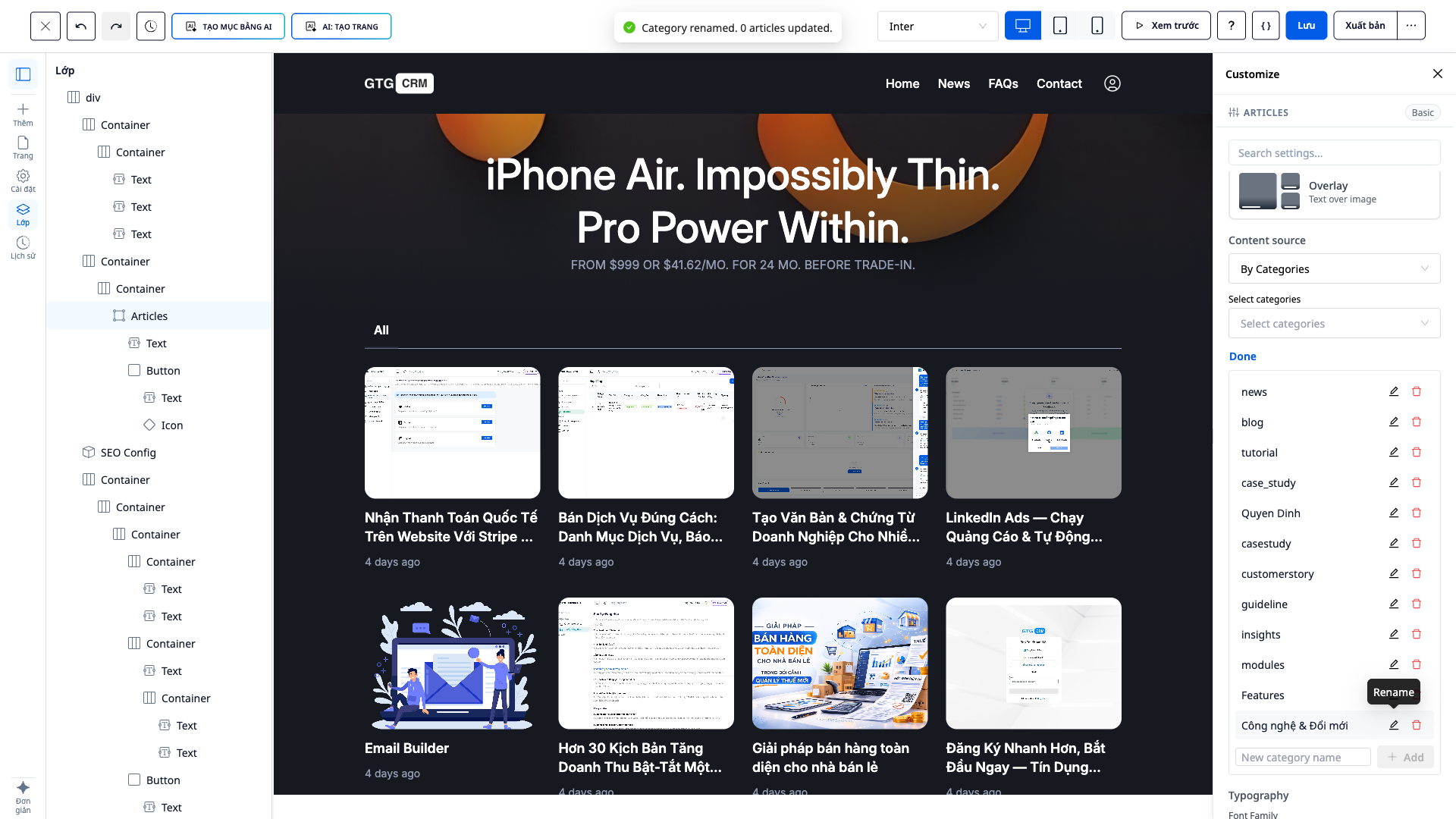
- In Category Management , select a category → Rename → enter the new name → confirm.
- Observe the page layout framework.
✅ Expected result : Display the message "Category renamed. N posts updated"; the category label on the post block will automatically change in the preview window without needing to reload the page (all posts currently associated with that category will also be updated).
Step 5 — NEW: Delete unused categories
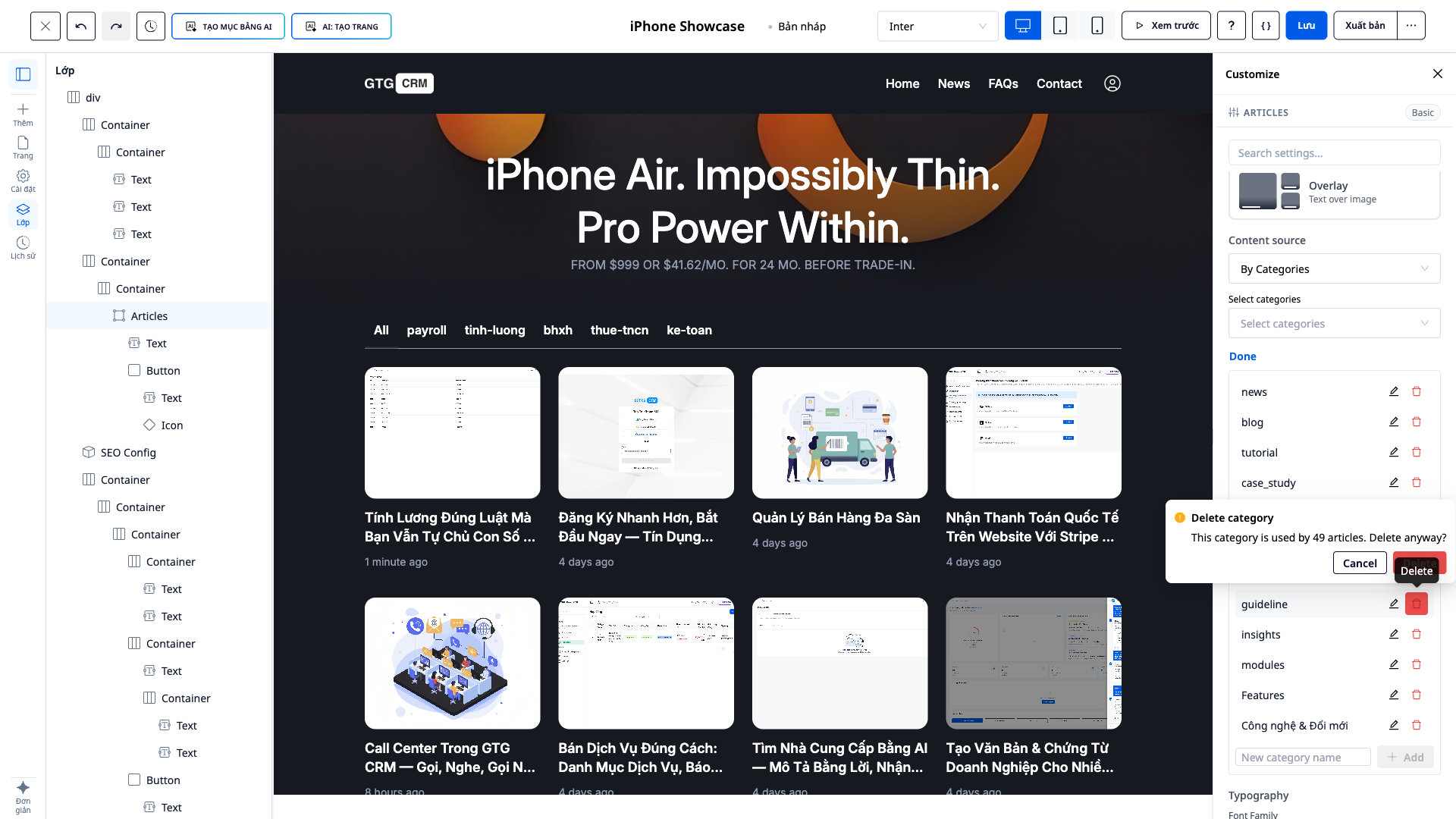
- In Category Management , select the category you want to delete → Delete .
- Read the confirmation box (clearly stating how many posts are using the category) → confirm deletion.
✅ Expected result : If the category is in use, a dialog box will appear saying "This category is being used by N posts. Still delete it?"; after deletion, "Category deleted. N posts updated" will appear; the category disappears from the preview pane, and the related posts remain (only their labels have been removed).
Step 6 — NEW: Publish an entire multi-page website with just one button
- Click Preview to see a preview of the entire page.
- Click Publish .
✅ Expected outcome : All eligible pages are moved to the published status; the website goes live at the correct URL for each page within minutes (no pages are stuck in "Draft" mode).
Step 7 — Check that the page is live
- Open the website URL (or individual pages, for example
/gioi-thieu,/san-pham, and blog pages categorized by topic). - Confirm that the blog displays the correct category you just managed.
✅ Expected results : Pages displayed publicly; blogs filtered correctly according to the configured categories.
Quick lookup table for expected results
Generated using AI — Full-page website, true to brand
Add a category in the web builder — "Category added"; the category appears immediately.
Rename category — "Renamed… N posts updated"; preview frame changes immediately, no reloading.
Delete the currently used category — Confirmation box "…used by N posts. Still delete?"; the post remains.
Publish — All eligible pages are published, no "Draft" issues.
Note
- Managing categories requires permission to update content; accounts with insufficient permissions will not see the Manage Categories button and will be blocked from adding/renaming/deleting items.
- Renaming/deleting a category will update all posts associated with that category simultaneously — please consider this before deleting.
- Category management can also be done within the CRM's post editor (same experience).
- Creating websites using AI incurs a fee in the form of credits; the system always displays the cost before creation.