Tõhus müük ei piirdu üksnes hea tootega ja potentsiaalsete klientidega. Tänapäeval on veebipoodide omanike, jaemüüjate ja väikeettevõtjate jaoks suur väljakutse hallata kogu protsessi alates kauba sisseostmisest, laoseisu haldamisest, tellimuste loomisest kuni arvete väljastamiseni. Eriti keeruliseks muutub laoseisu kontrollimine ja tellimuste töötlemine, kui müüte mitmel kanalil, nagu Shopee, TikTok Shop, Lazada, Facebook või oma veebisait.
GTG CRM on loodud nende probleemide terviklikuks lahendamiseks. Süsteem pakub kolme peamist funktsioonide kogumit: müük, laohaldus ja raamatupidamine, mis aitavad teil kogu äriprotsessi optimeerida. Alates lao loomisest, toodete haldamisest, professionaalsete müügipiltide loomisest, automaatsete tellimuste vastuvõtmisest mitmelt kanalilt, tellimuste töötlemisest kuni arvete väljastamiseni – kõik on koondatud ühele platvormile. See mitte ainult ei säästa teie aega, vaid vähendab ka vigu.
See artikkel juhendab teid üksikasjalikult igal sammul, kuidas GTG CRM-is müümist alustada, alates esialgsest seadistamisest kuni tellimuste tõhusa haldamiseni.
1. samm: Lao loomine
Enne müügi alustamist peate toodetele koha leidma. GTG CRM-i ladu ei ole mitte ainult laoseisu haldamise koht, vaid ka koht, kust kullerid tulevad kaupa klientidele toimetamiseks. Ühel poel võib olla mitu ladu, sõltuvalt teie ettevõtte suurusest.
Uue lao loomiseks avage vasakpoolsest menüüst Laohaldus ja klõpsake nuppu Loo uus.
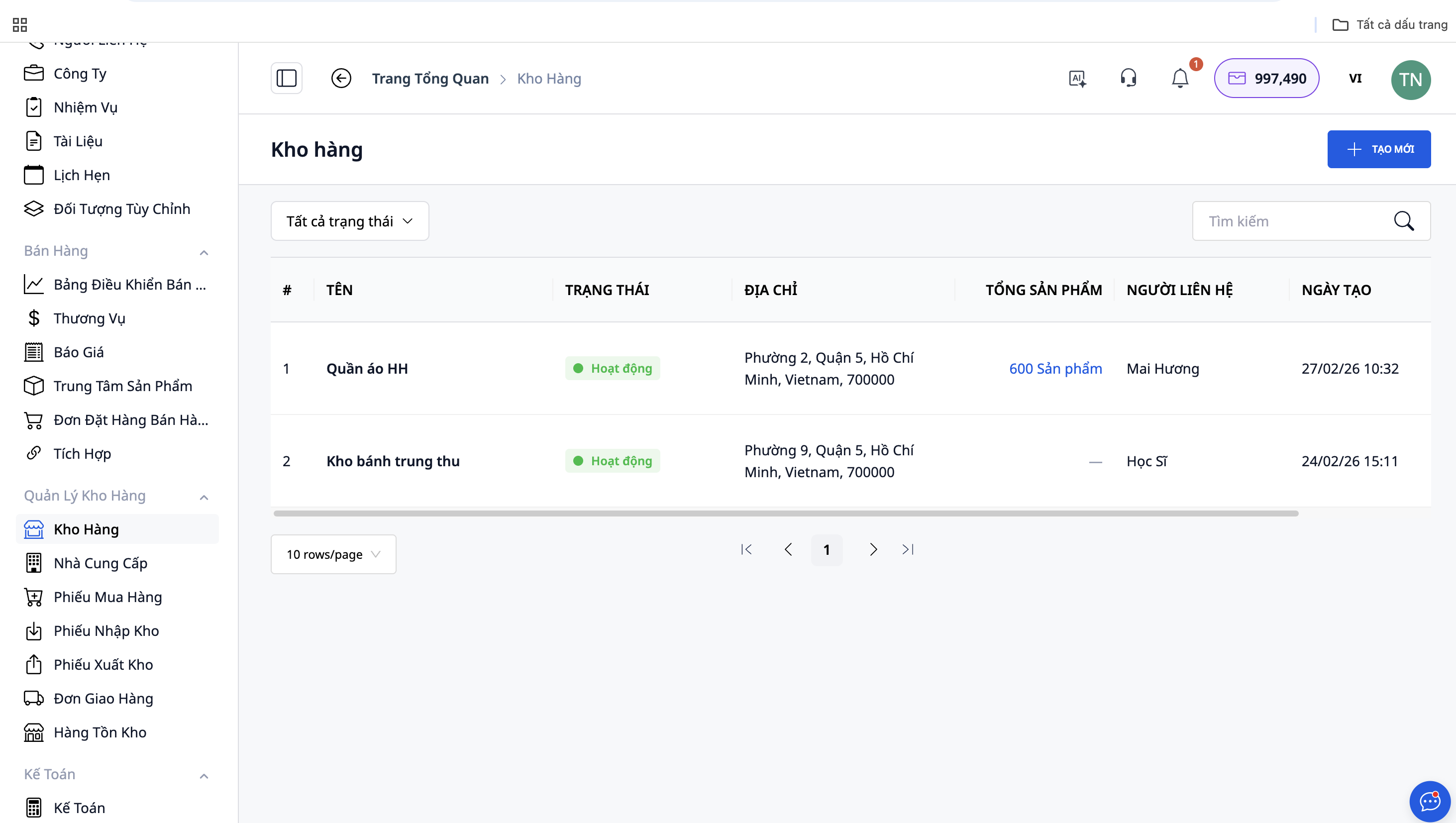
Peate täitma järgmised andmed:
- Lao nimi: Valige meeldejääv nimi, mis peegeldab õigesti toodete tüüpi või asukohta. Näiteks: "Rõivaste ladu", "Aksessuaaride ladu" või "Tallinna filiaali ladu".
- Laokood: Süsteem võib seda automaatselt luua või saate selle ise haldamise hõlbustamiseks määrata.
- Olek: Valige "Aktiivne", et ladu oleks kohe kasutatav.
- Kontaktisiku nimi: Sisestage lao töötaja või selle lao eest vastutava isiku nimi.
- Telefoninumber: Kohustuslik, et kuller saaks teiega kauba väljastamisel ühendust võtta.
- E-post: Mittekohustuslik, kuid soovitatav teadete saamiseks.
- Lao aadress: See on äärmiselt oluline teave. Peate sisestama täpse aadressi, linna, maakonna ja sihtnumbri, kuna kuller tuleb kaubale järele just siit.
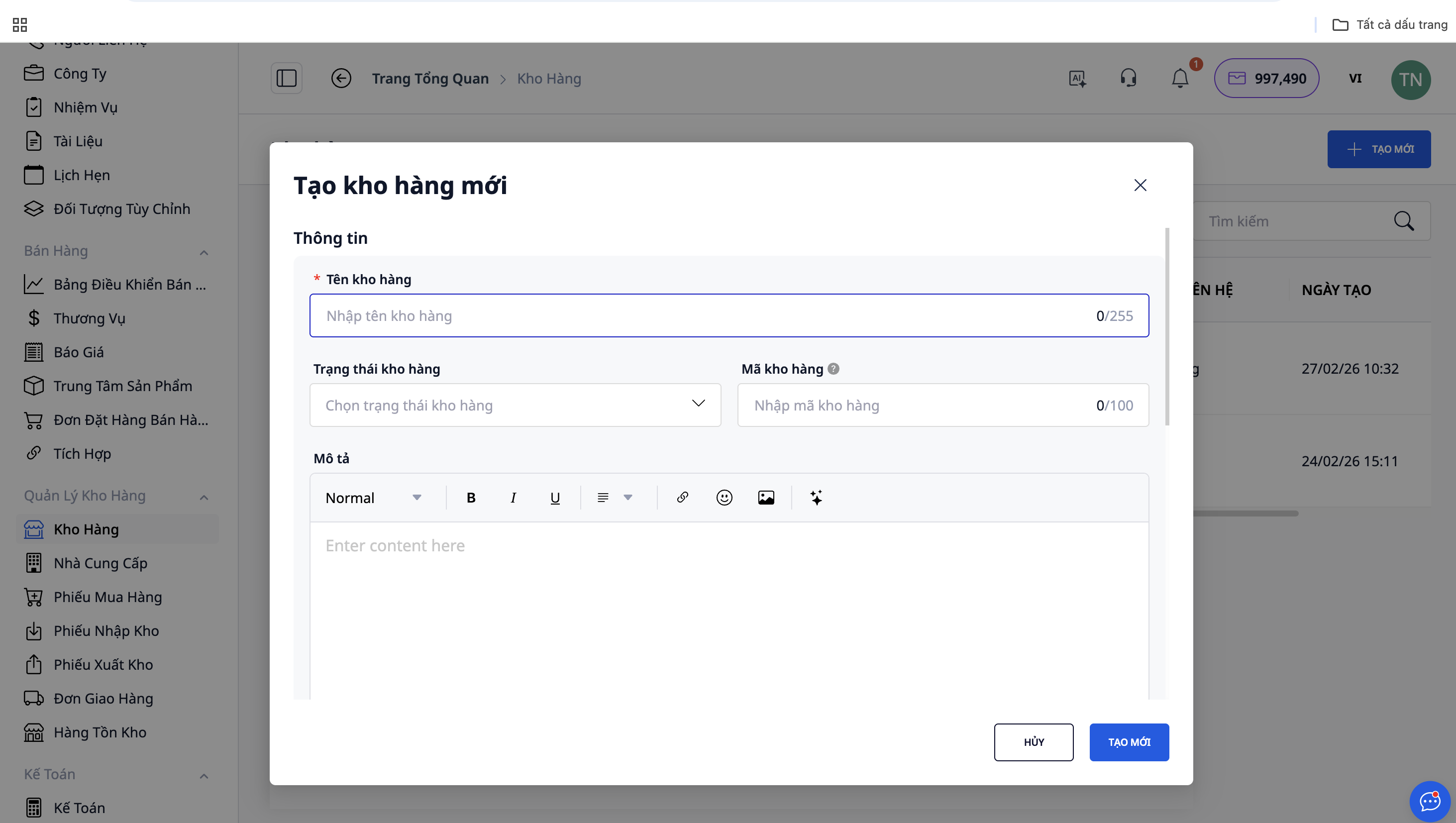
Pärast kõigi andmete sisestamist klõpsake Salvesta. Nii saate süsteemi esimese lao. Saate luua rohkem laosid, kui tegutsete mitmes kohas või jaotate tooteid erinevate ladude vahel.
Loe lisaks: Lao haldamine on lihtsam GTG CRM-i funktsioonidega
2. samm: Tooted
Pärast lao loomist on järgmine samm toodete süsteemi lisamine. Avage vasakpoolsest menüüst Toote keskus ja klõpsake Loo uus.
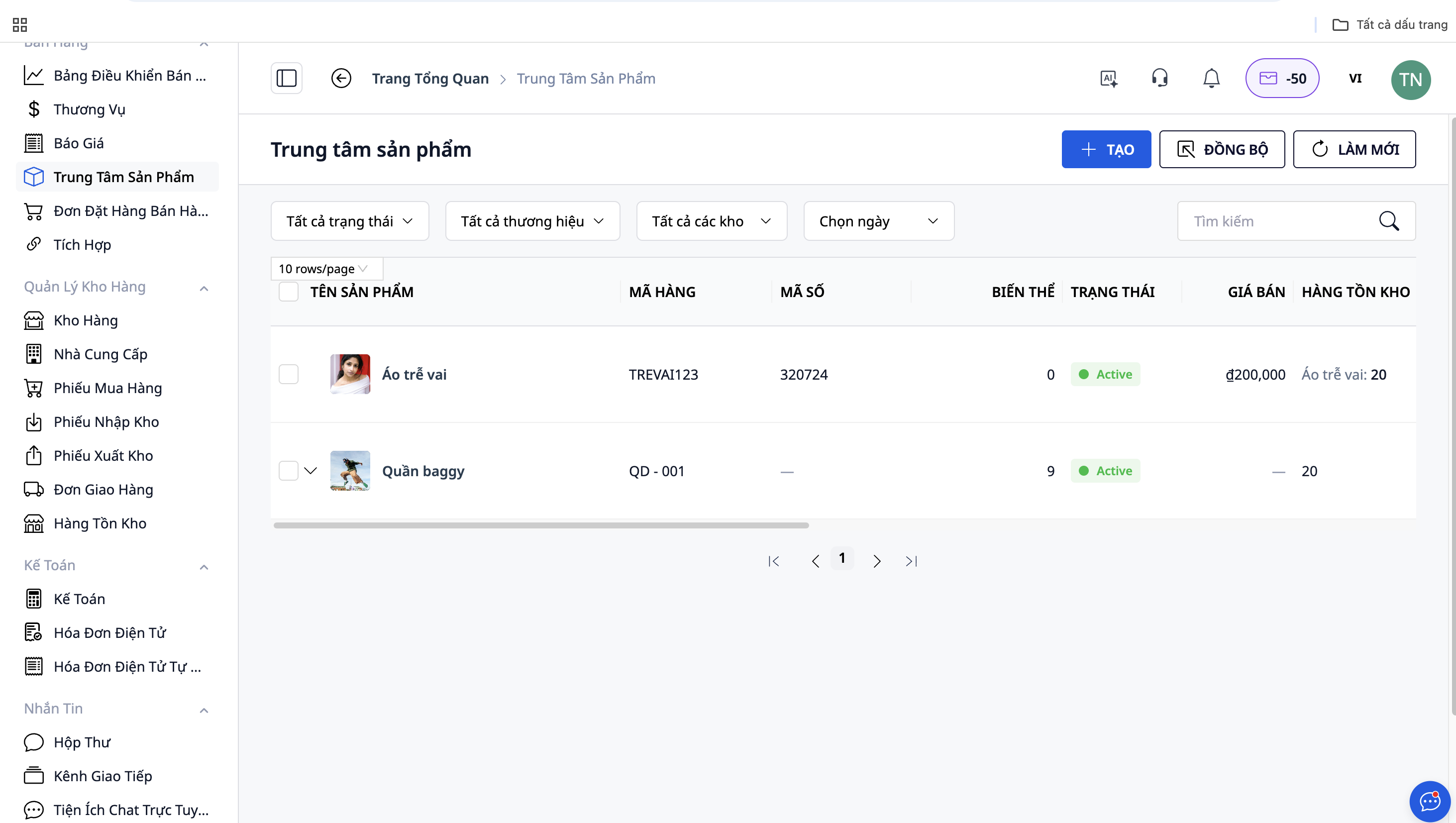
Toote loomisel pöörake tähelepanu järgmistele teabele:
- Toote nimi: Selge, arusaadav nimi. Näide: "Mickey püksid", "Meeste ümmarguse kaelusega T-särk", "Lilleline maxi kleit".
- SKU (Stock Keeping Unit): See on toote unikaalne identifikaator ja äärmiselt oluline. SKU aitab süsteemil tuvastada samu tooteid erinevates müügikanalites. Kui müüte sama toodet Shopees, TikTok Shopis, Lazadas, Facebookis ja veebisaidil, veenduge, et SKU oleks kõigil kanalitel sama, et süsteem automaatselt laoseisu sünkrooniks.
- Toote kategooria: Valige sobiv tootekategooria saadaolevate hulgast.
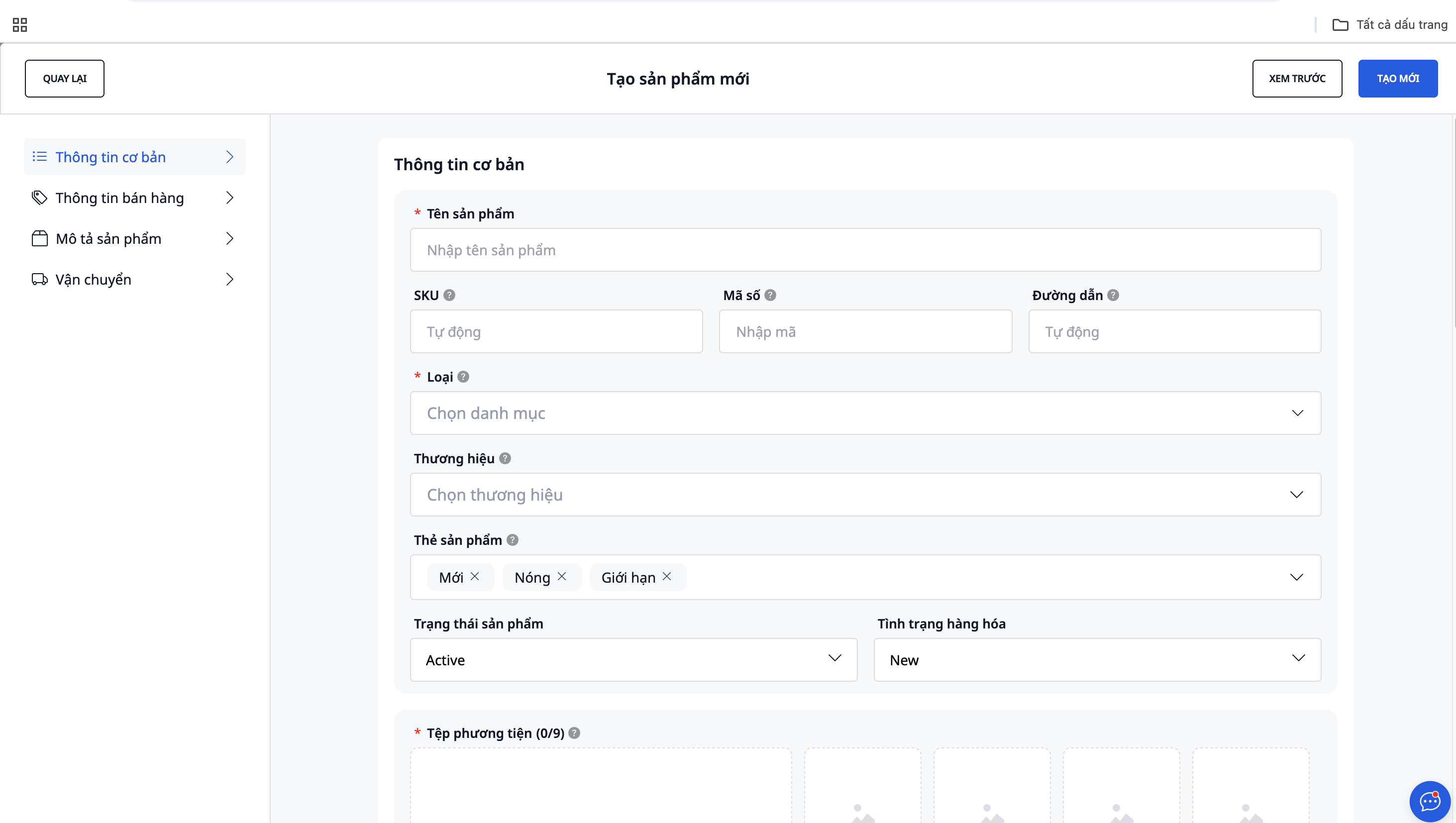
Pärast tootekirjelduse, müügihinna, pildi ja laoteabe täielikku täitmist klõpsake viimistlemiseks nuppu Salvesta.
3. samm: Looge professionaalsed müügipildid
Üks GTG CRM-i silmapaistvamaid funktsioone on võime luua professionaalseid müügipilte olemasolevate mallide põhjal. Selle asemel, et palgata disainerit või iga pilti ise redigeerida, saate seda tööriista kasutada kauni müügipiltide partii loomiseks vaid mõne minutiga.
Tegevusetapid:
- Avage tooteleht, mille jaoks soovite müügipilte luua
- Valige funktsioon "Loo müügipilt" või "Turundus"
- Valige toote stiiliga sobiv mall
- Laadige üles tootepilt - süsteem ühendab selle automaatselt malliga
- Kohandage teavet: toote nimi, hind, tutvustused, loosung
- Vaadake eelvaadet ja laadige valmis pilt alla
4. samm: Kaupade import ja tarnijate haldamine
Laos kauba hoidmiseks peate kaupad tarnijatelt importima. Haldage oma varusid professionaalselt, luues süsteemis tarnijateabe.
- Avage jaotises "Laohaldus" menüüs Tarnijad
- Klõpsake nuppu Loo uus ja täitke tarnija andmed: nimi, telefoninumber, aadress, e-post ja maksetingimused
- Looge Ladu sissekanne koos järgmiste andmetega: vastuvõttev ladu, tarnija, toode, kogus ja sisseostuhind
- Kinnitage lao sissekanne - kogus värskendatakse automaatselt lao
5. samm: Ühendage müügikanalid
GTG CRM-i üks tugevusi on võime automaatselt tellimusi vastu võtta mitmest erinevast müügikanalist.
Toetatud kanalid:
- Oma veebisait: Otsene integreerimine automaatsete tellimuste vastuvõtmiseks
- Facebook: Looge automaatselt tellimusi Messengerist või kommentaaridest
- Shopee: Kahesuunaline tellimuste sünkroonimine
- TikTok Shop: Tsentraliseeritud tellimuste vastuvõtmine ja töötlemine
- Lazada: Automaatne tellimuste sünkroonimine
Ühendamise viis:
- Avage Seaded → Müügikanalid
- Valige kanal, mida soovite ühendada
- Volitage (authorize) GTG CRM
- Oodake ühenduse edukat kinnitust
Lugege lisateavet: Mitmekanaliline tellimuste haldamine GTG CRM-i funktsioonidega
6. samm: Looge tellimusi
Looge tellimusi käsitsi
Kui teil on telefonitsi või integreerimata kanalite kaudu tellimusi:
- Avage Müük → Loo uus tellimus
- Täitke kliendi andmed, valige tooted, väljastav ladu, saatmisviis
- Klõpsake nuppu Salvesta - tellimus on olekus "Ootel"
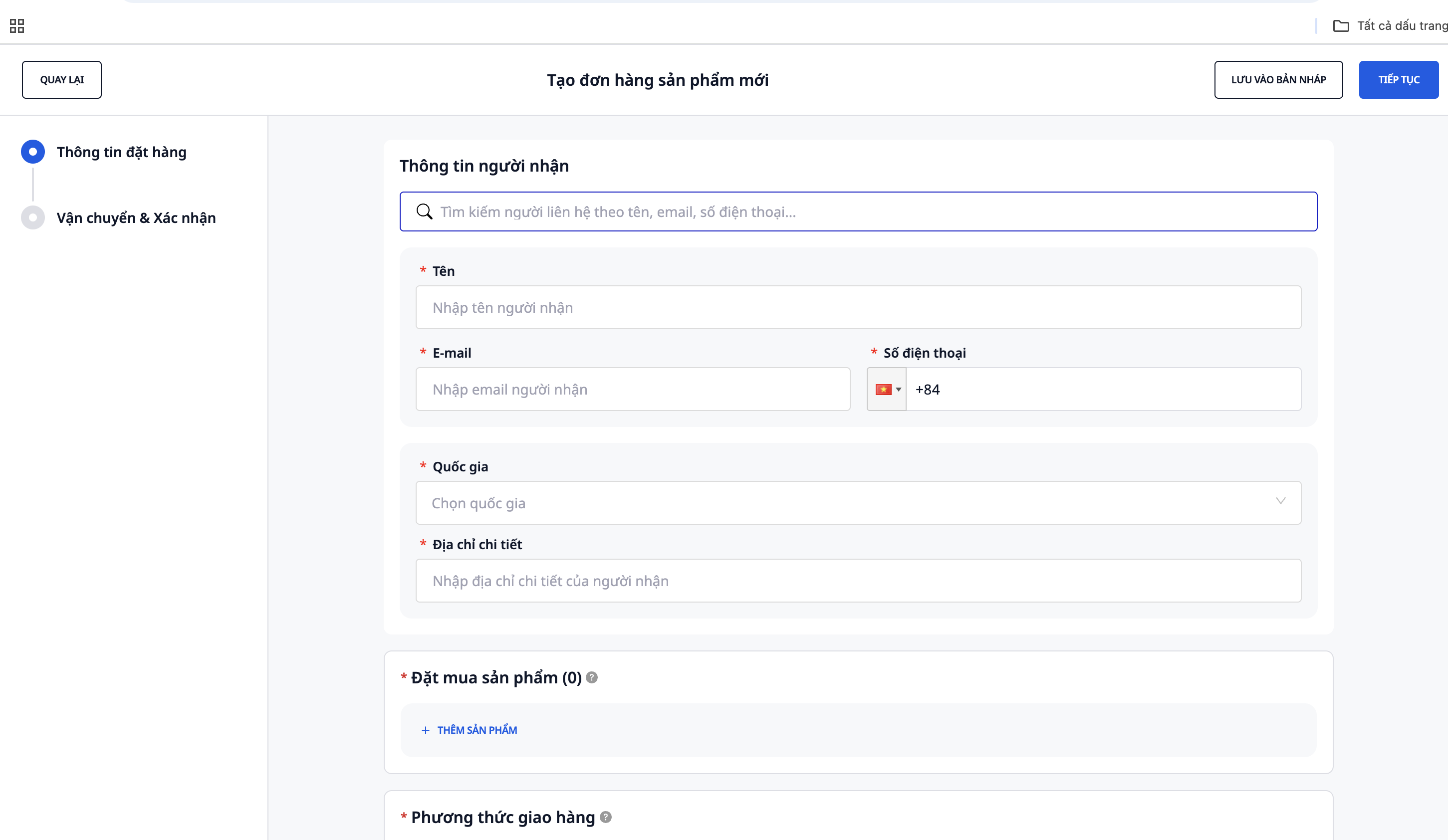
Võtke tellimusi vastu automaatselt
Pärast müügikanalite ühendamist ilmuvad tellimused automaatselt süsteemi selge päritoluga: Shopee, TikTok Shop, Lazada, Facebook, Veebisait.
Märkus:
- Müüjad peavad aktiivselt muutma tellimuse olekuks "ootel töötlemist", et see GTG CRM-i sünkroonida
- Ühendage laod ja tooted erinevate platvormide ja GTG CRM-i vahel, et süsteem saaks laoseisu täpselt kirja
7. samm: Tellimuste töötlemine ja laost väljastamine
Pärast tellimuse kinnitamist kliendiga peate tellimuse olekut muutma, et süsteem saaks automaatselt väljastada lao väljastamiskäskkirja.
- Minge jaotisse Müügitellimused, kinnitage tellimus → süsteem loob automaatselt lao väljastamiskäskkirja
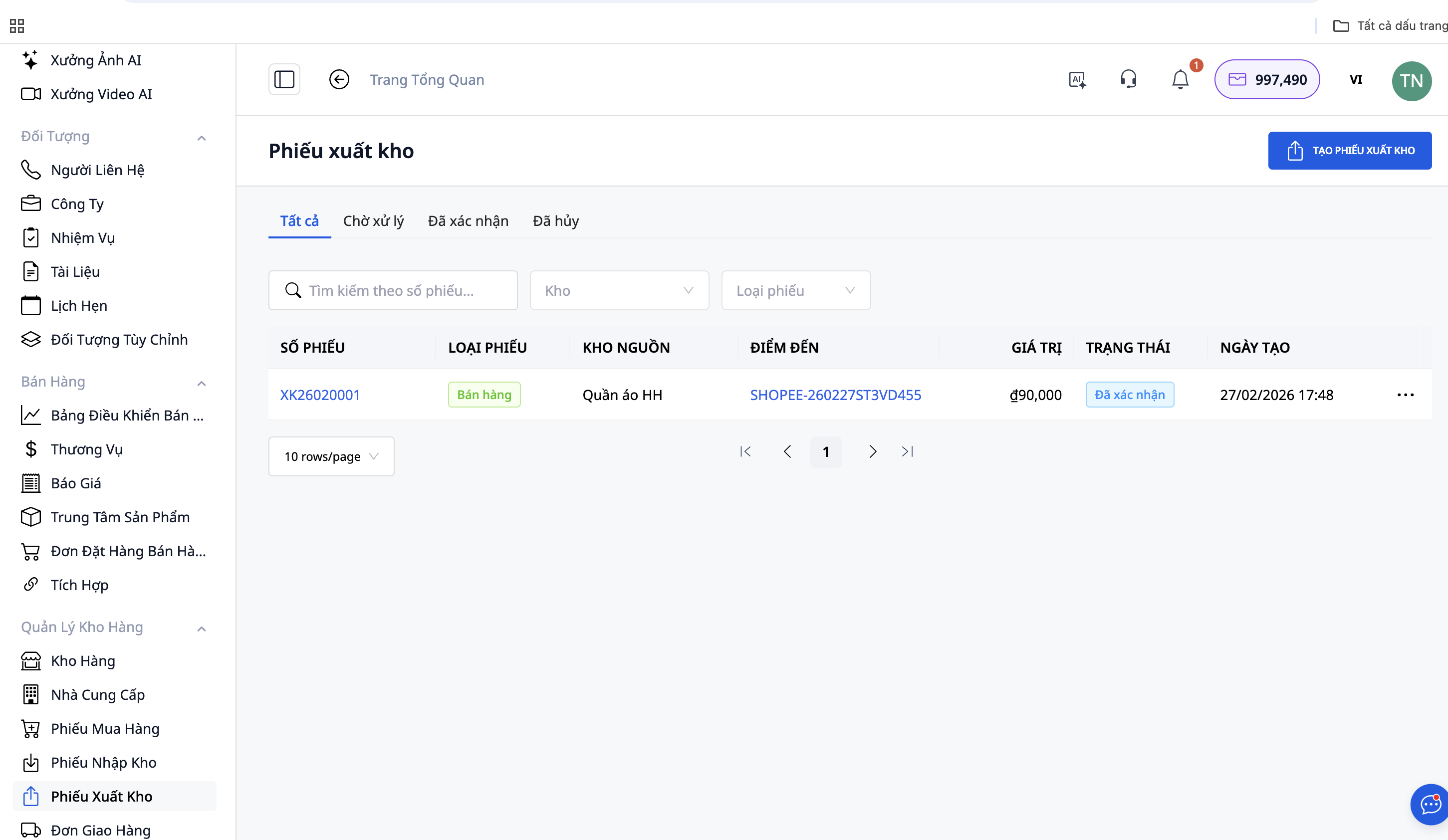
- Kontrollige lao väljastamiskäskkirja teavet: väljastav ladu, toode, kogus, tarneaadress
- Valmistage kaup lao väljastamiskäskkirja alusel
- Vajutage Väljastamine kinnitatud, kui kuller kaubale järele tuleb
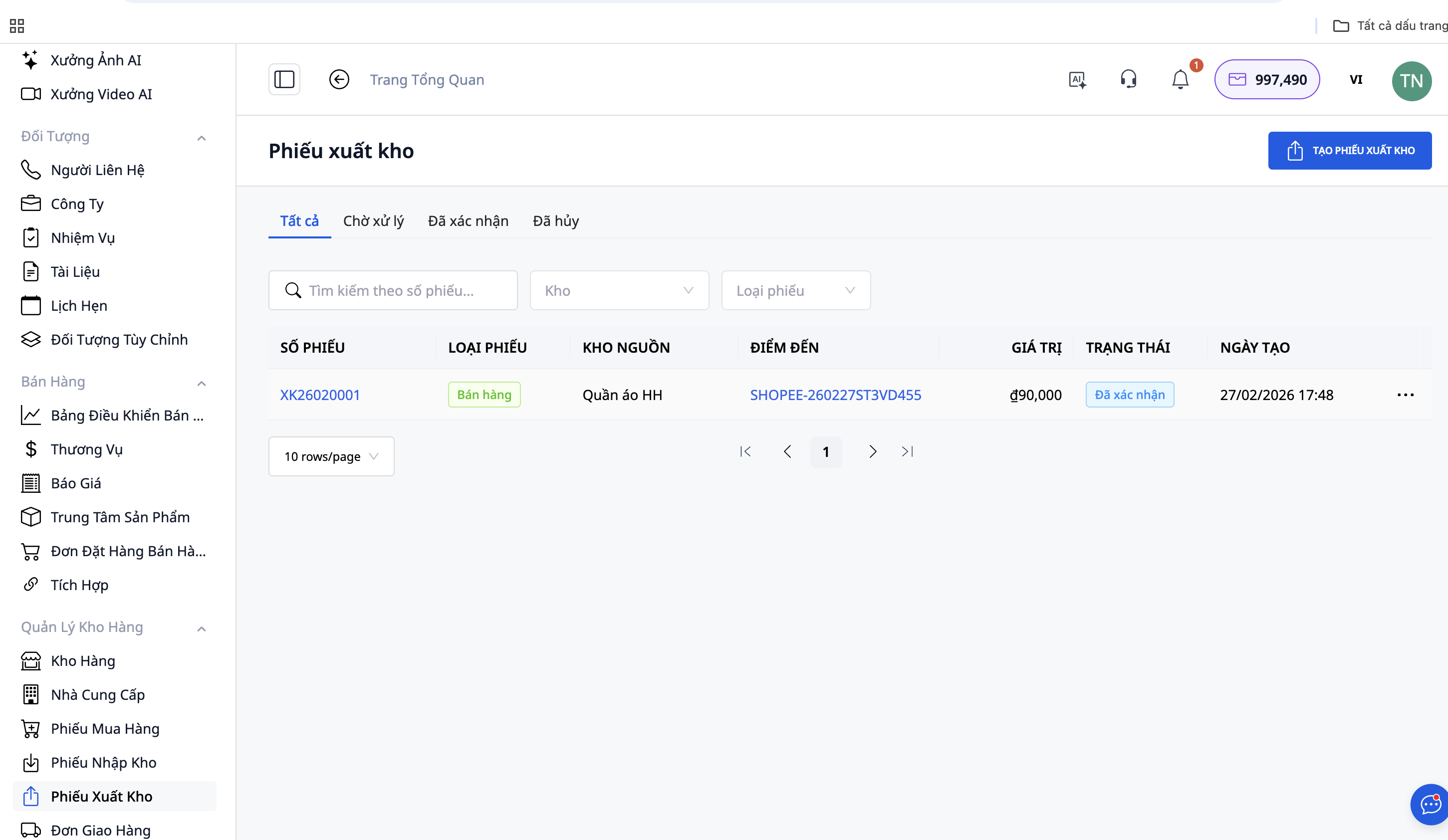
- Pärast kinnitamist lahutab ladu automaatselt müüdud tooted
- Kui klient on kauba kätte saanud, muutke tellimuse olekuks "Lõpetatud"
8. samm: Arve väljastamine
GTG CRM toetab e-arvete väljastamist, et järgida maksuameti deklareerimisega seotud seadusandlikke nõudeid:
- Avage jaotis E-arved
- Valige arve väljastamiseks lõpetatud tellimused
- Süsteem võib arve automaatselt luua või saate selle käsitsi luua
- Kontrollige teavet ja väljastage
Märkus: Kui arved on volitatud platvormidel väljastama, ei pea te seda sammu tegema.
Vaata lisaks: GTG CRM aitab hallata ja väljastada arveid automaatselt
GTG CRM-i kasutamise eelised
- Tsentraliseeritud haldus: Ladu, tooted, tellimused ja arved ühel platvormil
- Automaatne tellimuste vastuvõtmine: Sünkroonimine Shopee, TikTok Shop, Lazada, Facebooki, veebisaidiga
- Loo professionaalseid müügipilte: Kasutades olemasolevaid mallipilte, pole disainerit vaja
- Automatiseerib protsesse: Lao väljastamiskäskkirjade loomisest laoseisu värskendamiseni
- Tõhus laoseisu kontroll: Vahetu värskendus kaupade sisse-/väljastamisel
- Vähendab vigu: Välistab käsitsi sisestamise vead
- Omnichannel müügitoetus: Hallake kõiki tellimusi tsentraalselt
Olulised märkused
- SKU peab olema ühtne: Veenduge, et SKU oleks kõikidel kanalitel sama, et laoseisu täpselt sünkroonida
- Laoadress peab olema täpne: Kulleri jaoks, kes kaubale järele tuleb
- Ühendage kõik kanalid: Maksimeerige automaatse tellimuste vastuvõtmise funktsioon
- Kontrollige tellimusi automaatselt: Enne töötlemist kontrollige siiski teavet
Kokkuvõte
GTG CRM on terviklik lahendus jaemüüjatele, veebipoodide omanikele ja äriüksustele, kes soovivad professionaalselt hallata kogu protsessi alates kauba sisseostmisest kuni tellimuste väljastamiseni. Tugevate automatiseerimisfunktsioonidega saate keskenduda müümisele ja äri arendamisele, selle asemel et raisata aega keerukatele administratiivsetele ülesannetele.