Feature Overview
A quote has been accepted, but the deal stays open until someone remembers to close it. The customer is still deciding and hasn't replied, and you want to send a quote right away. Previously, the create-quote button on the deal page only appeared after the deal was marked Won. Sellers often had to close the deal before quoting, which is the reverse of how selling actually works: quote first, wait for the customer's reply, then close.
With creating a quote from an open deal, you create a quote while the deal is still open, review it right on the deal page, and, if you want, let the deal close automatically when the quote is accepted. There are three specific capabilities:
- Create a quote while the deal is still open, with the contact, products, and currency pre-filled from the deal.
- Optional: automatically close the deal when the quote is accepted. This automation is off by default until the business owner turns it on, and each run costs 20 credits.
- The deal page is streamlined into five tabs, the close button sits in the header row, and the tab you have open is shown in the page address.
Problems Businesses Face
| Old approach | Consequence |
|---|---|
| The create-quote button on the deal page only appears after the deal is marked Won | Sellers close first and quote later, so a deal can be recorded as won before the customer has agreed |
| Clicking the quote number on the deal page | Jumps to the list of all company quotes and takes you away from the deal you're working on |
| A quote is created and sent | No entry appears in the Activity tab, so managers have to ask each person who quoted what and when |
| A quote is accepted | The deal stays open until someone remembers to close it |
GTG CRM brings the quote, each step of the quote, and closing the deal together on one deal page.
Highlights
1. Create a Quote While the Deal Is Open, Review It on the Same Page
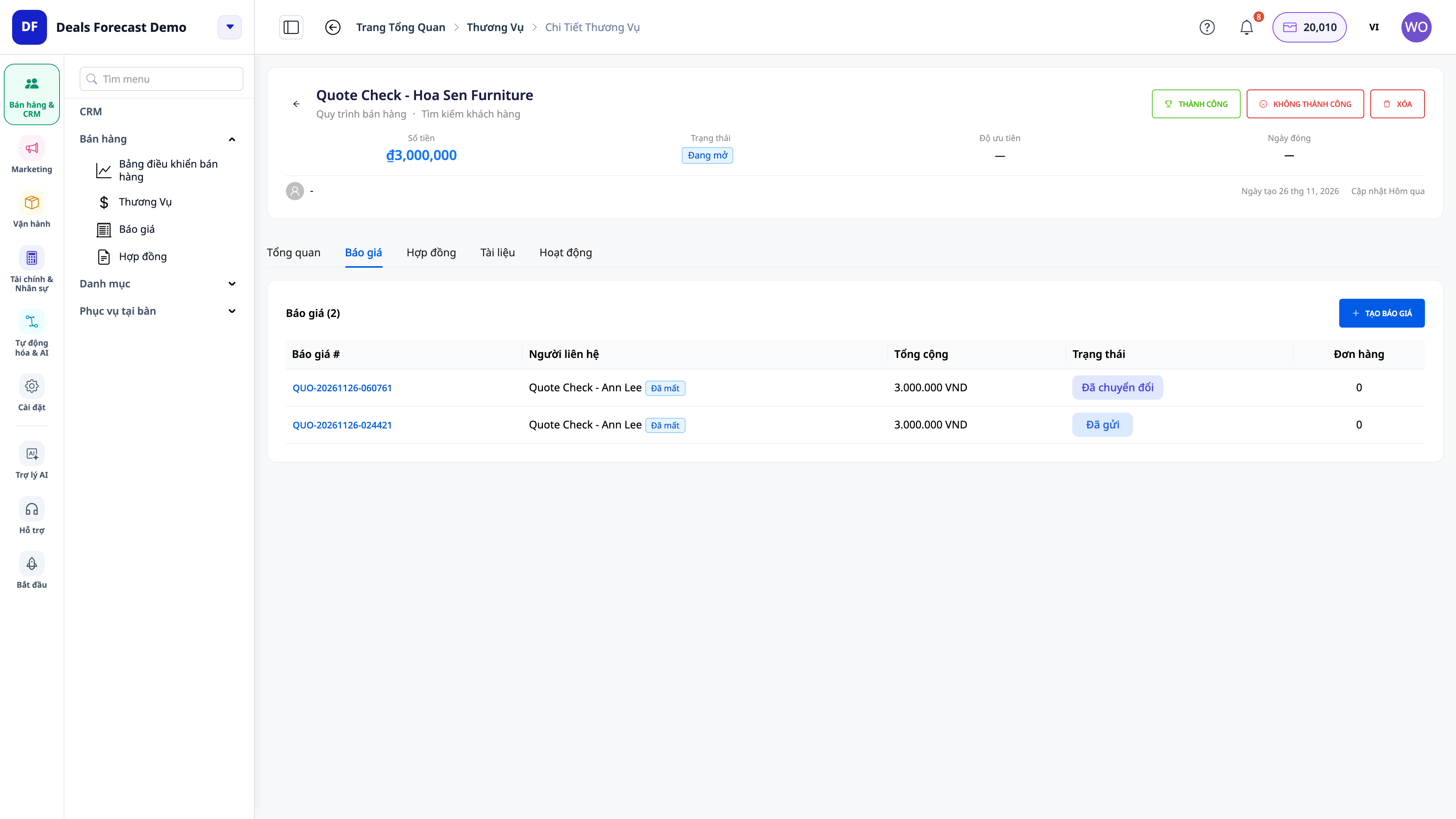
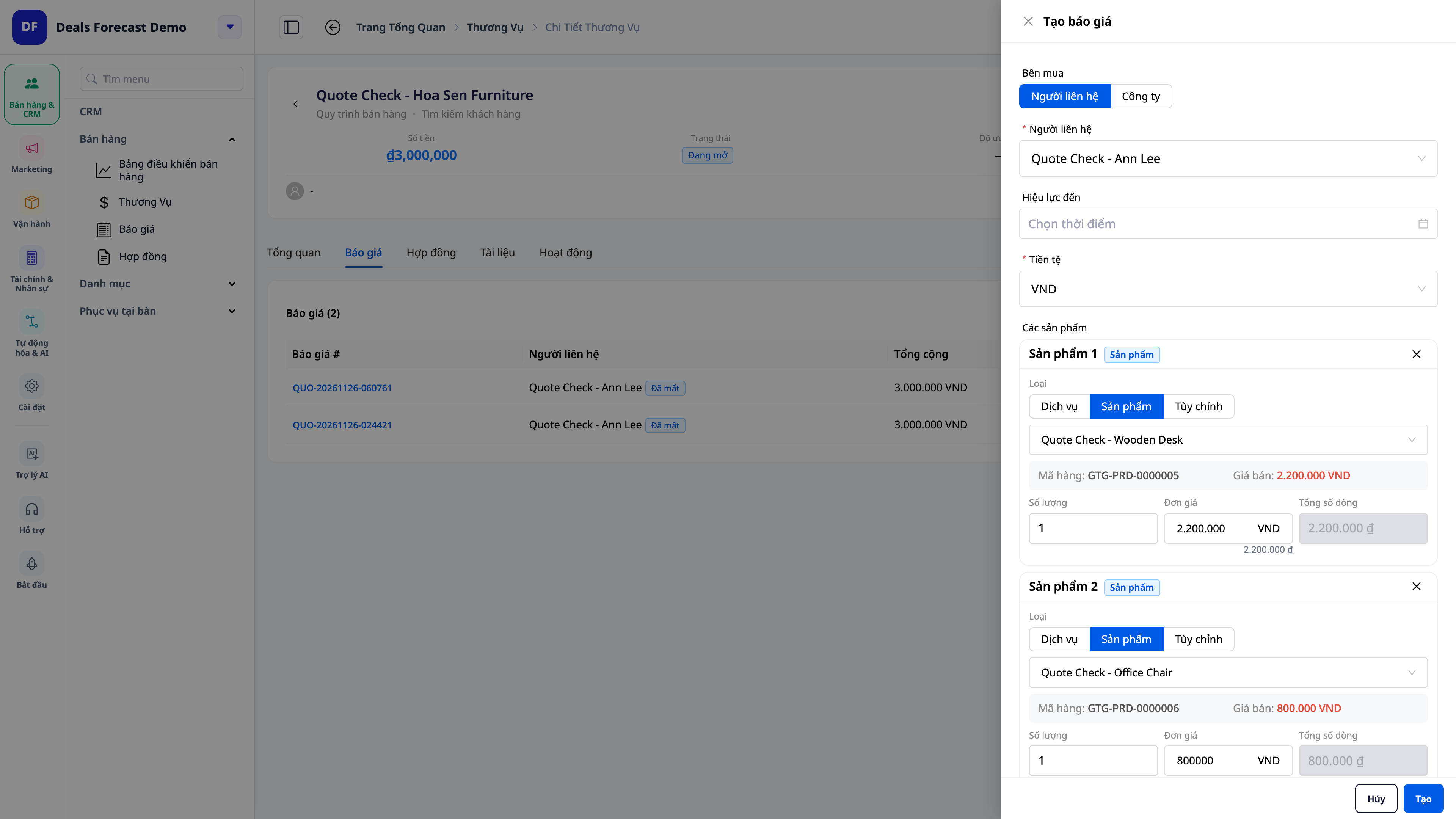
The Quotes tab of an open deal has a Create Quote button. The quote panel that opens is already filled with the deal's primary contact, its products, and its currency, so you don't need to retype anything. The VAT % field is left blank and is required: enter your own tax rate, or enter 0 if there is no tax. GTG CRM does not fill in the tax rate for you. The only exception is when a product has its own tax rate and no selling price yet, in which case the field may be pre-filled with that rate. You can see it and edit it. A newly created quote appears directly in the table, with no page reload needed.
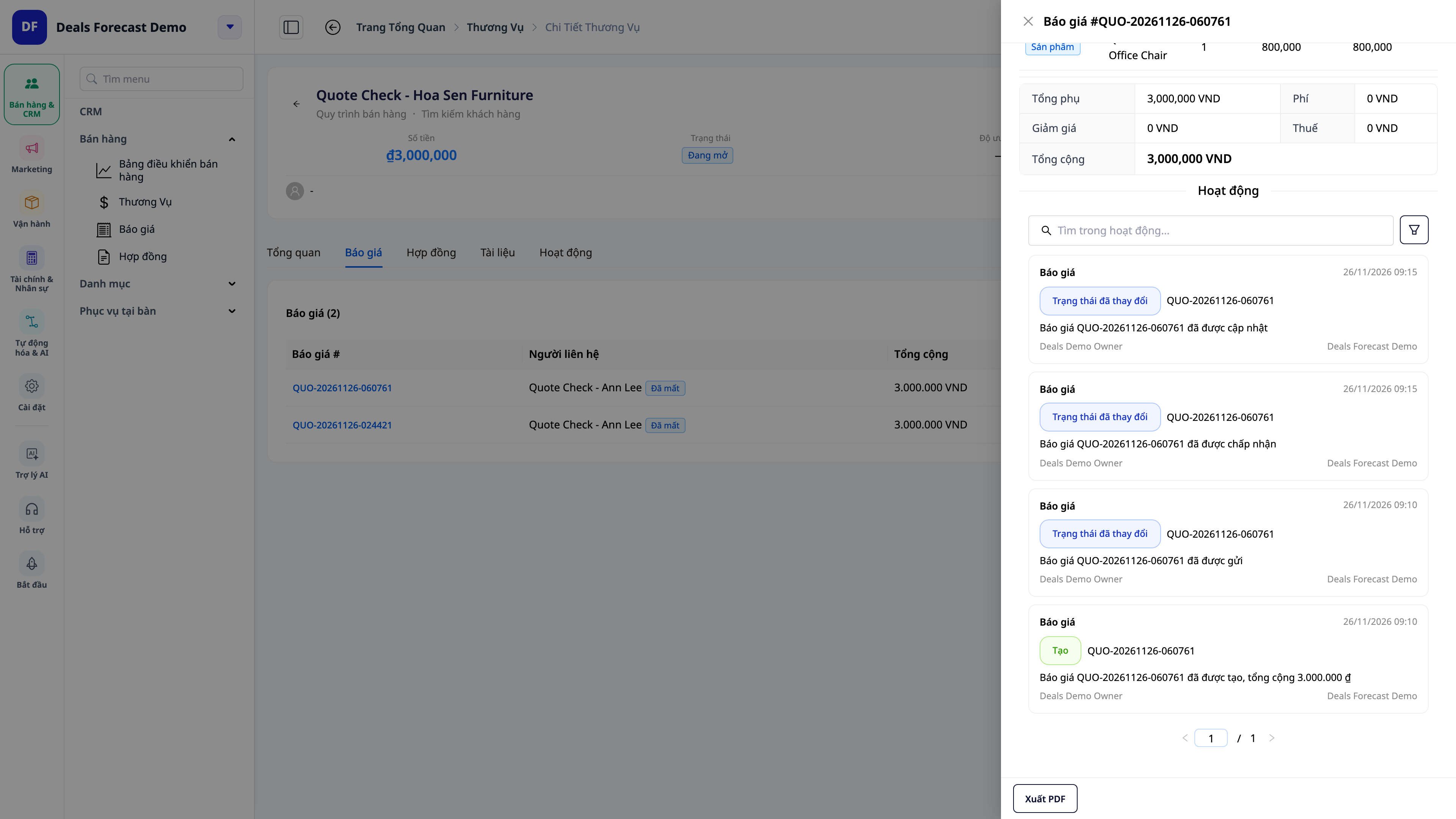
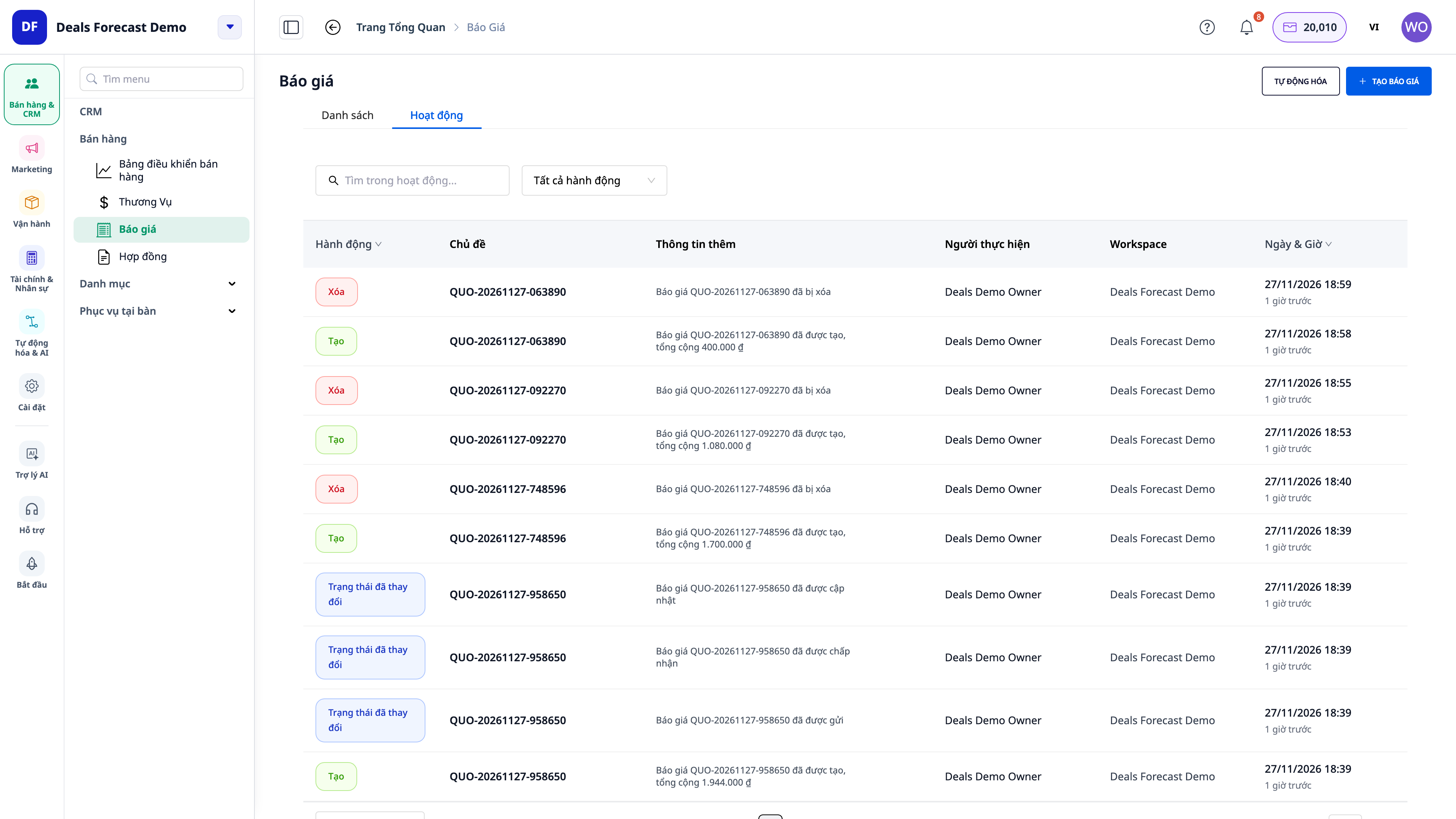
Click a quote number to open the quote in place, on the deal page, instead of jumping to the list of all quotes. The bottom of the panel contains an Activity section that logs each step of the quote. The deal's Activity tab also records these steps, each as a sentence naming the person who did it and when. The Quotes page also has two tabs, List | Activity, so you can review the history of several quotes at once. If the deal is Lost, there is no create-quote button. Instead, the tab shows "Deal is lost." Users who have both edit rights and CRM record creation rights can reopen the deal from the Pipeline stage card to create a quote.
After you click Won and confirm the close, a dialog asks only "Do you want to create a quote for this deal?" when the deal has no quotes yet.
- Benefit: you send the quote while the customer is still considering, without retyping information, and managers can see who quoted what and when without having to ask.
2. Optional: automatically close the deal when the quote is accepted
If your business wants a deal to close right after its quote is accepted, you can ask GTG CRM to do it for you. Go to Sales & CRM, the Sales group, Quotes, click Automation at the top of the page, then turn on the toggle "Mark the deal as Won when its quote is accepted" (the on-screen toggle name uses the word "deal" for opportunity). The Automation button is also available on the Deals page. When the toggle is on, any quote marked as accepted will set its deal to Won within about one minute; the deal's amount stays the same, and the Stage History records the change.
What you need to know before turning it on:
- Off by default. Nothing runs until the business owner or a user allowed to edit automations turns this toggle on. Users with view-only access or who can only create CRM records do not have automation permissions and will not see the Automation button. Users who can view but not edit automations will be blocked by the system when they try to flip the switch. To stop it, turn the toggle off.
- Each run costs 20 credits. This is a standard automation run. An accepted quote that isn't linked to any deal also uses one run and costs 20 credits, even if no deal is closed.
- Deals already Won or Lost are left unchanged. The automation will not close them again, will not add another stage change, and will not show an error.
- Deals closed this way do not trigger your other "deal won" automations, such as creating a customer record. If you need those steps, add them to this same automation, right after the step that closes the deal. The card also reminds readers of this.

- Benefit: a deal no longer stays open after its quote has been accepted, and no one has to remember to close it. If you prefer to close deals at the first payment, leave the toggle off and close the deal manually with the Won button as before.
3. The deal page now has five tabs, with the close button in the header row
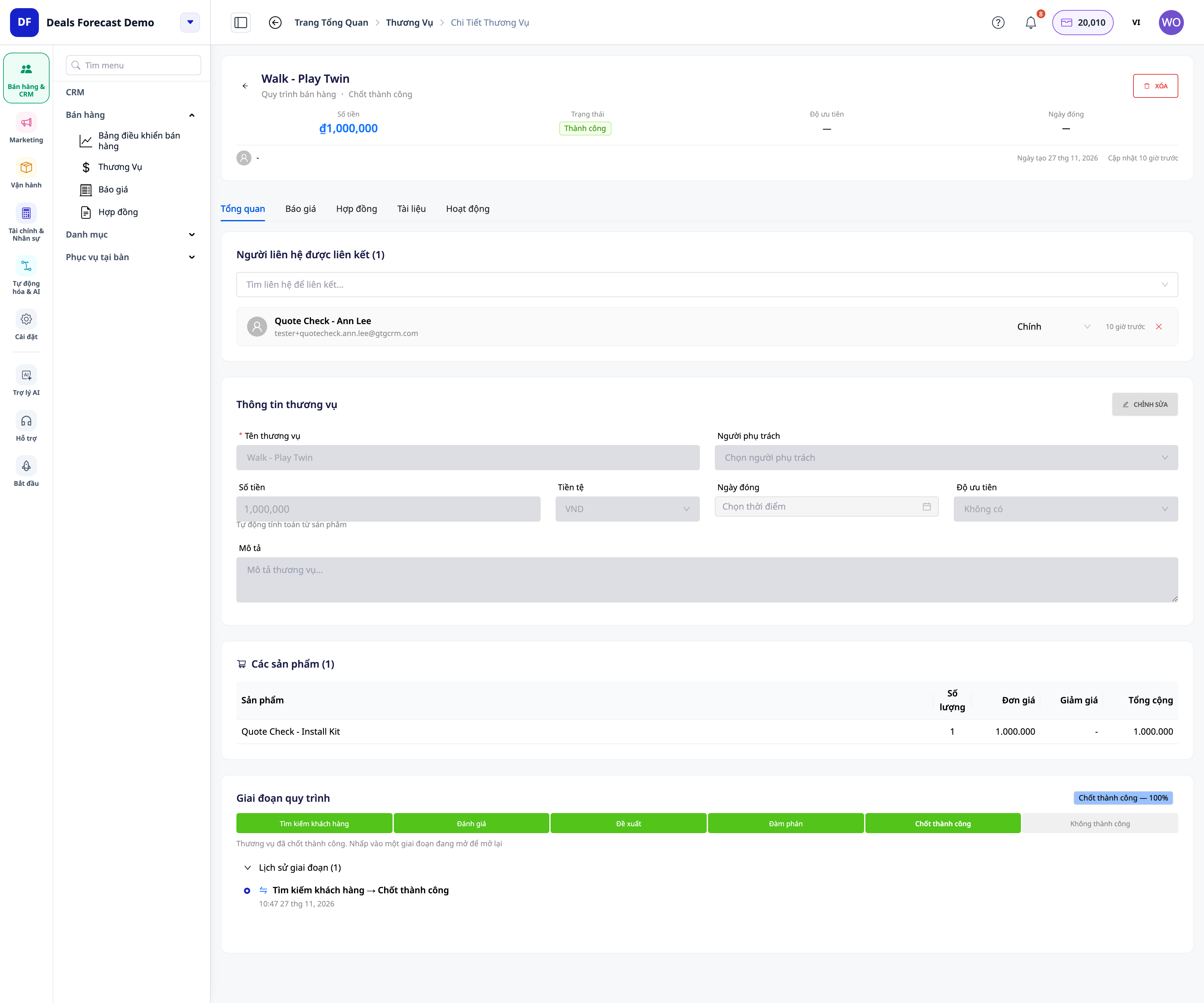
Open a deal from the table or list view. The deal page has five tabs: Overview, Quotes, Contracts, Documents, and Activities. The deal's contact is the first card on the Overview tab, so you can see right away who the deal is with. Stage history is inside the Pipeline stage card, which is collapsed by default; click it to expand. The Won, Lost, and Delete buttons are in the header row, not on the same line as the tabs, and the Delete button does not appear for users without delete permission. Below the deal name is a line showing the pipeline and the current stage.
The tab you have open is in the page address, so reloading the page or sending the link to a colleague will still open that same tab. On mobile, any tabs that don't fit on the row are in the … menu (Documents and Activities). All tabs are still reachable, and the page does not scroll horizontally.
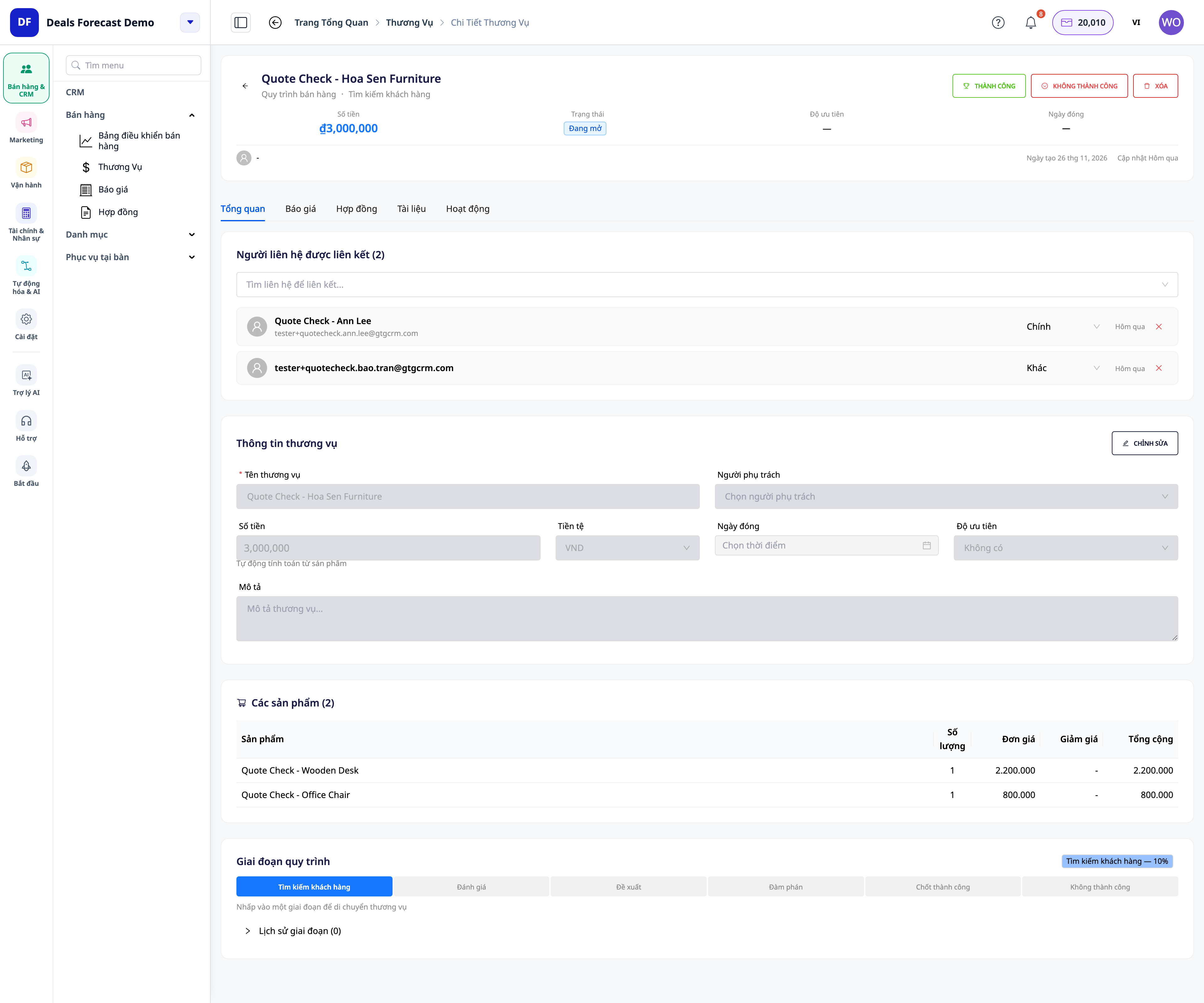

- Benefit: Sellers can see who the customer is and where the deal stands, and they can click to close the deal from one fixed spot, on both laptop and phone.
Step-by-Step Guide
The six steps below have been tested on GTG CRM, following the button names and order you will see. You need permission to create and edit CRM records. Step 5 also requires permission to edit automation.
Step 1. Open the deal page
- Open the Sales & CRM menu, go to the Sales group, and select Deals.
- Click an open deal card, then review the tabs and the header row.
✅ Expected result: The five tabs appear in this order: Overview, Quotes, Contracts, Documents, Activities. Won, Lost, and Delete are in the header row and are not cut off. The tab row contains only the tabs. The Overview tab opens with the Linked Contacts card, which shows the number of linked contacts.
Step 2. Create a quote from the open deal
- Click the Quotes tab.
- Click Create Quote. A side panel opens, pre-filled with the deal's primary contact, products, and currency.
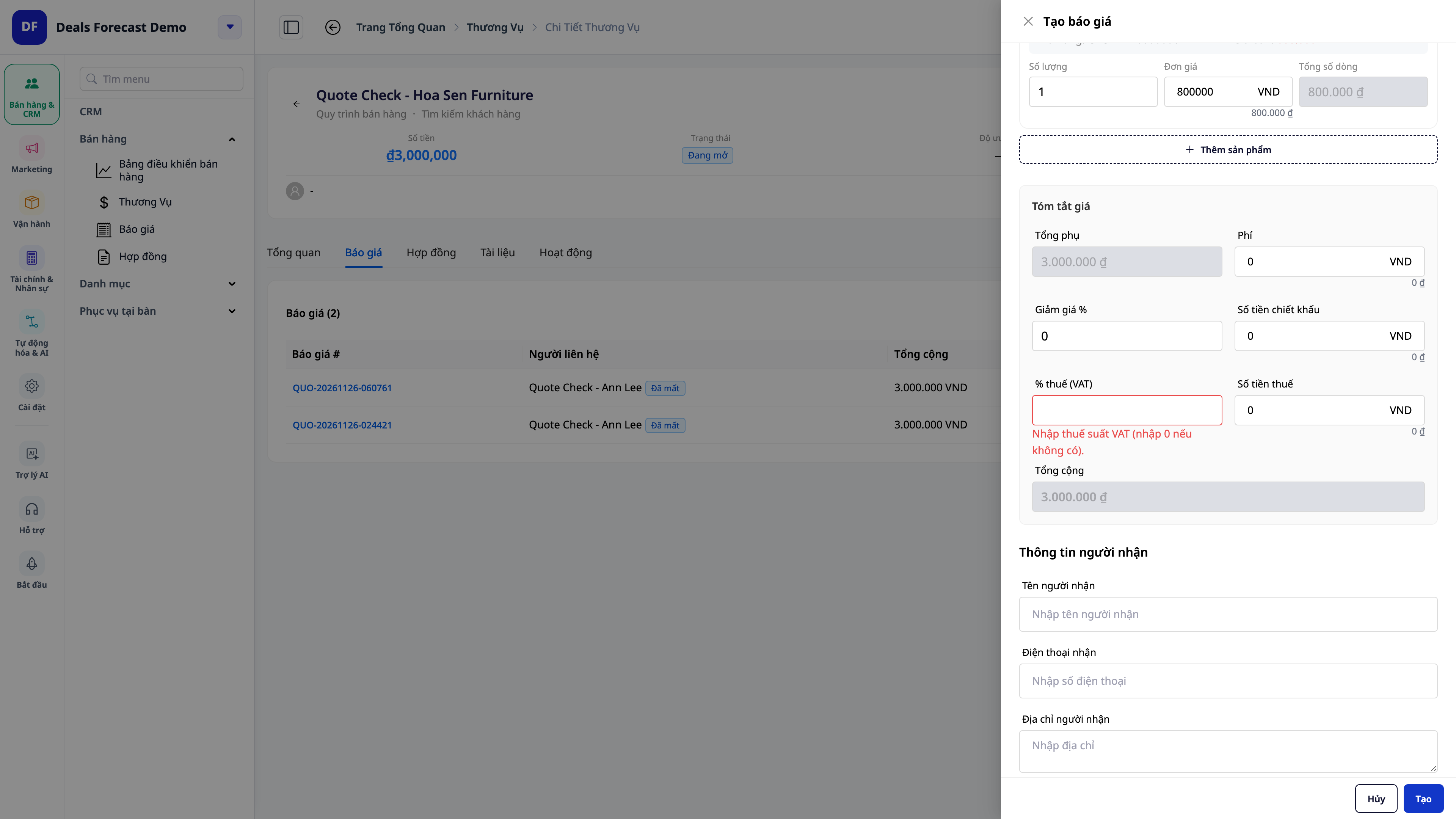
- Click Create while the VAT % field is empty. (If the field already contains the product's tax rate, clear it first.) Then read the line that appears below the field.
- Enter 0 in the VAT % field (or your tax rate), then click Create.
✅ Expected result: If the field is empty, the panel stays open and the line Enter VAT rate (enter 0 if not applicable). appears below the field. After you enter the tax rate, the panel closes and the quote appears in the table with the status Draft and a quote number starting with QUO-. You don't need to reload the page.
Step 3. Open the quote in place and mark it as sent
- Click the quote number (the QUO-… text) in the table.
- Scroll to the bottom of the panel and read the Activity section.
- Click Mark as sent.
✅ Expected result: the quote opens right on the deal page, the page address still ends with ?tab=quotations, and the panel has no Deal row (you're already on that deal). The Activity section has one entry showing the quote was created. After you mark it as sent, the panel closes and that row's status changes from Draft to Sent. This button only records the status; you send the quote to the customer your own way.
The image below shows the Activity section of a quote that has gone through creation, sending, and acceptance, so it has more entries than you'll see right after creating one.
mình.
Step 4. Review each step in Activity
- Click the Activity tab of the deal.
- Open Sales & CRM, go to the Sales group, click Quotes, then click the Activity tab in the two tabs List | Activity.
✅ Expected result: the deal's Activity tab shows two quote entries, one for creation and one for sending. Each entry has the person who did it, the time, and a sentence naming the quote number, with no internal codes. The Activity tab on the Quotes page is a timeline of quotes since this feature launched. Click the List tab to go back to the table.
Step 5. Turn on the auto-close automation (optional)
- On the Quotes page, click Automations at the top of the page.
- Read the card "Close the deal as Won when its quote is accepted": the second line and the orange note below it.
- If you've read the 20-credit cost per run above and want to use it, turn on the card's toggle.
✅ Expected result: before you turn it on, the card is off. The card's second line reads "The customer agrees to the quote, but the deal stays open until someone remembers to close it." The orange note says that deals closed by this automation don't trigger your other "deal won" automations. After you turn it on, the toggle stays on and no deals change. To stop it, turn the toggle off here. The card on screen does not show this 20-credit cost.
Step 6. Accept a quote and check that the deal closes itself as Won
Only do this step if you turned on the card in step 5; each quote accepted while the card is on uses 20 credits.
- On an open deal that has a product and a contact, go to the Quotes tab, create a quote (enter 0 in the % tax (VAT) field), open the quote, and click Mark as sent.
- Reopen the quote and click Mark as accepted.
- Wait about one minute, then reload the deal page.
Current Scope
- Automation does one thing: it marks the deal as Won when the quote is accepted. A rejected quote does not mark the deal as Lost.
- Automation is off by default, each run costs 20 credits, and deals closed this way do not trigger your other "win deal" automations.
- Closing is not instant: it may take about a minute.
- The Quotes page and the deal page record who created, sent, and accepted each quote. Changes made before this feature launched are not in those entries.
- Converting an accepted quote into a contract is covered in the article User Guide: Selling Services & Contracts on GTG CRM.
- The full deal management guide is in the article User Guide: Managing Deals and the Sales Pipeline on GTG CRM.
Benefits for Your Business
| Feature | Practical benefit for you |
|---|---|
| Five tabs, Won, Lost, and Delete buttons in the header row | Everything about a deal on one page; close buttons are not hidden on mobile |
| Quotes tab on an open deal | Quote while the customer is still considering, without closing first |
| Quote form pre-fills contact, product, and currency | No retyping what the deal already knows; you enter the tax rate yourself |
| Open a quote in place | No need to leave the deal you're working on |
| Activity on the deal and on the Quotes page | Managers can see who quoted what and when, without asking |
| Automatically close the deal when the quote is accepted (optional, off by default, 20 credits per run) | Nobody has to remember to click close, and closed deals stay as they are |
Who Is This For?
- Sales reps who quote prospects still considering an offer and want to create a quote directly from the deal.
- Sales managers who need to see who quoted what and when, without asking each person.
- Business owners who want deals to close as Won right after a quote is accepted and accept the cost of 20 credits per run.
- Phone sellers who need a deal page that doesn't scroll sideways and has all the tabs.
How to Get Started
Create a trial account, open an open deal under Sales & CRM, in the Sales group, Deals, then go to the Quotes tab and click Create quote.
Free trial — no credit card required.