Anda Akan Dapat Melakukan Apa Setelah Panduan Ini
Harga yang Anda tawarkan kepada pelanggan adalah 499.000, jumlah tersebut sudah termasuk PPN. Formulir faktur sebelumnya di GTG CRM hanya meminta harga belum termasuk PPN, sehingga Anda harus membagi 1,1 sendiri, mendapatkan angka pecahan, dan khawatir apakah totalnya akan cocok. Panduan ini memungkinkan Anda melakukan sebaliknya: cukup masukkan 499.000, GTG CRM akan memisahkan jumlah barang dan pajak untuk Anda, dan total pembayaran akan sama persis dengan harga yang Anda masukkan. Anda memeriksa angka tersebut sebelum menyimpan, lalu menerbitkannya.
Setelah membaca, Anda akan: memilih cara memasukkan di kolom Harga yang Anda masukkan → memasukkan harga sudah termasuk PPN → melihat tabel jumlah barang / pajak / total pembayaran langsung di formulir → menyimpan draf, membukanya kembali, menerbitkan faktur PPN elektronik.
Persiapan Sebelumnya
# | Syarat | Mengapa Dibutuhkan |
|---|---|---|
1 | Workspace telah terhubung ke penyedia faktur (S-Invoice atau MISA). Lihat panduan koneksi faktur elektronik dan lihat gambaran umum E-Invoice di GTG CRM. | Fitur Harga yang Anda masukkan hanya muncul ketika penyedia yang mendukung (S-Invoice, MISA) telah terhubung dan faktur adalah faktur PPN dalam VND. |
2 | Akun Anda memiliki izin untuk membuat faktur (dan menerbitkannya, jika Anda adalah orang yang menerbitkan). | Orang yang hanya memiliki izin membuat dapat menyimpan draf; hanya orang yang memiliki izin menerbitkan yang dapat menekan TERBITKAN FAKTUR. |
3 | Faktur yang perlu diterbitkan adalah faktur PPN (faktur merah), mata uang VND. | Faktur penjualan atas nama bisnis, mata uang asing, atau penyedia lain tidak akan menampilkan kolom Harga yang Anda masukkan. |
4 | Setidaknya ada satu template faktur PPN untuk dipilih di Informasi Umum. | Tabel total perlu mengetahui template faktur; jika belum memilih template, tabel hanya akan menampilkan "Pilih template faktur terlebih dahulu." |
Langkah 1: Buka Formulir, Pilih Template Faktur, dan Temukan Kolom Harga yang Anda Masukkan
Buka Keuangan & SDM → Faktur & Dokumen → Faktur.
Klik BUAT FAKTUR.
Di bagian Informasi Umum, temukan bidang Kode Template Faktur (wajib, awalnya kosong). Pilih template faktur PPN yang digunakan perusahaan Anda; jika Anda tidak yakin template mana yang benar, tanyakan kepada akuntan. Setelah memilih, bidang Simbol Faktur akan terisi secara otomatis dan Mata Uang akan menampilkan VND. Jika workspace telah mengkonfirmasi template sebelumnya, formulir akan menampilkan baris "Menggunakan template yang dikonfirmasi: ..." dan Anda tidak perlu memilih lagi.
Isi informasi pembeli di bagian Informasi Pembeli.
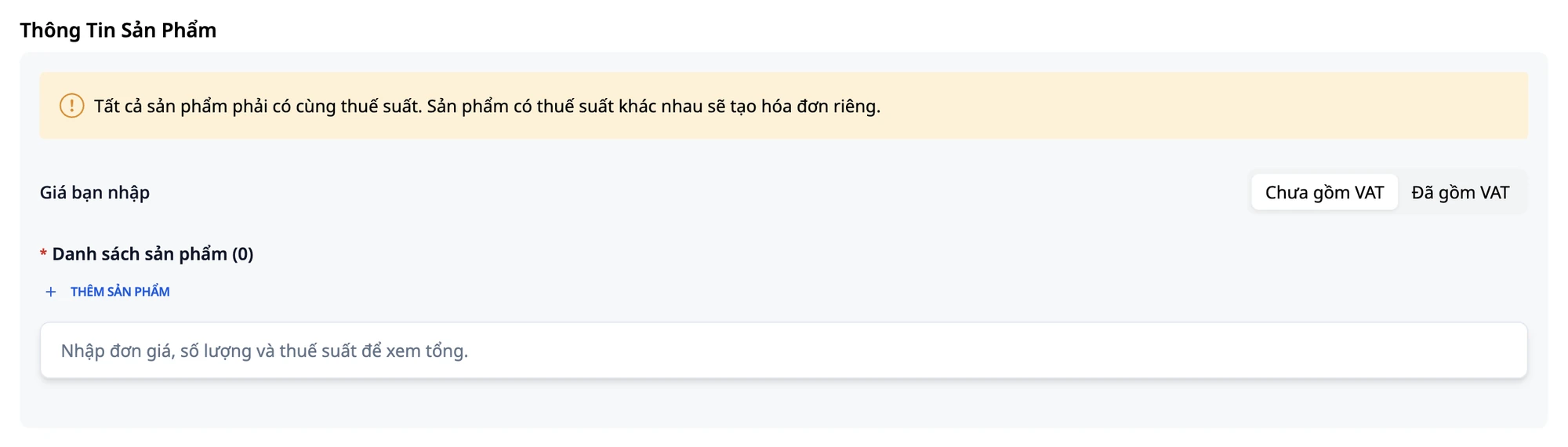
Gulir ke bagian Informasi Produk. Di bawah judul bagian dan spanduk kuning peringatan tarif pajak, di atas "Daftar Produk", Anda akan menemukan kolom Harga yang Anda masukkan dengan dua pilihan: Belum Termasuk PPN dan Sudah Termasuk PPN. Pertama kali (atau jika Anda belum pernah memilih Sudah Termasuk PPN di browser ini), defaultnya adalah Belum Termasuk PPN.
⚠️ Pilih Kode Template Faktur sebelum mengetik harga. Jika belum memilih template, tabel total hanya akan menampilkan "Pilih template faktur terlebih dahulu." dan tidak akan menghitung angka apa pun.
✅ Kết quả mong đợi: Bạn thấy mẫu hóa đơn đã được chọn trong Thông Tin Chung và ô Giá bạn nhập nằm đúng vị trí trong phần Thông Tin Sản Phẩm, phía trên danh sách sản phẩm.
Bước 2: Chọn Đã gồm VAT và đọc ghi chú
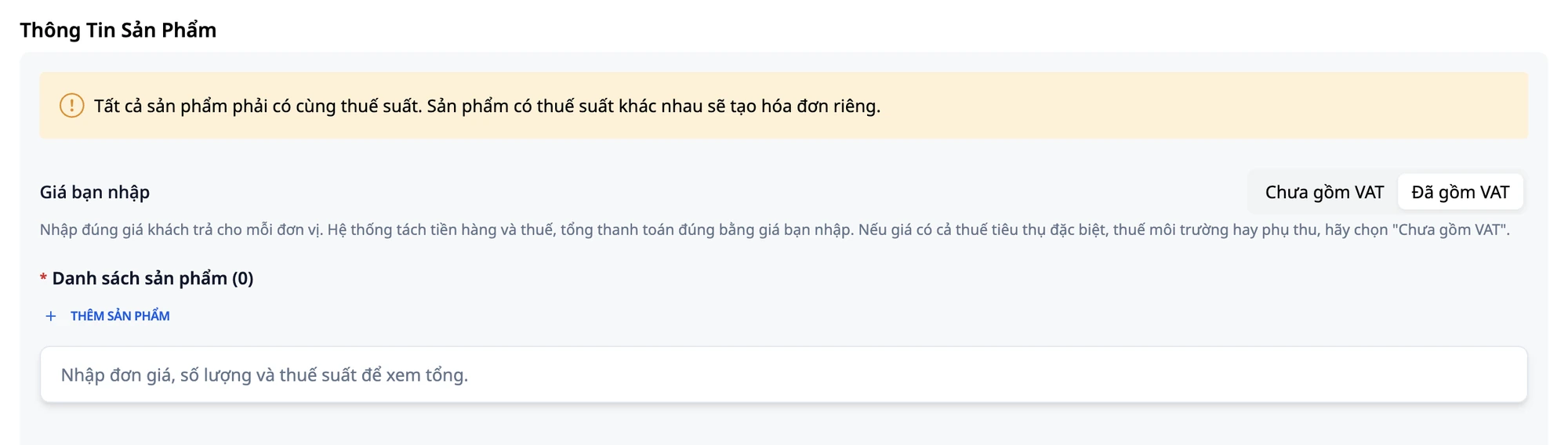
Bấm vào Đã gồm VAT.
Đọc ghi chú xuất hiện ngay bên dưới: "Nhập đúng giá khách trả cho mỗi đơn vị. Hệ thống tách tiền hàng và thuế, tổng thanh toán đúng bằng giá bạn nhập. Nếu giá có cả thuế tiêu thụ đặc biệt, thuế môi trường hay phụ thu, hãy chọn "Chưa gồm VAT"."
💡 Mẹo: Trình duyệt ghi nhớ lựa chọn này cho tài khoản và workspace của bạn. Lần sau mở form mới, kiểm tra lại ô Giá bạn nhập trước khi gõ giá, nhất là khi có nhiều người dùng chung máy.
✅ Kết quả mong đợi: Ô Giá bạn nhập chuyển sang Đã gồm VAT và ghi chú xuất hiện bên dưới.
Bước 3: Thêm sản phẩm và nhập giá niêm yết
Bấm THÊM SẢN PHẨM.
Điền: Tên sản phẩm:
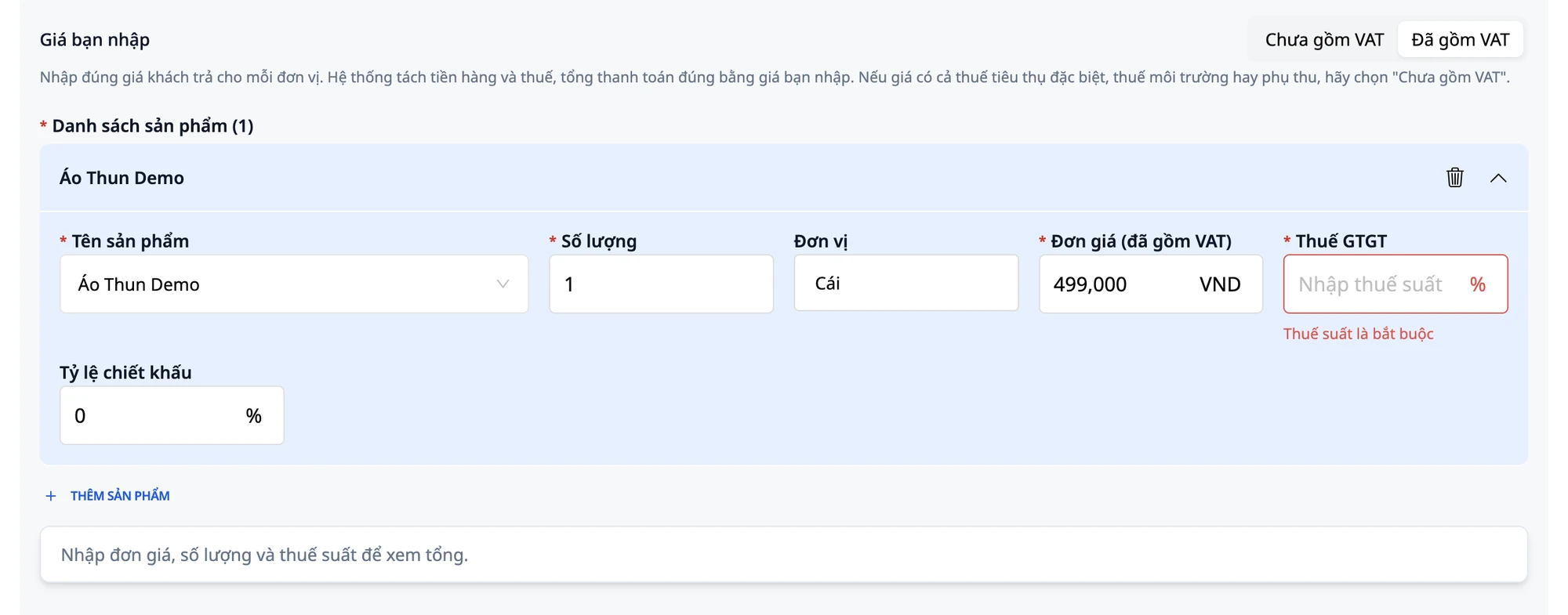
Áo Thun Demo· Số lượng:1· Đơn vị:Cái.Cột giá lúc này có nhãn Đơn giá (đã gồm VAT). Gõ
499000(không cần dấu chấm hay phẩy).Để ý cột Thuế GTGT đang trống. Thuế suất áp dụng cho từng hàng hóa, dịch vụ do bạn hoặc kế toán của bạn xác định và chịu trách nhiệm; hệ thống để trống vì không tự chọn thay bạn. Nếu chưa chắc mặt hàng này thuộc mức thuế suất nào, hỏi kế toán trước khi điền.
Thử bấm LƯU NHÁP ngay lúc này: ô Thuế GTGT sẽ đổi màu đỏ và hiện thông báo "Thuế suất là bắt buộc". Bên dưới bảng cũng đang hiện: "Nhập đơn giá, số lượng và thuế suất để xem tổng."
✅ Kết quả mong đợi: Sản phẩm đã thêm với giá 499,000 trong cột Đơn giá (đã gồm VAT); ô Thuế GTGT trống; form chưa cho lưu.
Bước 4: Nhập thuế suất và đọc bảng tổng
Gõ
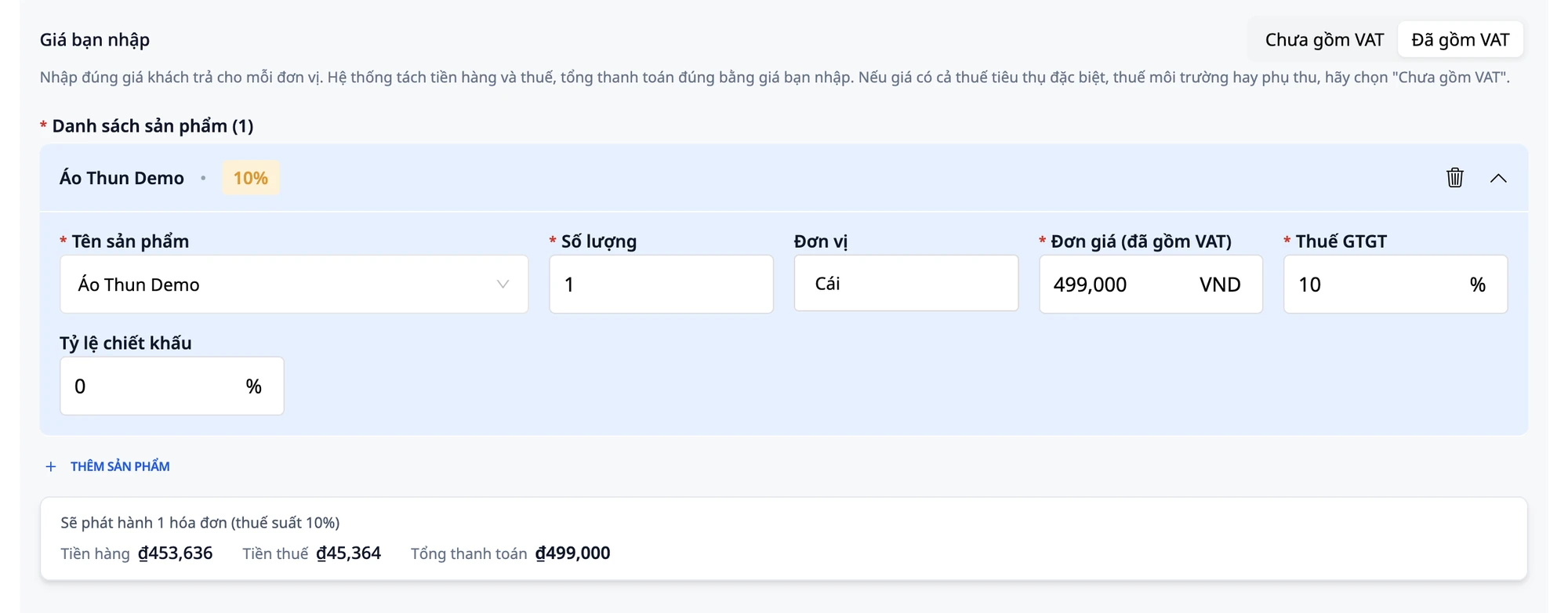
10vào ô Thuế GTGT.Sau khoảng một giây, bảng bên dưới cập nhật: "Sẽ phát hành 1 hóa đơn (thuế suất 10%)" và hiện ba con số: Tiền hàng ₫453,636 · Tiền thuế ₫45,364 · Tổng thanh toán ₫499,000.
Kiểm tra: 453,636 + 45,364 = 499,000, tổng thanh toán bằng đúng giá bạn gõ vào.
💡 Mẹo: Bảng này tính theo cùng công thức với hóa đơn sẽ xuất. Bạn thấy con số trước khi lưu, không cần chờ đến lúc xem hóa đơn mới biết tổng.
💡 Mẹo: Nếu bảng vẫn hiện "Chọn mẫu hóa đơn trước.", cuộn lên phần Thông Tin Chung và chọn Mã mẫu hóa đơn. Sau khi chọn xong, bảng sẽ hiện đủ các con số.
✅ Kết quả mong đợi: Bảng hiện Tiền hàng ₫453,636 · Tiền thuế ₫45,364 · Tổng thanh toán ₫499,000.
Langkah 5: Ubah kuantitas, tin ulang jumlah
Ubah Kuantitas dari
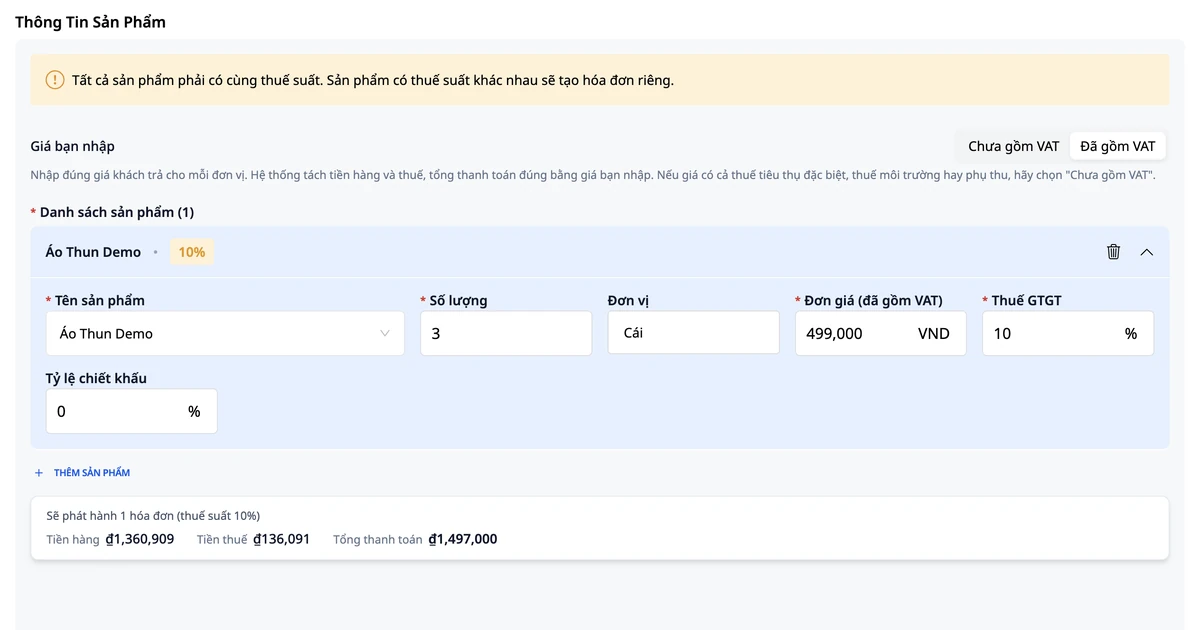
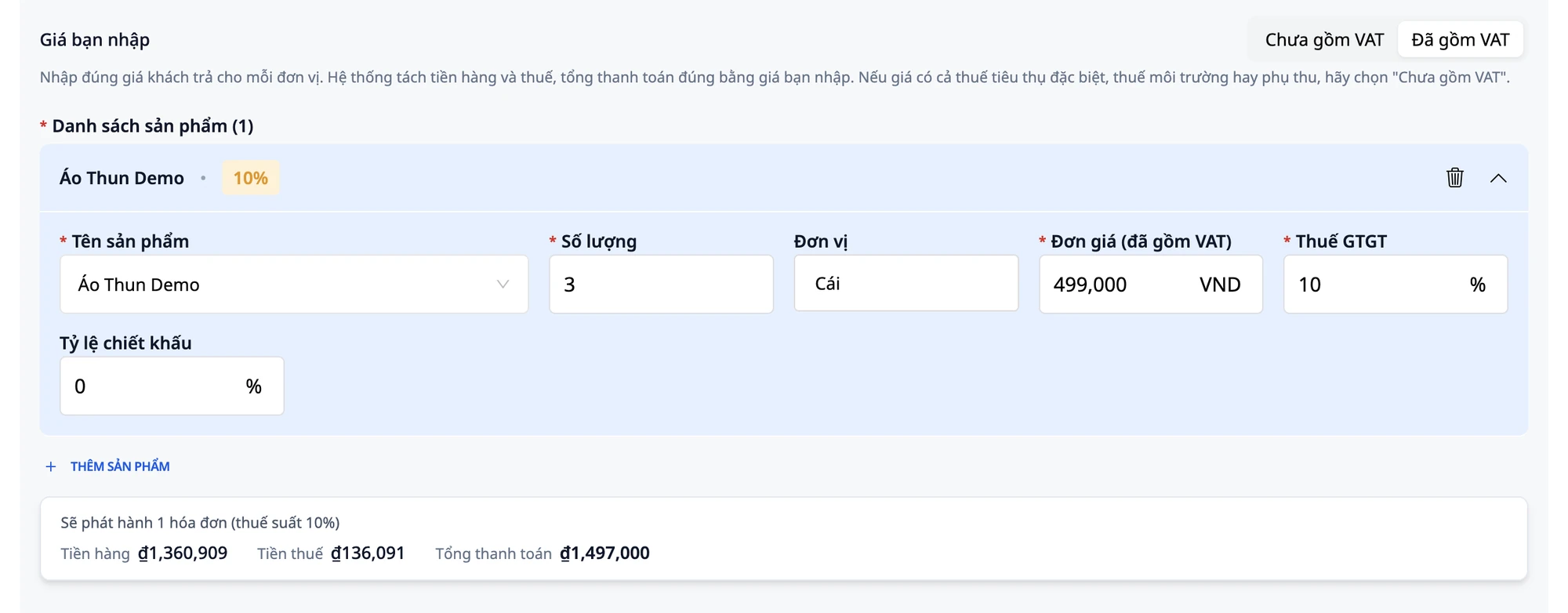
1menjadi3.Tabel diperbarui secara instan: Subtotal Barang ₫1.360.909 · Pajak ₫136.091 · Jumlah Pembayaran ₫1.497.000.
Periksa: 3 × 499.000 = 1.497.000, sama persis dengan jumlah yang ditampilkan tabel.
💡 Tips: Pemisahan subtotal barang/pajak dibulatkan ke satuan terdekat sehingga kedua angka dijumlahkan selalu sama dengan jumlah pembayaran. Ini adalah cara sistem menangani angka desimal (PPN terbalik / dihitung mundur dari harga sudah termasuk PPN) secara otomatis untuk Anda.
✅ Hasil yang Diharapkan: Tabel menampilkan Subtotal Barang ₫1.360.909 · Pajak ₫136.091 · Jumlah Pembayaran ₫1.497.000.
Langkah 6: Simpan draf dan buka kembali
Klik SIMPAN DRAF.
Masuk ke daftar faktur, cari faktur yang baru saja disimpan, klik menu baris tersebut, pilih Edit untuk membuka kembali.
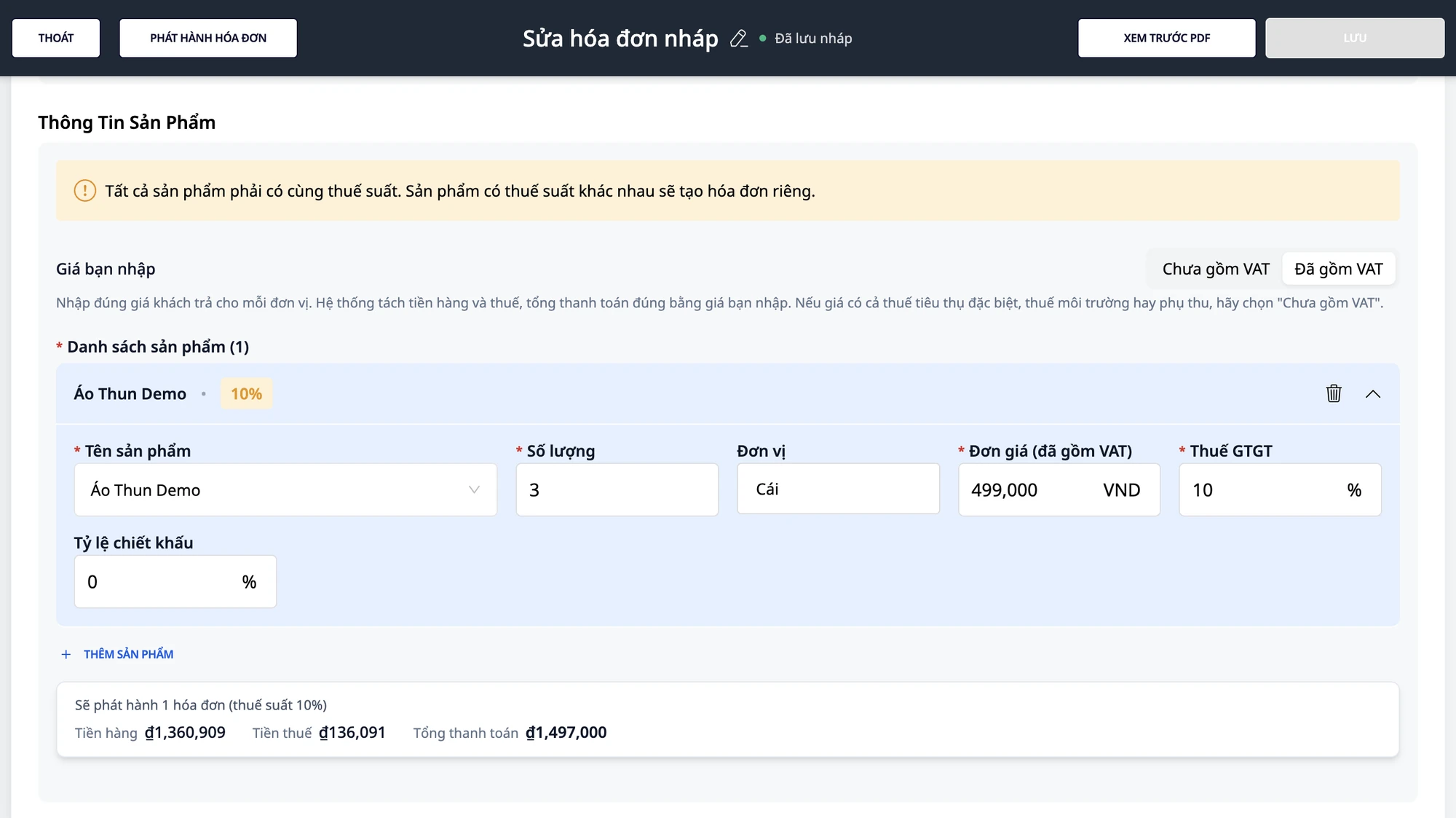
Periksa: kolom Harga yang Anda masukkan tetap Sudah termasuk PPN, kolom Harga Satuan (sudah termasuk PPN) menampilkan 499.000 (bukan 453.636), kuantitas 3, tarif pajak 10, tabel masih menampilkan ₫1.497.000.
💡 Tips: Tombol SIMPAN pada draf yang baru dibuka kembali awalnya redup dan hanya aktif setelah Anda mengubah suatu nilai. Contoh: ubah Kuantitas dari 3 menjadi 2 (tabel diperbarui Subtotal Barang ₫907.273 · Pajak ₫90.727 · Jumlah Pembayaran ₫998.000), ubah kembali menjadi 3 (tabel menampilkan ₫1.497.000), lalu klik SIMPAN. Kotak dialog "Simpan Faktur" muncul, baca kembali informasinya, klik KONFIRMASI.
✅ Hasil yang Diharapkan: Draf dibuka kembali (halaman dengan judul Edit Faktur Draf) dengan Sudah termasuk PPN, harga 499.000, kuantitas 3, tarif pajak 10, dan tabel ₫1.497.000.
Langkah 7: Terbitkan faktur
Baca kembali seluruh informasi faktur: nama pembeli, alamat, NPWP, nama produk, harga satuan, kuantitas, tarif pajak, dan tabel Subtotal Barang · Pajak · Jumlah Pembayaran.
Klik TERBITKAN FAKTUR.
Kotak konfirmasi menampilkan nama pembeli dan peringatan: faktur yang diterbitkan tidak dapat diubah atau dihapus. Baca dengan cermat, klik Konfirmasi.
Pesan "Faktur berhasil diterbitkan" muncul.
Dalam daftar faktur, kolom pertama setelah nama pembeli adalah Jumlah Pembayaran (₫1.497.000). Geser tabel ke kanan untuk melihat tambahan Total Subtotal Barang ₫1.360.909 dan Pajak ₫136.091 (10%); kedua kolom ini tidak bersebelahan langsung dengan kolom Jumlah Pembayaran.
⚠️ Catatan Penting: Tarif pajak pada faktur dipilih dan menjadi tanggung jawab Anda atau akuntan Anda. Periksa faktur dengan cermat sebelum menerbitkannya. Panduan ini menjelaskan cara menggunakan perangkat lunak, bukan nasihat pajak. Jika Anda tidak yakin tentang tarif pajak atau cara menangani angka desimal, tanyakan kepada akuntan atau penasihat pajak Anda.
✅ Hasil yang Diharapkan: Faktur beralih status menjadi Sudah Diterbitkan; kolom Jumlah Pembayaran menampilkan ₫1.497.000; geser tabel ke kanan untuk melihat Subtotal Barang dan Pajak.
Langkah 8: Coba diskon berdasarkan % pada faktur kedua
Tạo một hóa đơn mới: bấm TẠO HÓA ĐƠN, điền thông tin người mua, chọn Đã gồm VAT.
Bấm THÊM SẢN PHẨM. Điền: Tên sản phẩm:
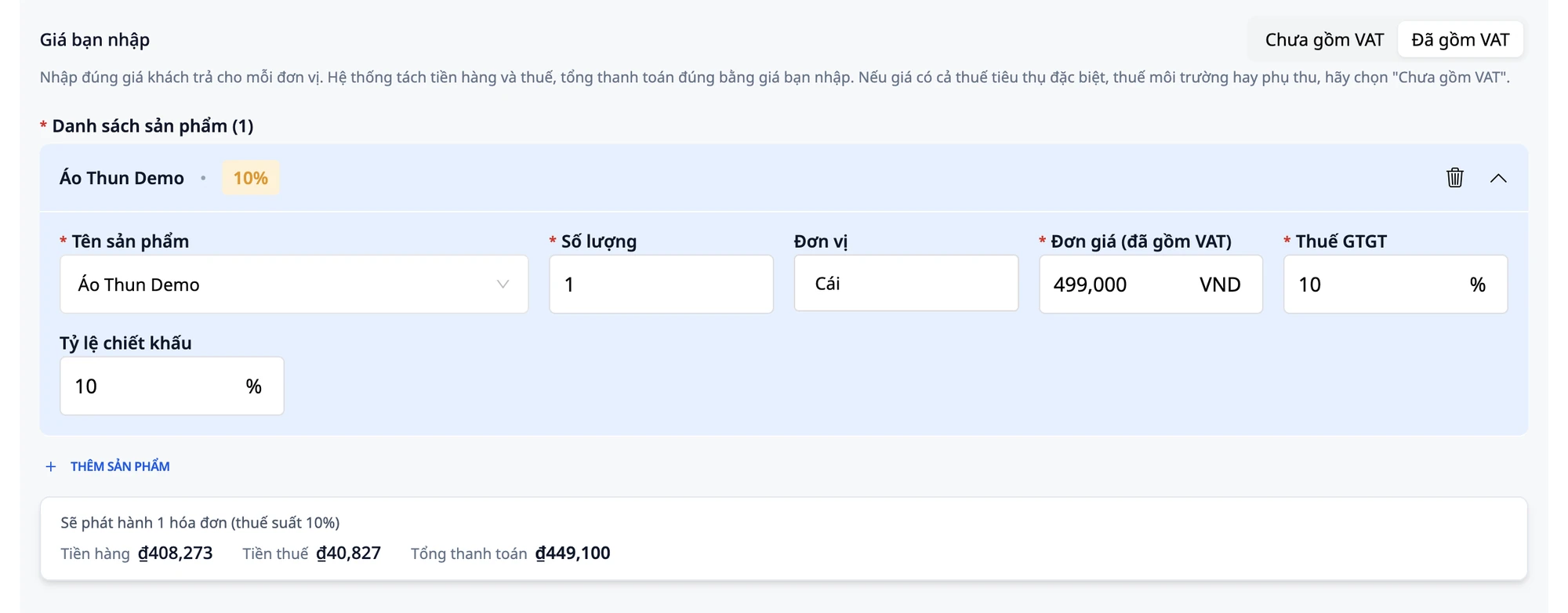
Áo Thun Demo· Số lượng:1· Đơn vị:Cái· Đơn giá (đã gồm VAT):499000· Thuế GTGT:10.Tìm ô Tỷ lệ chiết khấu trên dòng sản phẩm. Gõ
10(nghĩa là giảm 10%).Bảng cập nhật: Tiền hàng ₫408,273 · Tiền thuế ₫40,827 · Tổng thanh toán ₫449,100 (499,000 trừ 10% = 49,900, còn lại 449,100).
Chiết khấu này sẽ hiển thị rõ trên hóa đơn đã phát hành.
⚠️ Lưu ý: Ô Tỷ lệ chiết khấu chỉ nhận phần trăm, không nhận số tiền cố định, và chỉ dùng cho chiết khấu thương mại. Nếu bạn muốn giảm giá cho khách thanh toán sớm (chiết khấu thanh toán), đó là một khoản khác, không ghi vào đây. Hỏi kế toán để biết cách ghi nhận khoản đó.
✅ Kết quả mong đợi: Bảng hiện Tiền hàng ₫408,273 · Tiền thuế ₫40,827 · Tổng thanh toán ₫449,100.
Bảng tra nhanh kết quả mong đợi
Bạn nhập (Đã gồm VAT, 10%) | Tiền hàng | Tiền thuế | Tổng thanh toán |
|---|---|---|---|
499,000 × 1 | ₫453,636 | ₫45,364 | ₫499,000 |
499,000 × 2 | ₫907,273 | ₫90,727 | ₫998,000 |
499,000 × 3 | ₫1,360,909 | ₫136,091 | ₫1,497,000 |
499,000 × 1, chiết khấu 10% | ₫408,273 | ₫40,827 | ₫449,100 |
Lưu ý
Conditions for feature appearance: The Price You Enter field is only available on VAT invoices (red invoices) in VND, connected via S-Invoice or MISA. Invoices for sole proprietorships, foreign currencies, or other suppliers will not display this field. The form appears as usual, and you enter the pre-tax price as before.
Only use Includes VAT when the price only includes VAT: If the listed price also includes special consumption tax, environmental protection tax, or other surcharges, select Excludes VAT and enter the pre-tax price.
Rounding of fractional amounts (reverse VAT): The item price and tax amount are rounded to the nearest đồng such that the sum of the two always equals the price you entered multiplied by the quantity. For quantities with decimals, the total payment is also rounded, and the table displays that amount. If you need to know more about rounding rules, ask your accountant.
Invoice replacement: If you use the invoice replacement function (menu hàng ⋮ → Create Replacement Invoice), the replacement form opens with Includes VAT and the original price you entered (499,000), not the pre-tax price.
Multiple tax rates on one invoice: If the product lines have different tax rates, the table below displays a summary row for each tax rate and indicates how many invoices will be issued.
Permissions: Accountants have the right to create and issue, completing the entire workflow. Employees who only have the right to create invoices can save drafts but cannot click ISSUE INVOICE.
Responsibilities and tax advice: The applicable tax rate is chosen by you or your accountant and you are responsible for it; check carefully before issuing. This guide describes how to use the software, not tax advice. If you are unsure about the tax rate or how to handle fractional amounts, ask your accountant or tax advisor.
Frequently Asked Questions
Does the total payment exactly match the price I entered?
Yes. That is the purpose of the Includes VAT mode. For one unit, the total payment is exactly 499,000. For three units, the total is 1,497,000 (3 × 499,000). The table below the form calculates and displays this amount immediately after you enter the unit price, quantity, and tax rate. You can check it before saving, without waiting until you view the invoice.
Who chooses the tax rate?
You or your accountant. The VAT field is always empty when you first add a product; the system does not automatically select it for you. This is a required field: if you do not fill it in, the form will report an error and refuse to save. If you are unsure which tax rate your item falls under, ask your accountant first.
What if I don't see the "Price You Enter" field?
This field only appears when all three conditions are met: the invoice is a VAT invoice (red invoice), the currency unit is VND, and the workspace is connected to S-Invoice or MISA. If you are creating an invoice for a sole proprietorship, using foreign currency, or for another supplier, the field will not appear, and you will enter the pre-tax price as usual. If the conditions are met but you still don't see it, double-check if the workspace is connected to the invoice provider.
What does the summary table saying "Select invoice template first." mean?
Scroll up to the General Information section and select Invoice Template Code. The system needs to know the invoice template before it can calculate the item price, tax amount, and total payment; without a selected template, the table cannot display any numbers. After selecting, the table will update immediately. If the template list is empty and there is nothing to select, ask your accountant or the person who connected the invoice provider for your workspace.
Try It Now
Open a draft invoice in GTG CRM and enter the price your customer paid; the draft invoice is not yet issued. (Not connected to an invoice provider? See the e-invoice connection guide first.)