使用本教程后,您将能够
您向客户报价 499,000,这个价格已含增值税。以前 GTG CRM 的发票表格只要求填写不含税价格,您必须手动除以 1.1,得到一个小数,并且担心总金额是否匹配。本教程将让您反向操作:直接输入 499,000,GTG CRM 会为您自动拆分货款和税款,总支付金额将与您输入的金额完全一致。您可以在保存前检查该金额,然后开具发票。
阅读完毕后,您将能够:在“输入价格”框中选择输入方式 → 输入含税价格 → 在表格上直接查看货款/税款/总支付金额 → 保存草稿,稍后重新打开,然后开具增值税电子发票。
准备工作
# | 条件 | 为什么需要 |
|---|---|---|
1 | 工作区已连接发票供应商(S-Invoice 或 MISA)。请参阅 电子发票连接指南 并概览 GTG CRM 的 电子发票功能。 | “输入价格”功能仅在连接了支持的供应商(S-Invoice, MISA)且发票为越南盾增值税发票时才会显示。 |
2 | 您的账户有权创建发票(如果您是开票人,则还有权开具)。 | 只有创建权限的人可以保存草稿;只有开具权限的人才能点击“开具发票”。 |
3 | 需要开具的是增值税发票(红发票),货币单位为越南盾。 | 代销发票、外币发票或来自其他供应商的发票不会显示“输入价格”框。 |
4 | 在“通用信息”中至少有一个增值税发票模板可供选择。 | 总计表格需要知道发票模板;如果尚未选择模板,表格将仅显示“请先选择发票模板。” |
步骤 1:打开表格,选择发票模板并找到“输入价格”框
转到“财务与人事 → 发票与凭证 → 发票”。
点击“创建发票”。
在“通用信息”部分,找到“发票模板代码”(必填,初始为空)。选择您的公司当前使用的增值税发票模板;如果不确定哪个模板正确,请咨询会计。选择后,“发票代码”字段将自动填充,“货币”将显示为越南盾。如果工作区已预先确认模板,表格将显示“正在使用已确认模板:...”的行,您无需重新选择。
在“买方信息”部分填写买方信息。
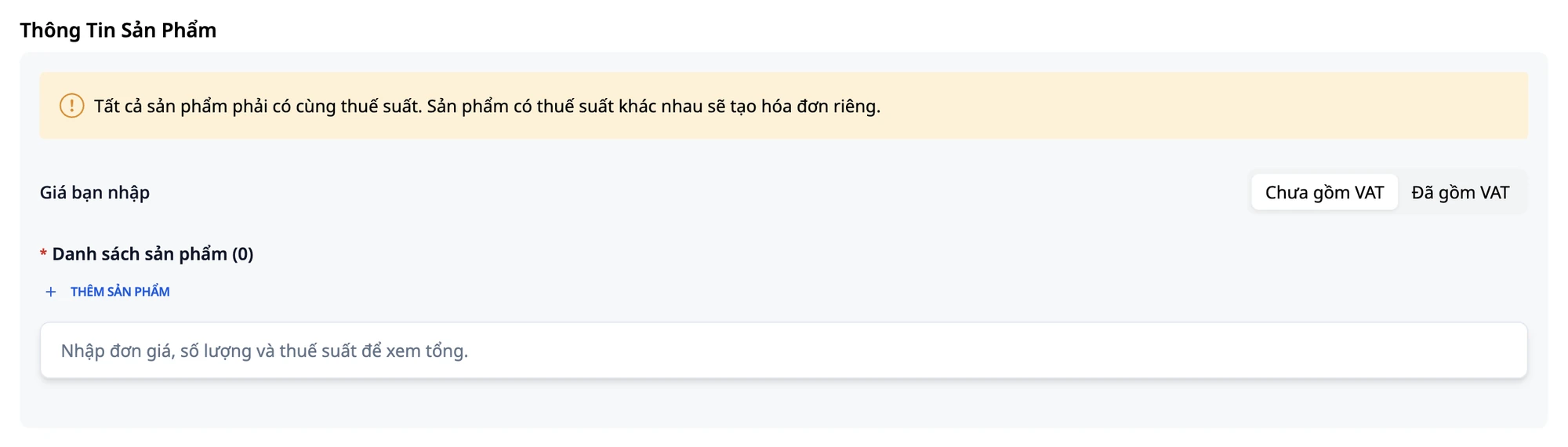
向下滚动到“产品信息”部分。在部分标题和黄色税率警告横幅下方,“产品列表”上方,您会看到“输入价格”框,其中有两个选项:“不含增值税”和“含增值税”。第一次(或在此浏览器上从未选择“含增值税”)默认为“不含增值税”。
⚠️ 请在输入价格前选择“发票模板代码”。如果未选择模板,“总计”表格将仅显示“请先选择发票模板。”而不会计算任何金额。
✅ 预期结果:您会在通用信息部分看到已选择的账单模板,并在产品信息部分找到“您输入的金额”输入框,该输入框位于产品列表上方。
步骤 2:选择“含增值税”并阅读说明
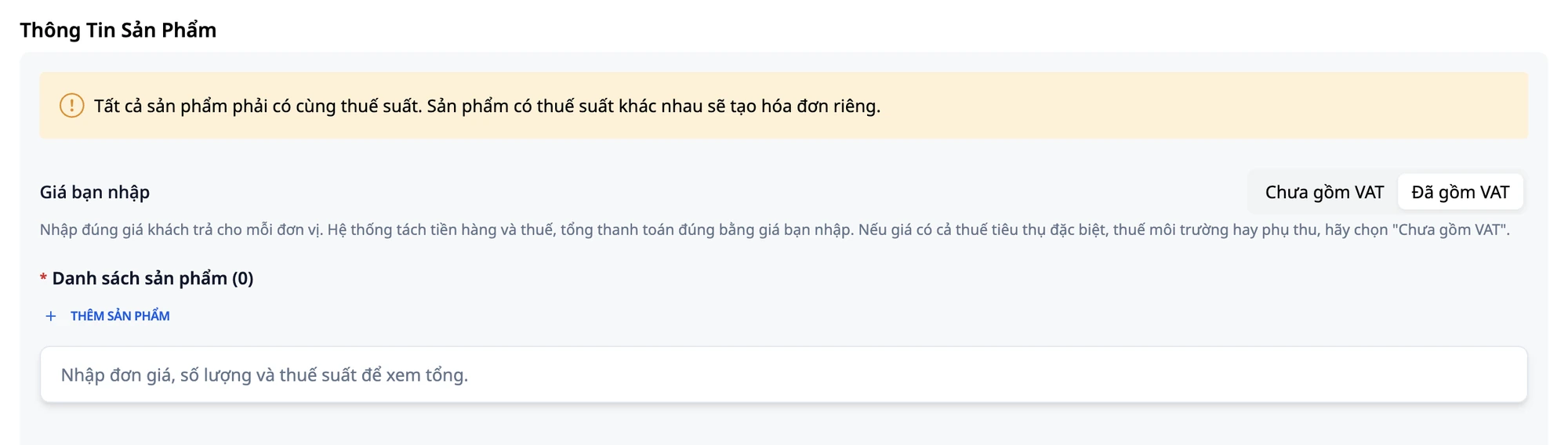
点击含增值税。
阅读下方出现的说明:“输入客户每次支付的正确单价。系统将自动拆分货款和税款,总支付金额将等于您输入的金额。如果价格包含消费税、环境税或附加费,请选择‘不含增值税’。”
💡 提示:浏览器会为您的账户和工作区记住此选择。下次打开新表单时,在输入价格之前,请先检查“您输入的金额”输入框,尤其是多人共用一台电脑时。
✅ 预期结果:“您输入的金额”输入框切换为含增值税,并显示下方的说明。
步骤 3:添加产品并输入列出价格
点击添加产品。
填写:产品名称:
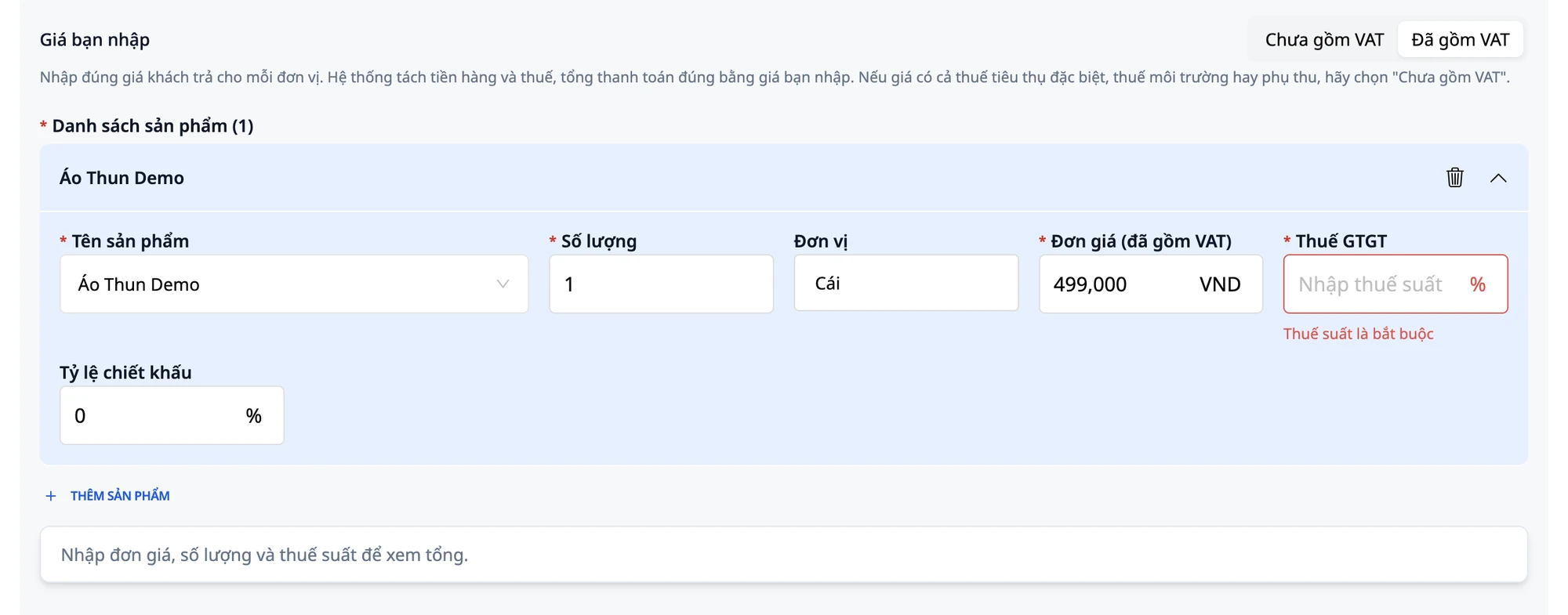
演示 T 恤· 数量:1· 单位:件。此时价格列的标签为单价(含增值税)。输入
499000(无需小数点或逗号)。请注意增值税列为空。您或您的会计负责确定每种商品或服务的适用税率;系统将其留空,不会为您代为选择。如果不确定该商品属于哪种税率,请在填写前咨询您的会计。
尝试立即点击保存草稿:增值税列将变为红色,并显示消息“税率是必填项”。下方表格也显示:“请输入单价、数量和税率以查看总计。”
✅ 预期结果:已添加产品,单价(含增值税)列显示价格 499,000;增值税列为空;表单目前不允许保存。
步骤 4:输入税率并阅读汇总表
在增值税输入框中输入
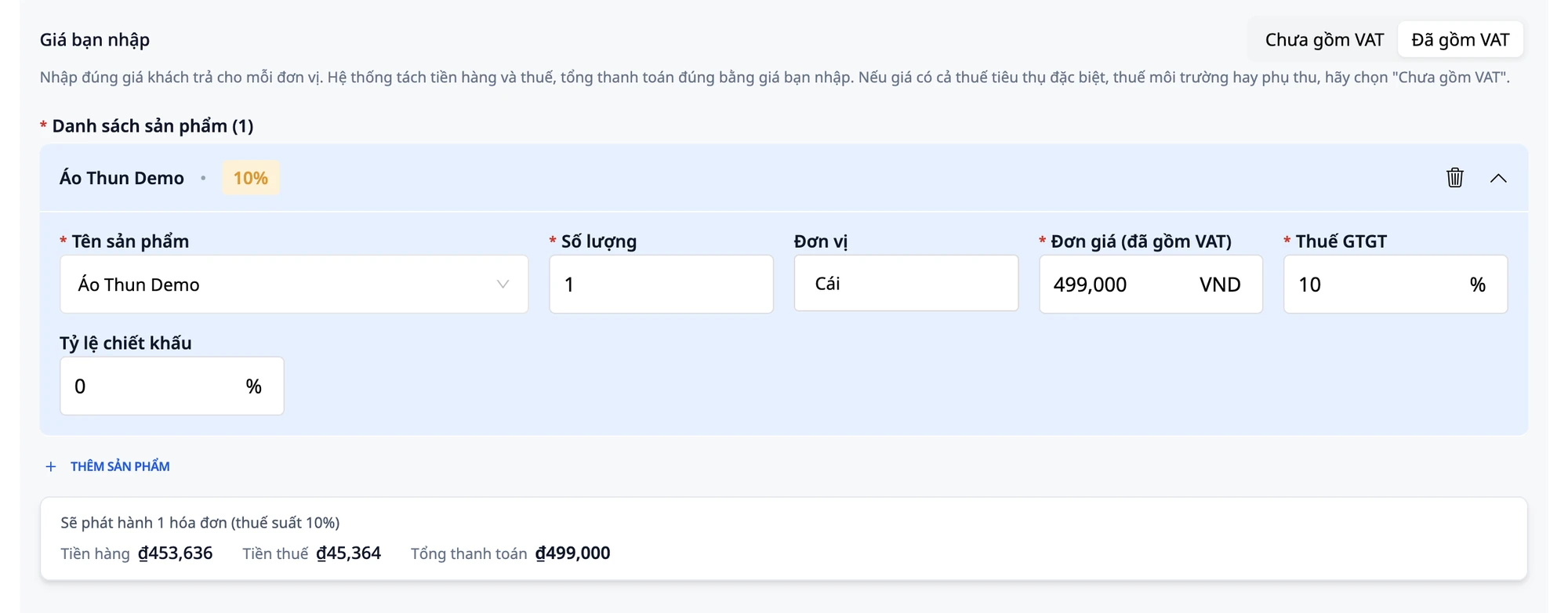
10。大约一秒后,下方表格更新:“将开具 1 张发票(税率 10%)”,并显示三个数字:货款 ₫453,636 · 税款 ₫45,364 · 总计 ₫499,000。
验证:453,636 + 45,364 = 499,000,总计金额等于您输入的金额。
💡 提示:此表格的计算公式与将要开具的发票相同。您可以在保存之前看到总计金额,无需等到查看发票才知道总数。
💡 提示:如果表格仍然显示“请先选择账单模板”,请滚动到通用信息部分,然后选择账单模板代码。选择完成后,表格将显示完整的数字。
✅ 预期结果:表格显示货款 ₫453,636 · 税款 ₫45,364 · 总计 ₫499,000。
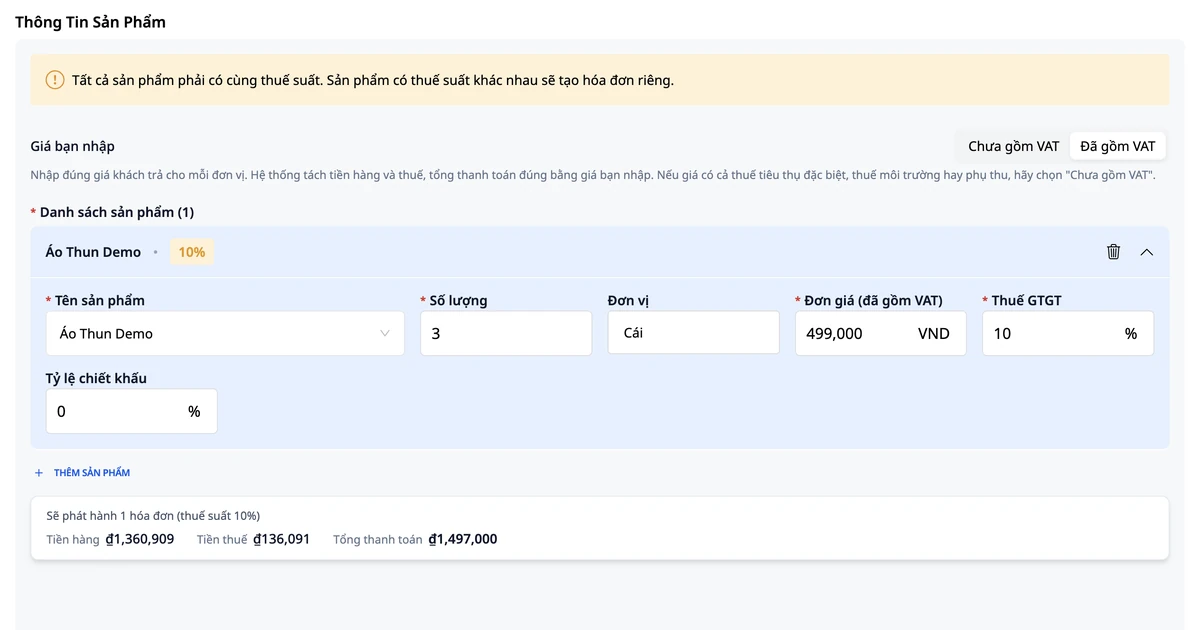
Bước 5: Thay đổi số lượng, xem lại tổng
Đổi Số lượng từ
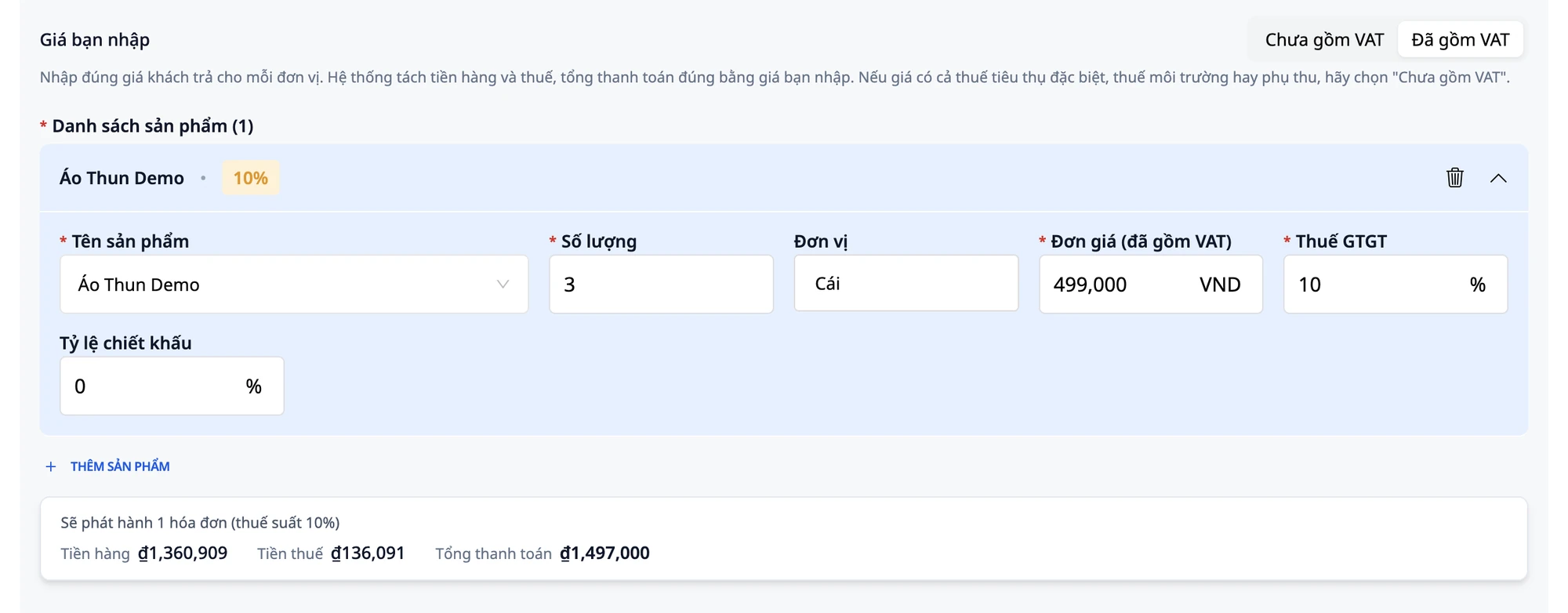
1thành3.Bảng cập nhật ngay: Tiền hàng ₫1,360,909 · Tiền thuế ₫136,091 · Tổng thanh toán ₫1,497,000.
Kiểm tra: 3 × 499,000 = 1,497,000, bằng đúng tổng bảng hiển thị.
💡 Mẹo: Phần tách tiền hàng / tiền thuế được làm tròn đến đồng sao cho hai con số cộng lại luôn bằng tổng thanh toán. Đây là cách xử lý số lẻ (VAT ngược / tính ngược từ giá đã gồm thuế) mà hệ thống tự làm cho bạn.
✅ Kết quả mong đợi: Bảng hiện Tiền hàng ₫1,360,909 · Tiền thuế ₫136,091 · Tổng thanh toán ₫1,497,000.
Bước 6: Lưu nháp và mở lại
Bấm LƯU NHÁP.
Vào danh sách hóa đơn, tìm hóa đơn vừa lưu, bấm menu của dòng đó, chọn Sửa để mở lại.
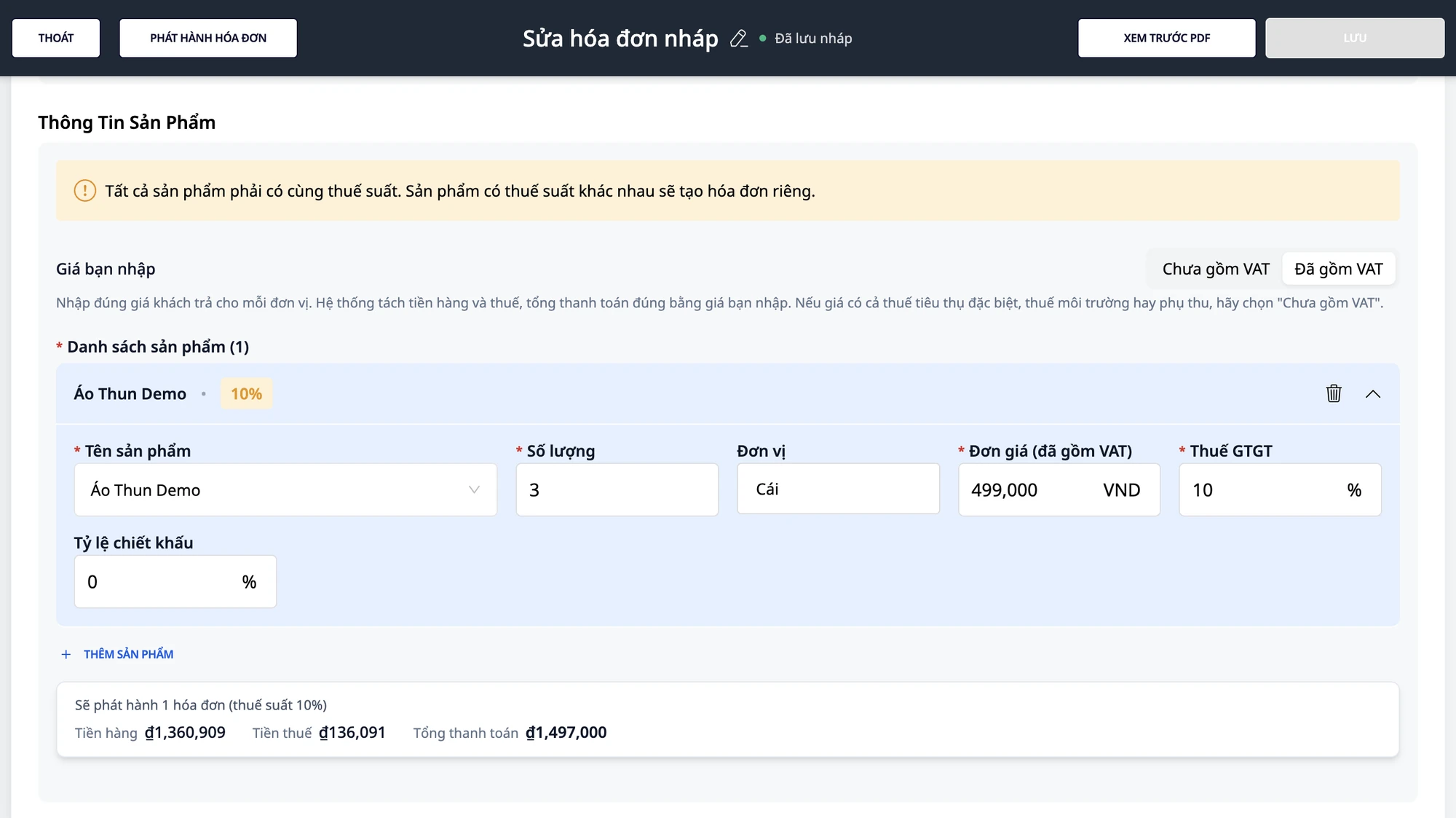
Kiểm tra: ô Giá bạn nhập vẫn là Đã gồm VAT, ô Đơn giá (đã gồm VAT) hiện 499,000 (không phải 453,636), số lượng 3, thuế suất 10, bảng vẫn hiện ₫1,497,000.
💡 Mẹo: Nút LƯU trên nháp vừa mở lại ban đầu bị mờ và chỉ hoạt động sau khi bạn thay đổi một giá trị. Ví dụ: đổi Số lượng từ 3 thành 2 (bảng cập nhật Tiền hàng ₫907,273 · Tiền thuế ₫90,727 · Tổng thanh toán ₫998,000), đổi lại thành 3 (bảng hiện ₫1,497,000), rồi bấm LƯU. Hộp thoại "Lưu hóa đơn" hiện ra, đọc lại thông tin, bấm XÁC NHẬN.
✅ Kết quả mong đợi: Nháp mở lại (trang có tiêu đề Sửa hóa đơn nháp) với Đã gồm VAT, giá 499,000, số lượng 3, thuế suất 10 và bảng ₫1,497,000.
Bước 7: Phát hành hóa đơn
Đọc lại toàn bộ thông tin hóa đơn: tên người mua, địa chỉ, mã số thuế, tên sản phẩm, đơn giá, số lượng, thuế suất, và bảng Tiền hàng · Tiền thuế · Tổng thanh toán.
Bấm PHÁT HÀNH HÓA ĐƠN.
Hộp xác nhận hiện tên người mua và cảnh báo: hóa đơn đã phát hành không thể sửa hoặc xóa. Đọc kỹ, bấm Xác nhận.
Thông báo "Phát hành hóa đơn thành công" xuất hiện.
Trong danh sách hóa đơn, cột đầu tiên sau tên người mua là Tổng thanh toán (₫1,497,000). Kéo bảng sang phải để thấy thêm Tổng tiền hàng ₫1,360,909 và Tiền thuế ₫136,091 (10%); hai cột này không nằm kề ngay cột Tổng thanh toán.
⚠️ Lưu ý quan trọng: Thuế suất trên hóa đơn là do bạn hoặc kế toán của bạn lựa chọn và chịu trách nhiệm. Hãy kiểm tra kỹ hóa đơn trước khi phát hành. Hướng dẫn này mô tả cách dùng phần mềm, không phải tư vấn thuế. Nếu chưa chắc về thuế suất hoặc cách xử lý số lẻ, hỏi kế toán hoặc tư vấn thuế của bạn.
✅ Kết quả mong đợi: Hóa đơn chuyển trạng thái Đã Phát Hành; cột Tổng thanh toán hiện ₫1,497,000; kéo bảng sang phải thấy Tổng tiền hàng và Tiền thuế.
Bước 8: Thử chiết khấu theo % trên một hóa đơn thứ hai
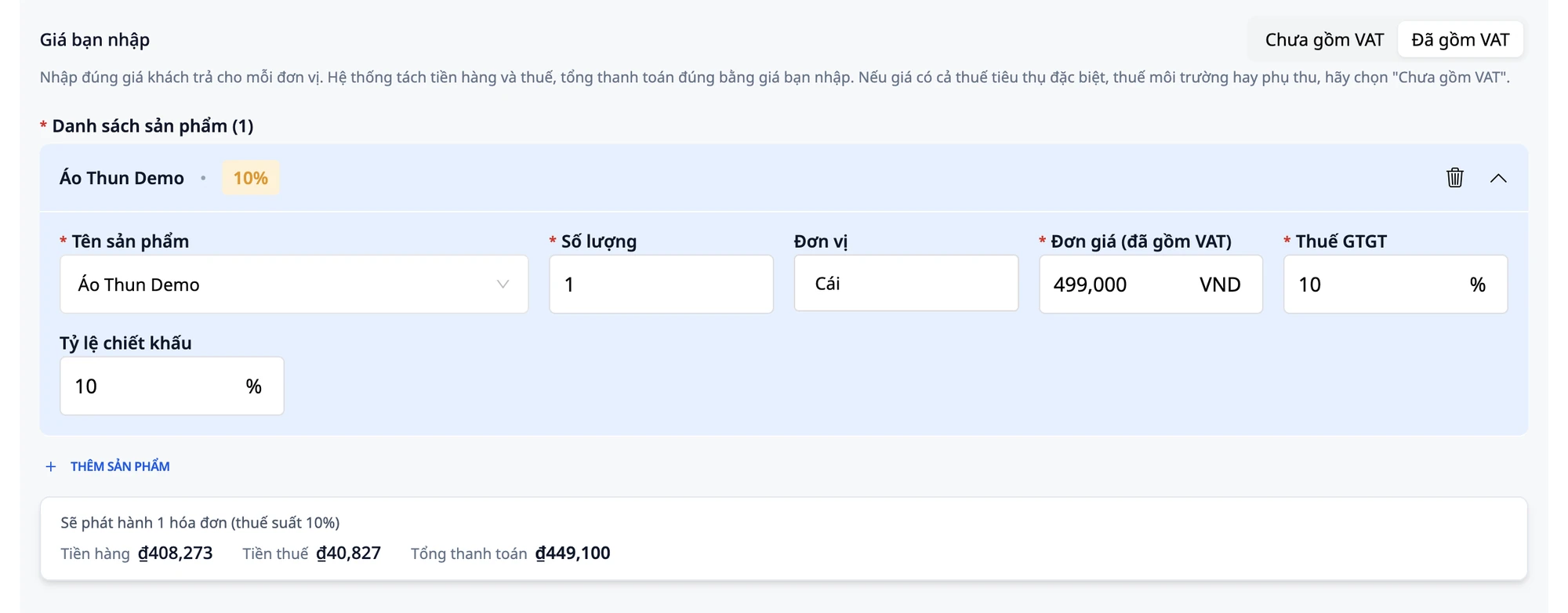
创建新发票:点击创建发票,填写买家信息,选择含增值税。
点击添加产品。填写:产品名称:
演示T恤· 数量:1· 单位:件· 单价(含增值税):499000· 增值税:10。在产品行中找到折扣率字段。输入
10(表示减少10%)。更新表格:商品金额 ₫408,273 · 税额 ₫40,827 · 总计 ₫449,100(499,000 减去 10% = 49,900,剩余 449,100)。
此折扣将在已开具的发票上清晰显示。
⚠️ 注意:折扣率字段仅接受百分比,不接受固定金额,且仅用于商业折扣。如果您想为提前付款的客户提供折扣(付款折扣),那是另一项内容,不在此处记录。请咨询会计了解如何记录该项。
✅ 预期结果:表格显示商品金额 ₫408,273 · 税额 ₫40,827 · 总计 ₫449,100。
预期结果快速对照表
您的输入(含增值税,10%) | 商品金额 | 税额 | 总计 |
|---|---|---|---|
499,000 × 1 | ₫453,636 | ₫45,364 | ₫499,000 |
499,000 × 2 | ₫907,273 | ₫90,727 | ₫998,000 |
499,000 × 3 | ₫1,360,909 | ₫136,091 | ₫1,497,000 |
499,000 × 1, 折扣10% | ₫408,273 | ₫40,827 | ₫449,100 |
注意事项
Feature availability conditions: The Price you entered field is only available on VAT invoices (red invoices) in VND, connected via S-Invoice or MISA. Invoices for sole proprietorships, foreign currencies, or other suppliers will not display this field. The form appears as usual, and you enter the pre-tax price as before.
Only use "Including VAT" when the price includes VAT: If the listed price also includes special consumption tax, environmental protection tax, or other surcharges, select Excluding VAT and enter the pre-tax price.
Rounding cents (reverse VAT): The item price and tax amount are rounded to the nearest whole number so that the sum of the two always equals the price you entered multiplied by the quantity. For quantities with decimals, the total payment is also rounded, and the table displays that figure. If you need more information about rounding rules, ask your accountant.
Replacing invoices: If you use the invoice replacement function (menu hàng ⋮ → Create replacement invoice), the replacement form opens with Including VAT and the original price you entered (499,000), not the pre-tax price.
Multiple tax rates on one invoice: If the product lines have different tax rates, the table below displays a summary row for each tax rate and indicates how many invoices will be issued.
Permissions: Accountants have the right to create and issue invoices for the entire process. Employees who only have the right to create invoices can save drafts but cannot click ISSUE INVOICE.
Responsibility and tax advice: The applicable tax rate is chosen and is your or your accountant's responsibility; check carefully before issuing. This guide describes how to use the software, not tax advice. If you are unsure about the tax rate or how to handle cents, consult your accountant or tax advisor.
Frequently Asked Questions
Does the total payment equal the price I entered?
Yes. That is the purpose of the Including VAT mode. For one unit, the total payment is exactly 499,000. For three units, the total is 1,497,000 (3 × 499,000). The table below the form calculates and displays this figure immediately after you enter the unit price, quantity, and tax rate. You can check it before saving, without waiting to see the invoice.
Who chooses the tax rate?
You or your accountant. The VAT field is always empty when a product is first added; the system does not select it for you. This is a required field: if you do not fill it in, the form will report an error and refuse to save. If you are unsure which tax rate applies to your item, ask your accountant first.
What if I don't see the "Price you entered" field?
This field only appears when all three conditions are met: the invoice is a VAT invoice (red invoice), the currency unit is VND, and the workspace is connected to S-Invoice or MISA. If you are creating an invoice for a sole proprietorship, using foreign currency, or for another supplier, the field will not appear, and you will enter the pre-tax price as usual. If the conditions are met but you still don't see it, check again to see if the workspace has been connected to an invoice provider.
What does the summary table saying "Select invoice template first." mean?
Scroll up to the General Information section and select Invoice template code. The system needs to know the invoice template before it can calculate the item price, tax amount, and total payment; without a selected template, the table cannot display any figures. After selecting, the table will update immediately. If the list of templates is empty and there is nothing to choose from, ask your accountant or the person who connected the invoice provider for your workspace.
Try it now
Open a draft invoice in GTG CRM and enter the price your customer paid; the draft invoice has not been issued. (Not connected to an invoice provider? See the e-invoice connection guide first.)