Requirements Before You Start
Before using the Social Hub feature, you need to:
- Have a GTG CRM account
- Log in to the system
Connect Social Media Accounts
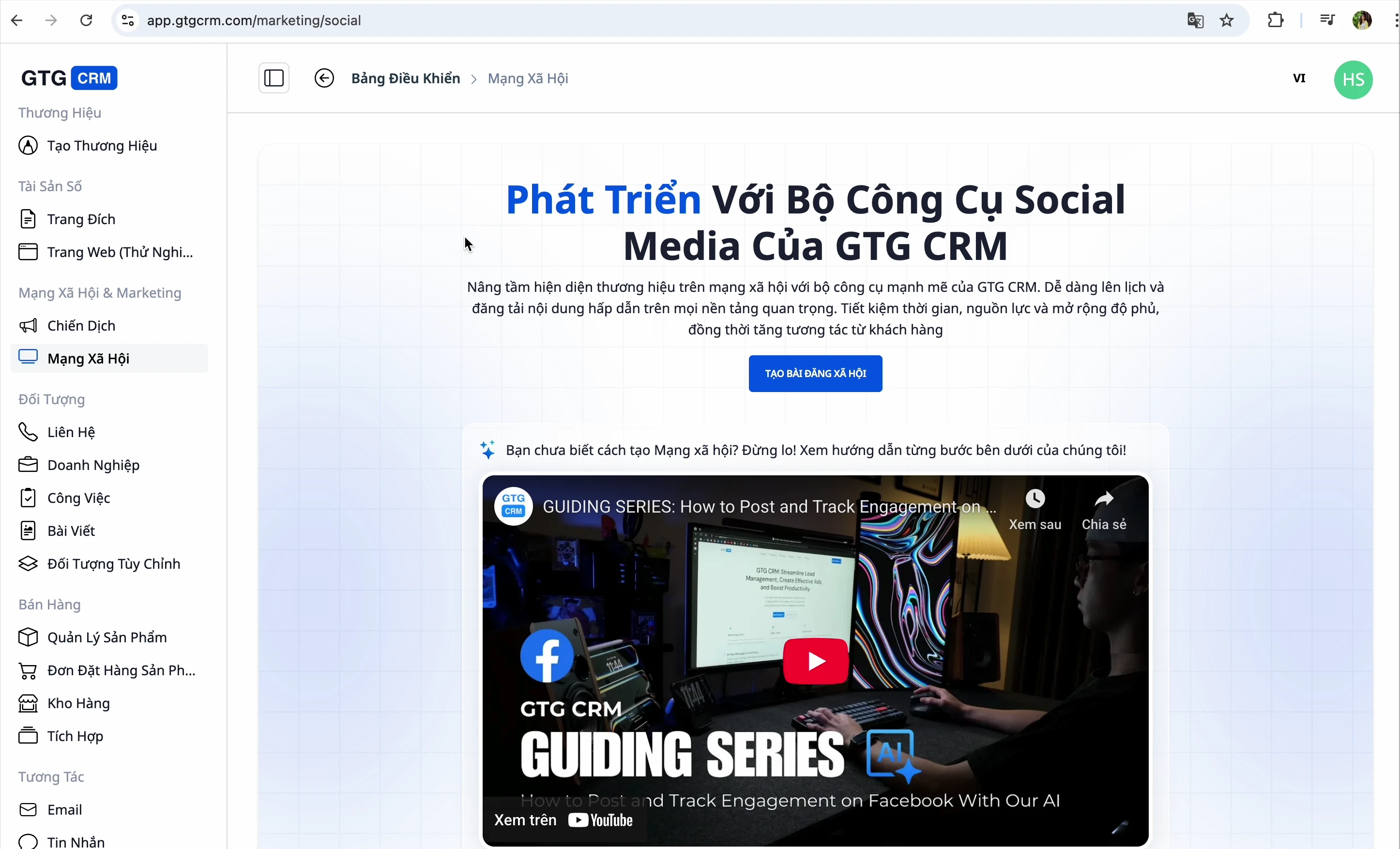
Step 1: Access Social Hub
- Log in to GTG CRM
- Look at the left-hand menu bar
- Click on "Social Media Posting"
Step 2: Choose Platforms to Connect
GTG CRM supports 4 platforms: Facebook, LinkedIn, YouTube, and Zalo
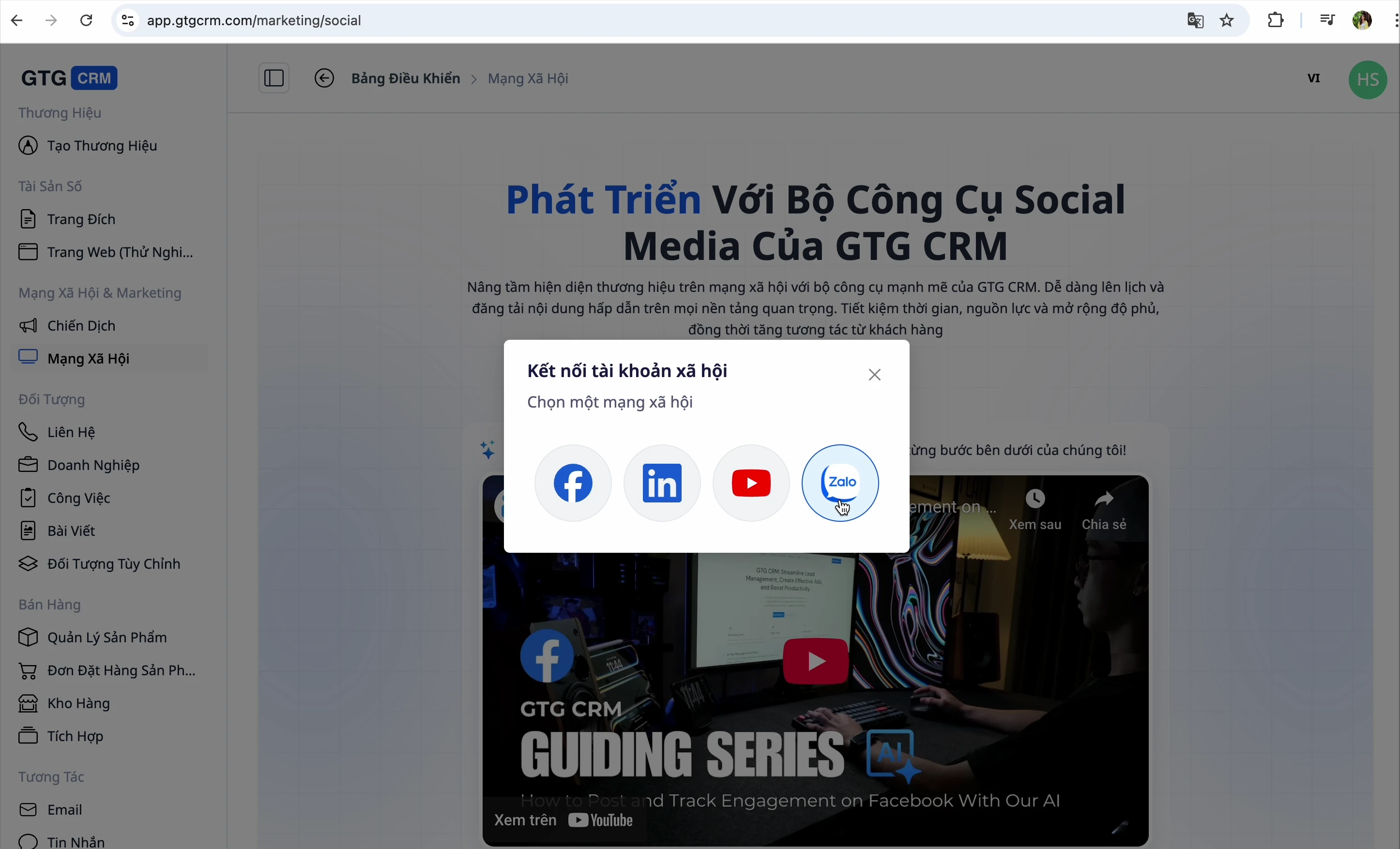
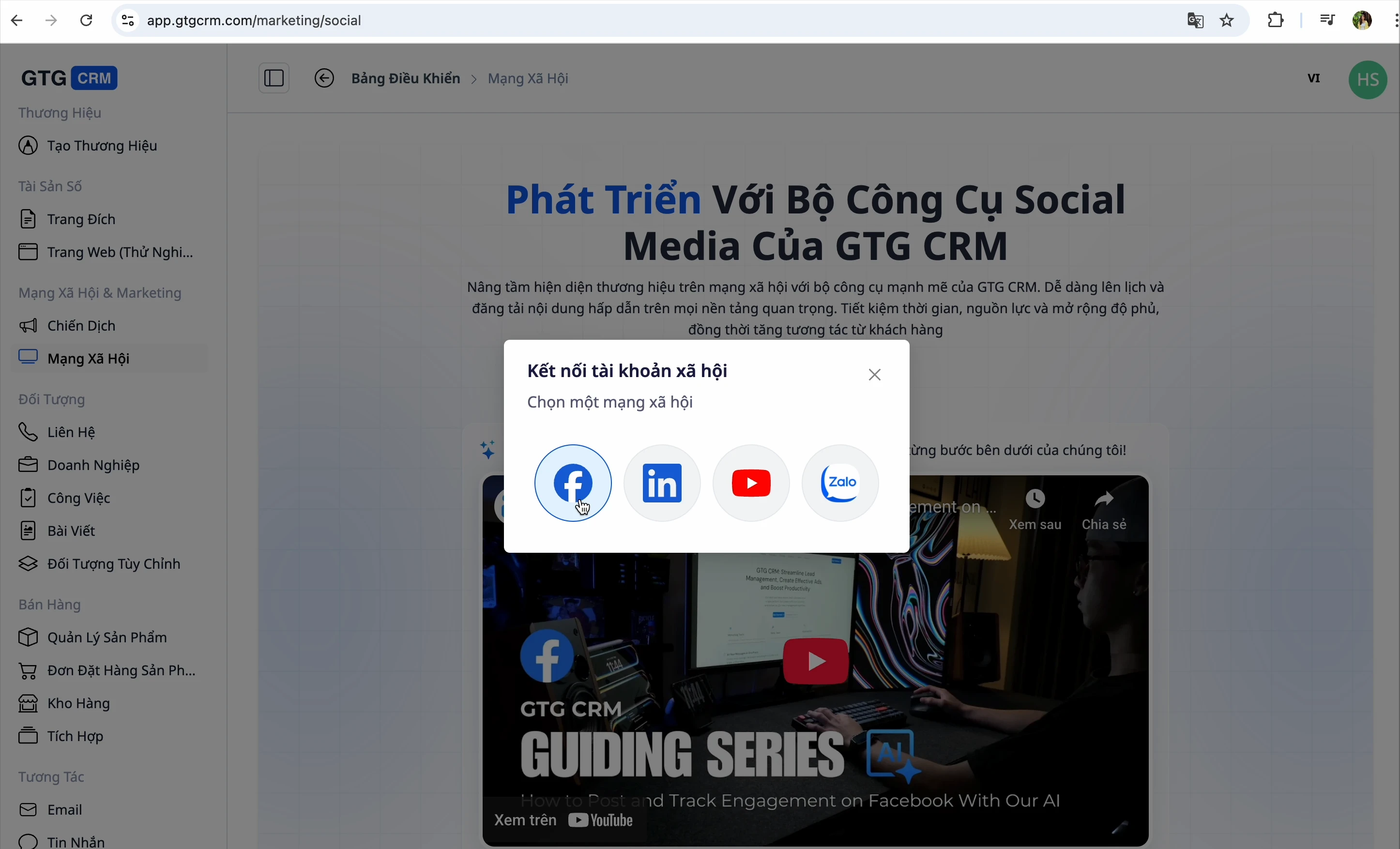
Step 3: Connect Facebook
- Click the Connect Facebook button
- Log in to your Facebook account
- The system will automatically retrieve the Fanpages you manage
- Select the Fanpages you want to connect to GTG CRM
💡 Tip: GTG CRM allows you to select multiple Fanpages. Choose all the Fanpages you need to manage.
Step 4: Connect LinkedIn
- Click the Connect LinkedIn button
- Log in to your LinkedIn account
- Select the Company Pages you want to manage
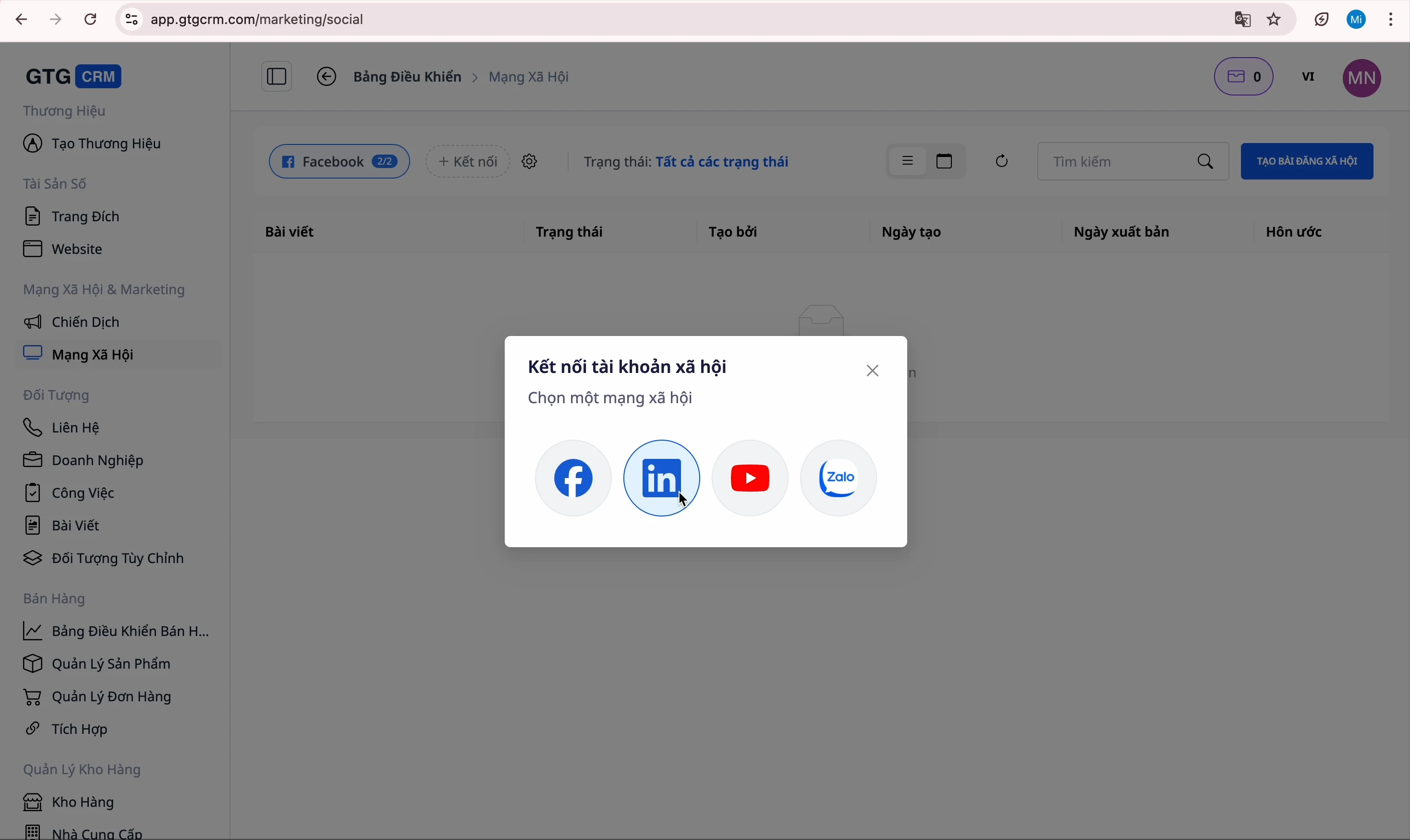
Step 5: Connect YouTube
- Click the Connect YouTube button
- Log in to your Google account
- Select your YouTube channel
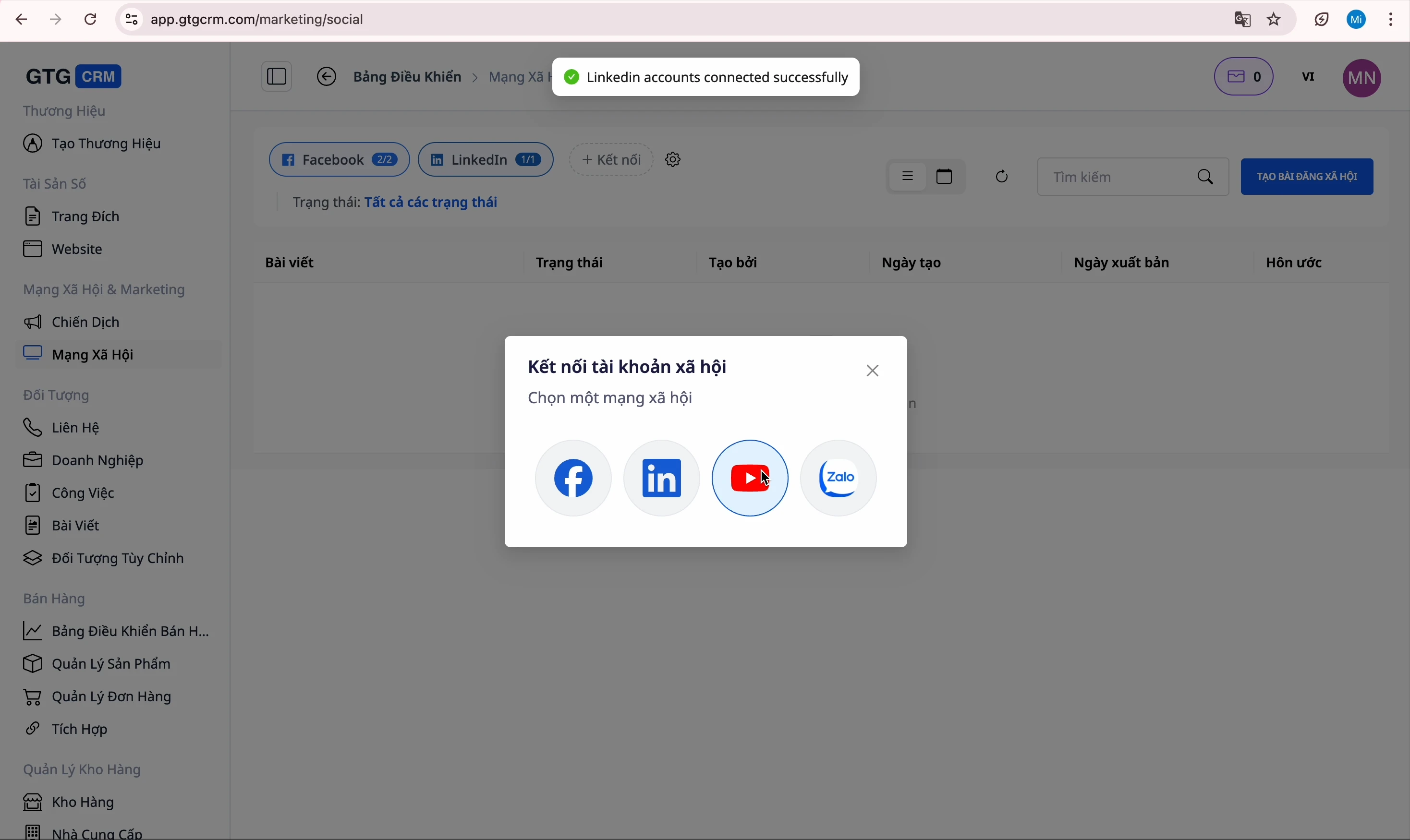
Step 6: Connect Zalo
- Click the Connect Zalo button
- Log in to your Zalo Official Account
- Confirm the connection
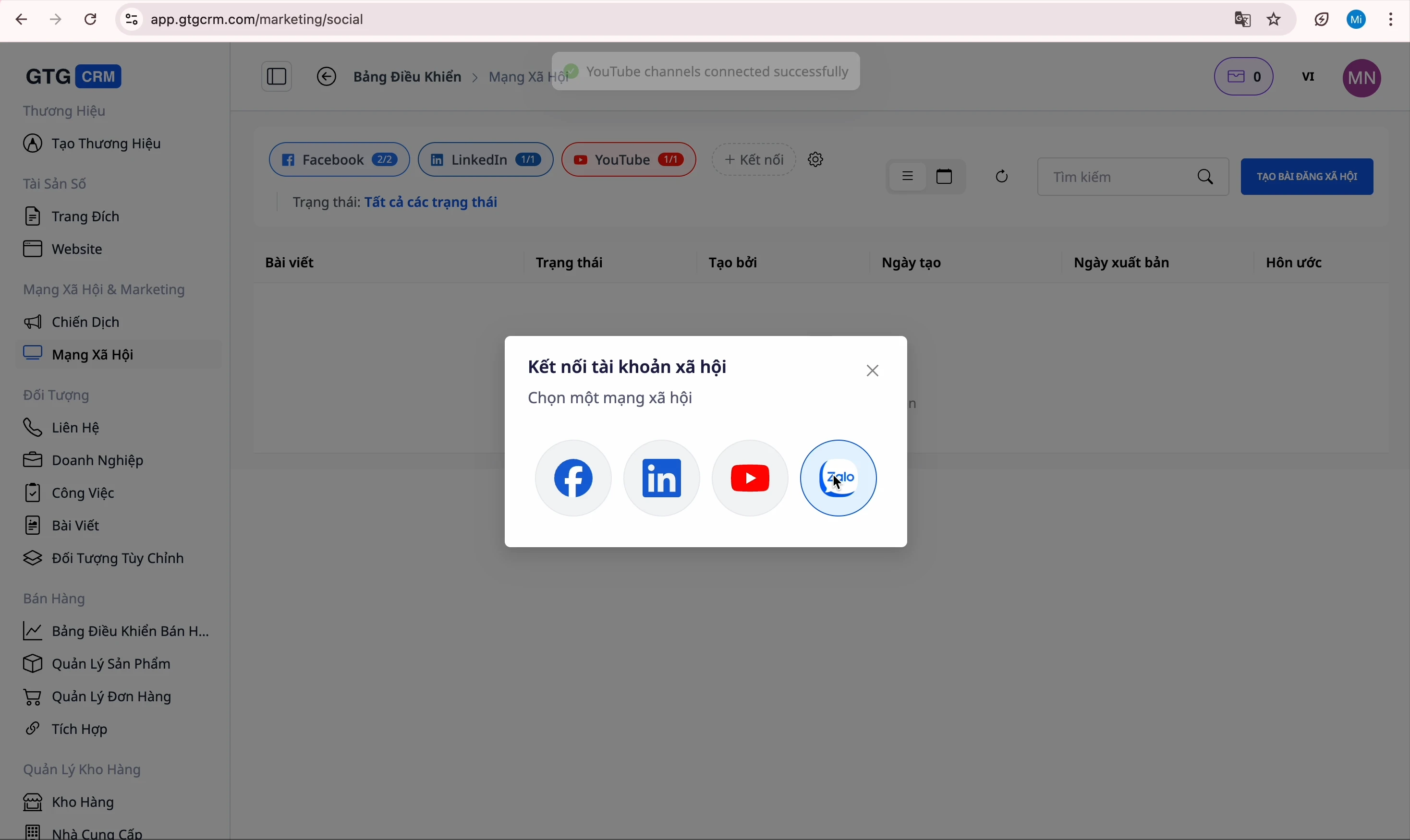
Done! All accounts have been successfully connected.
Create Facebook Posts
Step 1: Open the Post Creation Interface
Click the "Create Post" button to open the composition interface
Step 2: Select Fanpage
Select the Facebook Fanpage you want to post to
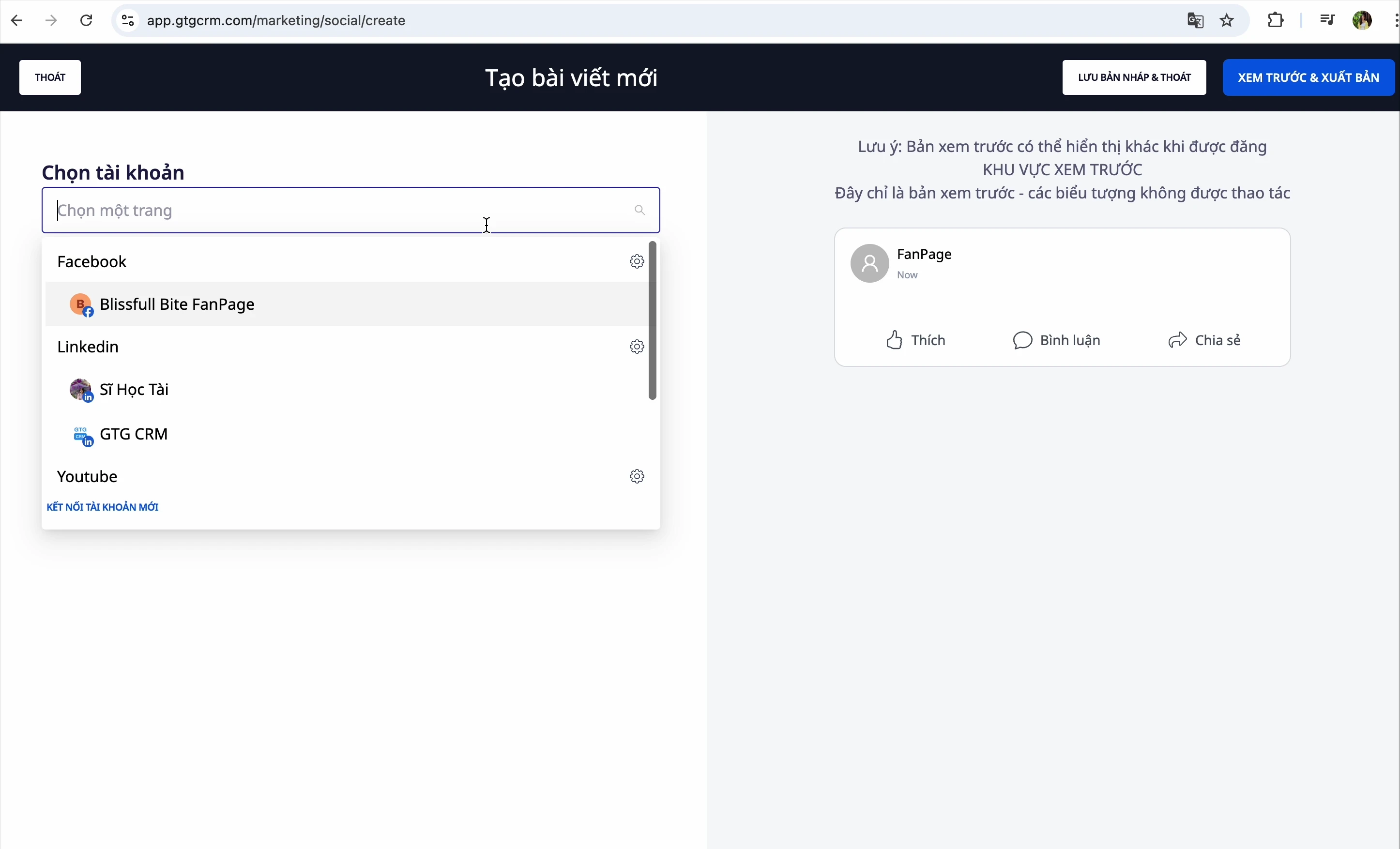
Step 3: Enter Content
You have 2 ways to create content:
Method 1: Manual Entry
Type the content directly into the editor
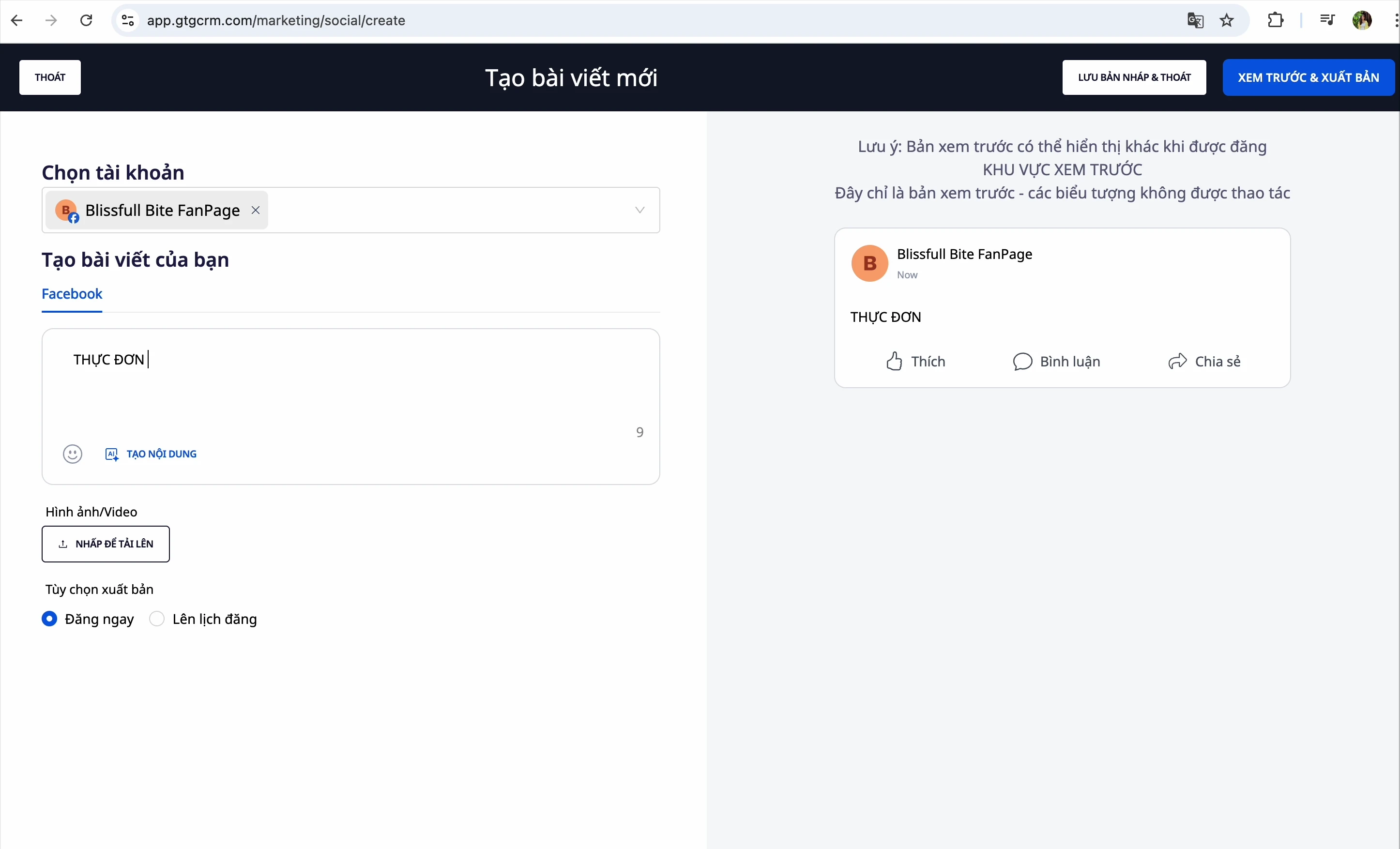
Method 2: Create Content with AI
- Click the "Create Content with AI" button
- Enter a prompt for the AI - for example: "Write a post introducing our new product..."
- (Optional) Add a website URL for the AI to reference
- The AI will return 3 different results
- Choose the most suitable result
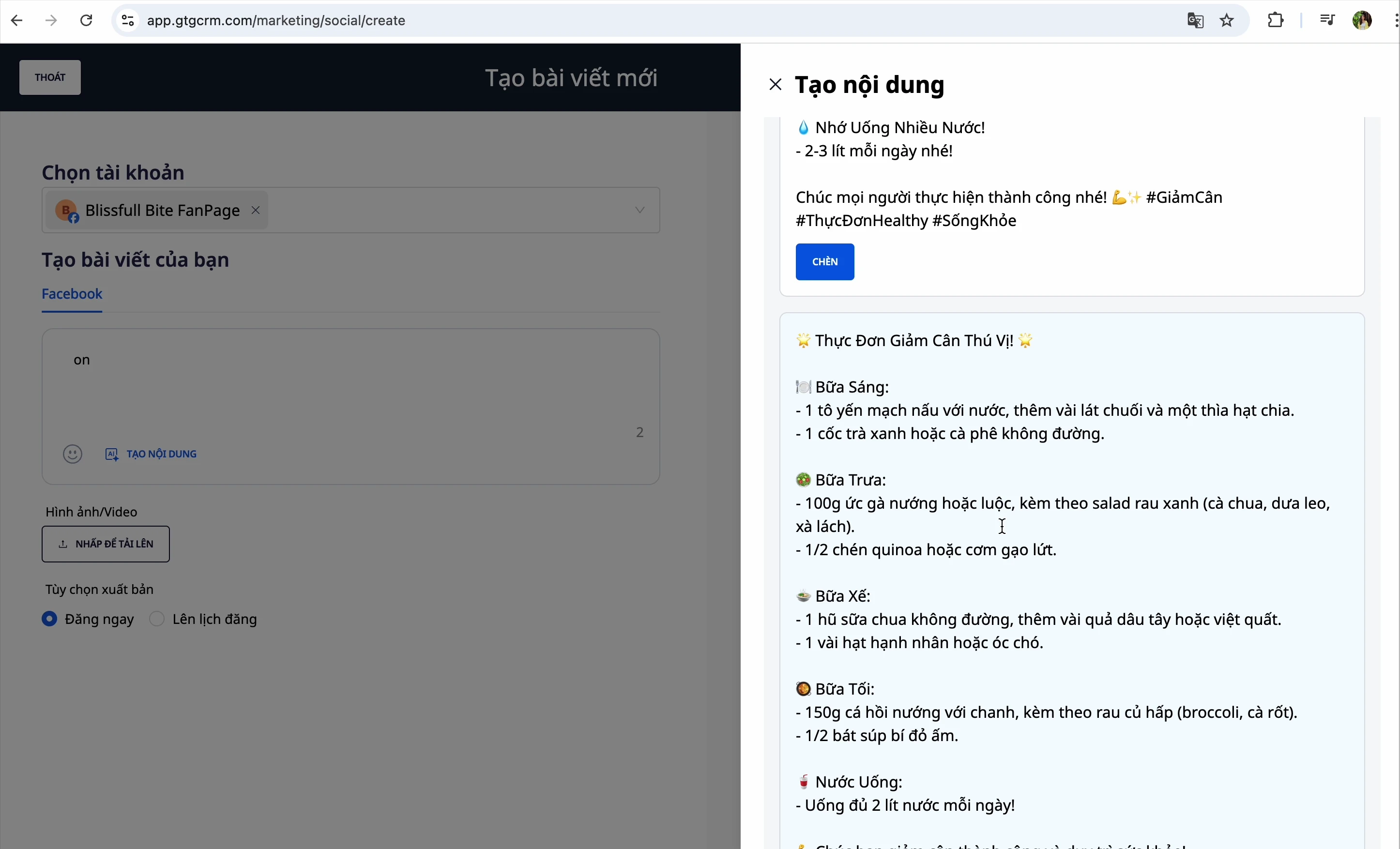
💡 Tip: If you have a product website, enter the URL in the "Web reference data" field for the AI to write more accurately.
Step 4: Add Images
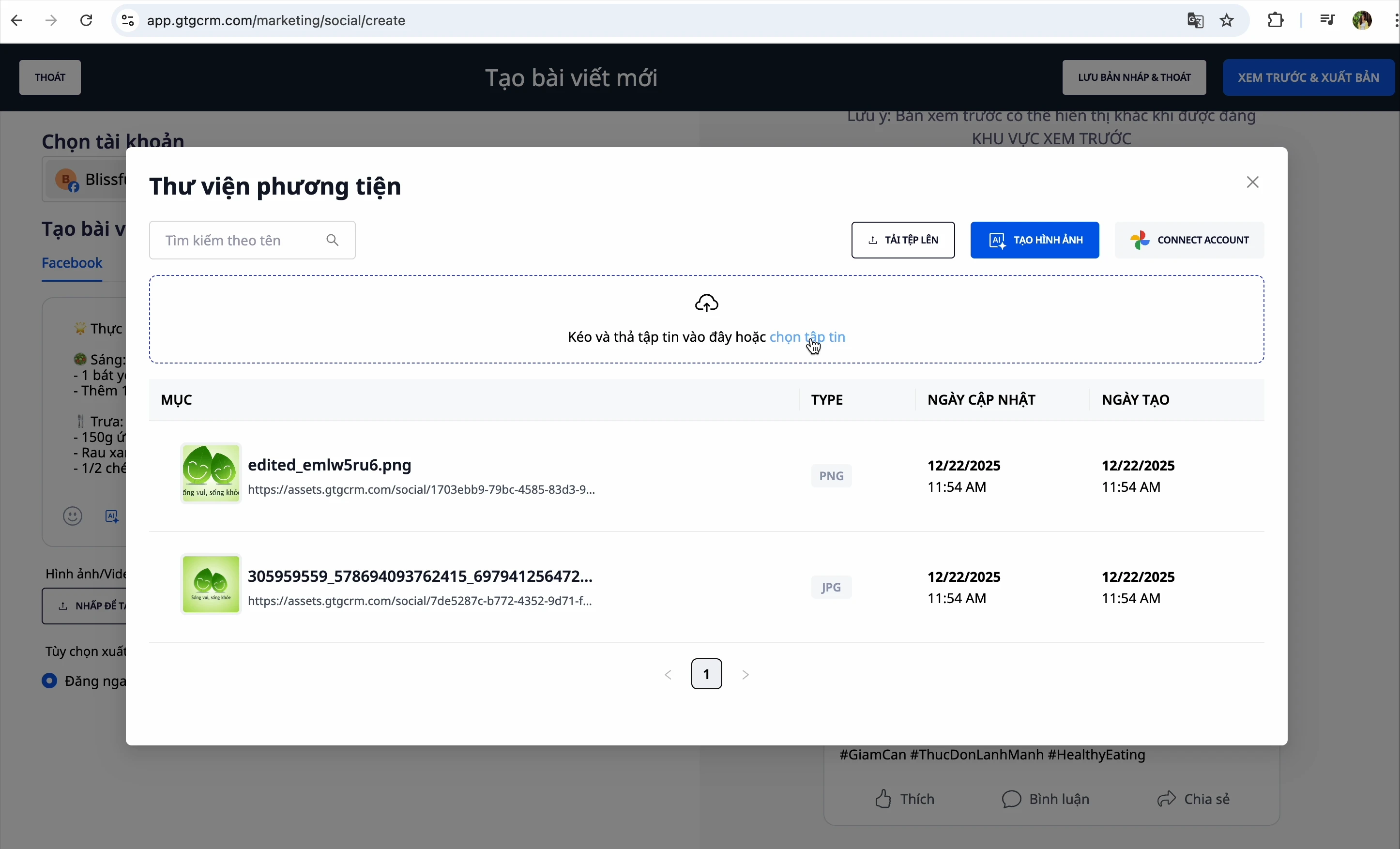
You have 3 ways to add images:
Method 1: Upload from Computer
- Click the image selection button
- Select an image file from your computer
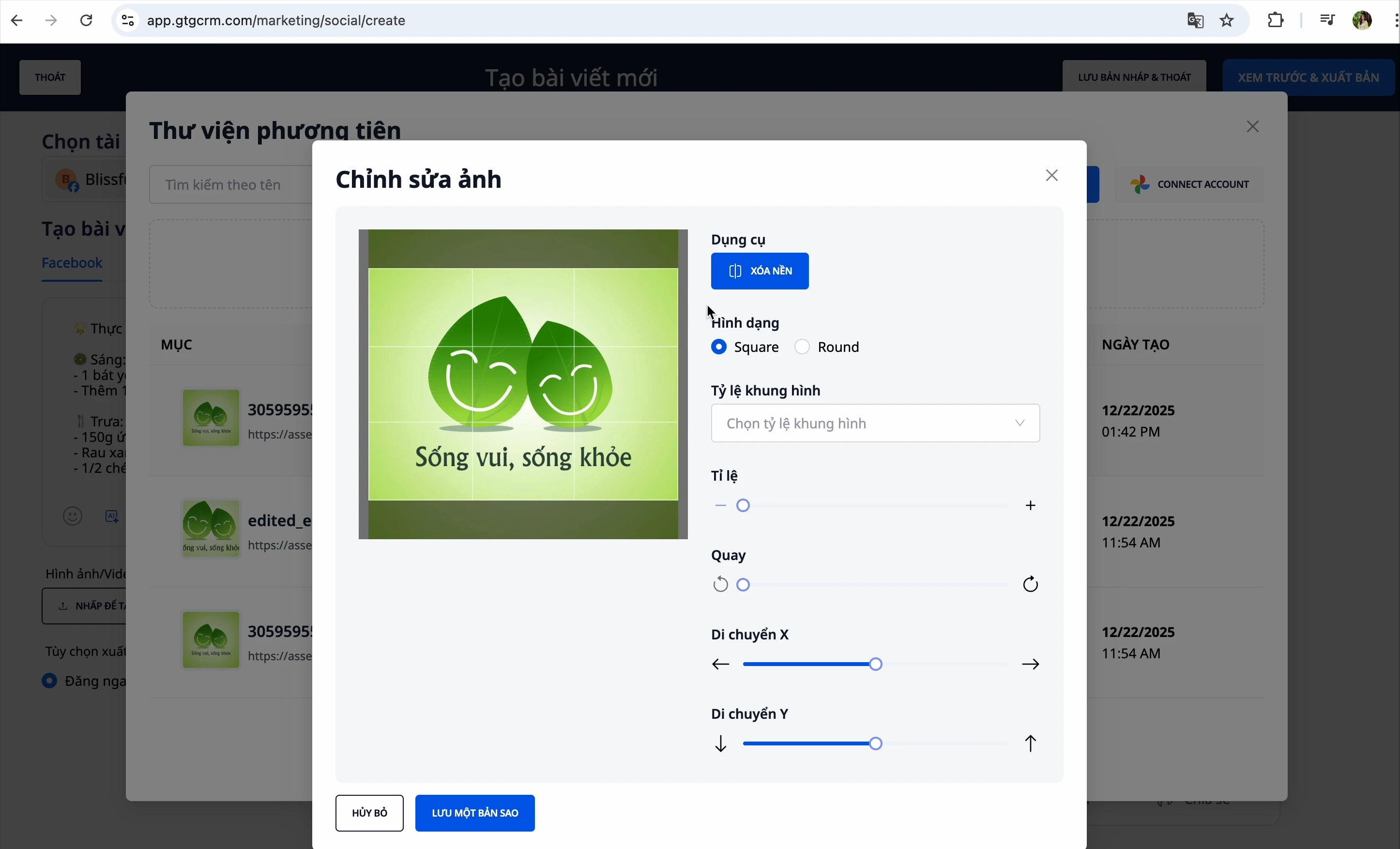
Method 2: Edit Image
After selecting the image, you can edit it:
- Resize
- Rotate horizontally/vertically
- Crop image
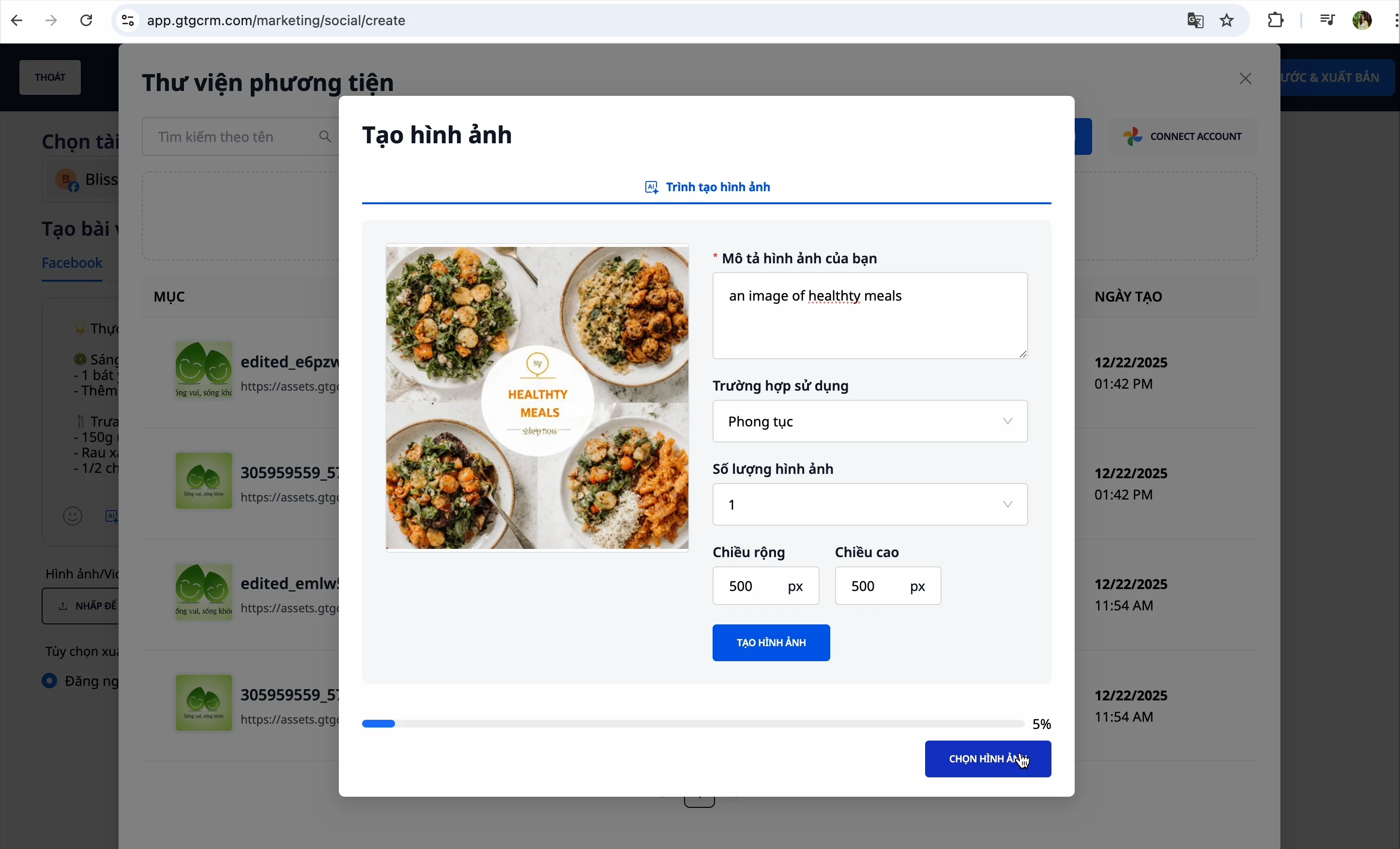
Method 3: Create Image with AI
- Click "Create Image with AI"
- Describe the image you want
- The AI will generate the image automatically
Step 5: Preview Post
Click "Preview" to check your post before publishing
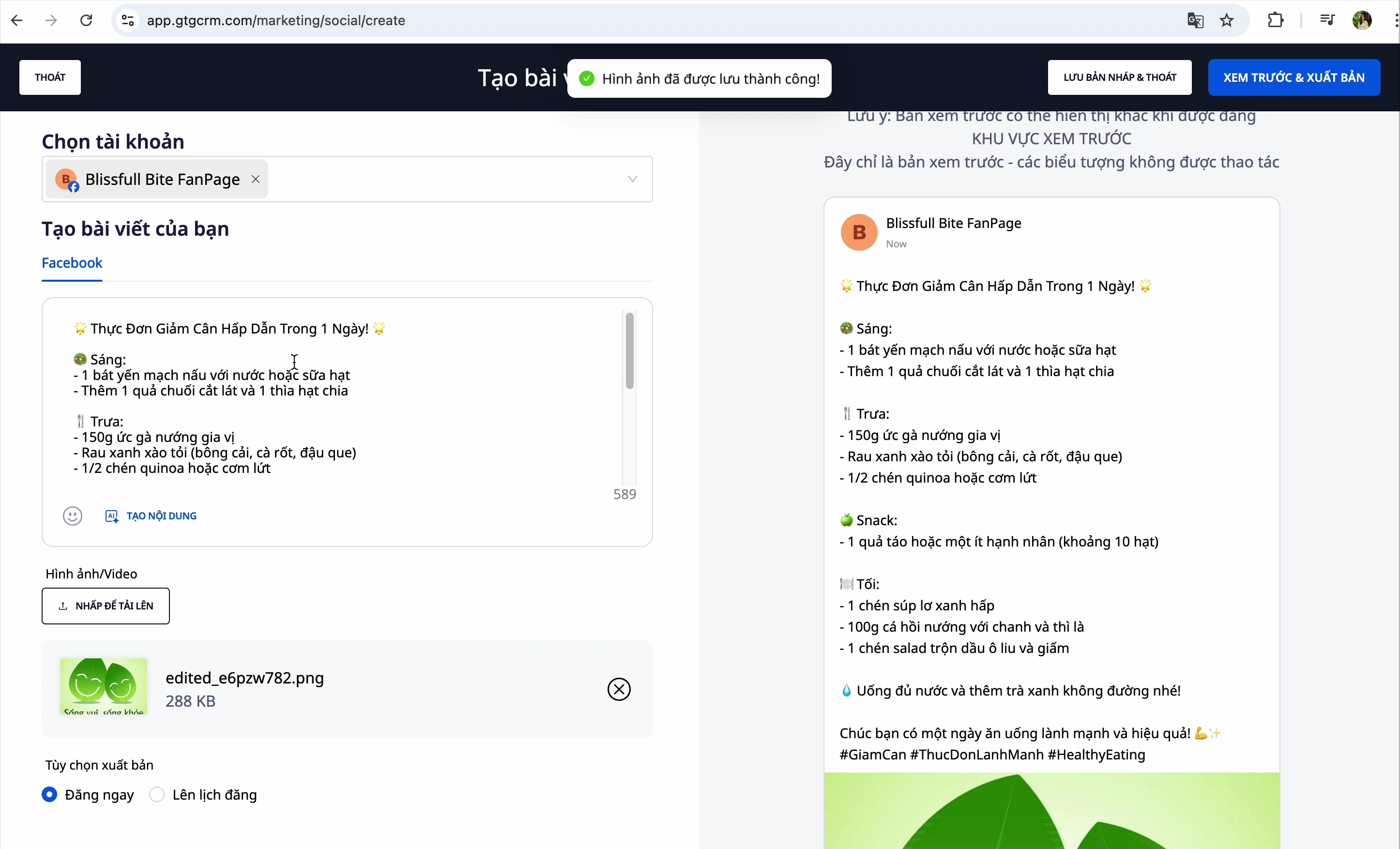
Step 6: Publish Post
You have 3 options:
| Option | Description |
|---|---|
| Publish Now | Publish the post immediately |
| Schedule Post | Choose a specific date and time for automatic publishing |
| Save Draft | Save it to complete later |
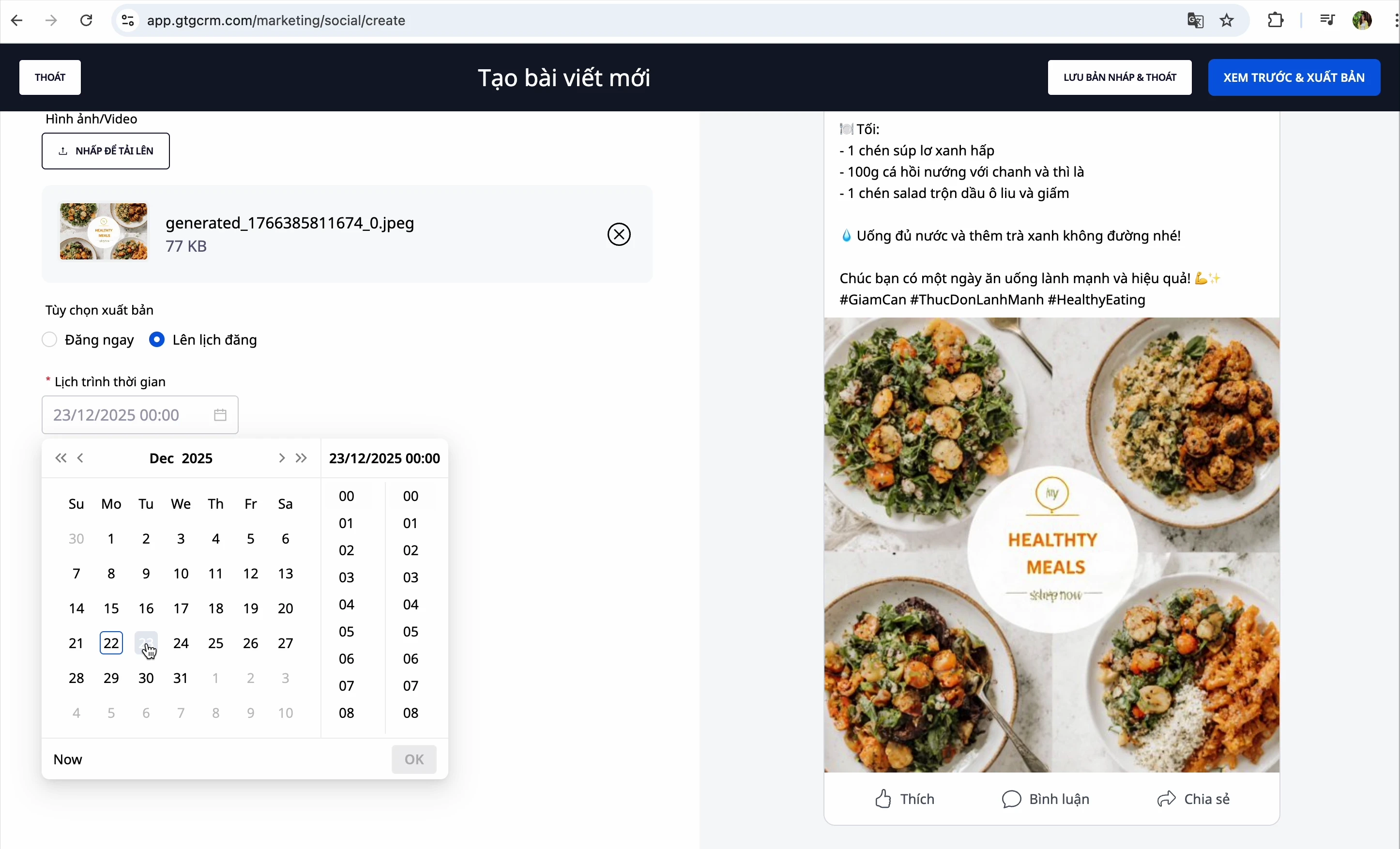
To schedule a post:
- Select "Schedule"
- Choose the desired date and time
- Click "Preview and Publish"
Create LinkedIn Post
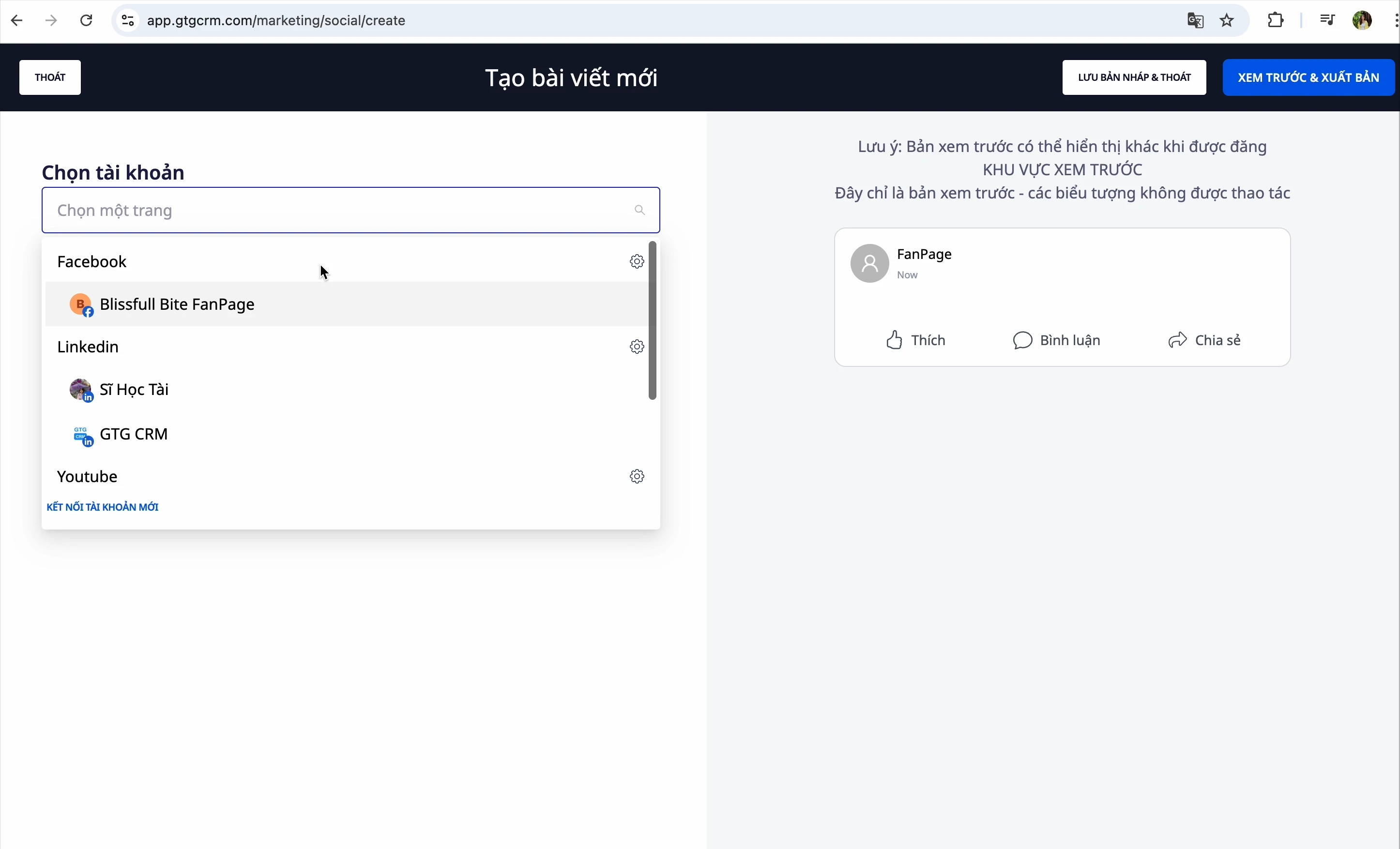
Step 1: Select LinkedIn Page
From the post creation interface, select your LinkedIn page
Step 2: Create Content
Similar to Facebook, you can:
- Enter manually
- Ask AI to generate content
Step 3: Add Image
Choose from:
- Image library
- Your computer
- AI generated image
Step 4: Add First Comment (Optional)
LinkedIn has a special feature: First comment
- When posting, the system will automatically add this comment
- Usually used to add extra links or hashtags
Step 5: Publish
Choose Save Draft or Publish Now
Upload YouTube Video
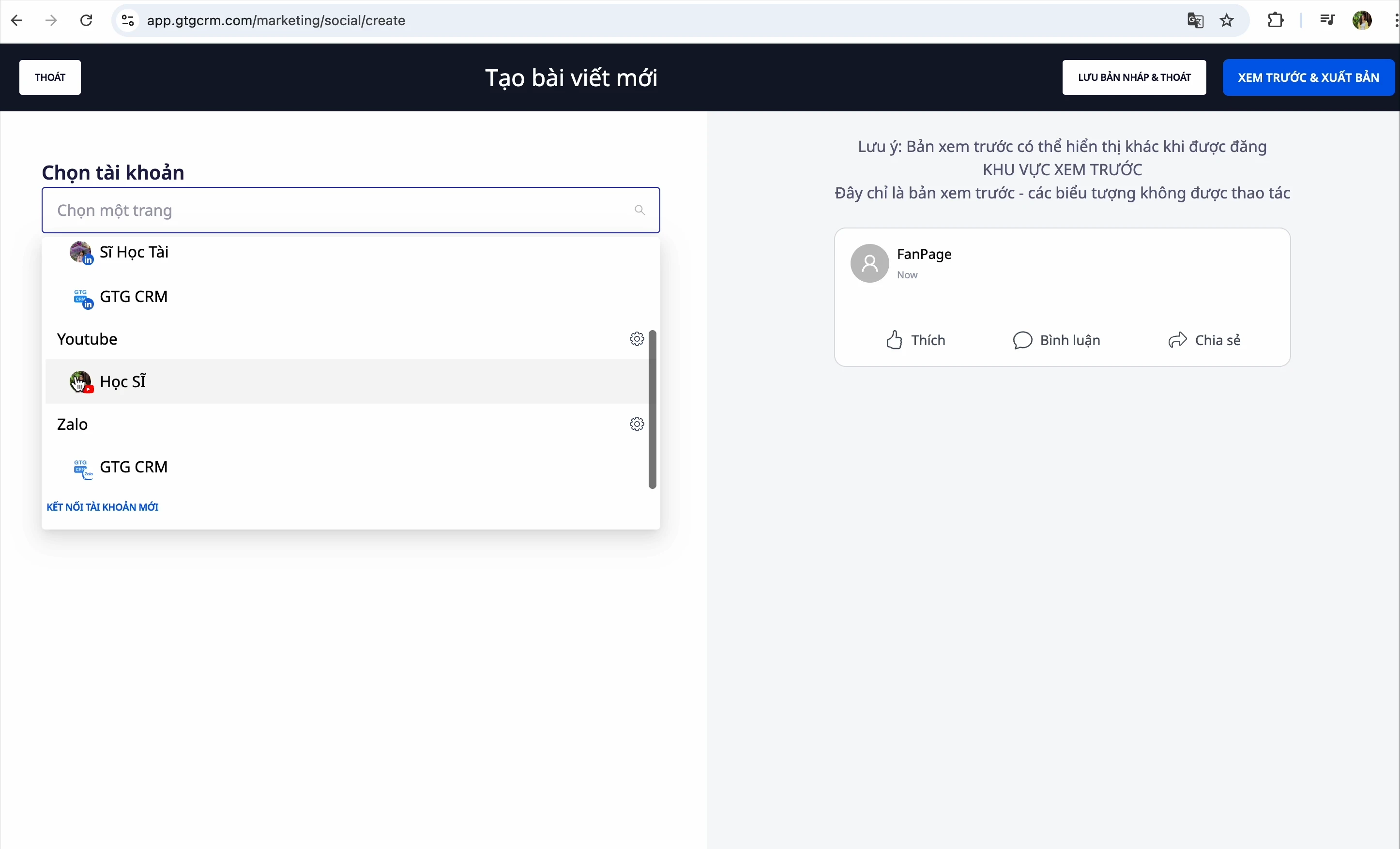
Step 1: Select YouTube Channel
From the post creation interface, select your YouTube channel
Step 2: Select Video
Click to select a video file from your computer
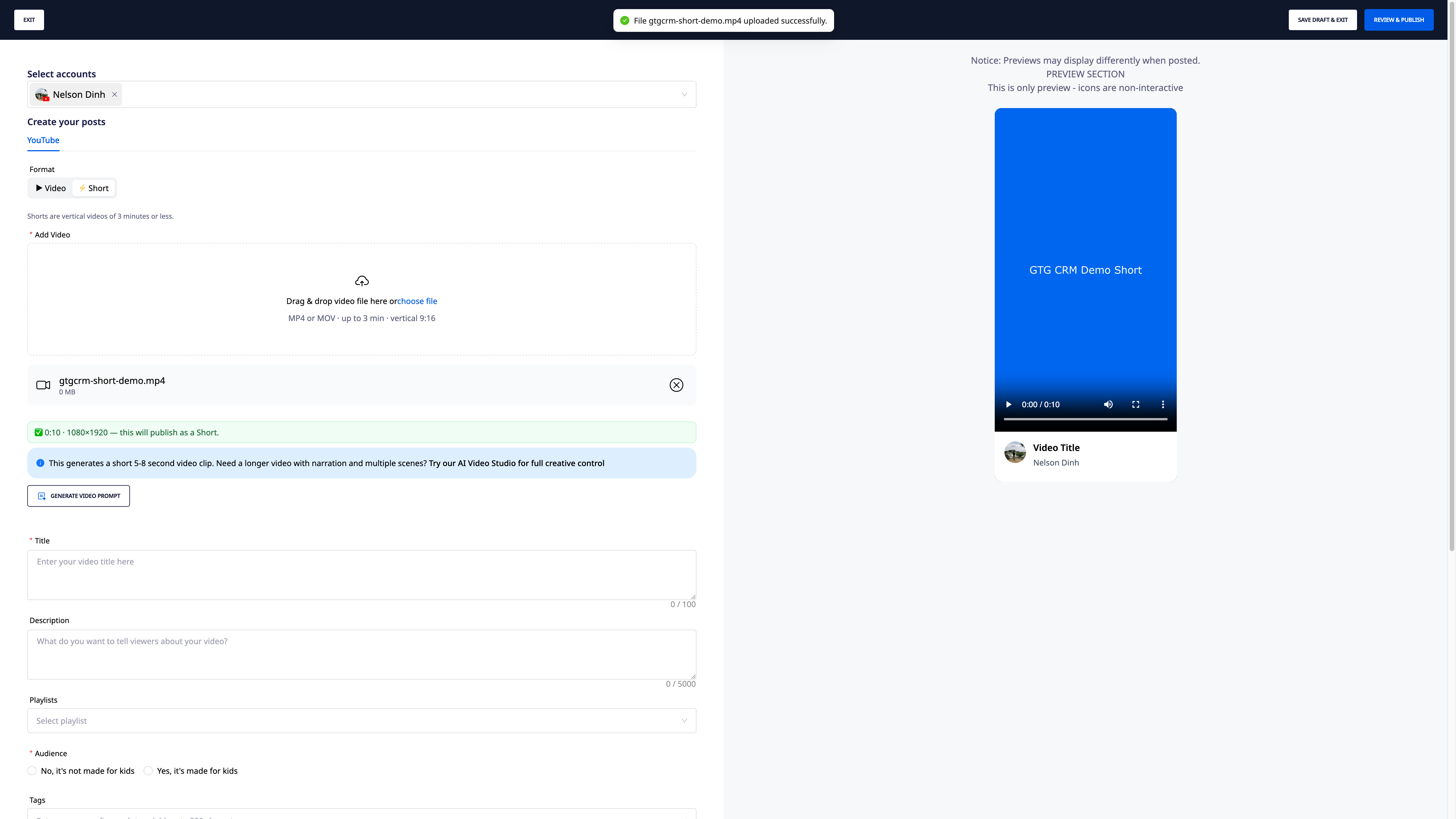
Step 2b: Select Format — Video or Short (NEW)
Immediately after selecting the file, choose the format you want to upload: Regular Video or Short.
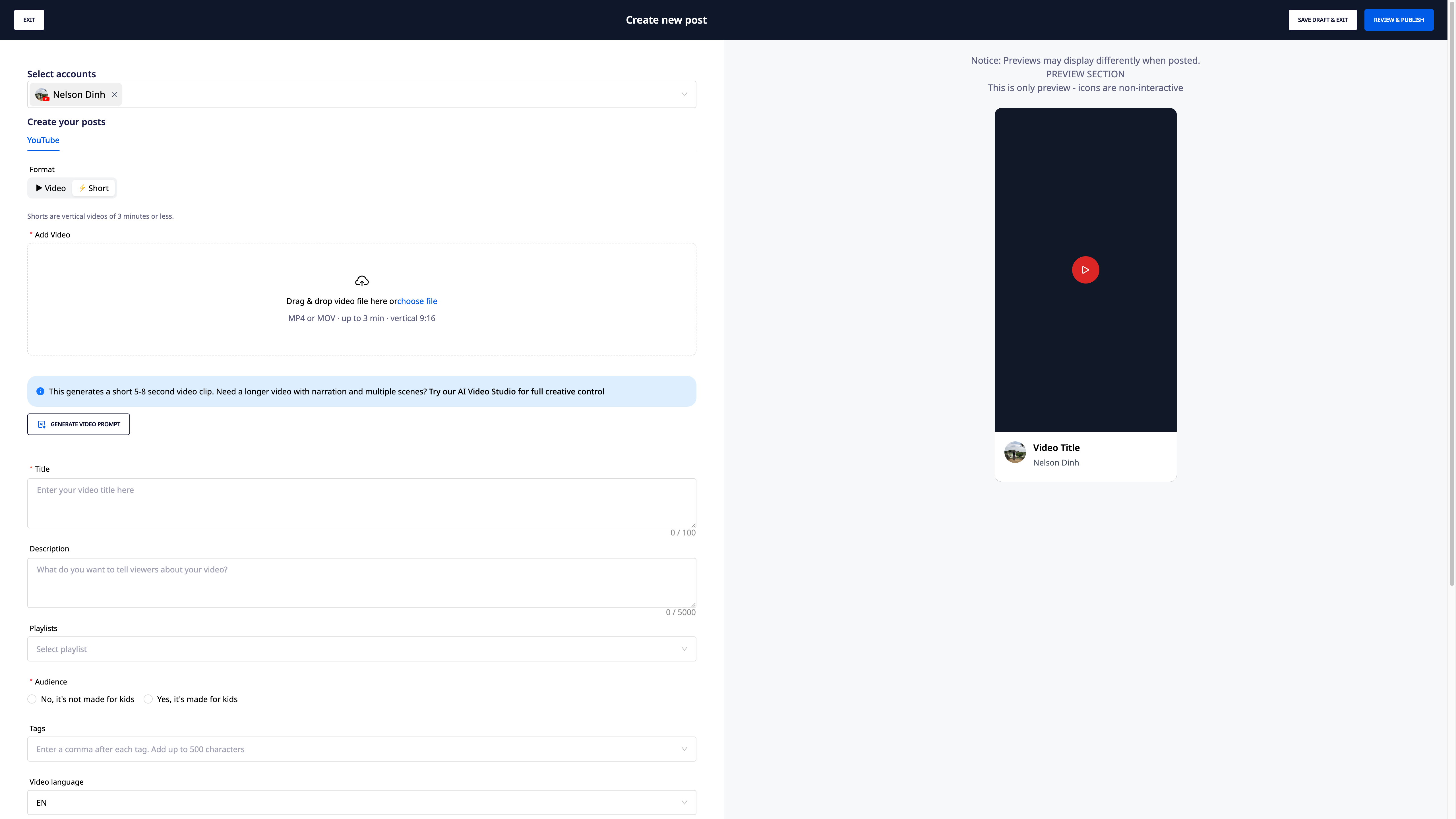
- If you select Short but the file doesn't meet the standard (horizontal aspect ratio, or longer than 3 minutes) → the system will display a specific error message (e.g., "Video is 4:12 long — Shorts are maximum 3 minutes") and provide a Upload as Regular Video button to proceed immediately without re-selecting the file.
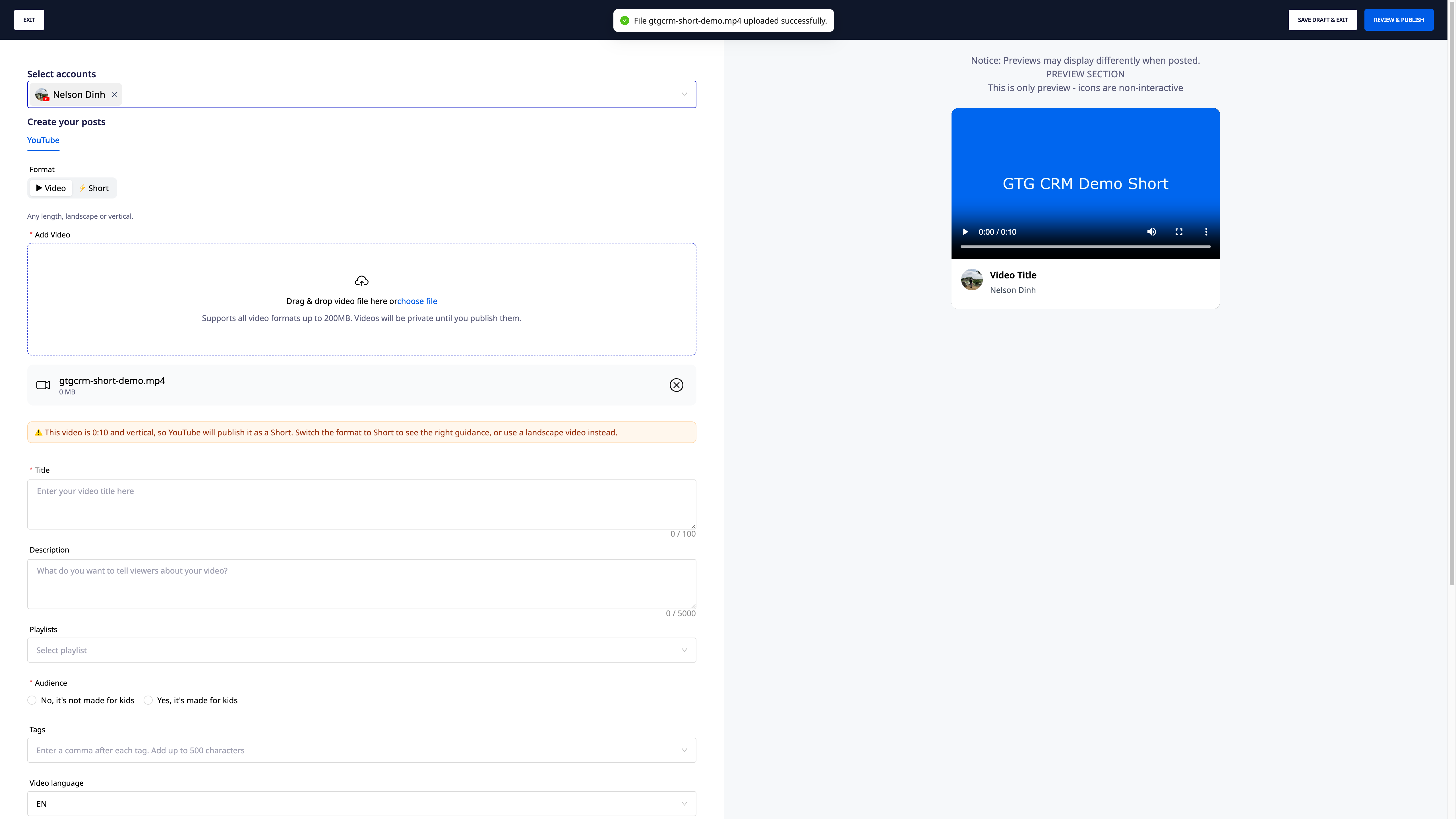
- Selecting Video but the file is recorded vertically/square and under 3 minutes → the system will issue a warning: "YouTube may classify this video as a Short" — because this is YouTube's classification rule, Social Hub can only provide a warning and cannot change it.
- If the content is AI-generated, tick the box "Content used AI synthesis" before posting.
Step 3: Enter Video Information
Fill in all information:
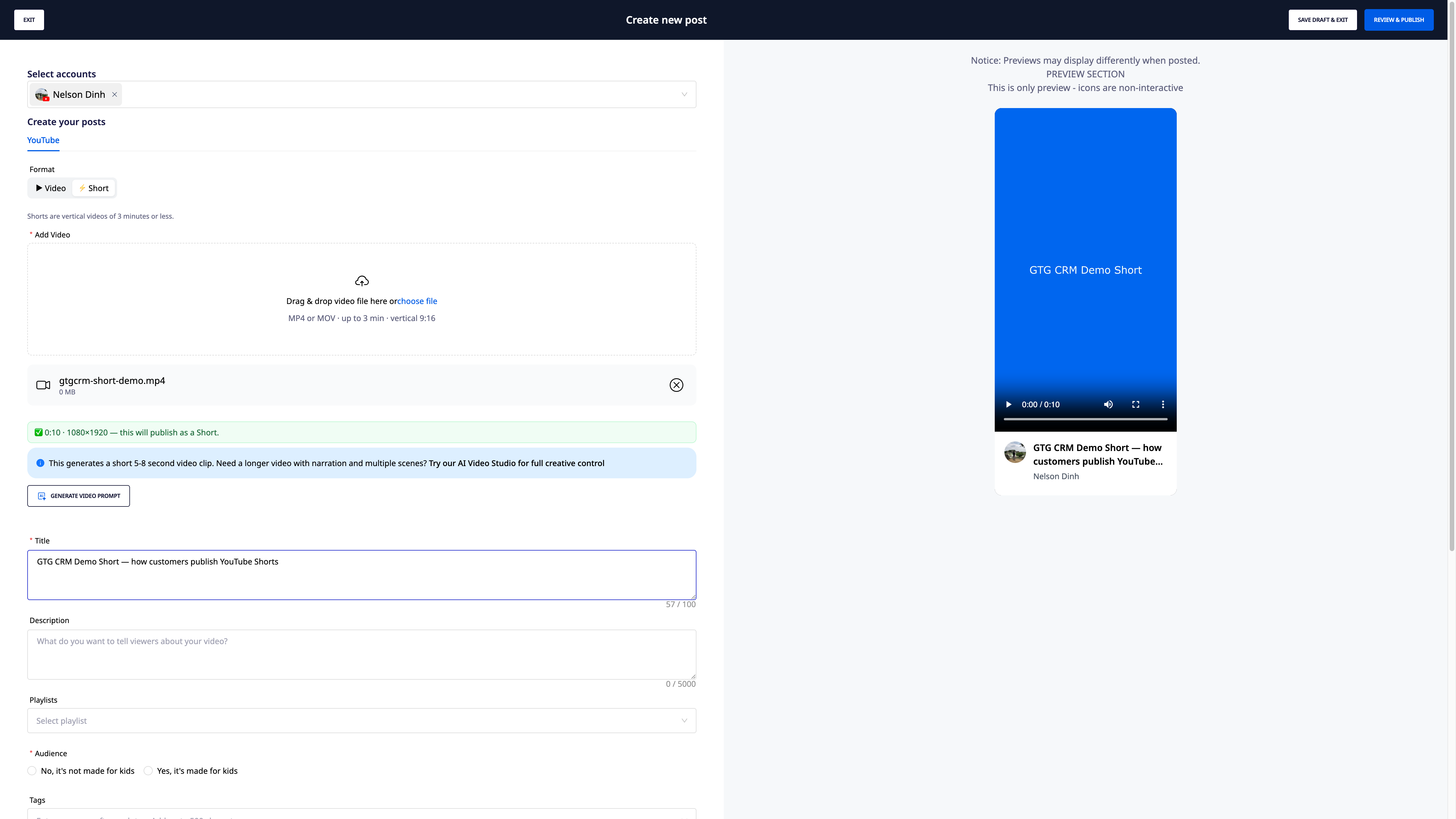
| Field | Description |
|---|---|
| Title | The name of the video displayed |
| Description | Detailed content description |
| Playlist | Select a playlist if available |
| Audience | Is the video for kids? |
| Tags | Keywords, separated by commas |
| Language | The language of the video (e.g., Vietnamese) |
| Category | Documentary, Education, Entertainment... |
| Visibility | Public / Unlisted / Private |
⚠️ Note: When entering tags, type a comma after each tag for the system to register it.
Step 4: Publish Video
Select:
- Publish now: The video is uploaded and made public immediately
- Schedule publish: Select a time to upload
- Save draft: Save to publish later
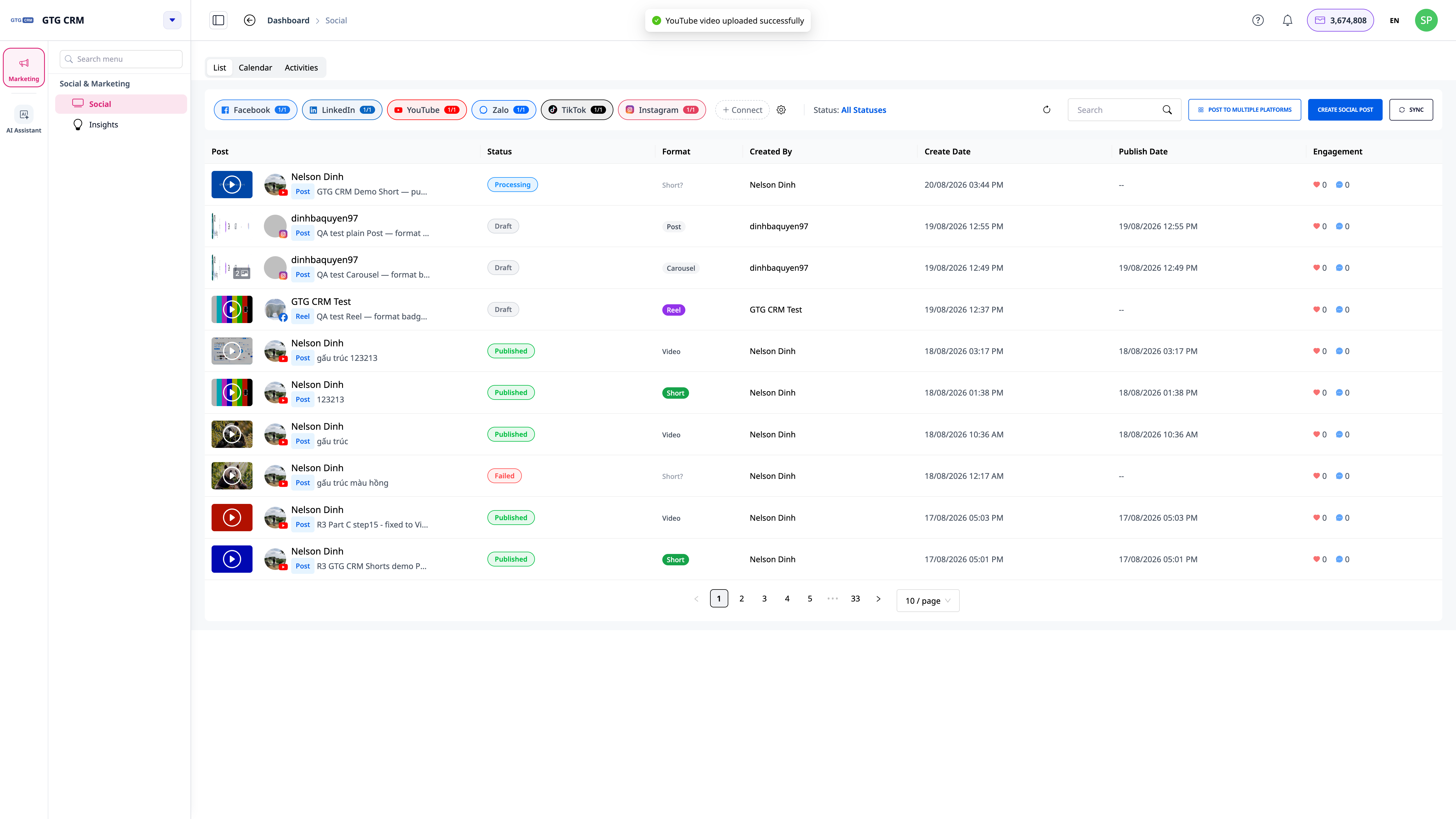
Step 5: View Verified Format Labels (NEW)
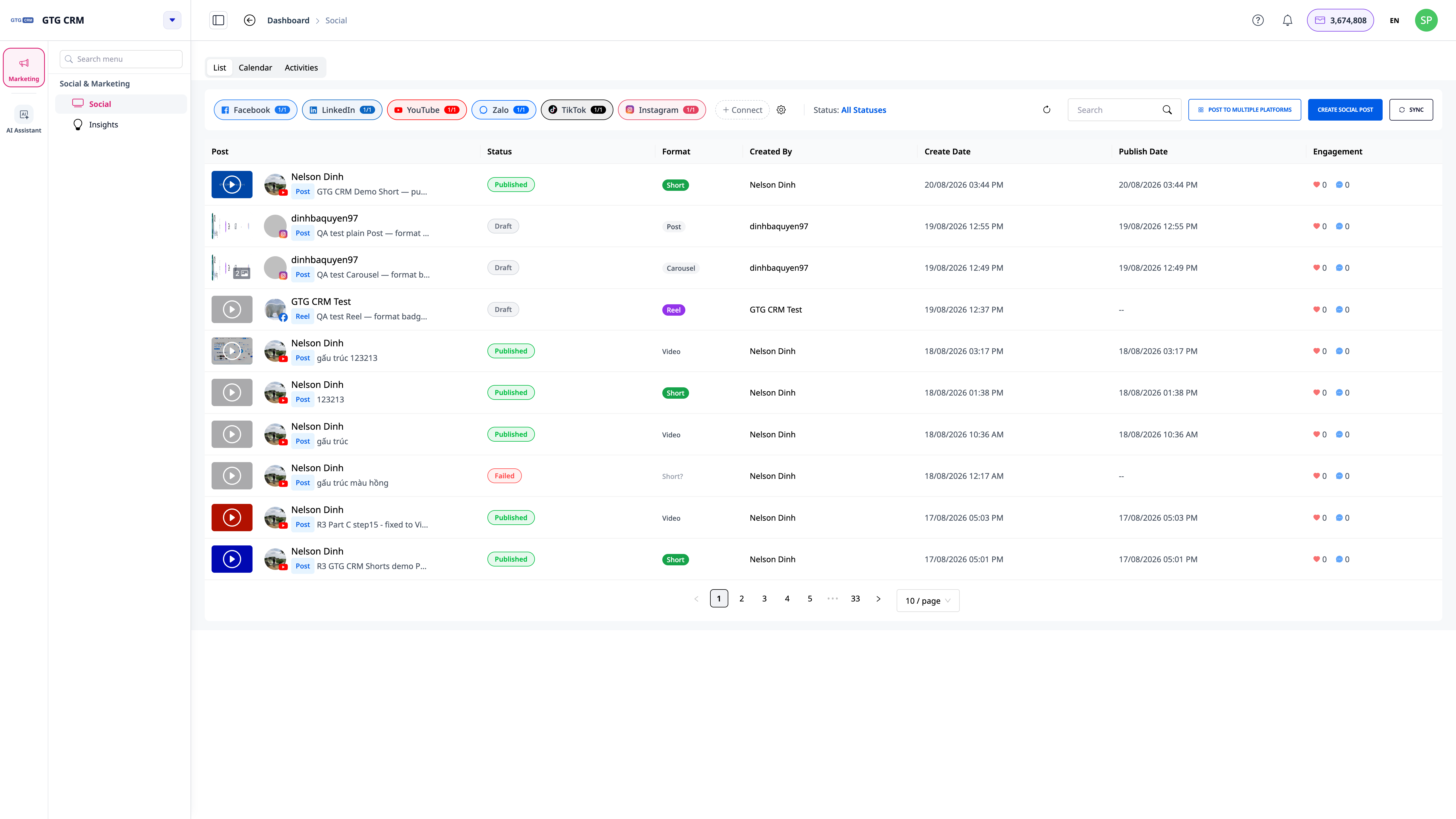
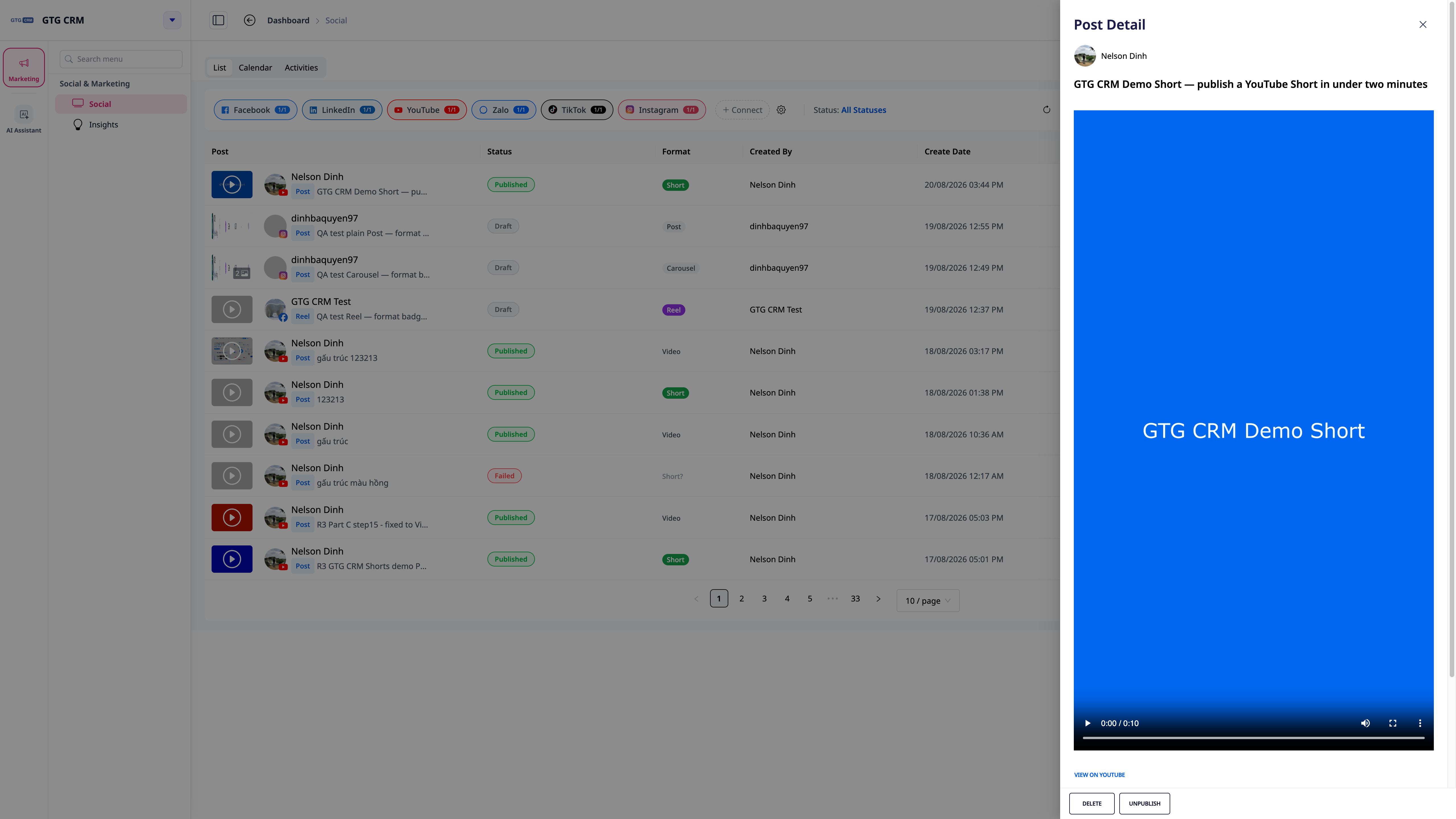
After publishing, return to the post list — each post will display a Video or Short label that the system has re-checked with YouTube itself, not just displaying what you chose during upload. If YouTube classifies it differently from your initial choice, you will receive a notification explaining the reason.
Create Zalo Post
Zalo has 2 types of posts:
Type 1: Article
Posts displayed on the Official Account's timeline
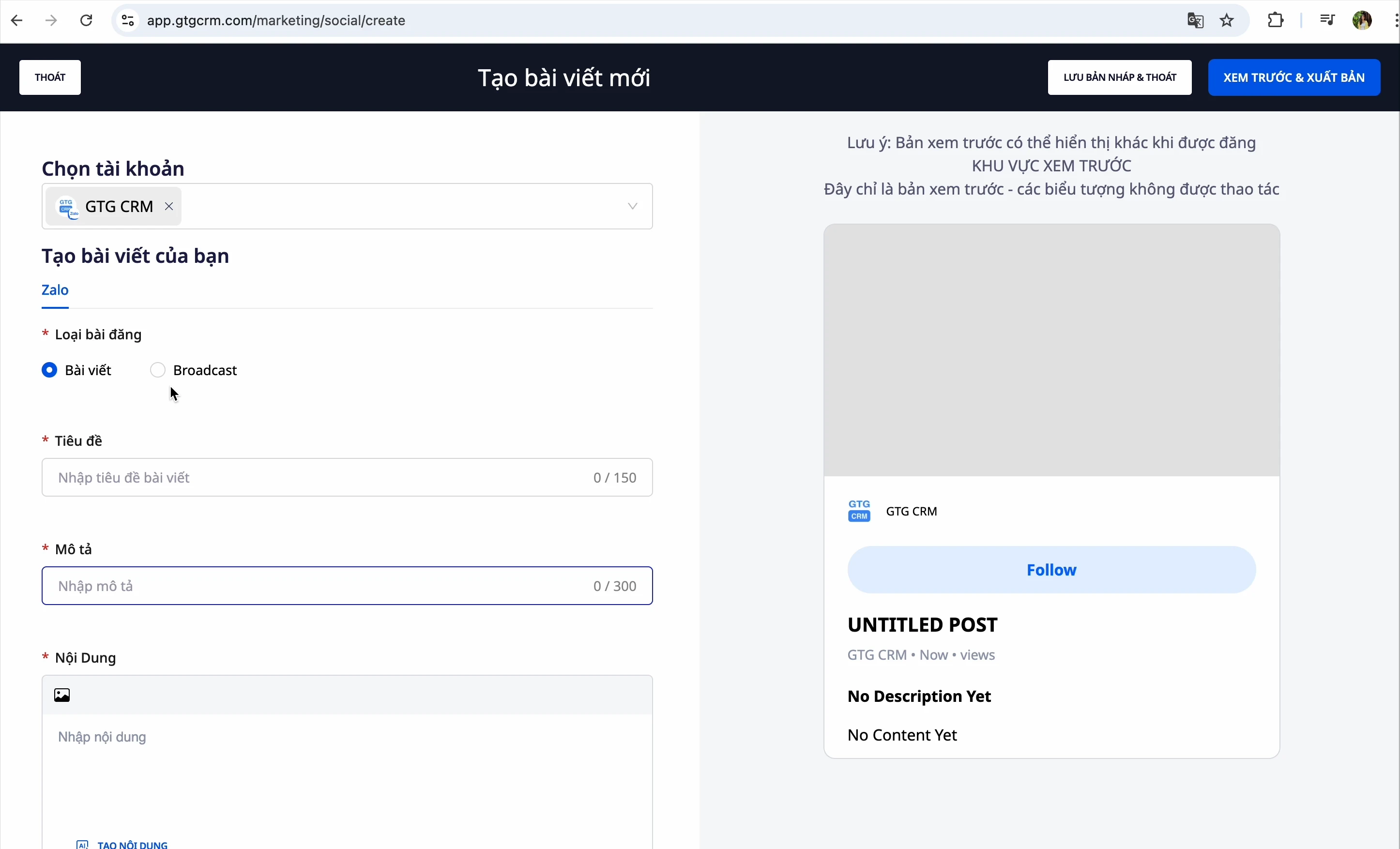
Steps:
- Enter Post Title
- Enter Description
- Select Image:
- Upload from computer
- Connect Google Photos to select an image
- Let AI generate an image
- Select Related Posts: When this post is displayed, the system will suggest related posts
- Comment Settings: Allow or disallow user comments
- Publish or Save Draft
Sync Old Posts
If you have previous Zalo posts:
- Click the "Sync" button
- GTG CRM will pull all posts for centralized management
Type 2: Broadcast
Send direct messages to target customers
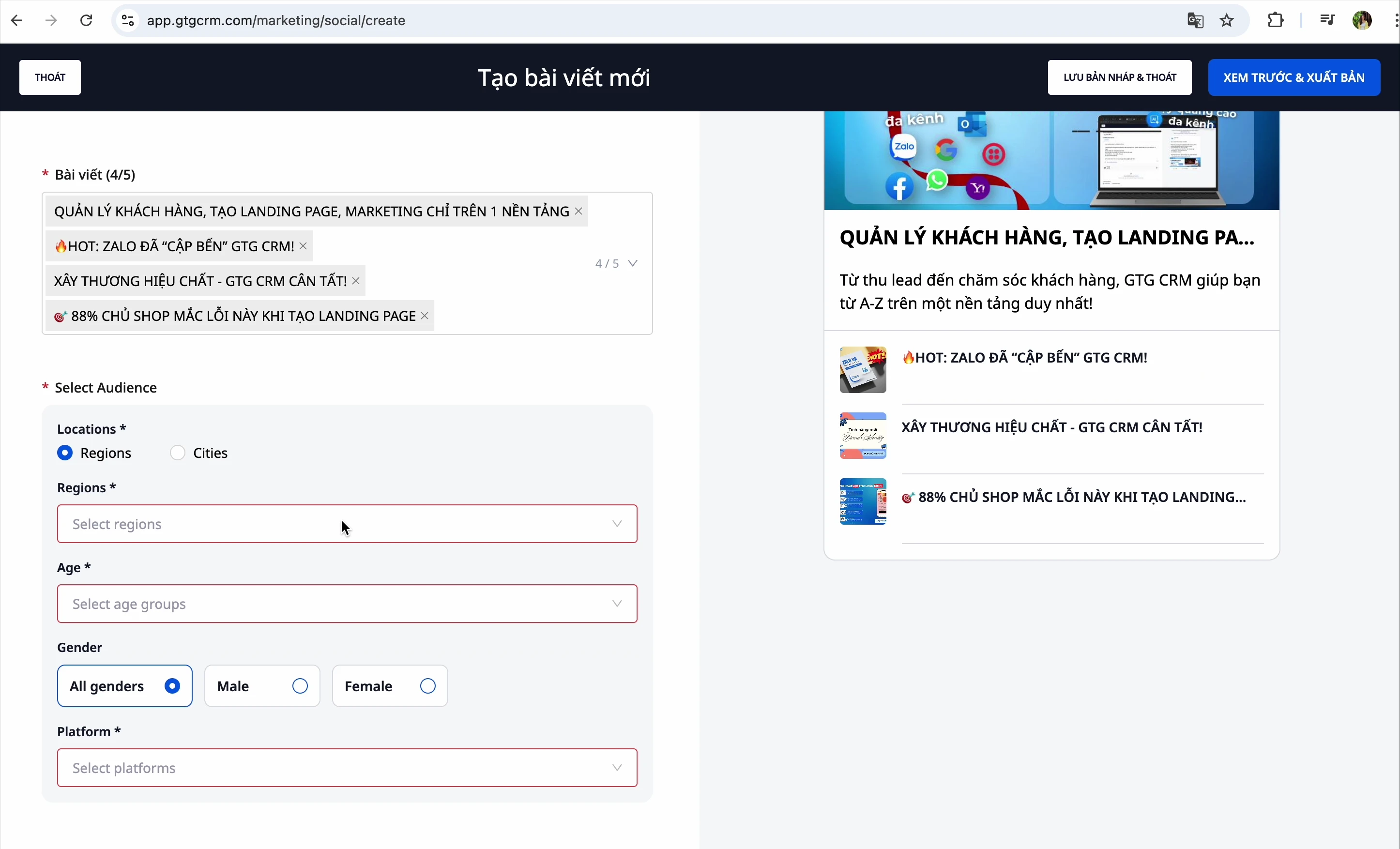
Steps:
- Create broadcast content
- Select recipients:
- Location: South, North, Central
- Age Range: Select desired age range
- Platform: iOS, Android, Windows (multiple can be selected)
- Save draft or send now
Post Management
View All Posts
After creating posts, you can view all created posts across 4 channels
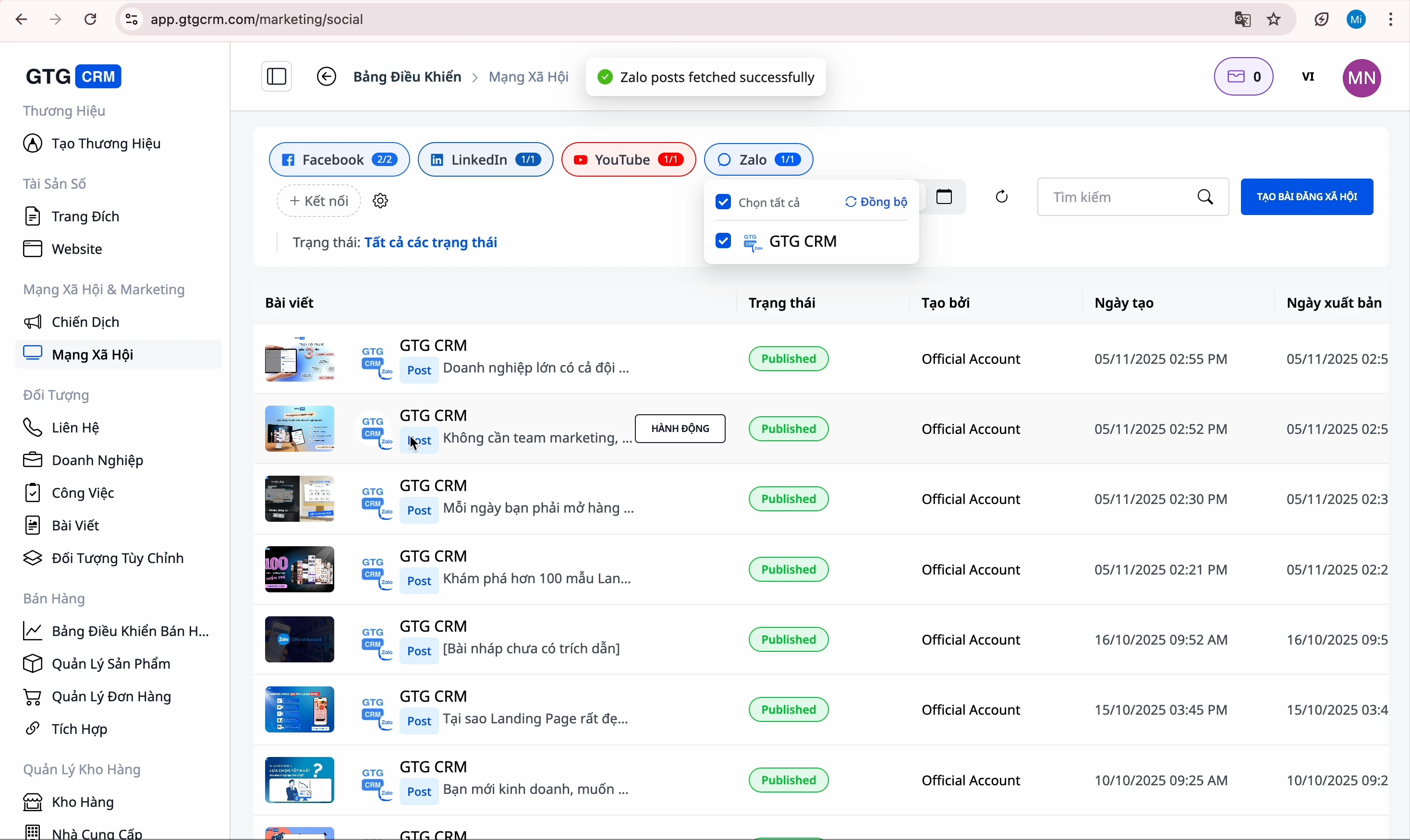
Filter by Status
Click on the tabs to filter:
- All: Display all posts
- Drafts: Incomplete posts
- Scheduled: Posts waiting to be published
- Published: Successfully published posts
- Errors: Posts that encountered errors during publishing
Edit Post
- Find the post to edit
- Click the "Edit" button
- Make changes
- Click "Preview and Publish"
Interaction Statistics
GTG CRM provides detailed statistics:
- Interactions (likes, shares...)
- Comments
- Performance of each post

Delete Post
- Find the post to delete
- Click the "More" menu
- Select "Delete"
Account Management
View Connected Accounts
Click on the Account Management section to view all connected accounts
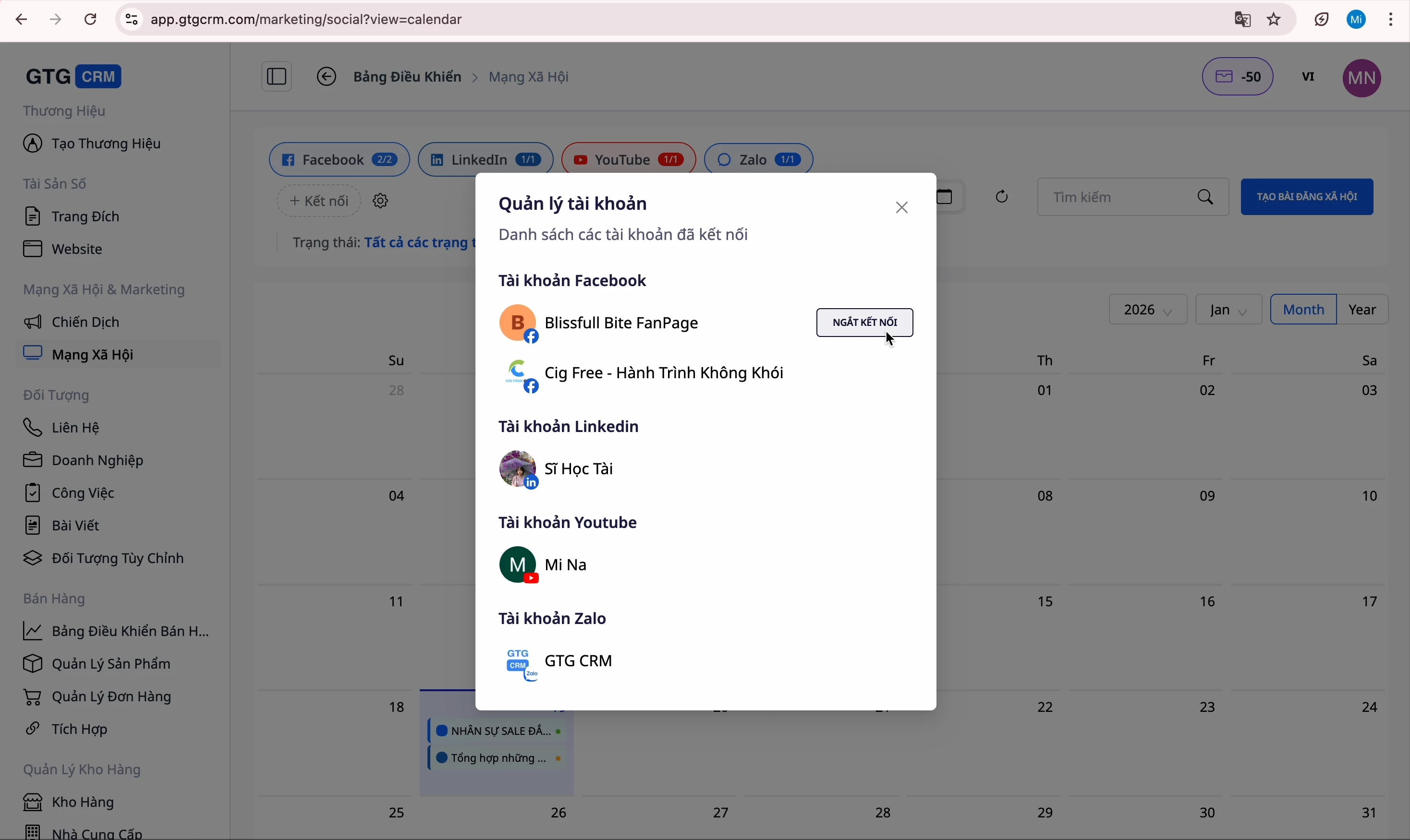
Disconnect Account
- Find the account to disconnect
- Click the "Disconnect" button
- Confirm
⚠️ Note: After disconnecting, you will not be able to post to that platform until you reconnect.
Connect New Account
- Click the "Connect New Account" button
- Select the platform
- Log in and confirm
Tips for Effective Use
1. Content Planning
- Create posts in advance and save them as drafts
- Schedule posts for peak hours
2. Leverage AI
- Use AI to generate content to save time
- Provide reference URLs for more accurate AI writing
3. Image Synchronization
- Connect Google Photos for easy photo selection
- Use AI to create images when unique visuals are needed
4. Performance Tracking
- Check engagement statistics regularly
- Adjust content based on feedback