What you can do after this guide
Create your own product categories (up to 3 levels) → add products with variants and prices → quickly import entire product collections from a website link → grab images from PDF catalogs and crop/edit them directly in the Media Library → set up inventory → push products to Shopee/Lazada/TikTok with category mapping. From an empty catalog to a full multi-channel store, all within the same system.
Not sure about the overall features? Preview the Product Hub article to understand what the module does.
Preparation
1. Log in to GTG CRM and be granted Product management permissions. — Workspace administrators grant permissions for product/category/inventory management.
2. (For importing from websites) Have a store or product page link and available trial credits. — Each page scan consumes a small amount of credit.
3. (For marketplace sync) Have connected your Shopee/Lazada/TikTok Shop accounts. — To pull from or push to marketplaces.
Step 1 — Create your own categories (up to 3 levels)
- Go to Products, open the form to create/edit a product, and navigate to the Category field.
- Click "Add new category".
- Enter the category Name (e.g.,
Gaming). - (Optional) Select a Parent category — you'll see the Level 1 / Level 2 labels on each option; to create a 3rd level, select an item that is currently at Level 2 (an item with a
›symbol). - Review the "Preview" line — e.g.,
Electronics › Laptops › Gaming — 3 levels— then click Save.
✅ Expected result: The new category appears in the category selector as a hierarchical tree. Existing products (if any) will still display "Old Category" in read-only mode until you reclassify them.
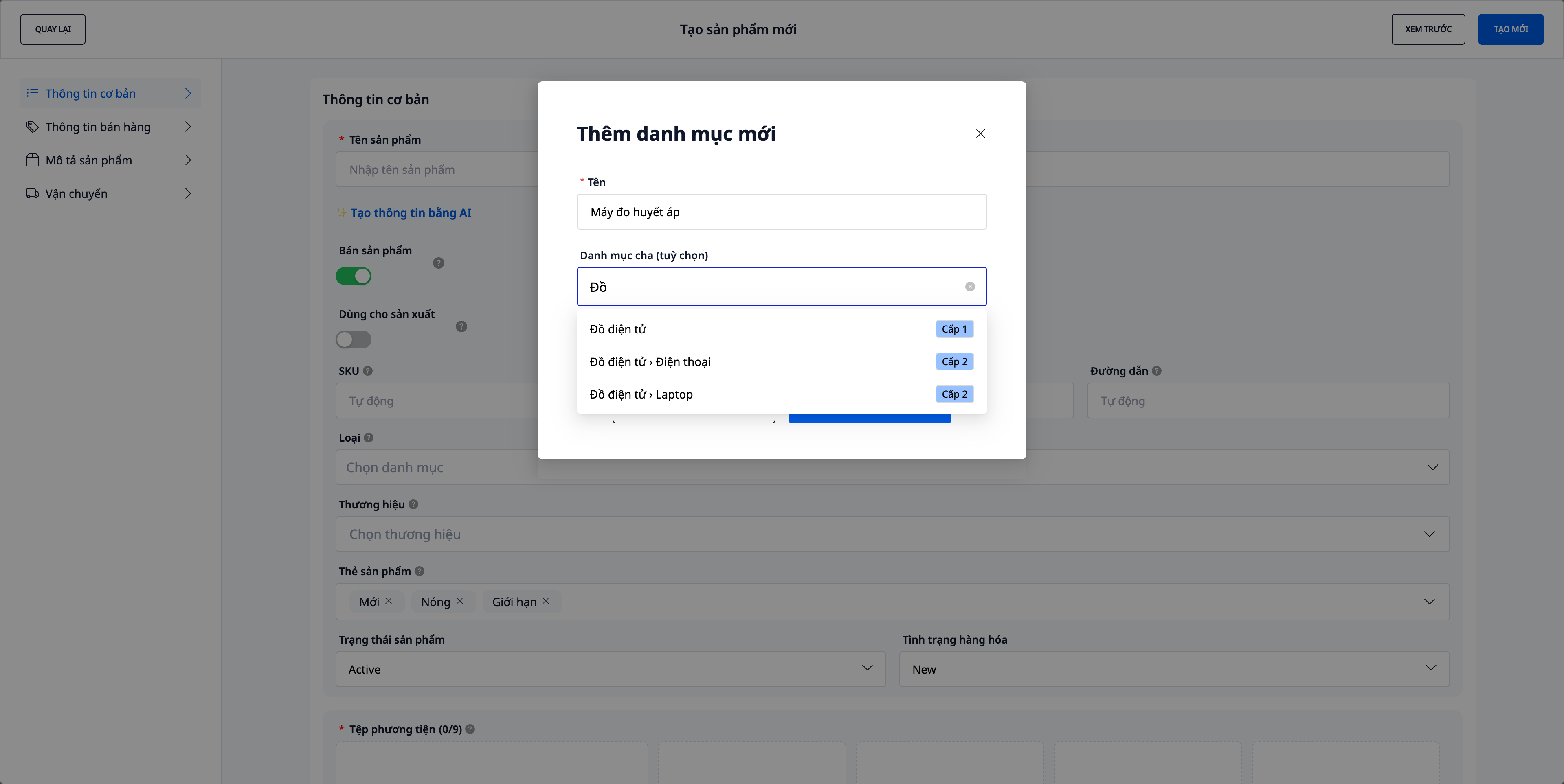
💡 Tip: 1–2 levels are sufficient for most stores. The marketplace category tree (Shopee/Lazada/TikTok) is only used when pushing products to marketplaces (Step 6).
Step 2 — Add products & variants
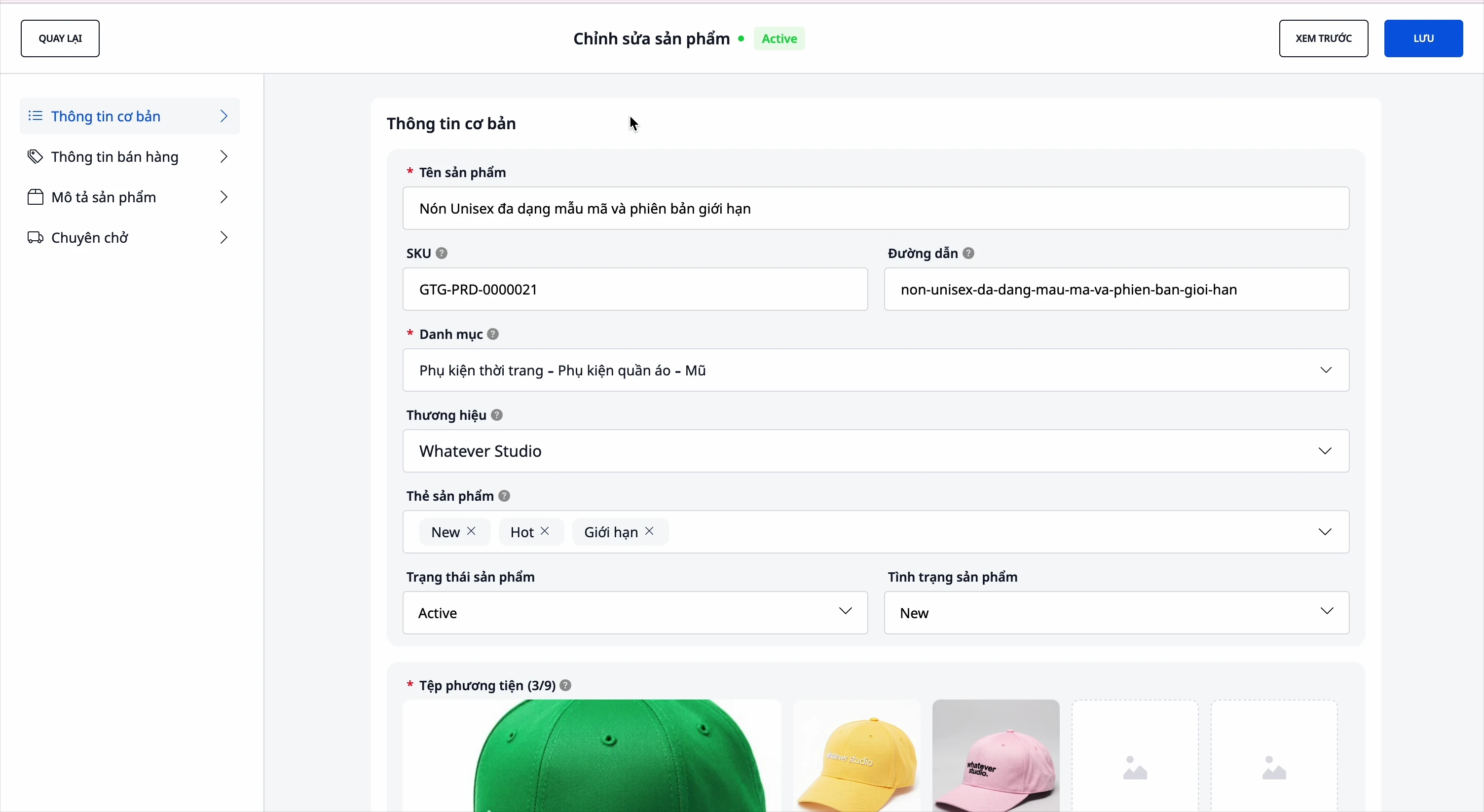
- In Products, click to create a new product.
- Fill in the name, SKU, category, brand, description, specifications.
- Add variants (color, size… up to 3 attributes); set a unique SKU + price for each variant.
- Enter the original price and selling price, then select VAT for the product. The VAT field starts empty: the system does not pre-select any rate for you. You can click AI Suggestion for a reference (uses AI credits; it's just a suggestion, you make the final decision), or choose I'm not sure, I'll ask accounting if unclear: the product will still be saved and appear in the list of items needing VAT for you to return to. After selecting VAT, the system automatically calculates the profit.
✅ Expected result: The product is saved with all its variants; the pricing table displays the automatically calculated profit for each variant after you have selected the VAT.
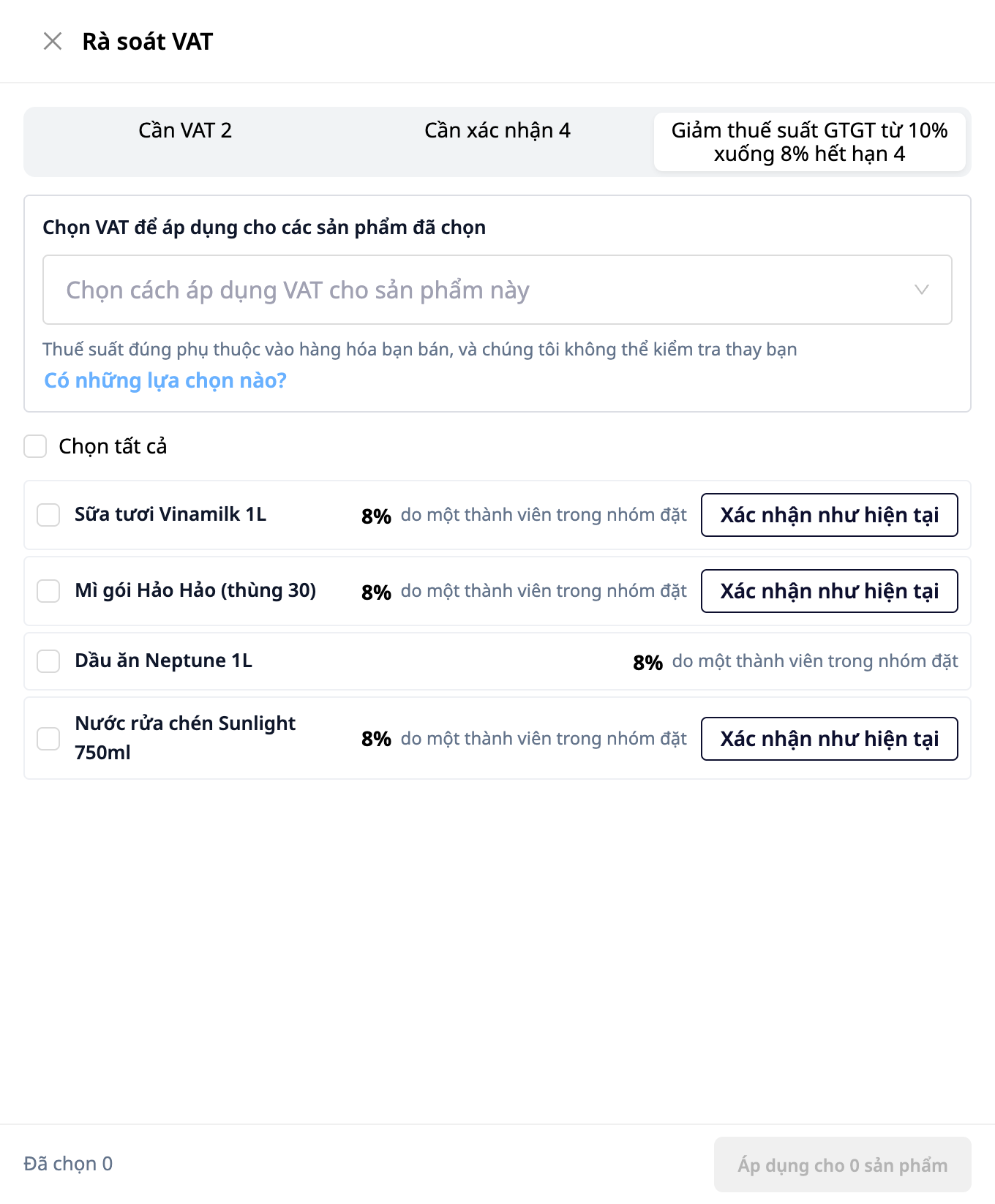
Existing products: if Product Hub displays a notification about products missing VAT, needing confirmation, or using an expiring rate, click Review VAT to confirm or set VAT for multiple products at once. Users with view-only permissions can see the list but cannot set VAT.
Step 3 — Bulk Import Products from Website Link
- In Products, select Import Products from Website.
- Paste the link (a product page, or a category / "all products" page), set the maximum number of products, tick to agree, then click Scan Page.
- (Optional) enable "fetch full details" for the system to open each product page and retrieve all images, descriptions, specifications, and variants.
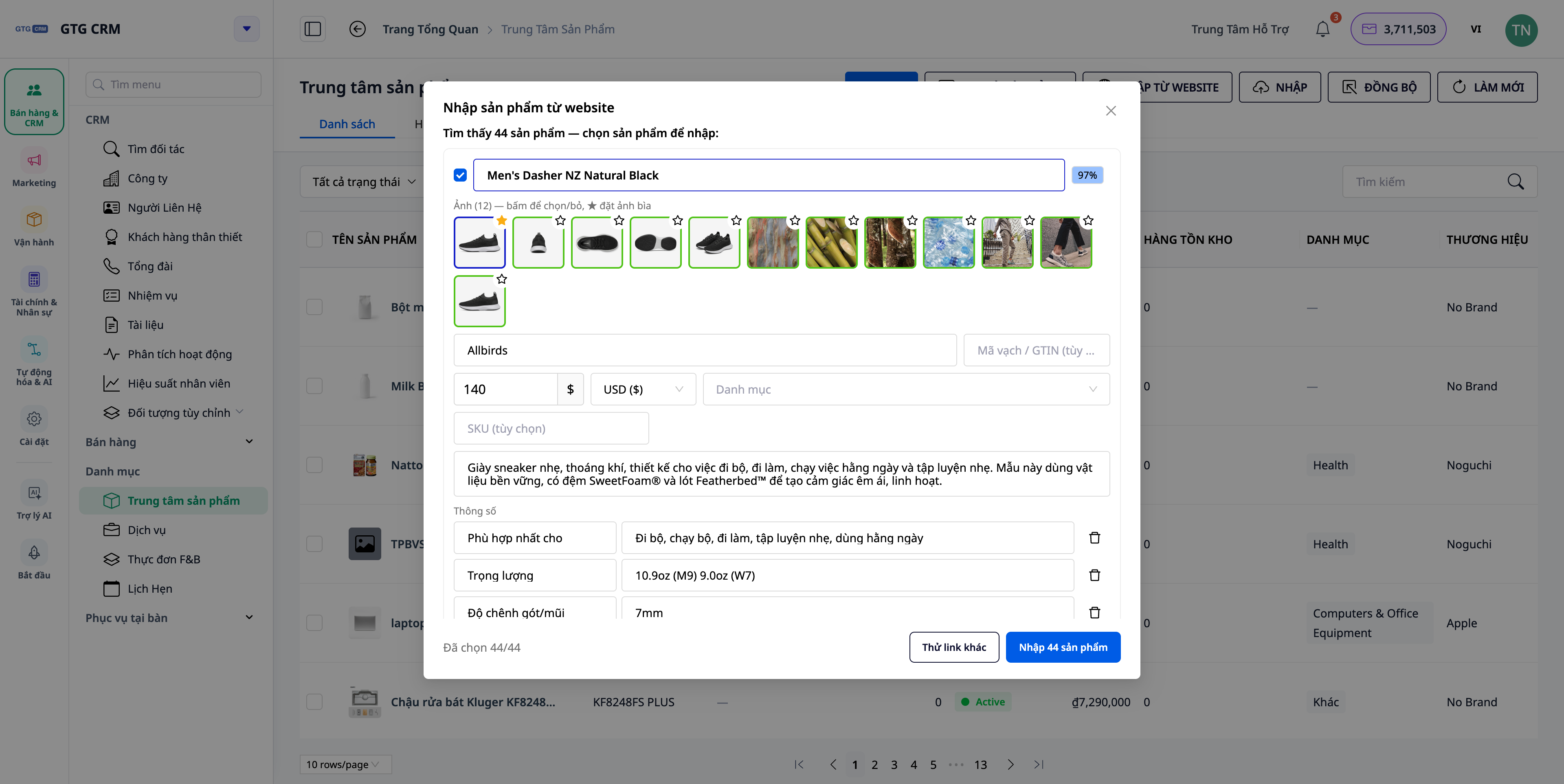
- On the review screen: edit name/price/category/SKU/description/brand/barcode/specifications/variants; deselect products you don't need; select images to keep and set a cover image (★).
- Click Create.
✅ Expected Result: Products are created in the catalog exactly as reviewed — including brand, barcode, specifications, variants, selected image set, and cover image; suggested categories are matched to your own categories.
Step 4 — Import Images from PDF Catalog & Crop/Edit On-the-Fly
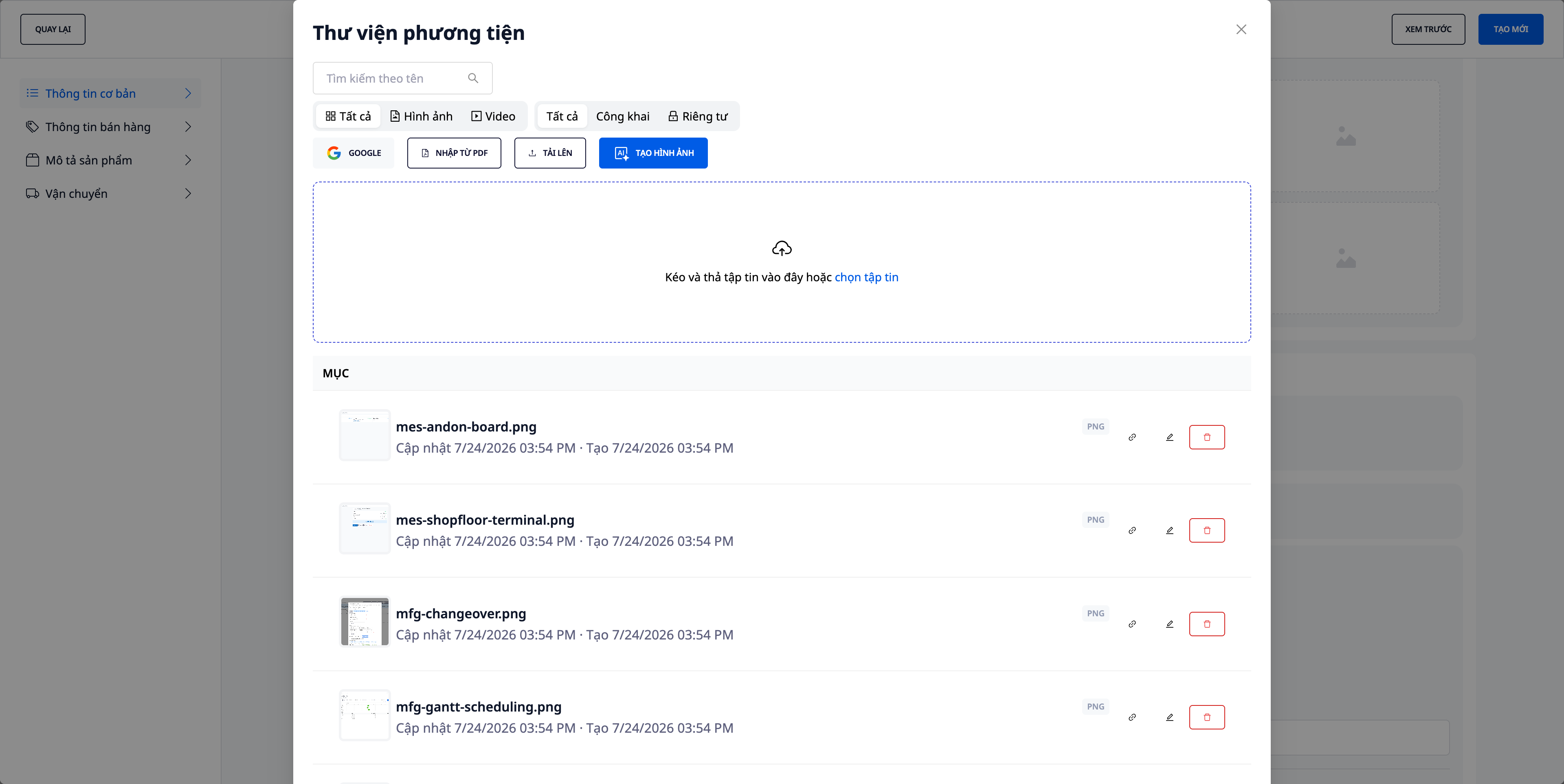
- When creating/editing a product, click the image field to open the Media Library.
- Select import images from PDF catalog, drag your supplier's catalog file, then choose the images you need.
- For any image, use the crop/edit tools within the library to adjust the frame.
- Assign the image to the product/variant.
✅ Expected Result: Images from the PDF are added to the library (original filenames are preserved), and can be edited on-the-fly without leaving the product form.
Step 5 — Set Up Warehouse
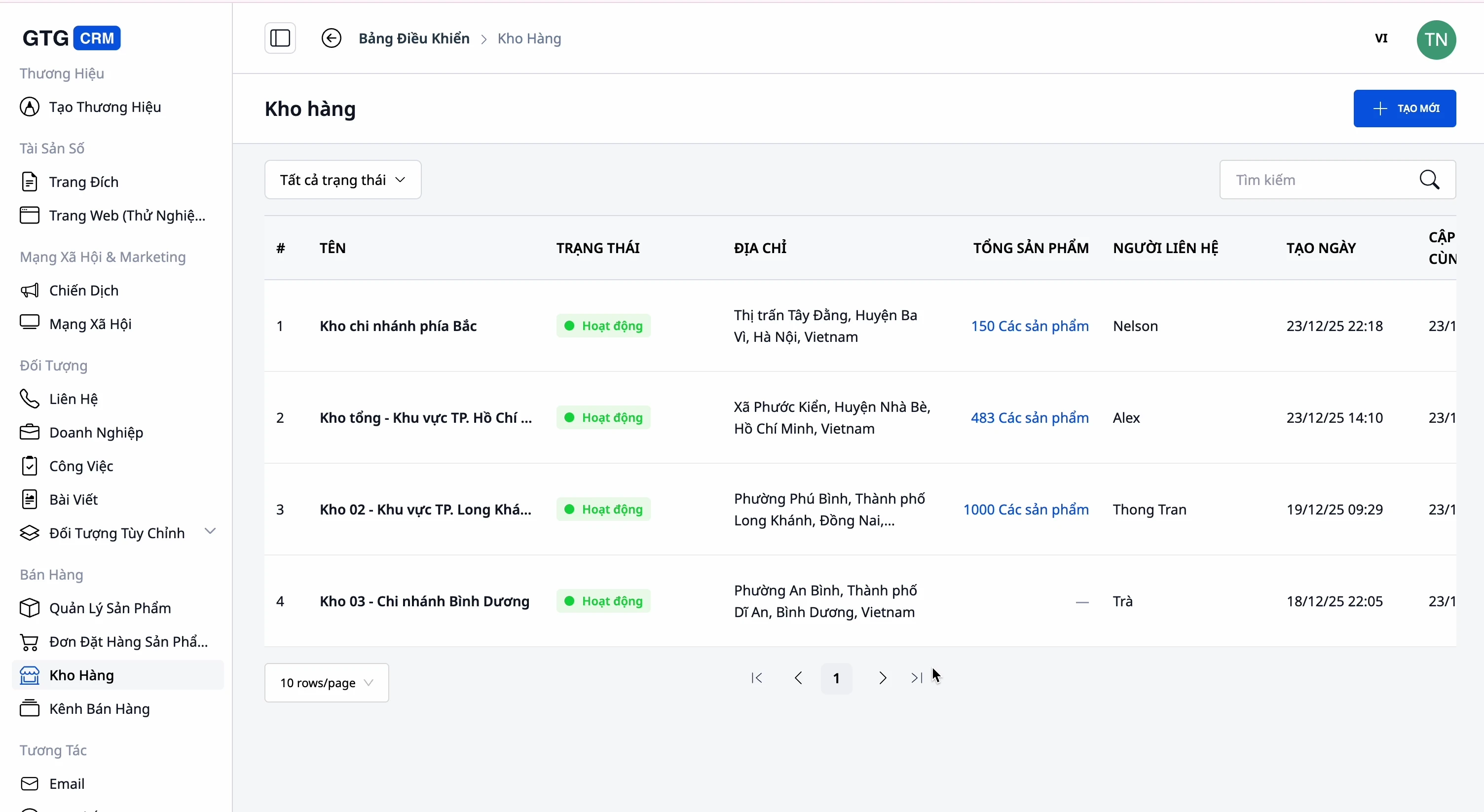
- Go to the Warehouse section, create a warehouse (name, code, address, contact person).
- Link products to the warehouse and track inventory per warehouse.
✅ Expected Result: At least one warehouse exists; inventory is displayed per warehouse for each product.
Step 6 — Push Products to Marketplace with Category Mapping
- Connect to a marketplace (Shopee/Lazada/TikTok Shop) if you haven't already.
- Select the products to push → Push to Marketplace.
- When prompted for marketplace categories, review the suggested matching categories and confirm (or re-select).
✅ Expected Result: Products are pushed to the marketplace with the confirmed marketplace category; category mapping is remembered, so you don't have to select it again on subsequent pushes.
Quick Reference: Expected Results
Add New Category with Parent Category "Level 2" — Preview shows A › B › C — 3 levels, saved as a 3-level category
Scan a Store Link — List of draft products with images, brands, barcodes, specifications, and variants for review
Drag PDF Catalog into Media Library — Images from the PDF appear for selection, original filenames are preserved
Push Products to Marketplace — Marketplace category suggestion box for confirmation; mapping is remembered for next time
Notes
- The old category (according to the previous platform's classification tree) is not deleted—it is displayed as read-only until you reclassify it with your own categories.
- Importing from the website consumes a small amount of credits per scan—this is always displayed before running.
- The platform's classification tree is only used during the platform upload step (category mapping) and is not used to organize your internal catalog.