
1. Access Brand Identity
Step 1: Log in to GTG CRM
Log in to your GTG CRM account.
Step 2: Open the Brand Identity menu
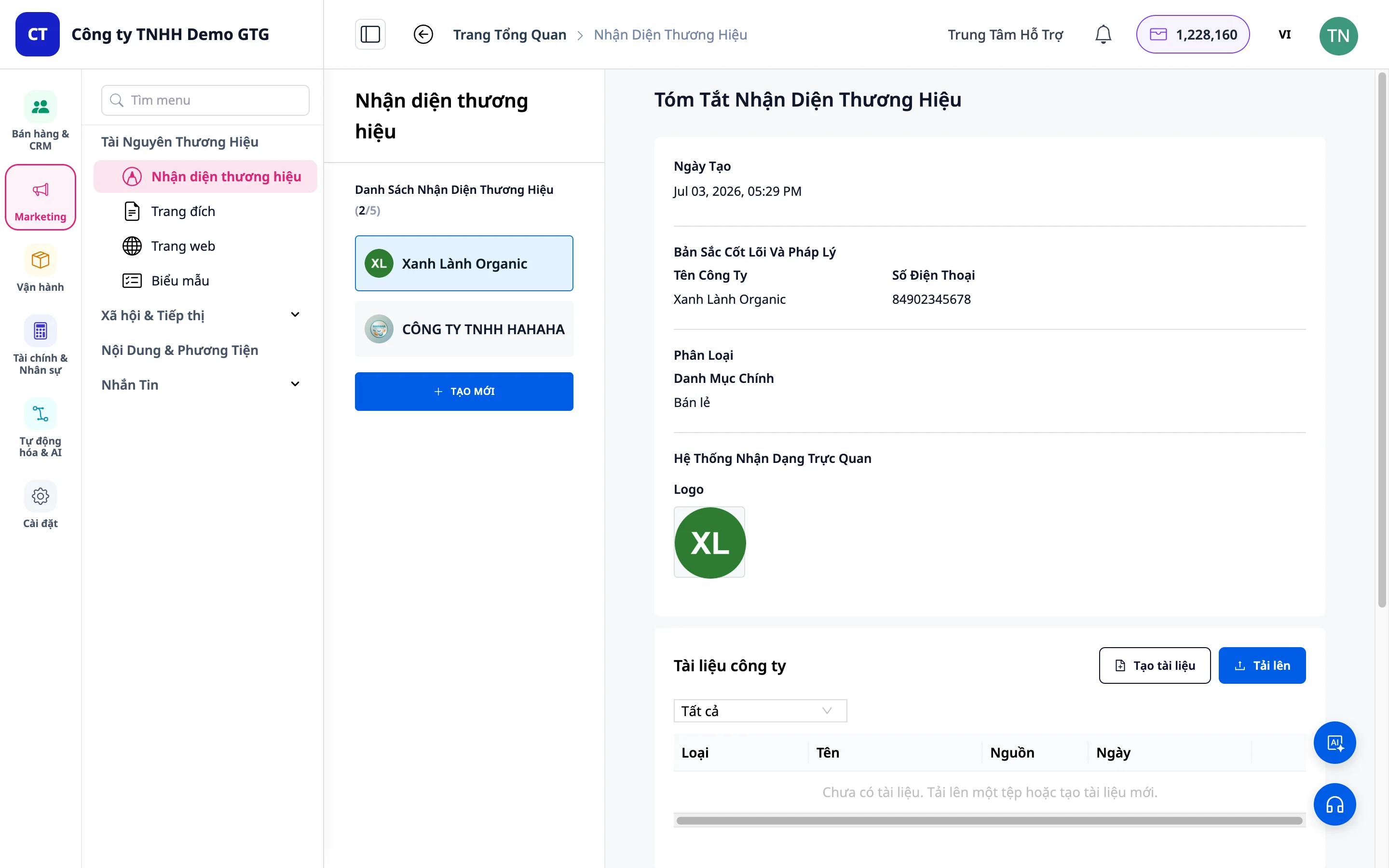
Look at the left-hand toolbar, find the "Brand Identity" section, and click on it.
2. View Brand List
- You will see a list of created brands
- Click on a brand to view its details
- Click "Create New" to start creating a new brand
3. Step 1: Basic Information
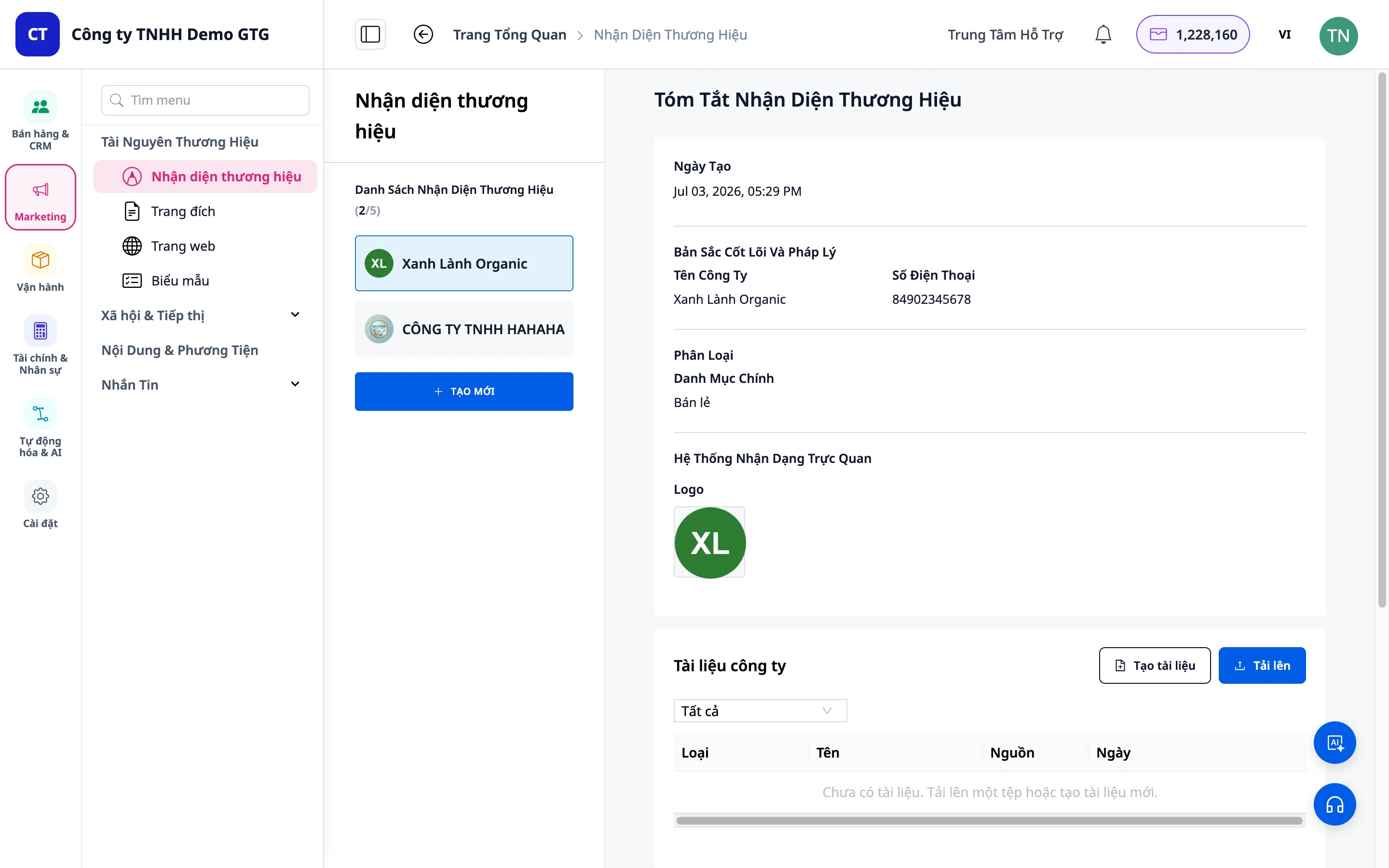
Required Information (marked with a red asterisk *)
- Company Name: Enter your brand name
- Example: "WHATEVER STUDIO"
- Phone Number: Enter the primary contact number
Optional Information
- Email: Can be skipped if not needed
4. Step 2: Industry Classification
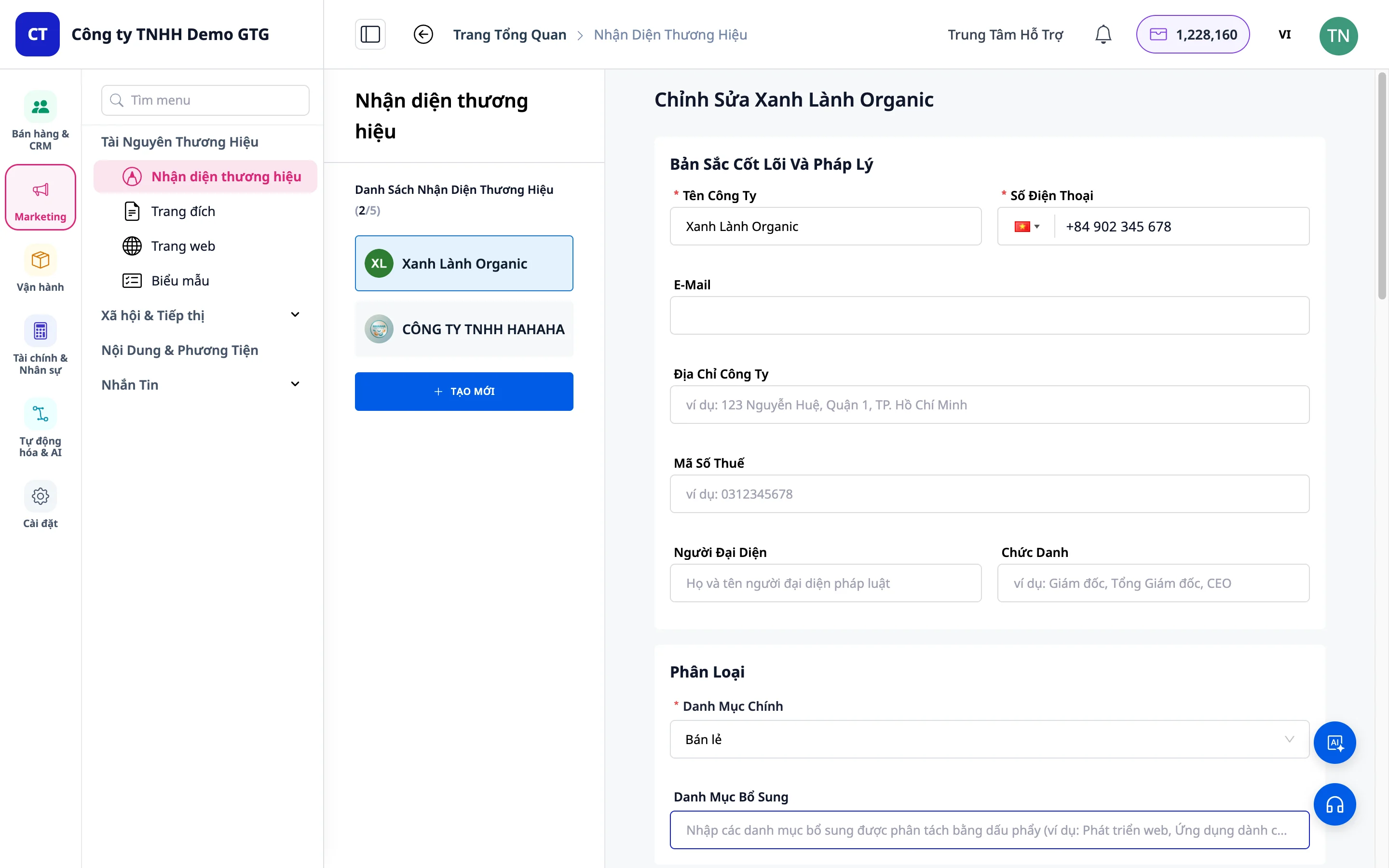
- Select the industry that best fits your business
- Examples: Fashion, F&B, Technology, etc.
Note: The industry helps the AI generate more relevant vision, mission, and color schemes for your field.
5. Step 3: Target Audience
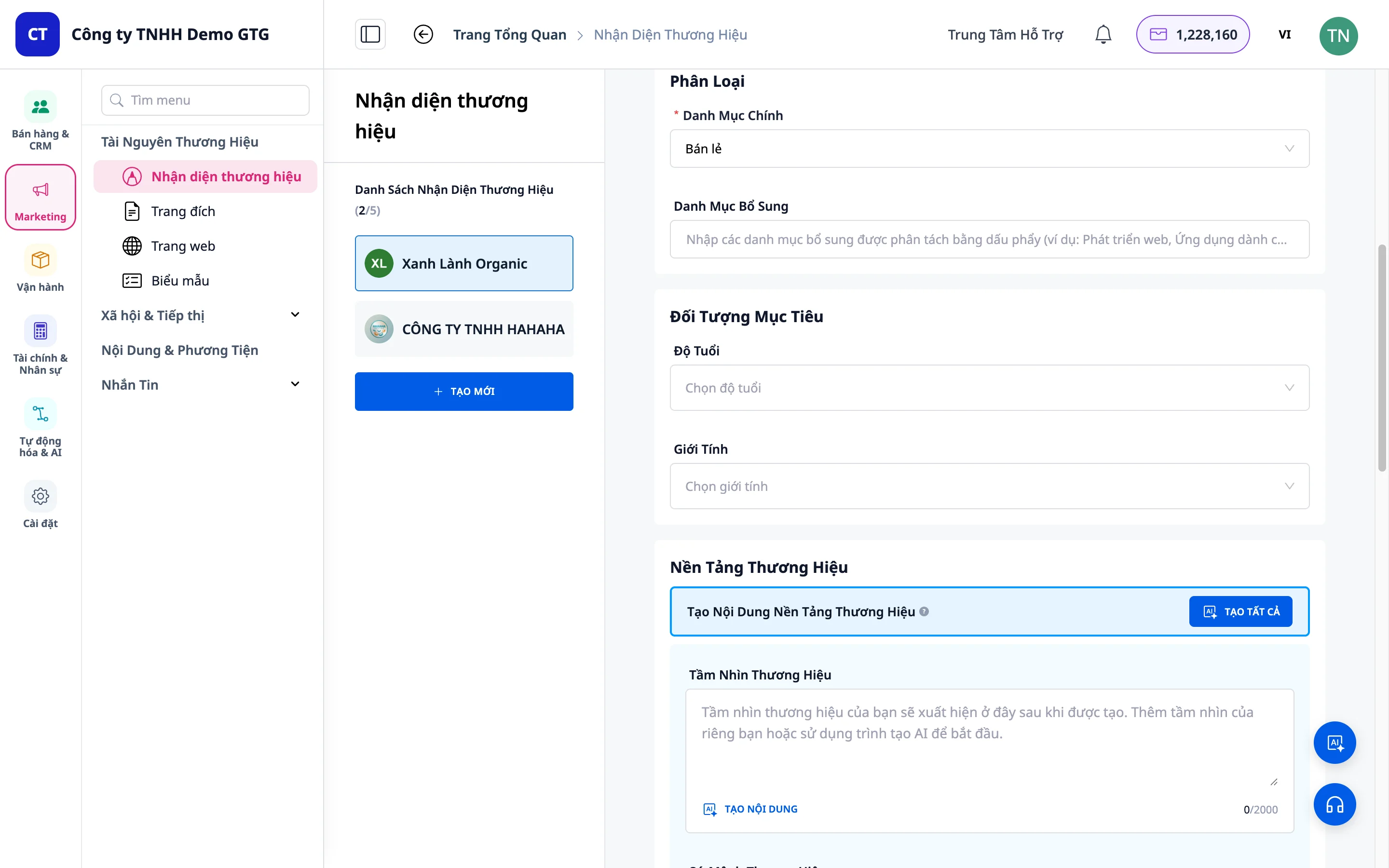
Age Group
- Enter the age range of your target customers
- Example: "18-34 years old"
Gender
- Select: Male, Female, or All
- Multiple options can be selected
6. Step 4: Brand Foundation
This is the most crucial part of your brand identity.
Case 1: Content Already Exists
- If you already have your vision, mission, and core values → fill them into the corresponding fields
Case 2: Use AI (Recommended)
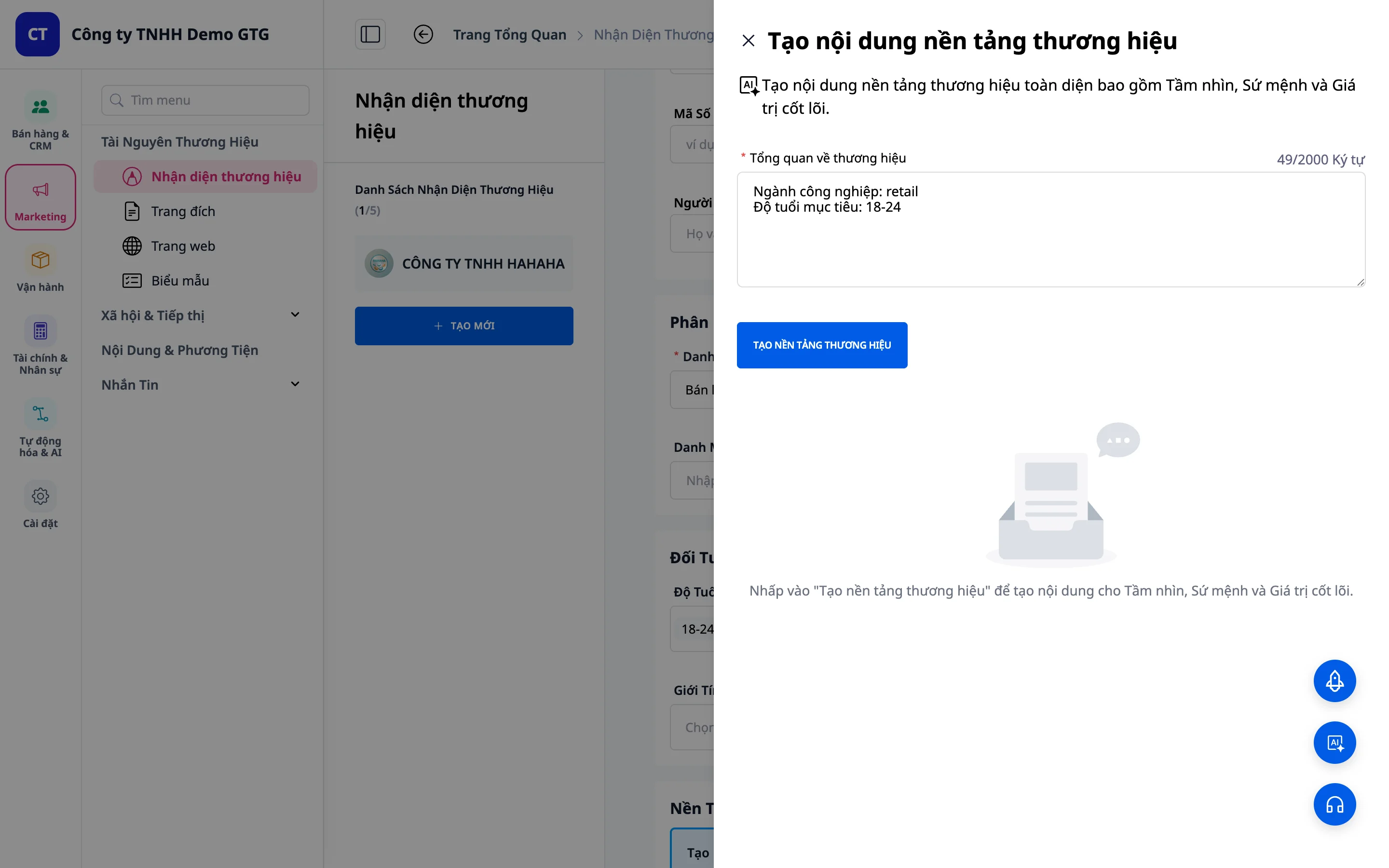
- Click on AI Assistant
- The system will display the information you have entered
- Select Language: Type "Write in Vietnamese" if you want Vietnamese content
- Click "Generate Brand Foundation"
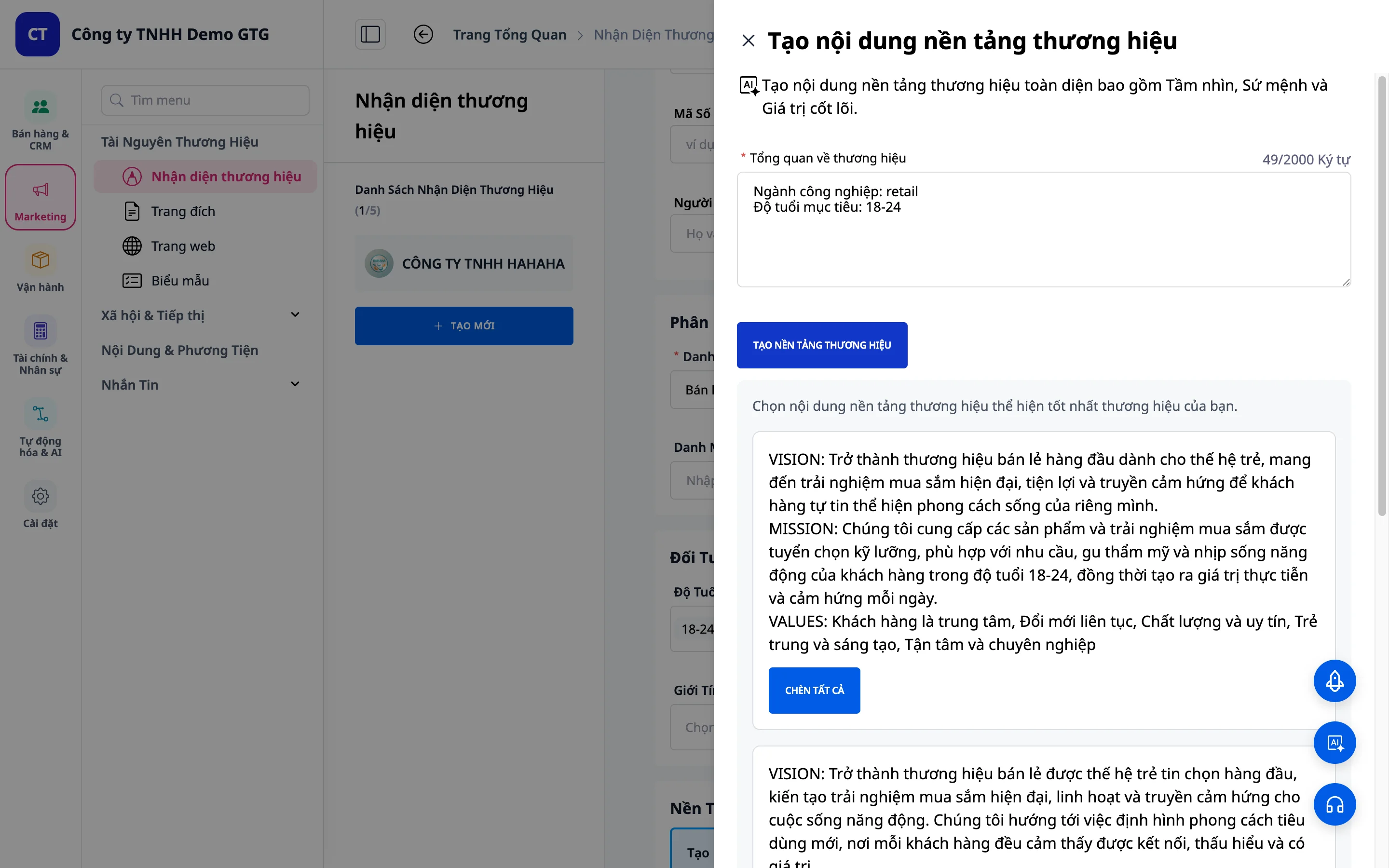
- The AI will generate 3 different options
- Choose the most suitable option
- Click "Select" to apply it
7. Step 5: Visual Identity System
Case 1: Logo & Colors Already Exist
- Select Colors: - Click on the color picker - Or enter the color code directly
- Upload Logo: - Click "Upload Logo" - Select the file from your computer
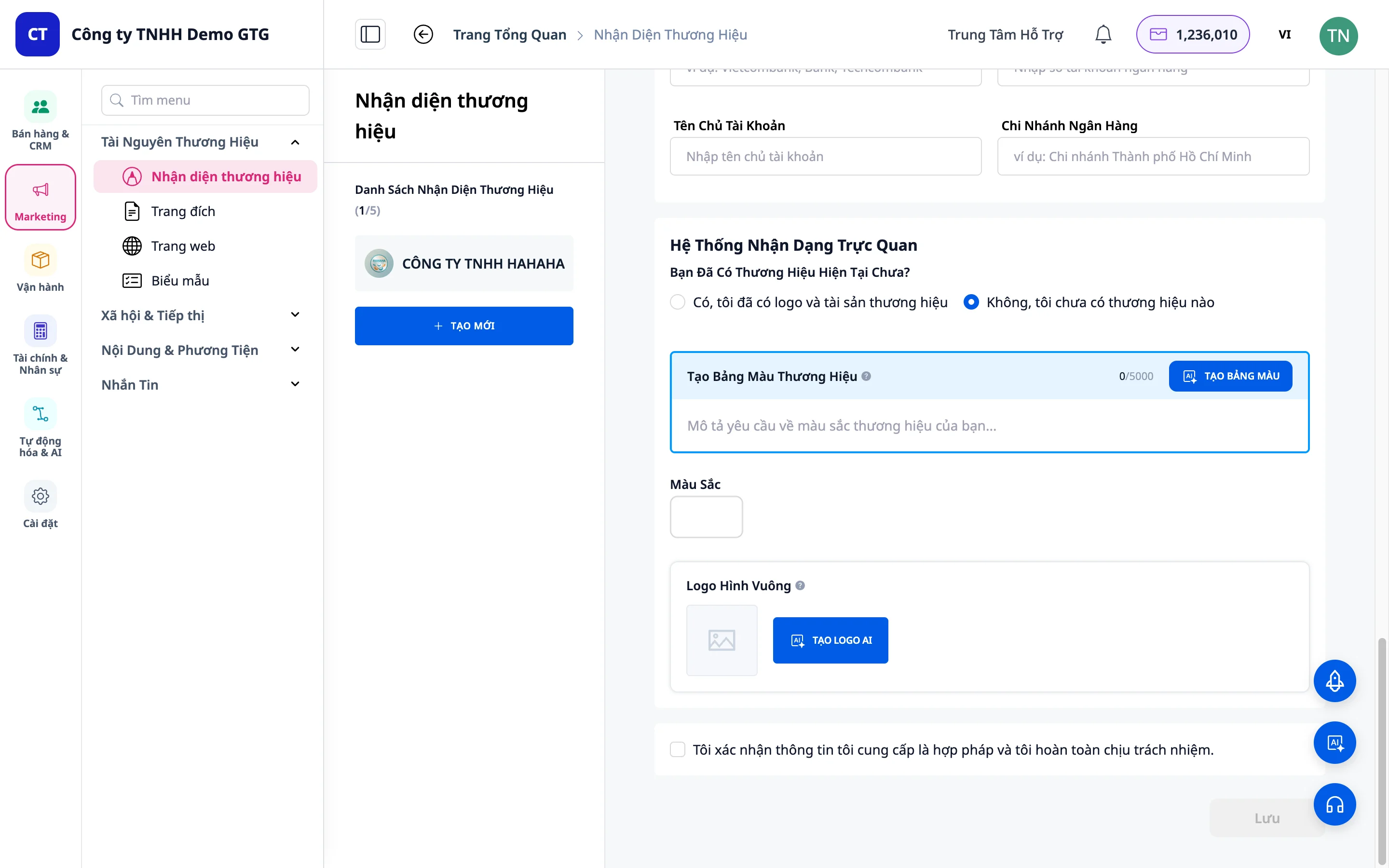
Case 2: Do Not Have (Use AI)
Generate Color Palette
- Click "No, I don't have any brands yet"
- Click "Generate Color Palette"
- Describe your desired colors (e.g., "Blue and white colors")
- Click "Generate Results"
- The AI will generate multiple options → choose your preferred palette
Generate Logo
- Click "AI Logo Generator"
- The AI will automatically create logos based on your brand information
- If not satisfied: Click "Generate More" to get additional options
- Select your desired logo → click "Add to Brand Logo"
Tip: Uploaded logos will automatically appear on all PPTX slides when using AI Video Studio (starting 5/2026).
8. Step 6: Finalize & Save
- Review all information
- Click "Confirm"
- Click "Save" to save your brand identity
9. Step 7: Legal & Banking Information
After saving your brand identity, you can add legal information to have the system automatically fill it into official documents.
How to Access
- Click on the brand you just created (or the brand you want to update)
- Click "Update"
- Scroll down to the "Legal Information" section
Fields to Fill
Company Legal Information
| Field | Description | Required |
|---|---|---|
| Company Address | Business registration address | Recommended |
| Tax Identification Number (TIN) | 10-13 digit tax code | Recommended |
| Representative Name | Full name | Recommended |
| Title | e.g., "Director", "CEO", "General Director" | Recommended |
Banking Information
| Field | Description |
|---|---|
| Bank Name | e.g., Vietcombank, Techcombank |
| Account Number | Bank transfer account number |
| Account Holder | Account holder's name (usually the company name) |
| Branch | Bank branch |
Example of Filled Information
Address: 123 Nguyen Hue, Ben Nghe Ward, District 1, Ho Chi Minh City Tax ID: 0123456789 Representative: Nguyen Van An Title: Chief Executive Officer
Automatic Application
After filling in, the system will automatically use this information when:
| Action | Information Used |
|---|---|
| Generate PPTX via AI Video Studio | Logo + company name on all slides |
| Generate PPTX Proposal | Company name + address + TIN |
| Generate DOCX contract | Company name + TIN + representative name + title |
| Generate PDF quotation | Logo + TIN + banking information |
| AI Biz Assistant generates documents | Full legal information |
Important: Legal information is entered once and used forever, so you don't need to remember or re-enter it for each document.
4. Save Legal Information
After filling in the details, click "Save" to apply them.
10. Manage Brands After Creation
View Brand Details
- Click on a brand in the list
- View all the information you have created
Set Default Brand
- Slide the toggle to "Set as Default"
- The default brand will be used for other features (AI Video Studio, Landing Page, etc.)
Edit Brand
- Click "Update"
- Change any information (including legal information, such as when a representative changes)
- Click "Save" to apply the changes
Delete Brand
- Click "Delete" if it's no longer needed
- Be careful: This action cannot be undone
11. Tips for Effective Use
For the Best Brand Identity
- Detailed Input Information: The more information provided, the more accurate the AI-generated content will be
- Specific Audience Description: Helps the AI understand the appropriate tone & manner
- Try Multiple Options: Don't settle for the first option; compare the choices
- Post-Generation Customization: You can edit AI-generated content to better suit your needs
Regarding Legal Information
- Fill it in immediately after creating the brand: Especially if you frequently generate PPTX/DOCX documents for partners
- Update when the representative changes: To avoid sending documents with incorrect signatory names to partners
- Verify the TIN: An incorrect TIN on a contract can lead to legal issues
Regarding Visual Design
- Color Palette: Choose 2-3 primary colors to avoid visual clutter
- Simple Logo: A simpler logo is more memorable and displays better on PPTX slides
- Test on Various Backgrounds: Ensure your logo looks good on both light and dark backgrounds
Troubleshooting Common Issues
| Issue | Solution |
|---|---|
| Logo is not suitable | Click "Generate More" or provide a more specific description |
| Colors are not to your liking | Try describing different colors or use the manual color picker |
| AI-generated content is not suitable | Edit it directly after the AI generates it |
| Logo does not appear on PPTX | Check if you have set the brand as default |
| TIN appears incorrectly on documents | Go to Update Brand → correct the TIN → Save |
Summary
With Brand Identity in GTG CRM:
- Build a complete brand identity in 3 minutes
- AI automatically generates vision, mission, logo, and color palette
- Legal information saved once - automatically filled into all documents
- Consistency from PPTX pitch decks to legal contracts
- Easy updates when representatives or addresses change