1. Create a new order
Step 1: Access the order creation page.
From the sidebar menu, select Product Order → Create Order .
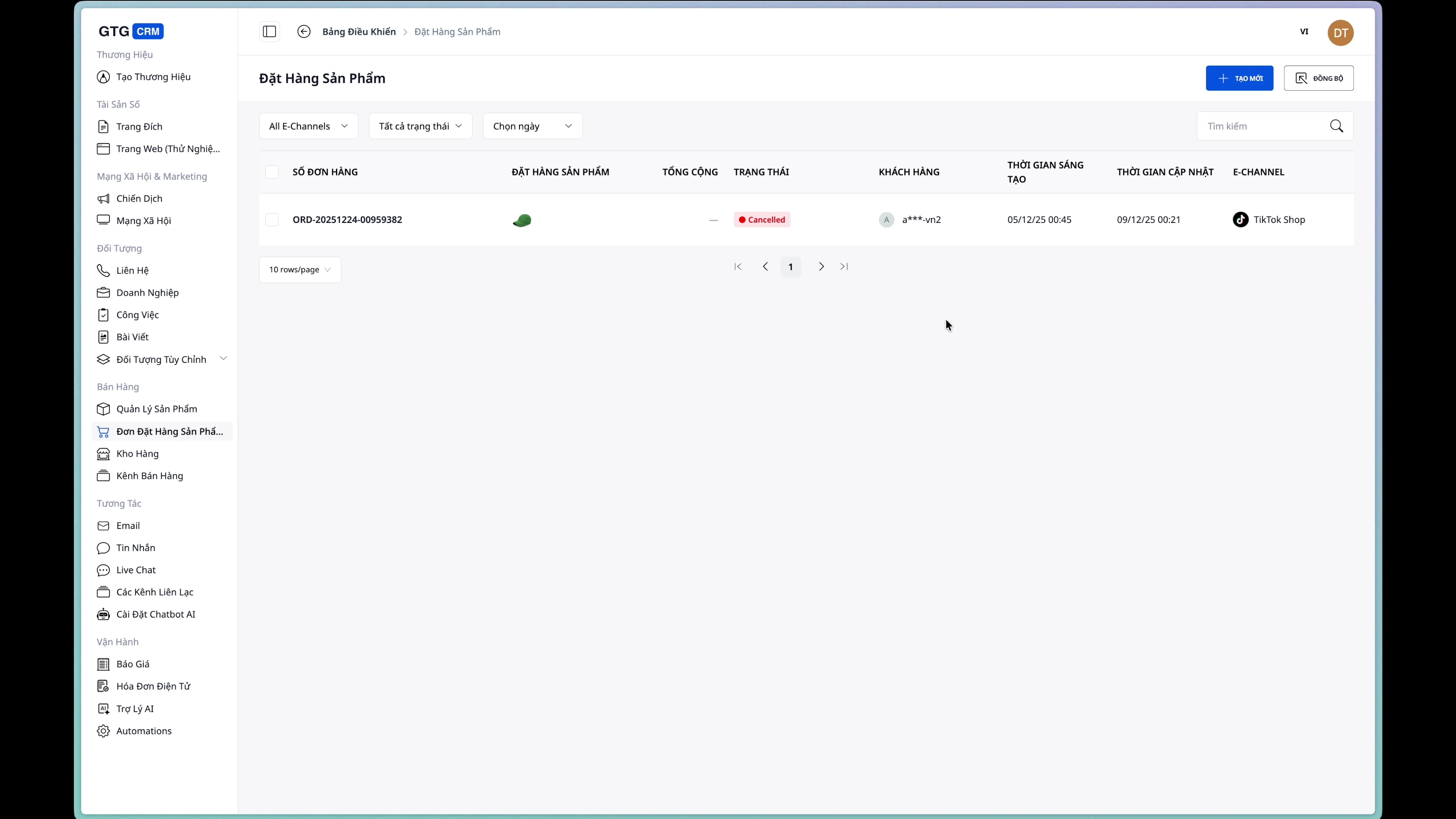
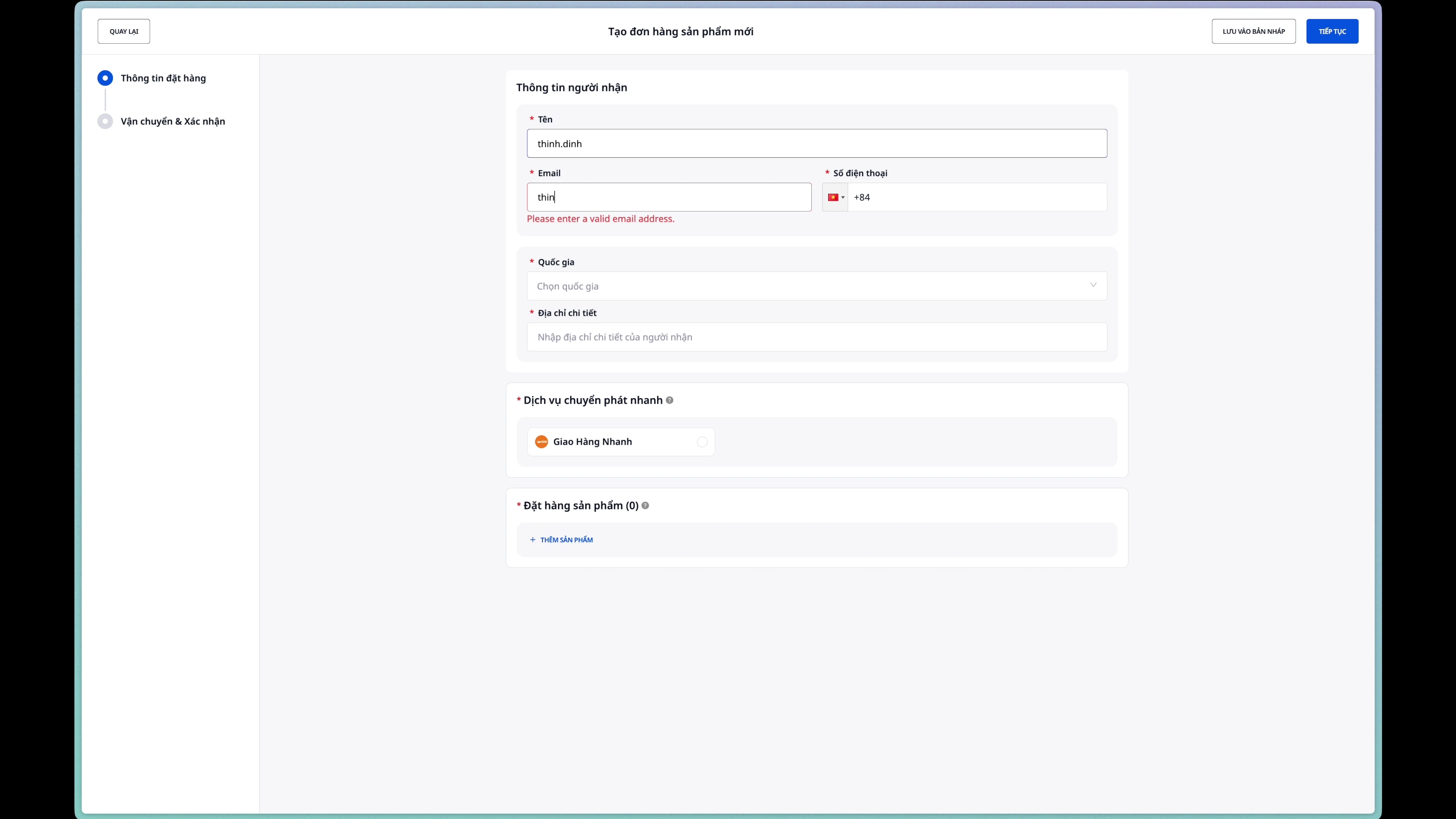
Step 2: Enter the recipient's information.
Please fill in the recipient's information completely:
- Recipient's name : Full name
- Email : Email address
- Phone number : Contact phone number
Step 3: Enter the delivery address
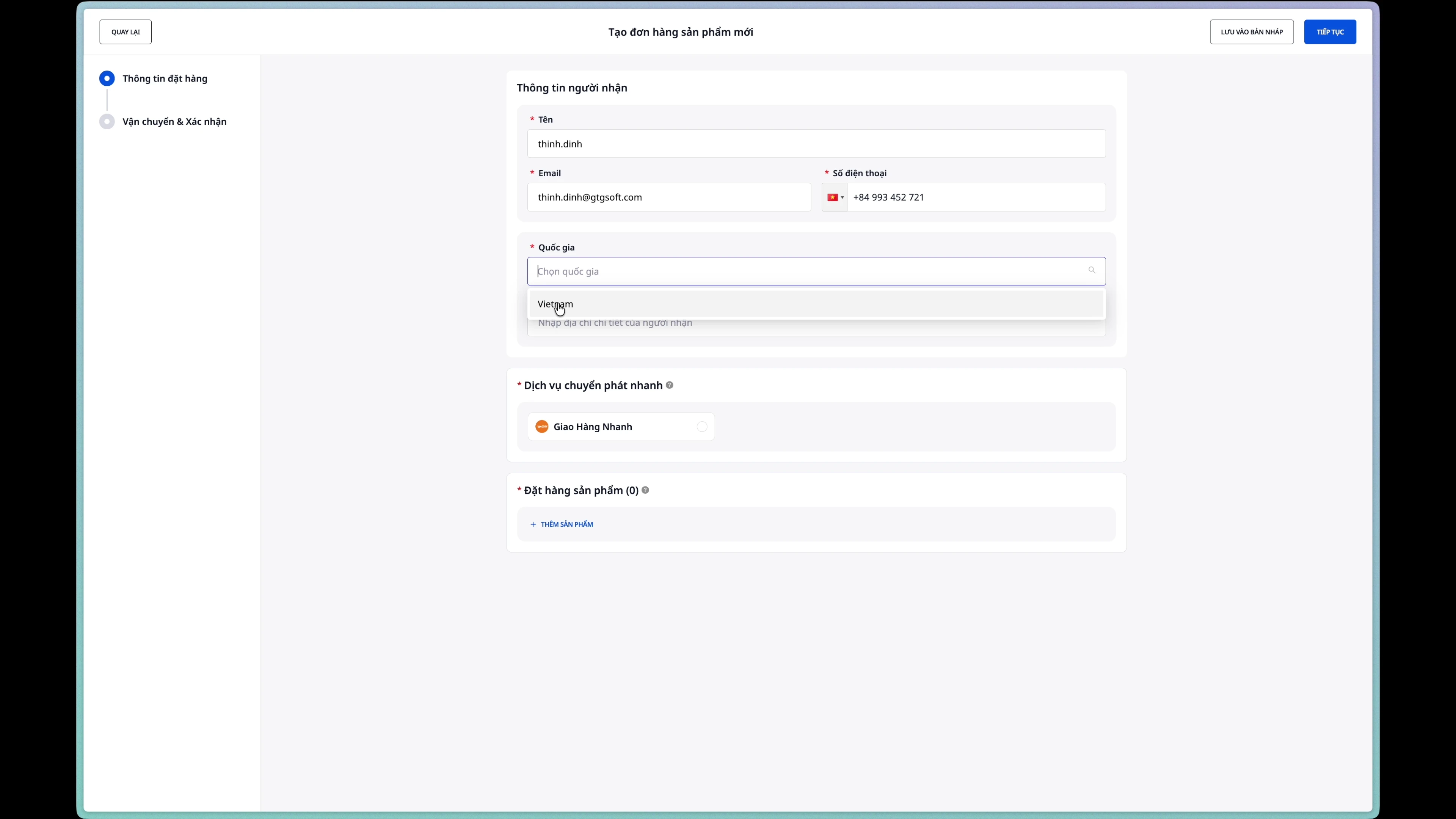
Fields to fill in:
- Province/City : Select from the dropdown list
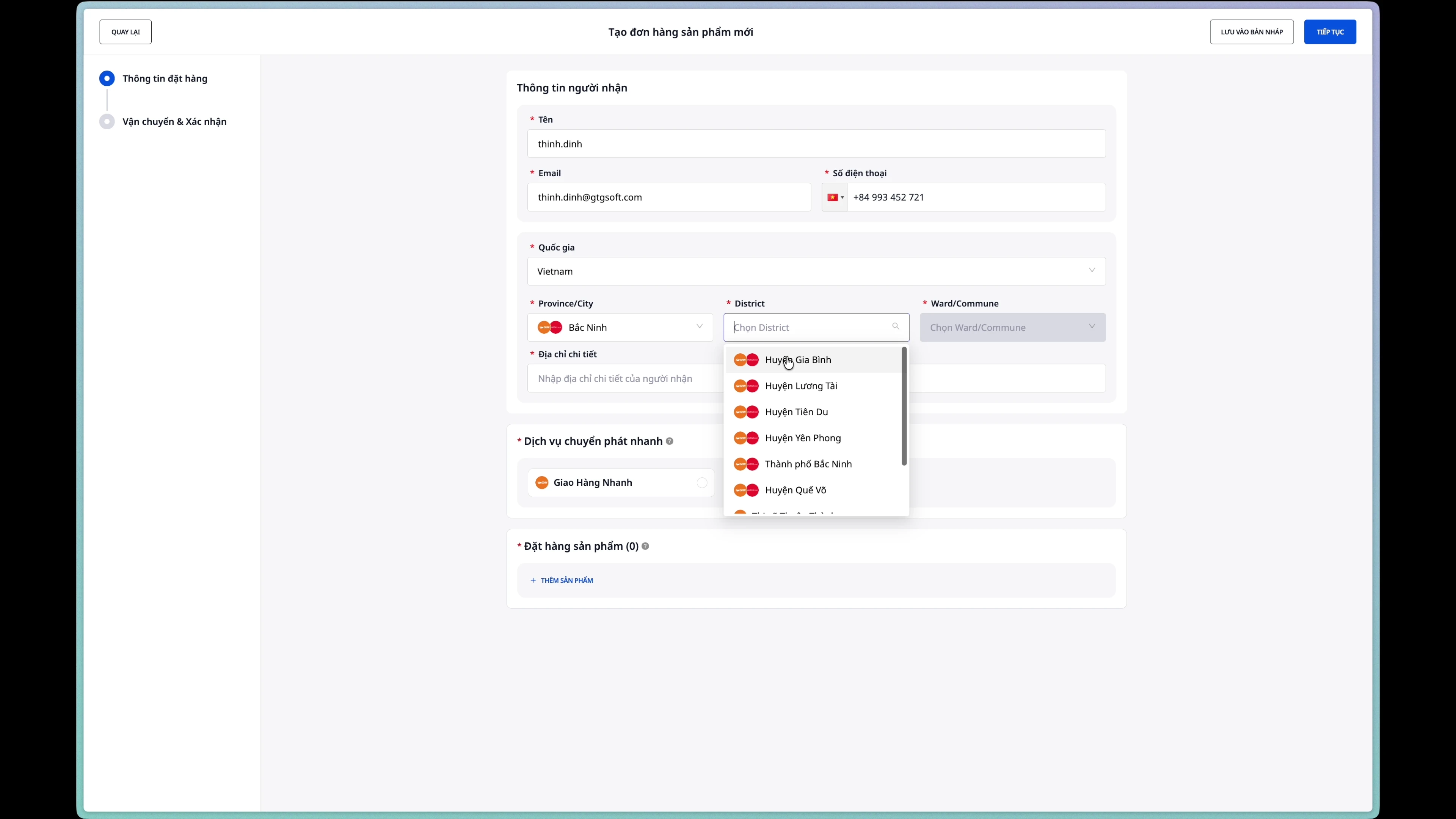
- District/County : Select after you have selected Province/City
- Ward/Commune : Select after selecting District/County
- House number and street name : Enter address details
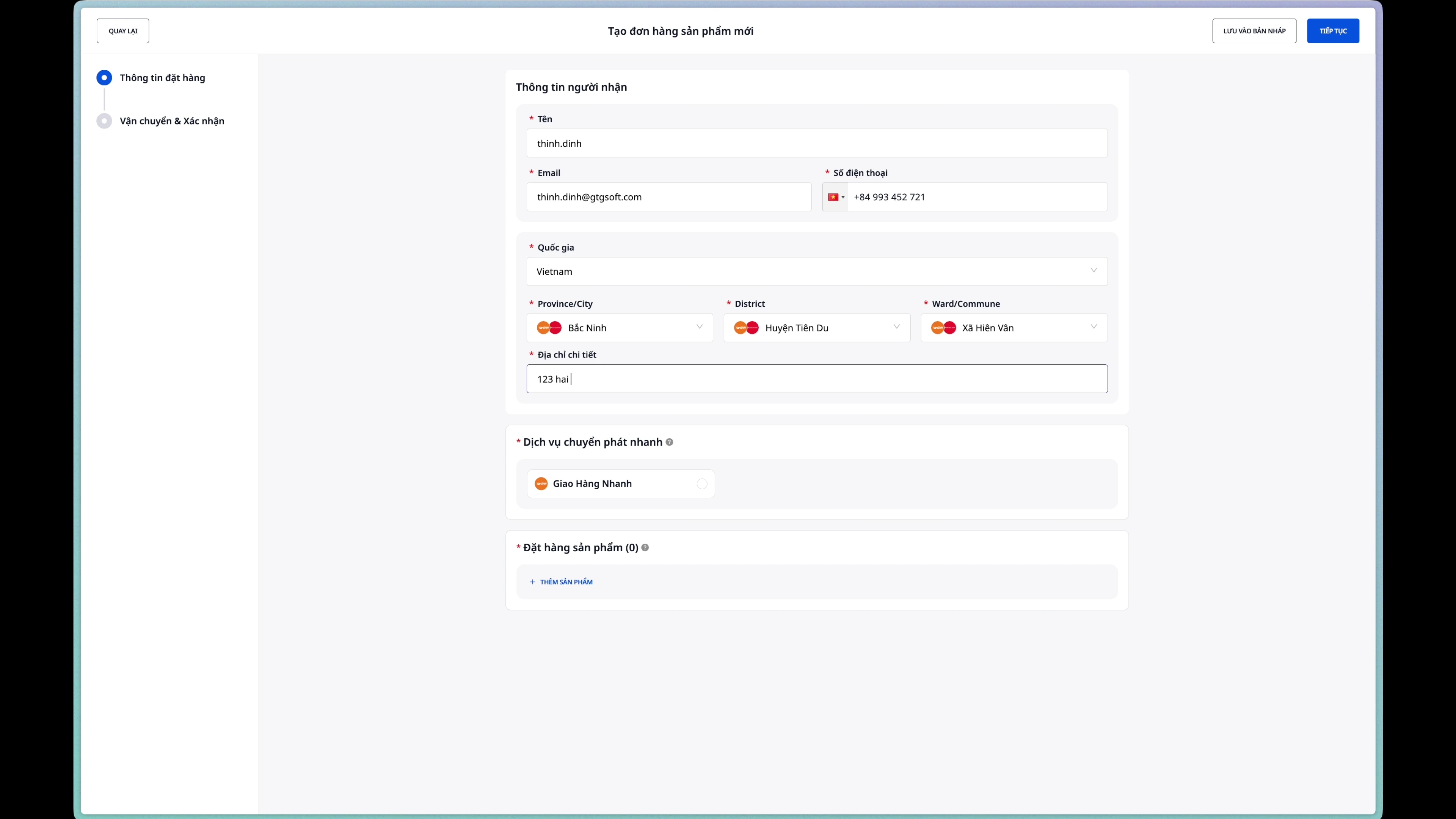
Step 4: Choose a delivery service.
Choose a shipping carrier from the list of integrated partners.
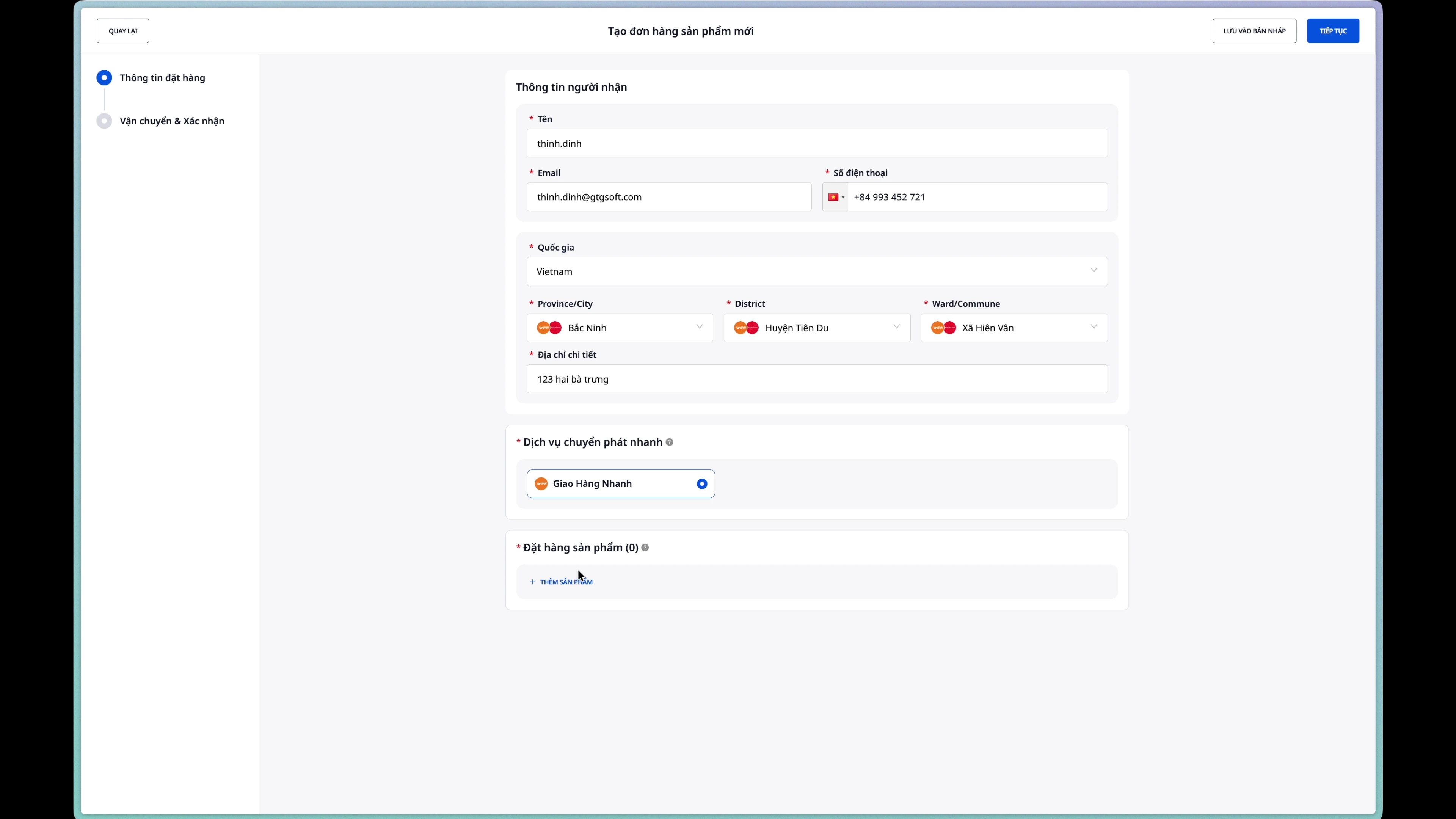
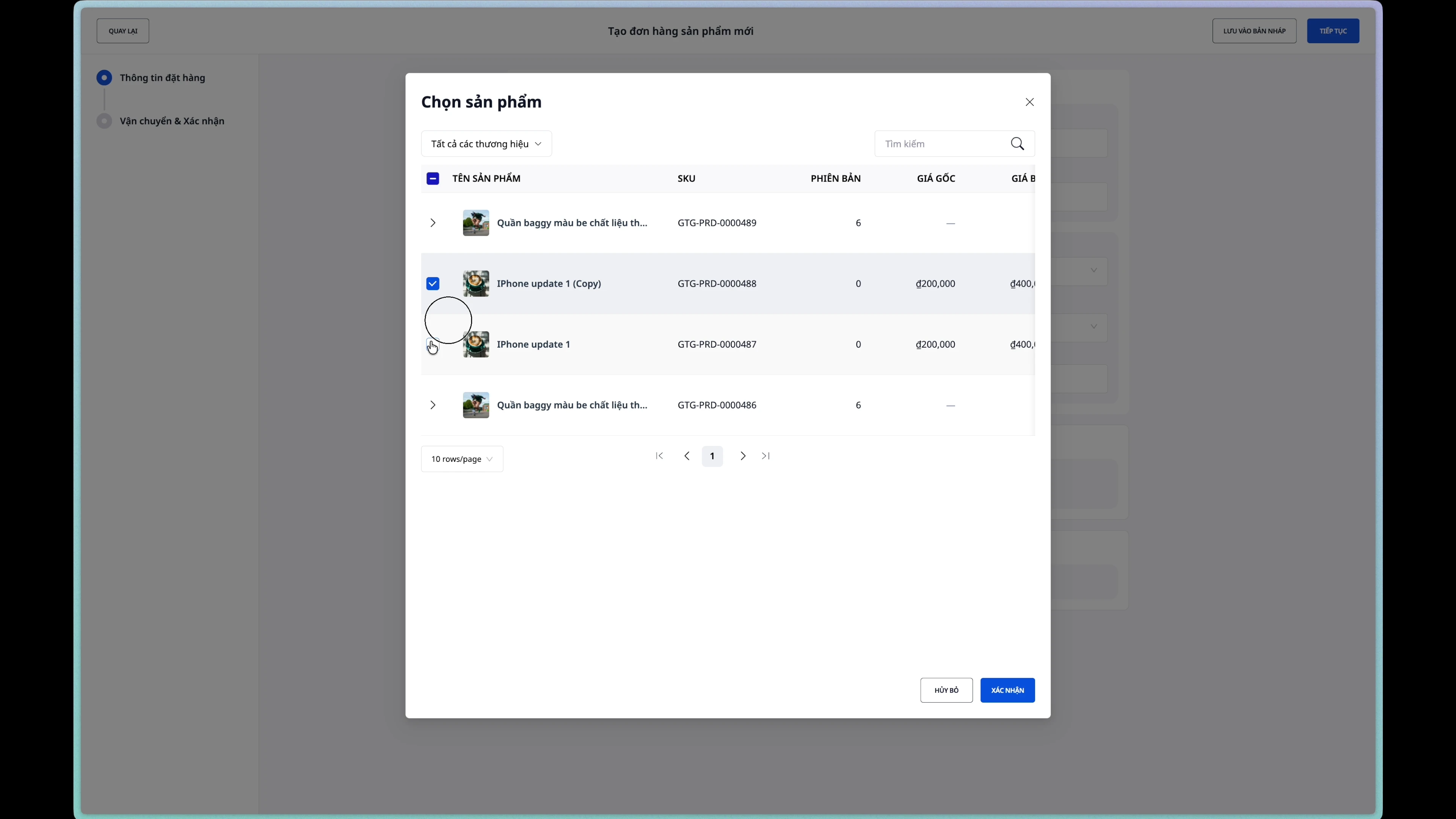
Step 5: Add products to the order
- Click the "Add product" button.
- Search for and select products from the list.
- Adjust the quantity using the increase (+) or decrease (-) buttons.
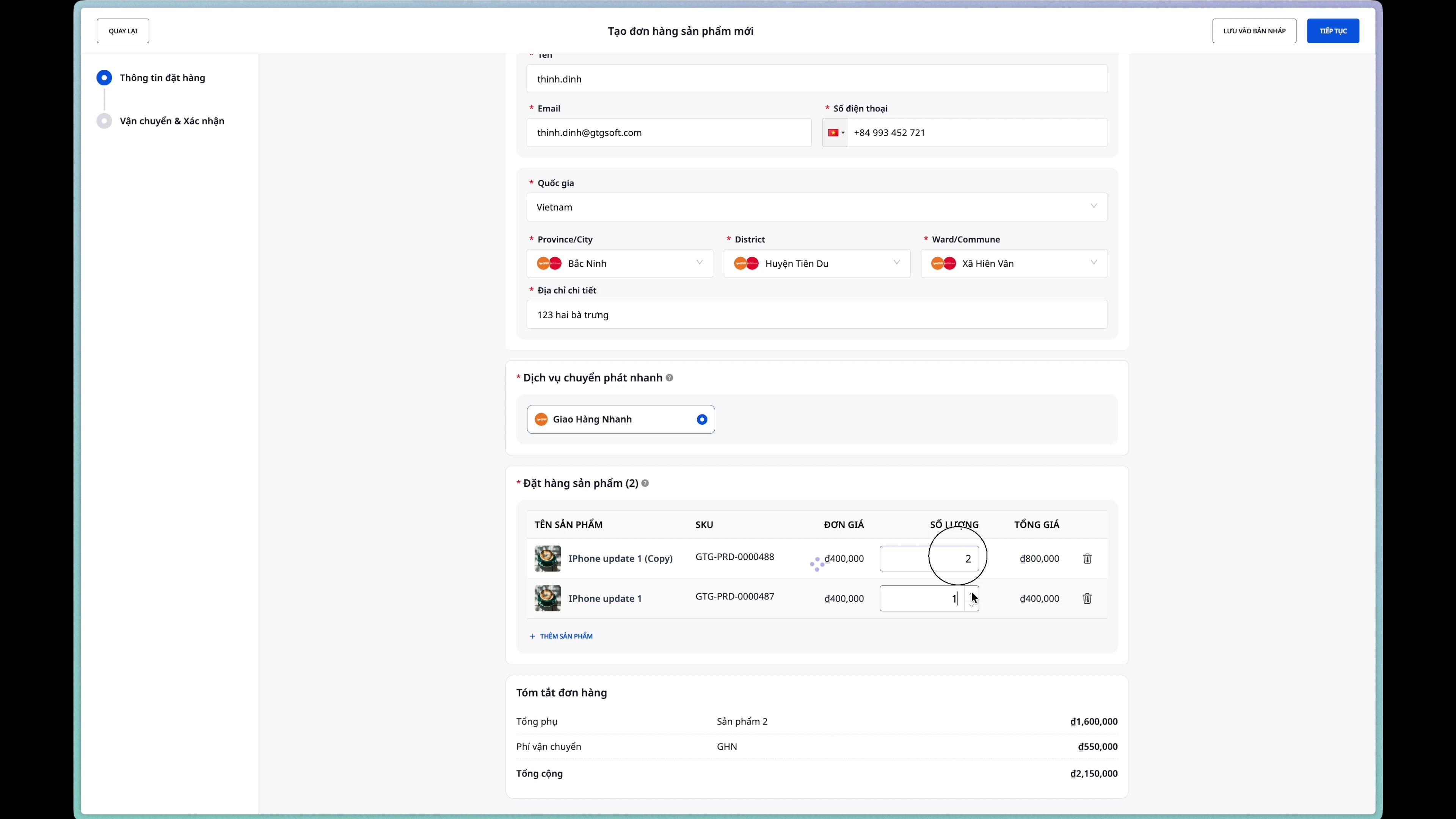
Step 6: Create the order
After reviewing the information, click the "Create Order" button.
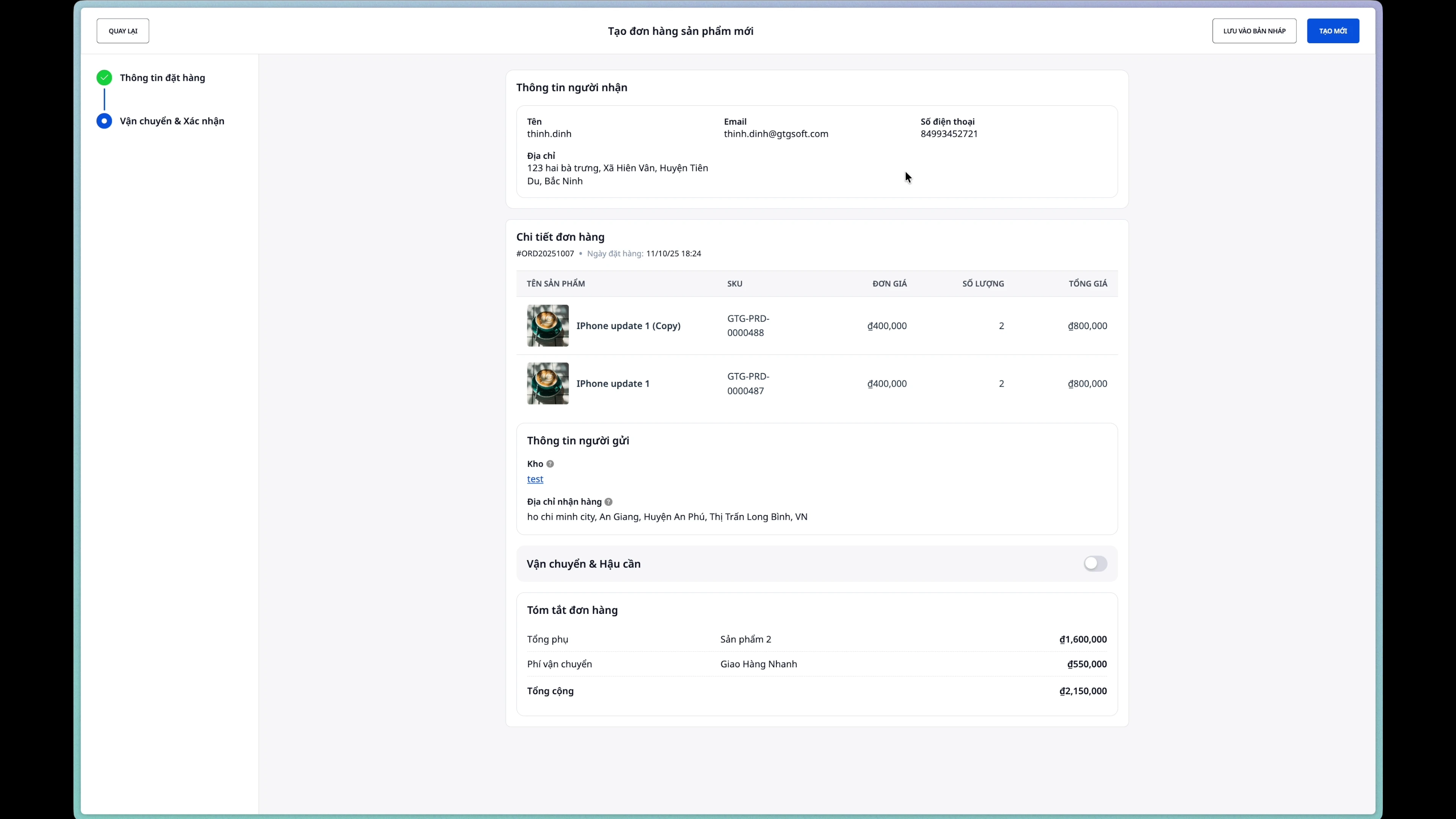
Once an order is successfully created, its status will be "New" .
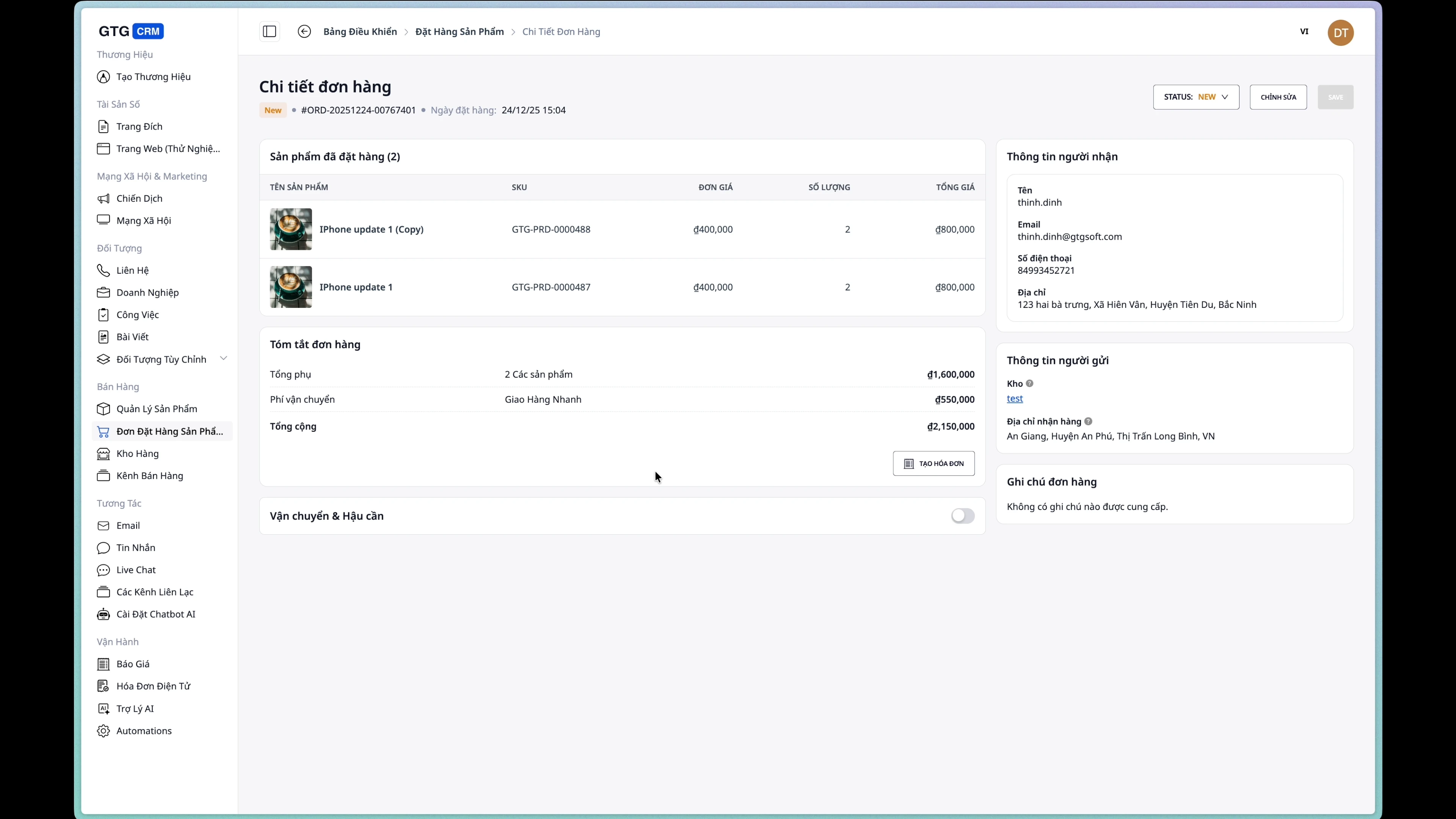
2. Edit the order
Note: Orders can only be edited when they are in the "New" state.
Step 1: Open the editing page.
From the order details page, click the "Edit" button.
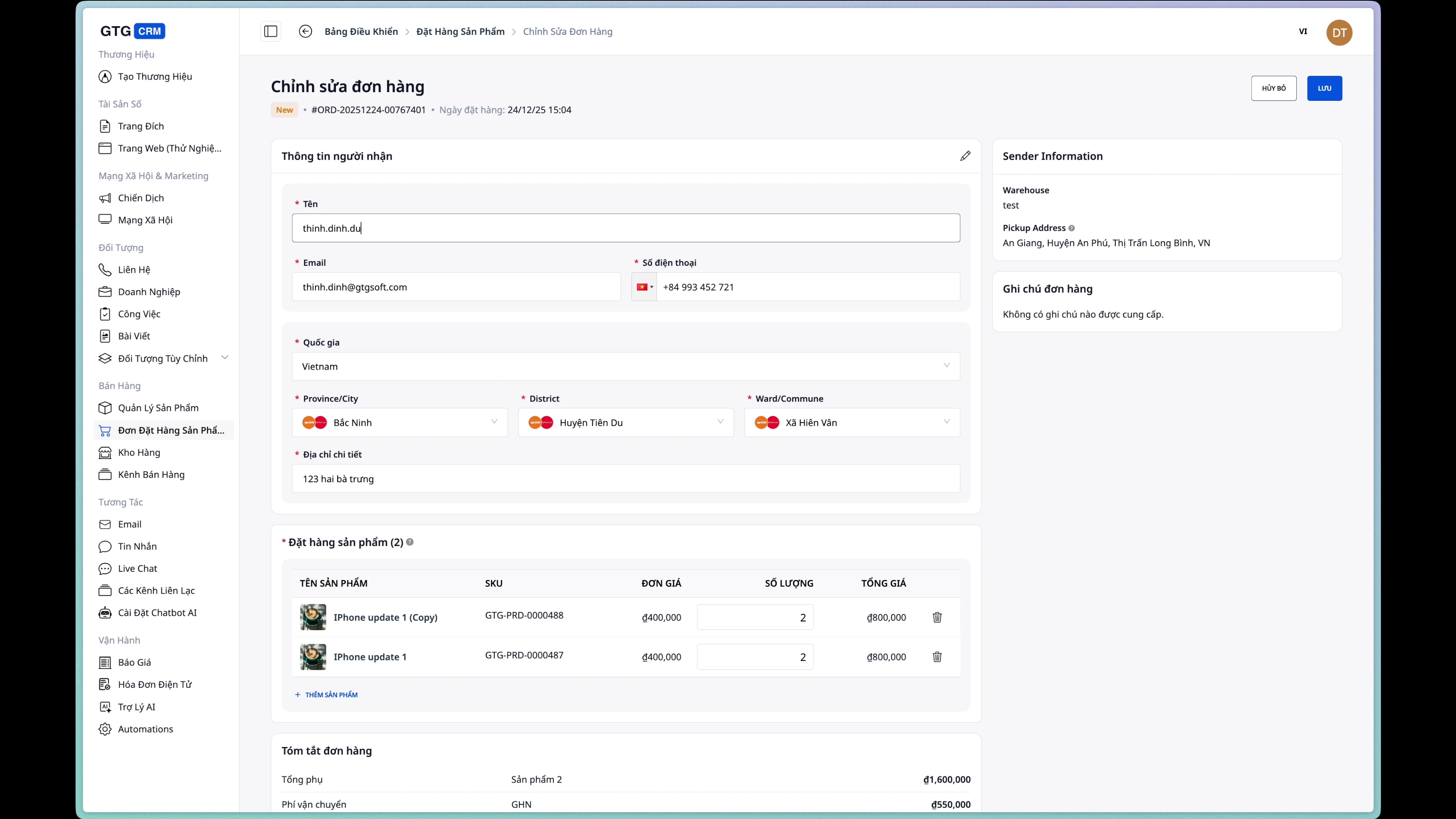
Step 2: Edit buyer information
It can be changed:
- Recipient's name
- Phone number
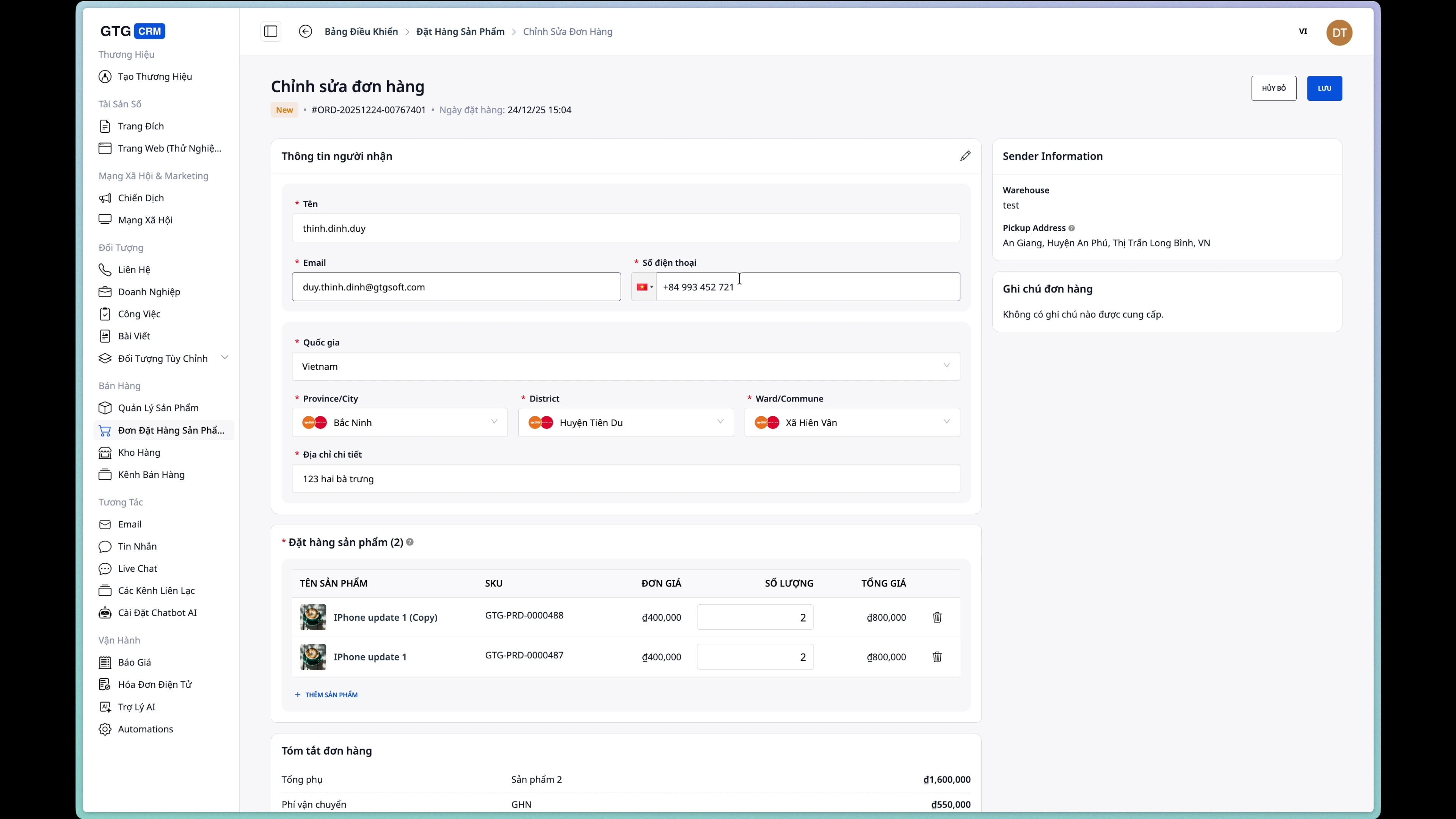
Step 3: Change the delivery address
Update the delivery address if necessary.
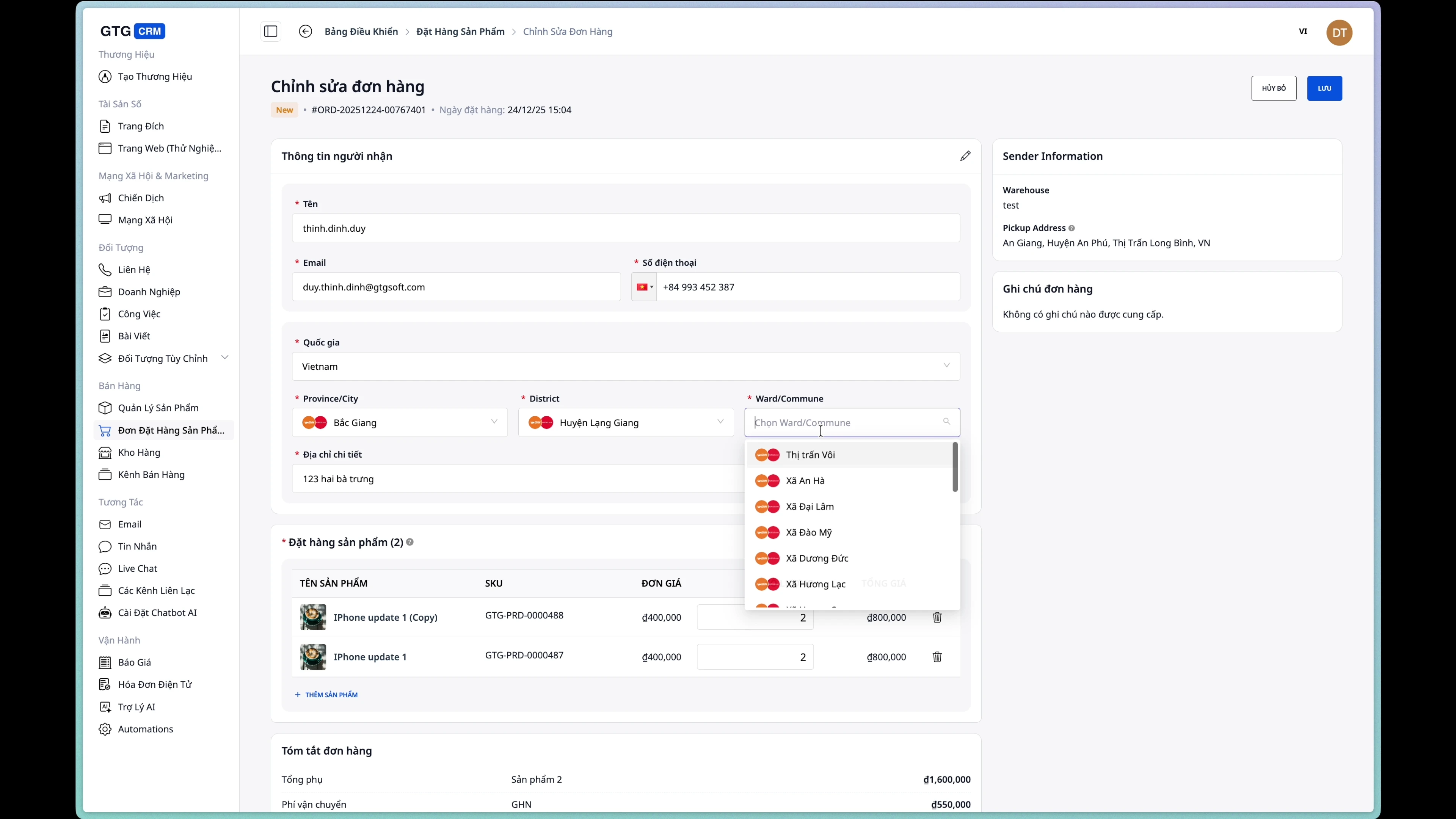
Step 4: Add/remove products
Add new products:
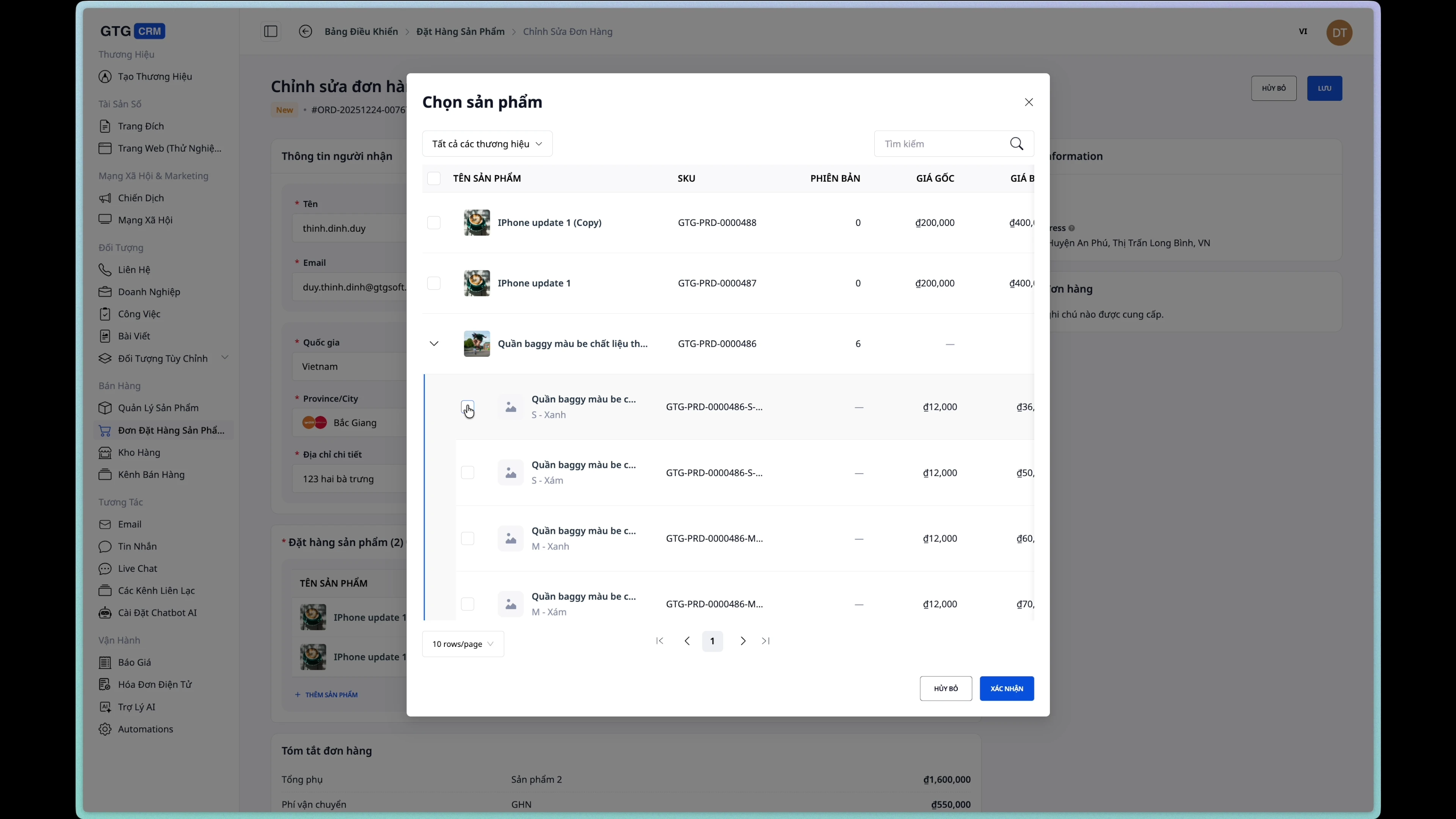
Edit the quantity:
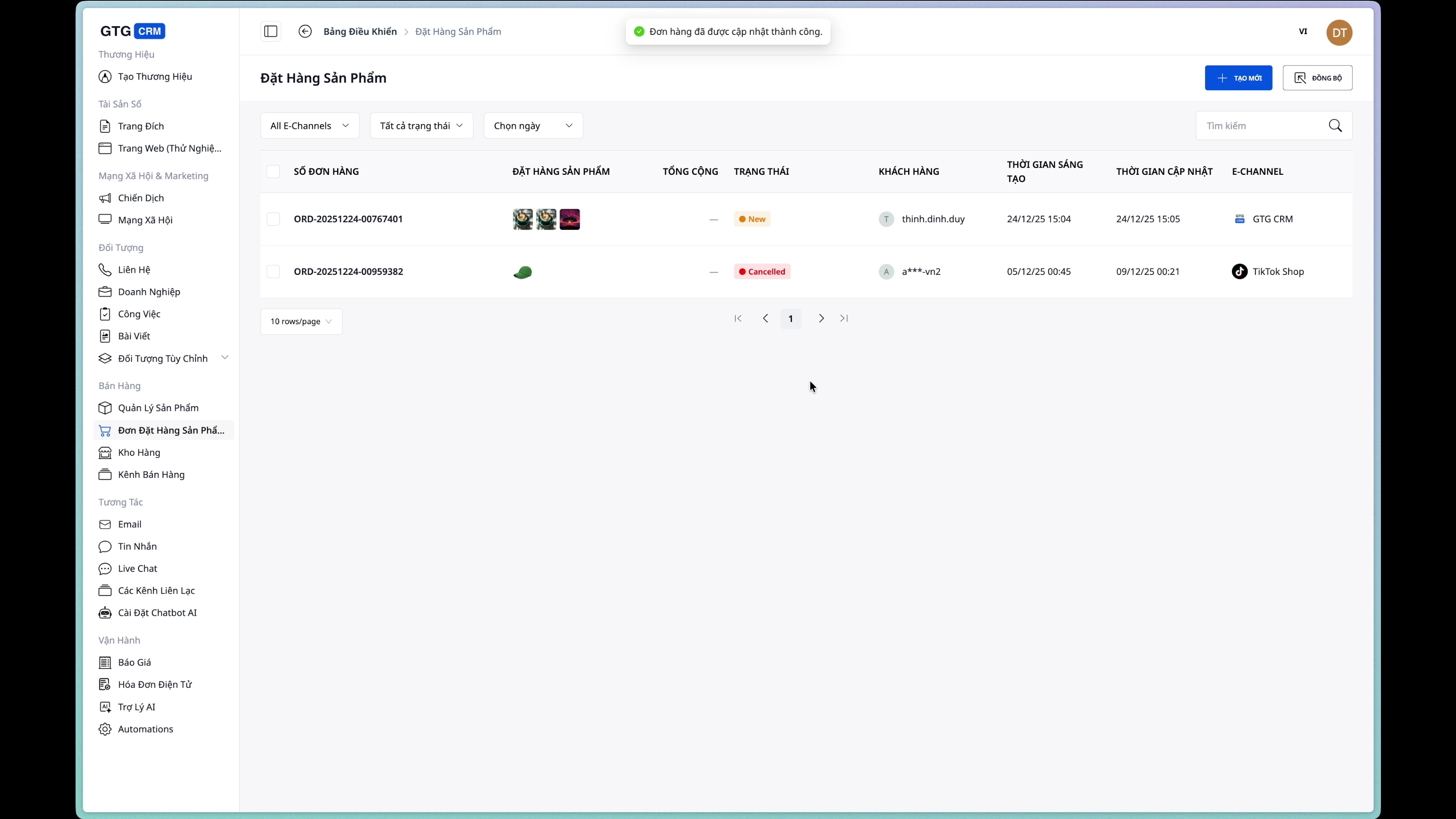
Step 5: Save changes
Click the "Save" button to update your order.
3. Order Status Management
View order details
The order details page displays complete information:
- Recipient information
- Delivery address
- Product list
- Order status
- Shipping information (if available)
- Invoice information (if available)
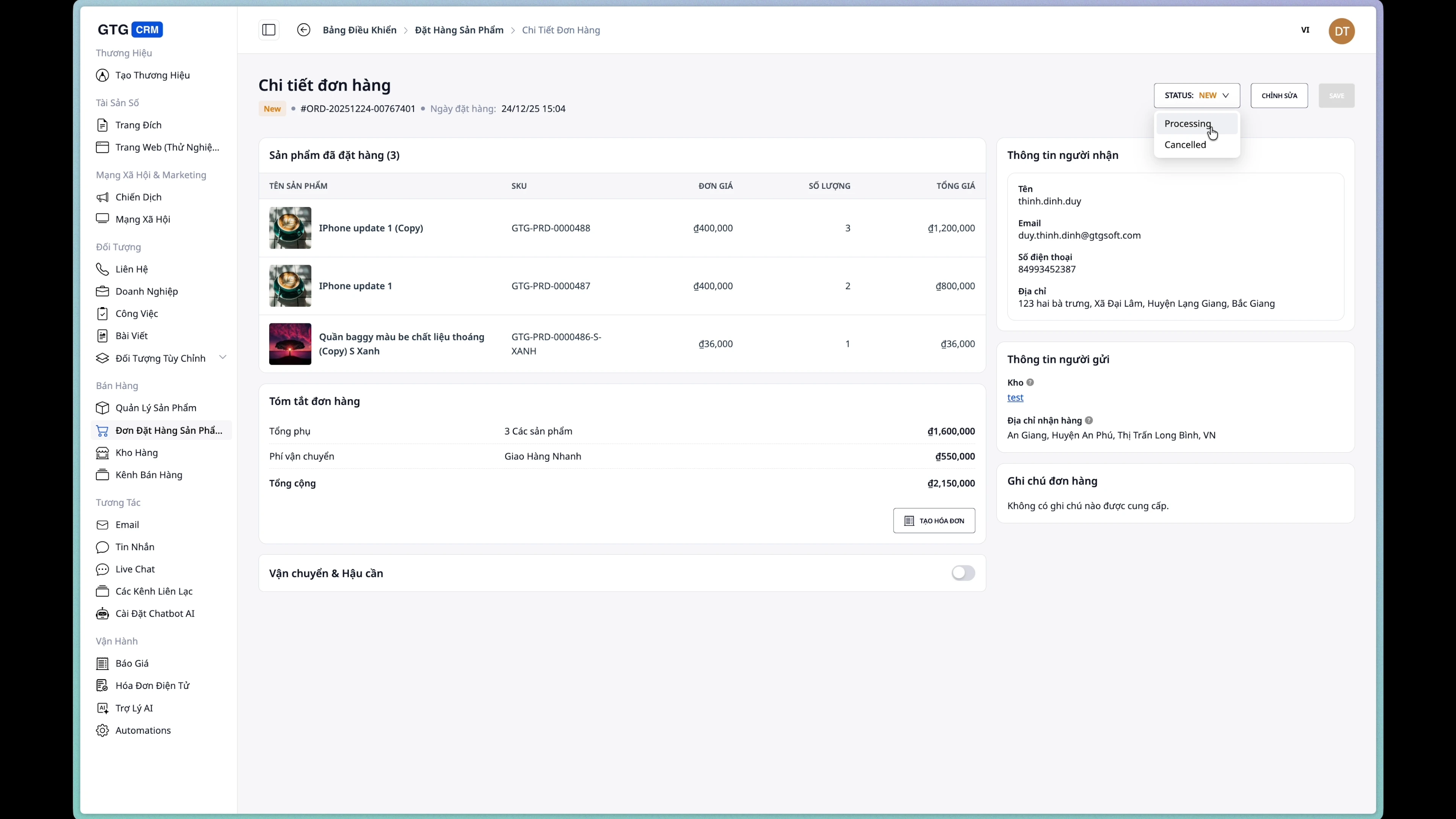
Change order status
Click the status dropdown to change it:
- New → New Order
- Processing → Currently processing
- Completed → Completed
- Cancelled → Cancelled
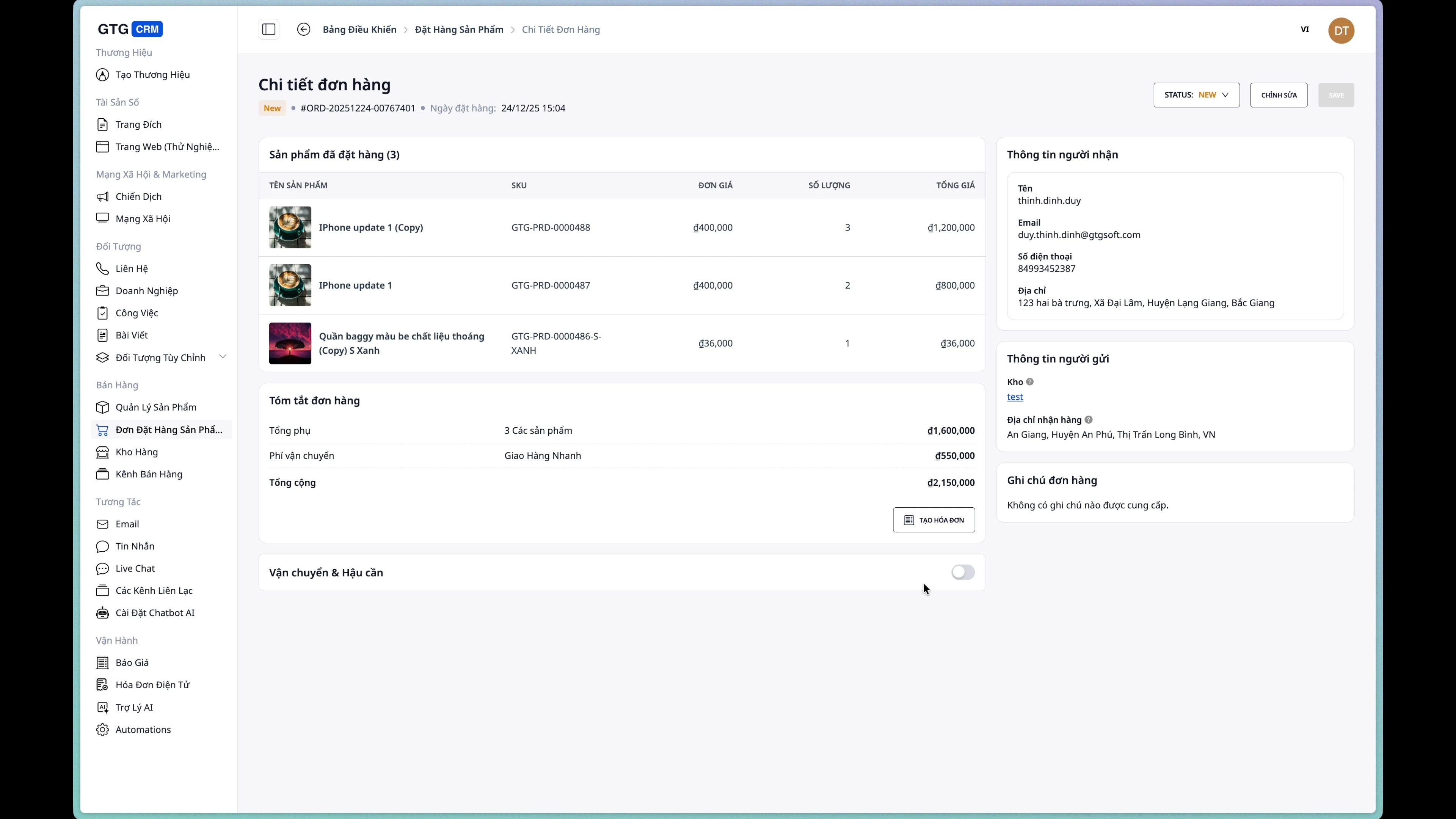
4. Create a shipping order.
Condition: The order does not yet have a shipping order.
Step 1: Open the shipping order creation form.
From the order details page, click the "Create shipping order" button.
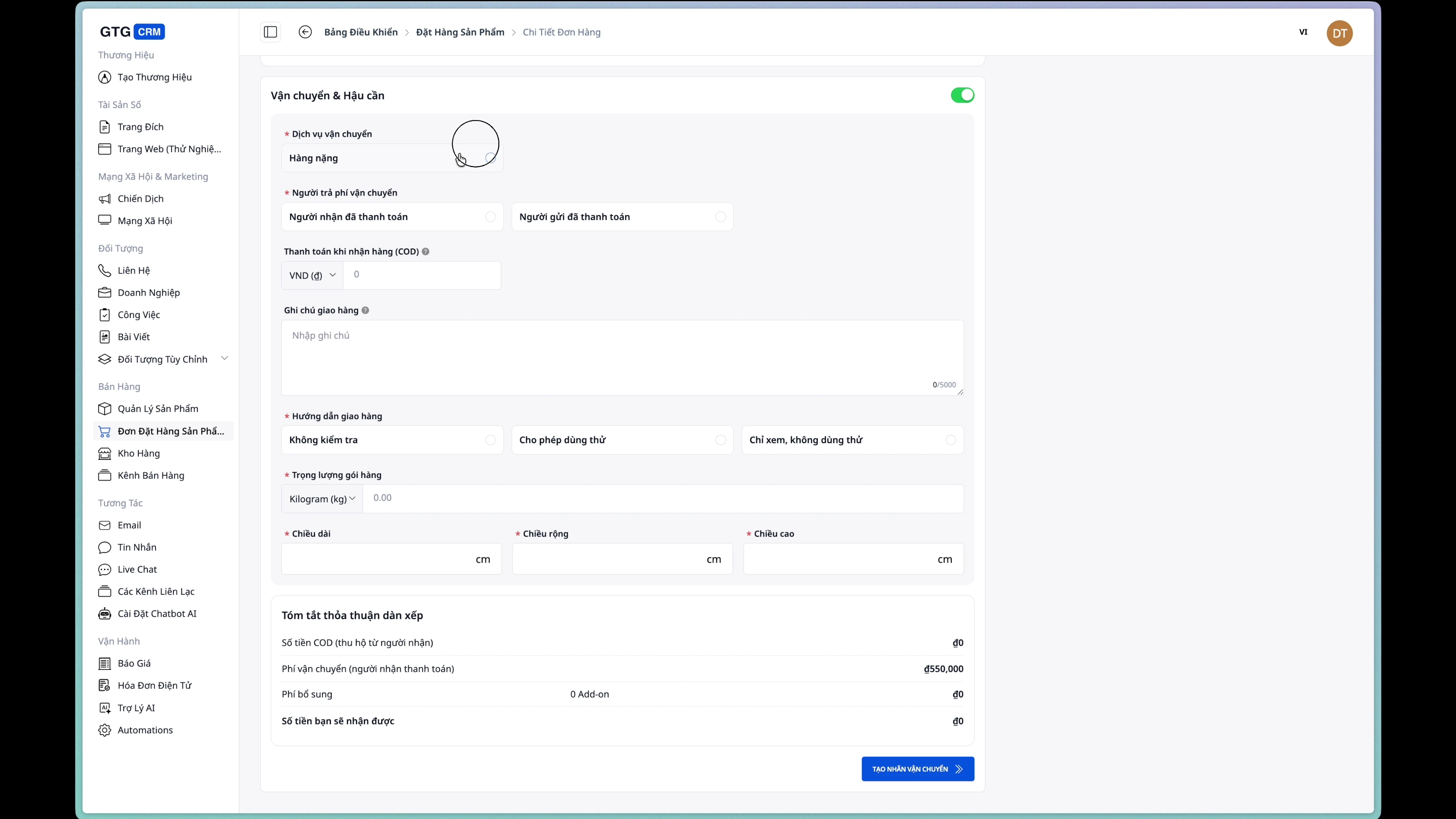
Step 2: Choose a shipping service
Choose a service from the list provided by the shipping company.
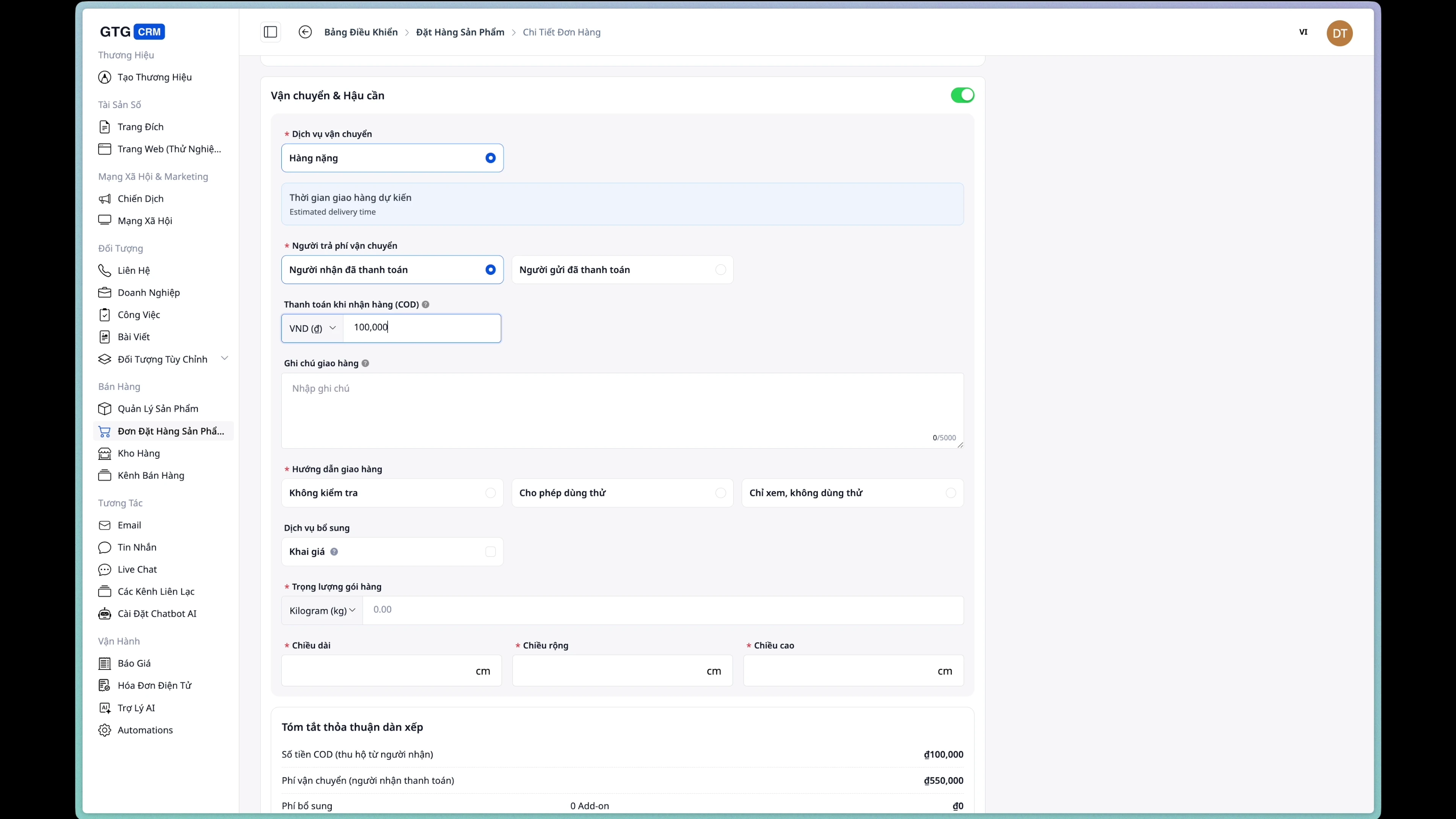
Step 3: Enter the cash-on-delivery (COD) amount.
If the order is cash on delivery, enter the amount to be collected.
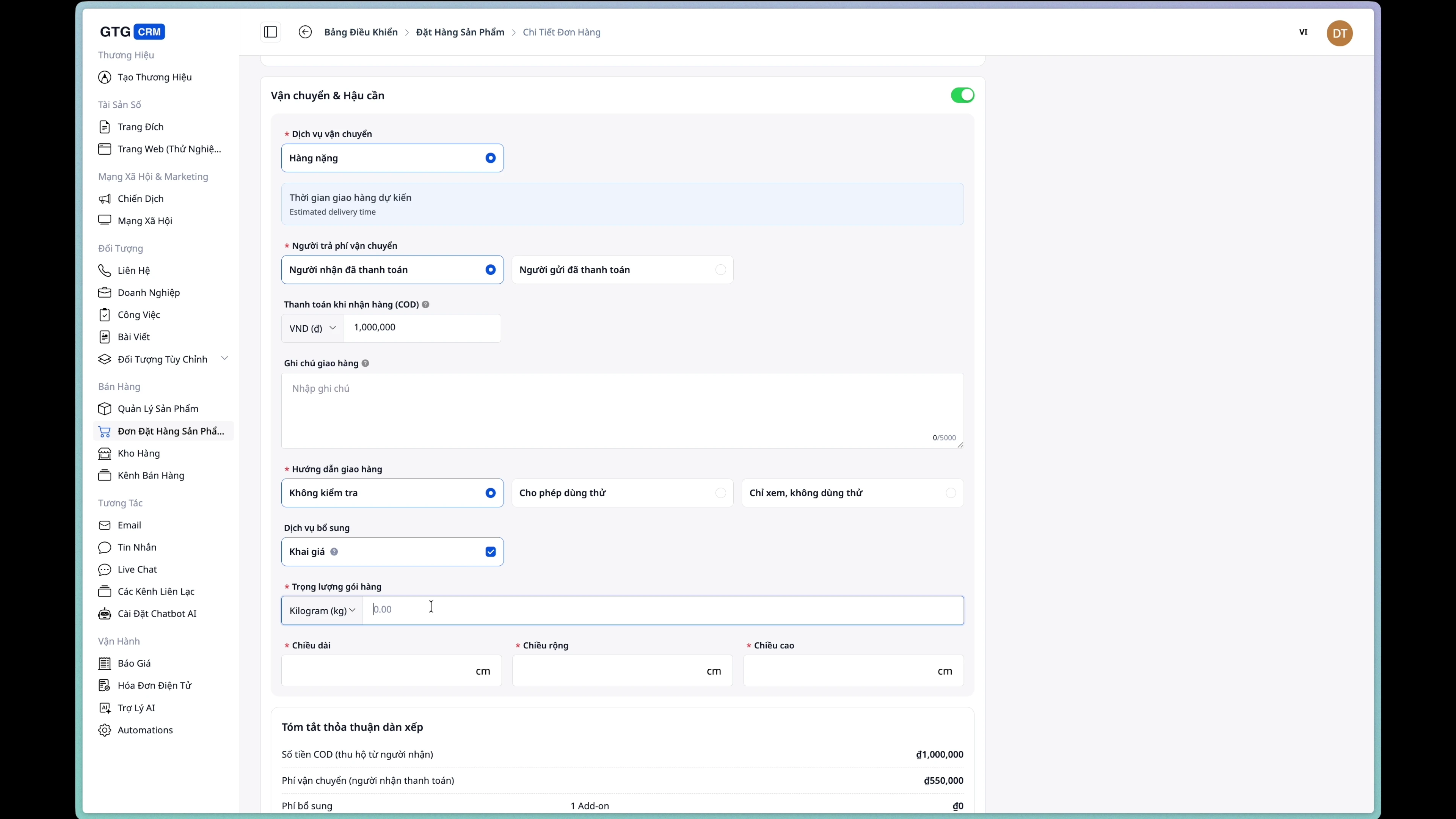
Step 4: Enter package information
Fill in the following information:
- Weight : Package weight (grams/kg)
- Dimensions : Length x Width x Height (cm)
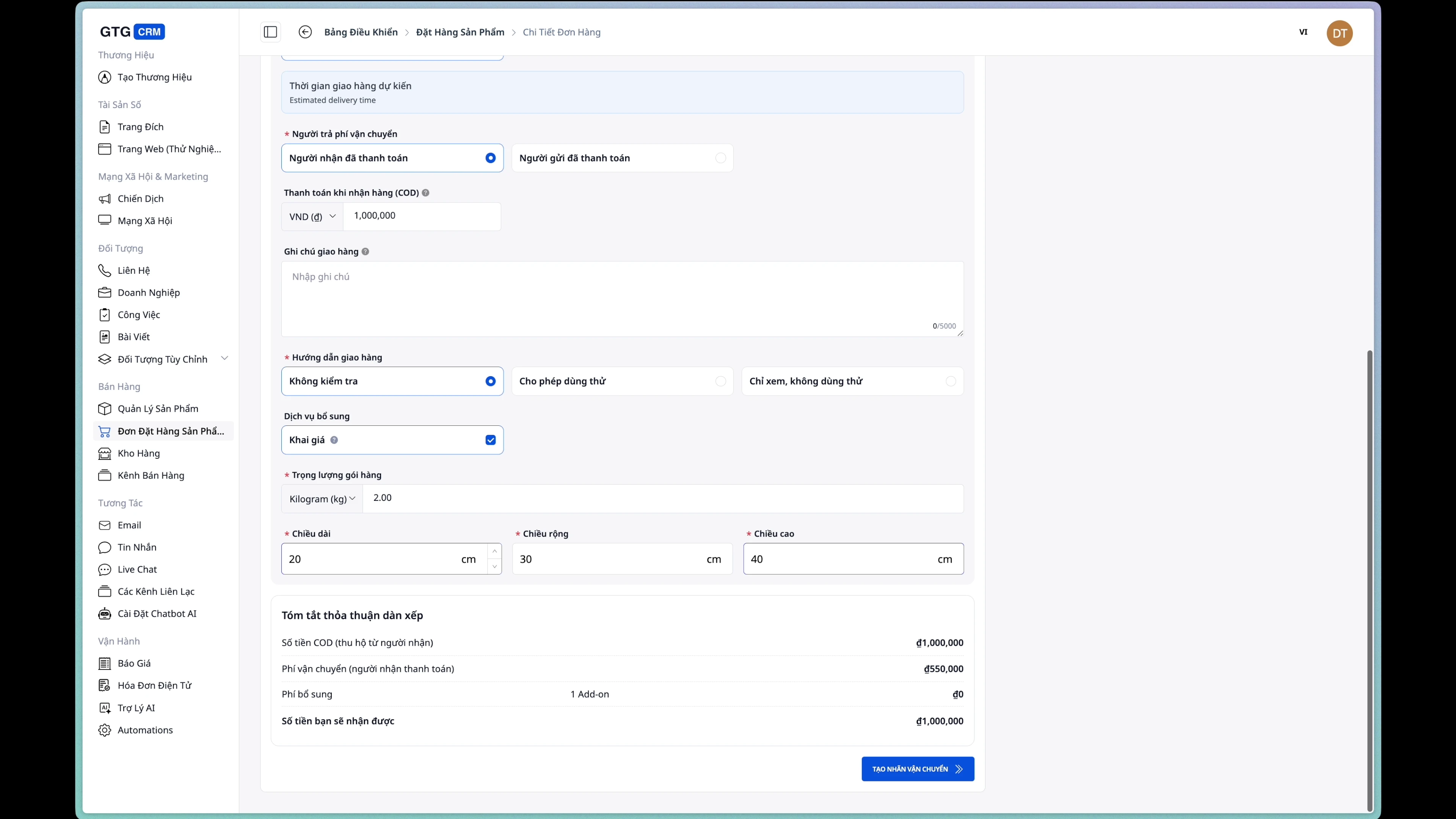
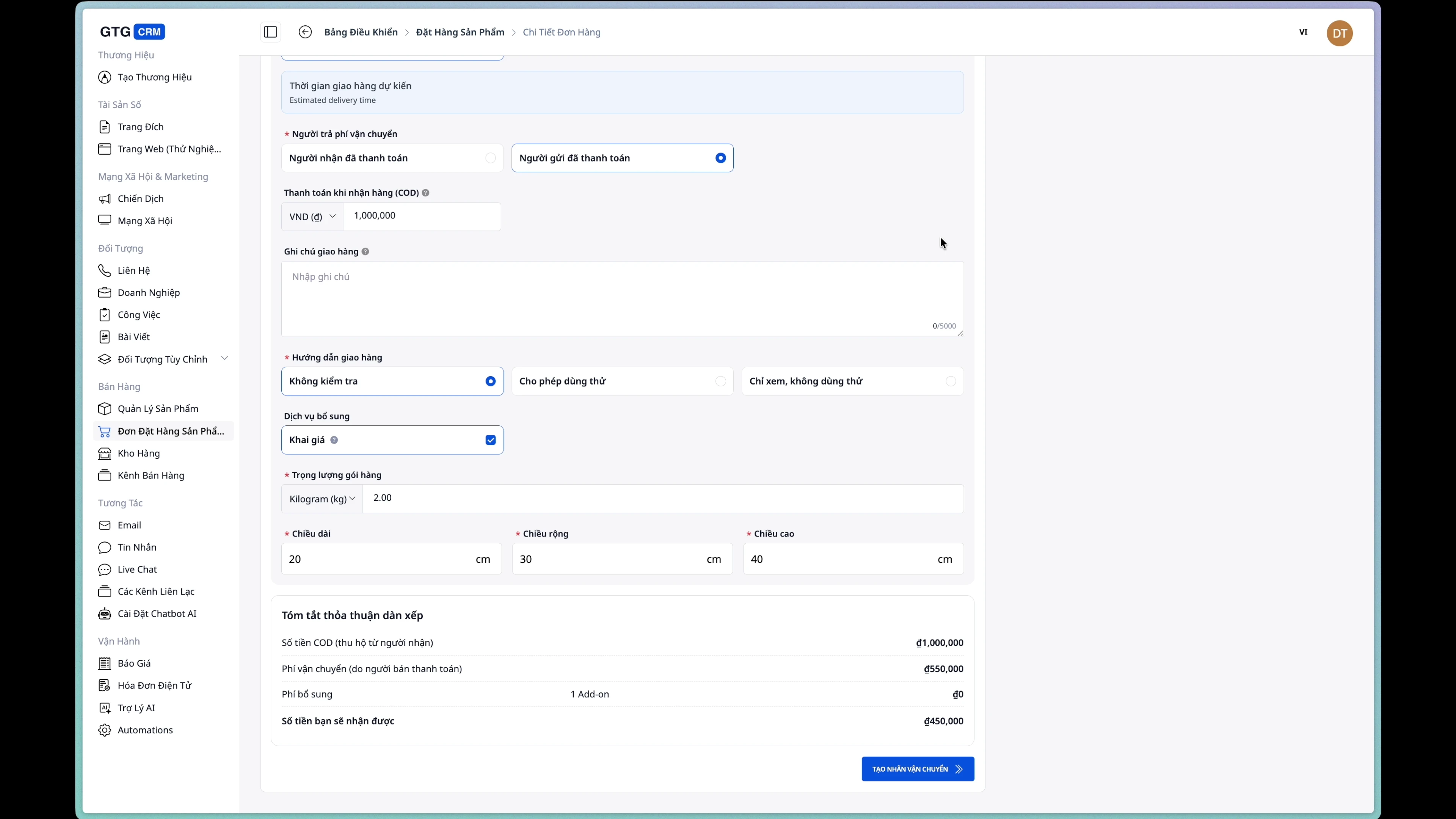
Step 5: Choose who will bear the shipping costs.
- Buyer : The customer pays the shipping fee.
- Seller : Shop/business pays for shipping.
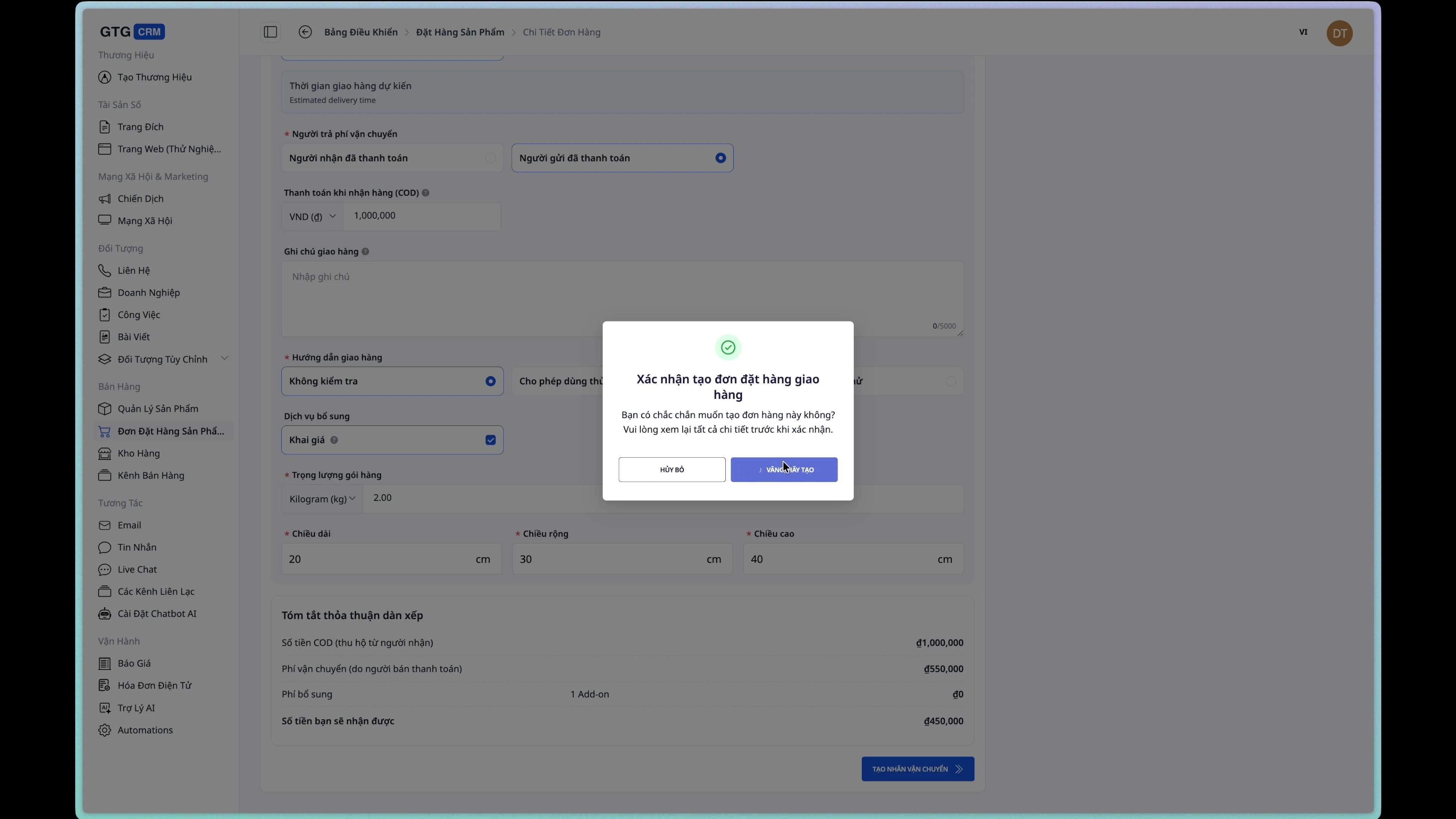
Step 6: Confirm the creation of the shipping order.
Click the "Create shipping order" button and confirm.
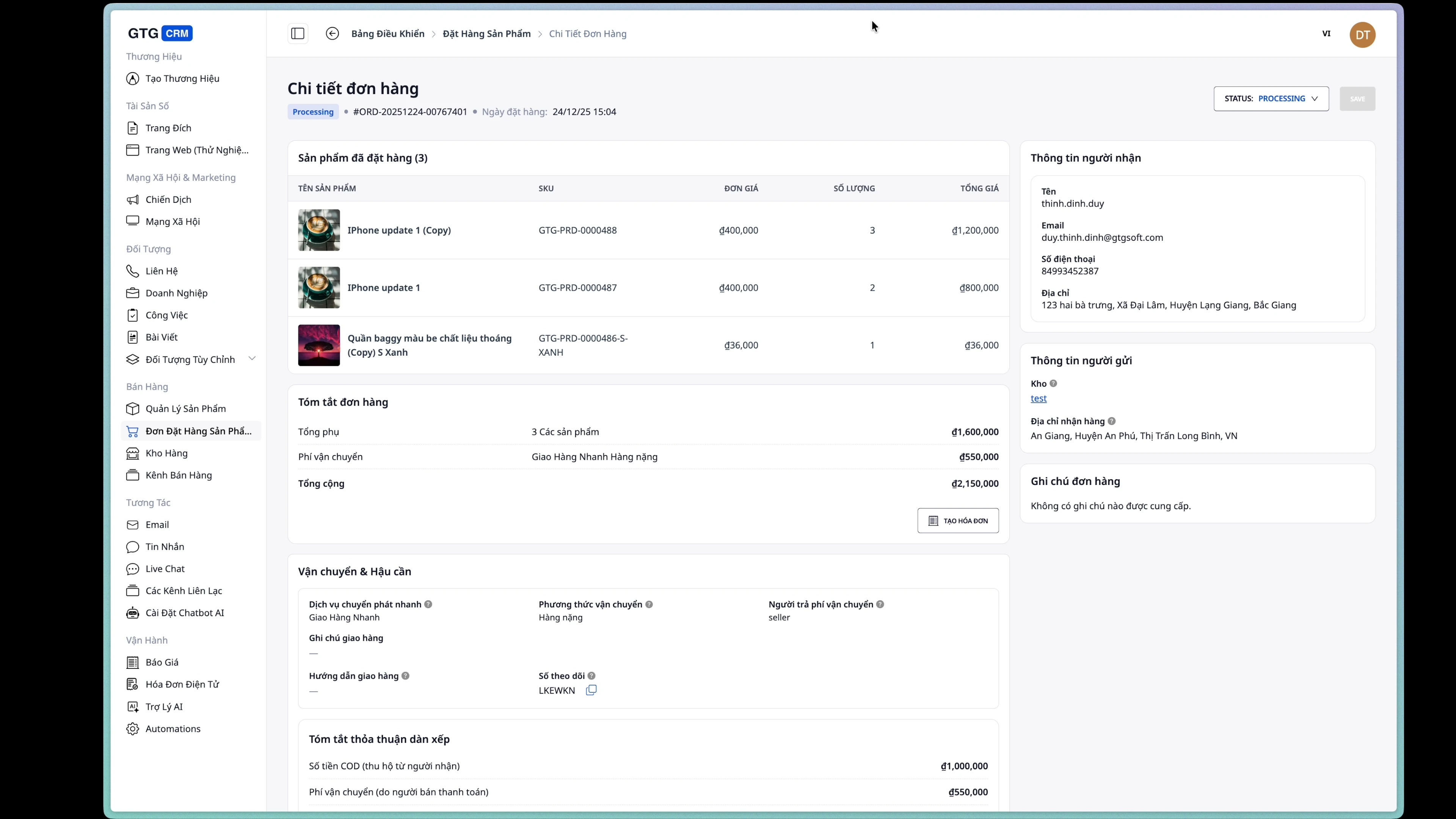
After successful creation, the order status will change to Processing .
5. Issuing electronic invoices
Step 1: Open the invoice creation form.
From the order details page, click the "Create invoice" button.
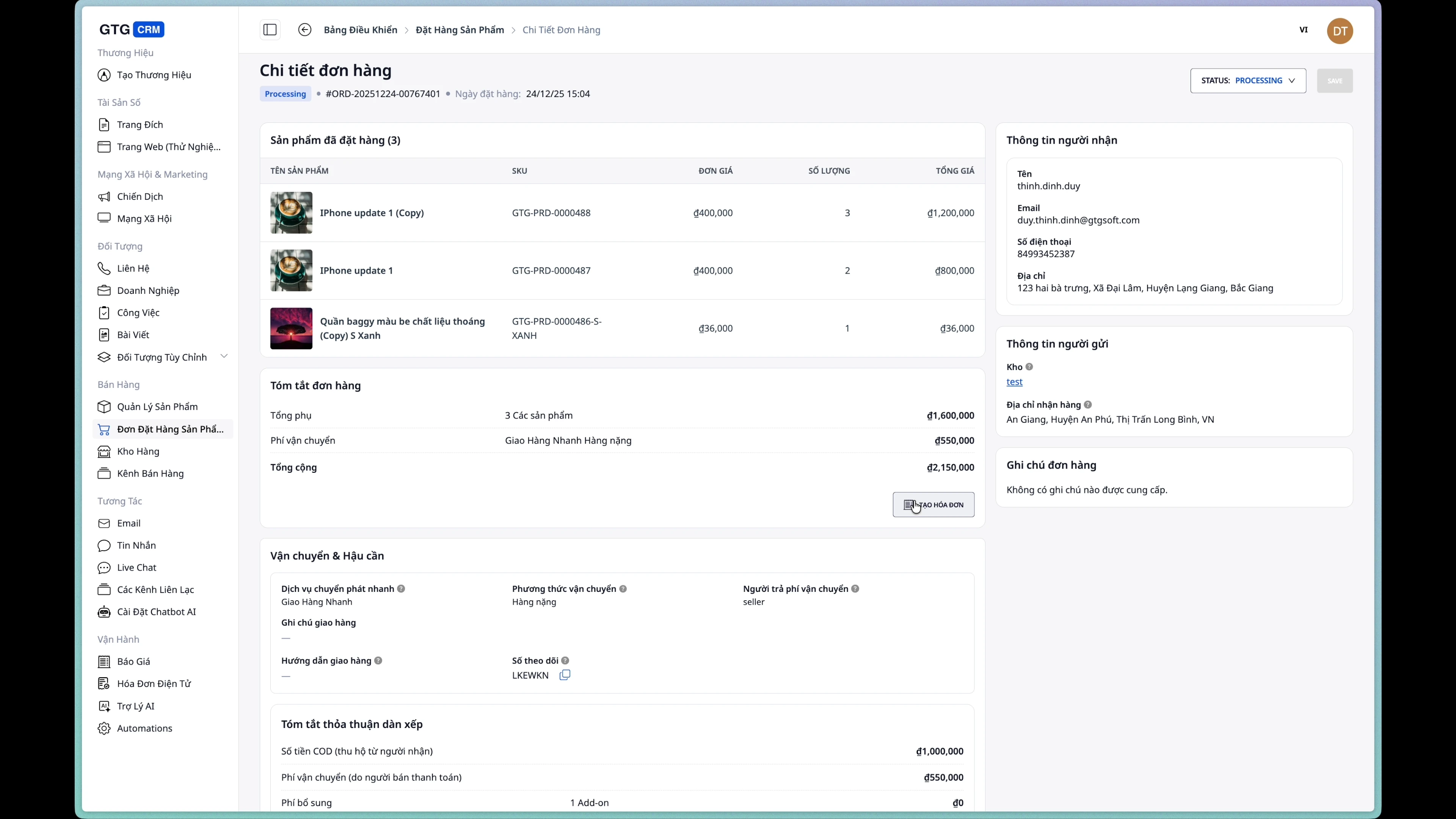
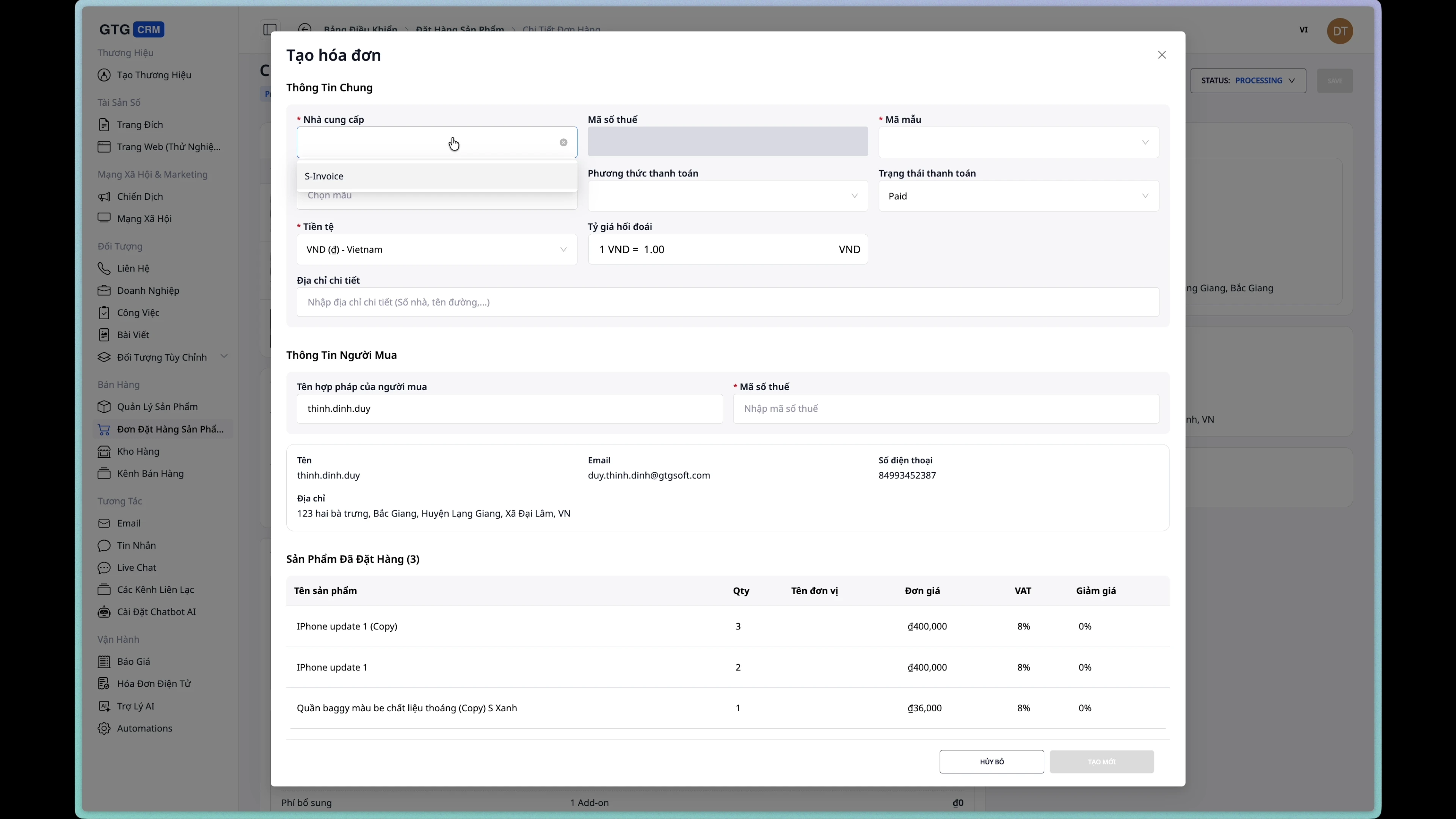
Step 2: Choose an invoice provider
Choose an integrated electronic invoicing service provider.
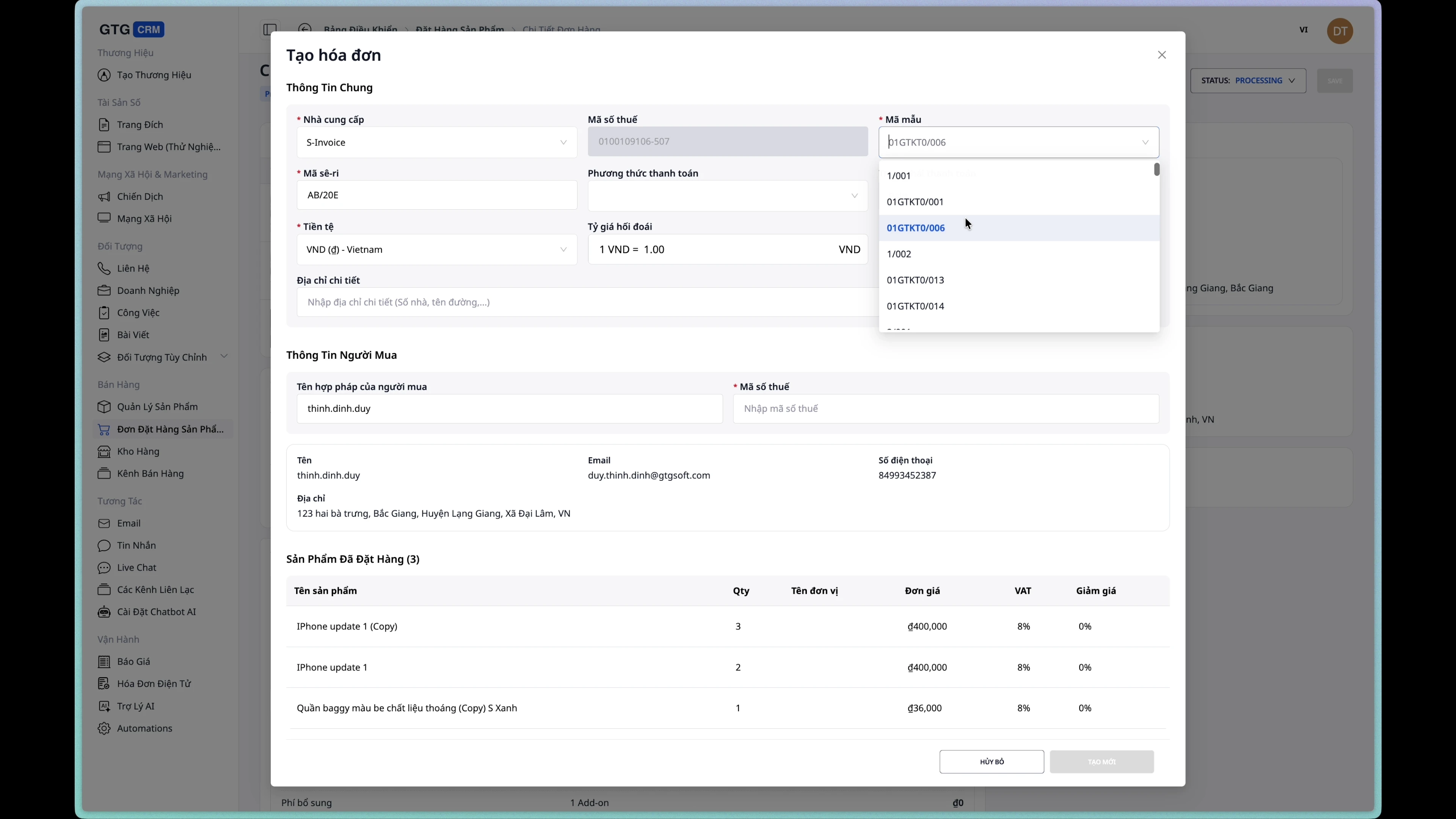
Step 3: Choose an invoice template
Choose a suitable invoice template from the list.
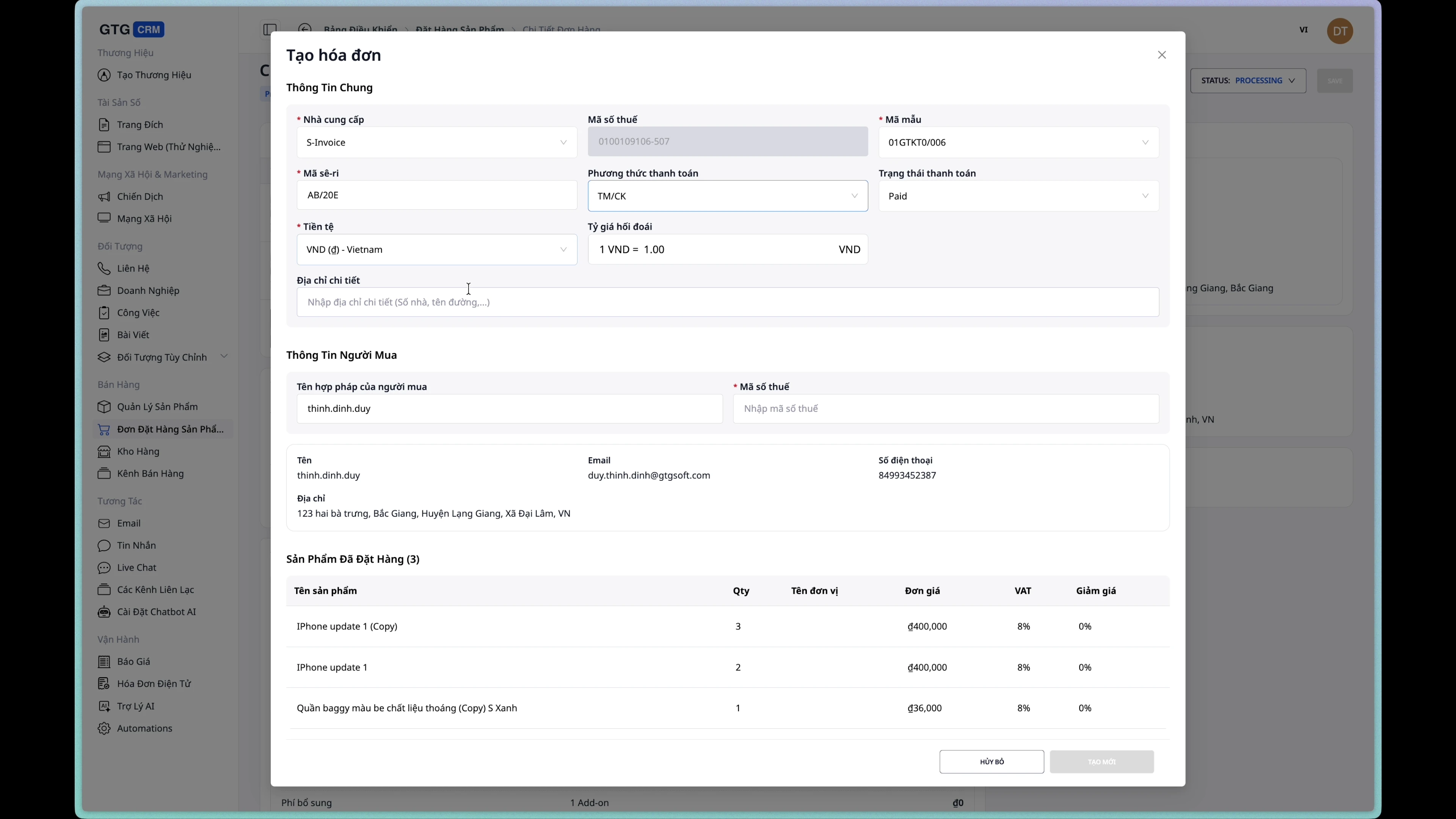
Step 4: Choose a payment method
Choose a payment method for your bill:
- Cash
- Transfer
- Credit card
- COD
Step 5: Verify the information
Customer information will be automatically retrieved from the order. Please review and add any necessary details.
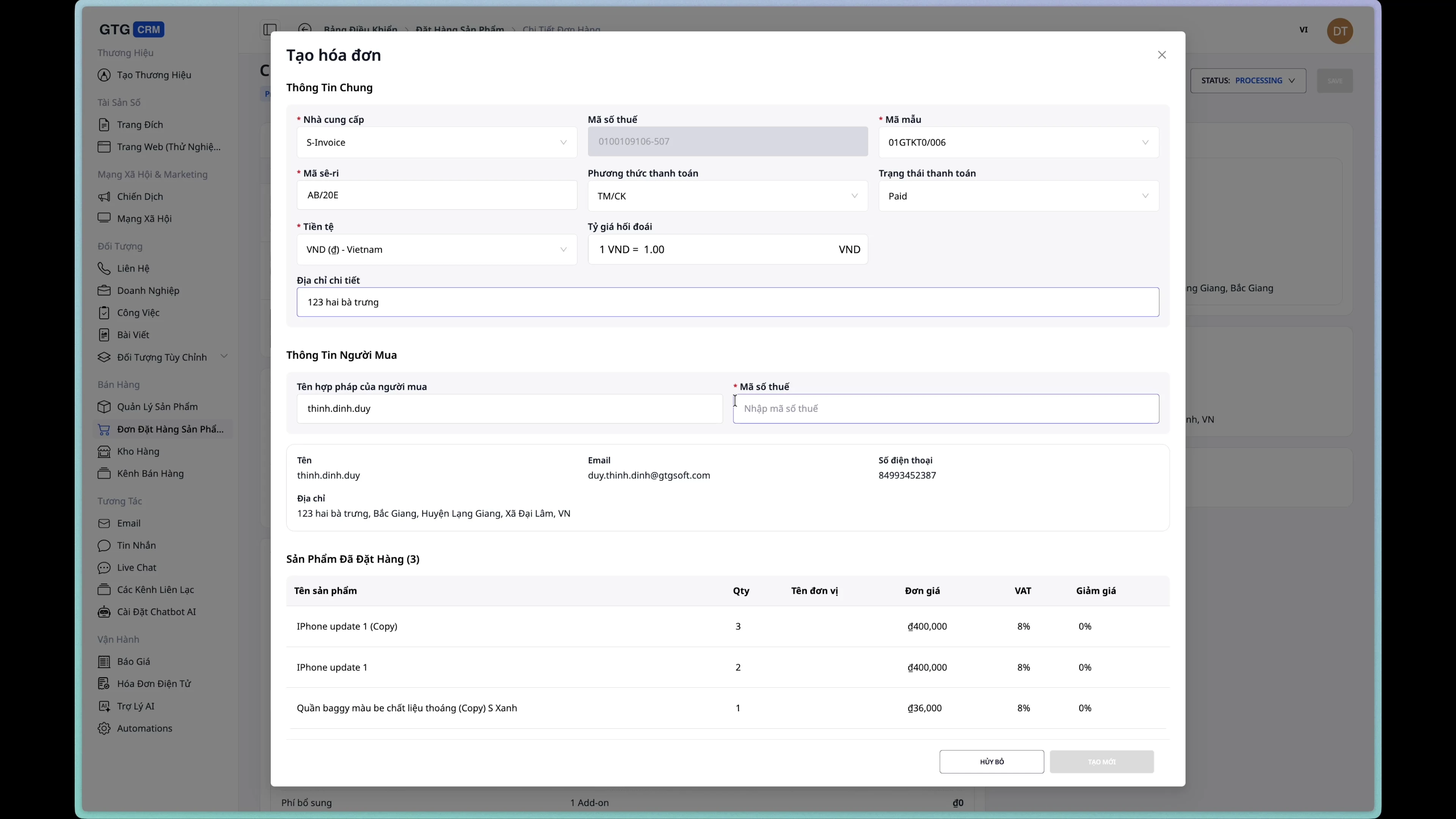
Step 6: Create the invoice
Click the "Create Invoice" button to complete the process.
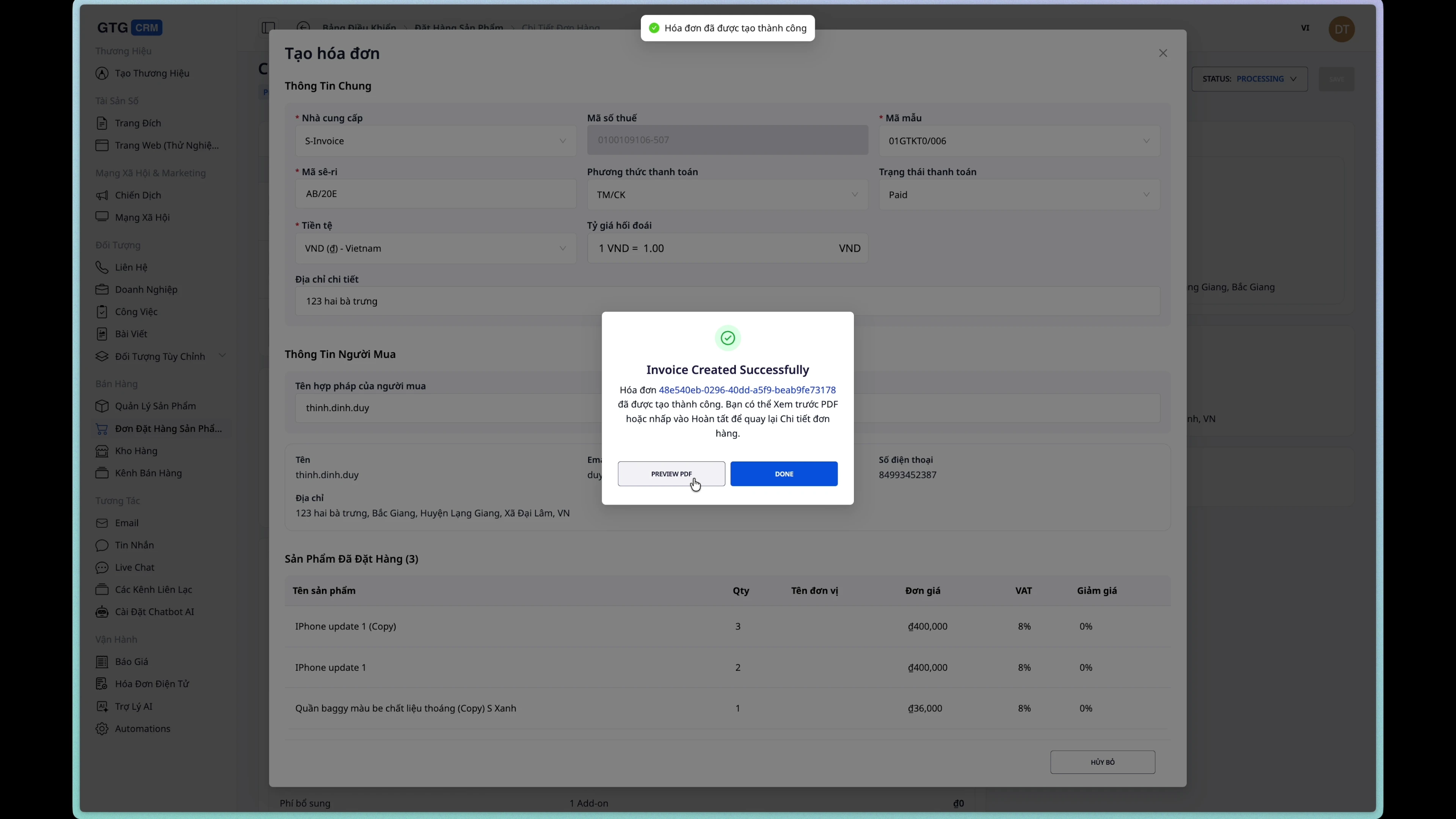
Step 7: View the draft invoice
After successful creation, you can view a draft of the invoice.
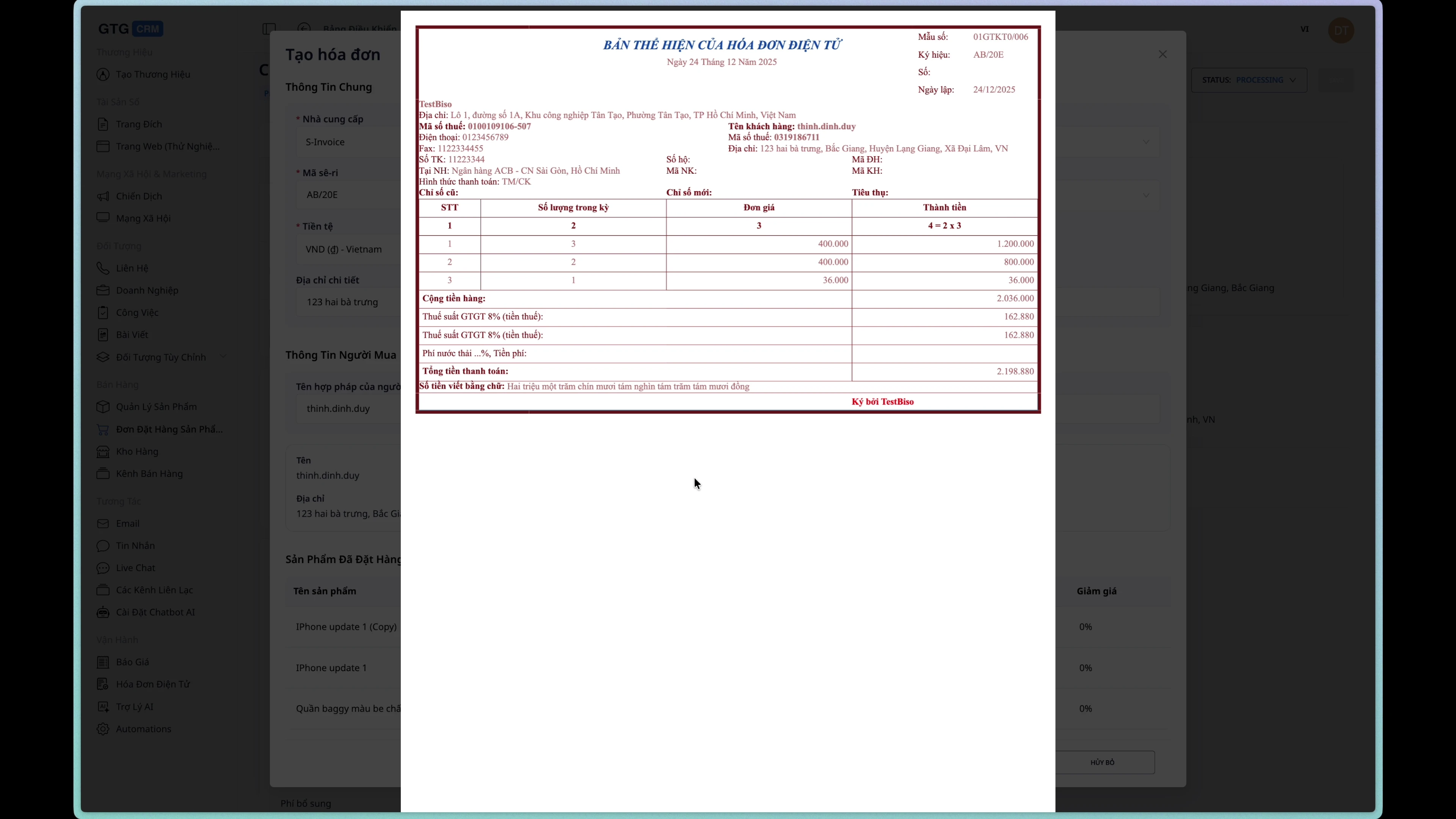
Step 8: View the invoice information on the order.
The invoice information will be displayed on the order details page.
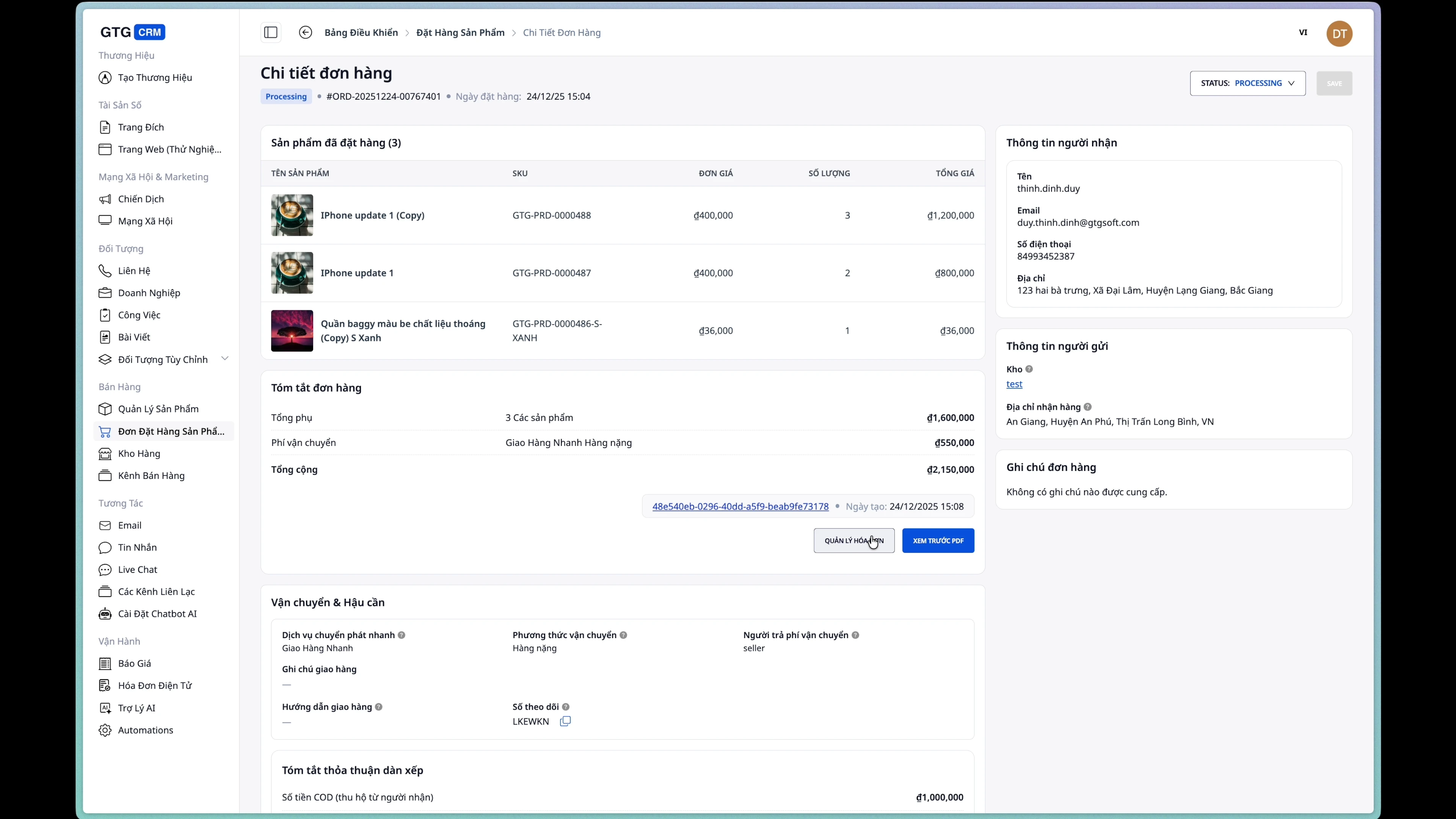
Frequently Asked Questions
Q: Why can't I edit my order?
A: Orders can only be edited when they are in the "New" state. After creating a shipping order, it moves to the "Processing" state and cannot be edited.
Q: How do I cancel an order?
A: Go to the order details page and change the status to Cancelled .
Q: Is it possible to create an invoice before creating a shipping order?
A: Yes, you can create an invoice at any time after the order is created.
Q: How are shipping fees calculated?
A: Shipping fees are calculated automatically based on the service, weight, dimensions, and delivery address.
Usage tips
1. Carefully check the information before creating the order.
Ensure your phone number and address are accurate to avoid delivery failures.
2. Update the exact weight/dimensions.
Incorrect information can lead to incorrect shipping charges.
3. Use COD appropriately.
Only enable cash on delivery (COD) when the customer chooses to pay upon receipt of goods.
4. Issue invoices promptly.
Invoices should be issued immediately after the order is confirmed to ensure proper accounting procedures.
Need support? Contact the GTG CRM team via email at support@gtgcrm.com