Prerequisites
To use the E-Invoice feature, you need:
✅ Have a GTG CRM account
✅ Log in to the system
✅ (Optional) E-invoice provider account (S-Invoice or MISA)
Accessing the E-Invoice Feature
Step 1: Log in to GTG CRM
Log in to the GTG CRM system with your account.
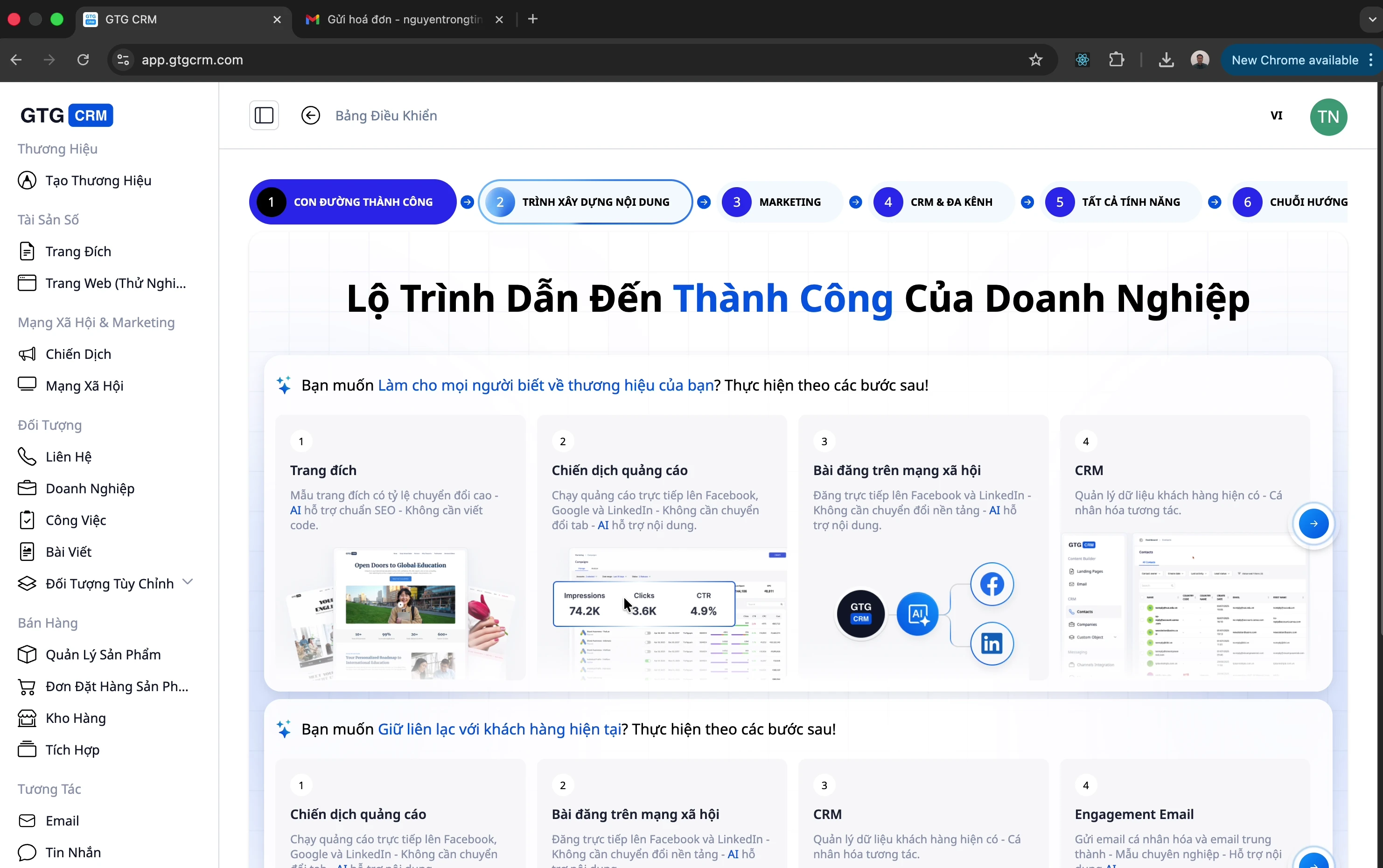
Step 2: Open the E-Invoice Menu
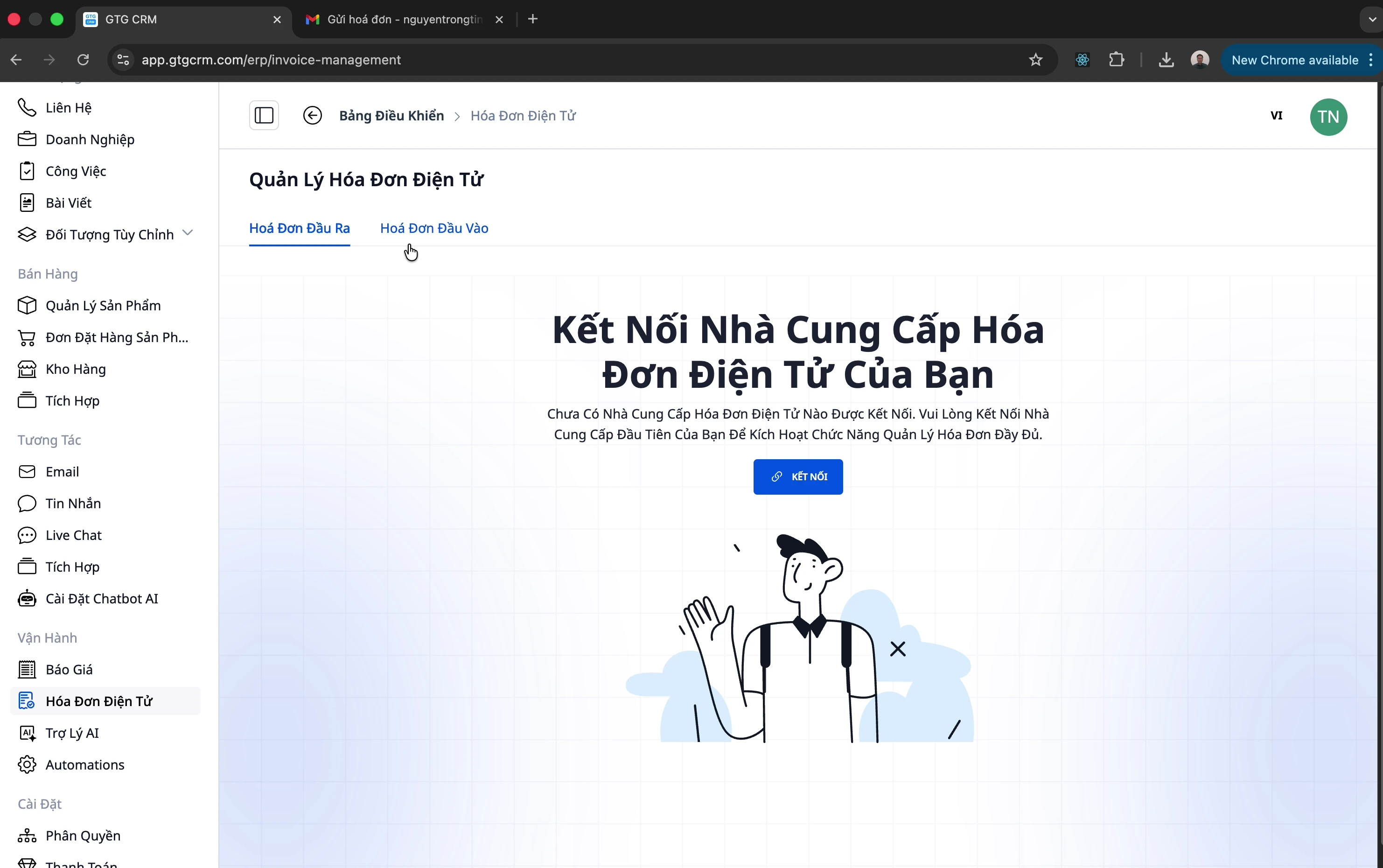
Look at the left-hand menu bar
Click on "E-invoices"
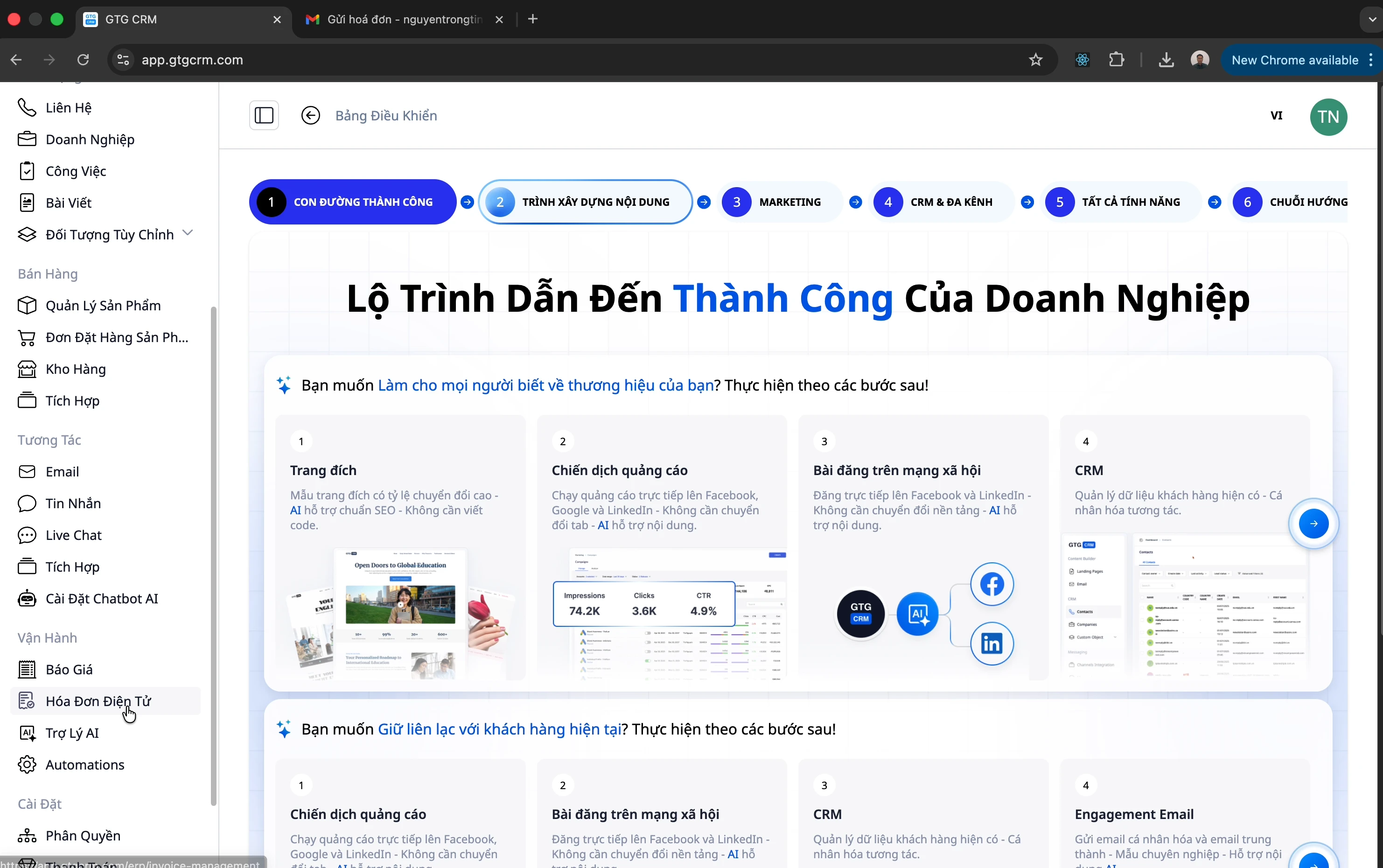
Step 3: Select Invoice Type
The e-invoice screen has 2 tabs:
Tab | Description |
|---|---|
Outgoing Invoices | Invoices you issue to customers |
Incoming Invoices | Invoices suppliers issue to you |
Managing Incoming Invoices
Method 1: Manual Invoice Upload
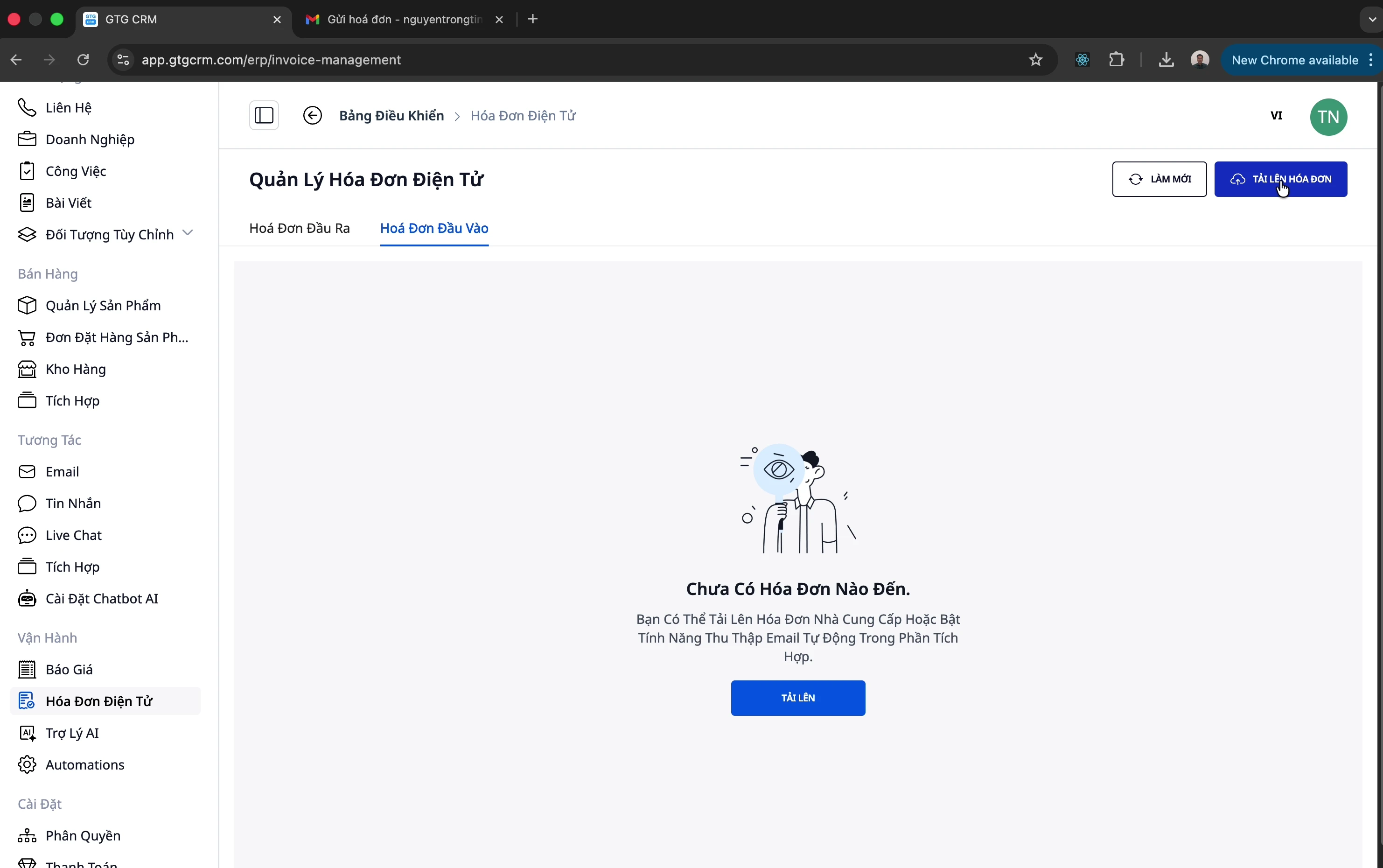
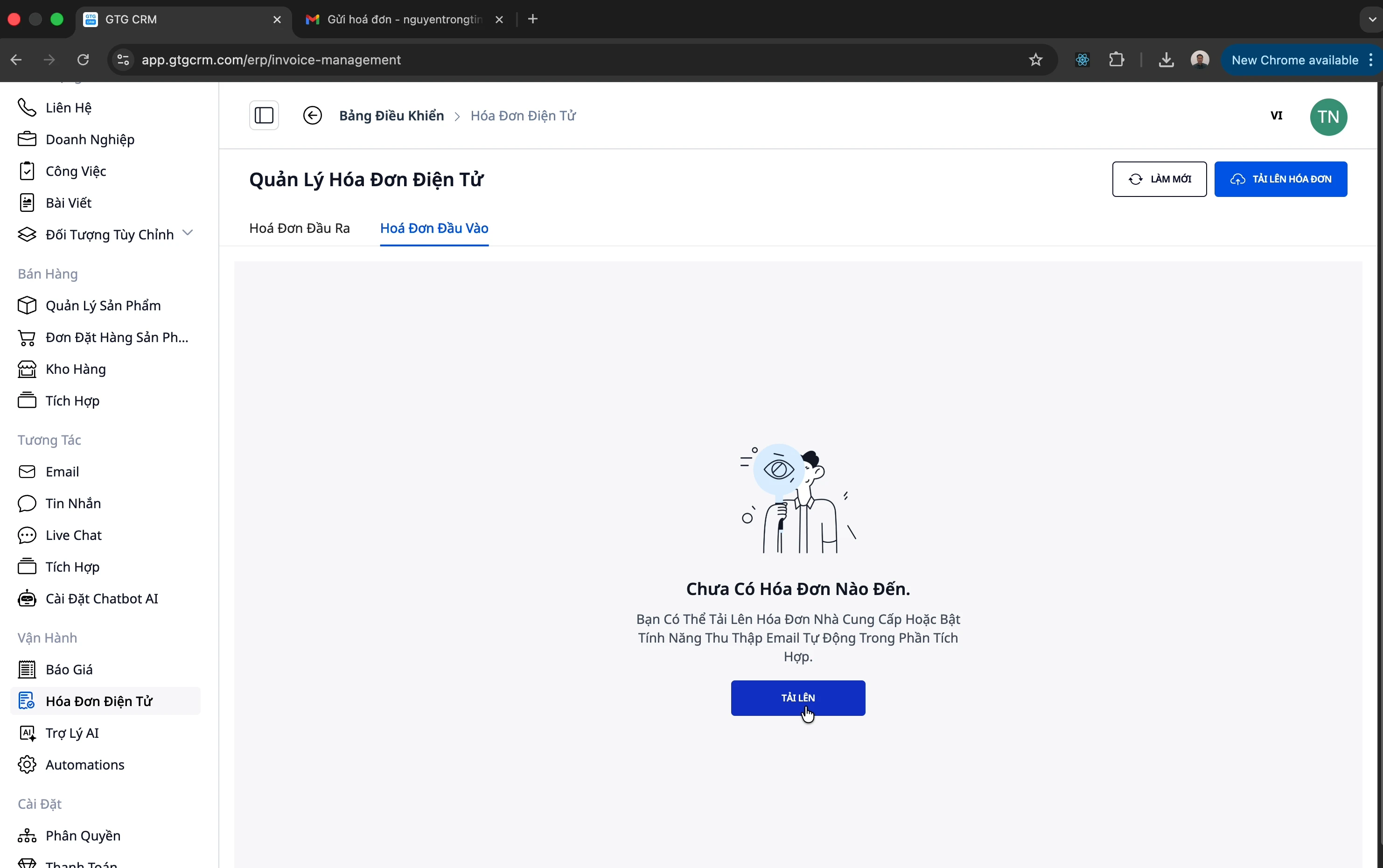
Step 1: Click the Upload Button
There are 2 ways to open the upload dialog:
Click the "Upload" button in the top right corner
Or click the "Upload Invoice" button
Step 2: Select Invoice File
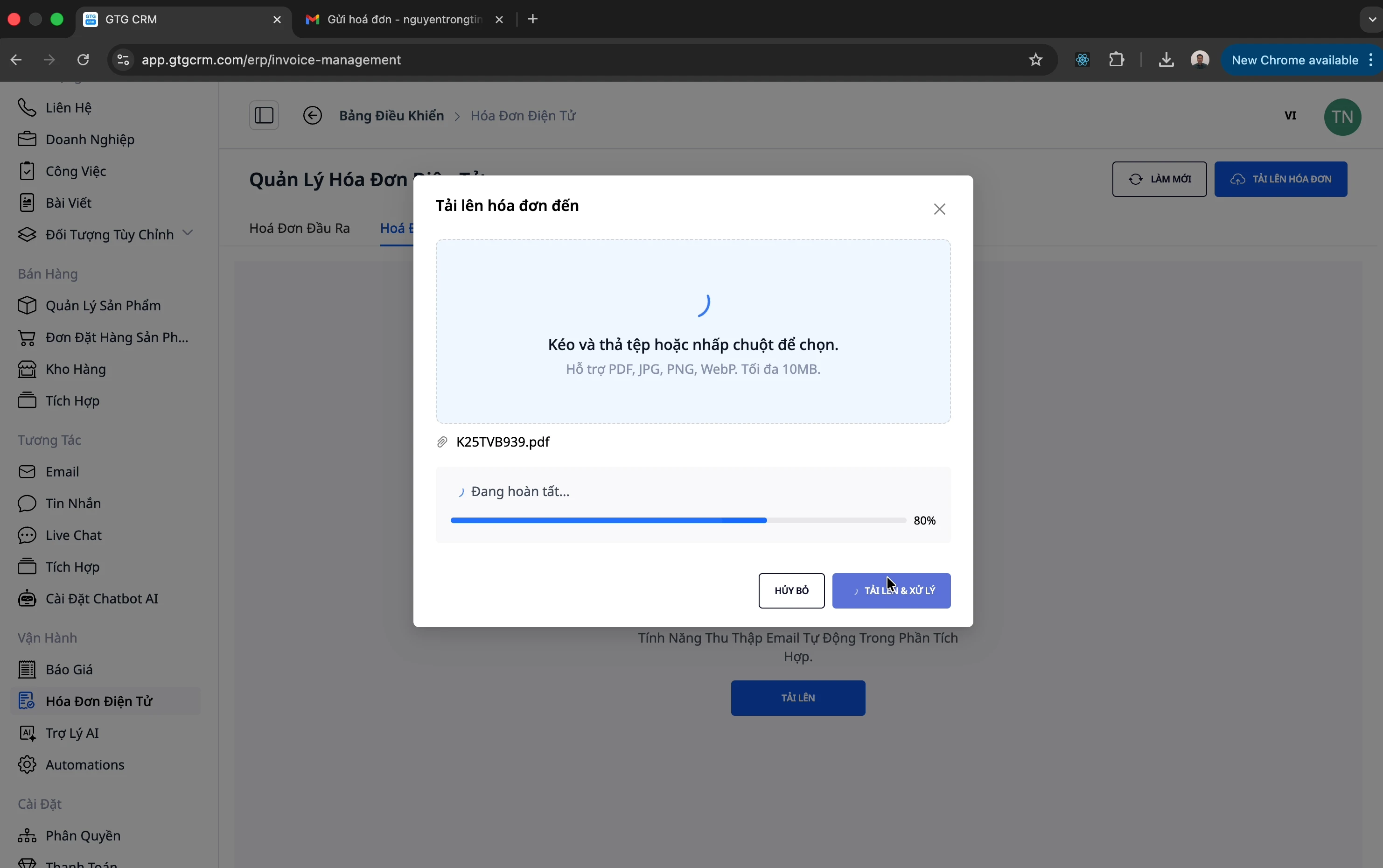
Drag and drop the invoice PDF file into the upload area
Or click to select a file from your computer
Step 3: Upload and Process
Click "Upload and Process"
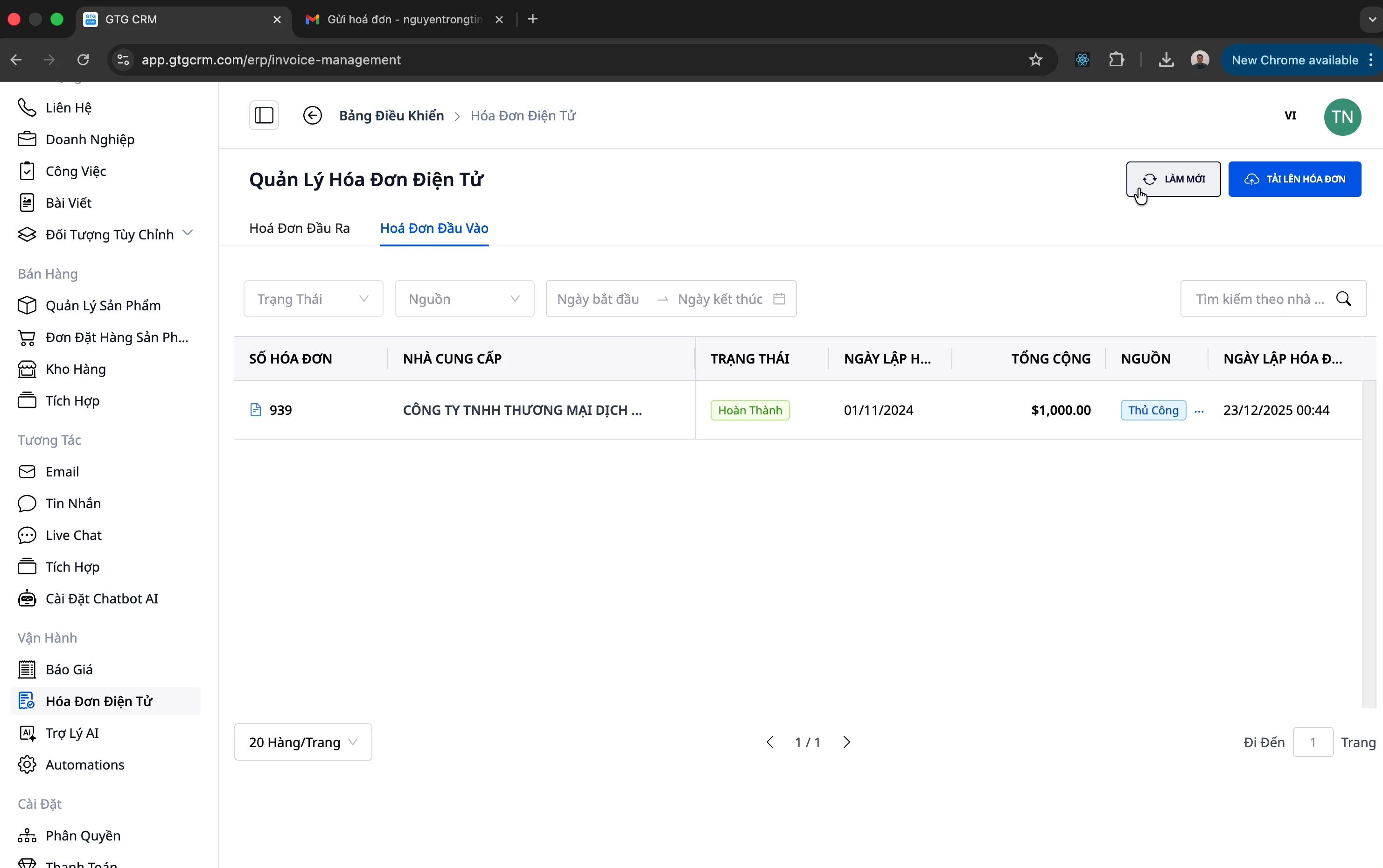
Wait for the system to process (status: "Processing")
Step 4: View Results
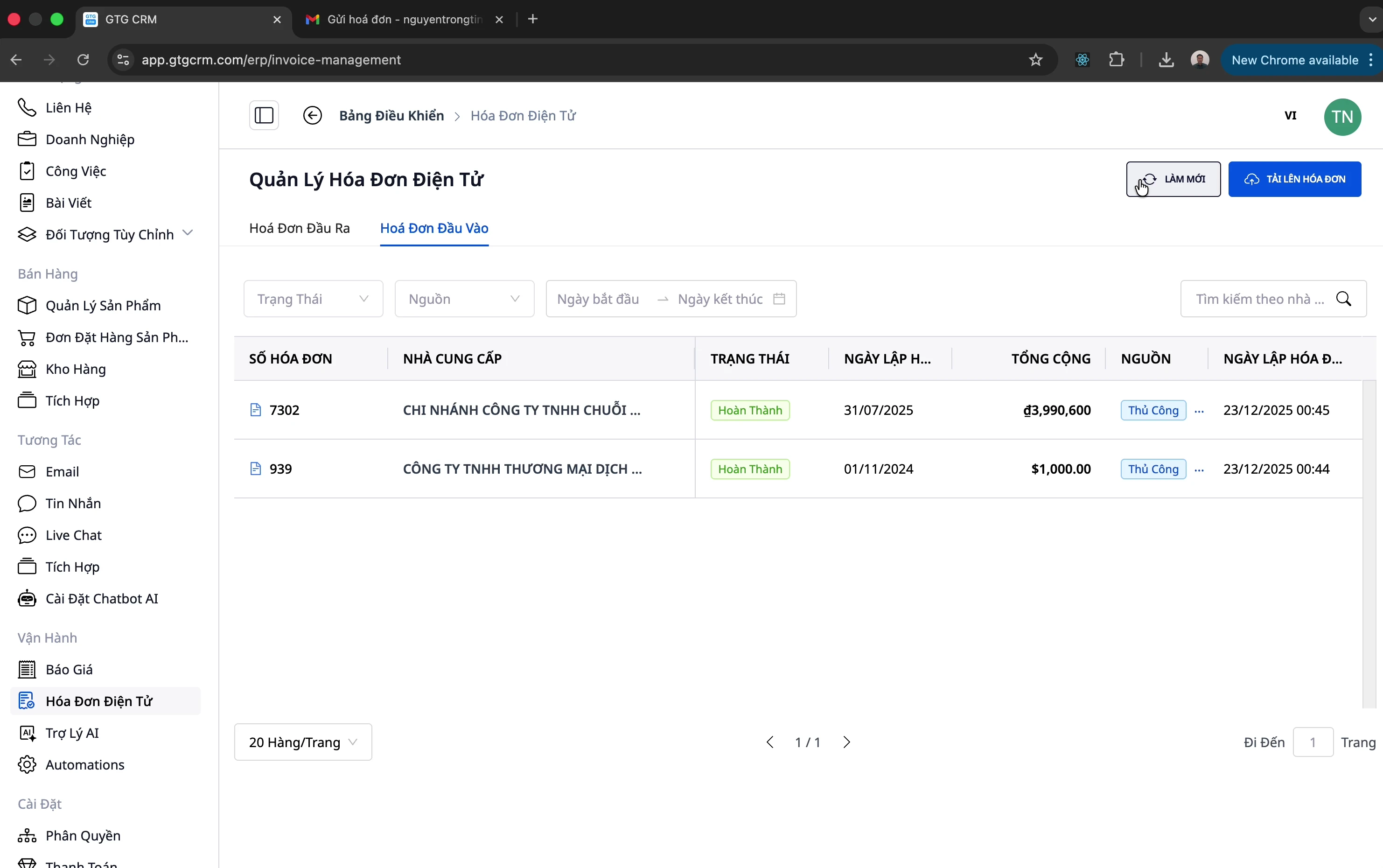
After about 10 seconds, click "Refresh"
The invoice has been imported with complete information
💡 Note: The system supports complex invoices with multiple products. For example, invoices with 32 products are also processed automatically!
Method 2: Automatic Email Collection
This is the most convenient method - the system automatically retrieves invoices from your email!
Setting Up Automatic Email Collection
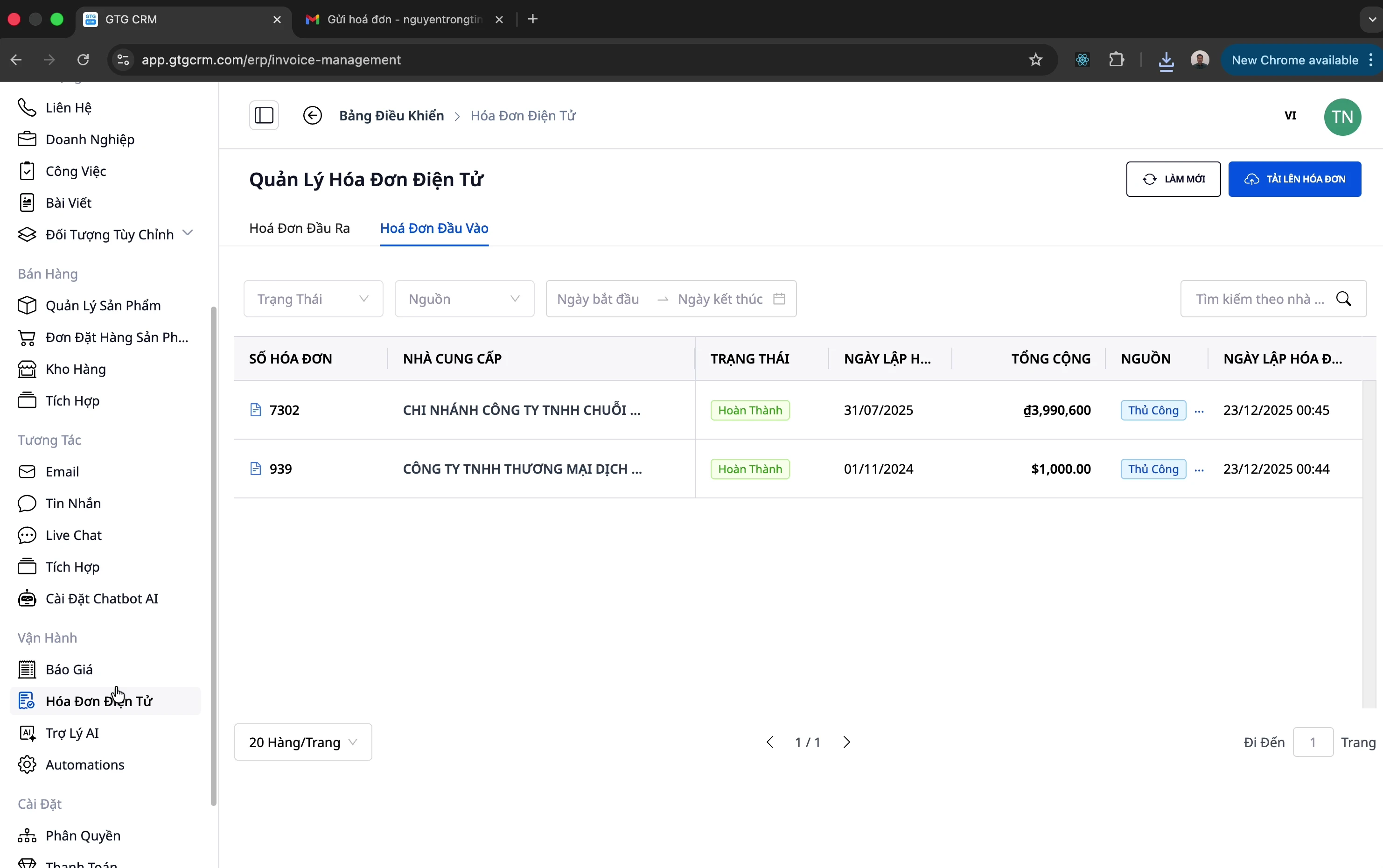
Step 1: Open Integration Menu
Click on the "Integration" menu in the left-hand menu bar
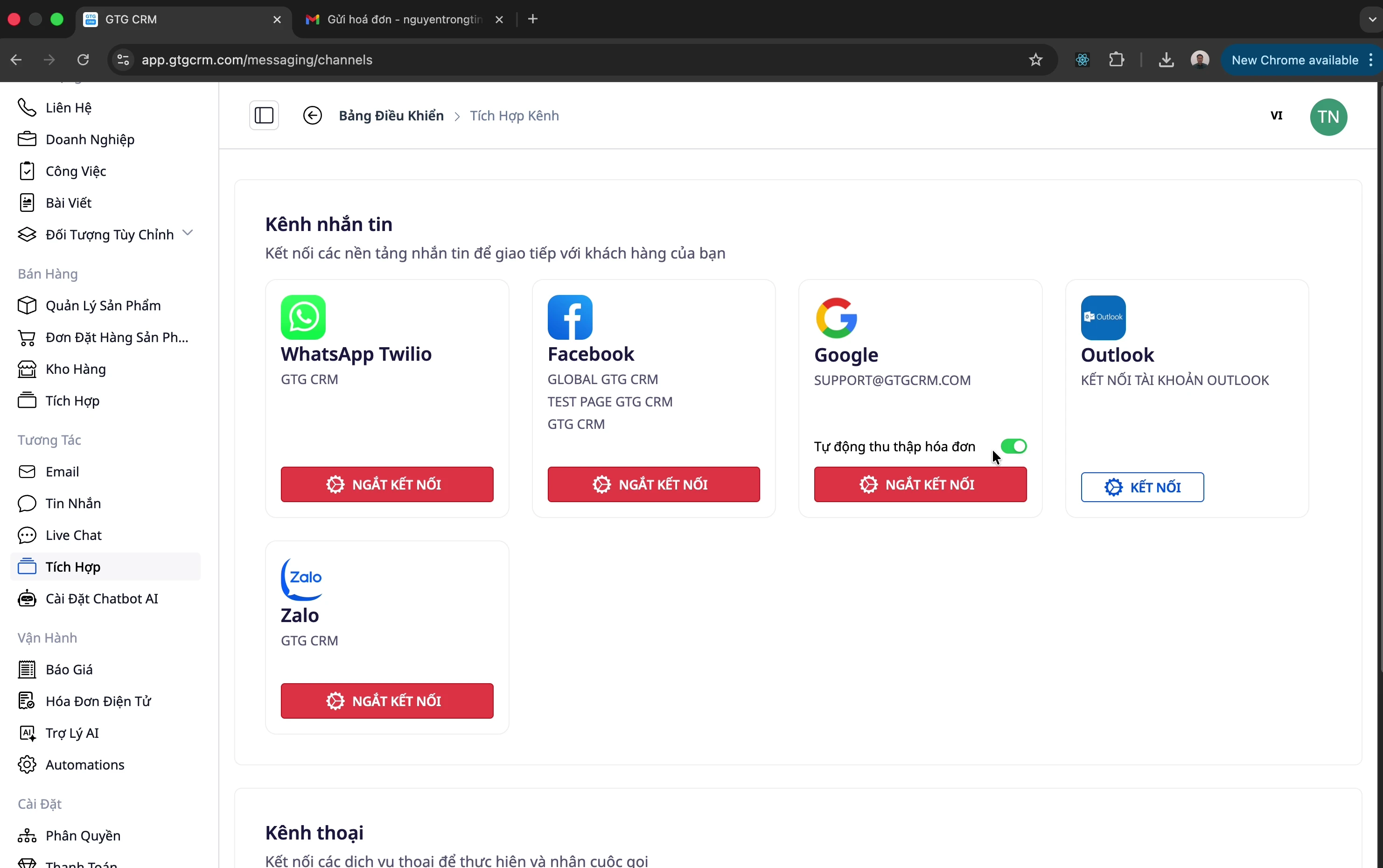
Step 2: Connect Email
Connect your business email (e.g., support@company.com)
Allow GTG CRM to access the email
Step 3: Enable Automatic Collection
Find the "Automatic invoice collection" option
Enable this feature
Step 4: Check Results
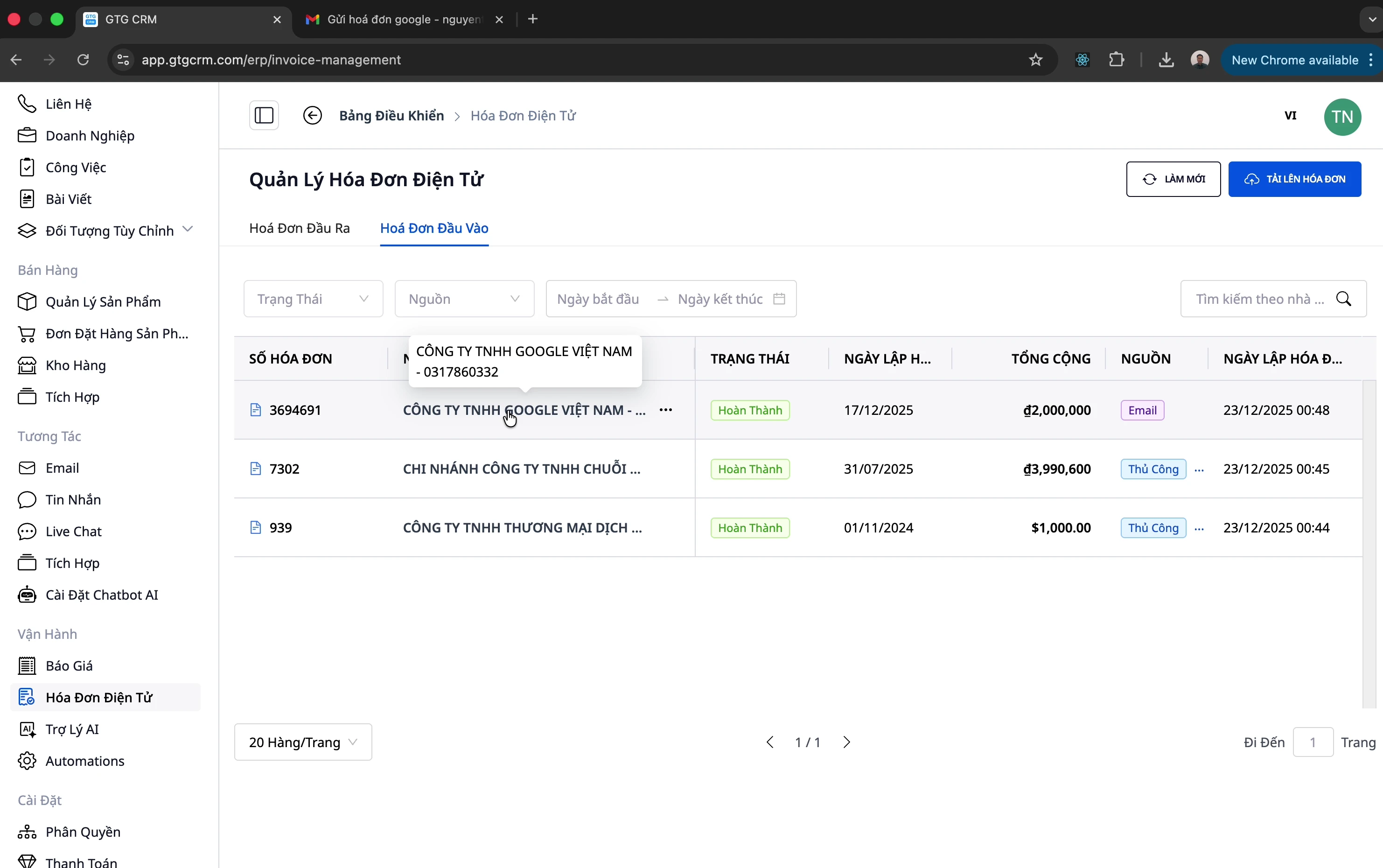
When a new invoice email arrives:
The system automatically detects and imports it.
Go to Invoices Received to view it.
The source will display as "Email".
Edit Information (If Necessary)
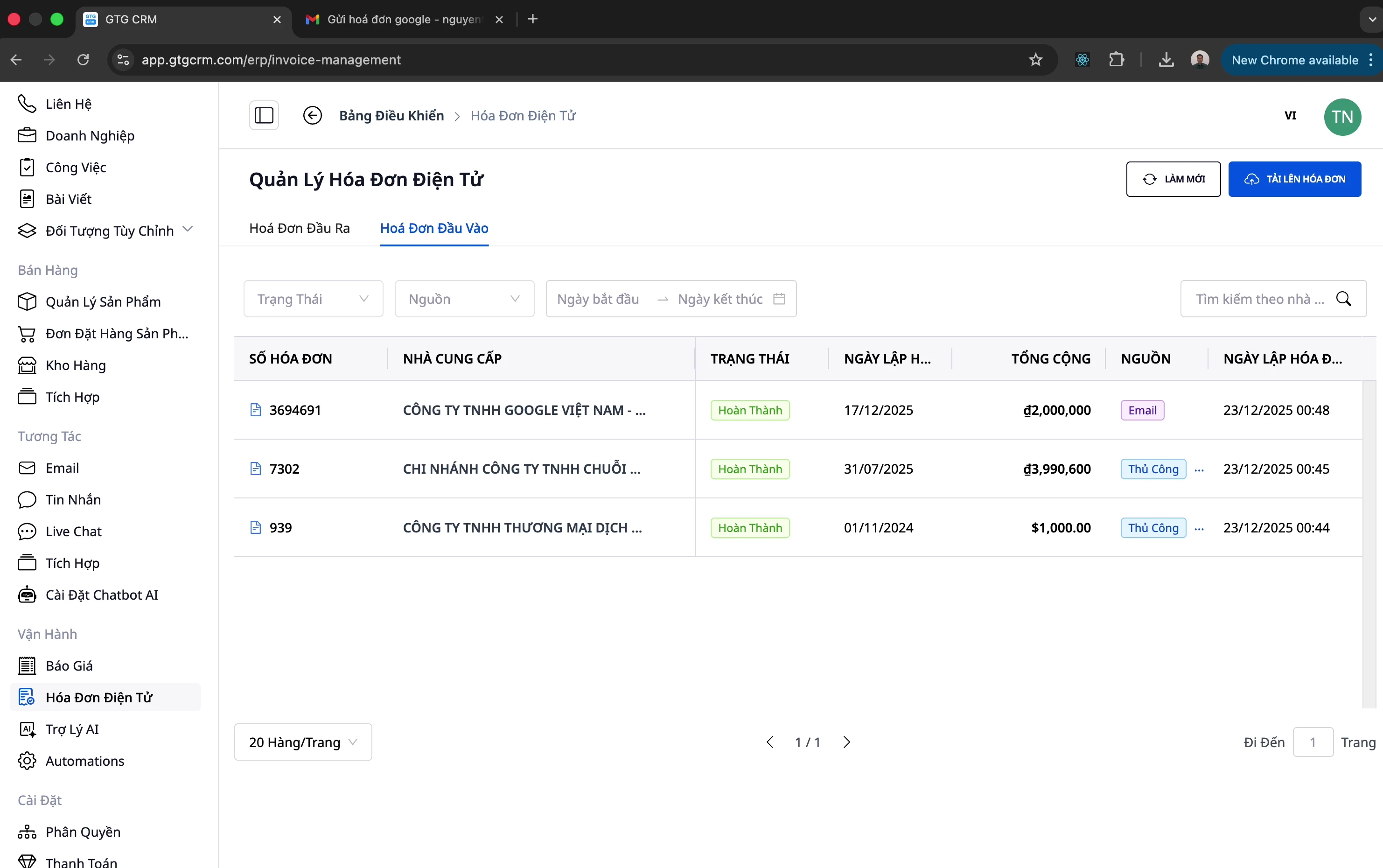
If the information is incorrect, you can edit it:
Click on the invoice to be edited.
Click "Edit".
Edit the information.
Save.
Connect Invoice Providers
To issue outgoing invoices, you need to connect with an electronic invoice provider.
Connect S-Invoice (Viettel)
Step 1: Initiate Connection
Navigate to the "Outgoing Invoices" tab.
Click the "Connect" button in the top right corner.
Step 2: Select S-Invoice
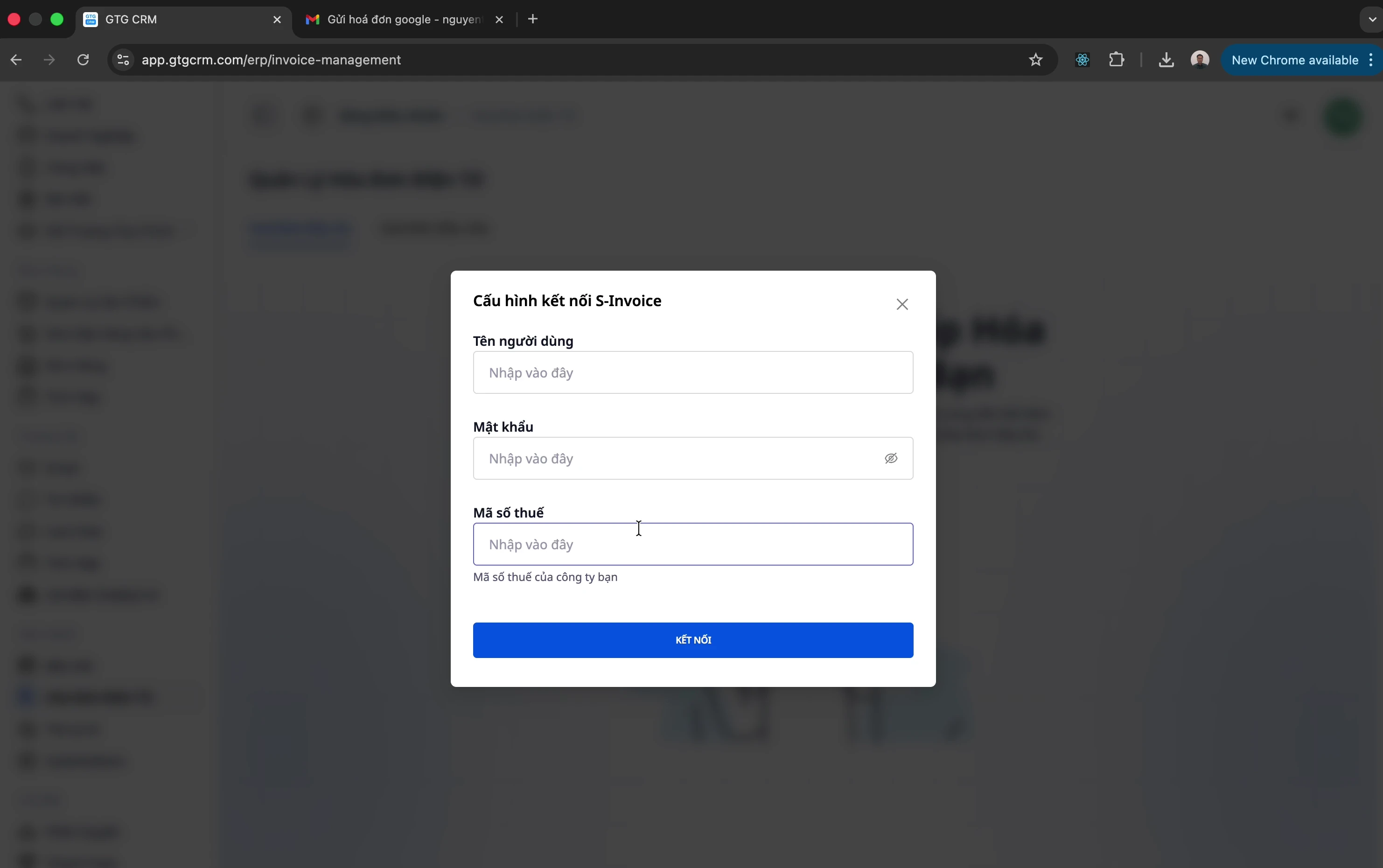
Choose S-Invoice as the provider.
Enter your login information:
Username: (usually your tax code)
Password: Your S-Invoice account password
Tax Code: Your company's tax code
Step 3: Confirm Connection
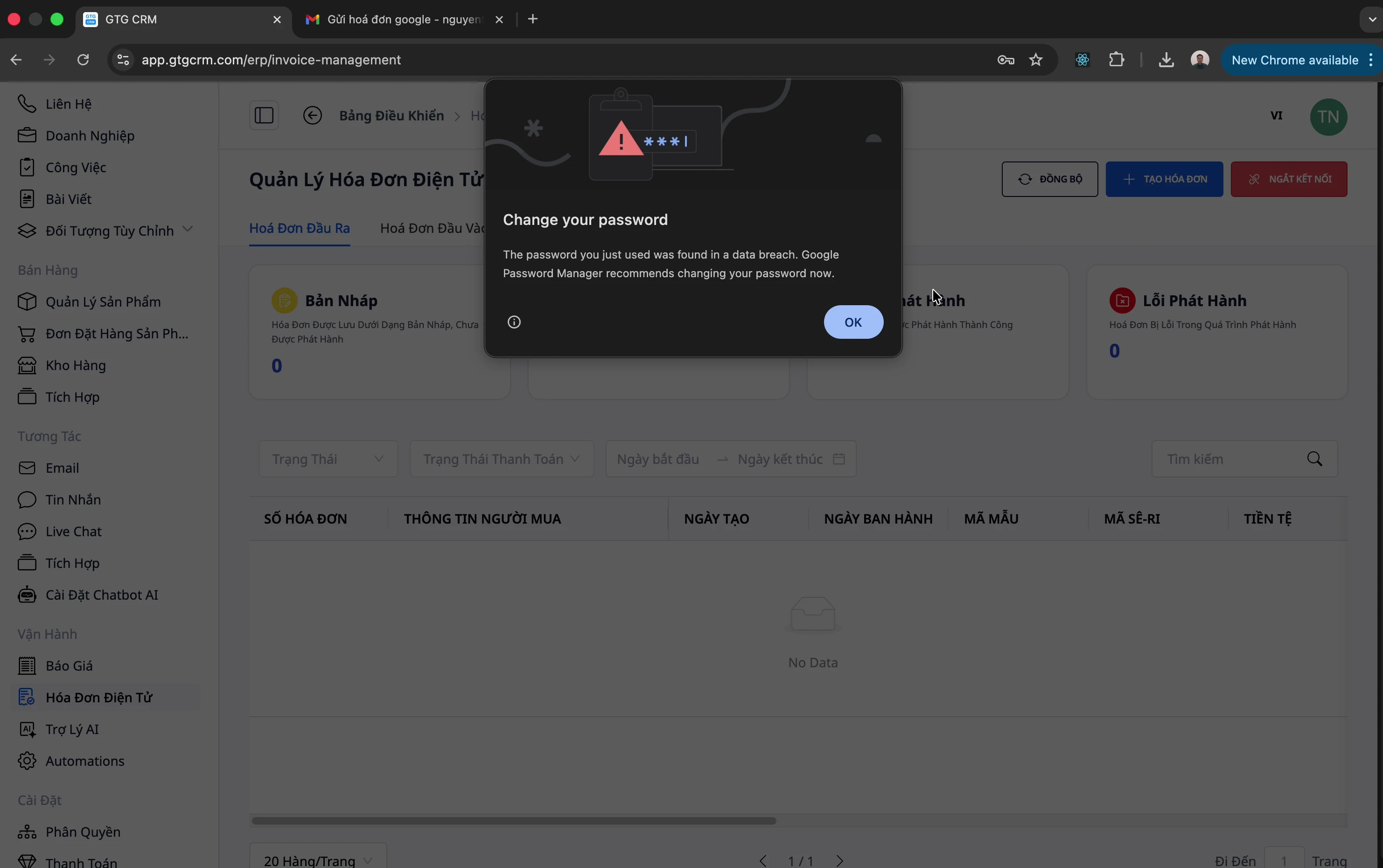
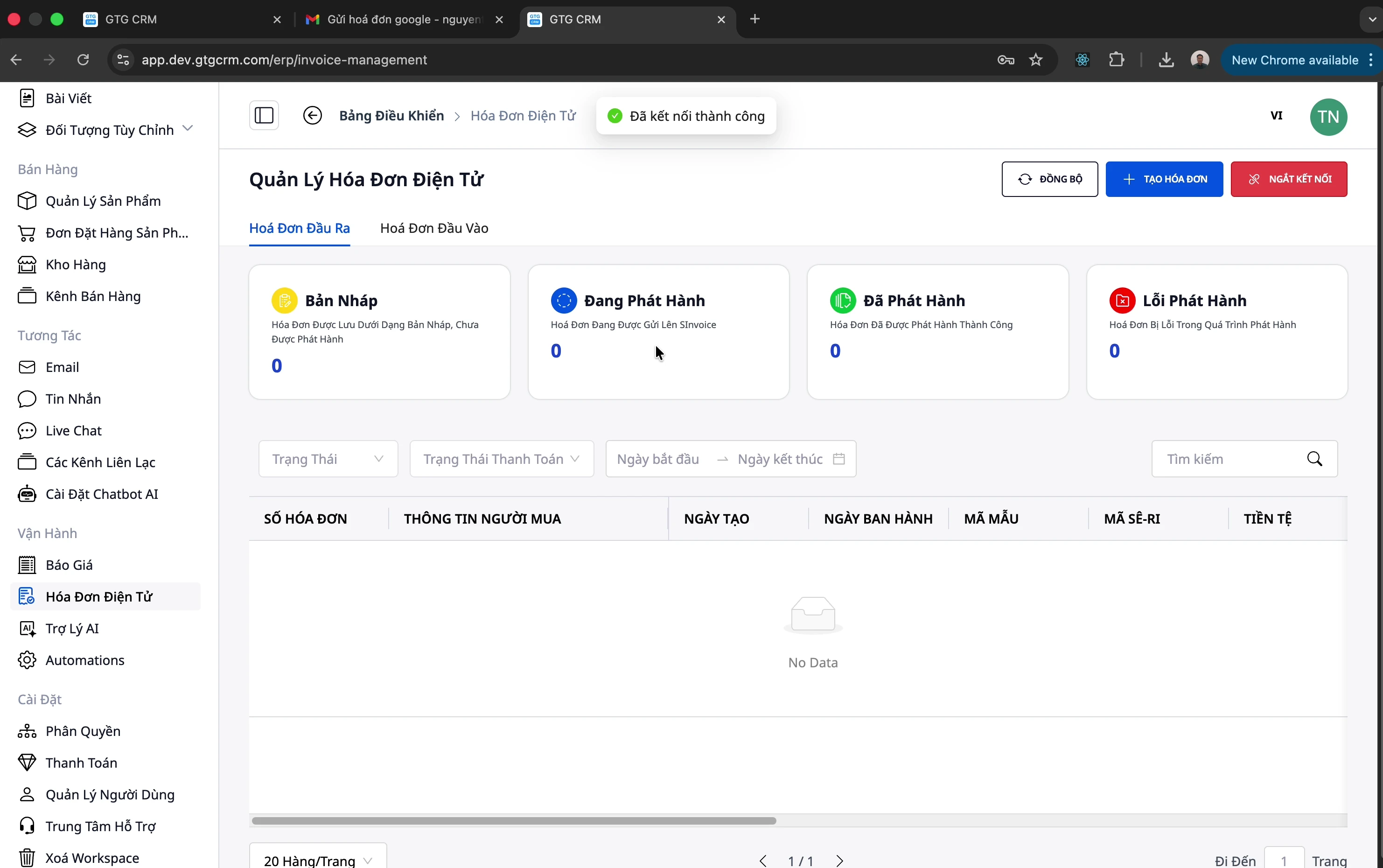
Click "Connect". If the tax code you entered matches the tax code of the workspace previously connected (e.g., only the password was changed), the system will connect immediately and report success.
⚠️ Note: If the tax code is different from the one previously connected, the system will pause and ask for confirmation: "Is this the same company?" — because invoices issued under two different tax codes cannot be combined in reports as a single business. The screen will display the previously connected tax code (partially masked, e.g., •••-509). Click "Yes, same company — connect" to proceed, or "Cancel" to keep the current connection. Nothing will be saved until you confirm.
Connect MISA
Step 1: Select MISA
Click the "Connect" button.
Choose MISA as the provider.
Step 2: Enter Information
Username: Your registered MISA email address
Password: Your MISA account password
Tax Code: Your company's tax code
Step 3: Confirm
Click "Connect". The mechanism is identical to S-Invoice above: if the tax code matches the previously connected one, the system connects immediately; if it's different, you will be asked to confirm "Is this the same company?" before saving (see details in the S-Invoice Connection section above).
Issue Outgoing Invoices
Step 1: Open Invoice Creation Form
Navigate to the "Outgoing Invoices" tab.
Click "Create Invoice".
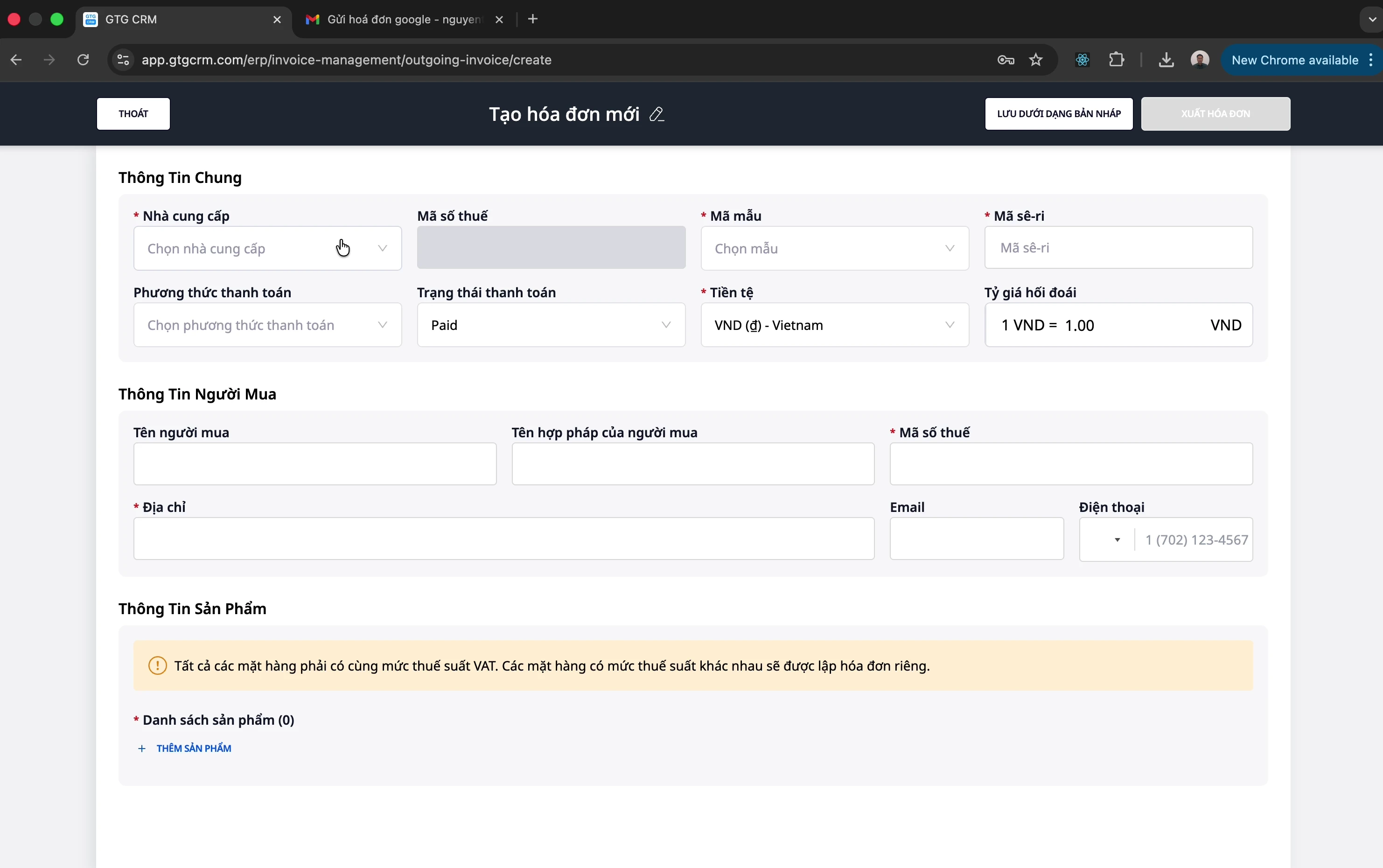
Step 2: Select Basic Information
Field | Description |
|---|---|
Provider | S-Invoice or MISA |
Invoice Template | Select appropriate template (contact accounting) |
Payment Method | Cash / Bank Transfer |
Payment Status | Paid / Unpaid |
⚠️ Note: Payment status does not affect the tax authority, but helps you track accounts receivable.
Step 3: Enter Buyer Information
Legal Name: Buyer's company name
Tax Code: Buyer's MST (Tax Identification Number)
Address: Company address
Step 4: Add Products/Services
Click "Add Product"
Enter information:
Product name
Quantity
Unit price
Tax rate (8% or 10%)
Discount rate (if any)
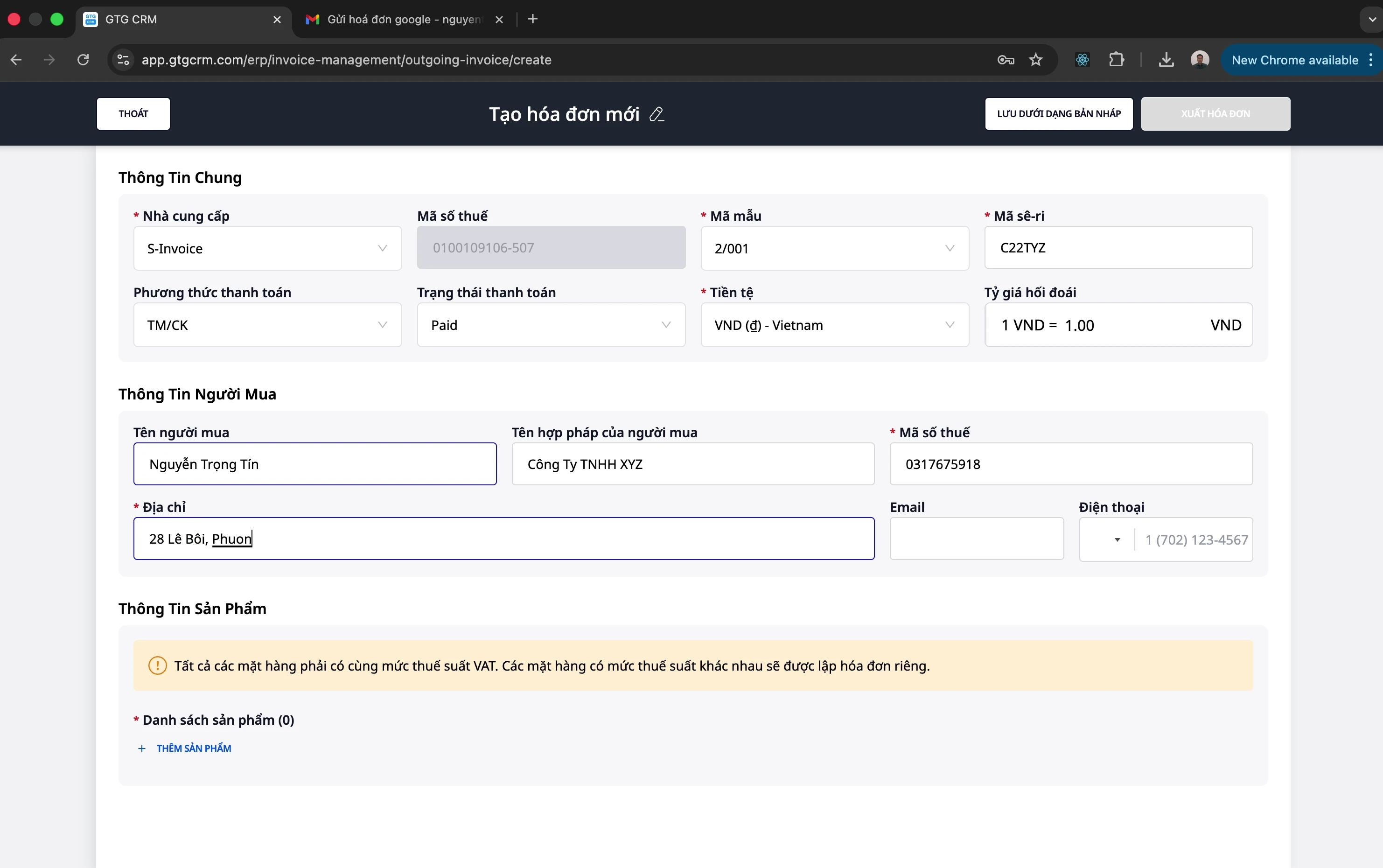
💡 Tip: If there are multiple products with different tax rates (8% and 10%), the system will automatically split them into 2 separate invoices.
Step 5: Save Draft
Click "Save Draft" to save before issuing.
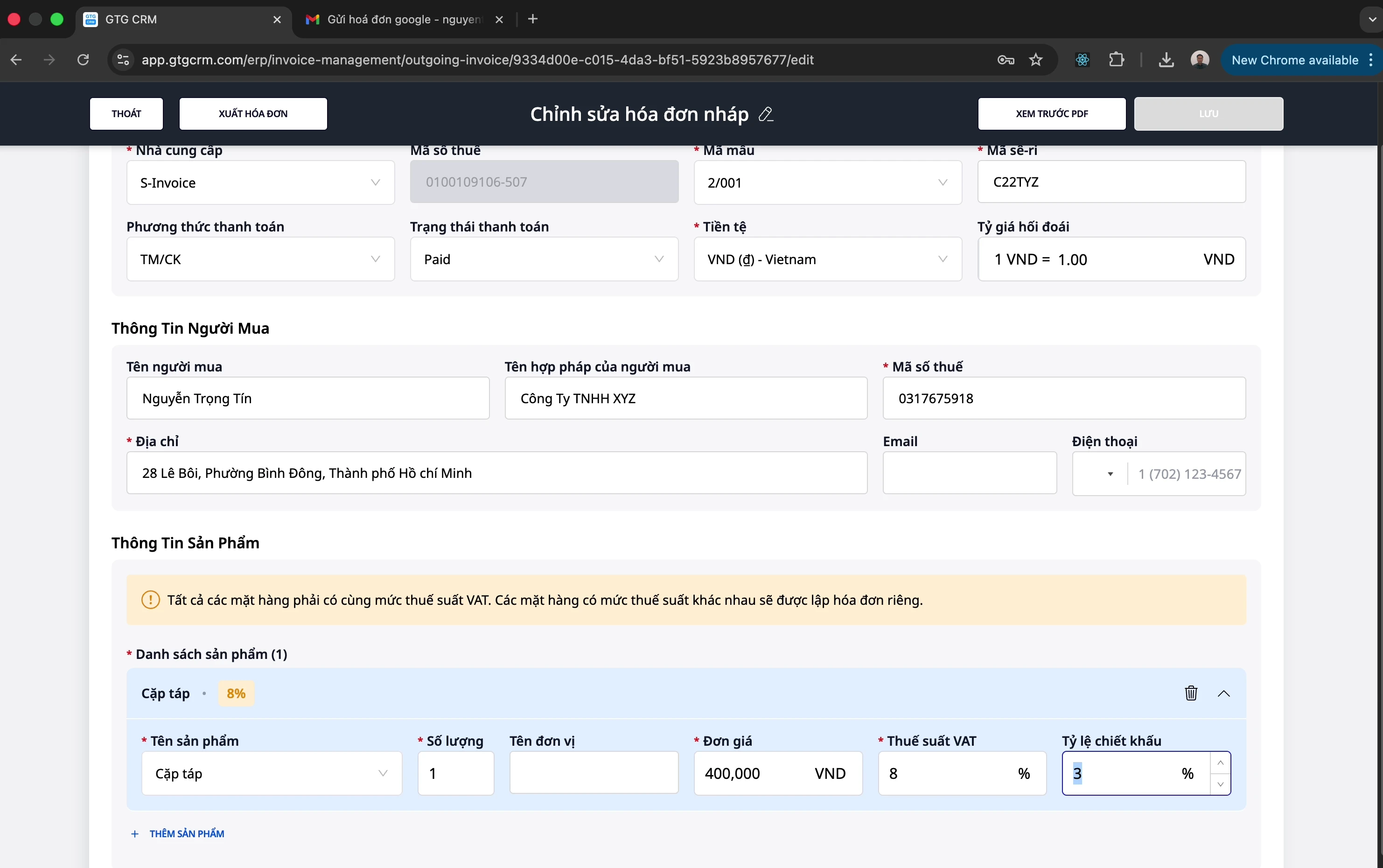
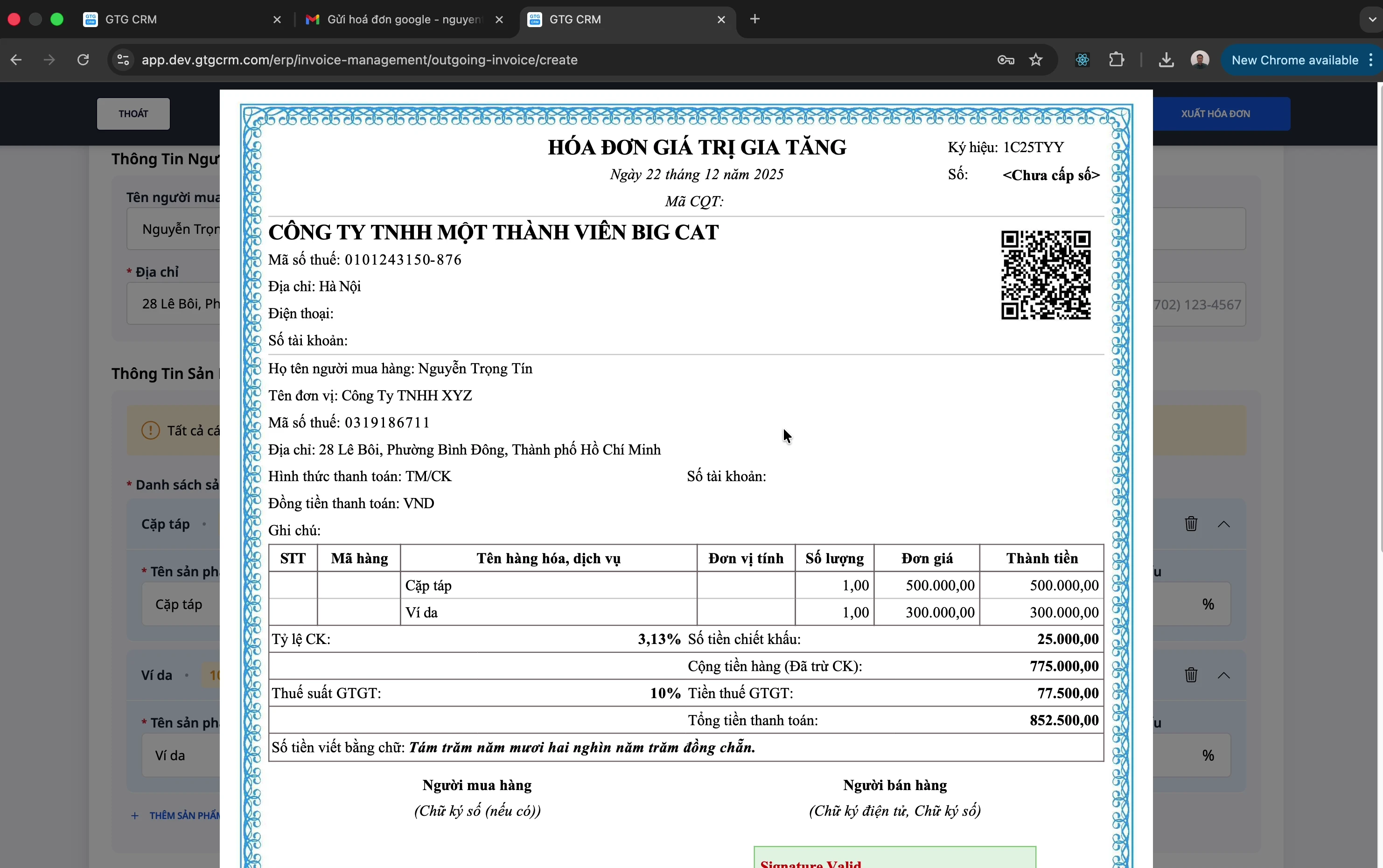
Step 6: Preview PDF
Click "Preview PDF"
Check invoice information
 <
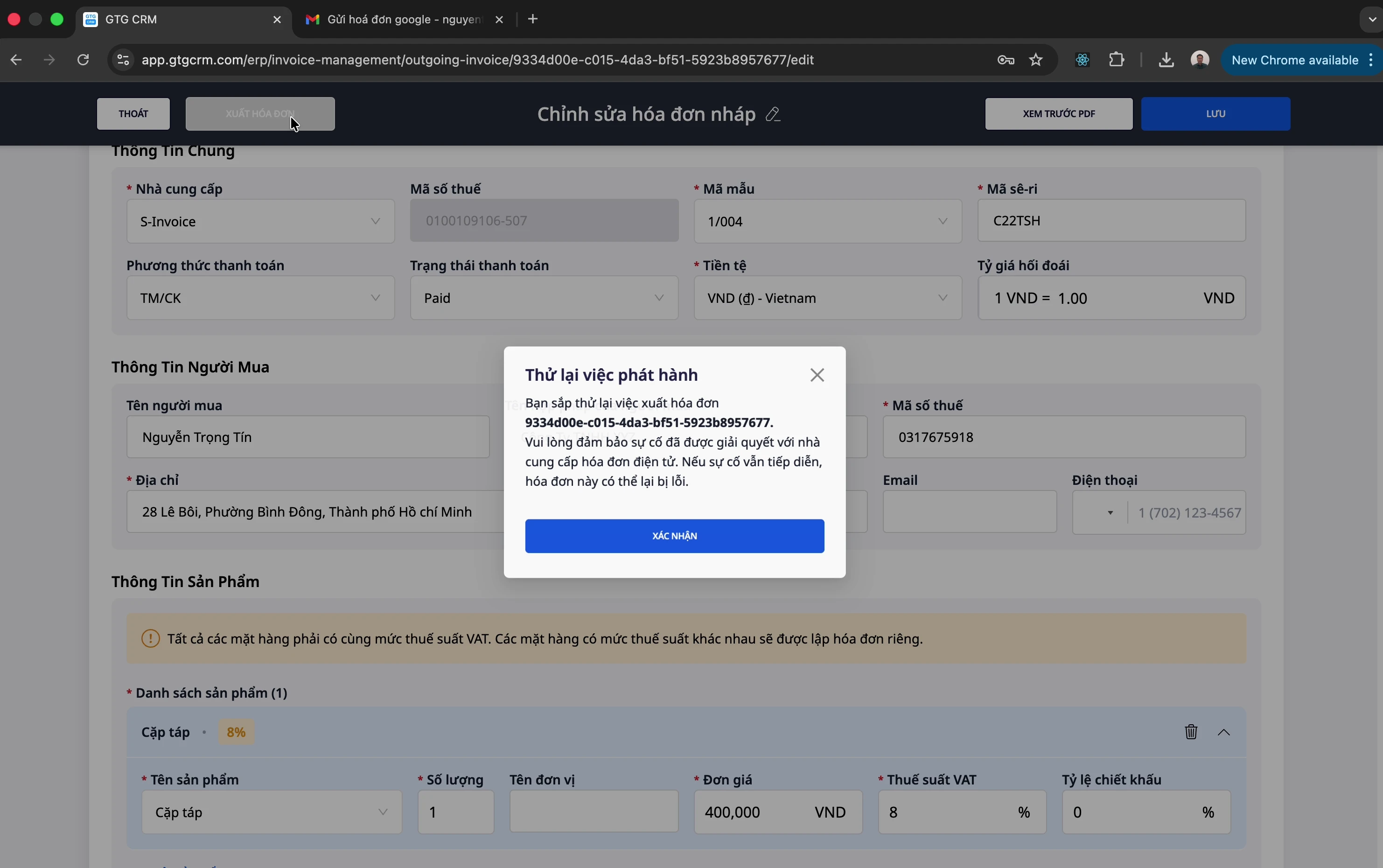
<Step 7: Issue Invoice
Check information carefully
Click "Issue Invoice"
Wait for success notification
 <
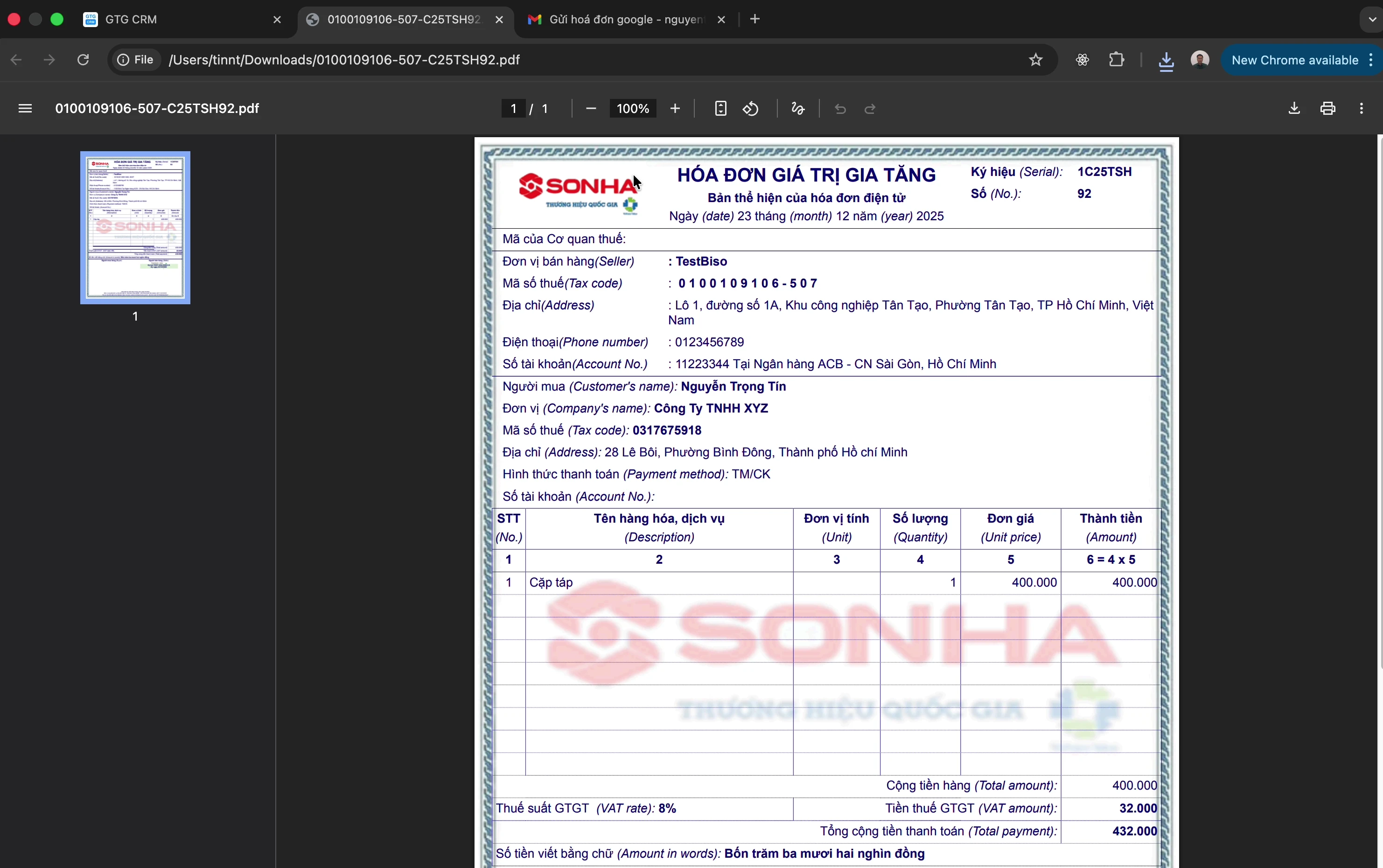
<Step 8: Download Invoice PDF
After successful issuance:
Click "Download PDF" to download the invoice
Send to customer
Create Replacement Invoice
When you need to adjust an issued invoice (customer returns goods, error detected...):
Step 1: Open Original Invoice
Go to the "Outgoing Invoices" tab
Find and click on the invoice to be replaced
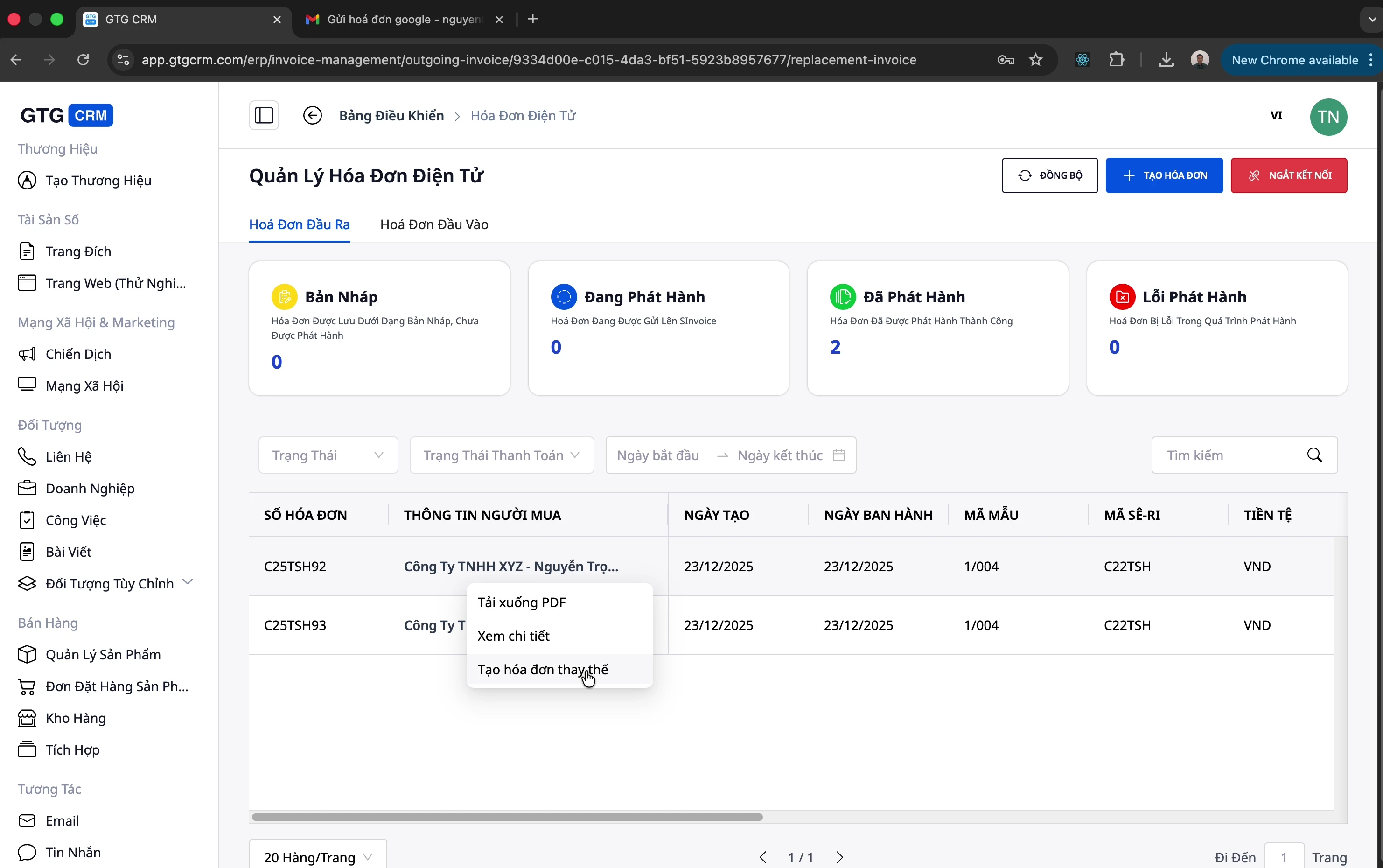
Step 2: Create Replacement Invoice
Click "Create Replacement Invoice"
 <
<Step 3: Adjust Information
Change products, quantities, prices if necessary
Add or remove products
⚠️ Note: You cannot change the tax rate to a different one from the original invoice within the same replacement invoice.
Step 4: Issue Replacement Invoice
Save Draft
Preview PDF
Issue Replacement Invoice
Other Operations
Sync Invoices
Sync invoices from the provider to GTG CRM:
Click the "Sync" button
Wait for the system to update
Disconnect Provider
Click the "Connect" button (or "Disconnect")
Confirm disconnection
You can connect another provider
💡 When reconnecting with a tax code different from the one used previously (whether with S-Invoice or MISA), you will be prompted for confirmation before the system saves — see the "Connect Invoice Provider" section above.
View Invoice Details
Click on any invoice to view:
Detailed information
Product list
Total amount and VAT
Change Invoice Template
Go to edit invoice (draft)
Select new template
Save before previewing PDF
Tips for Effective Use
1. Set Up Automatic Email Collection
Saves time downloading invoices monthly
Accountants can simply log in to GTG CRM to download
2. Check Carefully Before Exporting
Always Preview PDF before exporting
Exported invoices cannot be edited; only replacement invoices can be created
3. Track Payment Status
Mark as "Paid" upon receiving payment
Helps manage outstanding debts effectively
4. Grant Permissions to Accountant
Grant the accountant access to the Electronic Invoice module
The accountant can download invoices themselves for tax reporting