GTG CRM's AI-powered product page creation feature is designed to help you create complete, professional product pages quickly. Instead of spending hours taking photos, writing descriptions, and manually entering information, you can now simply describe your product in natural language and let the AI handle the rest. The system will automatically generate complete text content, detailed specifications, and three studio-quality product images from various angles.
The guide below will help you master the process of using this feature step-by-step, from opening AI Biz Assistant, describing your product, checking and editing the automatically generated content, to saving the product to the system and being ready to list it for sale.
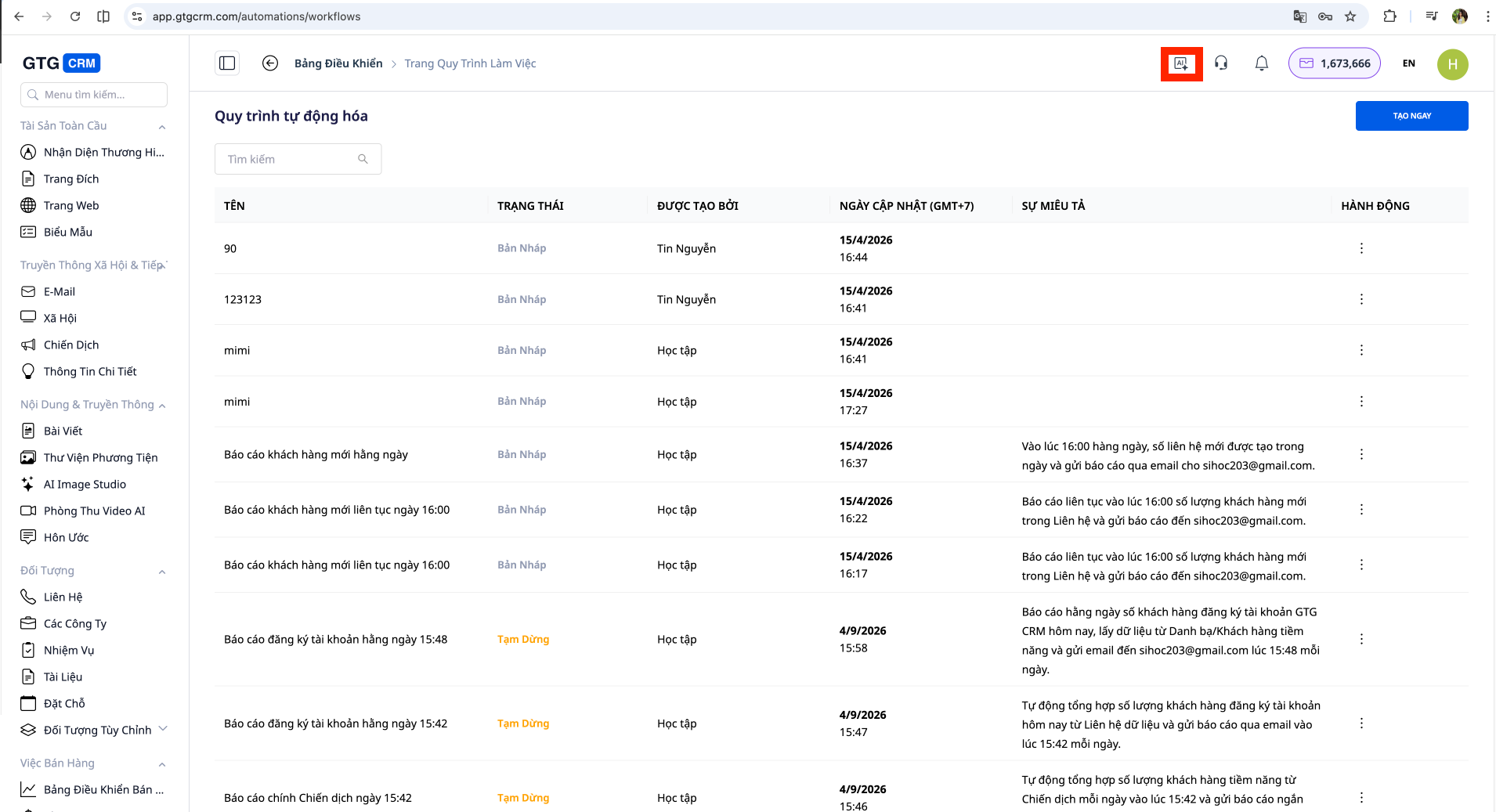
Step 1: Open AI Biz Assistant in GTG CRM
Log in to your GTG CRM account. On the main interface, find and click on the icon or menu called AI Biz Assistant . This is a built-in smart assistant designed to understand natural language and perform business tasks automatically.
After opening AI Biz Assistant, the chat interface will appear. This is where you will communicate with the AI to create new products. This interface works like regular messaging apps, allowing you to type messages and receive instant responses.
Step 2: Describe the Product in Natural Language
In the AI Biz Assistant chat window, begin describing the product you want to create by typing a message in the most natural way possible. You don't need to follow any special format or syntax. Write as if you were talking to a salesperson or your assistant.
For example, you could write: "Create a men's cotton polo shirt, sizes M to XXL, priced at 299,000 VND" or "Add a ginseng extract night cream, 50ml, Korean brand, priced at 450,000 VND" or simply "Create a black leather women's handbag" .
You should try to provide as much information as possible in your description so that the AI can generate the most accurate product. Useful information includes product name, material, color, size, brand, origin, price, and other key features. However, even if you only provide basic information, the AI can still deduce and fill in the missing information based on its industry knowledge.
After typing your description, press Enter or the send message button to send your request to the AI.
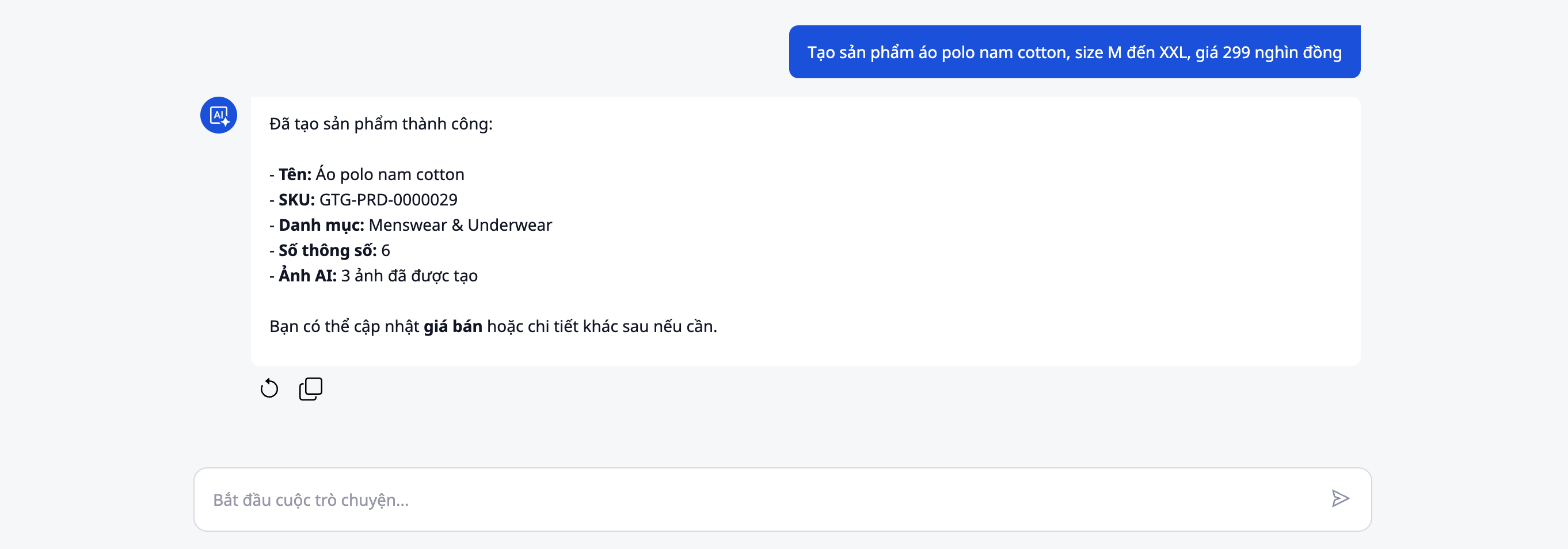
Step 3: Wait for AI to process and create product content.
Immediately after you send your message, AI Biz Assistant will begin analyzing your product description. This process typically takes only a few seconds to under a minute, depending on the complexity of the product.
During the processing phase, AI performs multiple tasks simultaneously. First, it analyzes the description to extract key information such as product name, material, size, and price. Then, the AI automatically generates a product name optimized for SEO in the relevant industry, writes a detailed description using language that resonates with buyers, infers and fills in the necessary technical specifications, categorizes the product appropriately, and assigns tags to optimize searchability.
You will see a notification or progress bar indicating that the AI is processing the request. Please be patient and wait until the process is complete.
Step 4: View and Check the Content of the Generated Text
After the AI finishes generating the text content, you will see a preview displaying all the information about the newly created product. This interface is usually presented in the form of a product form or card with clearly defined information fields.
Take the time to carefully read each piece of information. Check that the product name is accurate and appealing, the detailed description is complete and matches the actual product, the specifications such as material, size, and weight are correct, the price matches the information you provided, and the categories and tags are appropriately assigned for optimal search performance.
If you find any inaccurate information or want to adjust it to suit your brand's specific needs, you can edit it directly on this interface. Each field usually has an edit button or allows you to click on it to modify the information.
Step 5: Wait for the AI to create product images.
After you confirm or complete the text editing, the AI will automatically move on to the next step: creating product images. This is one of the most outstanding features of AI Automated Product Creation.
The AI will generate three studio-quality product images, each from a different angle to serve different display purposes. The first image is typically a straight-on shot of the product against a clean white background, suitable as the main featured image on a sales page. The second image may be from an angled or side view to allow buyers to clearly see the structural details and design. The third image is usually a real-world or lifestyle view to help customers visualize the product in a real-world context.
The image creation process can take anywhere from 30 seconds to a minute, depending on the complexity of the product and system load. You will see a progress bar or notification indicating that the AI is creating the images. Some interfaces may display each image as soon as it's created, instead of waiting for all three images to finish.
Step 6: View and Evaluate the Created Image
Once the AI has finished generating the images, you will see three product images displayed in the preview interface. These images are usually arranged in a gallery or slider format for easy viewing and comparison.
Carefully review each image. Consider whether it accurately portrays the product's features and colors, whether the image quality is sharp and professional, whether the composition and angle are appropriate, whether the background and lighting create a professional feel, and whether the image is suitable for use on e-commerce platforms such as TikTok Shop, Shopee, and Lazada.
Although AI has been trained to generate high-quality images, you should still evaluate whether they align with your brand positioning and display style. If you are not satisfied with any image, some systems allow you to request the AI to recreate or generate additional versions.
Step 7: Edit Information If Necessary
Before saving the product to the system, this is your last chance to review all the information and make any necessary adjustments. You can go back to the text fields to further edit or refine the wording to better suit your brand's tone.
Some common adjustments users make include fine-tuning the selling price to align with their pricing strategy, adding information about warranty or return policies, adjusting descriptions to highlight unique selling points, changing categories or tags if you have your own classification system, or correcting specifications for absolute accuracy if there are minor discrepancies.
Remember that the goal is to create a perfect product page ready for sale, so don't hesitate to spend a few extra minutes refining it if needed.
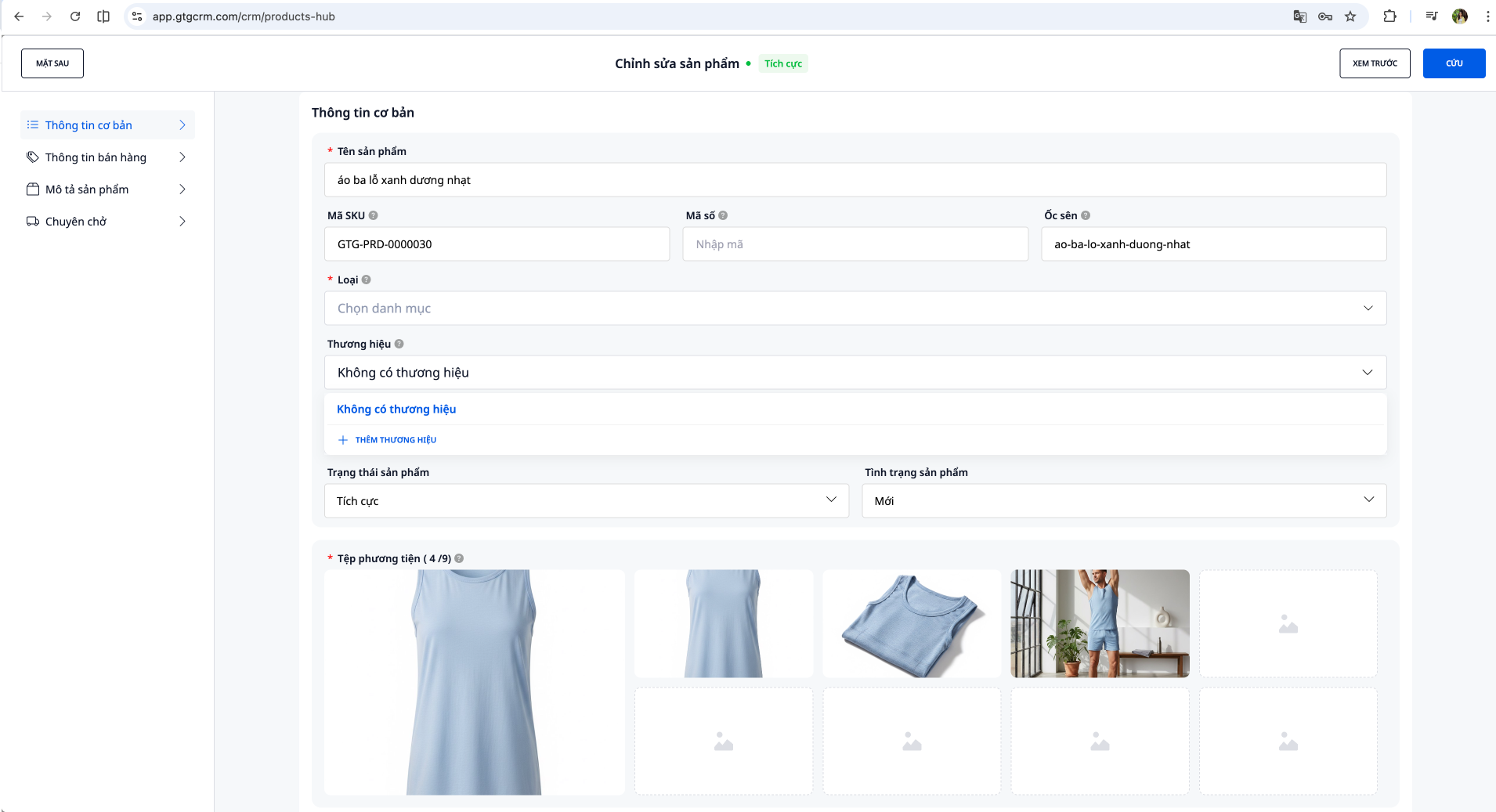
Step 8: Confirm and Save the Product to the System
Once you are satisfied with all the content and images, find and press the confirm or save product button. This button is usually labeled "Save Product," "Confirm Product Creation," or "Complete."
When you press this button, the system will save all product information to the GTG CRM database. The new product will be created with full text content, three high-quality images, and all necessary metadata. The saving process usually only takes a few seconds.
After successful saving, you will see a confirmation message and may be redirected to the product details page or product list in your management system.
Step 9: Check the Products in the Management List
To ensure the product has been successfully created, access the product management section in GTG CRM. You should find the newly created product appearing in the list with its full name, featured image, and basic information.
Click on the product to view details and double-check that all information is saved correctly, that all three images have been uploaded, that the specifications are displayed accurately, and that the category and tags have been assigned correctly.
If you find any issues, you can edit them directly from the product management interface as usual. However, with the high accuracy of AI, you usually won't need to make many edits after creation.
Step 10: Ready to List or Synchronize to the Exchange
Your product is now fully ready to be listed for sale. You can use it immediately in various ways depending on your business model.
If you sell directly through GTG CRM, your products are already ready to be displayed to customers. If you use e-commerce platforms like Shopee, Lazada, or TikTok Shop, you can synchronize these products to those platforms through GTG CRM's integration features or export the data for manual upload. If you have your own website, you can use APIs or data export tools to add products to your site.
With three studio-quality images from multiple angles and a professional description, your product fully meets the standards of e-commerce platforms and is ready to attract buyers.
Tips for Effective Use
To get the most out of the AI-powered Product Generation feature, provide as detailed a description as possible from the start. Include the product name, materials, color, size, price, and key features. The more information you provide, the more accurate the AI will produce and the less editing will be needed.
Use natural language and don't worry about syntax. AI is designed to understand how humans communicate in everyday situations, so you can write as if you were talking to a real person.
After creating a product, you should always double-check the information before saving it. Although AI is very accurate, reviewing it helps you ensure everything perfectly aligns with your brand and standards.
If you have many similar products to create, create each one individually and observe how the AI handles it. After a few attempts, you'll gain a better understanding of how to describe them for the best results and can optimize the batch creation process.
Finally, take advantage of the three automatically generated images. Each image serves a different purpose, so use them appropriately in your product page, social media posts, and other marketing materials to maximize communication effectiveness.