This article provides a detailed, step-by-step guide on how to generate electronic invoices (e-invoices) using GTG CRM — from initial setup to daily invoice generation and error handling.
Step 0: Preparation Before Starting
Before issuing an electronic invoice, you need to prepare:
| Item | Describe |
|---|---|
| ✅ Register for a Tax Identification Number (TIN) | Have a tax identification number (for individuals or businesses) |
| ✅ Register for electronic invoices with the tax authority. | Register to use electronic invoices at the relevant Tax Office. |
| ✅ Digital certificate (Token/USB digital signature) | Used for electronically signing invoices. |
| ✅ GTG CRM Account | Register at gtgcrm.com |
Step 1: Set Up Business Information
Log in to GTG CRM → Settings → Business Information :
```
Business name: ABC Company Limited
Tax identification number: 0123456789
Address: 123 Nguyen Van A Street, District 1, Ho Chi Minh City
Phone: 028 1234 5678
Email: info@abc.com.vn
Representative: Nguyen Van A
```
Step 2: Set Up the Invoice Template
Go to Invoice Management → Template Settings :
- Choose the invoice type :
- VAT invoices (tax rates 5%, 8%, 10%)
- Sales invoice (excluding VAT)
- Choose a display template :
- Company logo
- Footer information
- Default notes
- Set up invoice symbols :
- Sample notation: 1C24TAA (example)
- The system automatically generates consecutive invoice numbers.
Step 3: Manually Issue Invoices
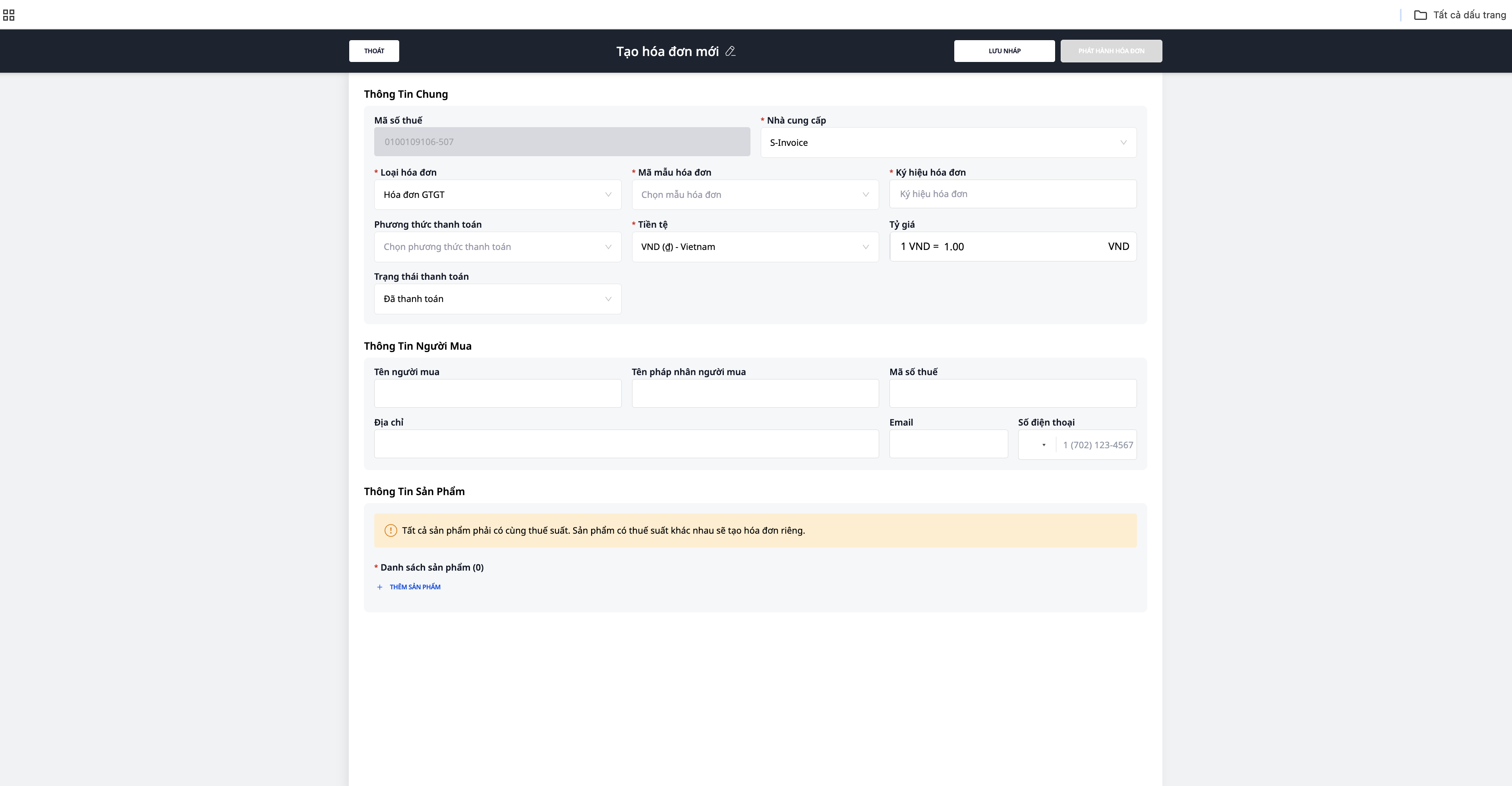
Method 1: Create a new invoice
- Go to Invoices → Create New
- Enter buyer information:
- Company/Individual Name
- Tax ID (if it's a business)
- Address
- Add a product/service:
- Product name
- Unit of measurement
- Quantity
- Unit price
- Tax rates (0%, 5%, 8%, 10%)
- Check the total amount
- Click "Sign & Issue Invoice"
- Digital signature using token/USB
- The invoice is sent to the tax authority (if the e-invoice has a code) and sent to the customer via email.
Method 2: Issue an invoice from the order.
- Go to Orders → select completed orders
- Click "Issue Invoice"
- The system automatically fills in the information from the order:
- Buyer information (from CRM)
- List of products (from the order)
- Total amount
- Check → Sign & Export
Step 4: Automatically Generate Invoices
Set up automation so the system automatically generates e-invoices:
```
Trigger: Order status changes to "Completed"
↓
Action 1: Create an electronic invoice (using information from the order)
↓
Action 2: Automatically sign (if an HSM certificate is available)
↓
Action 3: Submit to the Tax Authority
↓
Action 4: Send an email to the customer (attach the invoice PDF).
```
Note : Automatic digital signing requires an HSM (Hardware Security Module) certificate — different from a regular USB token. Contact your certificate provider for an upgrade.
Step 5: Issue Invoices in Bulk
When you need to issue multiple invoices at the same time:
- Go to Orders → select multiple orders (tick the checkbox)
- Click "Issue invoices in bulk"
- The system generates invoices for all selected orders.
- Review the list of invoices
- Sign & Export all
Step 6: Error Handling
Invoice with incorrect name/address (but correct tax identification number and amount):
- Enter the invoice that needs correction.
- Select "Report errors"
- The system sends notifications to the tax authorities.
- No need to issue a new invoice.
Incorrect invoice with incorrect tax identification number (MST), amount, and tax rate:
- Enter the invoice that needs correction.
- Select "Issue replacement invoice" or "Issue adjustment invoice"
- Enter the correct information.
- Sign and issue new invoices.
- The old invoice is marked "Replaced/Adjusted".
Cancel the invoice:
- Select the invoice → "Cancel invoice"
- Enter reason for cancellation
- The system sends a cancellation notification to the tax authority.
Step 7: Reporting & Management
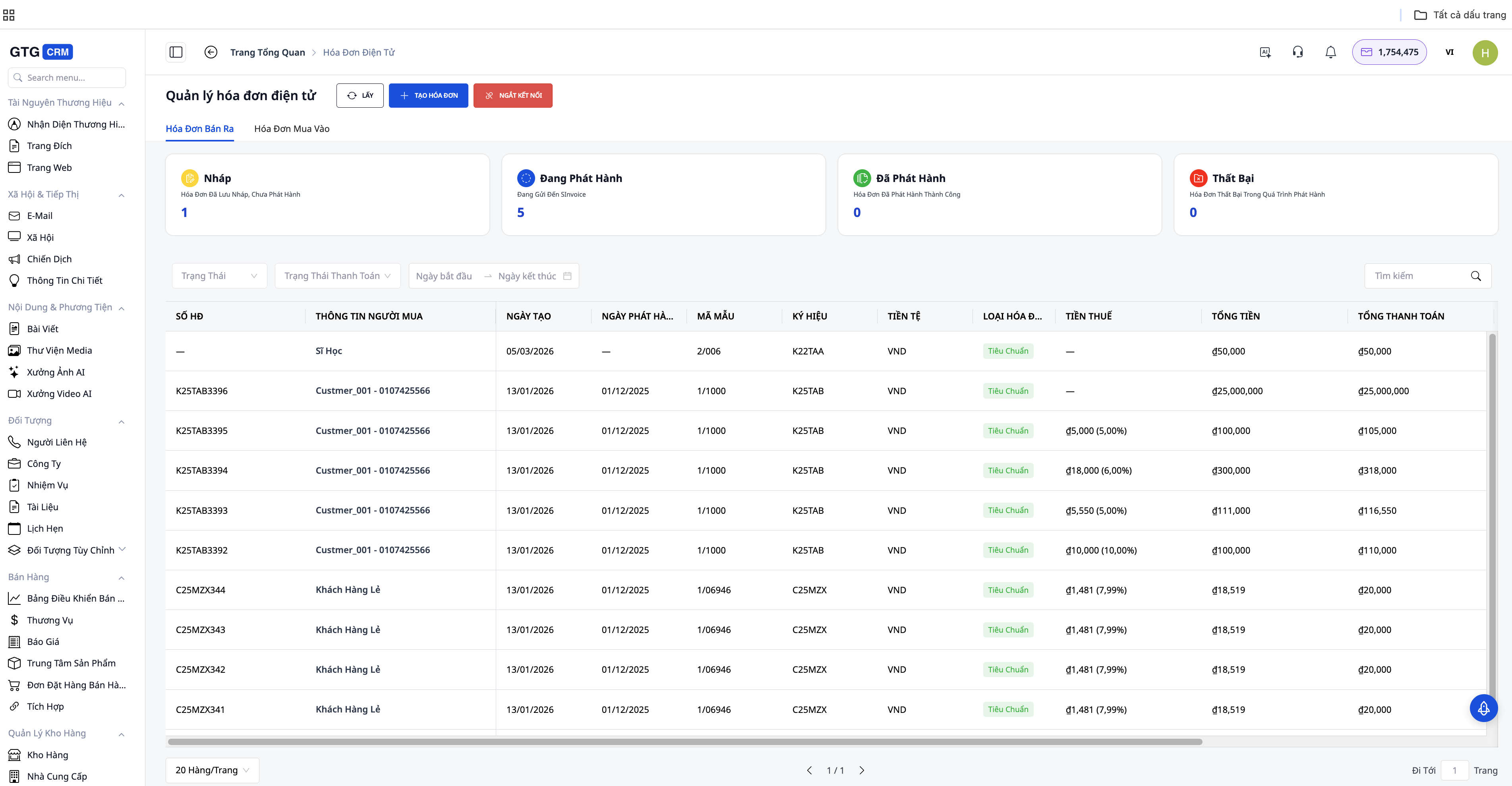
Invoice dashboard provided:
- Total number of invoices issued (by day/month/year)
- Total revenue from invoices
- Invoices by status (issued, canceled, adjusted)
- Export to Excel/PDF to send to the accountant.
Conclude ###
GTG CRM's electronic invoicing feature simplifies the entire process: from setting up business information, creating invoices, digitally signing, submitting to tax authorities, to managing and retrieving them later. Thanks to its direct link to orders, products, and customer data, you can create invoices quickly, reduce manual data entry, and minimize errors.
When combined with automation, businesses can also set up an automated process: order completion → invoice creation → digital signing → sending to the customer. This saves time, ensures compliance with regulations, and makes invoice management clearer and easier to control in daily business operations.
FAQ
Q: How many credits do I need to issue an invoice?
A: The cost of issuing e-invoices depends on the package you choose. With the Basic package (199K/month, 80,000 credits), you can issue thousands of invoices per month.
Q: Do you support invoices in foreign currency?
A: Yes. GTG CRM supports issuing invoices in VND and foreign currencies (USD, EUR, etc.) with the exchange rate.
Q: What happens if the internet goes down?
A: Electronic invoices require an internet connection to be sent to the tax authorities. You can create a draft invoice offline, then sign and issue it when you have internet access.
Q: How do customers receive invoices?
A: Via email (PDF attached) or look it up online using the lookup code on the invoice.