What you can do after this guide
Open the Find Suppliers screen → describe what you need to buy in words → AI returns a list of real candidates with rankings → view profiles and source links for each candidate → select, edit, and save to the CRM's supplier directory (duplicates filtered by tax ID) → or import an existing list from any CSV/Excel file with AI column matching. From zero to a list of suppliers ready to contact in minutes.
Preparation
| # | Condition | Why it's needed |
|---|---|---|
| 1 | Log in to GTG CRM, with access to the Warehouse Management module. | The Find Suppliers feature is within the Warehouse Management section. |
| 2 | Clearly know what you need to buy (product type, region, requirements like MOQ, quality standards). | The more specific the description, the more accurate the AI search. |
| 3 | (Optional) Have an existing CSV/Excel file of your past suppliers. | To use the bulk import flow in Step 5. |
Step 1 — Open Find Suppliers and describe your needs
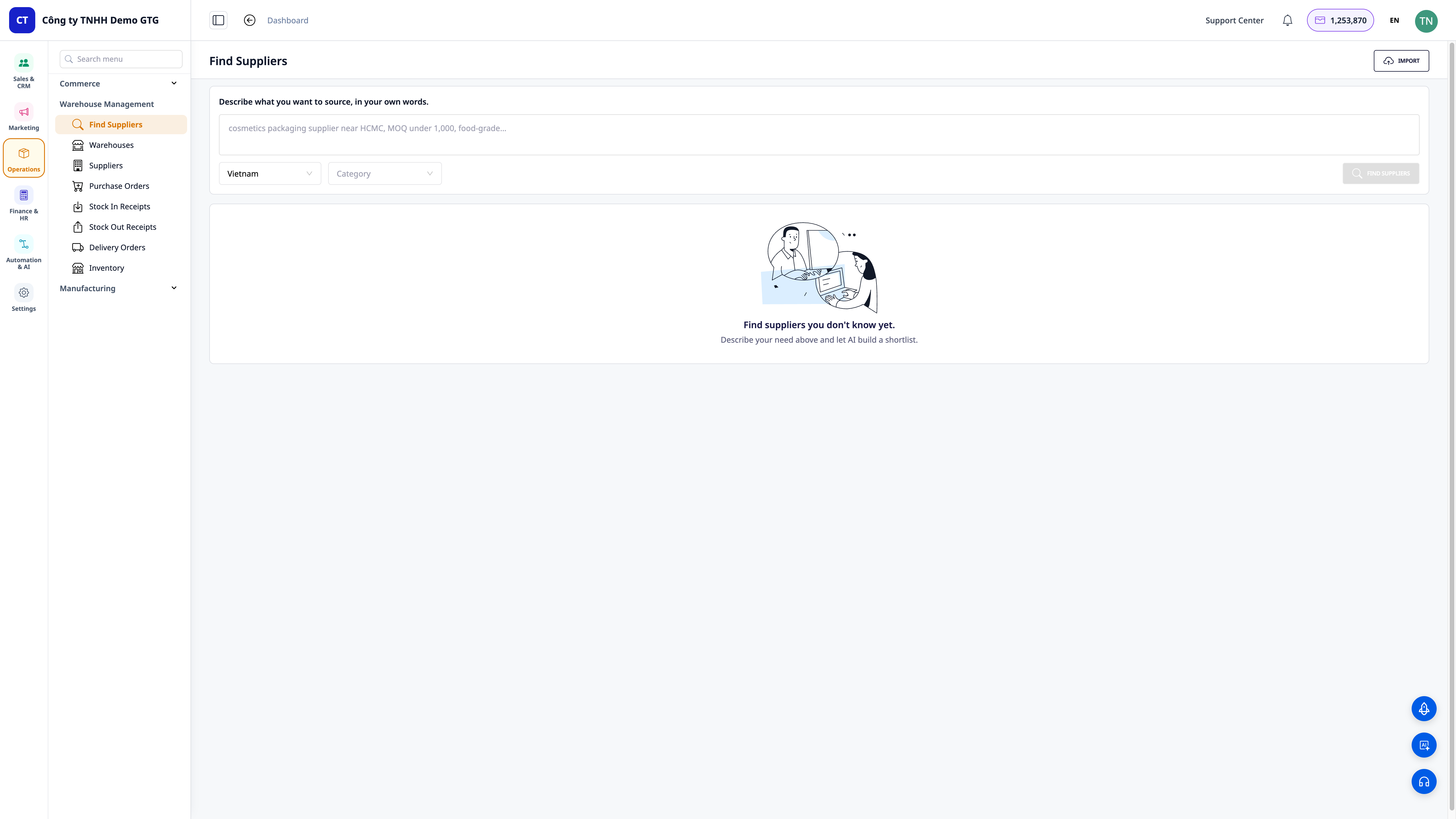
- On the left menu, open Warehouse Management and select Find Suppliers.
- In the "Describe what you want to source, in your own words" field, type your description in plain language, for example: "cosmetic packaging supplier with food-grade certification in Ho Chi Minh City, MOQ under 1,000".
- Select the Country (defaults to Vietnam) and Category if you want to narrow down results.
✅ Expected result: The Find Suppliers screen shows the description field, Country/Category filters, and the Find Suppliers button; when no search has been performed, the results area displays an empty state "Find suppliers you don't know yet."
💡 Tip: Including the region + specific requirements (MOQ, quality standards, price range) in your description will yield a more precise list.
Step 2 — Run the search and view the ranked list
- Click the Find Suppliers button.
- Wait for the AI to search the web and return results.
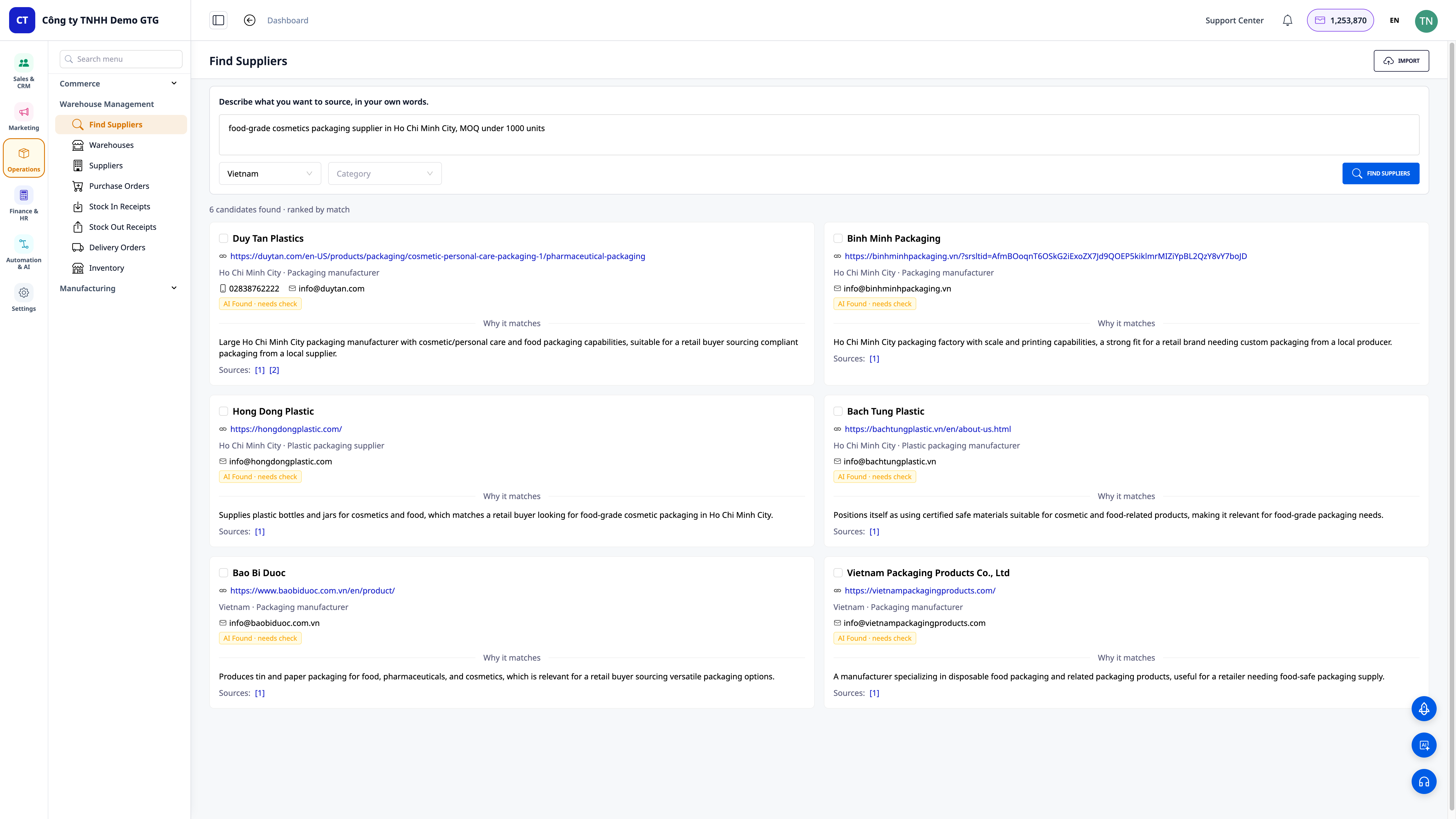
✅ Expected result: A summary line shows the number of candidates found and the ranking method (e.g., "4 candidates found · ranked by match"), followed by supplier cards ranked by suitability.
Step 3 — View profiles and verify each candidate
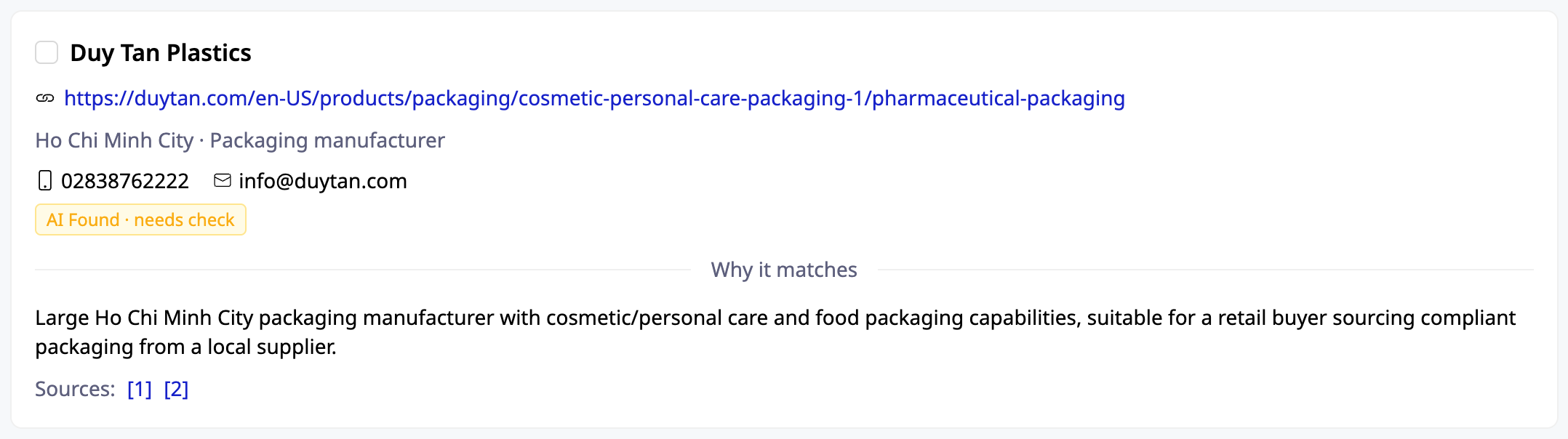
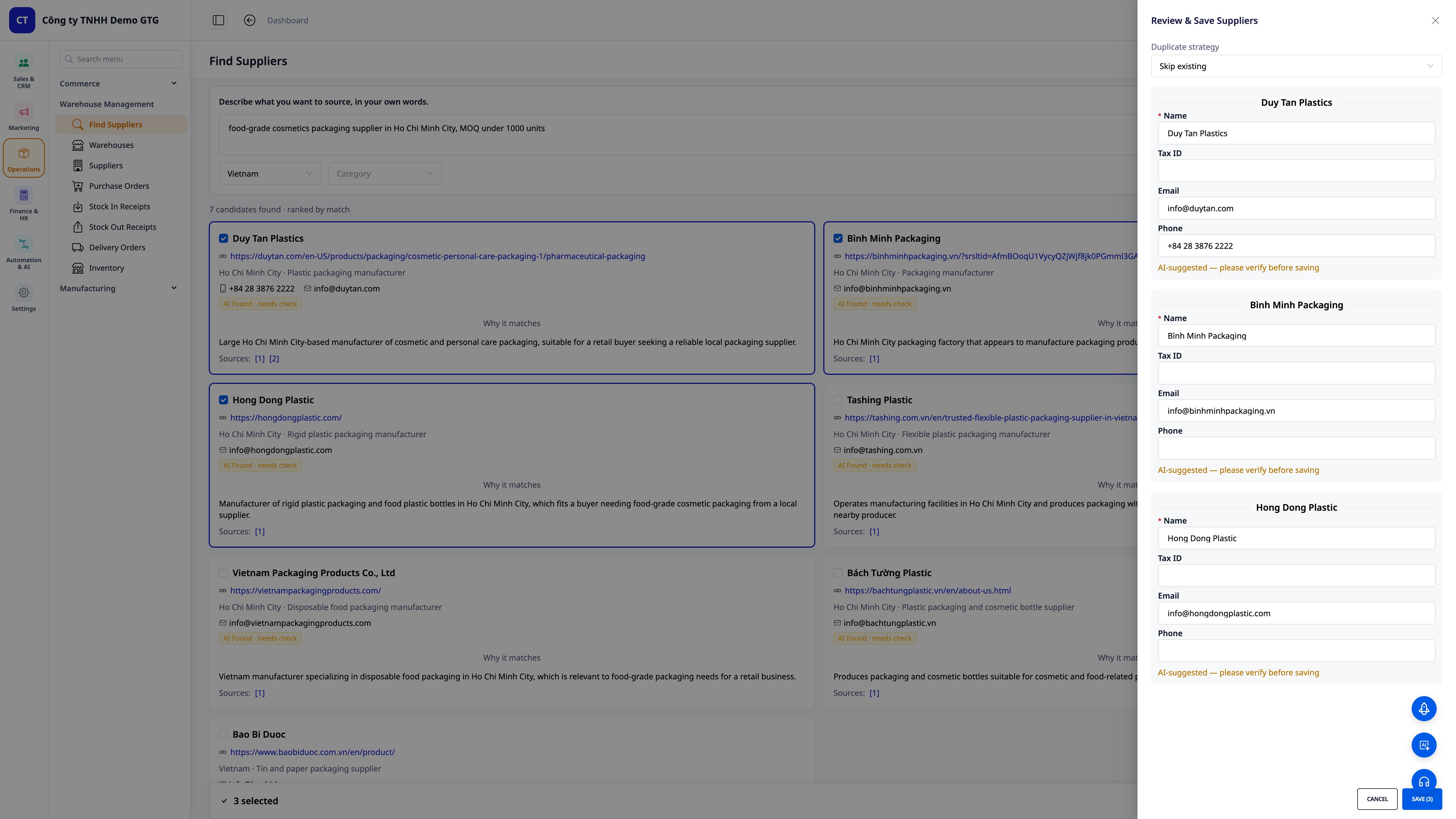
- Read each card: business name, website, region, contact information (phone/email if available).
- Read the "Why it matches" section to understand why the AI considers this candidate suitable.
- Click on the Source links on the card to verify the information yourself.
✅ Expected result: Each card displays complete contact information, the reason for matching, and at least one clickable source link for you to verify the candidate's authenticity.
Step 4 — Select, edit, and save to CRM
- Check the boxes for the suppliers you want to keep.
- Open the Review & Save drawer; make quick edits to the Name / Tax ID / Email / Phone fields if needed.
- In Duplicate strategy, choose how to handle duplicates (e.g., Skip existing to ignore suppliers already in the system).
- Click the save button (e.g., Save (3) if you selected 3 suppliers).
✅ Expected result: The drawer displays the correct "X selected" count, the chosen suppliers are saved to your supplier directory; the system filters duplicates by tax ID, preventing duplicate records.
ℹ️ After saving, the supplier is now in your CRM — you can immediately send an email requesting a quote (RFQ) without re-entering information.
Step 5 — (Optional) Bulk import existing lists and let AI match columns
- In the top right corner of the Find Suppliers screen, click Import.
- Drag and drop your CSV/Excel file (any format, no template required).
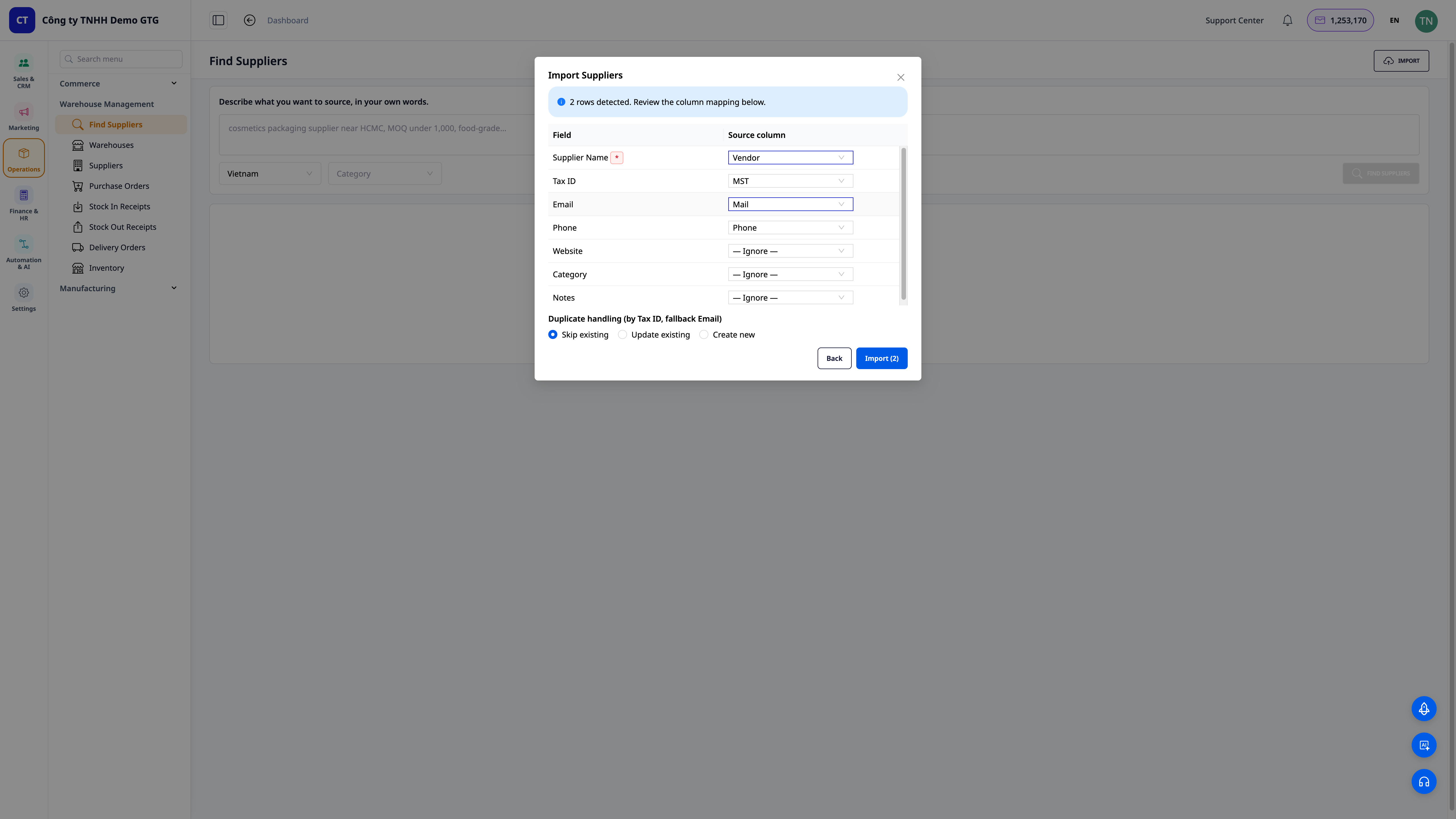
- In the review column mapping step, check the columns the AI has automatically matched: e.g., Supplier Name ← Vendor, Tax ID ← MST, Email ← Mail, Phone ← Phone; edit if necessary.
- In Duplicate handling (by Tax ID, fallback Email), select Skip existing / Update existing / Create new.
- Click Import (N) (N is the number of rows detected).
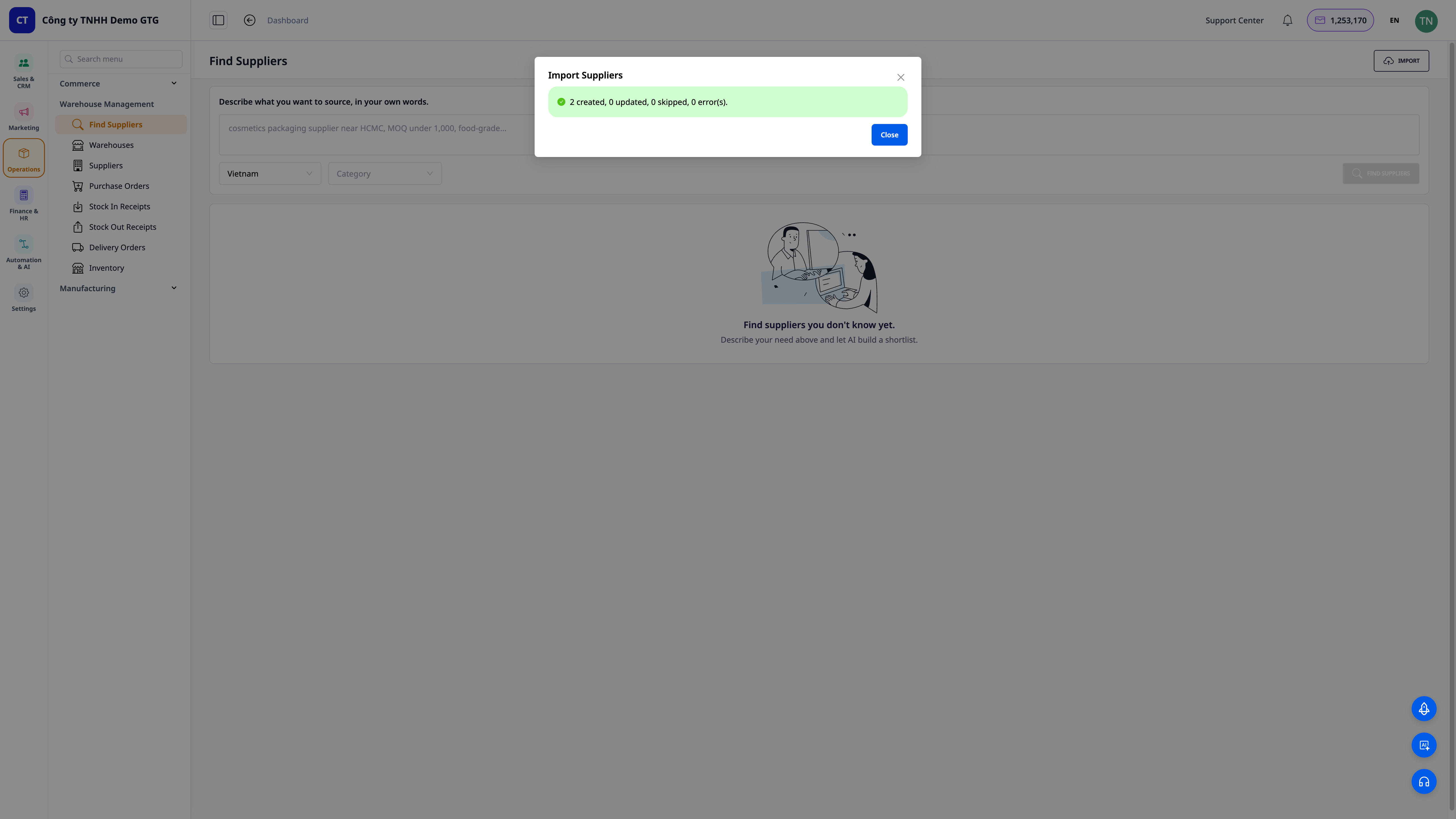
✅ Expected result: The system reports the number of rows detected (e.g., "2 rows detected"), displays the column mapping table for review; after importing, you see a summary table of results for each row: created / updated / skipped (duplicates merged by tax ID).
Quick reference table of expected results
| Action | Result you will see |
|---|---|
| Open Find Suppliers | Needs description field + Country/Category filters + empty state |
| Click Find Suppliers | "X candidates found · ranked by match" + ranked candidate cards |
| Read a card | Name, website, region, contact, "Why it matches", Sources link |
| Select + Save | "X selected" and suppliers saved to CRM, duplicates filtered by tax ID |
| Import file | "N rows detected" → column mapping table → created/updated/skipped summary |
Notes
- The AI returns suggested candidates based on web sources — always click the source links for self-verification before contacting or making a deposit.
- Duplicate supplier filtering prioritizes by tax ID, with email as a fallback — provide tax IDs whenever possible for accurate duplicate prevention.
- You can also ask the AI Assistant in CRM to find suppliers using natural language commands ("find me 5 suppliers for [product]").
- The feature is in its early stages (Phase 1), prioritizing the Vietnamese market; the scope of countries and categories will continue to expand.